



- Detail
- Ditulis oleh IT Pro
- Kategori: How to Articles
- Dilihat: 13535
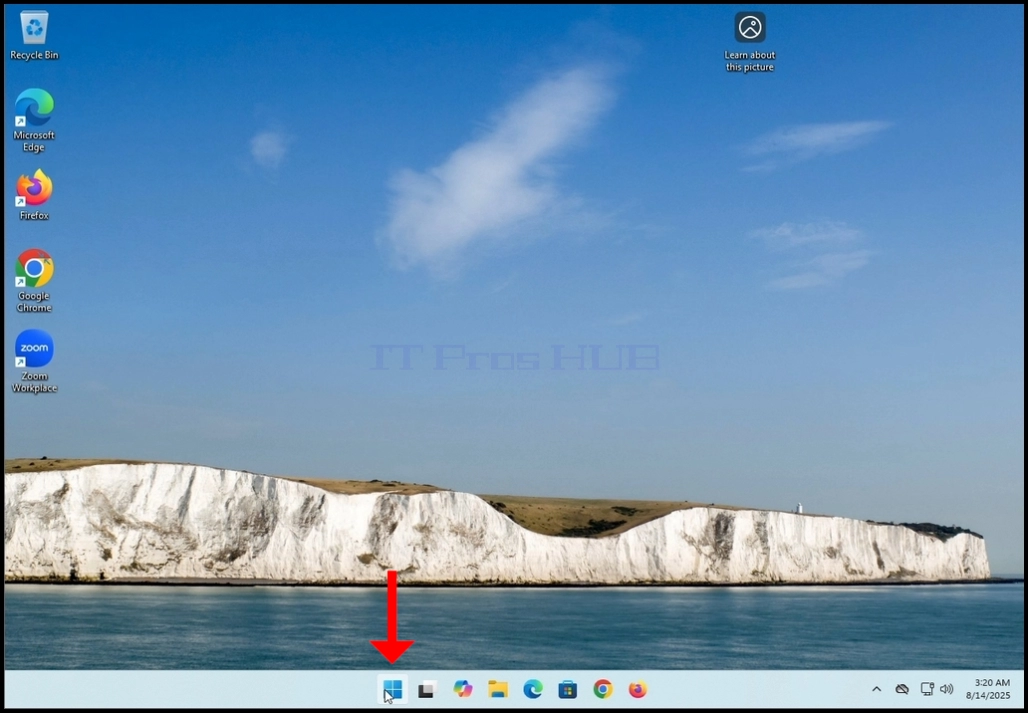
Pergi ke Windows desktop dan mencari Mulai tombol

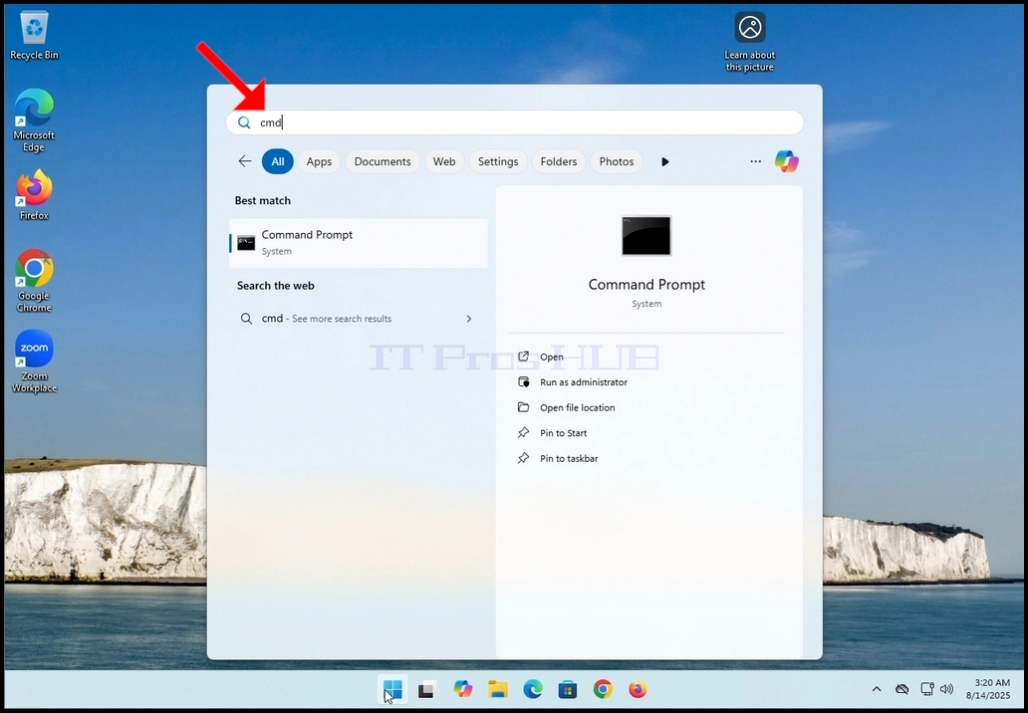


6 setelah jendela perintah Prompt muncul, ketik perintah berikut:
a. DISM / online / cleau-image / restorehealth
7. ENTER kunci

8. ENTER kunci, DISM akan mulai bekerja sesuai dengan argumen yang diberikan
Andaakandisajikan dengan versi versi gambar Anda menjalankan

Berikut ini adalah rincian dari proses DISM dalam artikel ini:
a. / Online AvernTells DISTM untuk menargetkan instalasi Windows yang berjalan (OS Anda saat ini), bukan sebuah gambar luring.
b. / Cleanup-Image Specifies bahwa perintah akan beroperasi pada gambar Windows melayani stack (toko komponen, juga dikenal sebagai WinSxS).
c. / ReboreHealth Instruct DISTM untuk memindai sistem untuk korupsi dalam gambar Windows dan mencoba memperbaikinya secara otomatis.
Apa yang dilakukannya dalam praktek:
scans toko komponen (WinSxS) untuk korupsi atau inkonsistensi.
B, memeriksa kesehatan dengan salinan yang diketahui bagus.
c. Merubah masalah dengan mengunduh berkas bersih

Setelah beberapa detik, sebuah progress bar akan muncul

13.
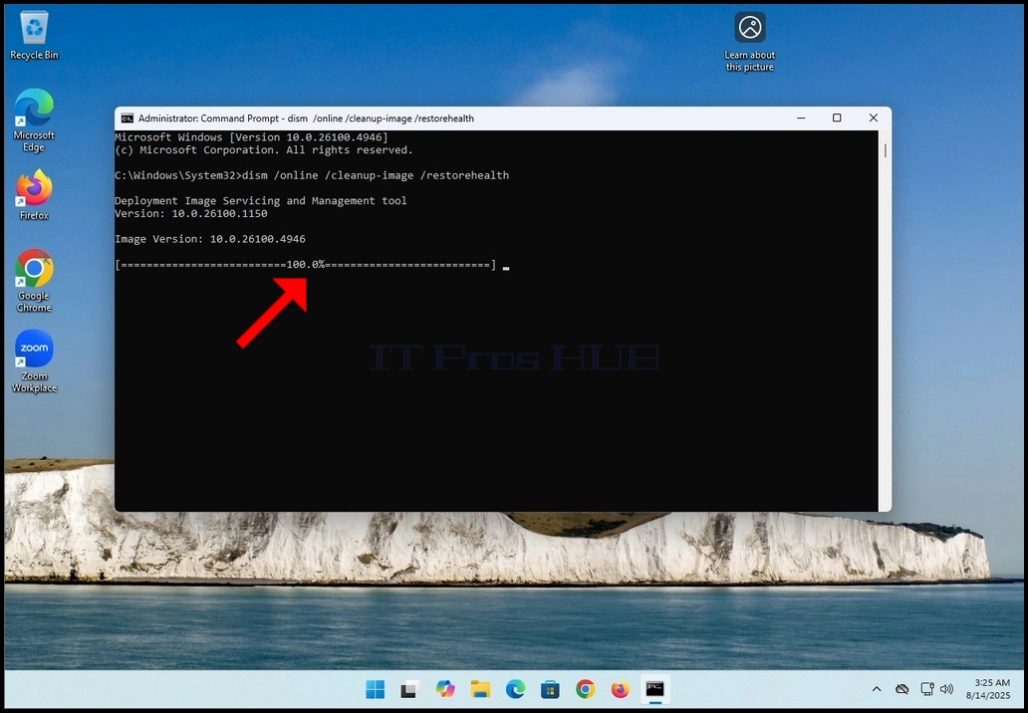
Setelah proses DISM selesai, Anda akan disajikan dengan pesan berikut:
a. Operasi pengembalian berhasil selesai

- Detail
- Ditulis oleh IT Pro
- Kategori: How to Articles
- Dilihat: 11172
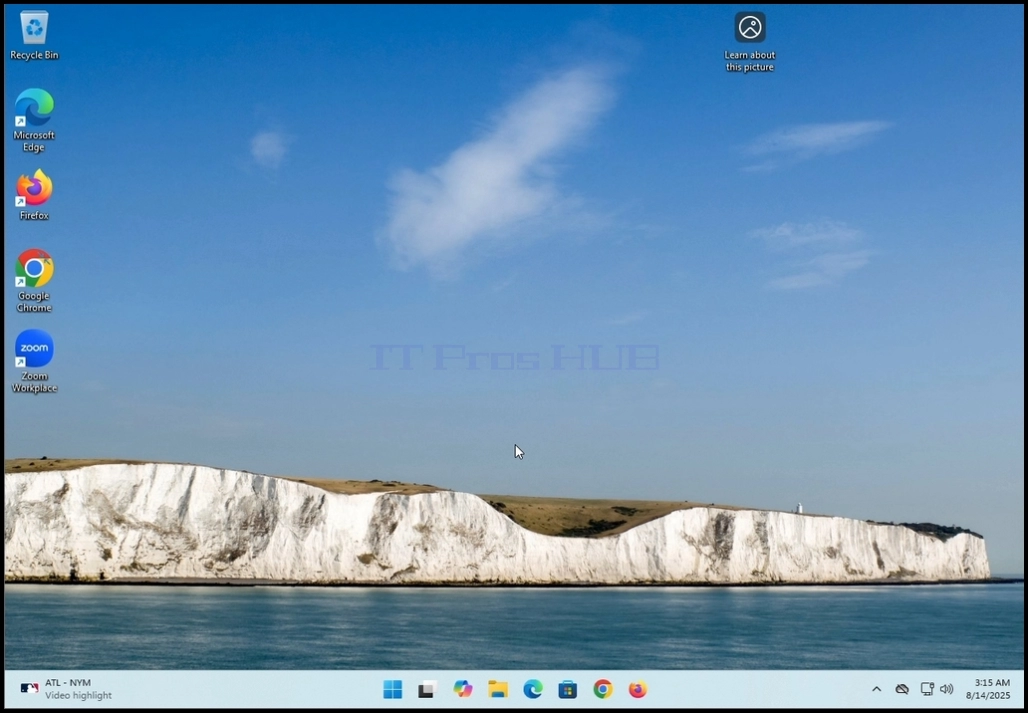
- Menuju desktop Windows
3. Pengaturan taskbar

Tunggu sebentar. Personalisasi > Taskbar jendela untuk dibuka

Di baris ketiga, cari Widget.

Di baris yang sama Widget ada tombol yang ditata ke ONAtur ke OFF dengan mengklik sekali


7. Tutup jendela pengaturan Taskbar

Sekarang Anda dapat melihat bahwa fitur widget hilang dari taskbar

- Detail
- Ditulis oleh IT Pro
- Kategori: How to Articles
- Dilihat: 10026


3. Wait for Zoom Workplace to load


5. On the next stage, Zoom will show you available sign in methods. Amongst these methods there is a Google method.
6. Click the Google sign-in method icon (The Google “G” icon) and wait for Zoom to open a Google “sign in with Google” page.

7. If your default browser is Chrome and is already signed into your Gmail account, you would see the following window:
a. If you use a different browser or a browser that was not signed into with your Google account, then fill in your Gmail address the phone number associated with it and click Continue


14. In the next window, to finish the sign in process, click on the Create Account button


17. Wait for Zoom Workplace to start again
 18.
18.


19. After Zoom Workplace starts, notice your Gmail account initials on the top right corner of the Zoom window. That means your Google account was successfully used to sign into Zoom Workplace!


20. In some cases, Windows Security will ask you if “Do you want to allow public and private networks to access this app?”. This is completely normal. In this case, Windows Security asks us this question because it is the local cyber security solution installed and activated on this Windows 11 platform. If a different cyber security solution was installed, then it would have been very highly unlikely Windows Security would have asked this question but rather the 3rd party cyber security solution would have.


- Detail
- Ditulis oleh IT Pro
- Kategori: How to Articles
- Dilihat: 9292
1. Pergi ke Desktop Windows dan klik Mulai tombol

Di panel kiri, cari pilihan terakhir yang mengatakan...Pemutakhiran Windows"Dan klik di atasnya
4. Tunggu jendela Windows Update muncul

Di sisi kanan jendela, klik Periksa pemutakhiran tombol

Tepat setelah mengklik Periksa pemutakhiran tombol, Anda akan melihat pemberitahuan animasi yang mengatakan "Memeriksa pemutakhiran..."Di bagian atas jendela
a. Proses ini bisa memakan waktu beberapa detik untuk beberapa menit

7. Setelah pembaruan ditemukan, mereka akan ditampilkan dalam daftar terurut di bawah animasi yang sebelumnya disebutkan dan mereka akan segera mulai diunduh oleh Windows Update
Kadang-kadang beberapa update ini akan gagal untuk download. Dalam kasus tersebut, tombol ulang berwarna biru akan muncul di sisi kanan dari nama pembaruan. Klik di atasnya untuk mencoba mengunduhnya lagi.

8 Setelah proses pengunduhan pembaruan spesifik telah dilakukan, Windows Update akan mulai memasangnya segera.

Ketika pembaruan selesai dipasang, "Memasang"Status di sebelah kanan akan berubah menjadi"Selesai"

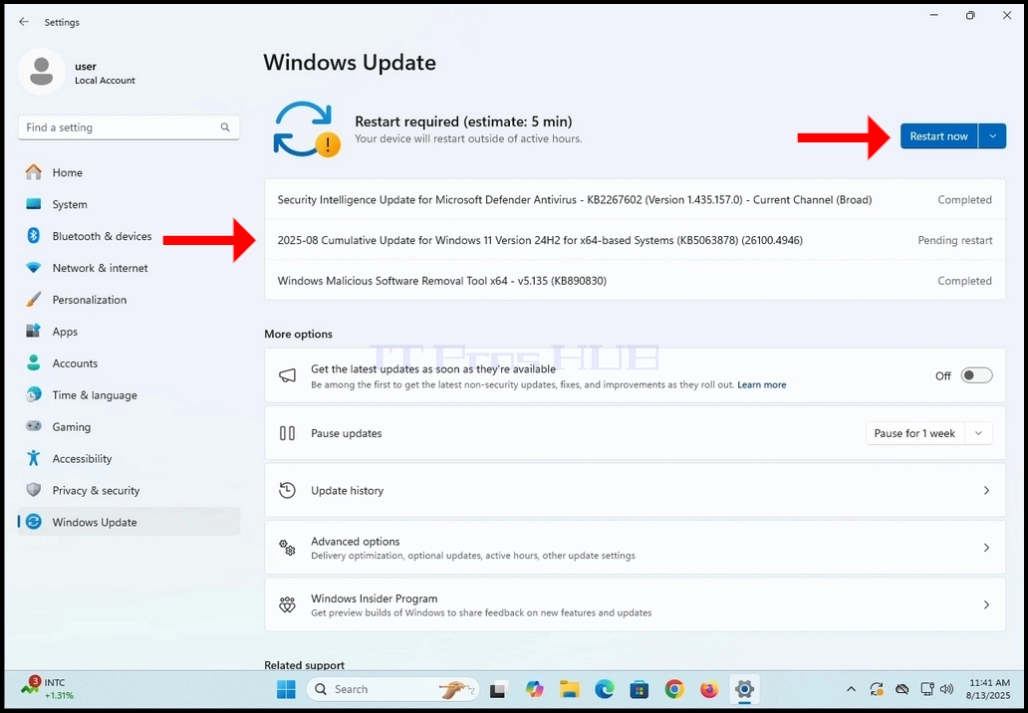
11. Restart secara manual sistem operasi Windows

Seperti yang Anda lihat di cuplikan layar di bawah ini, Windows secara otomatis menginstal pemutakhiran yang telah tertunda restart yang disebutkan dalam tahap 10.

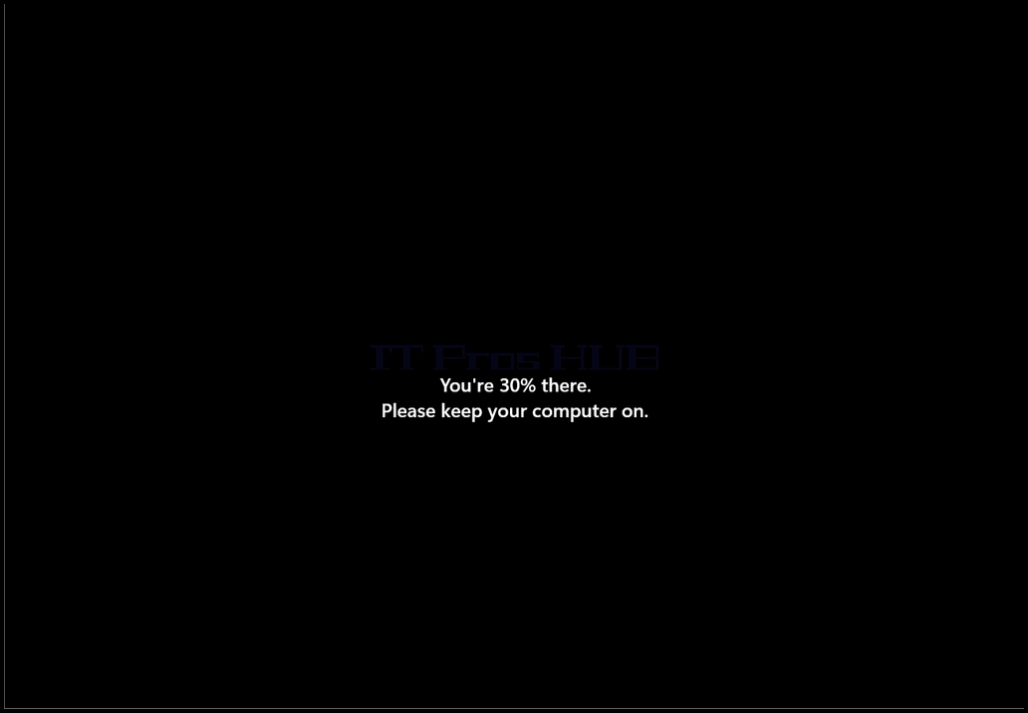

13. Setelah pembaruan start- up telah dipasang, Windows harus mulai normal.
x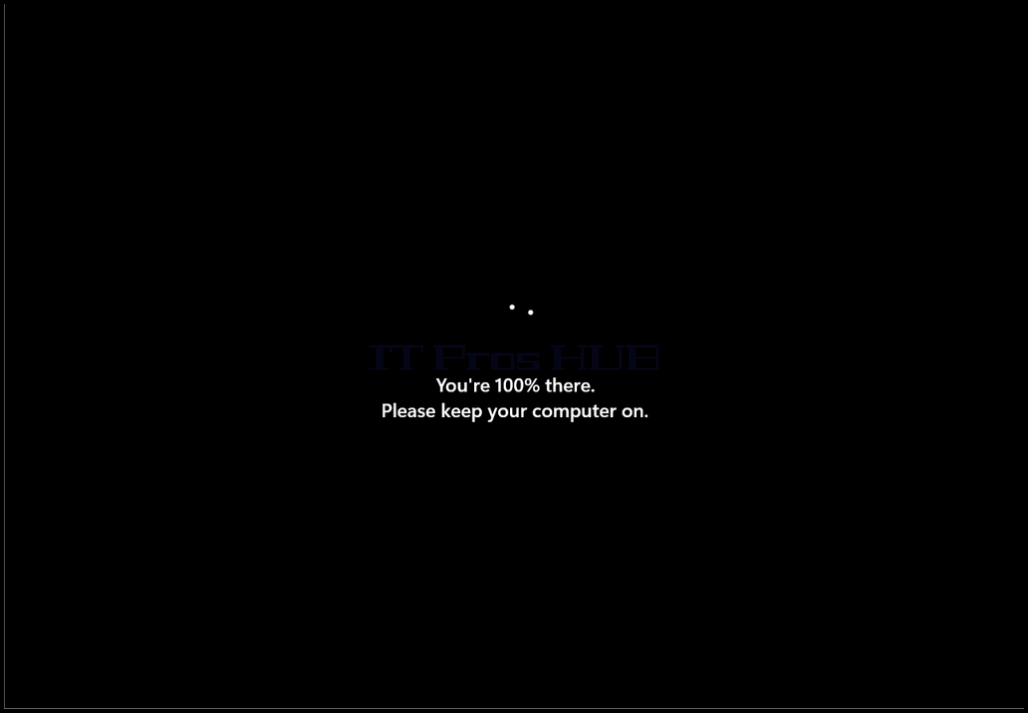
- Detail
- Ditulis oleh IT Pro
- Kategori: How to Articles
- Dilihat: 6866
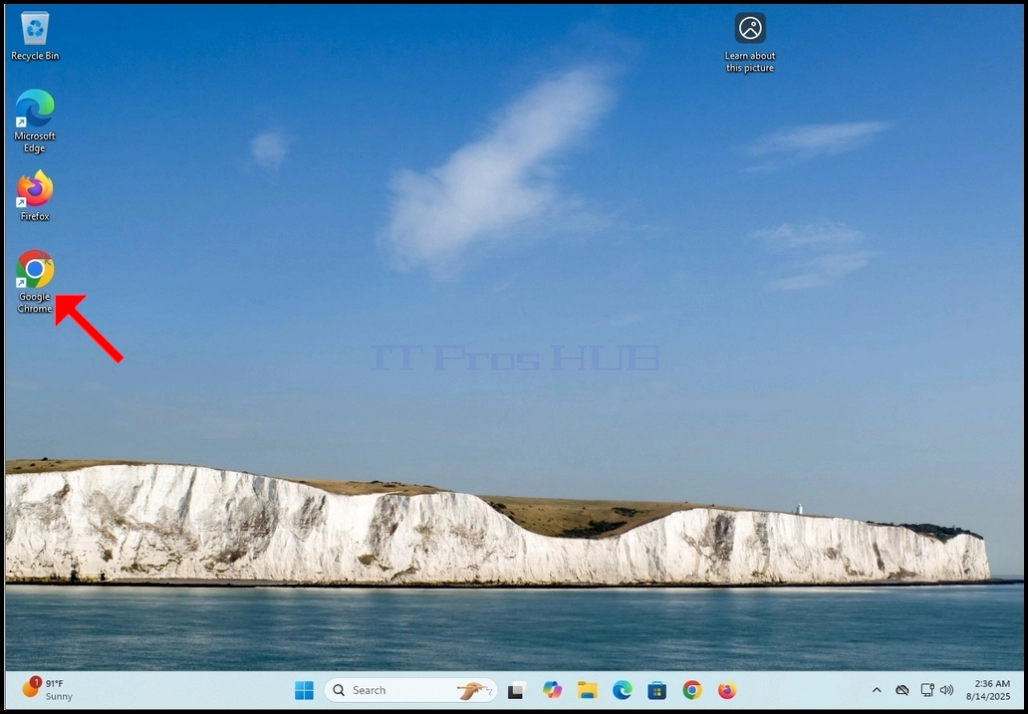
- Open your web browser. In this article we will use Google Chrome.
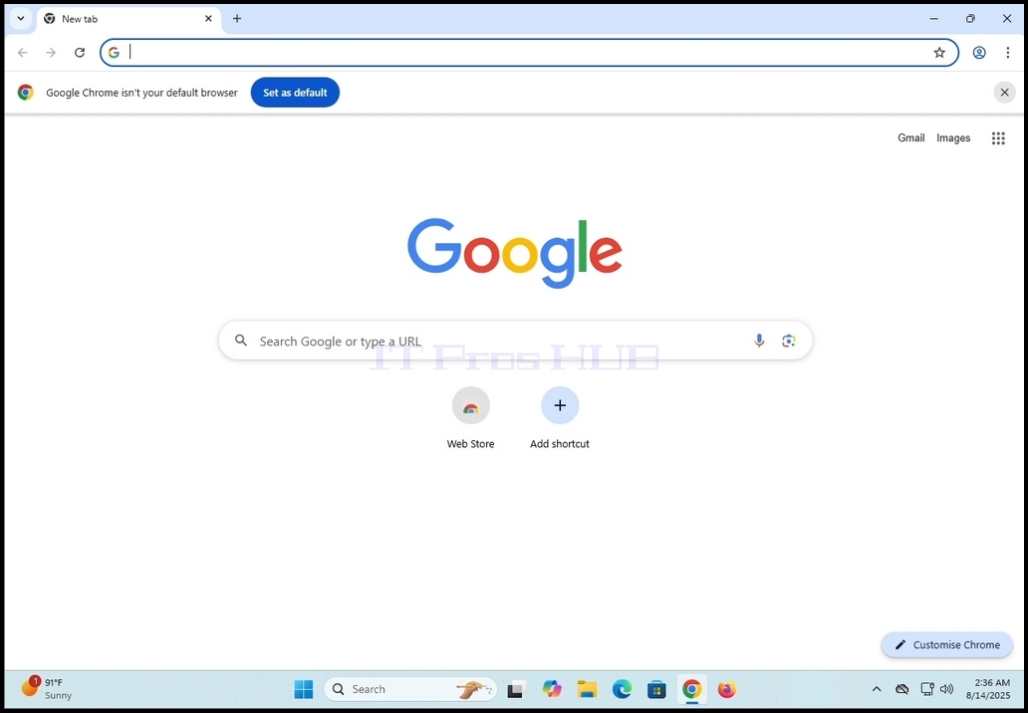
2. In the address line type: “download zoom” and hit the ENTER key on your keyboard

3. Wait for the search results to appear (In this article, the search engine used is the one which is native to Google Chrome which is Google)

4. Mostly, the first search result should be the right one but not only. In this article we will go to the first search result which is titled: “Download Center for Zoom and Plugins”

5. The next screen should be Zoom’s Download Center page.

6. Scroll down the page a little till you find the downloading options
a. Download (64-bit)
b. Download (32bit)
c. Download (ARM64)
7. In this article we will download the 64-bit version which is also the most commonly used one

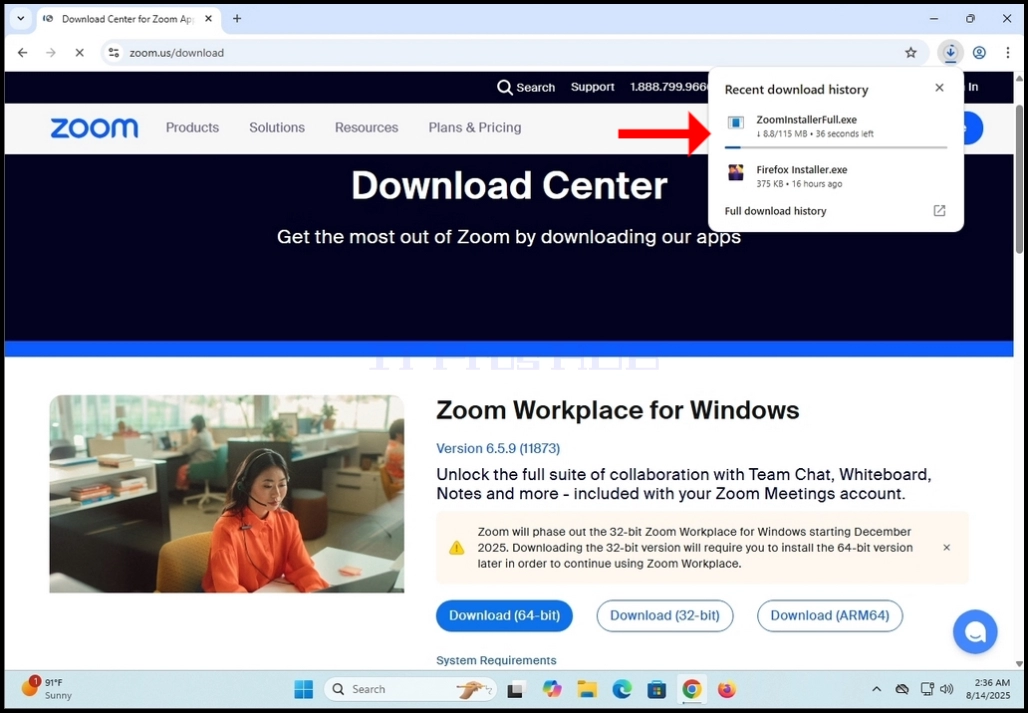
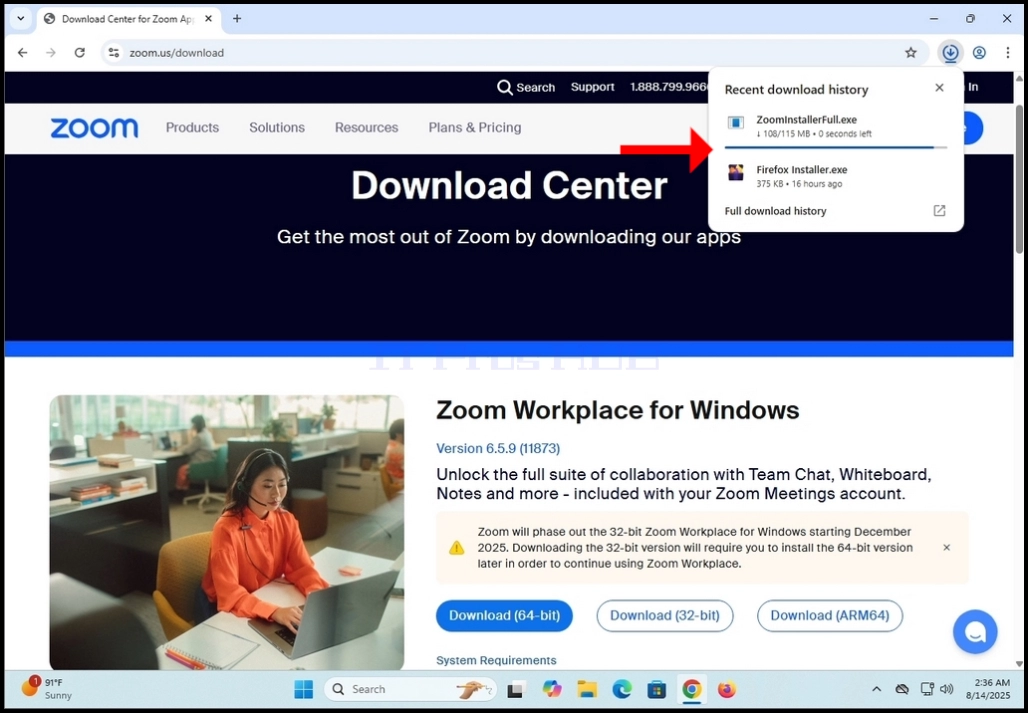
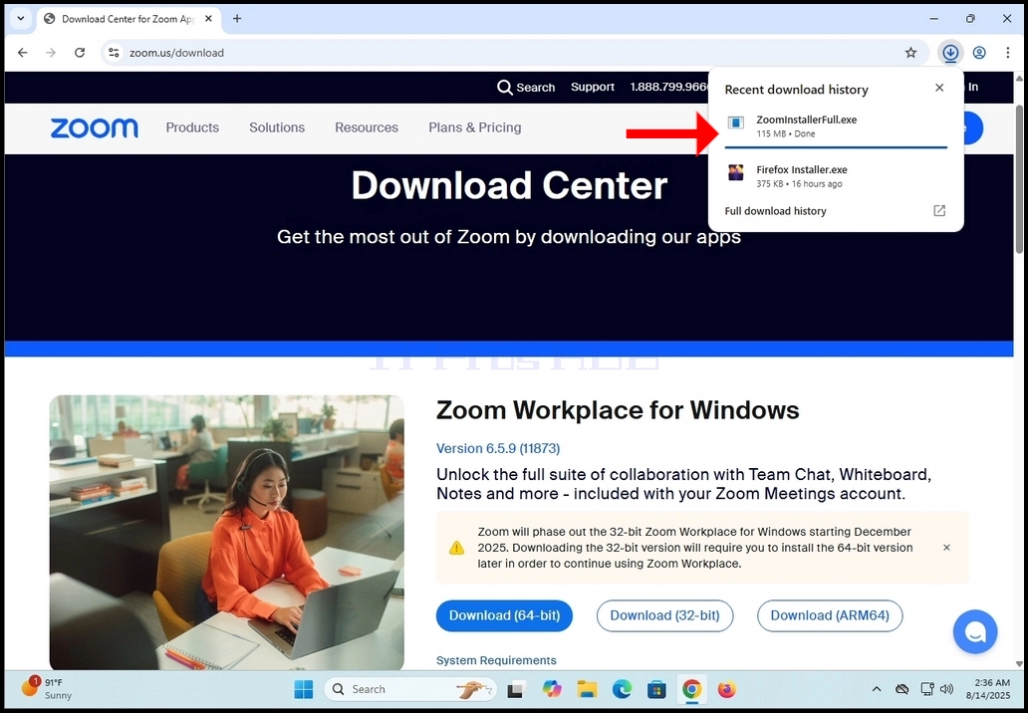
9. Wait for the download to finish and then click on the downloaded file and wait for the Zoom Workplace installation wizard to appear

10. Wait for the installer to initialize

11. Once the installation is successful you will be notified as such by the installer
12. You will also get to choose whether you like to keep Zoom up to date automatically by marking the “Automatically keep Zoom Workplace app up to date” sentence.

14. After clicking Done, Zoom Workplace’s GUI should appear
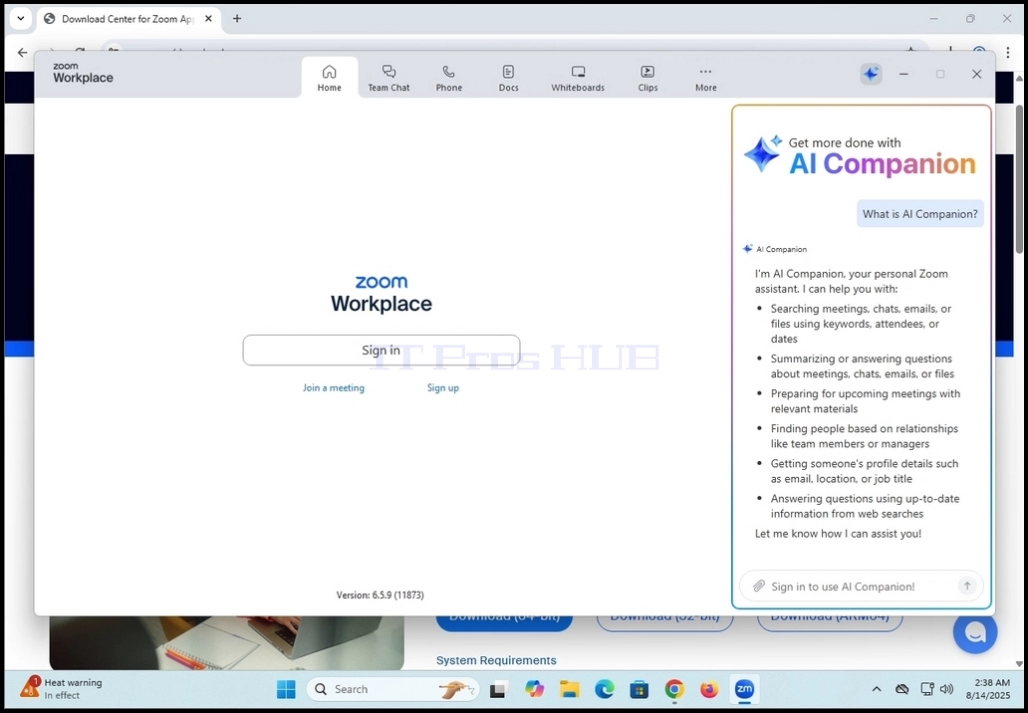
15. From here you can use Zoom Workplace in a few ways:
a. Just to join a meeting – no need to create an account
b. Sign up and create an account to initiate meetings
16. Zoom Workplace is now installed and ready to be used