



- Деталі
- Автор: IT Pro
- Категорія: How to Articles
- Перегляди: 13533
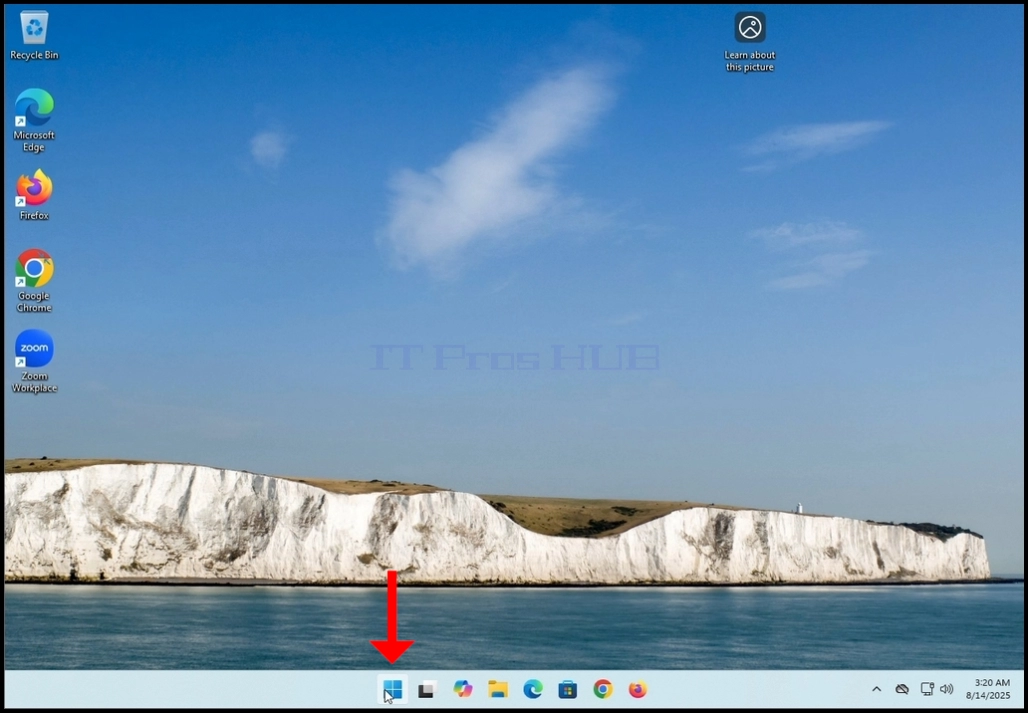

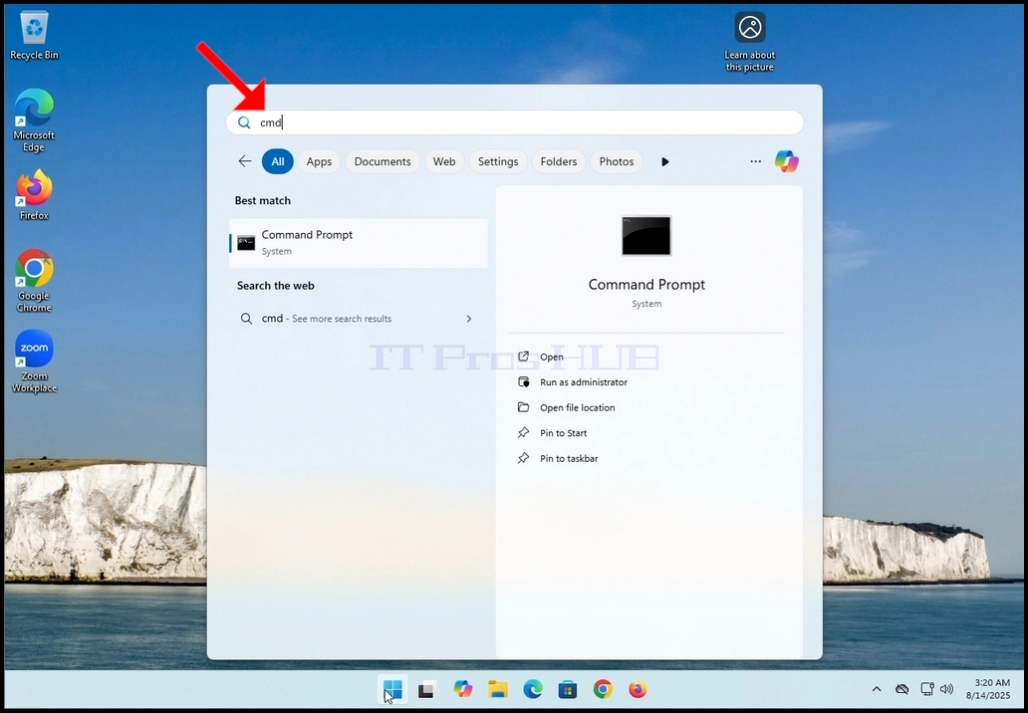

5. Click YES and wait for the Command Prompt window to appear


6. After the Command Prompt window appears, type the following command:
a. DISM /online /cleanup-image /restorehealth
7. Hit the ENTER key

8. After hitting the ENTER key, DISM will start working according to the given arguments
9. You will be presented with the version of the image version you are running

10. The following is a breakdown of the DISM process in this article:
a. /Online → Tells DISM to target the running Windows installation (your current OS), not an offline image.
b. /Cleanup-Image → Specifies that the command will operate on the Windows image servicing stack (the component store, also known as WinSxS).
c. /RestoreHealth → Instructs DISM to scan the system for corruption in the Windows image and attempt to repair it automatically.
11. What it does in practice:
a. Scans the component store (WinSxS) for corruption or inconsistencies.
b. Checks health against known good copies.
c. Repairs problems by downloading clean files

12. After a few seconds, a progress bar will appear

13. Wait till the progress bar hits 100%
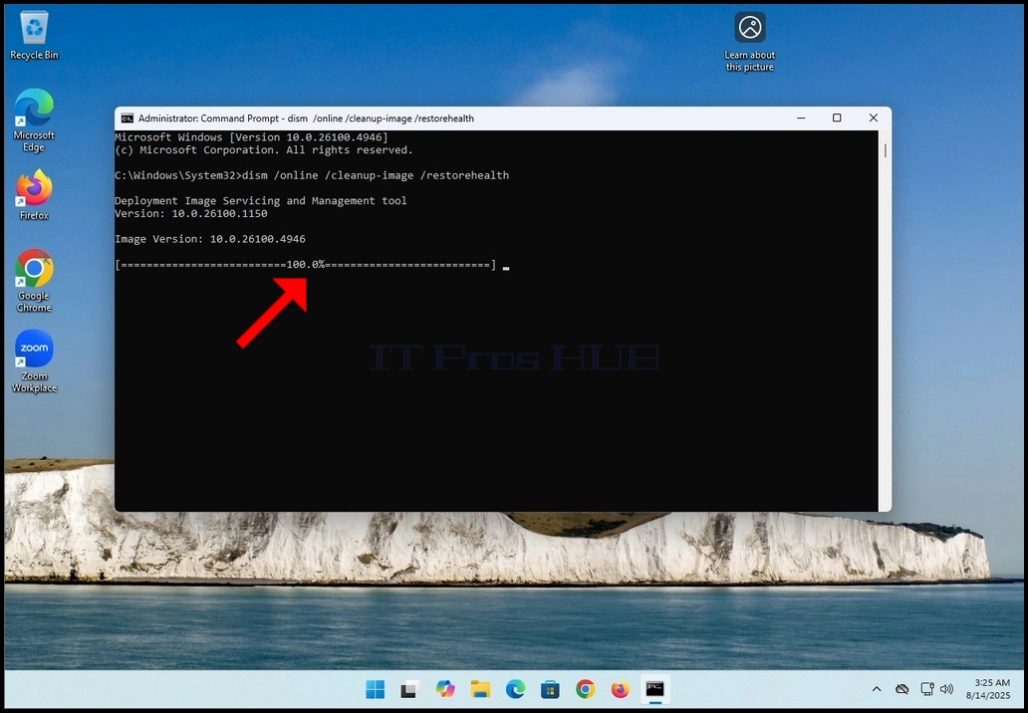
14. After the DISM process is done, you will be presented with the following message:
a. The restore operation completed successfully

- Деталі
- Автор: IT Pro
- Категорія: How to Articles
- Перегляди: 11154
- Go to Windows desktop

4. Wait for the Personalization > Taskbar window to open

5. In the 3rd row, look for Widgets.


7. Close the Taskbar settings window

8. Now you can see that the widget feature is gone from the taskbar

- Деталі
- Автор: IT Pro
- Категорія: How to Articles
- Перегляди: 10009


3. Wait for Zoom Workplace to load


5. On the next stage, Zoom will show you available sign in methods. Amongst these methods there is a Google method.
6. Click the Google sign-in method icon (The Google “G” icon) and wait for Zoom to open a Google “sign in with Google” page.

7. If your default browser is Chrome and is already signed into your Gmail account, you would see the following window:
a. If you use a different browser or a browser that was not signed into with your Google account, then fill in your Gmail address the phone number associated with it and click Continue


14. In the next window, to finish the sign in process, click on the Create Account button


17. Wait for Zoom Workplace to start again
 18.
18.


19. After Zoom Workplace starts, notice your Gmail account initials on the top right corner of the Zoom window. That means your Google account was successfully used to sign into Zoom Workplace!


20. In some cases, Windows Security will ask you if “Do you want to allow public and private networks to access this app?”. This is completely normal. In this case, Windows Security asks us this question because it is the local cyber security solution installed and activated on this Windows 11 platform. If a different cyber security solution was installed, then it would have been very highly unlikely Windows Security would have asked this question but rather the 3rd party cyber security solution would have.


- Деталі
- Автор: IT Pro
- Категорія: How to Articles
- Перегляди: 9228

2. Click on Settings and wait for the Settings window to appear
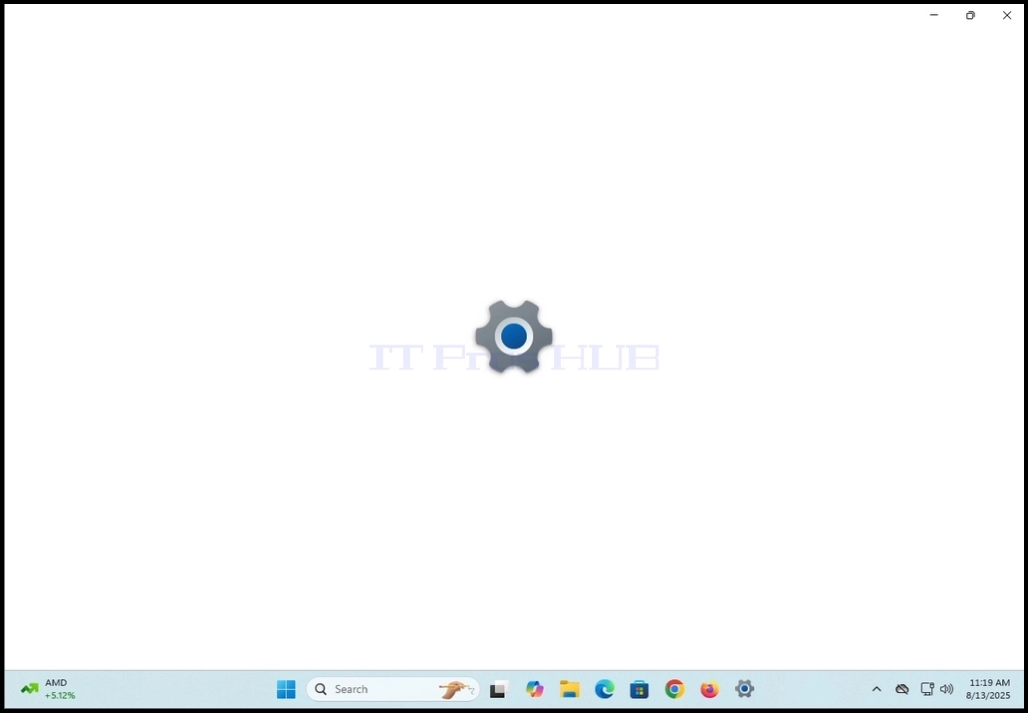
3. On the left pane, look for the last option that says “Windows update” and click on it
4. Wait for the Windows Update window to appear


8. After the downloading process of a specific update has been done, Windows Update will start installing it right away.

9. When update is done being installed, the “Installing” status on the right would change to “Completed”

10. Some updates would require the Windows operating system to be restarted in order to be fully installed. In those cases, their status on the right would be changed from “Completed” to “Pending restart”.
a. In this article we have such an example
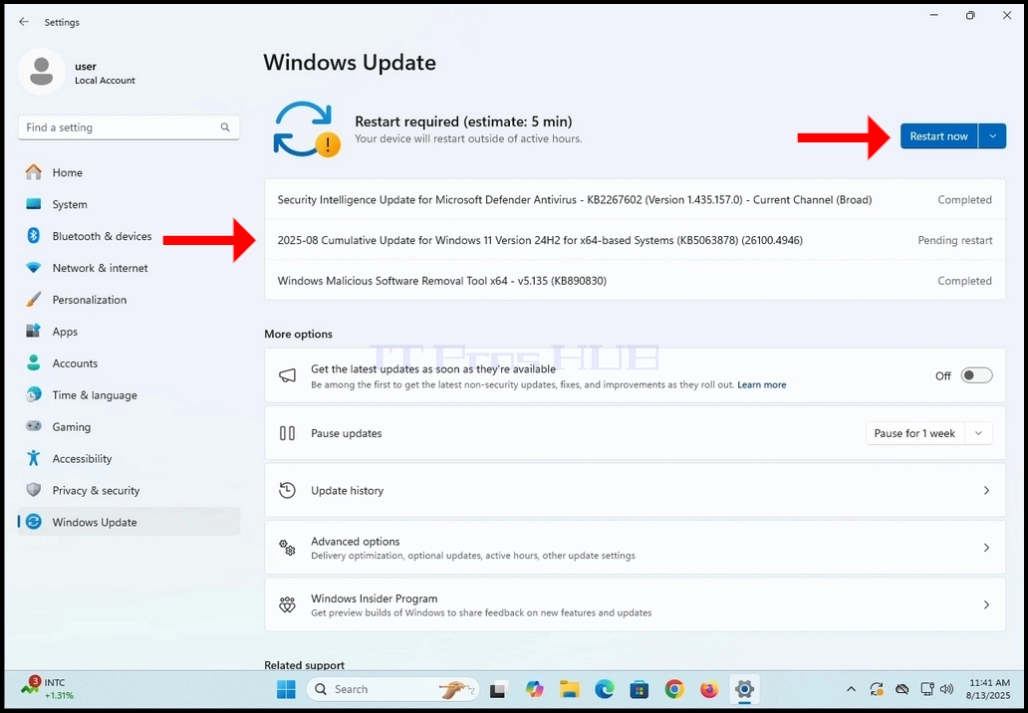
11. Manually restart the Windows operating system

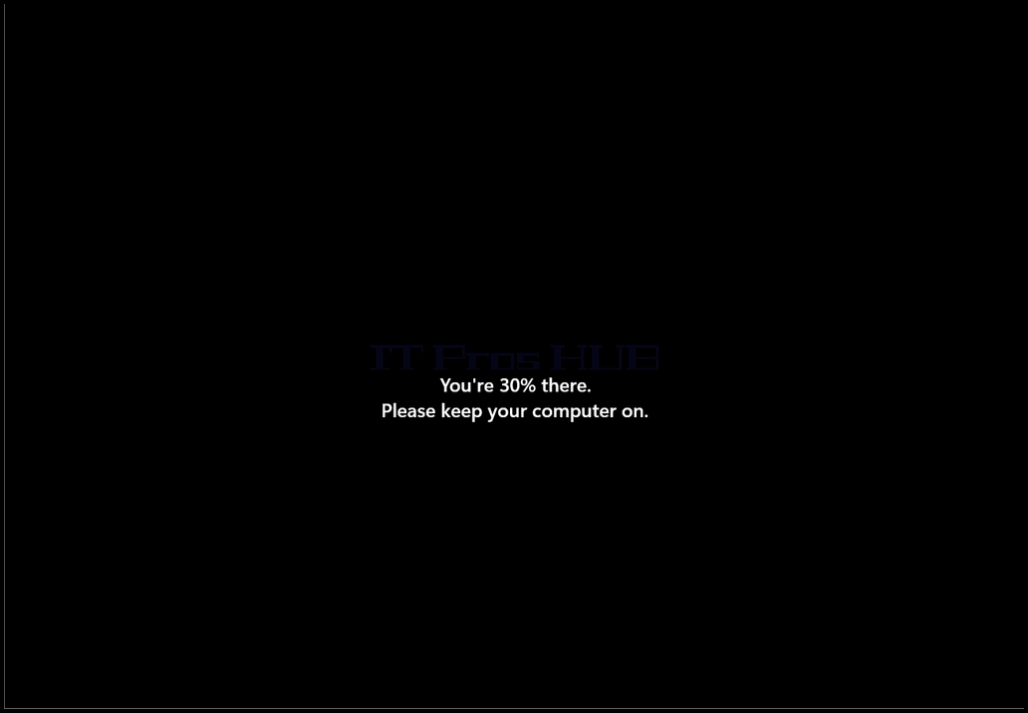
12. As you can see in the screenshot below, Windows is automatically installing the update that has been pending restart mentioned in stage 10.


13. Once the start-up update has been installed, Windows should start normally.
x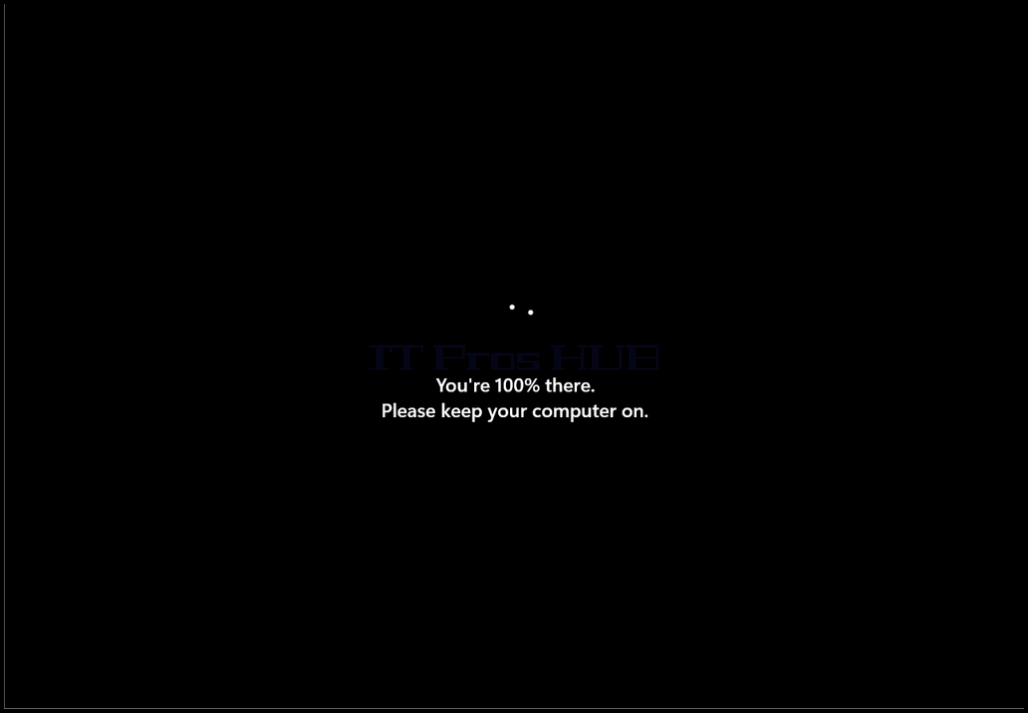
- Деталі
- Автор: IT Pro
- Категорія: How to Articles
- Перегляди: 6800
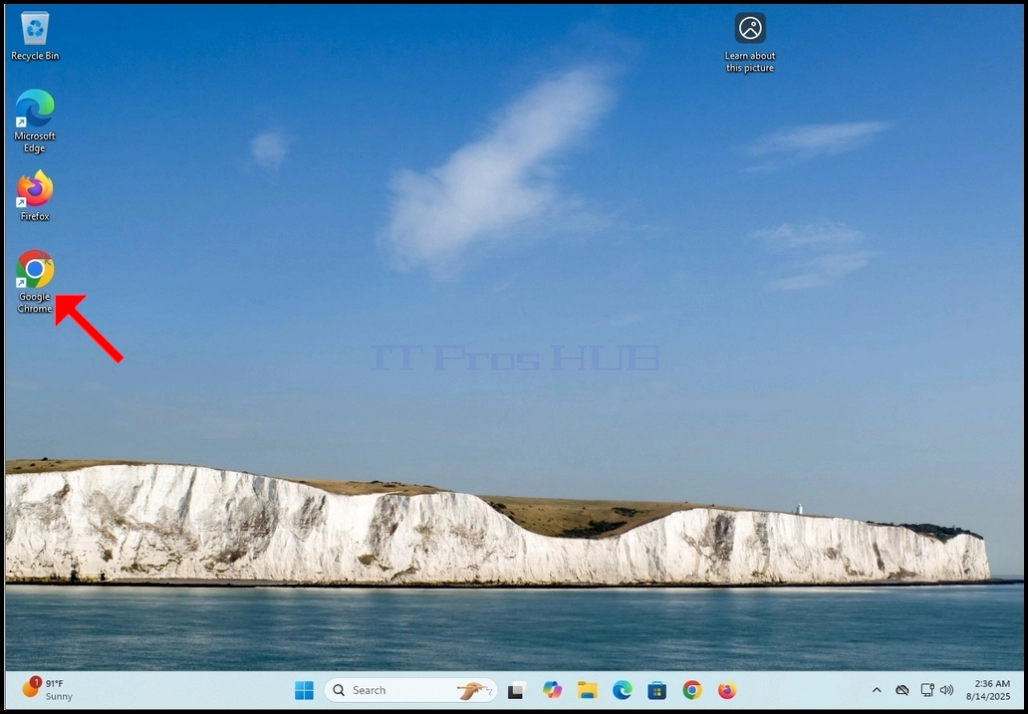
- Відкрийте свій веб-браузер. У цій статті ми використаємо Google Хром.
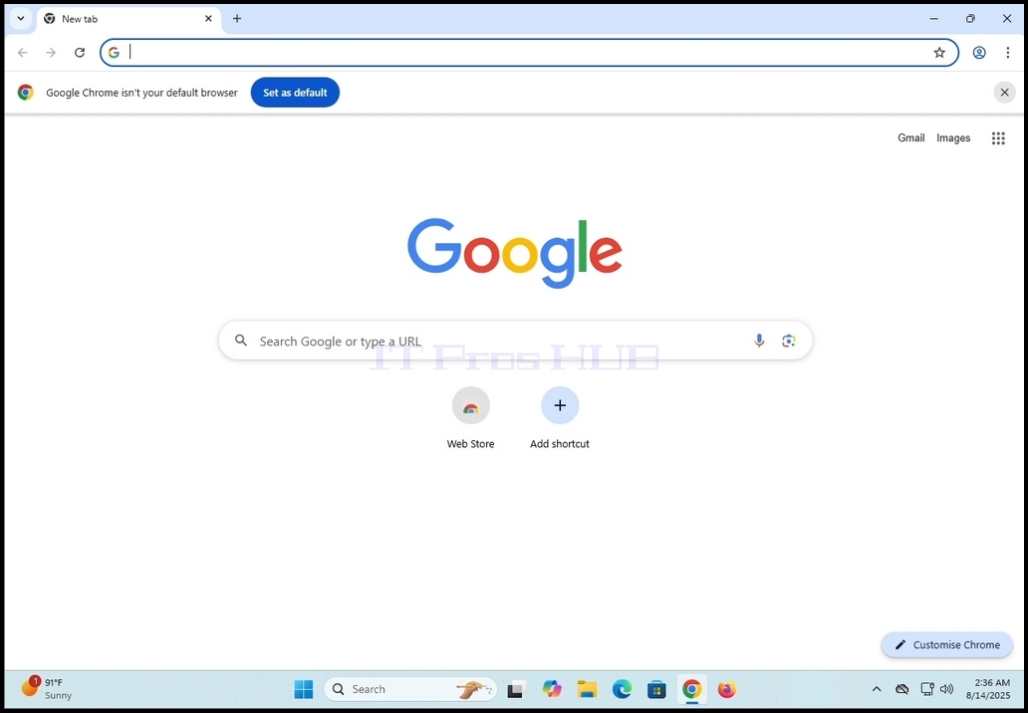
2. У рядку адреси тип: ведьЗбільшення звантаження♪ ВИХОВАННЯ key на вашій клавіатурі

3. Чекайте, доки з'являться результати пошуку (У цій статті використано рушій пошуку, який є рідною Google Chrome, який є Google)

4. Здебільшого перший результат пошуку повинен бути правильним, але не тільки. У цій статті ми перейдемо до першого результату пошуку, який називається: 'Центр звантаження для зміни масштабу і додатків⇩

5. Наступним екраном має бути Часи Звантаження центру page.

6. Прогорніть сторінку трохи, поки не знайдете параметри звантаження
a. Звантаження (64- бітове)
b. Звантаження (32 біти)
c. Звантаження (ARM64)
7. У цій статті ми звантажимо 64- бітову версію, яка також є найпоширенішою версією

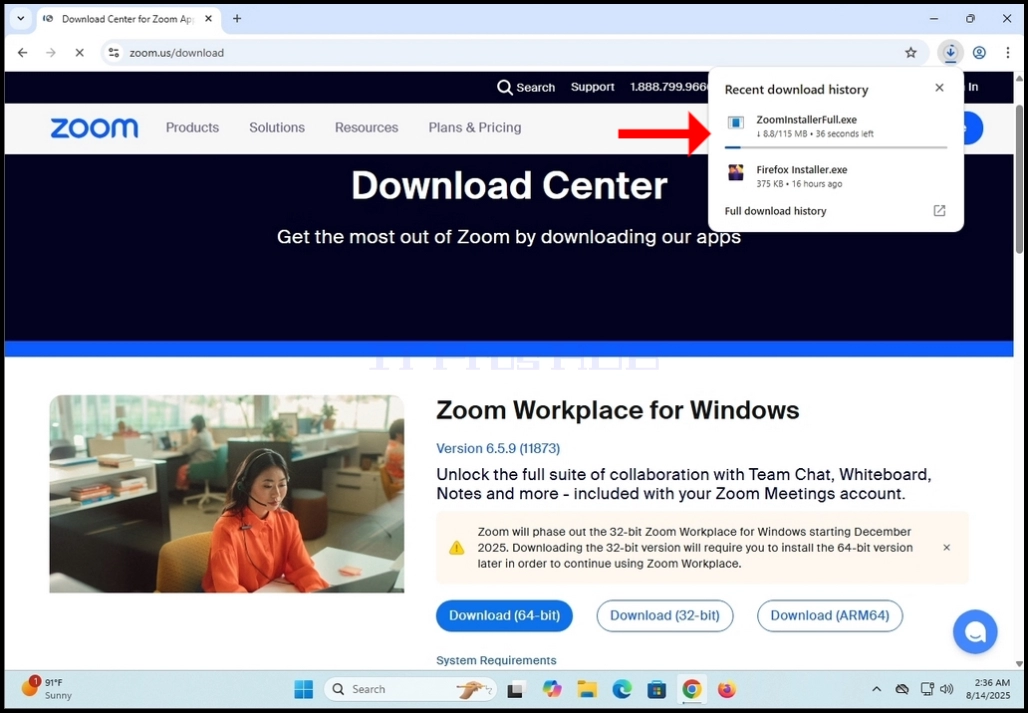
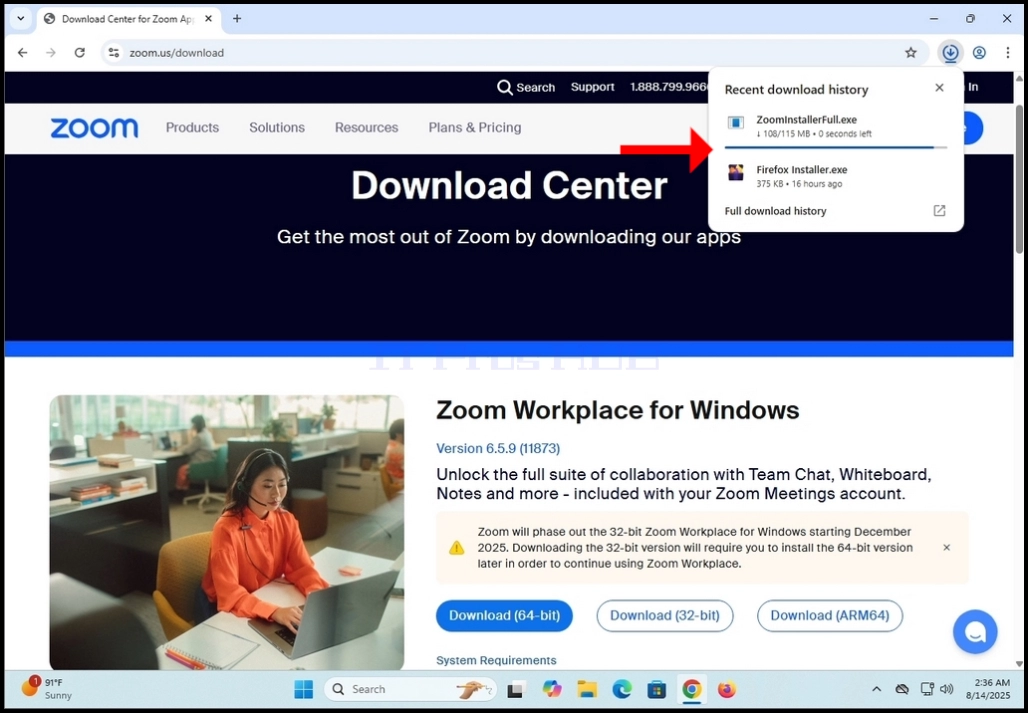
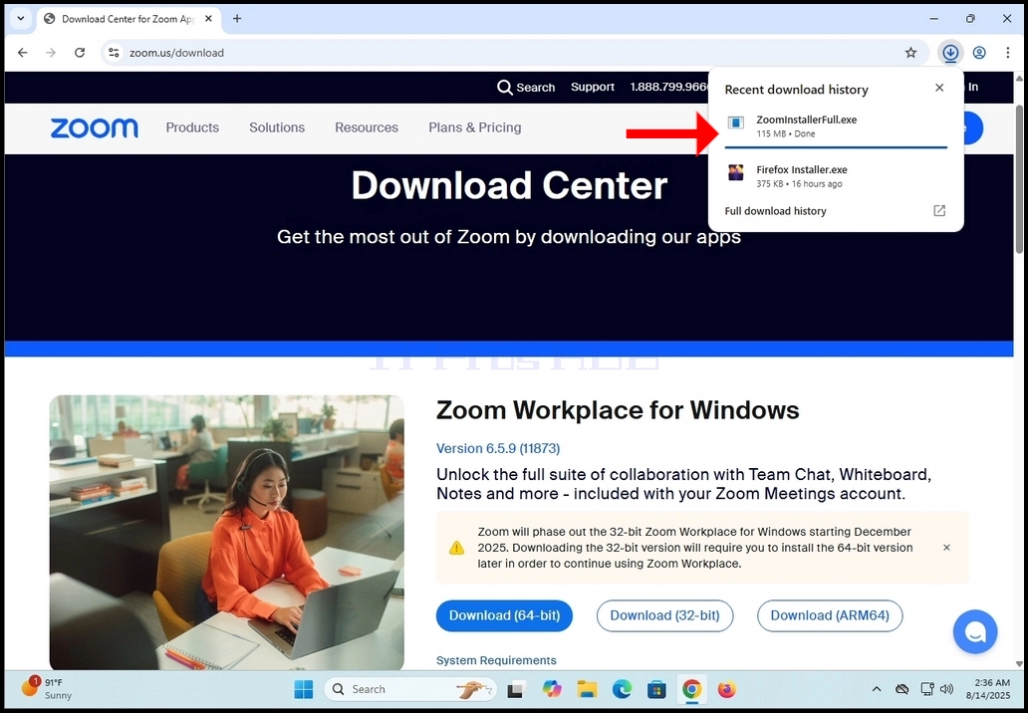
9. Зачекайте на завершення звантаження, а потім наведіть вказівник миші на звантажений файл і клацніть лівою кнопкою миші, щоб відкрити вікно майстра встановлення пункту Масштабування робочого місця

10. Чекати на ініціалізація інструменту встановлення

11. Після успішного встановлення вас сповіщатиме інструмент встановлення
12. Ви також зможете вибрати, чи бажаєте ви автоматично збільшувати масштаб до дати, позначивши ♫Автоматично змінювати масштаб програмиТитул.
Натисніть кнопку Завершено button, коли готовий

14. Після клацання, має з'явитися графічний інтерфейс " Масштаб "
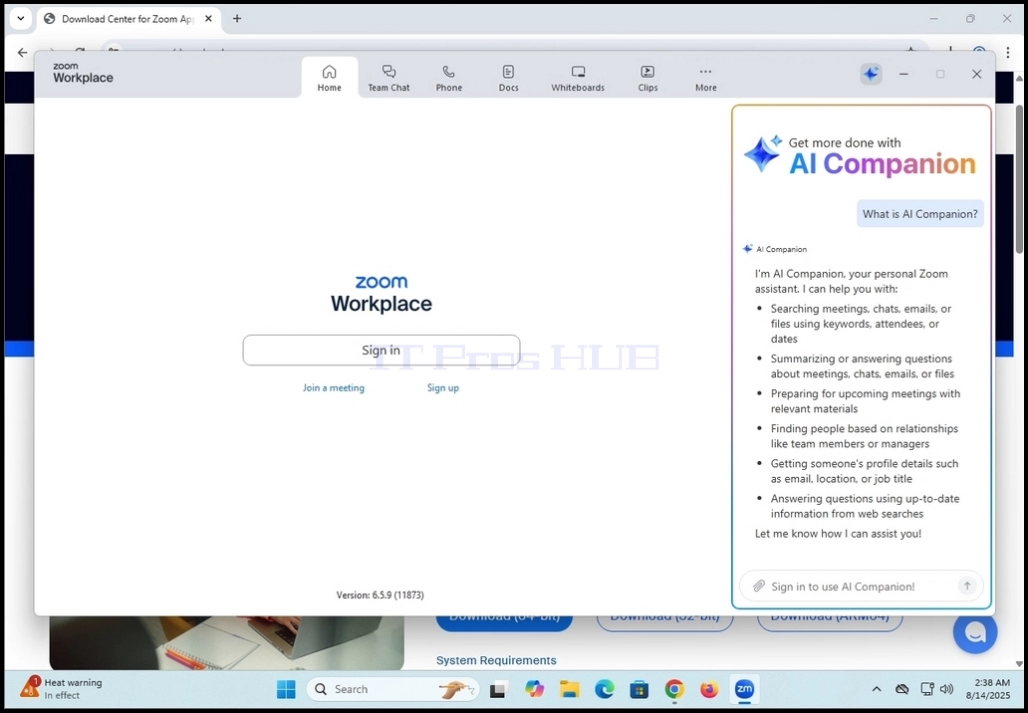
За допомогою цього пункту ви можете вказати місце праці у декілька способів:
a. Щоб приєднатися до зустрічі, не потрібно створювати рахунок.
б. Підписатися і створити рахунок для започаткування зібрань
16. Тепер місце роботи встановлено і готовий до використання