



1. Go to Windows Desktop
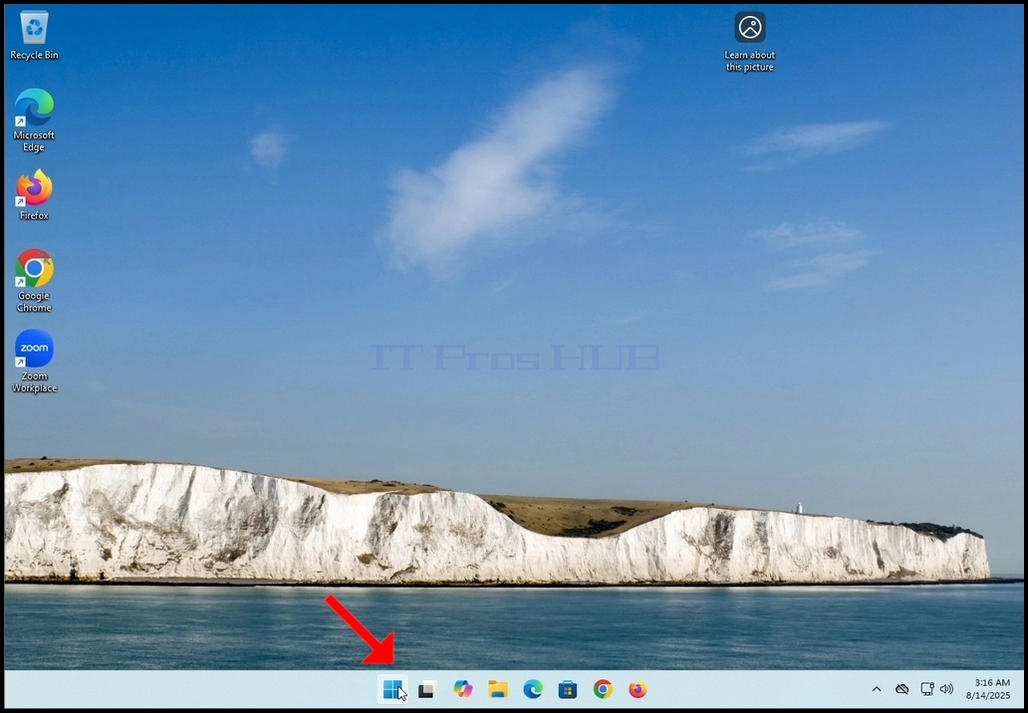


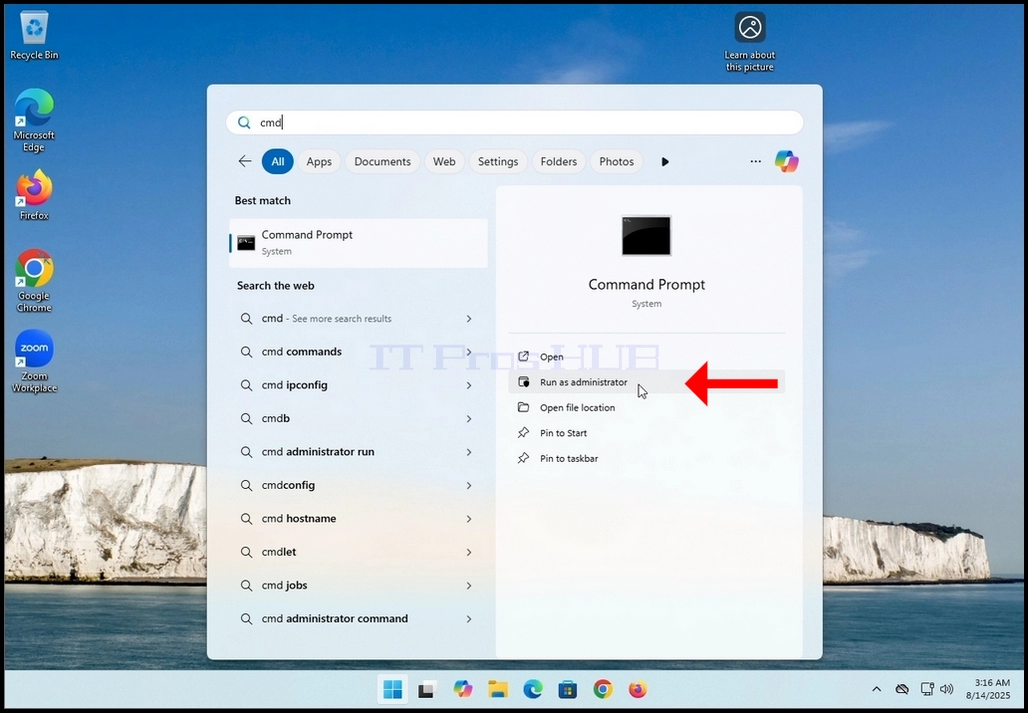


6. In the Command Prompt window type: “sfc /scannow” and hit the ENTER key.

7. After hitting the ENTER key a sentence will appear in the row below. The sentence would say: “Beginning system scan. This process will take some time..”

8. A few seconds after the latter sentence appears, a progress indicator should appear as well saying : “Verification 1% complete”.

9. Wait until the percentage reaches 100.


10. After the progress indicator shows 100% a new sentence in the row below will appear saying either:
a. Windows Resource Protection did not find any integrity violations – that means there were no errors in the system.
b. Windows Resource Protection found corrupt files and successfully repaired them – this means that Some files were damaged but fixed.
c. Windows Resource Protection found corrupt files but was unable to fix some of them – this means that Corruption detected but not repaired.
d. Windows Resource Protection could not perform the requested operation – this means that Scan couldn’t complete (offline repair or file system problem).

mostra 100% una nuova frase nella riga sottostante che dice:
a. Protezione risorse di Windows non ha rilevato violazioni di integrità – ciò significa che non c'erano errori nel sistema.
b. Protezione risorse di Windows ha trovato file danneggiati e li ha riparati correttamente – ciò significa che alcuni file erano danneggiati ma riparati.
c. Protezione risorse di Windows ha trovato file danneggiati ma non è riuscito a ripararne alcuni – ciò significa che il danneggiamento è stato rilevato ma non riparato.
d. Protezione risorse di Windows non è riuscita a eseguire l'operazione richiesta: ciò significa che la scansione non è riuscita a completarsi (riparazione offline o problema del file system).