



1. Отидете до Настолен прозорец
2. Щракнете върху Начало бутон
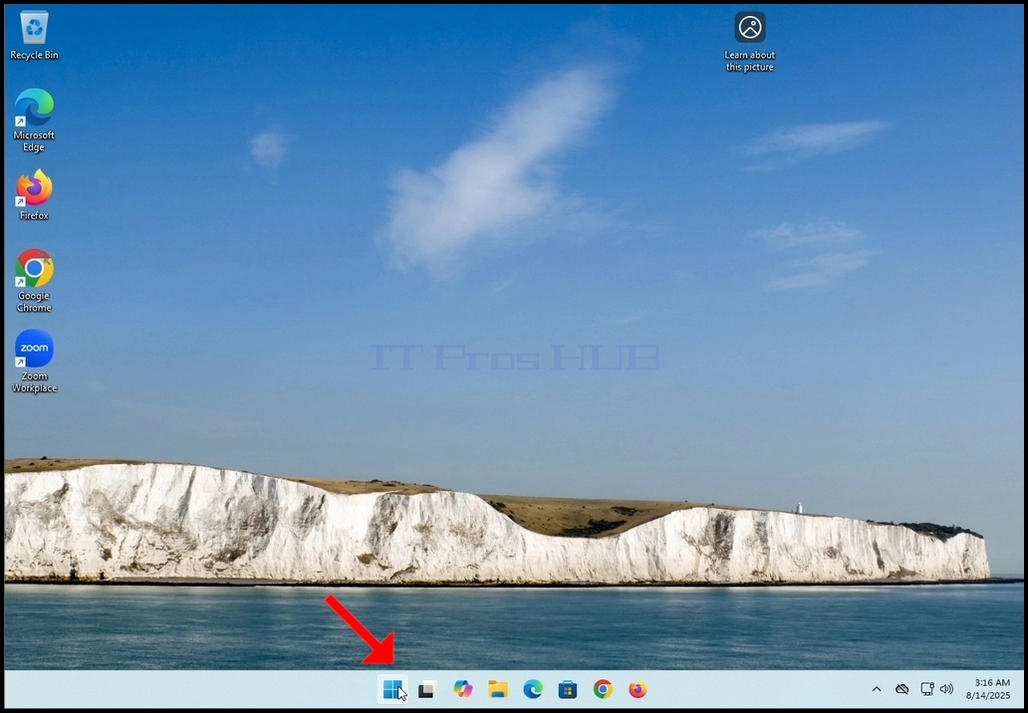

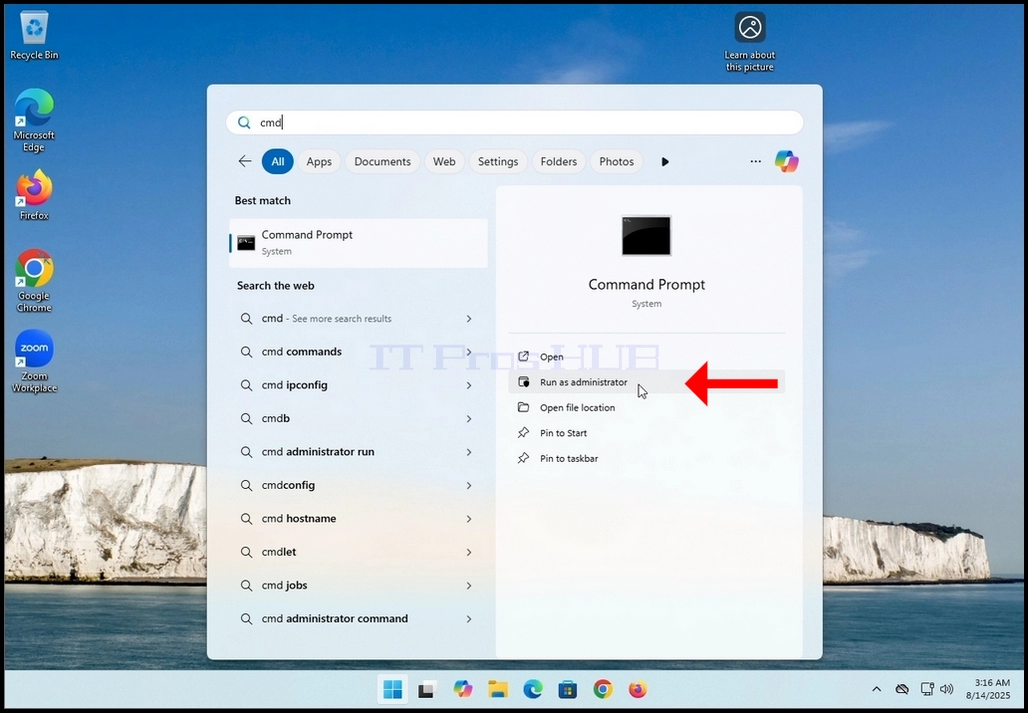
3. В Начало меню, тип CMD и да изчакаме Command Prompt икона да се появи.

4. В Начало меню, погледнете дясното стъкло на менюто и търсете Изпълнение като администратор изречение. Кликнете върху изречението и изчакайте Windows UAC Трябва да се явим.
5. Щракнете върху Да. бутон в Windows UAC меню и изчакайте Command Prompt Зареди.


6. В типа Command Prompt прозорец: Сканиране. ENTER Ключ.

7. След като удари ENTER ключ едно изречение ще се появи в реда по-долу. Присъдата би казала:Сканиране на системата. Този процес ще отнеме известно време.- Да.

8. Няколко секунди след последното изречение се появява, индикатор за напредъка трябва да се появи, както и да се каже:: гоПроверка 1% завършена.

9. Изчакайте докато процентът достигне 100.


10. След индикатора за прогрес показва 100% ново изречение в реда по-долу ще се появи или казва:
a. Windows Resource Protection не откри никакви нарушения на целостта Това означава, че в системата няма грешки.
b. Windows Resource Protection намери корумпирани файлове и успешно ги поправи Това означава, че някои файлове са повредени, но фиксирани.
b. Windows Resource Protection намери корумпирани файлове, но не успя да поправи някои от тях Това означава, че корупцията е открита, но не е ремонтирана.
b. Защитата на ресурсите на Windows не може да извърши исканата операция Това означава, че сканирането не може да завърши (офлайн ремонт или проблем с файловата система).
