



- 詳細
- 作成者:IT Pro
- カテゴリー: How to Articles
- 参照数: 5040
1. マイクロソフトの単語を開けて下さい
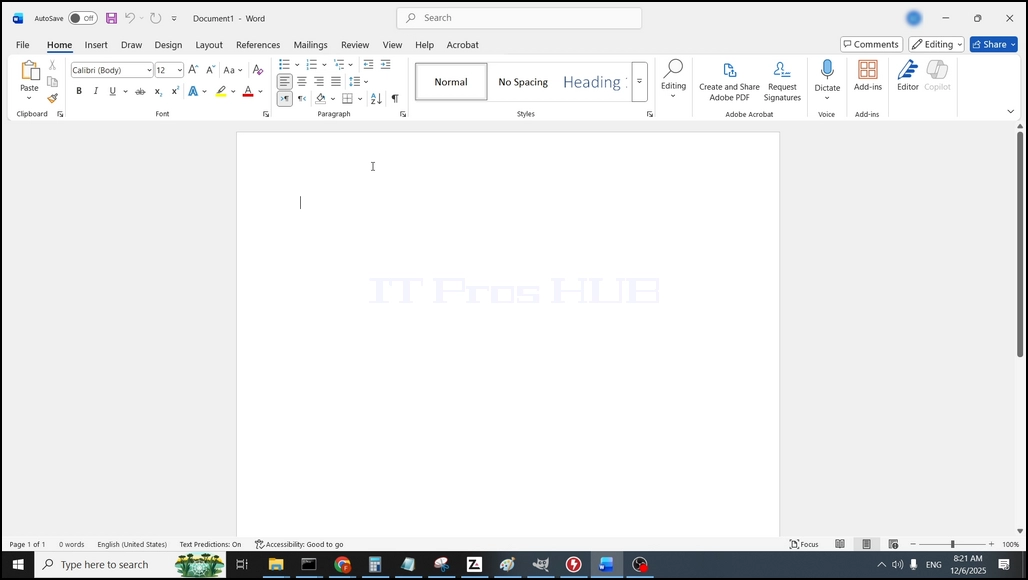
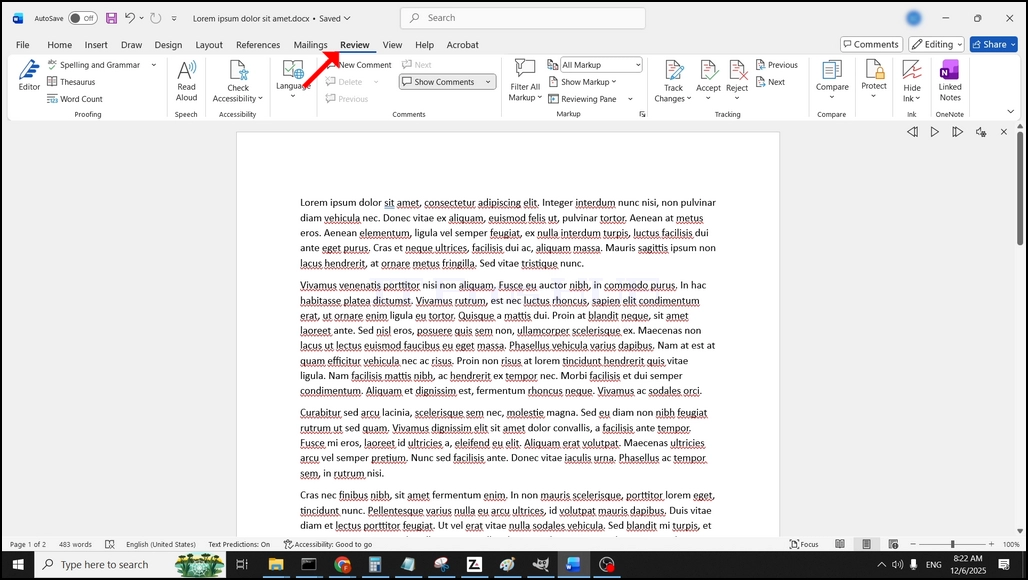
2。 トップメニューバーで、ホームから、レビューに行く:
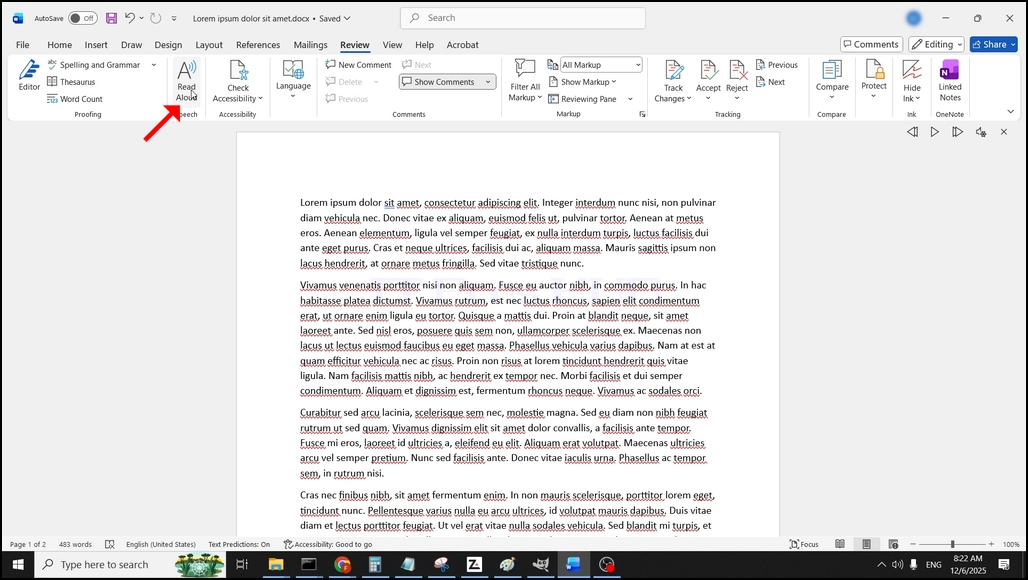
3。 見直しの下、大きな "ツイート" 言うアイコン"読む Aloud「それをクリックし、テキストをWordのスピーチ機能にアクティブにします。
- 詳細
- 作成者:IT Pro
- カテゴリー: How to Articles
- 参照数: 5651
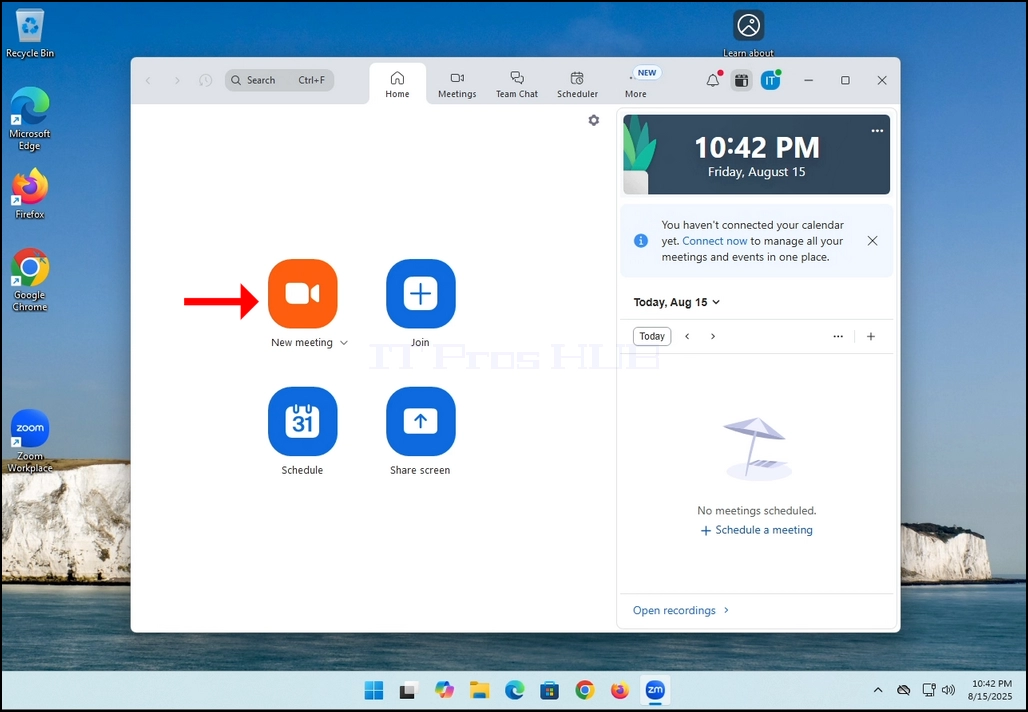
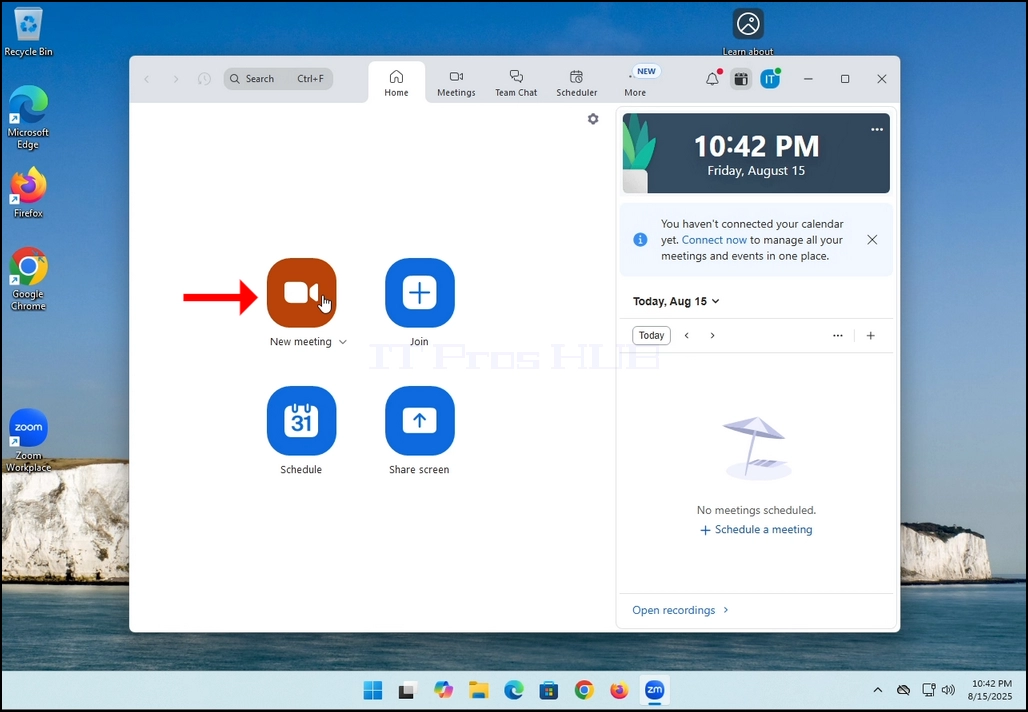
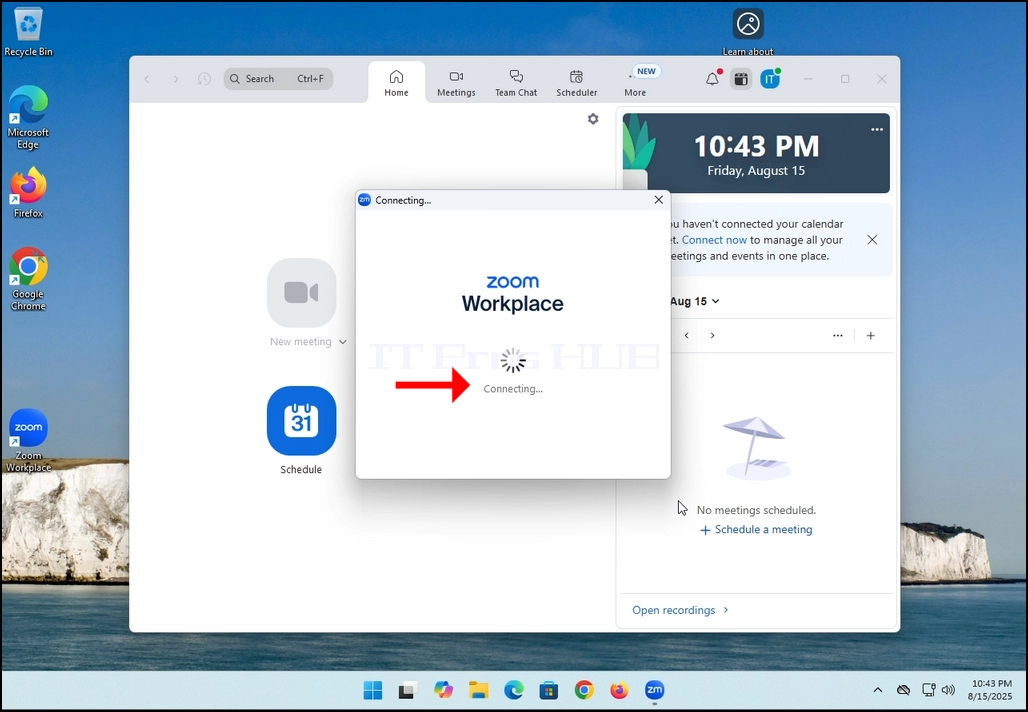
2. Once clicked, a new small window should appear. The window will show "connecting" and an animation progress circle.
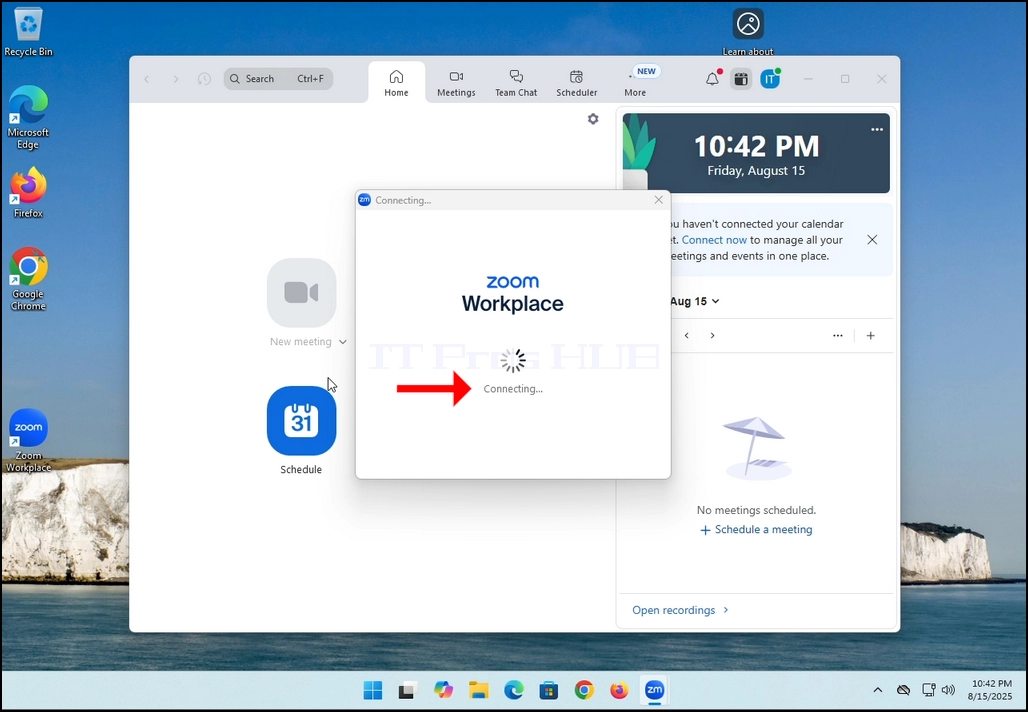
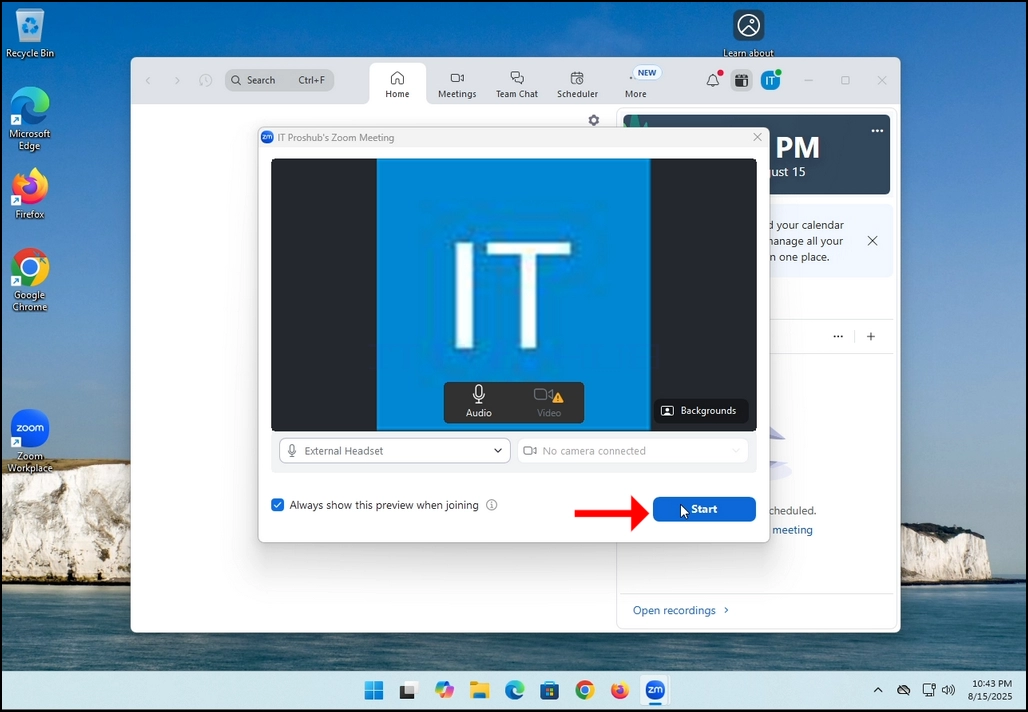
3. Once it's done loading, a new window will appear. Usually its title should say something along the lines of: "User's Zoom Meeting". In this article's case, it says "IT Proshub's Zoom Meeting" since the user that uses Zoom is called that way.
4. Here, you can mute your mic by clicking on the mic icon and you can also turn your camera off/on by clicking the Video icon.
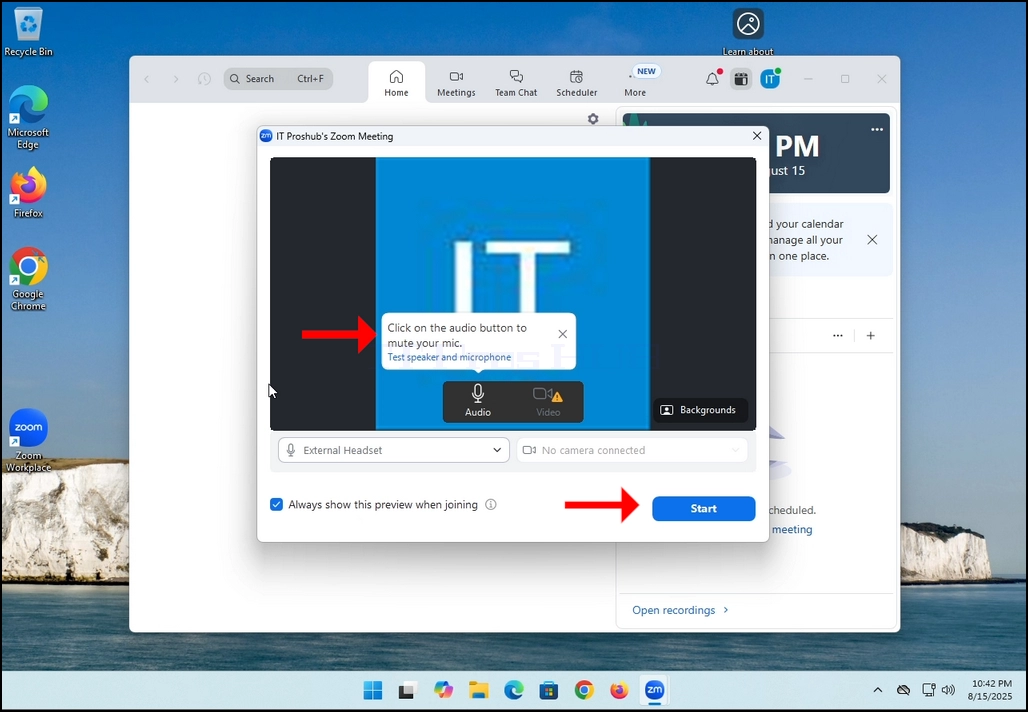
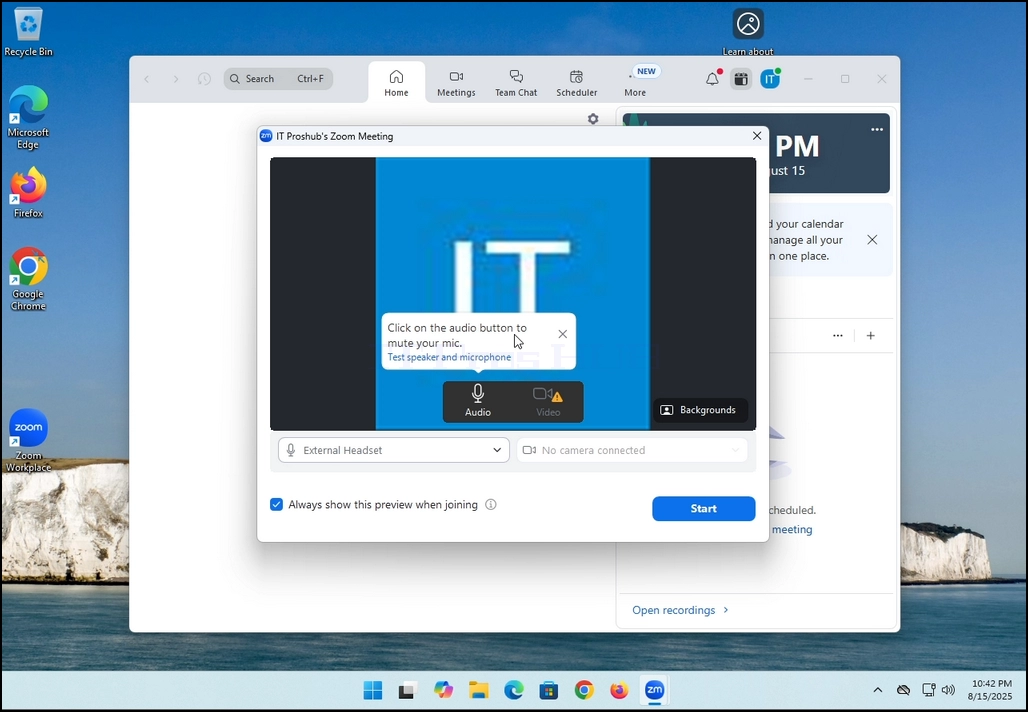
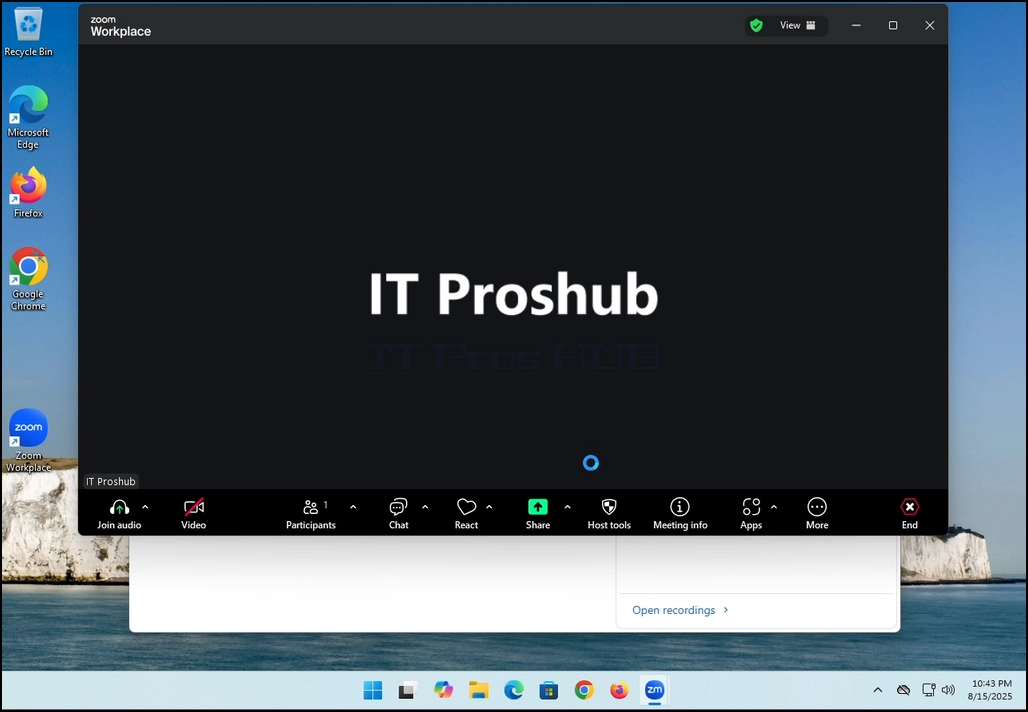
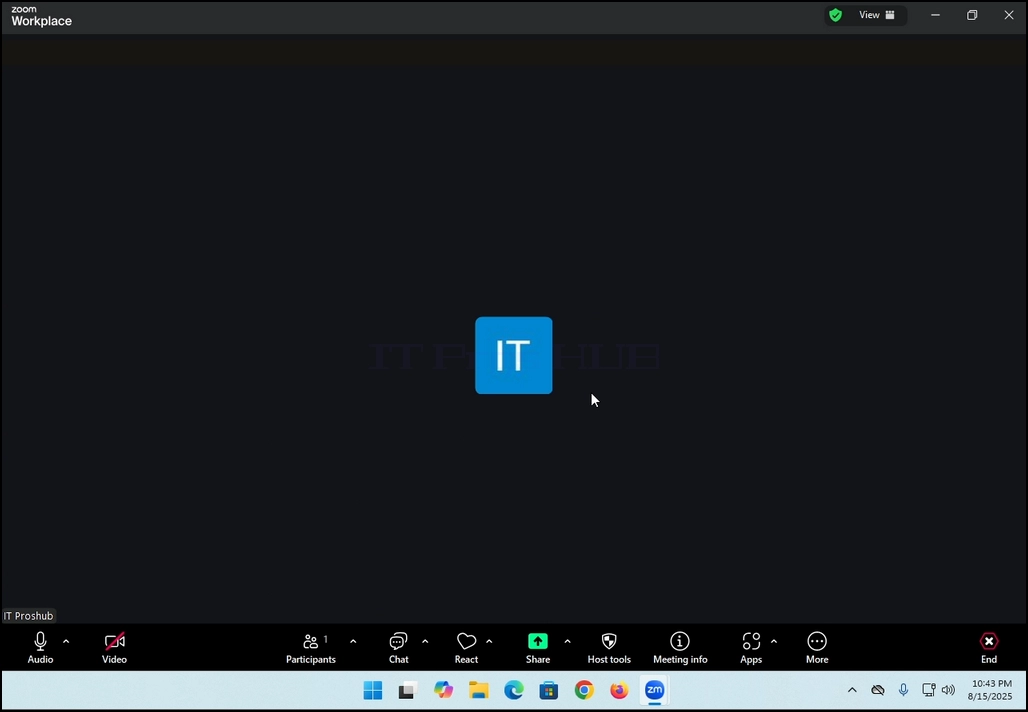
7. That's it! the new meeting is in progress. At this stage the meeting contains only the host which is IT Proshub in this article's case.
- 詳細
- 作成者:IT Pro
- カテゴリー: How to Articles
- 参照数: 5347
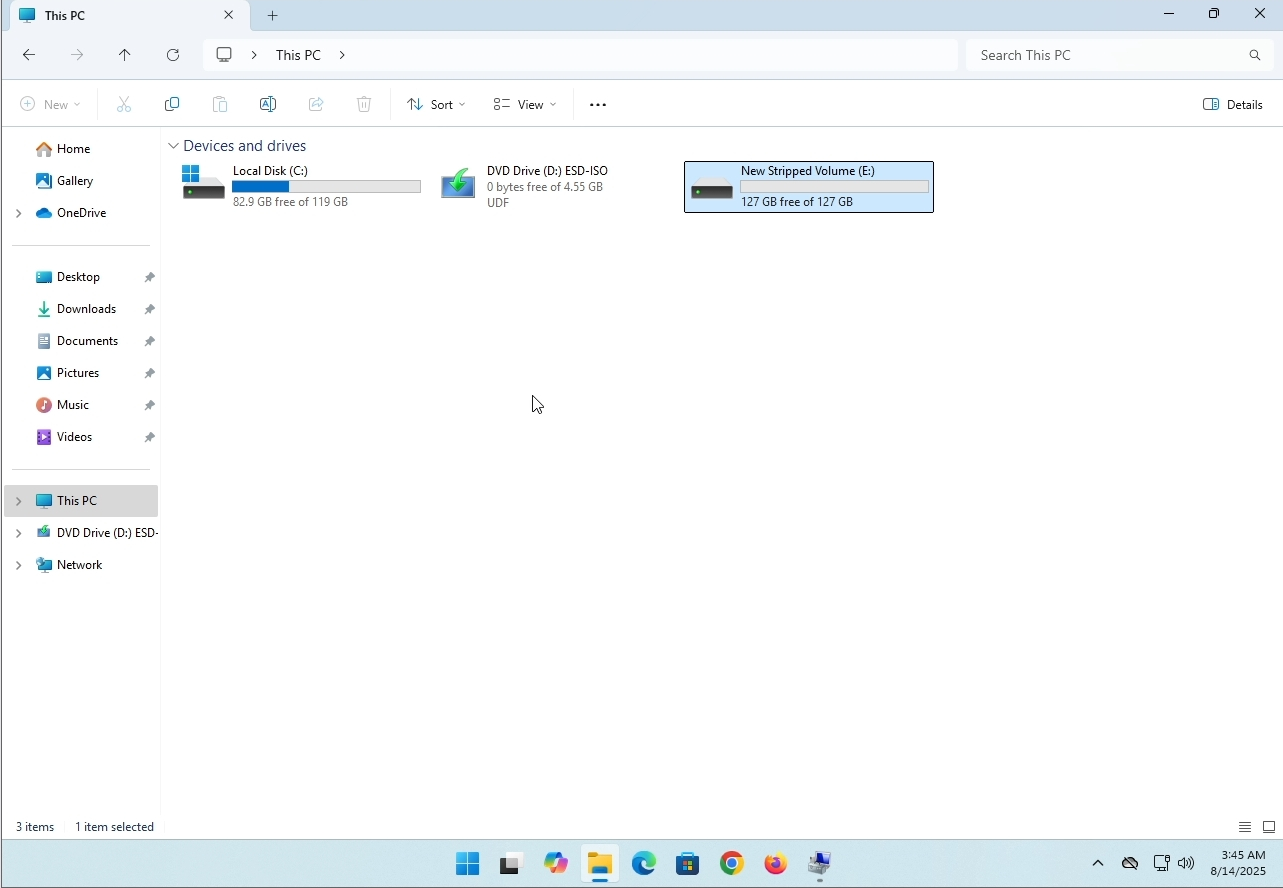
In this article we will demonstrate how to delete a stripped volume in Windows 11
1. Make sure what is the stripped volume's drive letter is. In this case the drive letter is (E:):
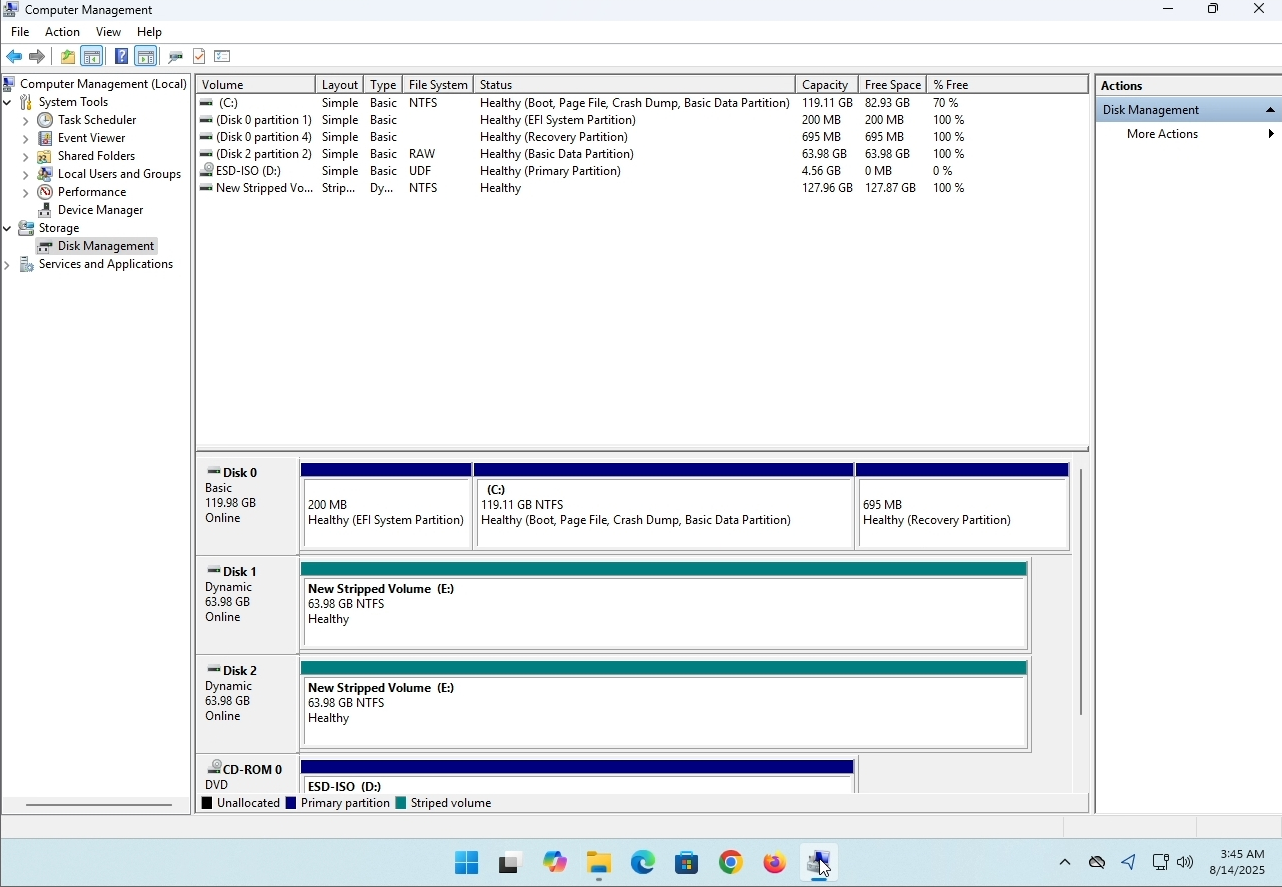
3. On the left pane. Look for Disk Management and click on it once.
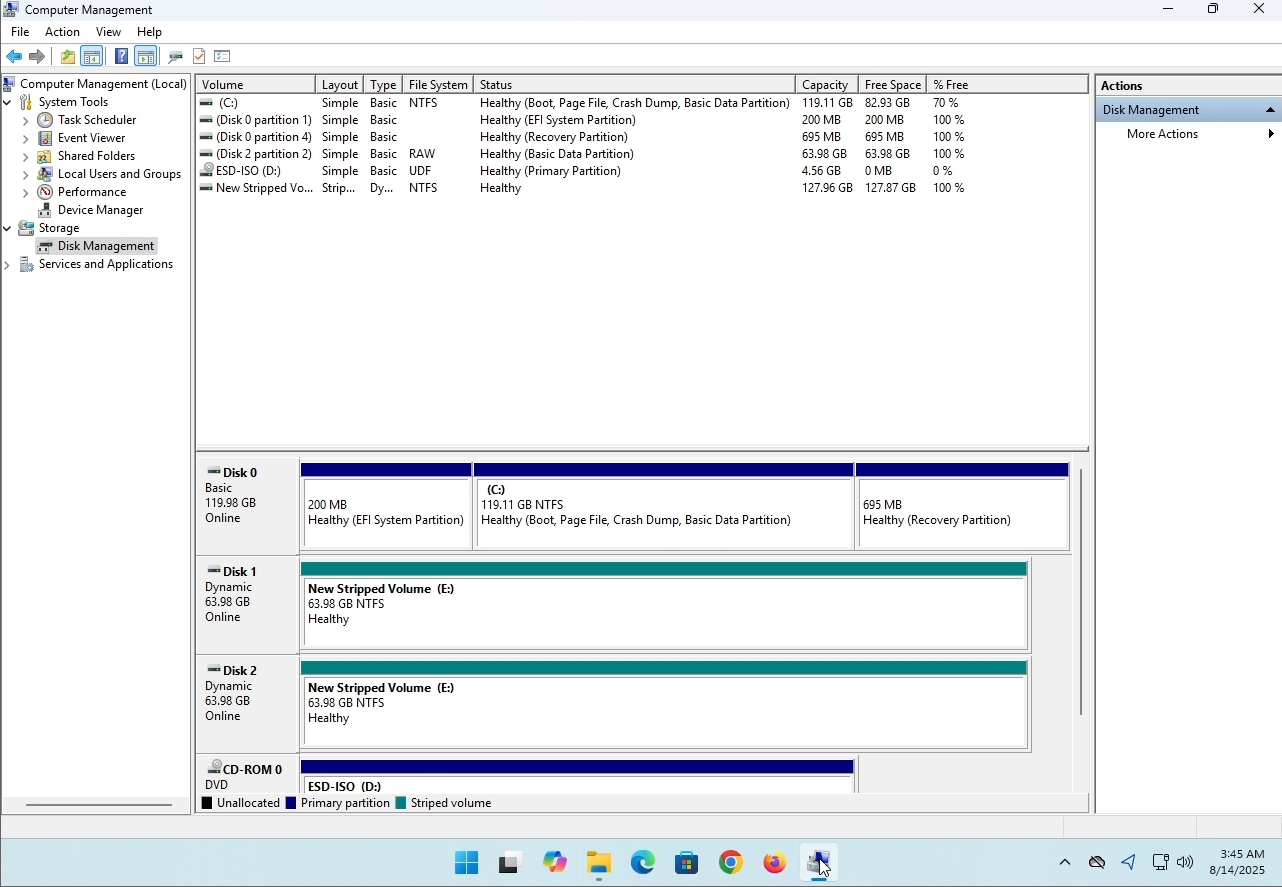
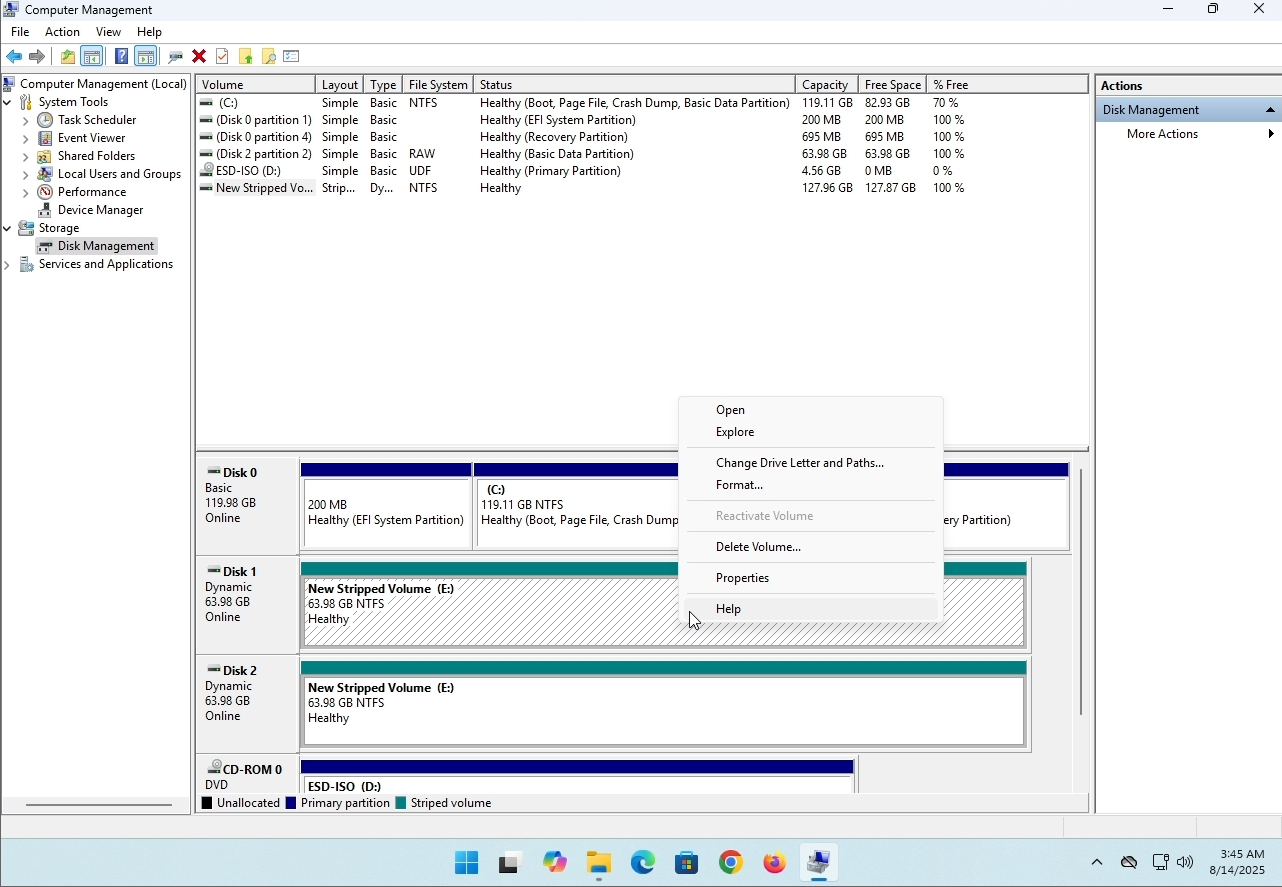
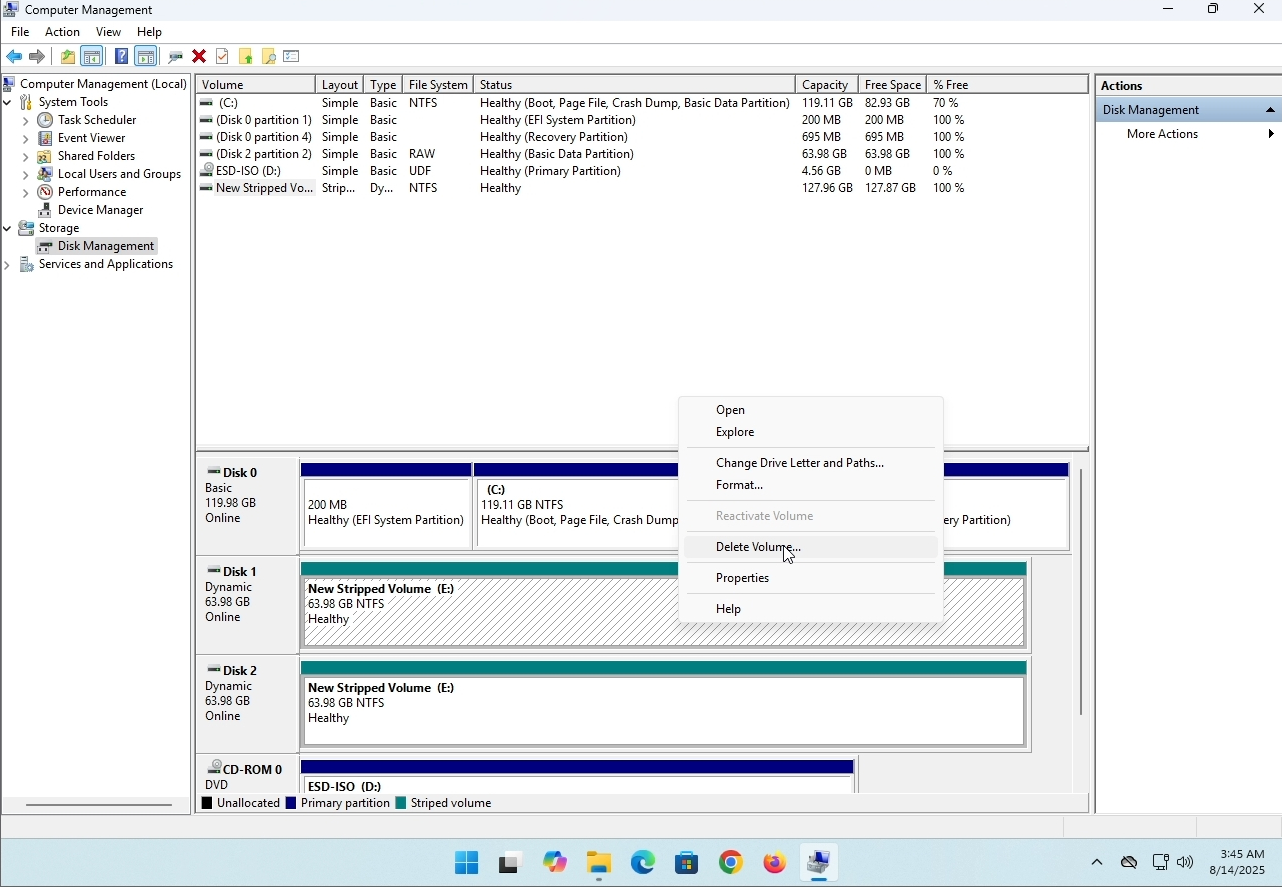
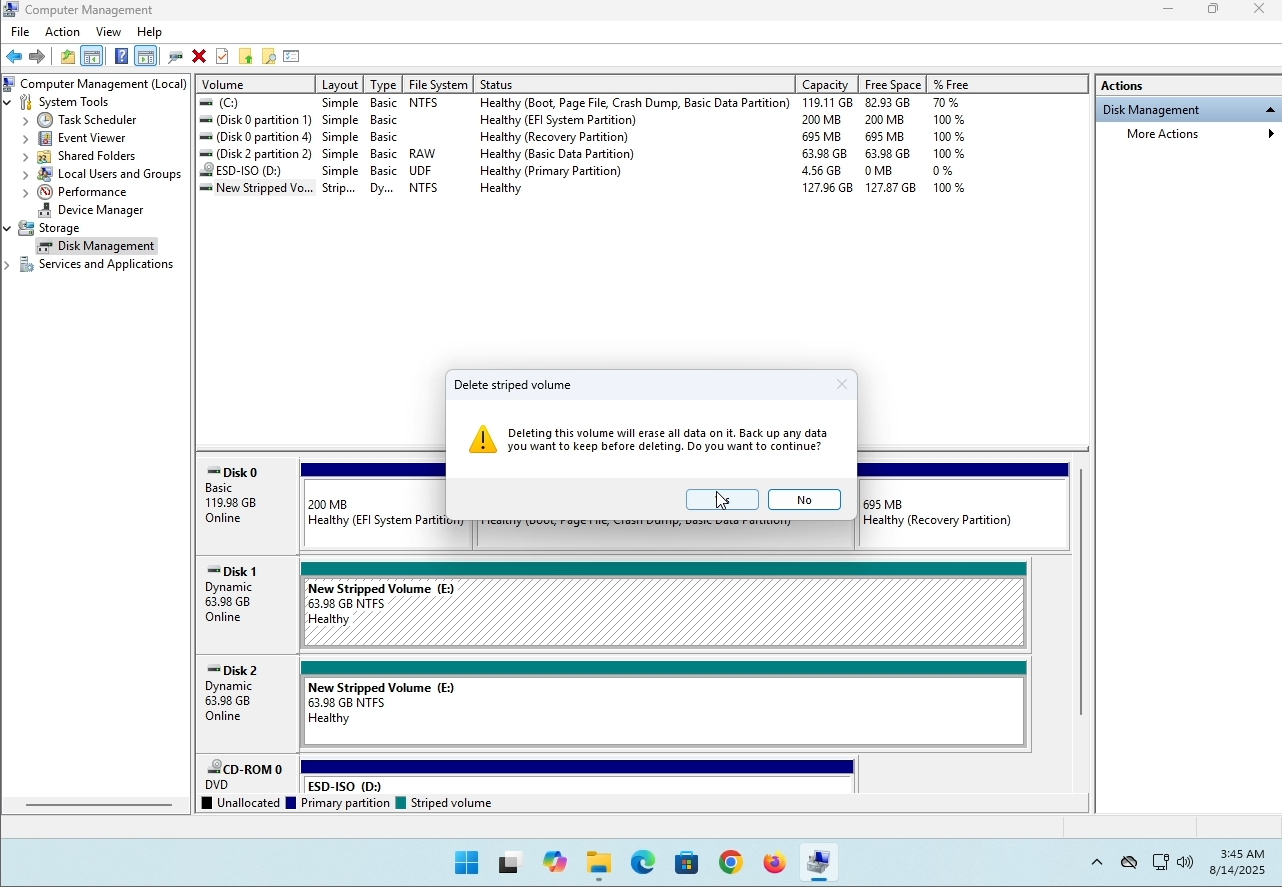
6. You will be shown a confirmation window. Click on Yes to confirm deleting the drive.
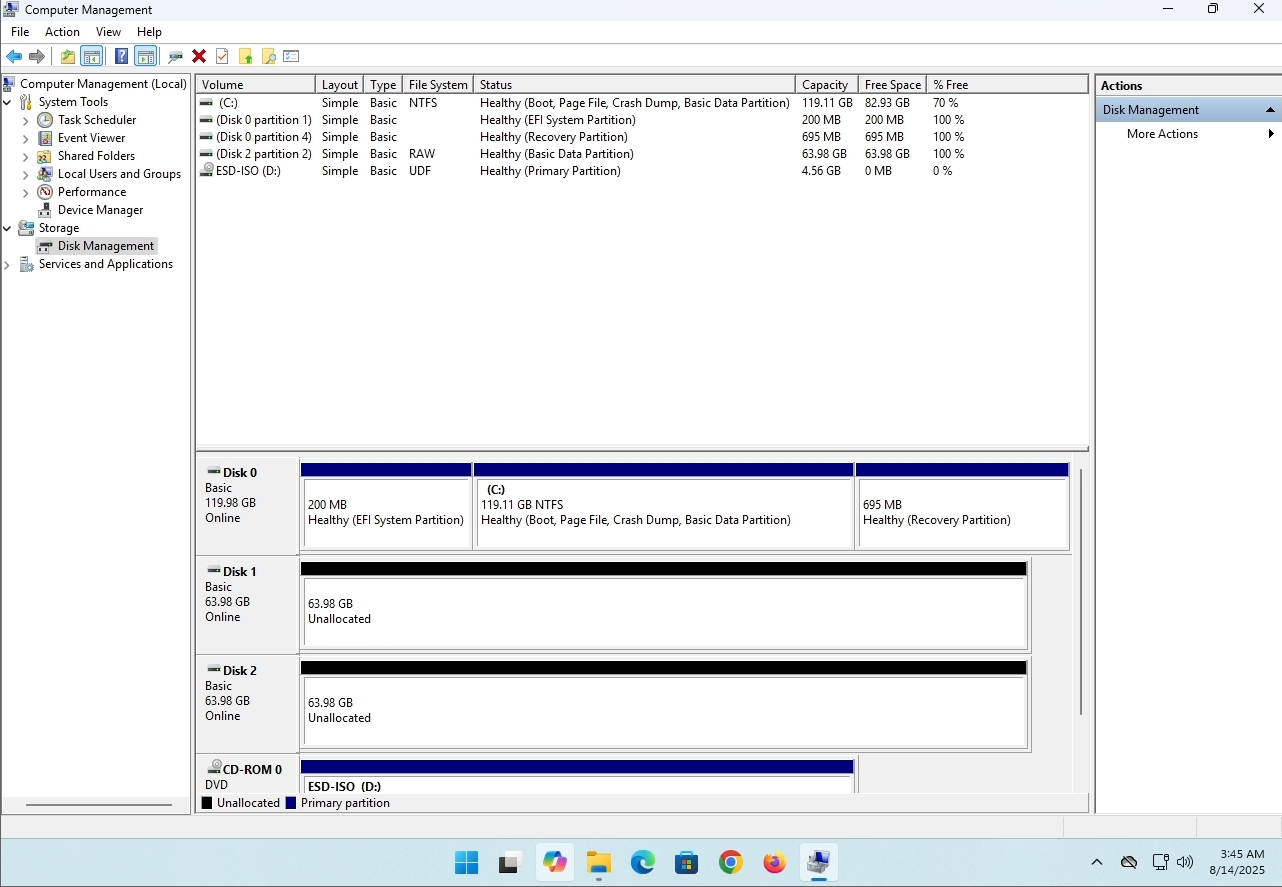
7. The drive is now deleted and the disks that were part of the stripped array are now unallocated.
- 詳細
- 作成者:IT Pro
- カテゴリー: How to Articles
- 参照数: 8053
導入:
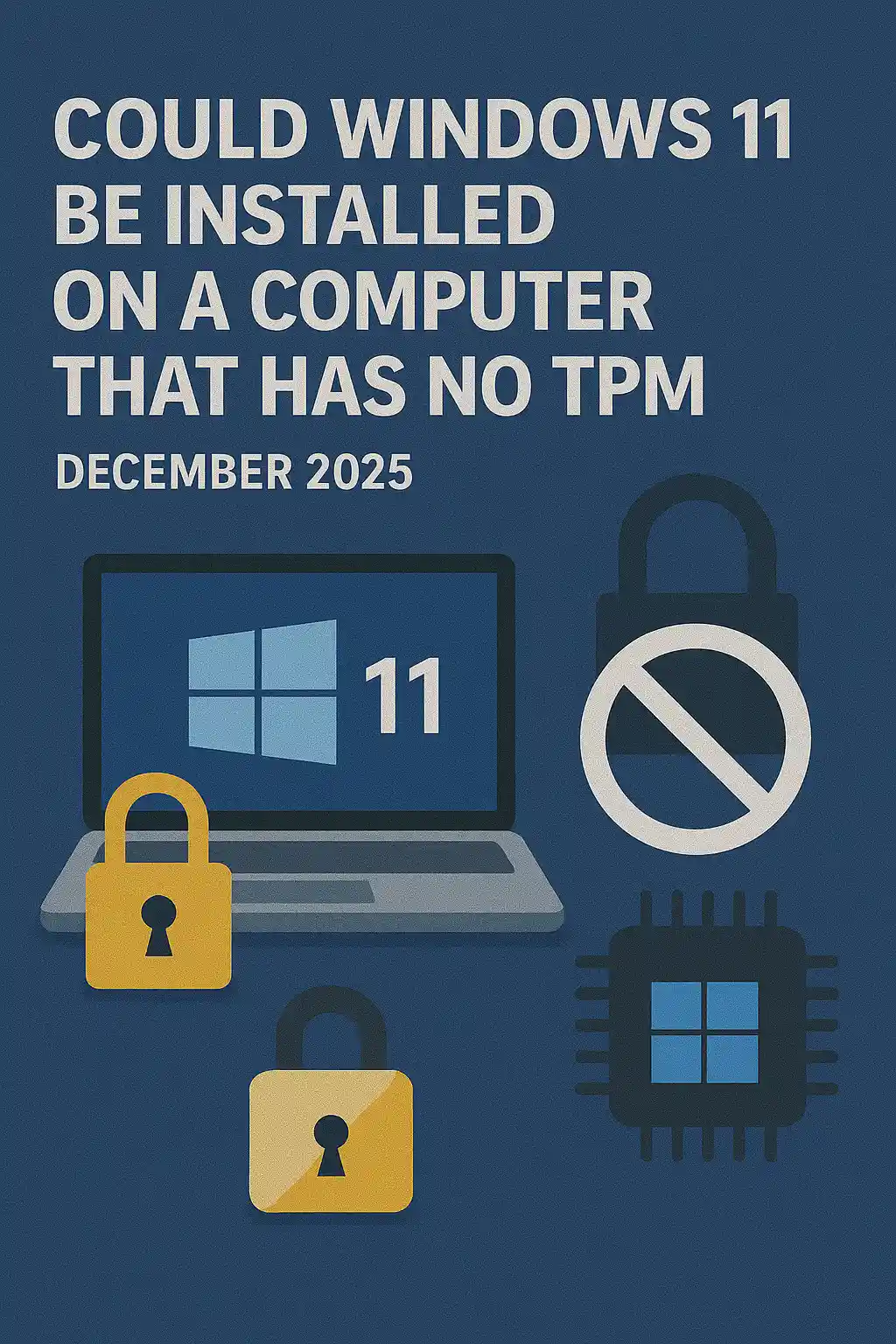
この記事では、Windows 11がTPMチップがないコンピュータにインストールできるかどうかを調べます。
ショート: お問い合わせお問い合わせ
Windows 11 は TPM 版 2.0 の破片の最低なしでコンピュータに取付けられません。
そのようなコンピュータ上のWindows 11の試みられた取付けの次の図です。
インストールしようとするWindowsバージョンは24H2でした。
1. Windows の取付けにブート


2.言語の構成

3. インストール方法の構成

4. プロダクト主段階


5. Windows 11プロを選ぶ


6. PCステージの確認

7. ブロッカー

結論:
お問い合わせ 私たちは、自分自身のためにそれを見なければなりませんでした。 この主題について大きな議論があり、この場合は水を保持しているようです。 インストール - Windows 11は、TPMバージョン2.0チップなしでコンピュータやシステムにインストールできません。
つまり、Windows 11は、システム上で実行できません。 詳しくはこちらをご覧ください。 https://itproshub.com/en/windows/can-windows-11-run-on-a-computer-that-no-tpm-chip-at-all-decembet-2025
- 詳細
- 作成者:IT Pro
- カテゴリー: How to Articles
- 参照数: 7177
1。 セットアップファイルをクリックしてThunderbirdのインストールを開始します
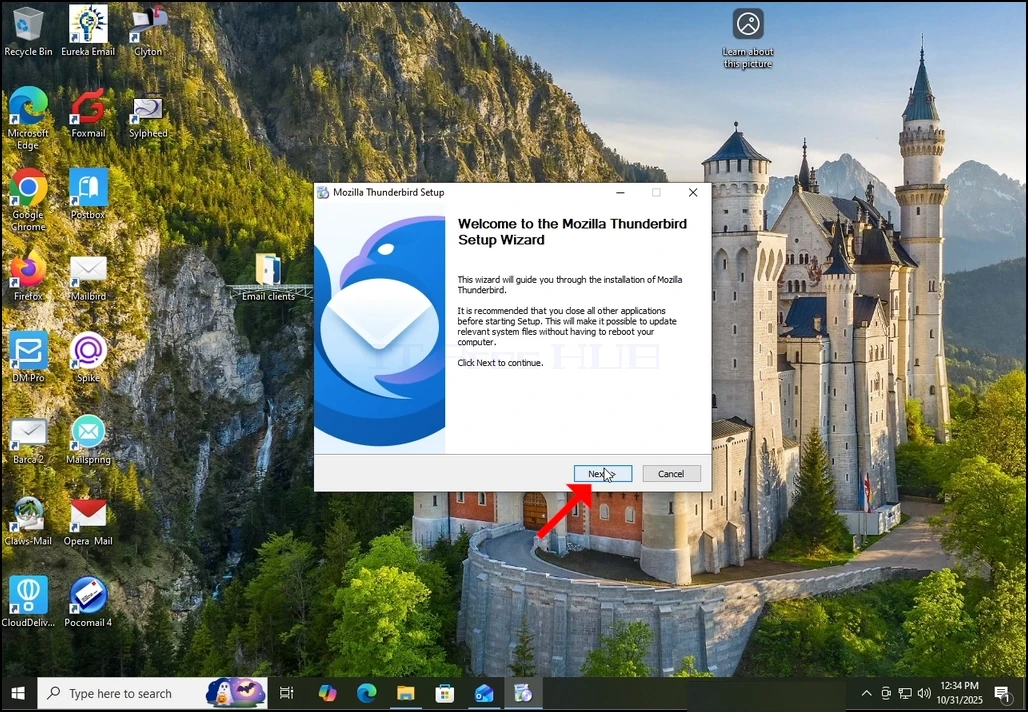
2。 ウェルカム画面で、NEXTをクリックします。
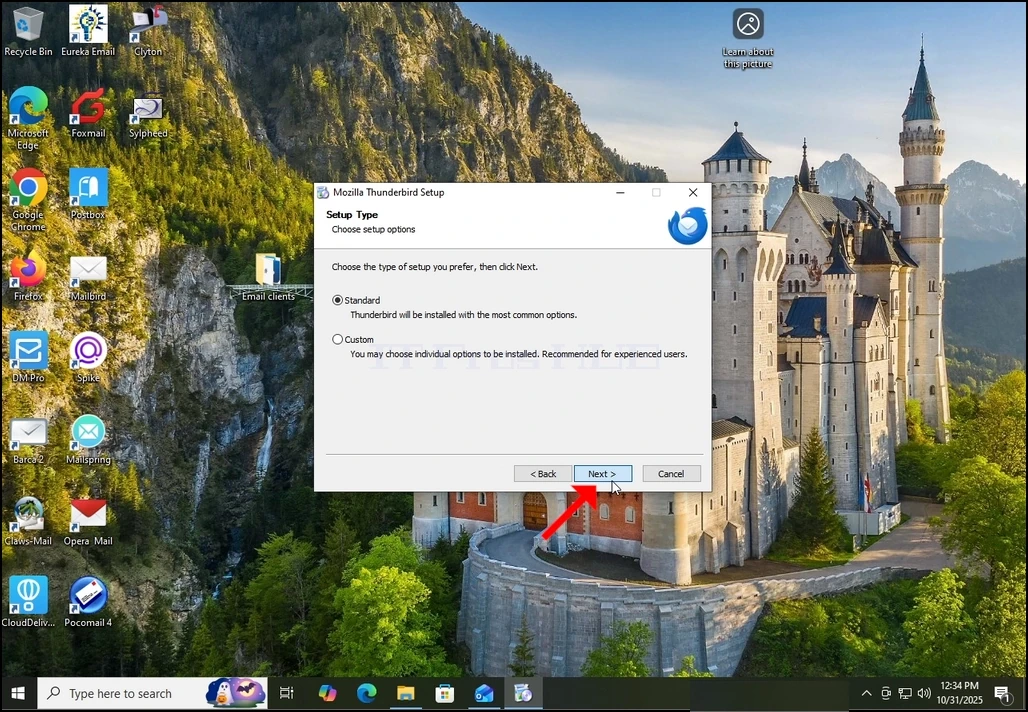
3. 標準オプションを選択し、NEXTをクリックします。
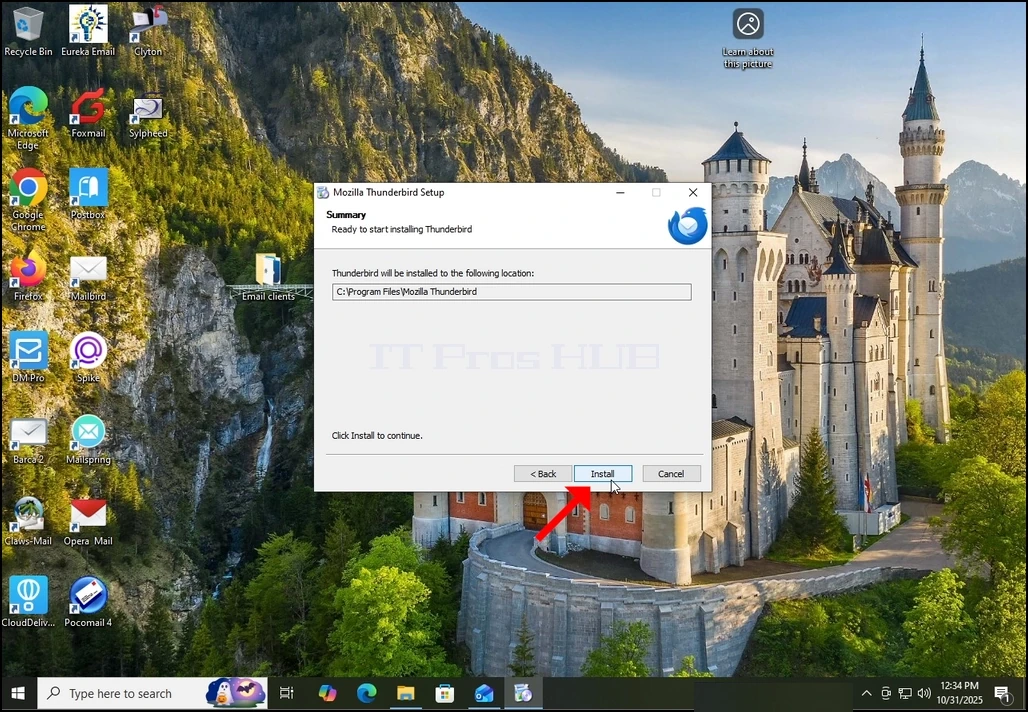
4。 [インストール]ボタンをクリックします。
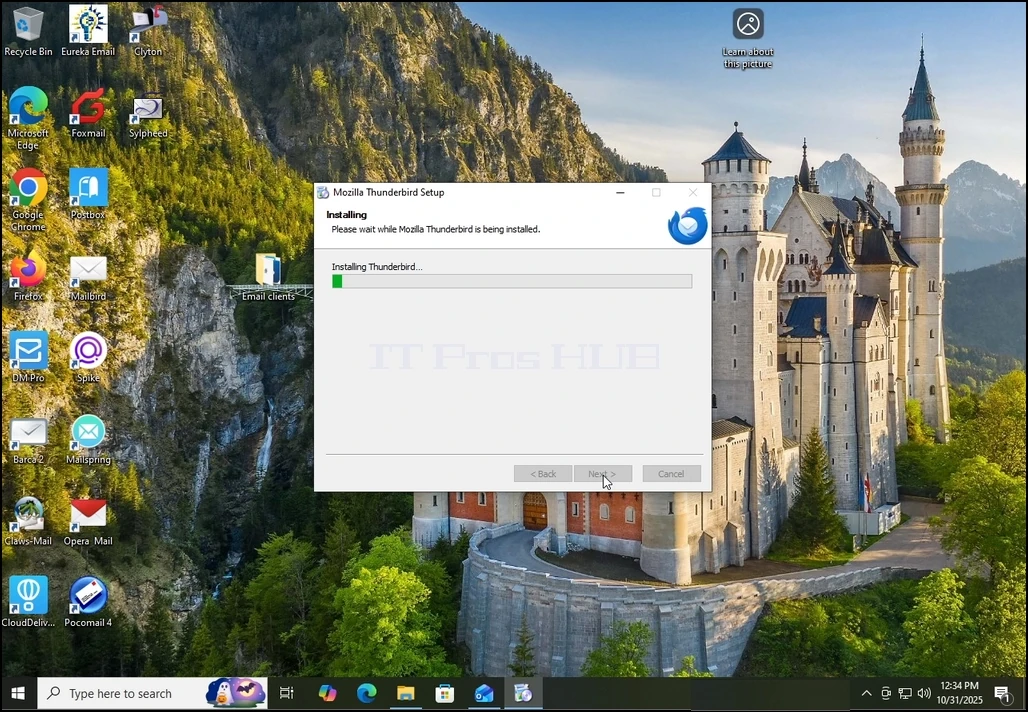
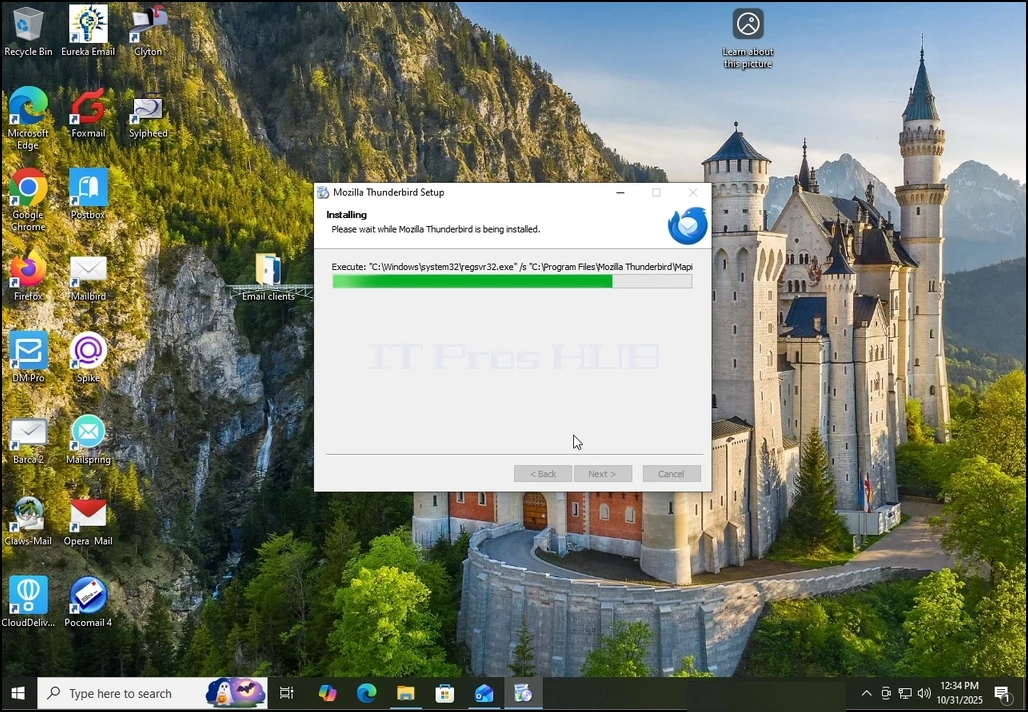
5. 終わりに取付けプロセスのために忍耐強く待って下さい
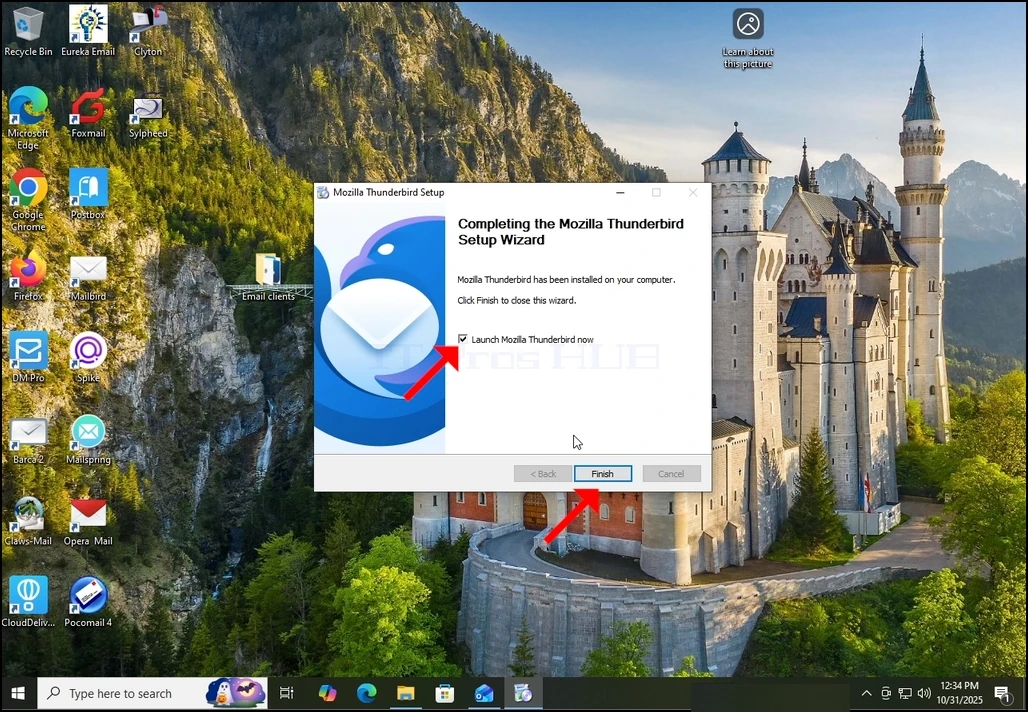
6。 起動Mozilla Thunderbirdを今すぐ選択し、フィニッシュボタンを押します
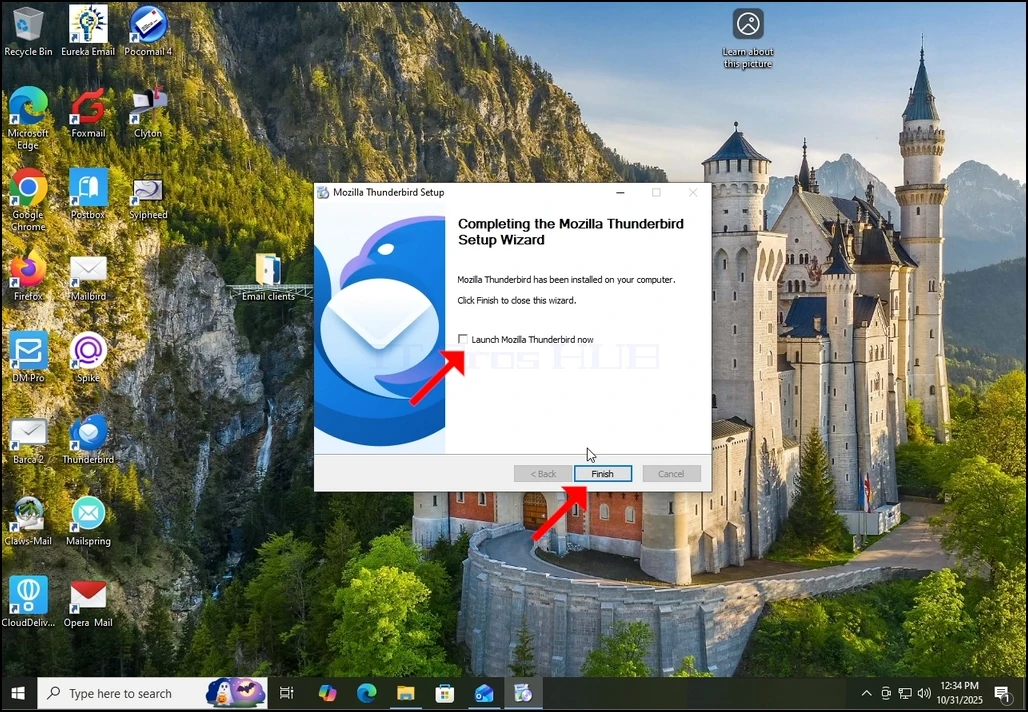
7。 Mozilla Thunderbirdがインストールされました!