



- Details
- Geschreven door: IT Pro
- Categorie: How to Articles
- Hits: 13522
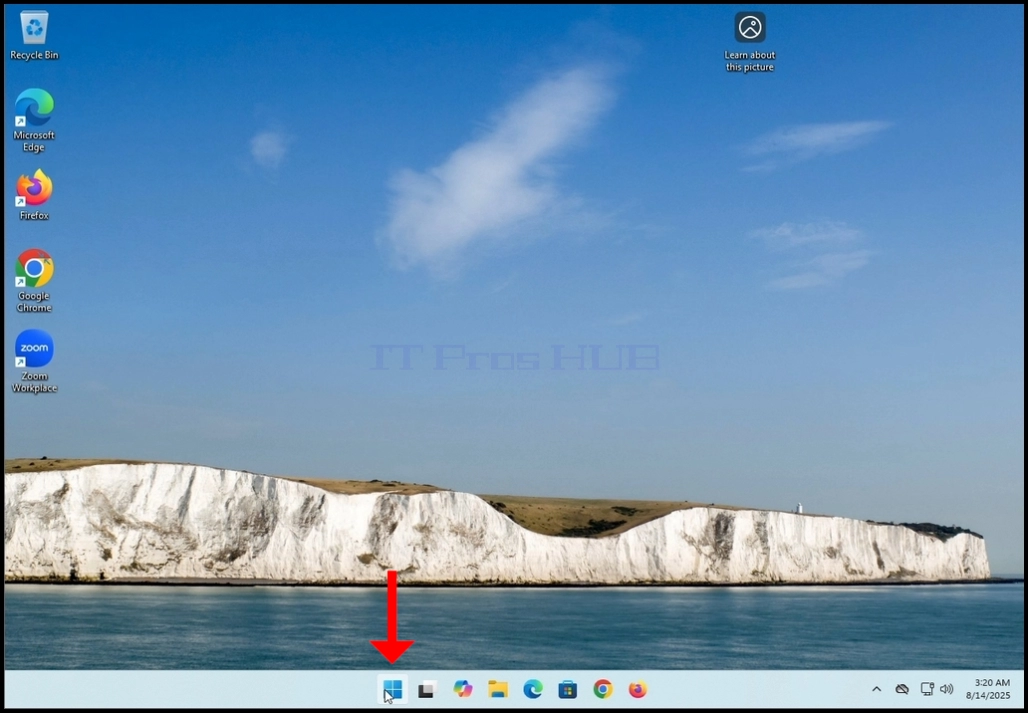

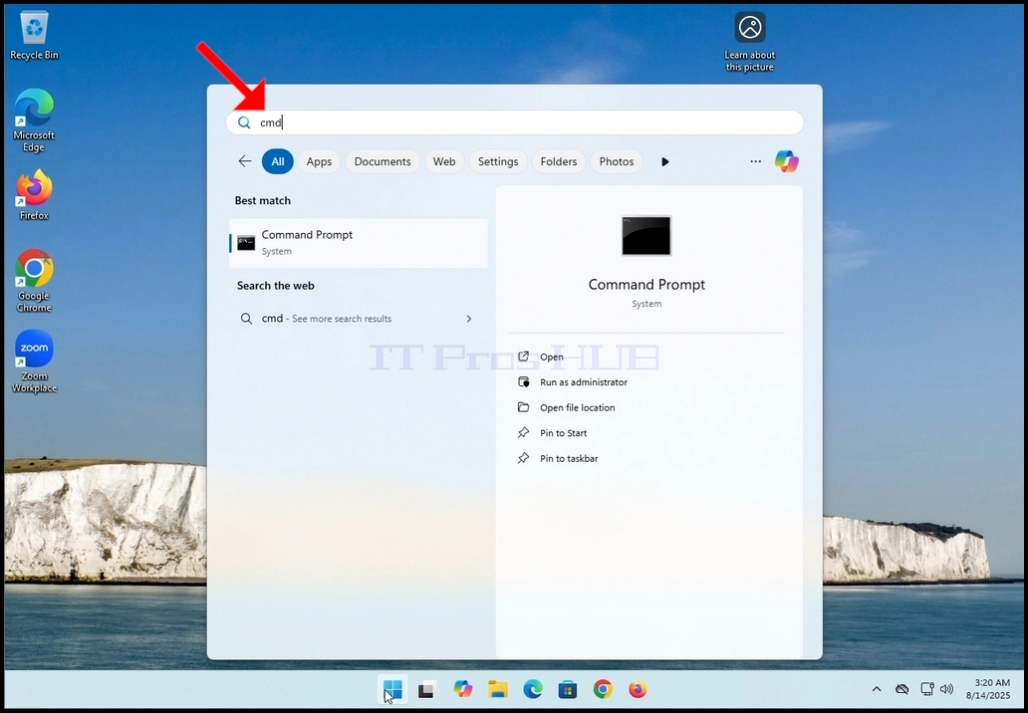

5. Click YES and wait for the Command Prompt window to appear


6. After the Command Prompt window appears, type the following command:
a. DISM /online /cleanup-image /restorehealth
7. Hit the ENTER key

8. After hitting the ENTER key, DISM will start working according to the given arguments
9. You will be presented with the version of the image version you are running

10. The following is a breakdown of the DISM process in this article:
a. /Online → Tells DISM to target the running Windows installation (your current OS), not an offline image.
b. /Cleanup-Image → Specifies that the command will operate on the Windows image servicing stack (the component store, also known as WinSxS).
c. /RestoreHealth → Instructs DISM to scan the system for corruption in the Windows image and attempt to repair it automatically.
11. What it does in practice:
a. Scans the component store (WinSxS) for corruption or inconsistencies.
b. Checks health against known good copies.
c. Repairs problems by downloading clean files

12. After a few seconds, a progress bar will appear

13. Wait till the progress bar hits 100%
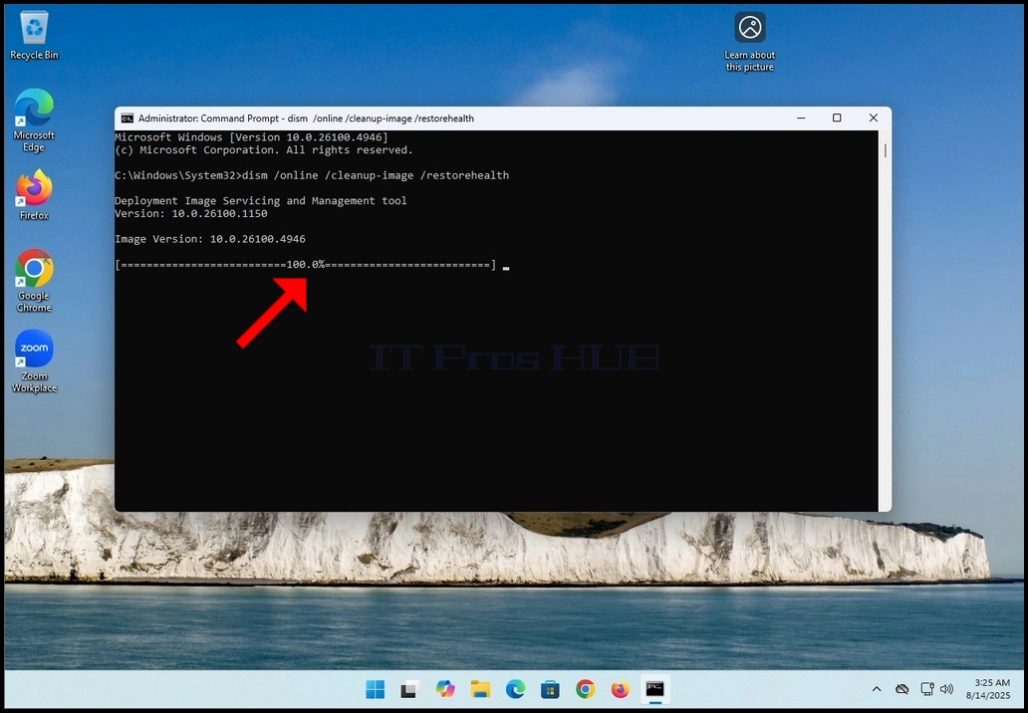
14. After the DISM process is done, you will be presented with the following message:
a. The restore operation completed successfully

- Details
- Geschreven door: IT Pro
- Categorie: How to Articles
- Hits: 11134
- Go to Windows desktop

4. Wait for the Personalization > Taskbar window to open

5. In the 3rd row, look for Widgets.


7. Close the Taskbar settings window

8. Now you can see that the widget feature is gone from the taskbar

- Details
- Geschreven door: IT Pro
- Categorie: How to Articles
- Hits: 10000


3. Wait for Zoom Workplace to load


5. On the next stage, Zoom will show you available sign in methods. Amongst these methods there is a Google method.
6. Click the Google sign-in method icon (The Google “G” icon) and wait for Zoom to open a Google “sign in with Google” page.

7. If your default browser is Chrome and is already signed into your Gmail account, you would see the following window:
a. If you use a different browser or a browser that was not signed into with your Google account, then fill in your Gmail address the phone number associated with it and click Continue


14. In the next window, to finish the sign in process, click on the Create Account button


17. Wait for Zoom Workplace to start again
 18.
18.


19. After Zoom Workplace starts, notice your Gmail account initials on the top right corner of the Zoom window. That means your Google account was successfully used to sign into Zoom Workplace!


20. In some cases, Windows Security will ask you if “Do you want to allow public and private networks to access this app?”. This is completely normal. In this case, Windows Security asks us this question because it is the local cyber security solution installed and activated on this Windows 11 platform. If a different cyber security solution was installed, then it would have been very highly unlikely Windows Security would have asked this question but rather the 3rd party cyber security solution would have.


- Details
- Geschreven door: IT Pro
- Categorie: How to Articles
- Hits: 9188

2. Click on Settings and wait for the Settings window to appear
3. On the left pane, look for the last option that says “Windows update” and click on it
4. Wait for the Windows Update window to appear


8. After the downloading process of a specific update has been done, Windows Update will start installing it right away.

9. When update is done being installed, the “Installing” status on the right would change to “Completed”

10. Some updates would require the Windows operating system to be restarted in order to be fully installed. In those cases, their status on the right would be changed from “Completed” to “Pending restart”.
a. In this article we have such an example
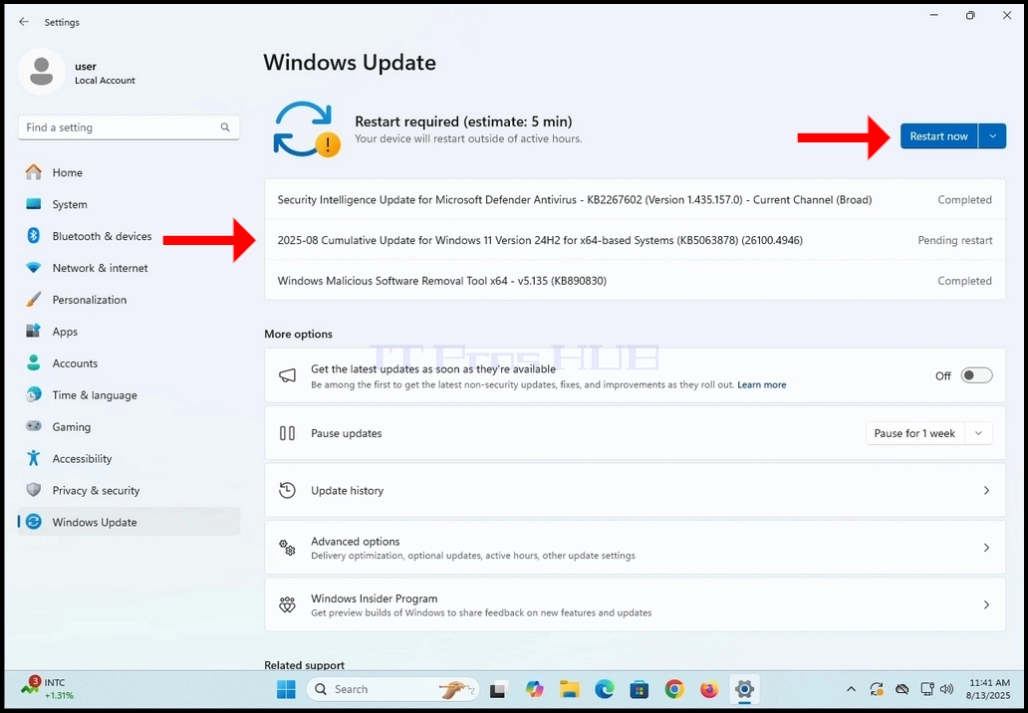
11. Manually restart the Windows operating system

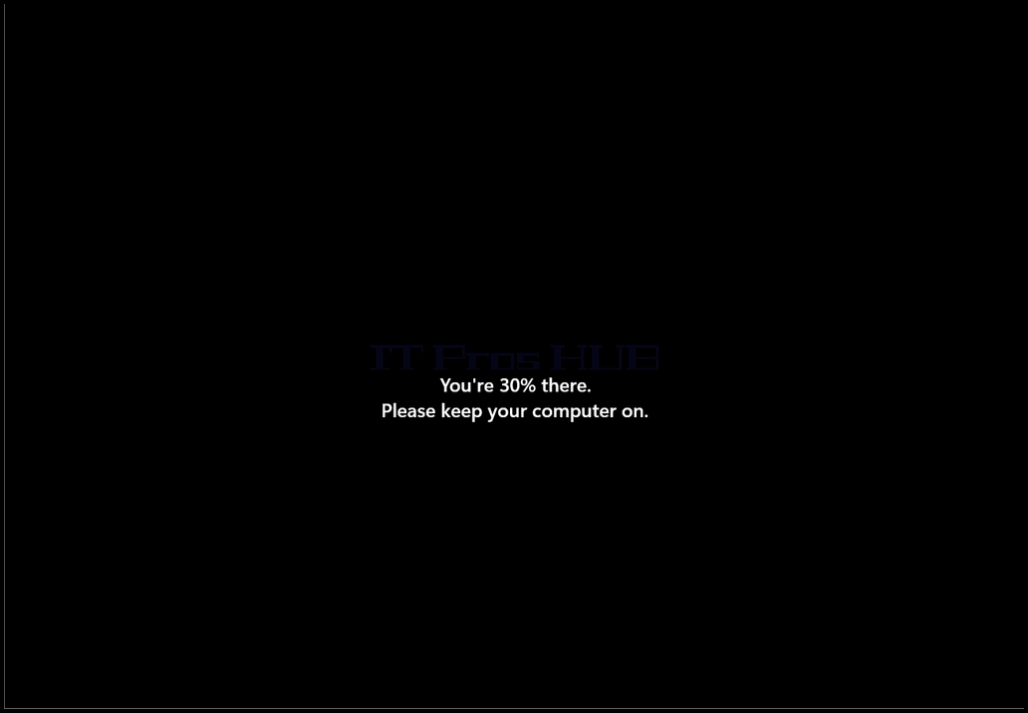
12. As you can see in the screenshot below, Windows is automatically installing the update that has been pending restart mentioned in stage 10.


13. Once the start-up update has been installed, Windows should start normally.
x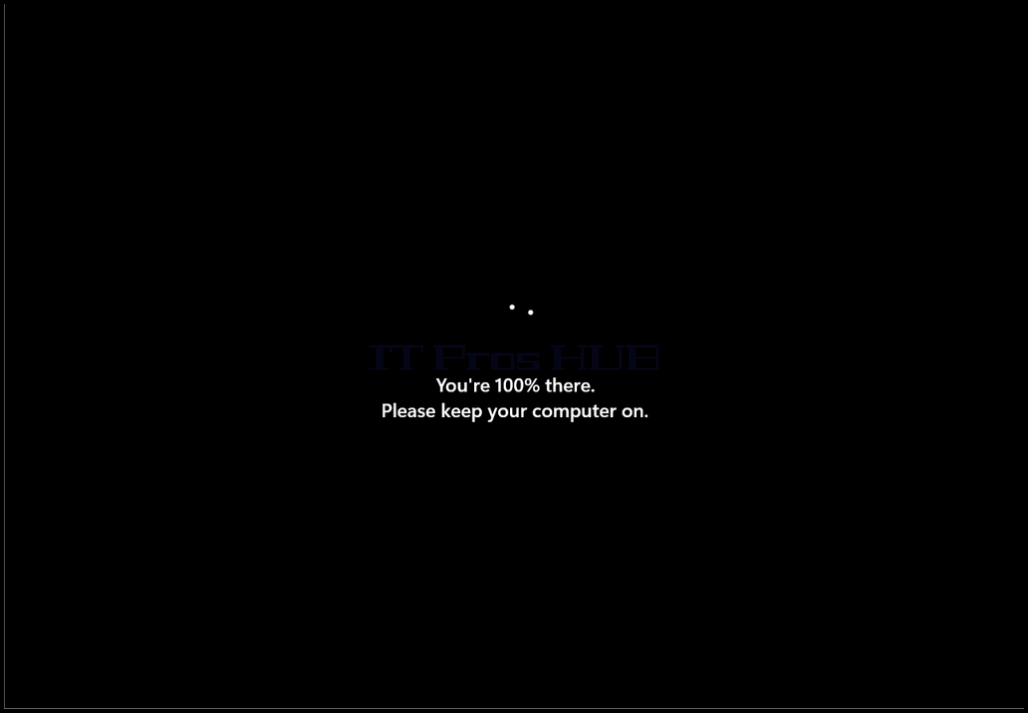
- Details
- Geschreven door: IT Pro
- Categorie: How to Articles
- Hits: 6780
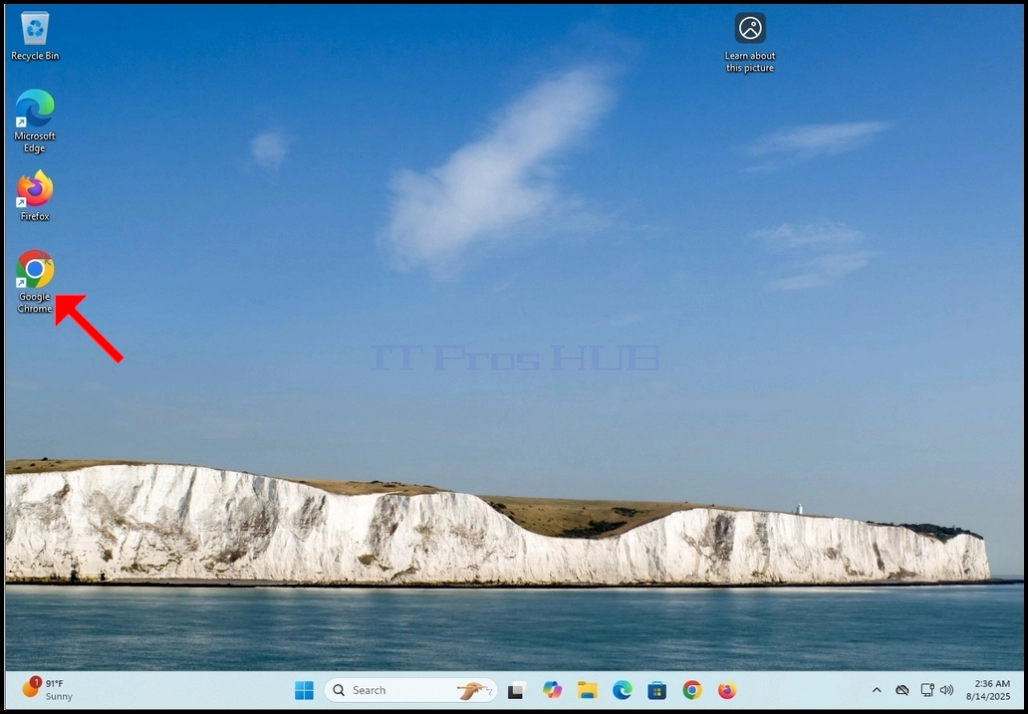
- Open uw webbrowser. In dit artikel gebruiken we Google Chrome.
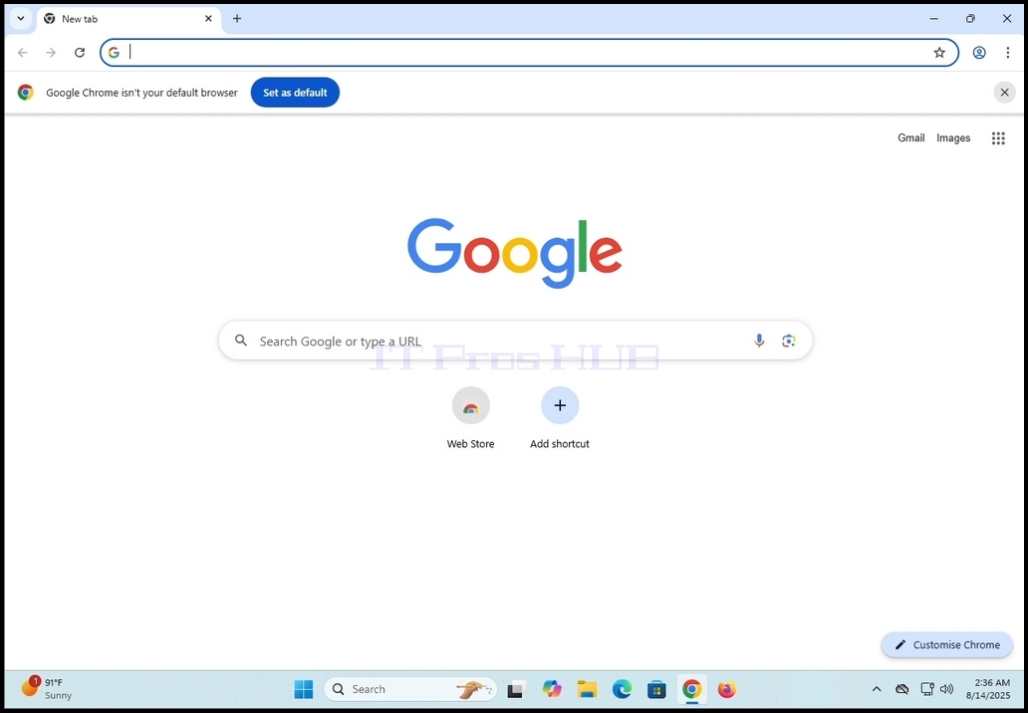
2. In het adresregeltype:zoom downloadenen raakte de ENTER sleutel op uw toetsenbord

3. Wacht tot de zoekresultaten te verschijnen (In dit artikel, de zoekmachine die wordt gebruikt is degene die afkomstig is van Google Chrome die Google is)

4. Meestal, het eerste zoekresultaat moet de juiste zijn, maar niet alleen. In dit artikel gaan we naar het eerste zoekresultaat dat getiteld is:Downloadcentrum voor Zoom en PluginsWat?

5. Het volgende scherm moet zijn Downloadcentrum voor zoomen blz.

6. Scroll de pagina een beetje tot u de downloadopties vindt
a. Download (64-bit)
b. Downloaden (32bit)
Downloaden (ARM64)
7. In dit artikel zullen we de 64-bit versie downloaden die ook de meest gebruikte is

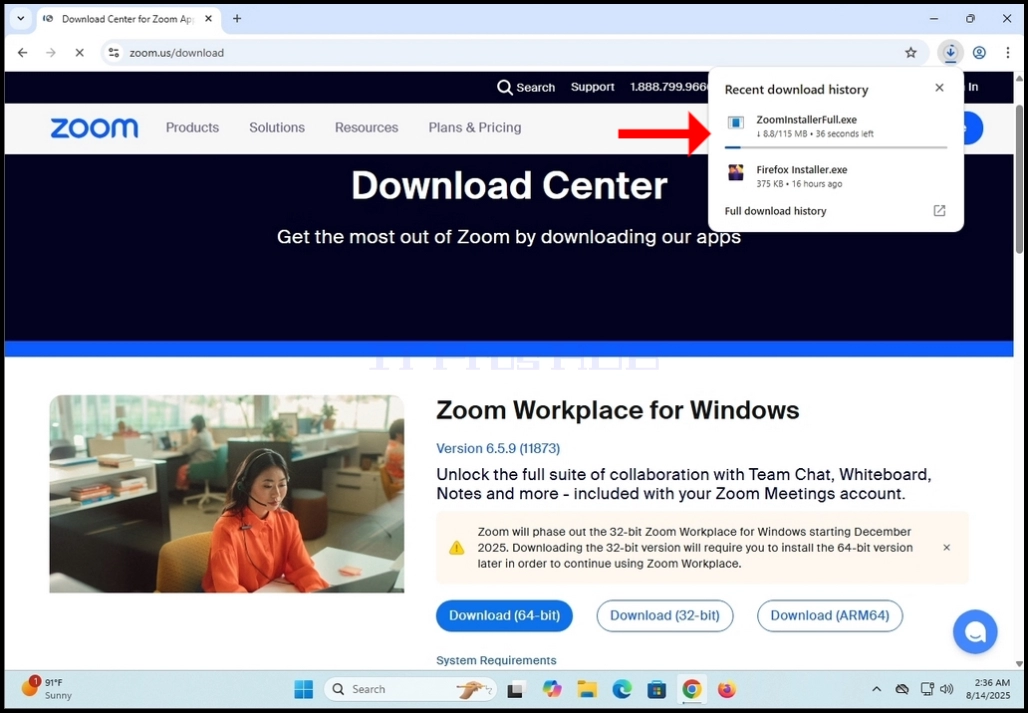
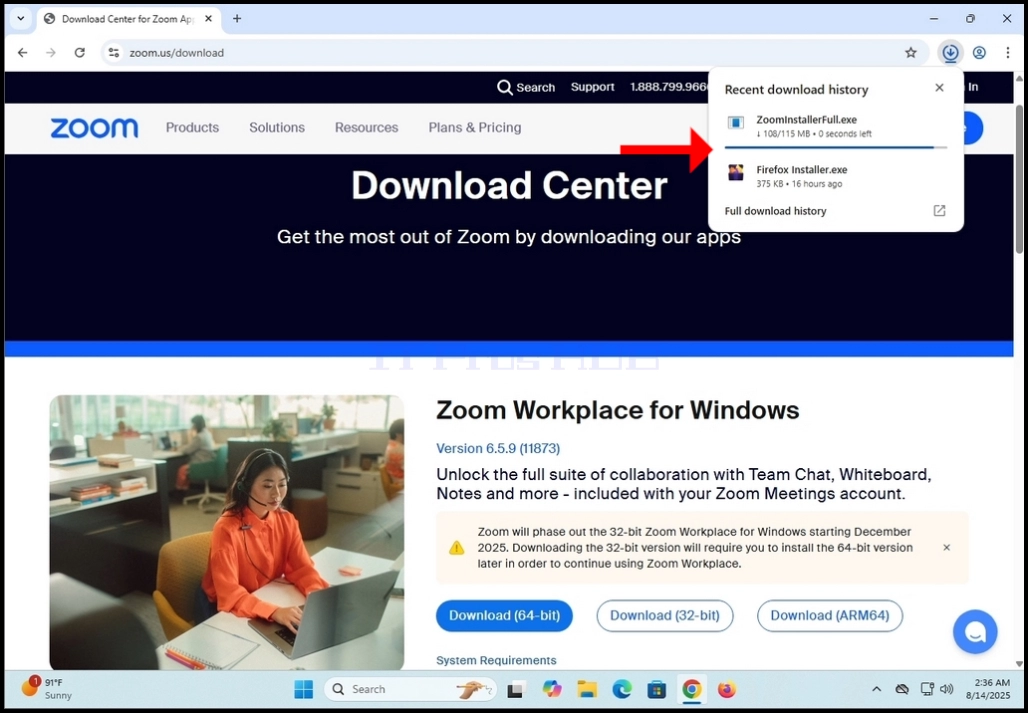
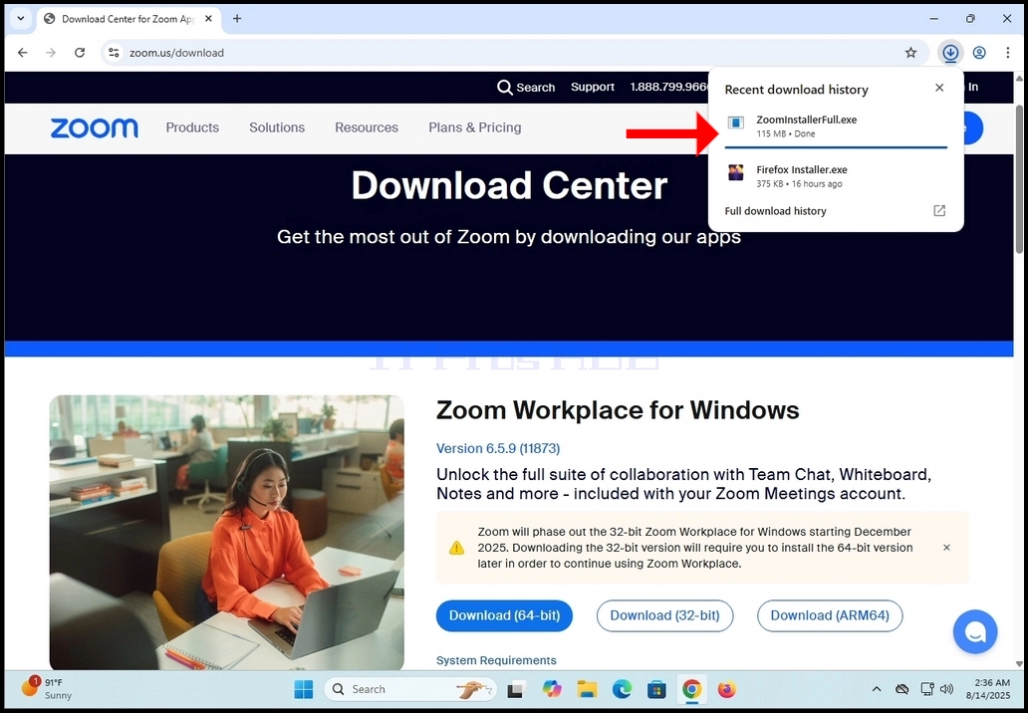
8. Klik op Downloaden (64-bit) knop en wacht tot het bestand wordt gedownload
a. De bestandsnaam zou meestal ZoomInstallerFull.exe zijn
9. Wacht tot de download klaar is en klik vervolgens op het gedownloade bestand en wacht tot de installatiewizard Zoom Workplace verschijnt

10. Wacht tot het installatieprogramma wordt geïnitialiseerd

11. Zodra de installatie succesvol is, wordt u als zodanig door het installatieprogramma op de hoogte gebracht
12. U krijgt ook om te kiezen of u wilt dat Zoom automatisch up-to-date blijft door het markeren van deZoom Workplace-app automatisch up-to-date houdenZin.
13. Klik op Klaar knop klaar

14. Na het klikken Klaar, Zoom Werkplek zou GUI moeten verschijnen
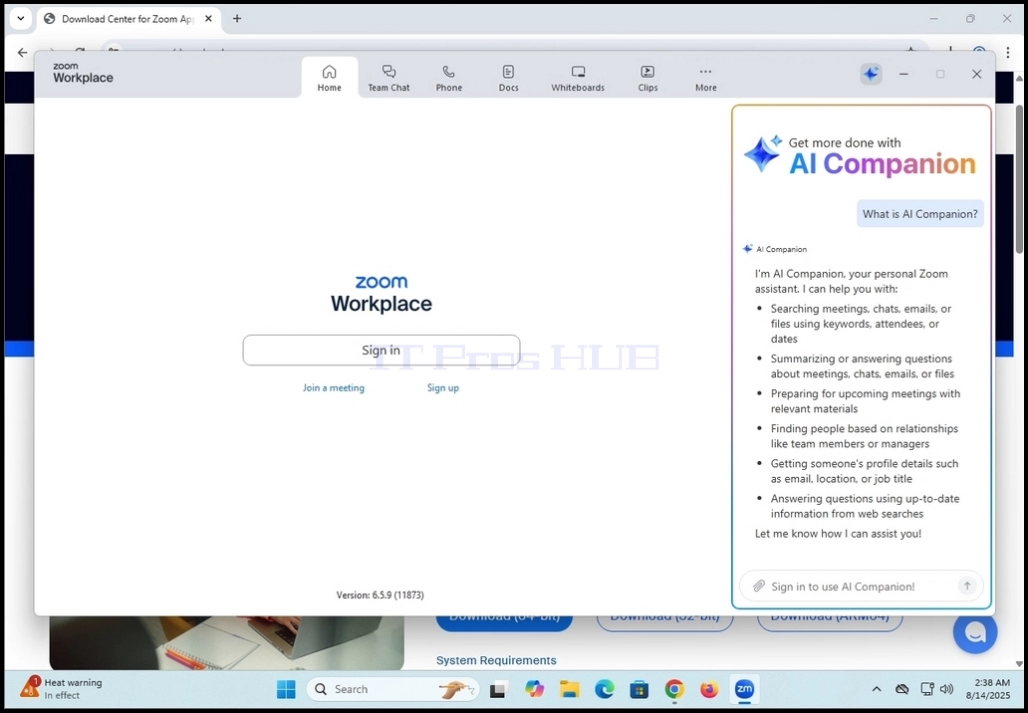
15. Vanaf hier kunt u Zoom Workplace op een paar manieren gebruiken:
a. Gewoon om deel te nemen aan een vergadering geen behoefte om een account aan te maken
b. Aanmelden en een account aanmaken om vergaderingen te starten
16. Zoomwerkplek is nu geïnstalleerd en klaar voor gebruik