Online: 1085 online | Members: 0 | Guests: 1085
Середа, червня 3, 2026
Page Minimap
Reading time: 2 min read
Tagline:HowtoAddStockImagesinWord
There is no translation available.

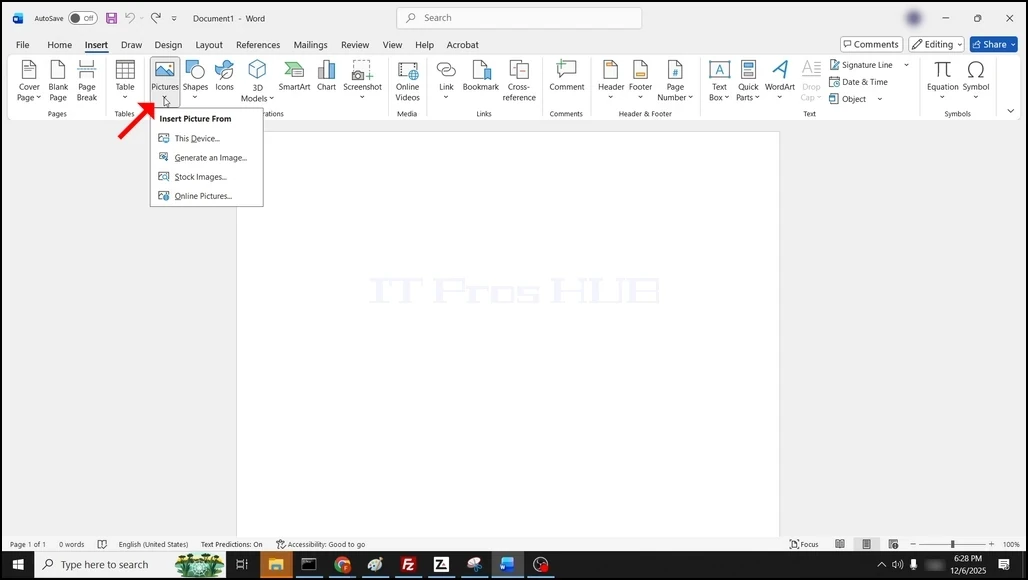
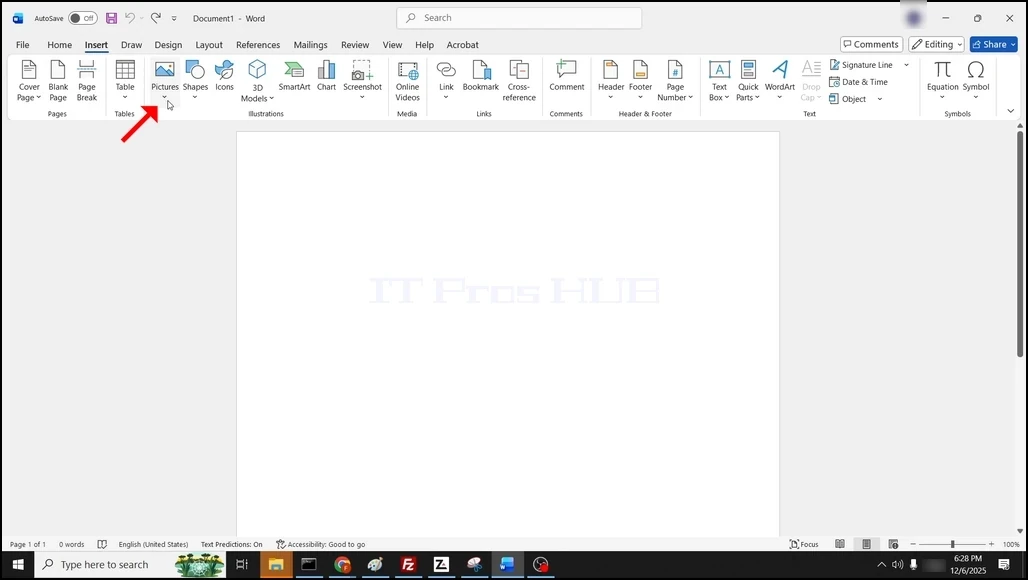
1. Open Word. Go to the Insert button on the menu ribbon, click on it, then go to Pictures:
How_to_Add_Stock_Images_in_Word1.webp

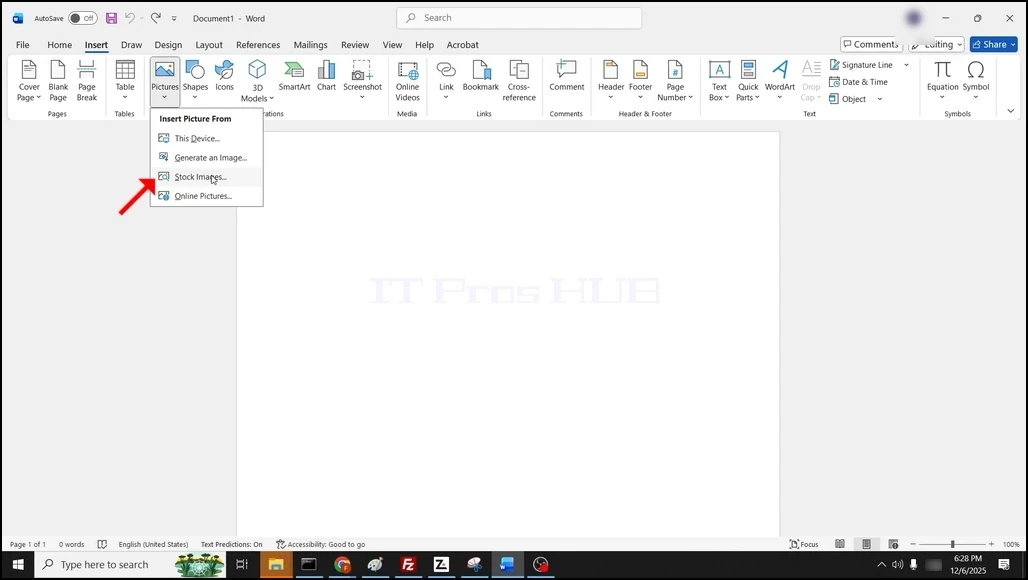
2. Once Pictures was clicked, a drop-down menu will appear:

How_to_Add_Stock_Images_in_Word2.webp

3. Choose Stock Images... and wait for a window to load.
How_to_Add_Stock_Images_in_Word3.webpHow_to_Add_Stock_Images_in_Word4.webpHow_to_Add_Stock_Images_in_Word5.webp

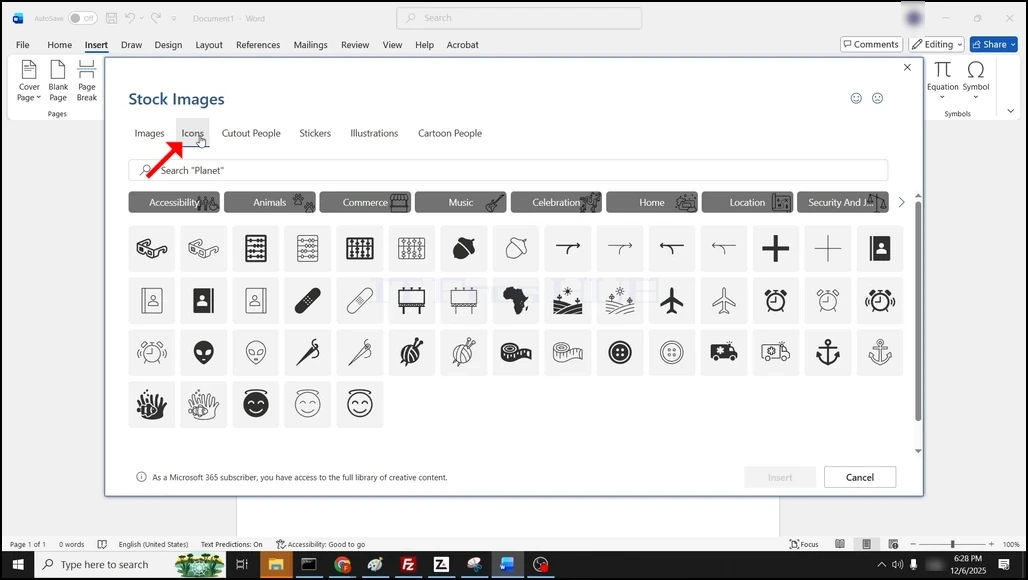
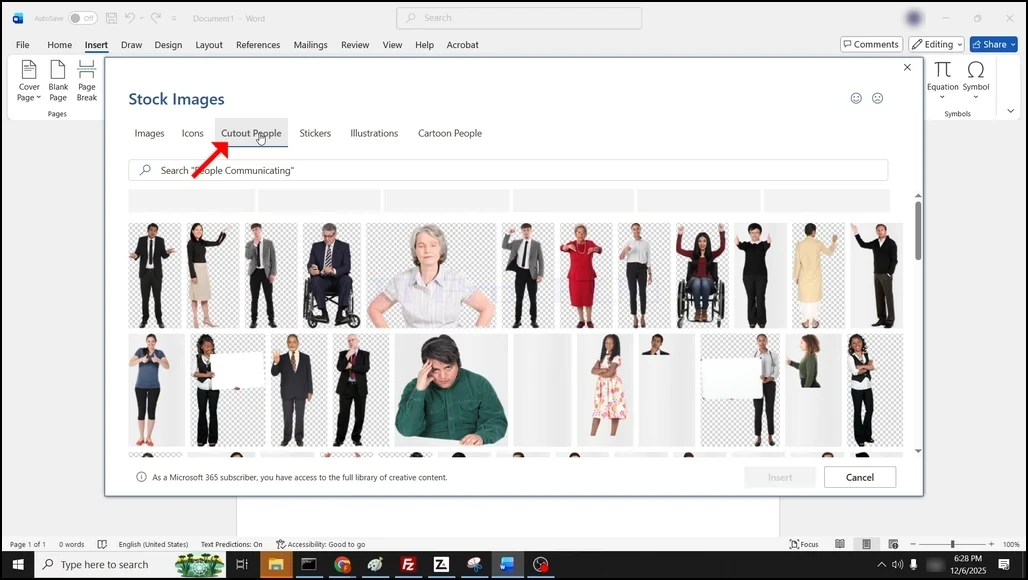
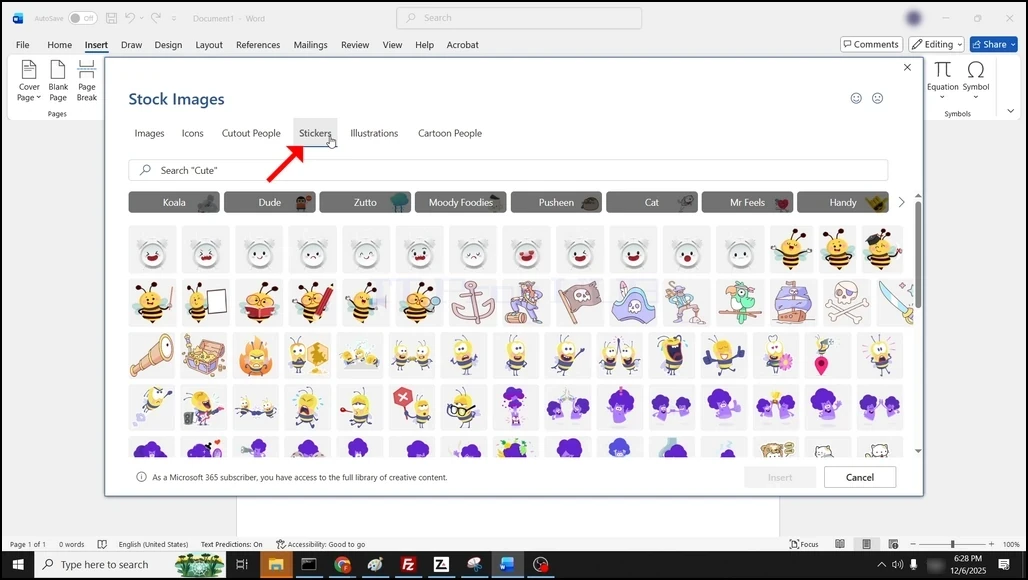
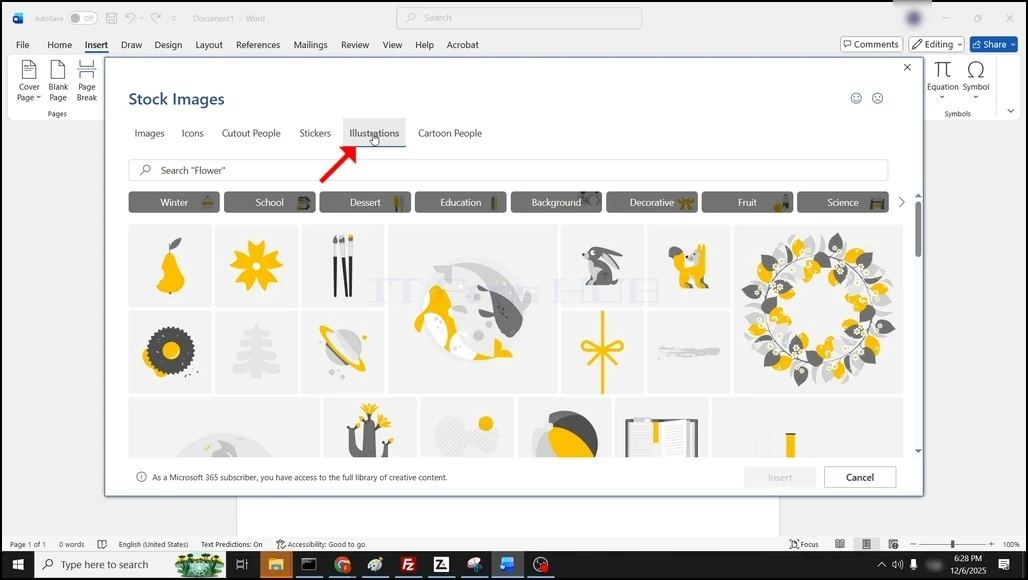
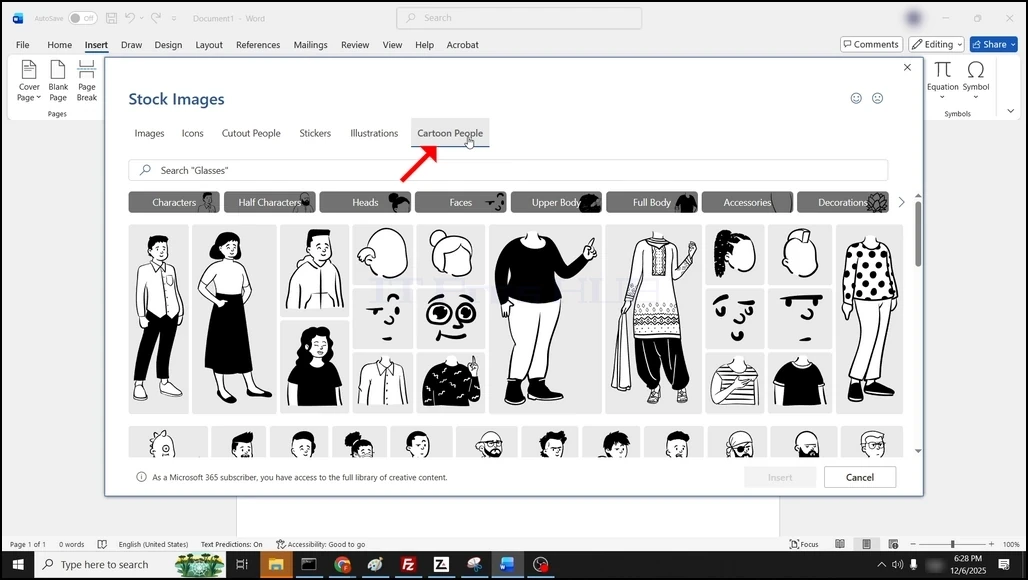
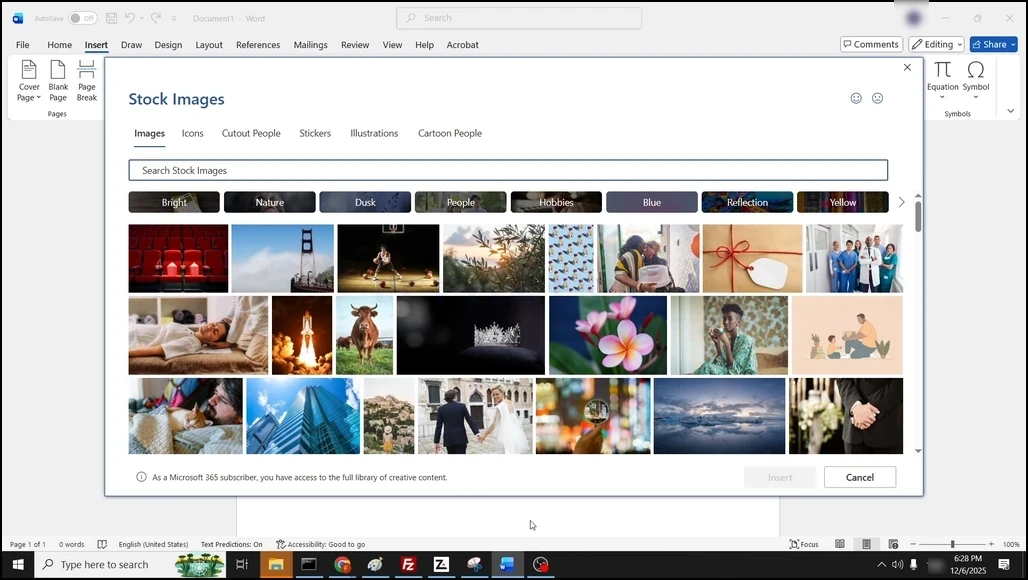
4. Once loaded, you will be presented by the various stock images options:

- Images

- Icons

- Cutout People

- Stickers

- Illustrations 

- Cartoon People
How_to_Add_Stock_Images_in_Word6.webpHow_to_Add_Stock_Images_in_Word7.webpHow_to_Add_Stock_Images_in_Word8.webpHow_to_Add_Stock_Images_in_Word9.webpHow_to_Add_Stock_Images_in_Word10.webpHow_to_Add_Stock_Images_in_Word11.webp

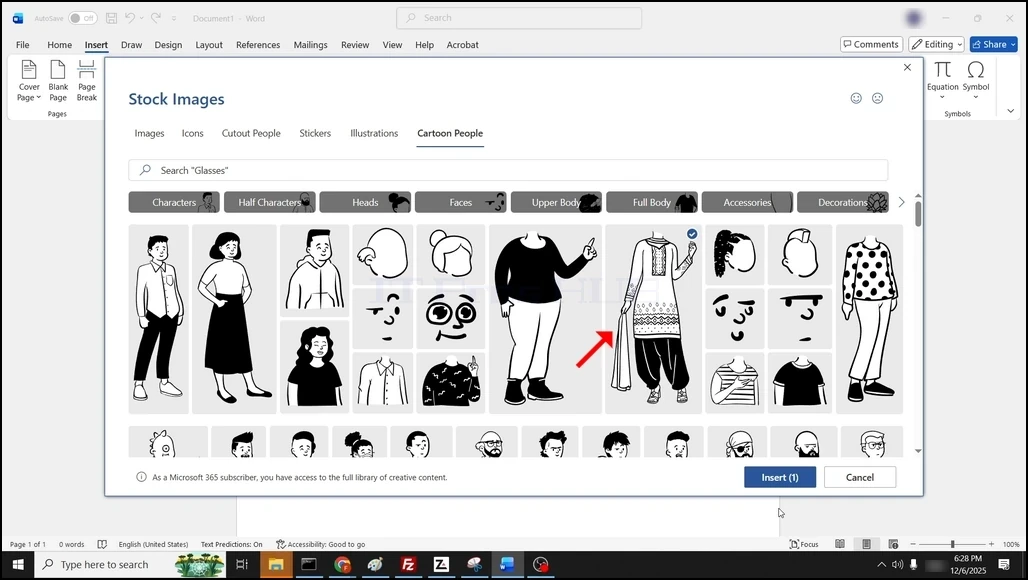
5. Choose one by clicking on it once and marking it. Once marked, the Insert button will turn Blue, click on it to insert the selected image to the Word document:

How_to_Add_Stock_Images_in_Word12.webp

6. The stock image is now added to the Word document:
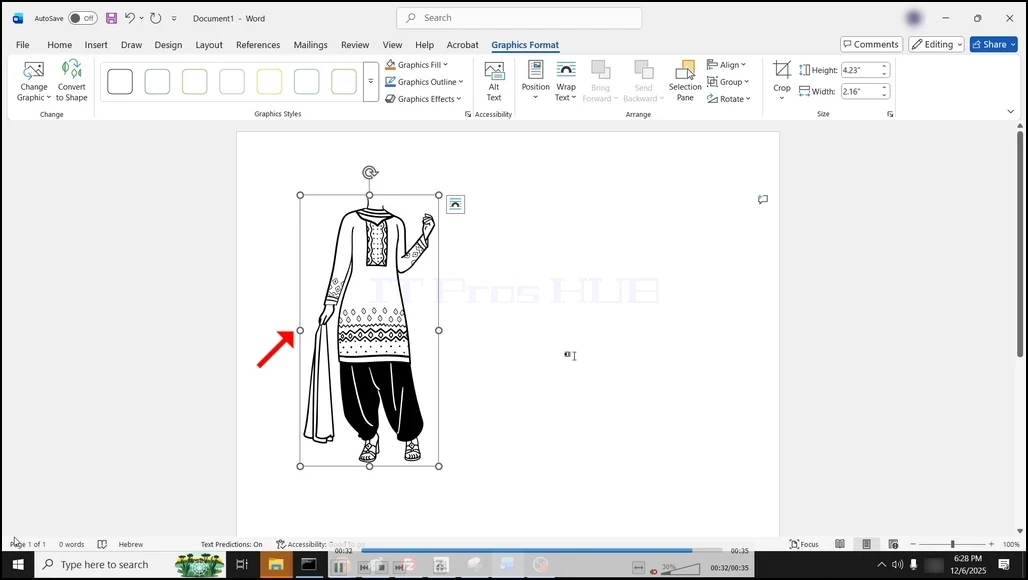
How_to_Add_Stock_Images_in_Word13.webp