Tagline:HowtoGoRecoveryModeinWindows11+1
There is no translation available.
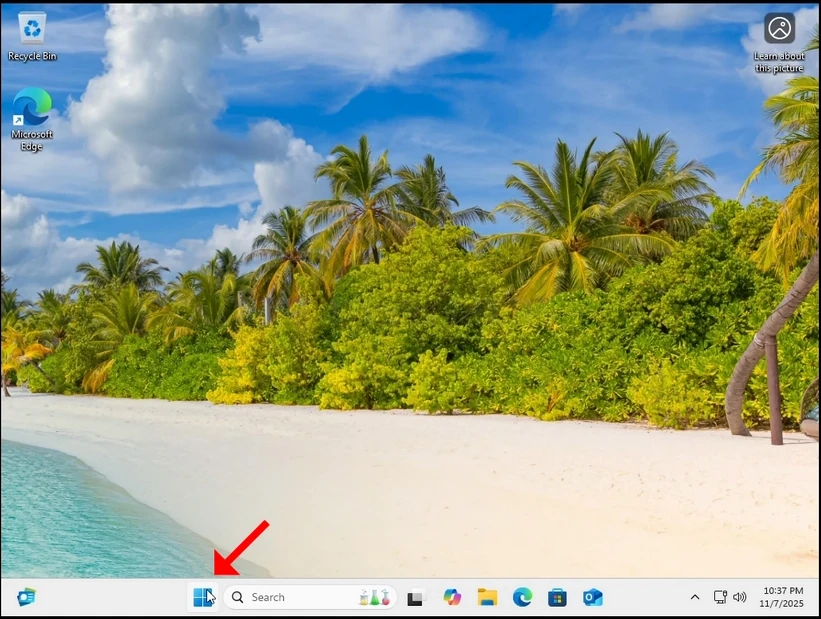
1. Right-click the Start button (Or left click on it if you are a lefty), wait for the secondary Start menu to load
2. In the secondary Start menu, look for the Shut down or sign out option. It should be next to the last option. Hover your mouse cursor over it until the menu extends to another sub-menu. If it does not happen – click on it once.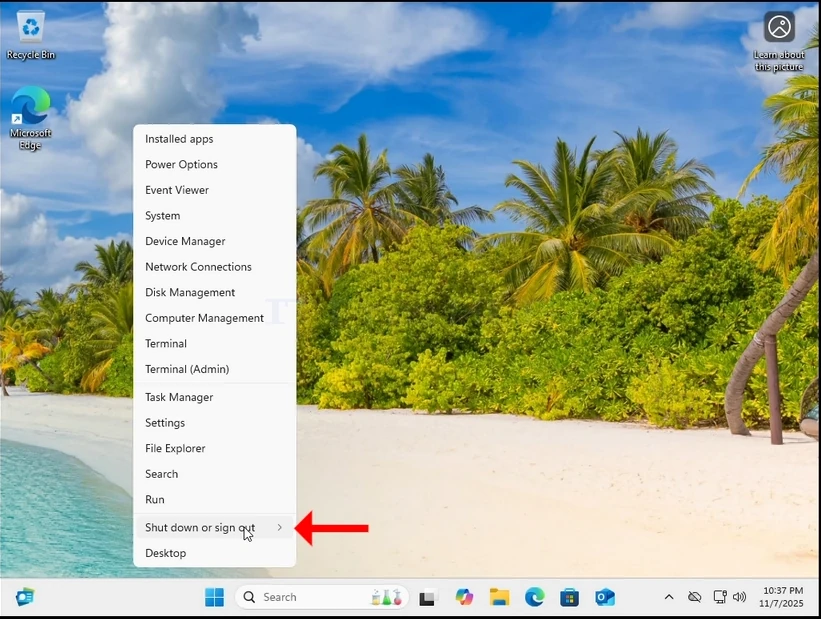
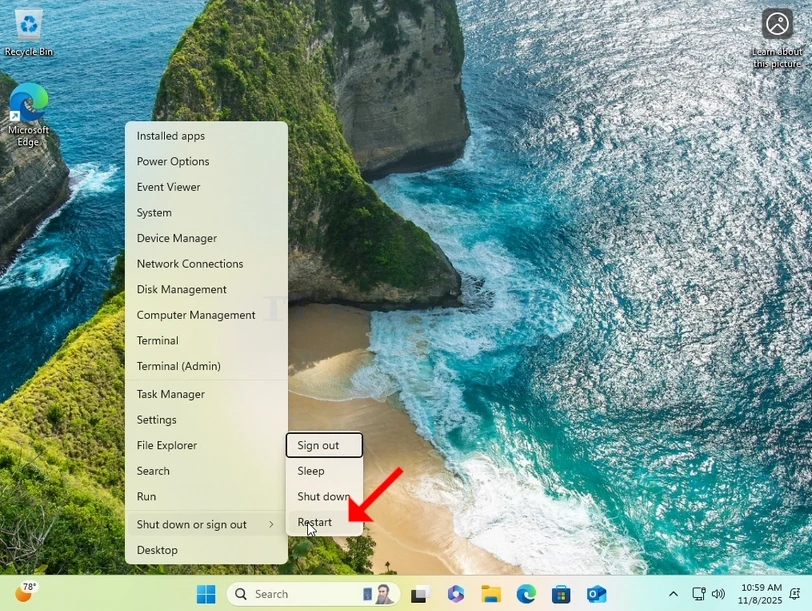
4. Wait for Windows to restart itself.

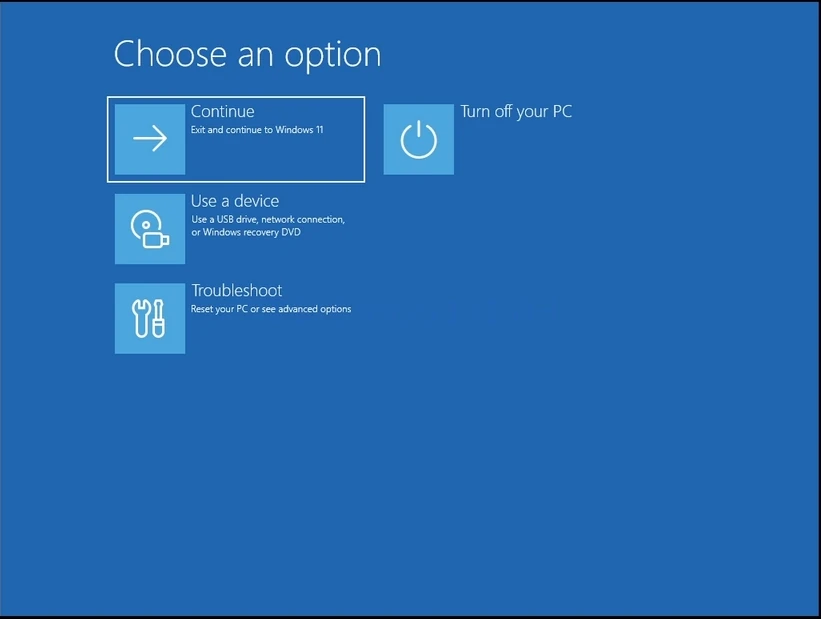
5. Windows should now boot into Recovery mode