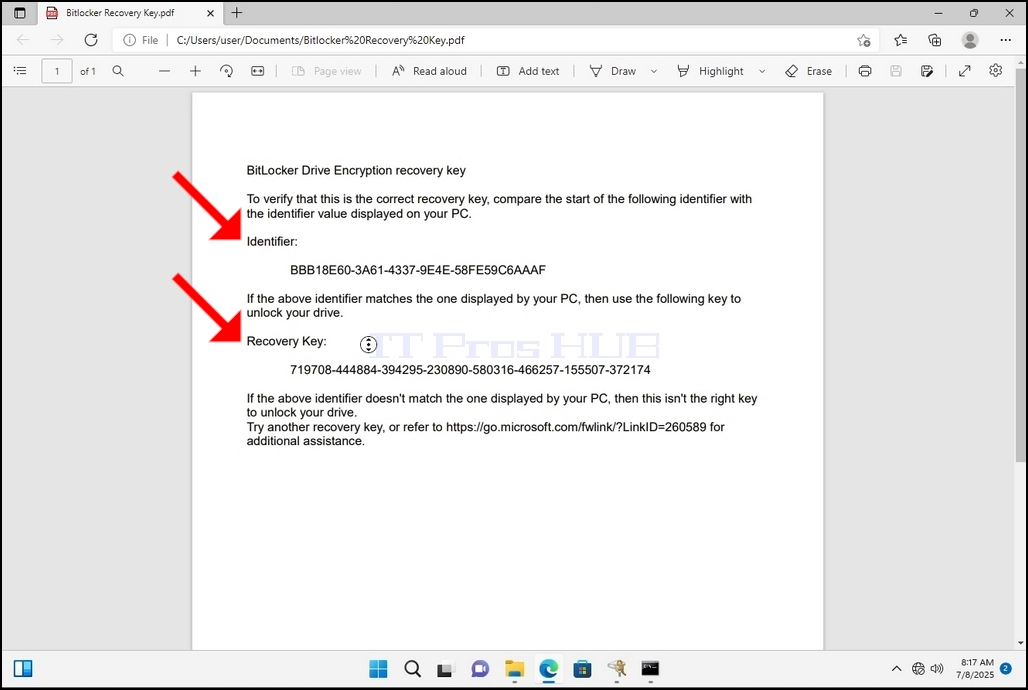
1. Отидете на работния плот на Windows
2. Щракнете върху бутона Start
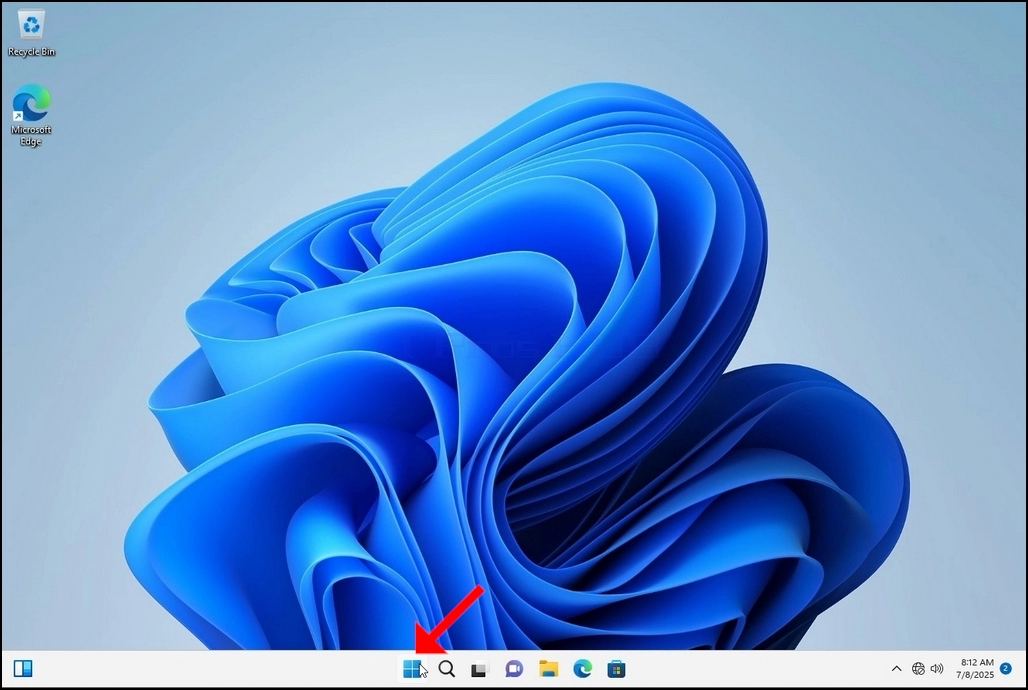
3. След като менюто Start е издигнато, тип ...битлокерИ изчакайте докато намери иконата на Bitlocker Control Panel. След като го намери, кликнете върху него и изчакайте да се отвори прозорец Bitclocker Drive.
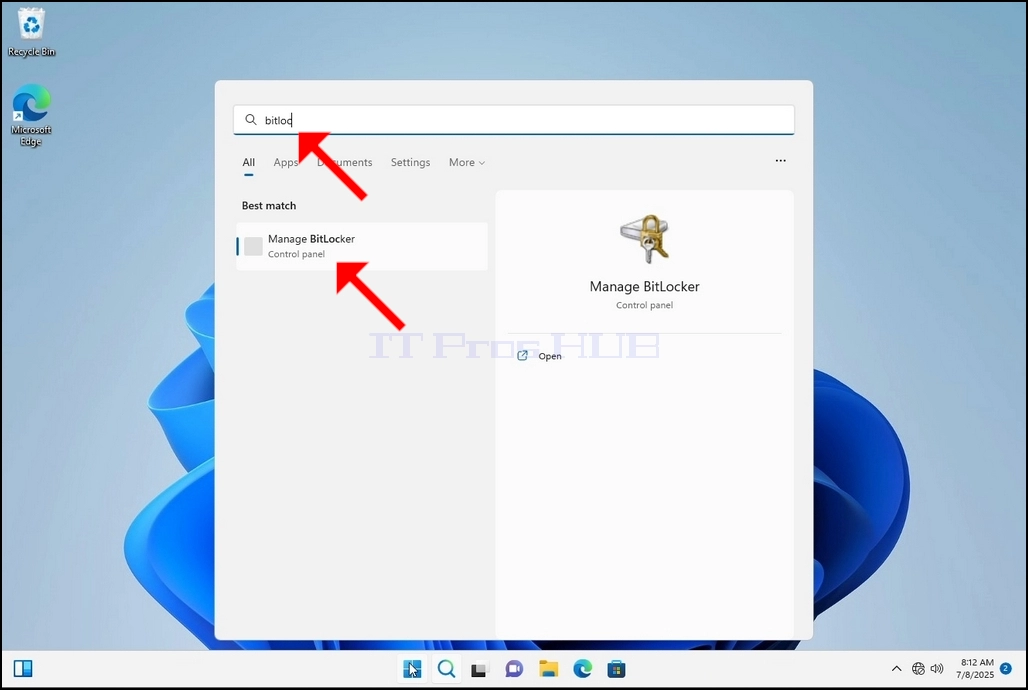
4. След като Bitlocker Drive е отворен, потърсете Включете Bitlocker изречение и щракнете върху него и изчакайте Bitclocker Drive Шифроване Магьосникът да се появи.
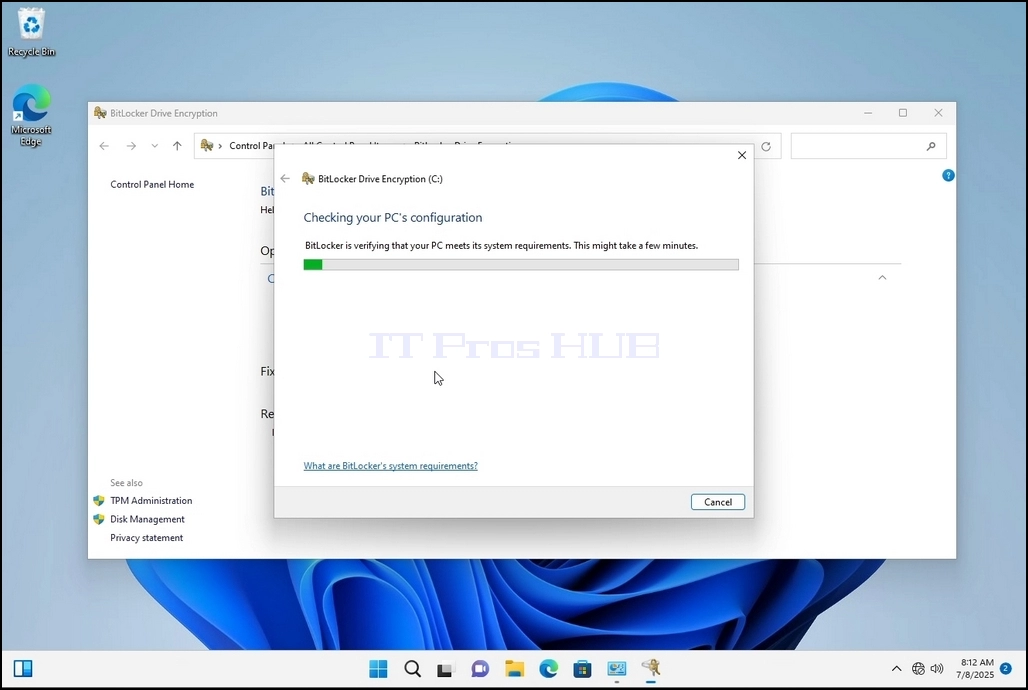
a. След като магьосникът се появи, автоматично ще се провери дали компютърът отговаря на изискванията на системата, необходими за криптиране на данни с помощта на Bitclocker.
b. Въпреки че се казва, че отнема няколко минути, в повечето случаи отнема до 30 секунди на модерна компютърна настройка.
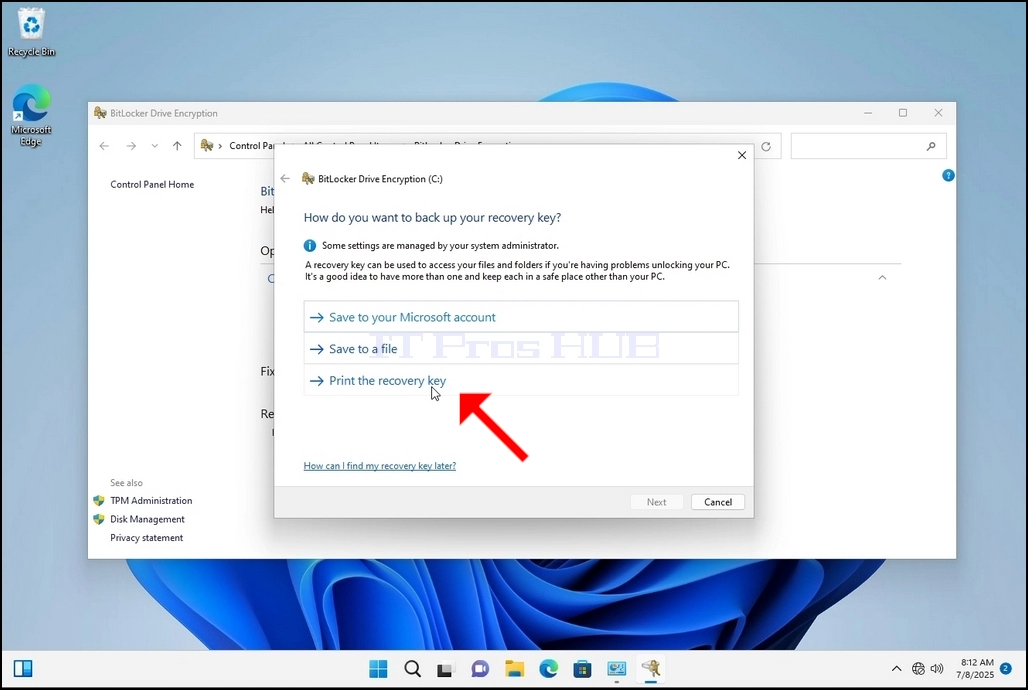
5. След като етап проверка е направено и магьосник намира компютъра Bitlocker способен, той ще попита как бихте искали да запазите своя Bitlocker възстановителен ключ
a. Профил Microsoft го запазва във вашия акаунт Microsoft
b. Запис във файл при запазване на ключа за възстановяване на текстов файл
b. Печат на ключа за възстановяване Отпечатва клавиша Bitlocker за възстановяване, дори на виртуален принтер.
6. В тази статия ще изберем последната опция, която е Печат на възстановяването Ключ и ще го запазим на място.
a. Имайте предвид, че Bitlocker не се позволява запис на файл с ключ за възстановяване на същия диск, който е на път да бъде криптиран.
б. Тя обаче позволява отпечатването на този ключ за възстановяване на файл на същия диск, който е на път да бъде криптиран. Този метод не се препоръчва, както добре, но в името на тази статия ще го направим по този начин.
c. Забележка год. Никога не запазвайте файла с код за възстановяване на същия диск, който е на път да бъде криптиран. Ако по някаква причина дискът бъде блокиран, ключът за възстановяване ще бъде заключен заедно с него.
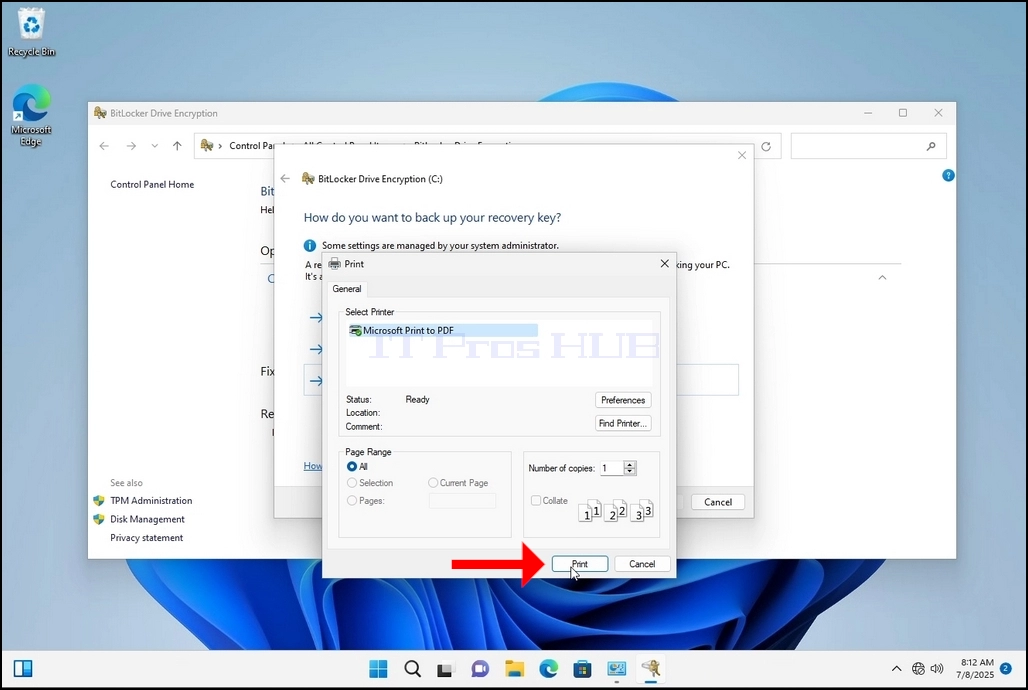
7. След като тази опция бъде избрана, магьосникът ще попита кой принтер да използва, за да отпечата ключа за възстановяване на Bitlocker. В тази статия, както е споменато в етап 6, ние ще изберем Microsoft Print to PDF принтер, който ще отпечата ключа за възстановяване в PDF файл.
8. След избора на принтера кликнете Печат
9. Ще се появи нов прозорец. Използвайте този прозорец, за да назовете ключа за възстановяване на Bitlocker PDF файл и да изберете къде искате да го запазите. В този случай ние го назовахмеКлюч за възстановяване на битлокера.
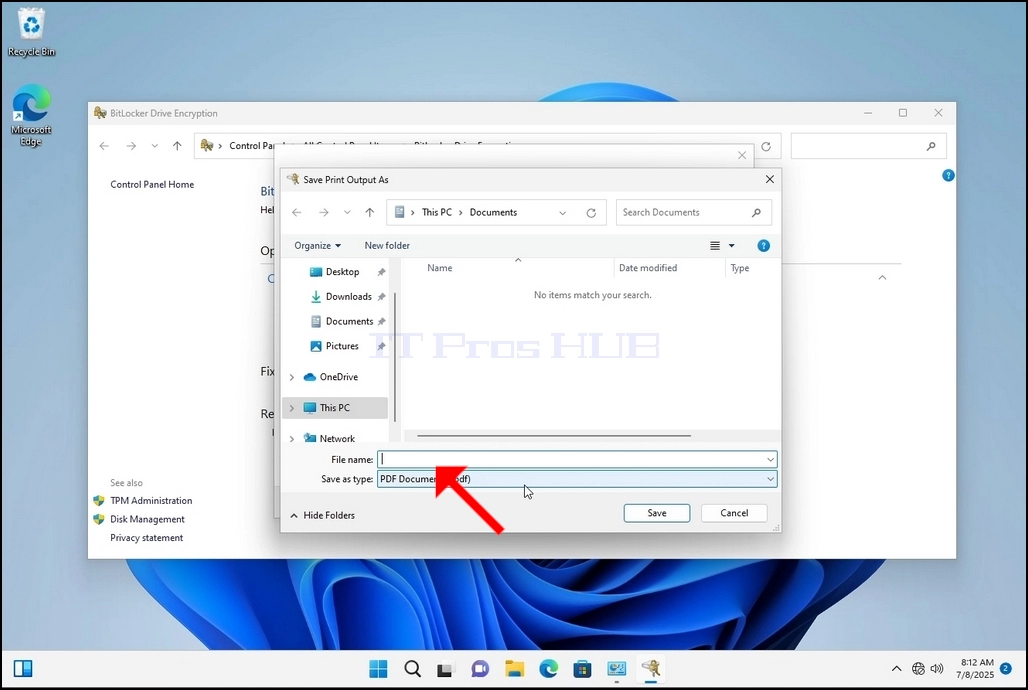
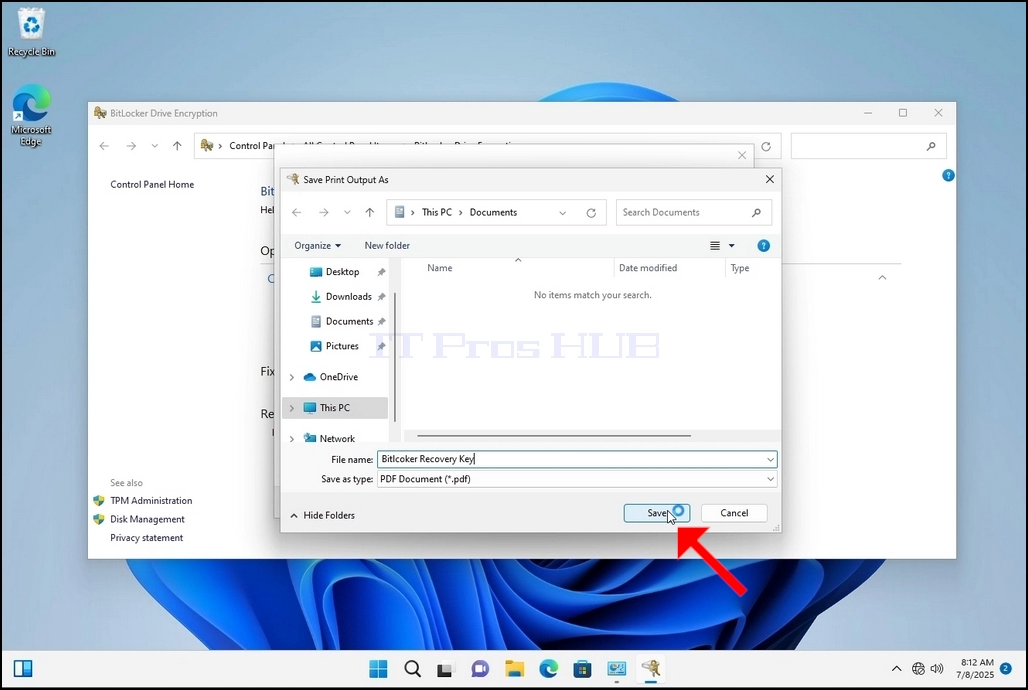
10. Щракнете върху запис
a. След като бутонът Save се кликне, прозорецът ще се затвори и ще се върнем на магьосника, само този път следващият ключ ще стане кликируем.
11. Щракнете върху следващия
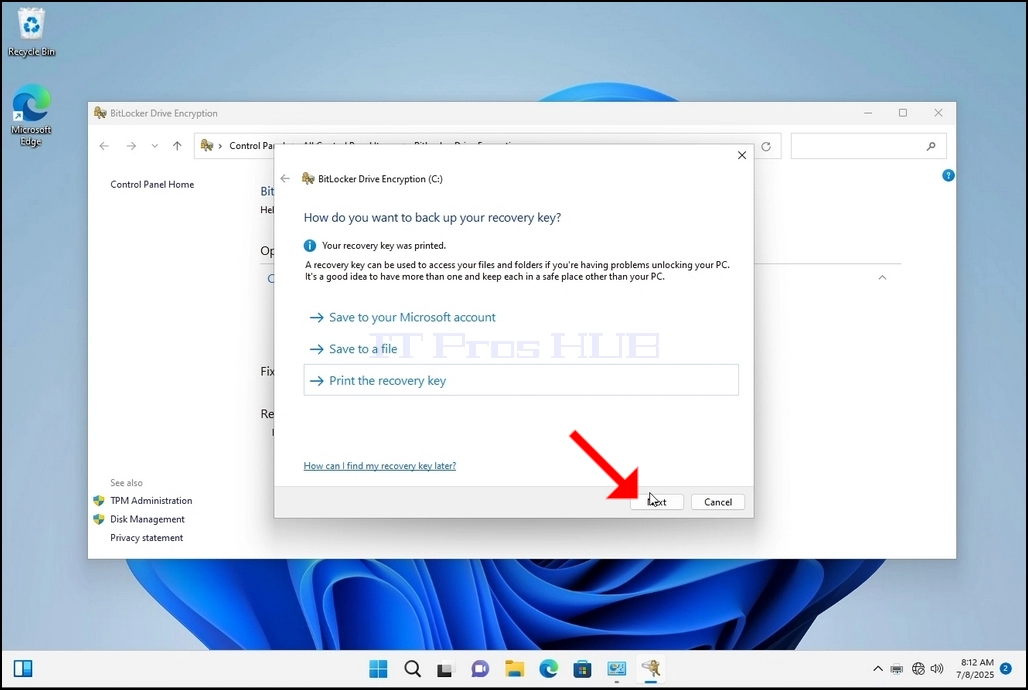
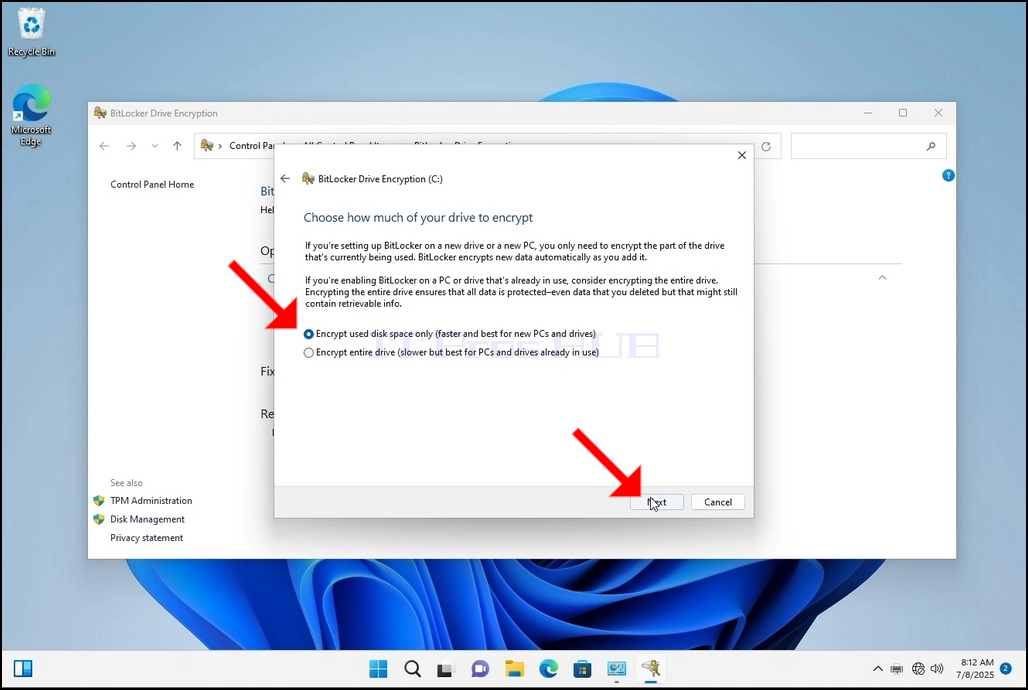
12. В настоящия етап ще бъдете помолени да изберете колко от вашия диск бихте искали да шифровате
a. В тази статия ще изберем първата опция, която е по-бърза за изпълнение
б. Щракнете върху следващия
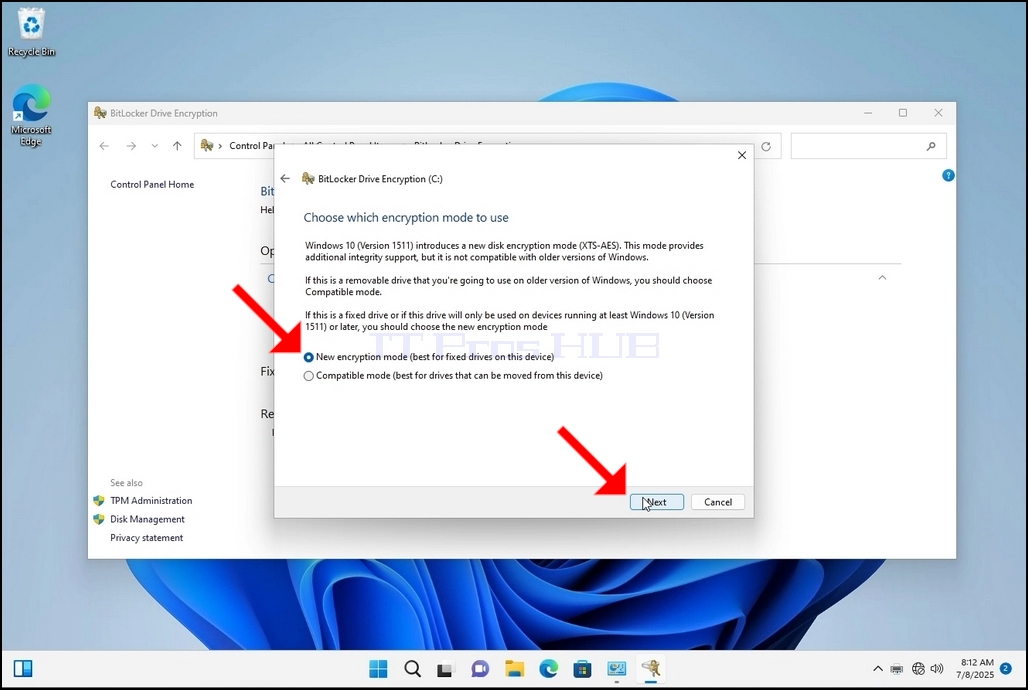
13. В текущия етап ще бъдете помолени да изберете кой режим на криптиране да използвате
a. В тази статия ще изберем първата опция, която е Нов режим на шифроване. Изберете го и кликнете върху Next
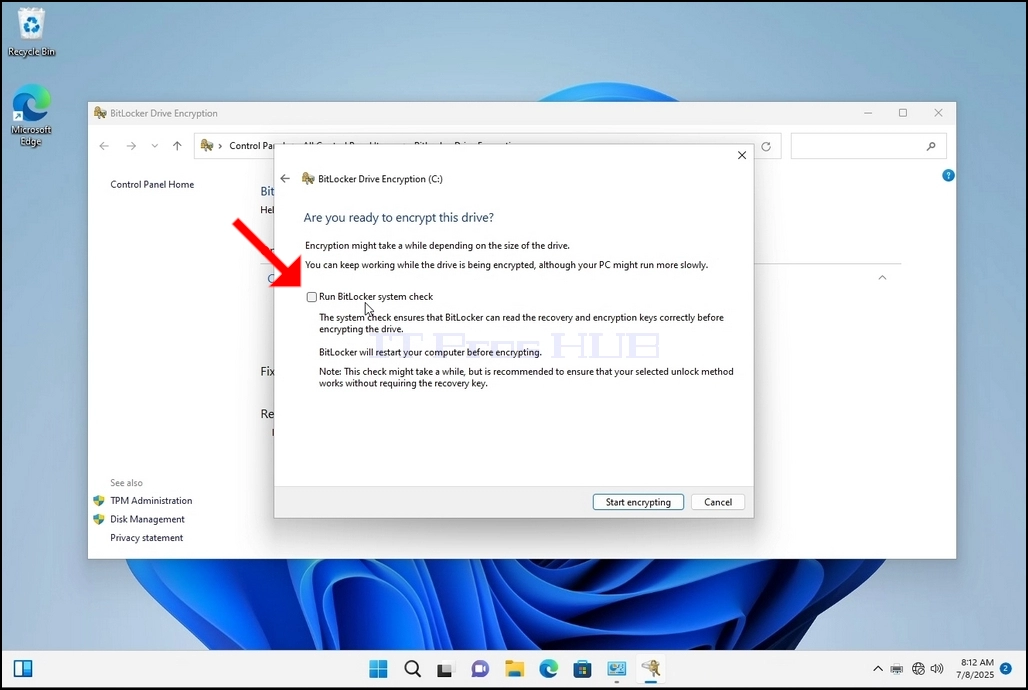
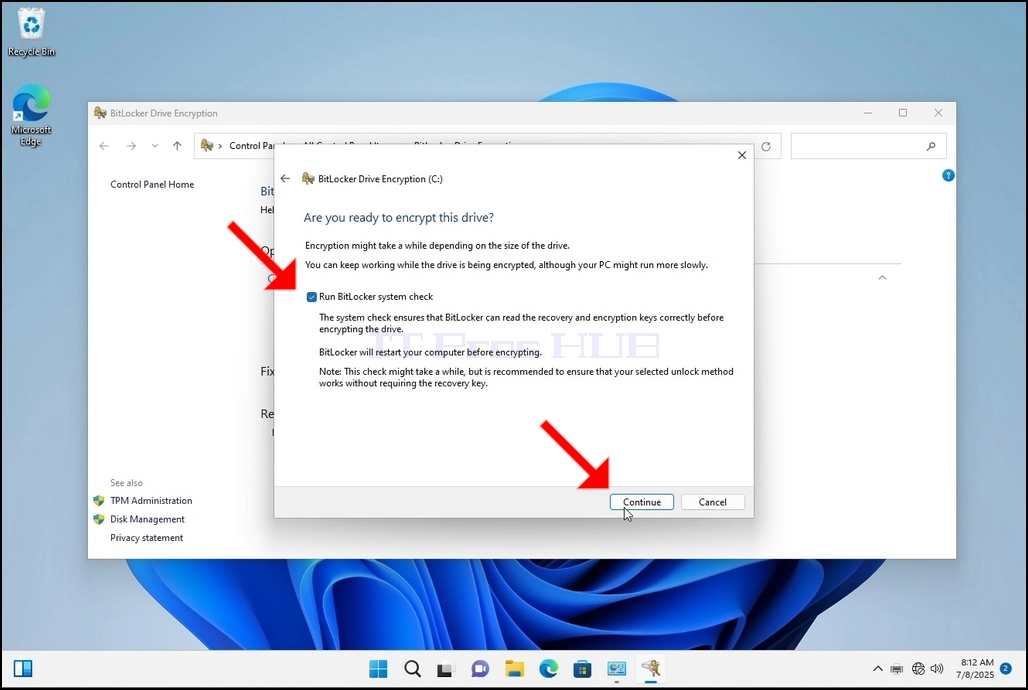
14. Въпреки че не е задължително, но се препоръчва, ние ще отбележим Проверка на системата BitlockerName вариант.
a. Проверката на системата гарантира, че Bitlocker може да чете правилно възстановителните и криптиращите ключове преди криптиране на диска.
б. След като тази опция е маркирана, бутонът ще се промени от стартов ехфинг на .
в. Кликнете върху продължение
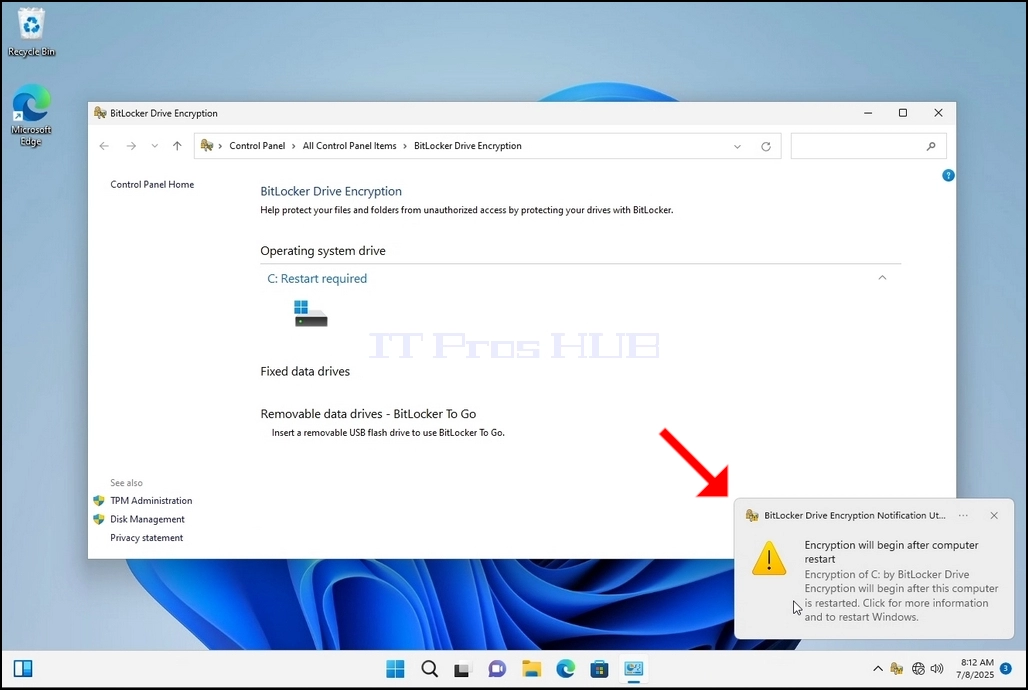
15. Няколко секунди след щракването Продължете, страничен прозорец за уведомяване ще се появи от дясната страна на прозореца.
a. Кликнете върху него веднъж
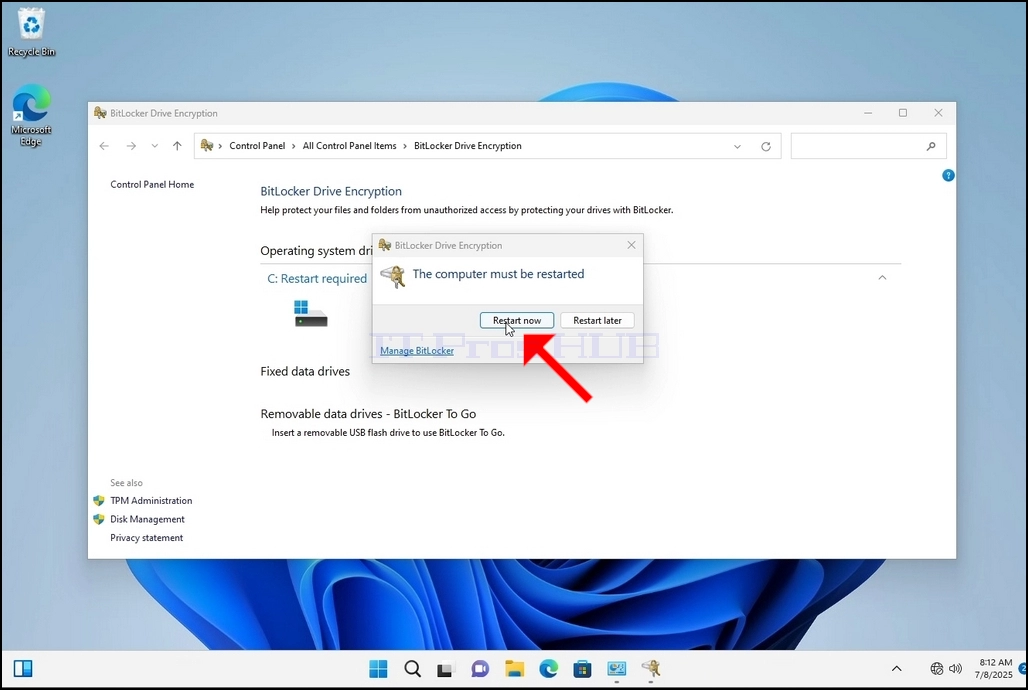
б. След като кликнете, ще се появи друг изскачащ прозорец, който ще попита дали да рестартира сега, за да стартира процеса на криптиране или по-късно.
c. Щракнете върху бутона Restart Сега и изчакайте компютъра да се рестартира напълно.


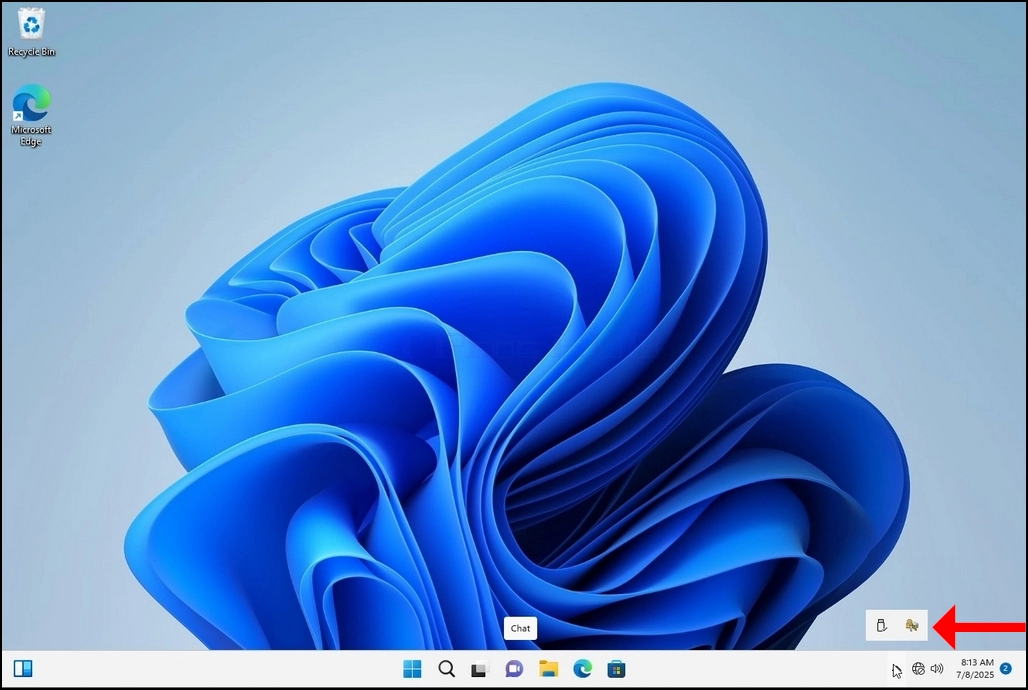
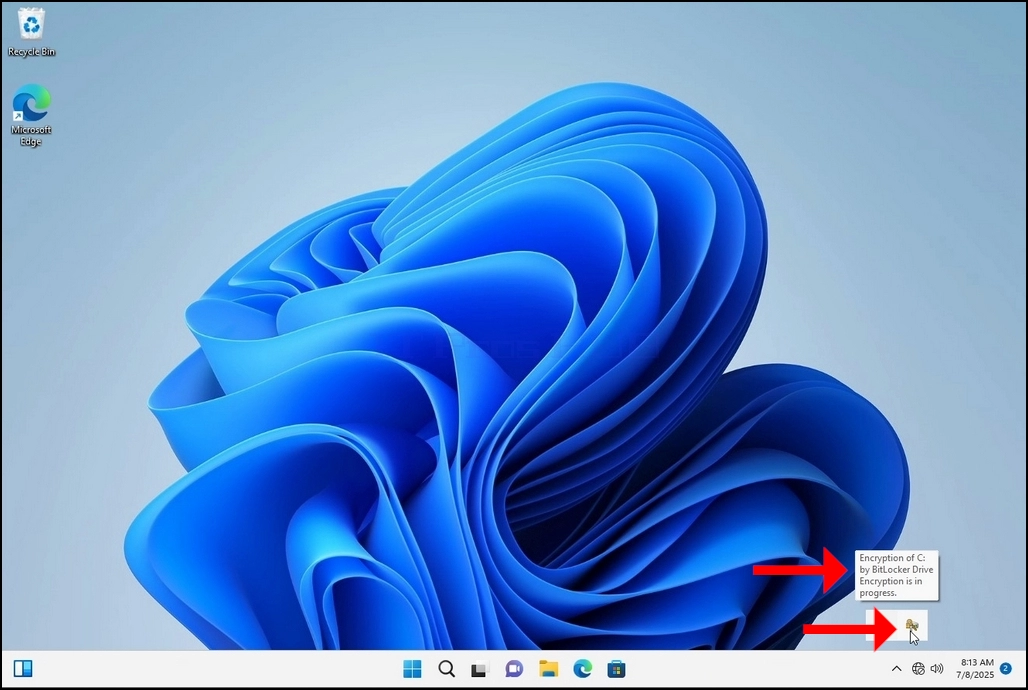
16. След като компютърът е напълно рестартиран, кликнете върху лентата за задачи нагоре стрелка (Нотификация площ препълва икона).
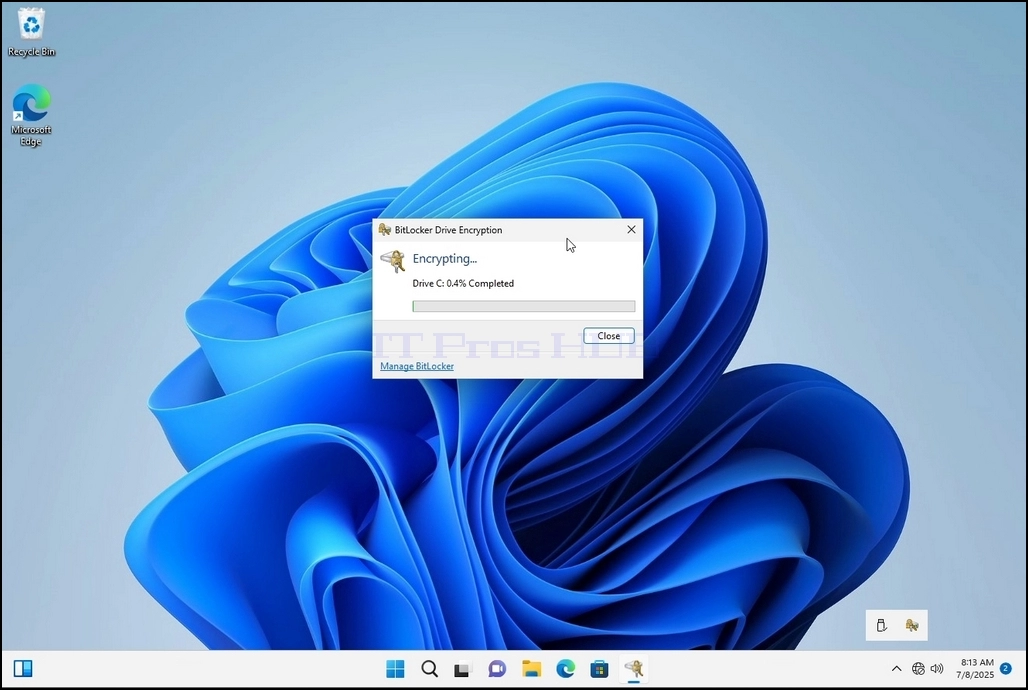
a. Потърсете иконата Bitlocker и кликнете два пъти
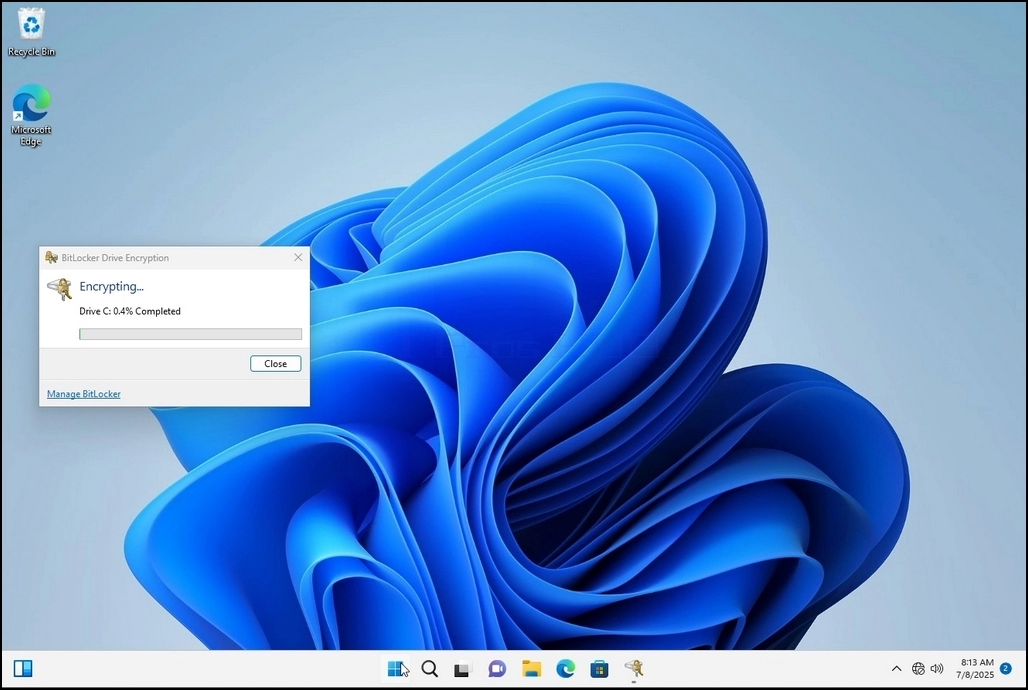
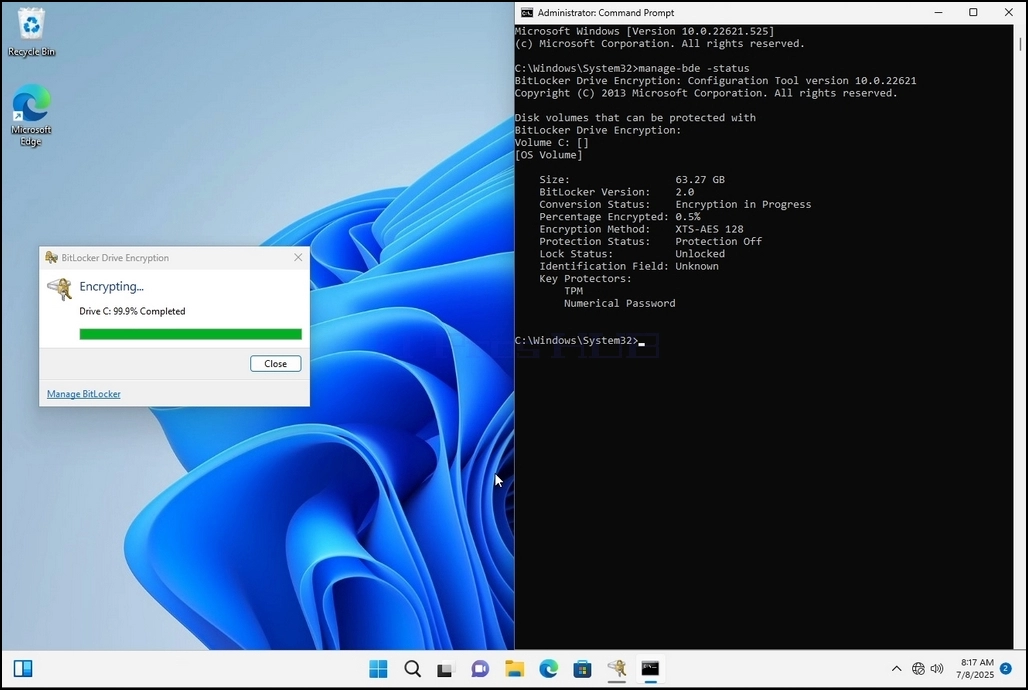
b. След като кликнете, ще се появи прозорецът за криптиране на Bitlocker диска, показващ състоянието на процеса на криптиране
c. След като лентата е пълна на 100%, процесът на криптиране е завършен
17. Друг начин да се провери състоянието на процеса на криптиране е да се използва CLI на Bitlocker чрез CMD
a. Щракнете върху бутона Start
б. Тип CMD
в. Кликнете върху Run като администратор
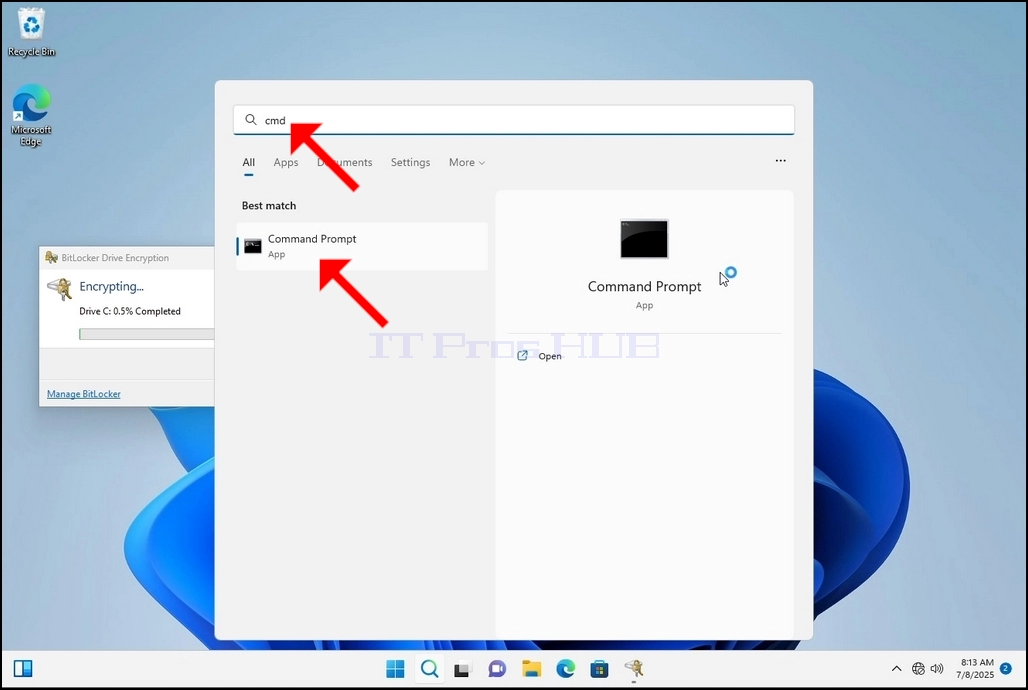
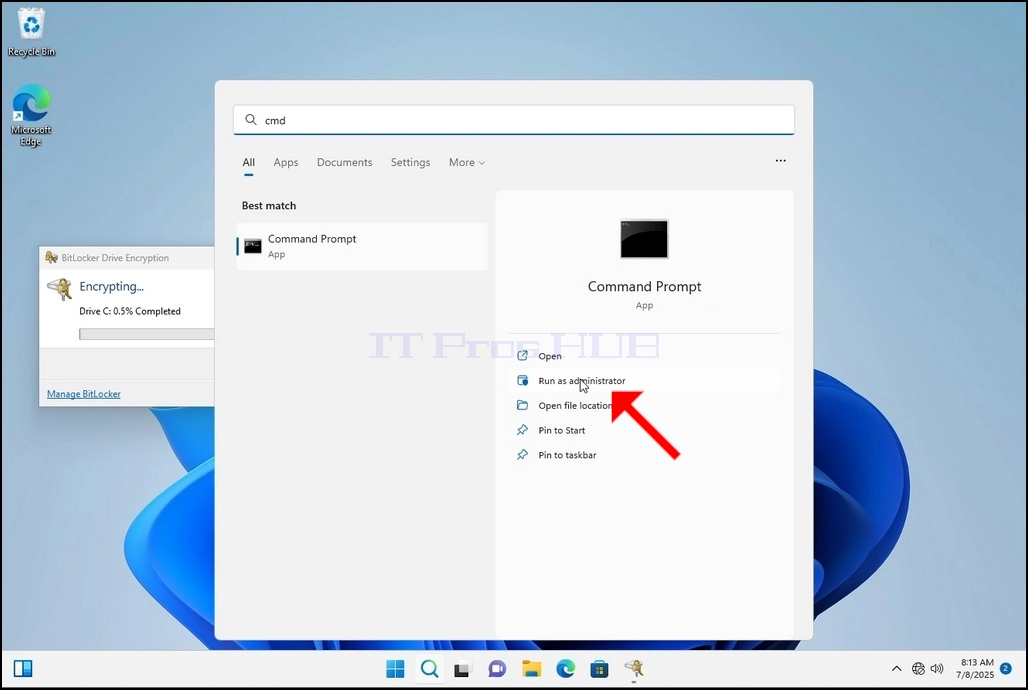
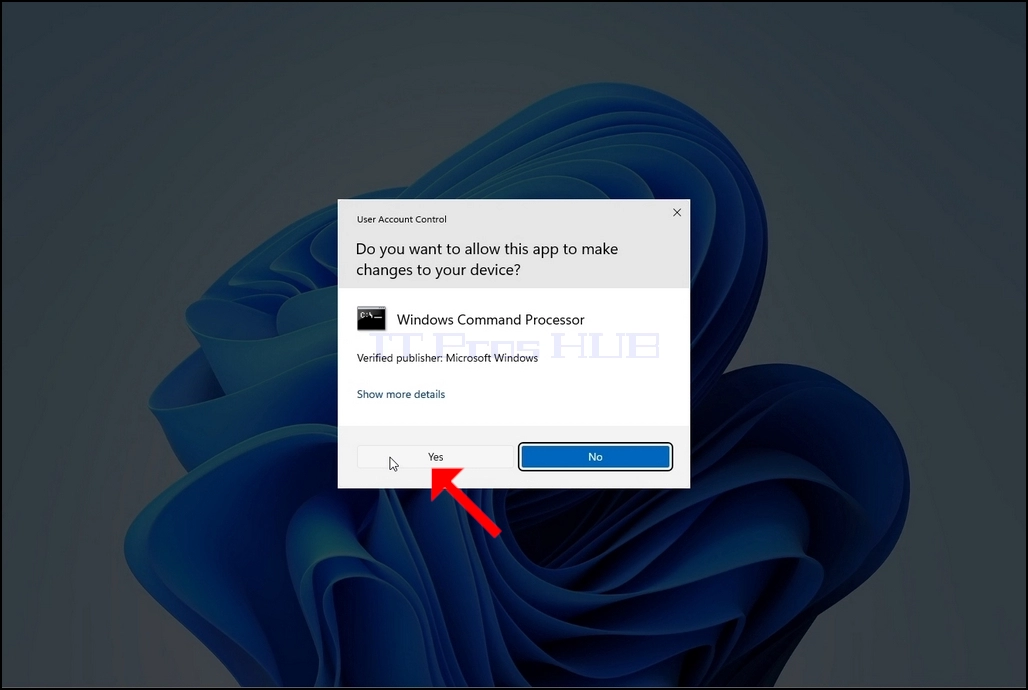
18. Кликнете върху ДА в прозореца на UAC
19. Тип в cmd manage- bde -status и кликване
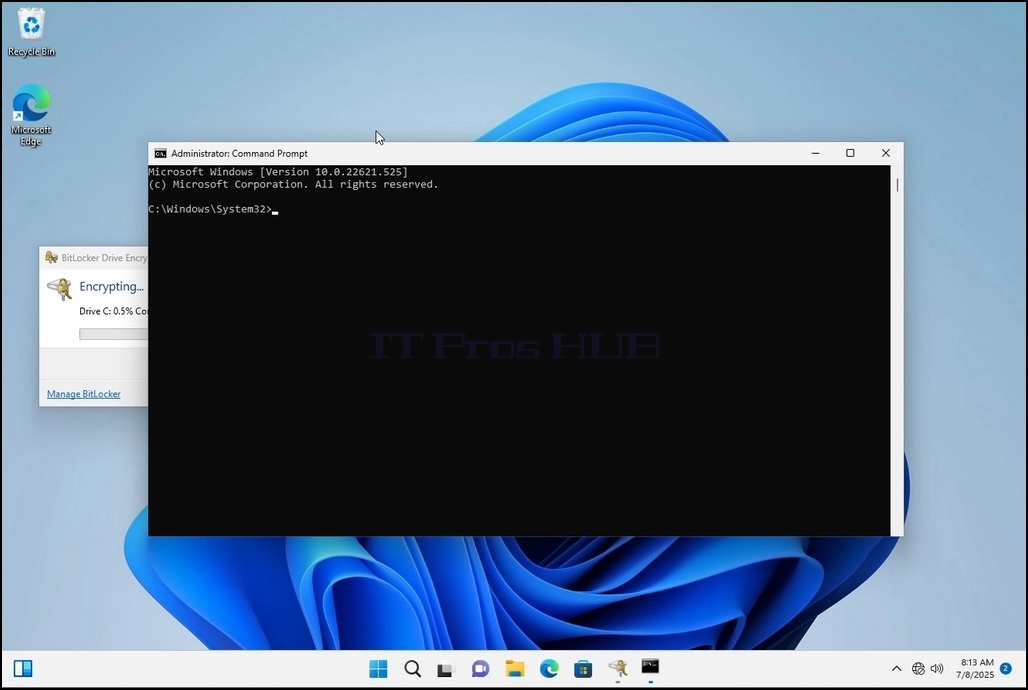
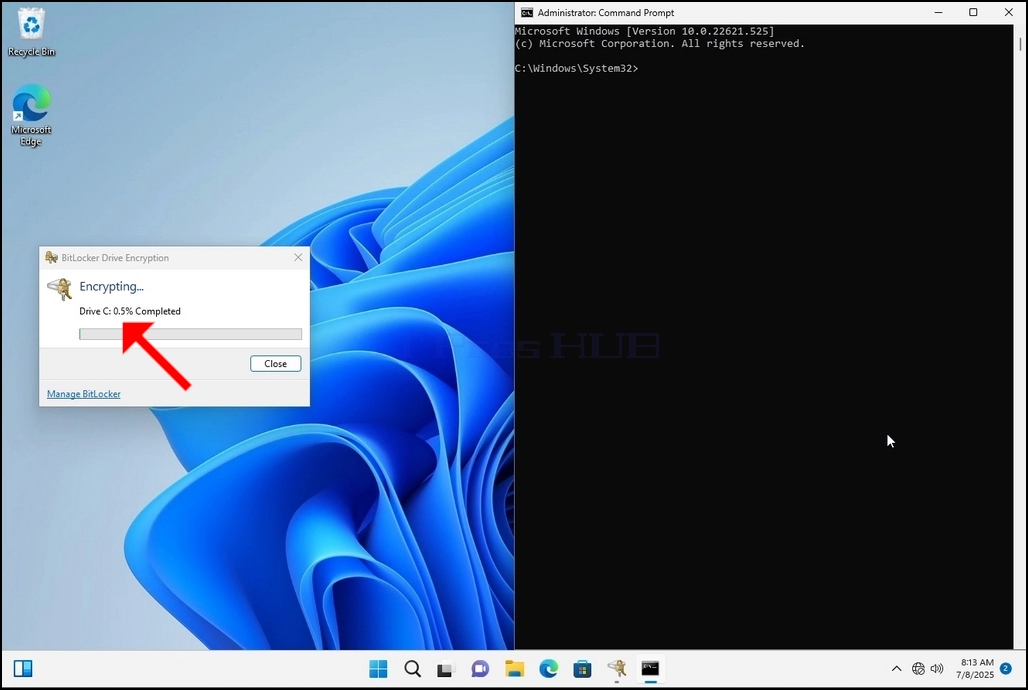
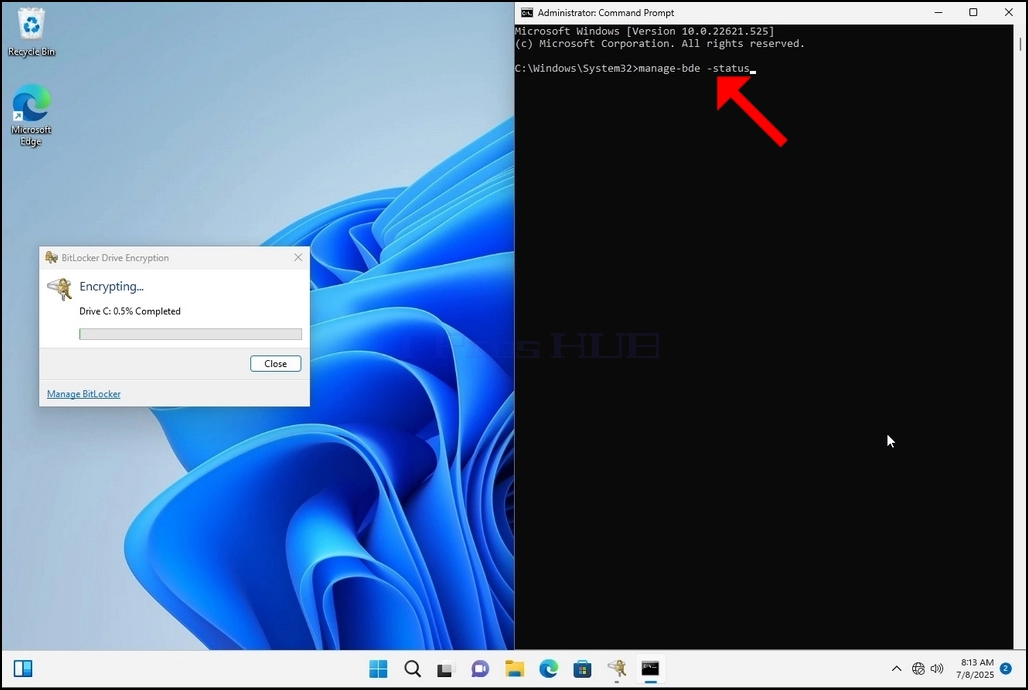
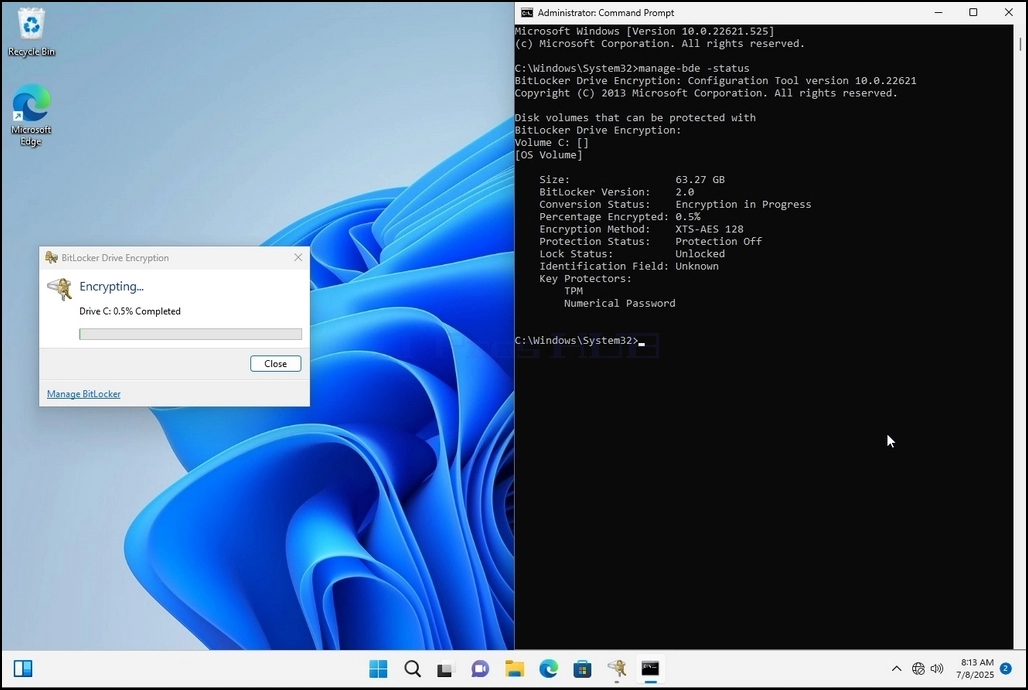
20. Линиите, които ще се появят, ще представят информация за процеса на криптиране:
a. Размер - Размерът на устройството е кодиран
b. Bitlocker Version Версията на Bitlocker използвана за шифроване на диска
b. Статус на преобразуване Показва текущото състояние на диска
b. Процент шифрован Показва колко от избрания диск е бил криптиран
b. Метод за шифроване Показване на метода за криптиране
a. Статус на защита Показва дали защитата Bitlocker в момента е изключена или включена
a. Състояние на заключване Показва дали избраният диск е заключен или отключен (достъпен или не)
b. Поле за идентификация - се отнася до етикет или опционален низ можете да придадете на BitLocker-защитен обем, за да го идентифицирате, особено при управление на множество дискове или възстановителен ключ
a. Ключодържатели
Показва механизмите за установяване на самоличността, които защитават клавишите за криптиране, използвани за отключване на устройство. Когато шифровате устройство, BitLocker използва един или повече ключови протектори, за да охранява достъпа до него
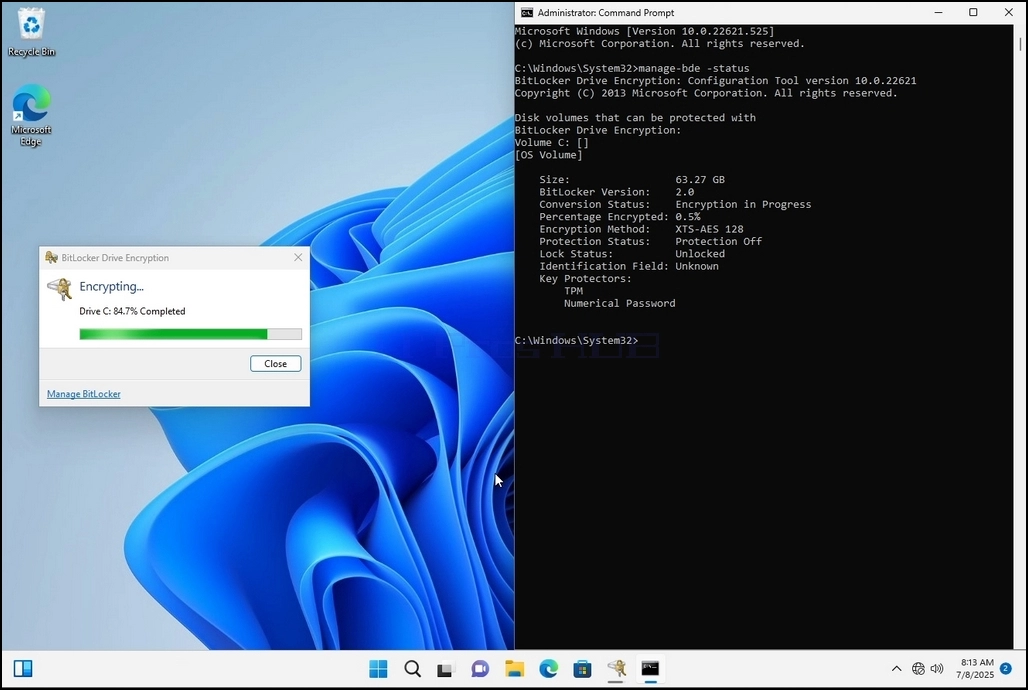
21. След като процесът на криптиране е направен за избраното устройство, малкият прозорец, който по-рано показа лента за процес, сега ще покаже: Шифроване на C: е завършено- Да.
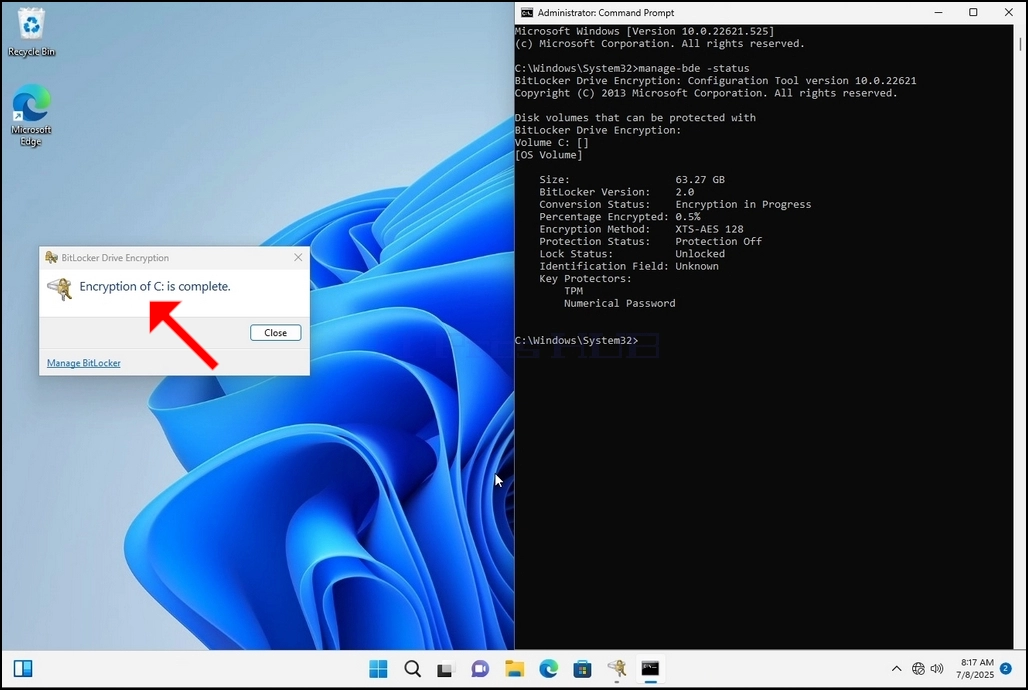
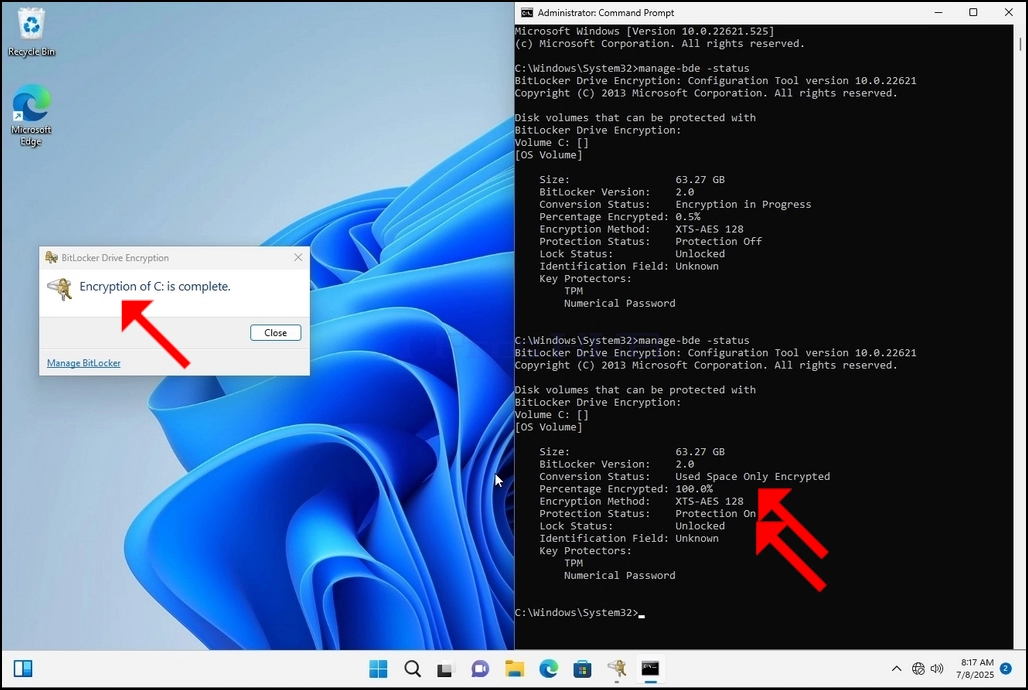
22. Това може да бъде проверено чрез CMD чрез писане manage- bde -status отново и щракване
a. Забележете, че сега се променят следните стойности:
a. Статус на преобразуване: Използвано пространство само криптирано
II. Процент шифрован: 100, 0%
ІІІ. Статус на защита: Защита на
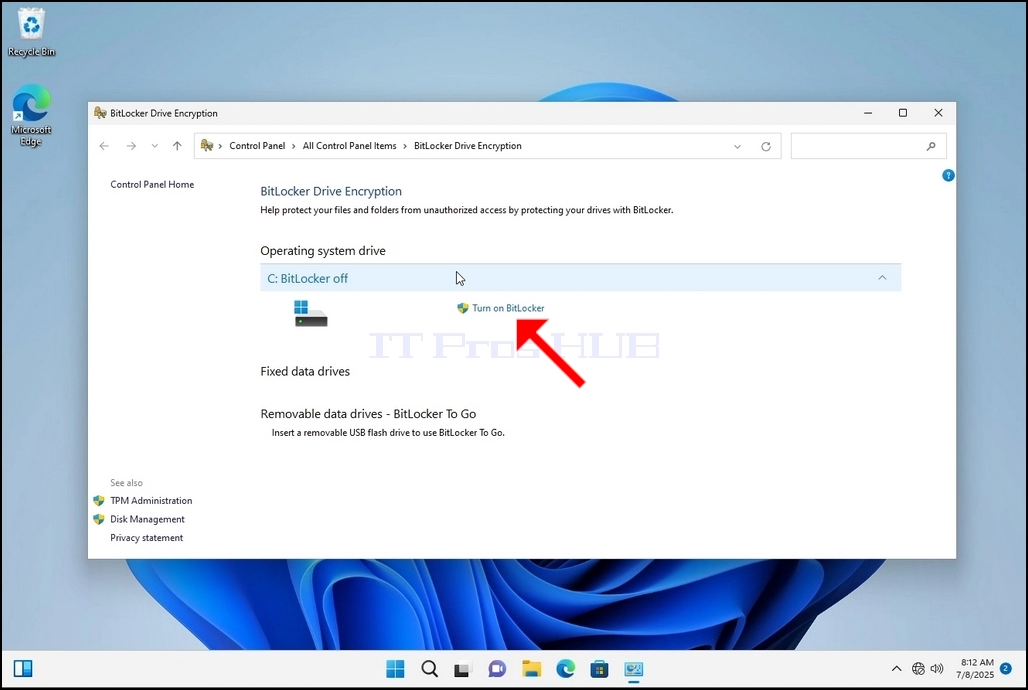
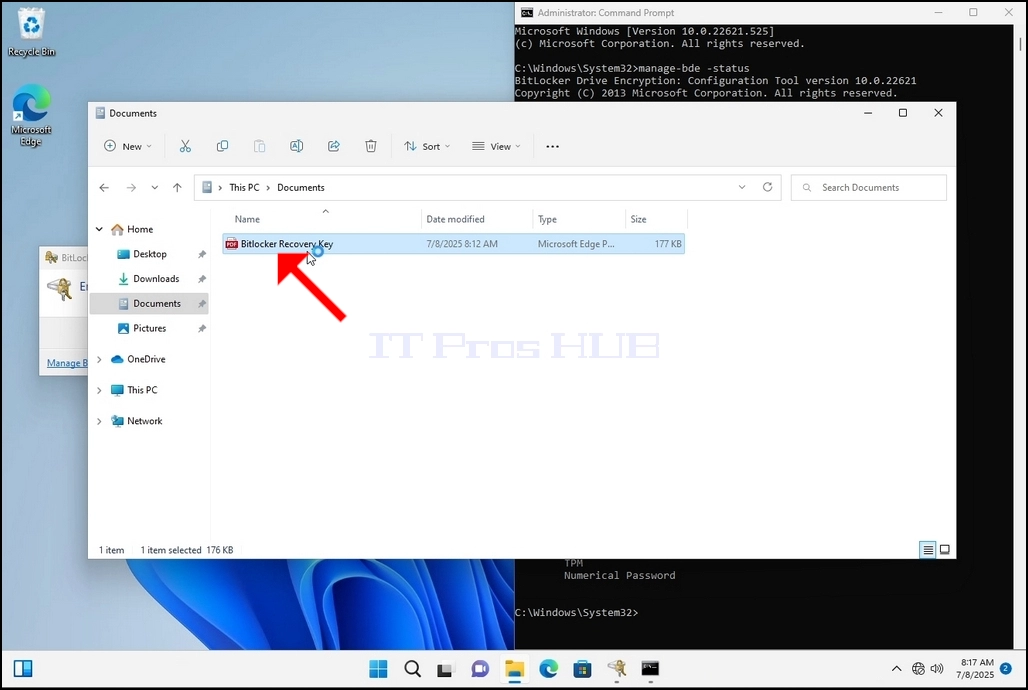
23. В следващата стъпка ще разгледаме ключа за възстановяване на Bitlocker PDF файл
24. Отидете на пътя, по който първоначално е била спасена и отворена
25. Обърнете внимание на 2 важни стойности:
a. Идентификационен код
б. Ключ за възстановяване
26. Силно се препоръчва тези стойности да бъдат запазени в повече от една среда и местоположение като:
a. Печатен формат
б. Мениджър на пароли