Online: 1110 online | Members: 0 | Guests: 1110
Mittwoch, Juni 3, 2026
Page Minimap
Reading time: 2 min read
Tagline:HowtoSetChromeAsDefaultBrowserinWindows10+1
There is no translation available.

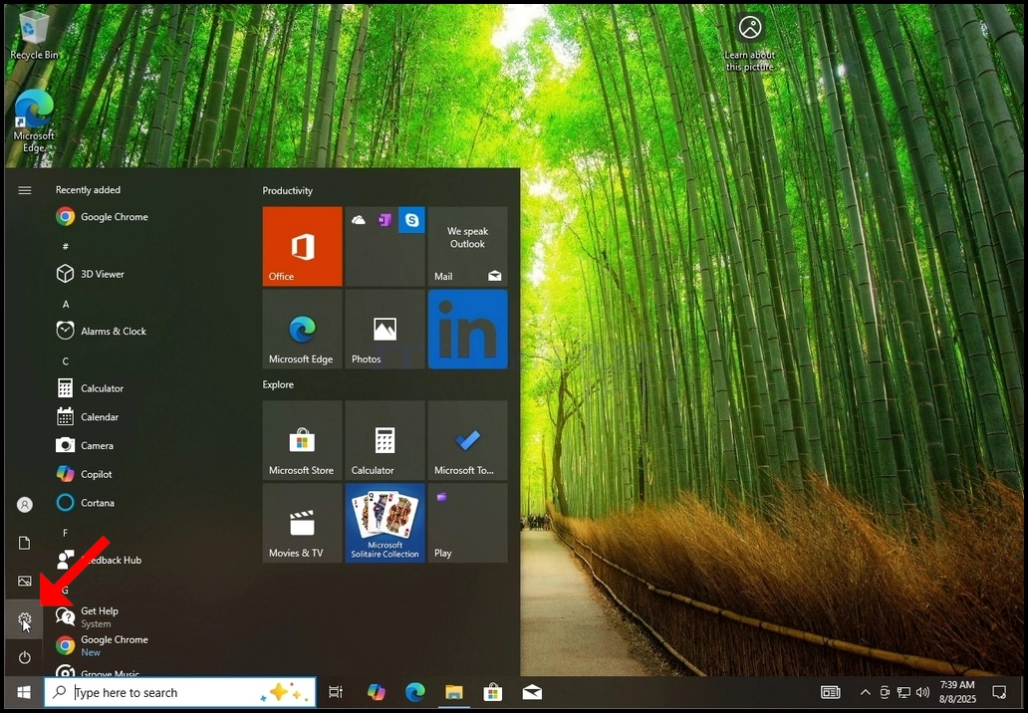
1. Click the START button in Windows desktop
How_to_Set_Chrome_As_a_Default_Browser_in_Windows_10_48.jpg

2. In the Start menu, look for the Settings icon and click on it and wait for the Settings window to appear

How_to_Set_Chrome_As_a_Default_Browser_in_Windows_10_50.jpg

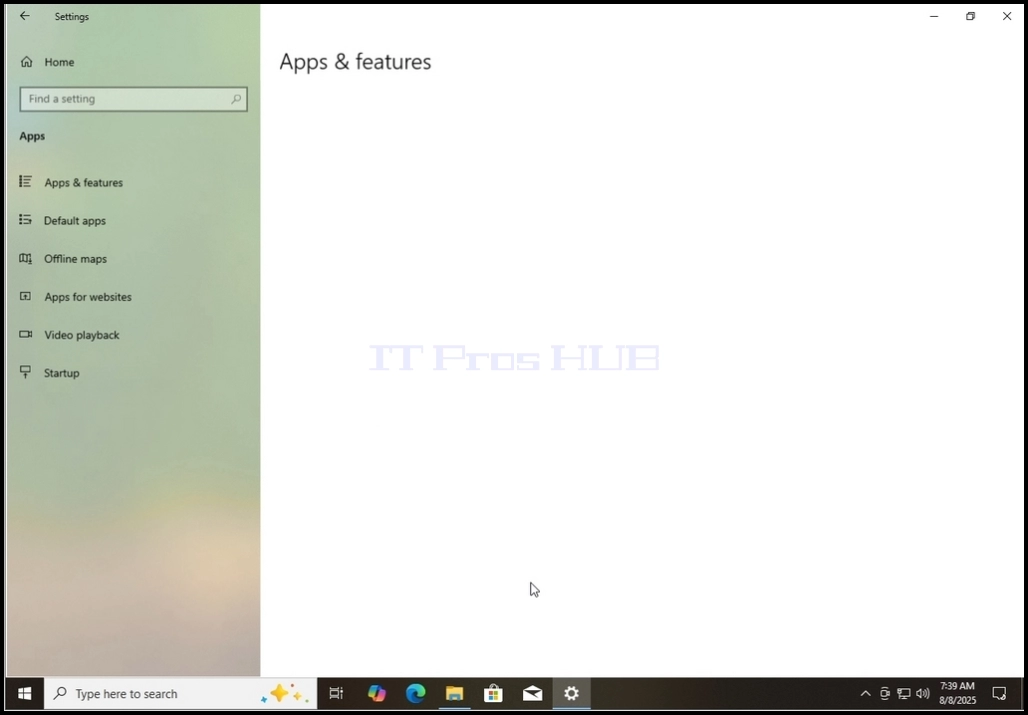
3. In the Settings window, look for the Apps option.. Click on it and wait for the Apps & features window to appear

How_to_Set_Chrome_As_a_Default_Browser_in_Windows_10_51.jpgHow_to_Set_Chrome_As_a_Default_Browser_in_Windows_10_53.jpg

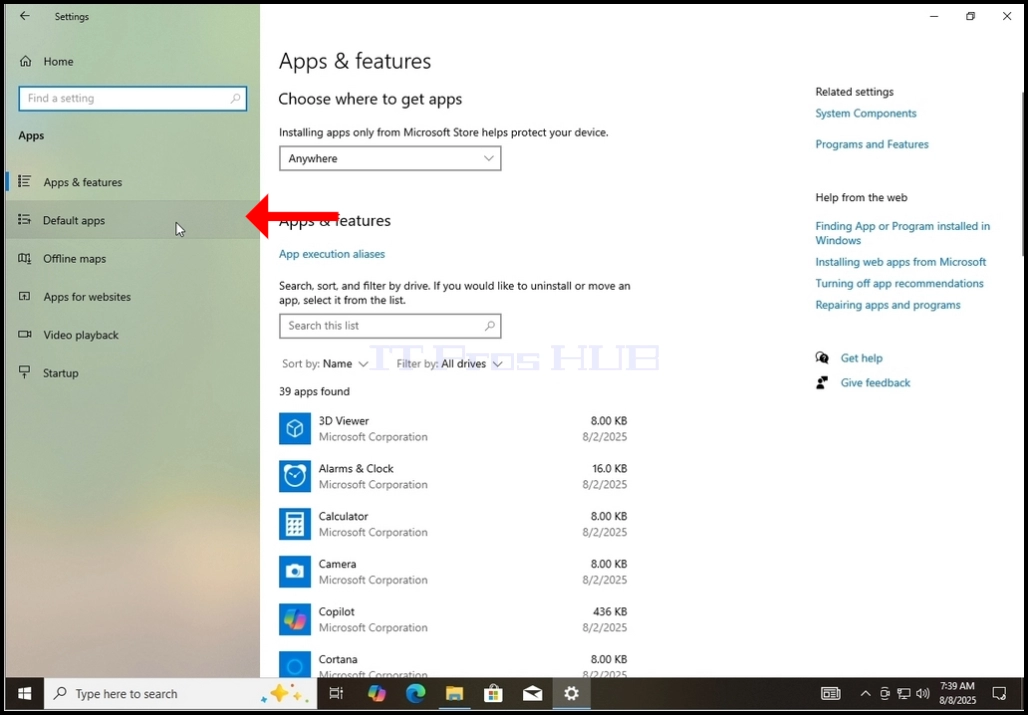
4. In the Apps & features window, on the left pane, choose the 2nd option from the top which is the Default apps option
How_to_Set_Chrome_As_a_Default_Browser_in_Windows_10_56.jpg

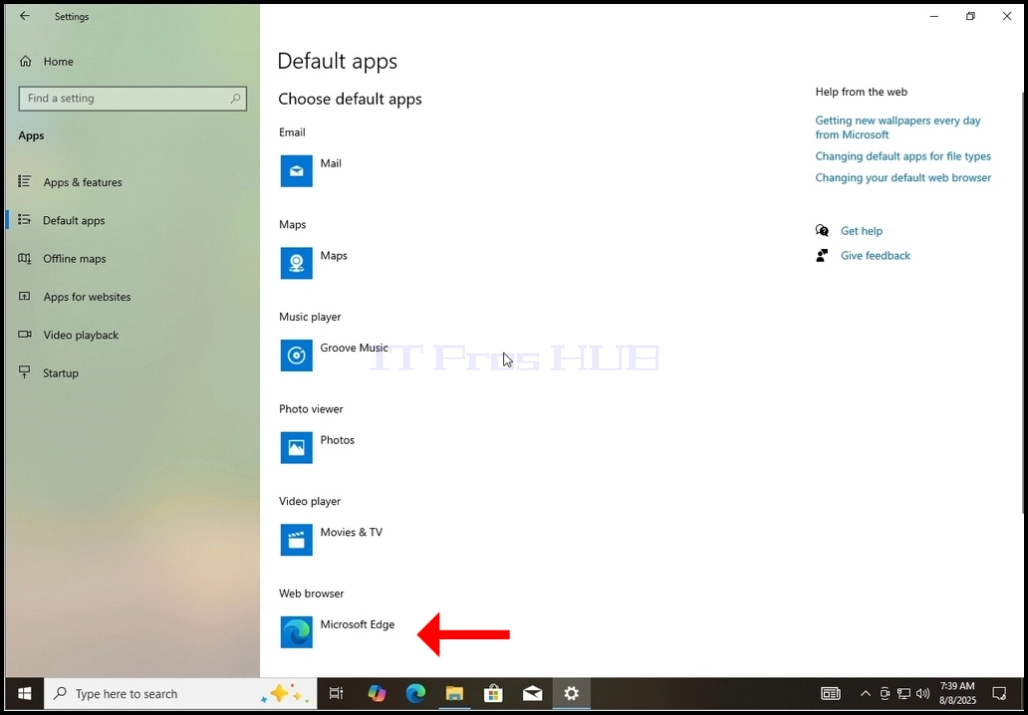
5. Under the Default apps window, look for the 5th option which is the web browser. Option. The app under it is the app that is currently set as the default browser. In the case of this article it’s Microsoft Edge.
How_to_Set_Chrome_As_a_Default_Browser_in_Windows_10_57.jpg

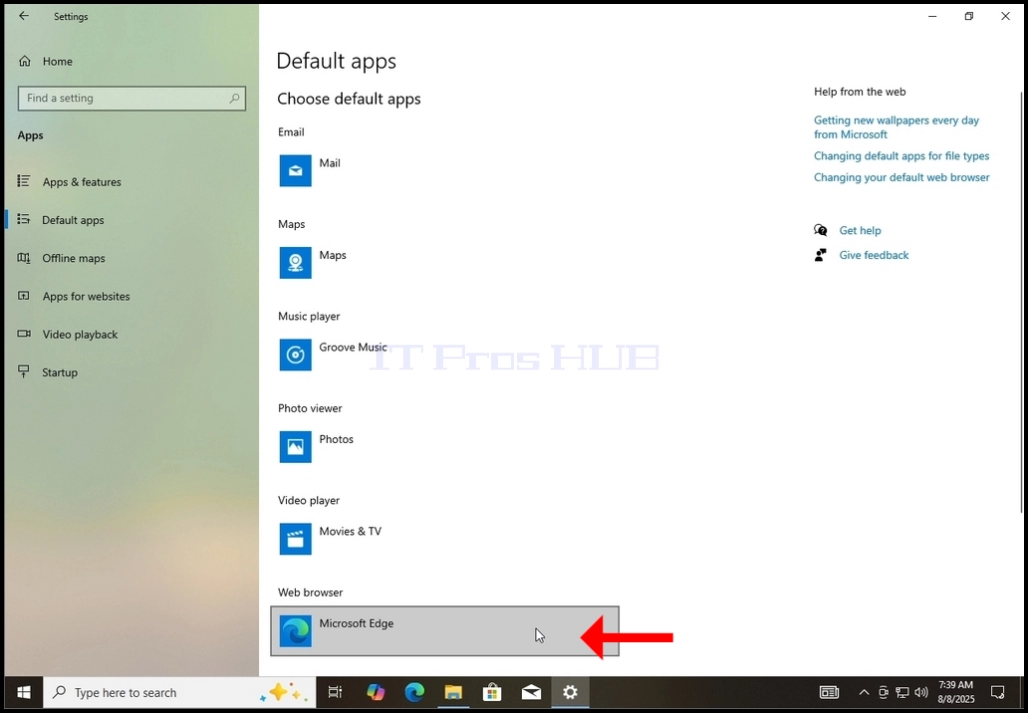
6. Click on the Microsoft Edge row and wait for a side menu to appear

How_to_Set_Chrome_As_a_Default_Browser_in_Windows_10_58.jpg

7. After the side menu appears, look for Google Chrome and click on it once.

How_to_Set_Chrome_As_a_Default_Browser_in_Windows_10_59.jpgHow_to_Set_Chrome_As_a_Default_Browser_in_Windows_10_61.jpg

8. After clicking on Google Chrome , the side menu should disappear and the Chrome browser should be set as the default browser