



- Details
- Written by: IT Pro
- Category: How to Articles
- Hits: 11386
1. Open Chrome browser
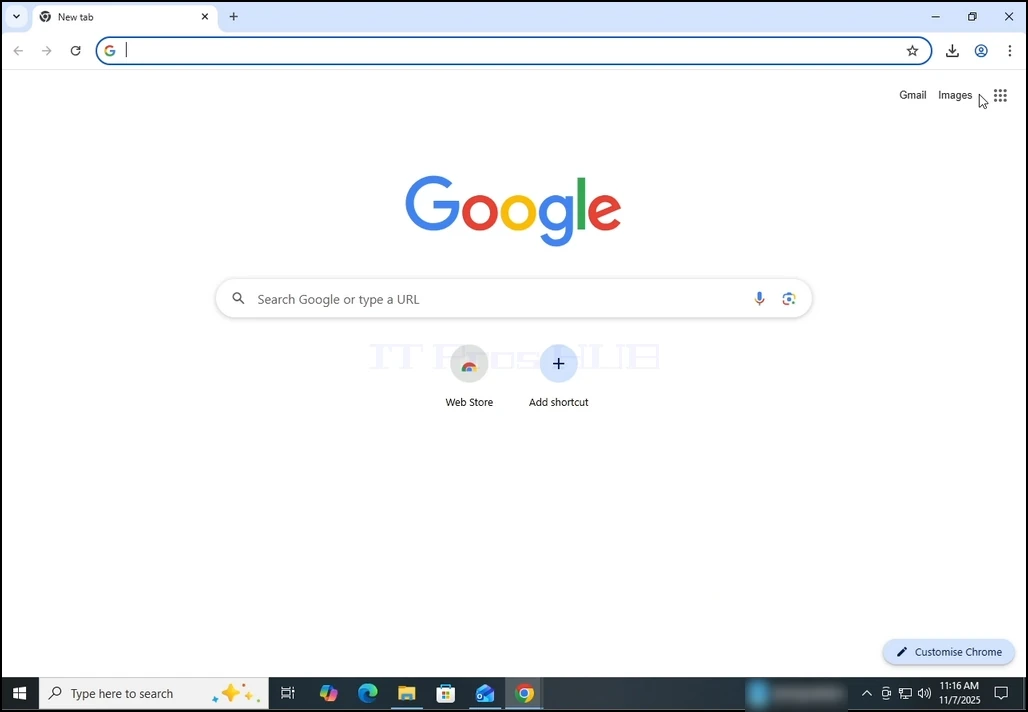
2. In Chrome's address bar, type the following address:
chrome://settings
and hit the ENTER key. Wait for the Chrome settings window to appear.
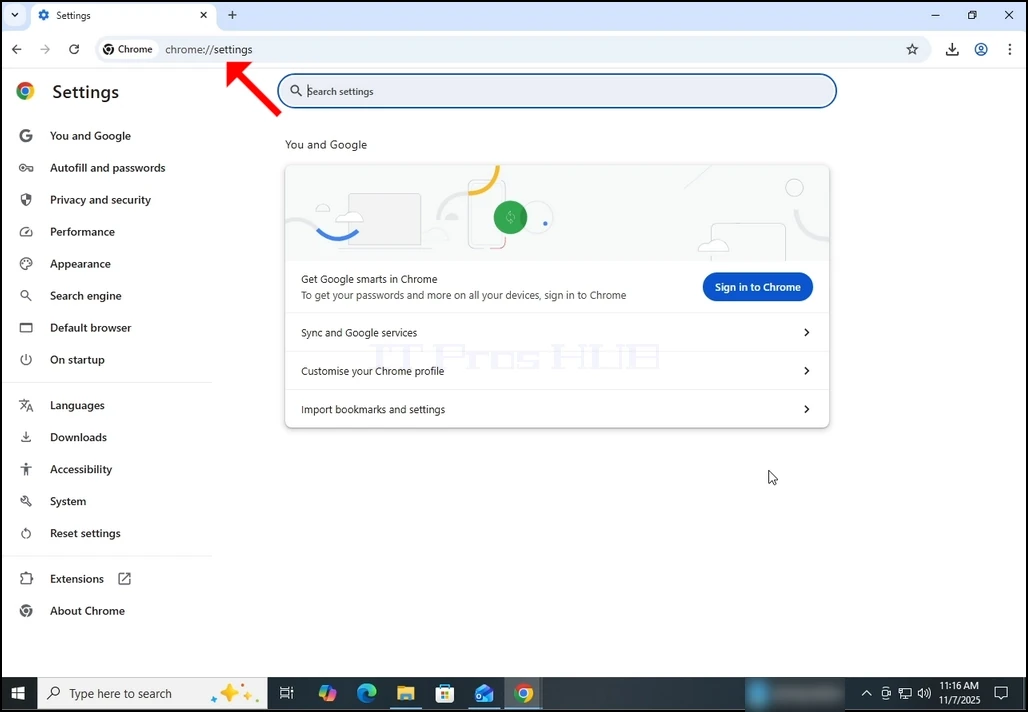
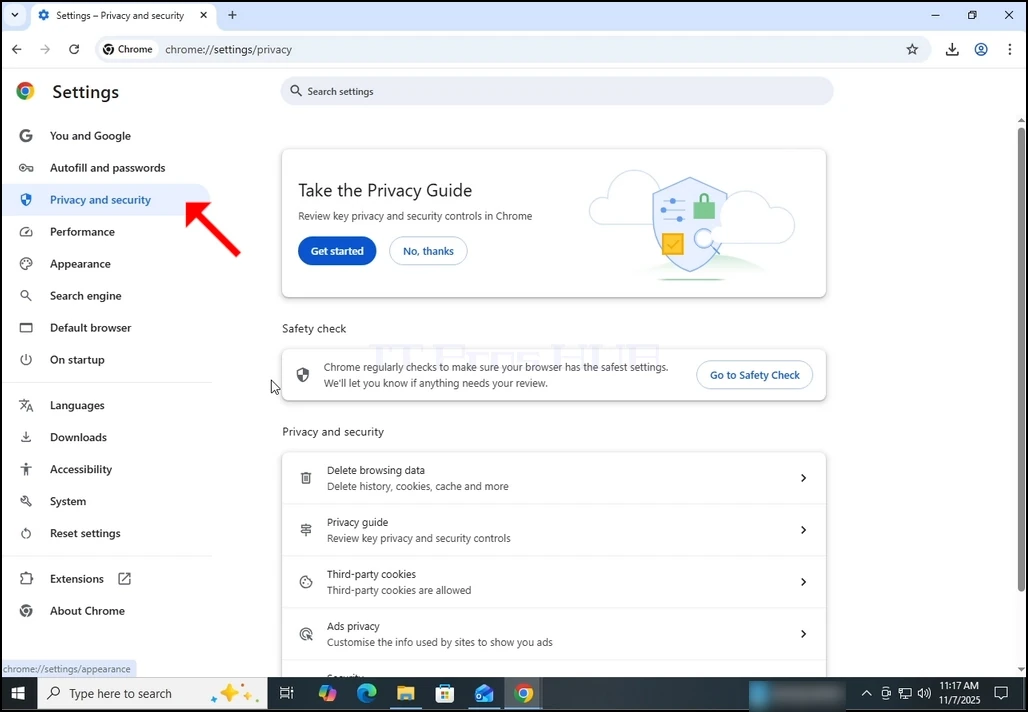
3. On the left pane, go to Privacy and Security and click on it:
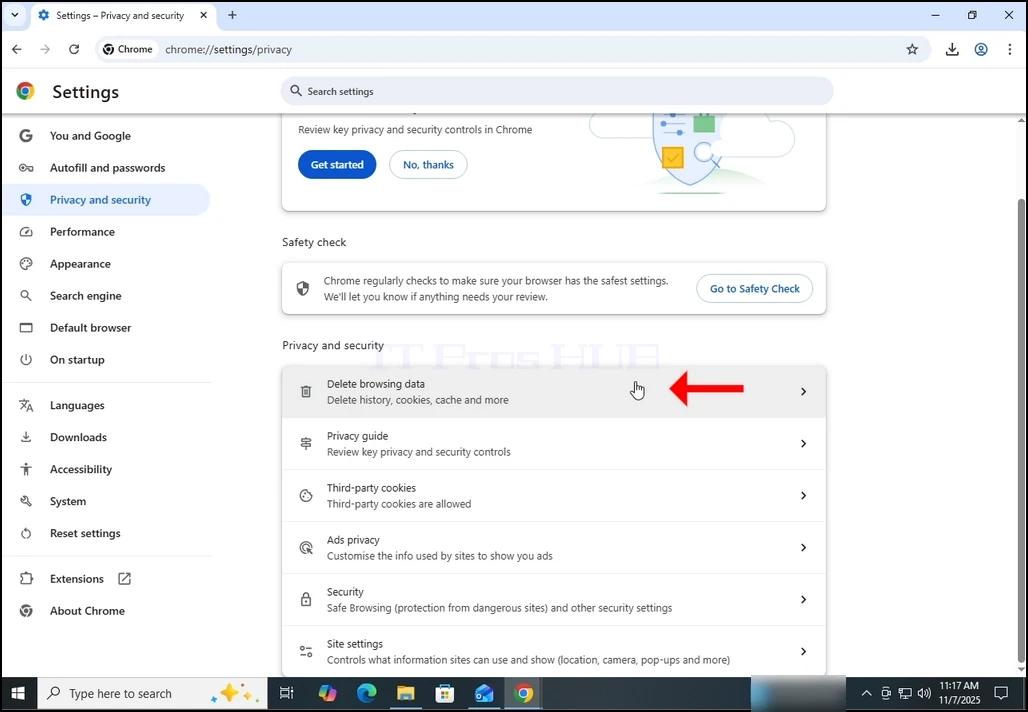
4. Now, on the right pane, go to Delete browsing data and click on it. Wait for the Delete browsing data window to appear :
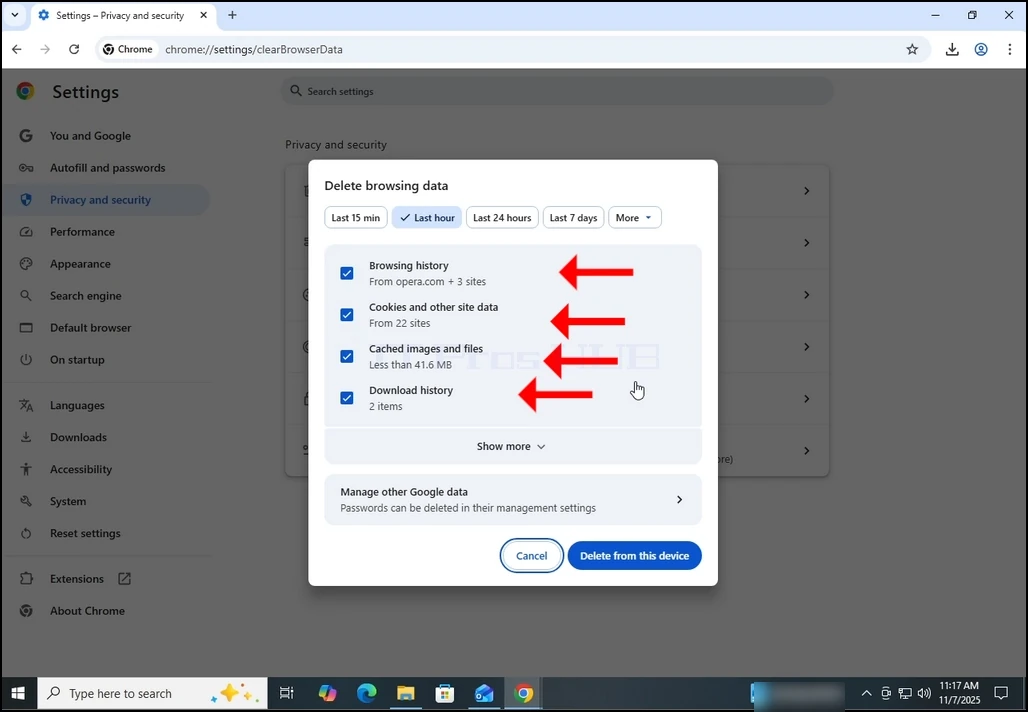
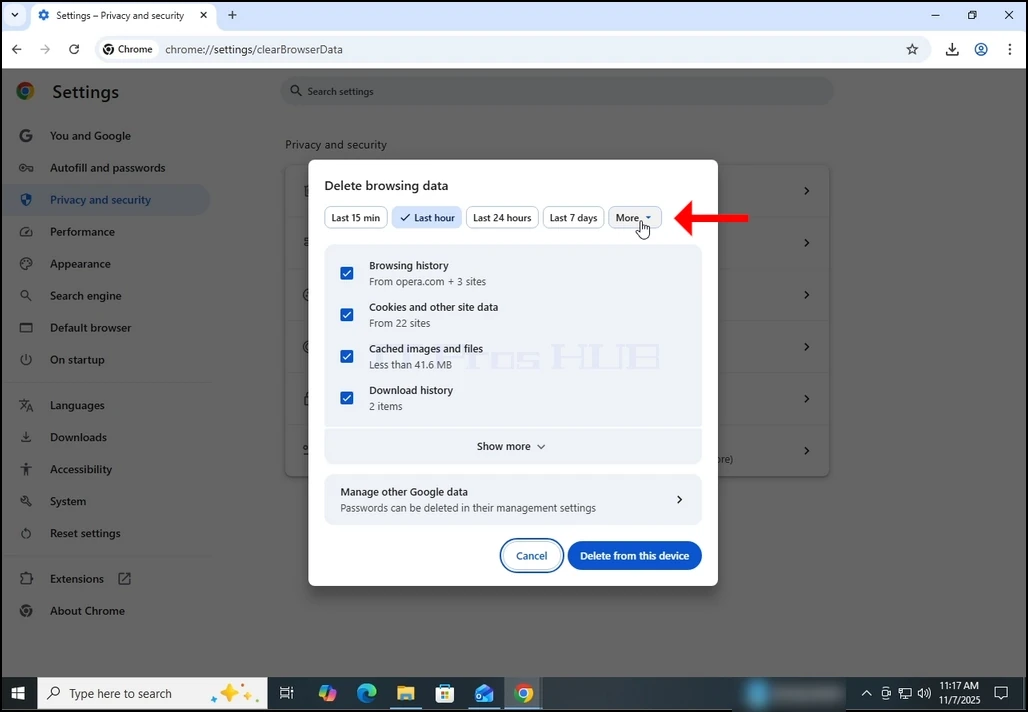
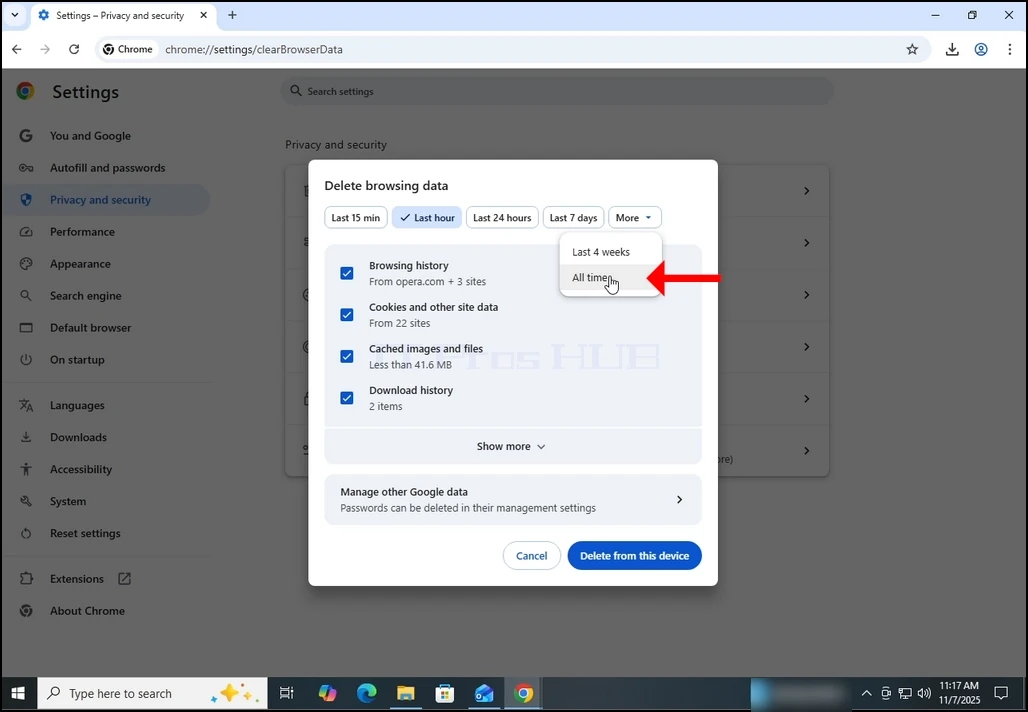
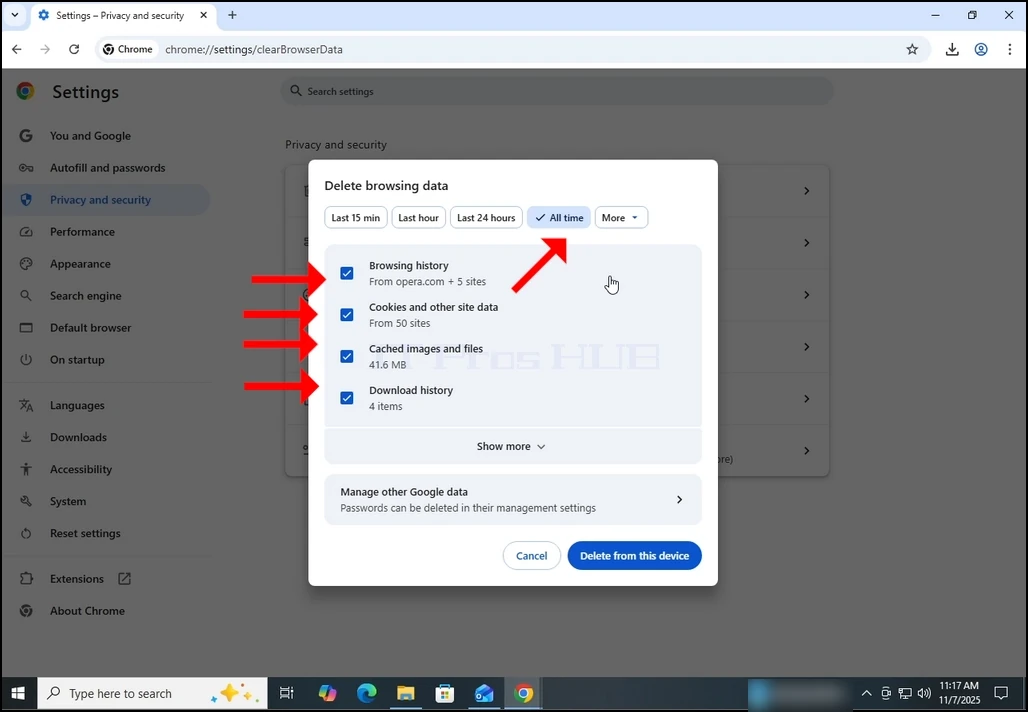
5. After the Delete browsing data window appears, mark ALL of the 4 options:
- Browsing history
- Cookies and other site data
- Cached images and files
- Download history
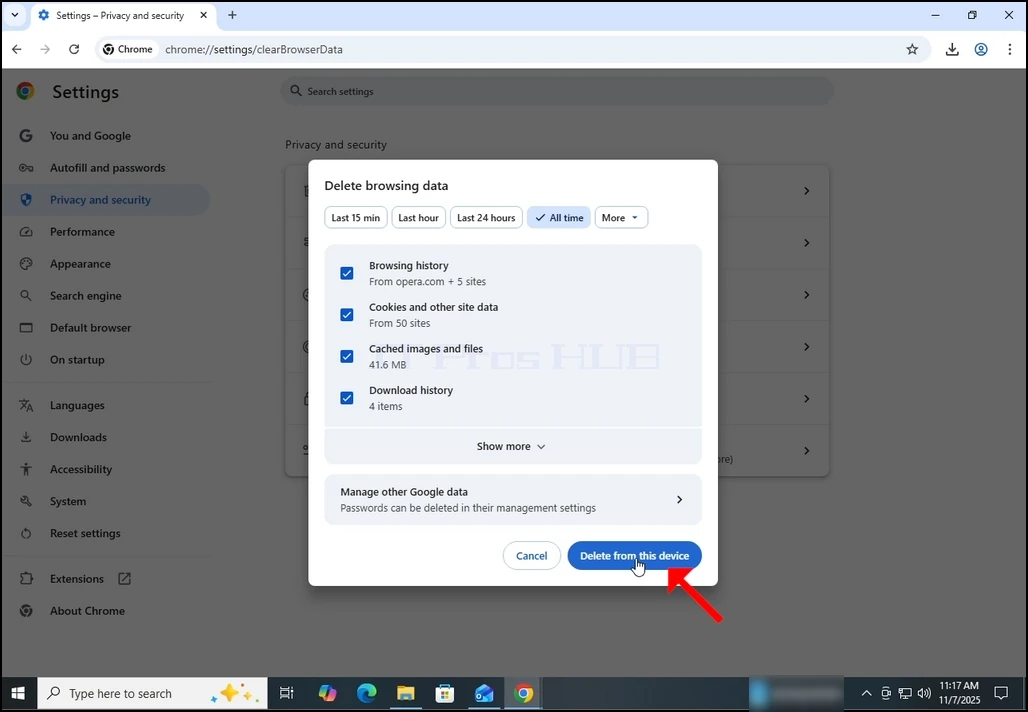
9. Wait for the data to be deleted:
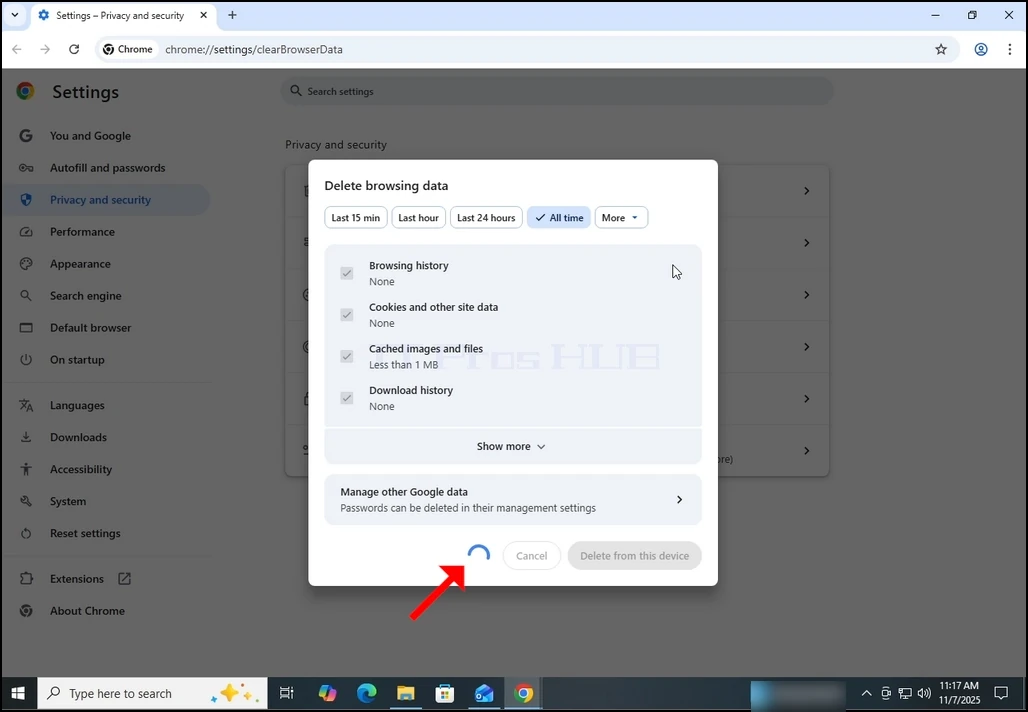
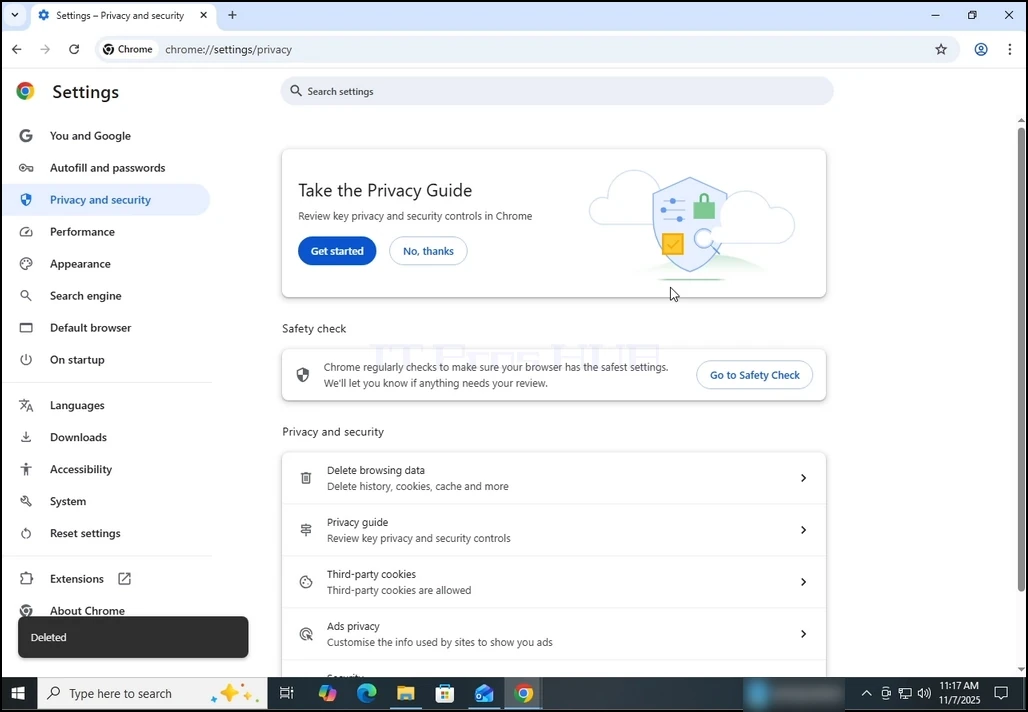
10. Once done, the Delete browsing data window will close itself:
- Details
- Written by: IT Pro
- Category: How to Articles
- Hits: 7634
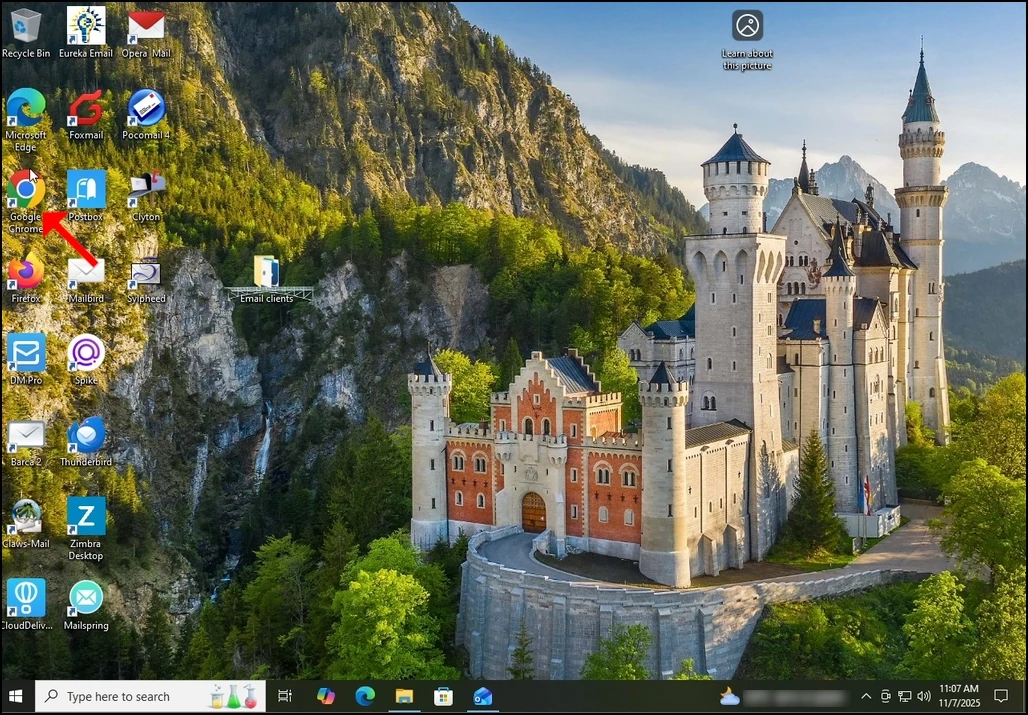
1. Open Chrome:


4. Once opened, the About Google Chrome window will start automatically check for new updates for Google chrome. If there is such an update, Chrome would notify about it by changing the update status to Updating Chrome as can be seen below:


6. Once finished, Chrome would notify you by displaying the message: "Nearly up to date! Relunch Chrome to finish updating".

8. Usually, newly updated version of Google Chrome would show this type of message upon first launch:

9. In order to make sure Google Chrome has no more updates, perform the same stages 1-4. As you can see, at the moment, there are no more updates available for Google Chrome after we have done the previous update:

- Details
- Written by: IT Pro
- Category: How to Articles
- Hits: 4202
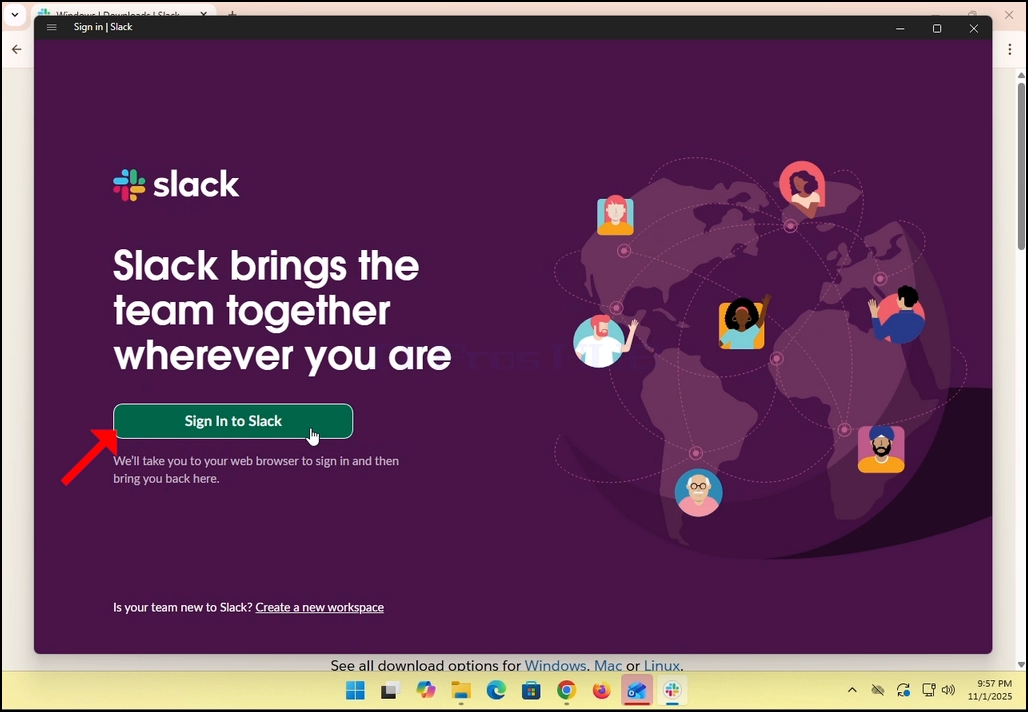
3. Slack will redirect you to a login screen in your default browser. In the case of this article, it is Chrome.
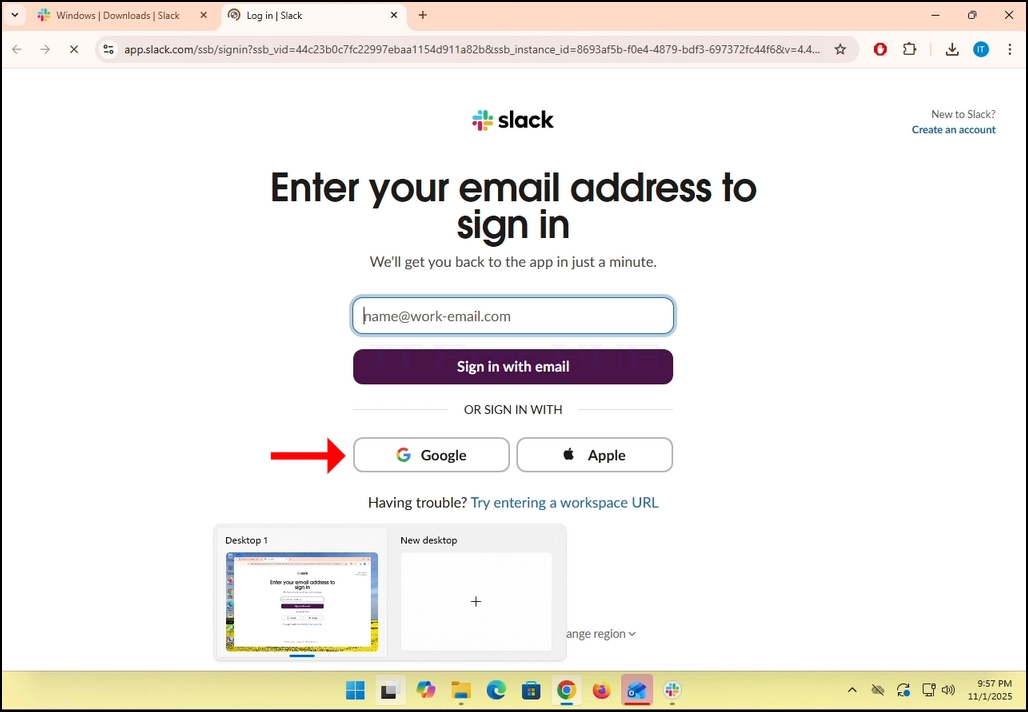
4. As you can see, Slack wants you to Enter your email address to sign in. we will use our Gmail email address to do that.
- Click the Google button and wait for the Google connector page to load.
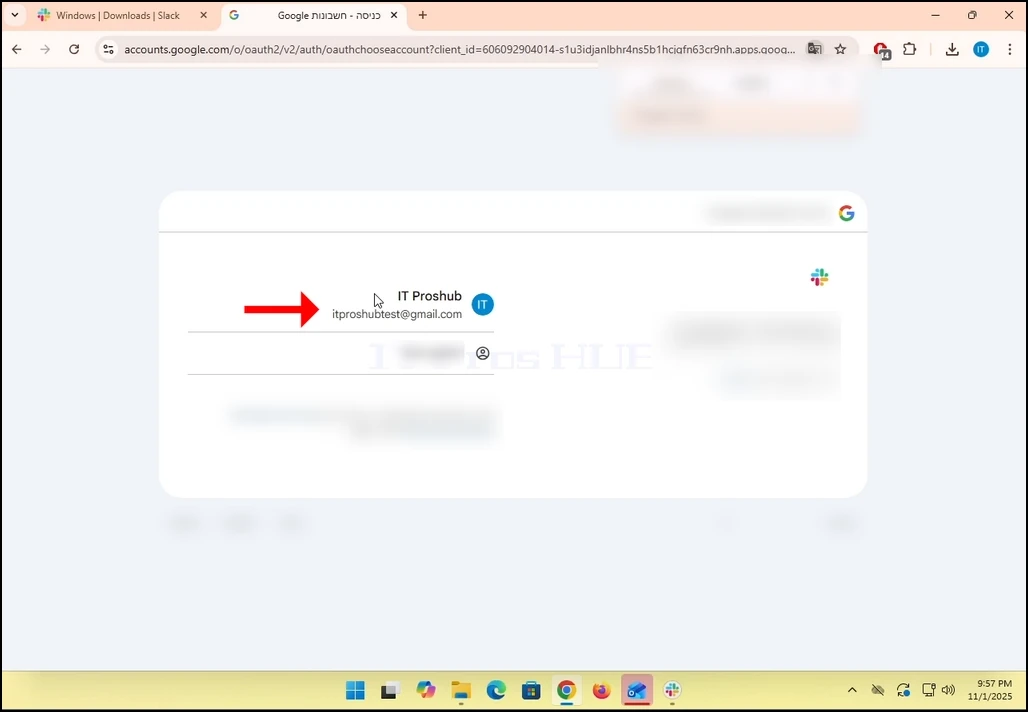
6. In the Google connector page, choose your Gmail email address. Note that in the case of this article,
7. If you are not logged into Chrome or use a different browser, just login to your Google account and then choose that account to continue.
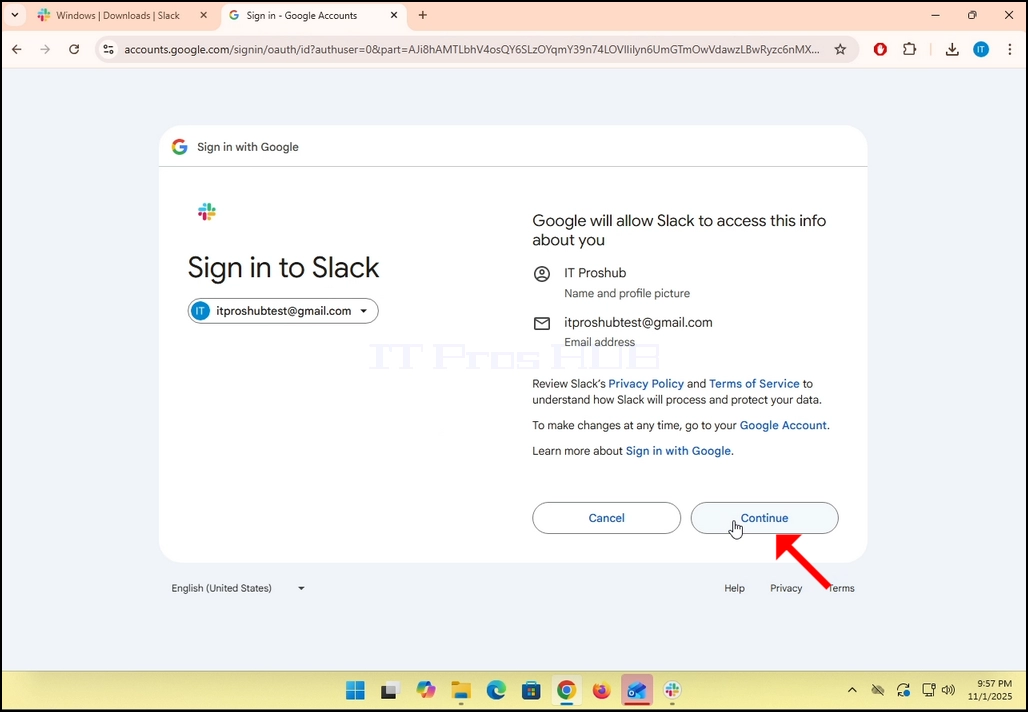
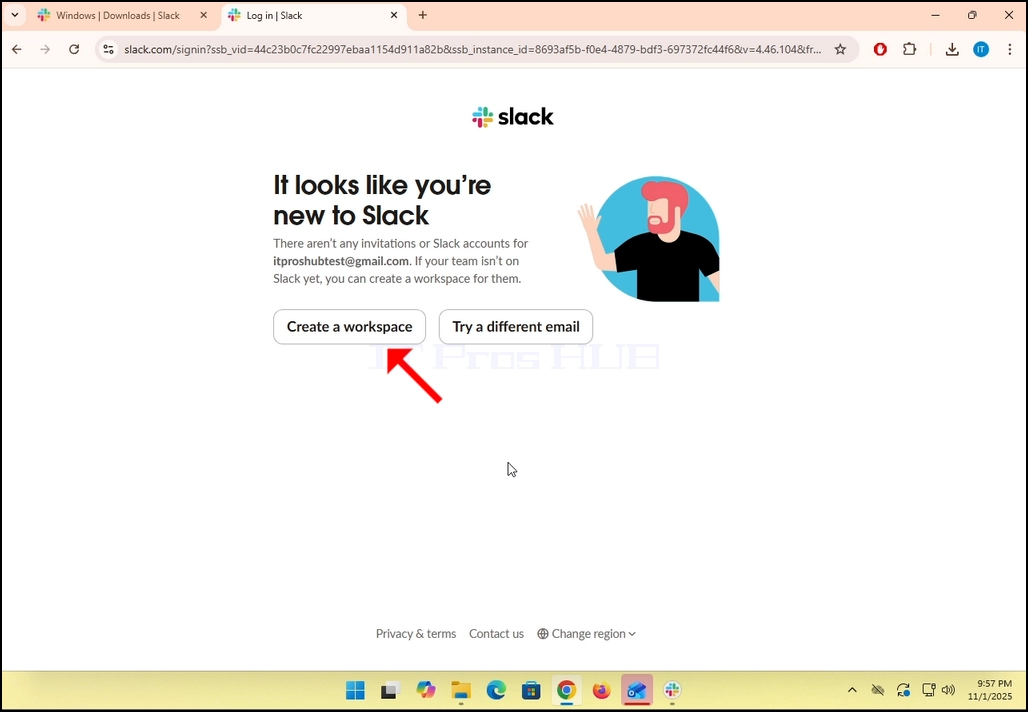
9. If you already have a Slack account under that Gmail email address, then Slack will redirect you back to itself. If not, it will ask you to either Create a workspace or Try a different email.
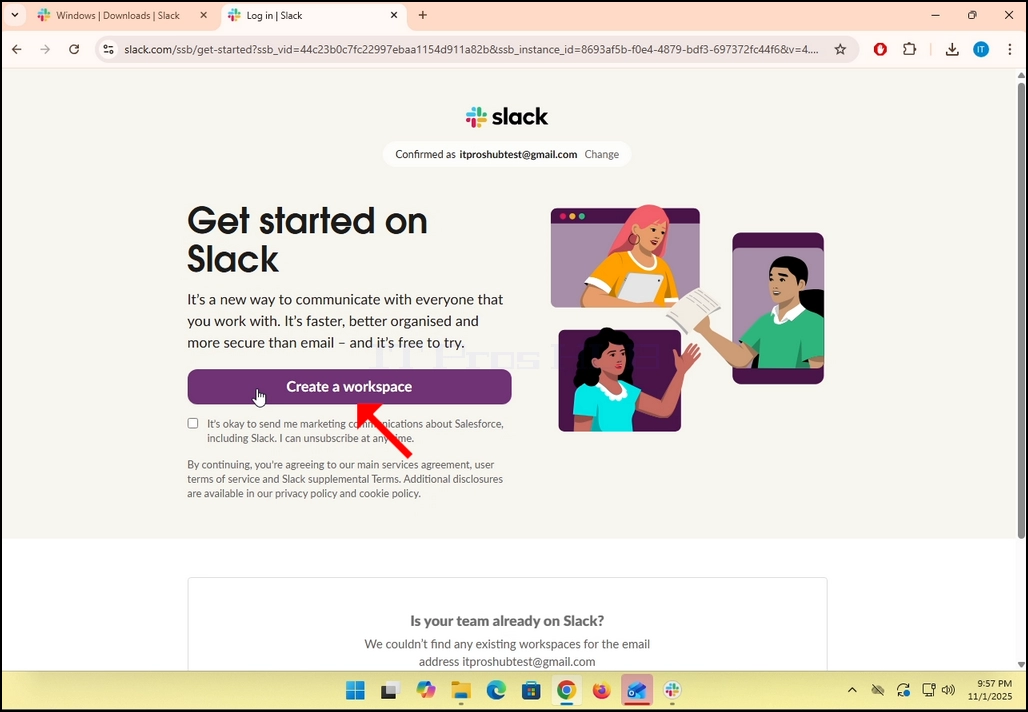
- In the case of this article, we will choose Create a workspace.
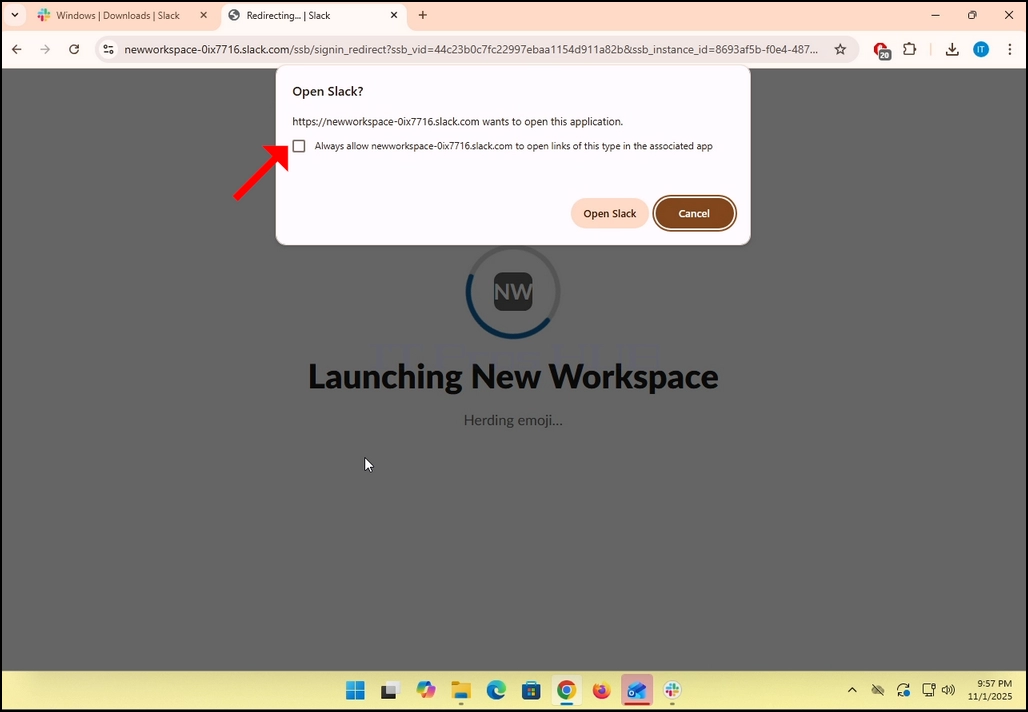
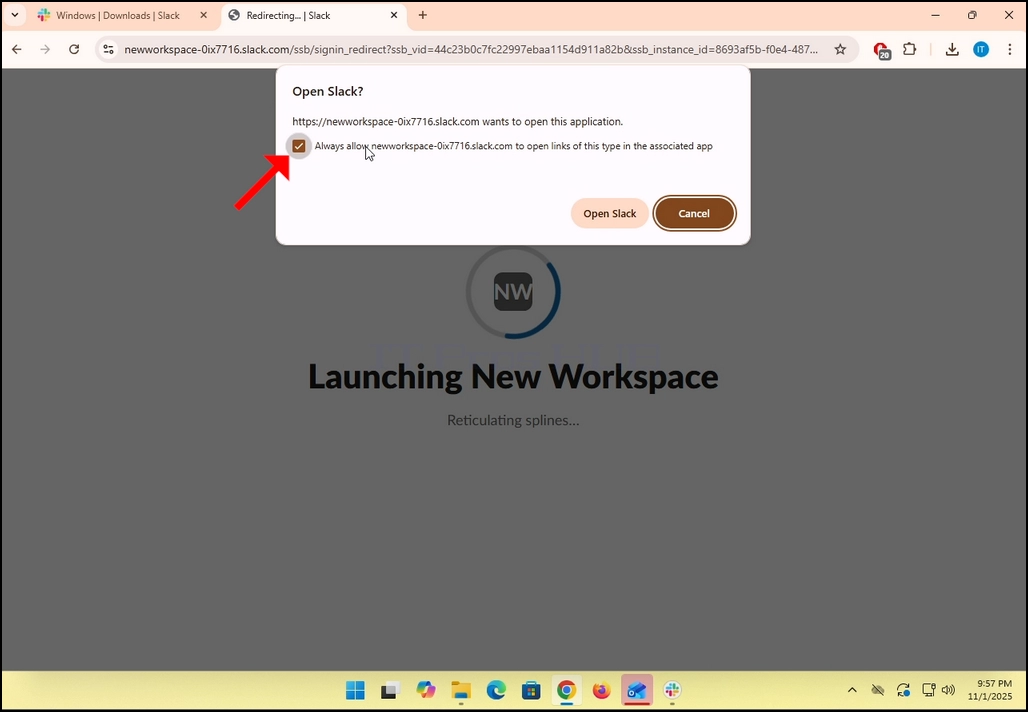
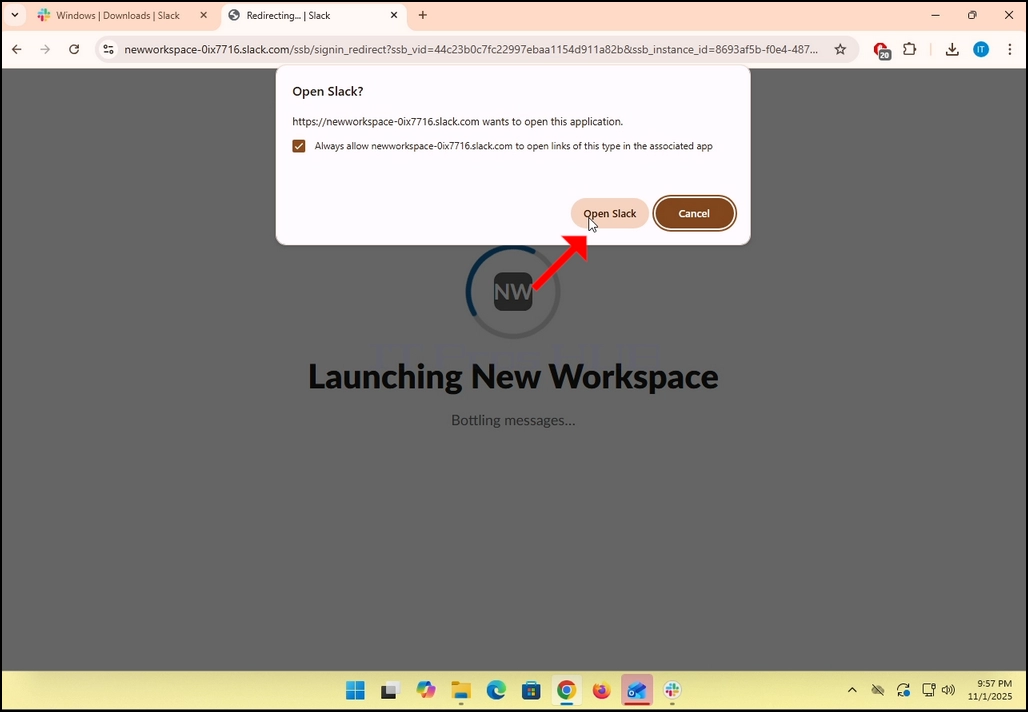
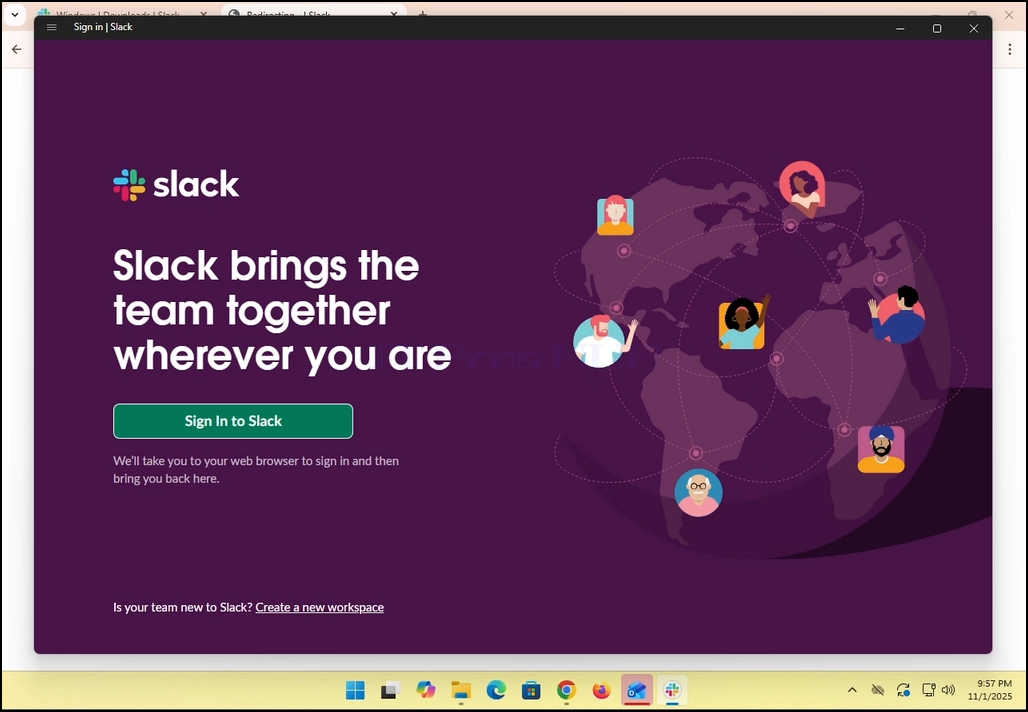
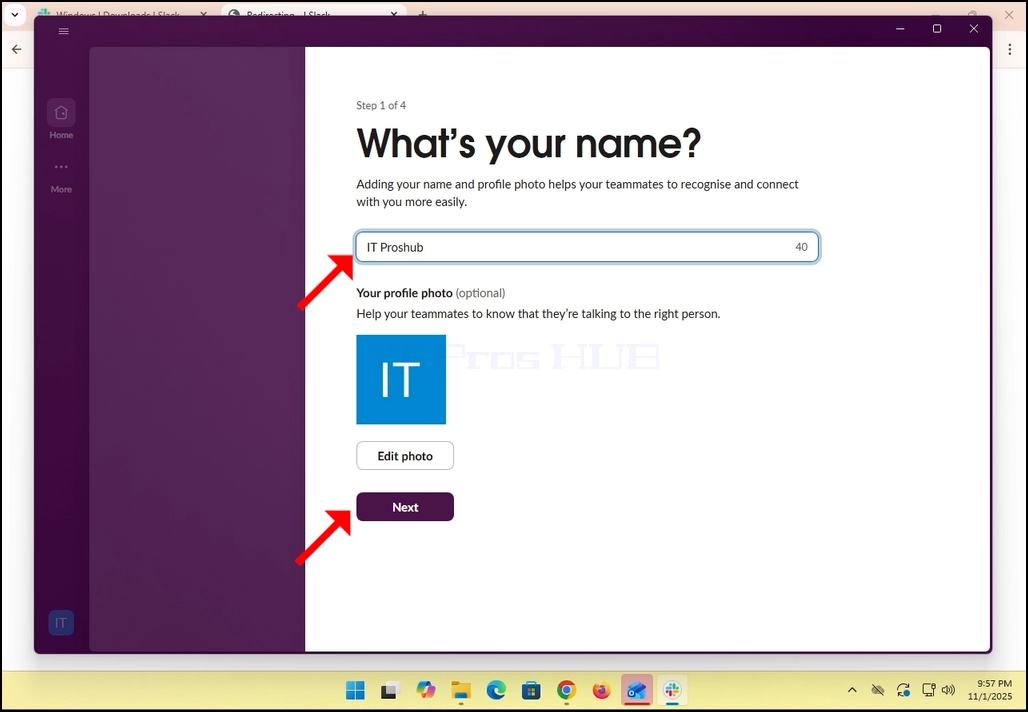
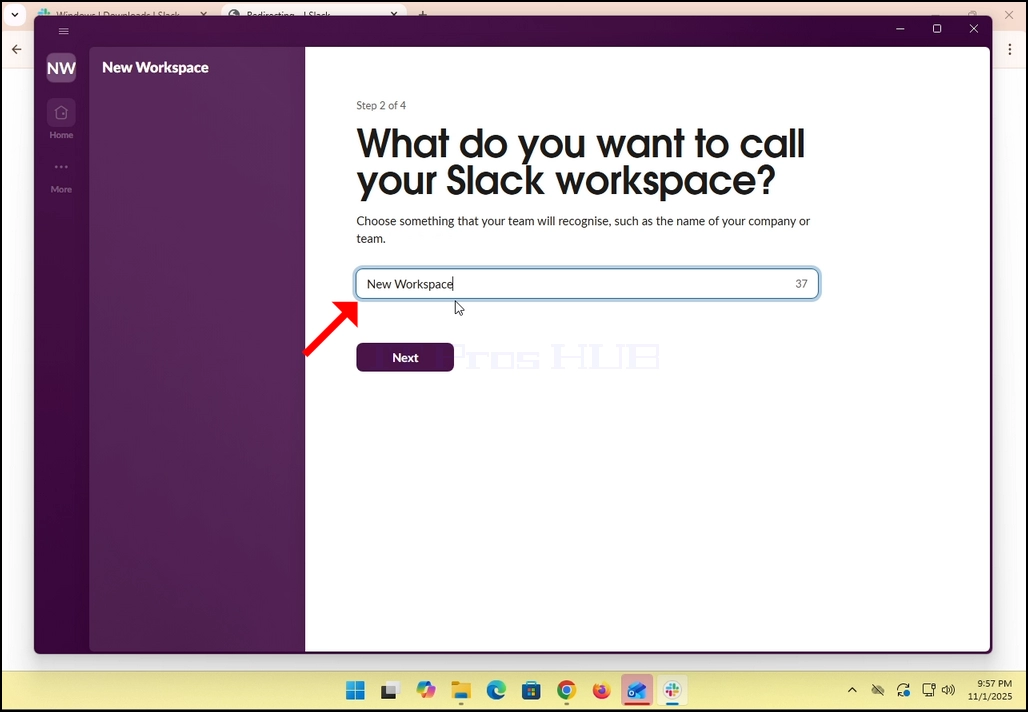
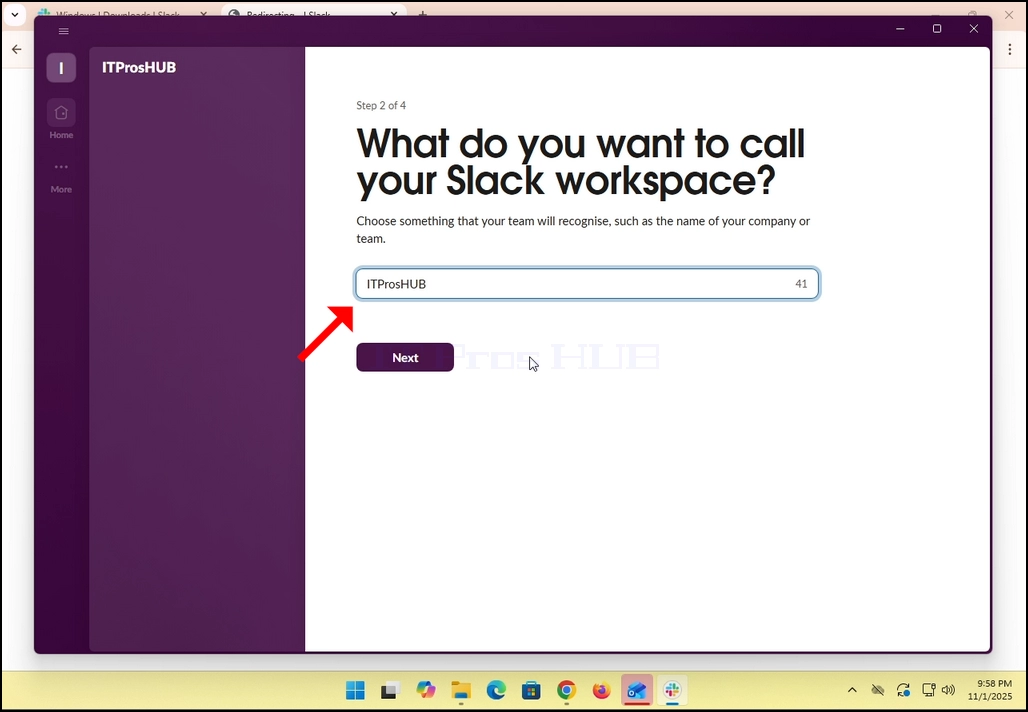
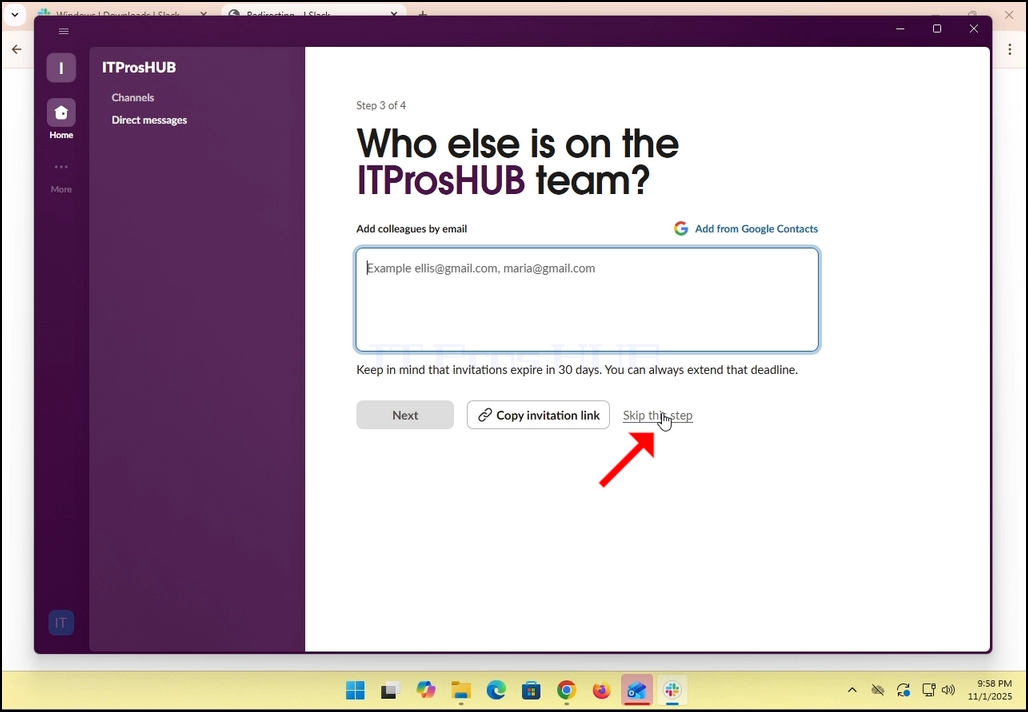
14. In the case of this article, we will skip this step by clicking in the Skip this step option.
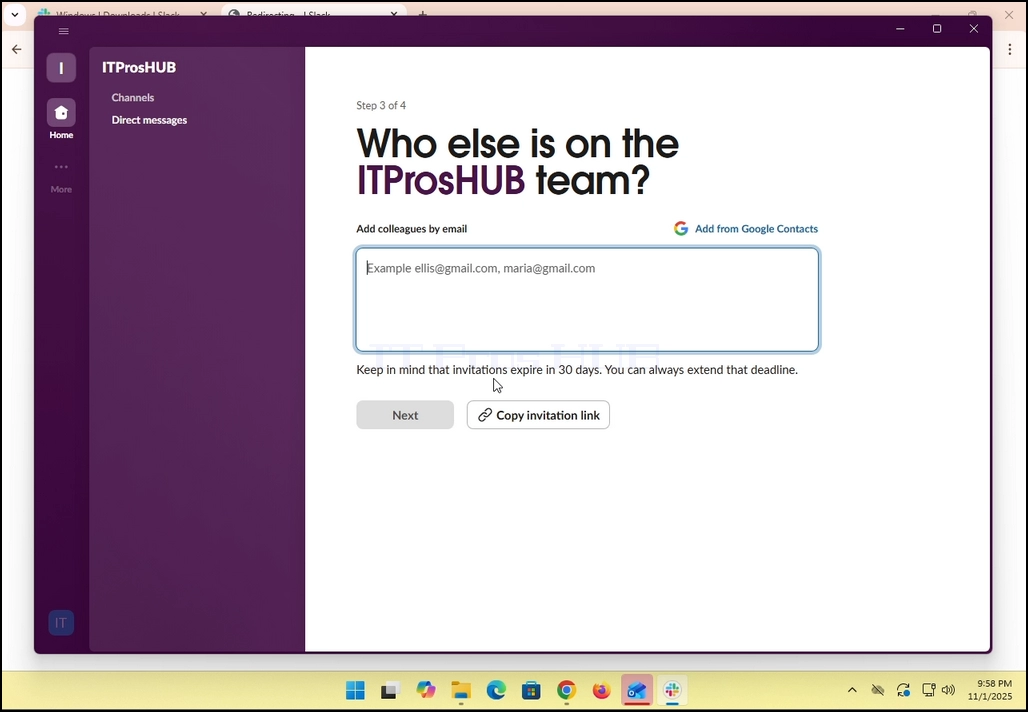
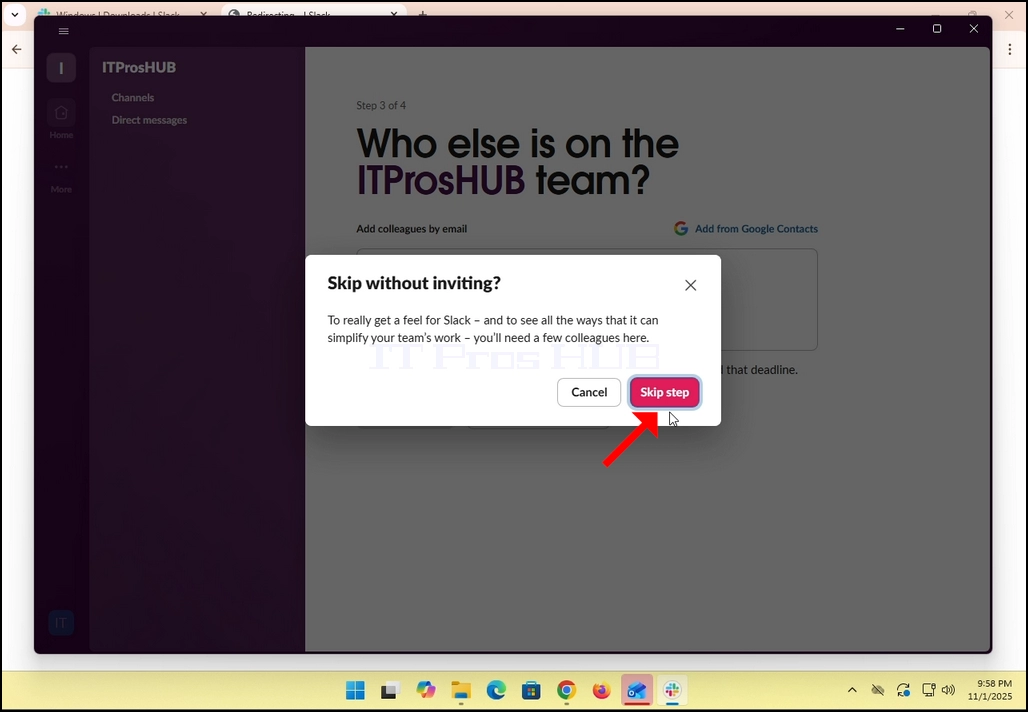
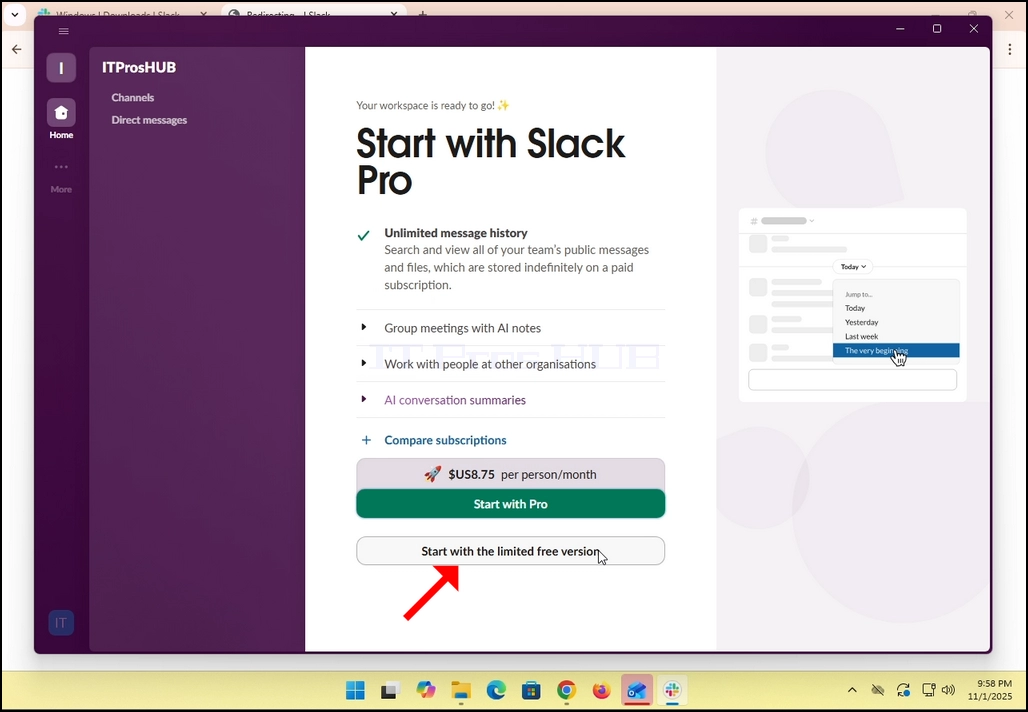
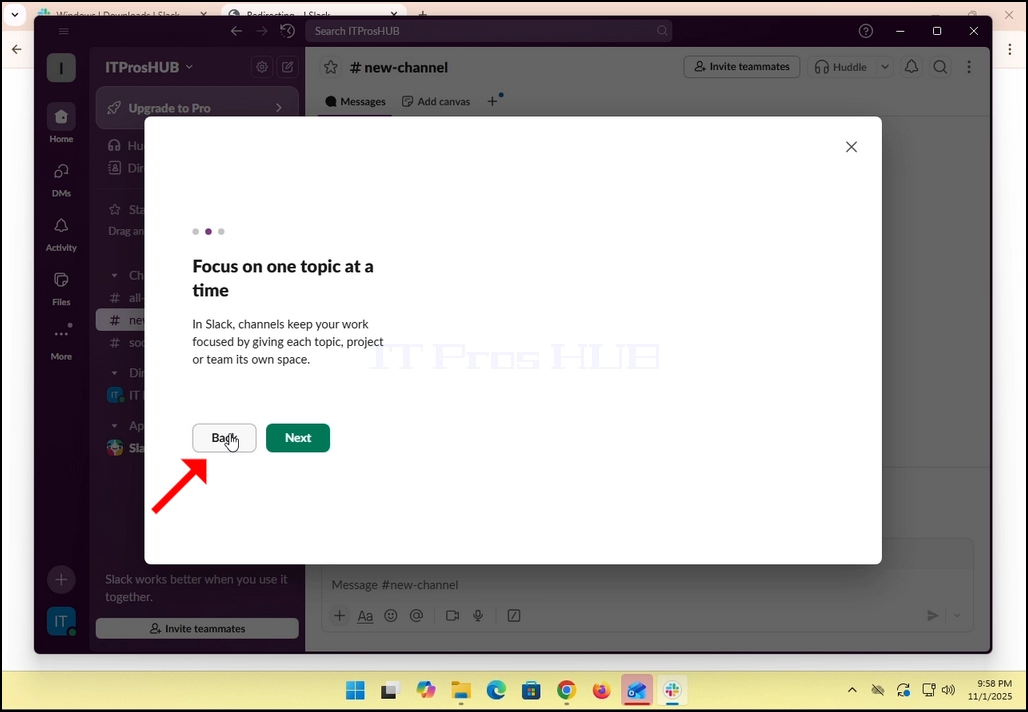
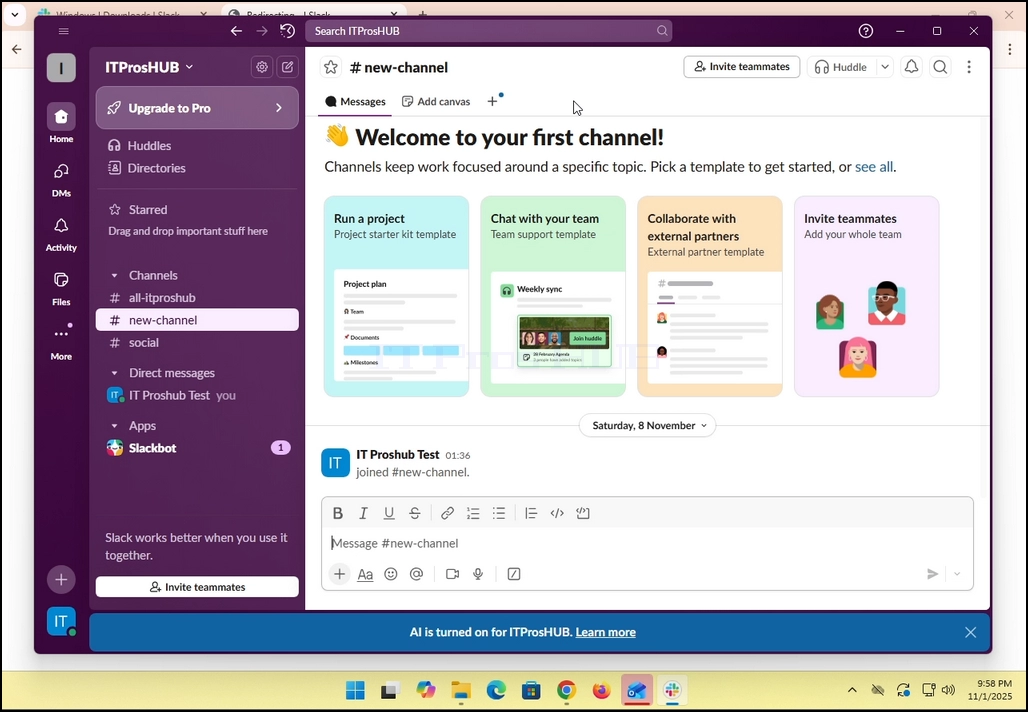
17. All done! You Slack now uses your Gmail email account!
- Details
- Written by: IT Pro
- Category: How to Articles
- Hits: 6836
1. Don wannan labarin mun riga mun ɗora itproshub.com daga burauzar Chrome tare da shigar da tsawo na Adblock kuma an kunna shi. Kamar yadda kuke gani, algorithm na gano Adblock a cikin itproshub.com ya gano kasancewar software na Anblock a cikin burauzar Chrome.
2. A cikin Chrome, je zuwa saman gefen dama na allon kuma nemi alamar fadada Adblock Chrome.
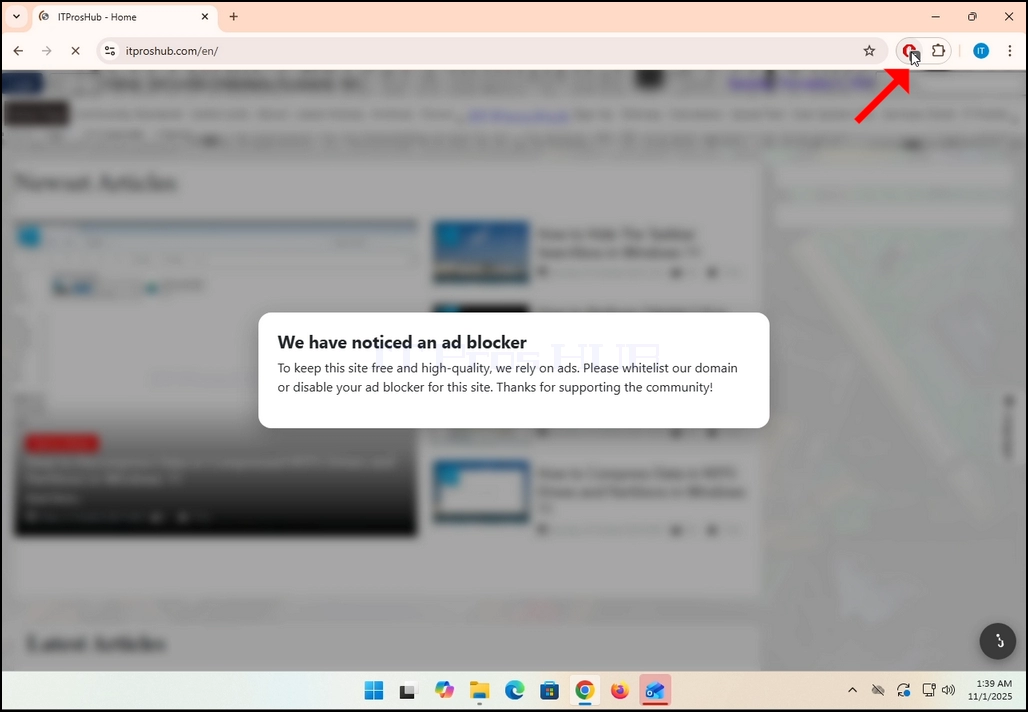
3. Danna shi sau ɗaya ka jira ƙaramin menu na gefensa ya bayyana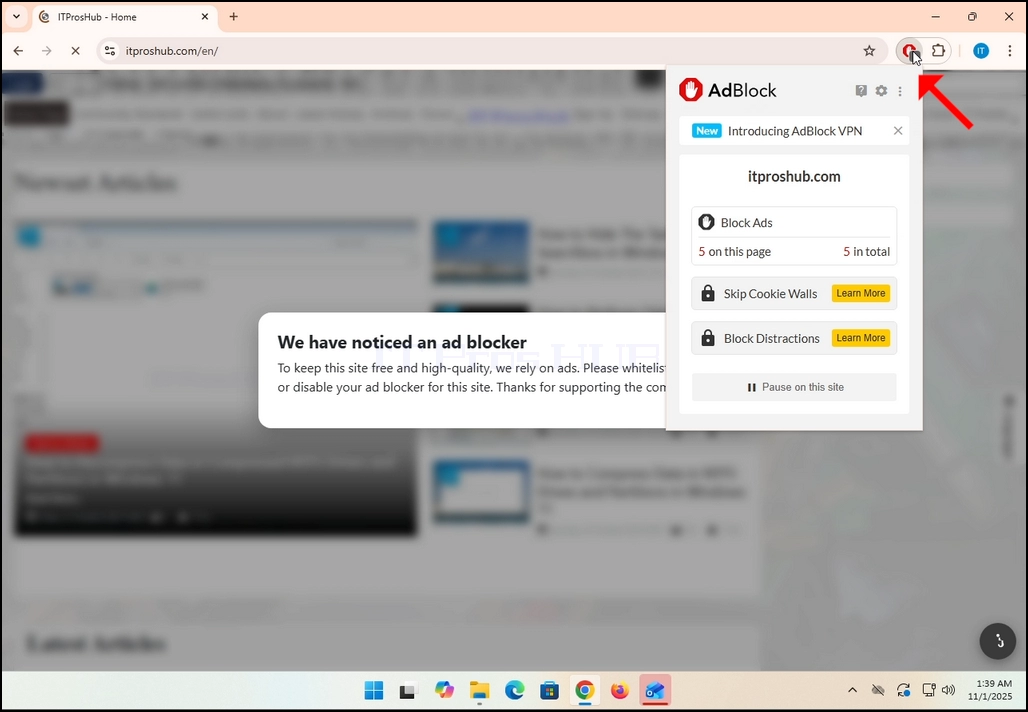
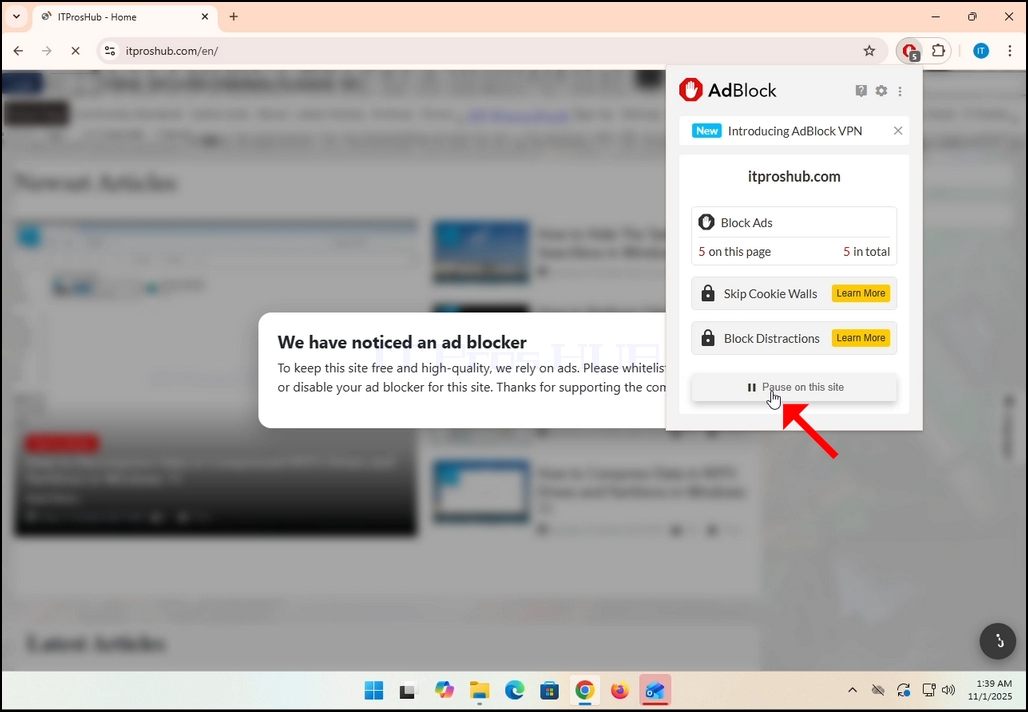
5. Danna maɓallin Dakatarwa akan wannan shafin 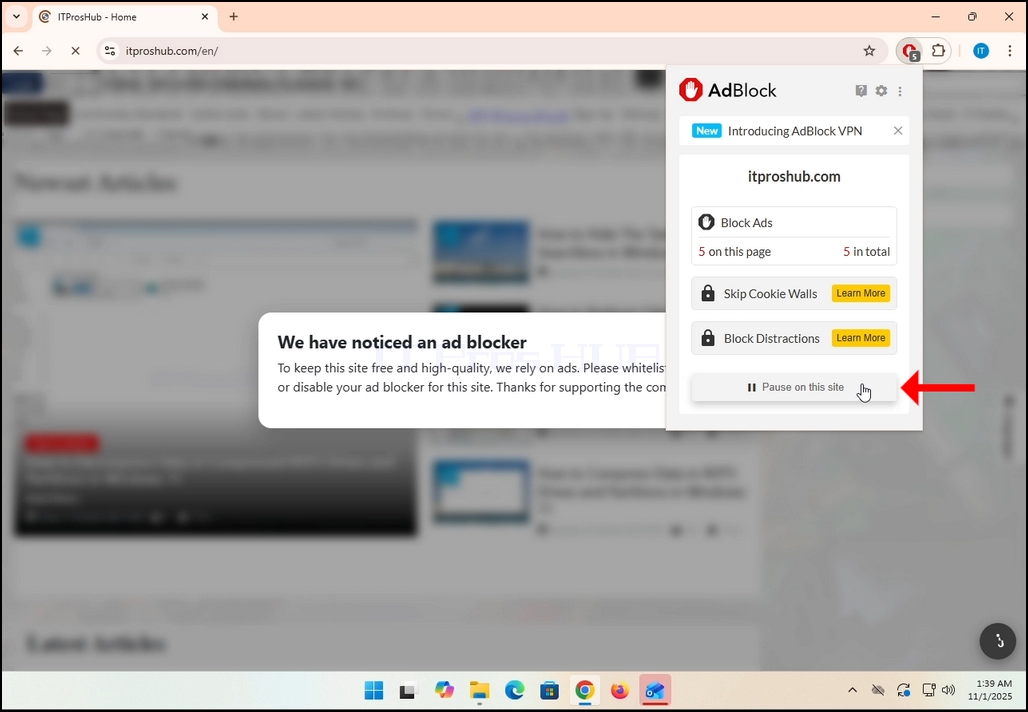
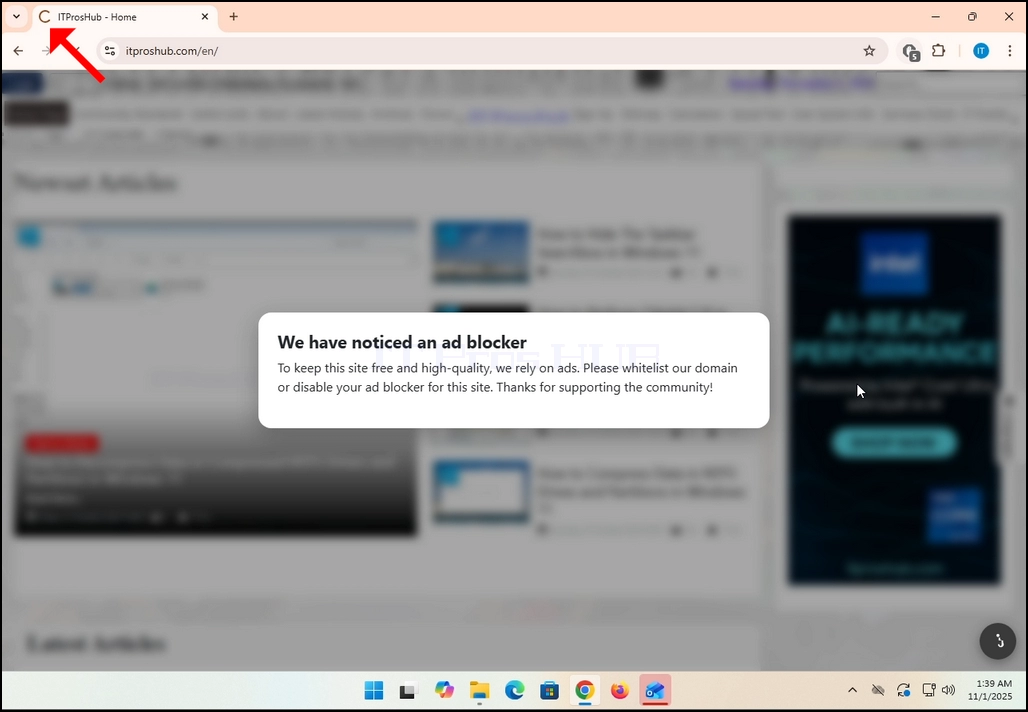
6. Da zarar an danna, shafin yanar gizon da ake magana a kai, a yanayinmu; itproshub.com, za a sake loda shi ta atomatik, amma a wannan karon duk tallace-tallacen sun bayyana.


- Details
- Written by: IT Pro
- Category: How to Articles
- Hits: 6750
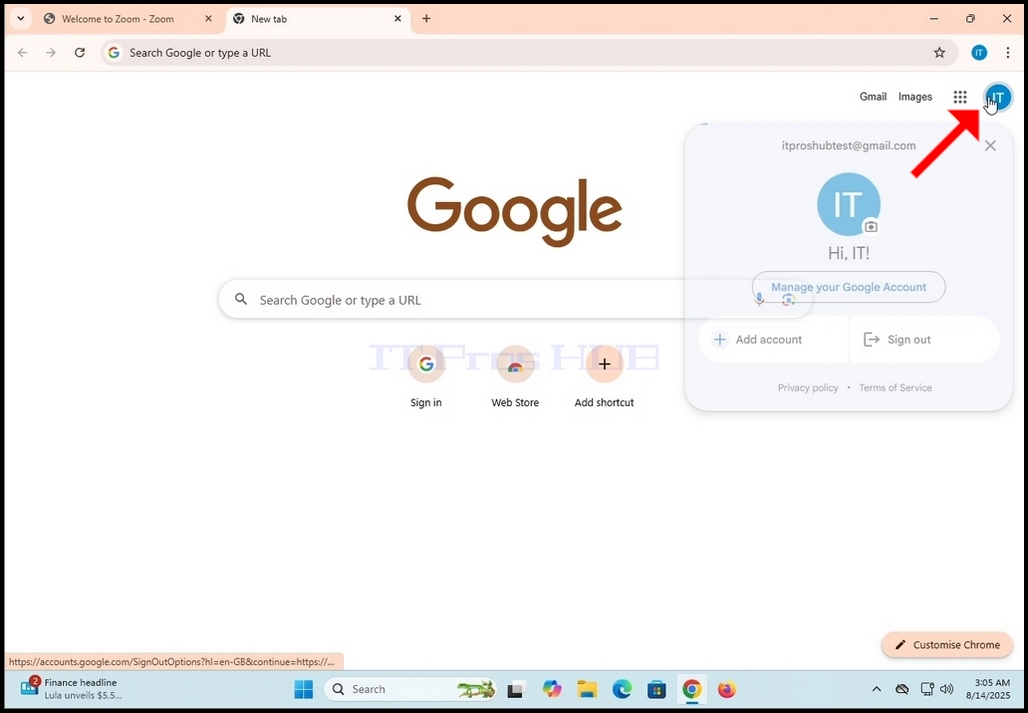
1. Je zuwa shafin farko na Google (ko duk wani shafin Google wanda ke nuna alamar farkon asusun Google ɗinka a wannan yanayin) sannan ka danna alamar da ke nuna farkon asusun Google ɗinka. Ya kamata ya kasance a kusurwar dama ta sama na allon.
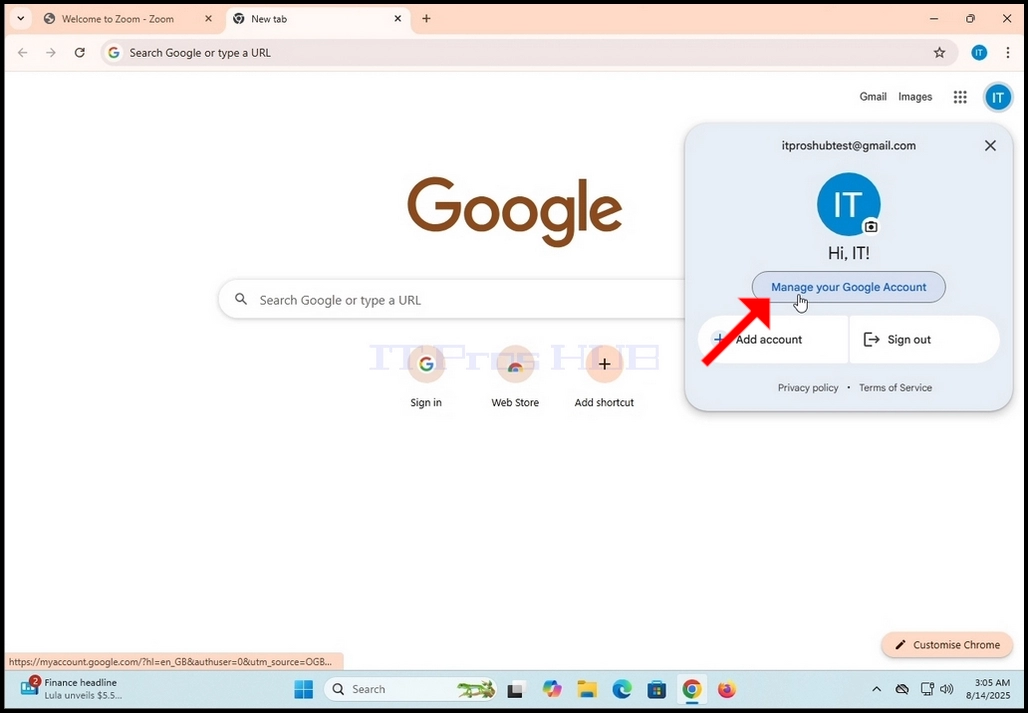
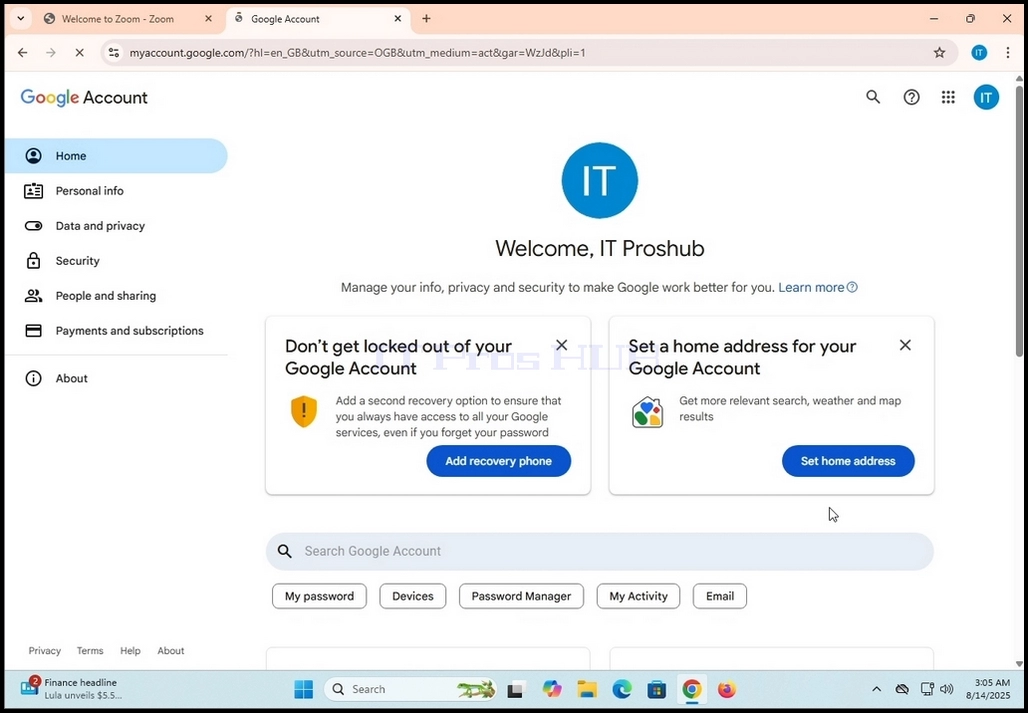

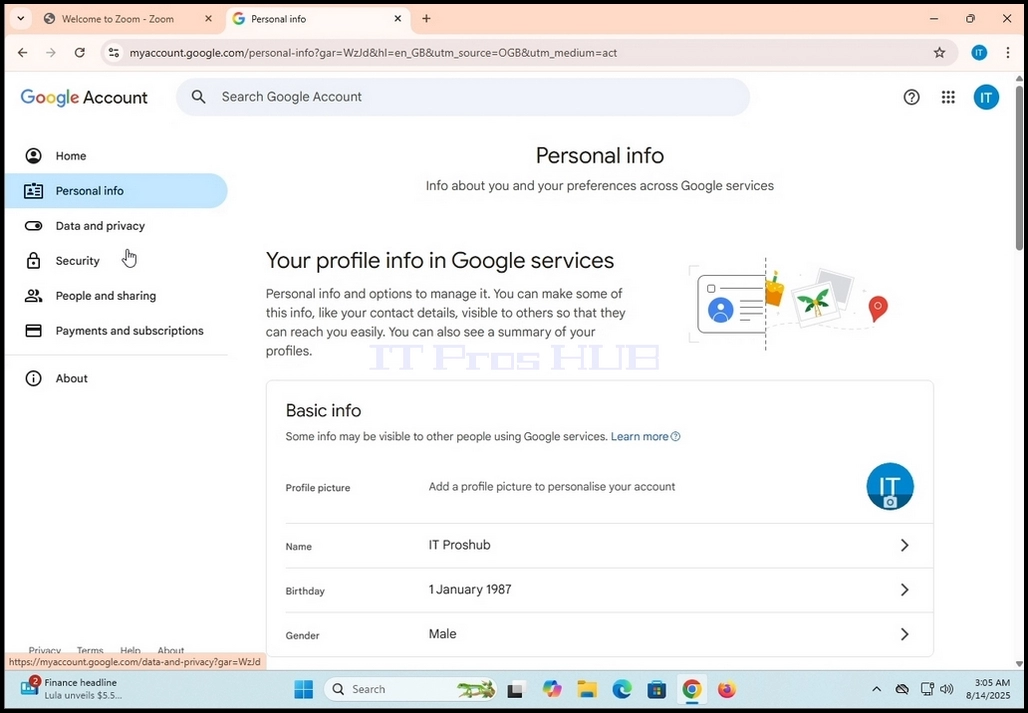
5. A cikin sabon shafin Bayanan Keɓaɓɓu da aka ɗora, gungura saukar shafin har sai kun sami akwatin Babban fifiko ga yanar gizo a gefen hagu. A ƙarƙashin wannan akwatin, ya kamata ku ga maɓallin Harshe kusa da ƙaramin alamar duniya. Danna shi sau ɗaya. Jira shafin Harshe ya ɗora.

6. A shafin Harshe, a ƙarƙashin akwatin Harshe da aka fi so, nemi maɓallin + Ƙara wani harshe sannan ka danna shi sau ɗaya.
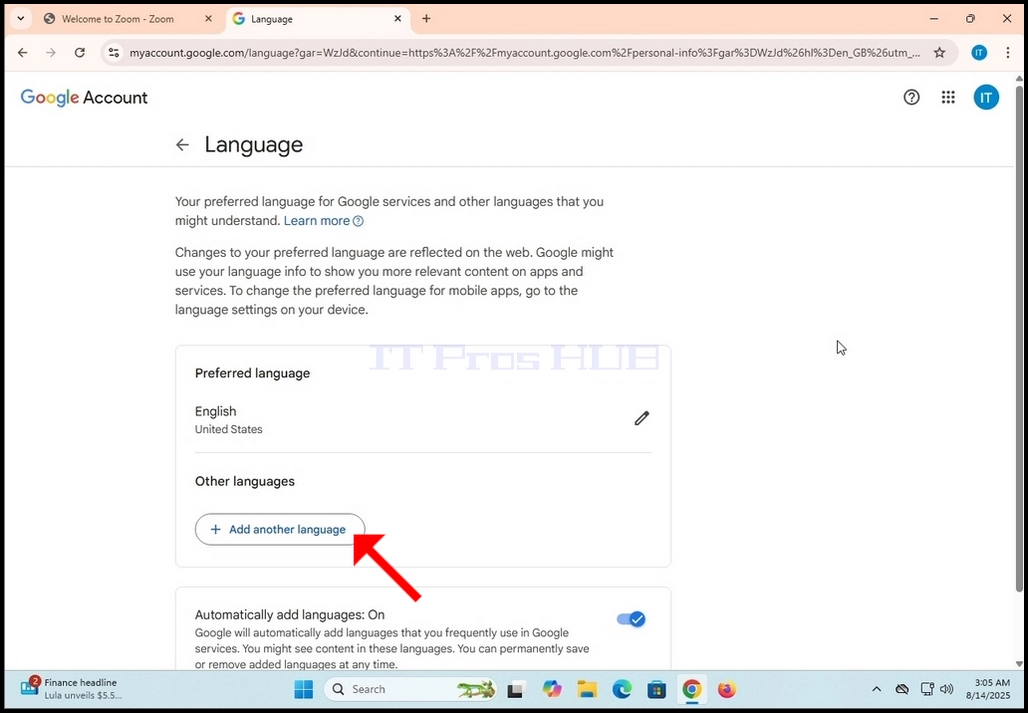
7. A shafi na gaba, zaɓi ƙarin harshen da kake son ƙarawa zuwa asusun Google ɗinka.