



- Detalji
- Autor: IT Pro
- Kategorija: How to Articles
- Pregleda: 11388
1. Open Chrome browser
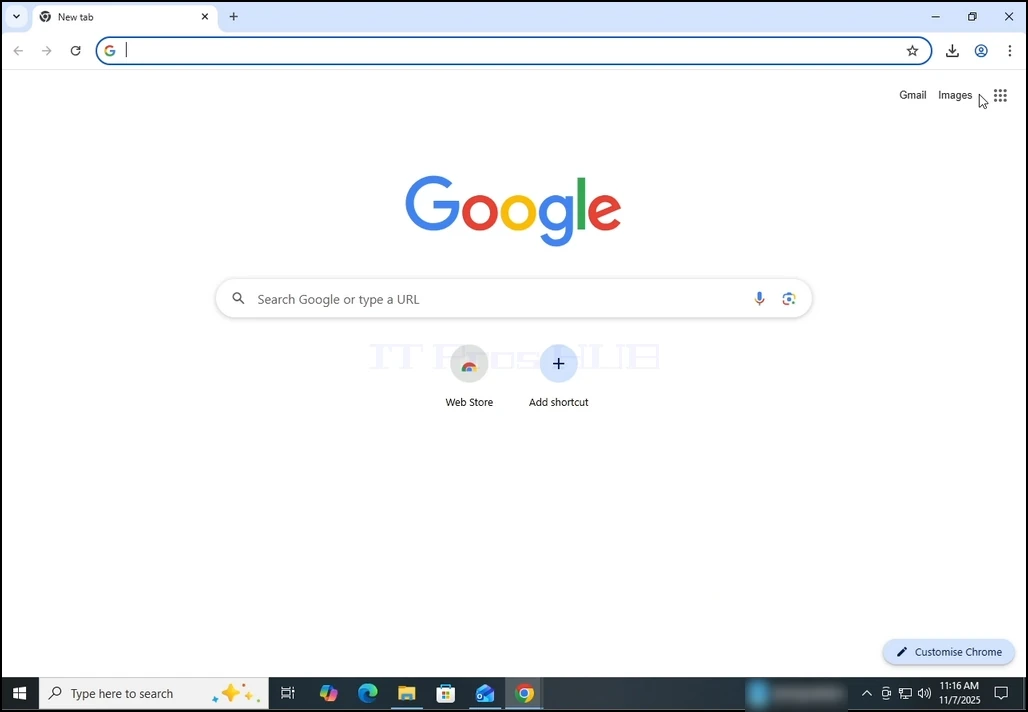
2. In Chrome's address bar, type the following address:
chrome://settings
and hit the ENTER key. Wait for the Chrome settings window to appear.
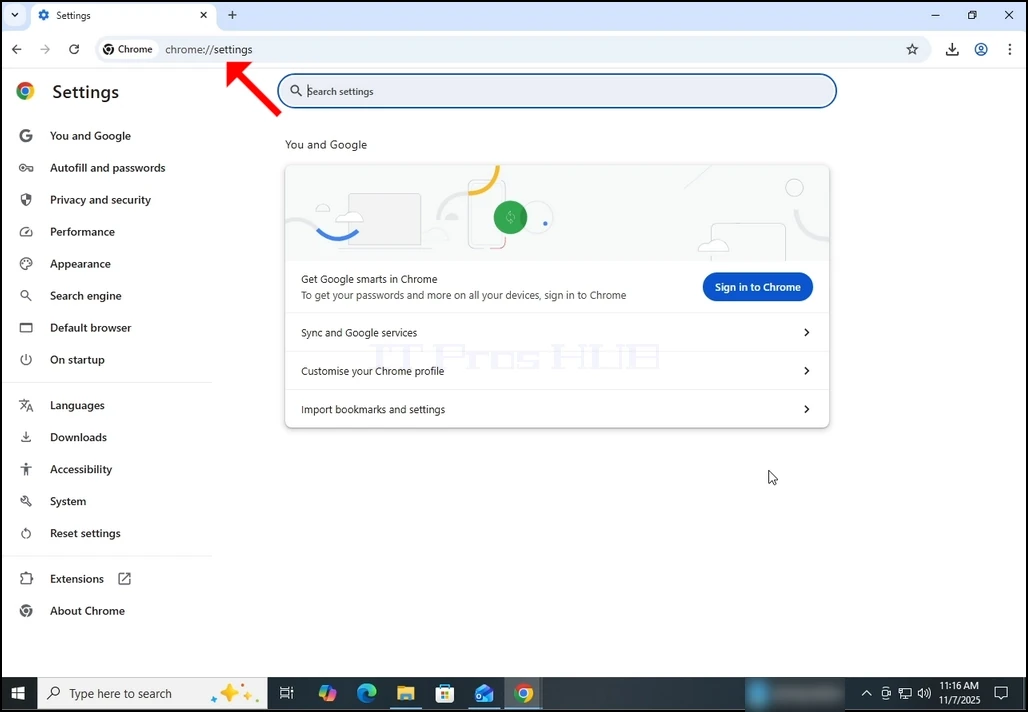
3. On the left pane, go to Privacy and Security and click on it:
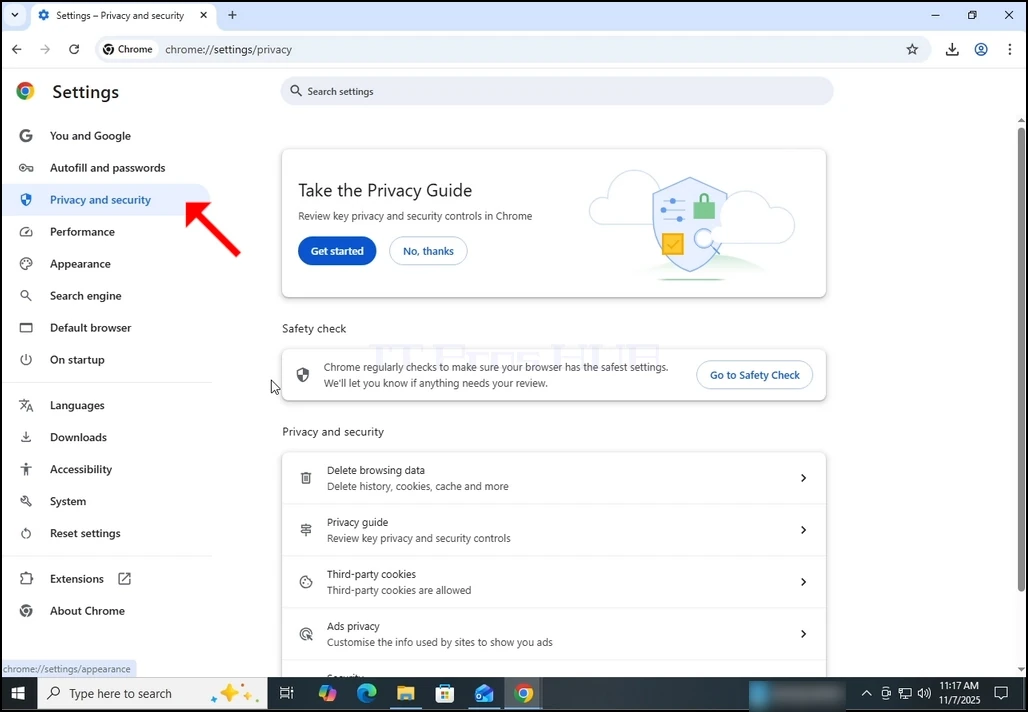
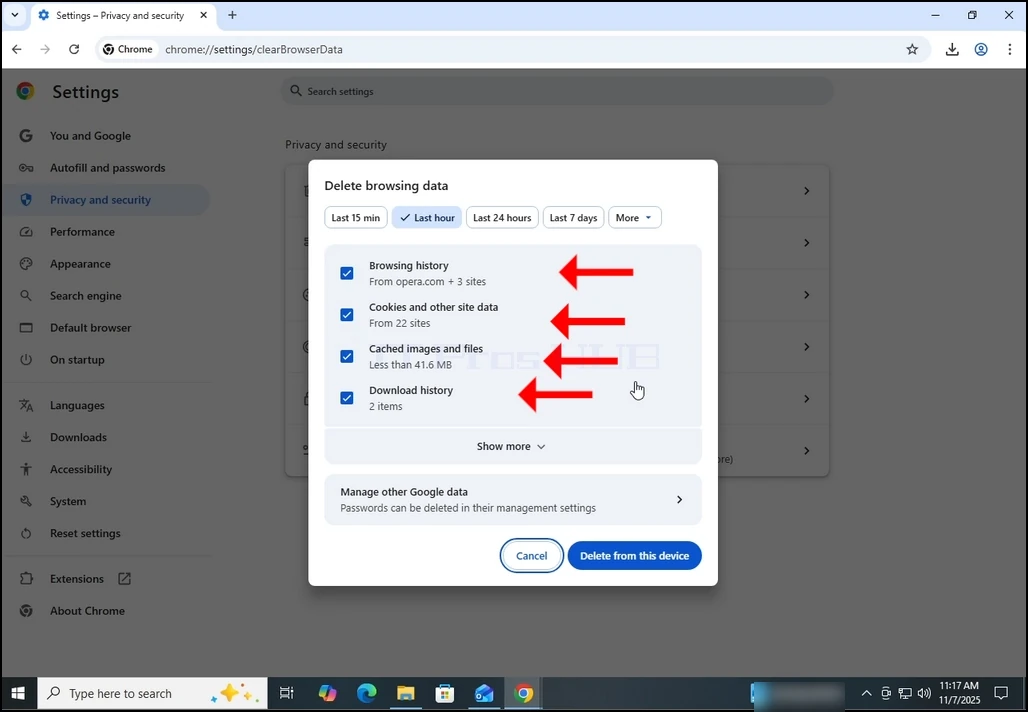
4. Now, on the right pane, go to Delete browsing data and click on it. Wait for the Delete browsing data window to appear :
5. After the Delete browsing data window appears, mark ALL of the 4 options:
- Browsing history
- Cookies and other site data
- Cached images and files
- Download history
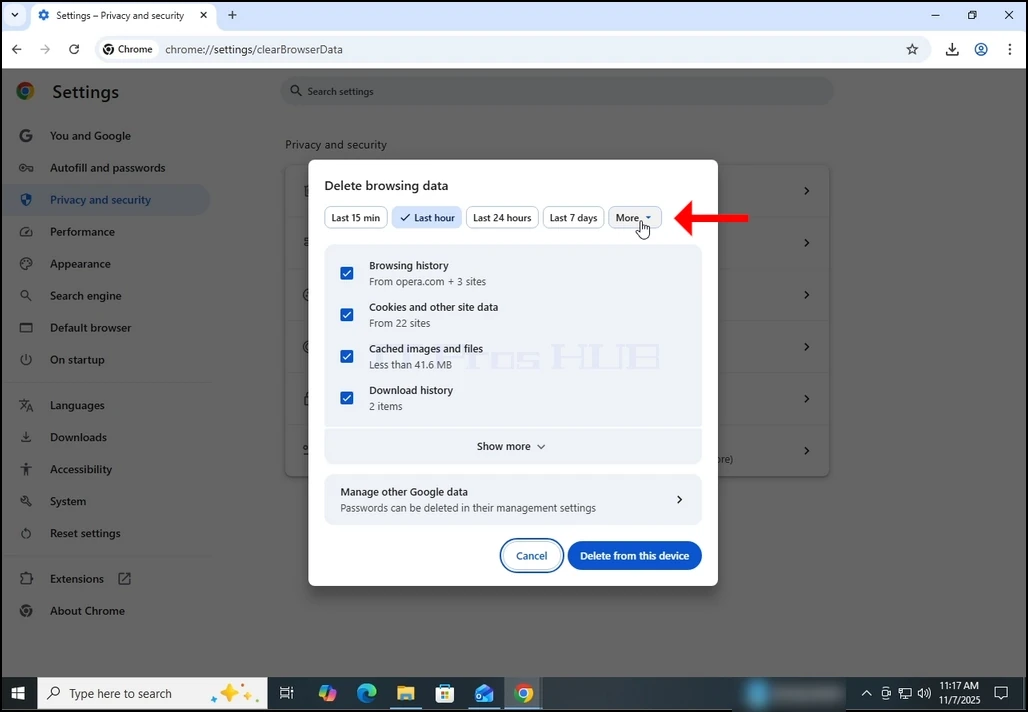
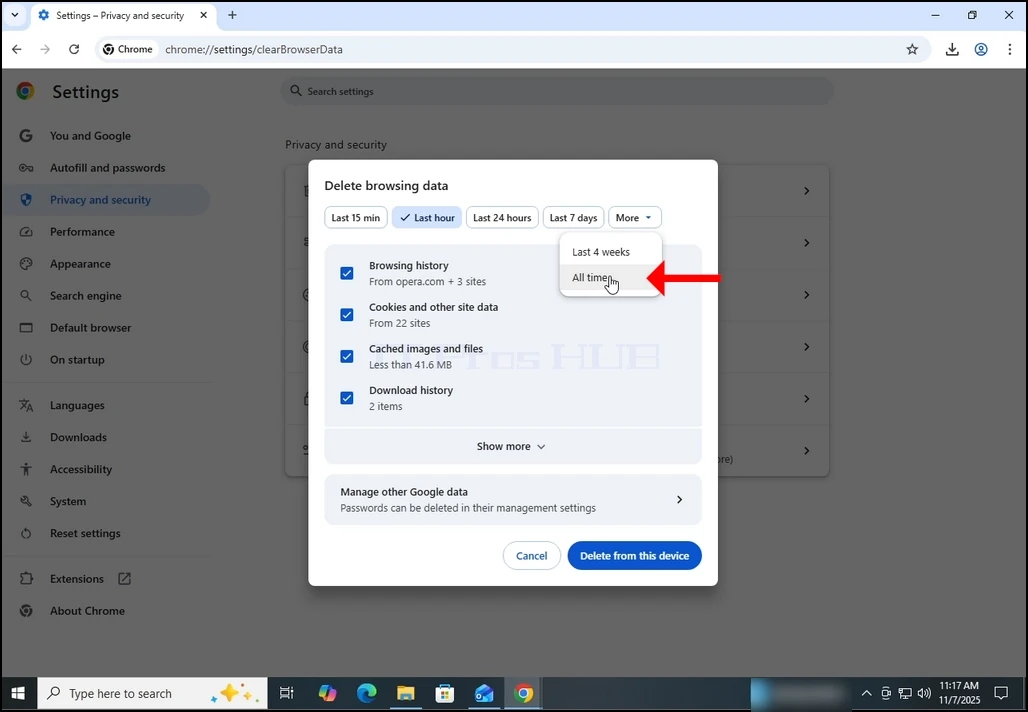
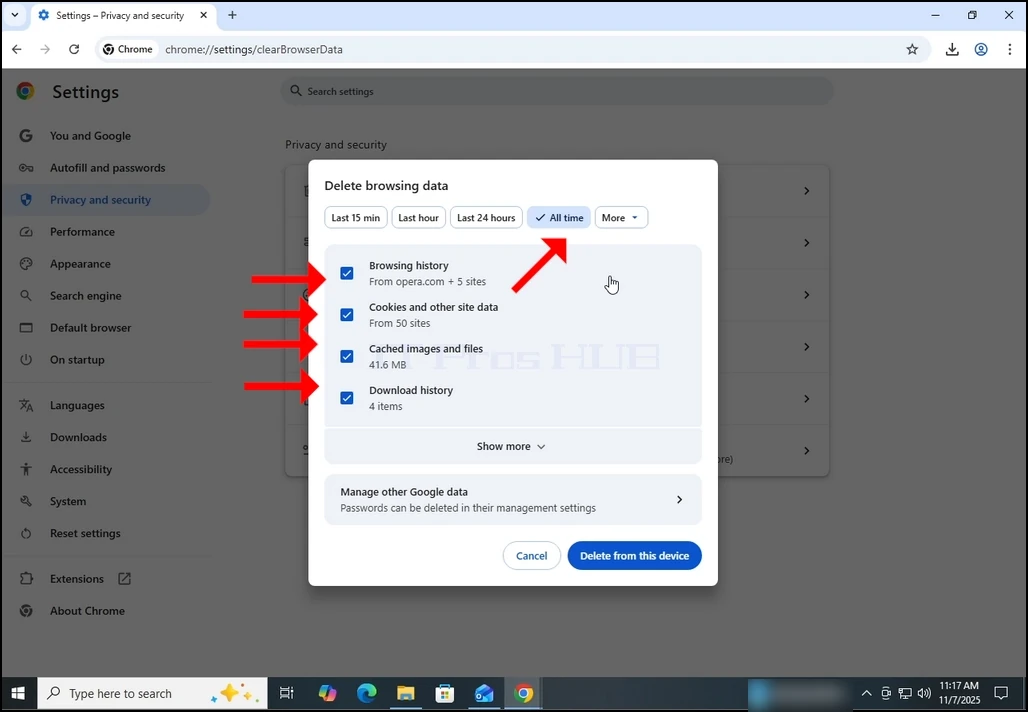
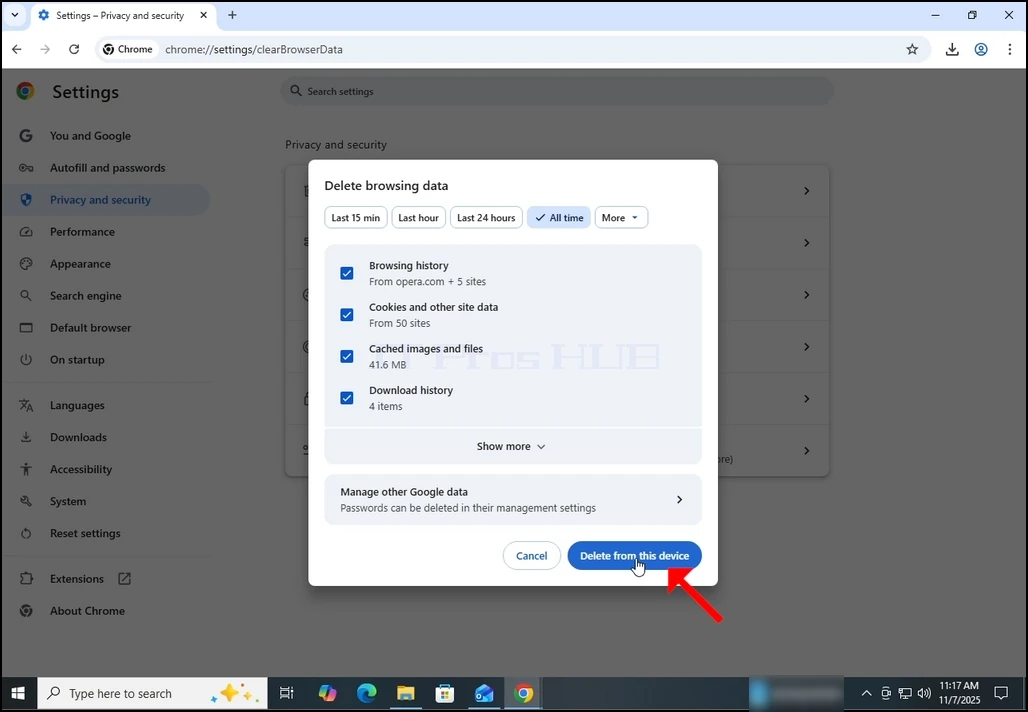
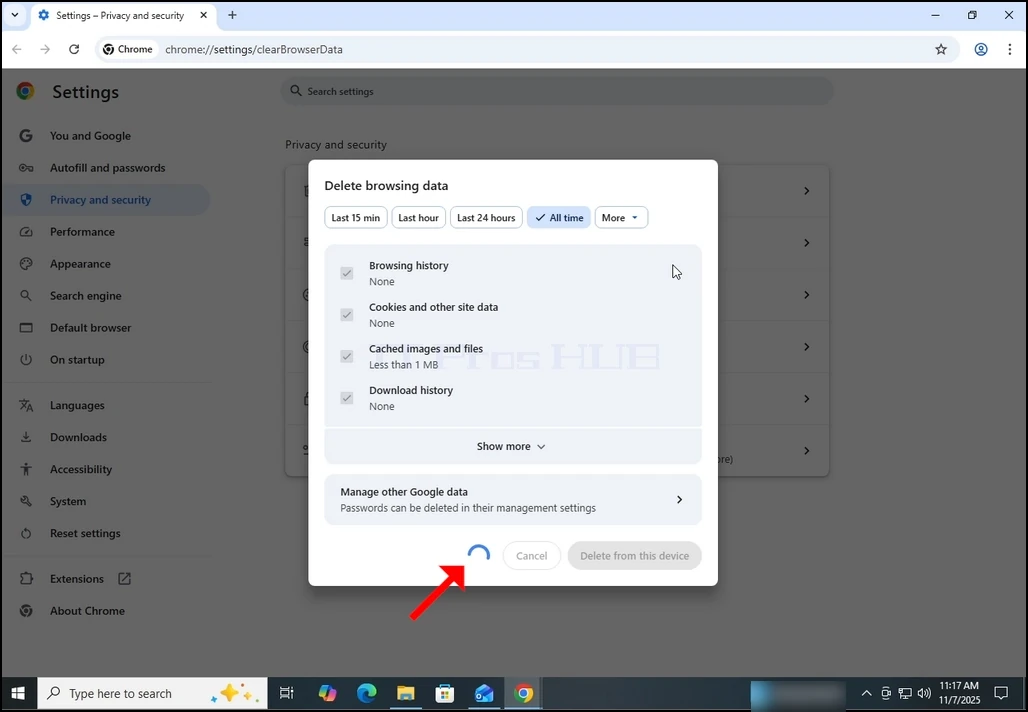
9. Wait for the data to be deleted:
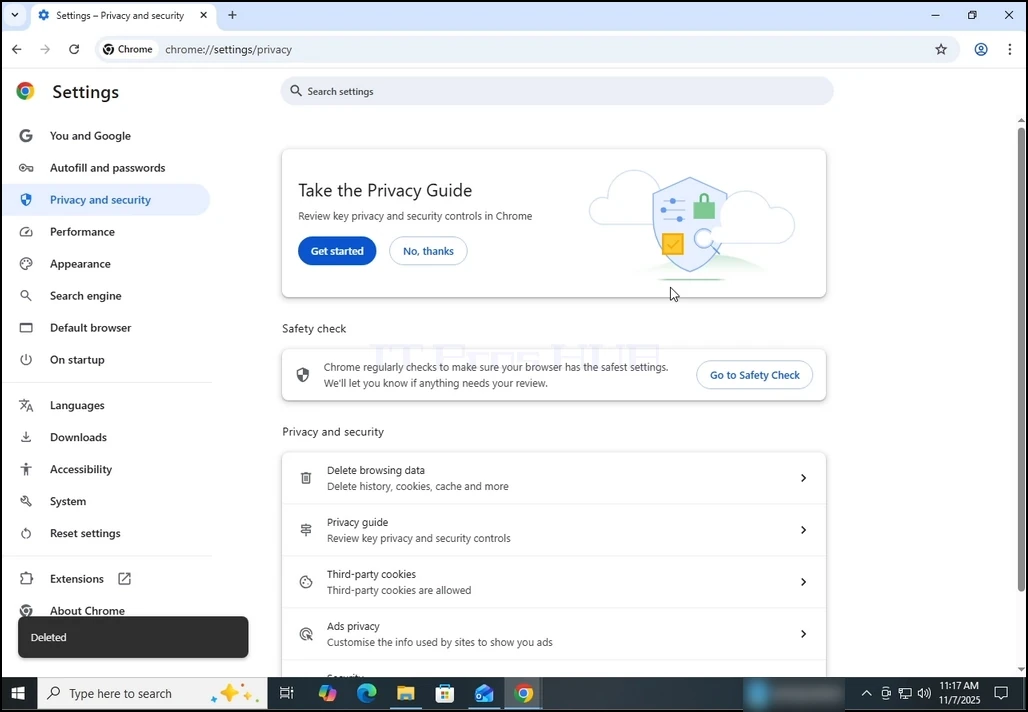
10. Once done, the Delete browsing data window will close itself:
- Detalji
- Autor: IT Pro
- Kategorija: How to Articles
- Pregleda: 7637
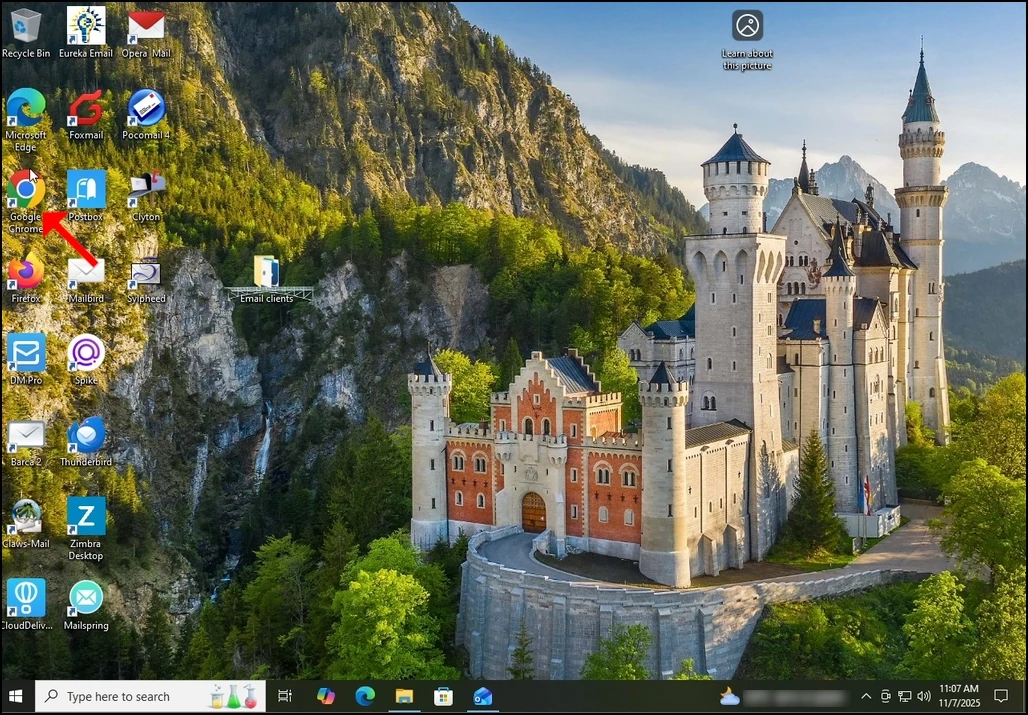
1. Open Chrome:


4. Once opened, the About Google Chrome window will start automatically check for new updates for Google chrome. If there is such an update, Chrome would notify about it by changing the update status to Updating Chrome as can be seen below:


6. Once finished, Chrome would notify you by displaying the message: "Nearly up to date! Relunch Chrome to finish updating".

8. Usually, newly updated version of Google Chrome would show this type of message upon first launch:

9. In order to make sure Google Chrome has no more updates, perform the same stages 1-4. As you can see, at the moment, there are no more updates available for Google Chrome after we have done the previous update:

- Detalji
- Autor: IT Pro
- Kategorija: How to Articles
- Pregleda: 4202
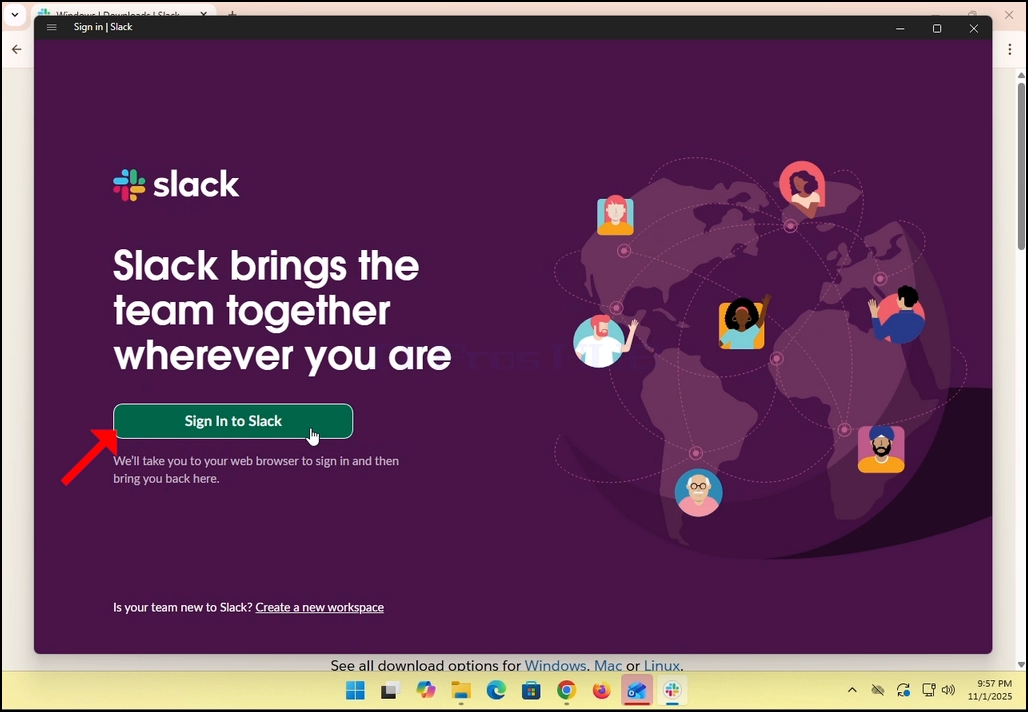
3. Slack will redirect you to a login screen in your default browser. In the case of this article, it is Chrome.
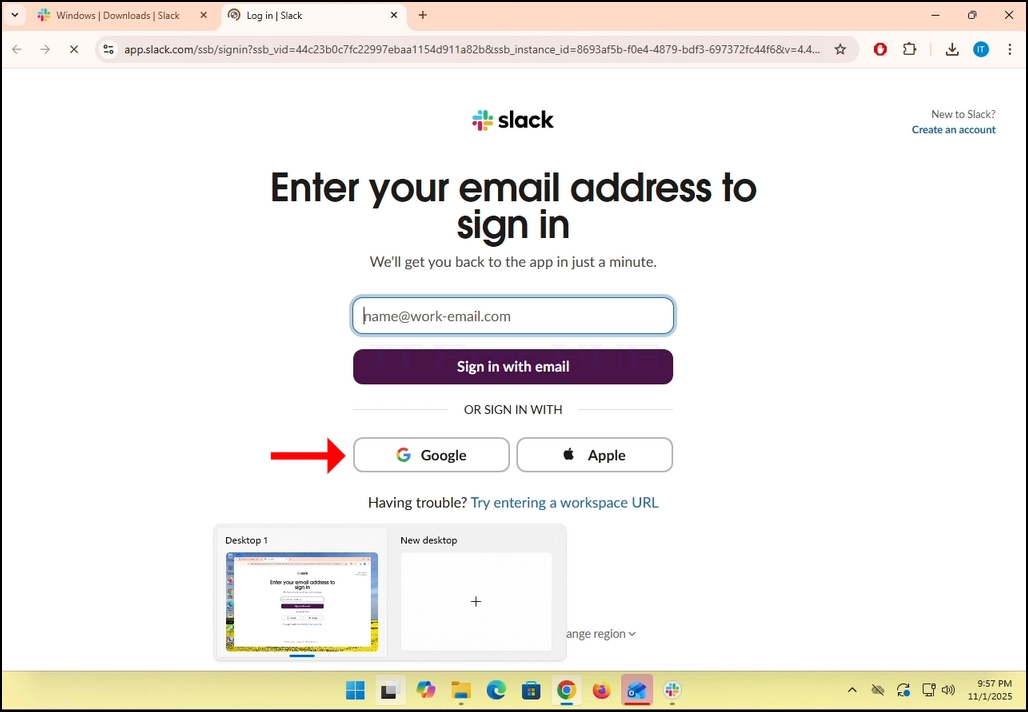
4. As you can see, Slack wants you to Enter your email address to sign in. we will use our Gmail email address to do that.
- Click the Google button and wait for the Google connector page to load.
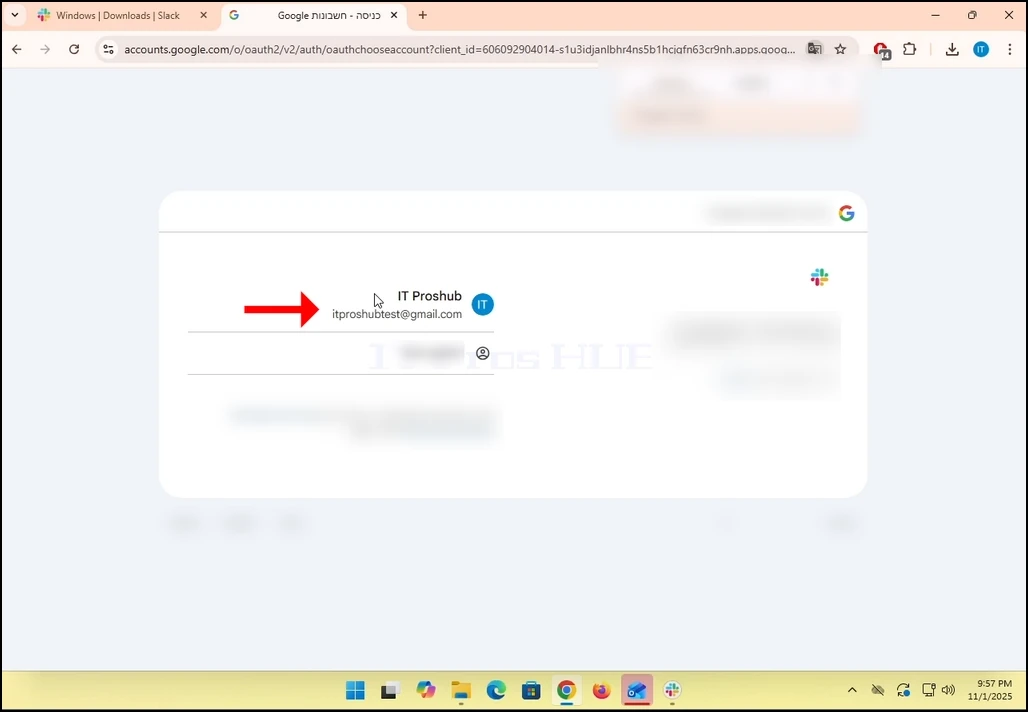
6. In the Google connector page, choose your Gmail email address. Note that in the case of this article,
7. If you are not logged into Chrome or use a different browser, just login to your Google account and then choose that account to continue.
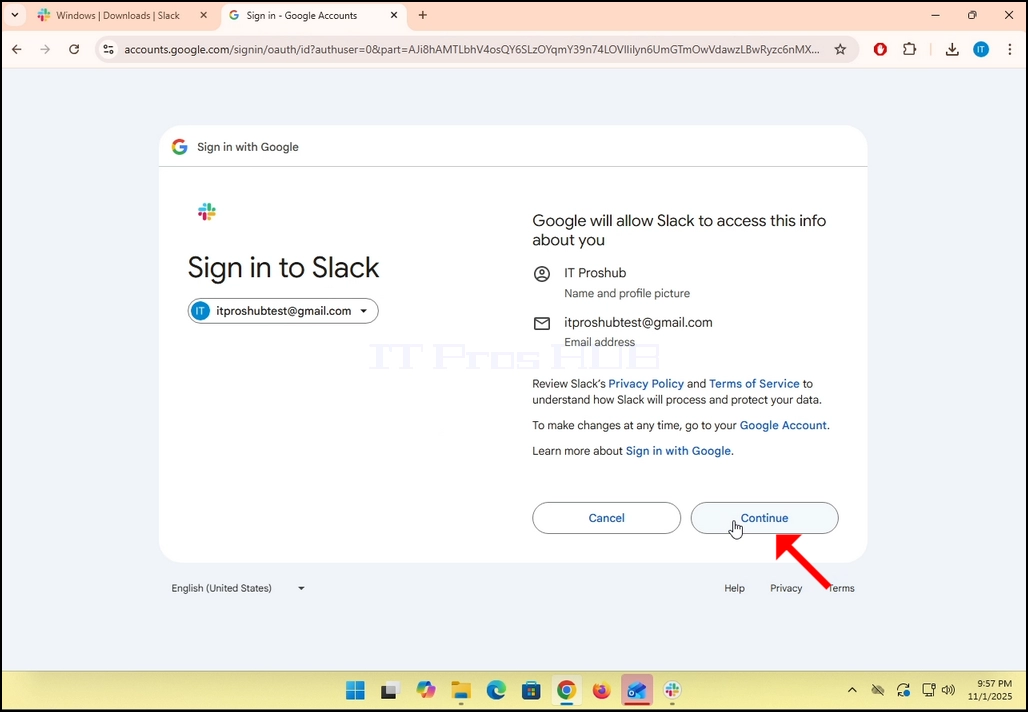
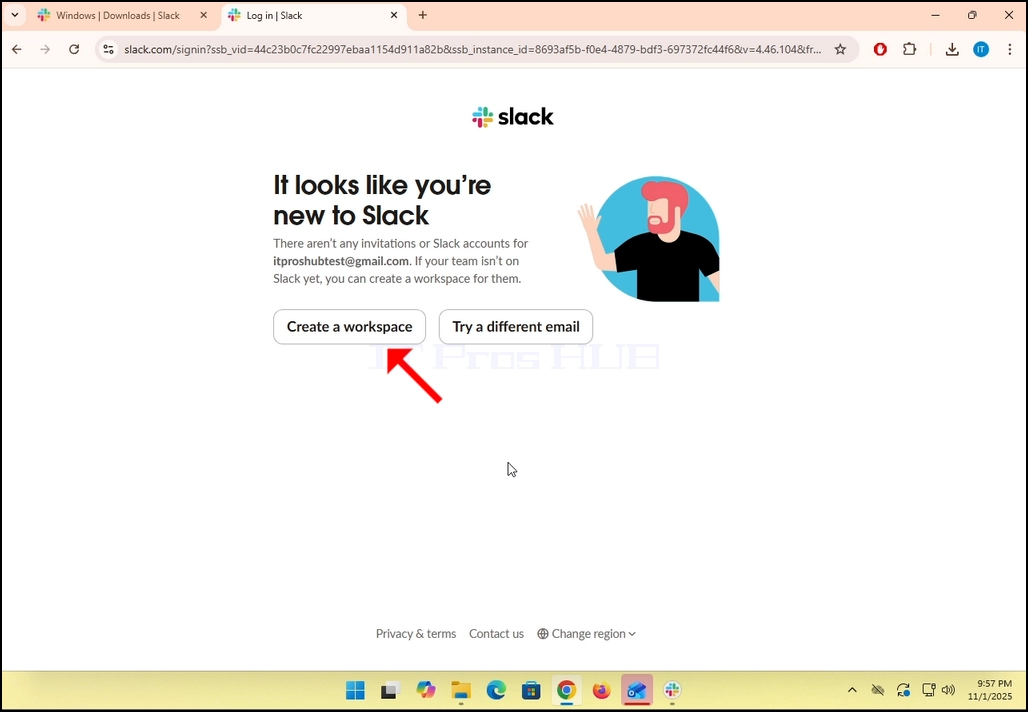
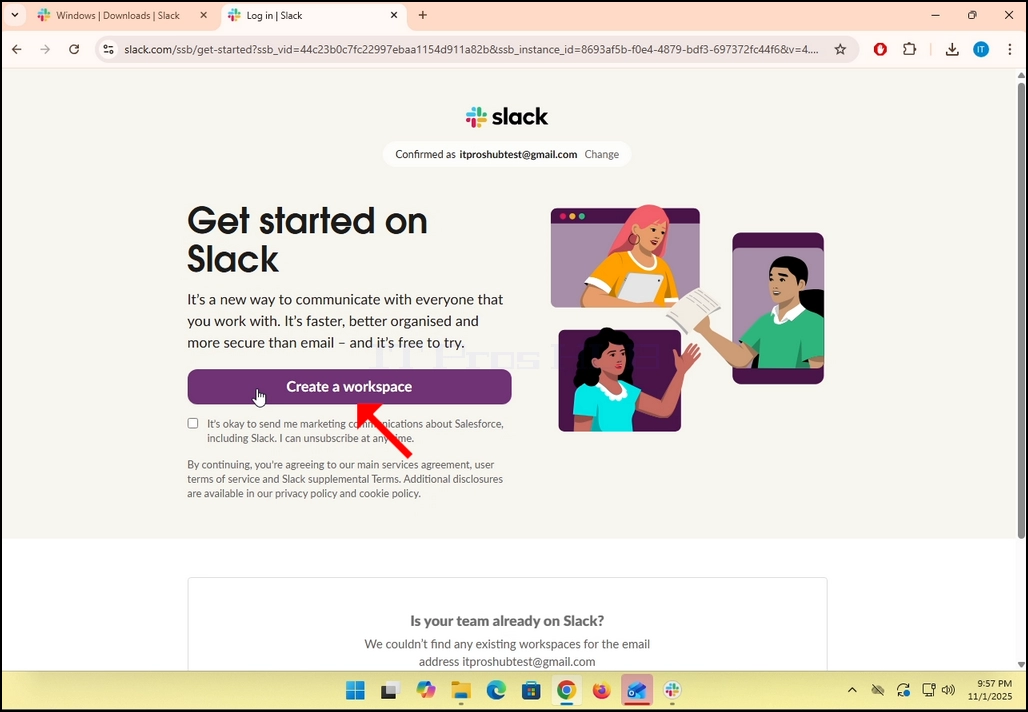
9. If you already have a Slack account under that Gmail email address, then Slack will redirect you back to itself. If not, it will ask you to either Create a workspace or Try a different email.
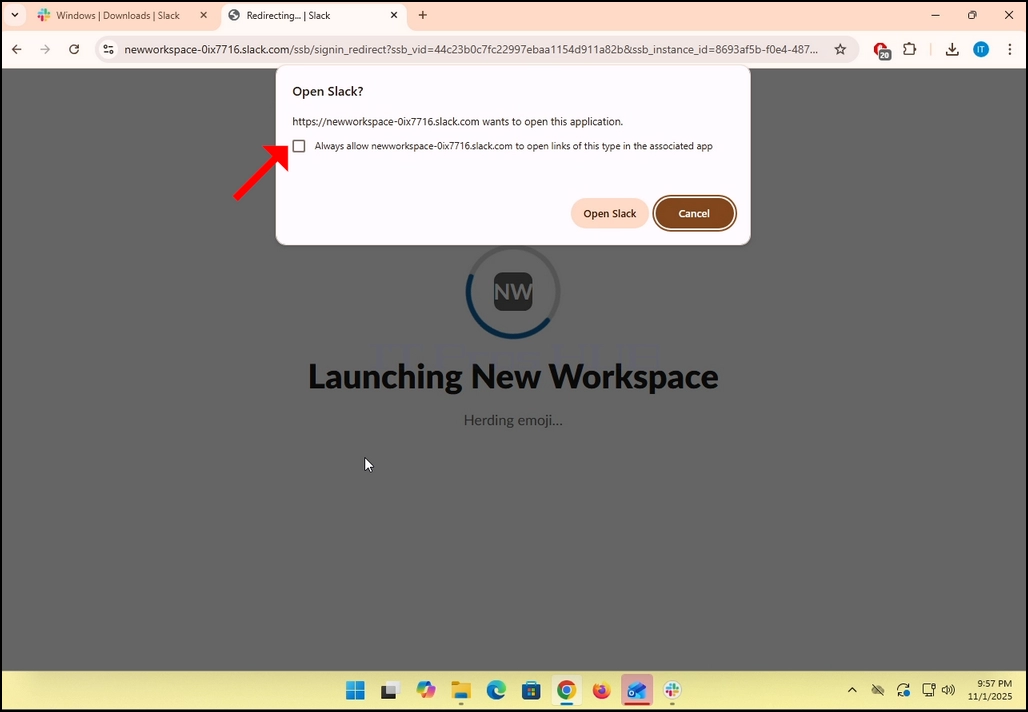
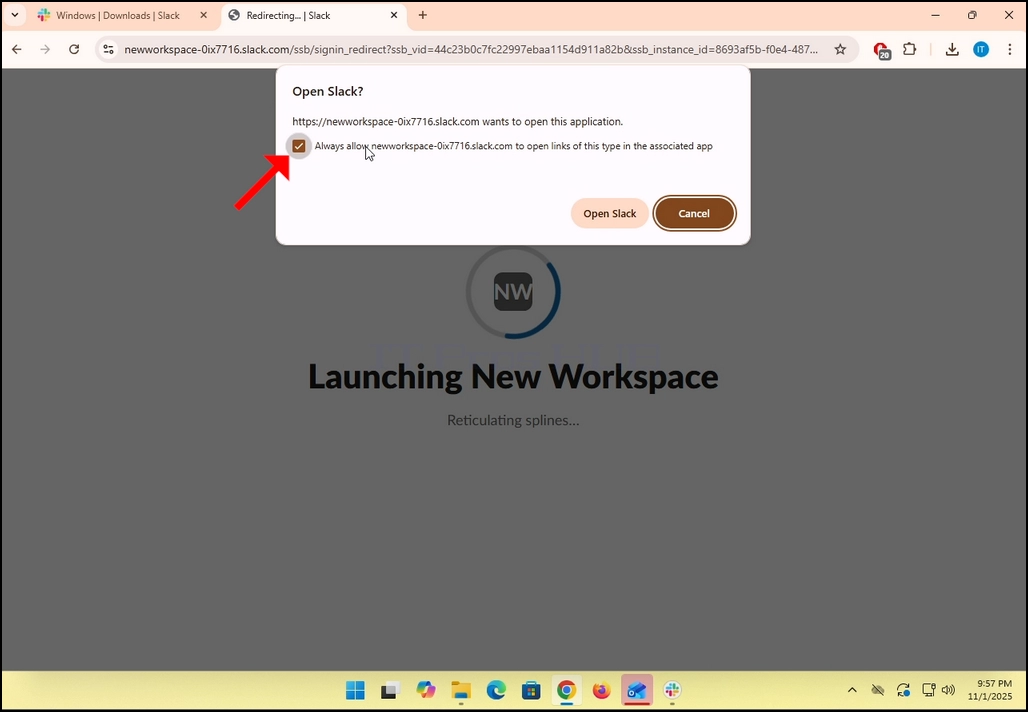
- In the case of this article, we will choose Create a workspace.
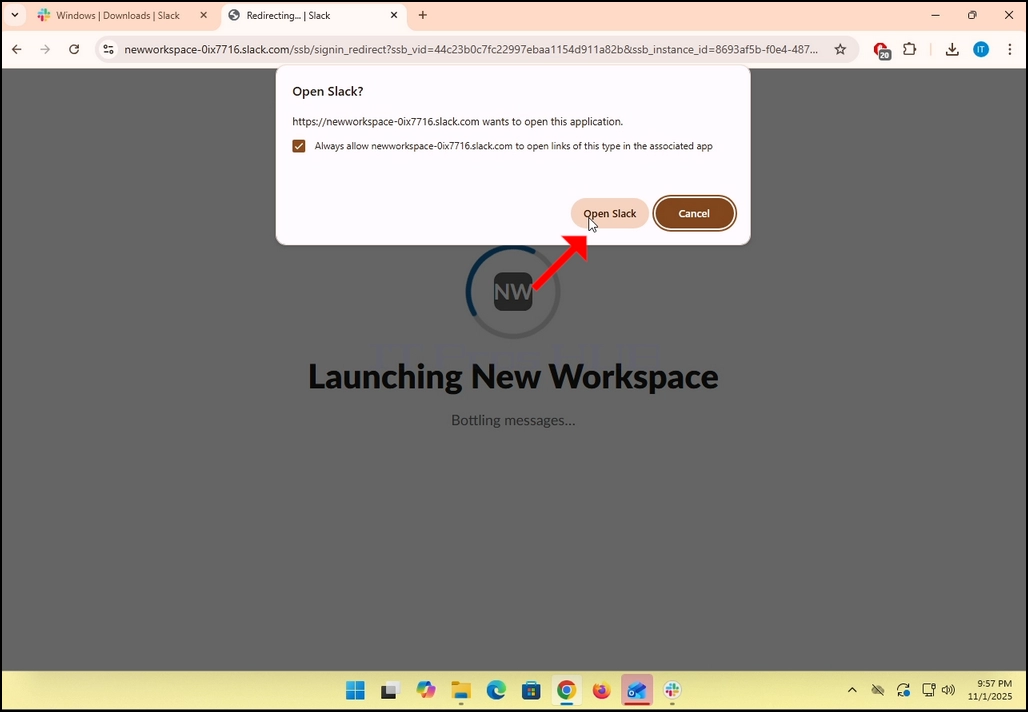
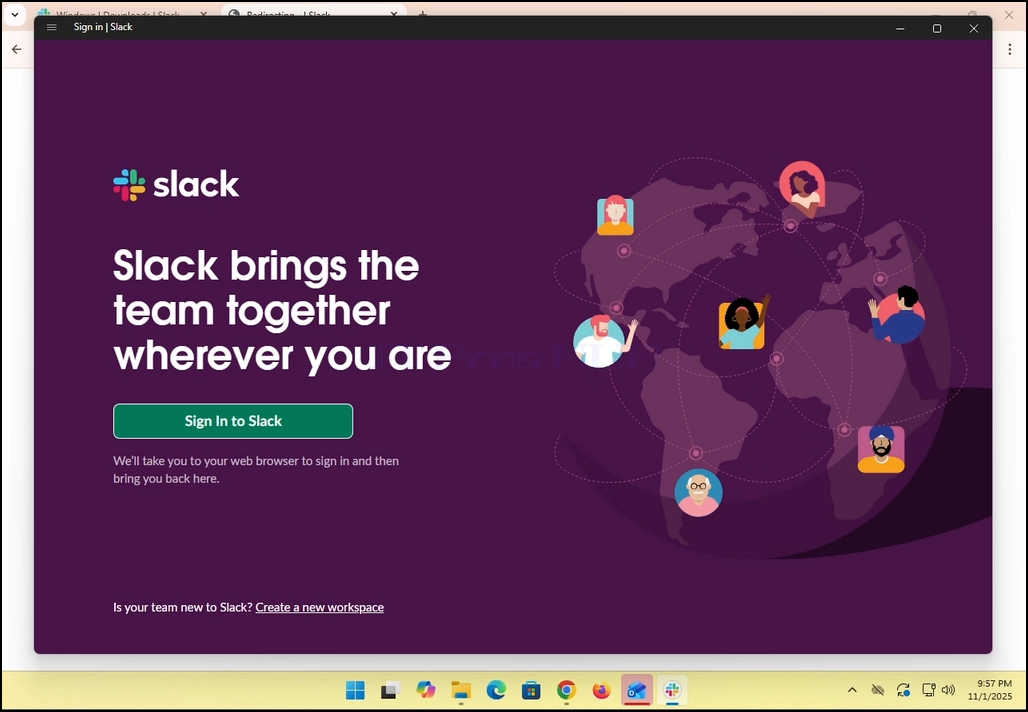
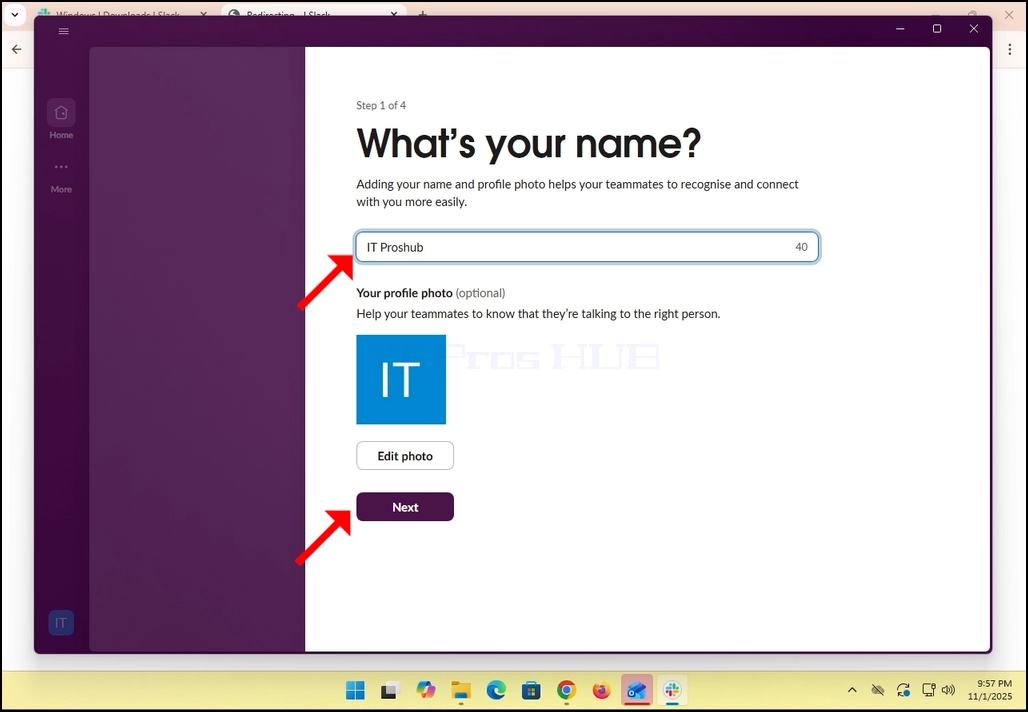
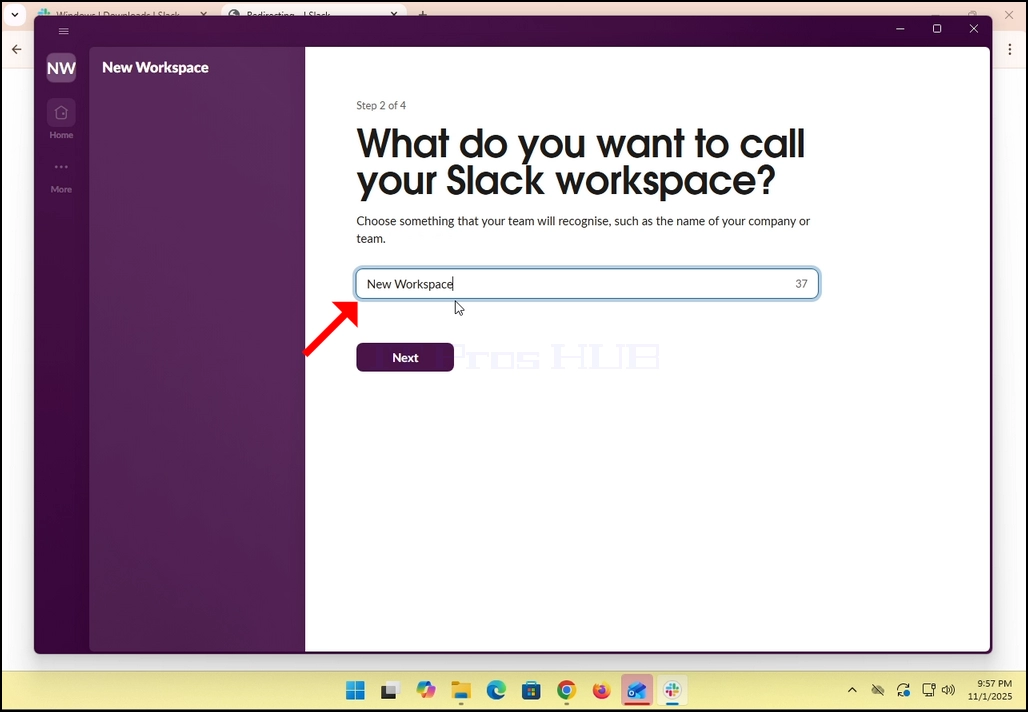
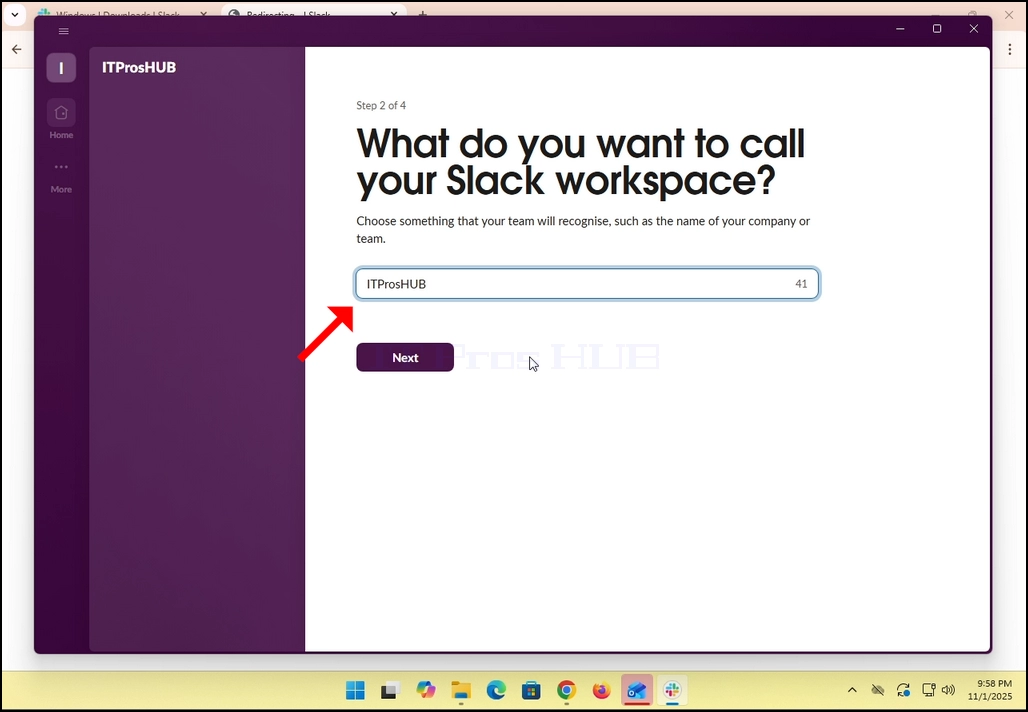
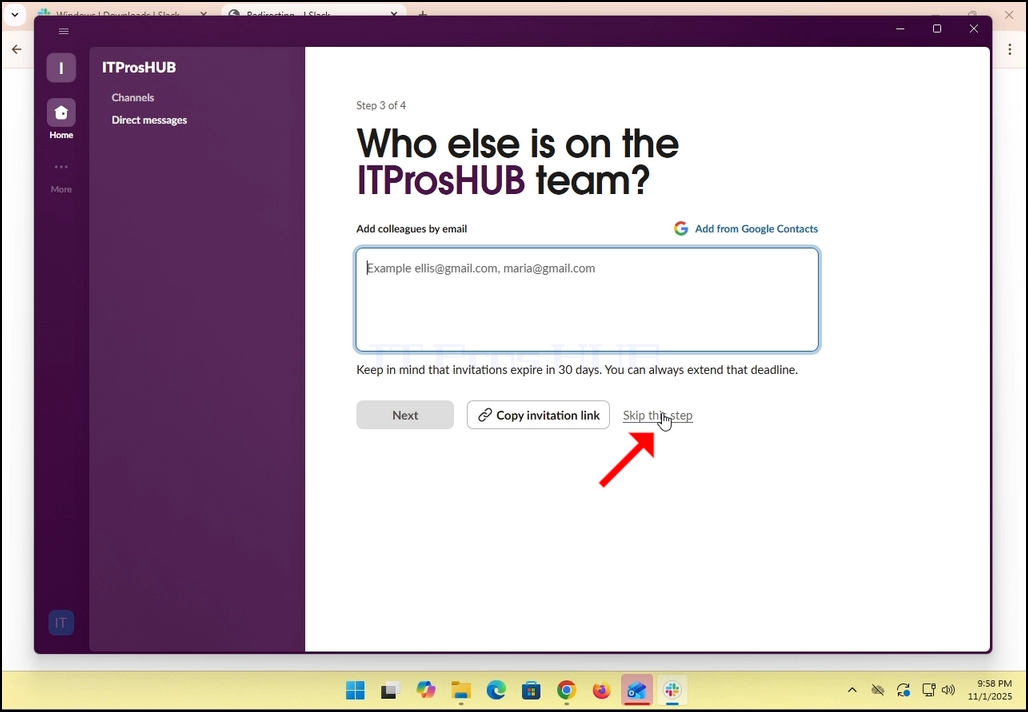
14. In the case of this article, we will skip this step by clicking in the Skip this step option.
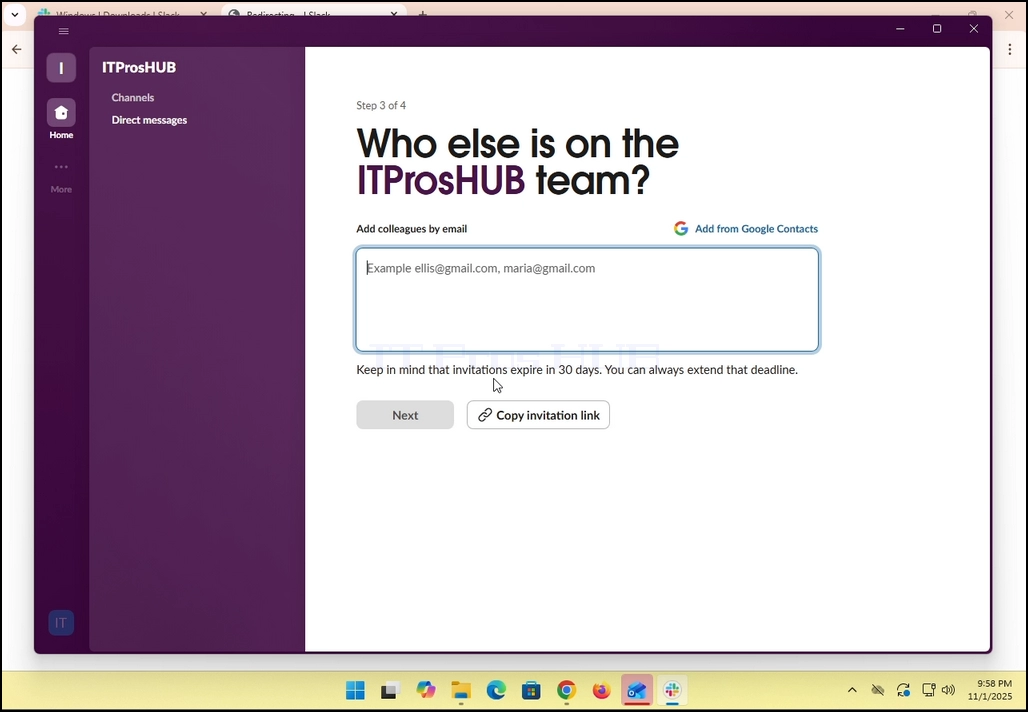
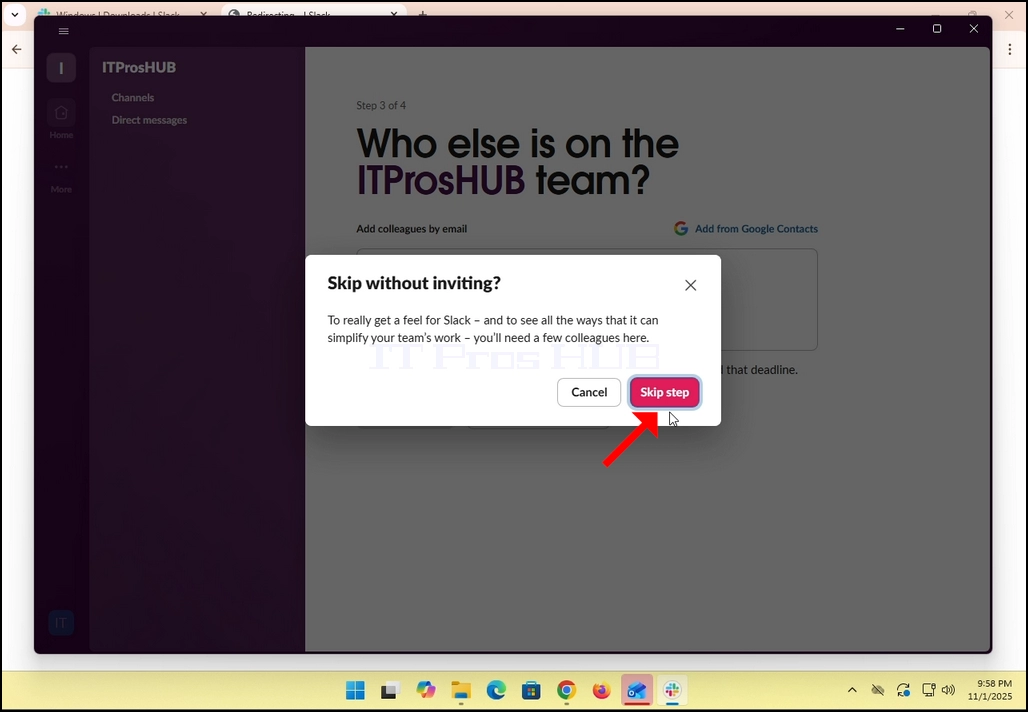
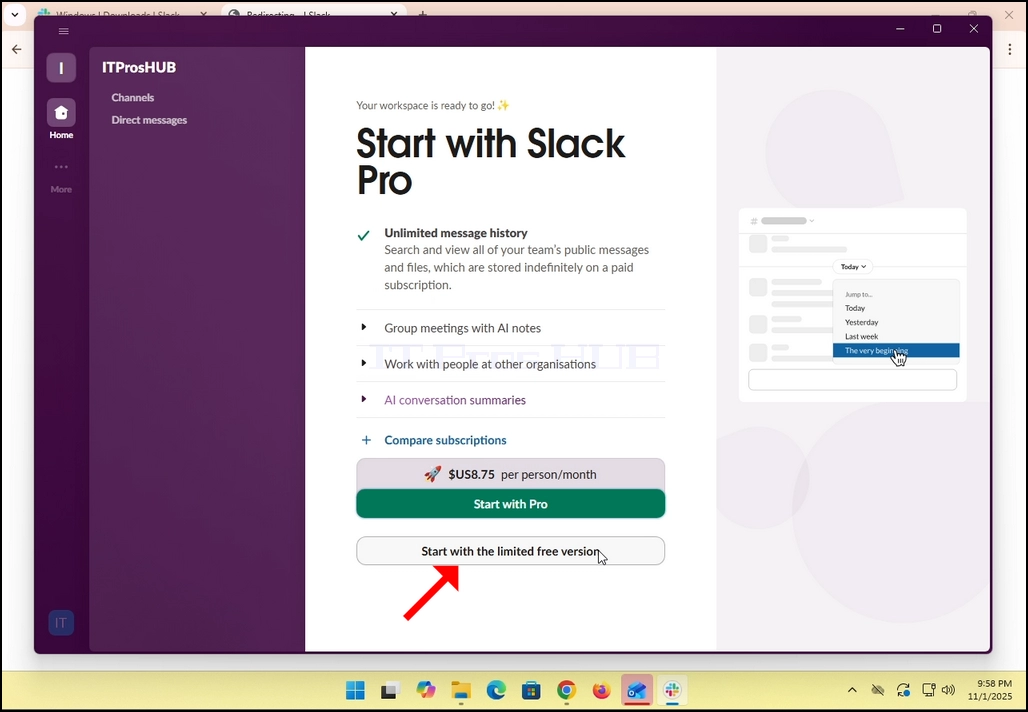
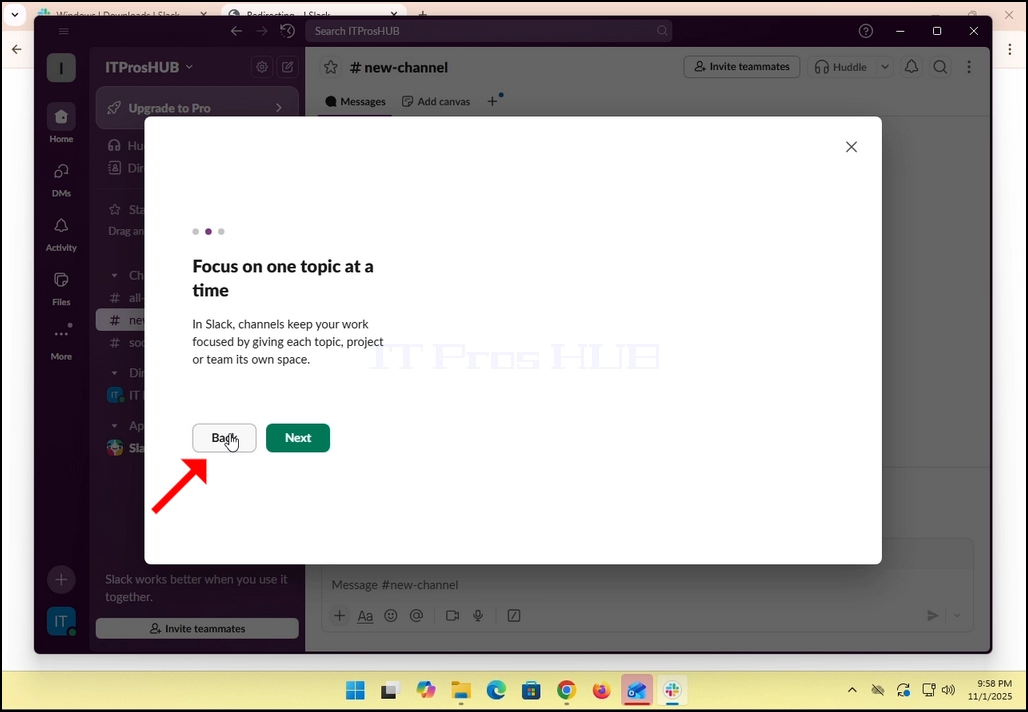
17. All done! You Slack now uses your Gmail email account!
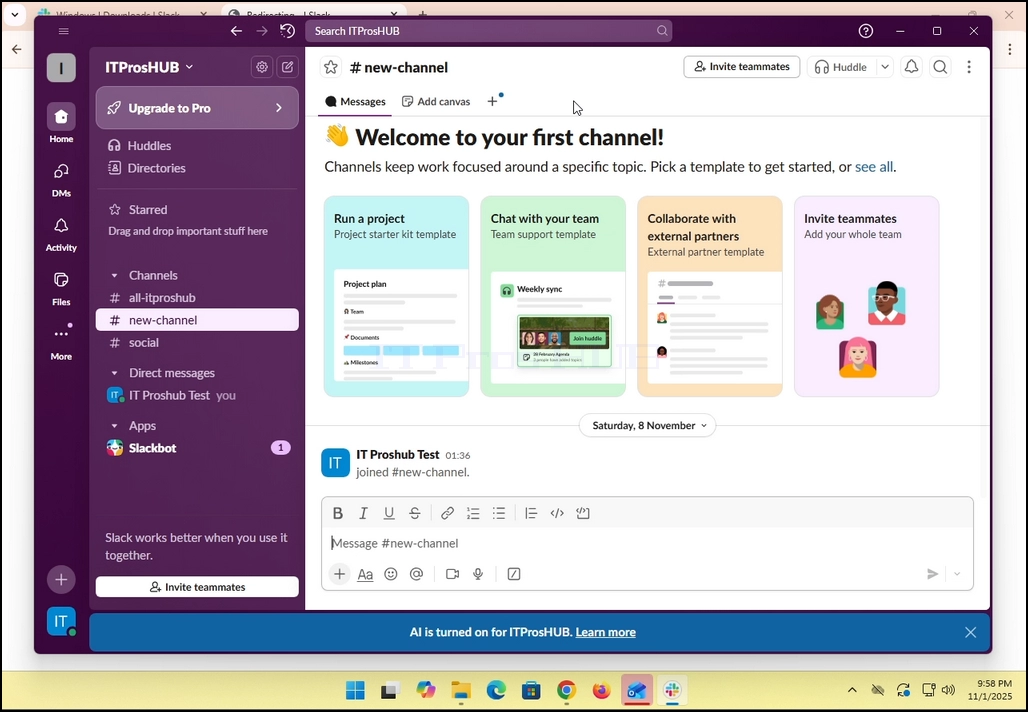
- Detalji
- Autor: IT Pro
- Kategorija: How to Articles
- Pregleda: 6837
1. Za ovaj članak već smo učitali itproshub.com iz preglednika Chrome s instaliranim i omogućenim proširenjem Adblock. Kao što vidite, algoritam detektora Adblock u itproshub.com otkrio je prisutnost Anblock softvera u pregledniku Chrome.
2. U Chromeu idite u gornji desni dio zaslona i potražite ikonu proširenja Adblock za Chrome.
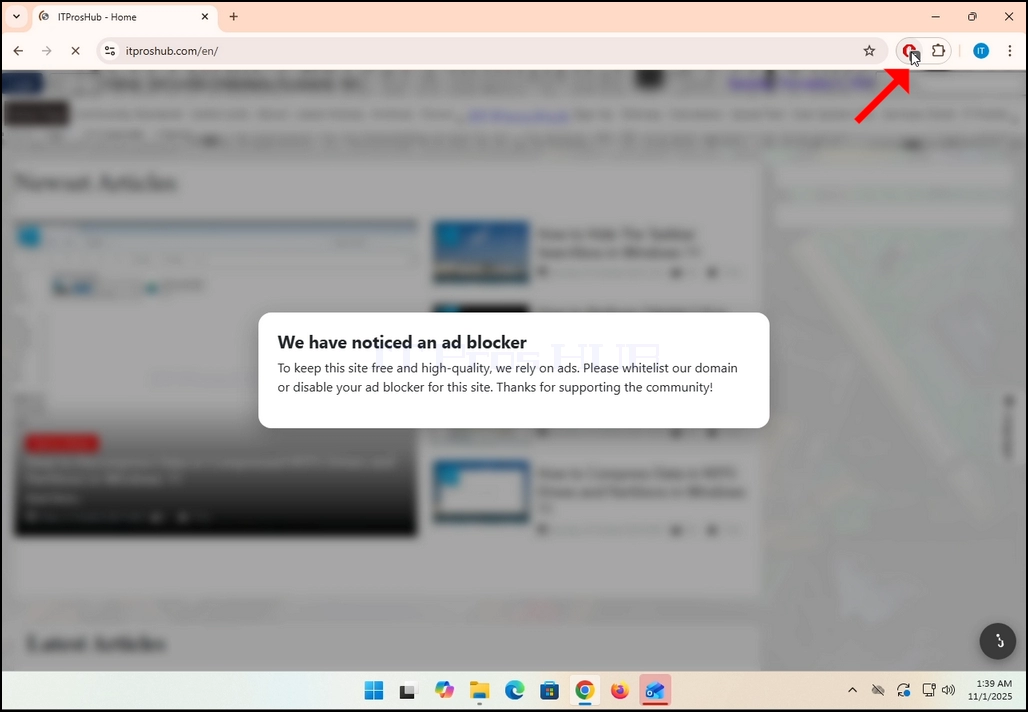
3. Kliknite na njega jednom i pričekajte da se pojavi mali bočni izbornik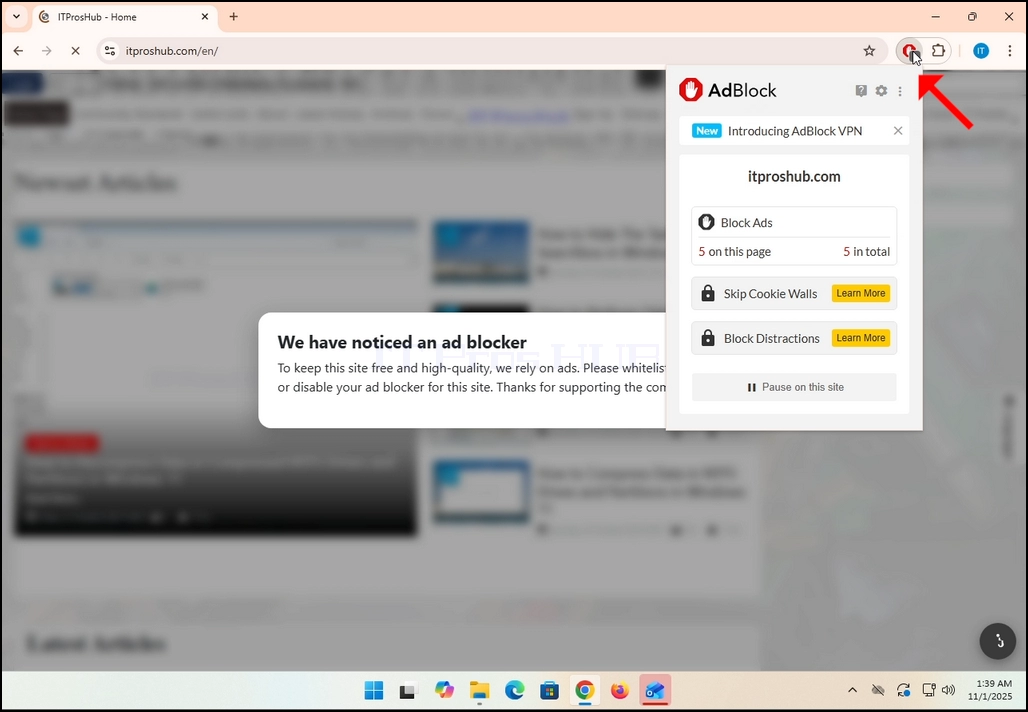
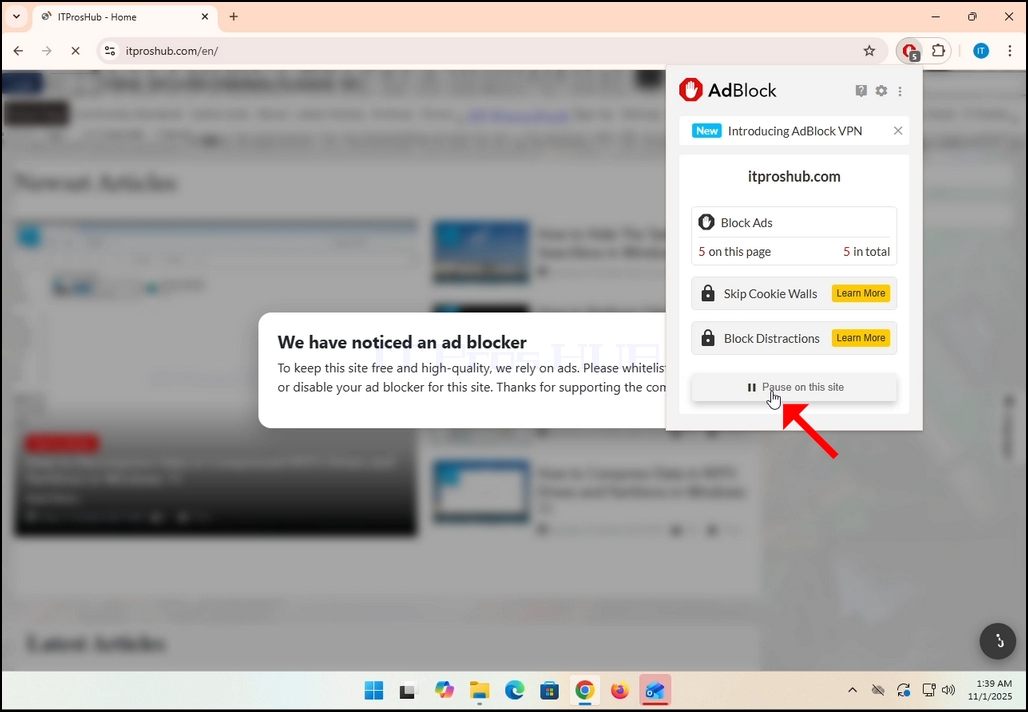
4. Nakon što se ovaj izbornik pojavi, idite na dno izbornika i potražite gumb na kojem piše Pauziraj na ovoj web-lokaciji.
5. Kliknite gumb Pauziraj na ovoj web-lokaciji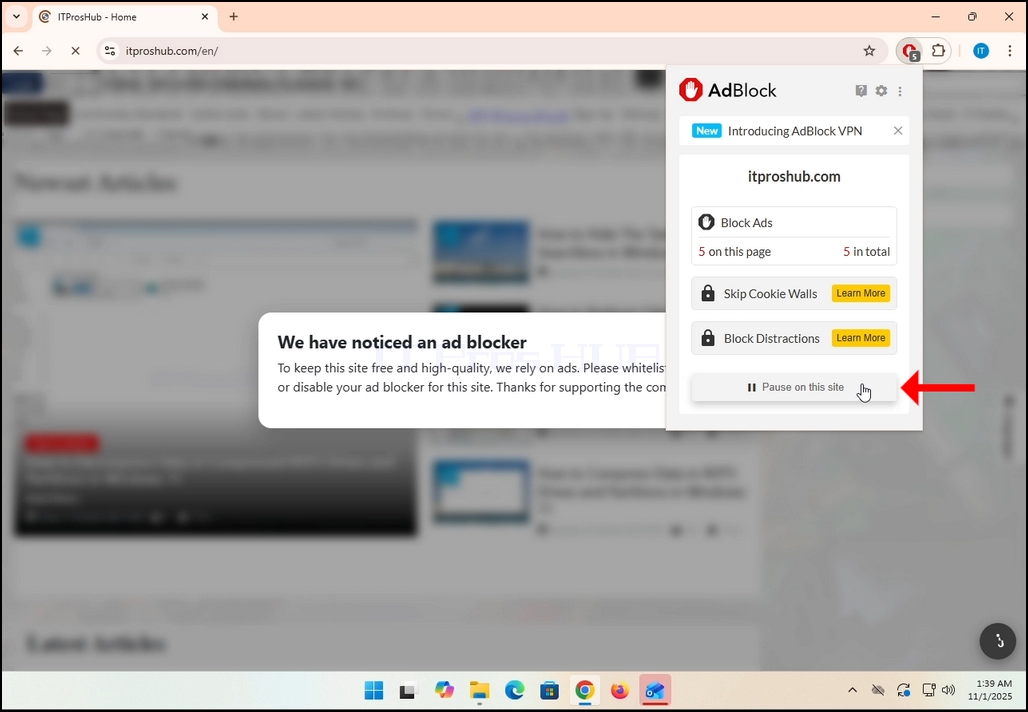
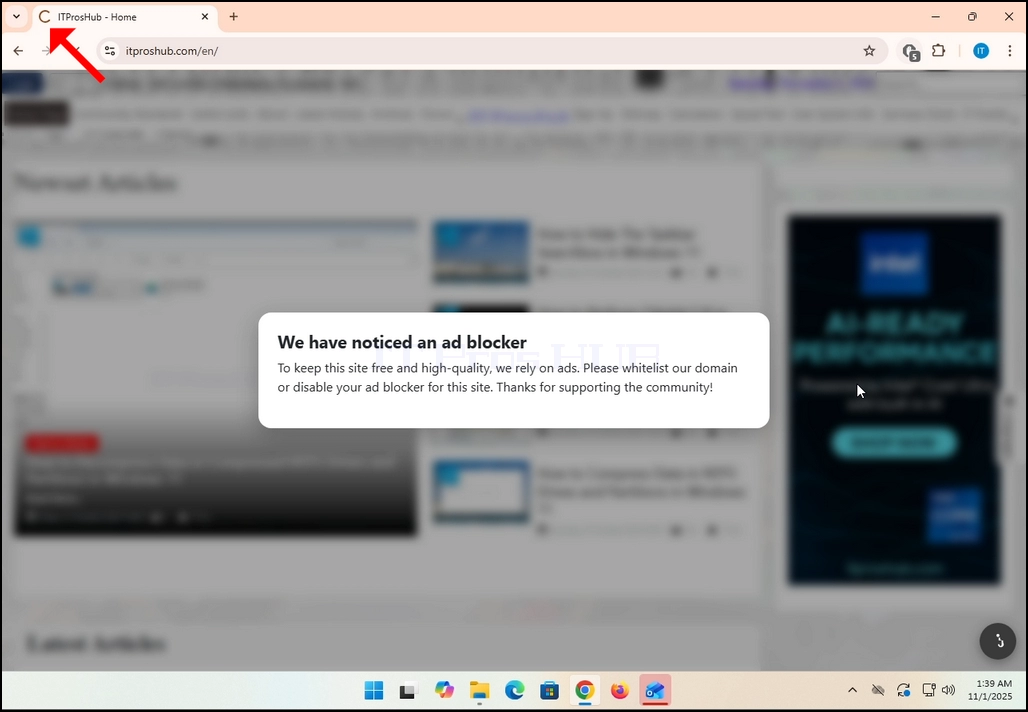
6. Nakon klika, dotična web stranica, u našem slučaju; itproshub.com, bit će automatski ponovno učitana, ovaj put međutim sa svim vidljivim oglasima.


- Detalji
- Autor: IT Pro
- Kategorija: How to Articles
- Pregleda: 6750
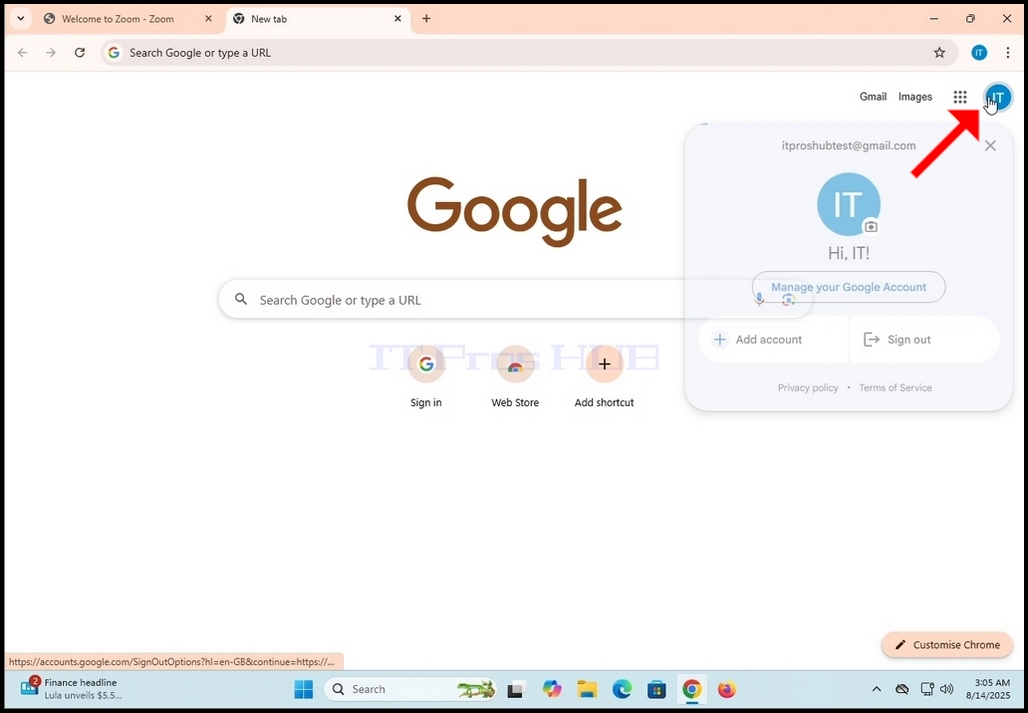
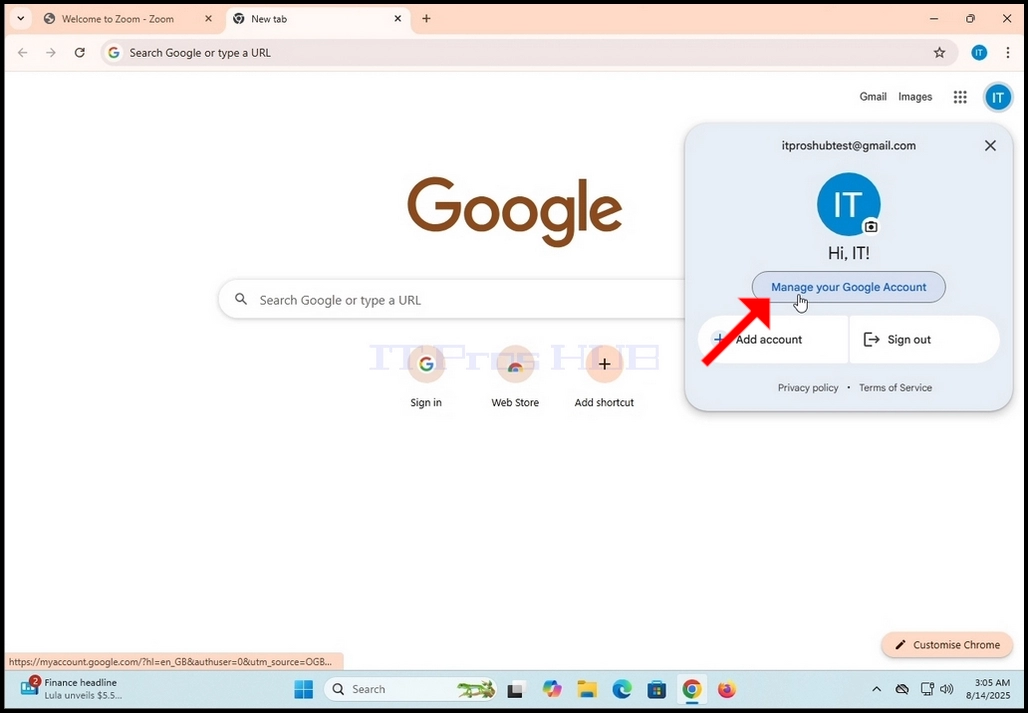
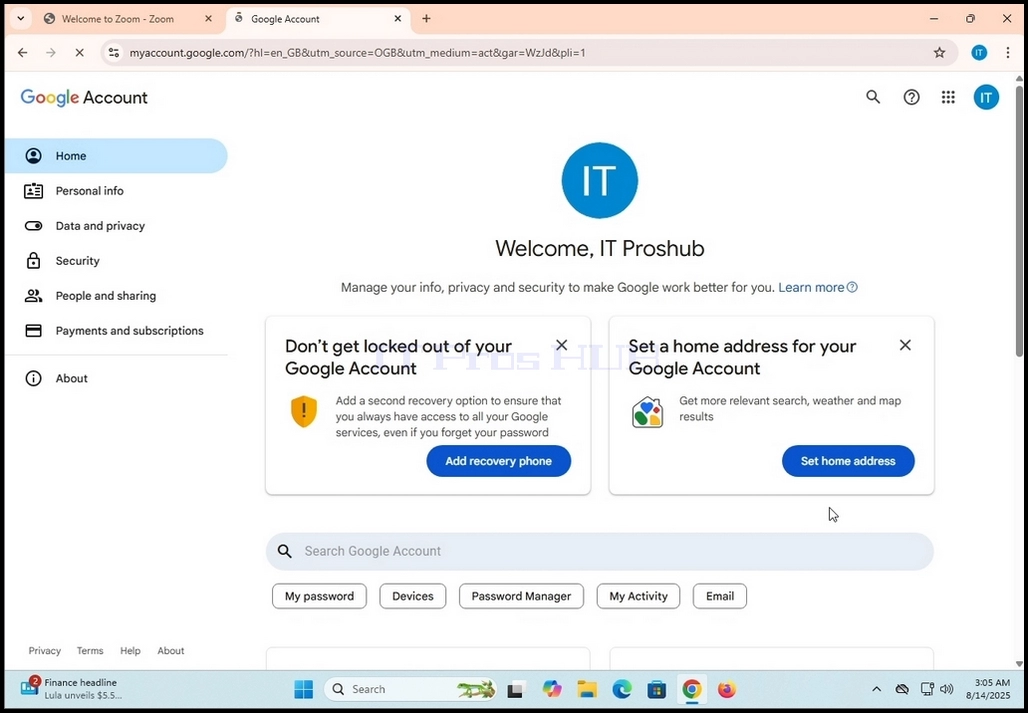
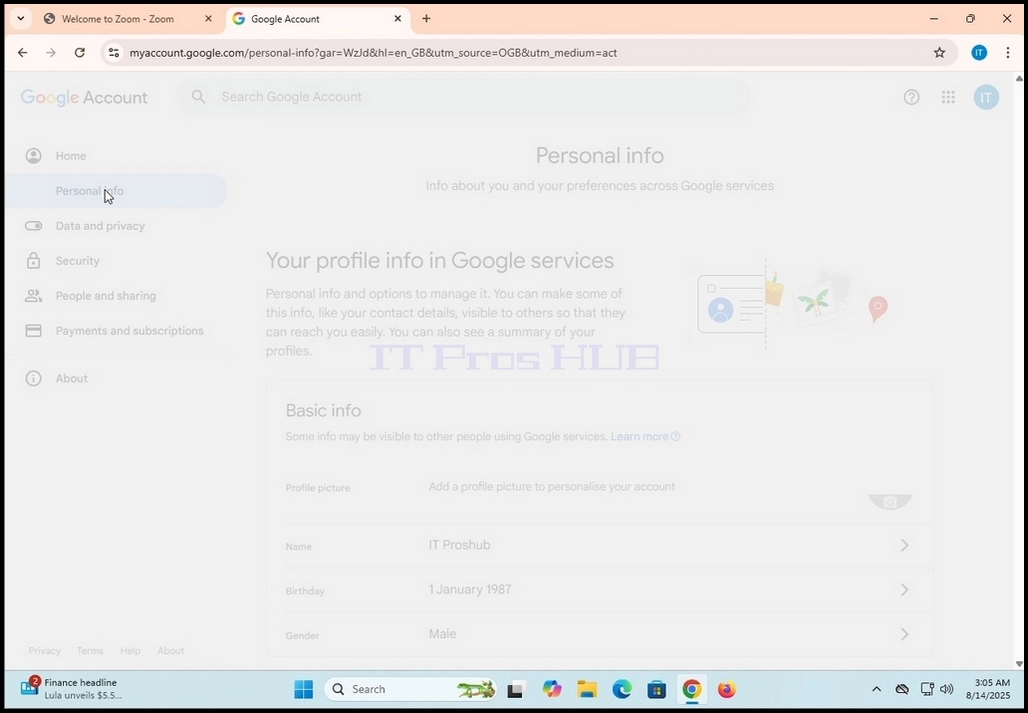
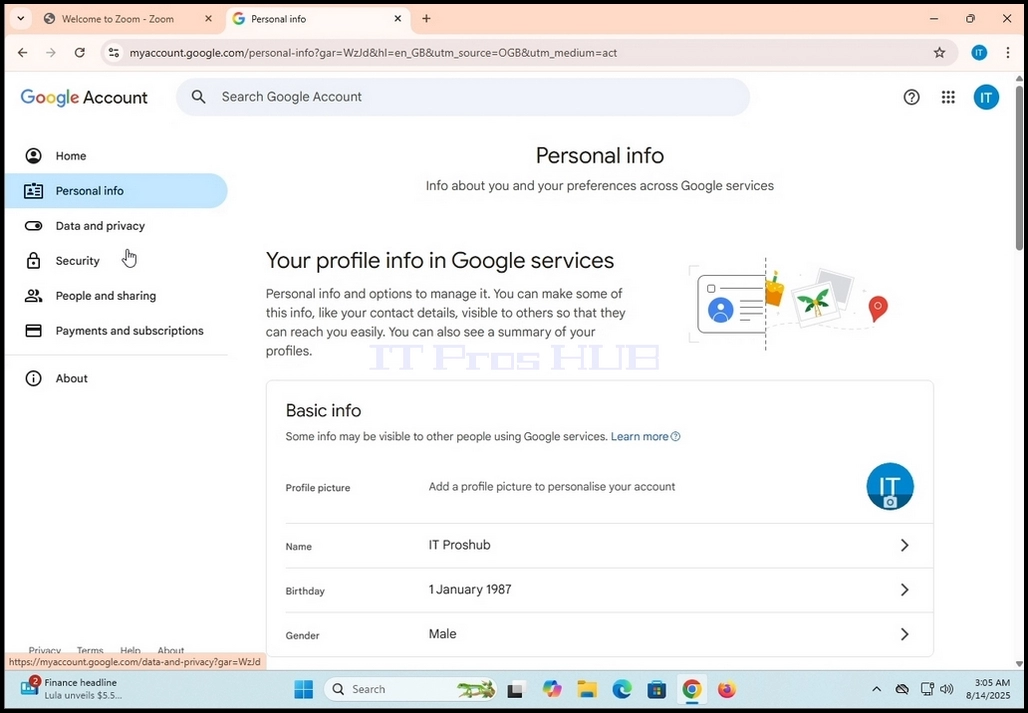
1. Go to Google’s home page (or any other Google page that has shows your Google account’s initials icon for that matter) and click on the icon that shows your Google Account’s initials. It should be on the top right corner of the screen.
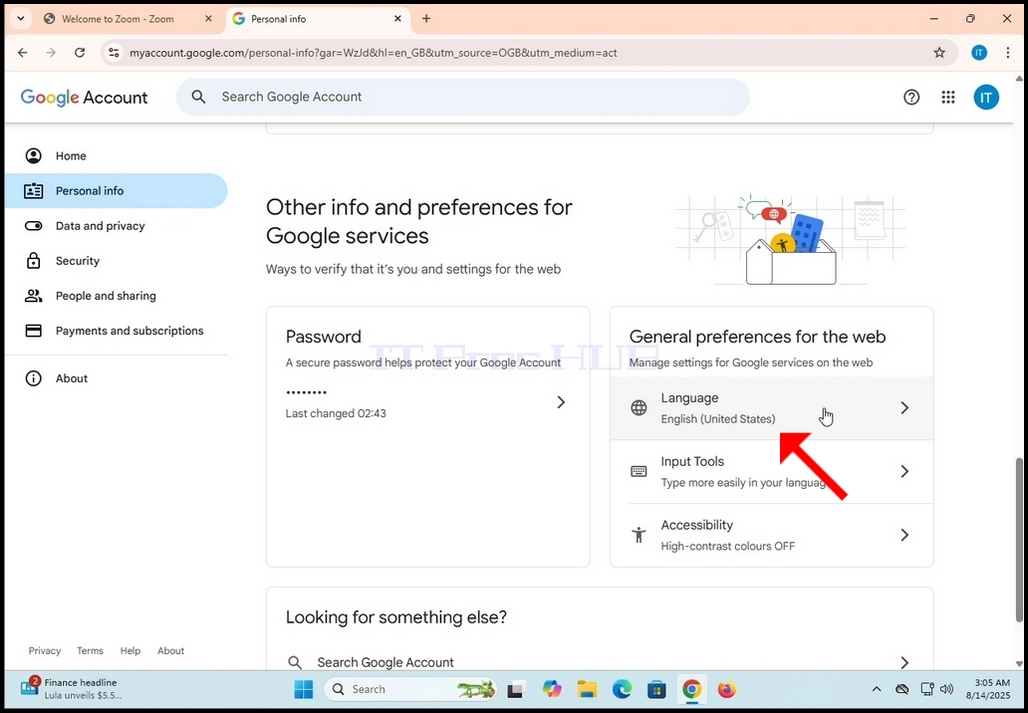
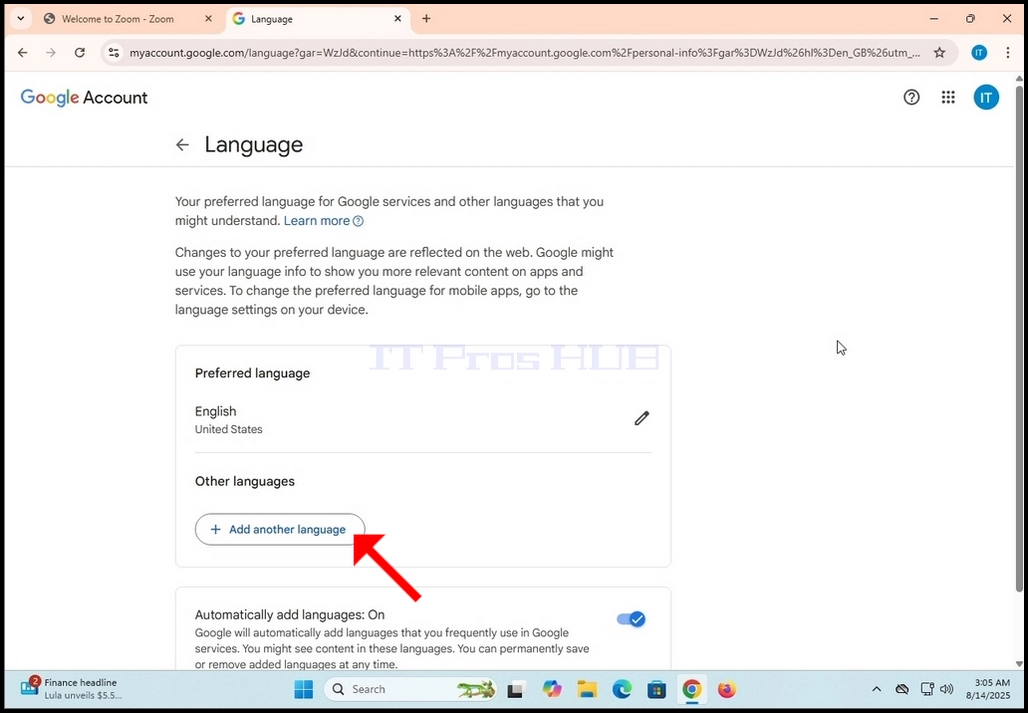
7. In then next page, choose the additional language you would like to add to your Google account.