



- Details
- Written by: IT Pro
- Category: How to Articles
- Hits: 11386
1. Open Chrome browser
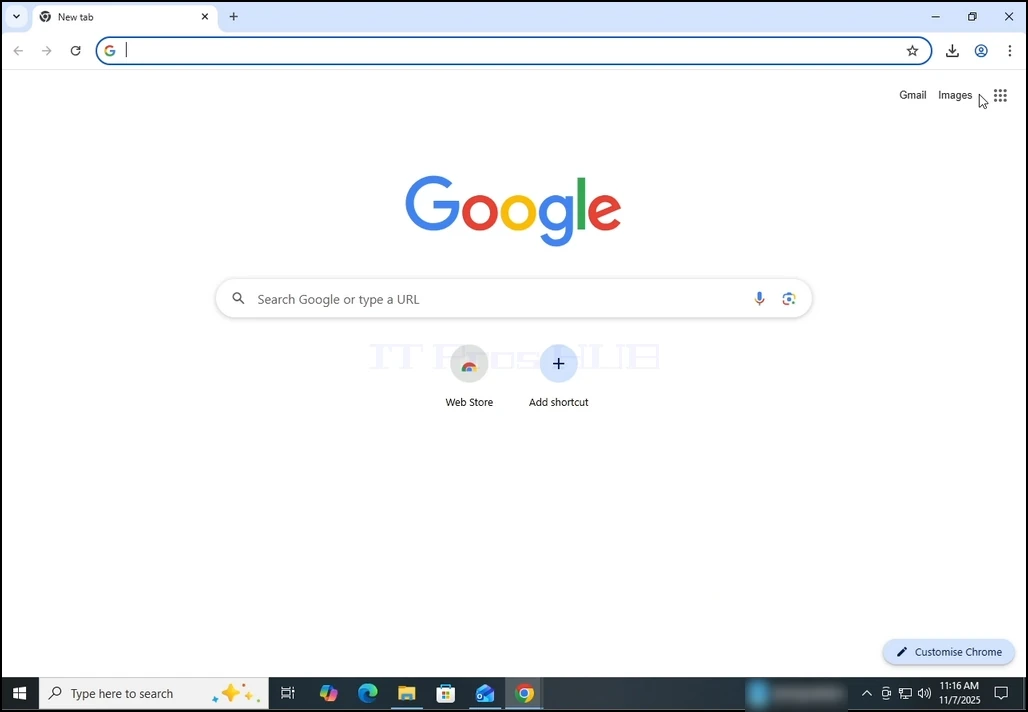
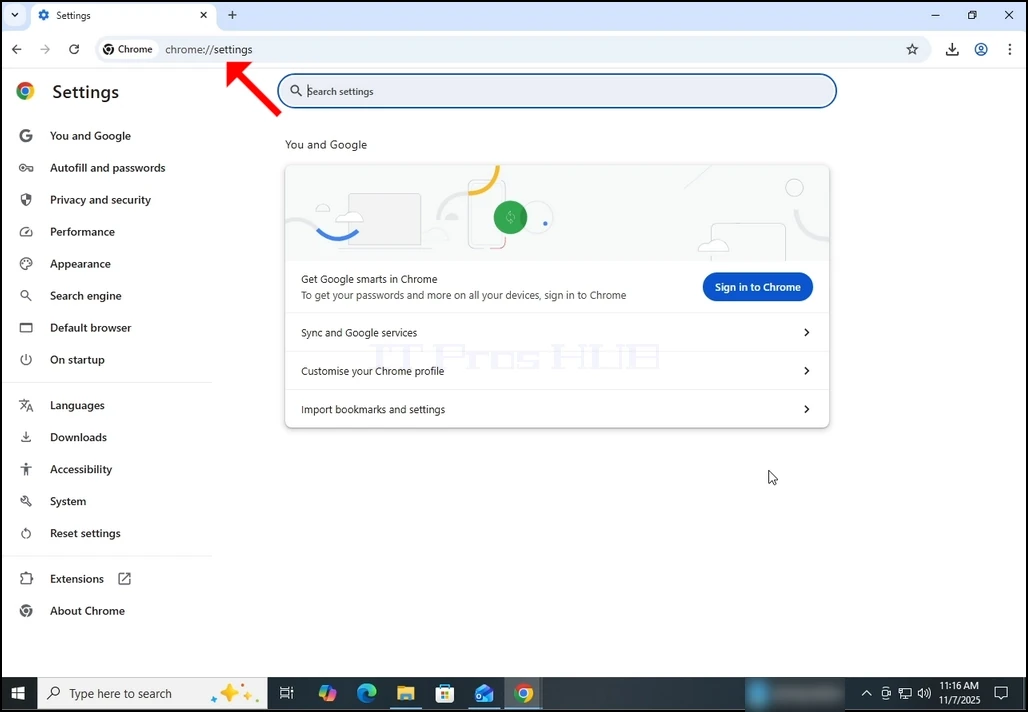
2. In Chrome's address bar, type the following address:
chrome://settings
and hit the ENTER key. Wait for the Chrome settings window to appear.
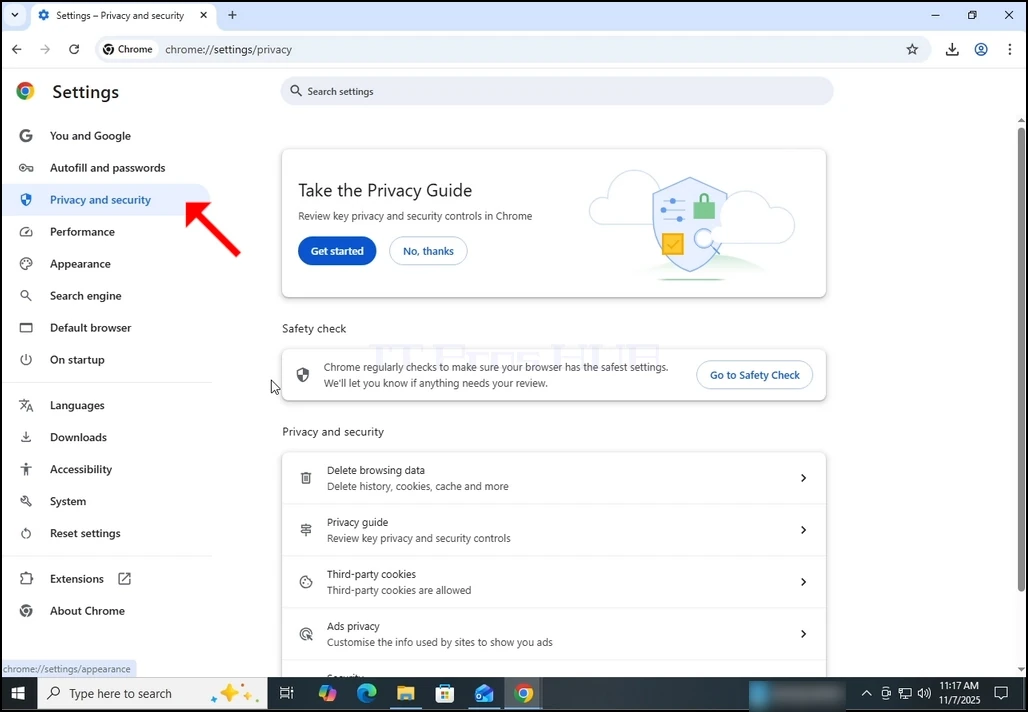
3. On the left pane, go to Privacy and Security and click on it:
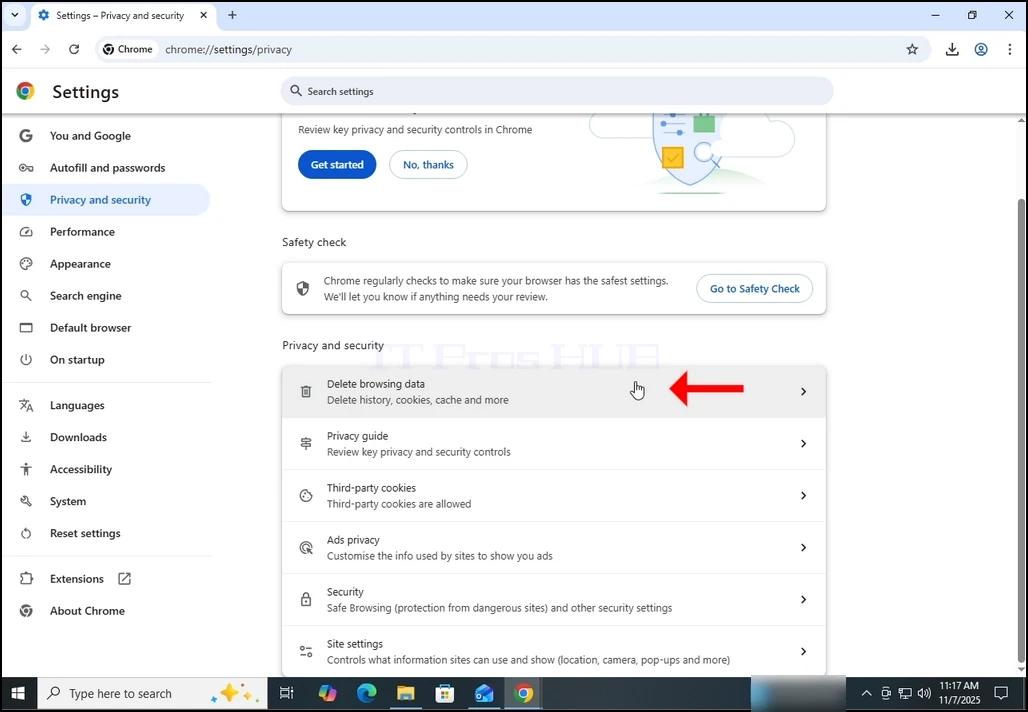
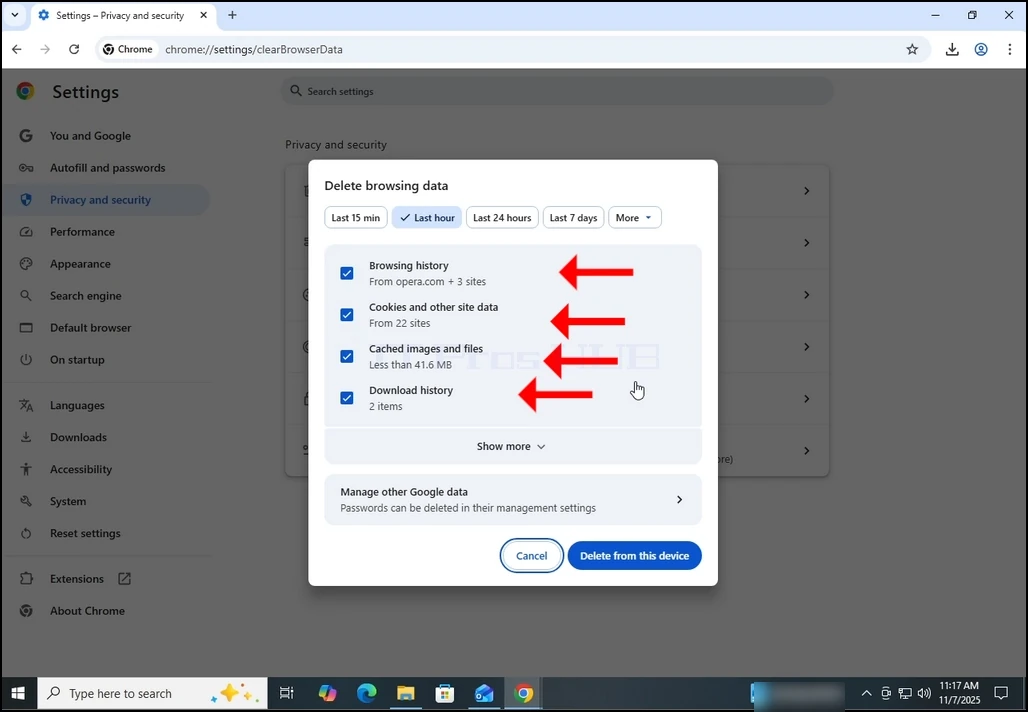
4. Now, on the right pane, go to Delete browsing data and click on it. Wait for the Delete browsing data window to appear :
5. After the Delete browsing data window appears, mark ALL of the 4 options:
- Browsing history
- Cookies and other site data
- Cached images and files
- Download history
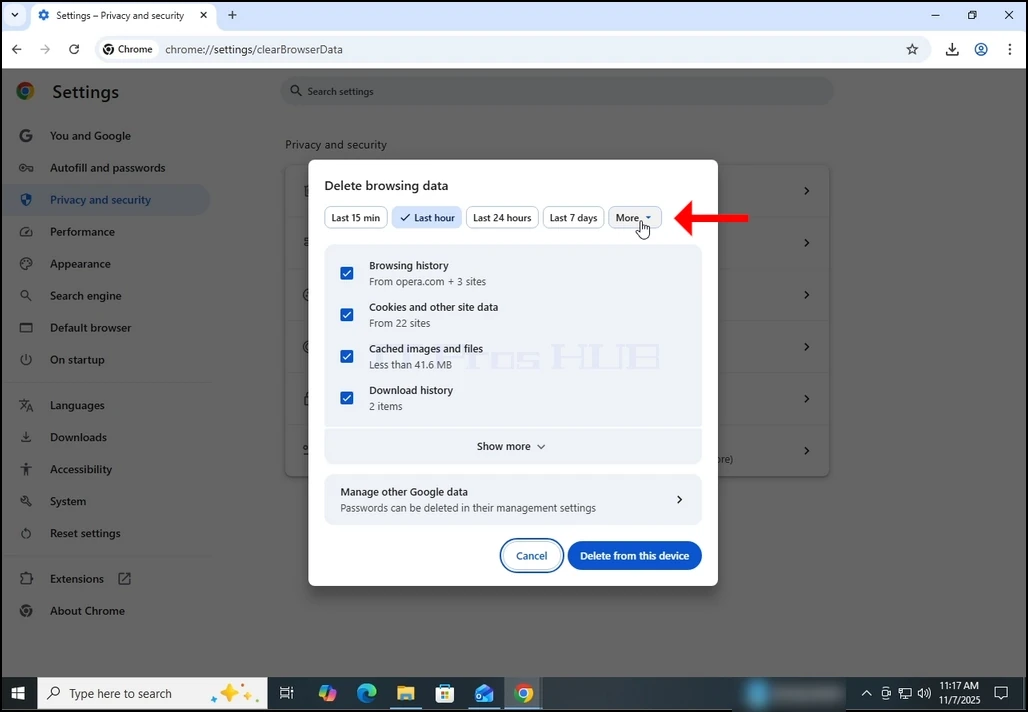
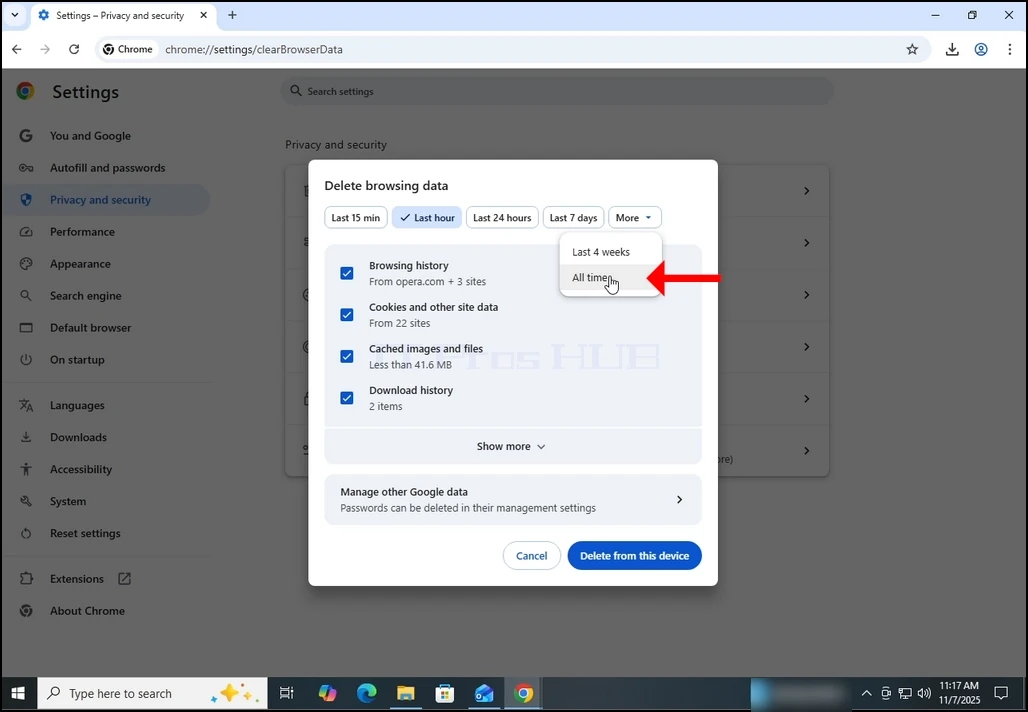
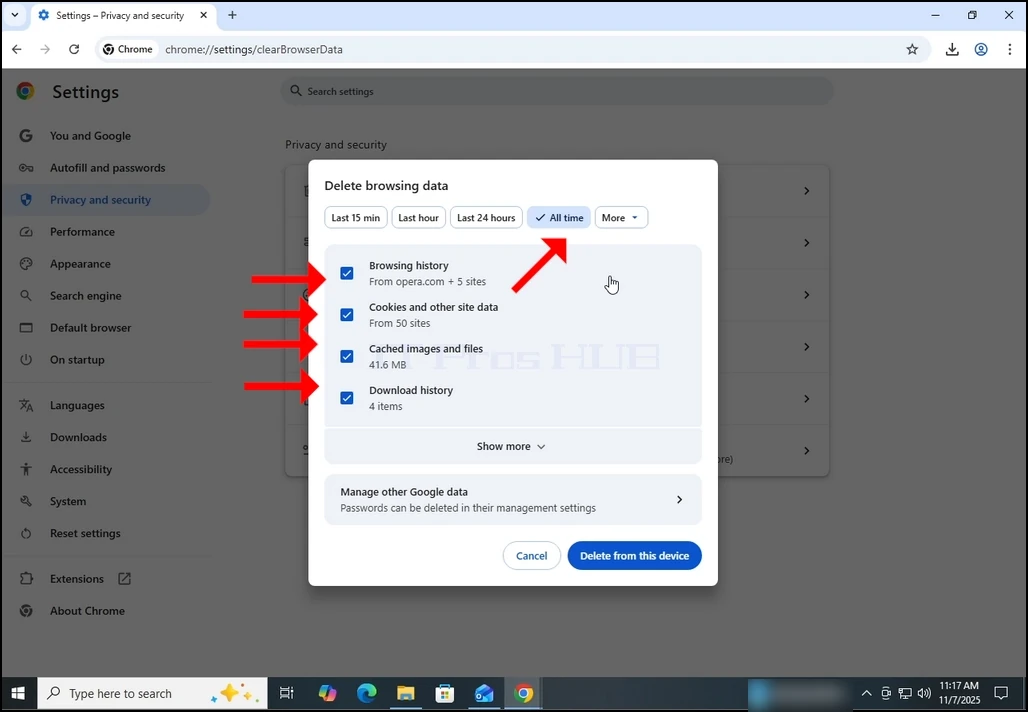
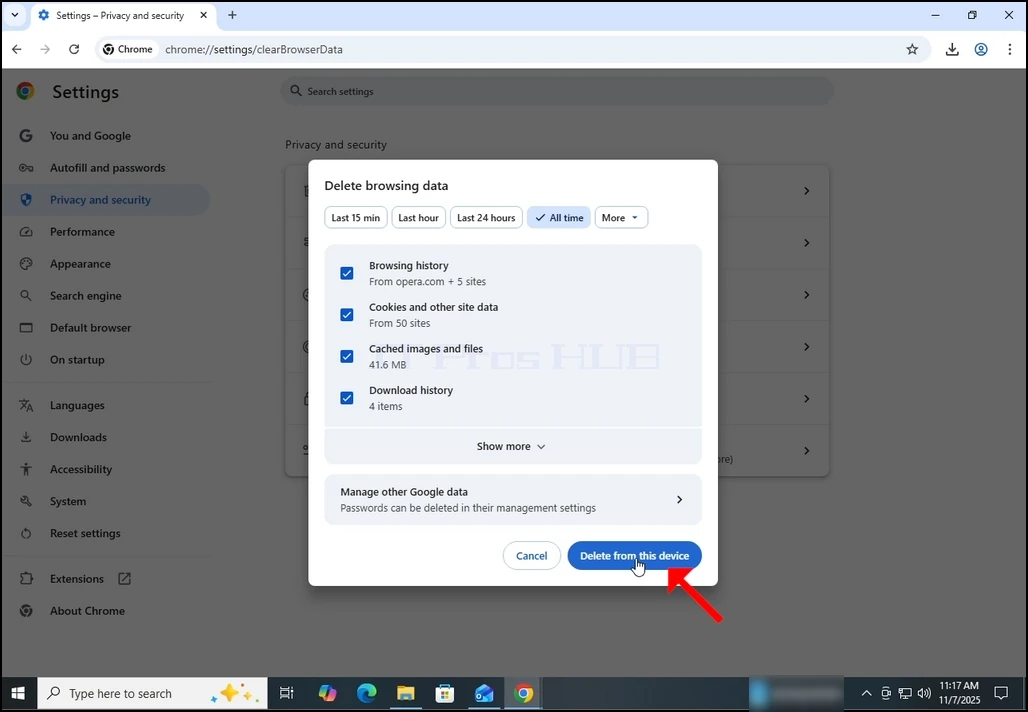
9. Wait for the data to be deleted:
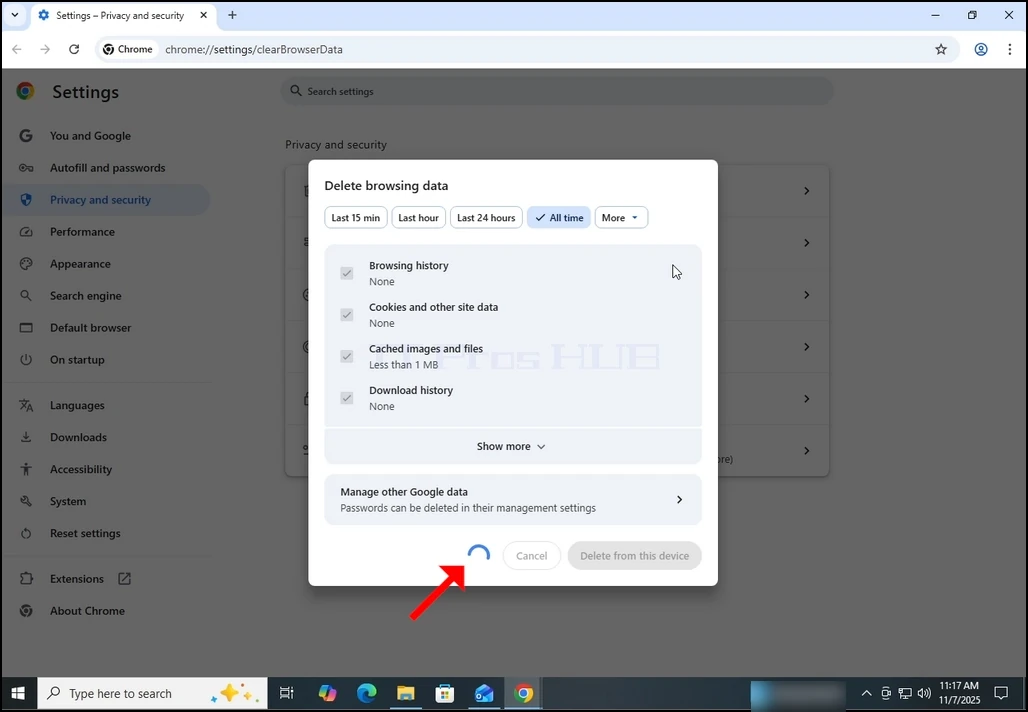
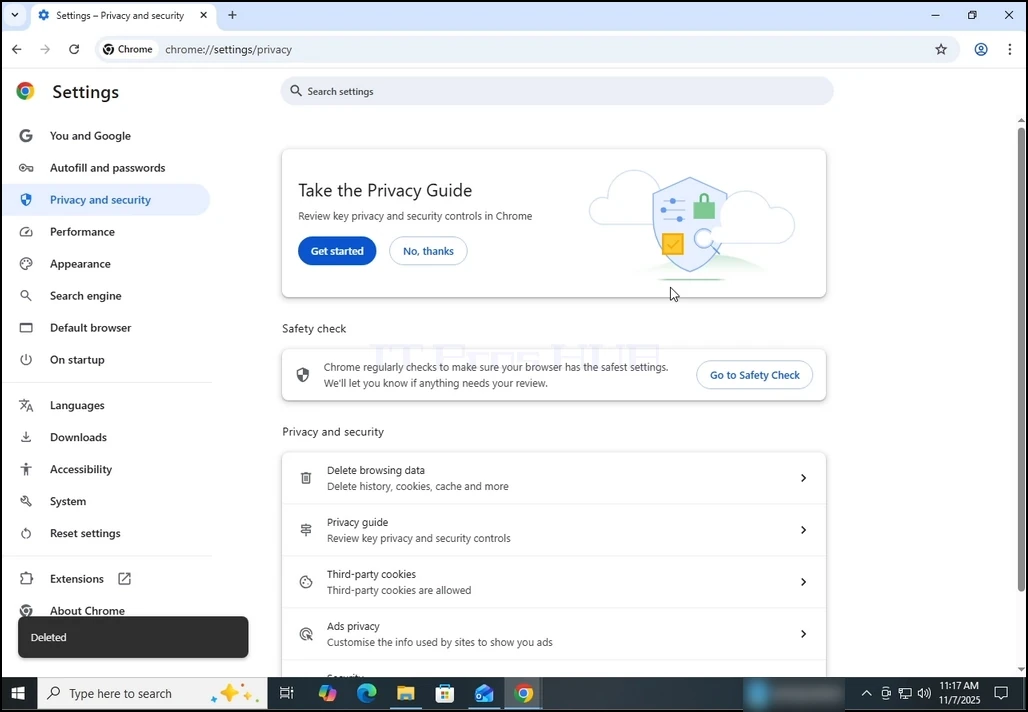
10. Once done, the Delete browsing data window will close itself:
- Details
- Written by: IT Pro
- Category: How to Articles
- Hits: 7634
1. Open Chrome:


4. Once opened, the About Google Chrome window will start automatically check for new updates for Google chrome. If there is such an update, Chrome would notify about it by changing the update status to Updating Chrome as can be seen below:


6. Once finished, Chrome would notify you by displaying the message: "Nearly up to date! Relunch Chrome to finish updating".

8. Usually, newly updated version of Google Chrome would show this type of message upon first launch:

9. In order to make sure Google Chrome has no more updates, perform the same stages 1-4. As you can see, at the moment, there are no more updates available for Google Chrome after we have done the previous update:

- Details
- Written by: IT Pro
- Category: How to Articles
- Hits: 4202
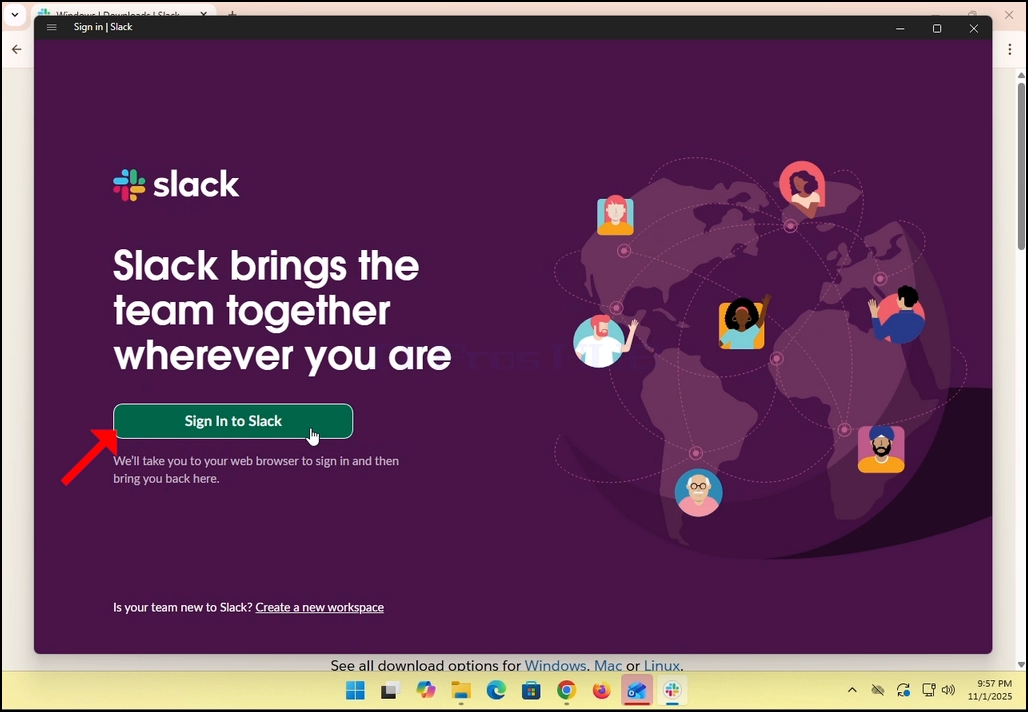
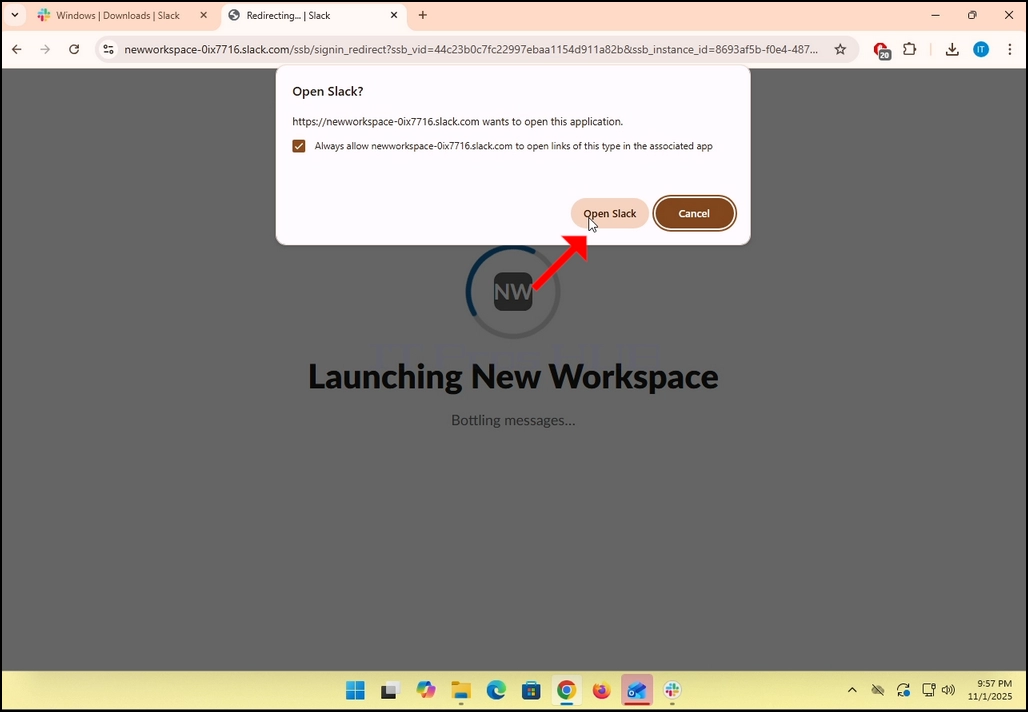
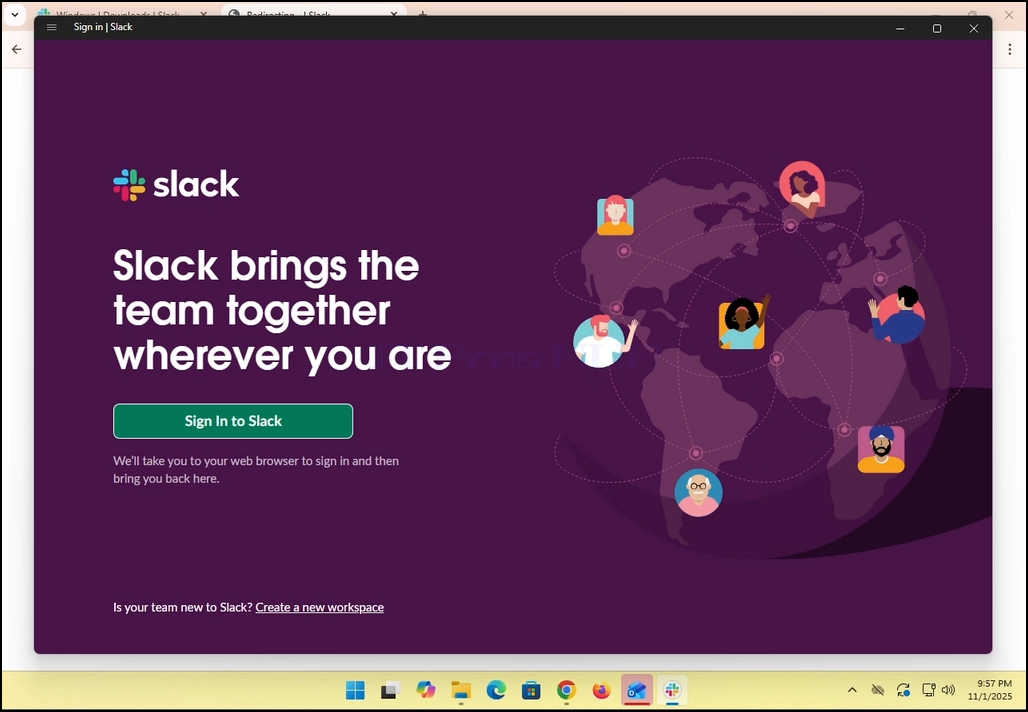
3. Slack will redirect you to a login screen in your default browser. In the case of this article, it is Chrome.
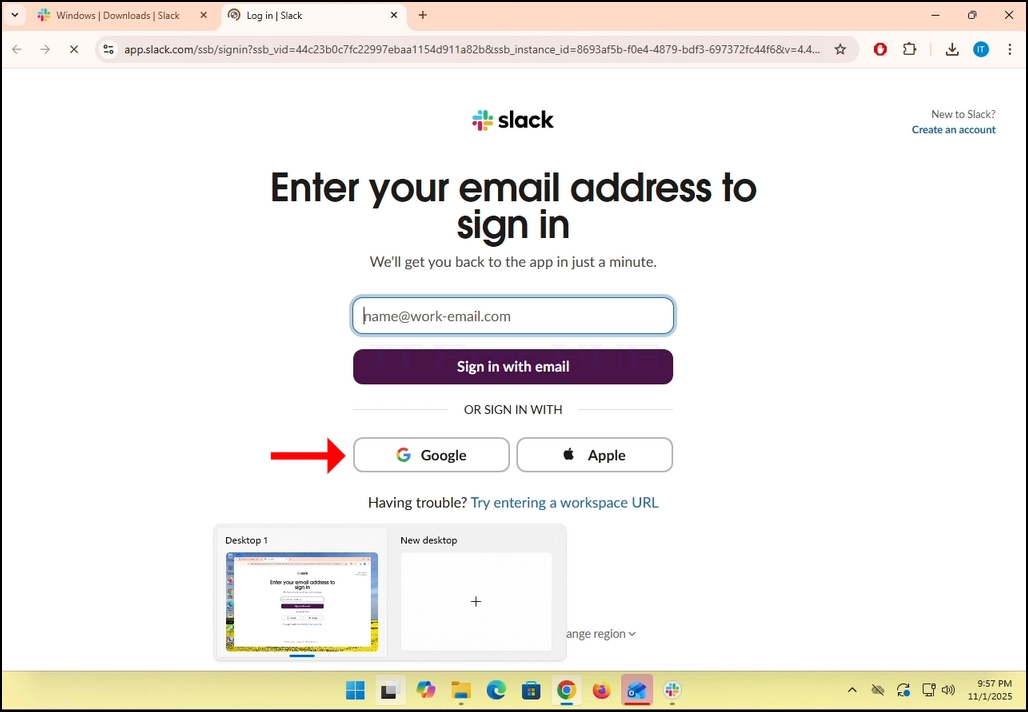
4. As you can see, Slack wants you to Enter your email address to sign in. we will use our Gmail email address to do that.
- Click the Google button and wait for the Google connector page to load.
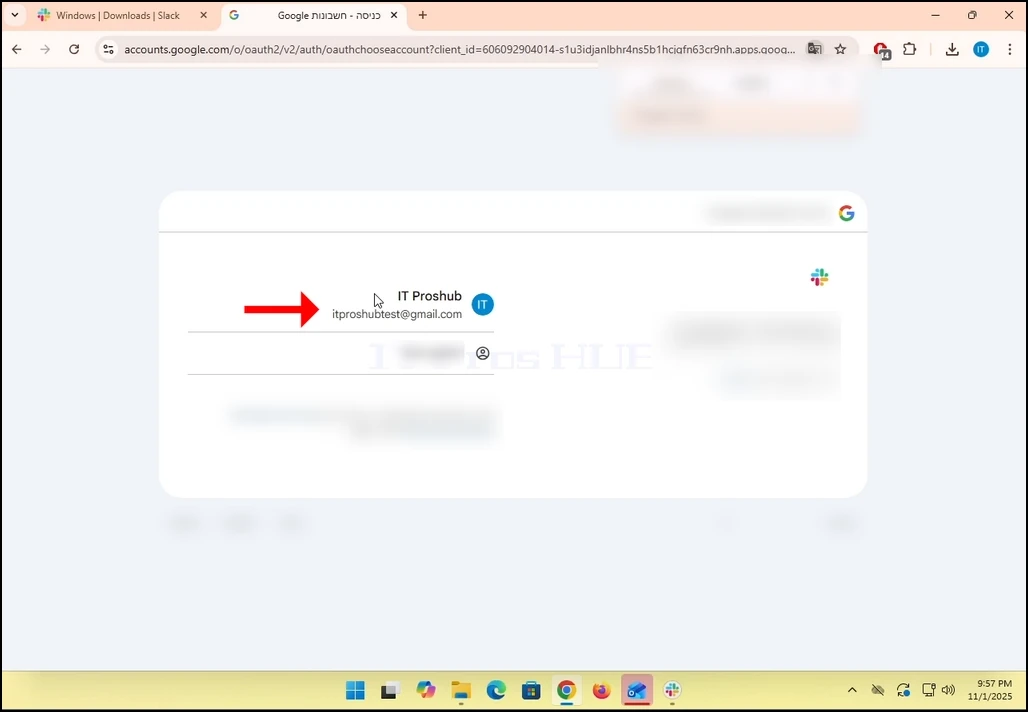
6. In the Google connector page, choose your Gmail email address. Note that in the case of this article,
7. If you are not logged into Chrome or use a different browser, just login to your Google account and then choose that account to continue.
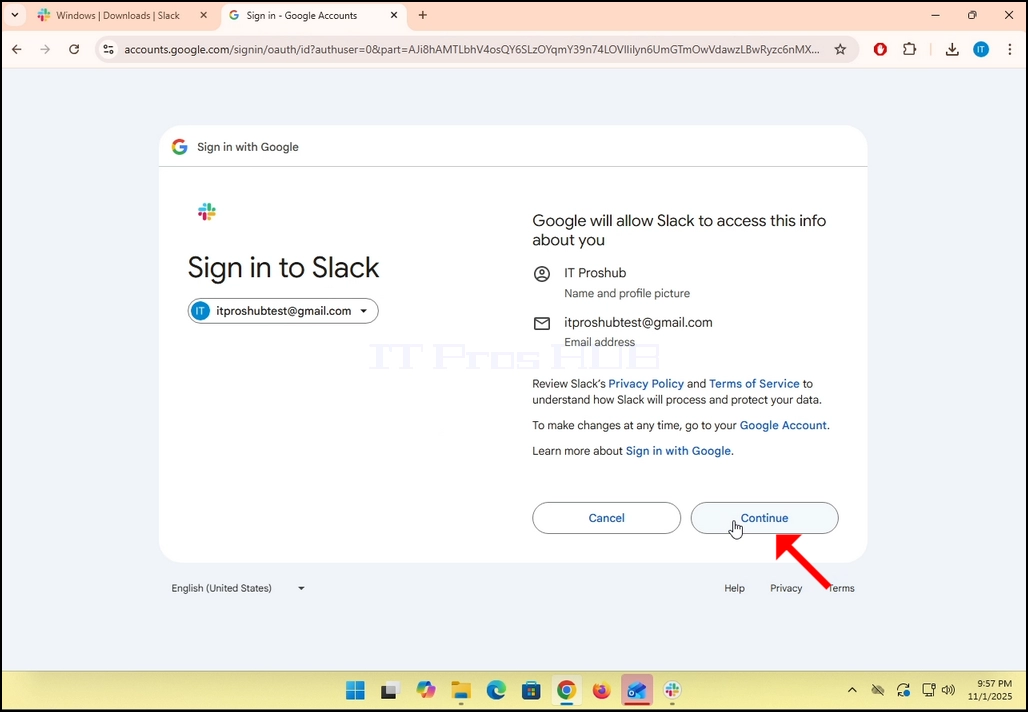
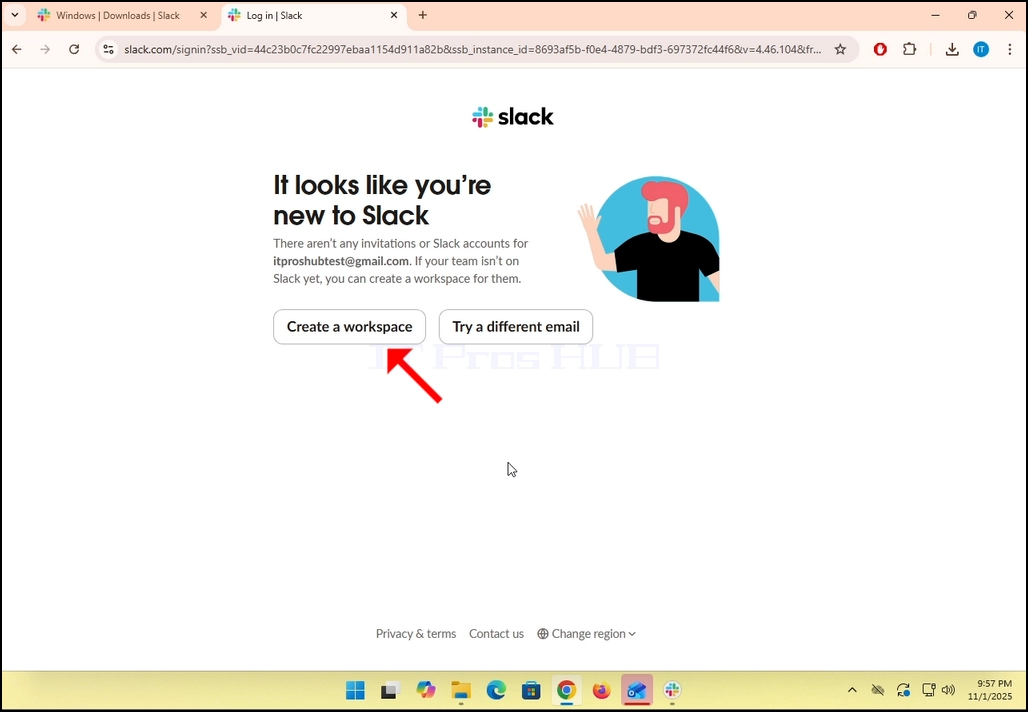
9. If you already have a Slack account under that Gmail email address, then Slack will redirect you back to itself. If not, it will ask you to either Create a workspace or Try a different email.
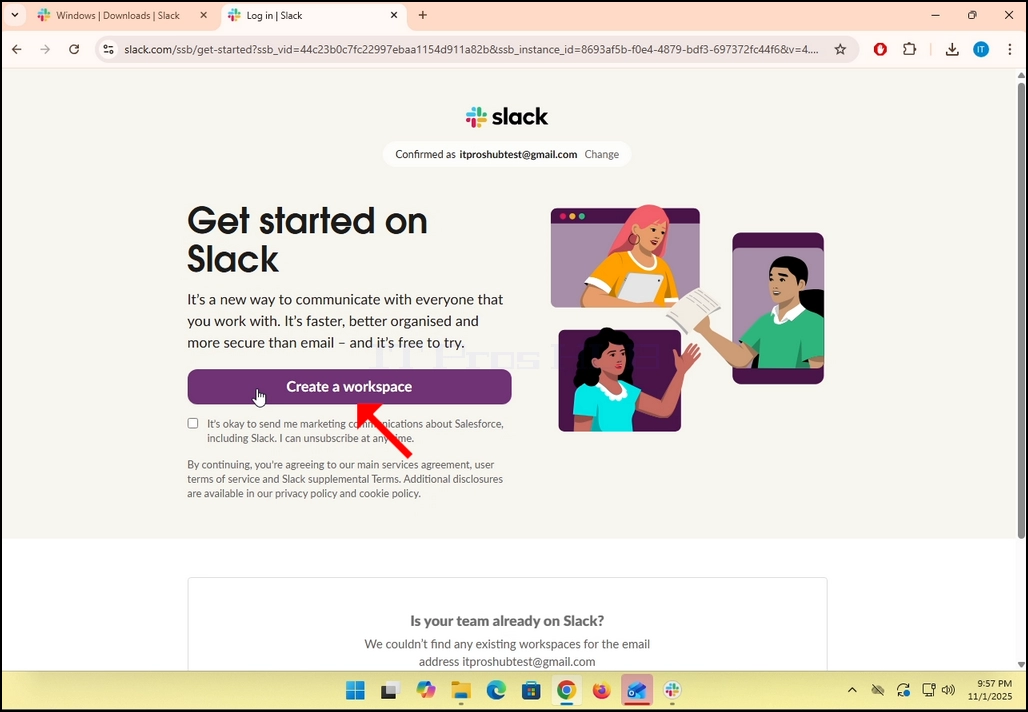
- In the case of this article, we will choose Create a workspace.
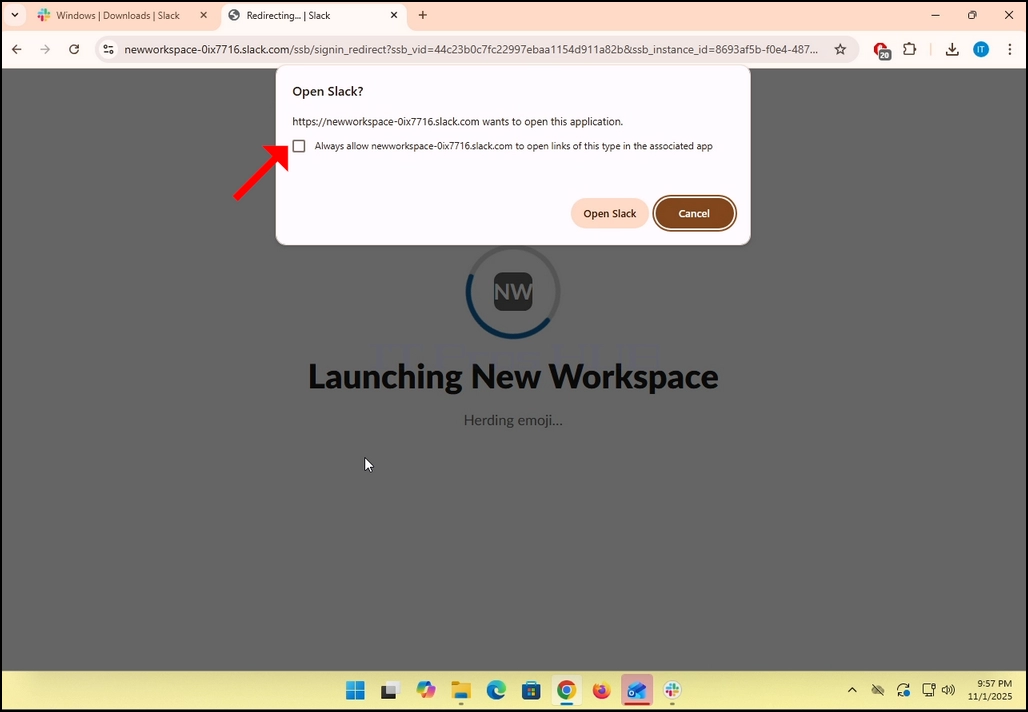
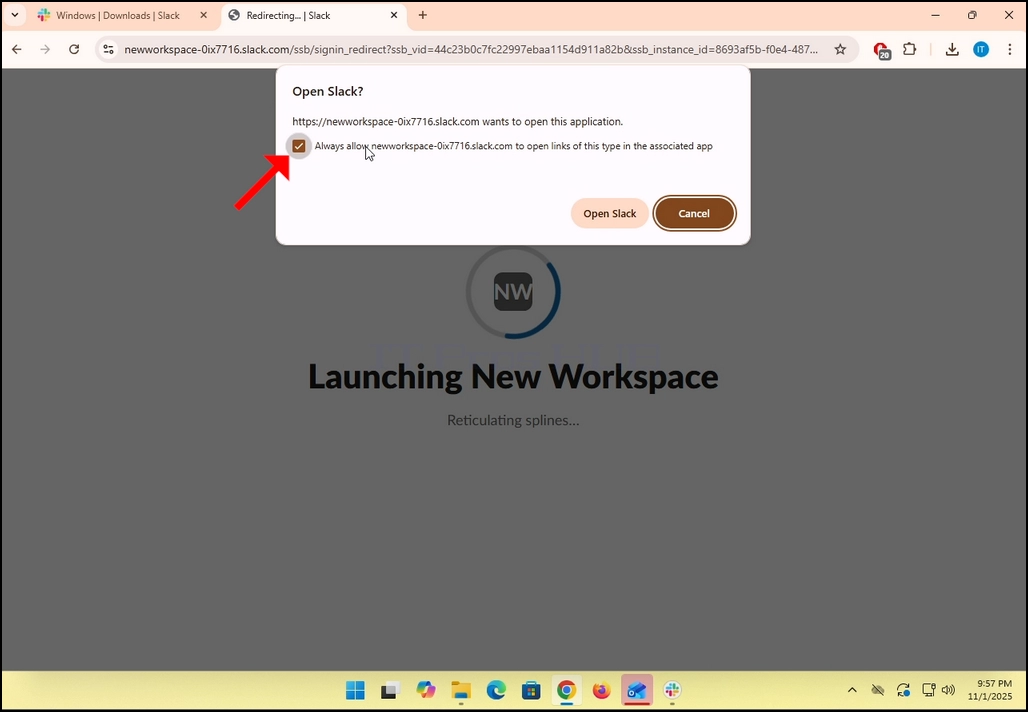
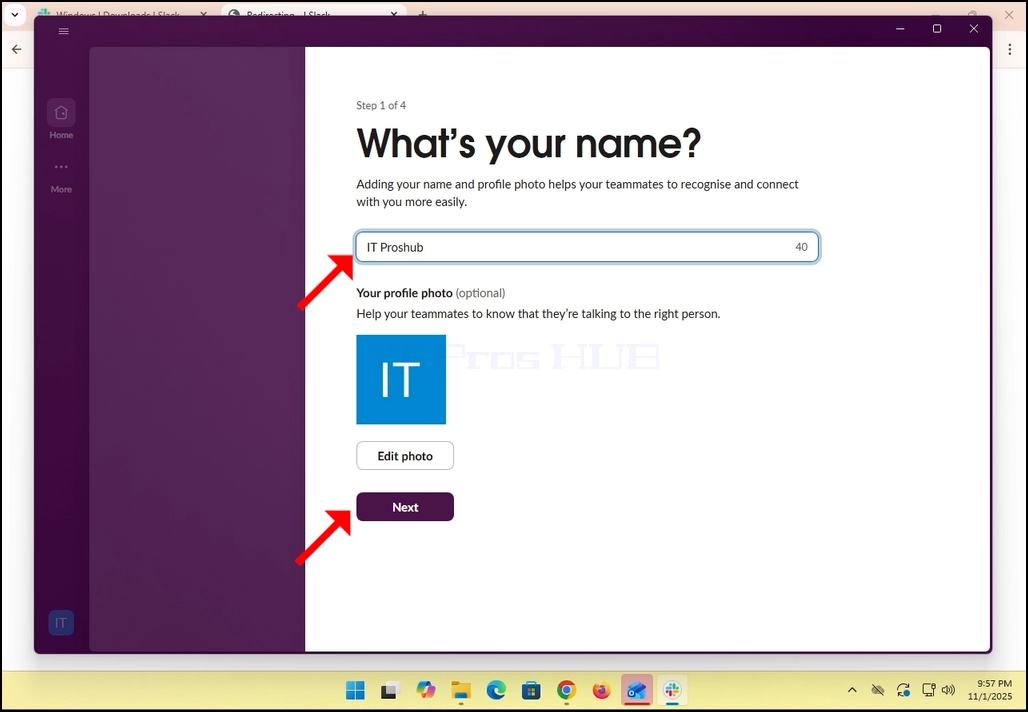
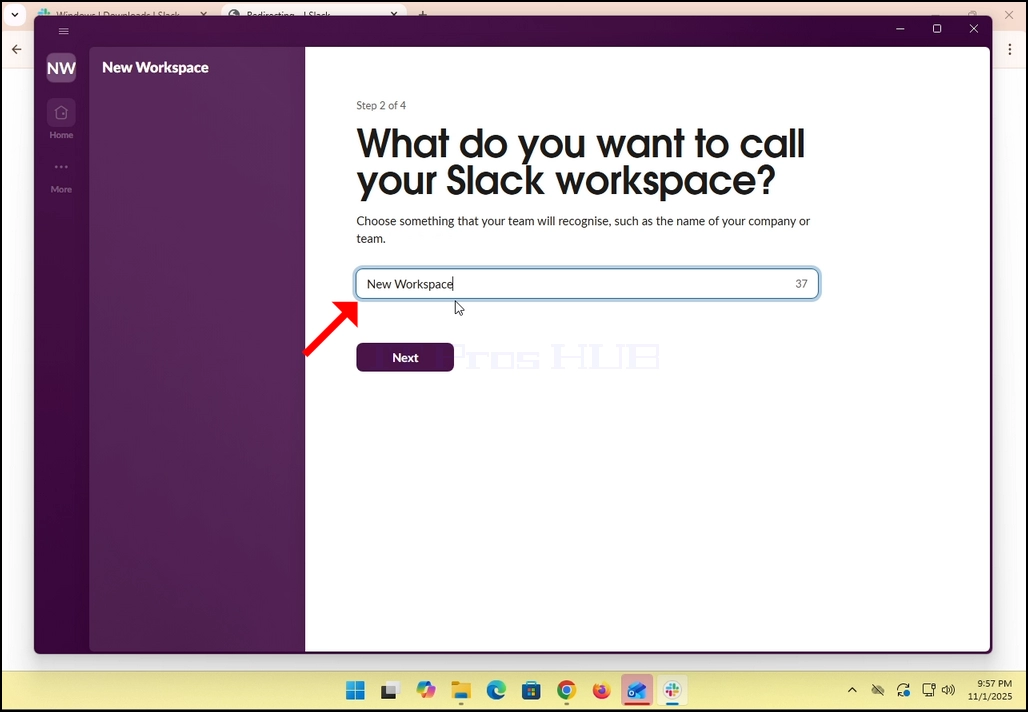
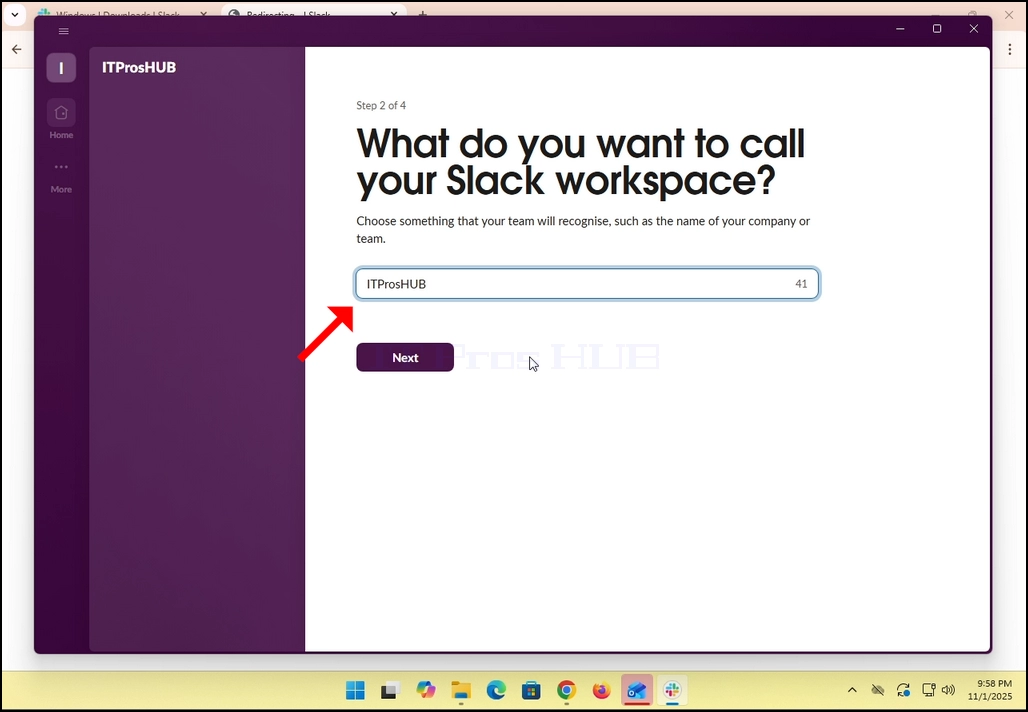
14. In the case of this article, we will skip this step by clicking in the Skip this step option.
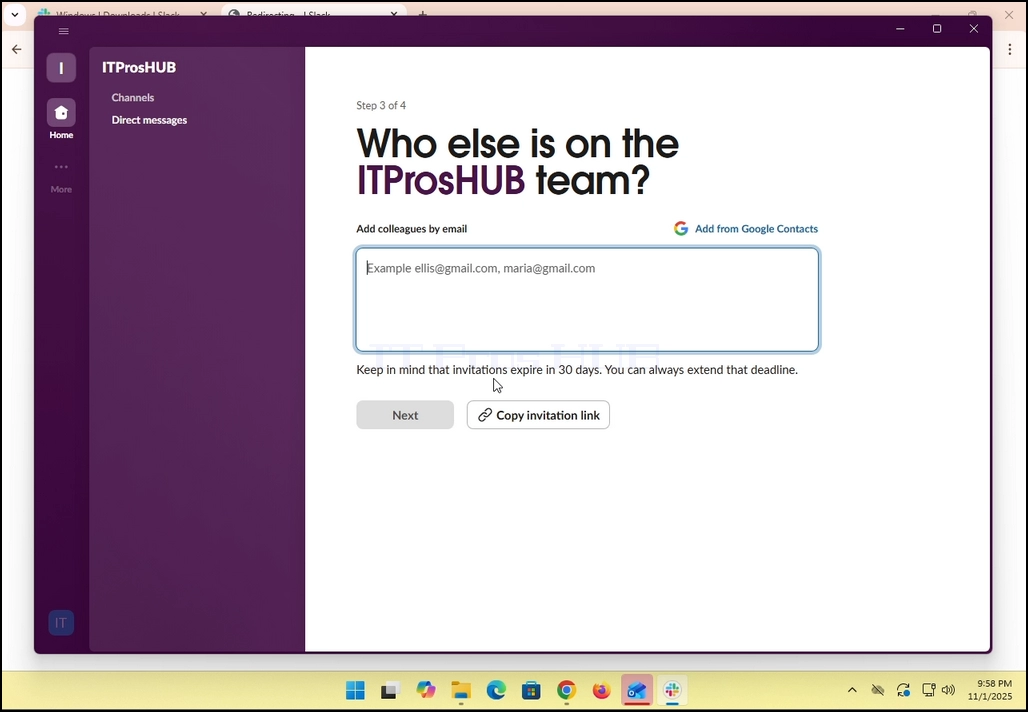
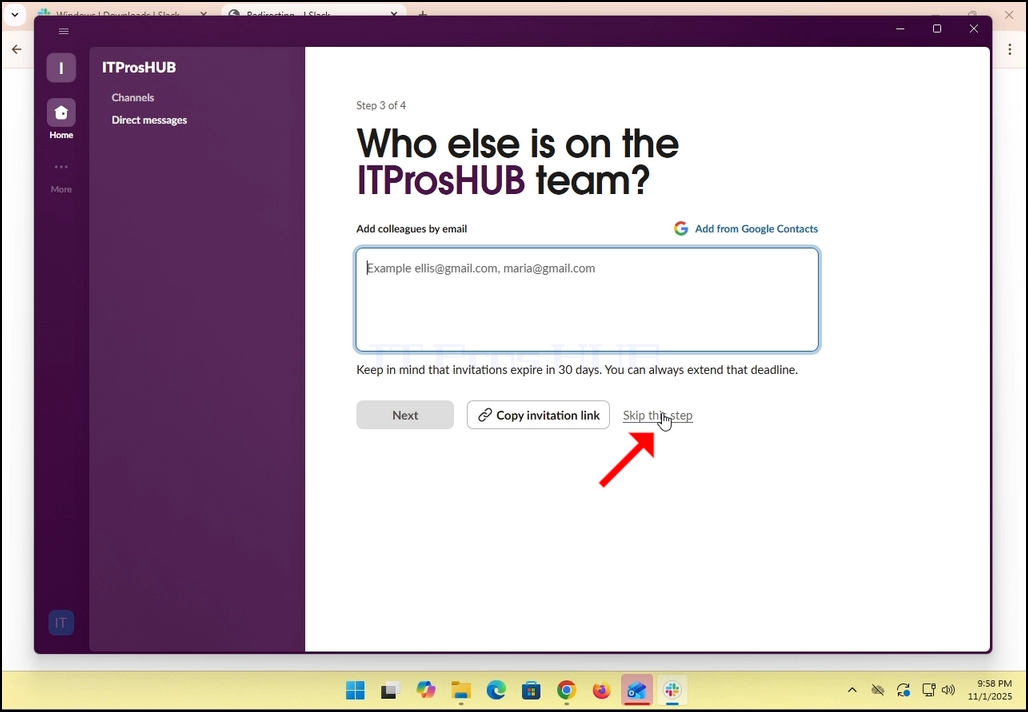
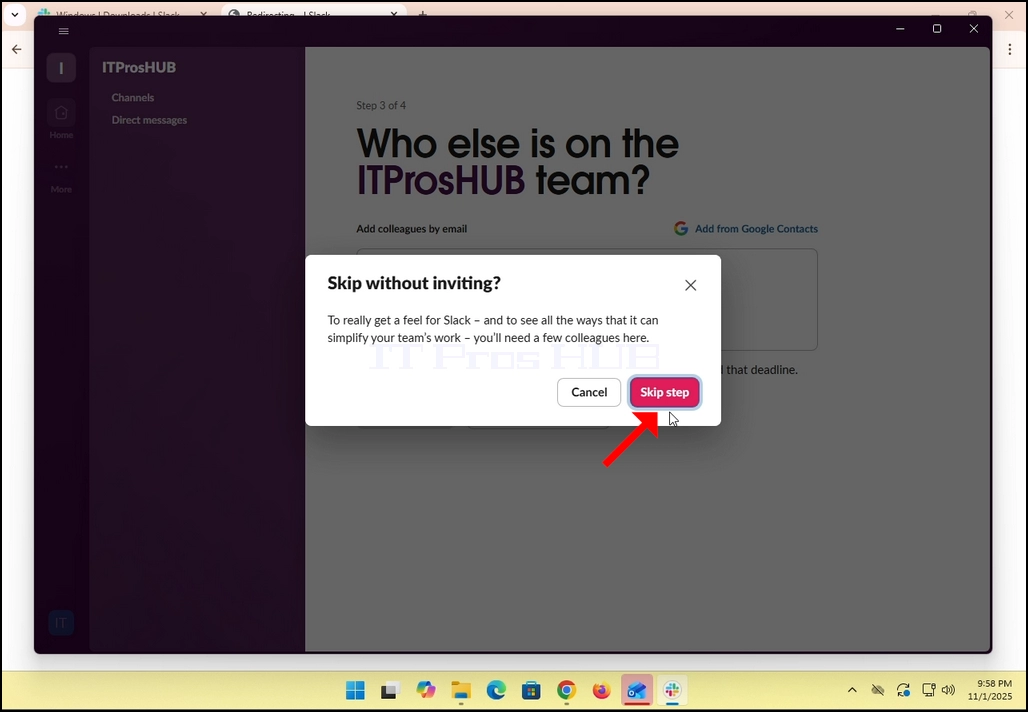
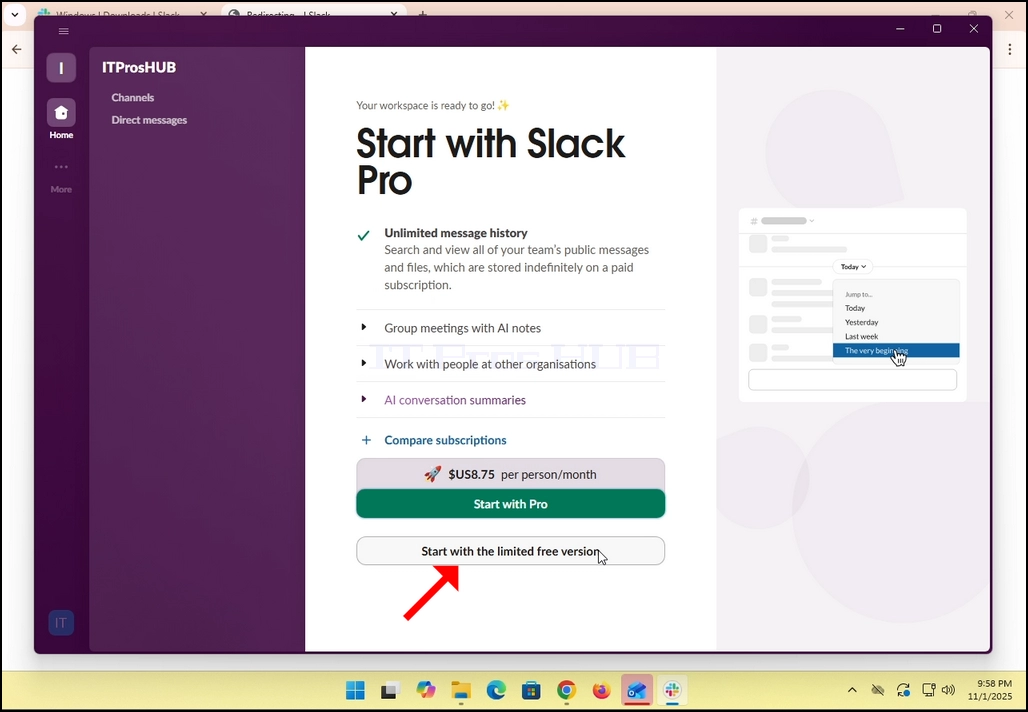
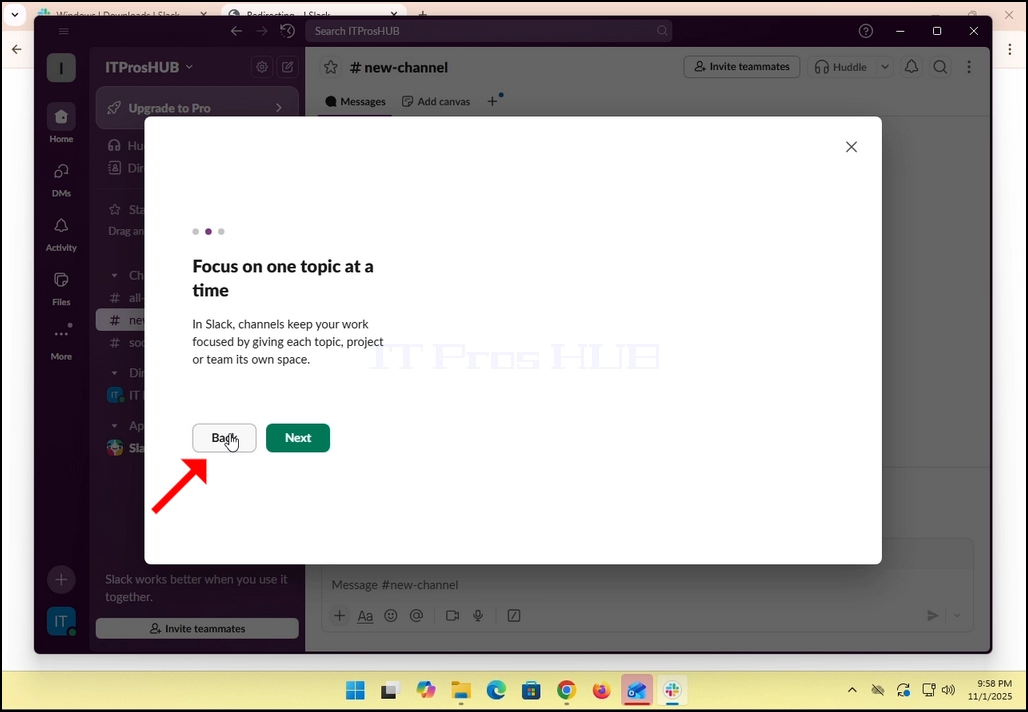
17. All done! You Slack now uses your Gmail email account!
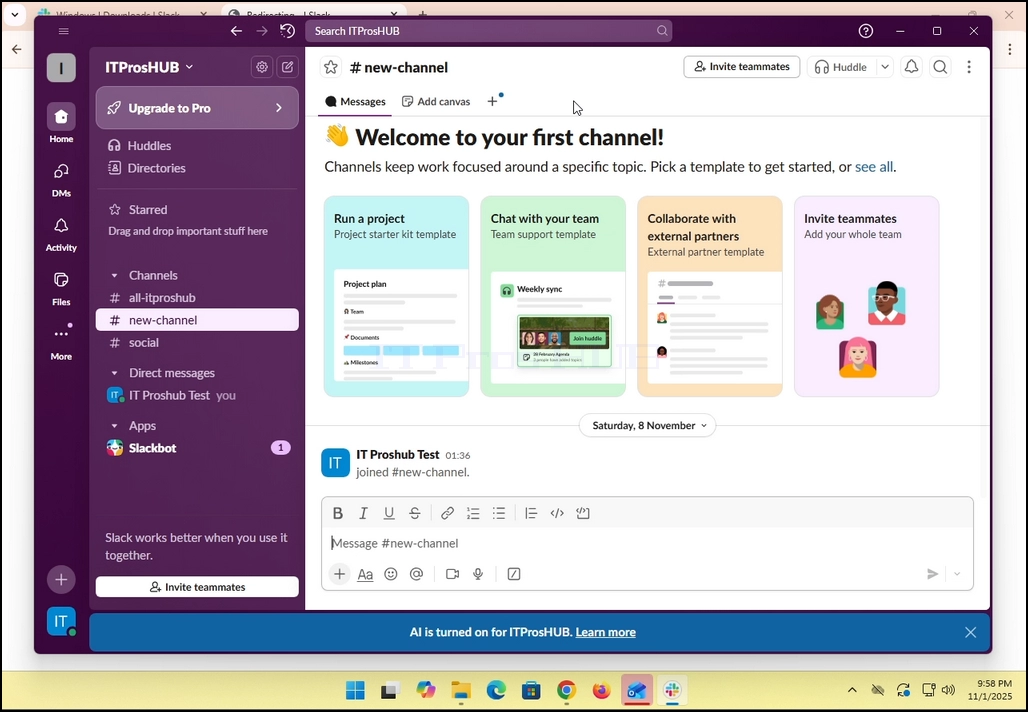
- Details
- Written by: IT Pro
- Category: How to Articles
- Hits: 6836
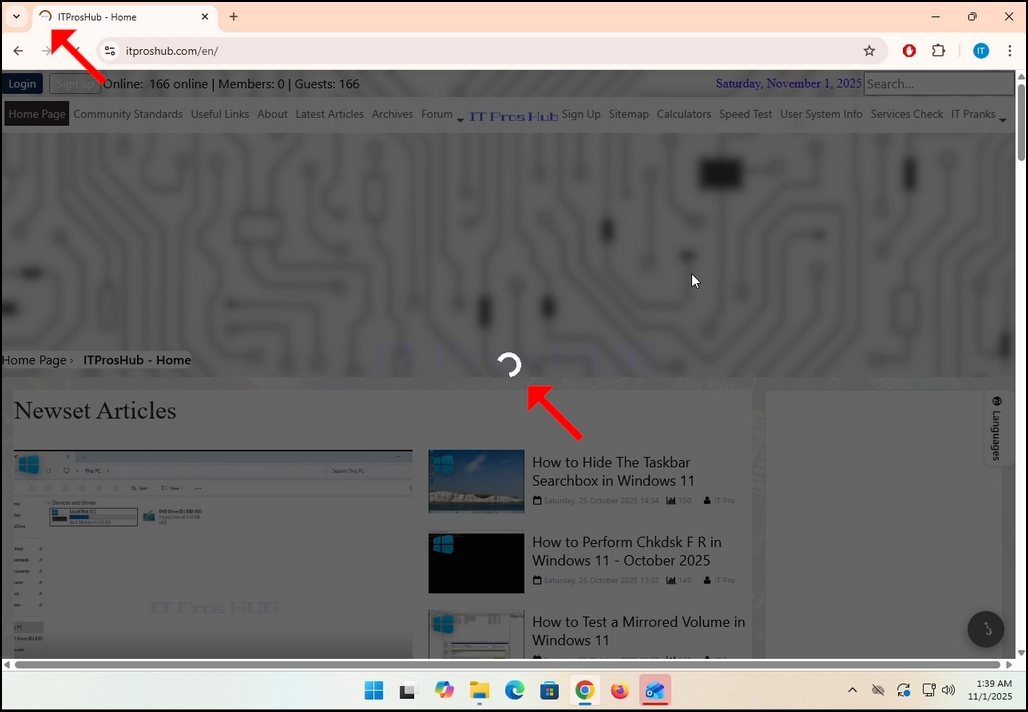
1. Kulesi sihloko sesivele silayishe i-itproshub.com kusuka kusiphequluli se-Chrome ngesandiso se-Adblock esifakiwe futhi sivuliwe. Njengoba ubona, i-algorithm yokuthola i-Adblock ku-itproshub.com ithole ukuba khona kwesofthiwe ye-Anblock kusiphequluli se-Chrome.
2. Ku-Chrome, iya engxenyeni ephezulu kwesokudla kwesikrini bese ubheka isithonjana sesandiso se-Adblock Chrome.
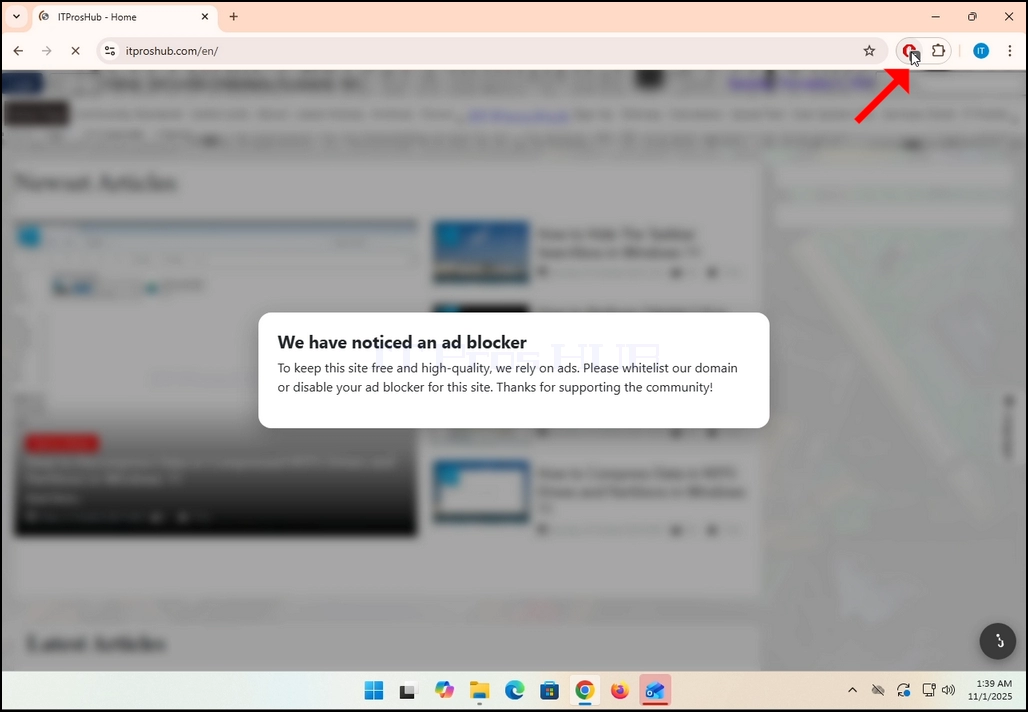
3. Chofoza kuyo kanye bese ulinda ukuthi imenyu yayo encane eseceleni ivele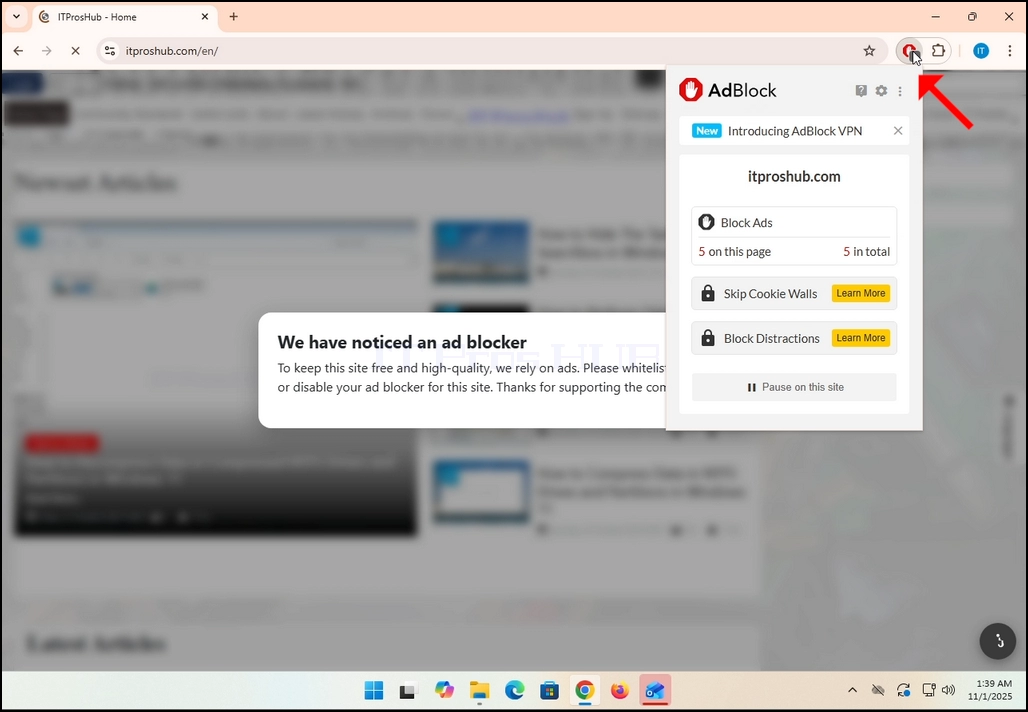
4. Uma le menyu isivele, iya phansi kwemenyu bese ubheka inkinobho ethi Misa kule sayithi.
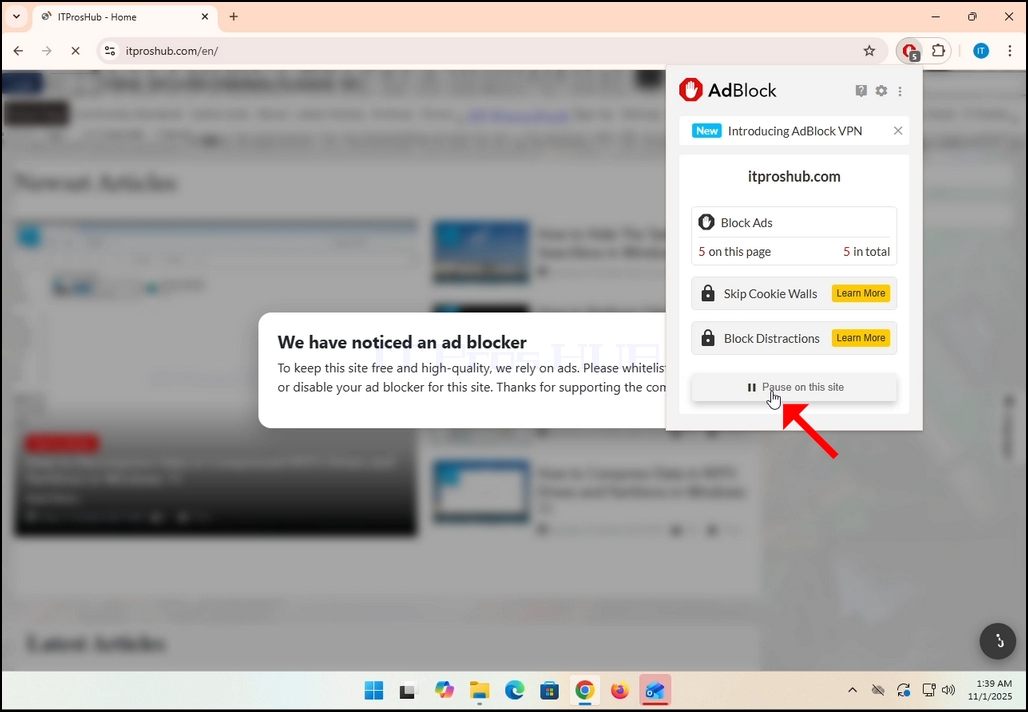
5. Chofoza inkinobho ethi Misa okwesikhashana kule sayithi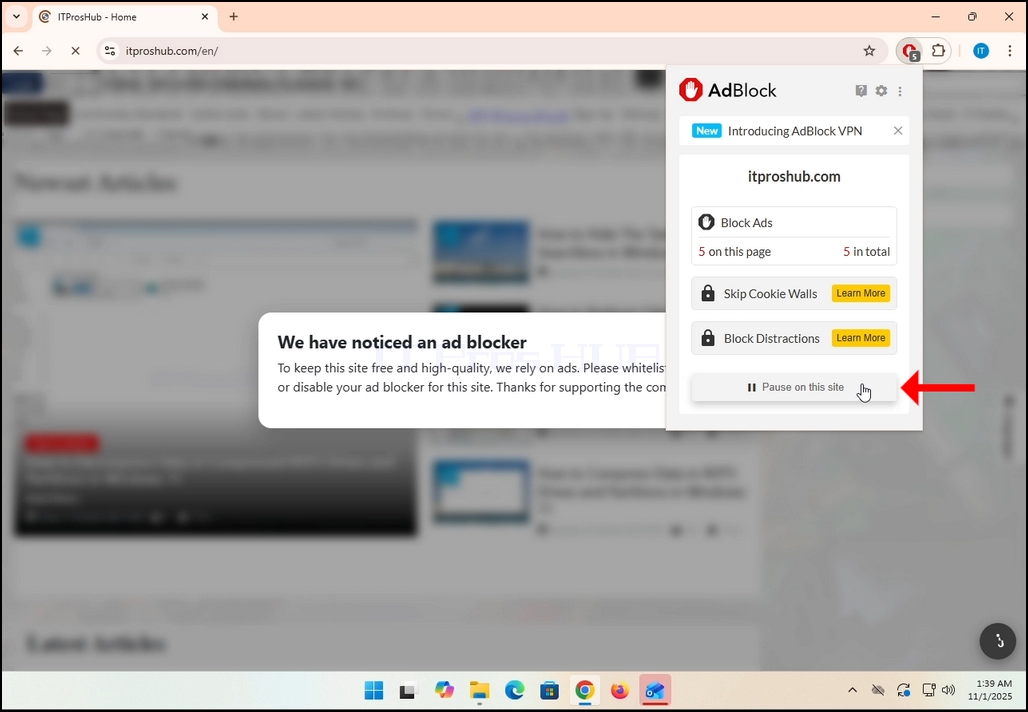
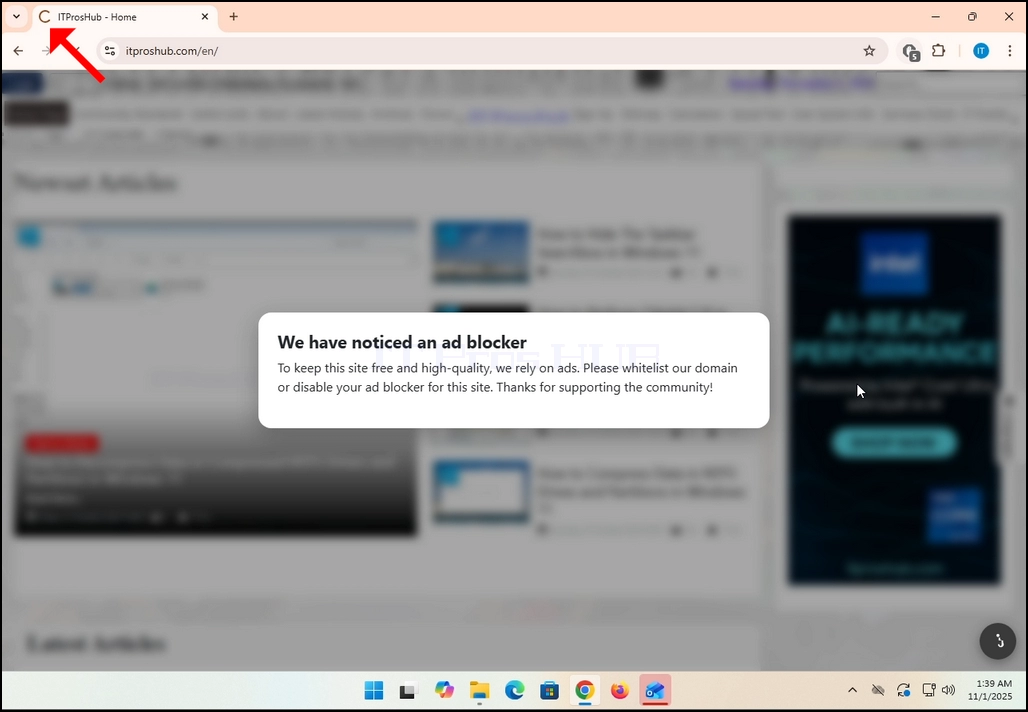
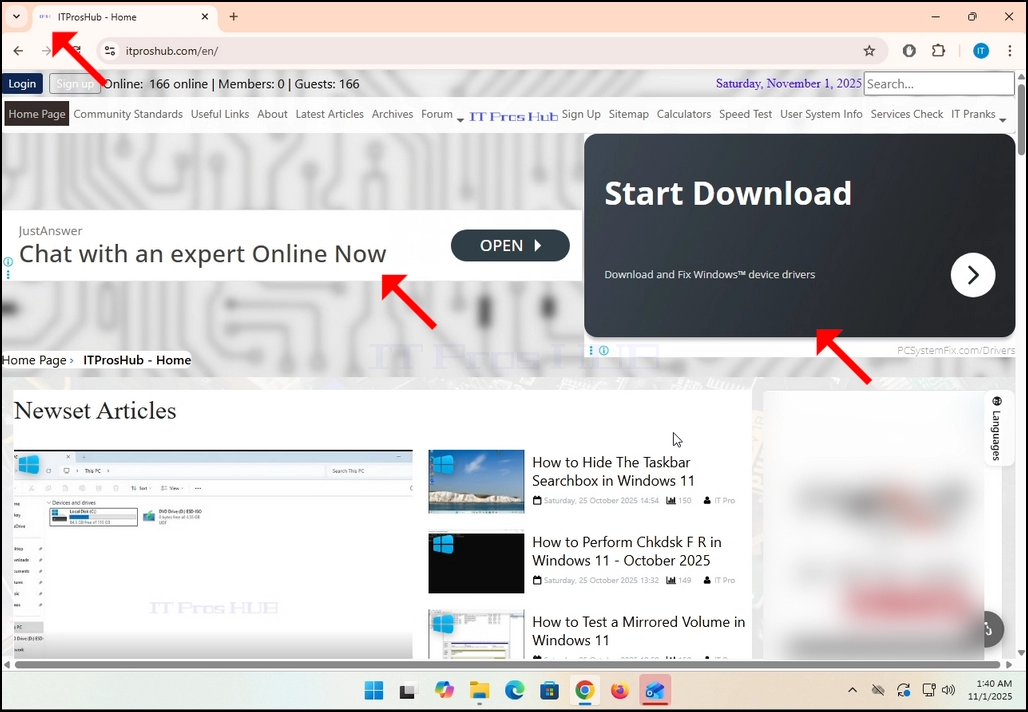
6. Uma isichofoziwe, iwebhusayithi okukhulunywa ngayo, esimweni sethu; i-itproshub.com, izolayishwa kabusha ngokuzenzakalelayo, kodwa kulokhu nazo zonke izikhangiso ziyabonakala.
- Details
- Written by: IT Pro
- Category: How to Articles
- Hits: 6750
1. Iya ekhasini lasekhaya le-Google (noma yiliphi elinye ikhasi le-Google elibonisa isithonjana sezinhlamvu zokuqala ze-akhawunti yakho ye-Google) bese uchofoza isithonjana esibonisa sezinhlamvu zokuqala ze-akhawunti yakho ye-Google. Kufanele sibe ekhoneni eliphezulu kwesokudla kwesikrini.
2. Linda ukuthi kuvele imenyu encane.
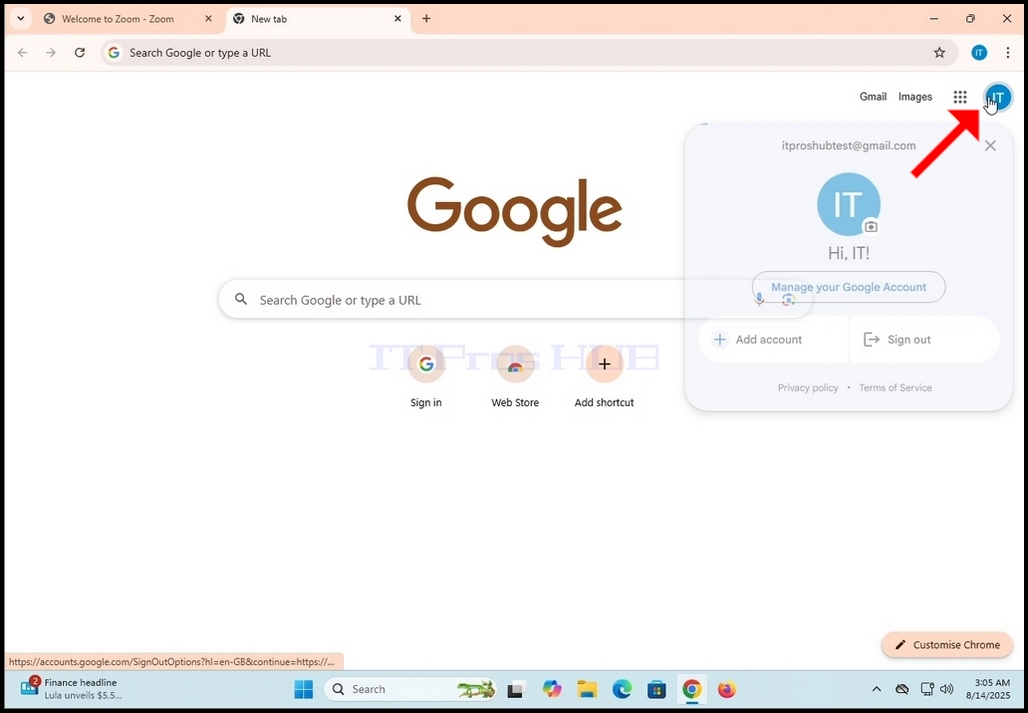
3. Kuleyo menyu, bheka inkinobho ethi Phatha i-Akhawunti yakho ye-Google bese uchofoza kuyo eyodwa. Linda ikhasi lokuphathwa kwe-Akhawunti ye-Google ukuthi lilayishe
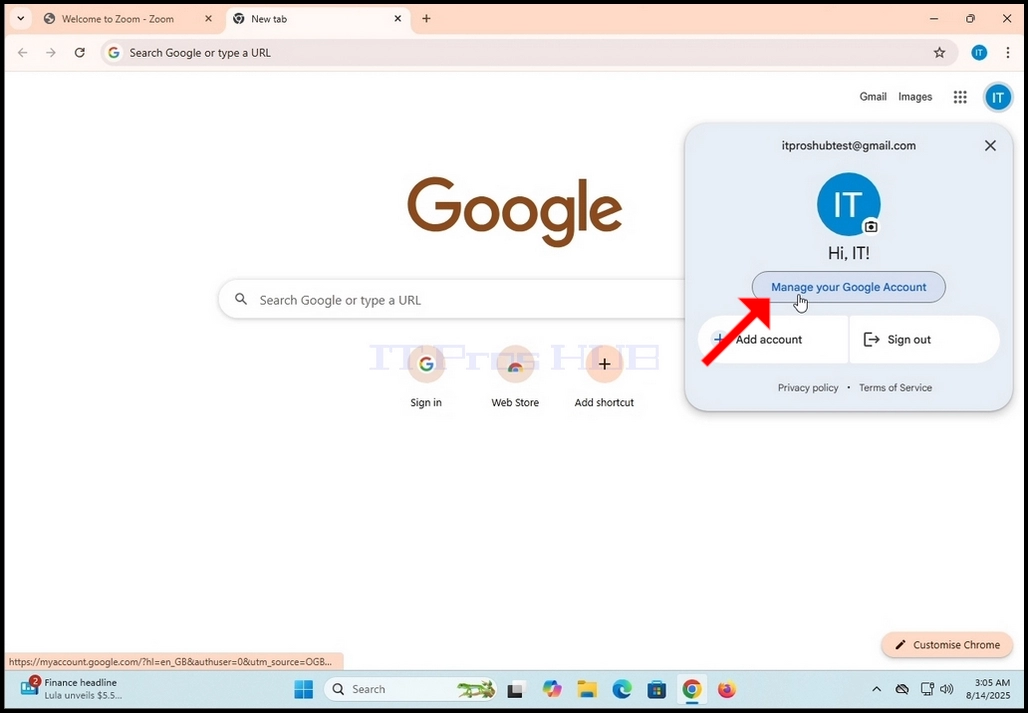
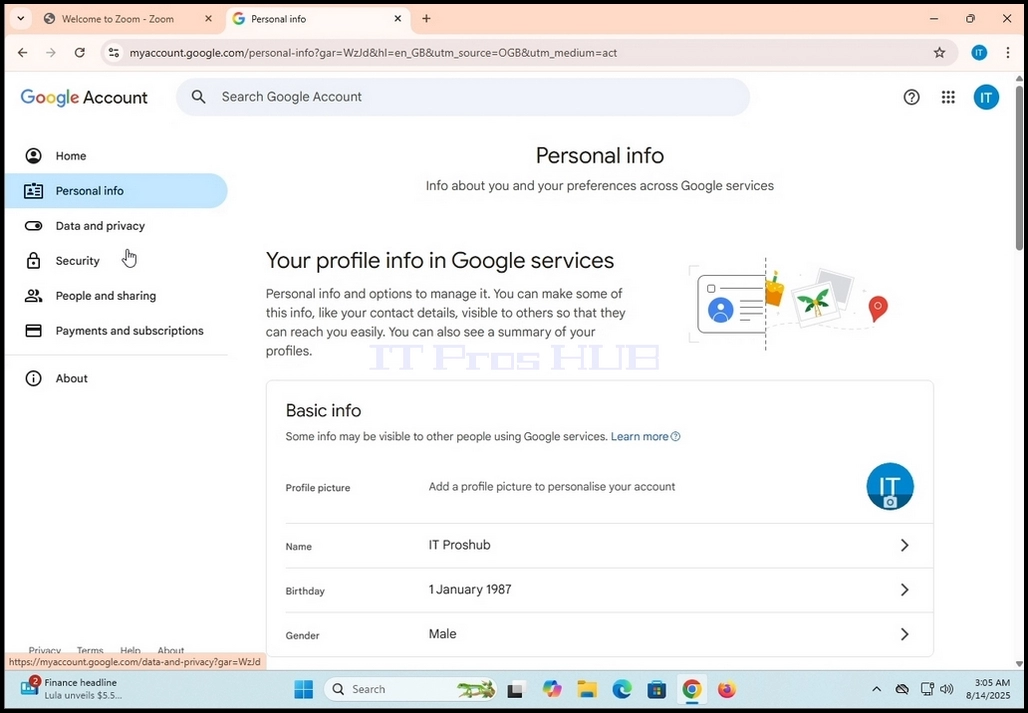
4. Ngemva kokuthi ikhasilokuphathwa kwe-akhawunti ye-Google selilayishiwe, iya kumenyu yesobunxele bese ubheka umusho Wolwazi Lomuntu Siqu. Chofoza kuyo kanye bese ulinda ikhasi Ulwazi Lomuntu Siqu ukuthi lilayishe.
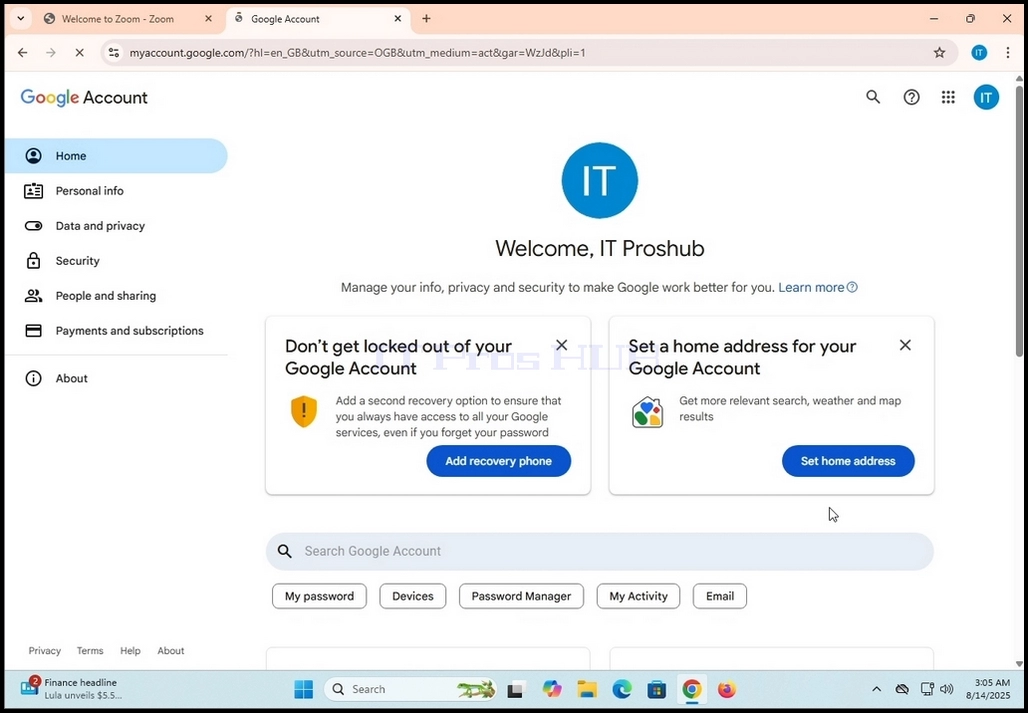
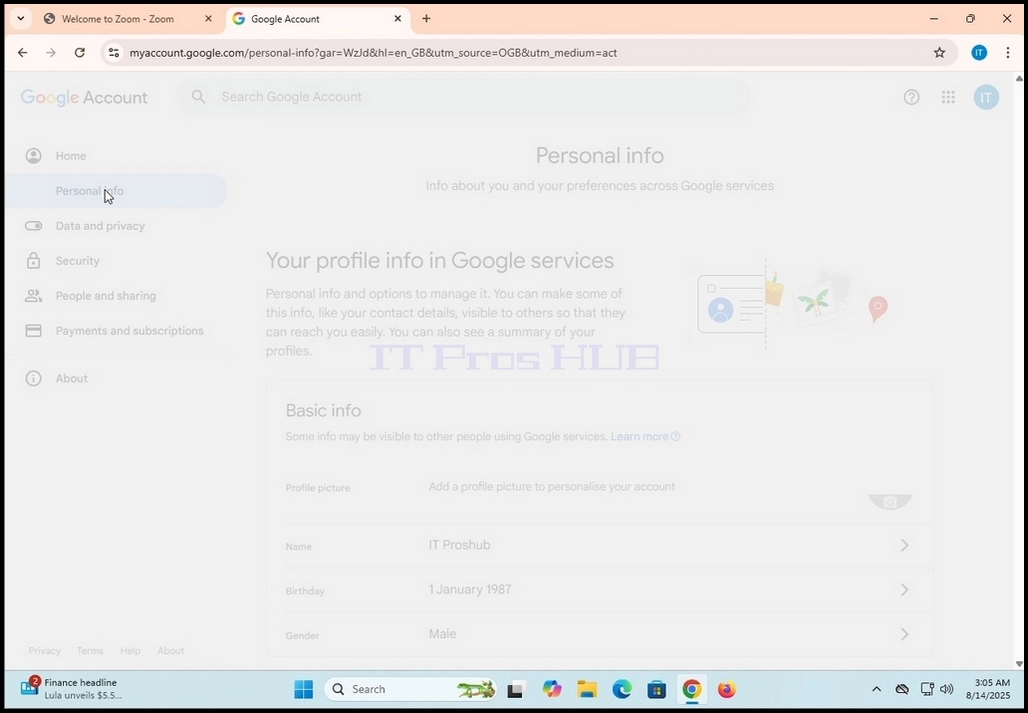
5. Ekhasini elisha Ulwazi Lomuntu Siqu, skrola phansi ikhasi uze uthole Izintandokazi ezijwayelekile zewebhu kufasitelana lesobunxele. Ngaphansi kwalelo bhokisi, kufanele ubone inkinobho ethi Ulimi eduze kwesithonjana esincane se-globe. Chofoza kuyo kanye. Linda ikhasi elithi Ulimi ukuthi lilayishe.
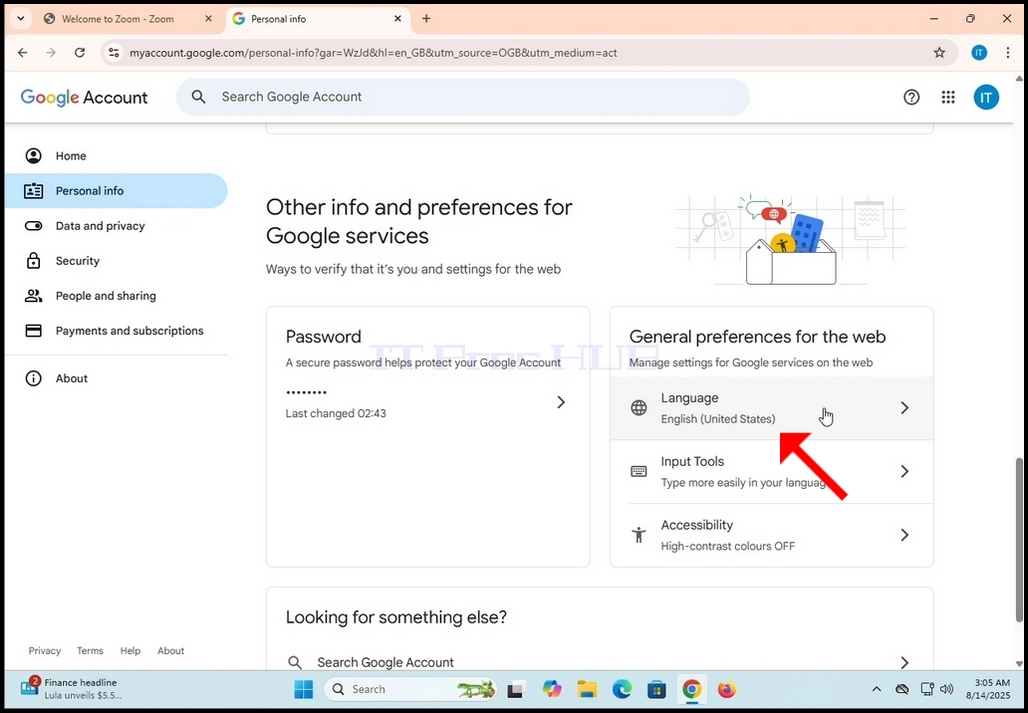
6. Ekhasini Lolimi, ngaphansi kwebhokisi elithi Ulimi Oluthandwayo, funa inkinobho ethi + Engeza olunye ulimi bese uchofoza kuyo kanye.
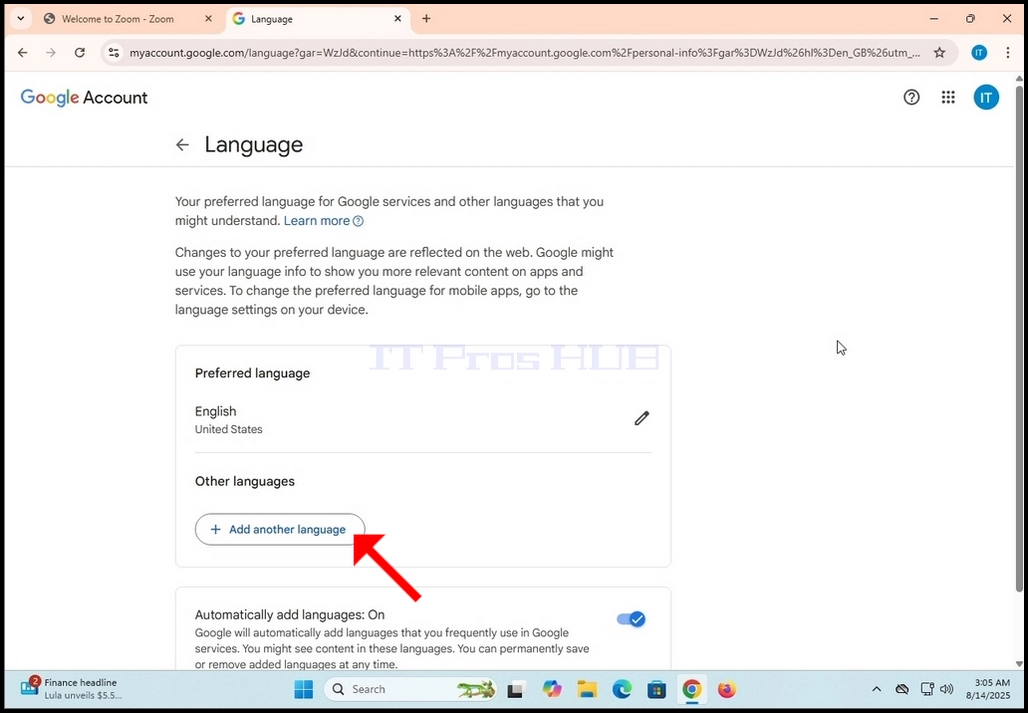
7. Ekhasini elilandelayo, khetha ulimi olwengeziwe ongathanda ukulifaka ku-akhawunti yakho ye-Google.