



- დეტალები
- ავტორი: IT Pro
- კატეგორია: How to Articles
- გადასვლები: 11912
1. Open Chrome browser
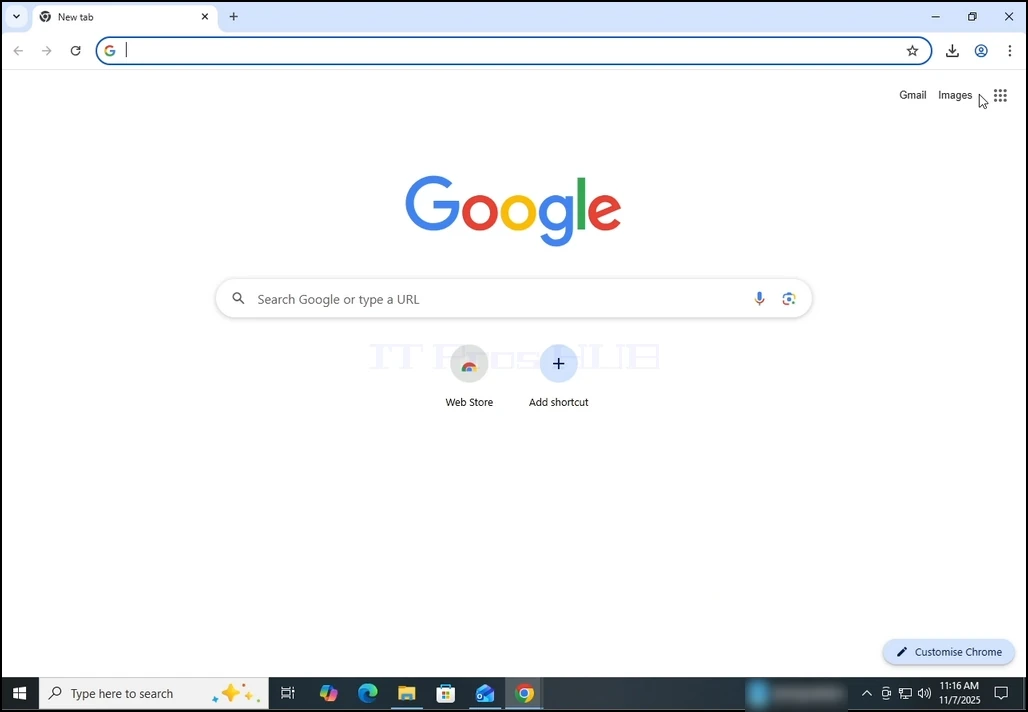
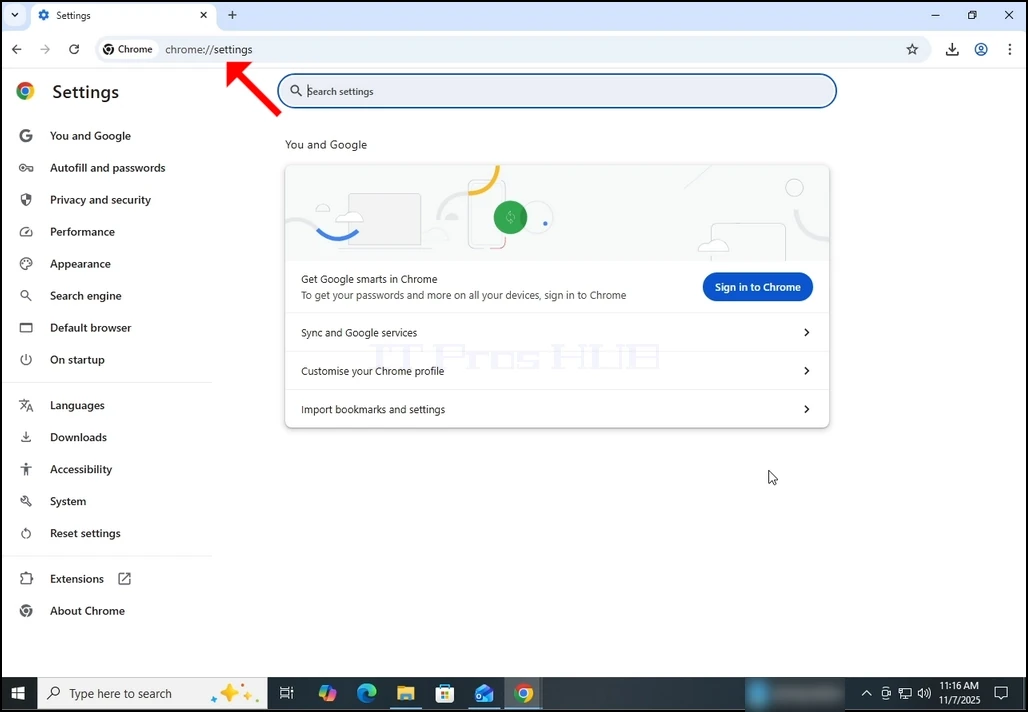
2. In Chrome's address bar, type the following address:
chrome://settings
and hit the ENTER key. Wait for the Chrome settings window to appear.
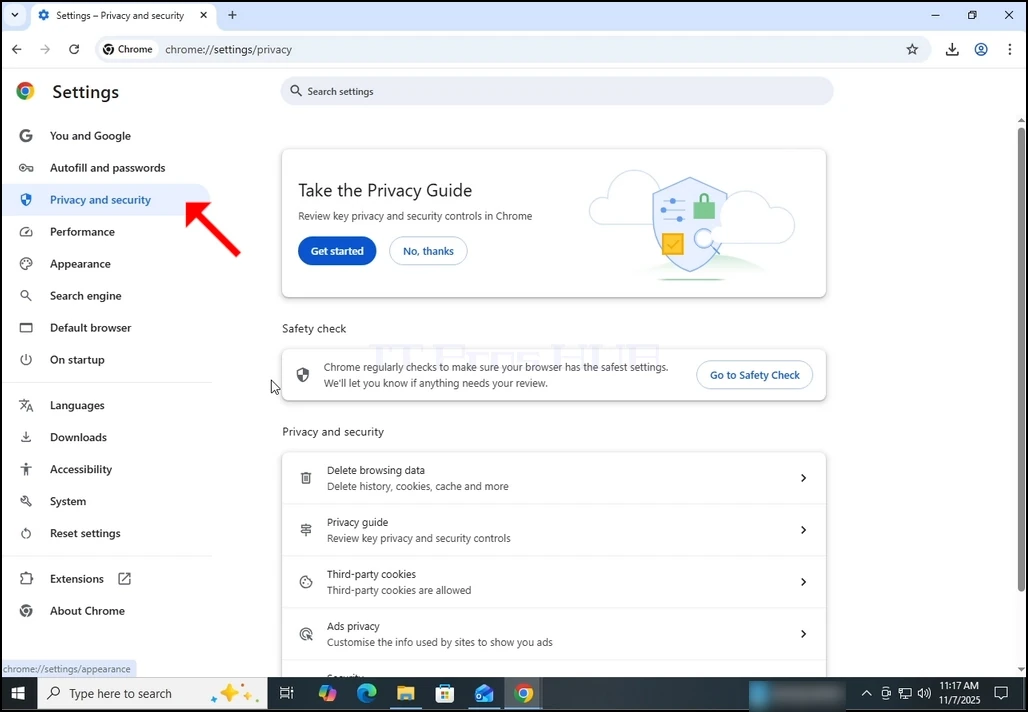
3. On the left pane, go to Privacy and Security and click on it:
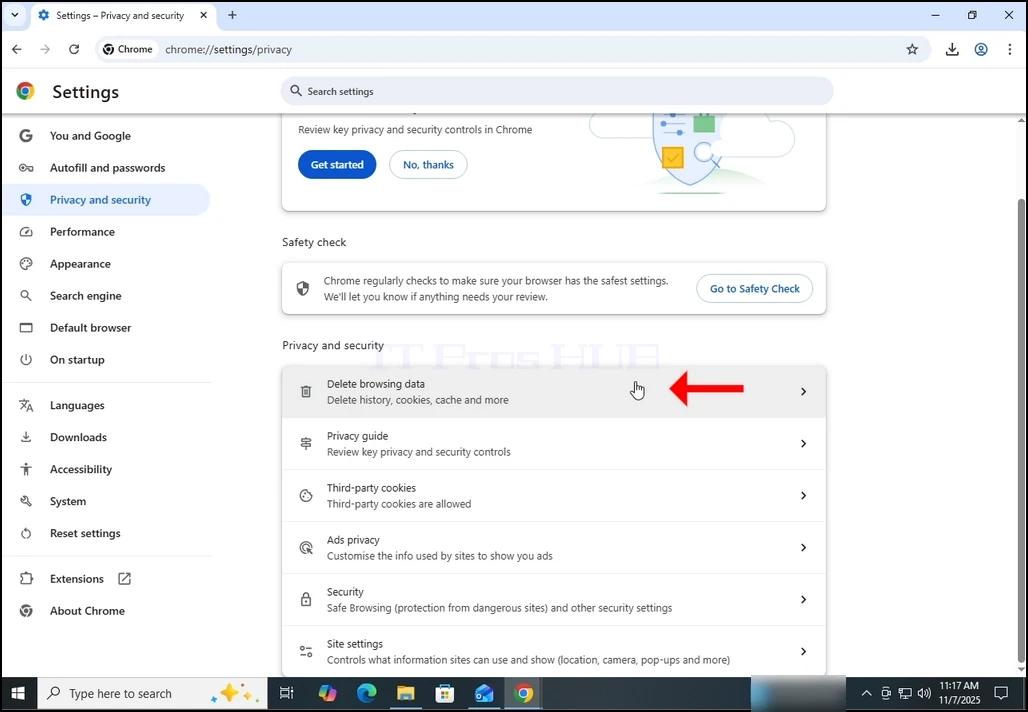
4. Now, on the right pane, go to Delete browsing data and click on it. Wait for the Delete browsing data window to appear :
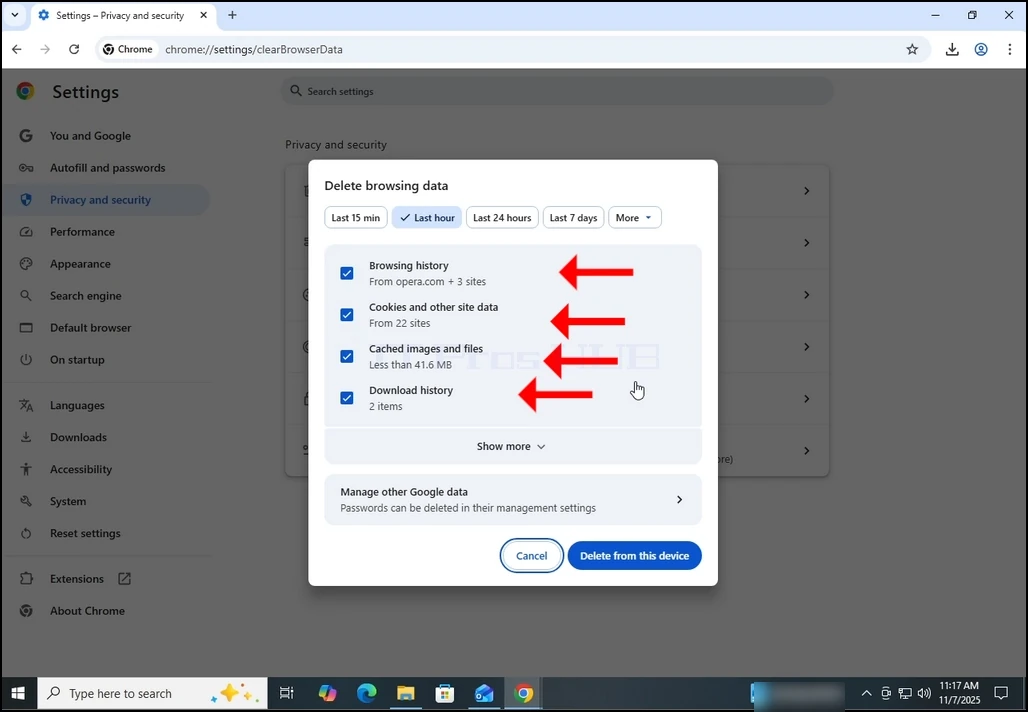
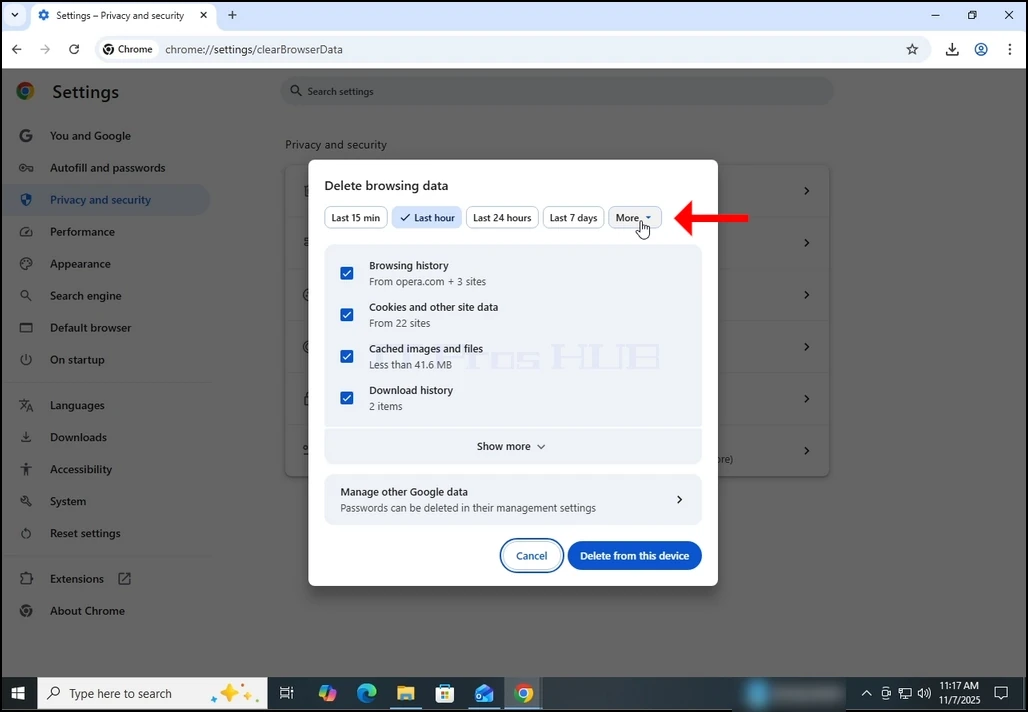
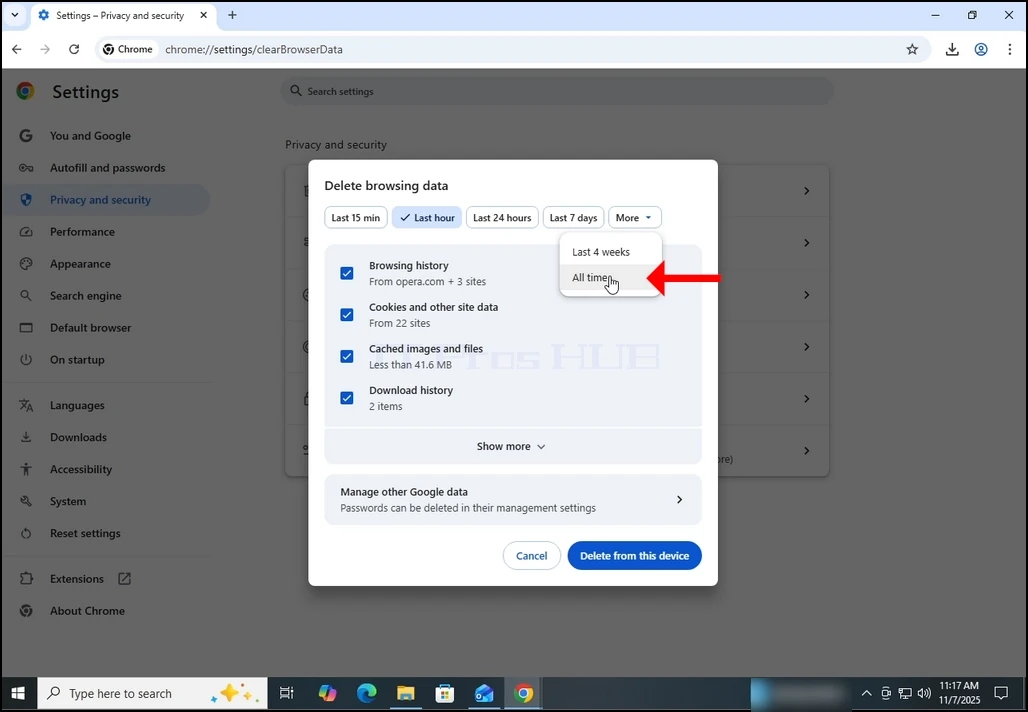
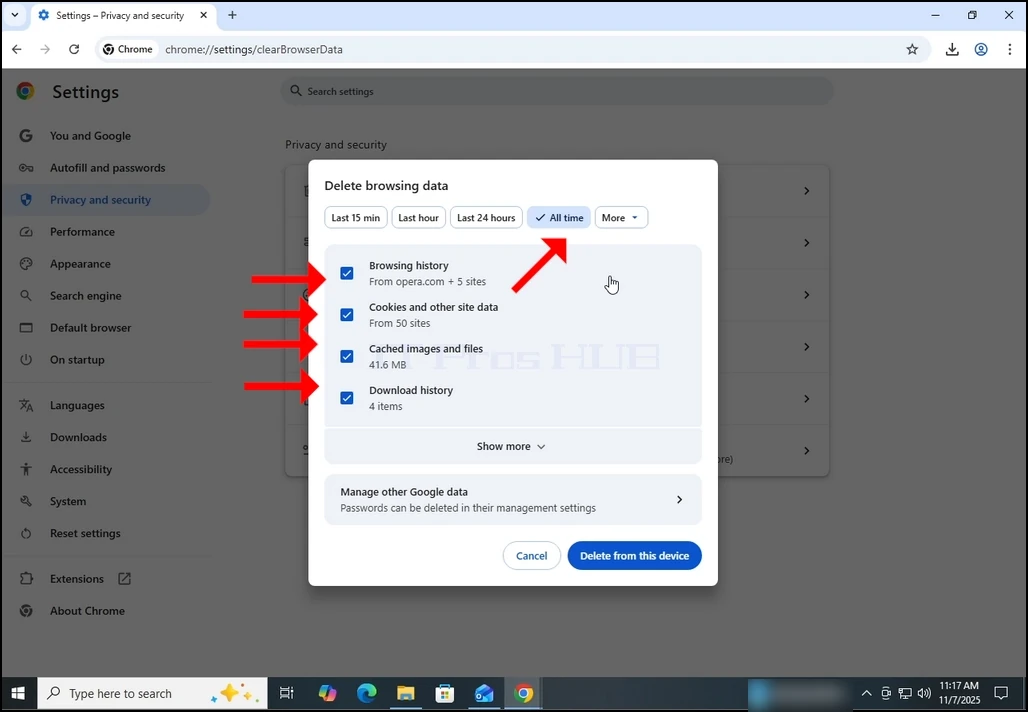
5. After the Delete browsing data window appears, mark ALL of the 4 options:
- Browsing history
- Cookies and other site data
- Cached images and files
- Download history
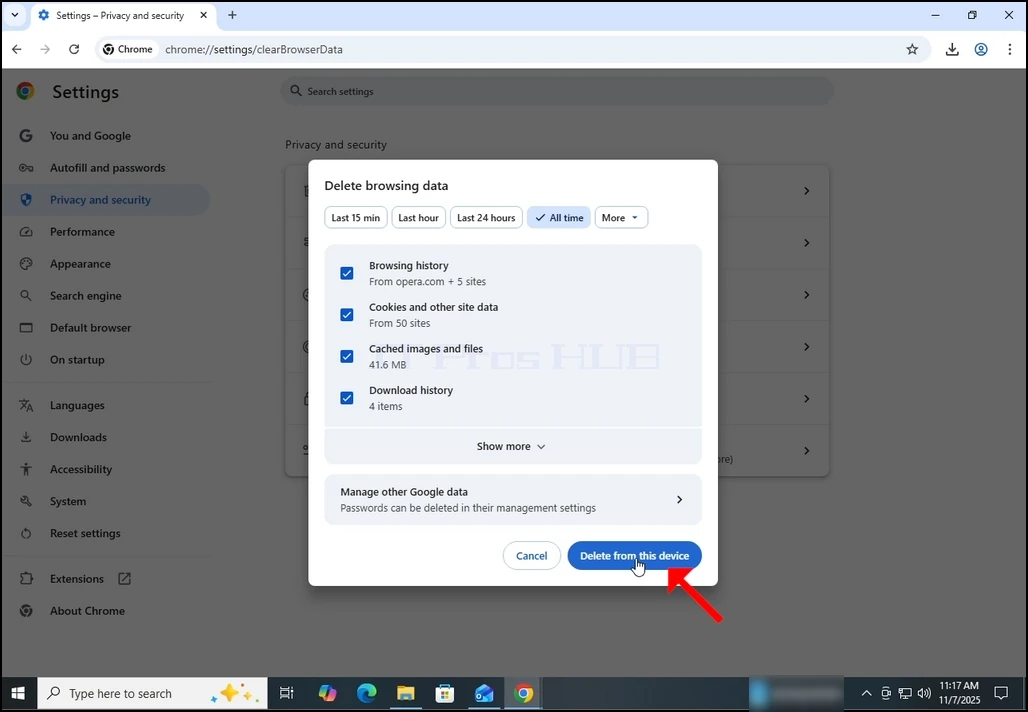
9. Wait for the data to be deleted:
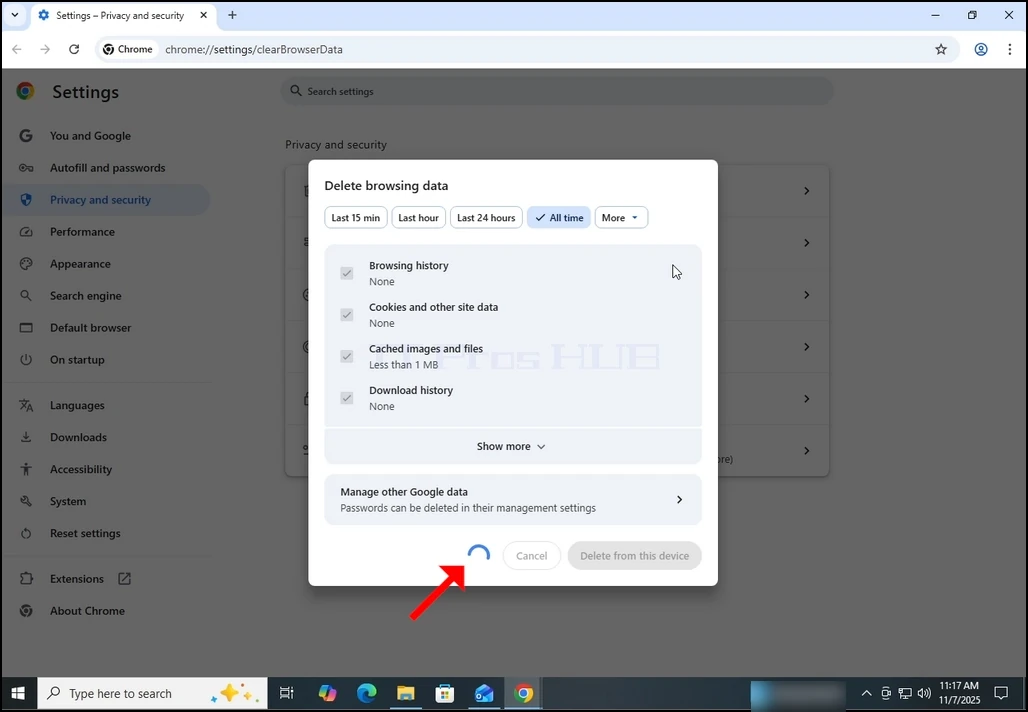
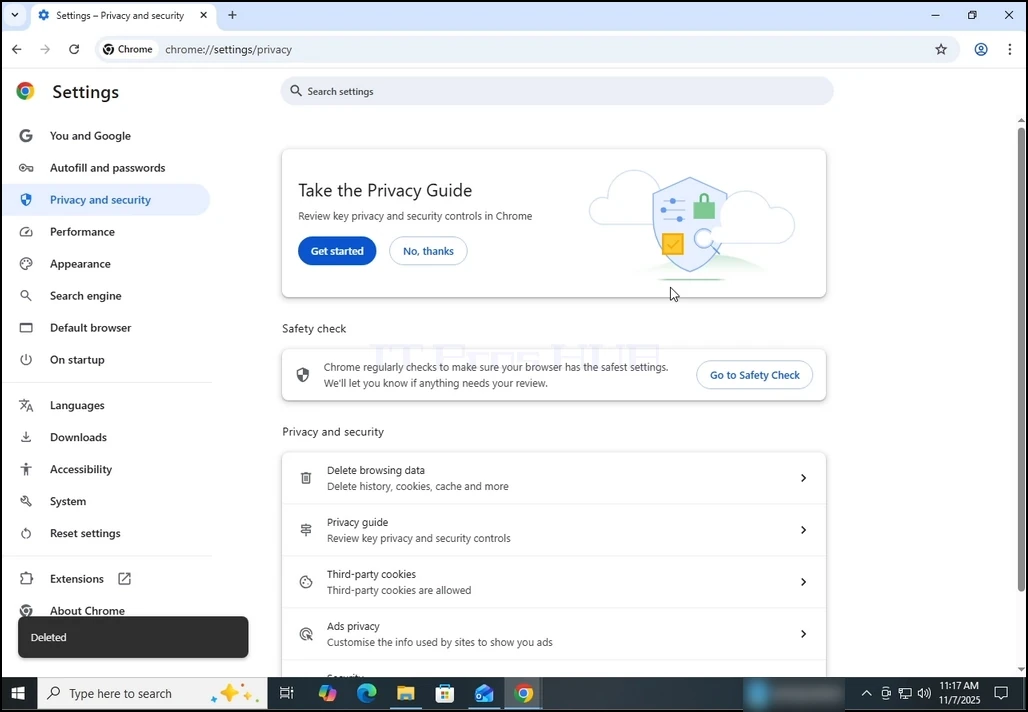
10. Once done, the Delete browsing data window will close itself:
- დეტალები
- ავტორი: IT Pro
- კატეგორია: How to Articles
- გადასვლები: 8200
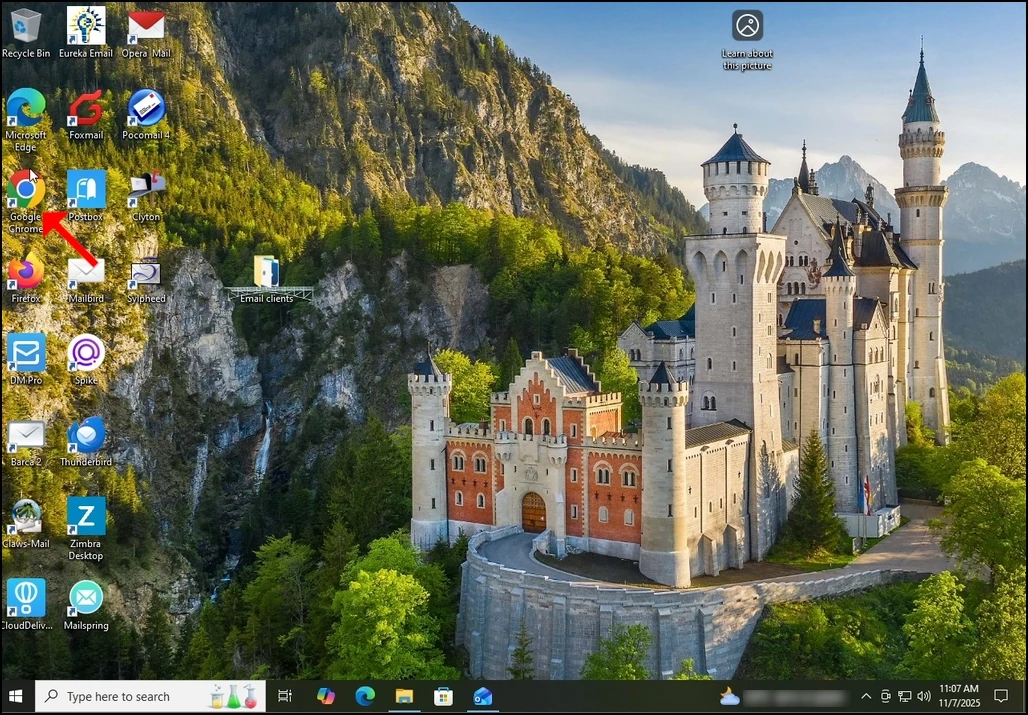
1. Open Chrome:


4. Once opened, the About Google Chrome window will start automatically check for new updates for Google chrome. If there is such an update, Chrome would notify about it by changing the update status to Updating Chrome as can be seen below:


6. Once finished, Chrome would notify you by displaying the message: "Nearly up to date! Relunch Chrome to finish updating".

8. Usually, newly updated version of Google Chrome would show this type of message upon first launch:

9. In order to make sure Google Chrome has no more updates, perform the same stages 1-4. As you can see, at the moment, there are no more updates available for Google Chrome after we have done the previous update:

- დეტალები
- ავტორი: IT Pro
- კატეგორია: How to Articles
- გადასვლები: 4621
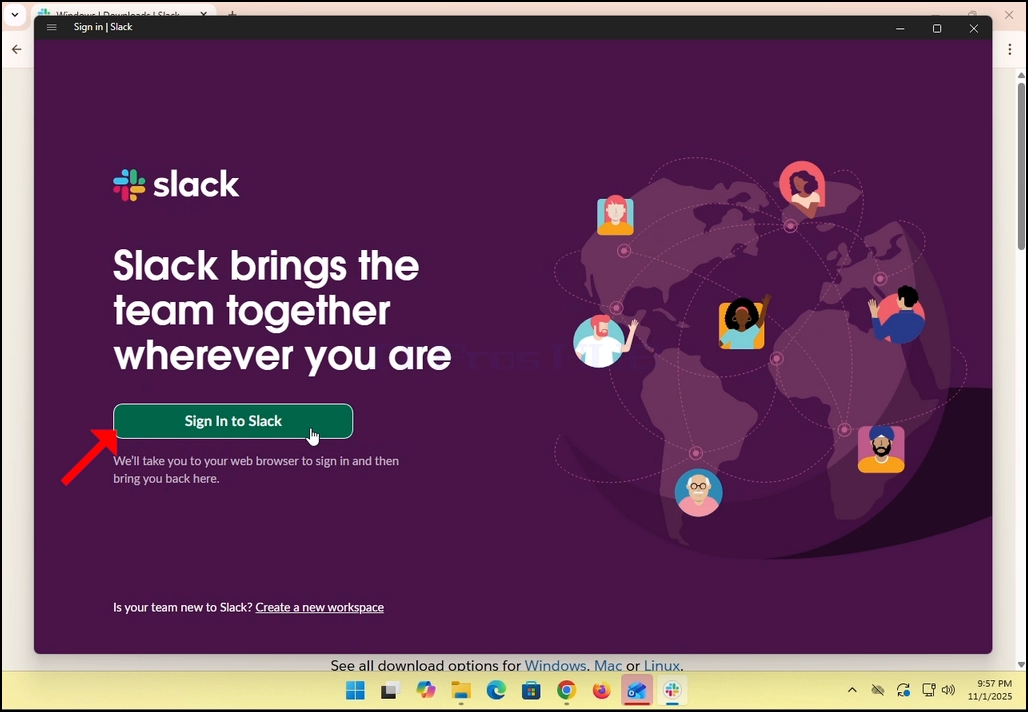
3. Slack will redirect you to a login screen in your default browser. In the case of this article, it is Chrome.
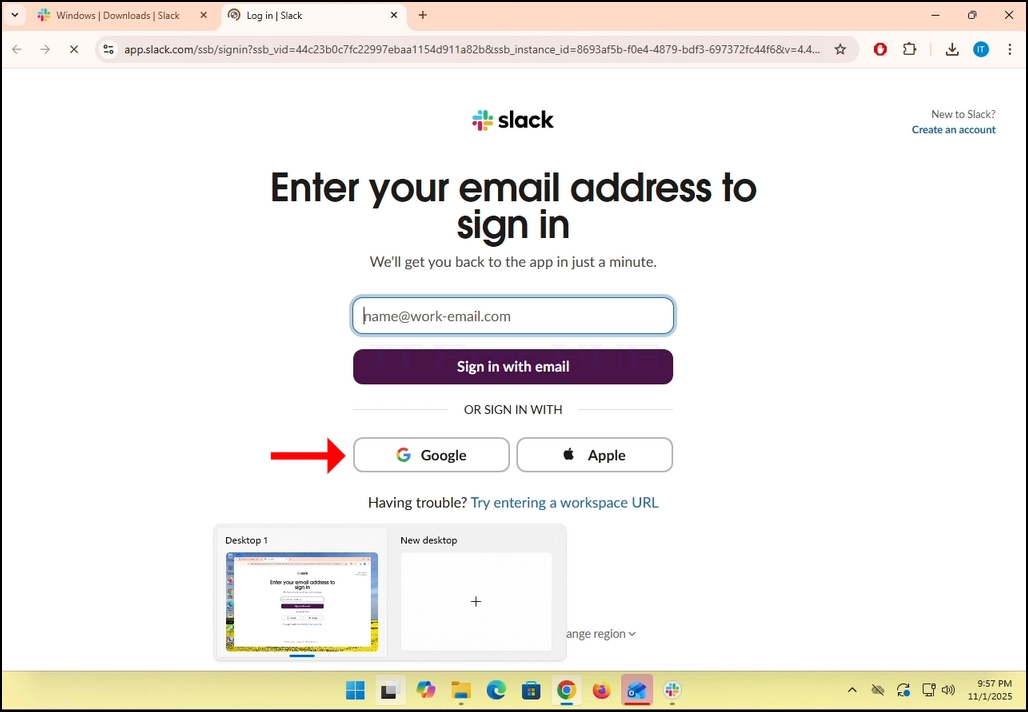
4. As you can see, Slack wants you to Enter your email address to sign in. we will use our Gmail email address to do that.
- Click the Google button and wait for the Google connector page to load.
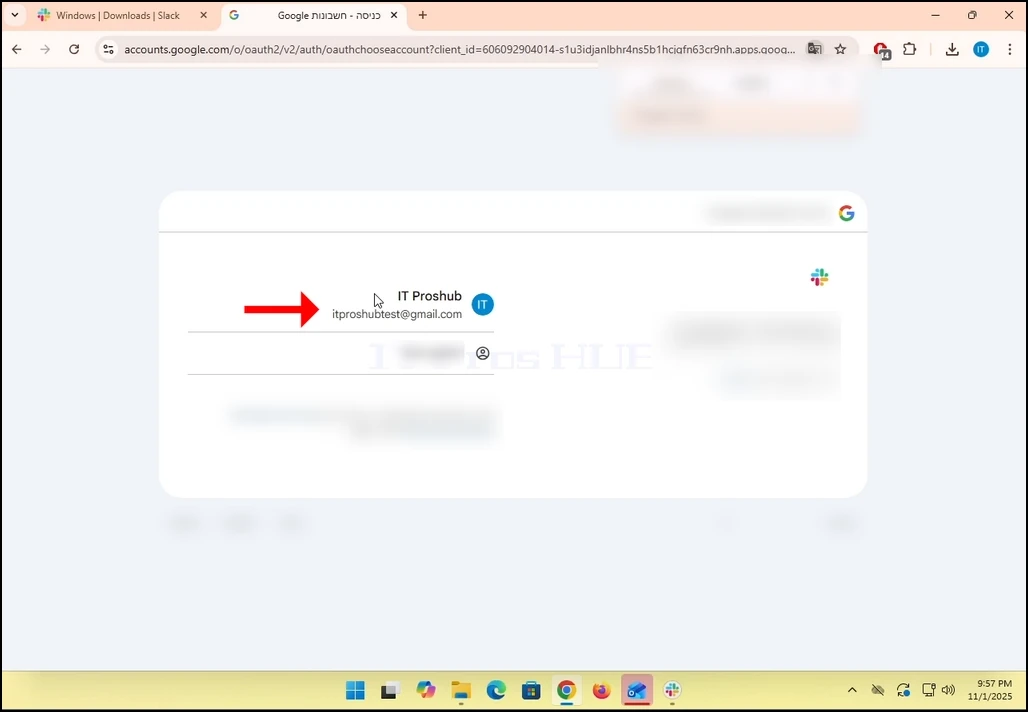
6. In the Google connector page, choose your Gmail email address. Note that in the case of this article,
7. If you are not logged into Chrome or use a different browser, just login to your Google account and then choose that account to continue.
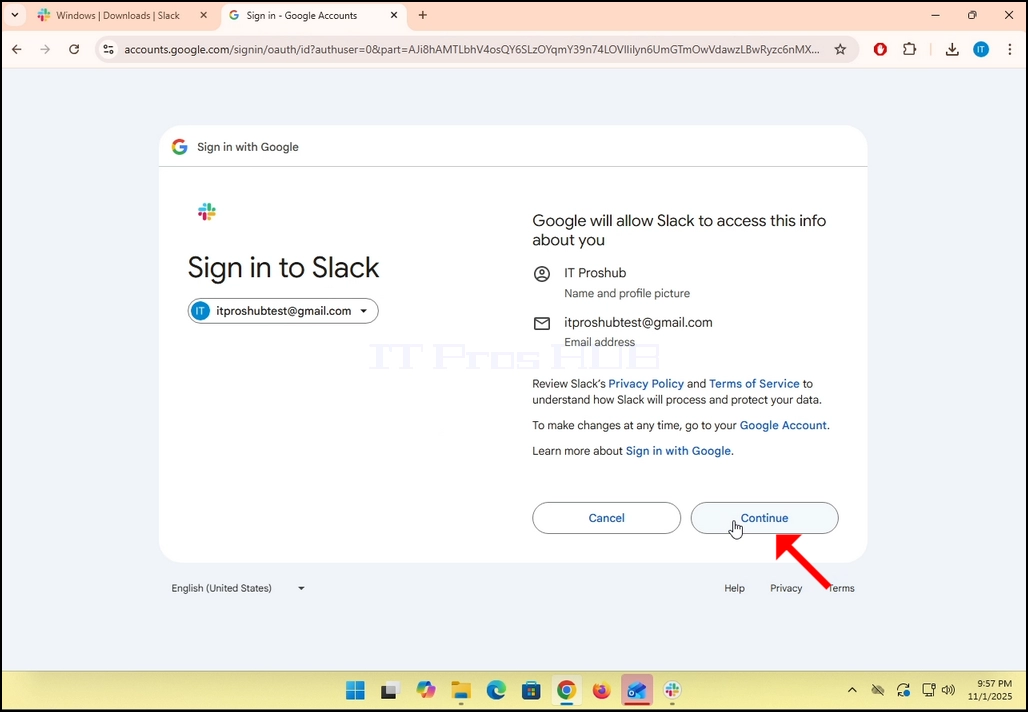
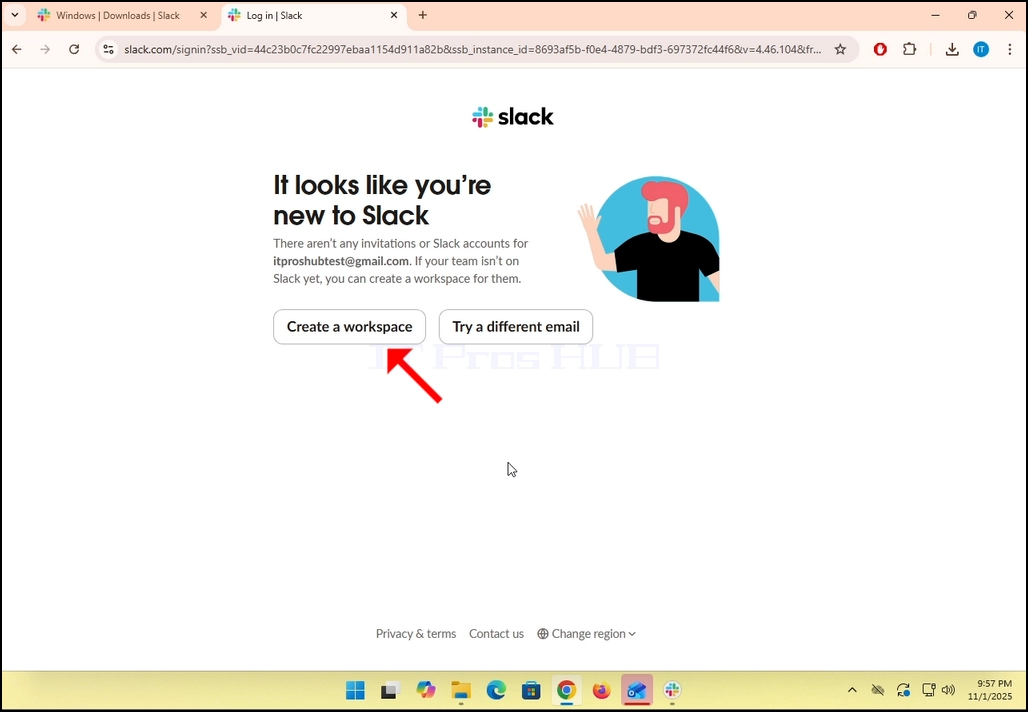
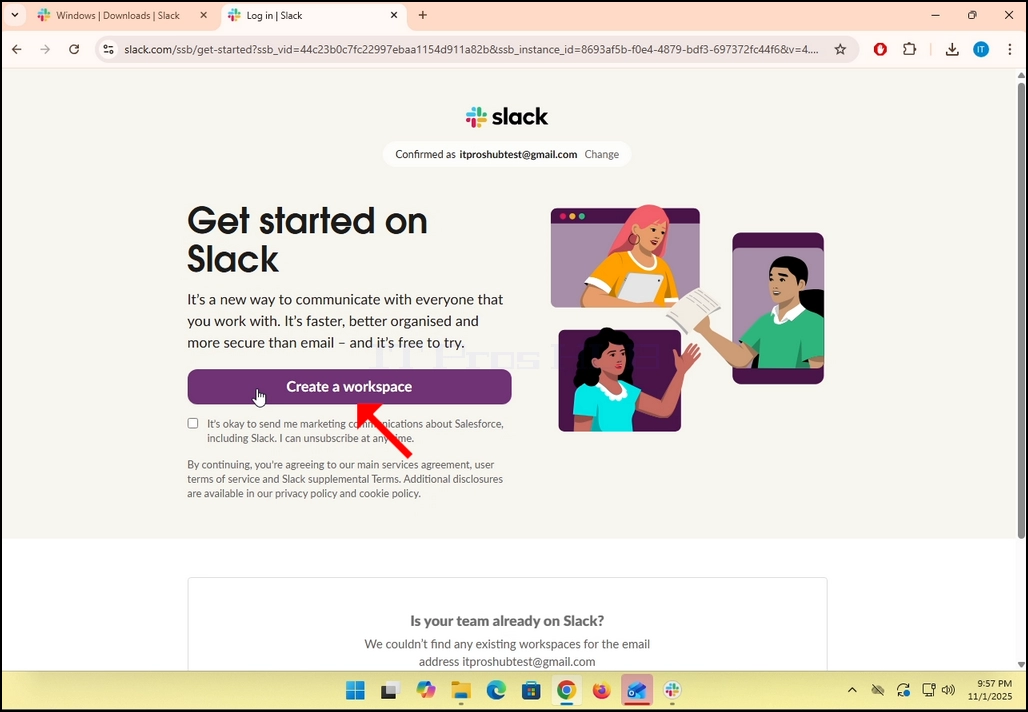
9. If you already have a Slack account under that Gmail email address, then Slack will redirect you back to itself. If not, it will ask you to either Create a workspace or Try a different email.
- In the case of this article, we will choose Create a workspace.
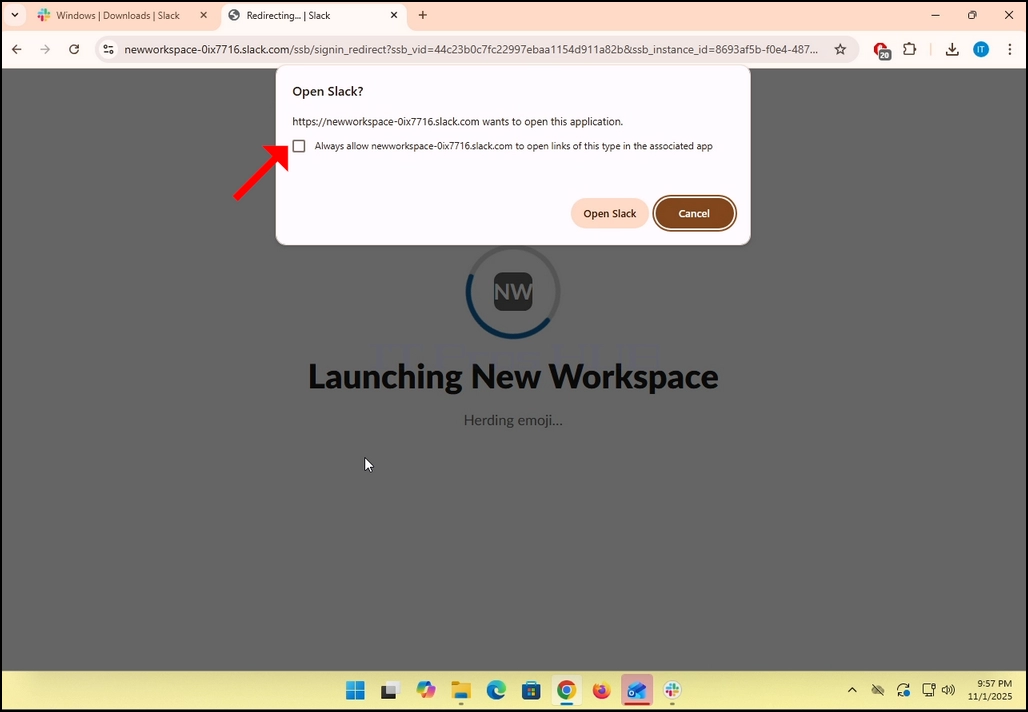
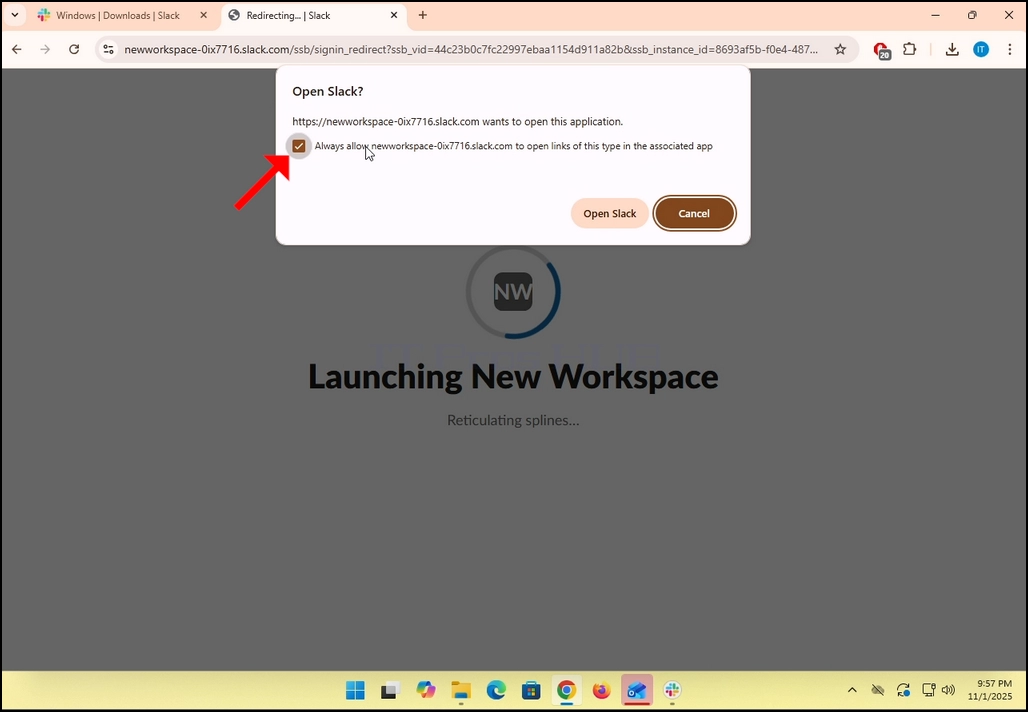
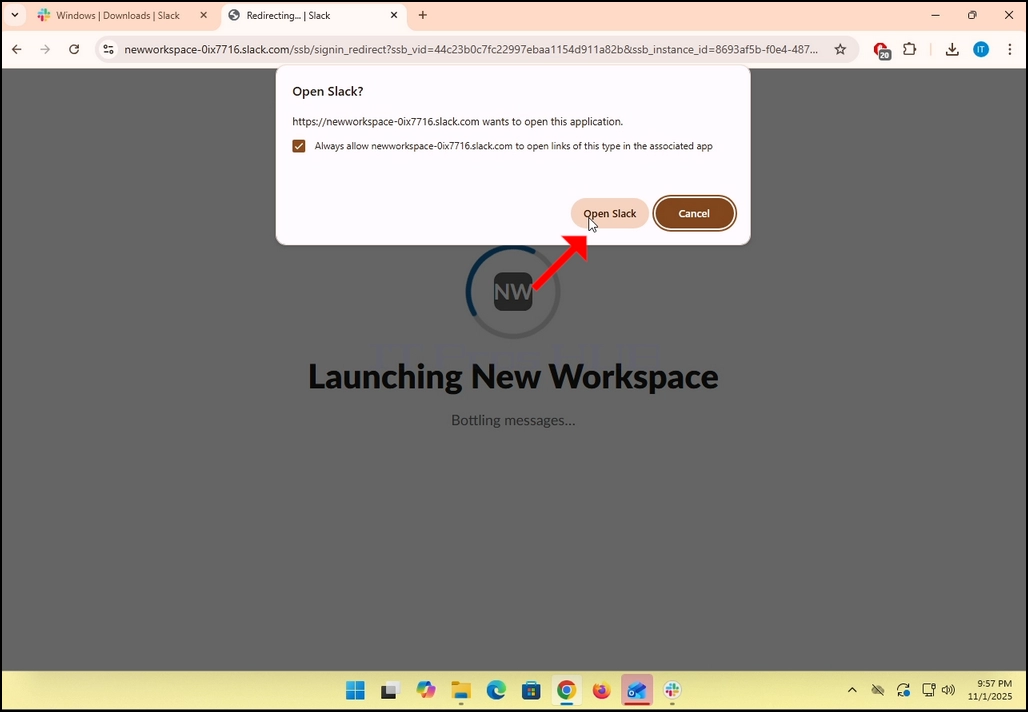
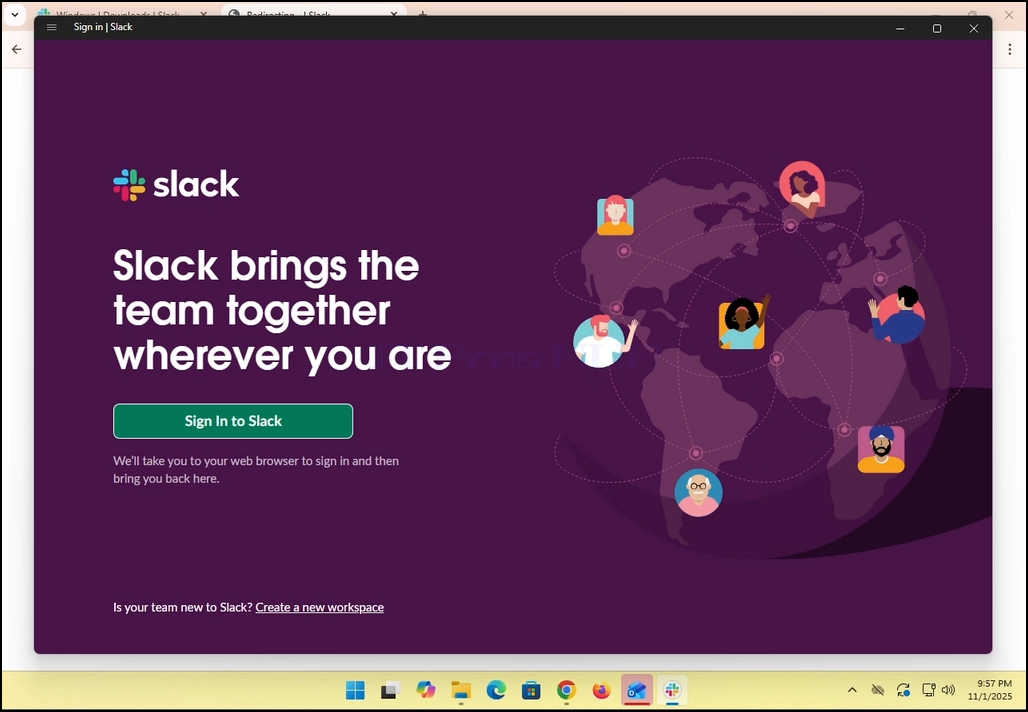
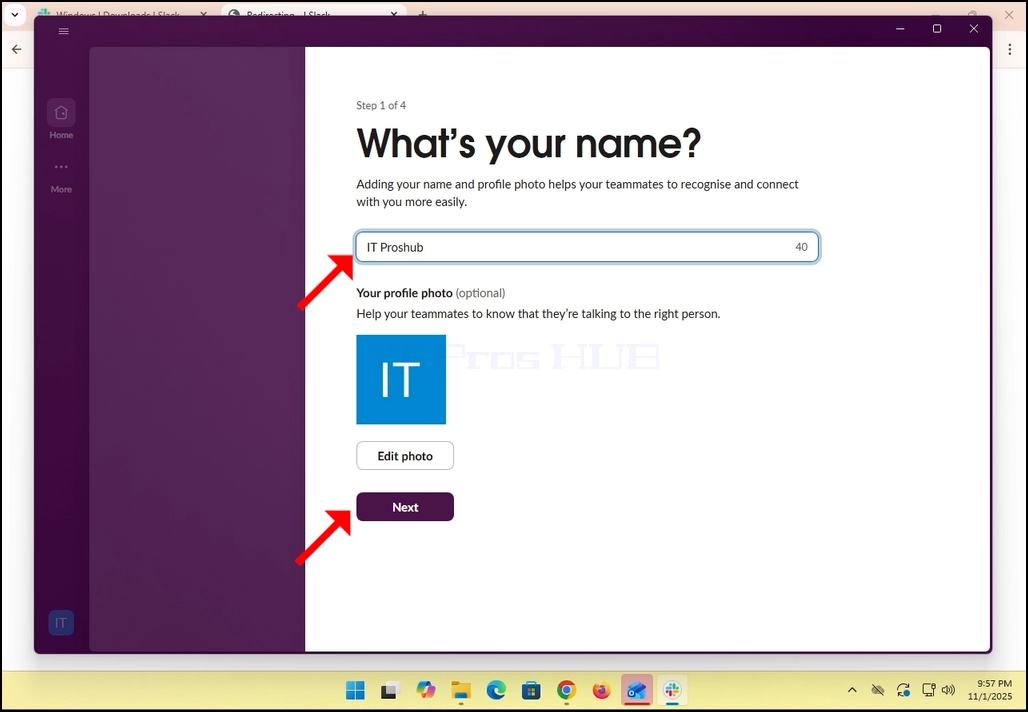
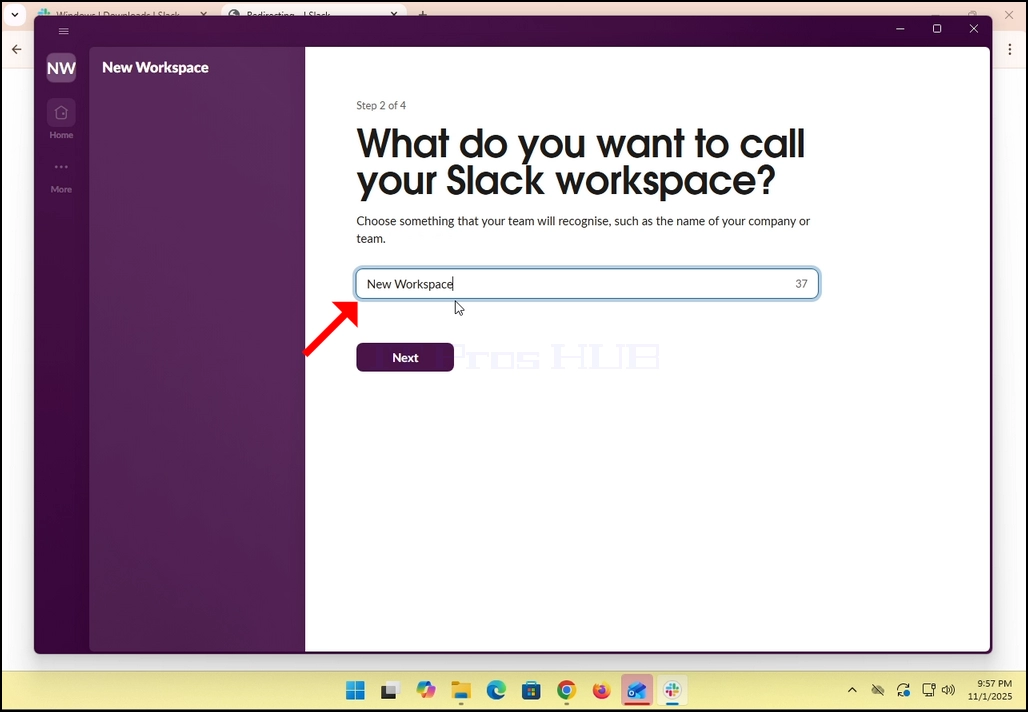
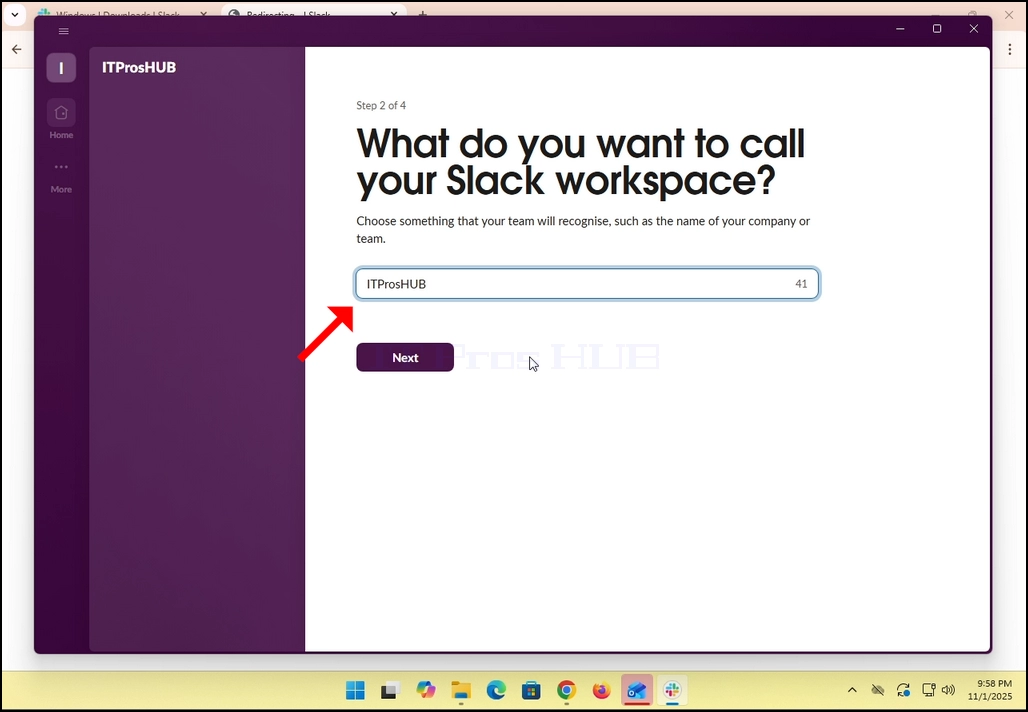
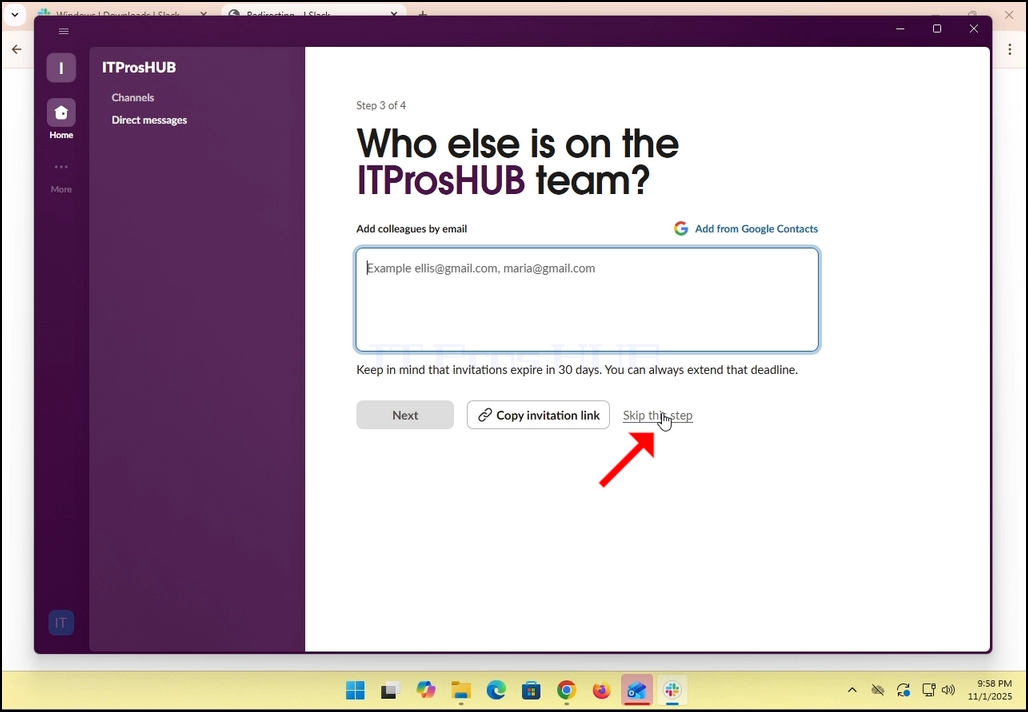
14. In the case of this article, we will skip this step by clicking in the Skip this step option.
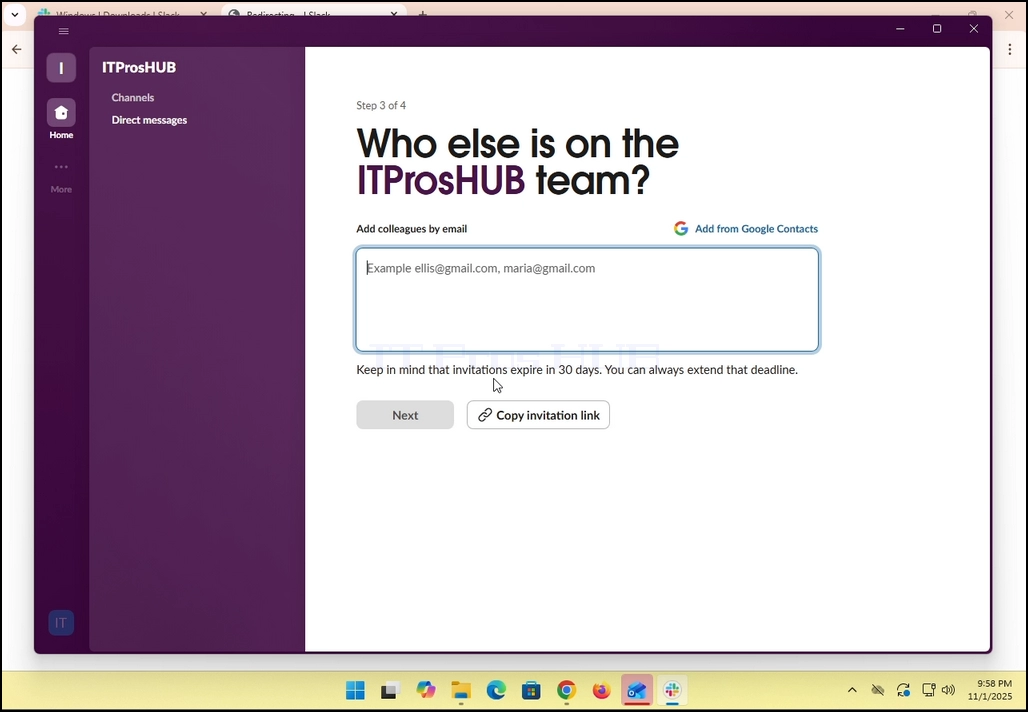
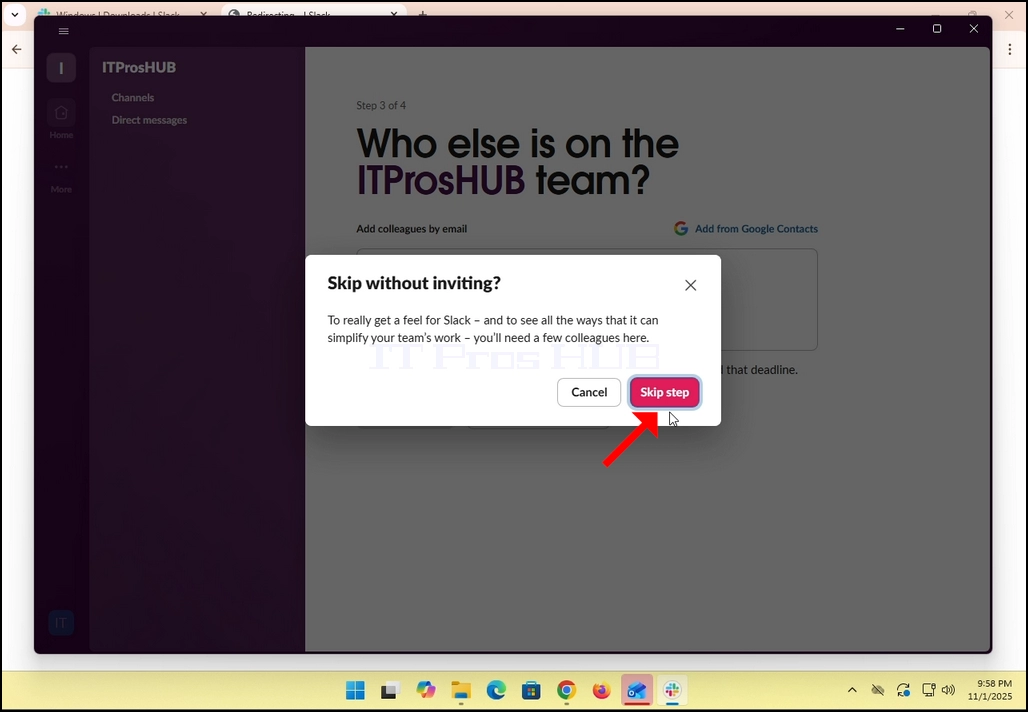
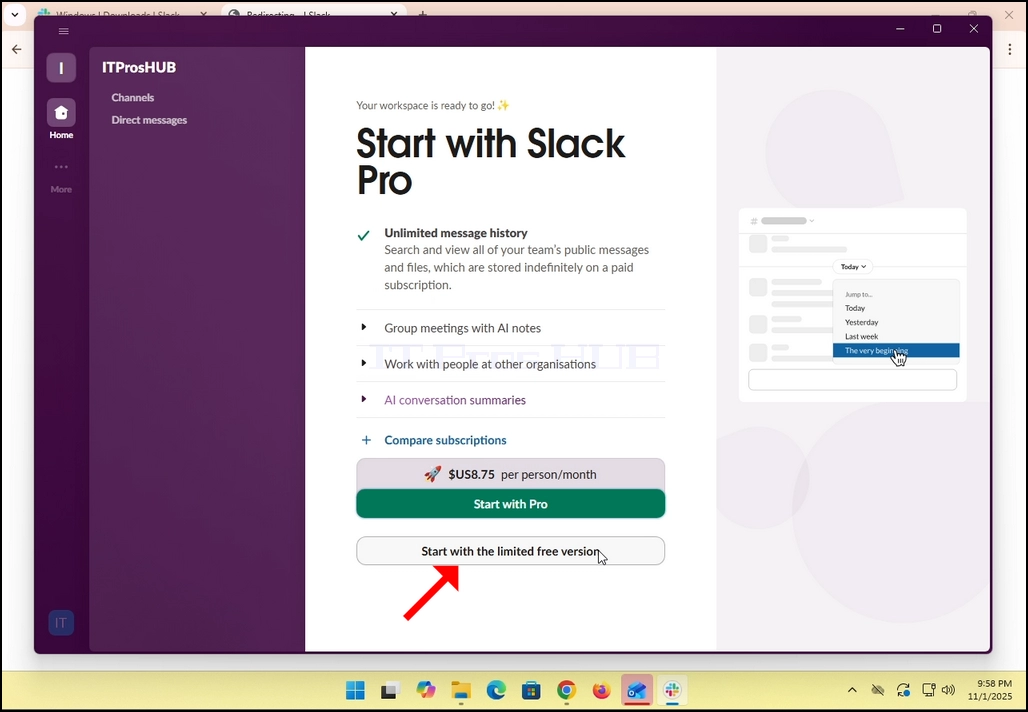
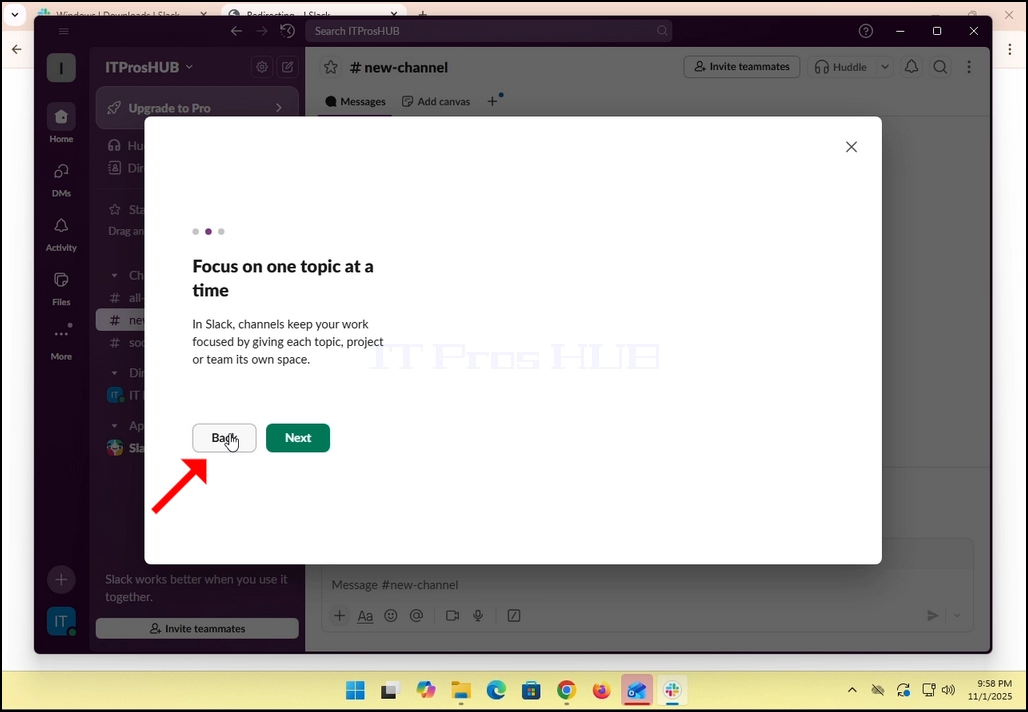
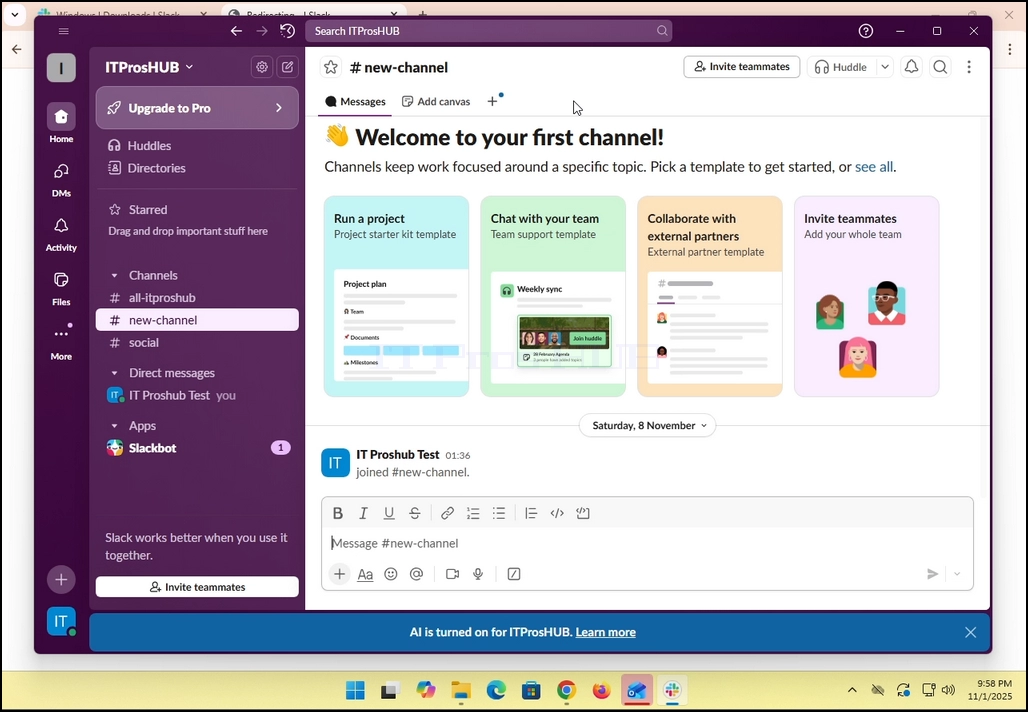
17. All done! You Slack now uses your Gmail email account!
- დეტალები
- ავტორი: IT Pro
- კატეგორია: How to Articles
- გადასვლები: 7160
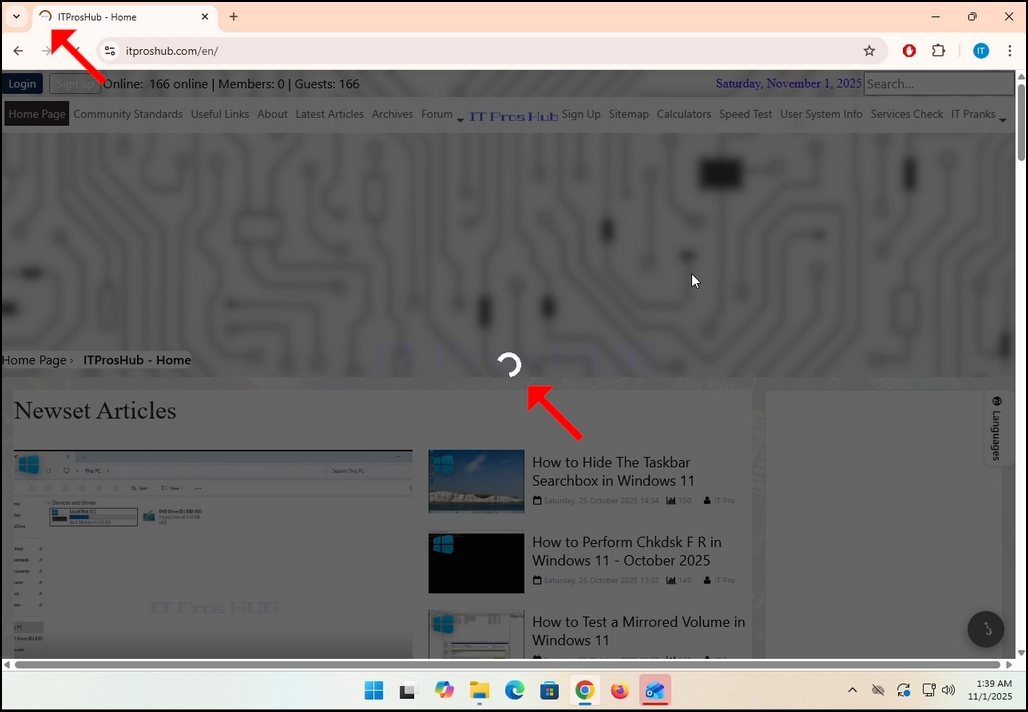
1. For this article we have already loaded itproshub.com from a Chrome browser with the Adblock extension installed and enabled on. As you can see, the Adblock detector algorithm in itproshub.com detected the presence of an Anblock software in Chrome browser.
2. In Chrome, go to the upper right part of the screen and look for the Adblock Chrome extension icon.
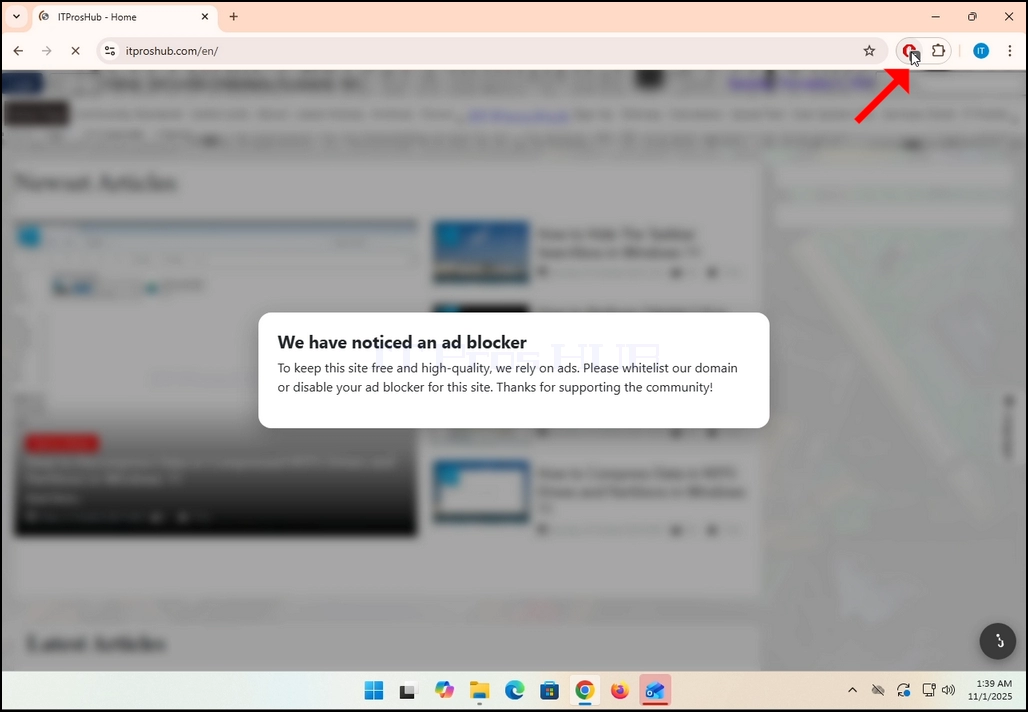
3. Click on it once and wait for its small side menu to appear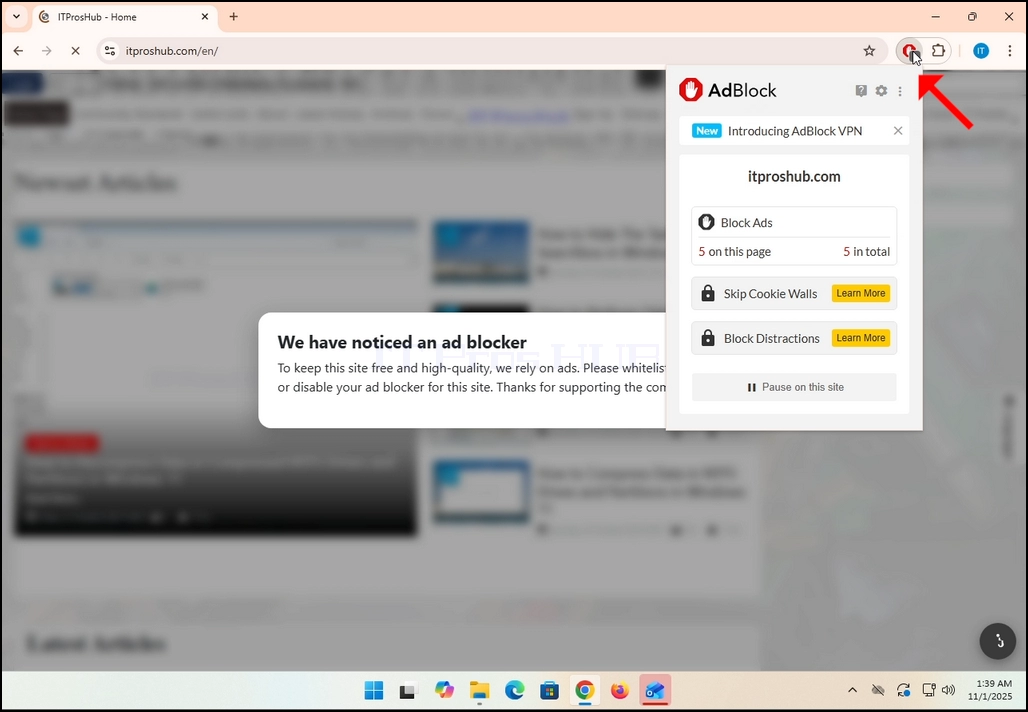
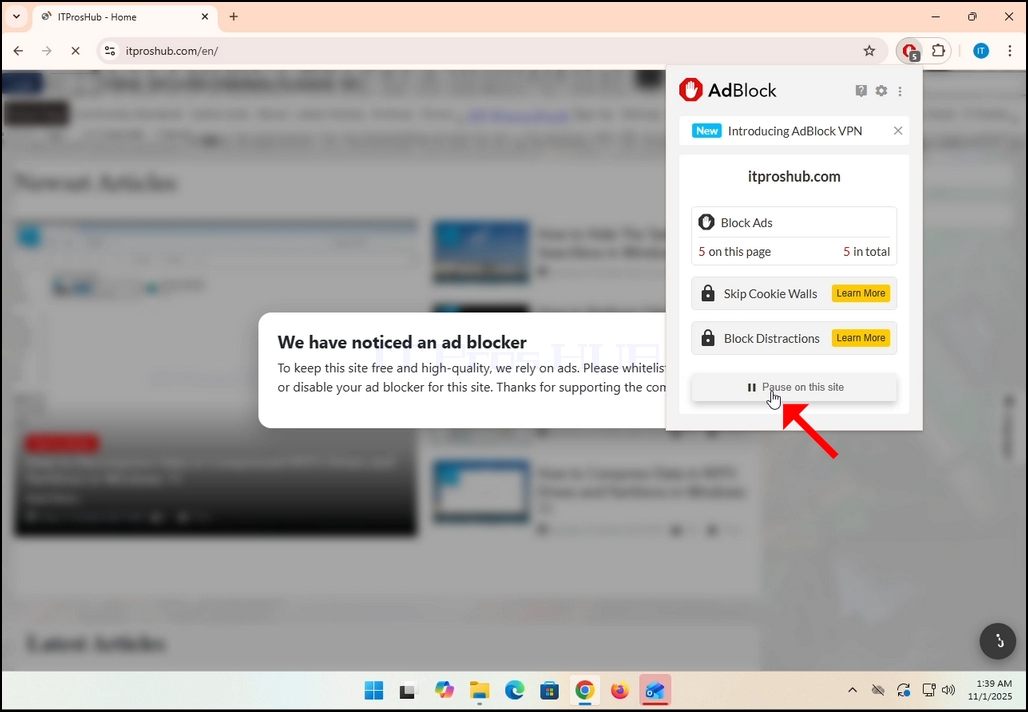
5. Click on the Pause on this site button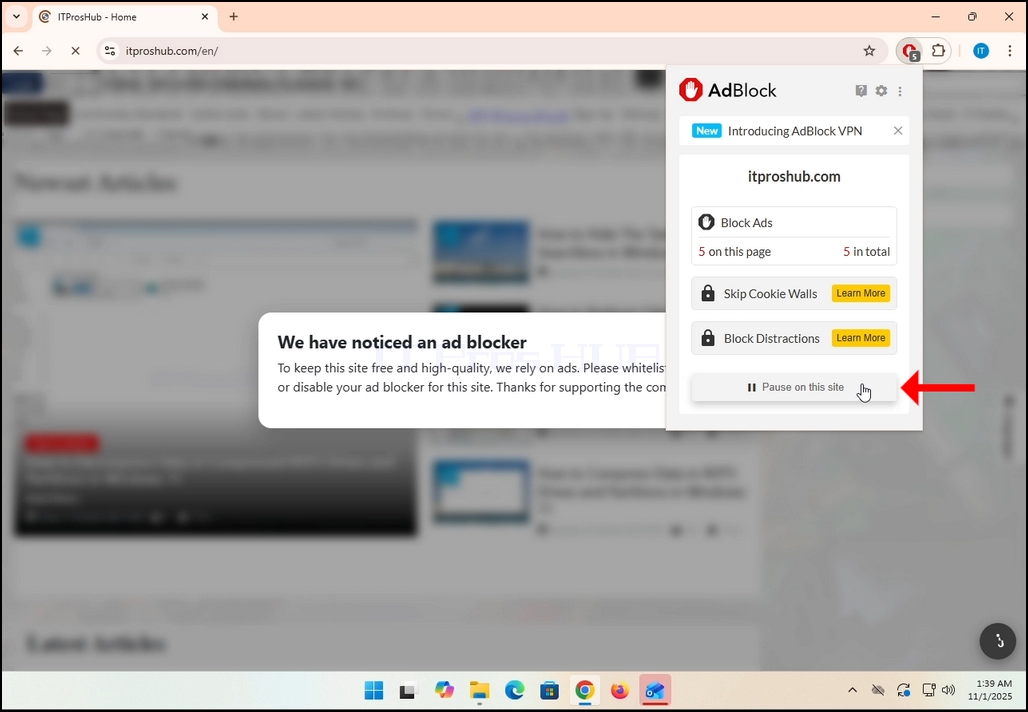
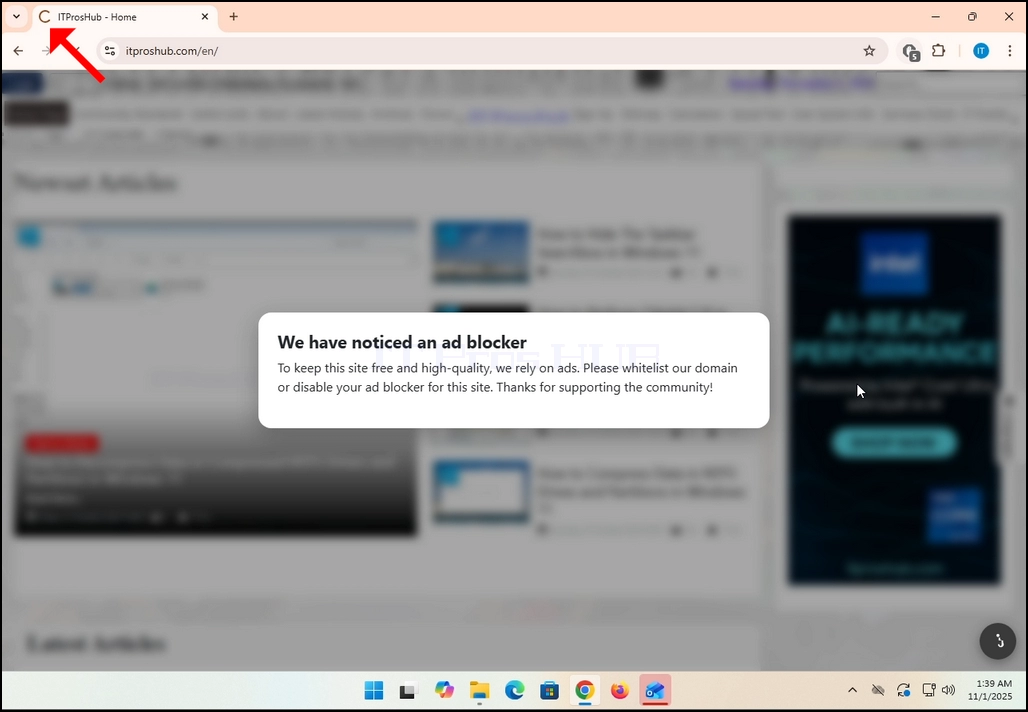
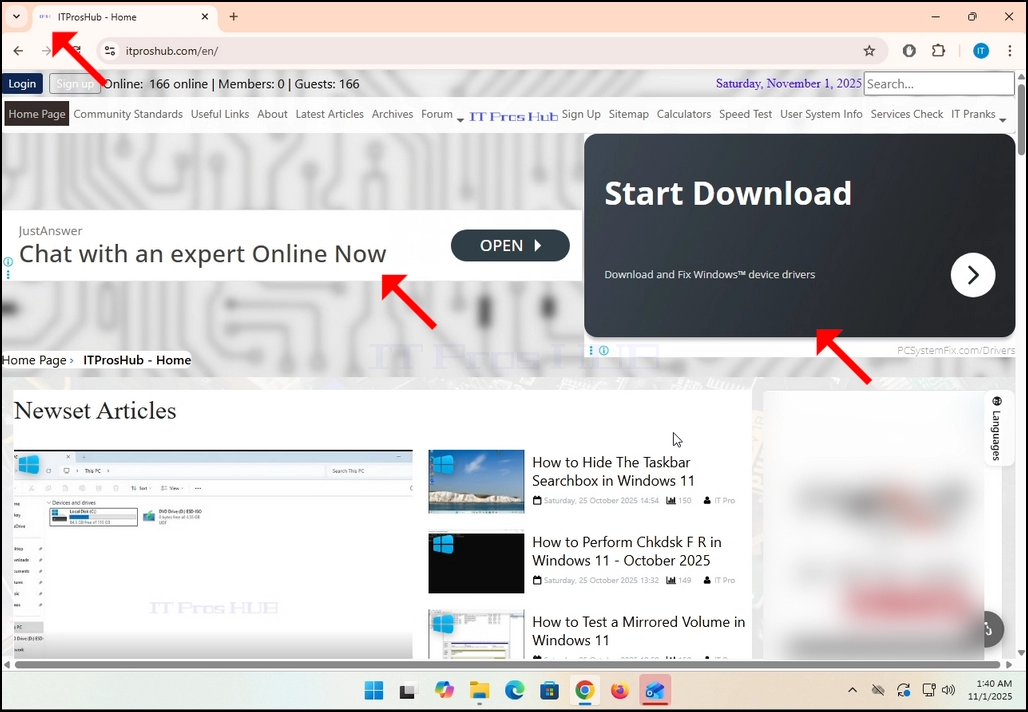
6. Once clicked, the website in question, in our case; itproshub.com, will be automatically reloaded, this time however with all the ads apparent.
- დეტალები
- ავტორი: IT Pro
- კატეგორია: How to Articles
- გადასვლები: 7246
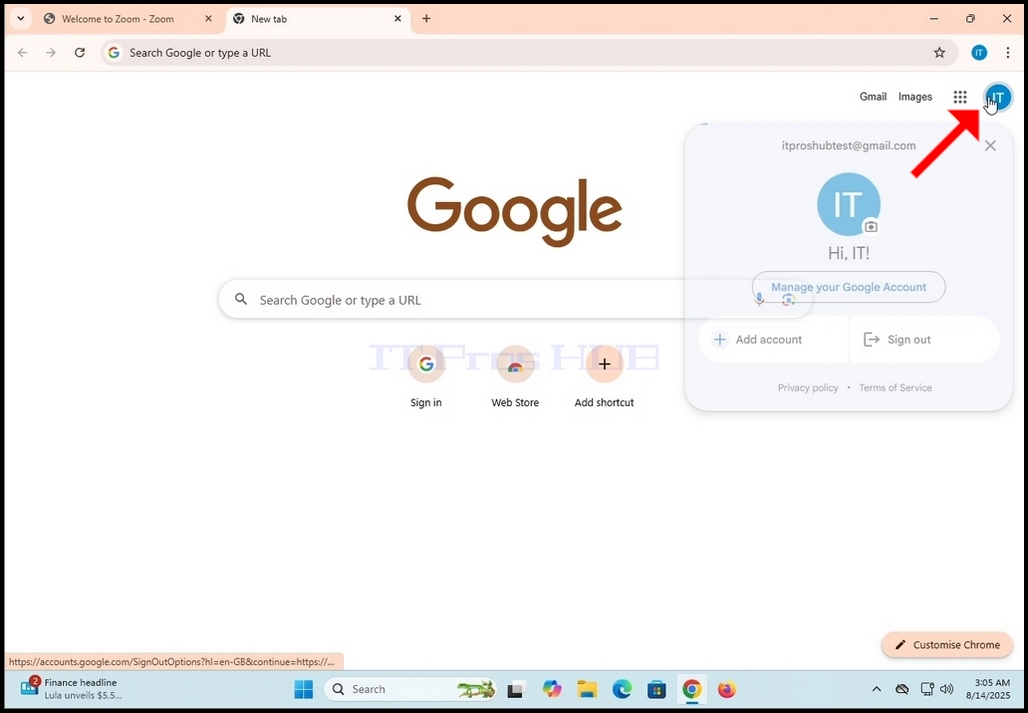
1. გადადით Google-ის მთავარ გვერდზე (ან ნებისმიერ სხვა Google გვერდზე, რომელზეც თქვენი Google ანგარიშის ინიციალების ხატულაა ნაჩვენები) და დააწკაპუნეთ ხატულაზე, რომელზეც თქვენი Google ანგარიშის ინიციალებია ნაჩვენები. ის ეკრანის ზედა მარჯვენა კუთხეში უნდა იყოს.
2. დაელოდეთ პატარა მენიუს გამოჩენას.
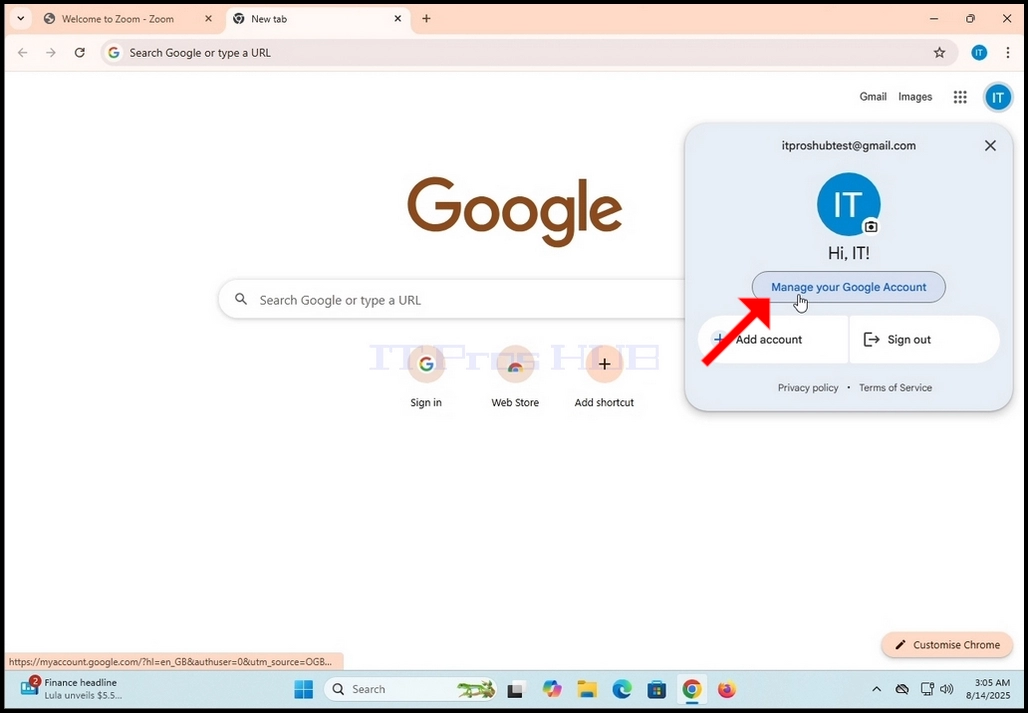
3. ამ მენიუში მოძებნეთ ღილაკი თქვენი Google ანგარიშის მართვა და დააწკაპუნეთ მასზე. დაელოდეთ Google ანგარიშის მართვის გვერდის ჩატვირთვას
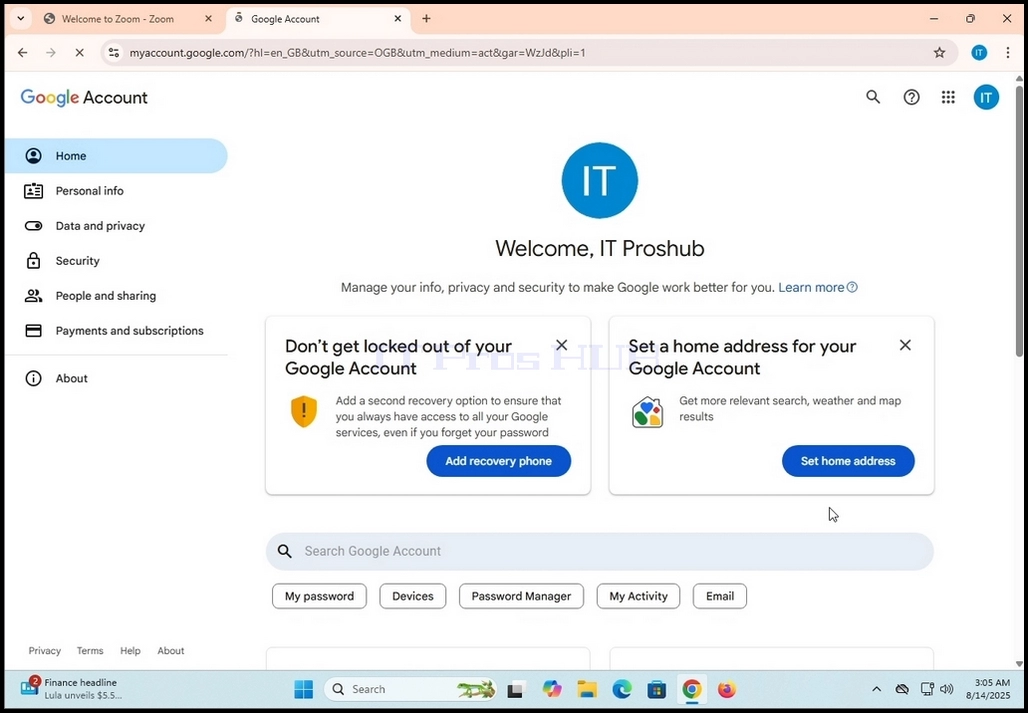
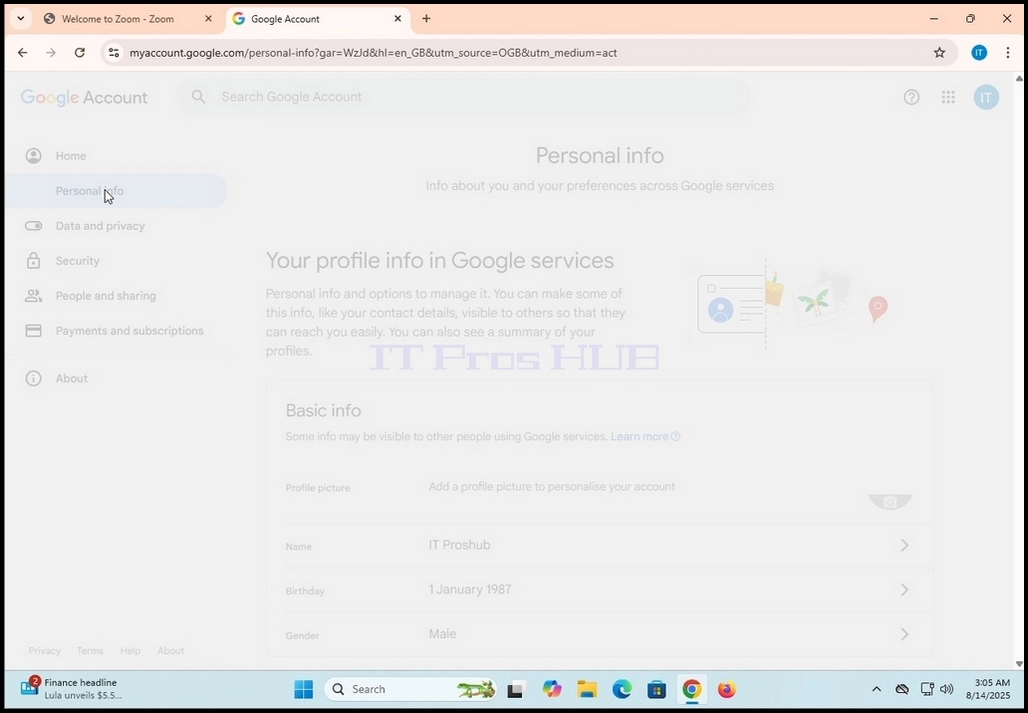
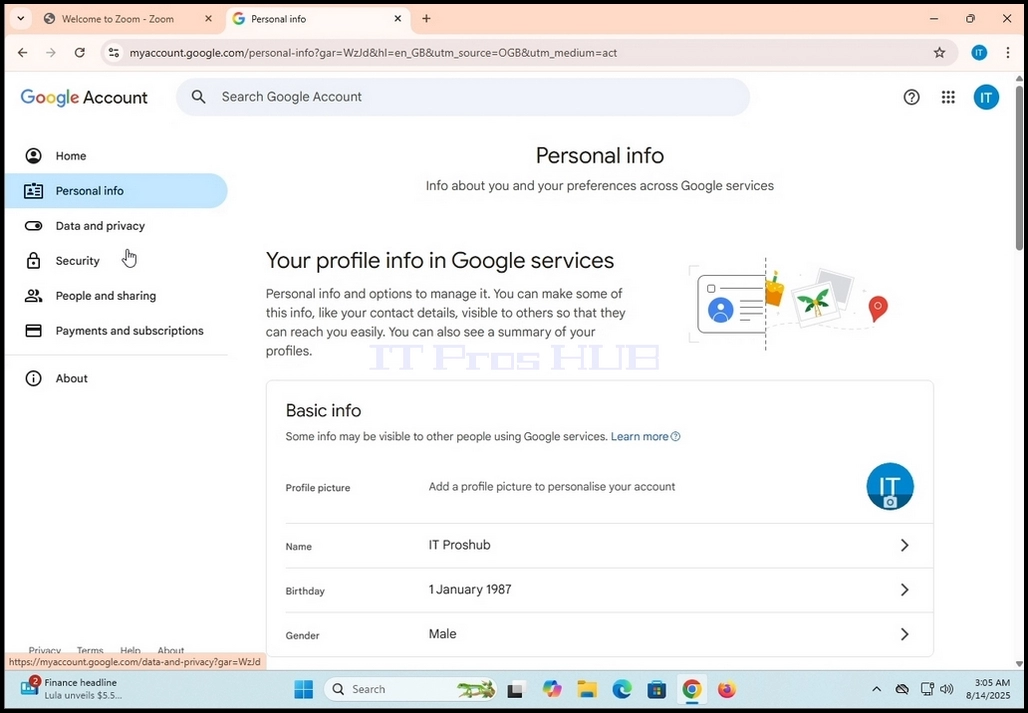
4. მას შემდეგ, რაც Google ანგარიშის მართვის გვერდი ჩაიტვირთება, გადადით მარცხენა პანელის მენიუში და მოძებნეთ წინადადება პერსონალური ინფორმაცია. ერთხელ დააწკაპუნეთ მასზე და დაელოდეთ პერსონალური ინფორმაციის გვერდის ჩატვირთვას.
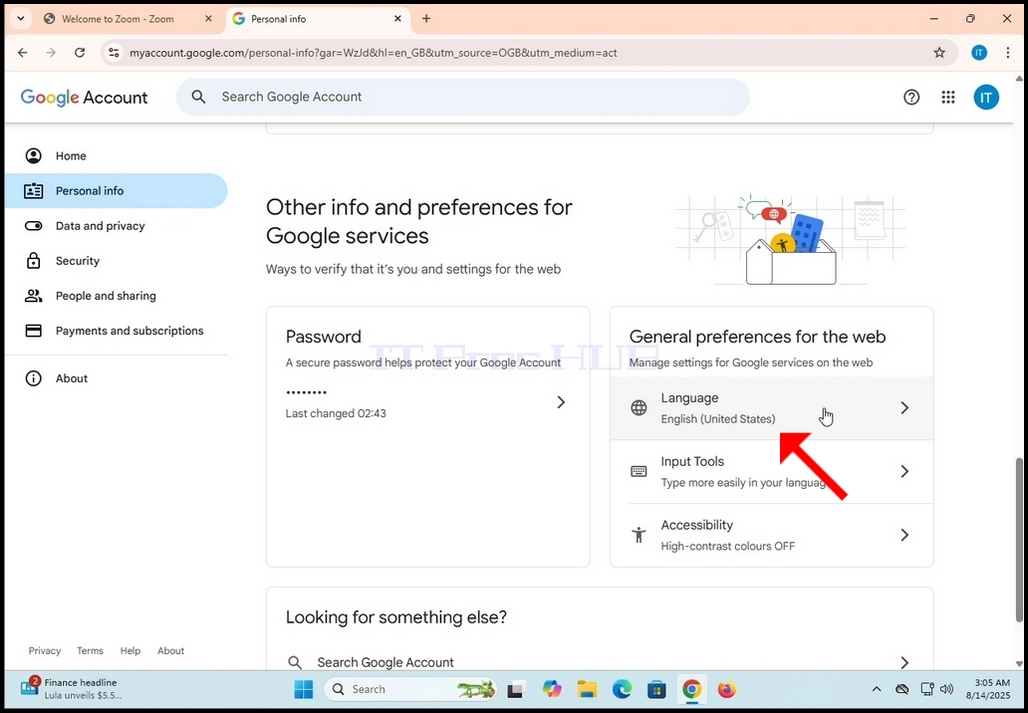
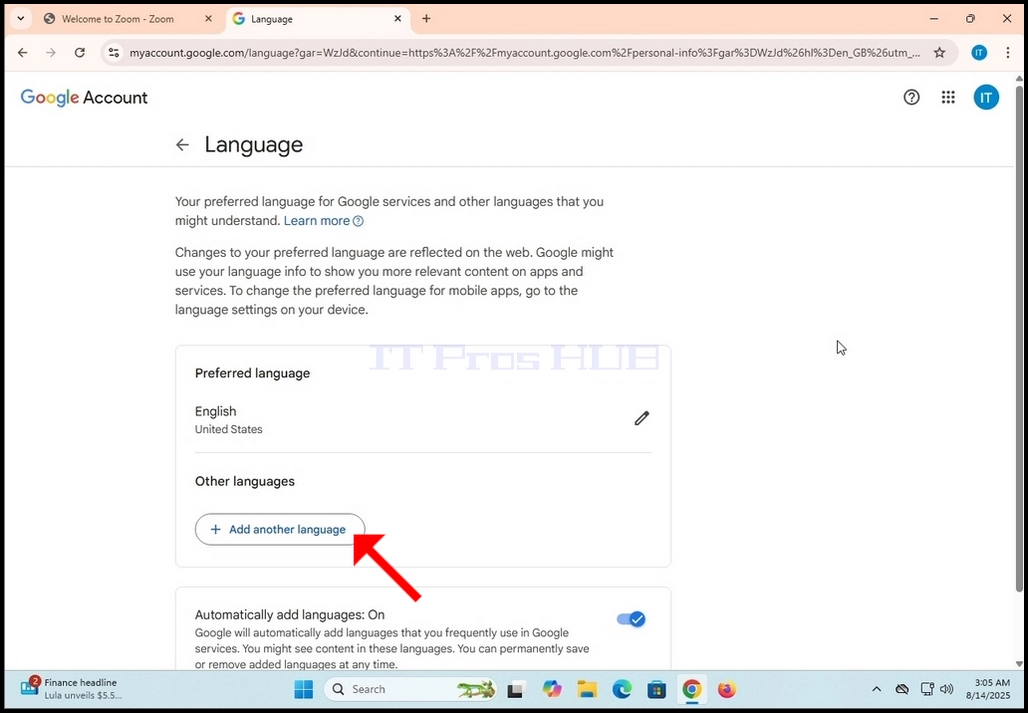
5. ახლად ჩატვირთულ პერსონალური ინფორმაციის გვერდზე, გადაახვიეთ ქვემოთ გვერდზე, სანამ მარცხენა პანელში არ იპოვით ვებსაიტის ზოგადი პარამეტრები ველს. ამ ველის ქვეშ, თქვენ უნდა დაინახოთ ღილაკი ენა, რომელიც გლობუსის პატარა ხატულას გვერდით იქნება განთავსებული. დააწკაპუნეთ მასზე ერთხელ. დაელოდეთ ენის გვერდის ჩატვირთვას.
6. ენის გვერდზე, სასურველი ენის ველში, მოძებნეთ ღილაკი + სხვა ენის დამატება და ერთხელ დააწკაპუნეთ მასზე.
7. შემდეგ გვერდზე აირჩიეთ დამატებითი ენა, რომლის დამატებაც გსურთ თქვენს Google ანგარიშში.