



- Details
- Written by: IT Pro
- Category: How to Articles
- Hits: 11912
1. Open Chrome browser
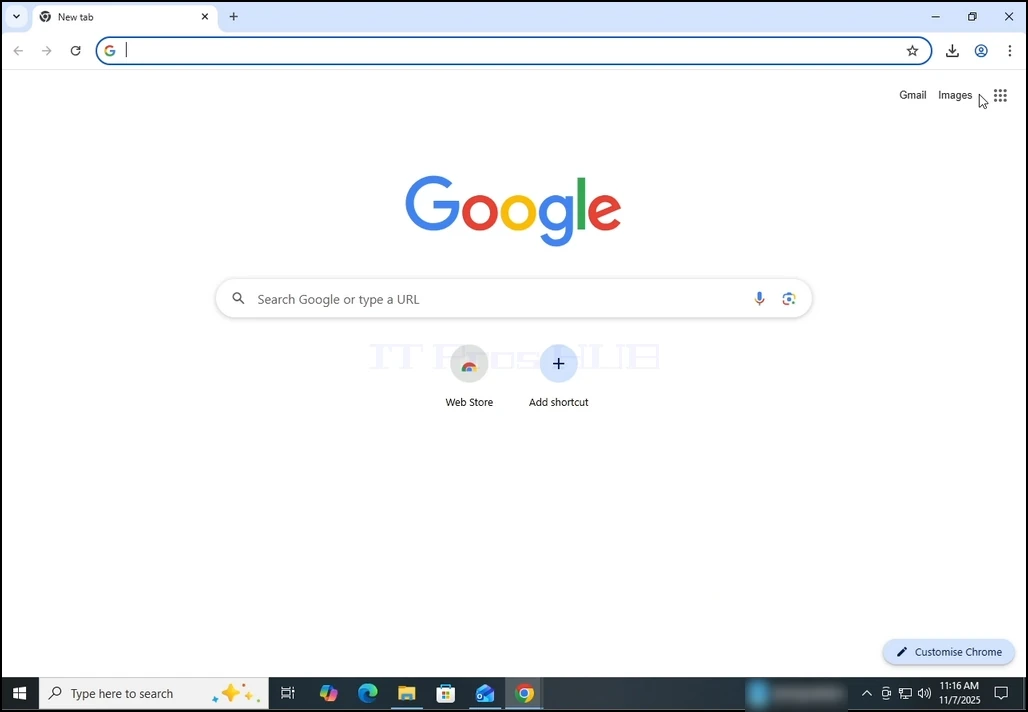
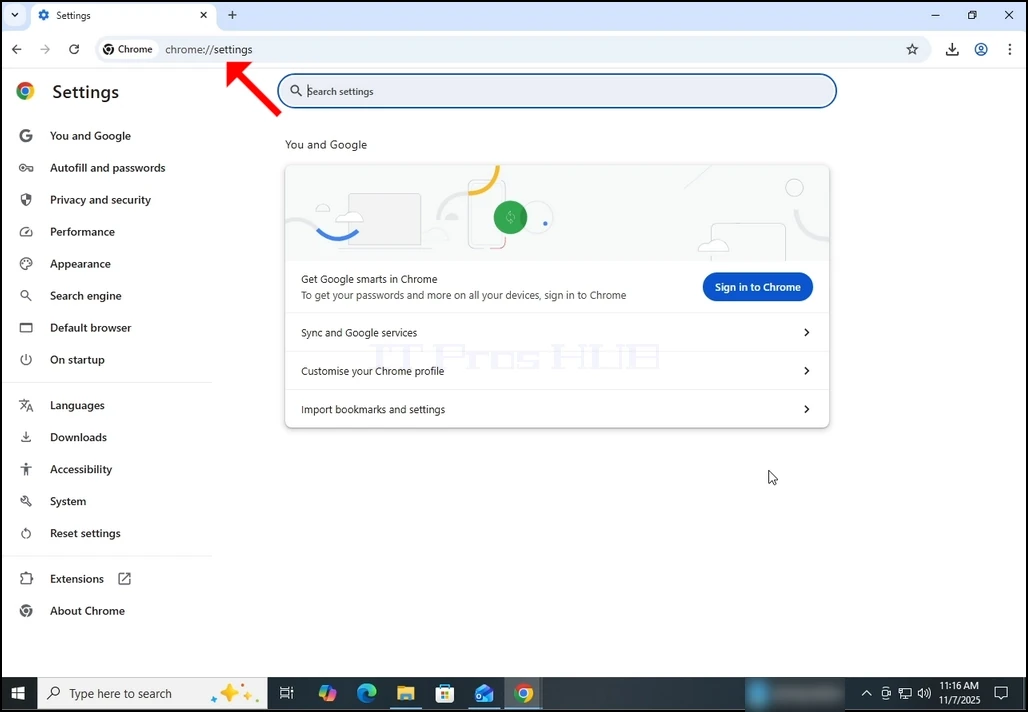
2. In Chrome's address bar, type the following address:
chrome://settings
and hit the ENTER key. Wait for the Chrome settings window to appear.
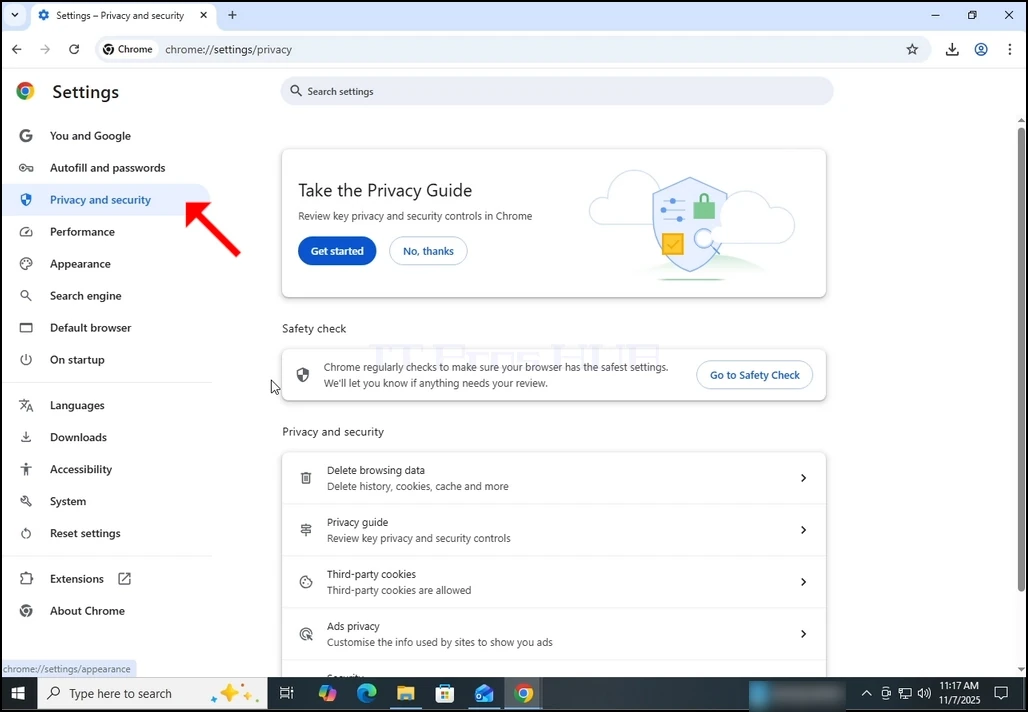
3. On the left pane, go to Privacy and Security and click on it:
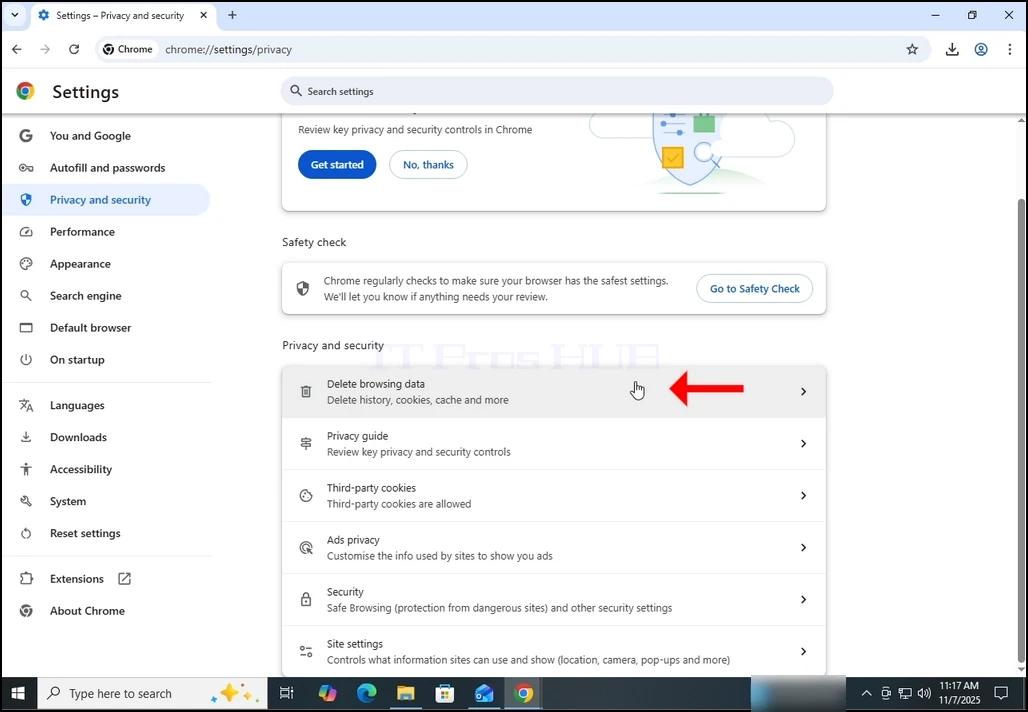
4. Now, on the right pane, go to Delete browsing data and click on it. Wait for the Delete browsing data window to appear :
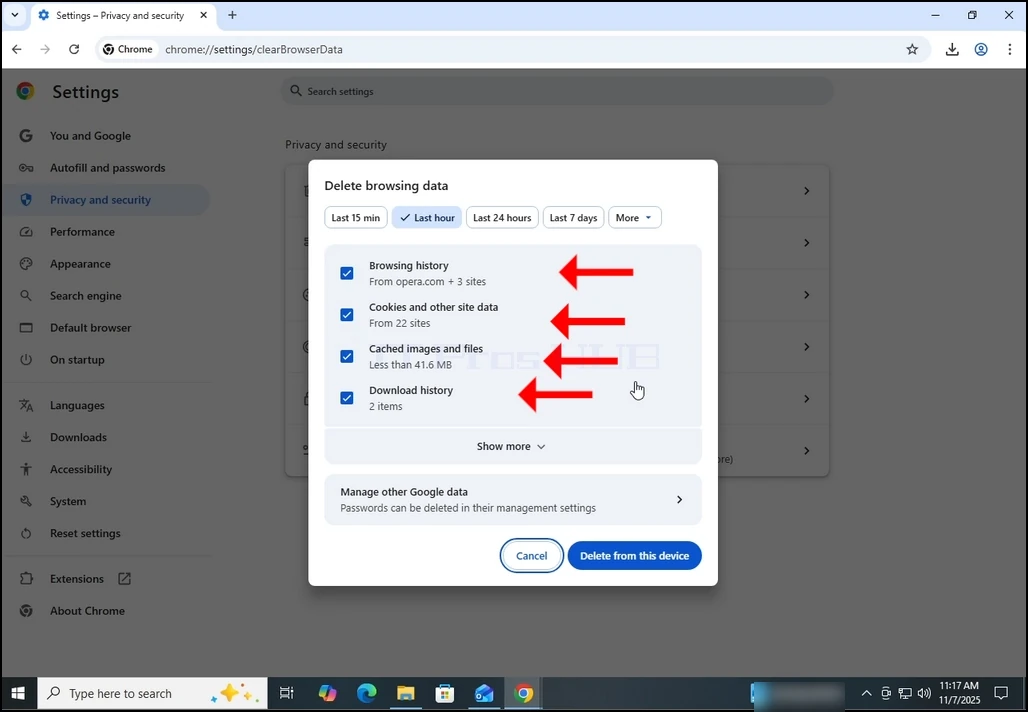
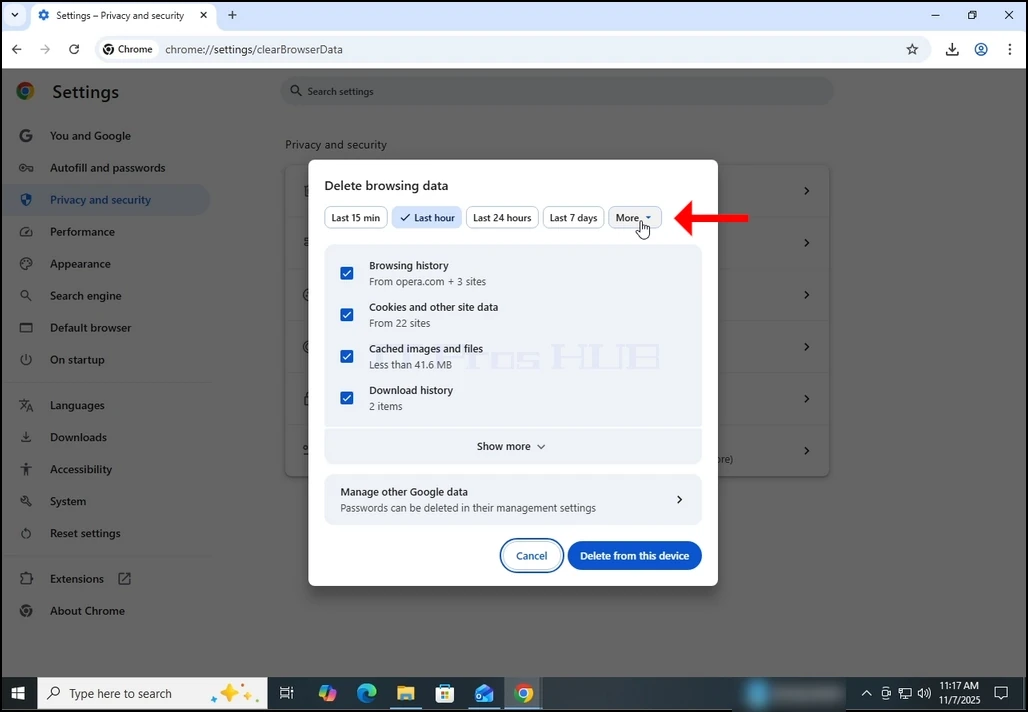
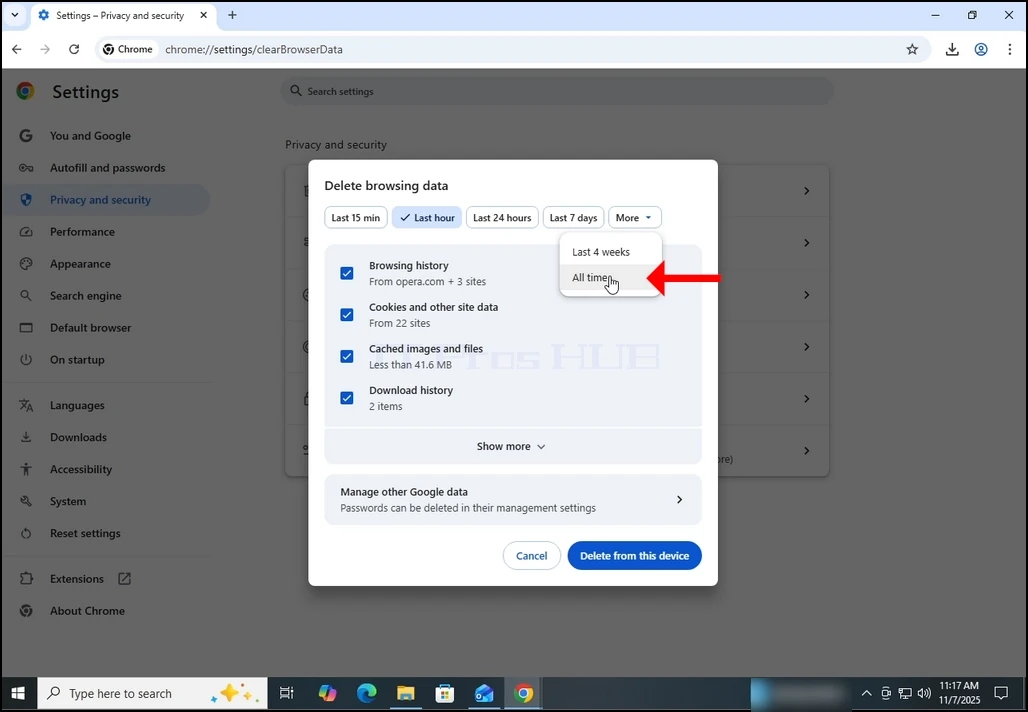
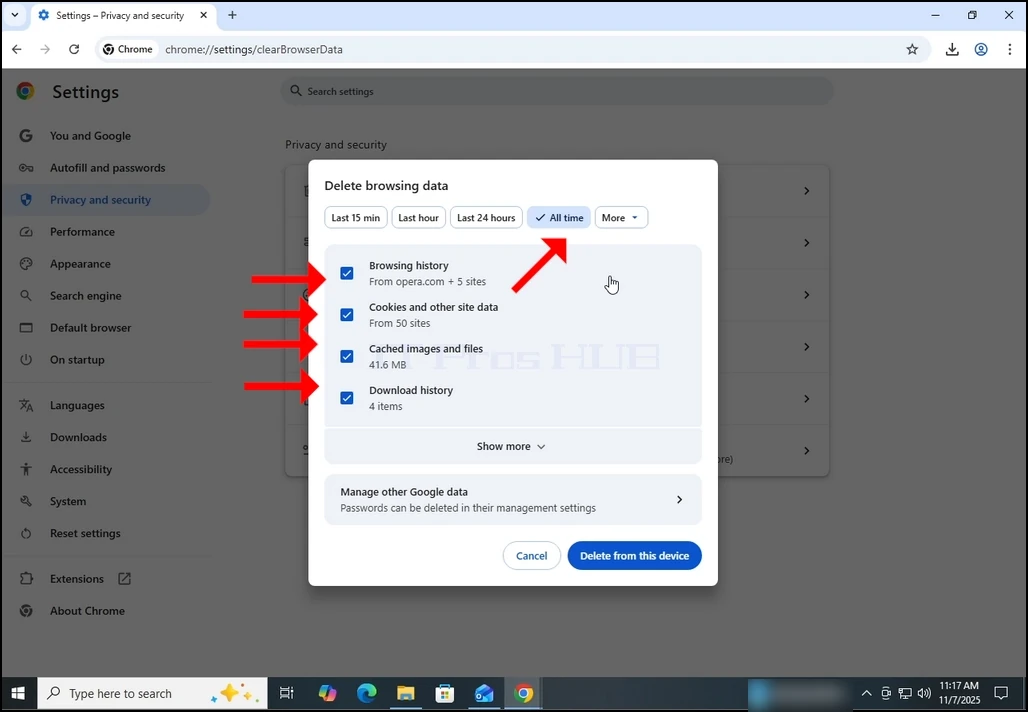
5. After the Delete browsing data window appears, mark ALL of the 4 options:
- Browsing history
- Cookies and other site data
- Cached images and files
- Download history
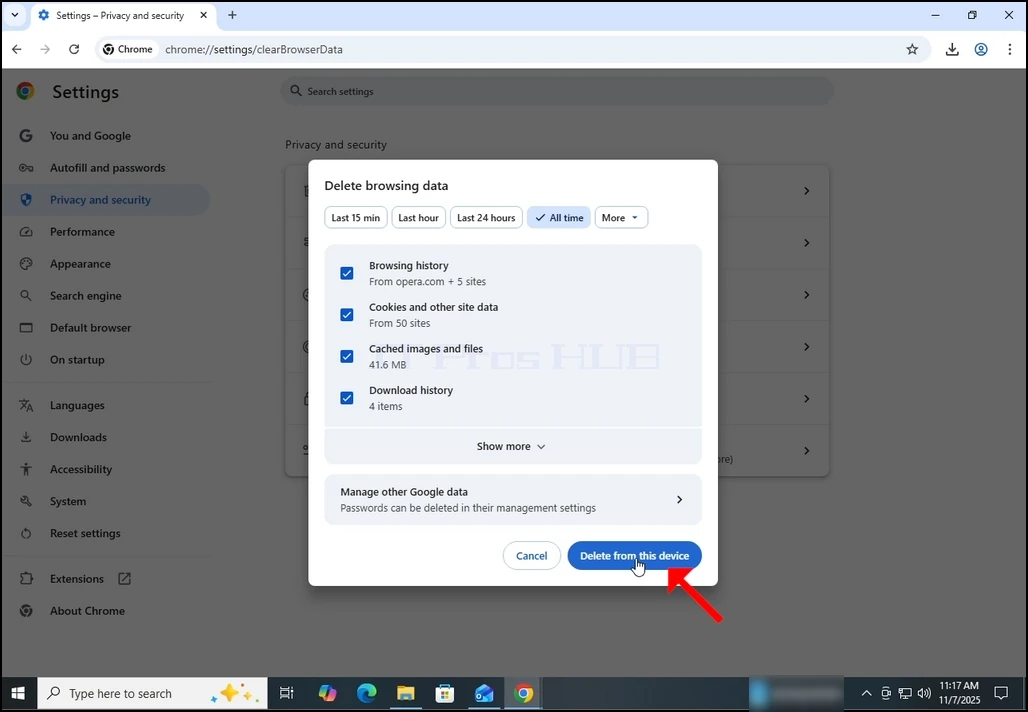
9. Wait for the data to be deleted:
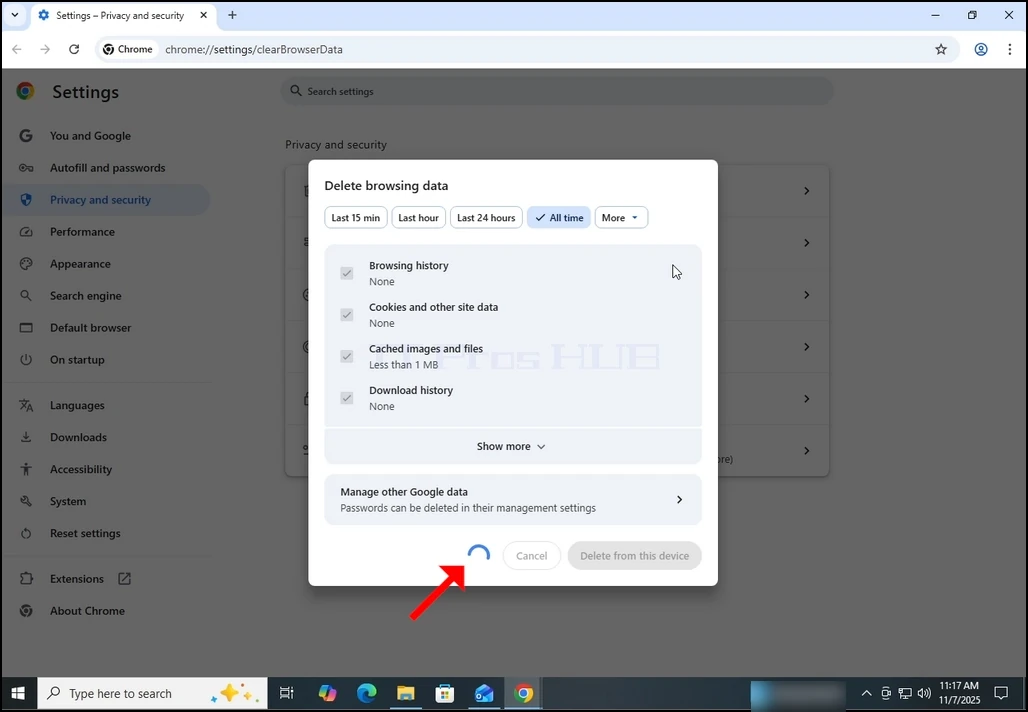
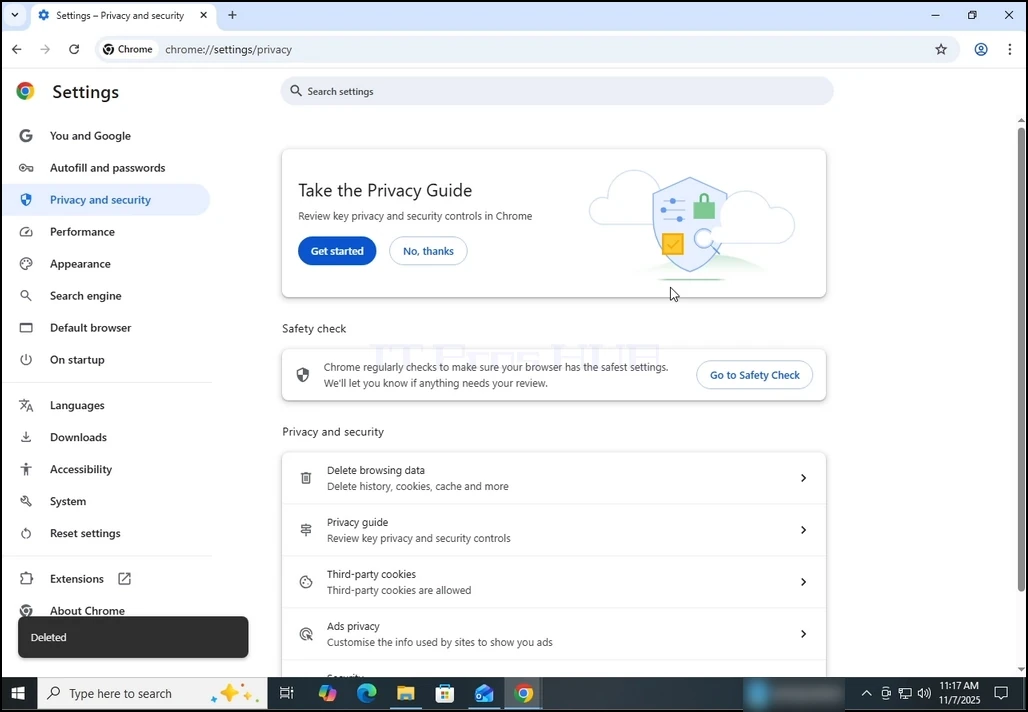
10. Once done, the Delete browsing data window will close itself:
- Details
- Written by: IT Pro
- Category: How to Articles
- Hits: 8200
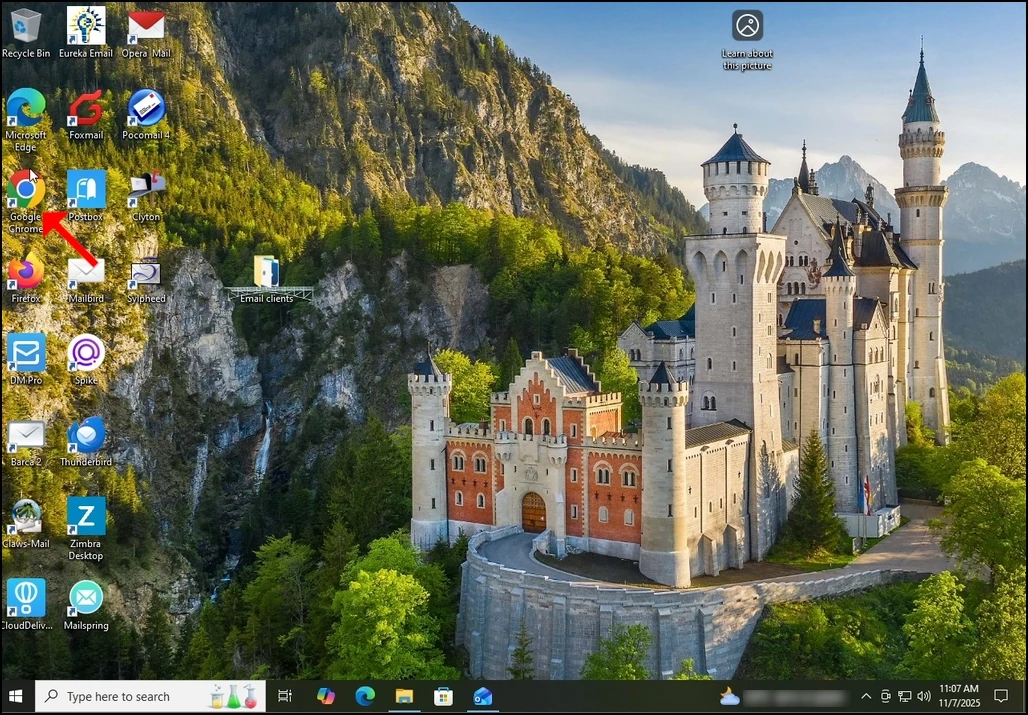
1. Open Chrome:


4. Once opened, the About Google Chrome window will start automatically check for new updates for Google chrome. If there is such an update, Chrome would notify about it by changing the update status to Updating Chrome as can be seen below:


6. Once finished, Chrome would notify you by displaying the message: "Nearly up to date! Relunch Chrome to finish updating".

8. Usually, newly updated version of Google Chrome would show this type of message upon first launch:

9. In order to make sure Google Chrome has no more updates, perform the same stages 1-4. As you can see, at the moment, there are no more updates available for Google Chrome after we have done the previous update:

- Details
- Written by: IT Pro
- Category: How to Articles
- Hits: 4619
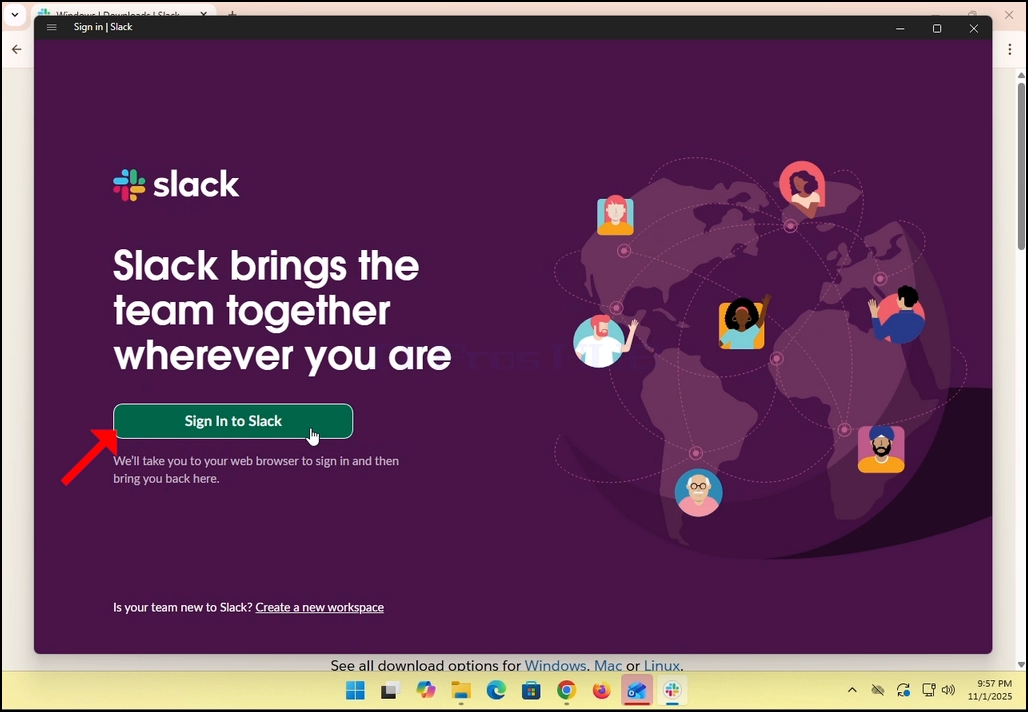
3. Slack will redirect you to a login screen in your default browser. In the case of this article, it is Chrome.
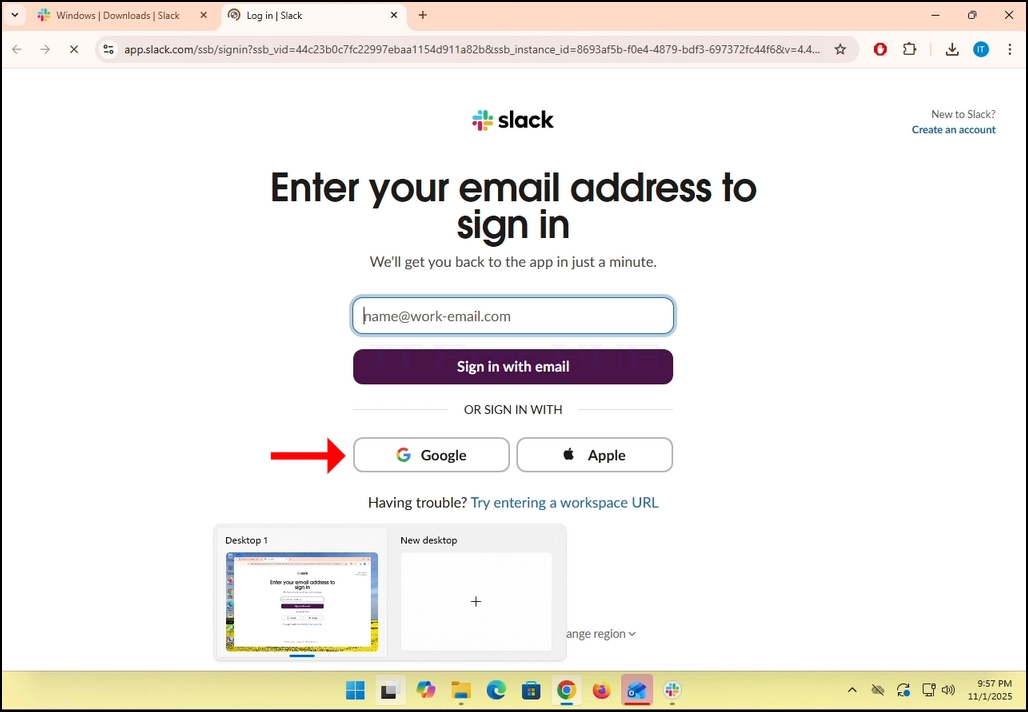
4. As you can see, Slack wants you to Enter your email address to sign in. we will use our Gmail email address to do that.
- Click the Google button and wait for the Google connector page to load.
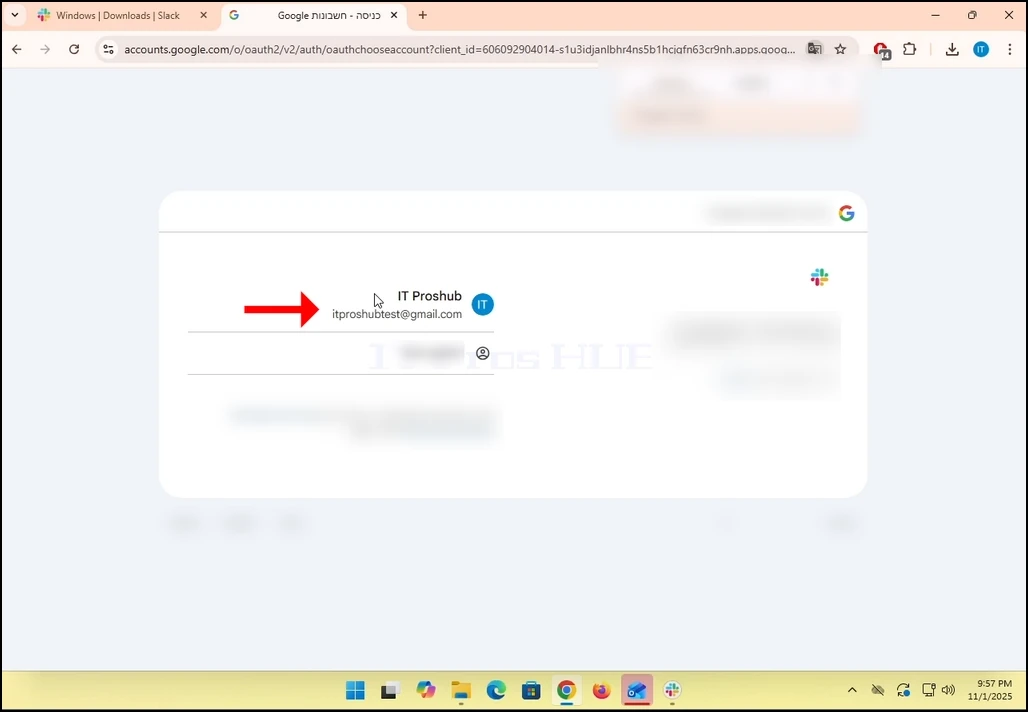
6. In the Google connector page, choose your Gmail email address. Note that in the case of this article,
7. If you are not logged into Chrome or use a different browser, just login to your Google account and then choose that account to continue.
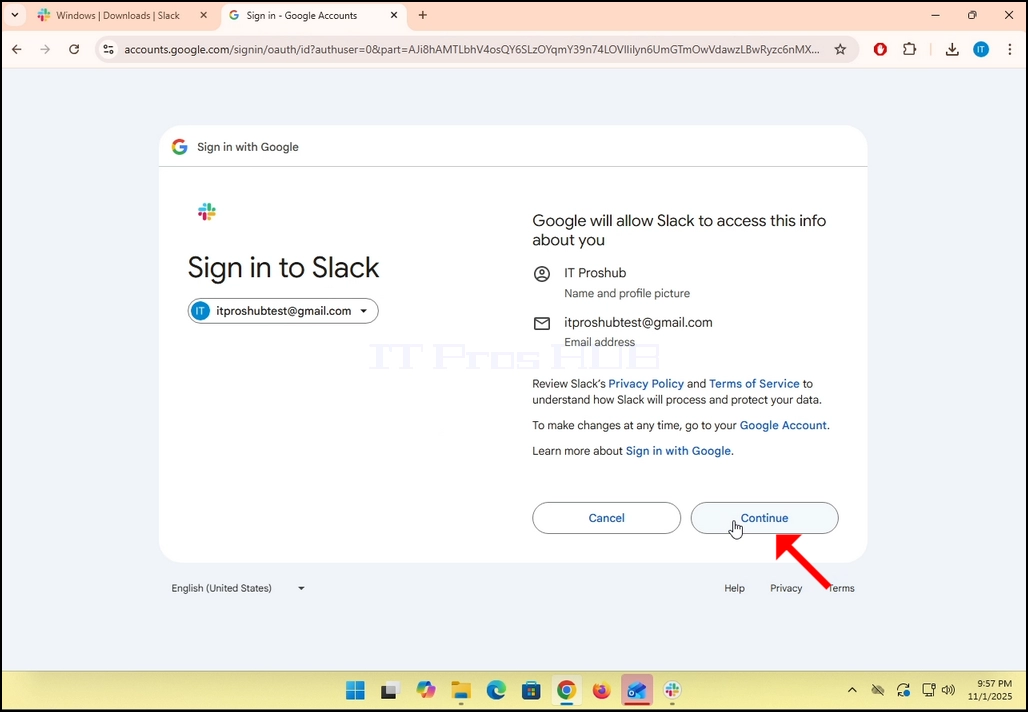
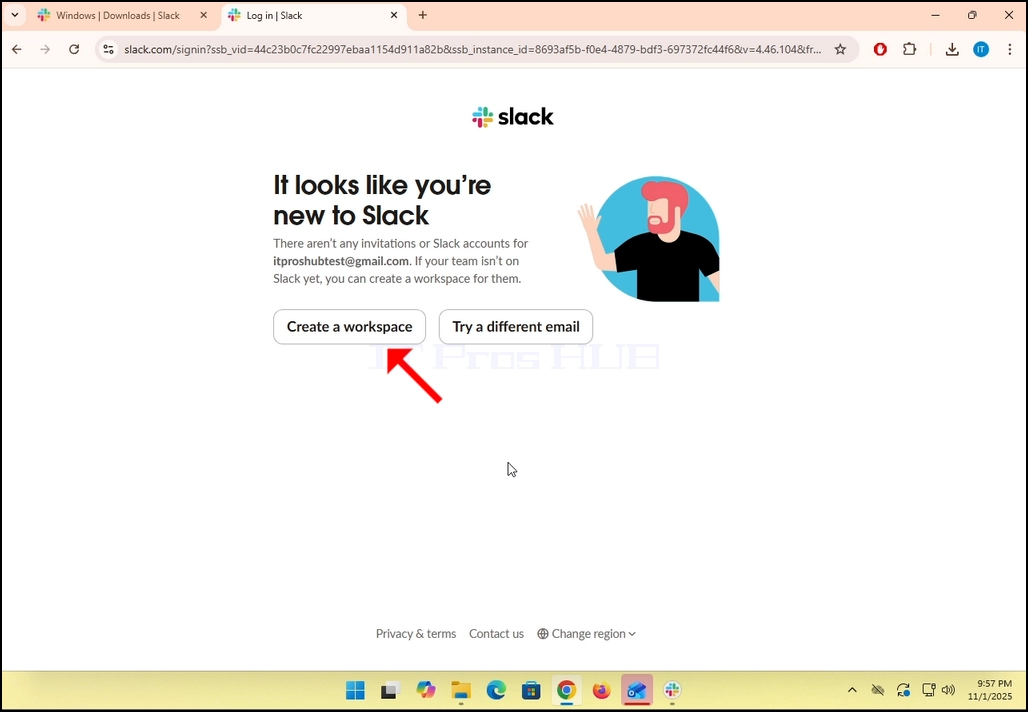
9. If you already have a Slack account under that Gmail email address, then Slack will redirect you back to itself. If not, it will ask you to either Create a workspace or Try a different email.
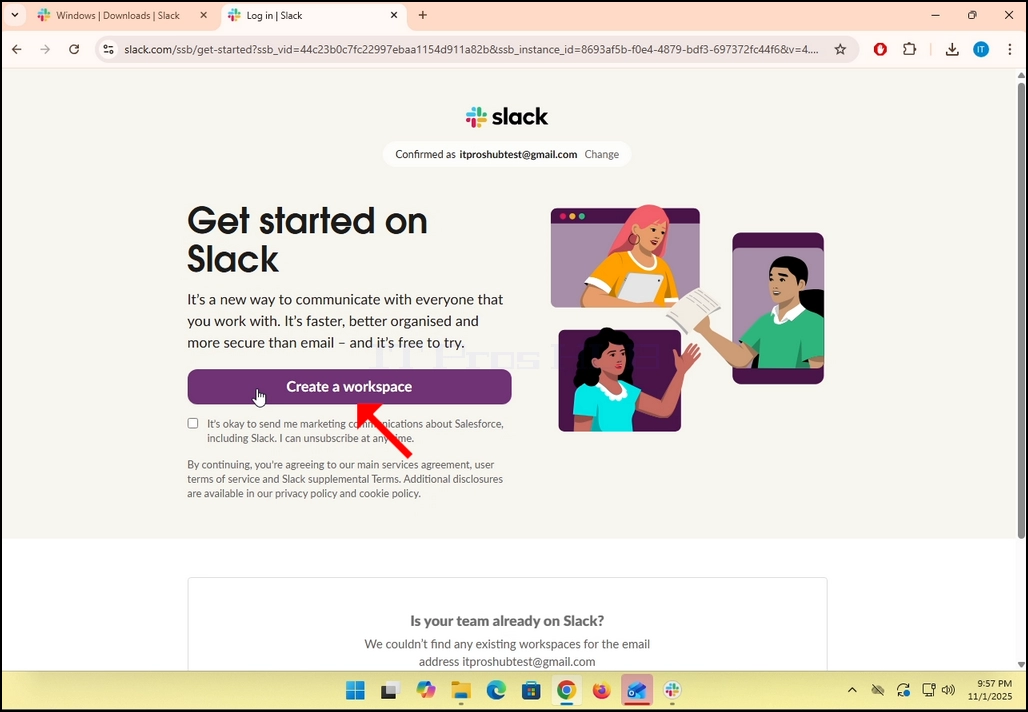
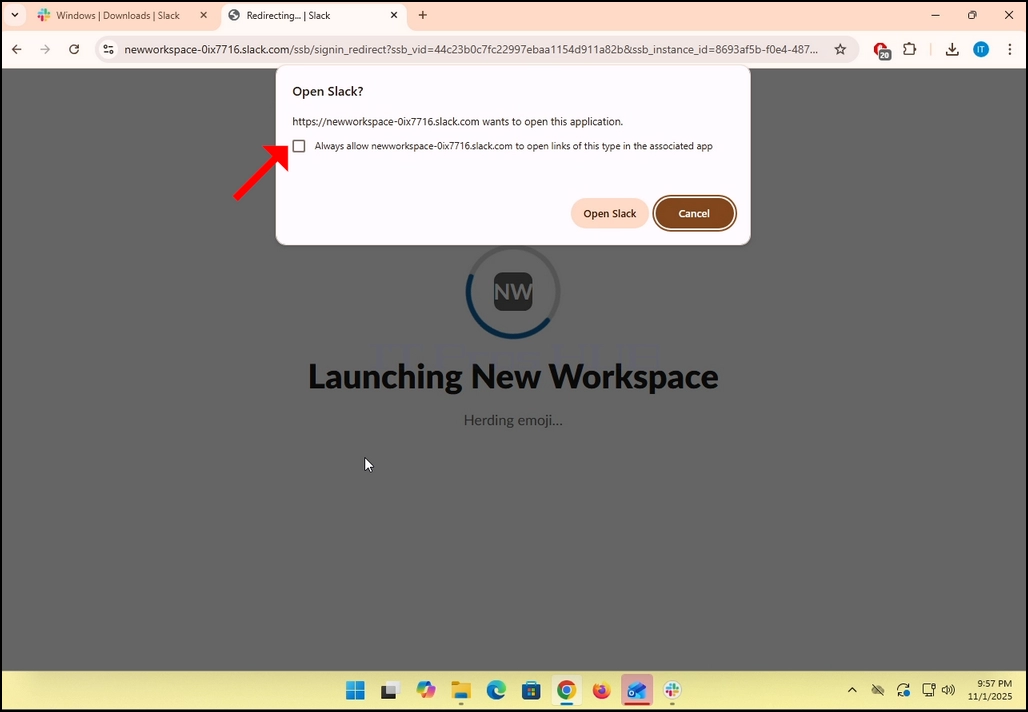
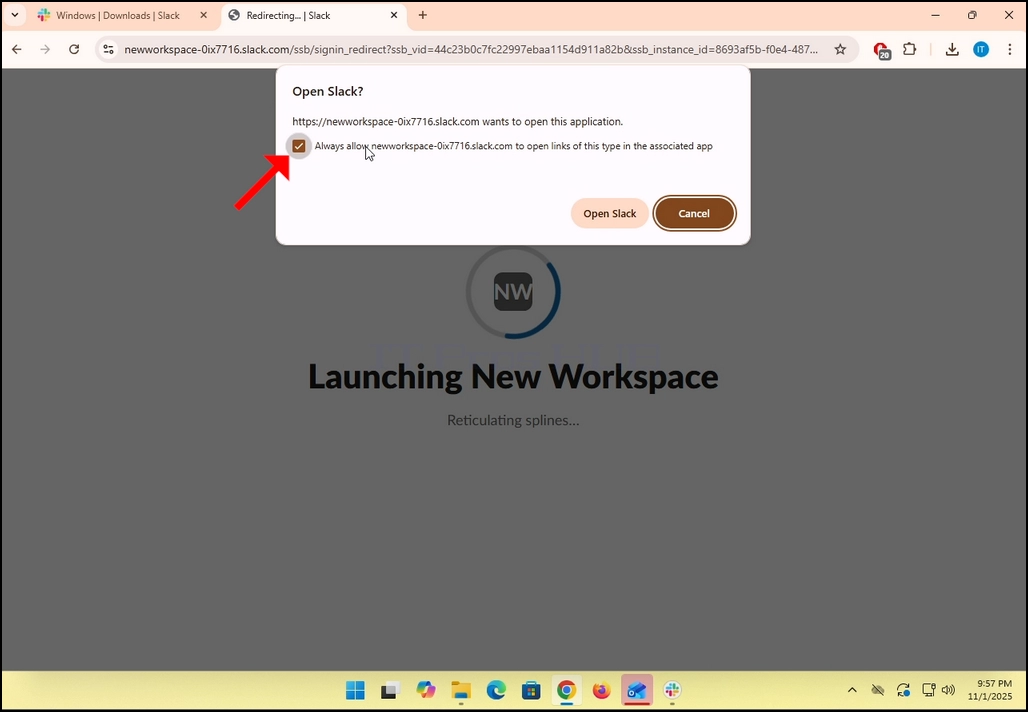
- In the case of this article, we will choose Create a workspace.
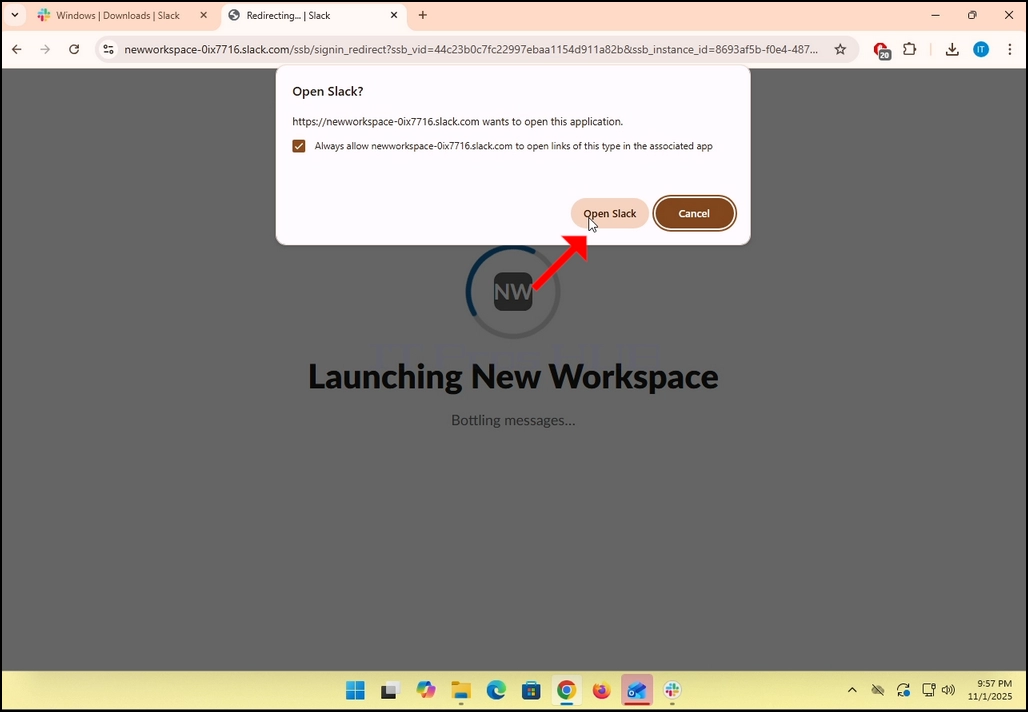
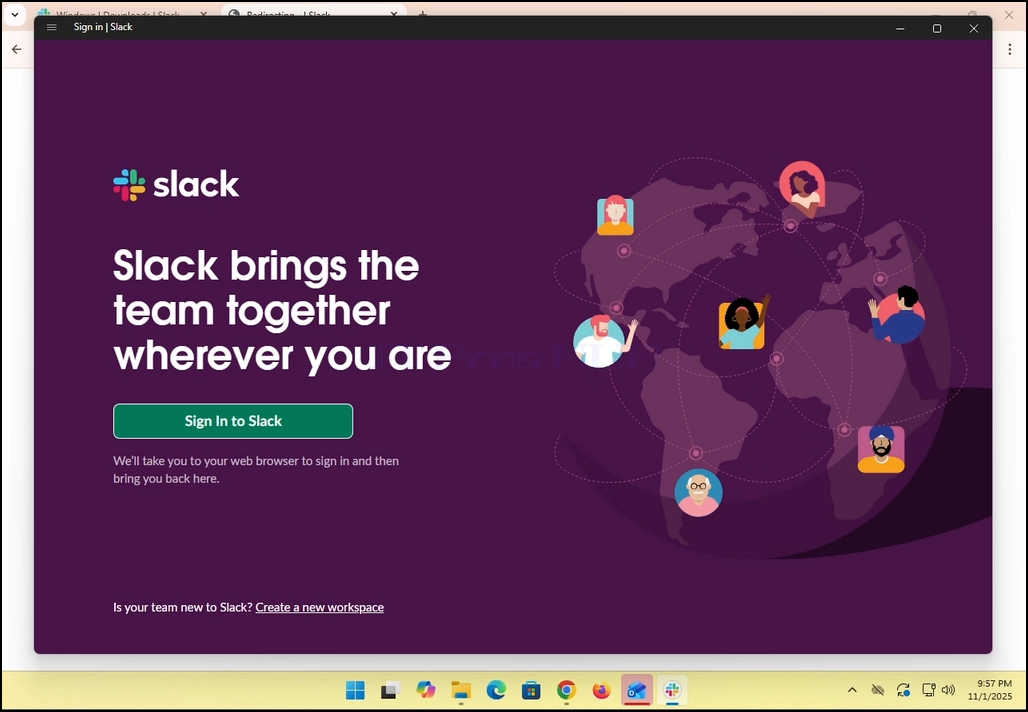
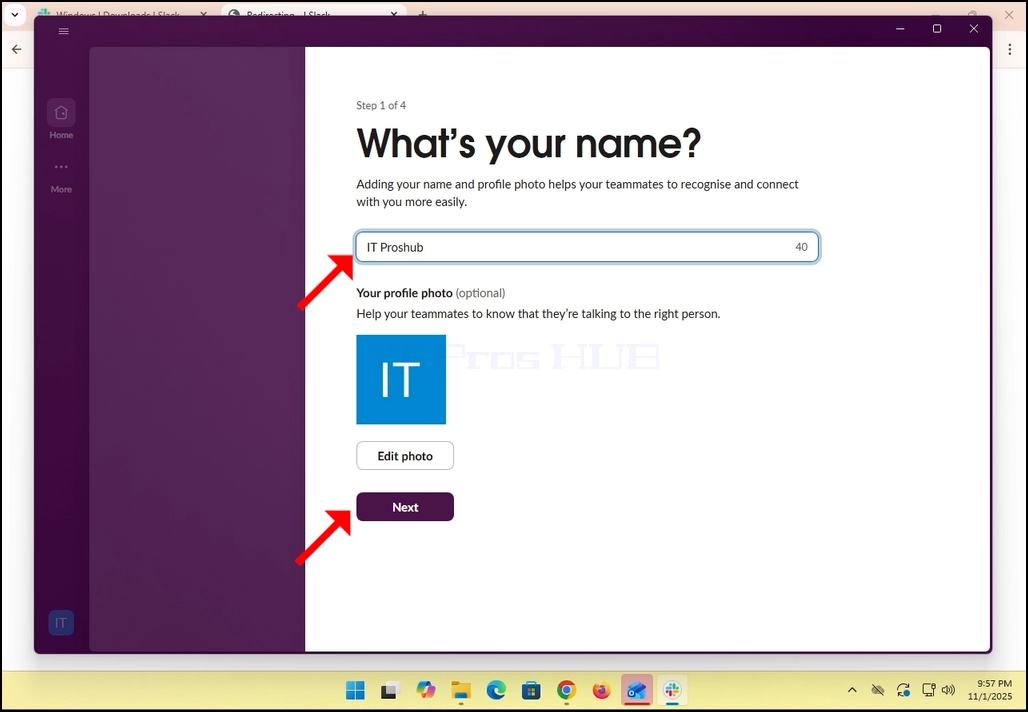
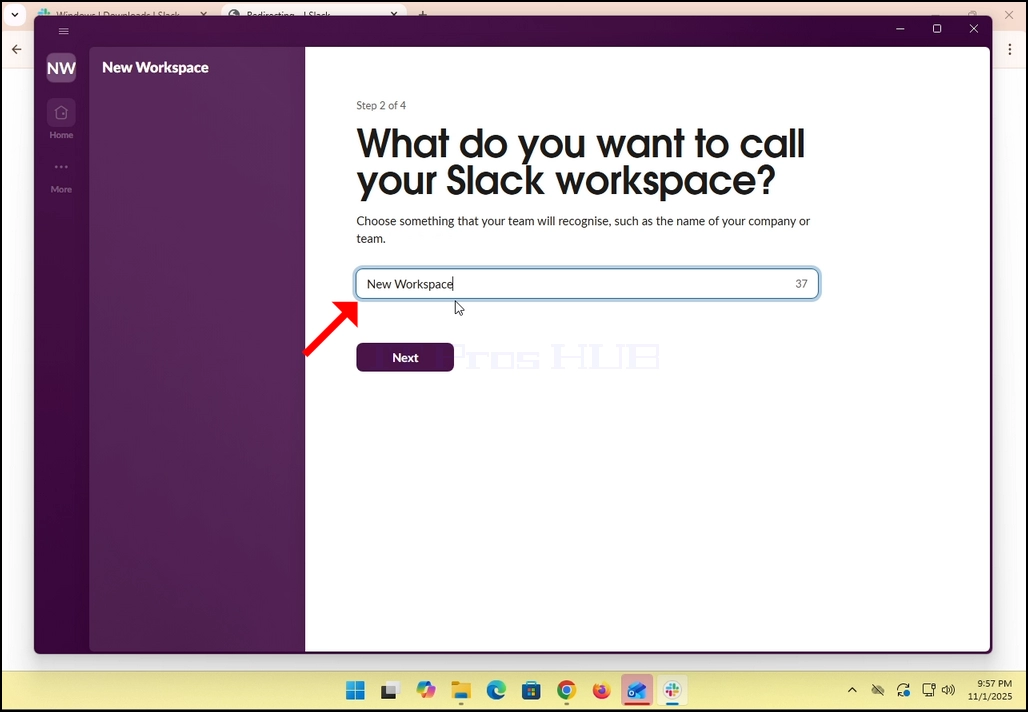
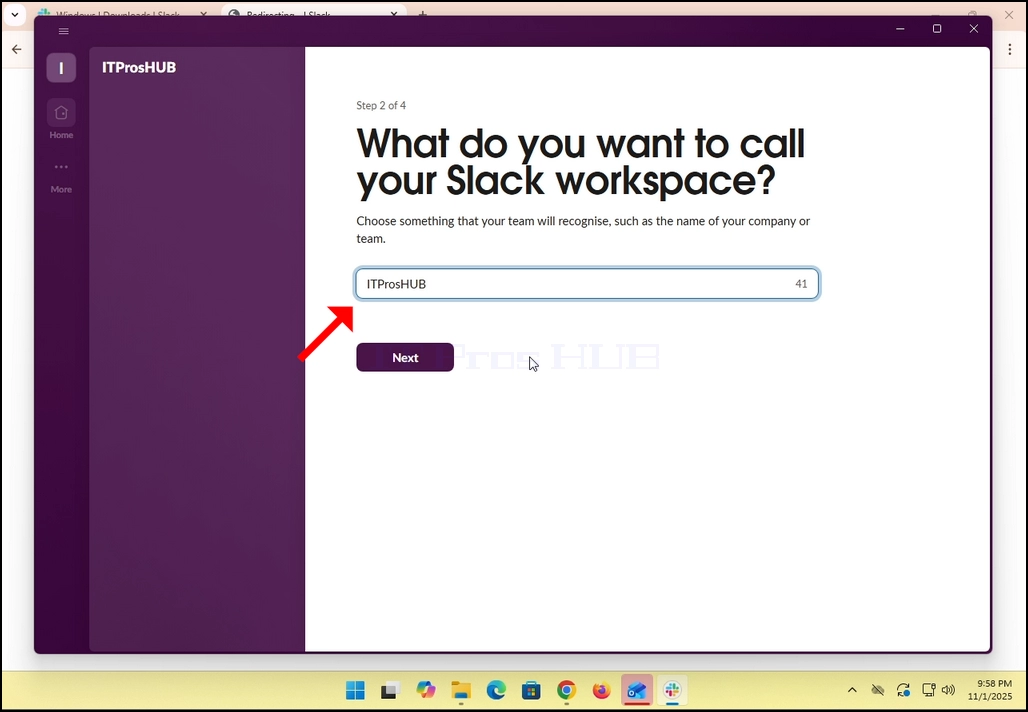
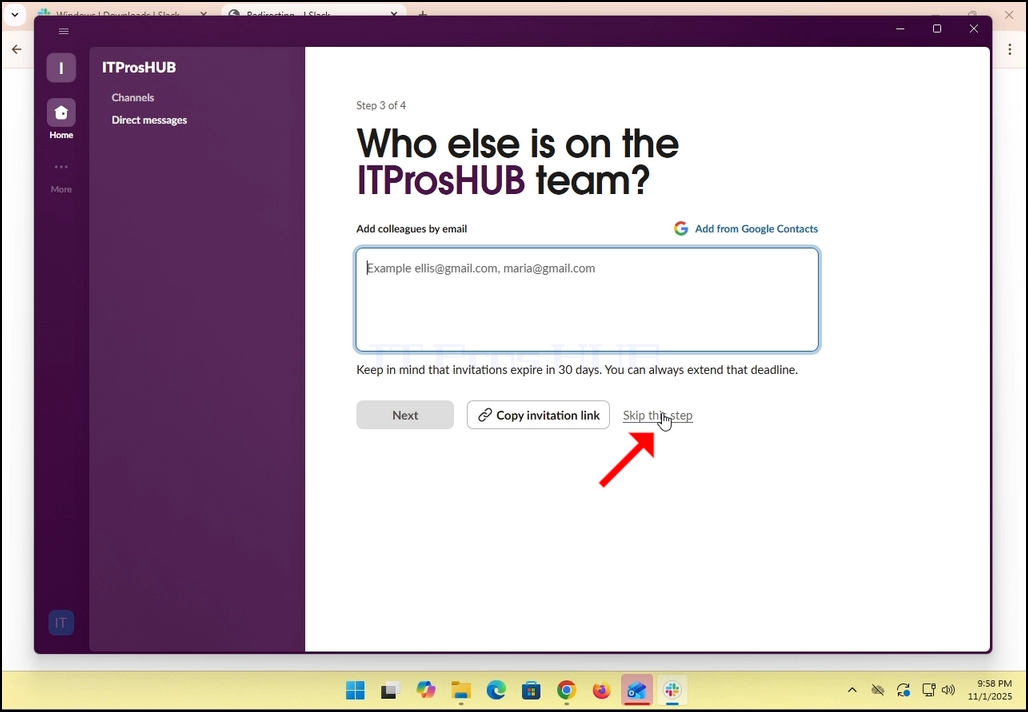
14. In the case of this article, we will skip this step by clicking in the Skip this step option.
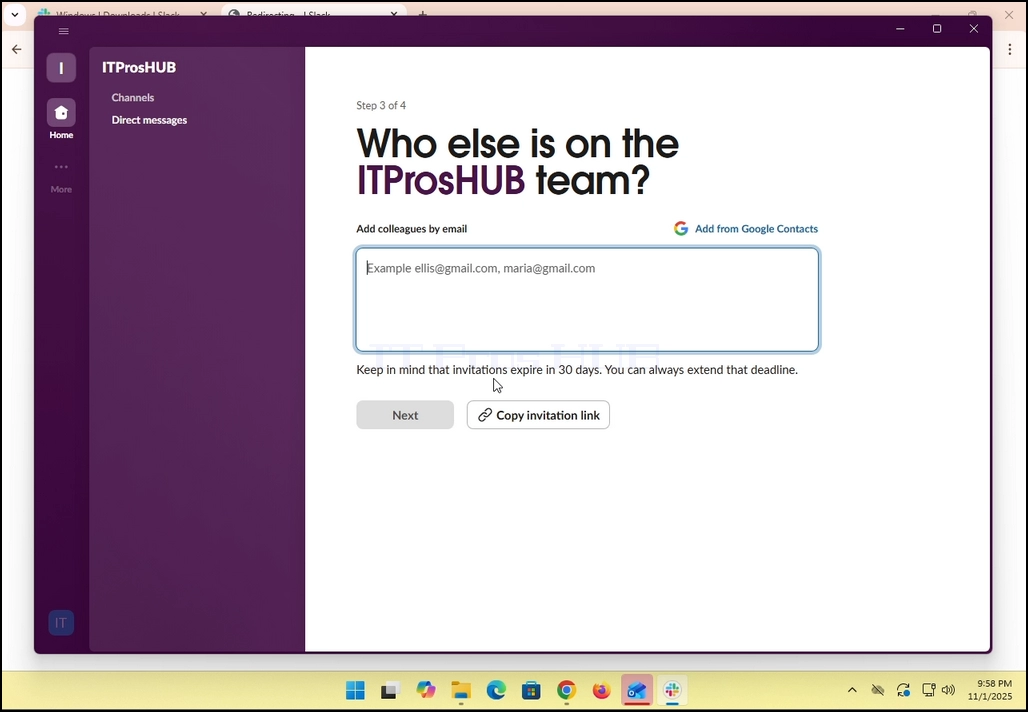
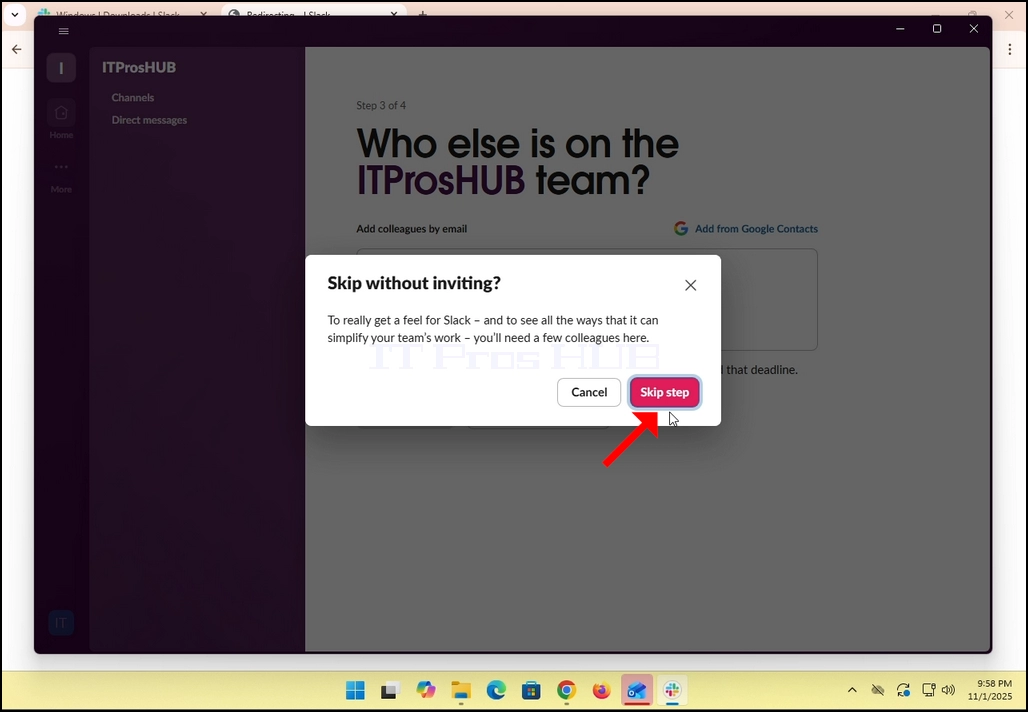
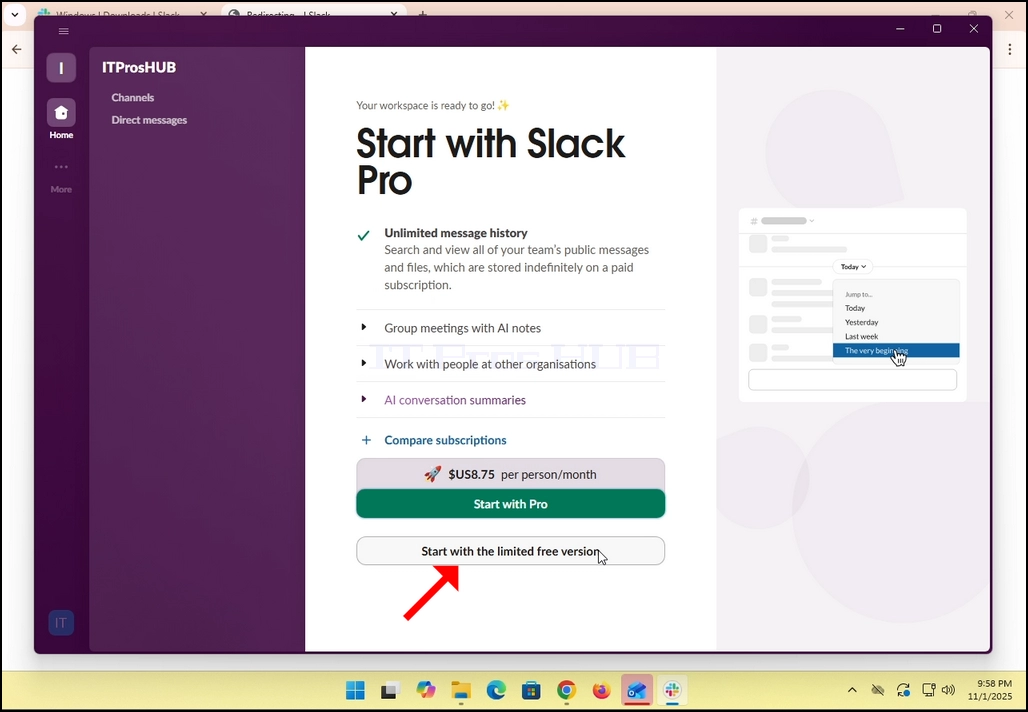
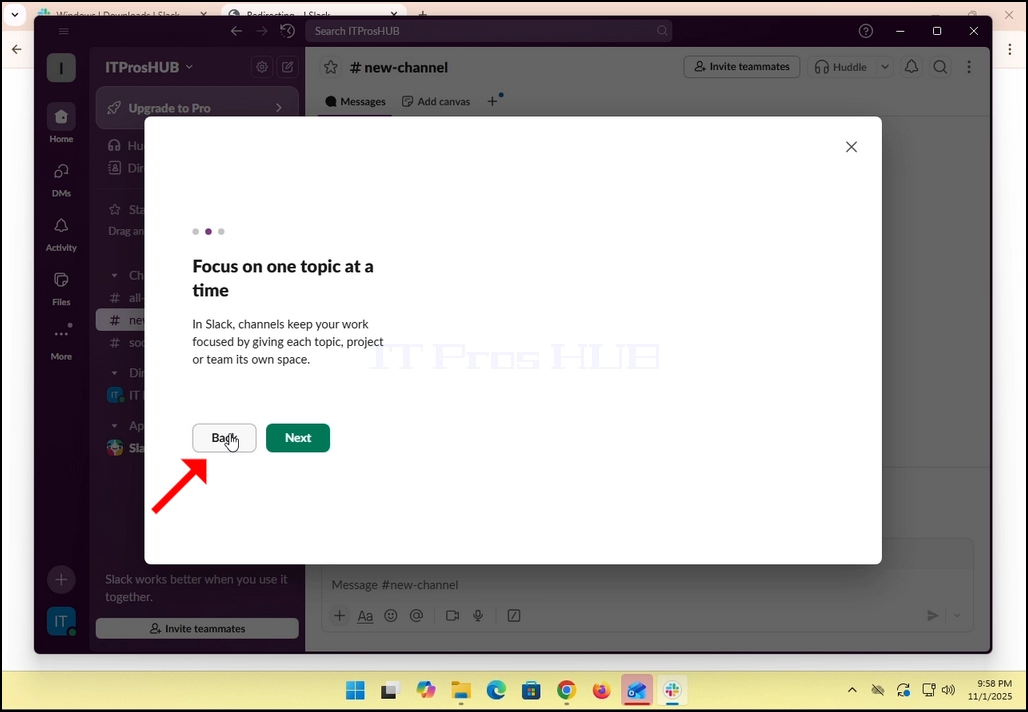
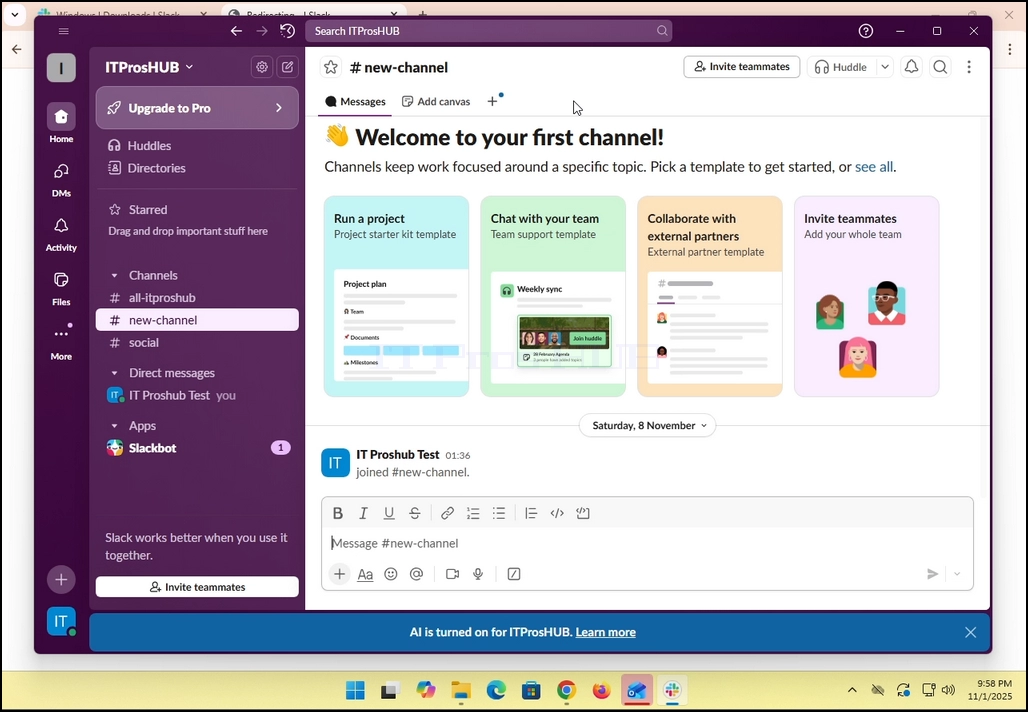
17. All done! You Slack now uses your Gmail email account!
- Details
- Written by: IT Pro
- Category: How to Articles
- Hits: 7159
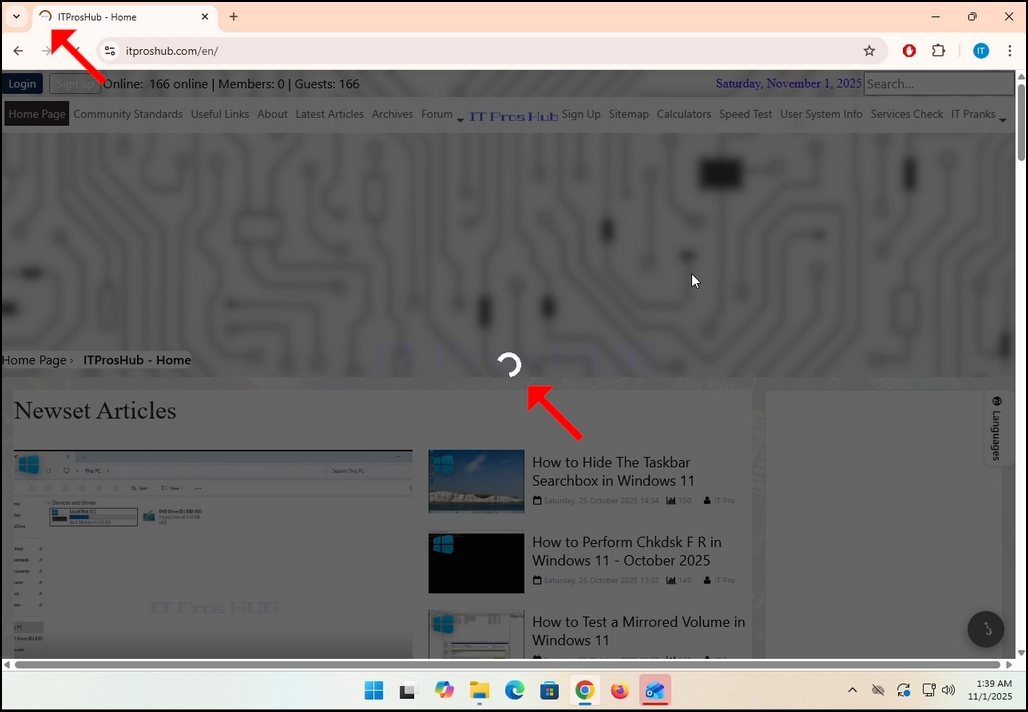
1. Fún àpilẹ̀kọ yìí, a ti gbé itproshub.com sórí ẹ̀rọ aṣàwárí Chrome kan pẹ̀lú ìfàgùn Adblock tí a fi sori ẹ̀rọ náà tí a sì ti ṣiṣẹ́. Gẹ́gẹ́ bí o ti lè rí i, algoridimu olùwádìí Adblock nínú itproshub.com ṣàwárí wíwà software Anblock kan nínú ẹ̀rọ aṣàwárí Chrome.
2. Nínú Chrome, lọ sí apá ọ̀tún òkè ti ìbòjú náà kí o sì wá àmì ìfàsẹ́yìn Adblock Chrome.
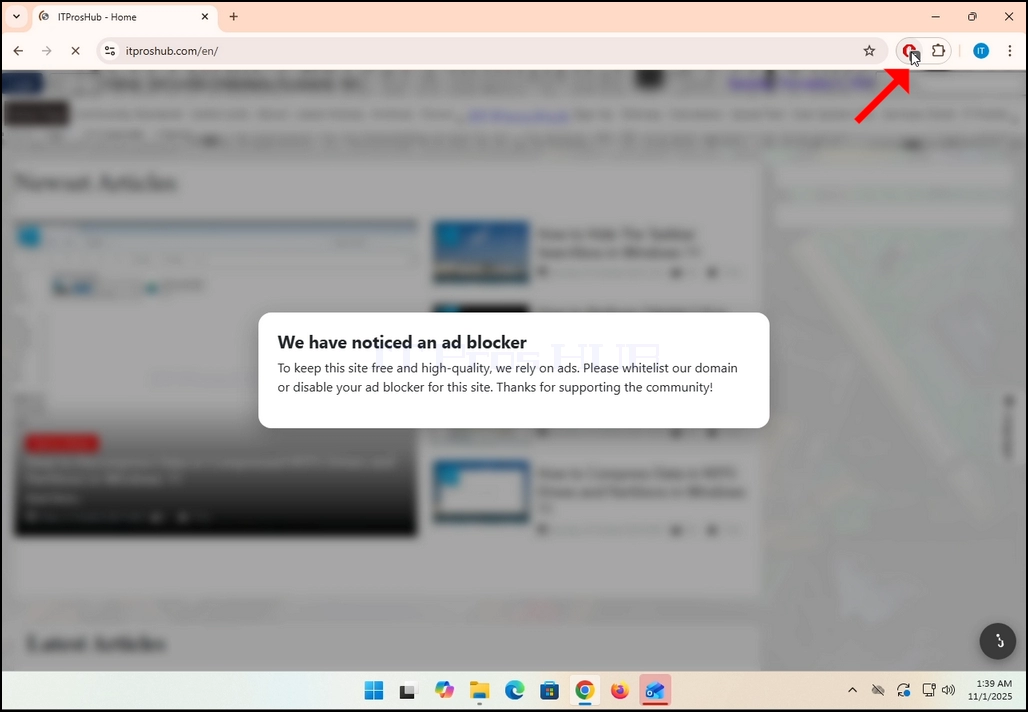
3. Tẹ lori rẹ lẹẹkan ki o duro de akojọ aṣayan ẹgbẹ kekere rẹ lati han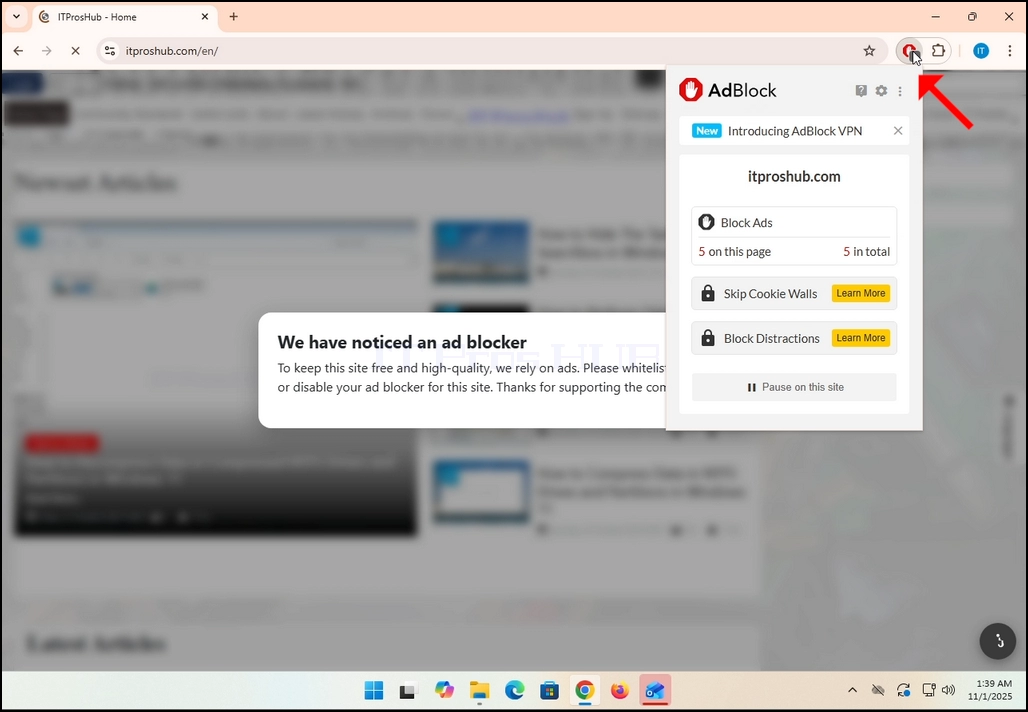
4. Nígbà tí àkójọ yìí bá farahàn, lọ sí ìsàlẹ̀ àkójọ náà kí o sì wá bọ́tìnì kan tí ó sọ pé “Dúró” lórí ojú òpó wẹ́ẹ̀bù yìí.
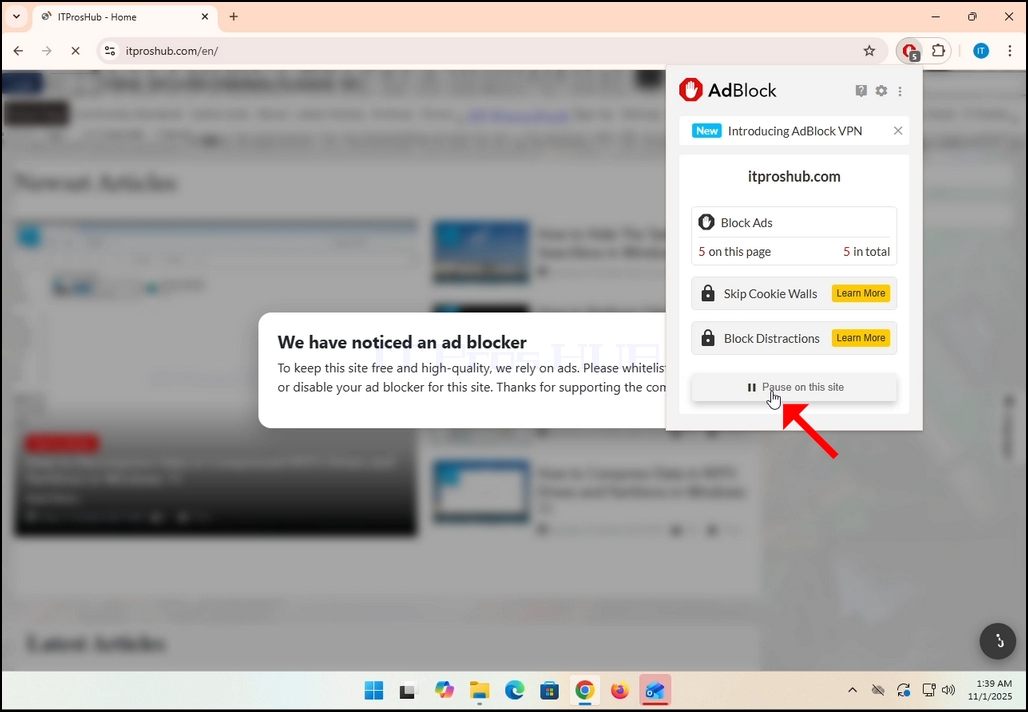
5. Tẹ bọtini Duro lori aaye yii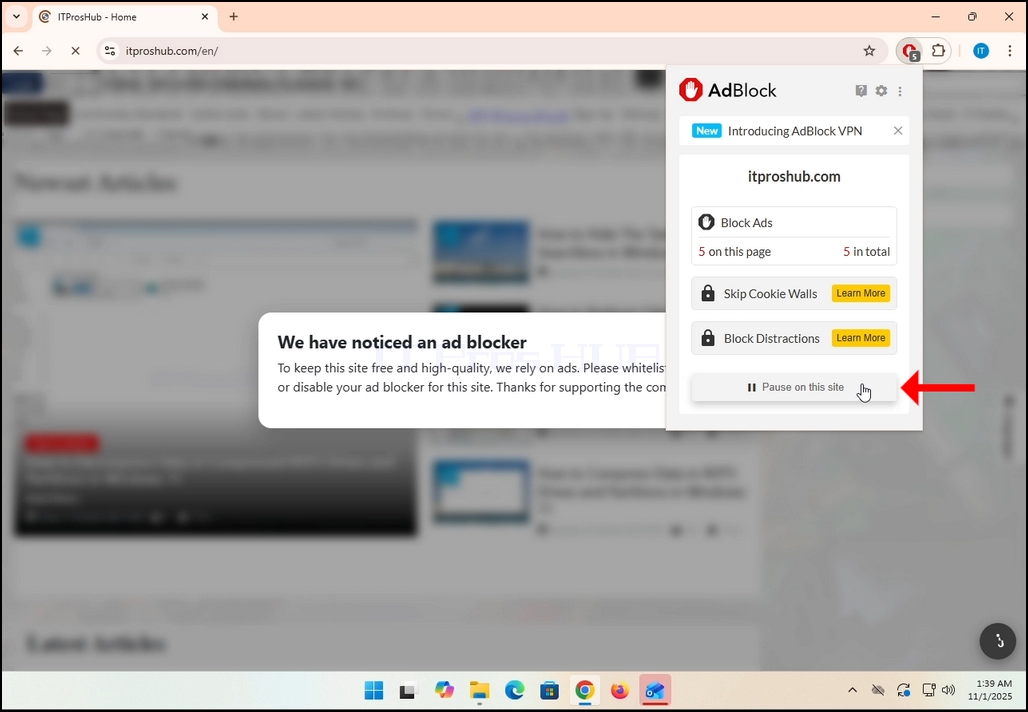
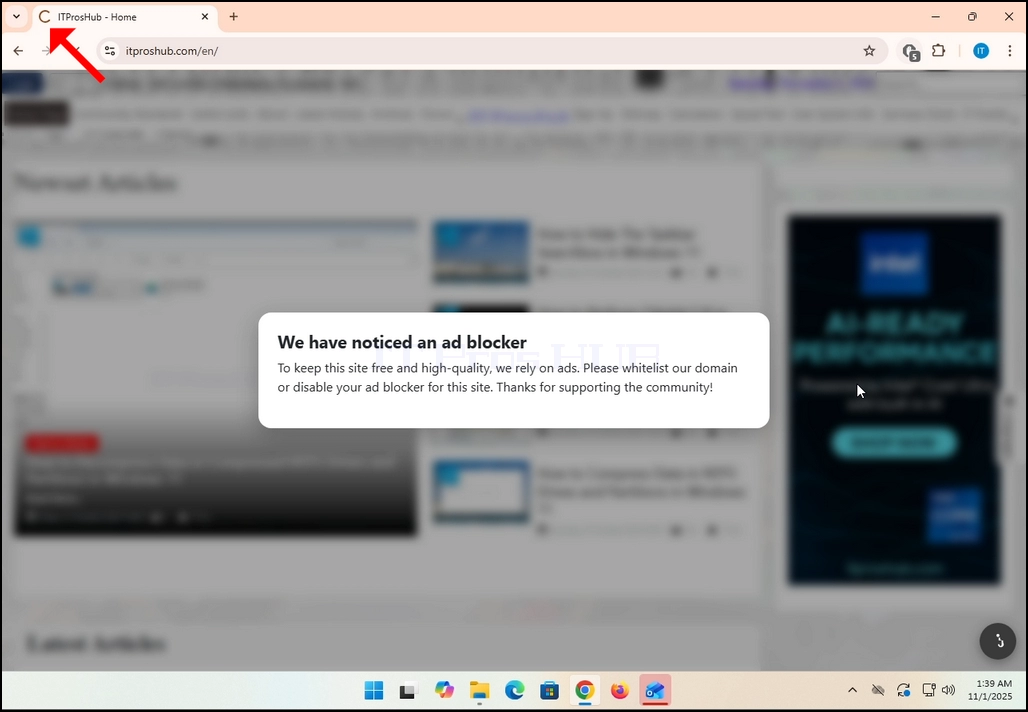
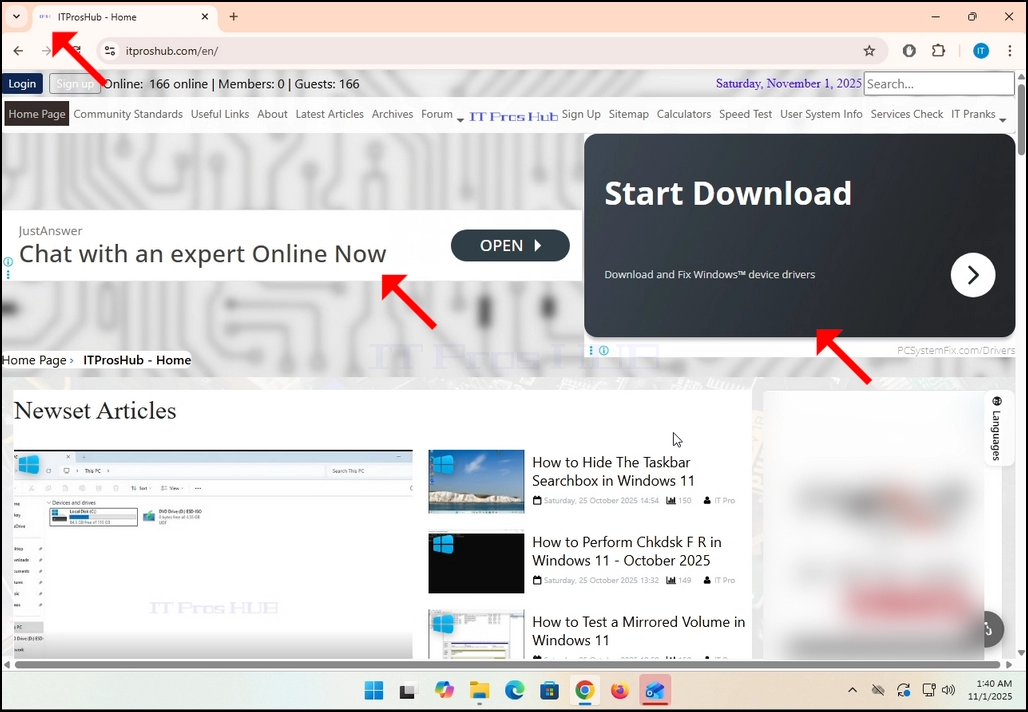
6. Nígbà tí a bá tẹ ojú-òpó wẹ́ẹ̀bù tí a ń sọ̀rọ̀ nípa rẹ̀, nínú ọ̀ràn wa; a ó tún gbé itproshub.com jáde láìfọwọ́sí, ní àkókò yìí pẹ̀lú gbogbo ìpolówó tó hàn gbangba.
- Details
- Written by: IT Pro
- Category: How to Articles
- Hits: 7246
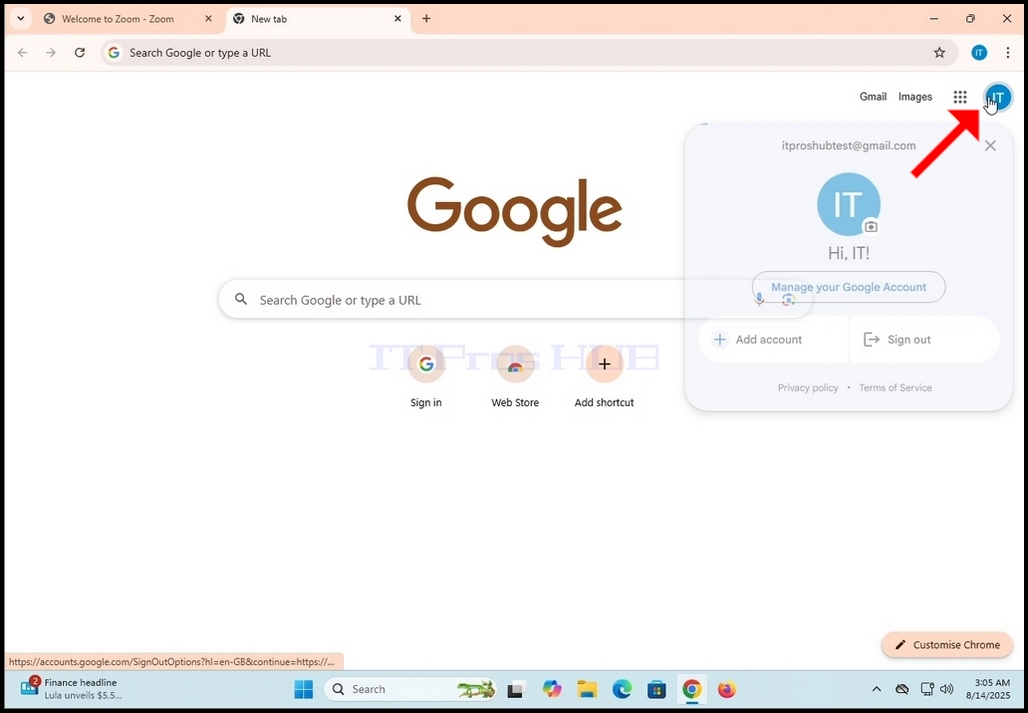
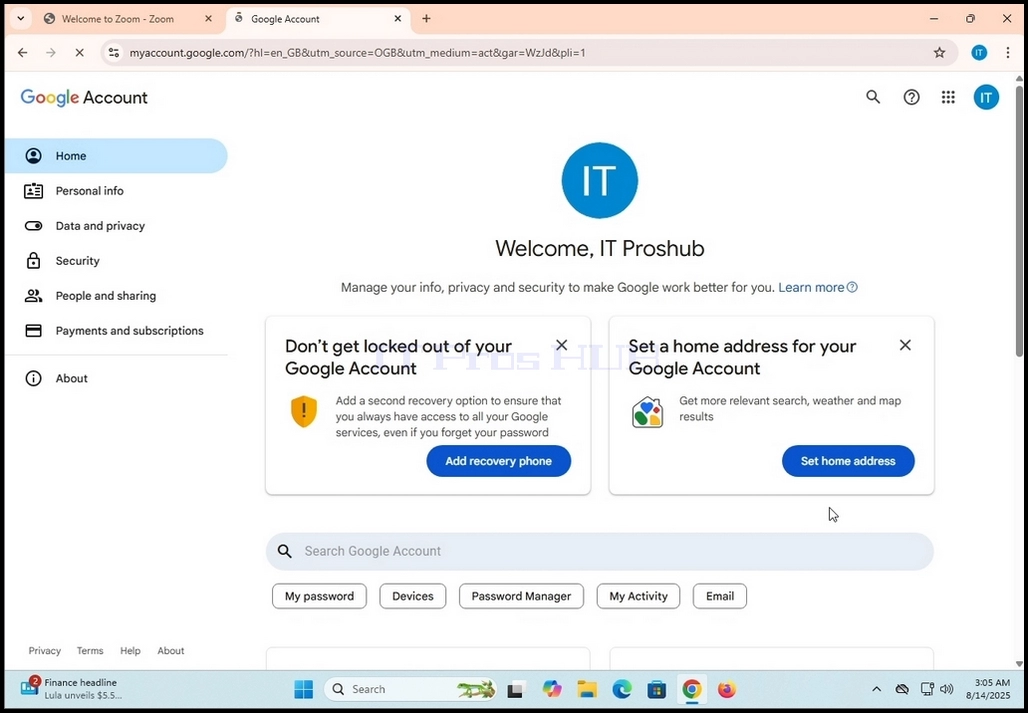
1. Lọ sí ojú ìwé àkọ́kọ́ Google (tàbí ojú ìwé Google mìíràn tó ní àmì ìbẹ̀rẹ̀ àkọọ́lẹ̀ Google rẹ fún ọ̀rọ̀ yìí) kí o sì tẹ àmì tó fi àmì ìbẹ̀rẹ̀ àkọọ́lẹ̀ Google rẹ hàn. Ó yẹ kí ó wà ní igun ọ̀tún òkè ti ìbòjú náà.
2. Dúró fún àkójọ oúnjẹ kékeré kan láti farahàn.
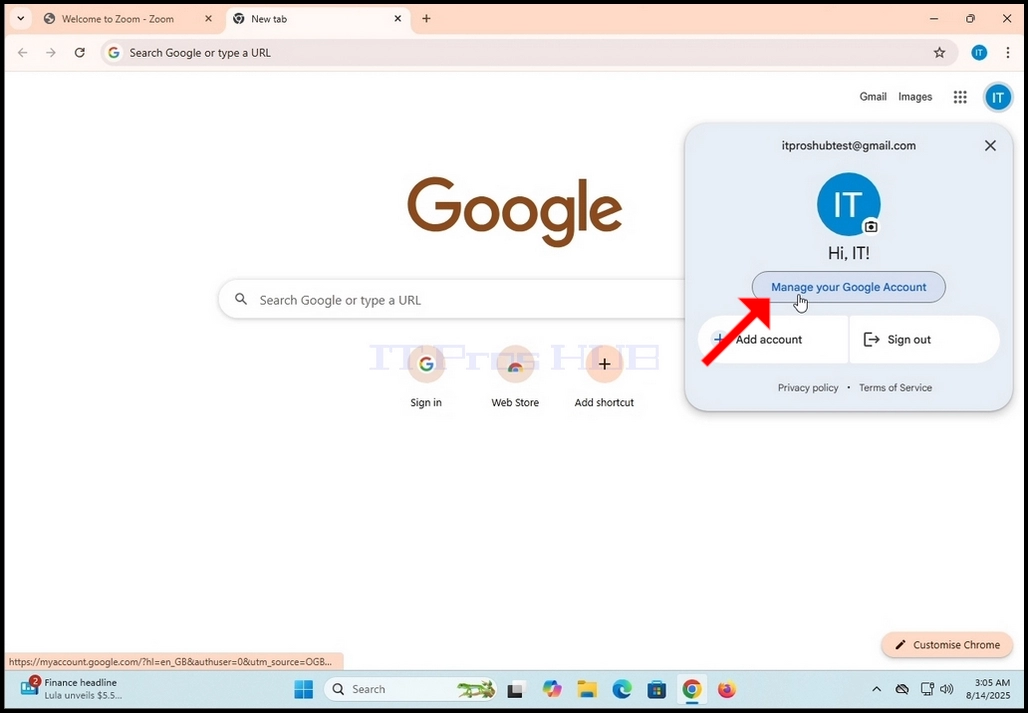
3. Nínú àkójọ oúnjẹ yẹn, wá bọ́tìnì Ṣàkóso Àkọọ́lẹ̀ Google rẹ kí o sì tẹ ọ̀kan lórí rẹ̀. Dúró de ojú ìwé ìṣàkóso àkọọ́lẹ̀ Google láti gbé jáde
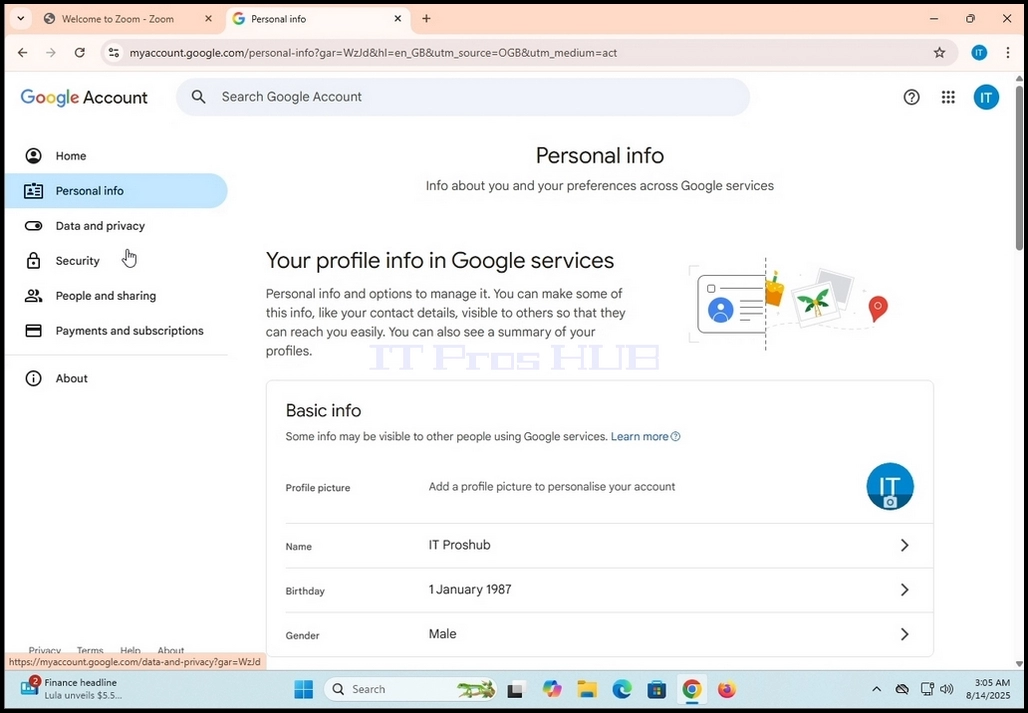
4. Lẹ́yìn tí a bá ti gbé ojú ìwé ìṣàkóso àkọọ́lẹ̀ Google sókè, lọ sí àkójọ ìwé apá òsì kí o sì wá gbólóhùn Ìwífún Àdáni. Tẹ e lẹ́ẹ̀kan kí o sì dúró de ojú ìwé Ìròyìn Ara Ẹni láti gbé jáde.
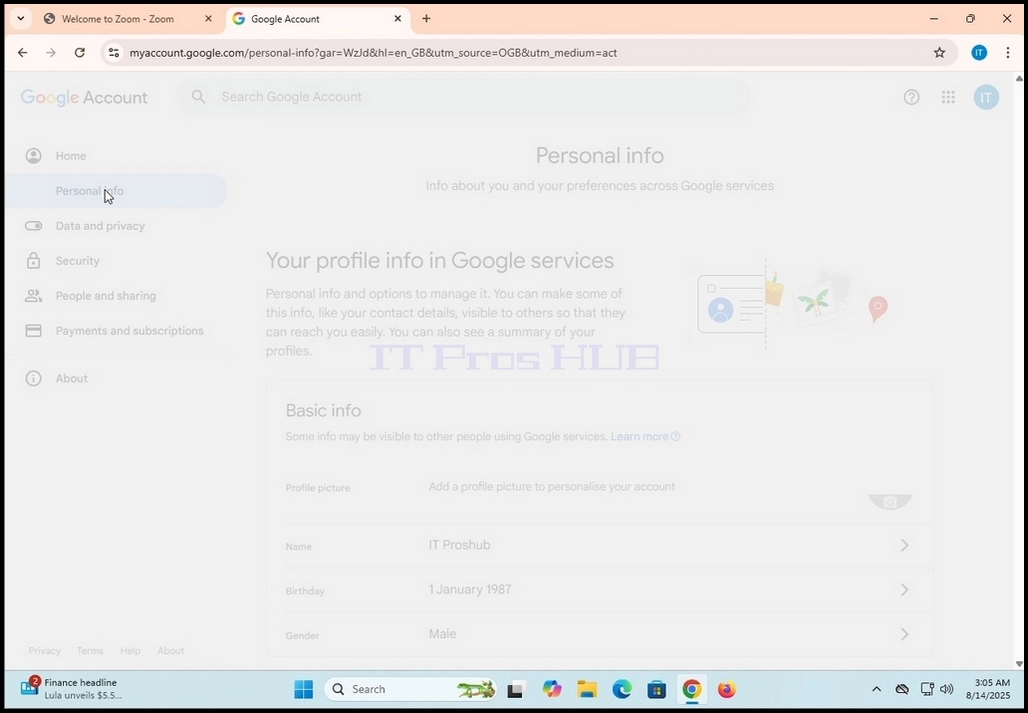
5. Nínú ojú ìwé Ìwífún Ara Ẹni tuntun tí a gbé sórí rẹ̀, yi lọ sí ìsàlẹ̀ ojú ìwé náà títí tí o fi rí àpótí Àwọn ìfẹ́ gbogbogbòò fún wẹ́ẹ̀bù ní ojú ìwé òsì. Lábẹ́ àpótí yẹn, ó yẹ kí o rí bọ́tìnì Èdè lẹ́gbẹ̀ẹ́ àmì kékeré kan ti àgbáyé . Tẹ̀ ẹ́ lẹ́ẹ̀kan. Dúró fún ojú ìwé Èdè láti gbé jáde.
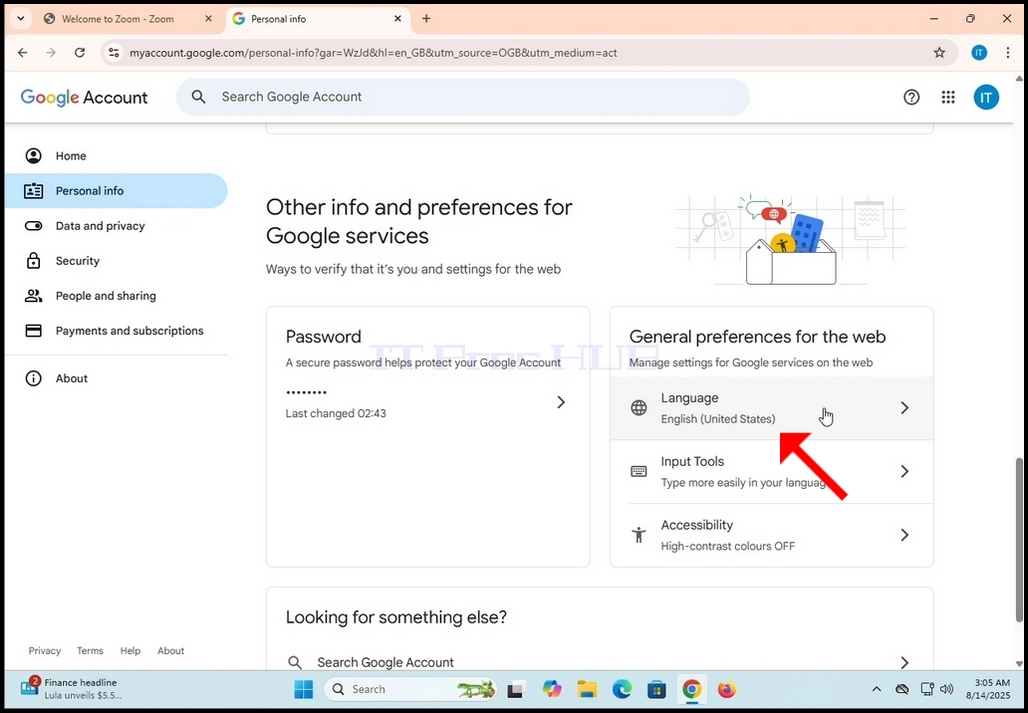
6. Nínú ojú ìwé èdè, lábẹ́ àpótí èdè tí a yàn, wá bọ́tìnì + Fi èdè mìíràn kún kí o sì tẹ̀ ẹ́ lẹ́ẹ̀kan.
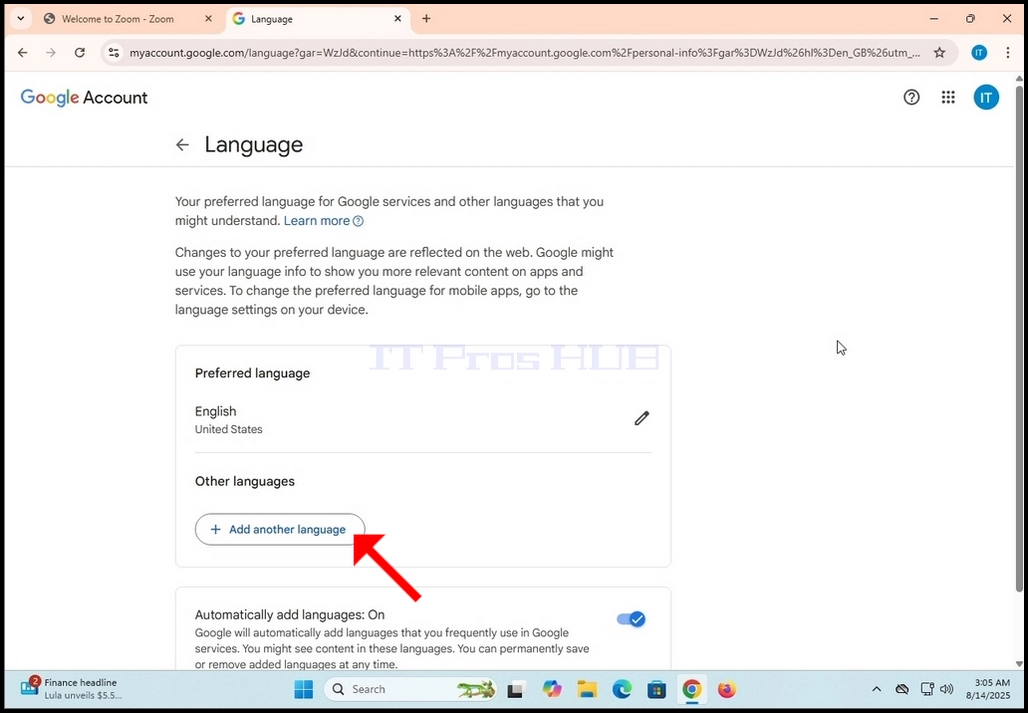
7. Ní ojú ìwé tó tẹ̀lé e, yan èdè afikún tí o fẹ́ fi kún àkọọ́lẹ̀ Google rẹ.