голотата на Windows 11 е една от онези теми, които могат или да се превърнат в чиста, измерима победа за изпълнение... или бъдещ билет за инцидент, чакащ да се случи. В средата на предприятията истинската цел не е да се направи Windows изглежда празна. Целта е да се намали ненужната фонова активност, да се отстранят ненужните потребителски компоненти и да се втвърди базовата линия, като същевременно се поддържа сервизния стек стабилен, така кумулативни актуализации, актуализации на функции, и охранителни петна продължават да тече.
Разликата между професионален деблоат и рискован подход се свежда до един принцип: Използвайте само поддържани методи и обратими промени. Тази статия се фокусира върху практически, ИТ-приятелски действия, които можете да използвате чрез стандартни инструменти като Group Policy, Intune, Настройване Мениджър, DISM, и PowerShell...
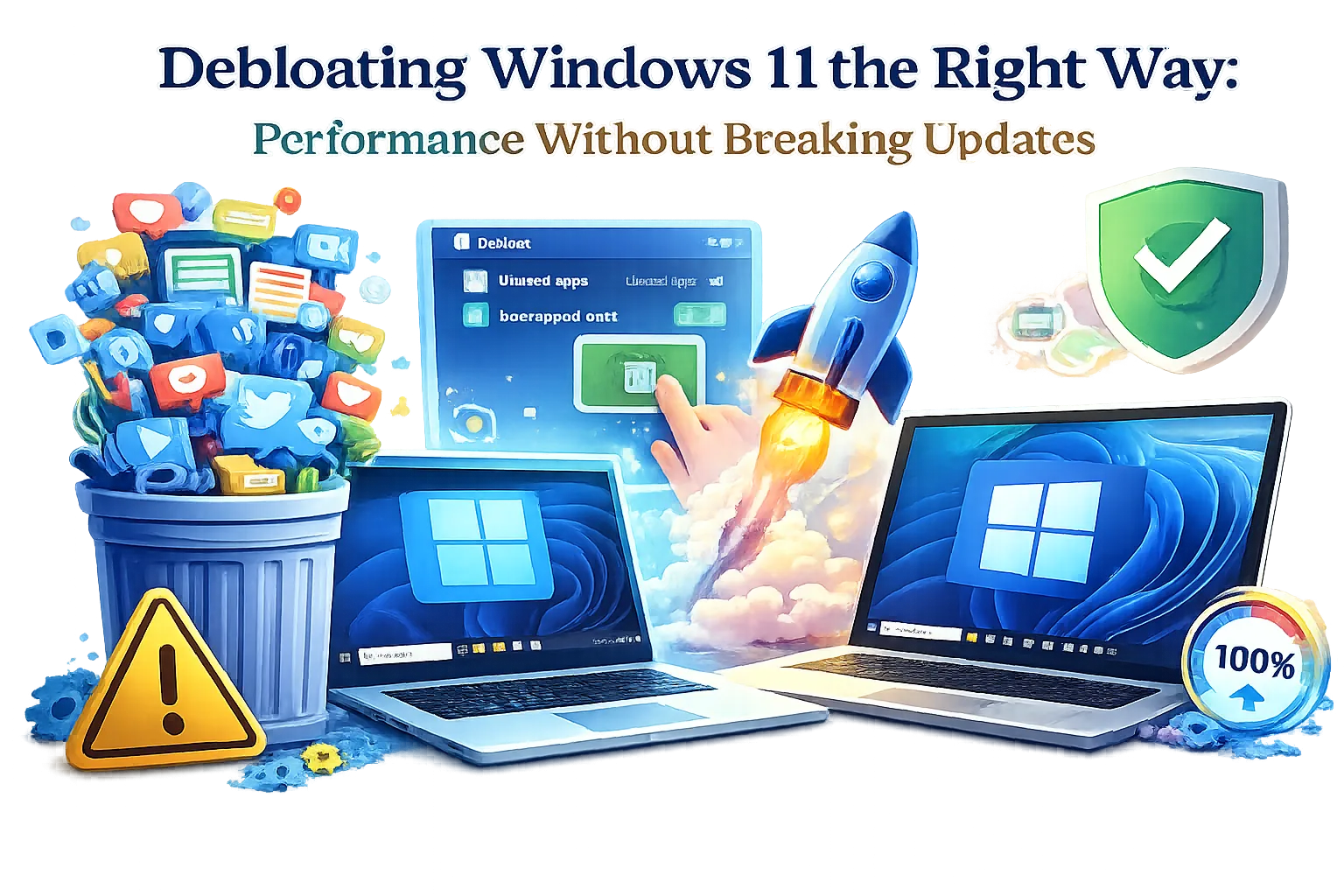
Какво всъщност означава това в Windows 11
В реалните операции, голотата не е морална преценка на приложения. Тя го прави всеки компонент, който потребява процесор, RAM, диск I/O, или мрежа по начин, който не го обслужват вашата организация. Windows 11 може да включва потребителски преживявания, предварително инсталирани пакети приложение, промоционално съдържание, фонови джаджи, чат интеграция, и устройства производител (ОЕМ) комунални услуги, които предлагат малка стойност в управлявани флоти.
Това, което прави Windows 11 различен от по-старите версии, е, че няколко опита се доставят като съвременни пакети приложения, а някои се предоставят в OS образа, така че те се появяват отново за нови потребителски профили. ИТ професионалистите трябва да третират деблоирането като контролирана базова конфигурация, а не еднократно почистване на една машина.
Най-безопасният начин на мислене е да се разделят промените в категории:
- Премахване това, което е наистина ненужно и подкрепено да се премахне.
- Изключване опит, който не е необходим, но е по-добре да остане инсталиран за поддръжка стабилност.
- Предотвратяване на повторното предоставяне Така че приложенията не се връщат за нови профили.
- Мярка представяне преди и след, така че изходното ви ниво е защитен.
Най-бързият начин да се прекъсне актуализации (и как да се избегне това)
Най-често срещаният модел на неуспех в скриптовете на debloat е агресивно отстраняване на системни компоненти, които Windows очаква да съществува за обслужване, функция възможност, или ремонт операции. Това може да не се счупи на компютъра днес, но тя често се прекъсва по-късно, когато ъпгрейд на място работи, когато обща актуализация изисква зависимост, или когато функцията за сигурност тихо не успее.
Червените флагове в debloat подходи обикновено включват:
- Изтриване или преименуване на системни папки под Прозорци или Системни приложения
- Премахване на компоненти, свързани с обслужването, търсенето, стартирането или обвивката
- Трудно деактивирани основни услуги без разбиране зависимости
- Блокиране на Microsoft Да се съхранява изцяло в среда, която зависи от доставяните от магазина пакети
- Едно кликване върху регистрационните сметища, прилагани без тестови пръстени
По-безопасна алтернатива е скучна, но надеждна: използване политики, поддържани деинсталации, и осигуряване на контрол. Вашата цел е да се запази Windows като обслужваща платформа, а не обичай OS вилица.
Започнете с правилното изходно изображение
Най-чистите печалби на производителността често идват от избягването на по-голямата бъркотия на ПОО, отколкото премахването му по-късно. Ако сте се утаяване Windows 11 в мащаб, чист Microsoft образ с контролирано app осигуряване обикновено е по-лесно да се поддържа, отколкото почистване след фабриката.
В управляваните среди разгледайте следните основни практики:
- Предпочитайте изданията "Ентърпрайз/Образование," където това е възможно за по-добър контрол на политиката.
- Използвайте Autopilot/Intune или ConfigMgr задачи последователности за стандартизиране на първото поведение на зареждане.
- Премахване на Outtober boards по време на изображения, ако вашата подкрепа модел не се разчита на тях.
- Поддържайте OS езиковите пакети, функции по заявка и сервизни компоненти в целия флот.
Закриване на целевите райони Това действително оказва влияние върху изпълнението
Много от списъците на debloat се фокусират върху непрозрачността (не искам да виждам тази икона), а не измеримо въздействие ( това е неосъществима ресурса.). Ако изпълнението е целта, приоритизирайте областите, които създават постоянна фонова активност или стартиране на режийни разходи.
Tame Startup приложения и основни задачи
Startup удар все още е отличен принос за муден първите дънери и лошо възприемани резултати. Печелившите тук не са приложения за Windows , това е това, което контролира това, което стартира, какво работи непрекъснато, и какви графици само зад гърба си.
Препоръчителните действия за ИТ устройства включват:
- Audit стартиращи записи чрез Task Manager и автоматично опис на вашата крайна точка инструментиране.
- Изключва се несъщественото мажоретство и осъвременители, които дублират работата на предприятието.
- Премахване на потребителски чат / джаджи опит, където те не добавят бизнес стойност.
- Намаляване на активността на фоновото приложение, когато политиката позволява, особено за VDI или устройства с ниска мощност.
Основното предимство на насочването на стартирането и планираните задачи е, че тя е обикновено обратима и безопасно актуализация. Не късаш системни части, а ограничаваш шума.
Премахване на потребителски приложения по поддържания начин
Windows 11 включва пакети от приложения, които са инсталирани на потребител или са предоставени в изображението за бъдещи потребителски профили. Ако премахнете приложение само за вашия акаунт, то все още може да се появи за следващия човек, който влиза. Правилното отстраняване третира присъствието на приложението като политическо решение, а не еднократно ръчно почистване.
В средата на предприятията безопасният подход е:
- Деинсталиране на нежелани приложения за съществуващи потребители.
- Премахване на предоставени пакети, така че те не се връщат за нови профили.
- Позволете на зависимостите от магазина и рамката да останат, ако вашата околна среда използва актуализации на магазина или съвременни компоненти на приложението.
PowerShell може да се използва отговорно тук, особено при разполагането на тръбопроводи. Целта е да се насочим към несъществени потребителски приложения, а не към премахване на системните рамки. Като най-добра практика, поддържайте списъци за премахване кратко и добре тествани, и да се избегне по-нататъшното премахване на всички модели, които по-късно блокират законни бизнес приложения.
Стабилна стратегия е да се поддържа списък на приложенията, които вашата организация се нуждае и да се премахнат само очевидните потребителски елементи, които многократно генерират заявки за поддръжка на потребителя или фонов товар.
Изключване на & Suggested Content и потребителски опит
Windows 11 може да повърхност приложения предложения, промоционално съдържание, и потребителски-приятелски повърхности, които не принадлежат към бизнес сгради. Те не винаги предизвикват голям товар на процесора, но те генерират помощно триене, непоследователен опит на потребителя, както и дрейф политика.
В управляваните среди типичните контроли включват:
- Изключване на потребителския опит и предложения за приложения чрез групова политика или MDM конфигурация.
- Изключване на препоръките в менюто Start, ако те противоречат на изходното ниво на UX.
- Деактивиране на върховете, на трикове, на промоционални съобщения за корпоративни крайни точки.
Тази категория е сладкото място на безопасно разлагане: резултатът е по-чист и почти никога не пречи на актуализациите.
Widgets, чат, и Taskbar шум: Дръжте Shell стабилен
Изкушава се да отстрани хирургически всичко, което се чувства, но черупката на Windows е плътно интегрирана. Когато сте свръх-купомизирате черупката, увеличавате шанса, че бъдещата обща актуализация въвежда регресии в Start, търсене, поведение на лентата за задачи, или стабилността на потребителските сесии.
По-безопасен модел е. деактивиране нежелани повърхности, вместо насилствено премахване на основните пакети:
- Скриване или деактивиране на джаджи, където те създават разсейване и фоново освежаване.
- Изключване на потребителските чат интеграции, когато не се поддържа от вашата група за сътрудничество.
- Използвайте система за управление на задачите за последователност на споделени устройства или VDI.
Това запазва зависимостта на черупката и поддържа актуализациите предсказуеми.
OneDrive: Премахване, ограничаване или стандартизиране
OneDrive е специален случай, защото тя може да бъде или готварска или критична инфраструктура, в зависимост от вашата организация. В Microsoft 365-центрични среди, OneDrive често е част от историята за съответствие и защита на данните. В други среди, тя се превръща в фонов churn, логин подкани, и честотната лента потребление.
Професионалният подход е да се реши един от тези оперативни модели:
- Стандартизирай го. с безшумен подпис и известна папка Move, което го прави продуктивна, а не досадна.
- Ограничи го. специфични групи и роли на устройствата.
- Премахване само ако вашата базова и политика ясно го отхвърли и работата ви не зависи от него.
Важното е последователност. гол-възможна е това, което създава най-лошото потребителско преживяване.
Microsoft Edge и WebView: Не се бори с платформата
Много компоненти на Windows 11 разчитат на Edge технологии, включително вградени уеб-предаване. Премахването или разрушаването на тези зависимости често предизвиква странни странични ефекти, които се появяват месеци по-късно: пропуски в автентичността, компоненти на UI, които не се предават, липсващи диалози, или счупени прозорци помощ.
За ИТ професионалистите прагматичното изходно ниво е да поддържат Edge и WebView компоненти на място, след което да ги управляват правилно: стандартизиране на политиките, задаване на поведение на браузъра по подразбиране, конфигуриране на пръстени за актуализация и намаляване на нежелани подкани чрез настройките на предприятията. Ще получите стабилна OS и по-малко изненади в кумулативни актуализации.
Телеметрия и диагностика: Намаляване на шума без нарушаване на сигурността
Телеметрията често се разбира погрешно. Изключването на всичко не е автоматично, а в много случаи намалява способността ви да диагностицирате проблеми, измерване на стабилността, или отстраняване на неизправности.
Една разумна позиция на предприятието е:
- Използвайте политиката за определяне на диагностични нива, подходящи за вашия модел за съответствие.
- Изключване на потребителските рекламни идентификатори и персонализационни характеристики.
- Съхранявайте достатъчно диагностична способност, за да поддържа отстраняване на проблеми и актуализация надеждност.
Този подход намалява фоновото бърборене без да изрязвате собствените си инструменти под вас.
Услуги: Капанът за всяко нещо
Изключването на услугите е една от най-рисковите форми на деблоиране, защото съвременните зависимости от услугите на Windows са сложни и се развиват с течение на времето. Услугата, която изглежда ненужна днес, може да стане необходима за обновяване на функцията, нов контрол на сигурността или проверка на съответствието на устройството.
Ако искате безопасни печалби, фокусирайте се върху тези принципи:
- Предпочитайте контрол на политиката за изключване на услугата, когато е възможно.
- Само промените стартиращите типове за услуги, които напълно разбирате и сте тествали през хардуерните си модели.
- Оставете Windows Update, Defender, WMI, мрежи, и ядрото shal услуги недокоснати.
- Валидирайте устройството здраве, актуализация инсталация, и събития трупи след промени.
С други думи: ако смяната на услугата изглежда като безплатна печалба, това ще доведе до забавяне на проблема до доказване на противното.
Опционални характеристики и възможности: Почистете внимателно
Windows 11 включва незадължителни компоненти, които можете безопасно да премахнете или деактивирате, когато те не се прилагат за вашия случай на използване. Номерът е да се избегне премахването на всичко, на което могат да разчитат бъдещите приложения, принтери, VPN клиенти или инструменти на предприятието.
Добрите кандидати за преглед зависят от околната среда като:
- Наследство компоненти и неизползвани Windows функции
- Опционални езикови функции, които не отговарят на вашата потребителска база
- Неизползваеми приложения, които потребителите никога не се нуждаят
- Характеристики, които са в противоречие с втвърдяването си изходно ниво
Направете отстраняването консервативно и добре документирано. С течение на времето, бъдещото ви Аз ще ви благодаря, когато функции актуализации продължават да работят гладко.
VDI и Low-End Hardware: Where debloating matters most
На лаптопи от висок клас и настолни компютри, много деблотни промени едва движат иглата. На VDI басейни, входно ниво устройства, или силно защитени крайни точки, всяка задача за фон има значение.
Практическите промени, насочени към изпълнението на тези условия, включват:
- Намаляване на стартово натоварване, за да се ускори логон и първото стартиране на приложение.
- Ограничи фоновите синхронизация агенти на това, от което бизнесът наистина се нуждае.
- Изключете козметичните анимации, които добавят GPU/CPU режийни разходи без печалба на производителността.
- Стандартизирайте профилите за управление на мощността, подходящи за вашия клас устройство.
- Използвайте чисто предоставяне на приложения, за да се предотврати ненужни опаковки в много потребителски сценарии.
За VDI по-специално, последователните базови стойности са по-важни от премахване. Най-добрият VDI деблоат е този, който остава стабилен през цикъла на пластирите.
Инструментите за сигурност не са подути
Има погрешно схващане, че настройката на изпълнение означава охранителни функции. В професионална среда, това е обратно. Инструментите за сигурност съществуват, защото моделът на заплаха е реален, а цената на компромиса е по-малка от цената на няколко основни услуги.
Като правило, избягвайте разлагането:
- Microsoft Defender компоненти (освен ако имате напълно управлявано заместване и валидирани правила за съвместно съществуване)
- SmartScreen или базирани на репутацията защити, на които разчитате
- Основни компоненти за обновяване и обслужване на Windows
- BitLocker и устройство криптиране контроли, когато се изисква от политиката
- Компоненти на стека за идентификация и удостоверяване
Правилният начин да оптимизирате сигурността е да я настроите правилно, а не да я премахвате.
Измерване на резултатите като ИТ про
Разкриването без измерване е догадка. В ИТ операции, искате повтарящи се метри, така че промените ви са защитени и лесни за връщане, ако нещо причинява нестабилност.
Полезните ъгли на измерване включват:
- Време за игра както и време на логан-до-продуктивност
- Използване на CPU в неактивен режим върху свежа обувка след цикли на актуализация
- Налягане на RAM по време на типичната натовареност (черупчести раздели, отбори / Zoom, VPN, краен агент стека)
- Диск I/ O шипове по време на стартиране и поддръжка на празен ход
- Обновяване на степента на успех и обслужване на здравето над няколко пластира вторник
Най-големият знак, че сте го направили правилно не е възможно да го чувствам по-бързо днес, но все още се актуализира нормално три месеца по-късно.
Безопасен дебат за работния процес на управляваните флоти
От гледна точка на предприятията, обезкостяването трябва да изглежда като всяка друга крайна крайна точка инженерен проект: контролирано пускане, документация, тестване пръстени, и последователна автоматизация.
Един доказан работен процес обикновено включва:
- Заверка на пилотска група за разнообразни хардуерни модели и потребителски роли.
- Първият контрол на политиката използване на GPO/Intune преди действия по отстраняване.
- Минимален списък за отстраняване фокусирани само върху приложения с висок шум.
- Предоставяне на превенция Така че новите профили остават чисти автоматично.
- План за връщане използване на изходните стойности на конфигурацията и документираните обрати.
- Проверка за обслужване след кумулативни актуализации и тестове за готовност за обновяване на функцията.
Ако можете да го опишете като промяна в изречение, да го проследите в управлението на конфигурацията и да го върнете безопасно, то не принадлежи към производство debloat.
Често срещани митове, които губят време
Разобличаването си има собствен фолклор. В средата на предприятията преследването на митове често създава повече нестабилност, отколкото производителност.
- Мит: Премахването на повече приложения винаги подобрява ефективността. Реалността: Стартовото натоварване и фоновите задачи имат повече значение от броя на иконите.
- Мит: Деактивирането на случайни услуги е оптимизация. Реалността: Това е често забавяне прекъсване след актуализация или промяна функция.
- Мит: Microsoft Store трябва да бъде премахнат навсякъде. Реалността: Доставените от магазина рамки и актуализации могат да бъдат важни дори и при използване на бизнеса.
- Мит: Един сценарий работи за всяка организация. Реалността: Вашите приложения, политики, правила за съответствие, и хардуер го правят уникален.
Кога да спрете деблоирането и да започнете инженерство
Понякога Windows 11 товарене не е заради приложения в кутията, а заради реално оперативно натоварване: агенти за откриване на крайни точки, VPN тунели, инструмент за сертификат, DLP, разширения на браузъра, или наследство линия на бизнес приложения. Ако премахнете няколко потребителски приложения и изпълнение все още се бори, shortneck е някъде другаде.
Това е мястото, където се случва най-ценната ИТ работа: производителност офлайн, десен размер хардуер, подобряване на изходните стойности на съхранение, контролиране на поведението на трети страни стартиране, и използване на съвременни практики на разположение. Деблоирането е инструмент, а не заместител на инженерството.
Последни мисли: Дръжте го чист, поддържайте го полезен
Windows 11 може да бъде абсолютно постно, отзивчиви, и предприемачество-приятелски, без да се превърне в крехка сграда на култом, който прекъсва момента на следващата актуализация ролки навън. Най-надеждният деблоат е консервативен, воден от политика, измерим и обратен.
Когато деблотирате по правилния начин, получавате най-добрия резултат за ИТ операции: по-малко разсейване, по-малко фонови дразнения, по-бързи входове, по-добра консистенция на устройството и платформа, която все още петна чисто месец след месец.

 12985
12985  IT Pro