



- Details
- Written by: IT Pro
- Category: How to Articles
- Hits: 6921
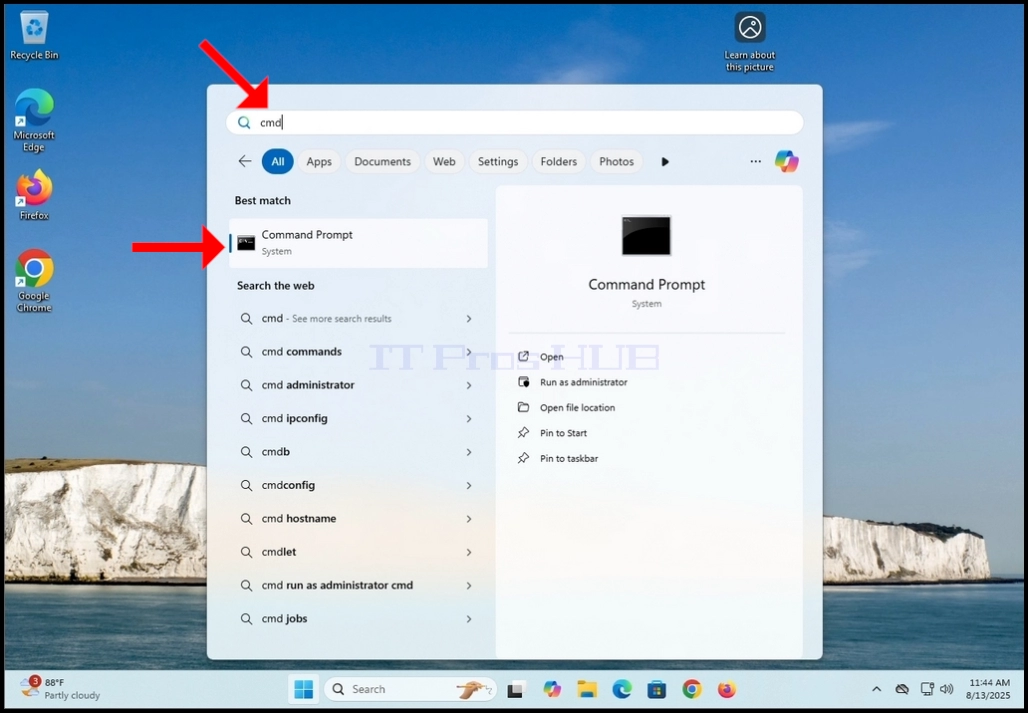

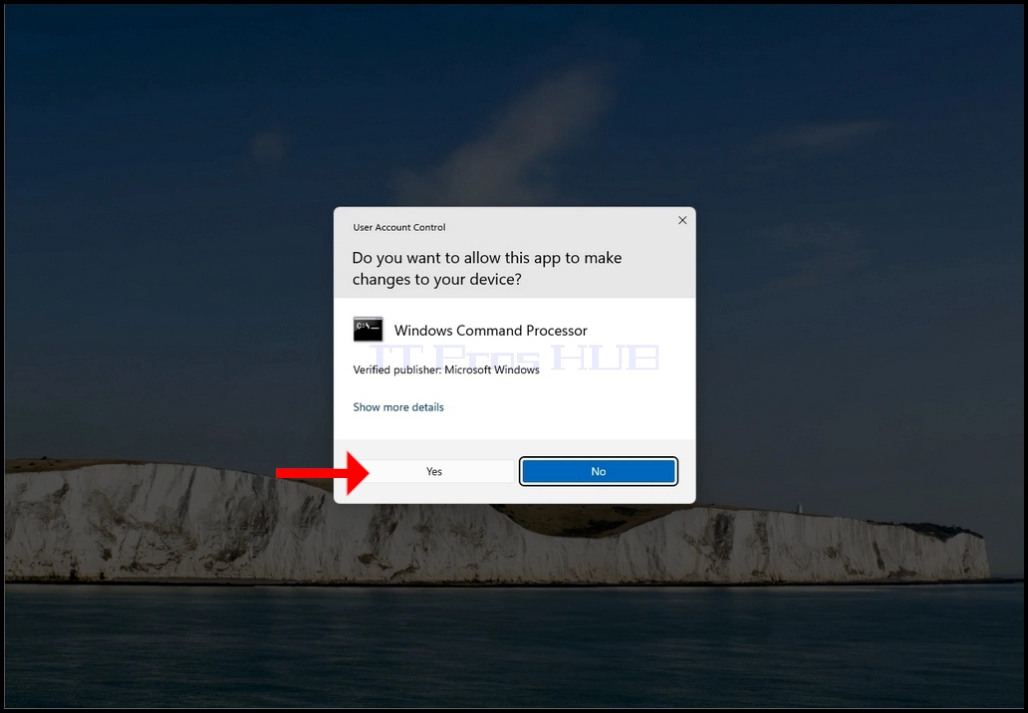
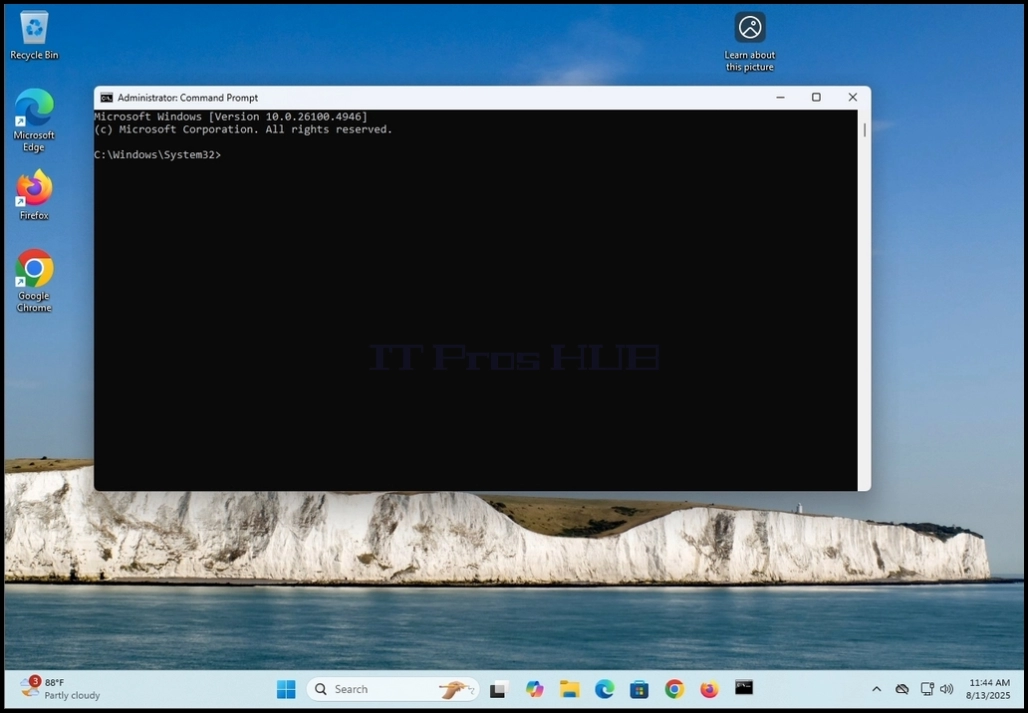
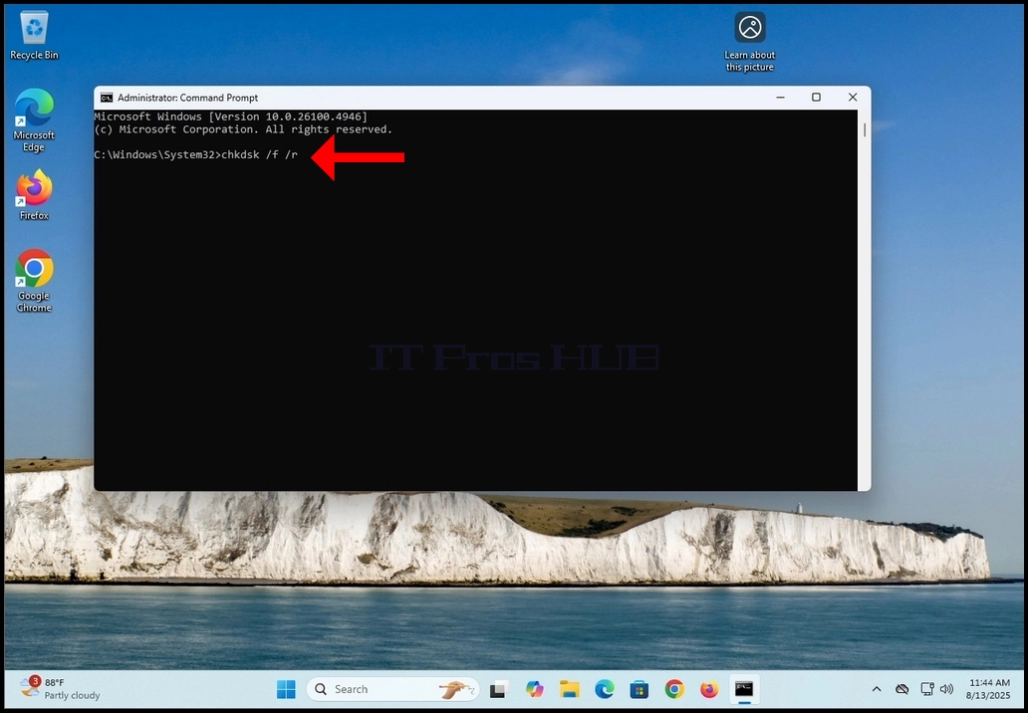
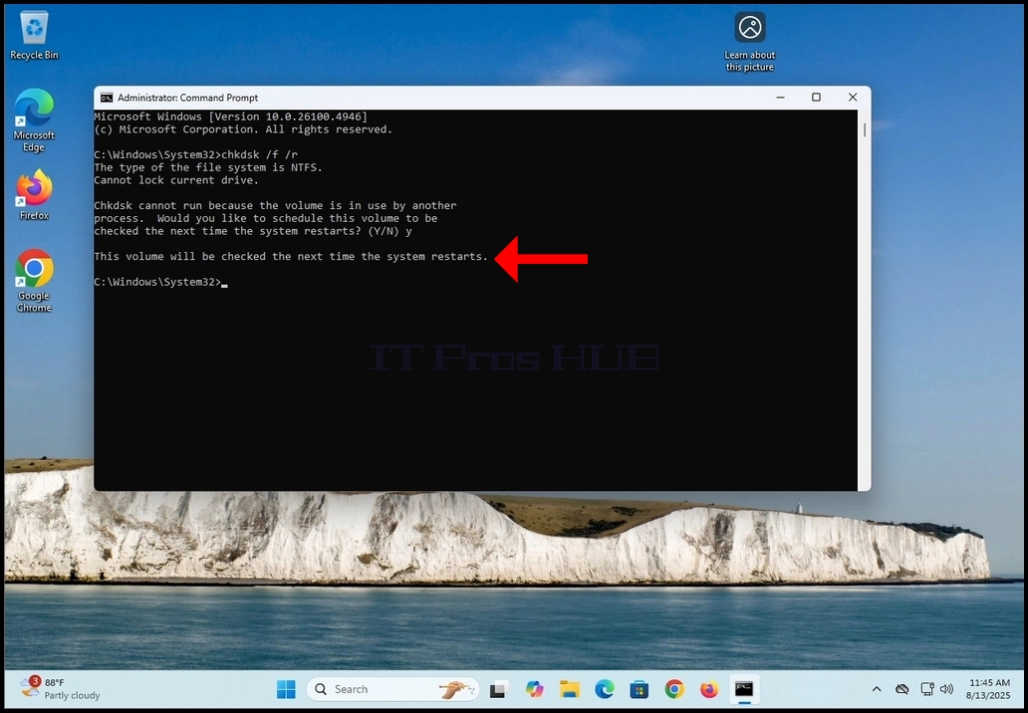
5. Type chkdsk /f /r
a. The /f is fix errors found
b. The /r is to repair bad sectors
6. Hit the enter key
7. Since we typed the chkdsk command under the C: drive which is also where the operating system is stored, chkdsk would not be able to lock out the volume and do its job. Because of that, You will be prompt with a notification in CMD that says that:
a. “Chkdsk cannot run because the volume is in use by another process…”
b. And is followed by a question for the user which says:
i. “Would you like to schedule this volume to be checked the next time the system restarts? (Y/N)”
8. Click the Y key on your keyboard and hit the ENTER key.

9. After the previous stage, chkdsk will reply with :”This volume will be checked the next time the system restarts.”
a. This means that chkdsk will only do its job on the next time Windows restarts and the computer reboots
10. Manually restart the computer

11. Wait for Windows to start and for the Windows logo to appear

12. At some point, a sentence in white font will appear under the loading circle. The sentence will say:”To skit disk checking, press any key within 8 second(s).”
a. DO NOT press any key unless you want to cancel chkdsk’s disk check
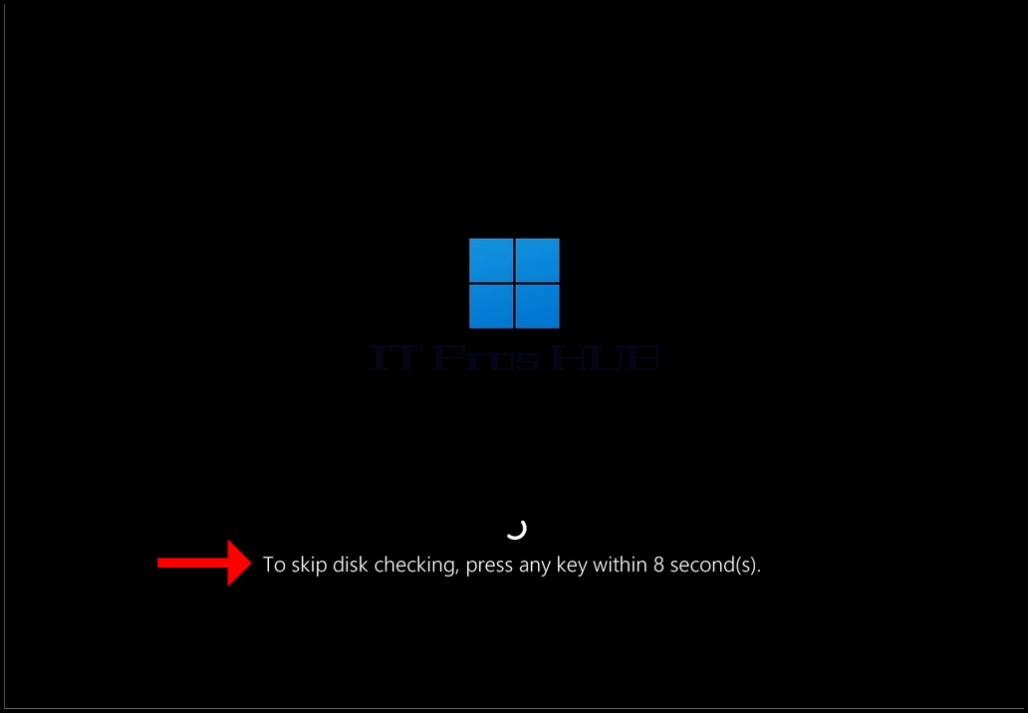
13. Wait for the 10 second countdown to end. When the countdown ends, chkdsk will start doing its job

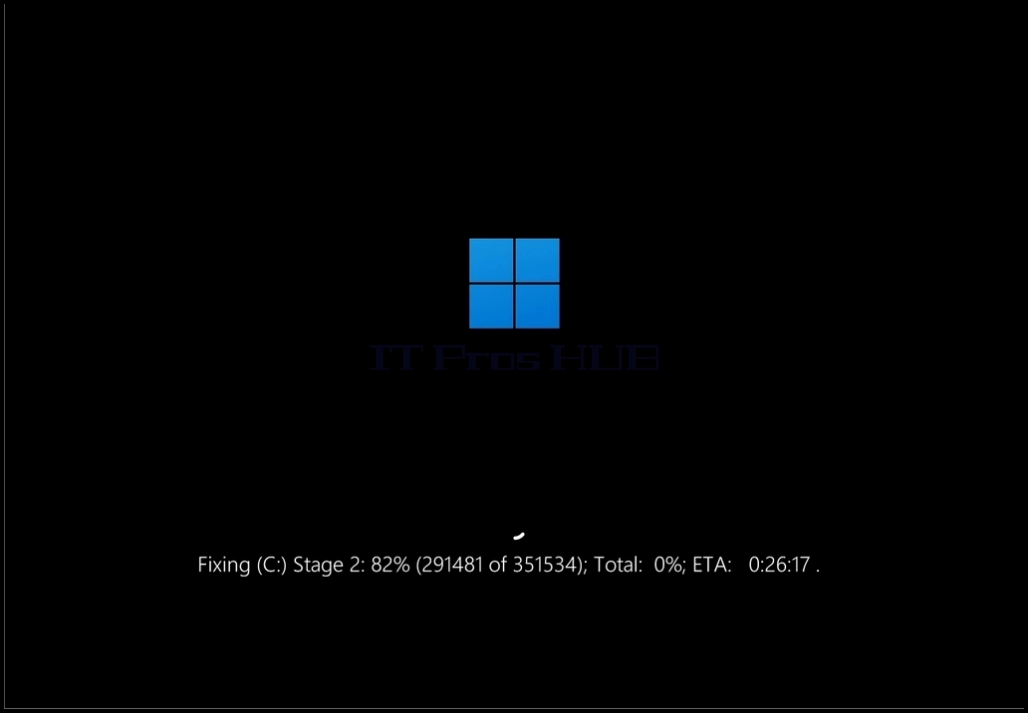
14. While chkdsk is doing its job you will be notified with the following variables about the scan:
a. Fixing (C:) – meaning chkdsk is fixing the C: drive
b. Stage 1: 30% - meaning the overall chkdsk scan is in Stage 1 and it’s at 30%
i. (77997 of 2511904) meaning chkdsk has processed 77997 files out of 2511904 files)
c. Total 0%: meaning the total process of chkdsk is at 0%
d. ETA: 34:03:27 .. – meaning the estimated time for completion of chkdsk’s actions




15. Once chkdsk is done scanning Windows should start normally
- Details
- Written by: IT Pro
- Category: How to Articles
- Hits: 7283
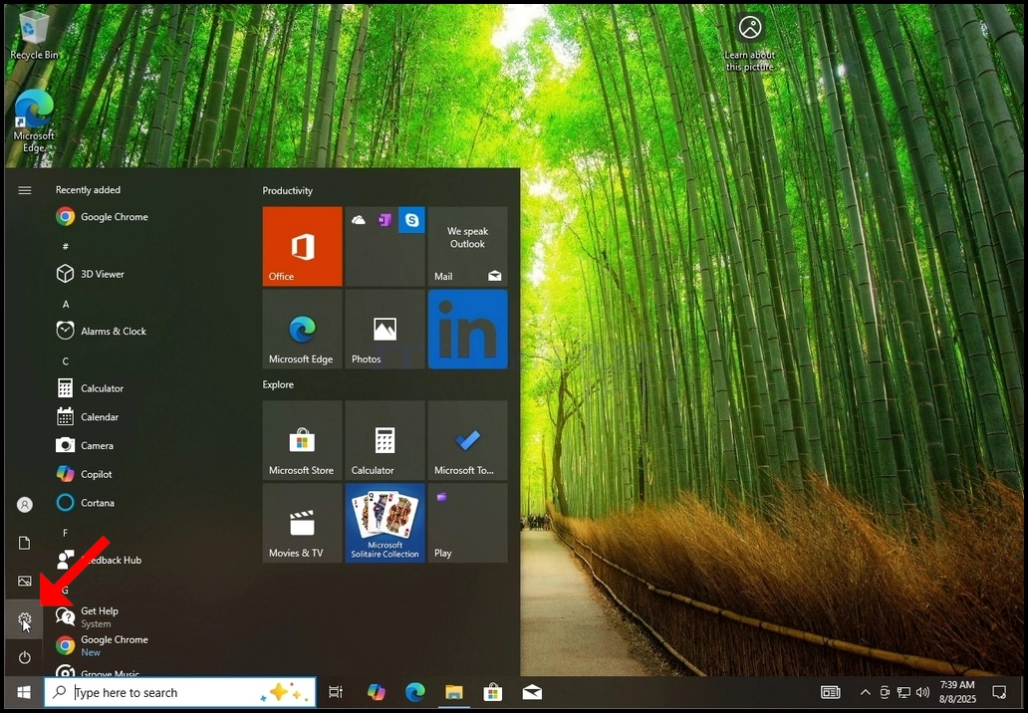
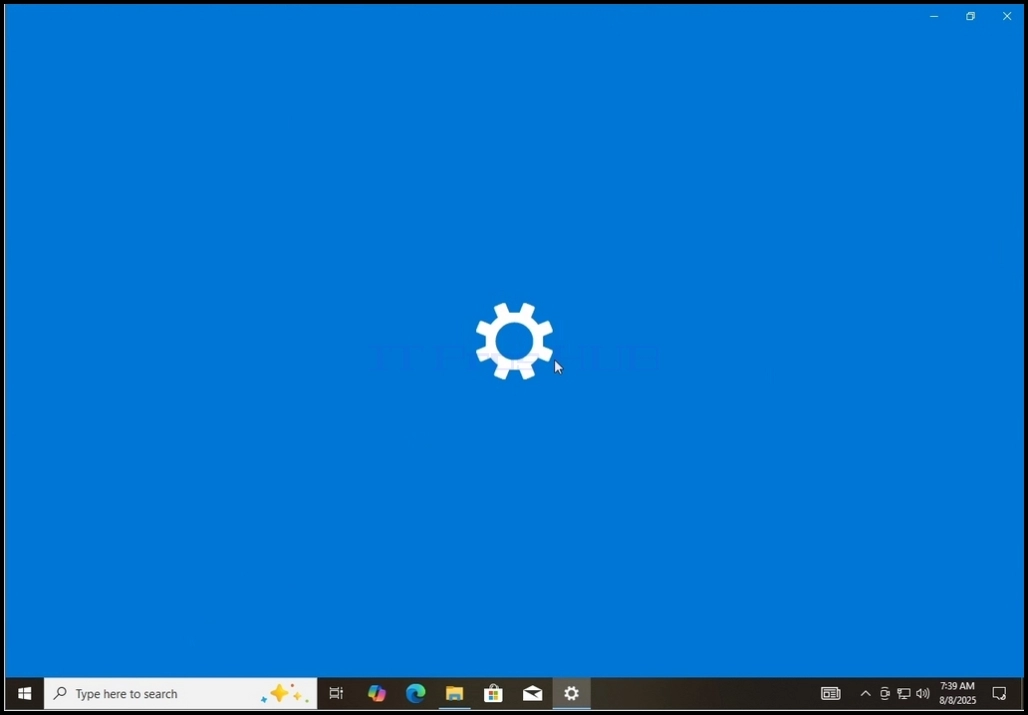
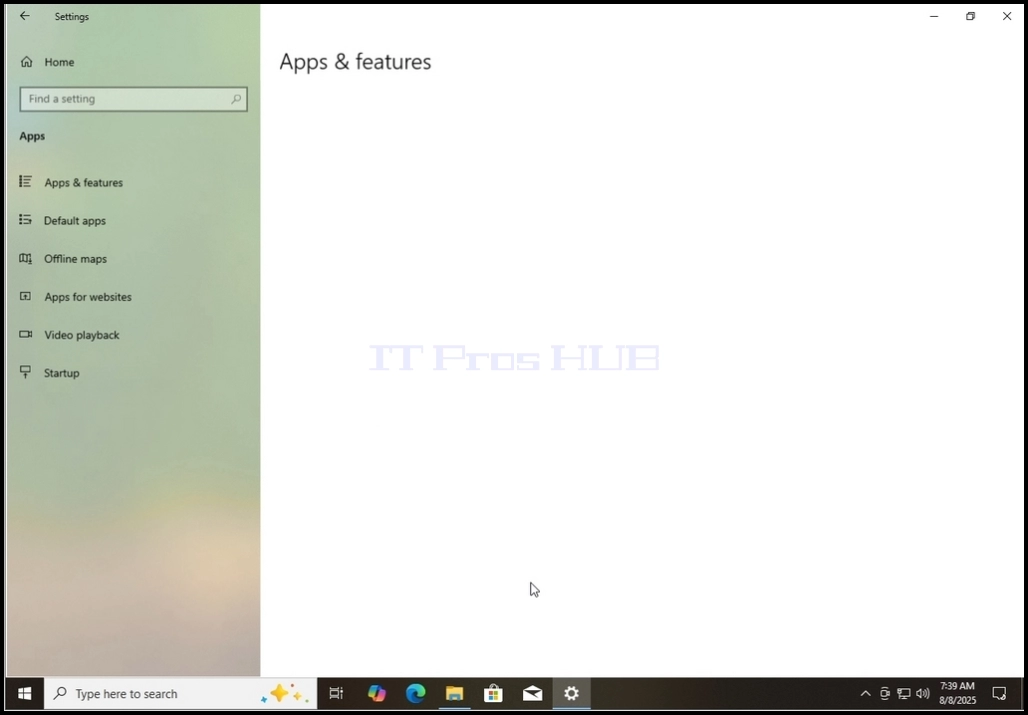
3. In the Settings window, look for the Apps option.. Click on it and wait for the Apps & features window to appear

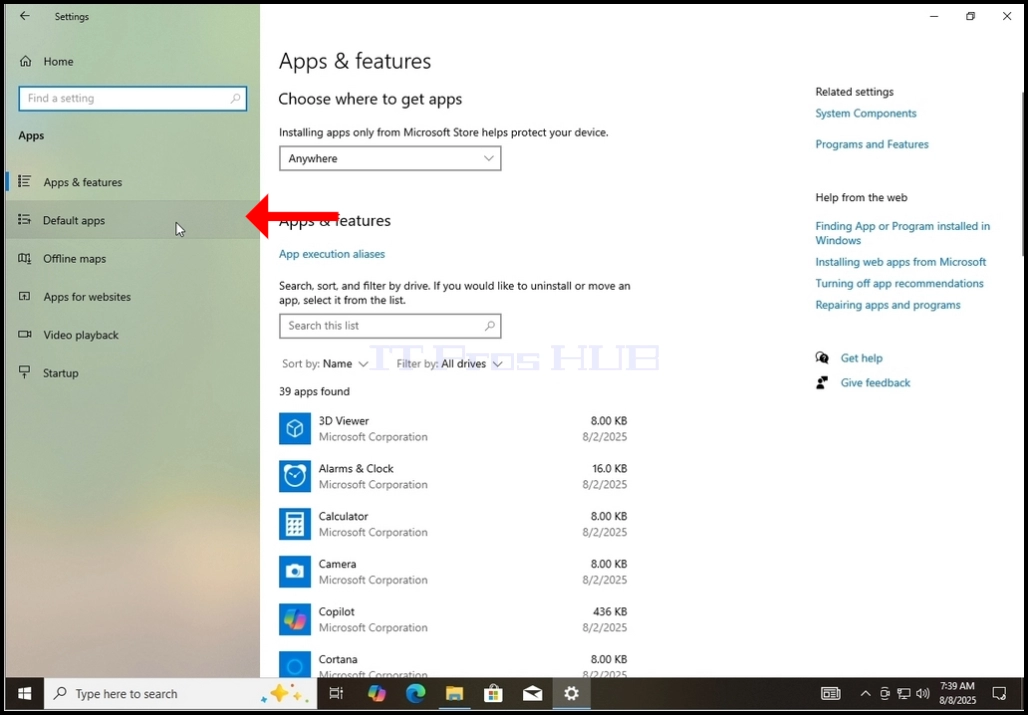
4. In the Apps & features window, on the left pane, choose the 2nd option from the top which is the Default apps option
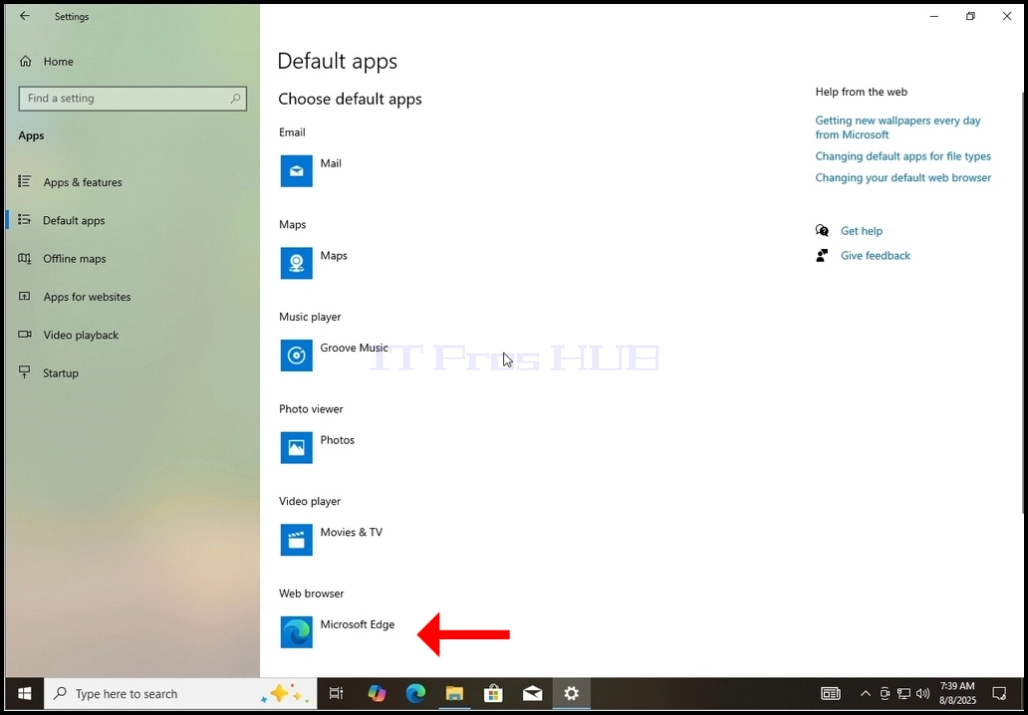
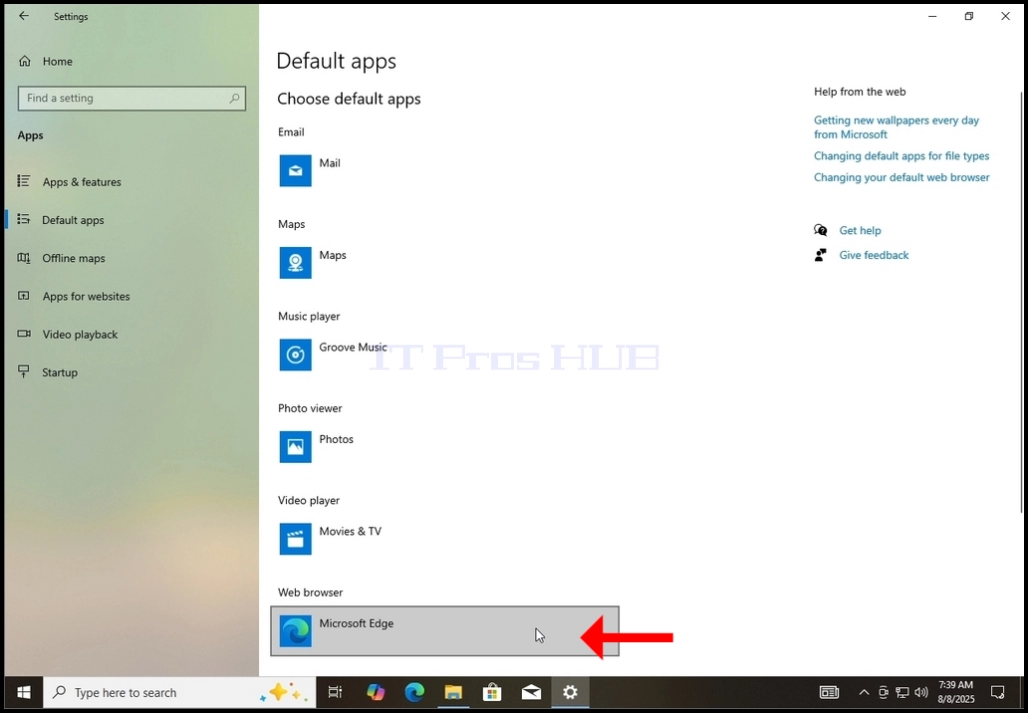
5. Under the Default apps window, look for the 5th option which is the web browser. Option. The app under it is the app that is currently set as the default browser. In the case of this article it’s Microsoft Edge.


- Details
- Written by: IT Pro
- Category: How to Articles
- Hits: 9580


3. In the Settings window, look for the Apps option in the left pane. It should be the 6th option from the top. Click on it and wait for the Apps window to appear

4. In the Apps window, choose the 3rd option from the top which is the Default apps option

5. Under the Default apps window, scroll down the through the various apps and search for the Google Chrome app

6. Click on the Google Chrome app once you find it and wait for the window to change to the Google Chrome settings window


9. Perform a visual check and scroll down through the various link types to make sure Google Chrome was set as the default browser.
a. As you can see in the screenshots below, .htm, .html file types and the HTTP and HTTPS protocols were changed from set to open with Microsoft Edge to set to open with Google Chrome.


10. Google Chrome is now set as the default browser in Windows 11 :)
- Details
- Written by: IT Pro
- Category: How to Articles
- Hits: 7403
INTRO:
In this article we will demonstrate how to create one spanned volume out of 2 identical disks.
Spanned volumes are volumes that are managed by Windows an require disks to be converted into Dynamic ones from Basic.
A Spanned volume essentially needs a minimum of 2 disks to be created and turns then into one big volume that consists of the 2 disks’ storage spaces.
A Spanned volume could be consisted of 2 or more disks that are not identical at all. Therefor if for example you have a bunch of unused disks laying around you could potentially use them as one big single drive, or in other words, as a single spanned volume that on the surface looks like a regular disk. This storage method is also called JBOD which is short for Just a Bunch Of Disks.
Before we begin, we must go over the disadvantages as well:
No performance boost: Spanned volumes don’t speed up read/write speeds.
0 redundancy: If any one disk fails, all data in the spanned volume is lost (because part of each file may reside on different drives).
Not bootable: You cannot install Windows or boot from a spanned volume.
3. Wait for the Computer Management application to load.
4. Look for "Disk Management" in the top left pane and click on it.
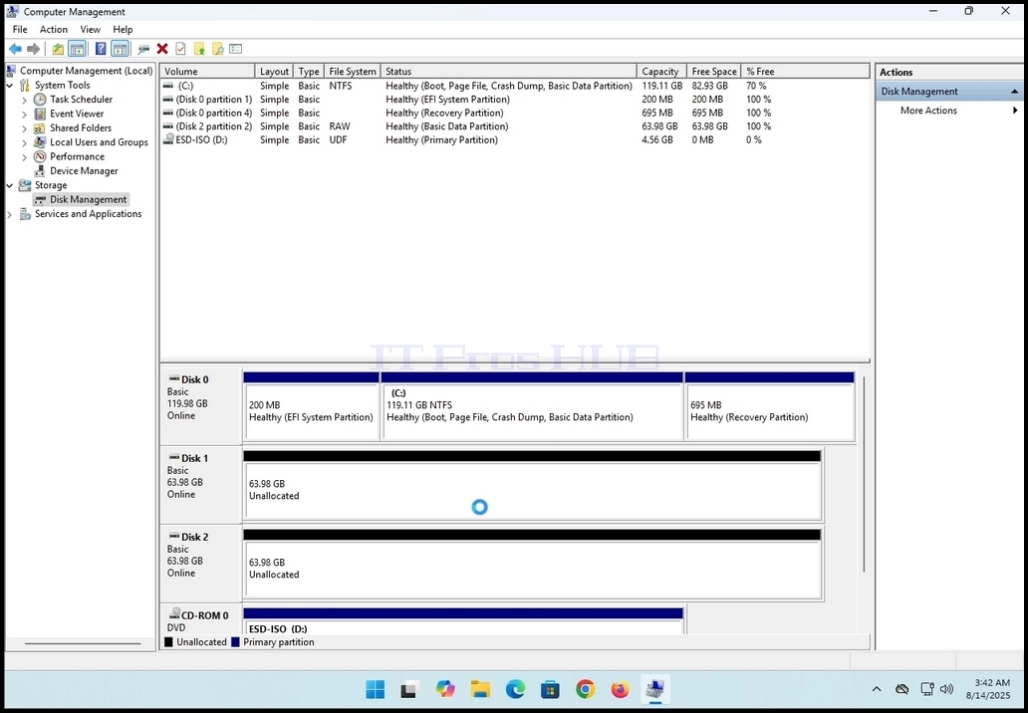
5. Make sure you have a minimum of 2 disks in favor of creating a spanned volume. In this article we are going to use disk 1 and disk 2 as can be seen below:
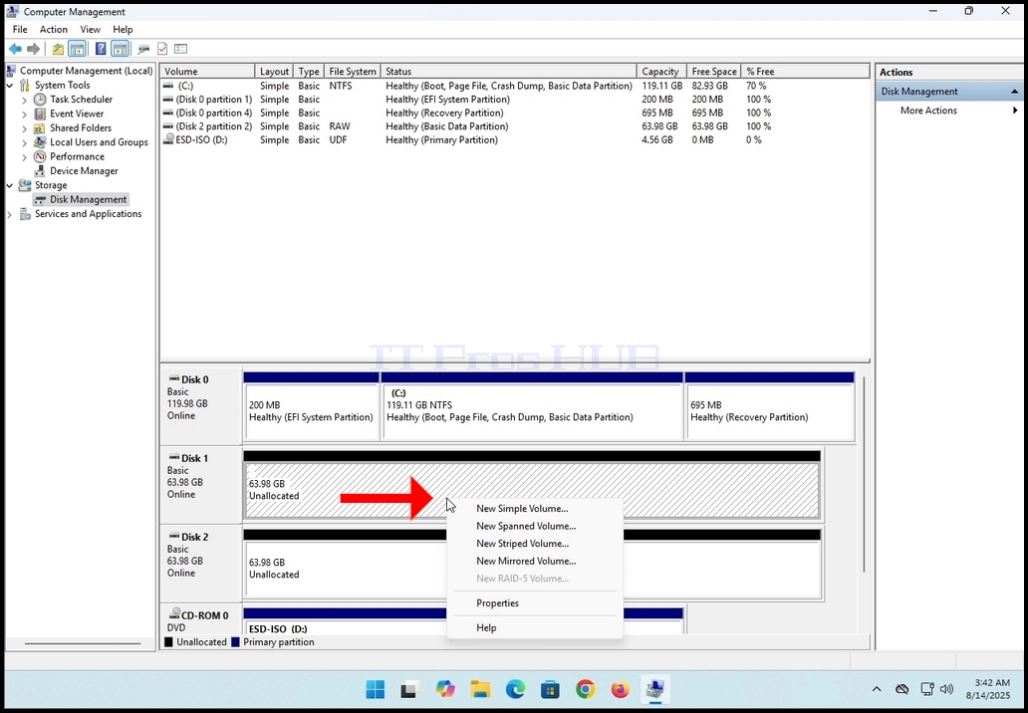
7. Choose the "New Spanned Volume" option and wait for the spanned volume wizard to appear


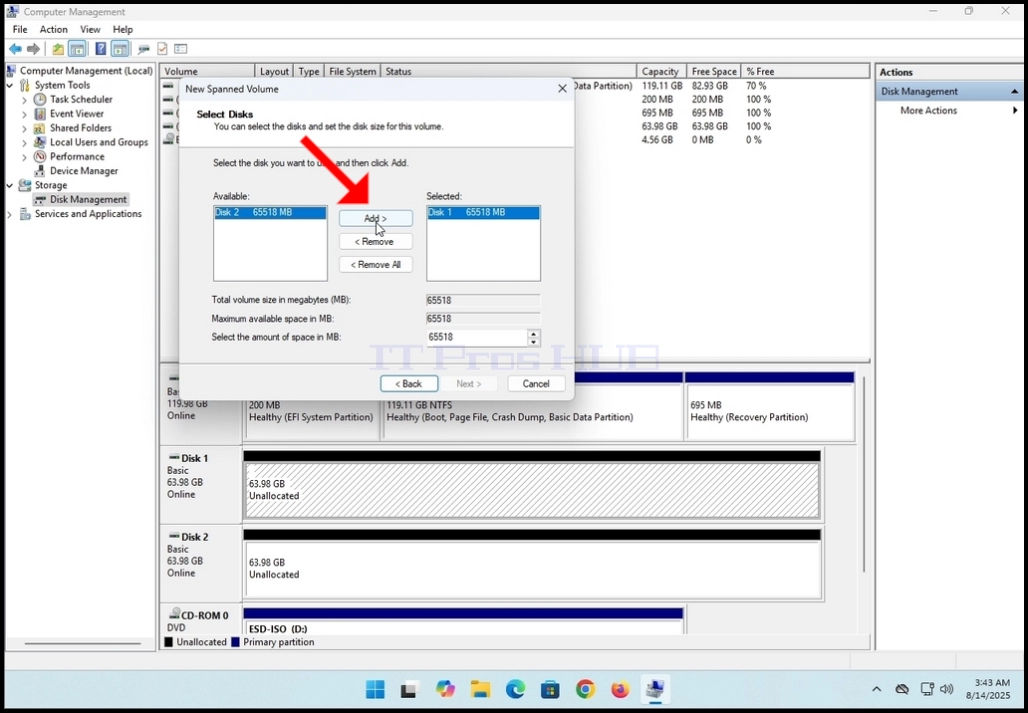
- As you can see in the screenshot below, Disk 1 is already chosen because it was the disk we had initiated the wizard with.
- Now we have to add a second disk into the spanned volume array. We are going to choose Disk 2.




15. In the current stage, Format Volume, you can:
a. Change the file system used.
i. In this article we are going to use the default of NTFS
b. Change the Allocation Unit Size
i. In this article we will use the default
c. Change the volume label
i. In this article we are going to change it from “New Volume” to “New Spanned Volume”
16. We will choose the Perform a quick format option.
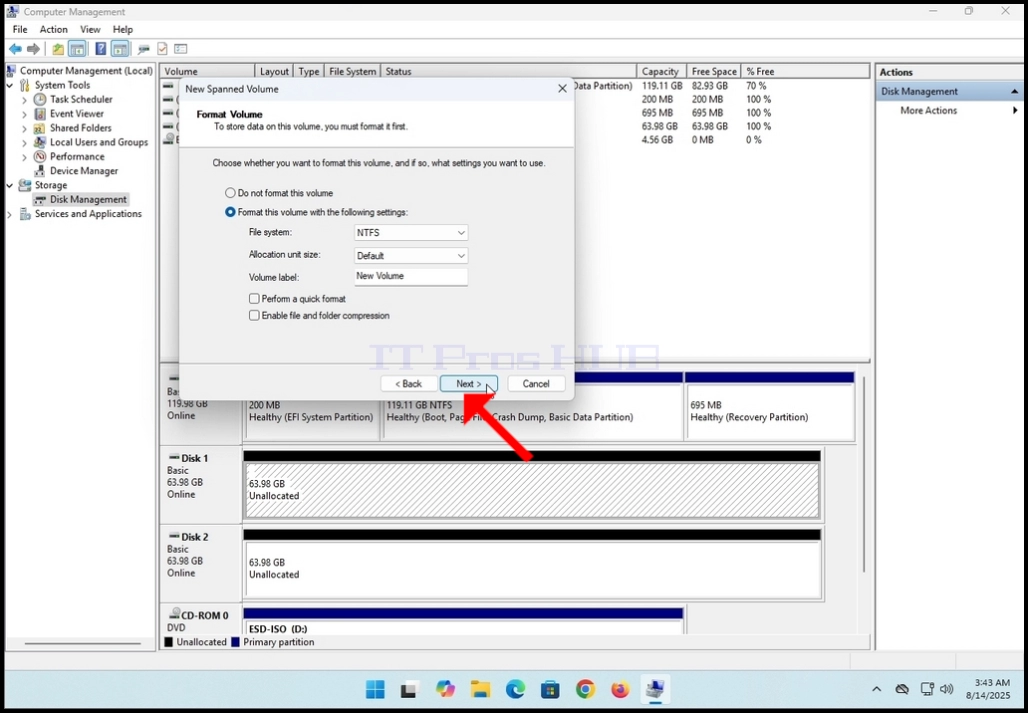
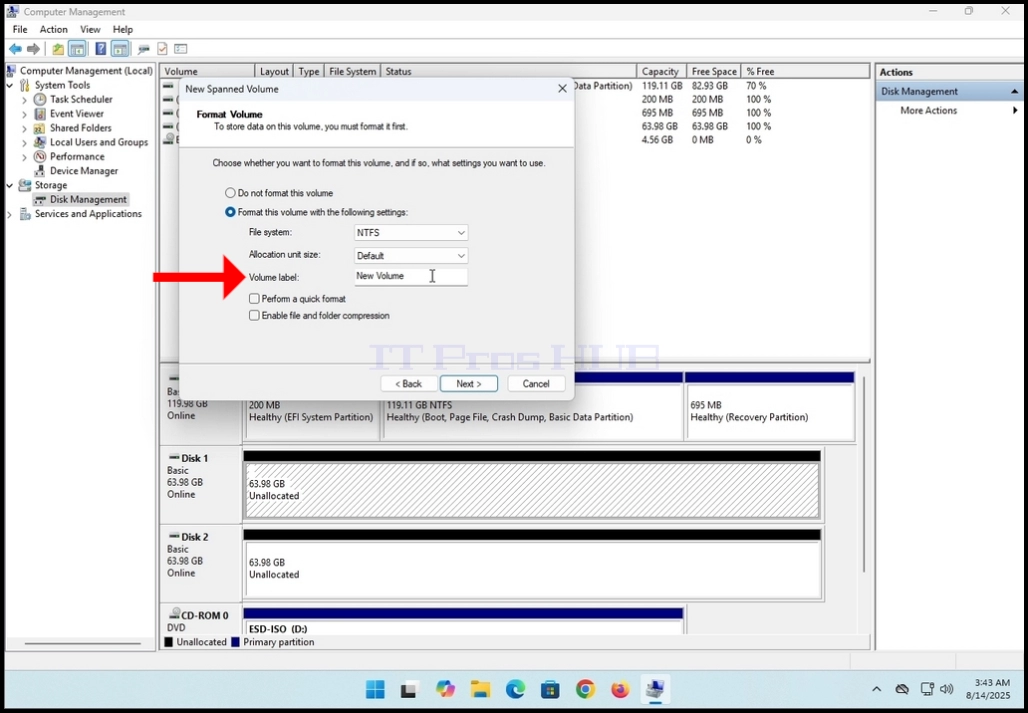
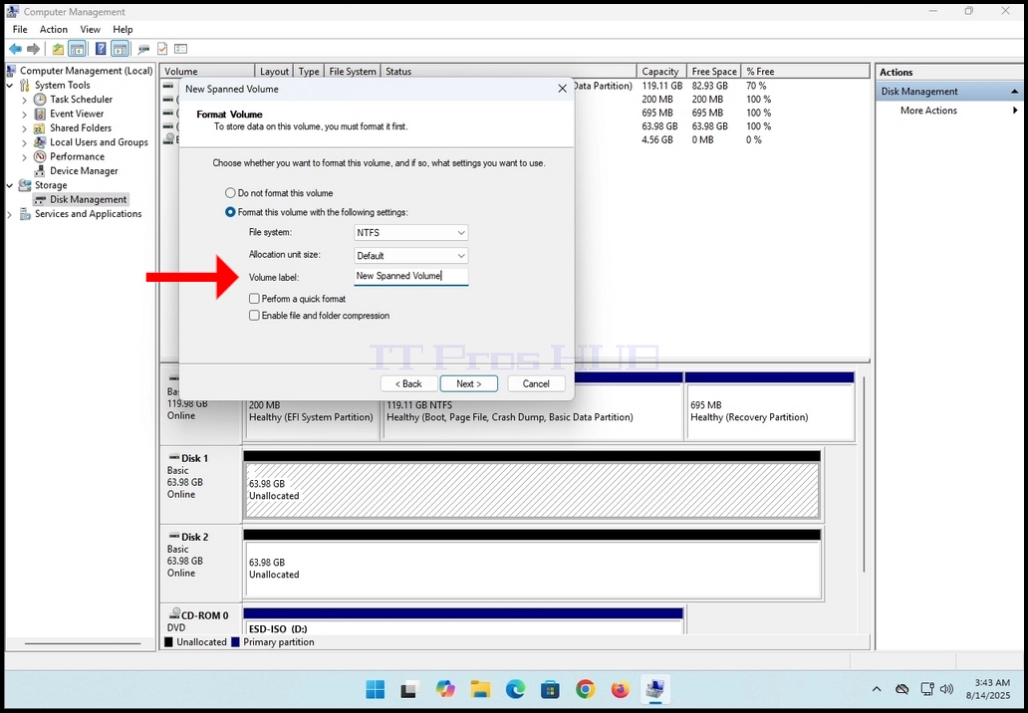
17. Click NEXT
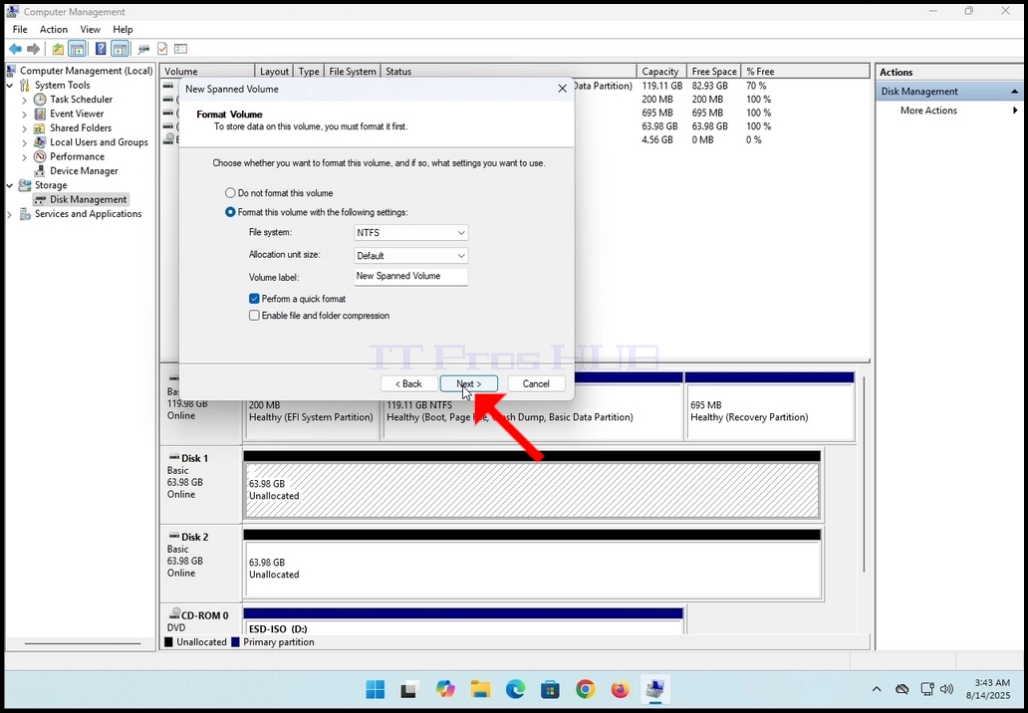
18. Click FINISH to complete the wizard


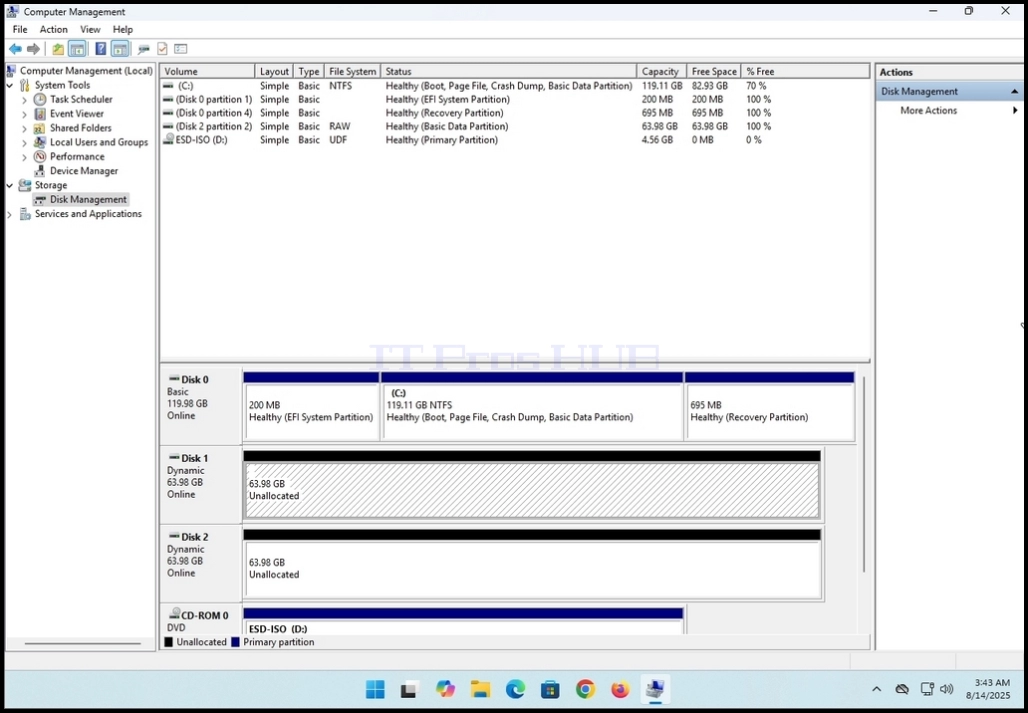
21. Once the conversion process is done, you will notice that both of the disks that were selected for conversion are not purple colored instead of black.
a. Also notice that it says in both disks under their title: ”Dynamic” instead of “Basic”
22. An autoplay notification pop up will appear on the right bottom side of the screen as well
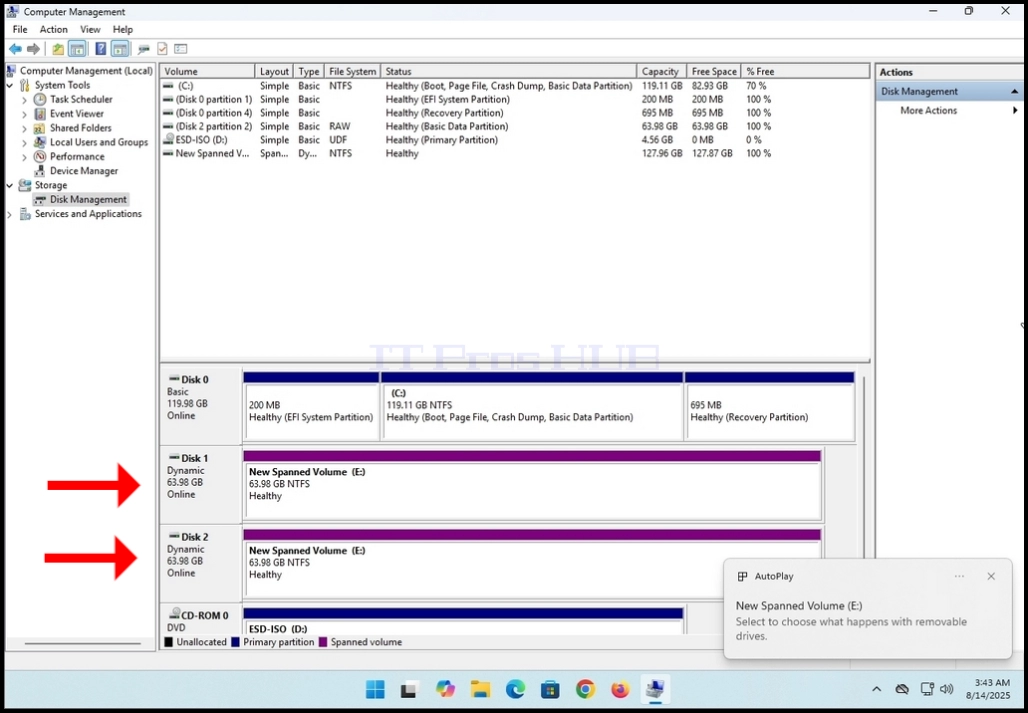

22. An autoplay notification pop up will appear on the right bottom side of the screen as well
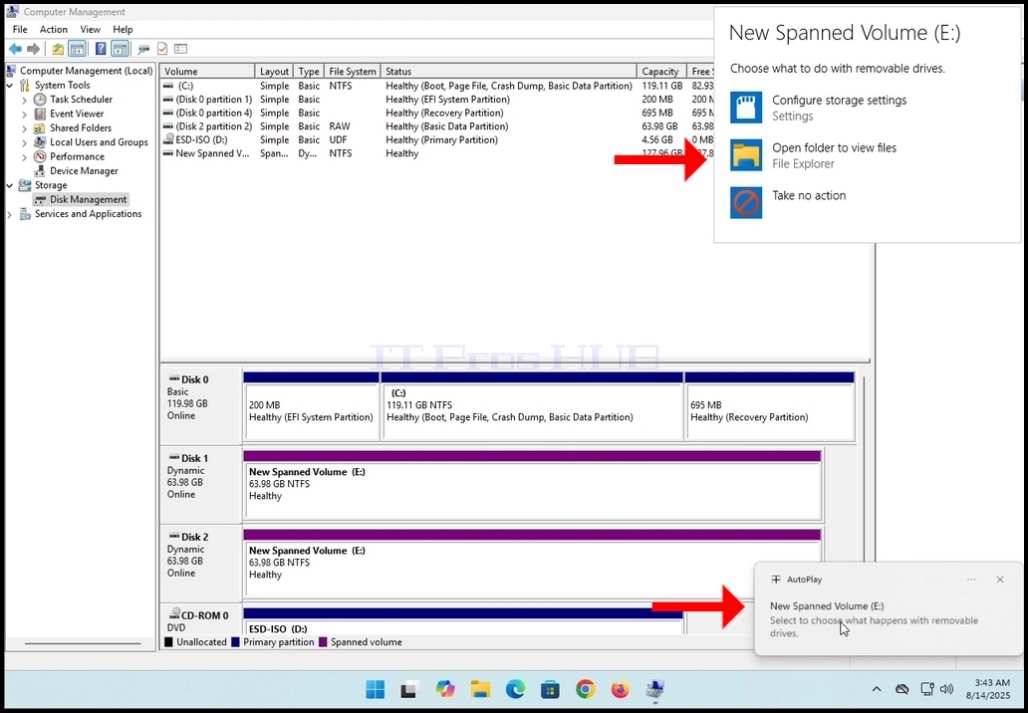
23. You can click that notification window to reveal more possible options regarding that newly discovered volume
a. In this article we clicked the folder icon to explore its contents

- 24. The newly created spanned volume should look like any other volume when looking at it in the This PC window
a. Note that its size is made of the size of the 2 disks we used to construct this volume. Both of then were 63.98GB and together they are 127.96GB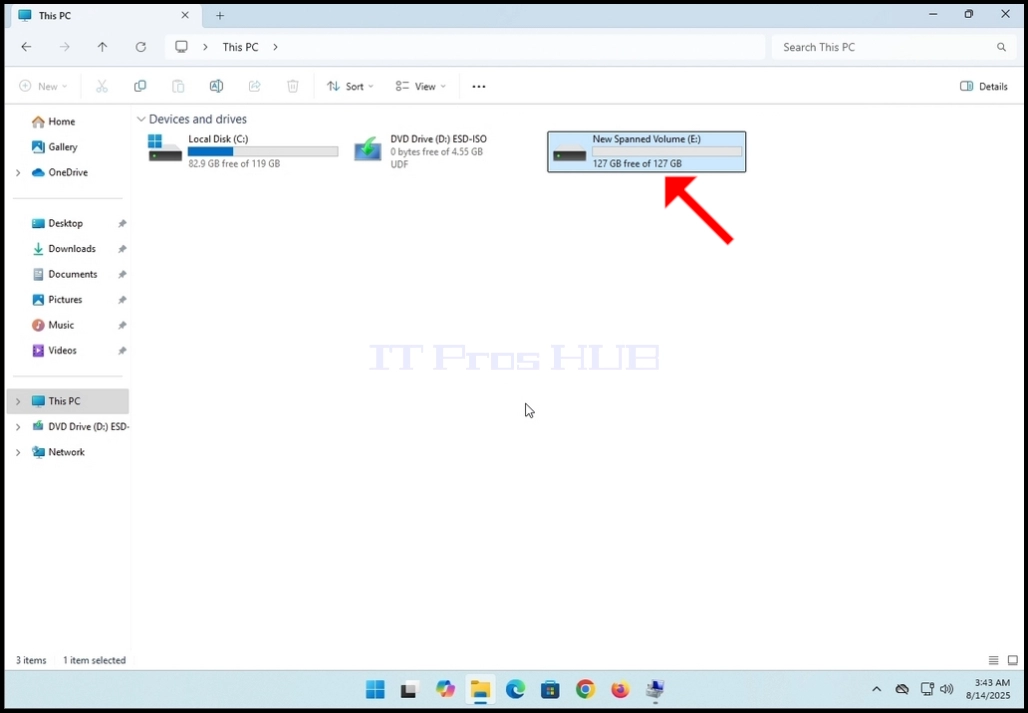
- Details
- Written by: IT Pro
- Category: How to Articles
- Hits: 10457
Intro:
Recently, a lot of you have come across Microsoft yet another attempt to force its users and future users in this specific case, to open a Microsoft account. This time, through Windows 11 version 24H2 build 26100.4652.
In this article we will go through the different methods that can be used in order to install Windows 11 24H2 smoothly without the hassle of creating an unwanted Microsoft account.
Over we have discovered there are more than one way to install Windows 11 24H2 without creating a Microsoft account.
In Short:
For those who want the TLDR version, you would need to perform 2 actions in order to install Windows without creating a Microsoft account:
- Make sure the machine chosen to be installed with Windows 11 is NOT connected to the internet and then use the oobe\bypassnro CMD command – using this method skips the Personal use/work or School stage of the installation all together.
- A second method is to Set up that machine while CONNECTED to the internet. Choose personal use and then use the oobe\bypassnro CMD command OR set up that machine for Work or School WITHOUT the need for the latter command.
In both of these cases the installation was done using a USB flash drive which the computer booted from.
The Longer Version:
Installing Windows Without an Internet Connection:
- Make sure the machine is NOT connected to the internet
- Boot your computer to the Windows USB flash drive installation and Start the Windows 11 installation process normally as you would any other.
- Go through all of the following stages:
- Boot Windows Installation Media >> Select language >> Select Keyboard Setting >> Select Setup Option >> Product Key >> We are getting ready >> Select image >> Setting ready >> EULA >> Please wait >> Searching for disks >> Location >> Ready to install >> Installing windows 11 (blue screen) >> Installing (black screen) >> Country Choosing >> Keyboard layout >> Second keyboard layout >>
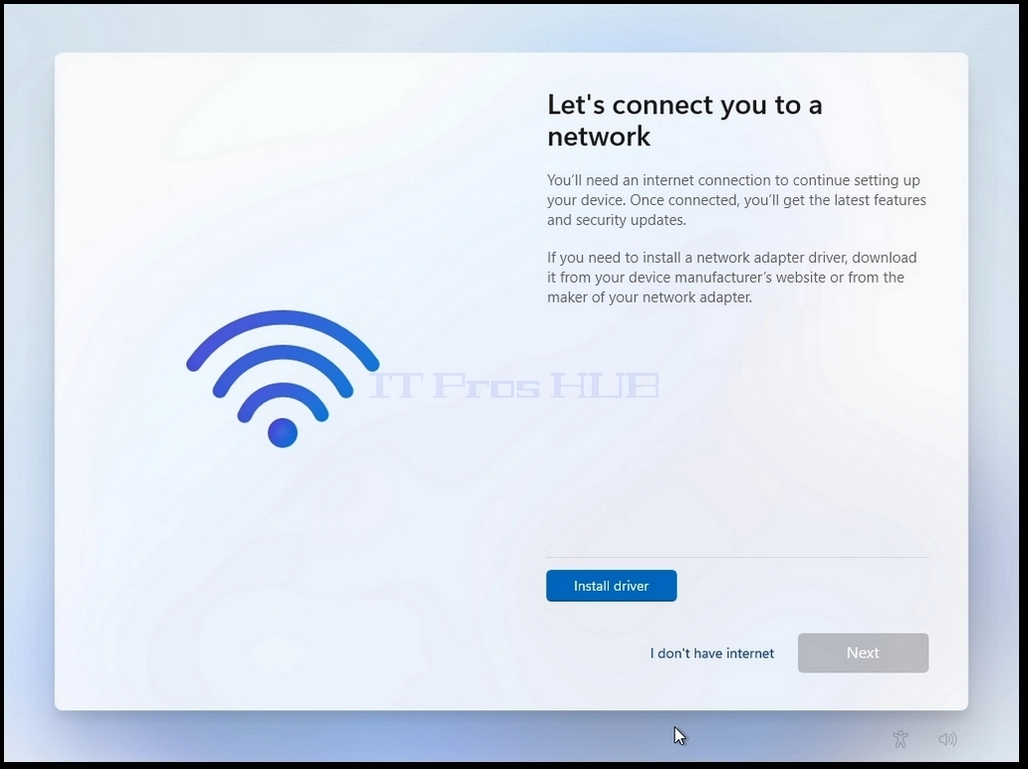
- Once all of the latter stages have been gone through, you will reach a stage called “Let’s connect you to a network”
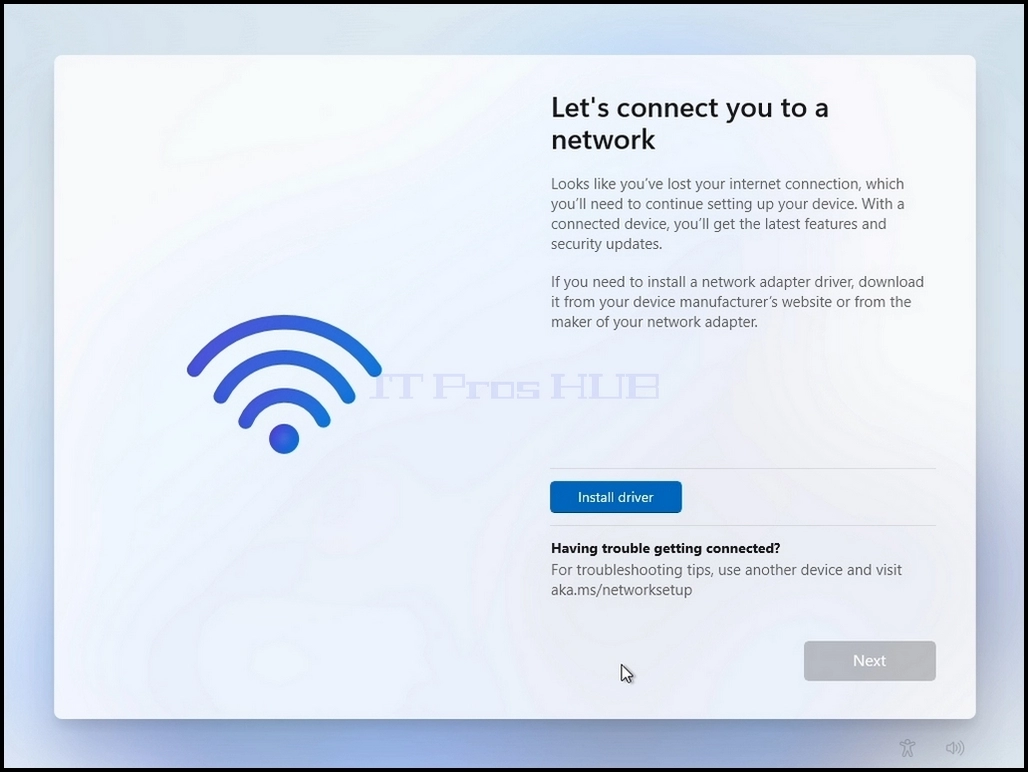
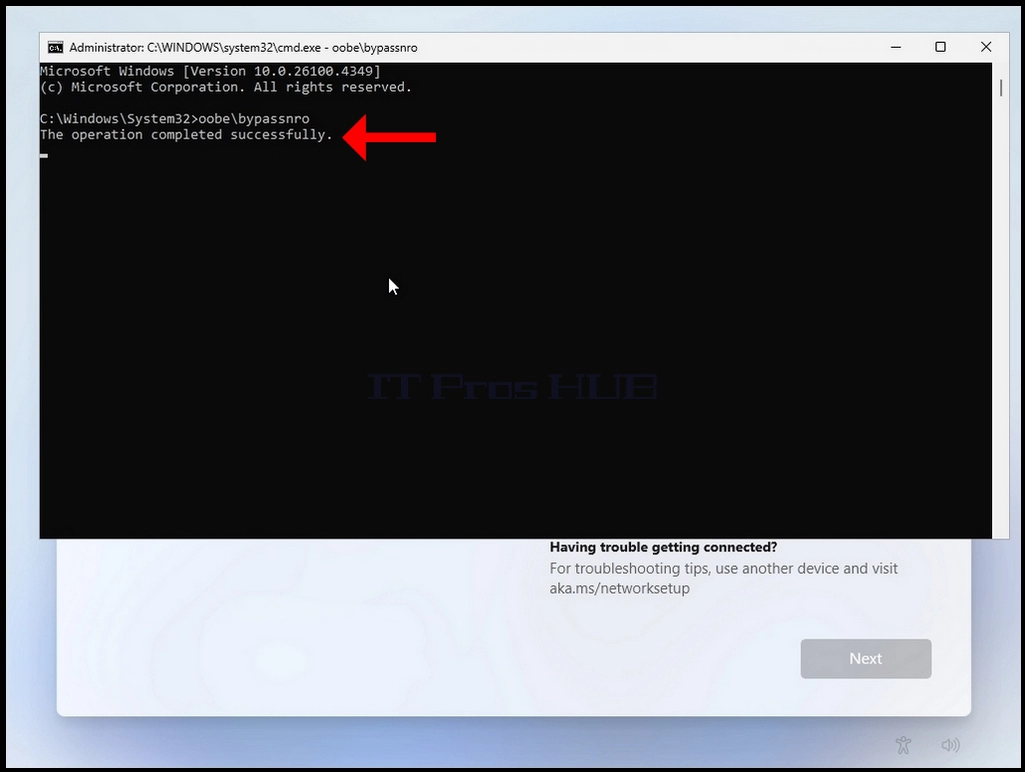
- Click and hold the CTRL key and click the F10 key momentarily. A CMD window will appear
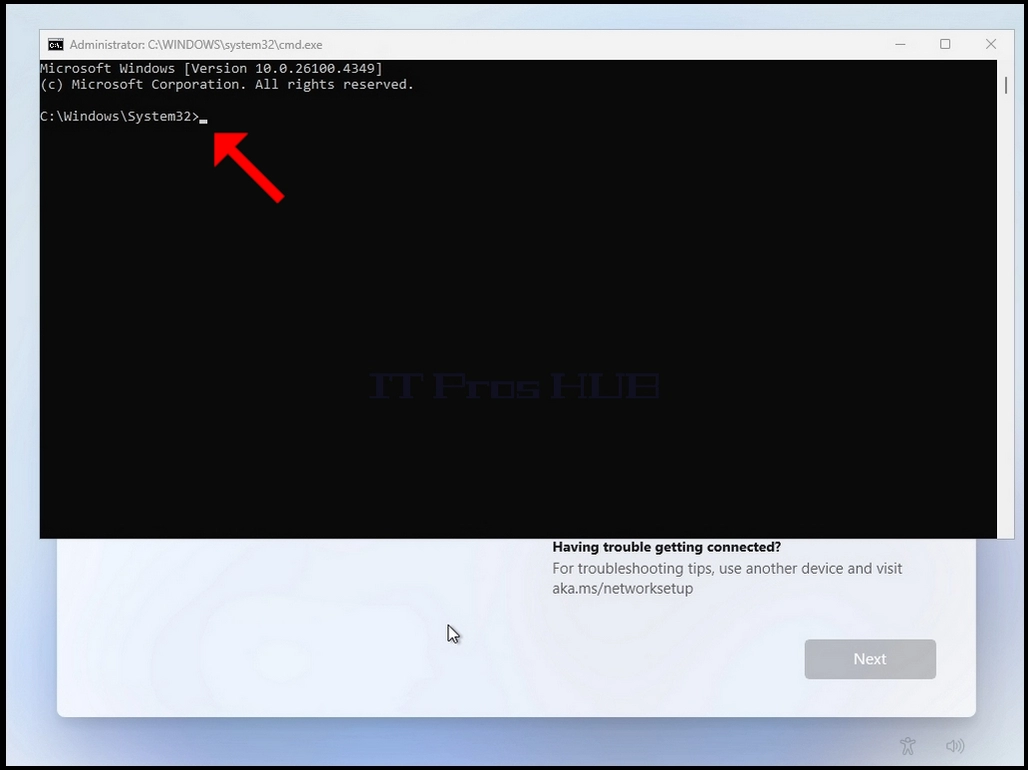
- In the CMD window, type the following:
- Oobe\bypassnro
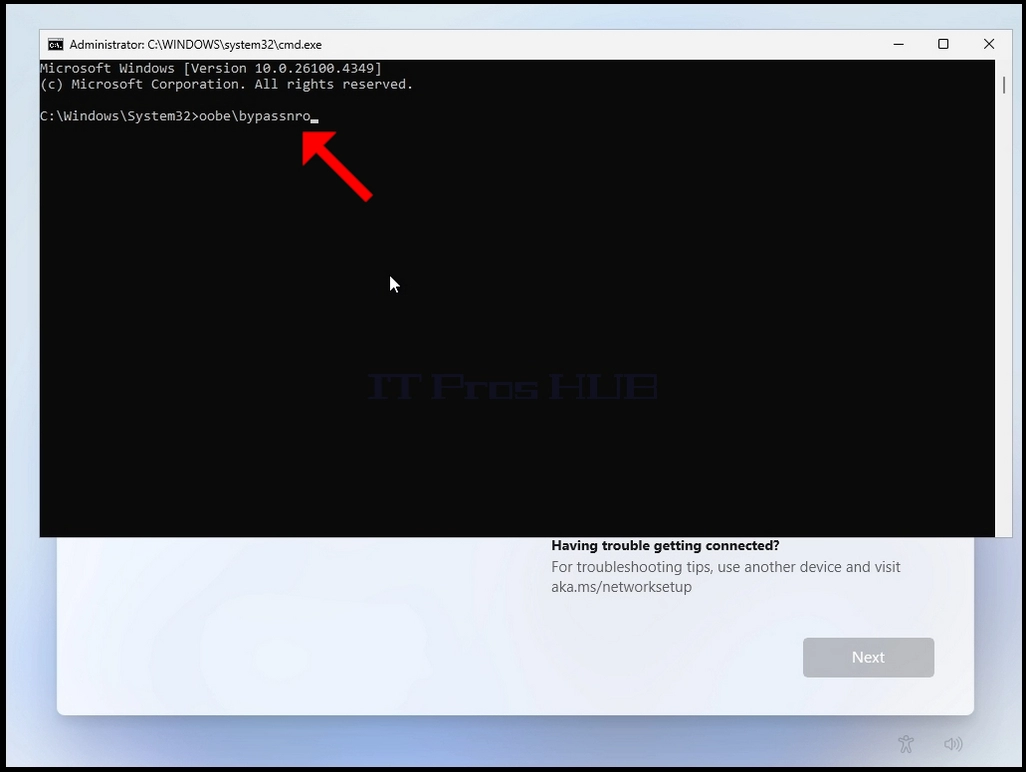
- Hit the enter key
- For a very brief moment you will see an output in the CMD window saying “The operation completed successfully” before the installation process restarts the computer
- Go through all of the following stages:
- Is this the right country or region? >> Is this the right keyboard layout or input method ? >> Second keyboard layout
- You will be presented with the same “Let’s connect you to a network” stage again
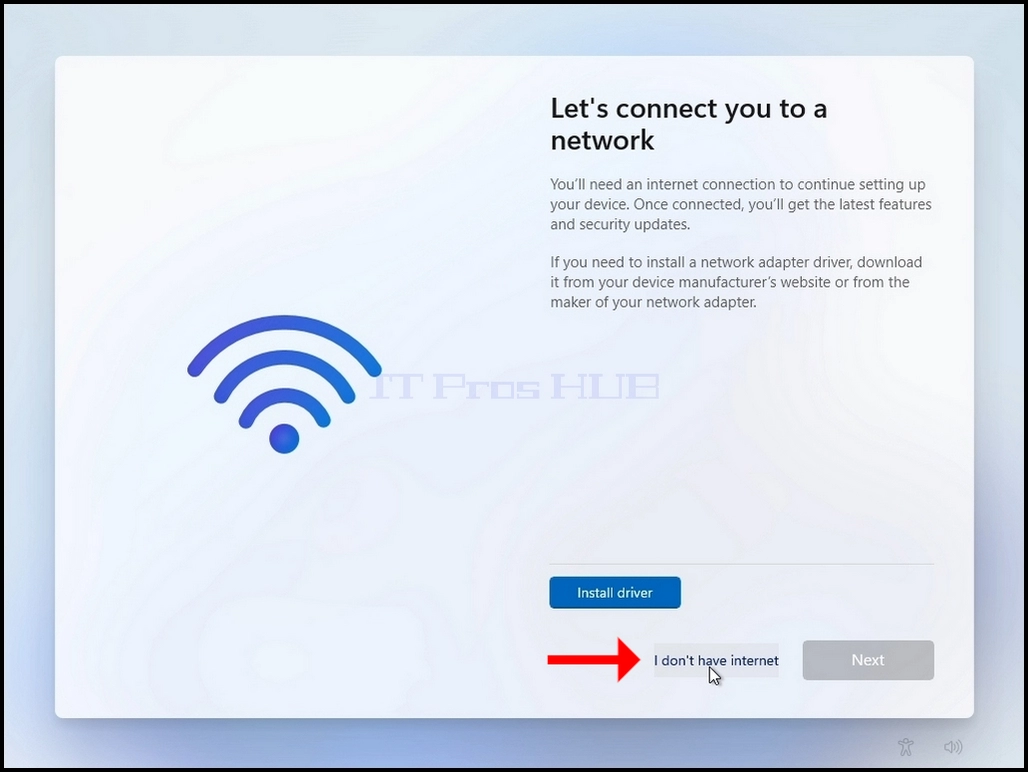
- Click on “I don’t have internet”
- Go through the following stages:
- who’s going to use this device ? >> password >> choose privacy settings for your device
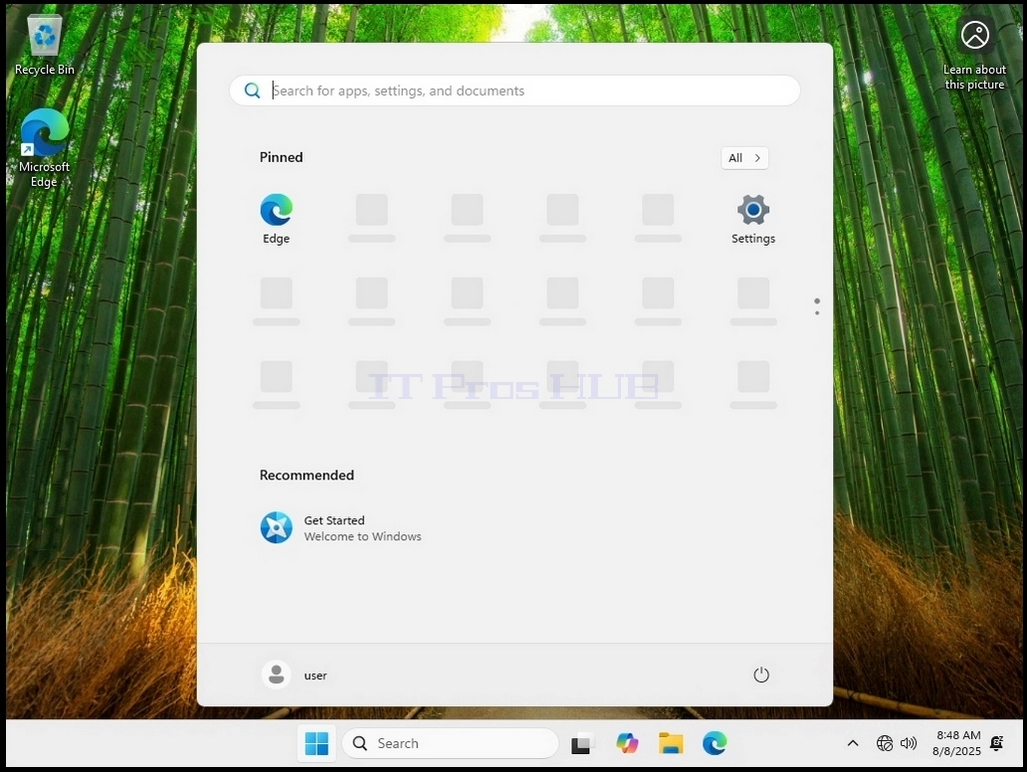
- Windows should now start


Installing Windows with an Internet Connection Present:
- Make sure the machine is connected to the internet
- Boot your computer to the Windows USB flash drive installation and Start the Windows 11 installation
- process normally as you would any other.
- Go through the following stages:
- Boot Windows Installation Media >> Select language >> Select Keyboard Setting >> Select Setup Option >> Product Key >> We are getting ready >> Select image >> Setting ready >> EULA >> Please wait >> Searching for disks >> Location >> Ready to install >> Installing windows 11 (blue screen) >> Installing (black screen) >> Country Choosing >> Keyboard layout >> Second keyboard layout >> Checking for updates >> Let’s name your device >> How would you like to set up this device >>
- Once all of the latter stages have been gone through, you will reach a stage called “How would you like to set up this device”
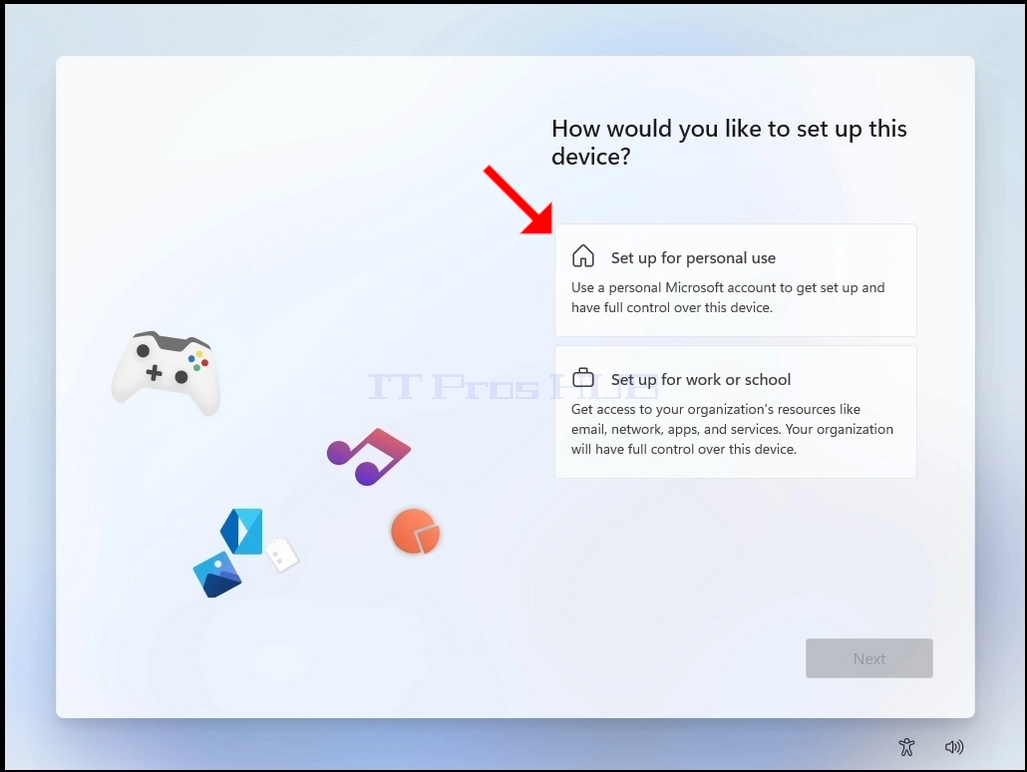
- You will be presented with 2 options:
- Set up for personal use
- If you decide to choose this option, then disconnect the computer from the internet in order to move forward with the installation
- Once the computer is disconnected from the internet, click the “Set up or personal use button” and wait util you are presented with the “Oops, you’ve lost internet connection” screen
- Set up for personal use
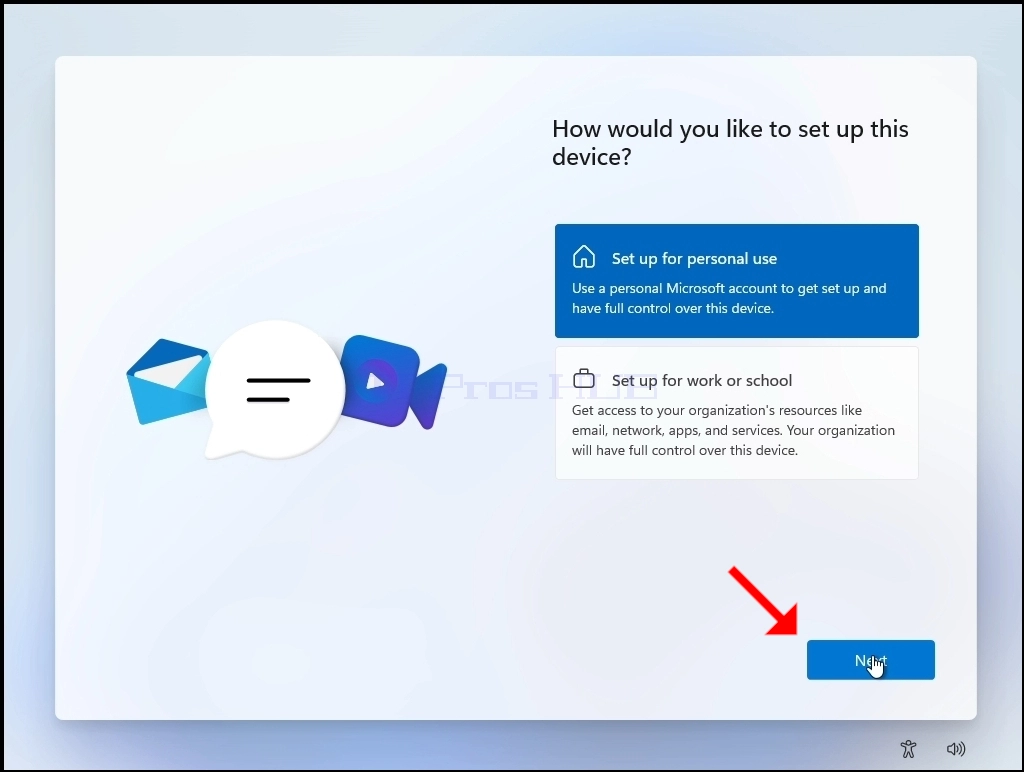
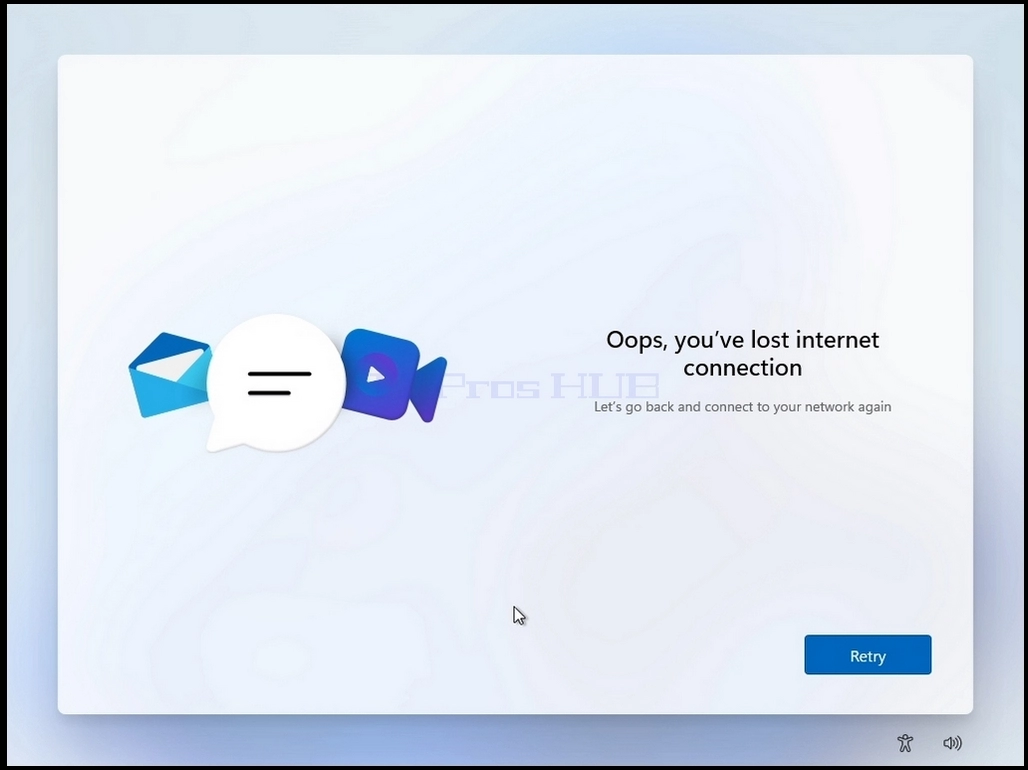
- Click the Retry button
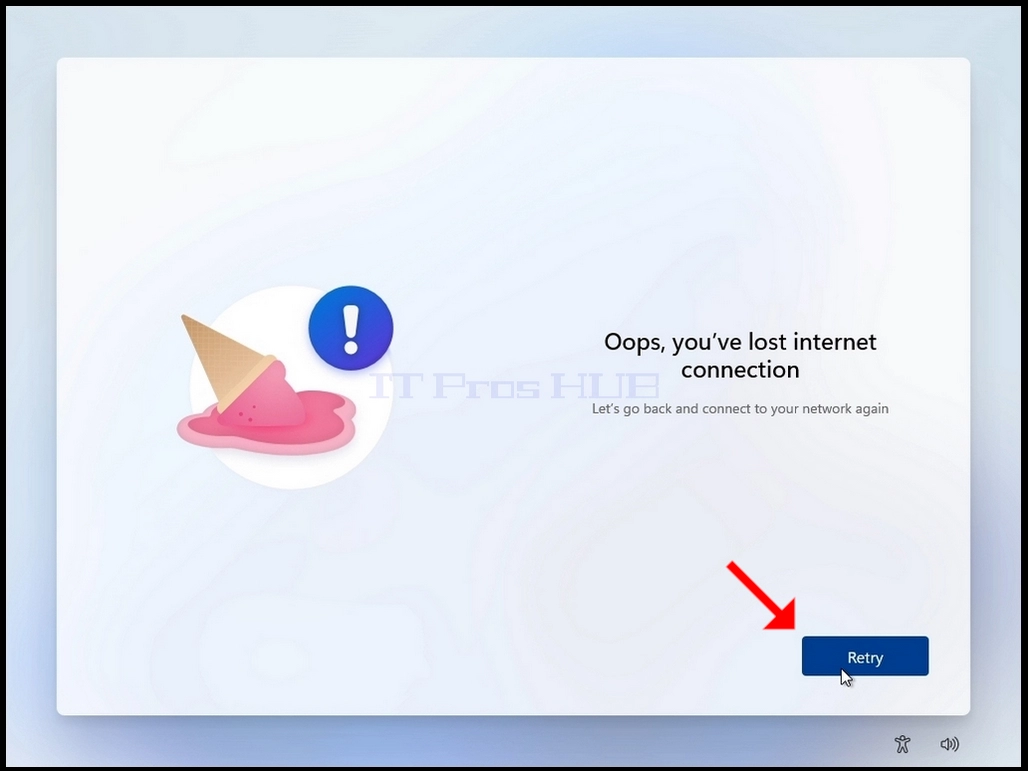
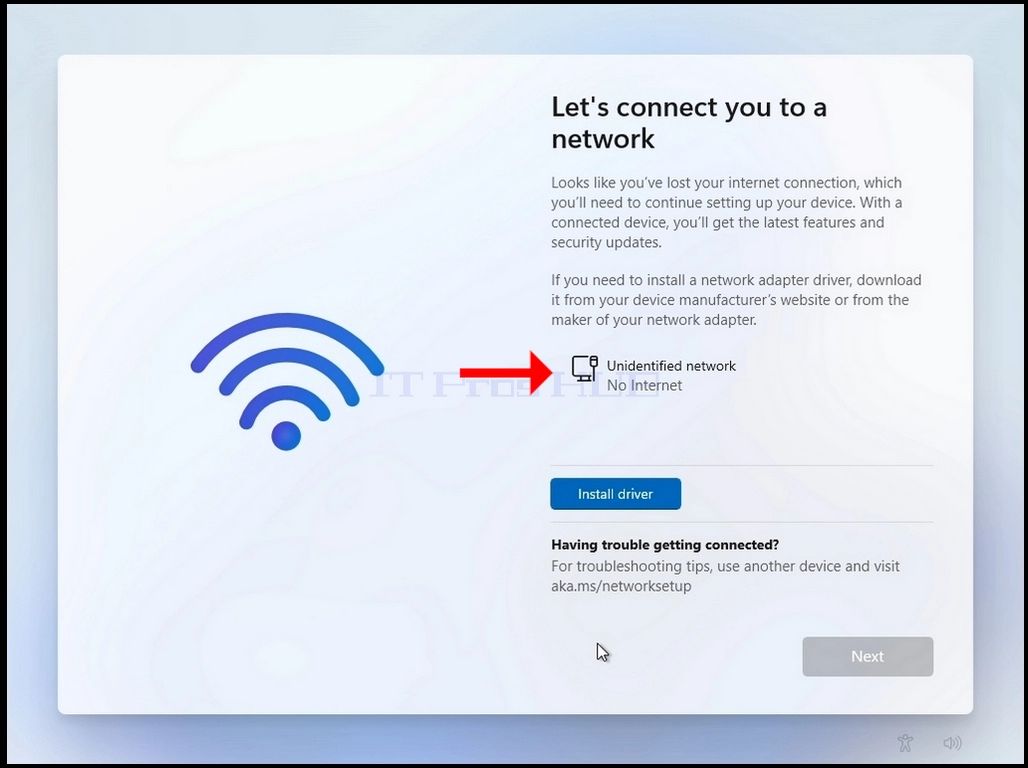
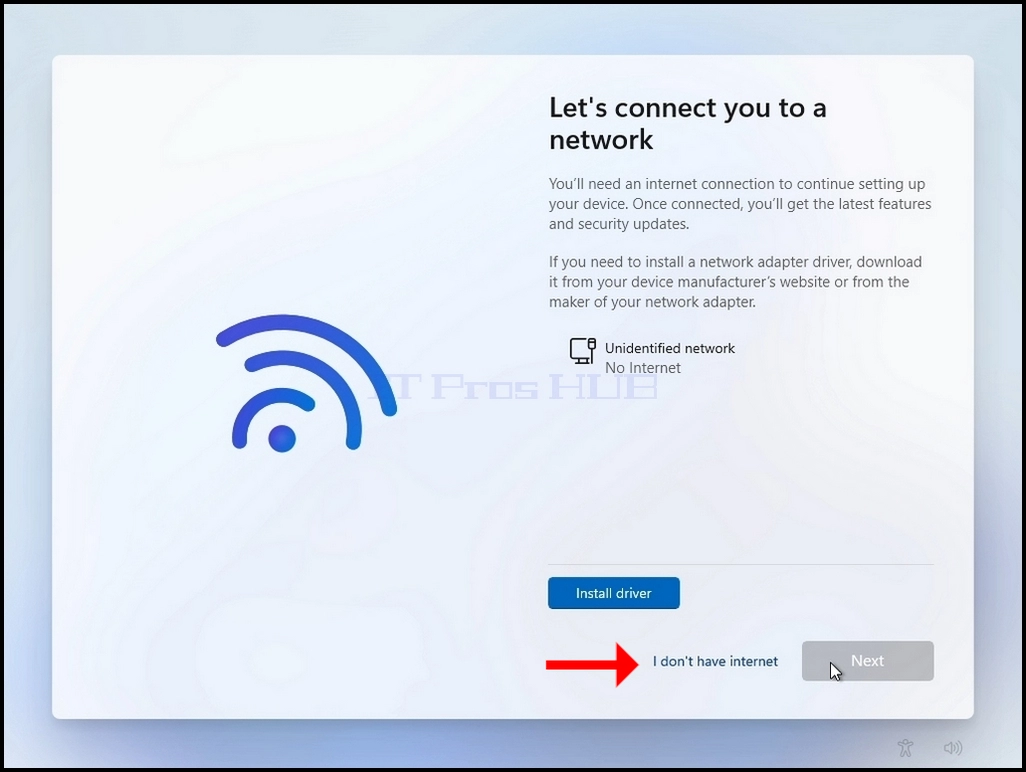
- You will be presented with the “Let’s connect you to a network” screen. note the "no internet" status network interface card.
- Click and hold the CTRL key and click the F10 key momentarily. A CMD window will appear
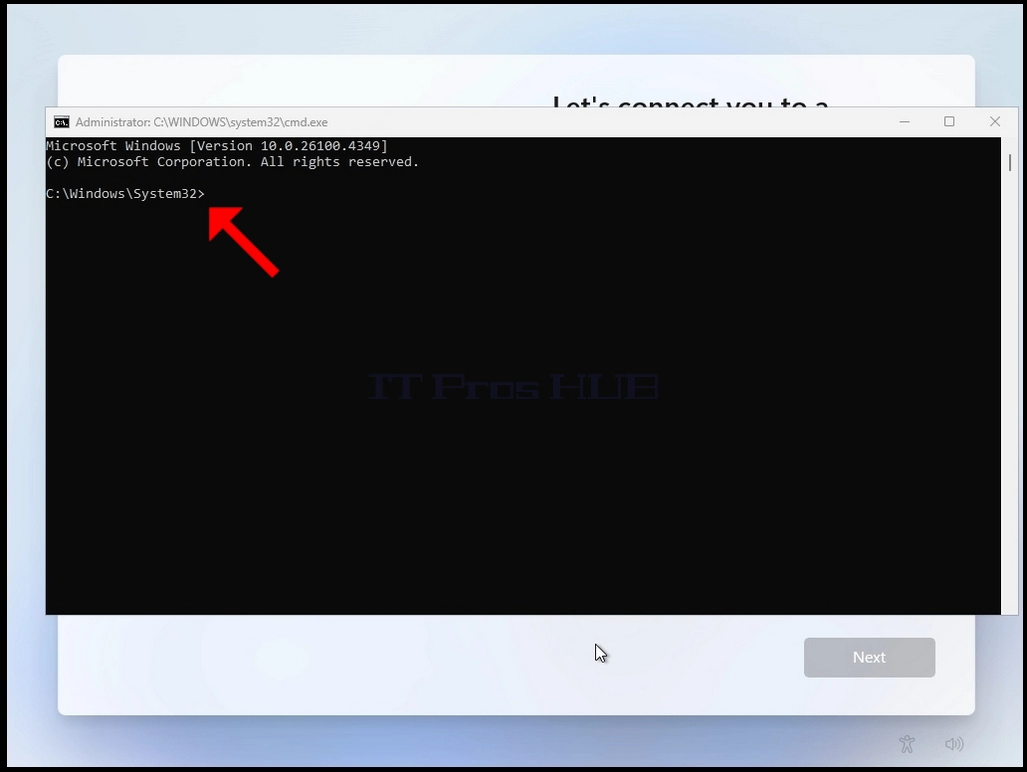
- In the CMD window, type the following :
- Oobe\bypassnro
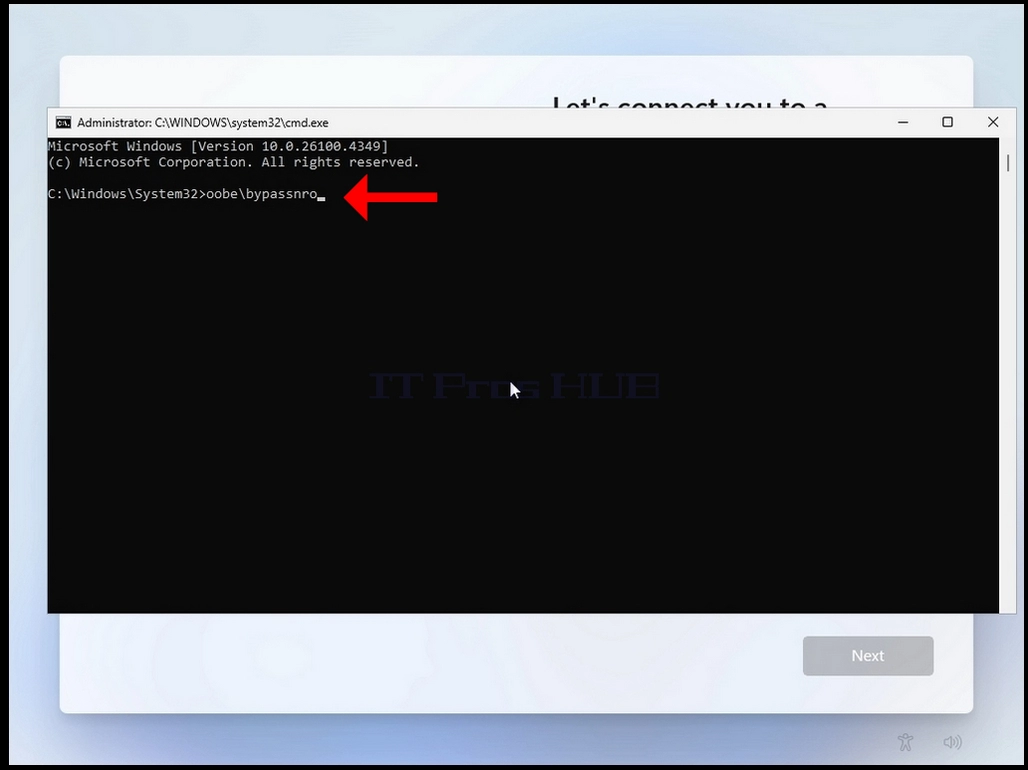
- Hit the enter key
- For a very brief moment you will see an output in the CMD window saying “The operation completed successfully” before the installation process restarts the computer

- Go through all of the following stages:
- Is this the right country or region? >> Is this the right keyboard layout or input method ? >> Second keyboard layout
- You will be presented with the same “Let’s connect you to a network” stage again
- Click on “I don’t have internet”
- Go through the following stages:
- who’s going to use this device ? >> password >> choose privacy settings for your device
- Windows should now start
- Set up for work or school
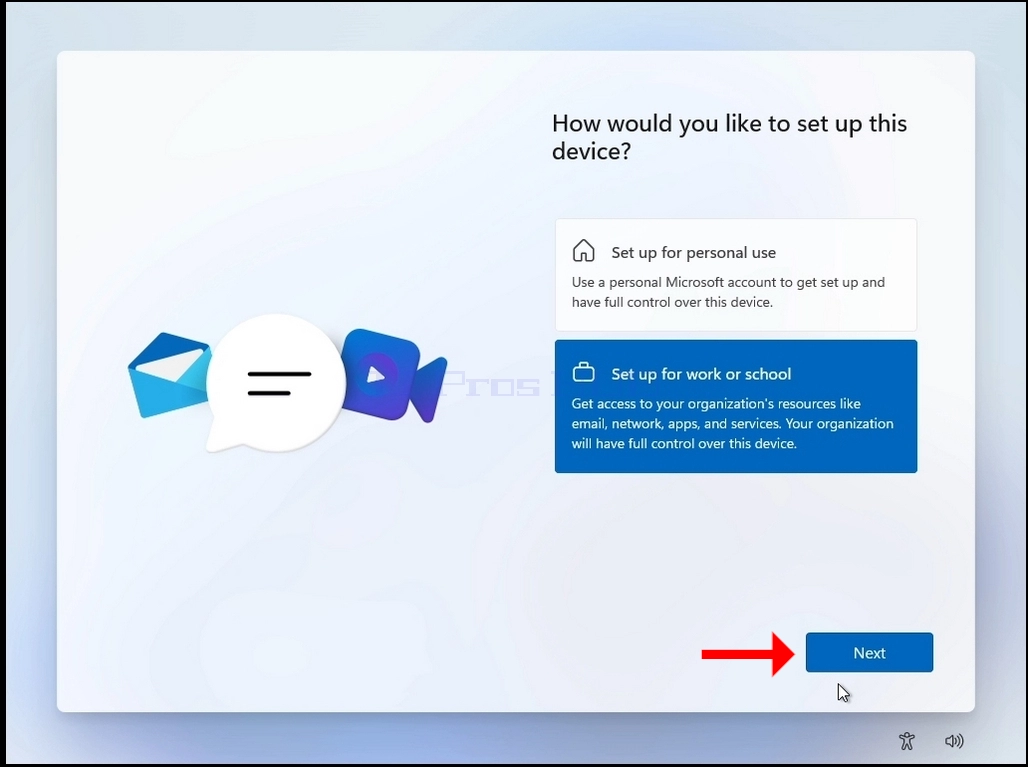
- If you decide to choose this option, then go through the following stages:
- >>Let’s set things up for your work or school >> Sign-in options >>
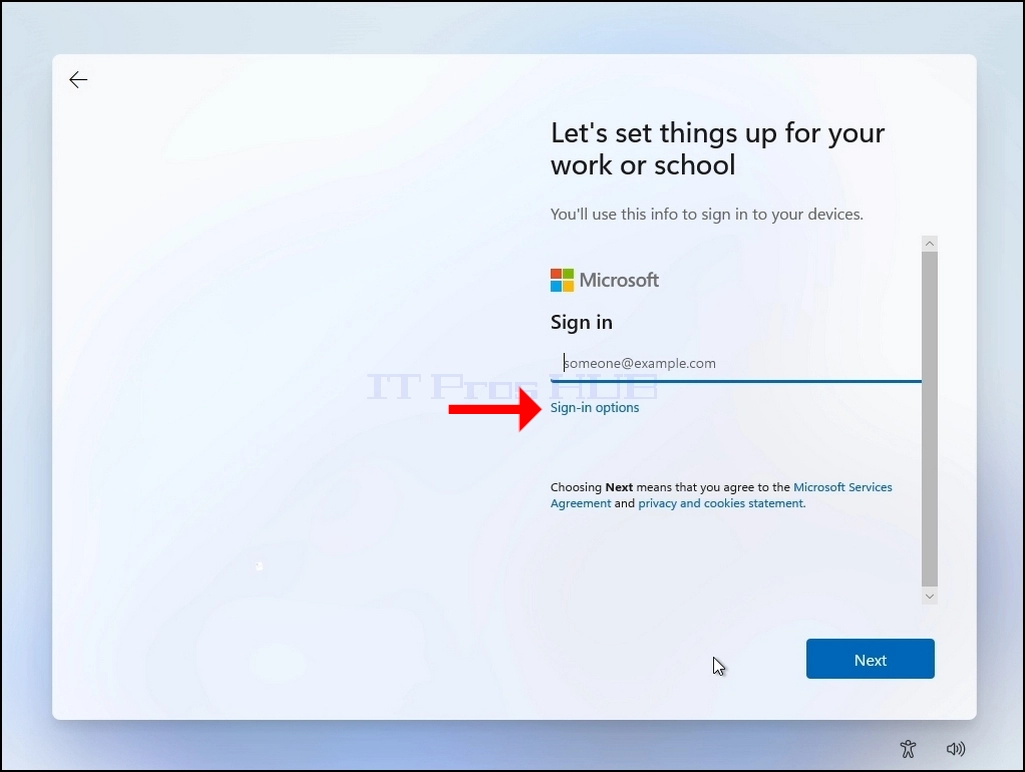
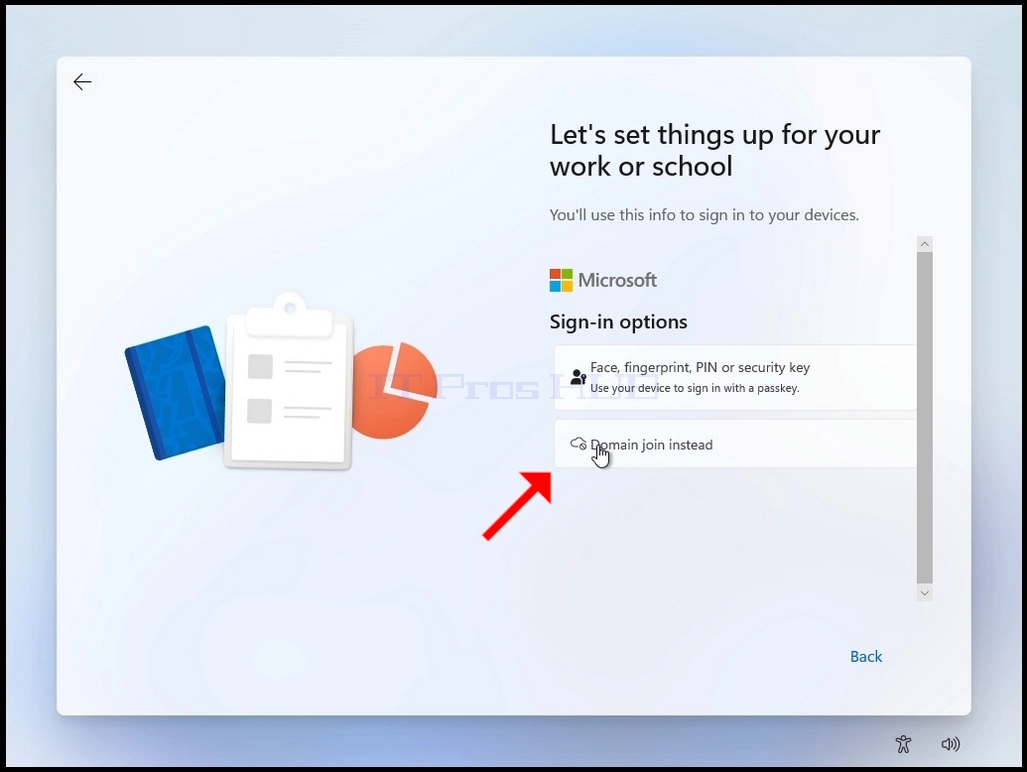
- Choose one of the following 2 options:
- Face, fingerprint, PIN or security key (use your device to sign in with a passkey)
- Domain join instead
- In this example we will choose the “Domain join instead” option
- Go through the following stages:
- Who’s going to use this device >> Password >> choose privacy settings for your device
- After the latter stages, Windows will once again check for updates
- Once the updates check is done, Windows will download these updates and then start to install itself.
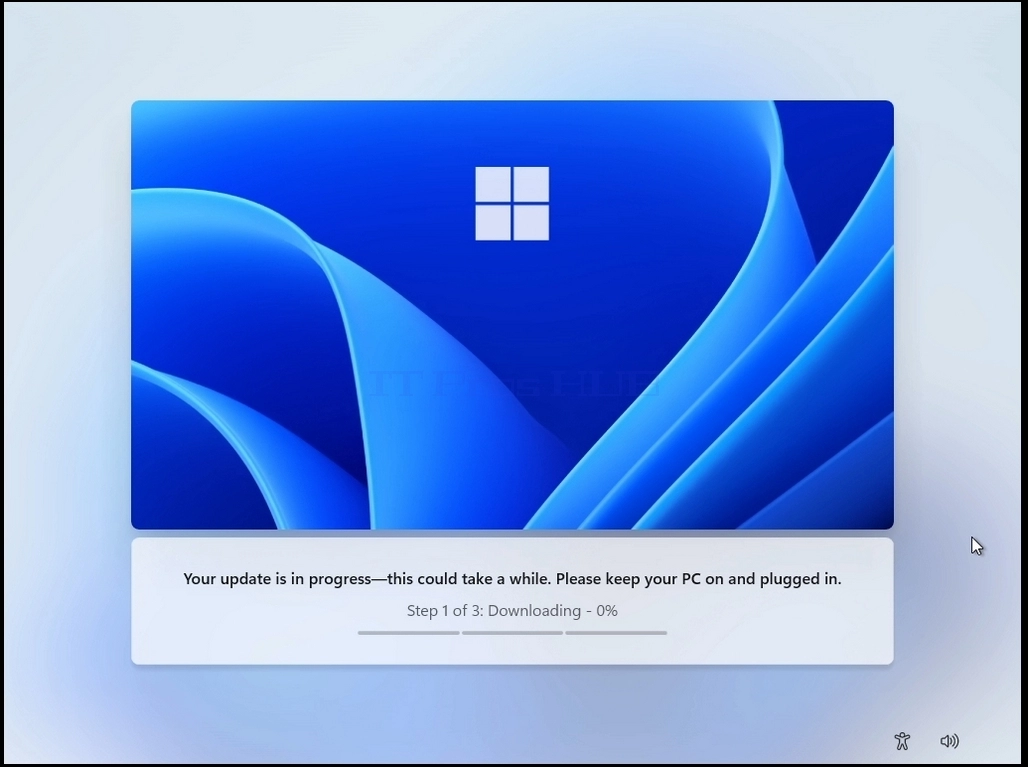
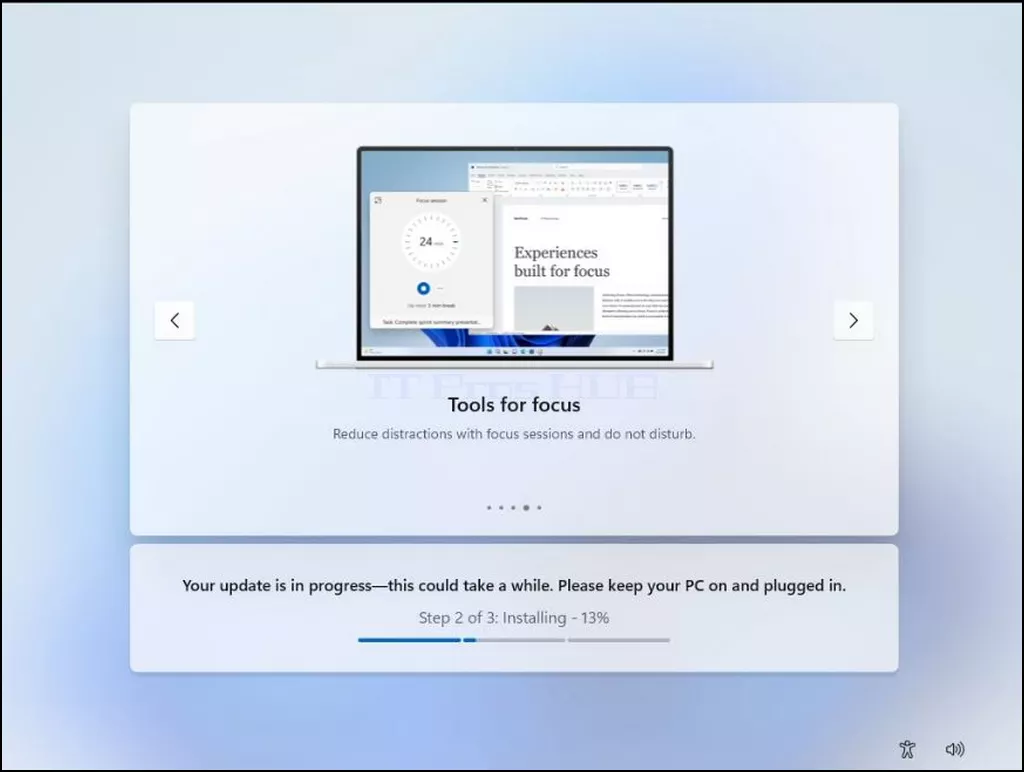
- Windows should start up
Summary:
Overall, the process is very simple but could be very tricky and confusing at the same time since there are multiple possible routes to install this version of Windows 11 yet installing each one requires a specific set of actions to perform. Failure to do so correctly could cause, as had caused us, going into endless restart loops in the installation process.
Admittedly, for us, the process was a bit confusing and frustrating as well at first, but we managed to map it nevertheless.
Regarding keeping the computer connected to the internet, the only advantage we could see when installing Windows 11 while the computer connected to the internet is the update stage earlier on during the installation.
We hope this article will be beneficial and will assist you in installing Windows 11 24H2 like previous versions.
- How to Use Bitlocker To Encrypt C Drive in Windows 11 24H2 x64 Education N Build 26100.1742
- How to Use Bitlocker To Encrypt C Drive in Windows 11 23H2 x64 Pro N For Workstations Build 22631.2428
- How to Use Bitlocker To Encrypt C Drive in Windows 11 23H2 x64 Pro N Build 22631.2428
- How to Use Bitlocker To Encrypt C Drive in Windows 11 23H2 x64 Pro For Workstations Build 22631.2428