



- Details
- Written by: IT Pro
- Category: How to Articles
- Hits: 6082
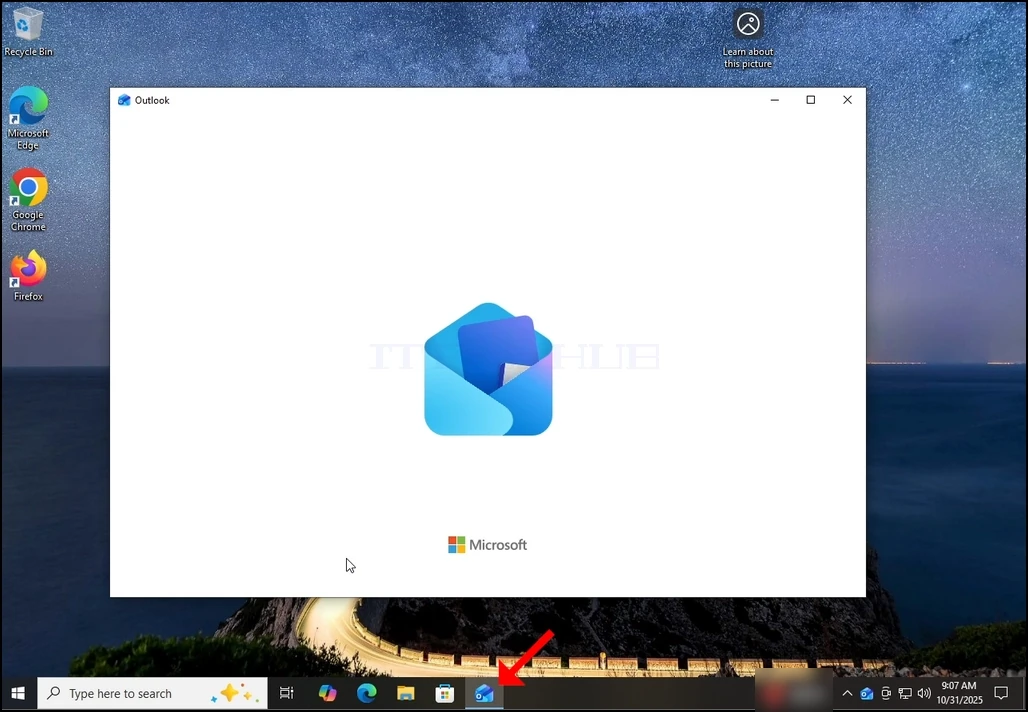
1. Start Outlook by click its icon in the taskbar. In most cases the Outlook icon would reside there. Wait for the Splash screen to appear and for the Outlook app to load.
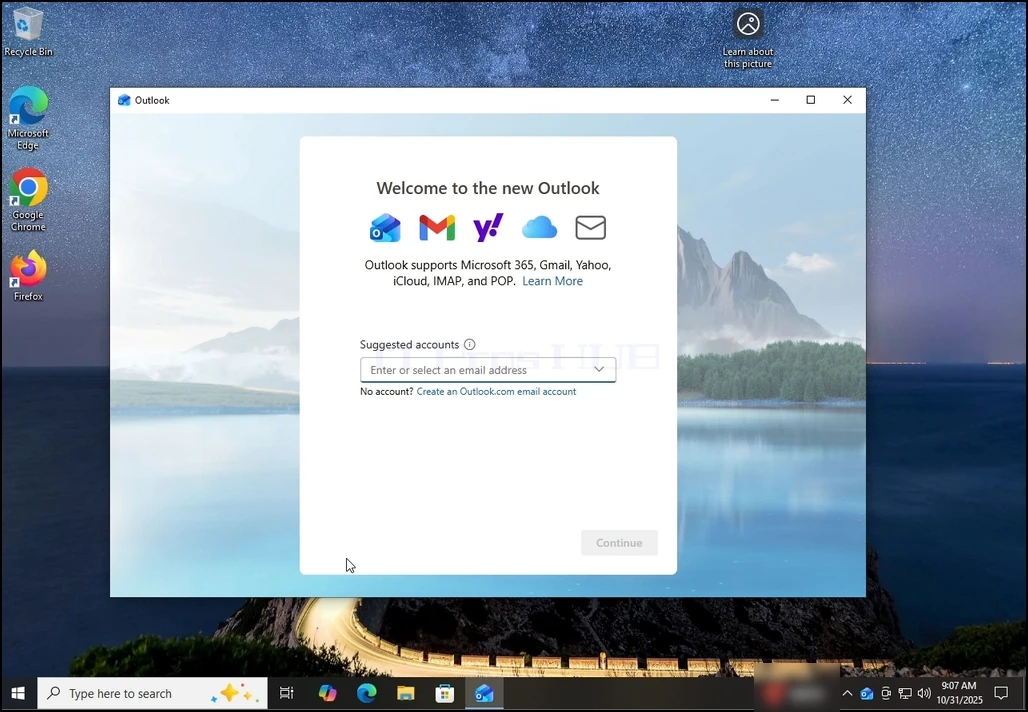
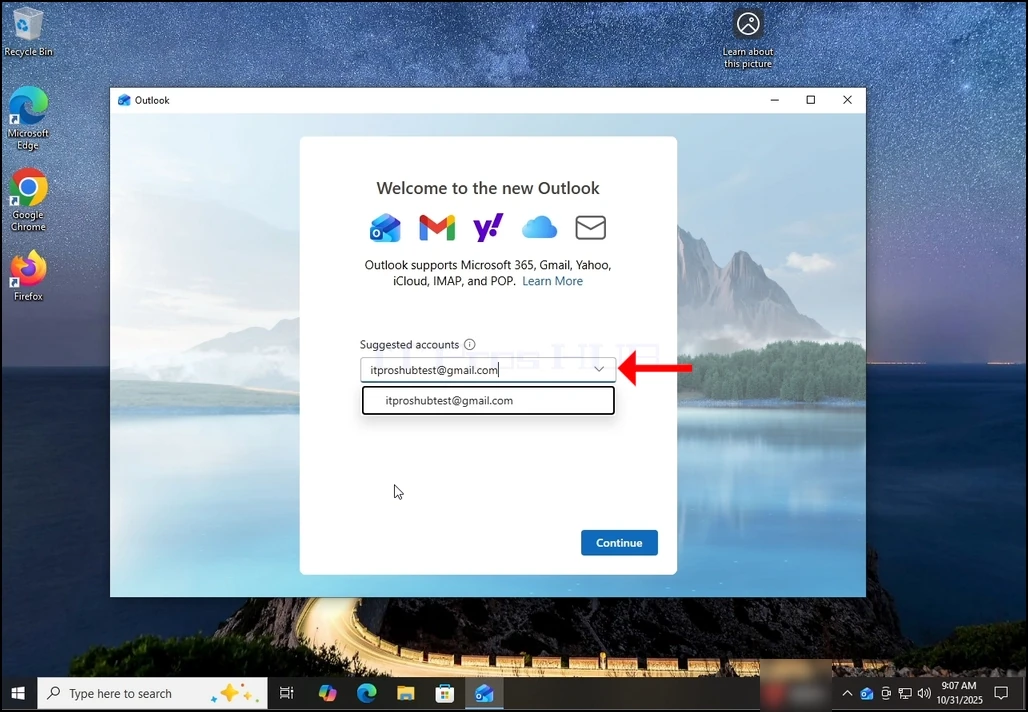
2. After loading, you will be presented with the "Welcome to the new Outlook" screen. Enter the email address you would like to configure. In our case, we will configure a Gmail email address.
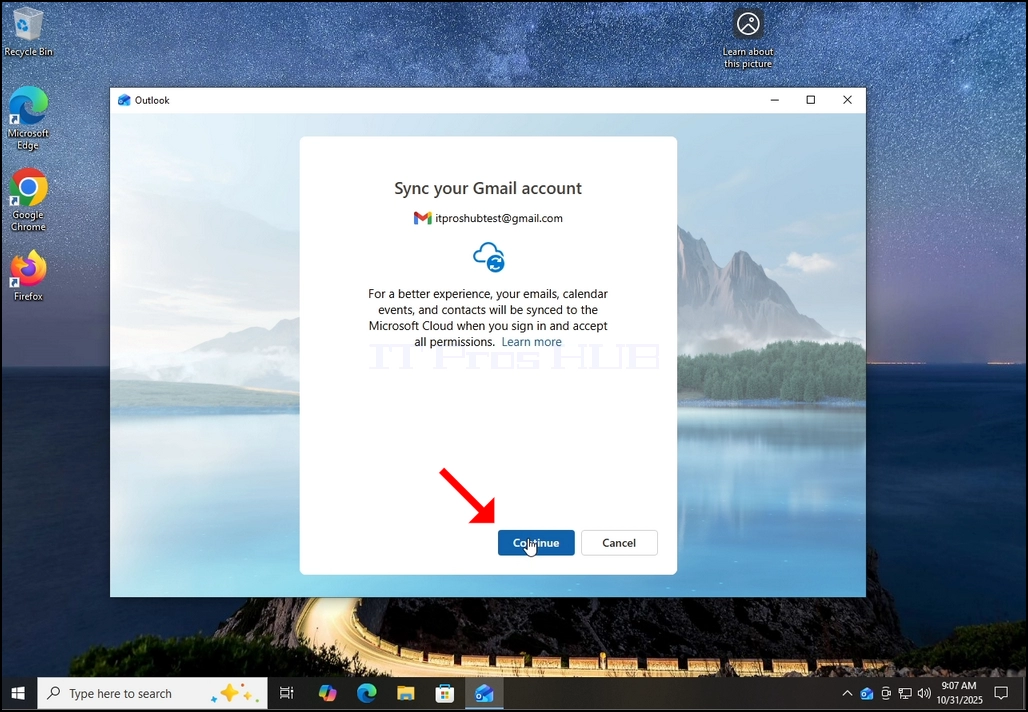
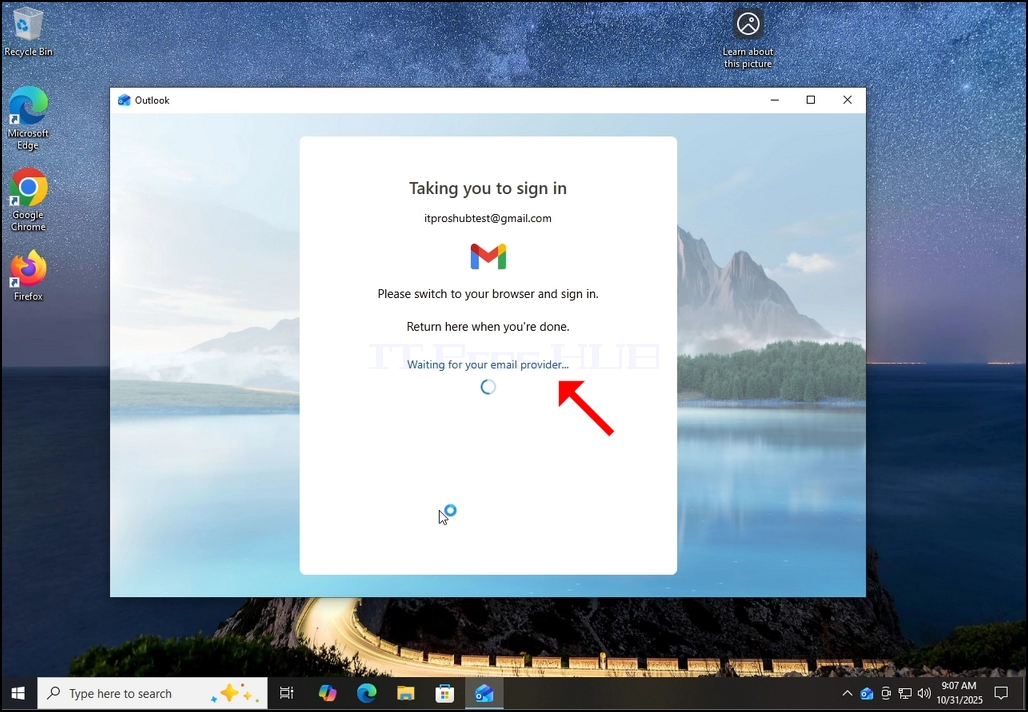
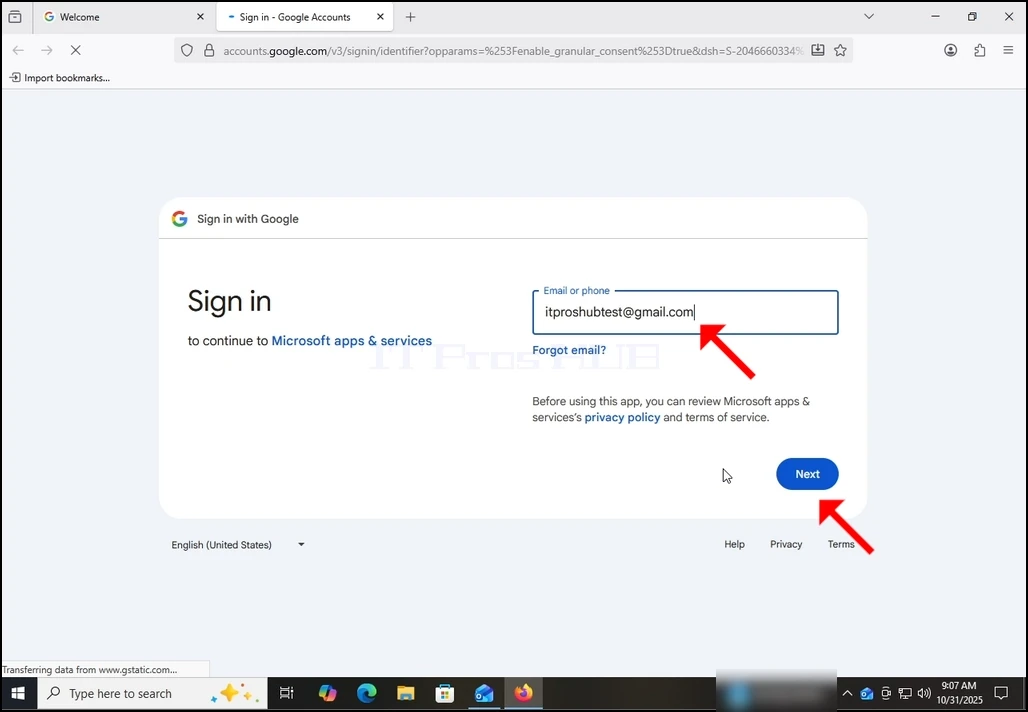
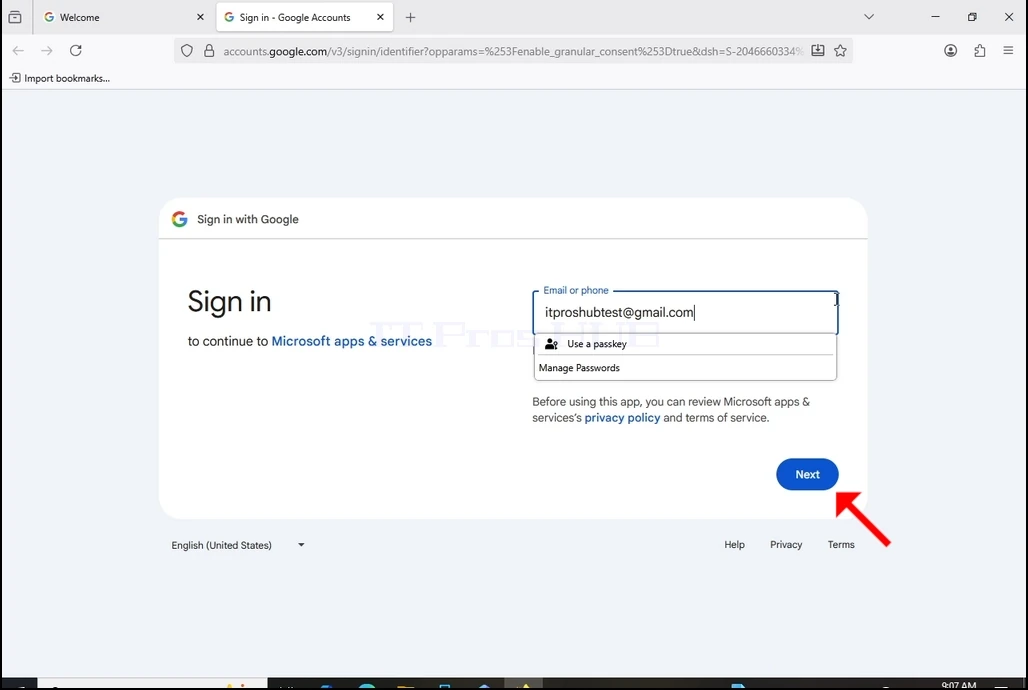
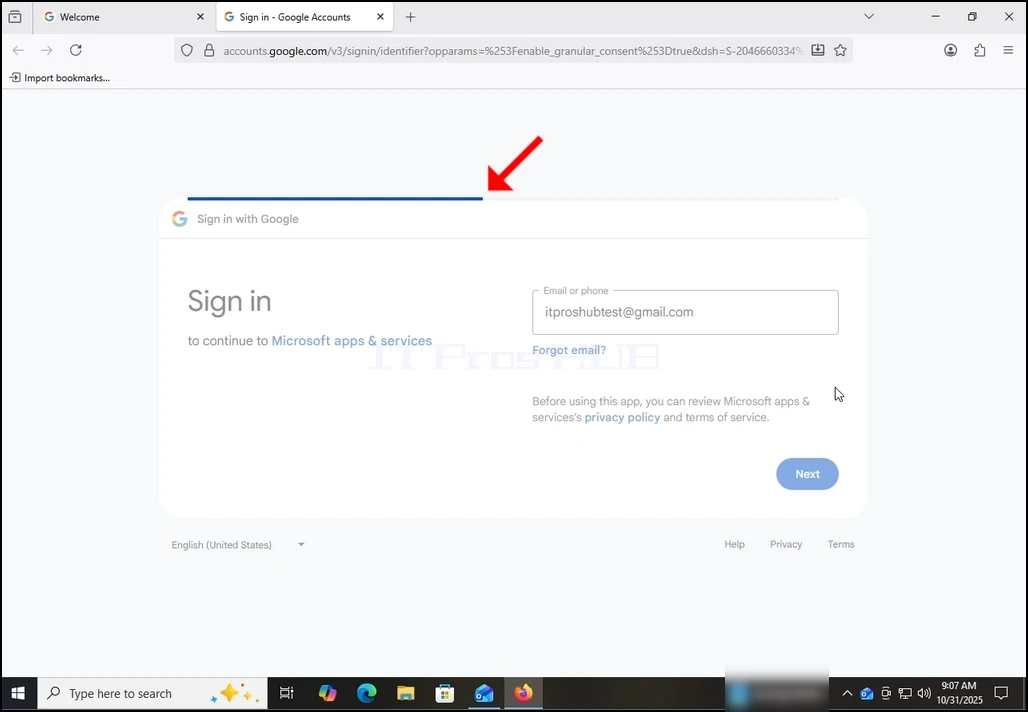
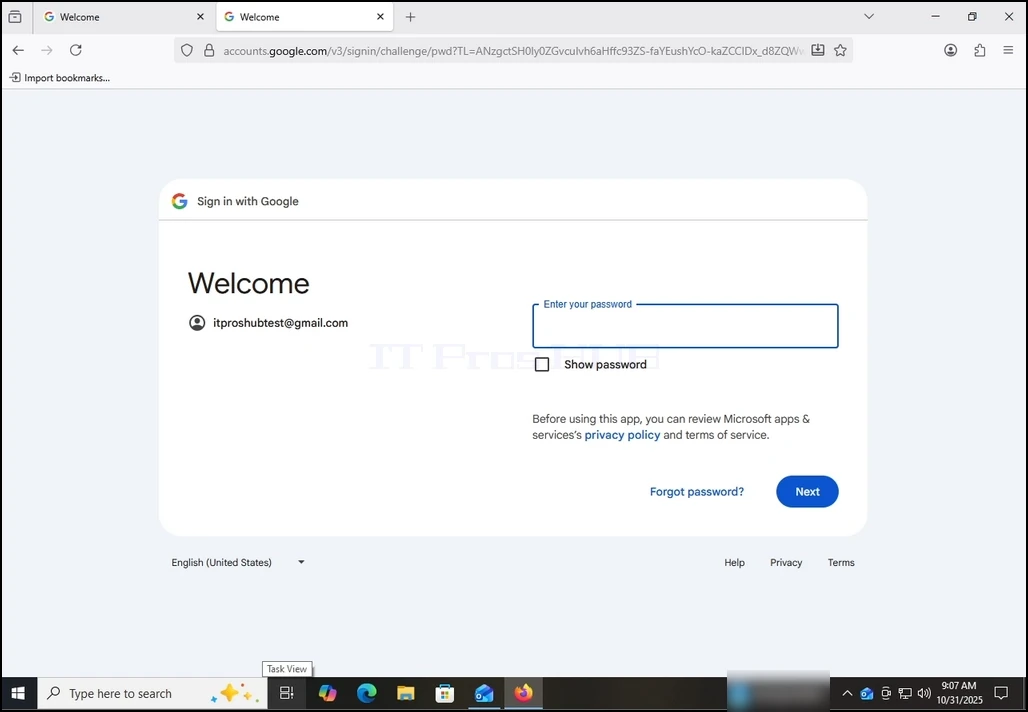
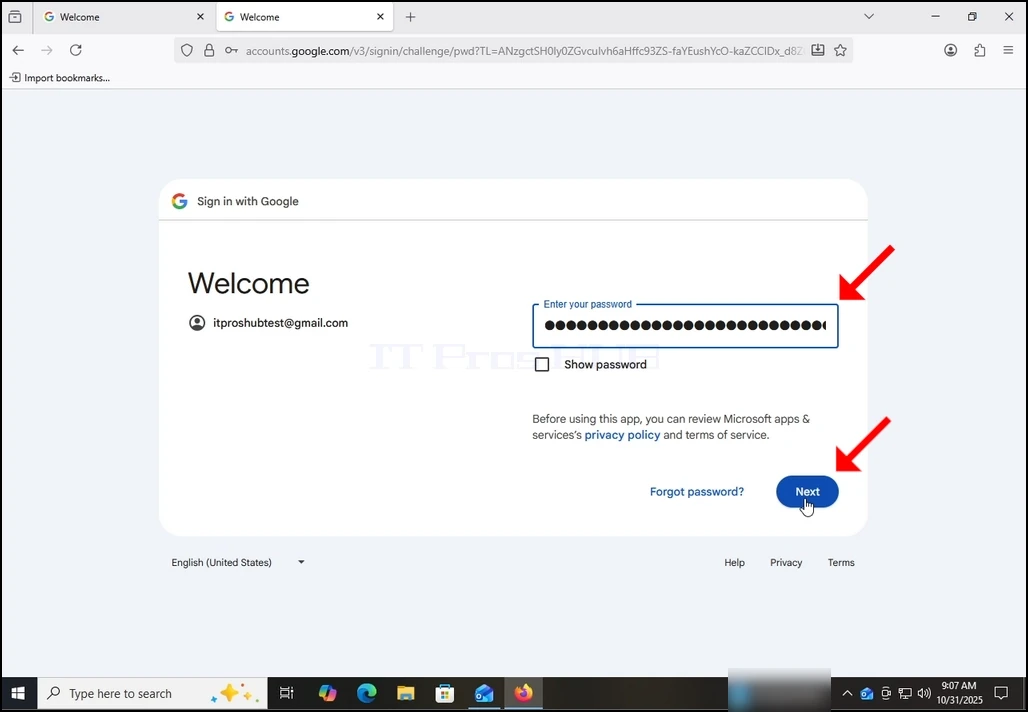
10. Wait for the next stage to load.
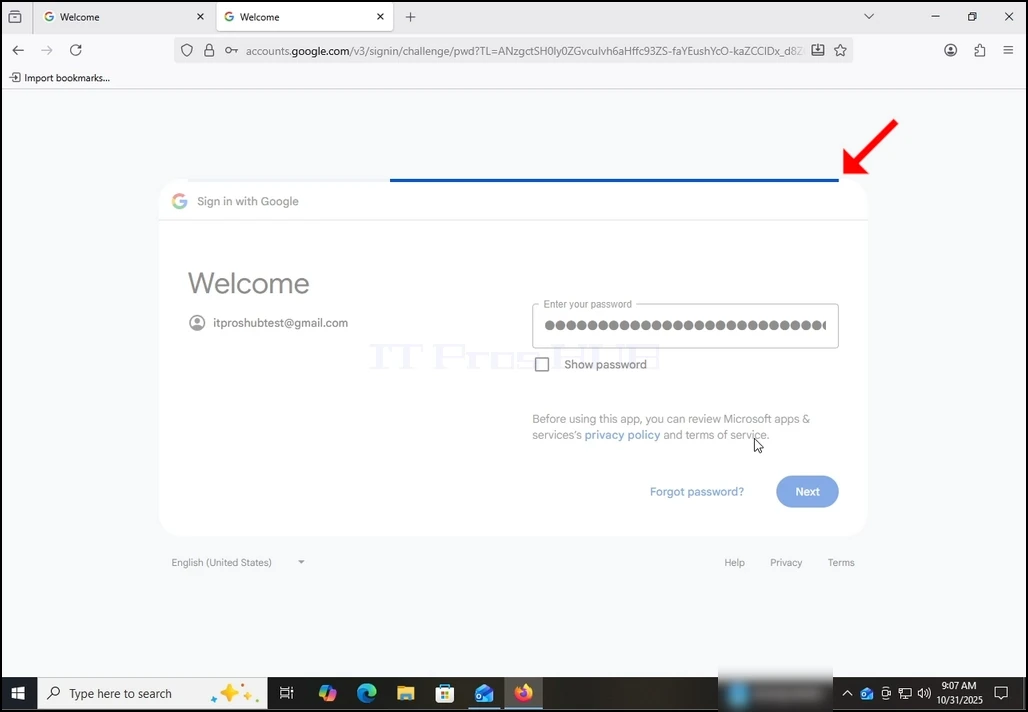
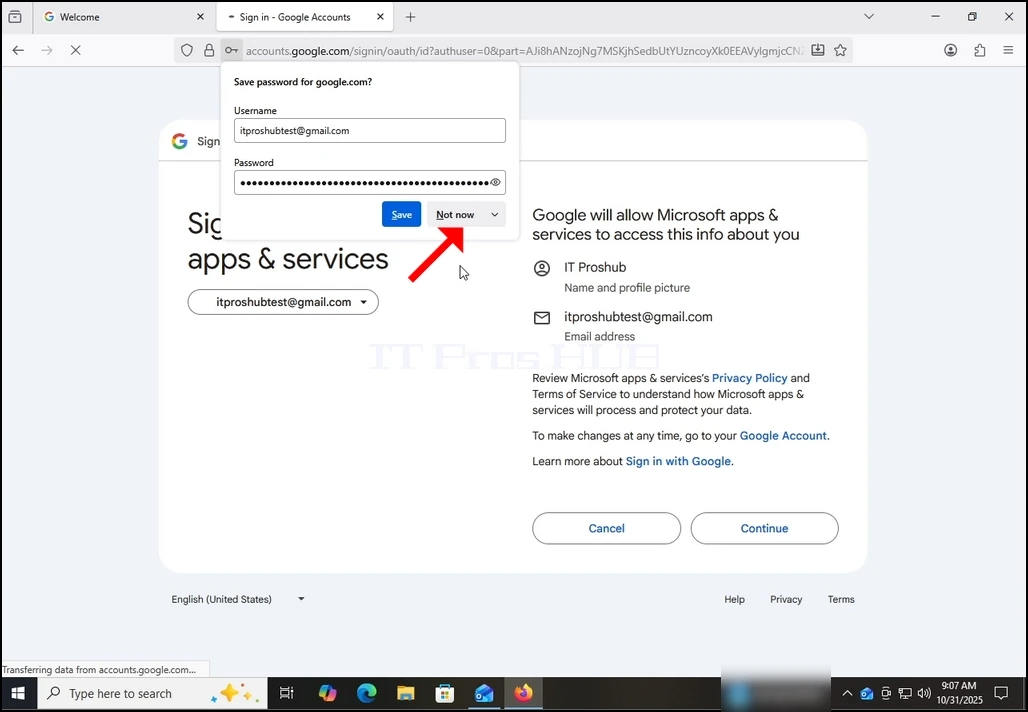
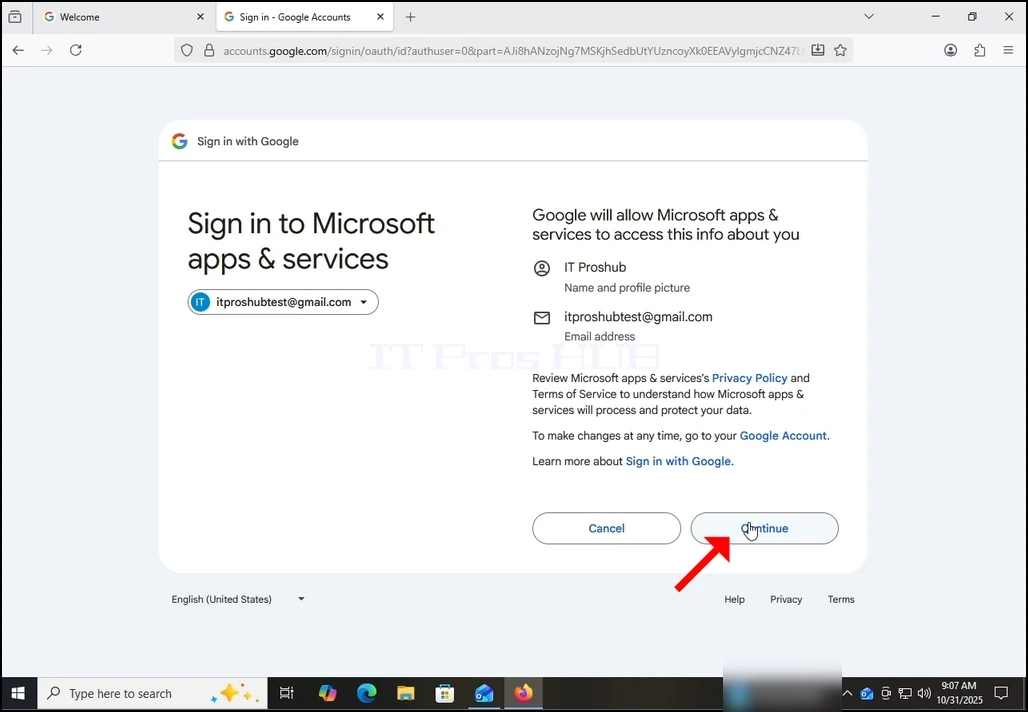
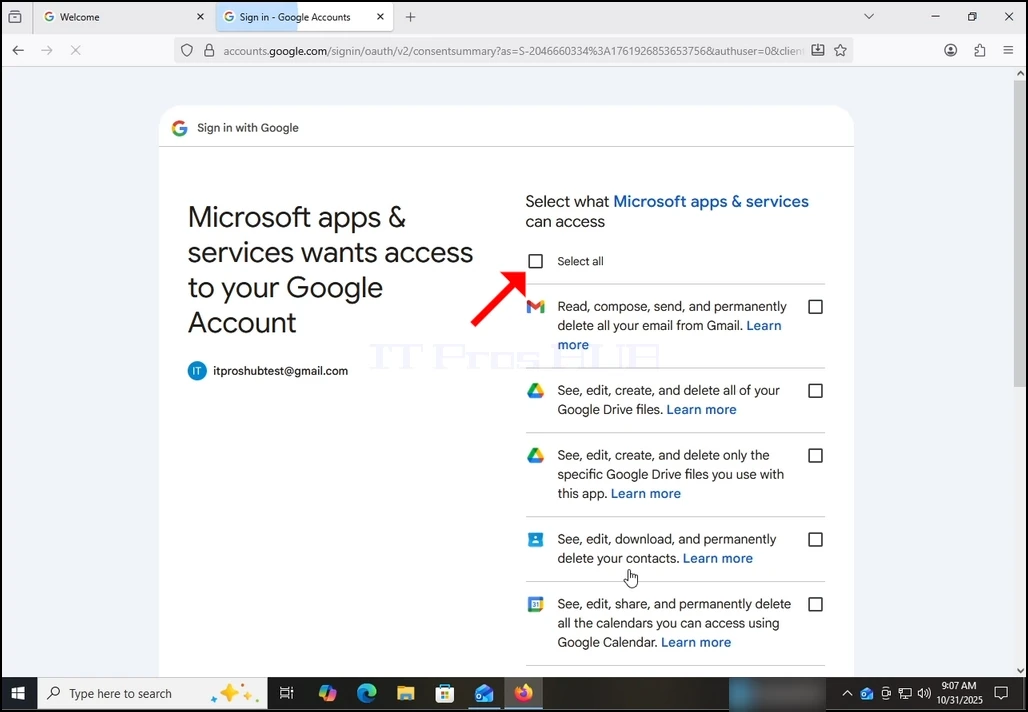
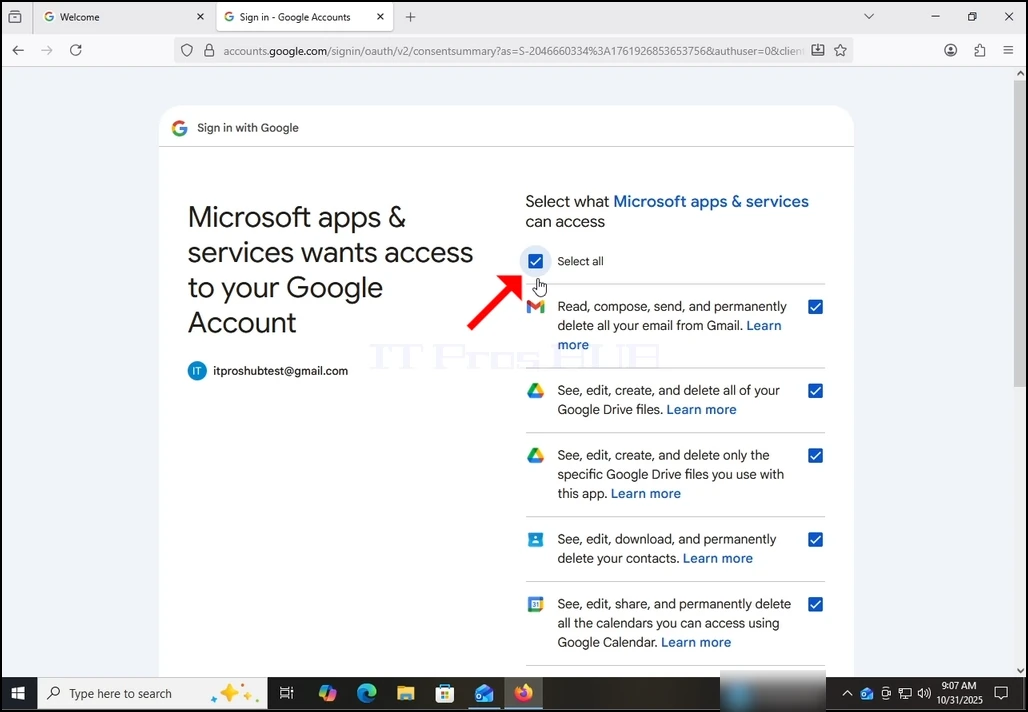
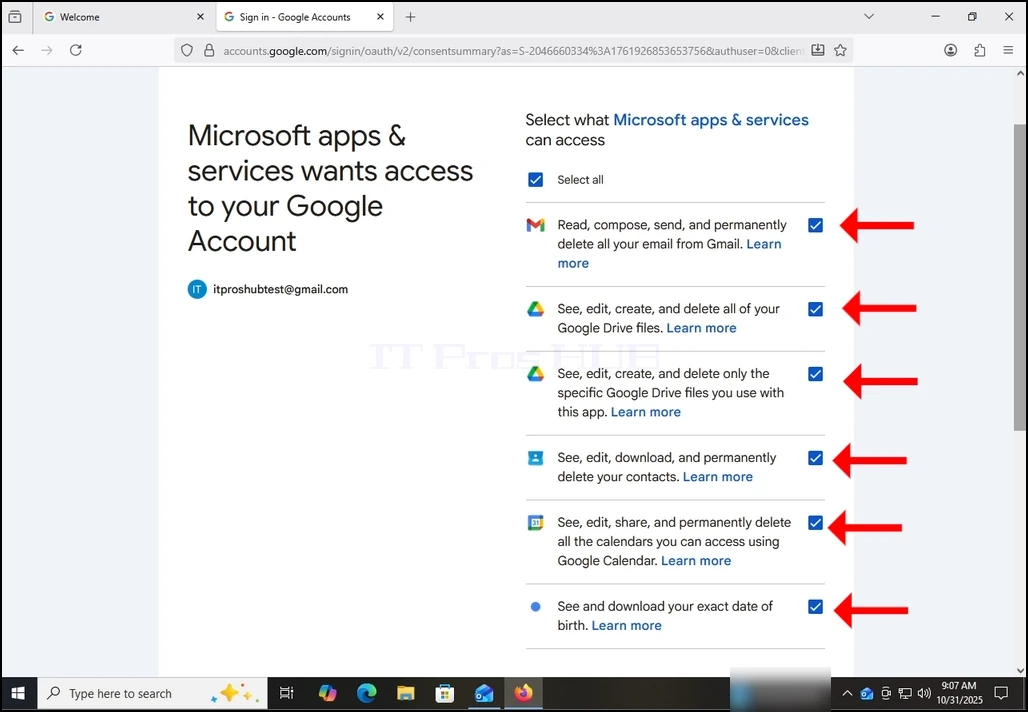
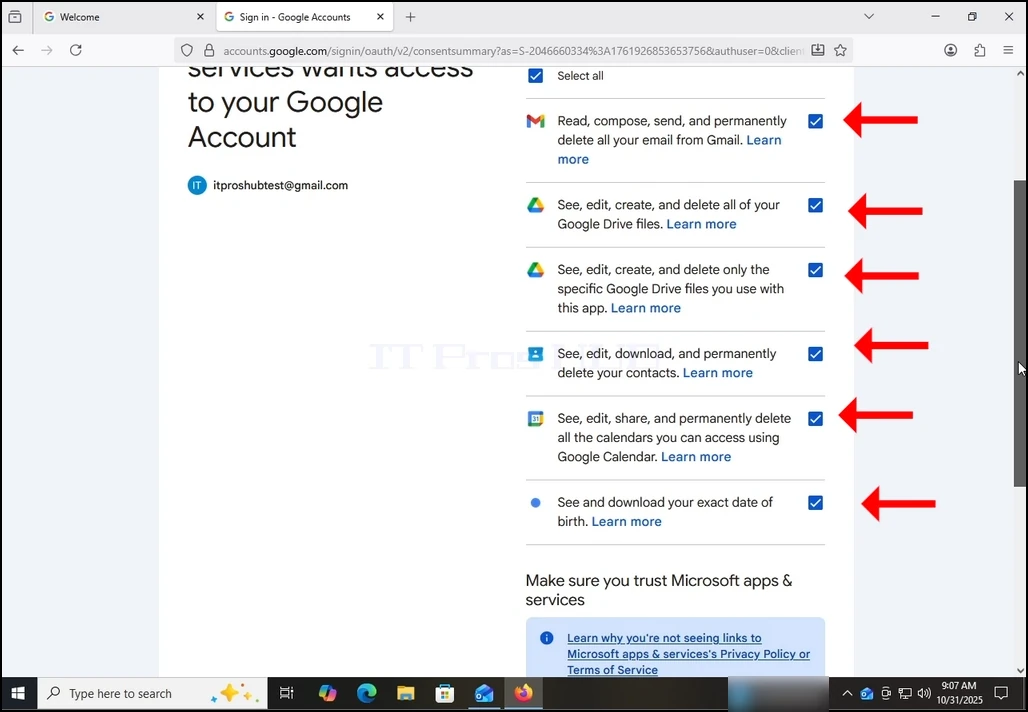
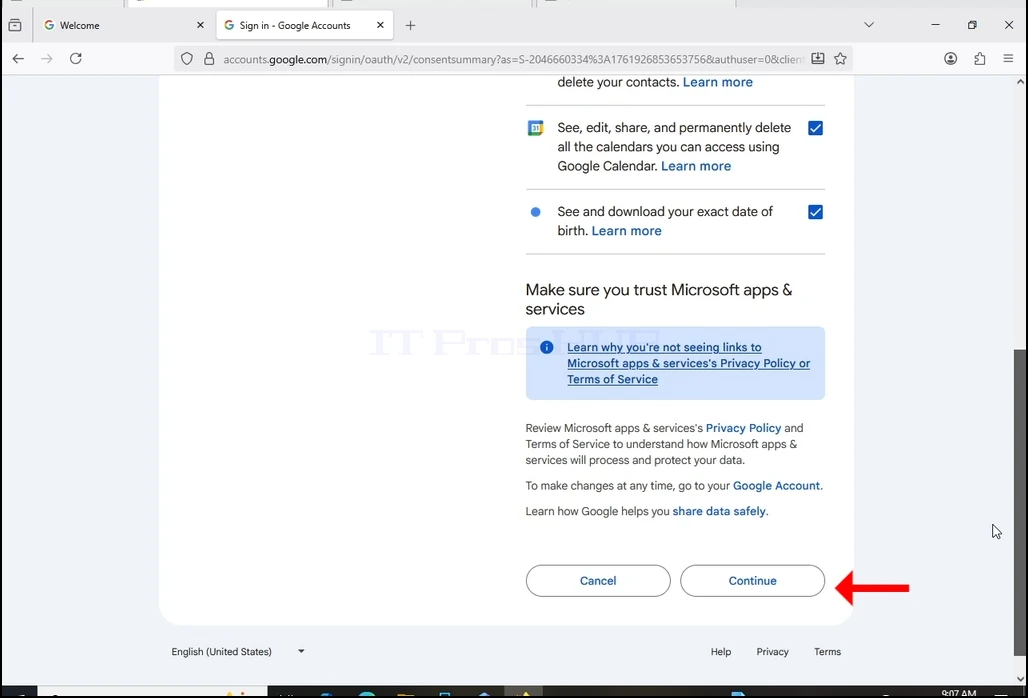
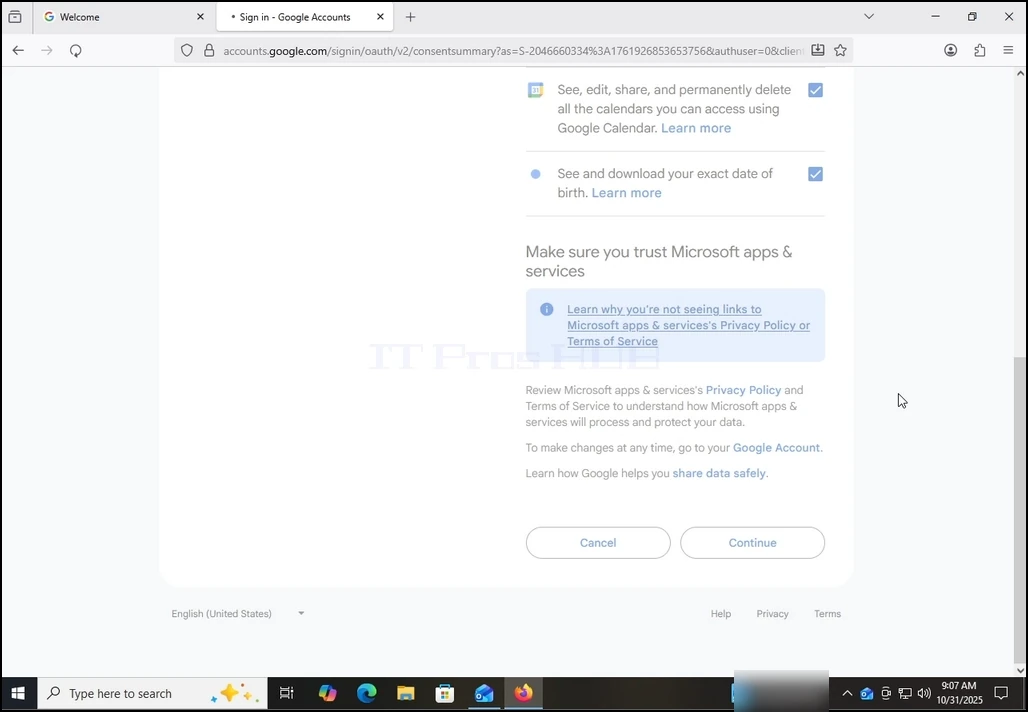
13. On this stage, Google extends about what information Outlook (Microsoft apps & services) could access.
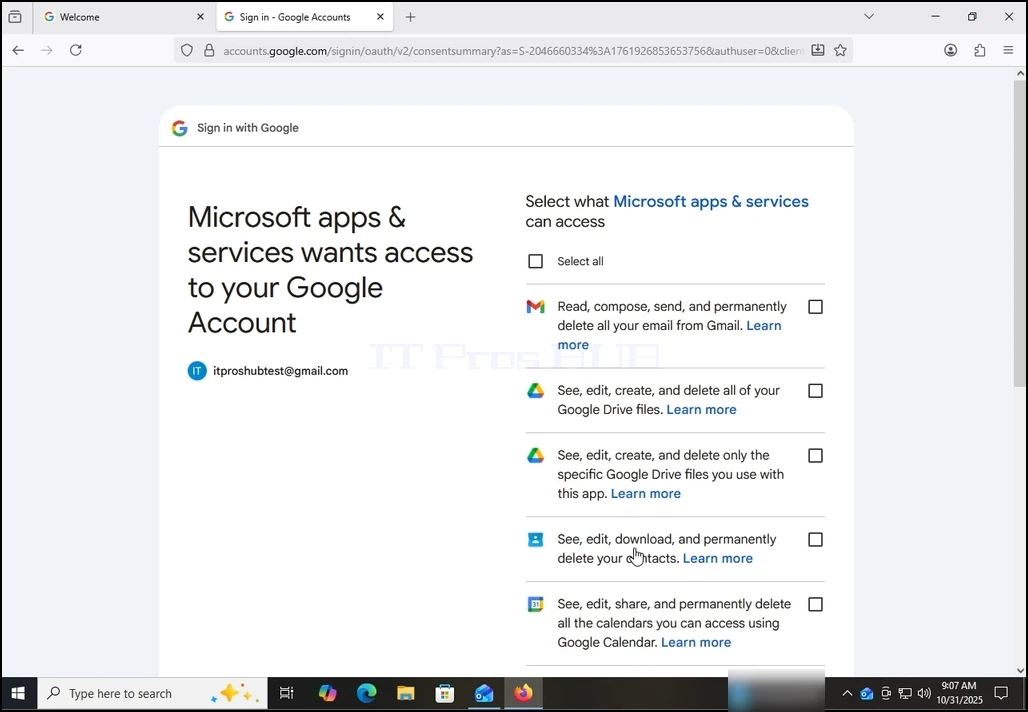
Choose what information you would like to give permission to Outlook at your own descretion but keep in mind that the less permission you allow the less functionality Outlook would have.
In this case, the minimum for it to function as an email client would be to allow it to Read, compose, send and permanently delete all your email from Gmail.
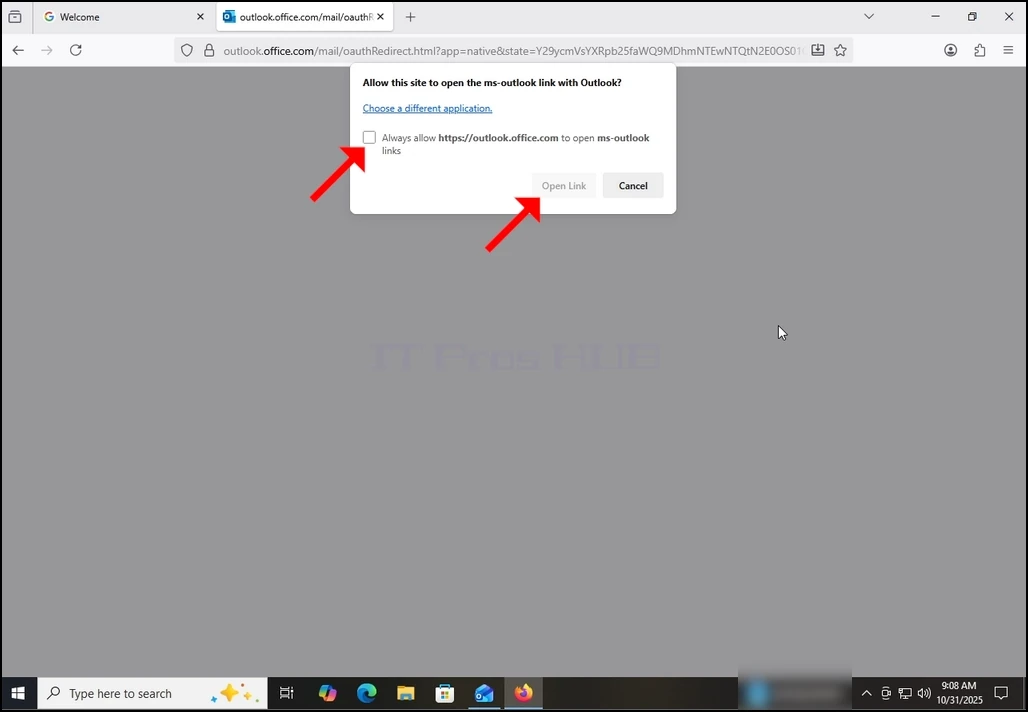
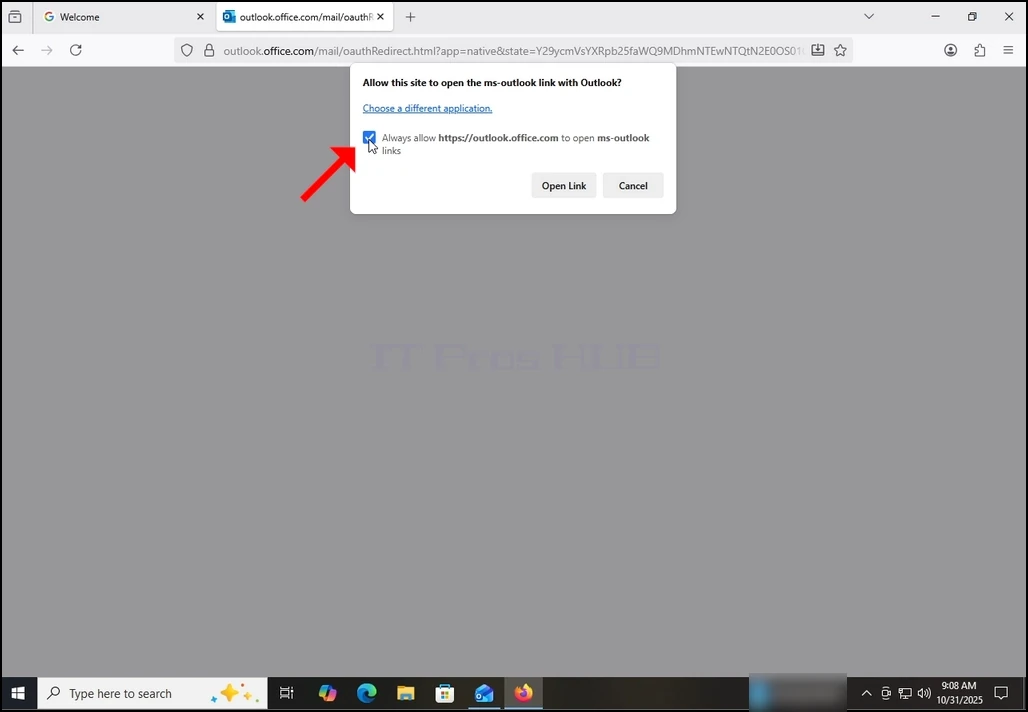
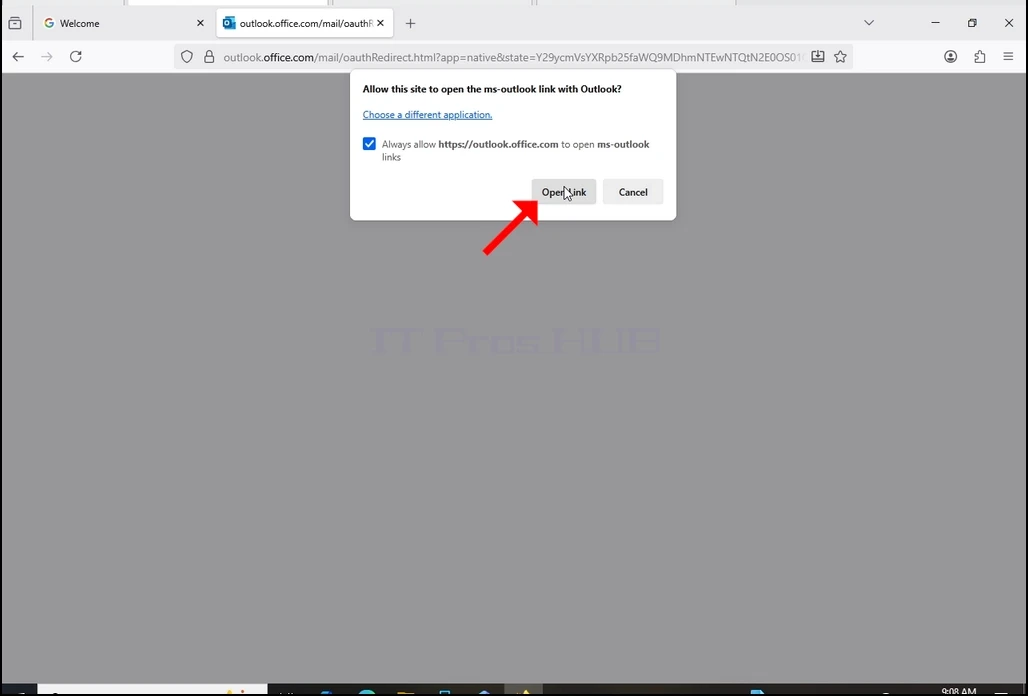
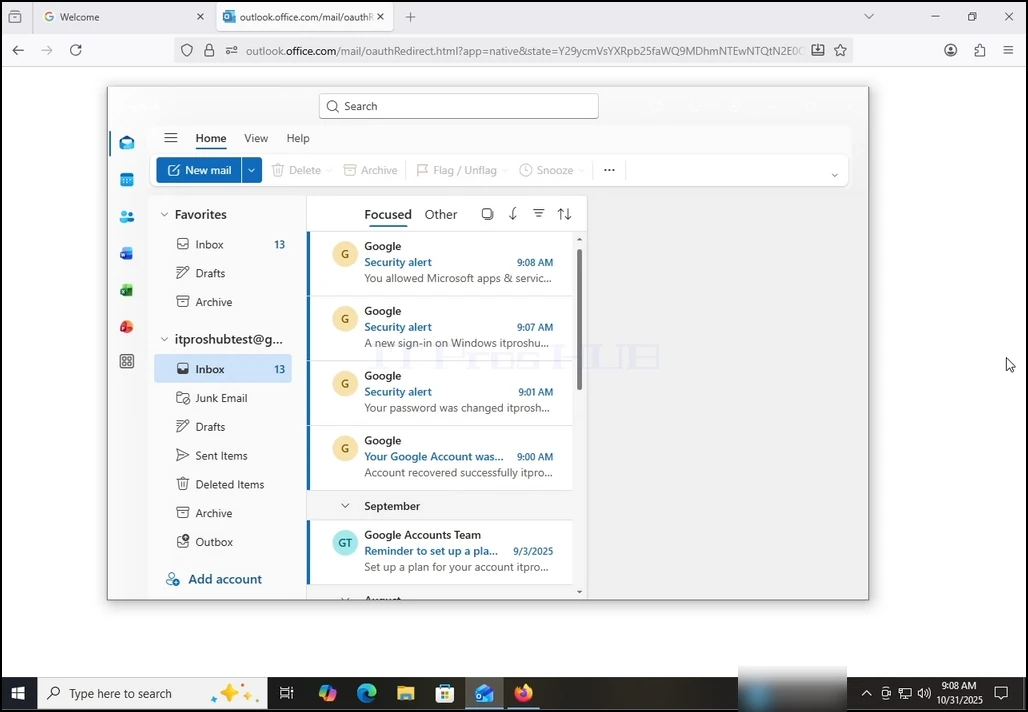
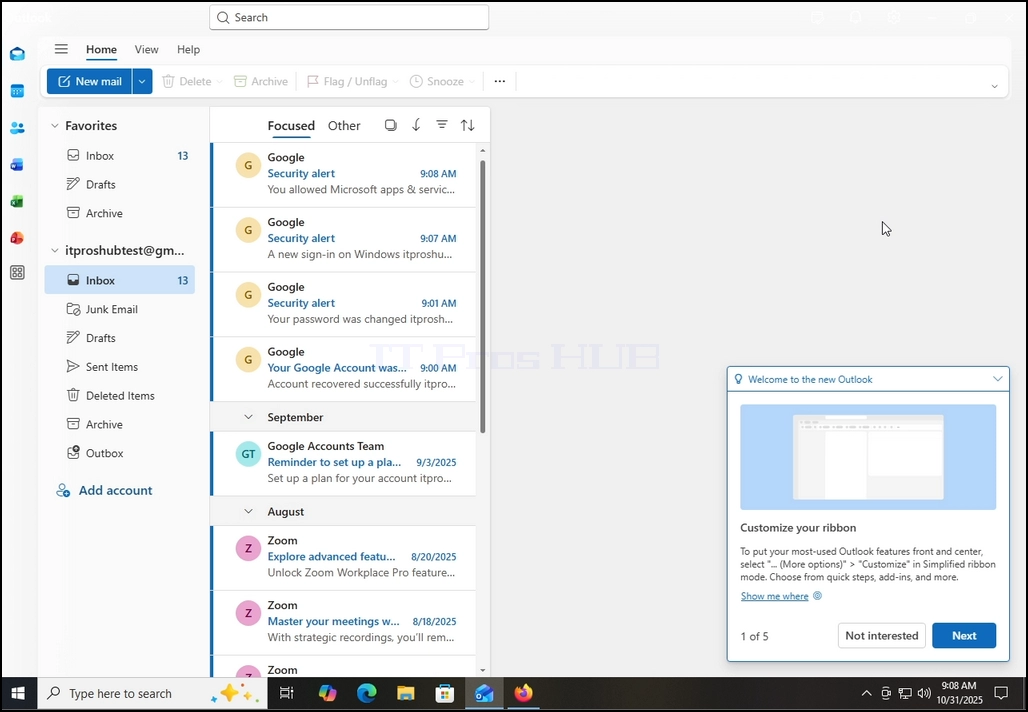
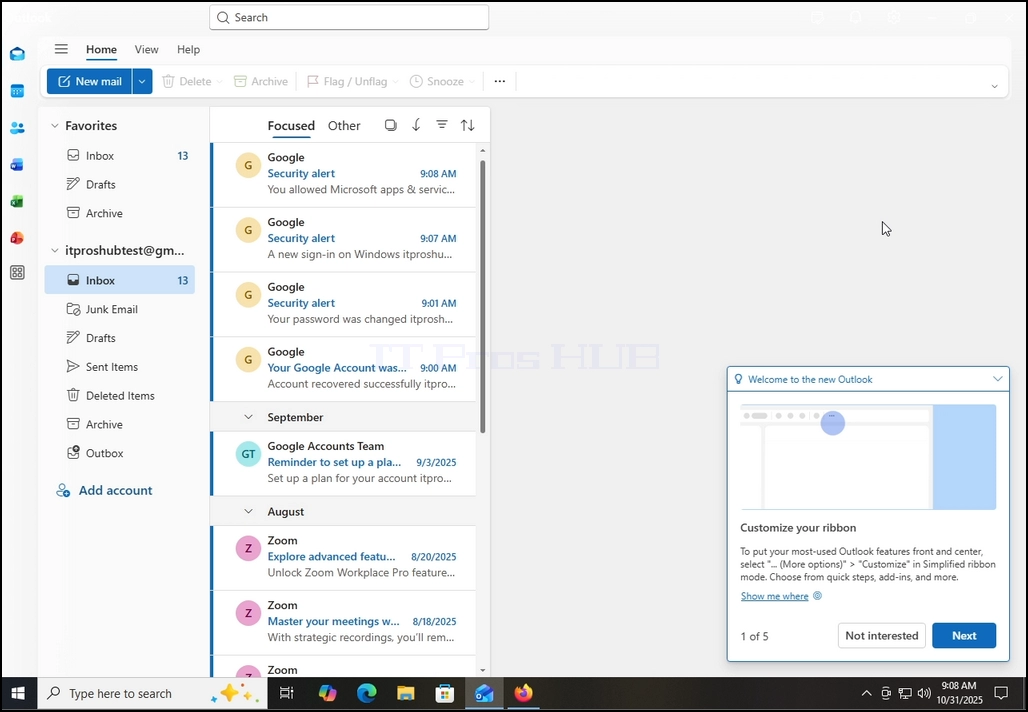
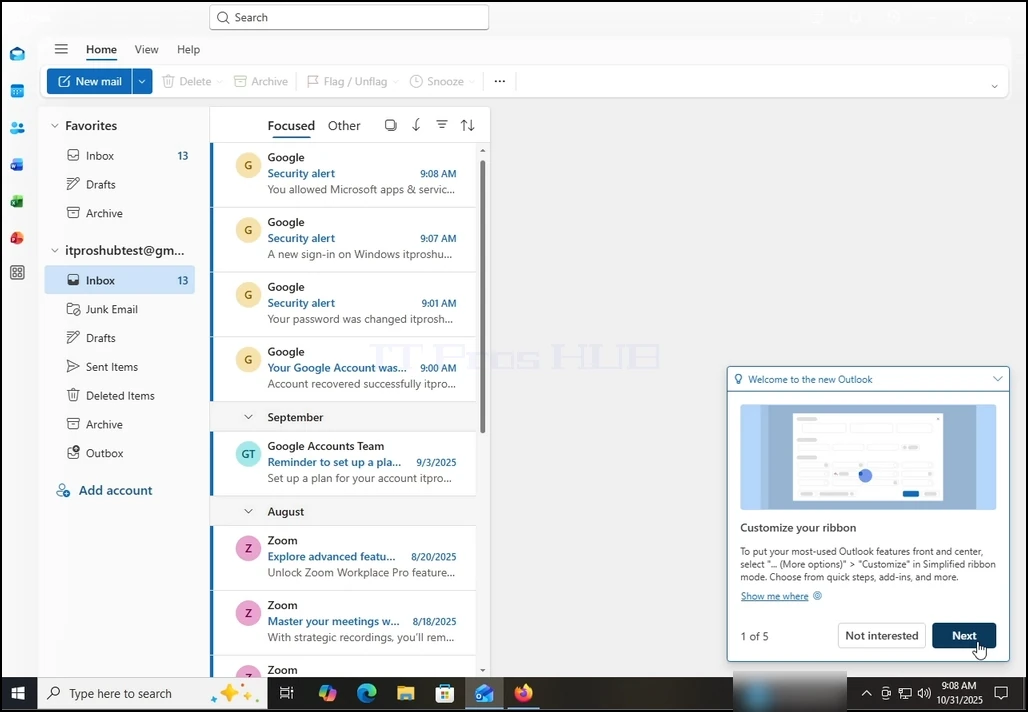
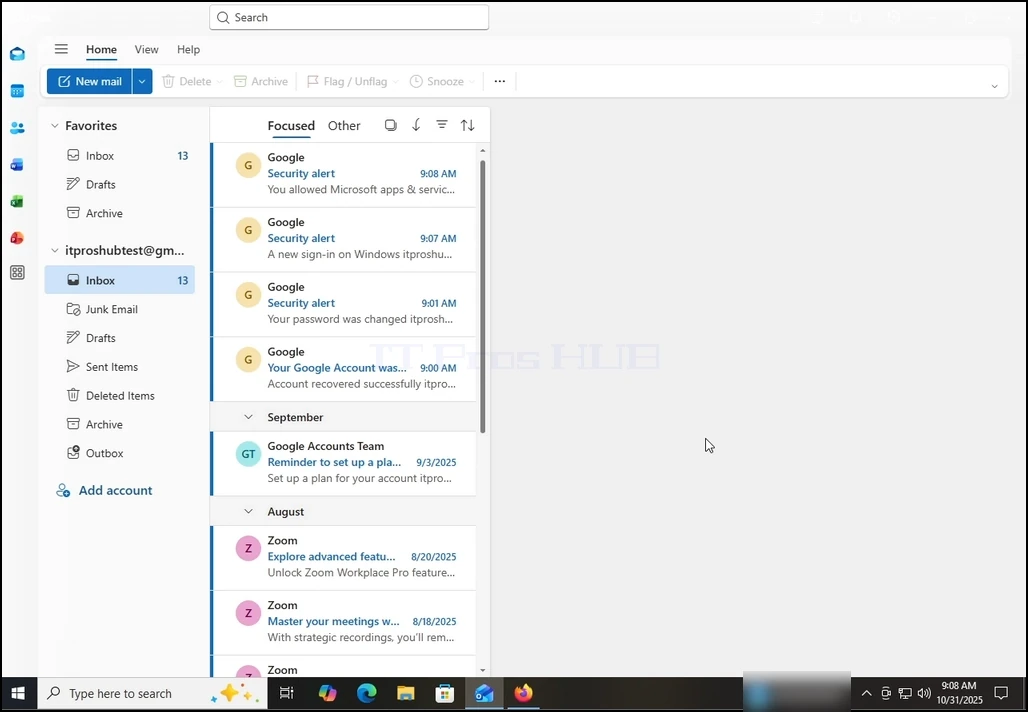
16. After doing the previous, Outlook would load your Gmail account.
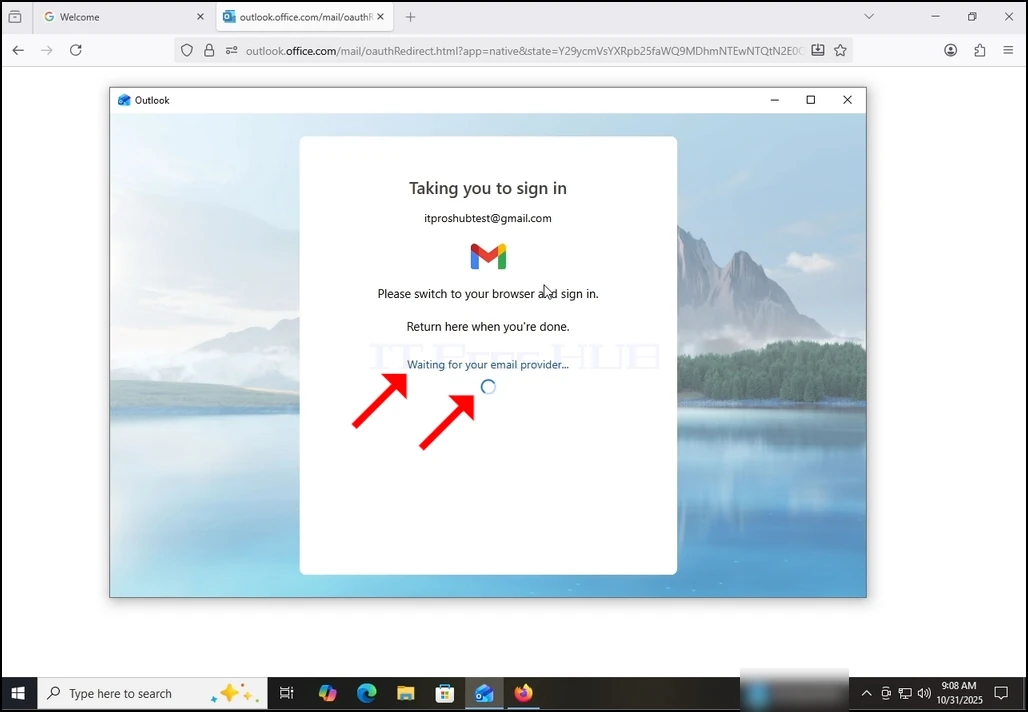
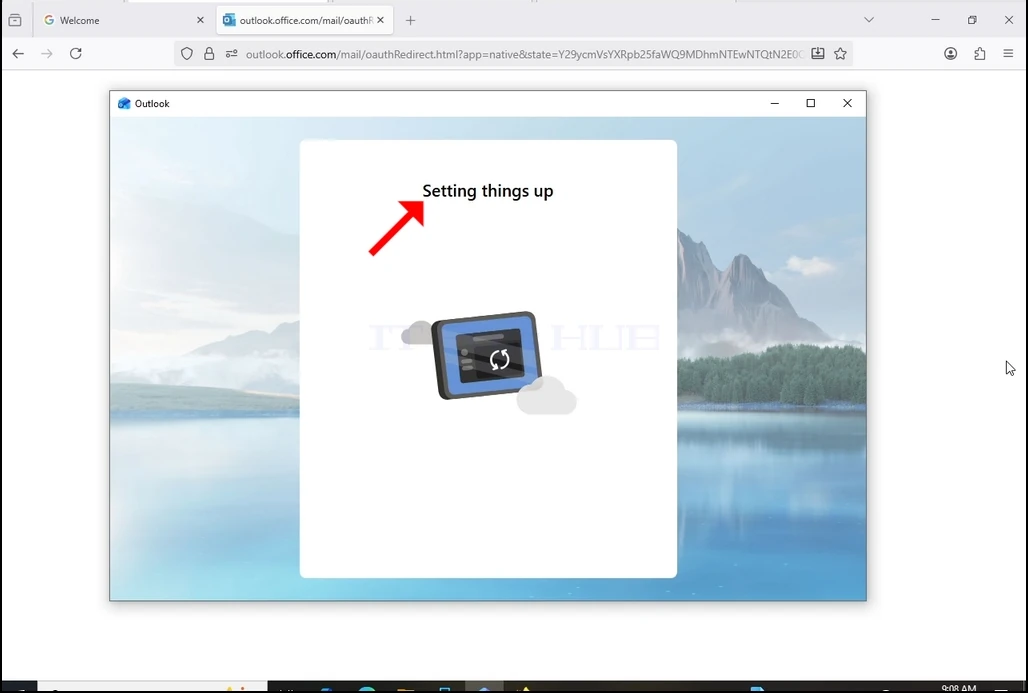
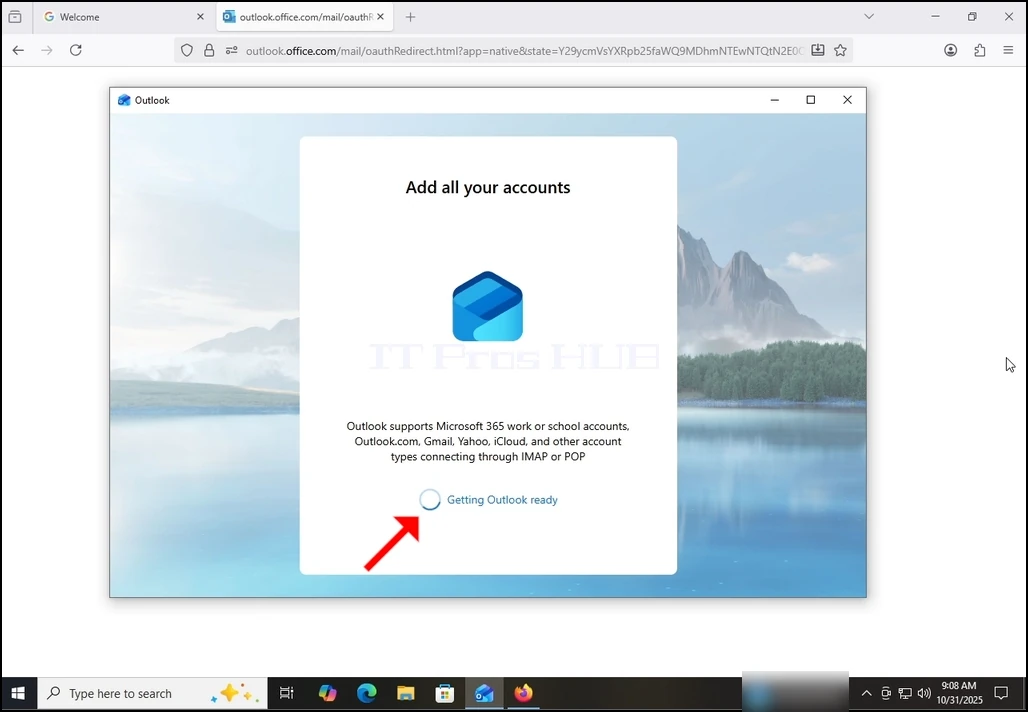
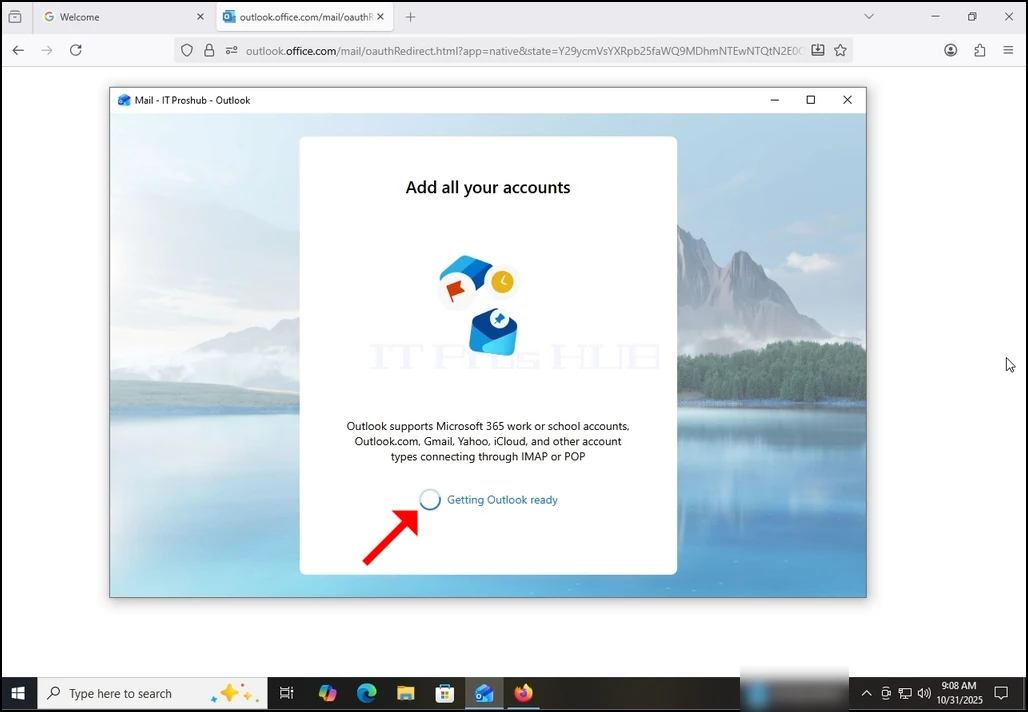
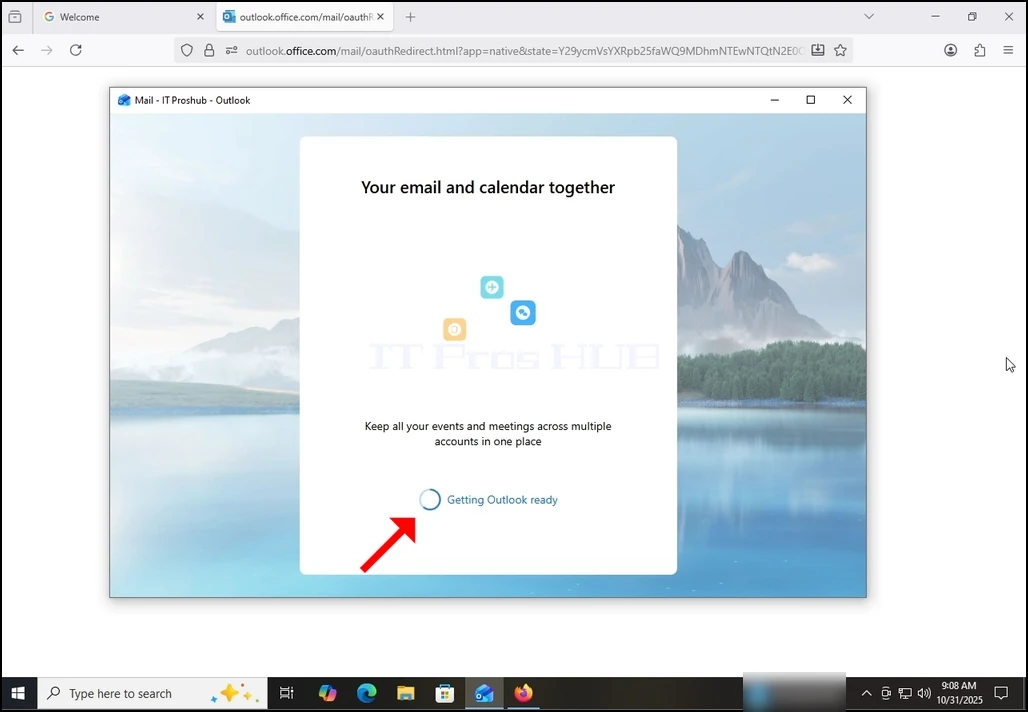
17. Done! your Gmail is now configured to work within Outlook!
- Details
- Written by: IT Pro
- Category: How to Articles
- Hits: 8567
- Go to This PC via Windows Start menu

2. Mark the disk/partition you would like to decompress by clicking on it once. In the case of this article we will perform this process on the C drive.


5. In the properties window, in the bottom part, look for the Compress the drive to save disk space sentence. It should be tagged with a blue V.

6. Uncheck the blue V by clicking on it once.
7. Once it is untagged you will see an empty box next to the sentence. That means it was untagged.


 9. Once Apply is clicked, another, smaller pop-up window will appear.
10. Make sure that Apply changes to drive C:\, subfolders and files is marked in order to get the full effect of the decompression.


15. Once the process is completed the progress bar window will be closed.

- Details
- Written by: IT Pro
- Category: How to Articles
- Hits: 6046
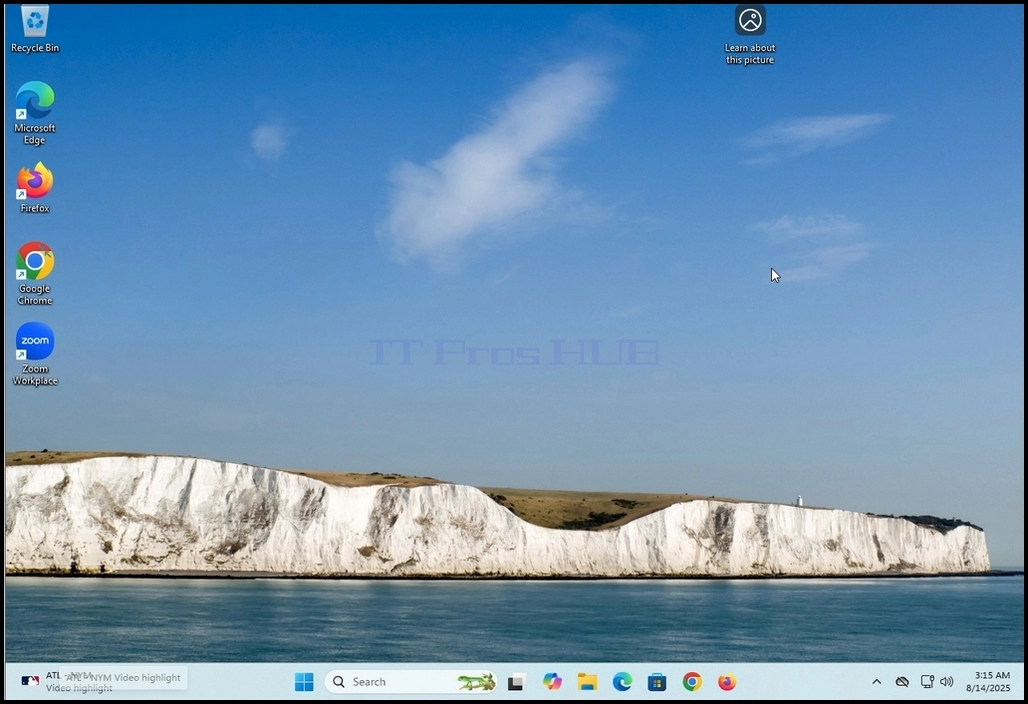
1. Go to Windows desktop
2. Right click on Windows taskbar and wait for a small side menu to appear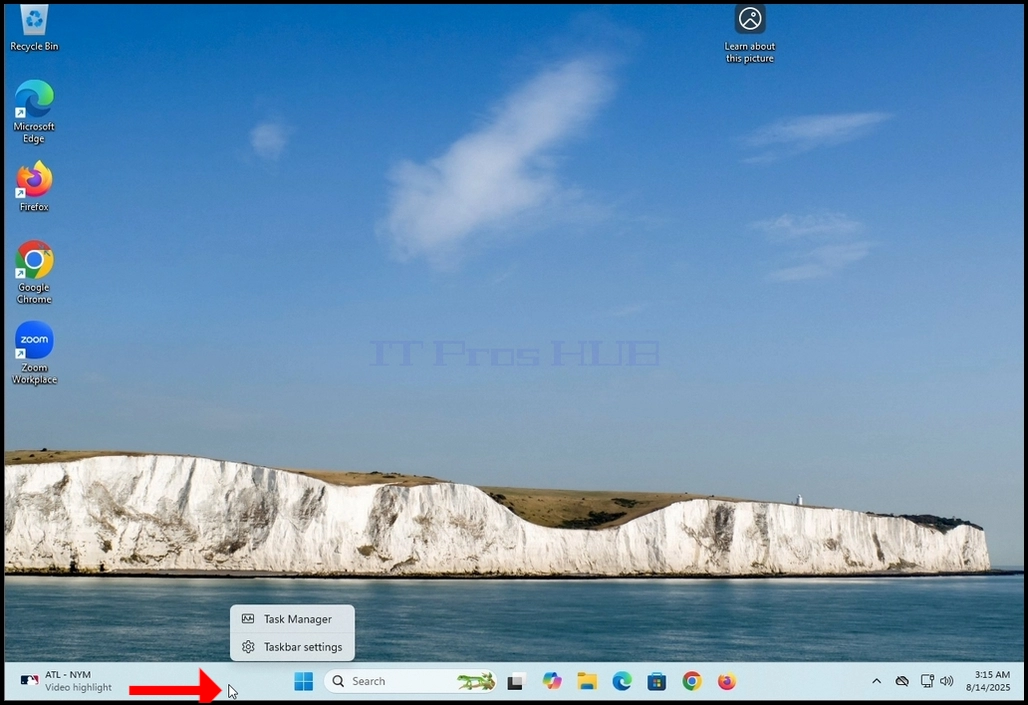
3. In the side menu look for the Taskbar settings option and click on it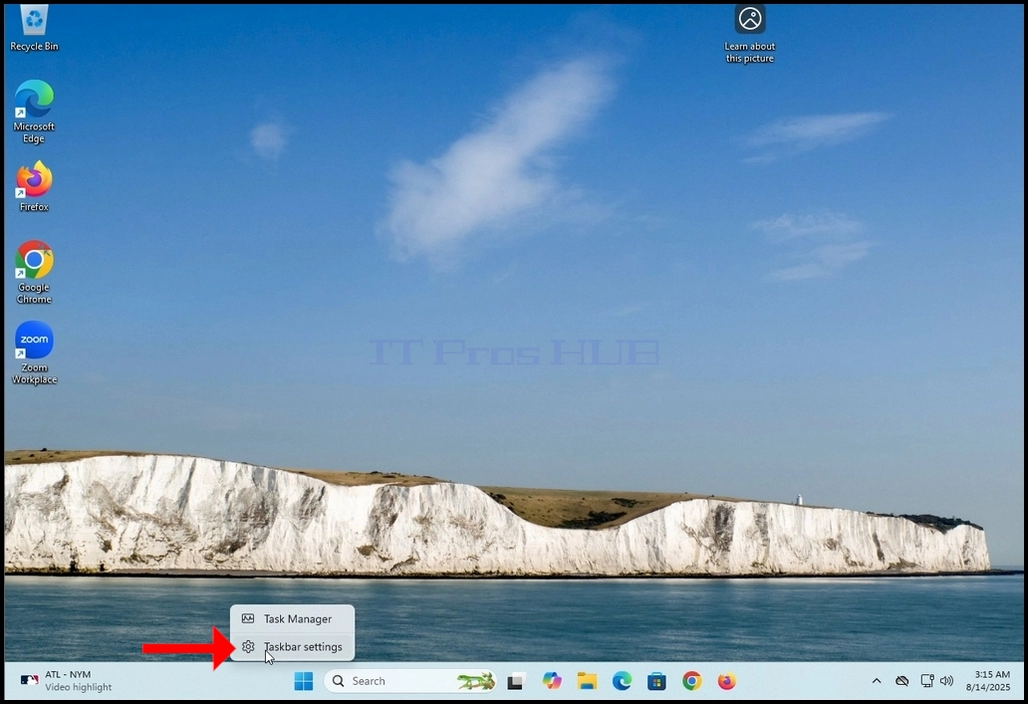
4. Wait for the Taskbar settings window to appear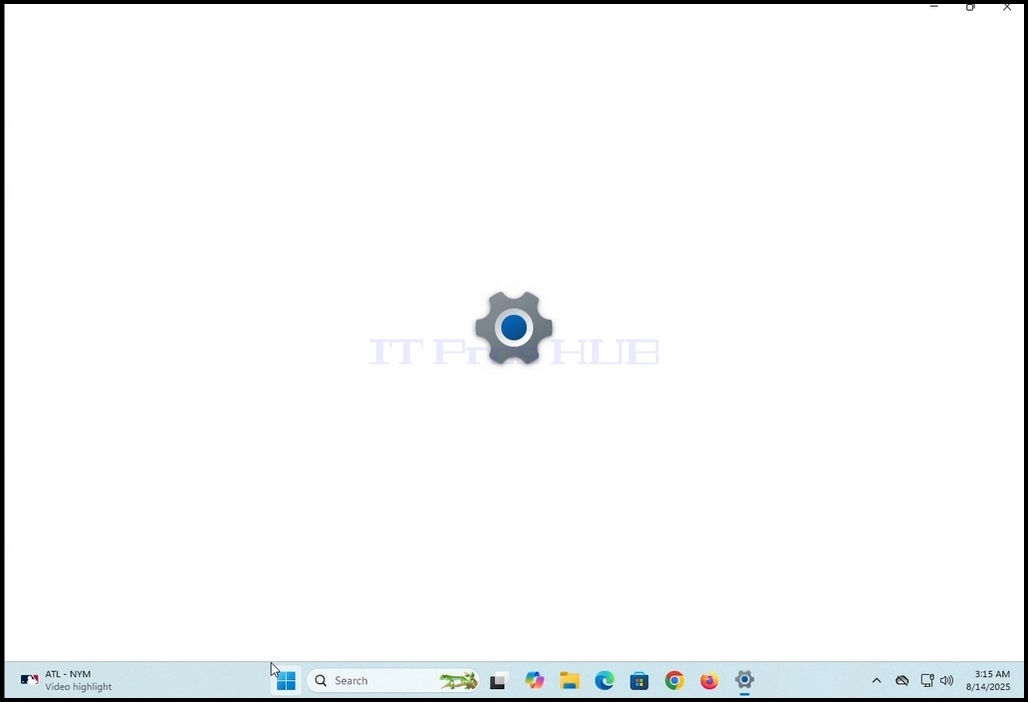
5. In the taskbar settings (Personalization > Taskbar) window, in the upper part of the screen, look for the Taskbar items title. Under it, look for the Search word on the left side right under it.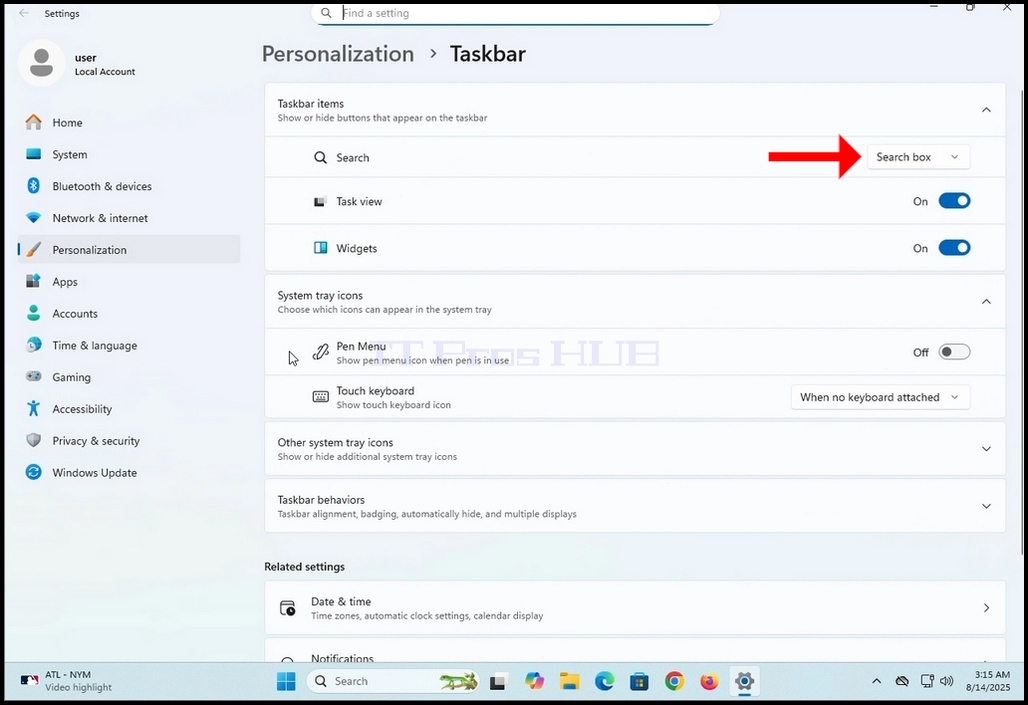
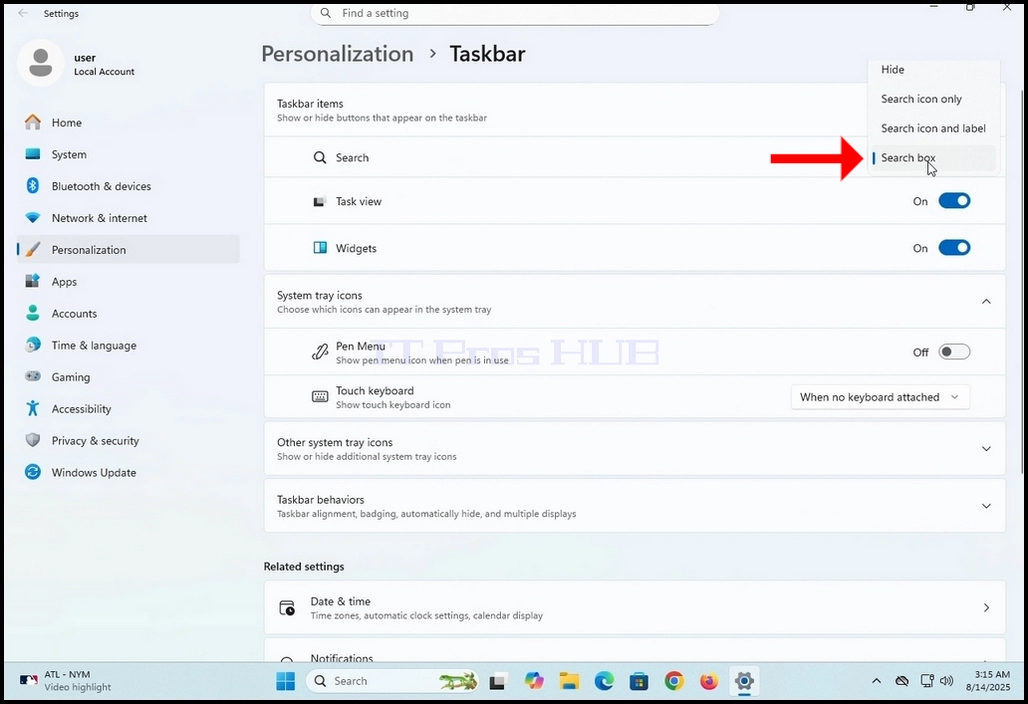
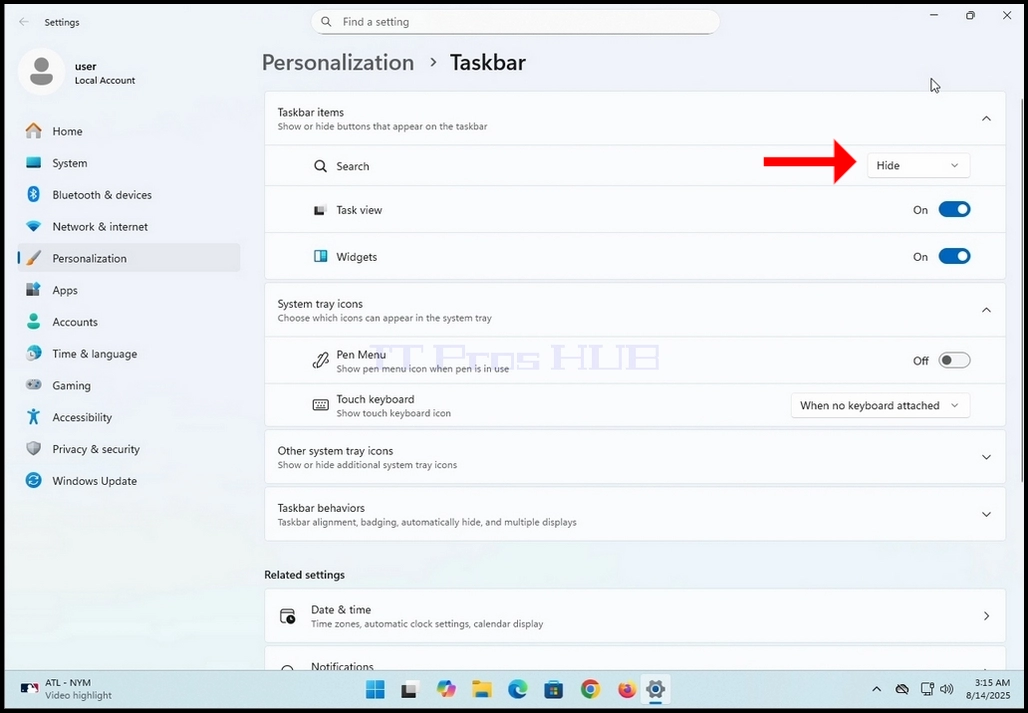
7. Choose the Hide option by clicking on it once
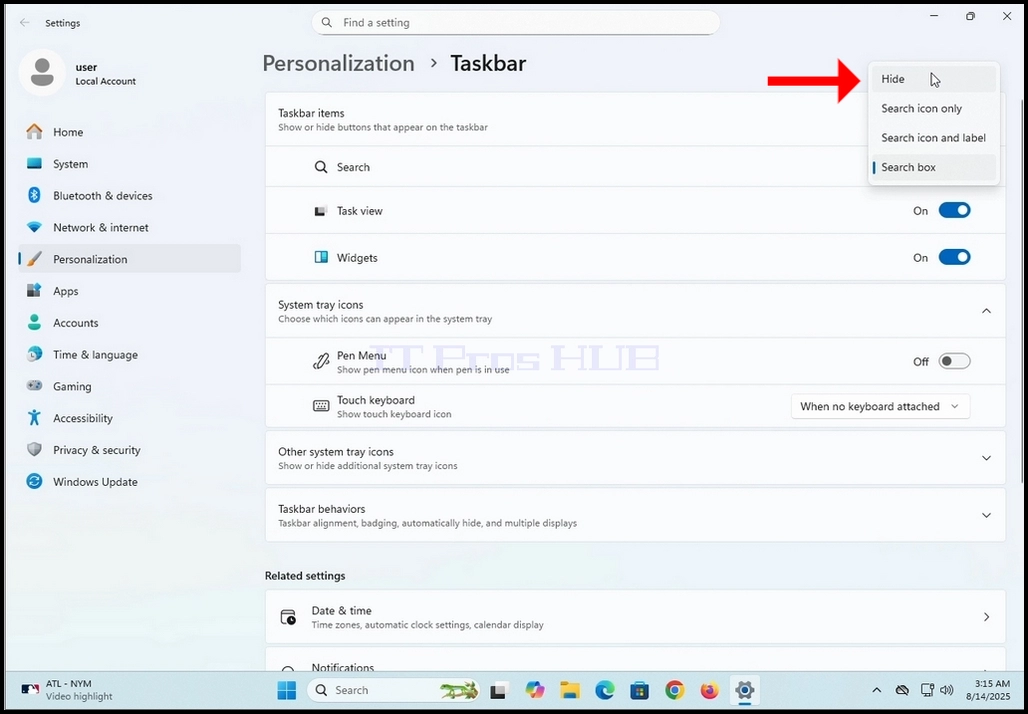
8. Notice the disappearance of the search box from the taskbar at the bottom part of the screen.
- Details
- Written by: IT Pro
- Category: How to Articles
- Hits: 6343
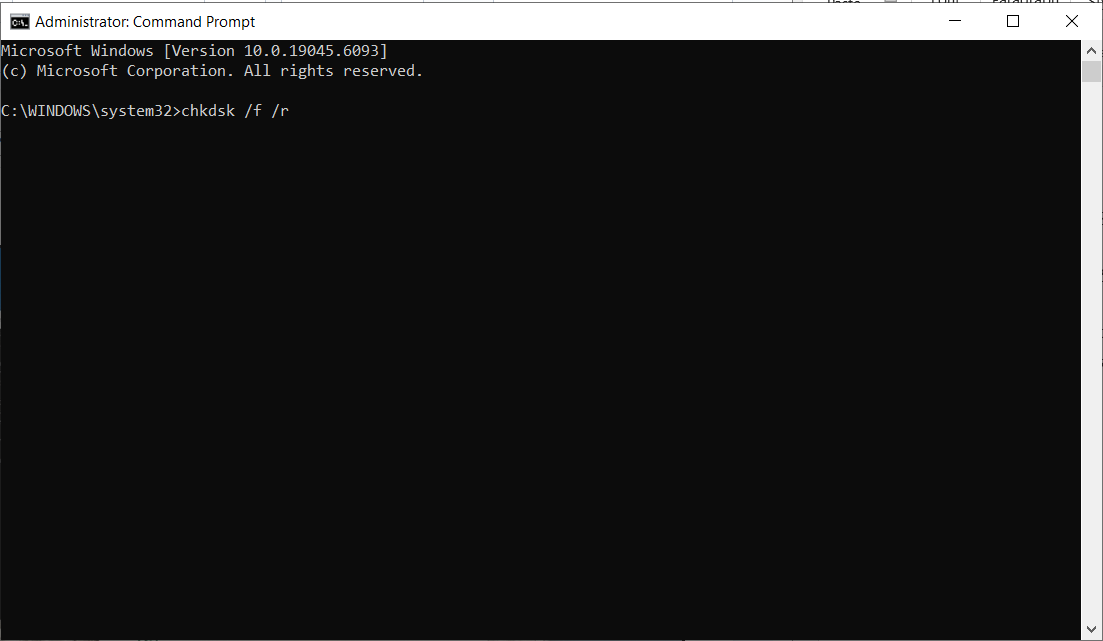
6. After hitting the ENTER key, you will most likely be prompt with the following message:
a. Chkdsk cannot run because the volume is in use by another process. Would you like to schedule this volume to be checked the next time the system restarts? (Y/N)
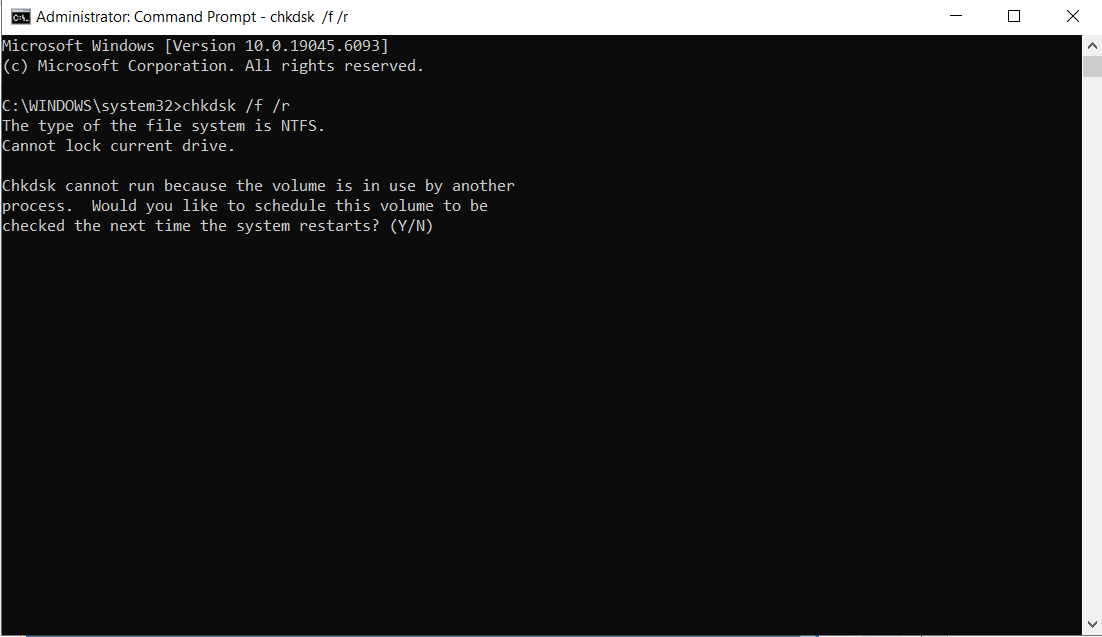
7. This message is presented because we ran the chkdsk command on an actively used drive which is the C: drive in this case. This is the drive where the Windows operating system is installed and being run.
8. Type “y” and hit the ENTER key again.
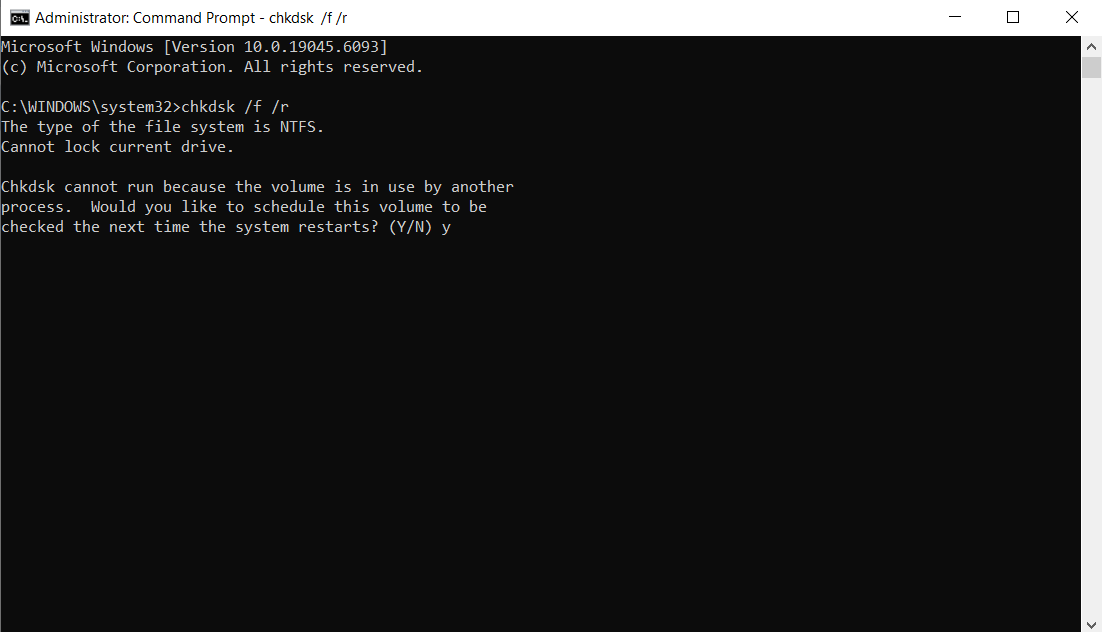
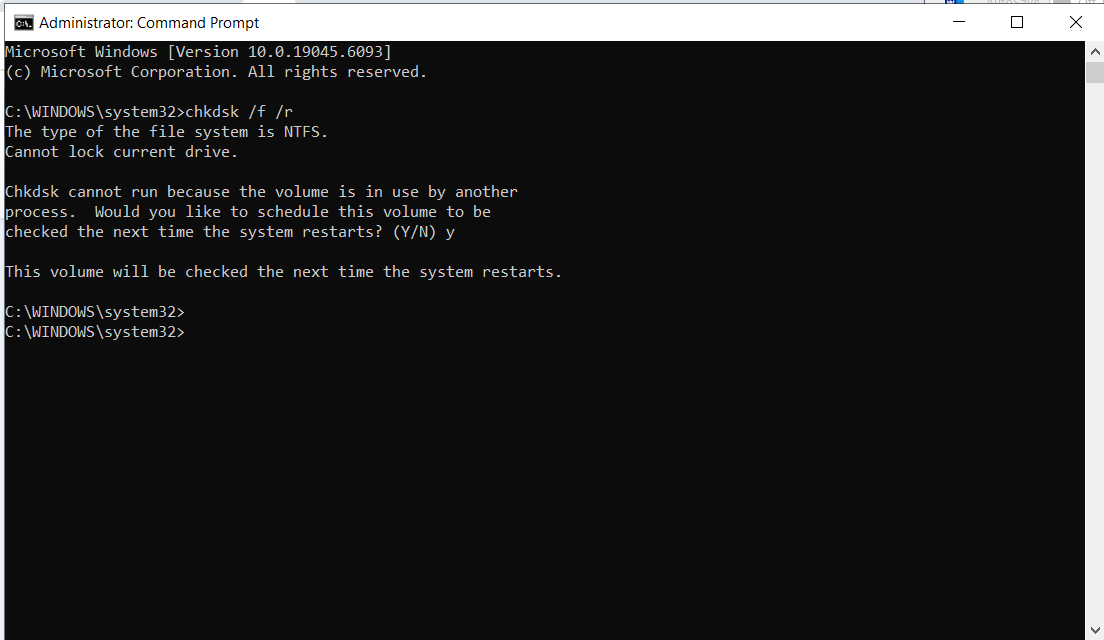
9. The next message will be:
a. This volume will be checked the next time the system restarts
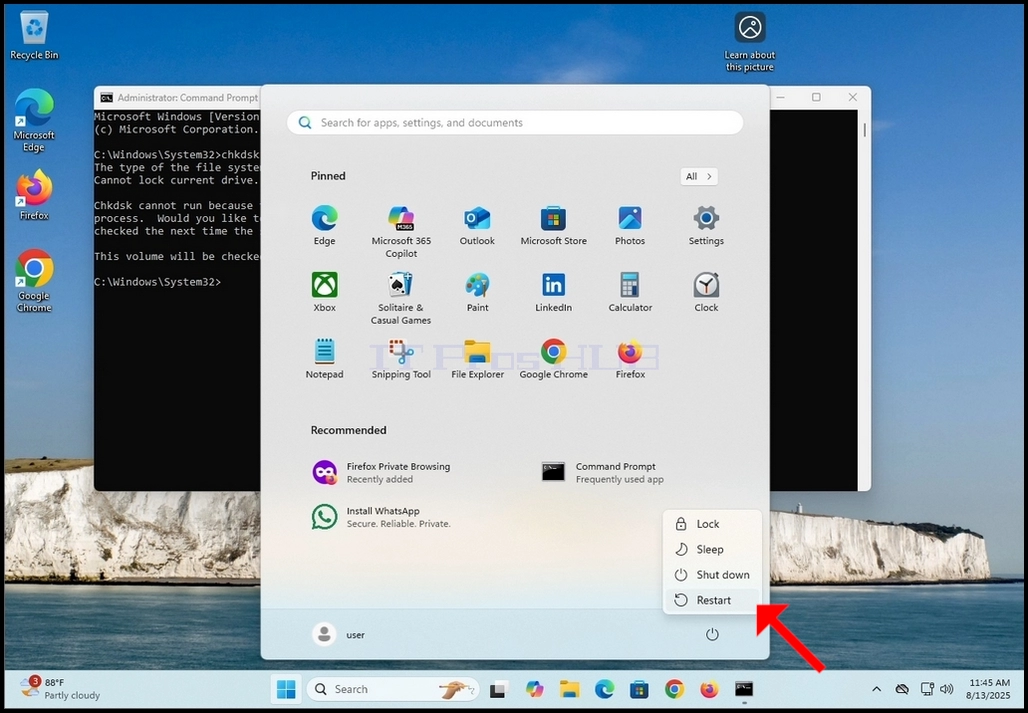

12. As declared by chkdsk in CMD in stage 9, chkdsk is about to perform a disk check and I’s asking if you wish to skip it.
13. Note that this is the last opportunity to safely abort chkdsk’s check before it performs it.
14. Note that this check takes quite a while to perform, especially in big mechanical hard drives
15. If you wish chkdsk to perform the check, do not press any key and wait for the timer to finish.
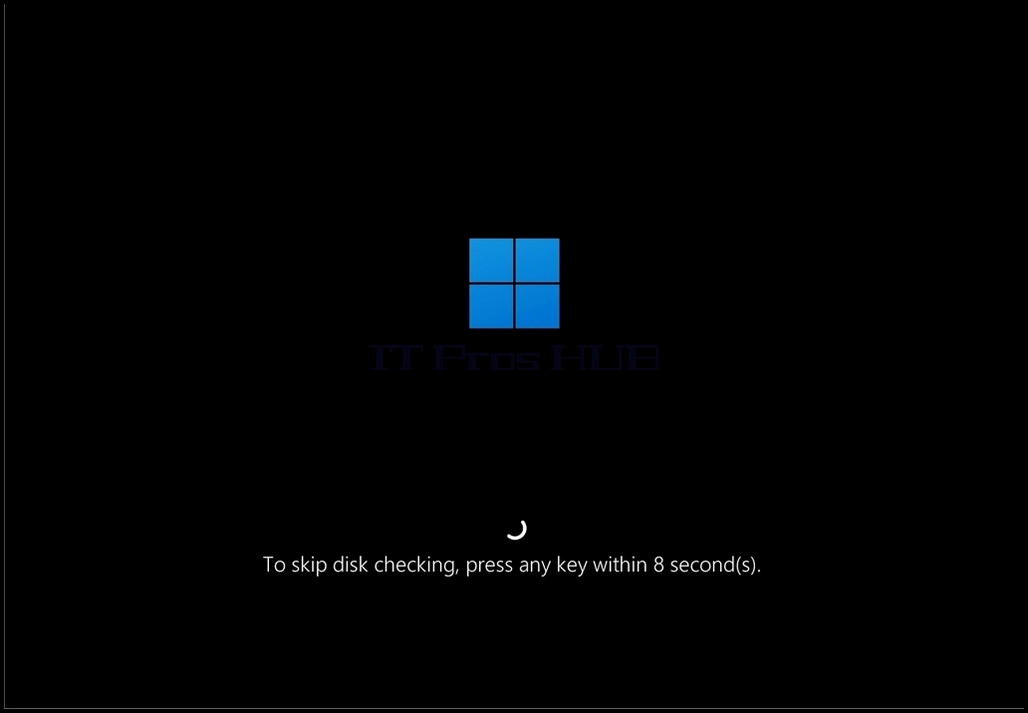
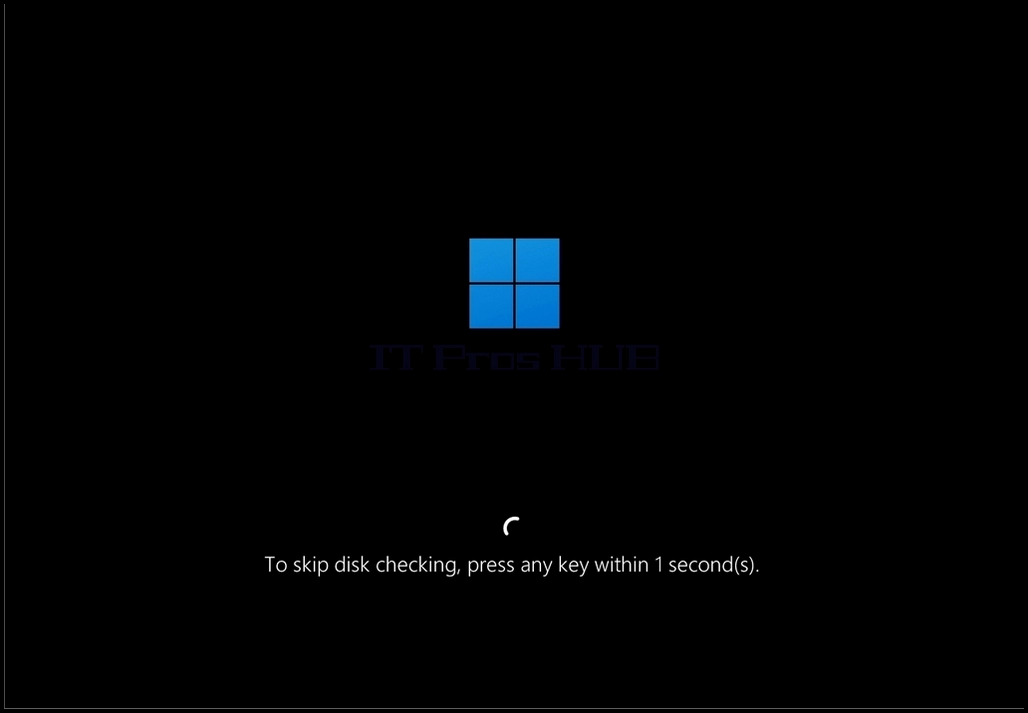
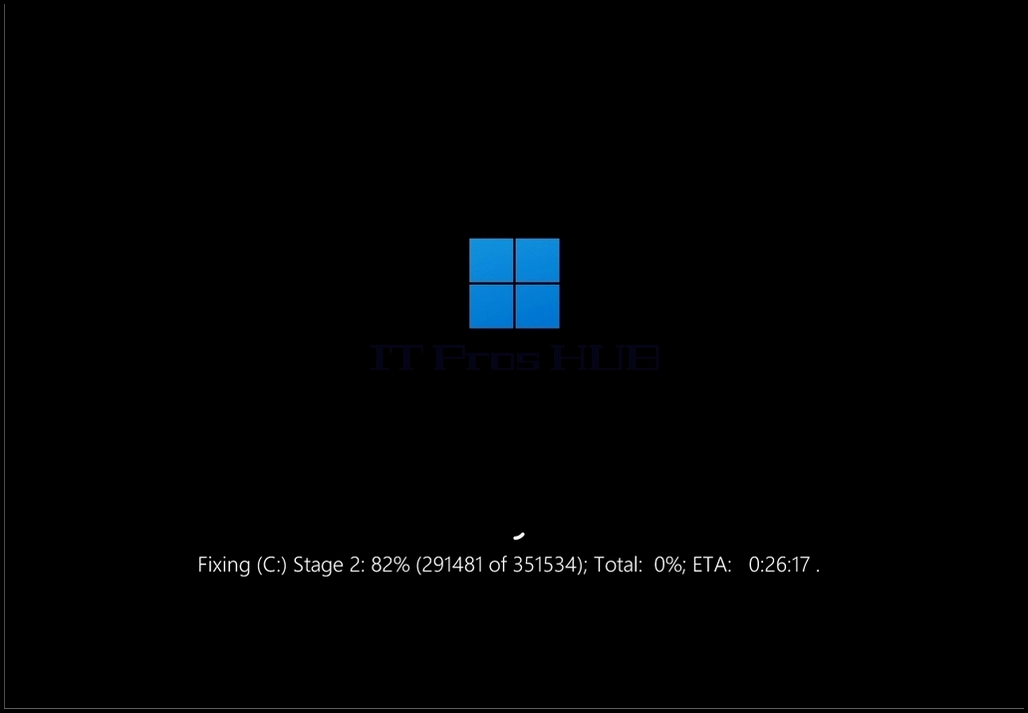
16. Chkdsk is now performing the disk check.
17. When it’s done it will resume booting into Windows.
18. Note that the ETA initials at the end of the sentence indicate the estimation time to completion of the scan
- Details
- Written by: IT Pro
- Category: How to Articles
- Hits: 7277
In this article we will demonstrate how to test the functionality of Mirrored Volume of Windows 11.
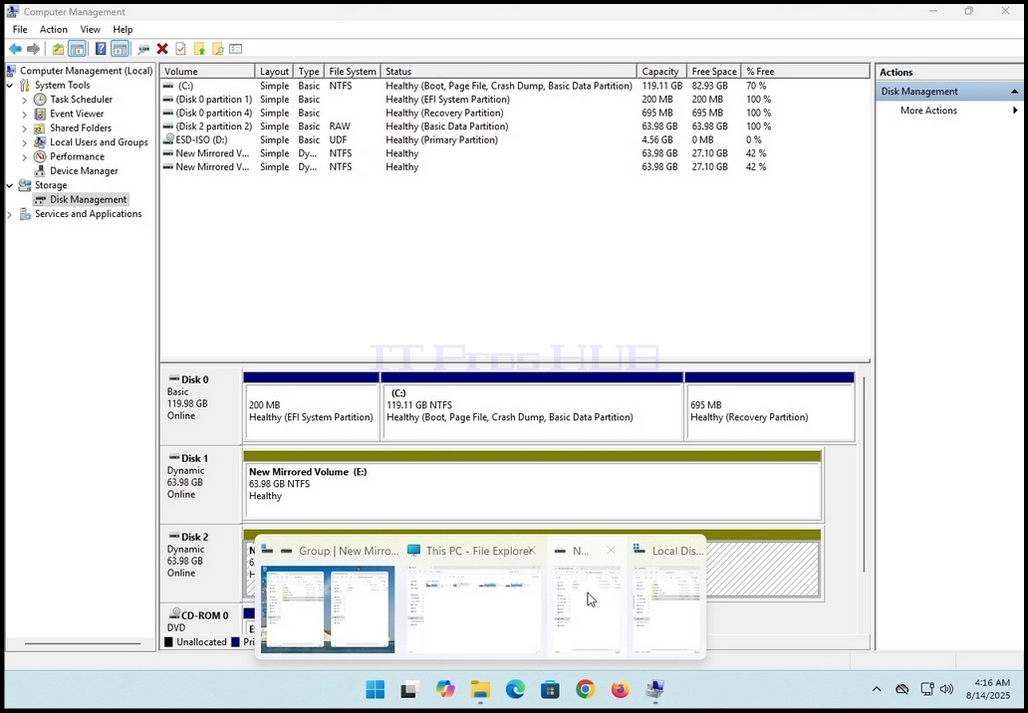
1. First, we will go to Computer management and from there to Disk Management just to see the 2 disks in the mirrored volume array.
2. As you can see, Disk 1 and Disk 2 are both part of this array which creates the single New Mirrored Volume (E: and F:)
3. Next, we will go to Windows Explorer and from there to This PC to see all of the disks and partitions configured in this system
4. As can be seen in the photo below, here are the 2 disks that we’ve seen on stage 1 – E: and F: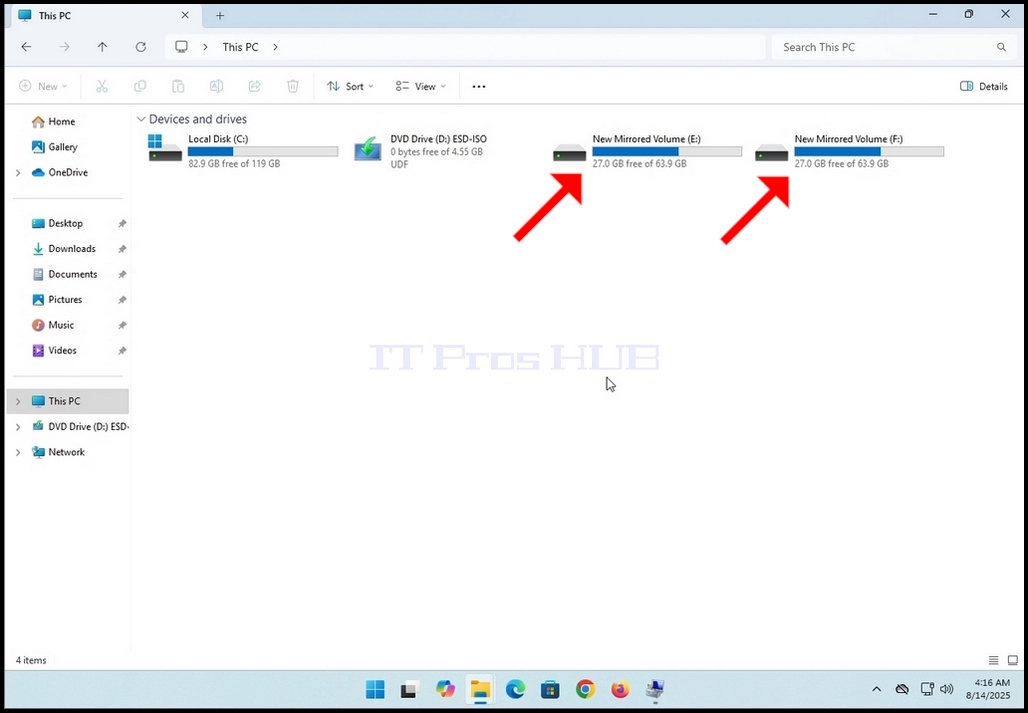

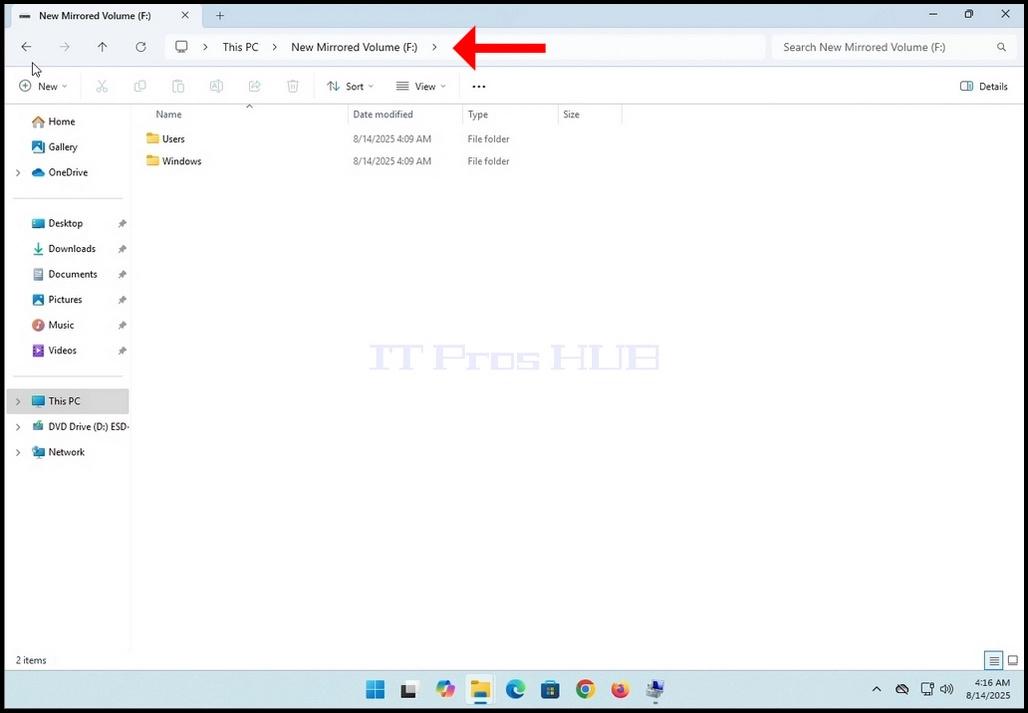
5. We will split the screen in 2 to see the contenst of both the F: and the E: drives at the same time.
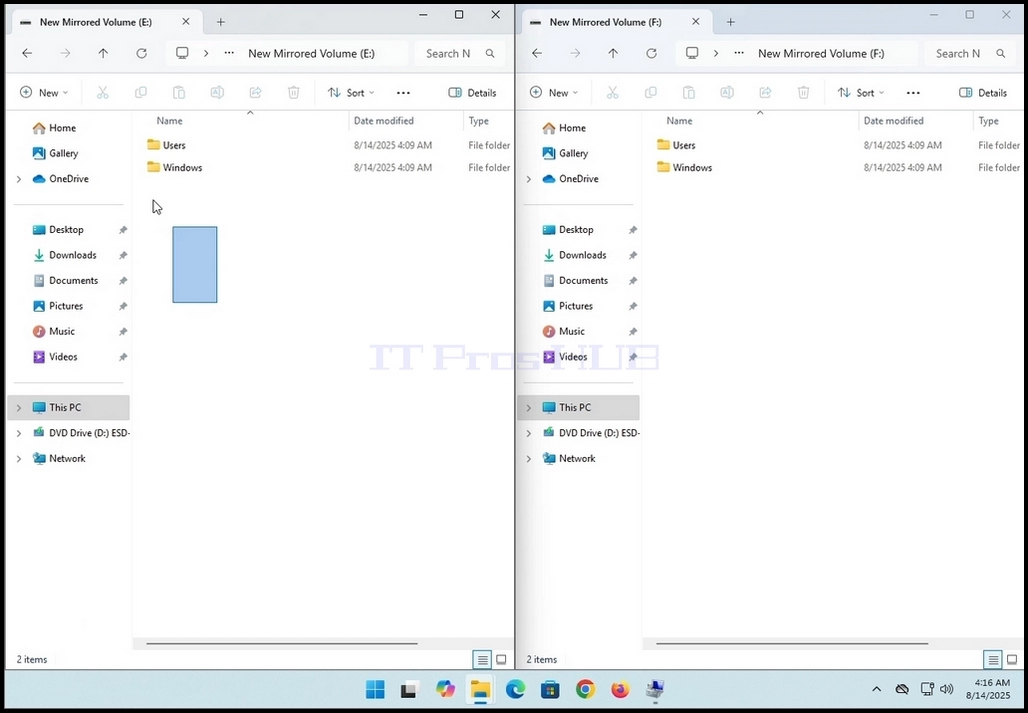
6. We will go to the F: drive first. As you can see, there are already folders and files in this drive to begin with.
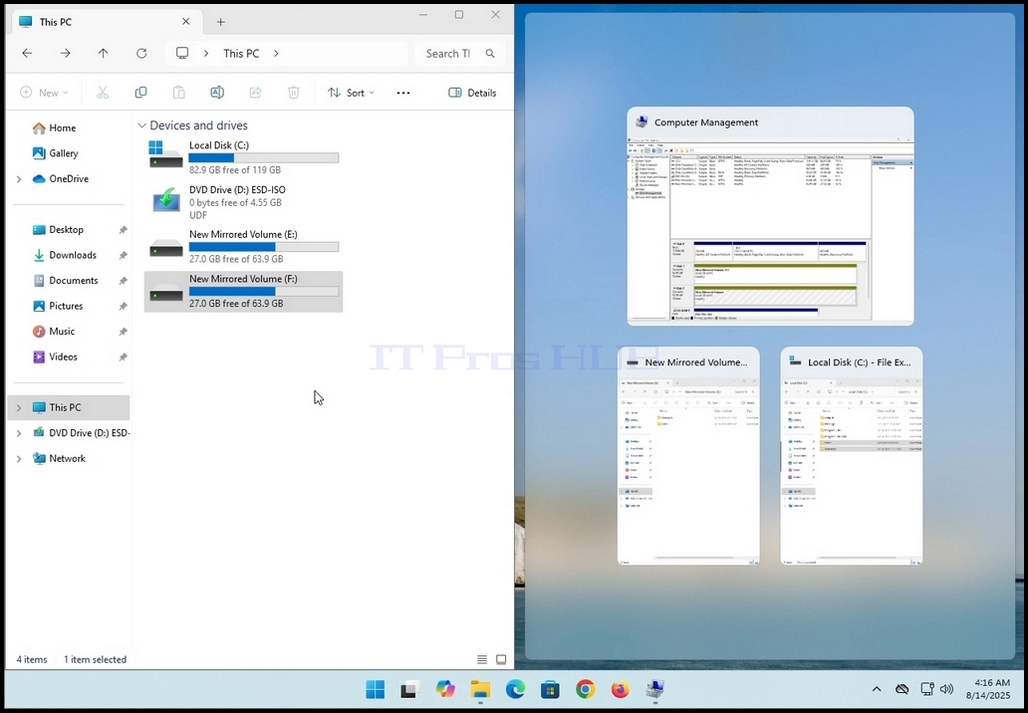
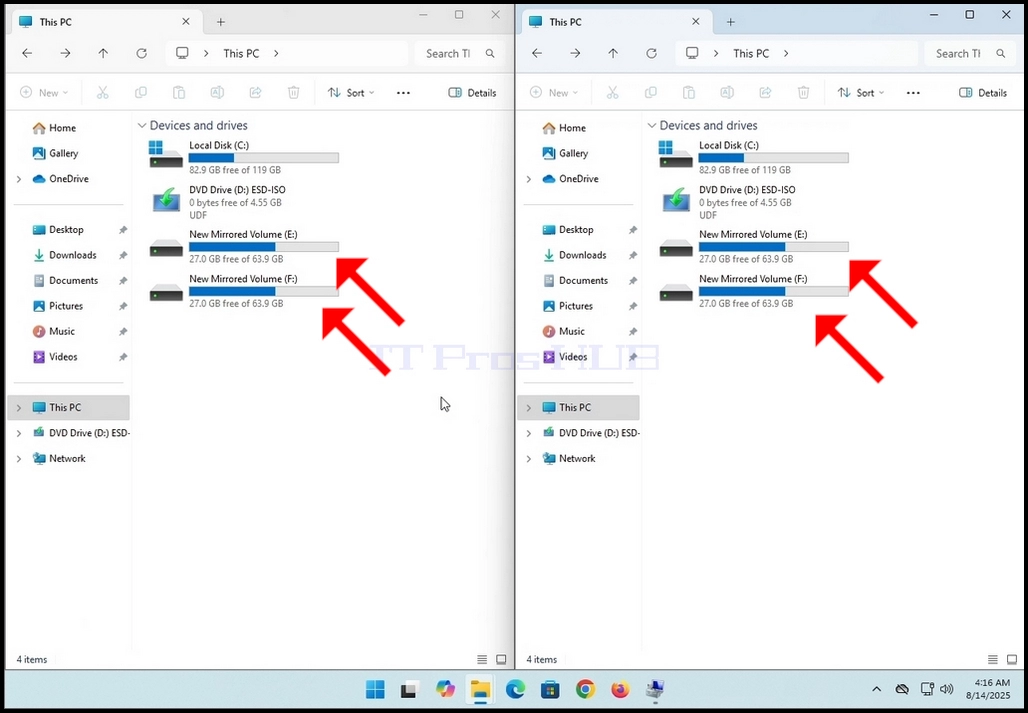
7. Note that whatever changes are made on one drive, it is reflected and applied to the other/s on the mirrored volume array. As you can see here in this photo below, both drives have the same folders and files, at least on the surface. In this article we will verify that.
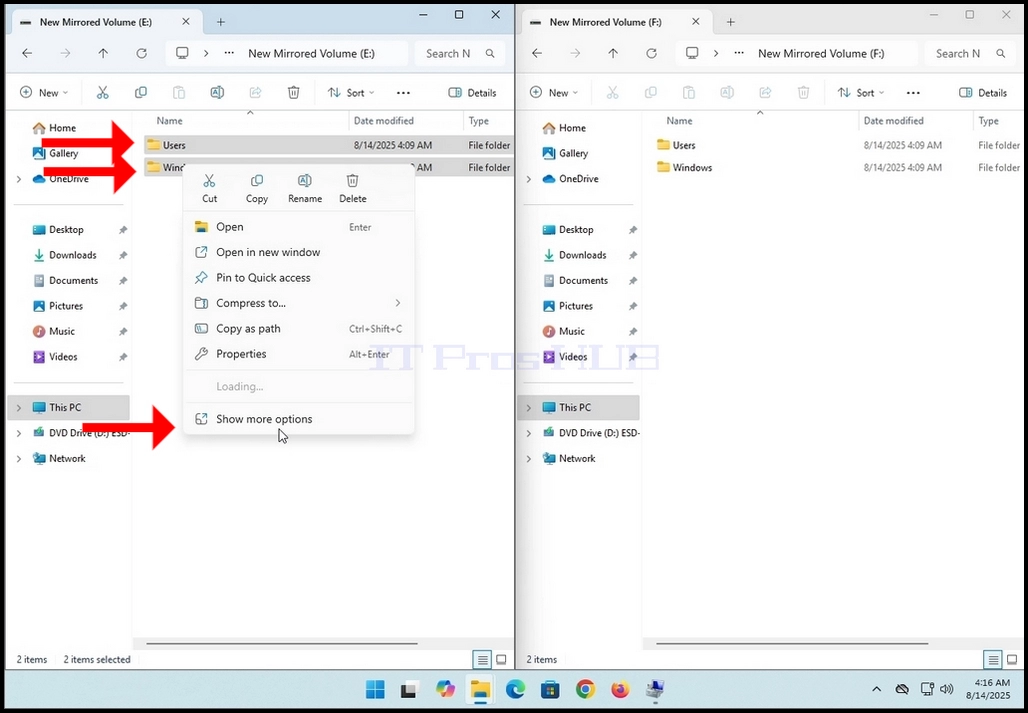
10. Once the properties window appears, let it calculate the number of files, folders and their size and size on disk.

11. Perform the same action to the second drive on the array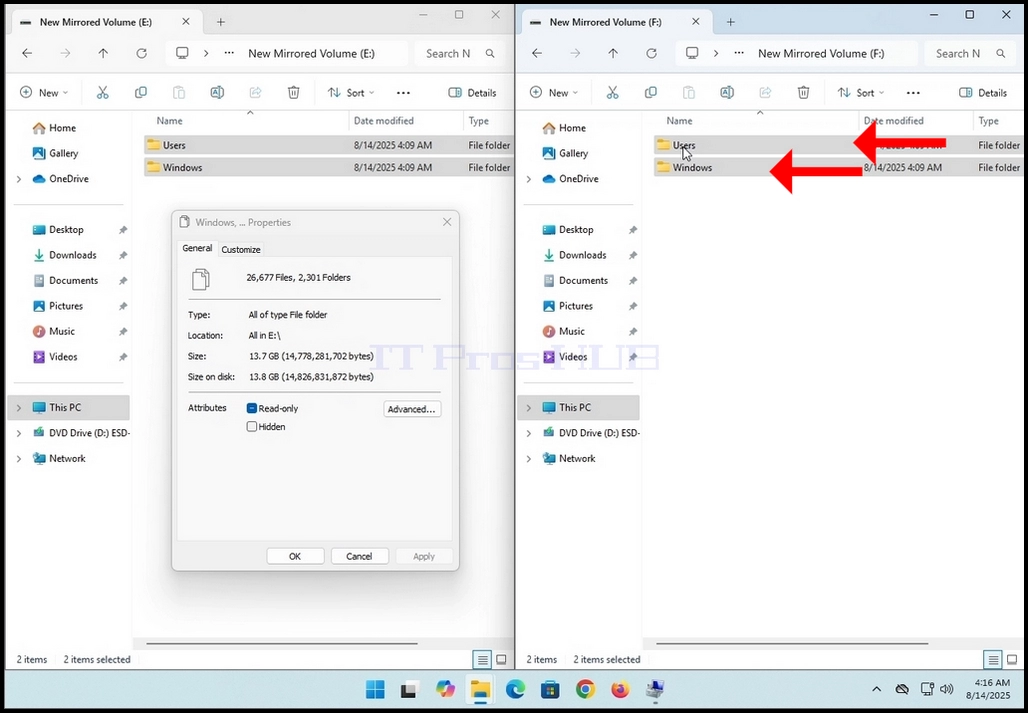
12. Give the properties windows some time to calculate the mentioned values. When the values stop changing that’s when you’d know the calculation process has finished.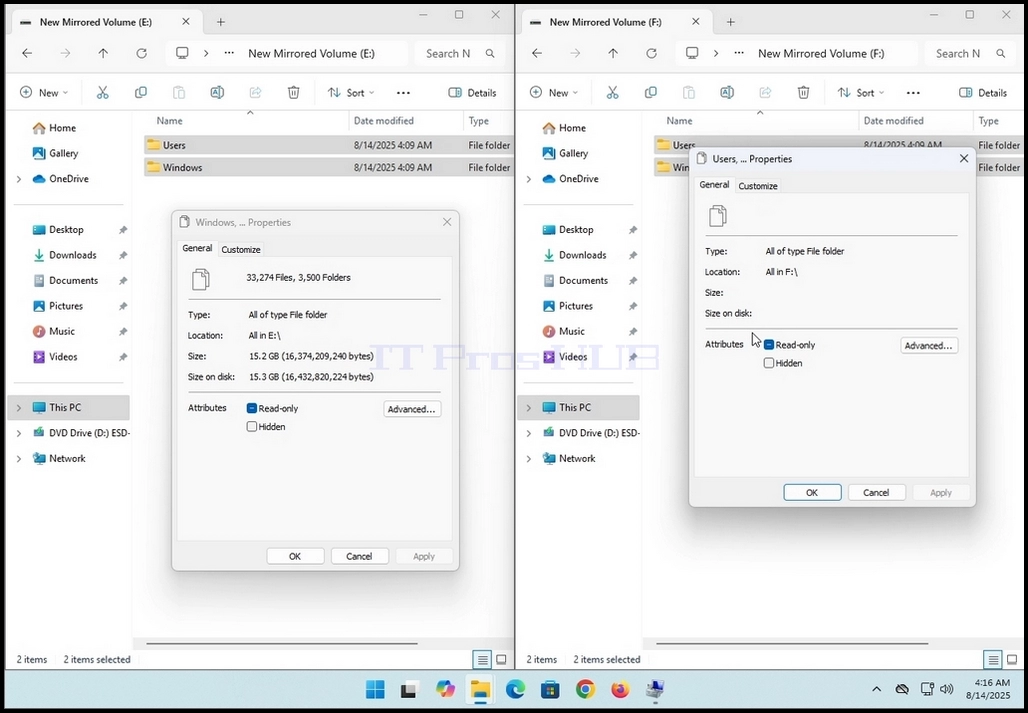
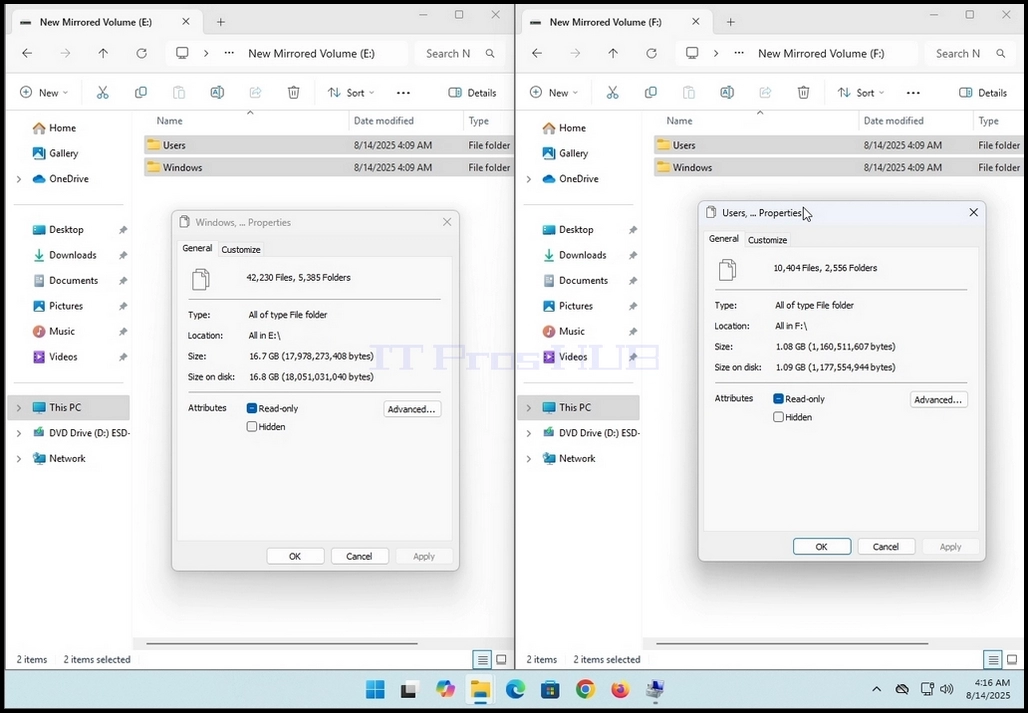
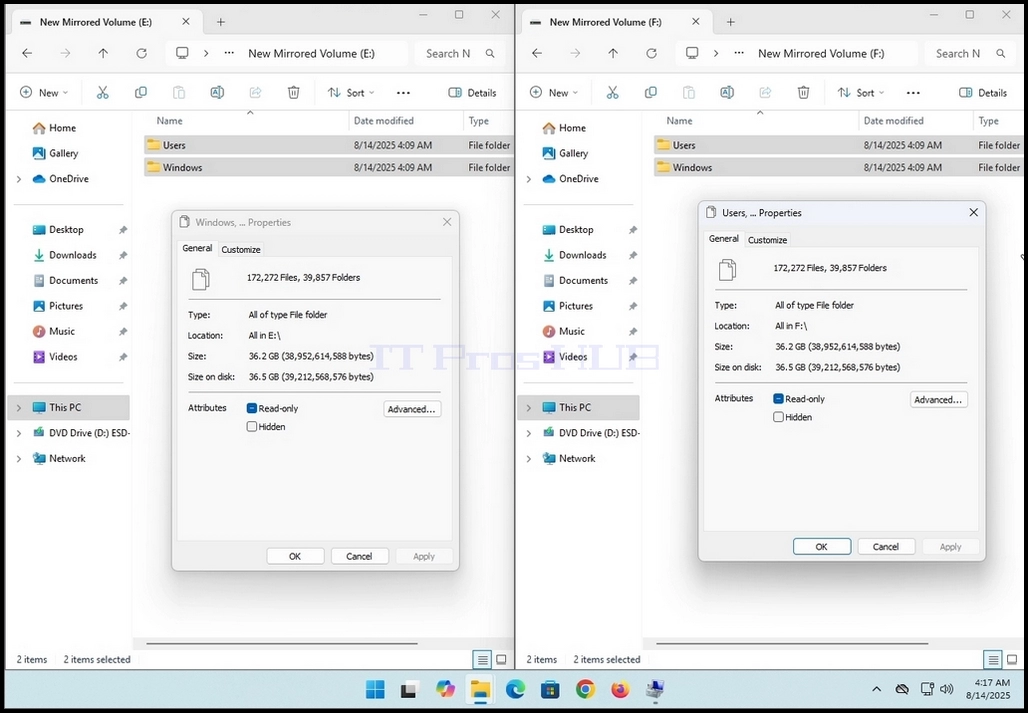
13. Note that in the case of this article, both windows show the same EXACT values:
a. 172,272 files
b. 39,857 folders
c. 36.2GB size (38,952,614,588 bytes)
d. 36.5GB (39,212,568,576 bytes) size on disk
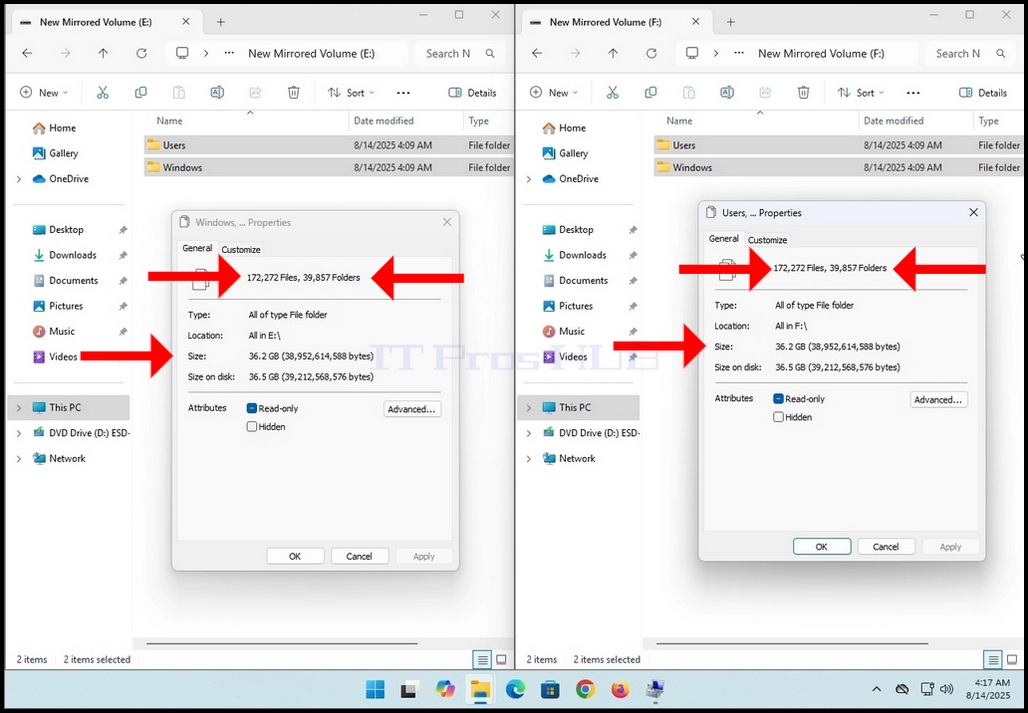
14. This means that this mirrored volume works as intended