- Podrobnosti
- Napisal: IT Pro
- Kategorija: How to Articles
- Ogledov: 6951
1. Pojdi na Nastavitve oken s klikom na Začetni meni in odhaja v Nastavitve. .
a. če Nastavitve ni viden videz za orodje gumb na spodnji levi strani Začni z menijem.
b. Če še vedno ni vidna, samo tip Nastavitve In naj ga začetni meni najde. Ko ga najdete, kliknite nanj.
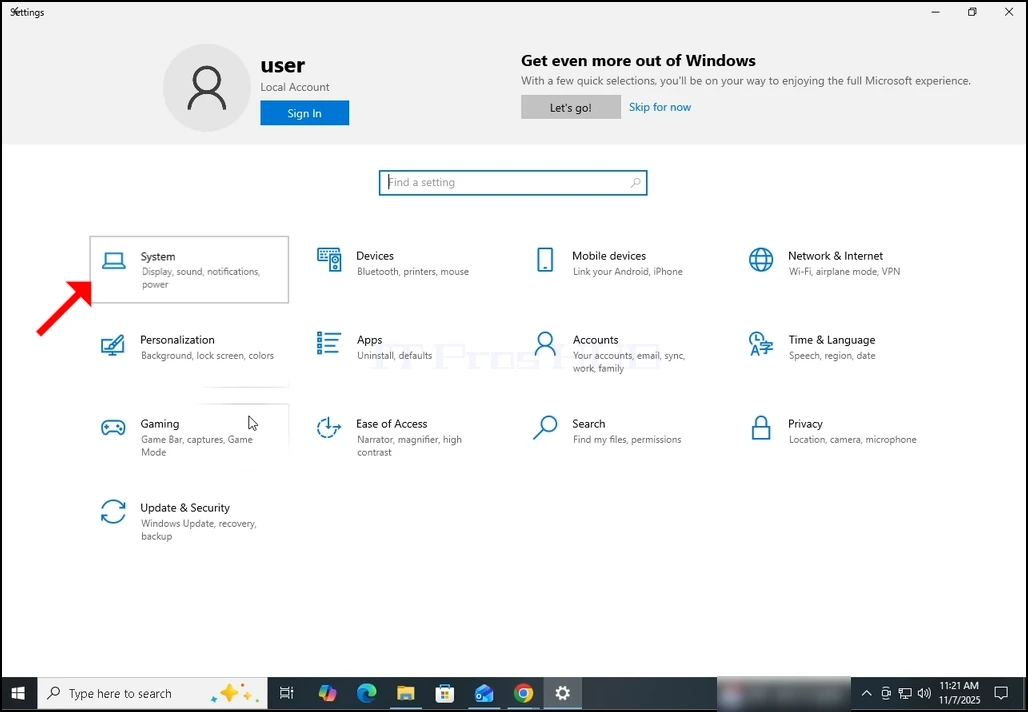
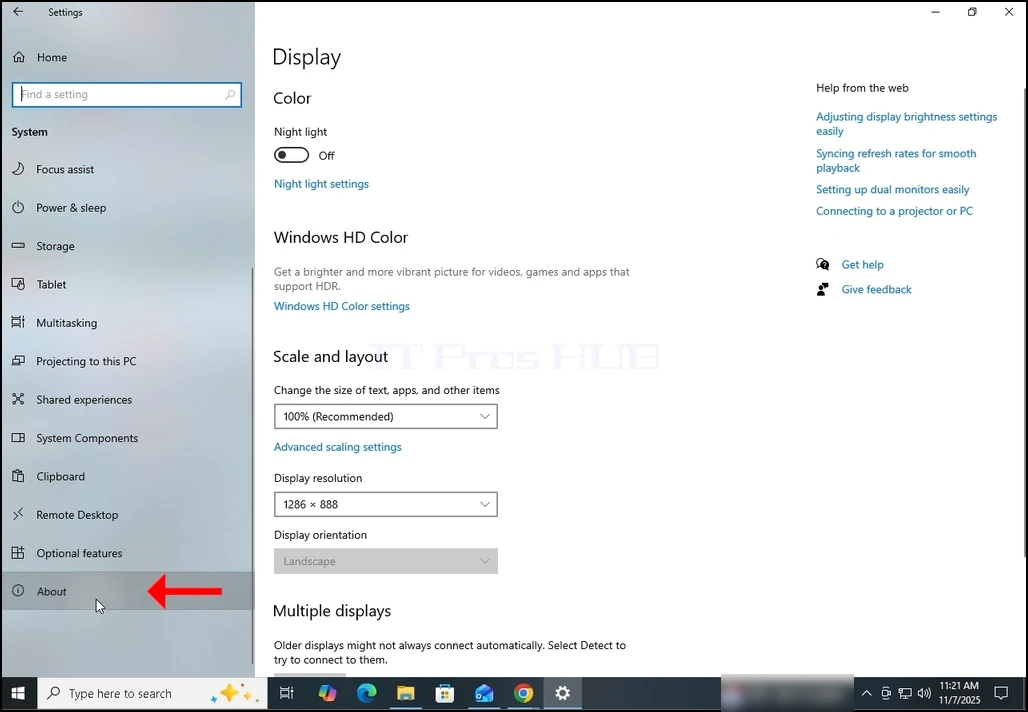
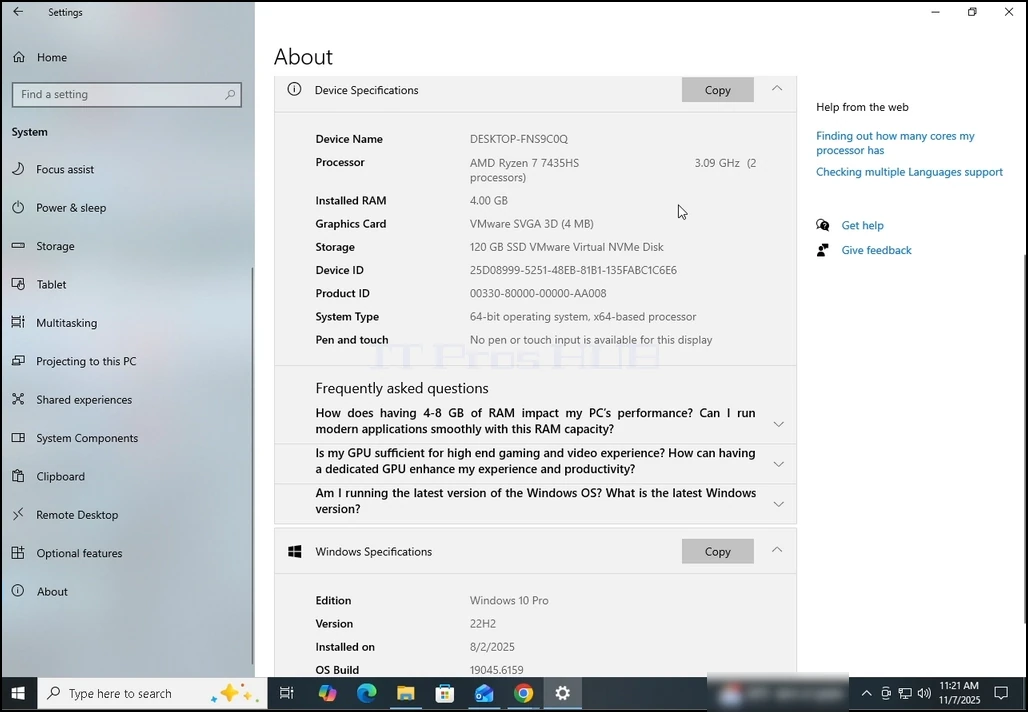
2. v Nastavitve Okno, pojdi na Sistem (Top levo del okna).
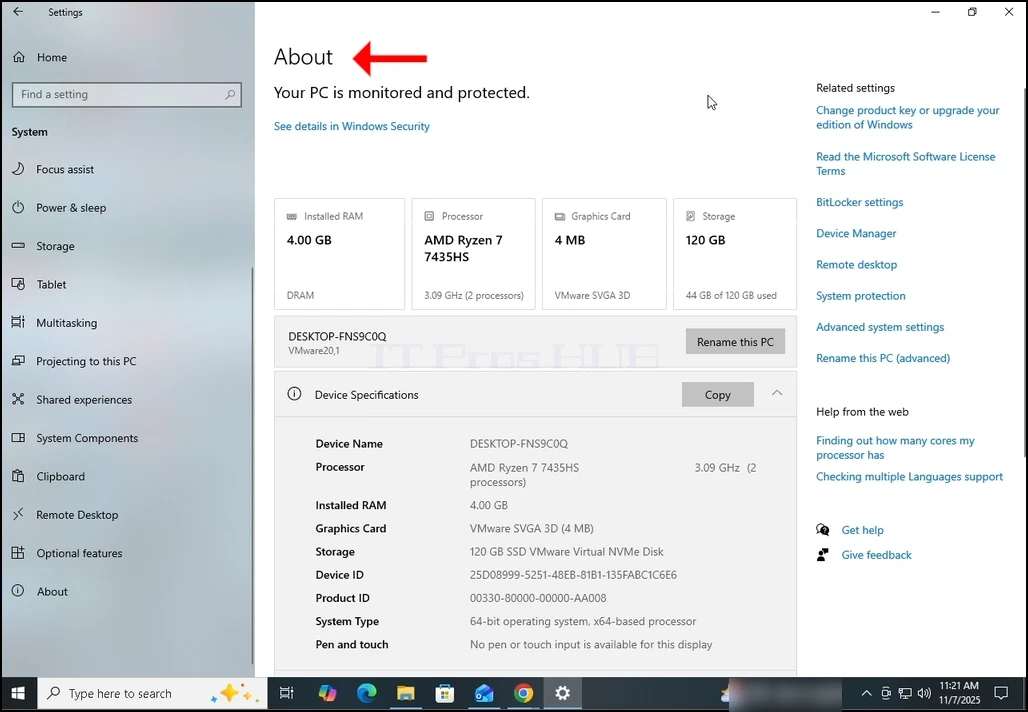
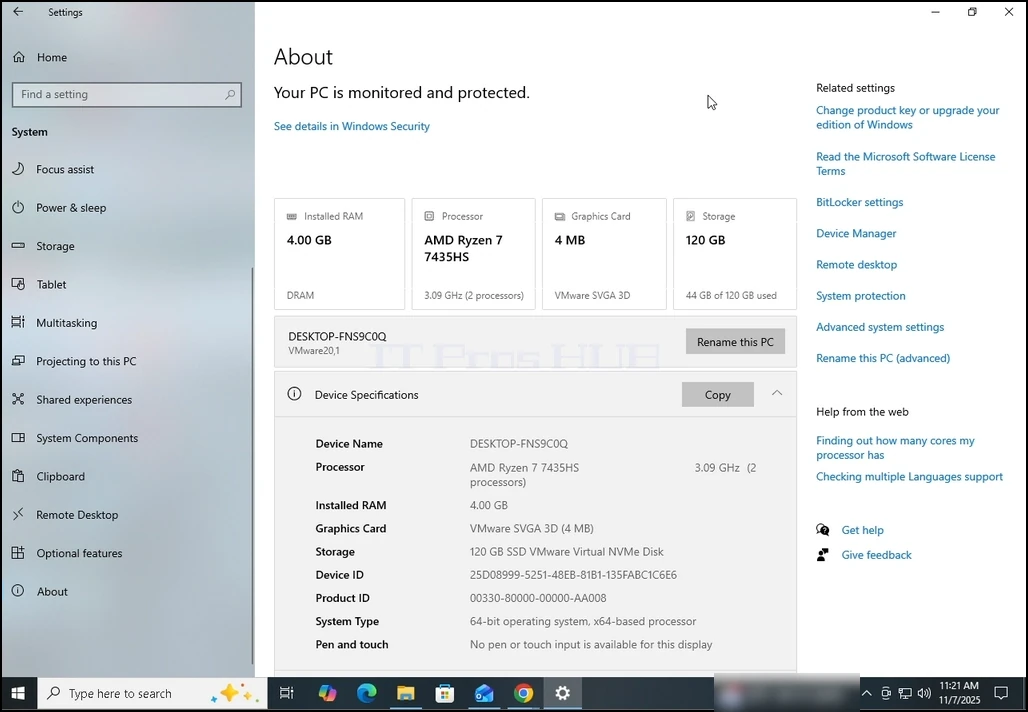
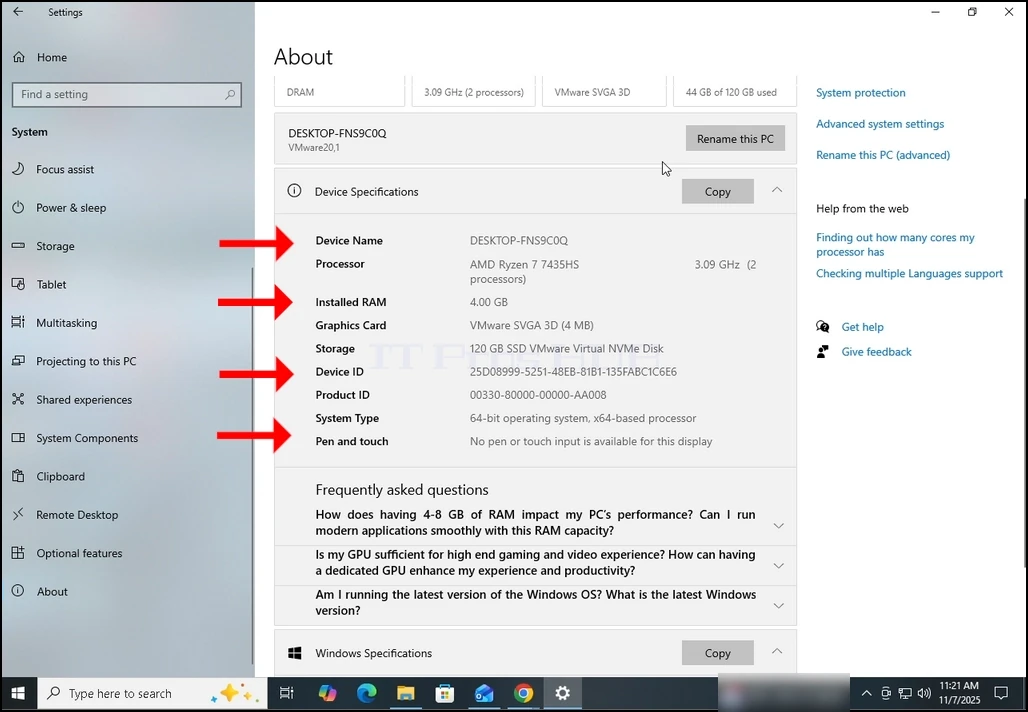
3. noter Sistem, poglej za O možnost na levem delu okna. To bi morala biti spodnja možnost.

- Podrobnosti
- Napisal: IT Pro
- Kategorija: How to Articles
- Ogledov: 6978
Uvod:
V tem članku bomo pokazali, kako priti do začetnih nastavitev. Te nastavitve so bile včasih dosegljive s pritiskom na tipko F8, dokler ni prišel Windows 8. Te nastavitve so nekoliko uporabne pri reševanju zagonskih vprašanj v sistemu Windows.
- Poskrbi, da boš notri. način predelave. Če ne, uporabite ta članek, da bi prišli tja:
- Kliknite na Odpravljanje težav in počakajte, da se naloži okno Odpravljanje težav
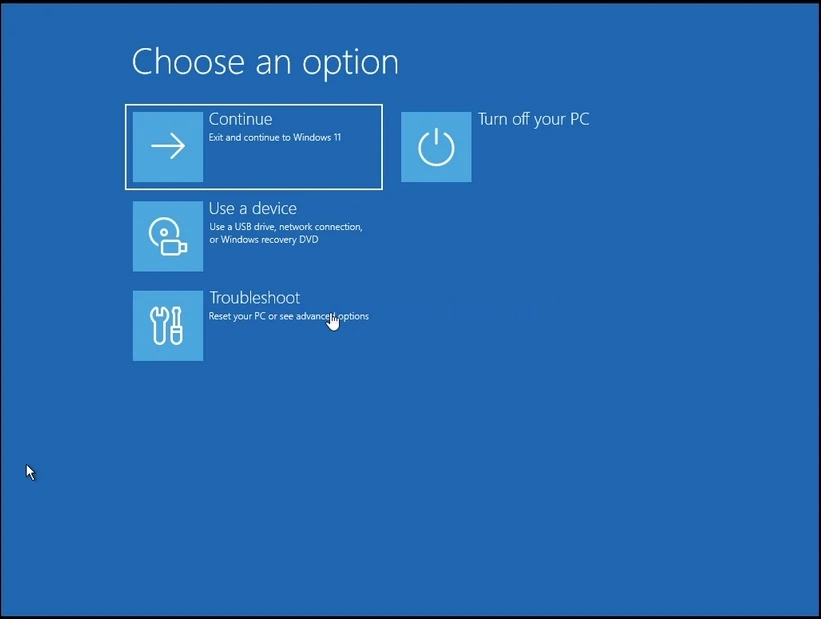
3. noter Odpravljanje težav, kliknite na Napredne možnostiPočakaj. Napredna možnosts okno za nalaganje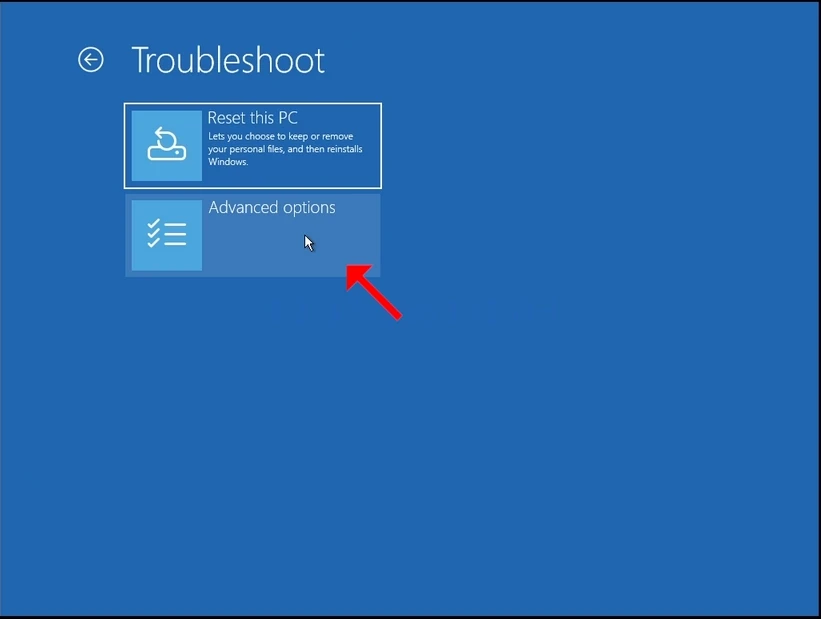
- V Napredne možnosti, kliknite na Nastavitve zagonaPočakaj. Nastavitve zagona okno za nalaganje
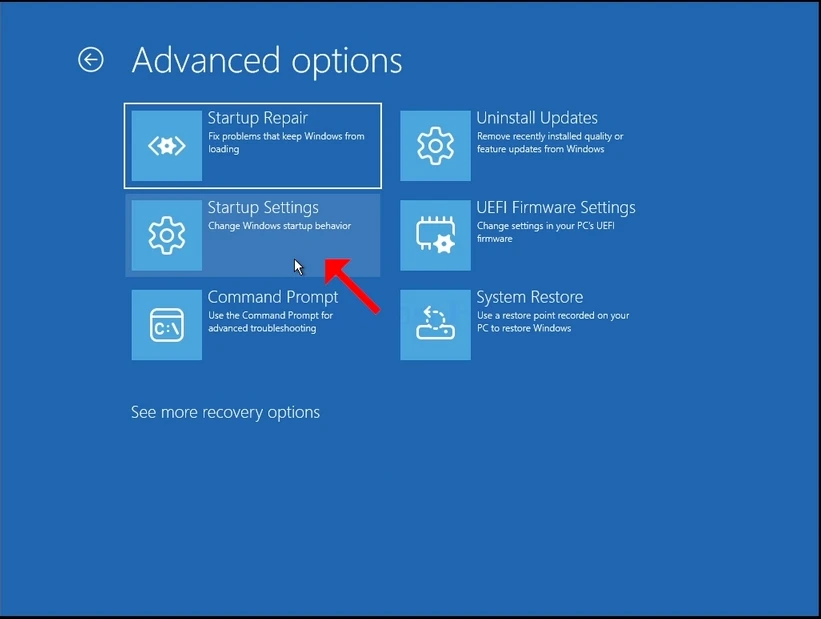
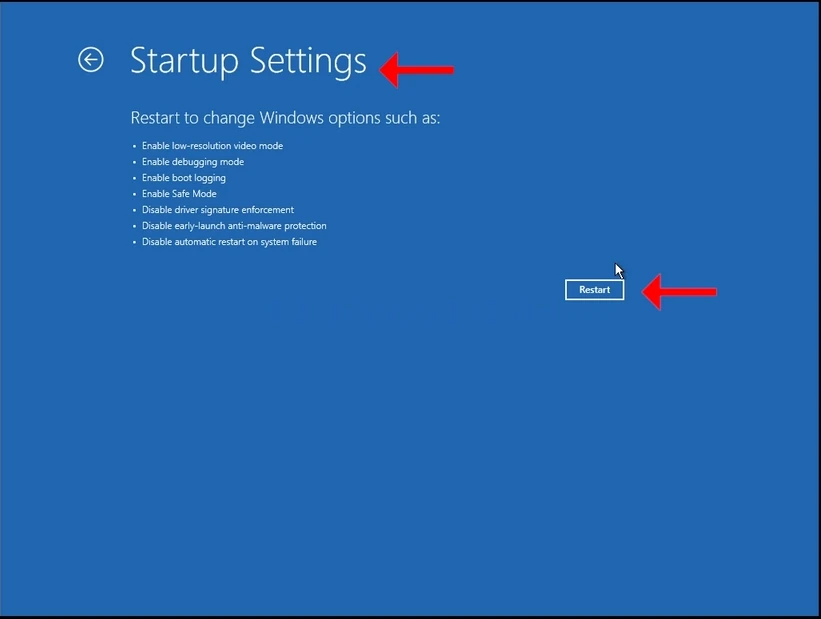
5. noter Nastavitve zagona Obveščeni boste, da boste po ponovnem zagonu računalnika zagnani v naslednje zagonske nastavitve:
a. Omogoči video način z nizko ločljivostjo
b. Omogoči način razhroščevanja
c. Omogoči beleženje zagona
d. Omogoči varen način
e. Onemogoči izvrševanje podpisa voznika
f. Onemogoči zaščito pred nenamernim zagonom
g. Onemogoči samodejni ponovni zagon ob napaki sistema
6. Kliknite na Znova zaženi gumb in počakajte, da Windows zažene
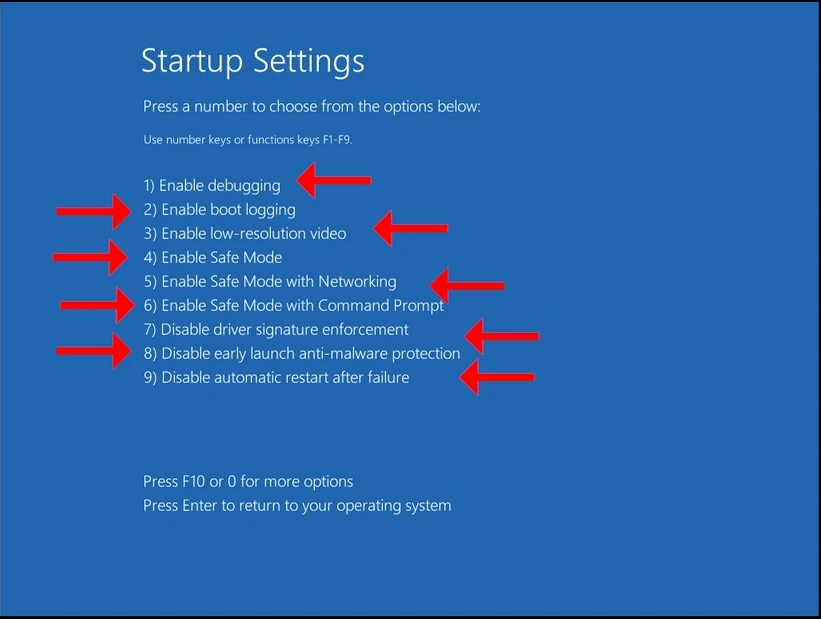
7. Po zagonu vam bo Windows predstavil zadnje omenjene možnosti.
8. Izberite eno od teh možnosti, kot se vam zdi primerno s pritiskom na številčne tipke na tipkovnici. Na primer, 1 je za Omogoči razhroščevanje2 je za Omogoči beleženje zagona itd.
9. Ko enkrat pritisnete, se Windows začne z izbrano nastavitvijo.
- Podrobnosti
- Napisal: IT Pro
- Kategorija: How to Articles
- Ogledov: 6664
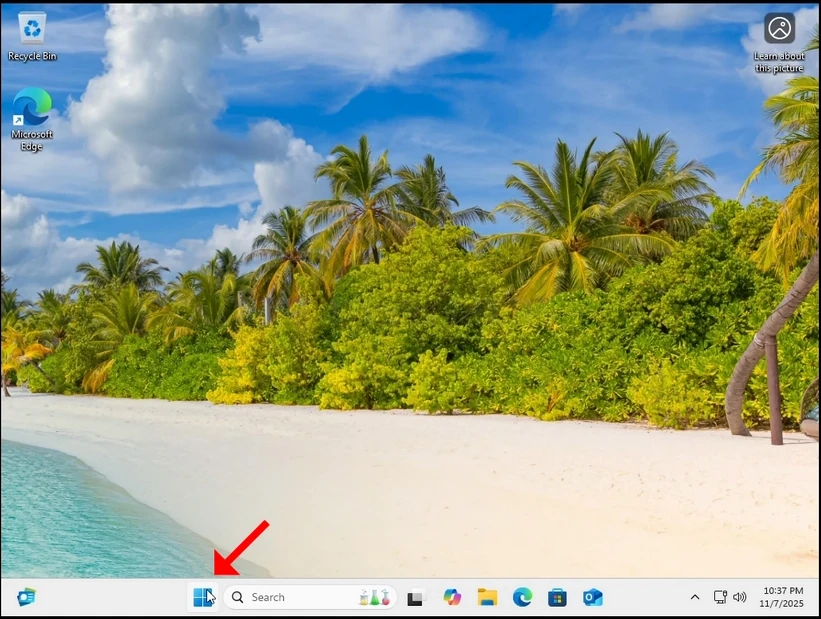
2. In the secondary Start menu, look for the Shut down or sign out option. It should be next to the last option. Hover your mouse cursor over it until the menu extends to another sub-menu. If it does not happen – click on it once.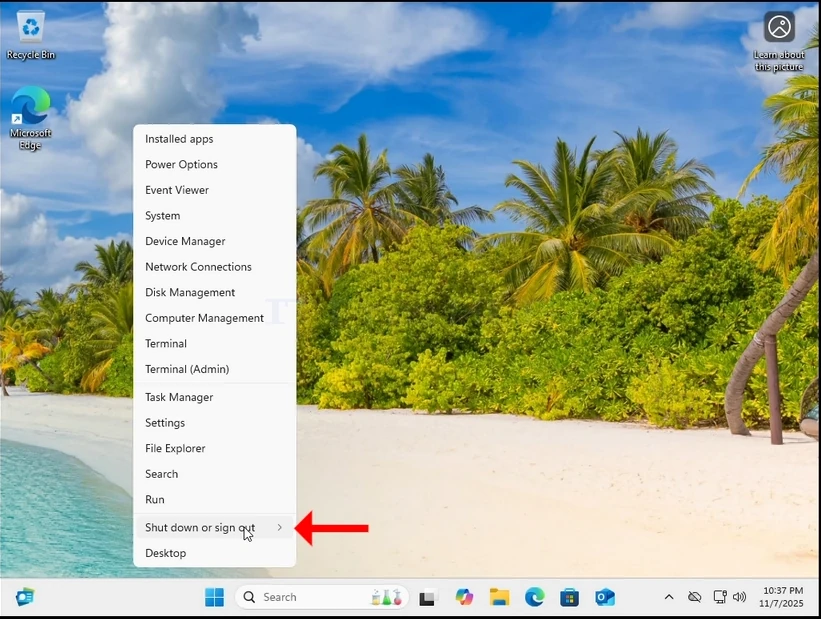
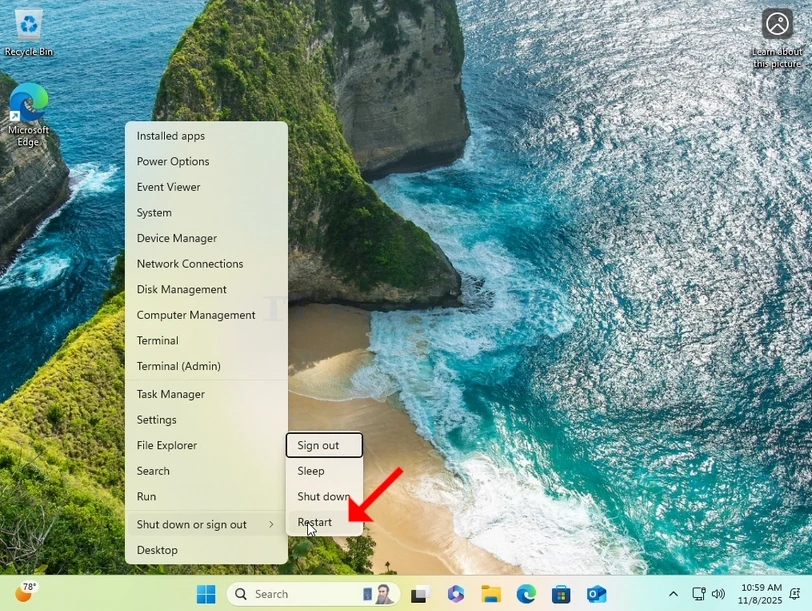
4. Wait for Windows to restart itself.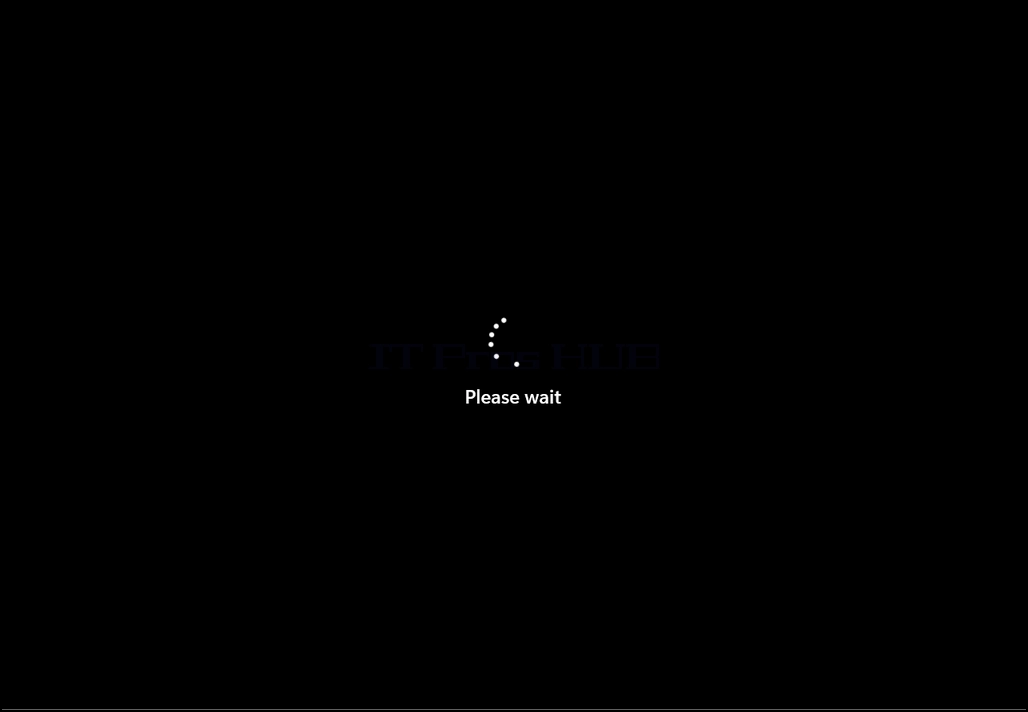
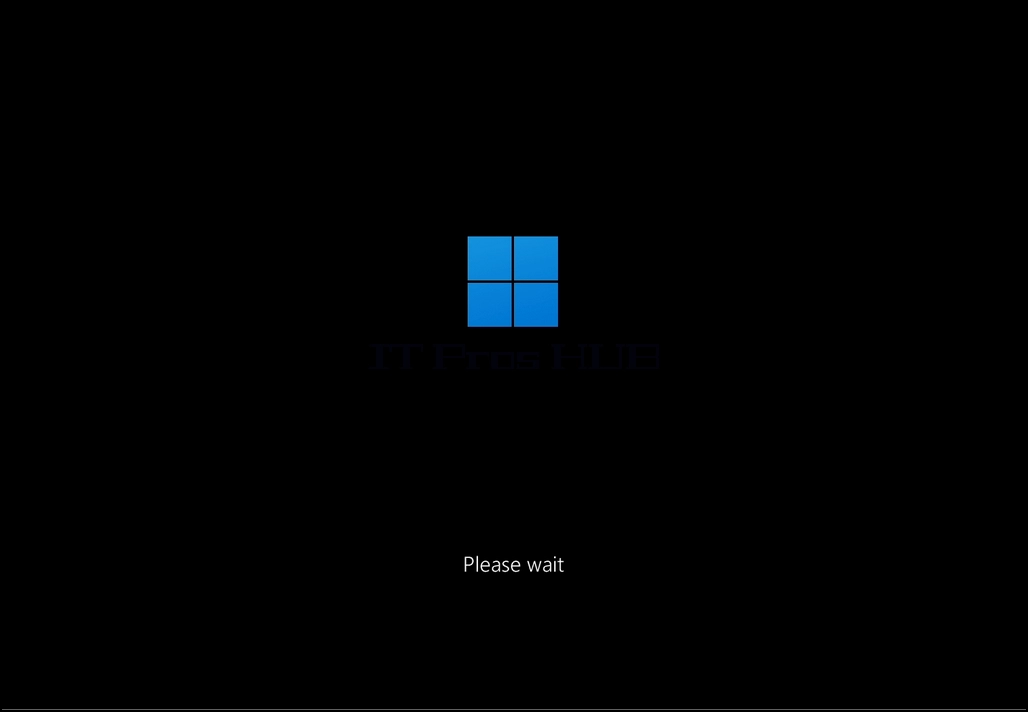
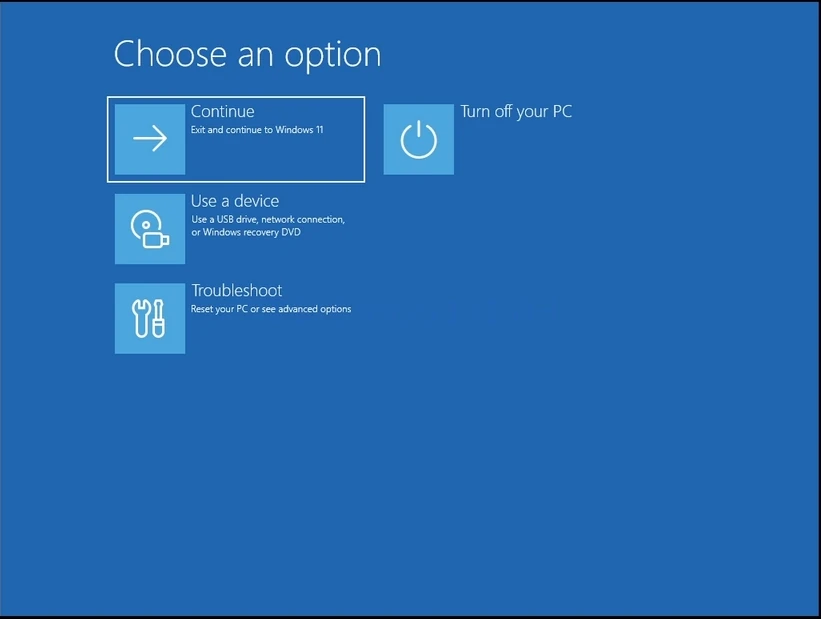
5. Windows should now boot into Recovery mode
- Podrobnosti
- Napisal: IT Pro
- Kategorija: How to Articles
- Ogledov: 7142
Introduction:
In this article we will demonstrate how to reset a Windows 11 installation (PC) from within Windows itself.
1. We will start by going to Start and then Settings.
2. In Settings, we will go to System on the left pane.
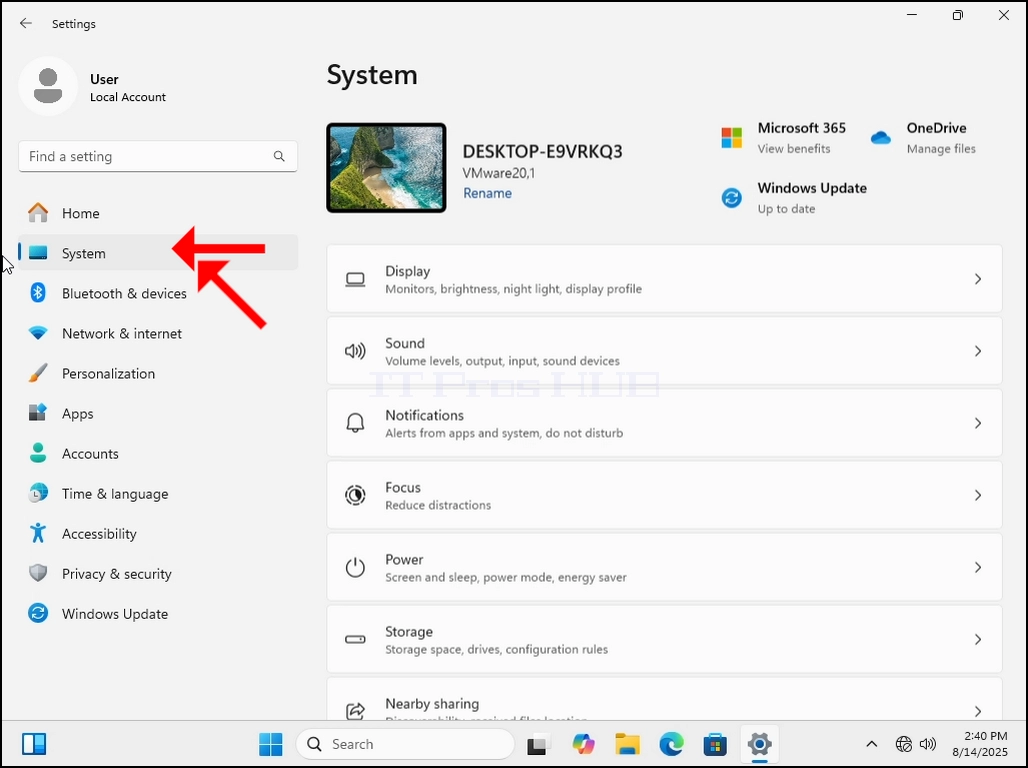
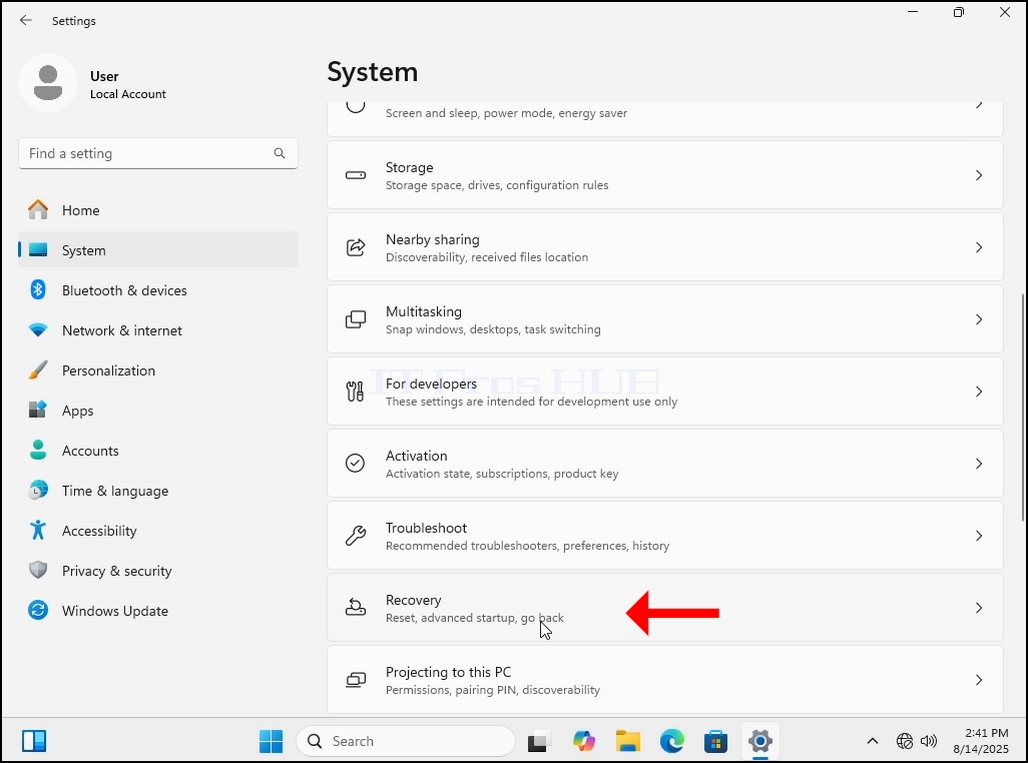
3. Once the system options are loaded, we will look for the Recovery option in the right pane. It should be close to the bottom part of the window.
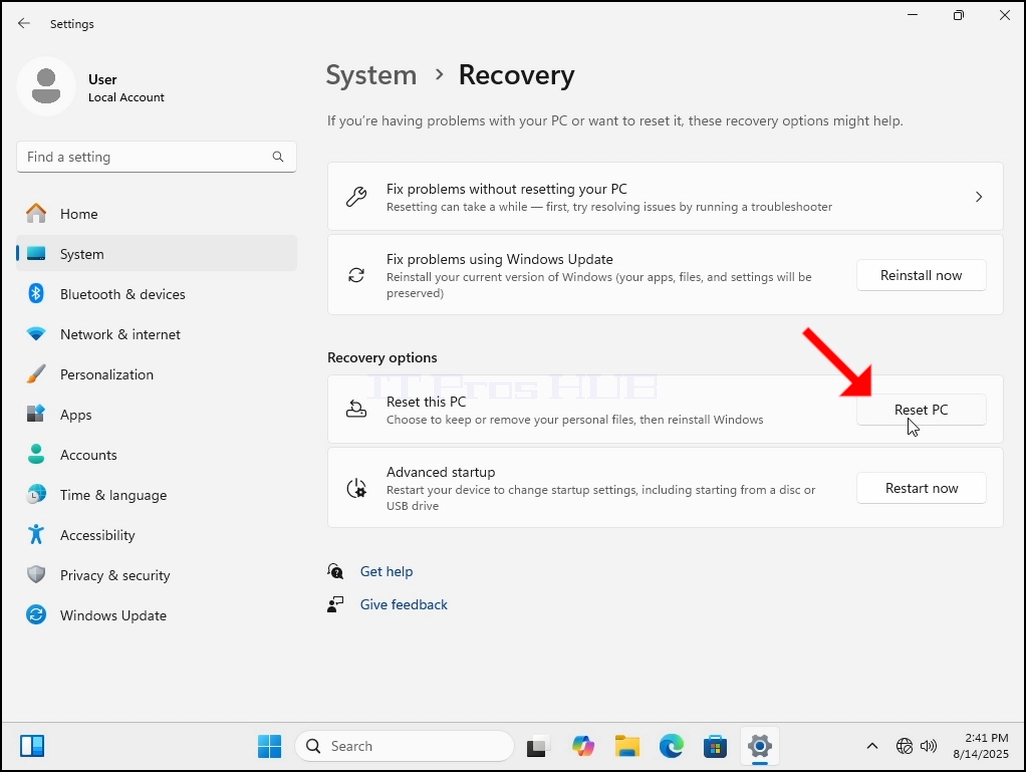
- In Recovery there is a section called Recovery options. Under it there is a rubrical called Reset this PC. On the same line as this sentence, there is a button called Reset PC, click on it once and wait for the Reset this PC window to load.
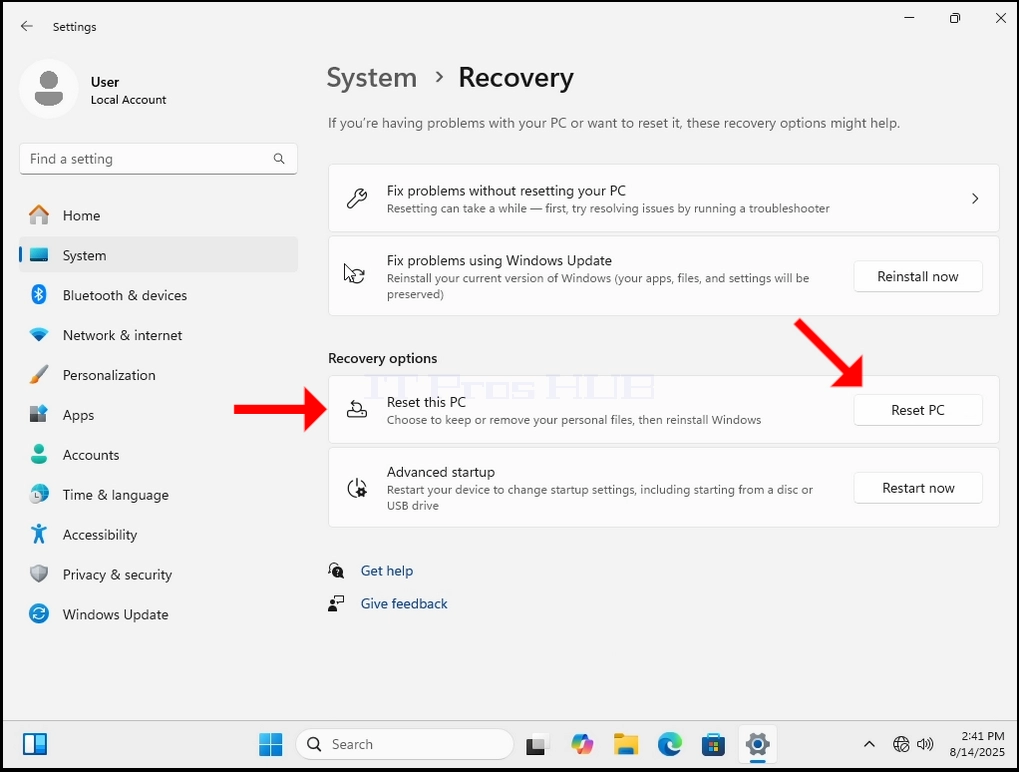
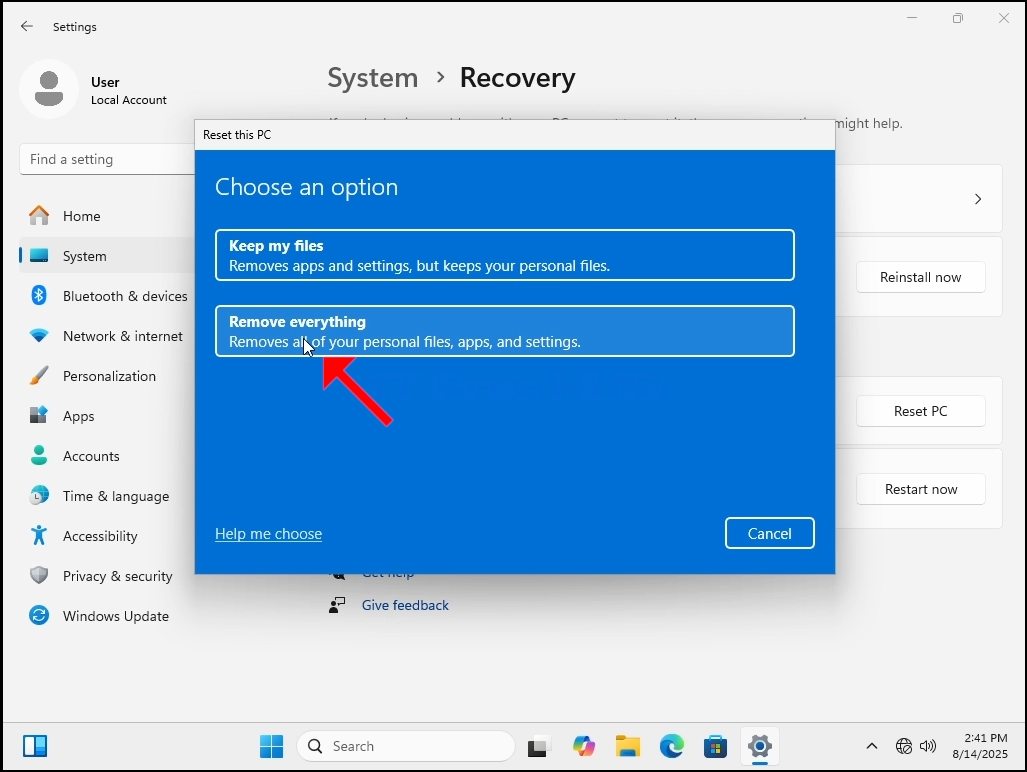
5. In the Reset this PC window you’ll see 2 options:
a. Keep my files
b. Remove everything
6. In this article we will choose the latter option which is “Remove everything”
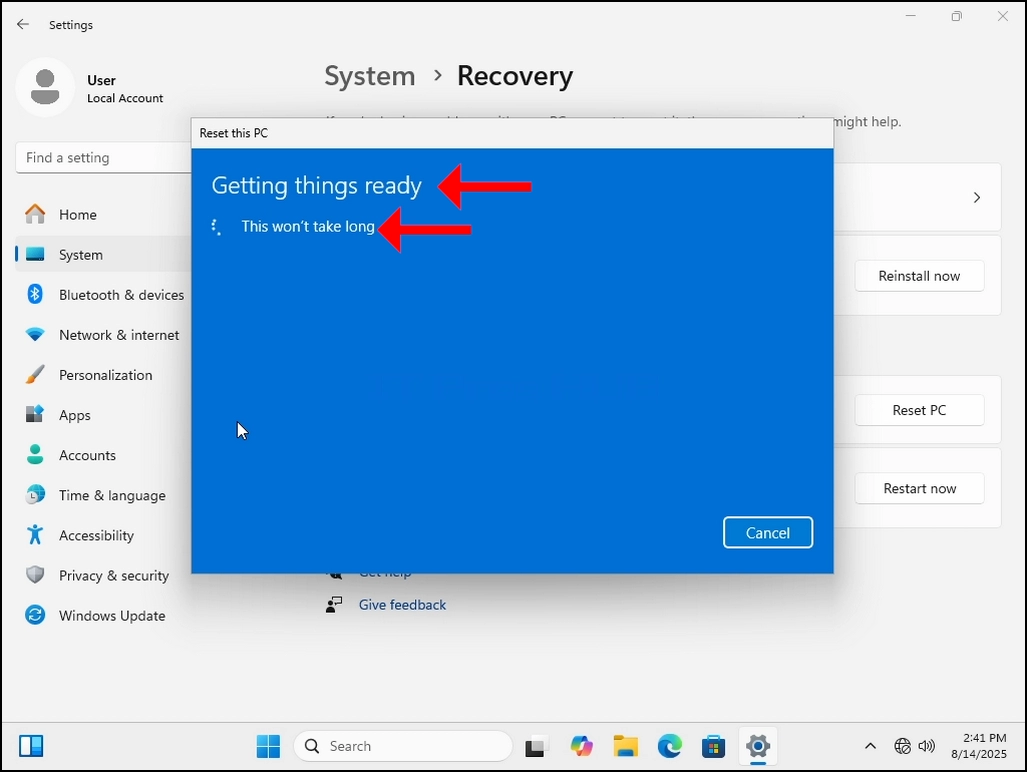
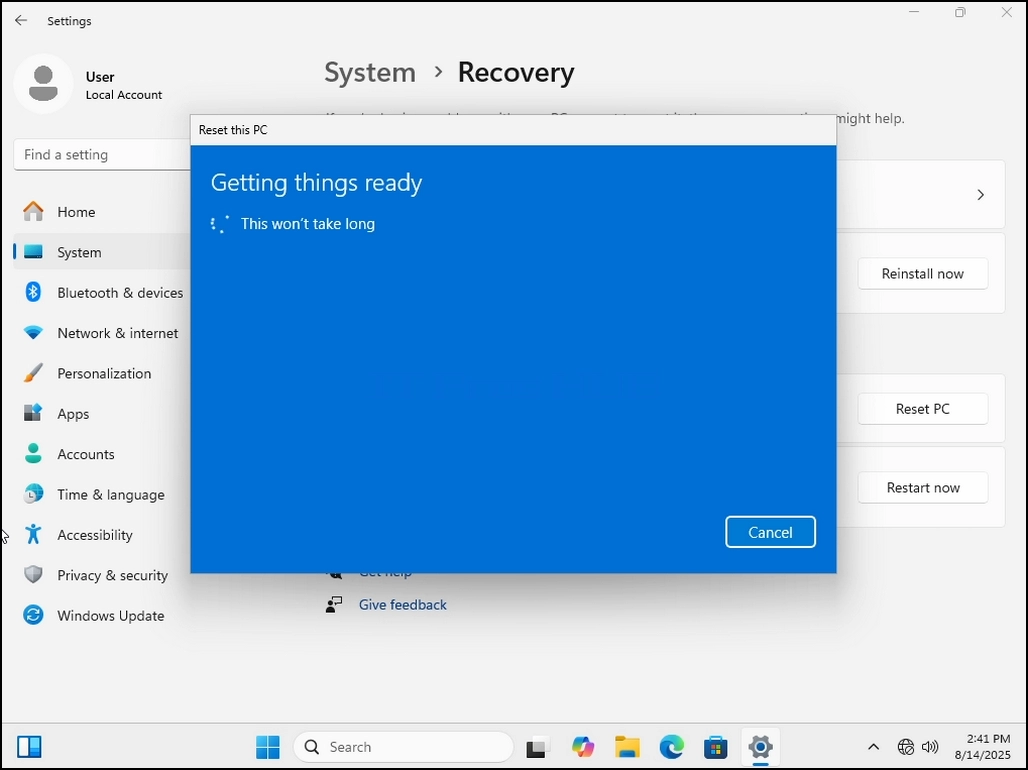
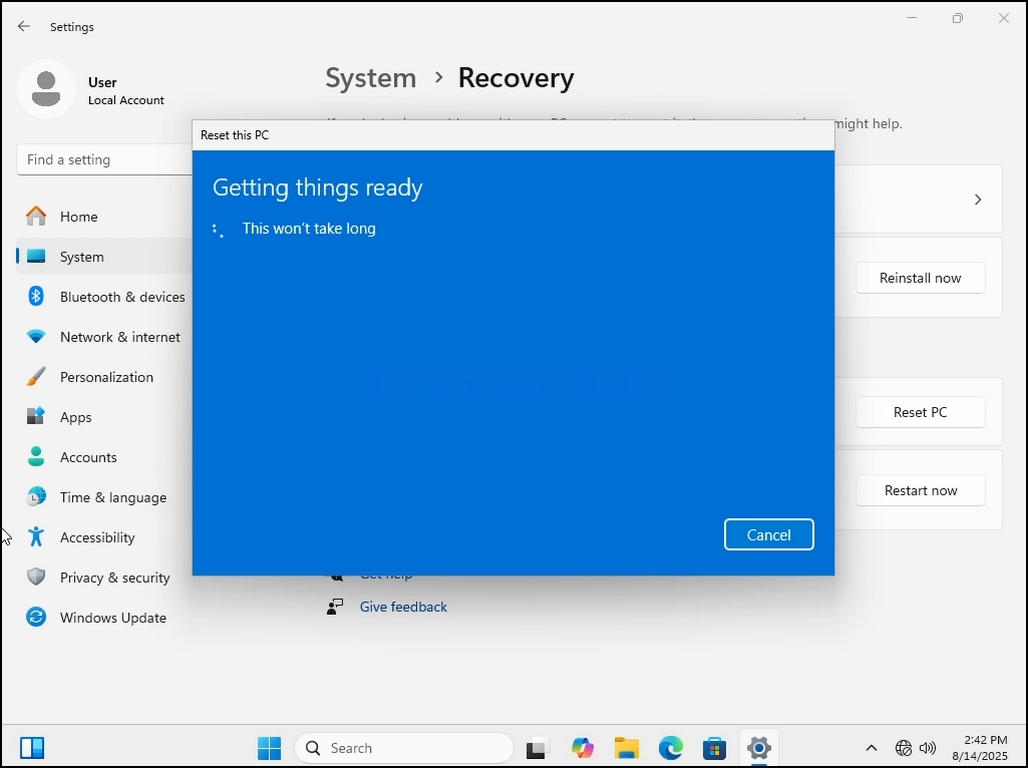
7. Once chosen, a Getting things ready sentence will appear. Wait patiently till the next stage comes.
8. Additional settings – here you can choose to clean the drive or not. Cleaning the drive means not just deleting the files on it but also wiping them entirely leaving no room for files restoration later on.
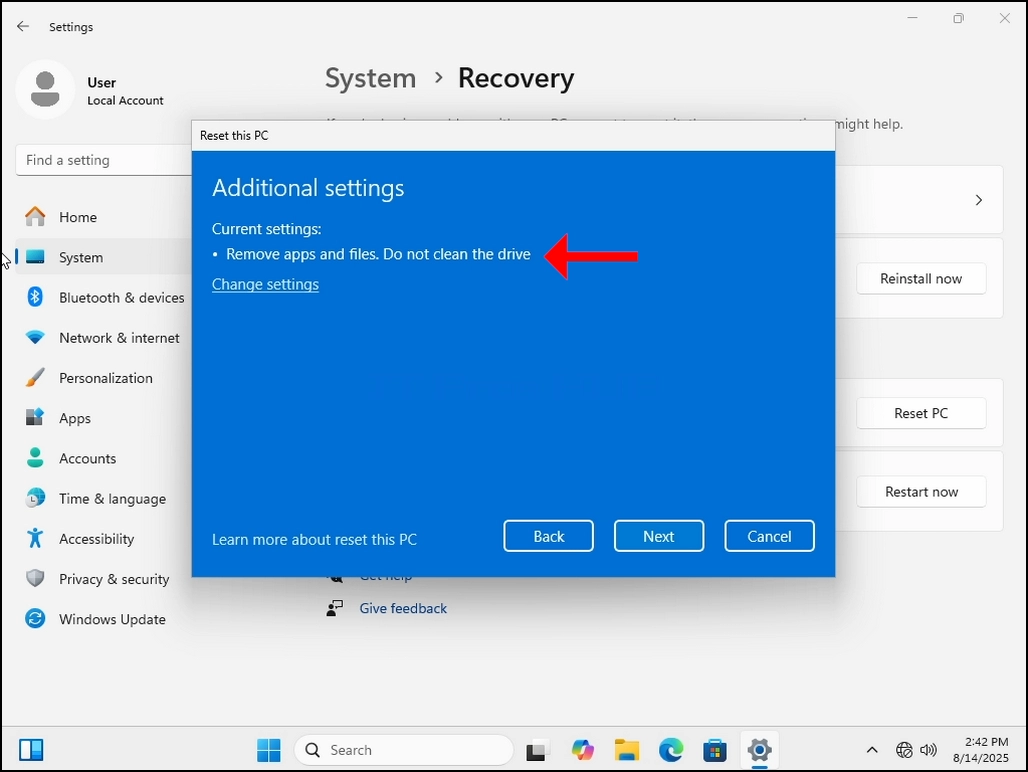
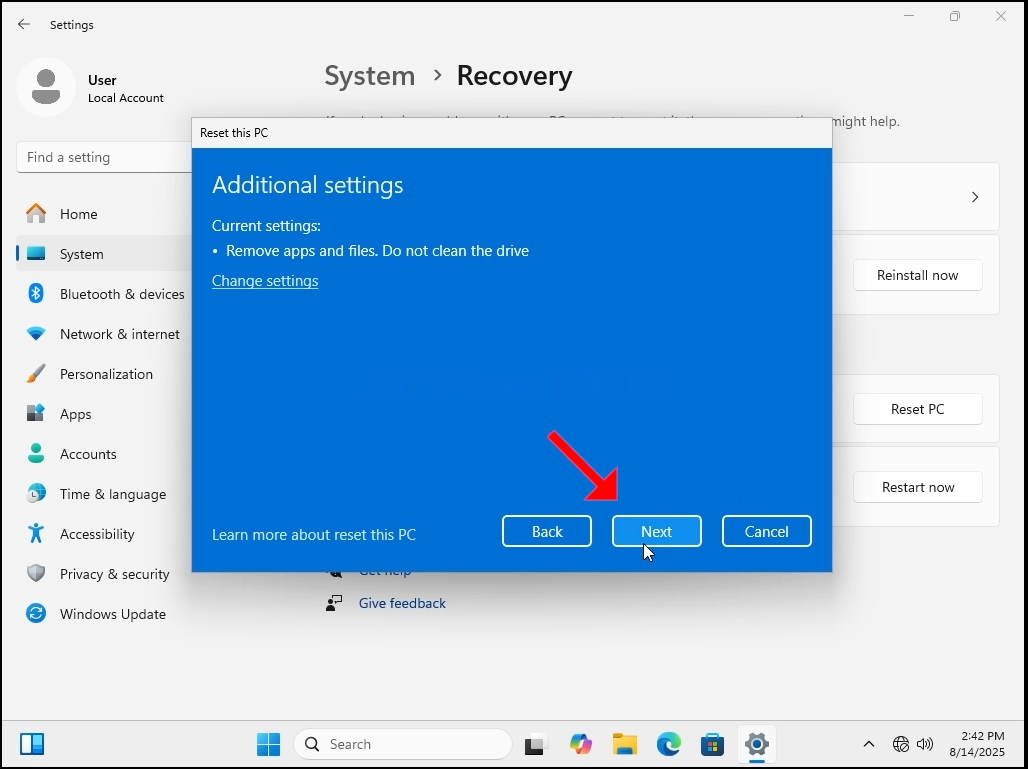
10. Wait patiently for the next stage to appear.
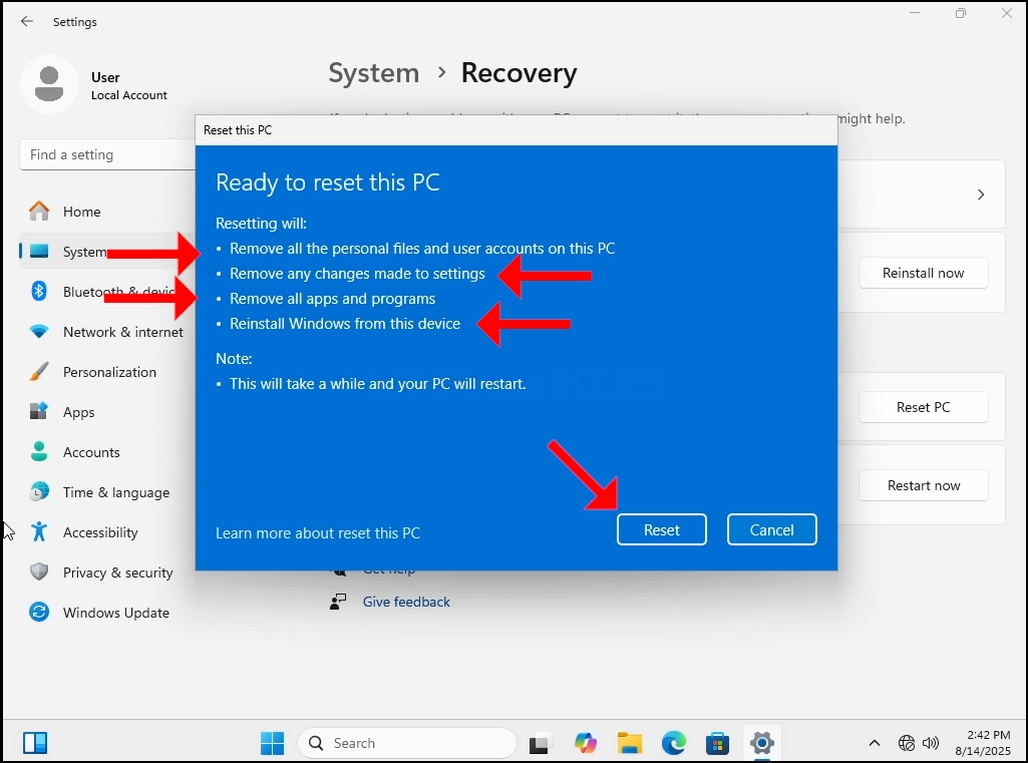
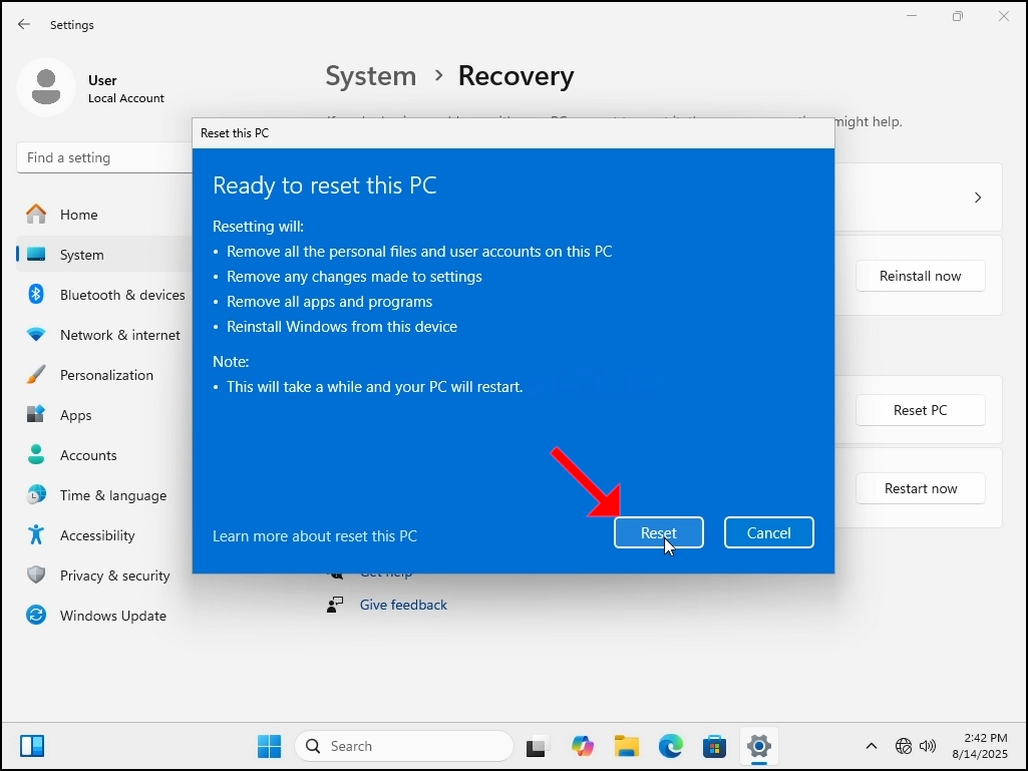
11. Here, Windows sums up the actions we have chosen to perform before performing them. Go over the actions. In this case Windows will:
a. Remove all the personal files and user accounts on this PC
b. Remove any changes made to settings
c. Remove all apps and programs
d. Reinstall Windows from this device
12. Windows is also kind enough to remind us that This will take a while and you PC will restart.
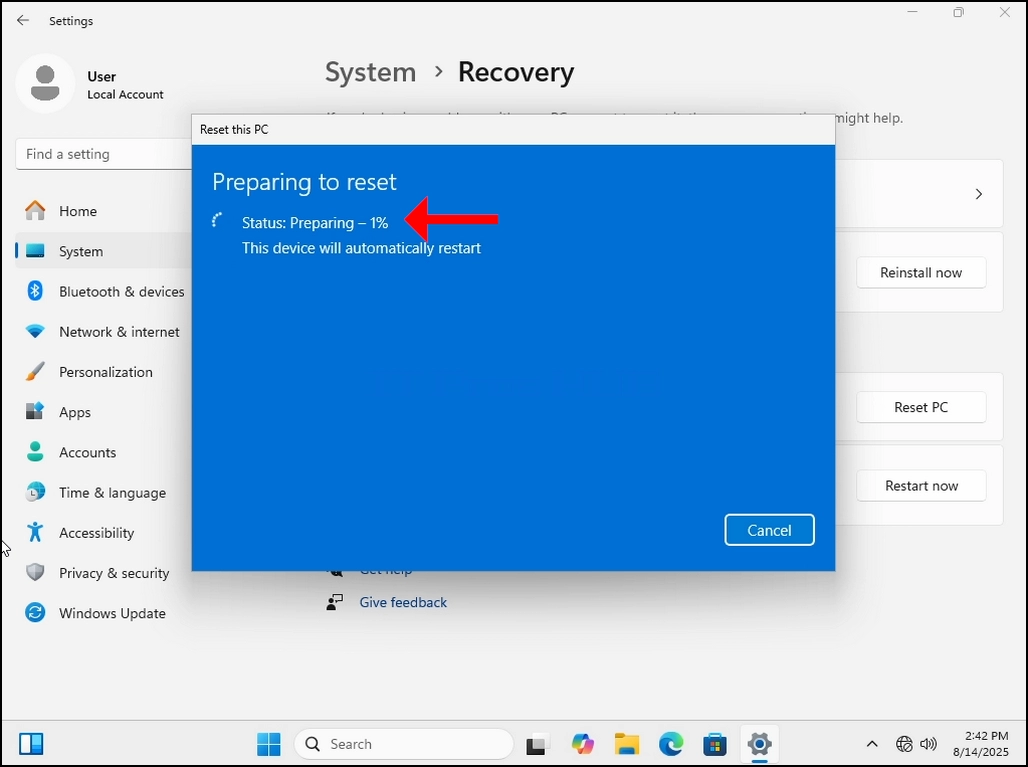
14. Here Windows is preparing to reset the PC. Once done, it will restart the PC and start the reset process.
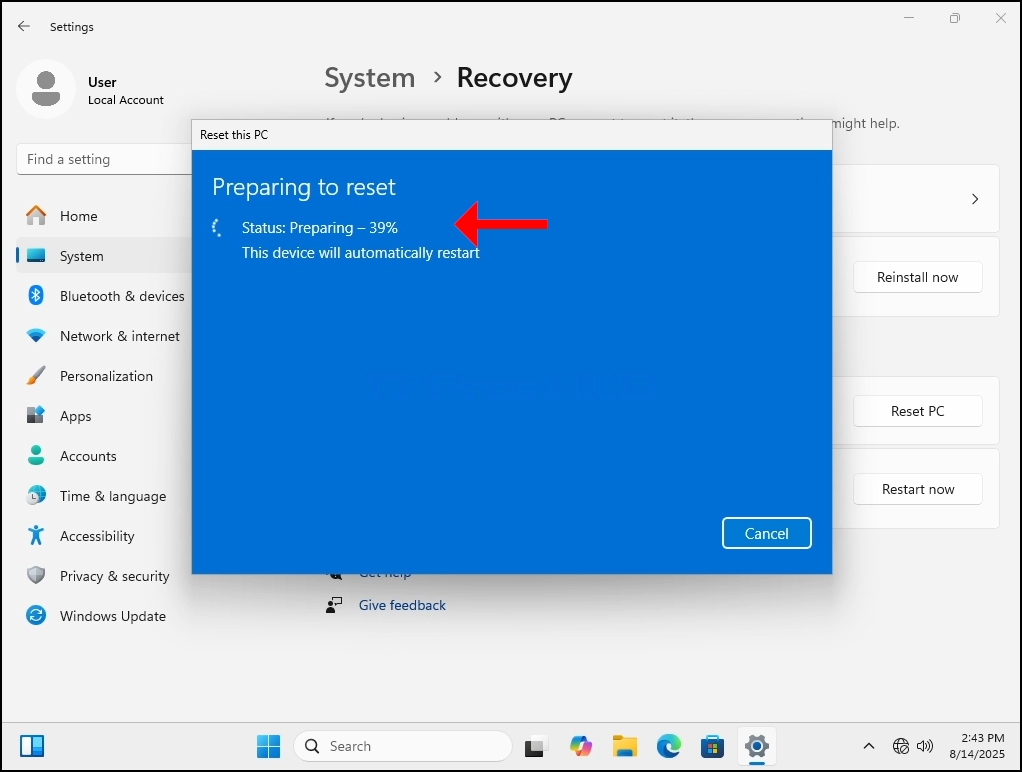
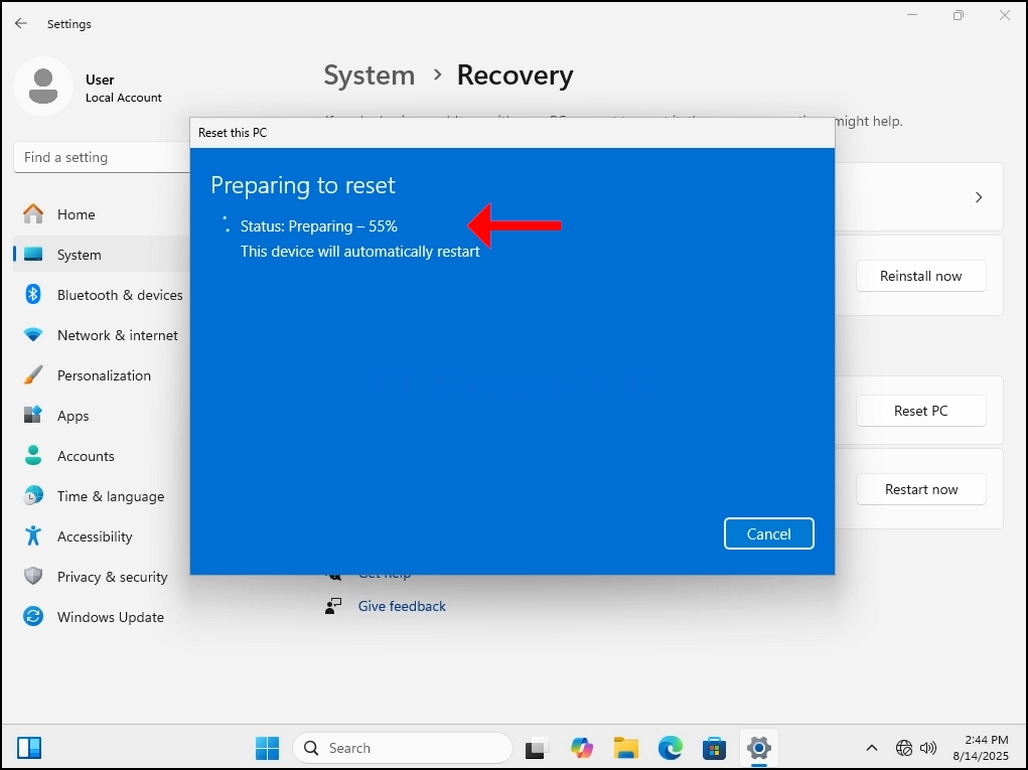
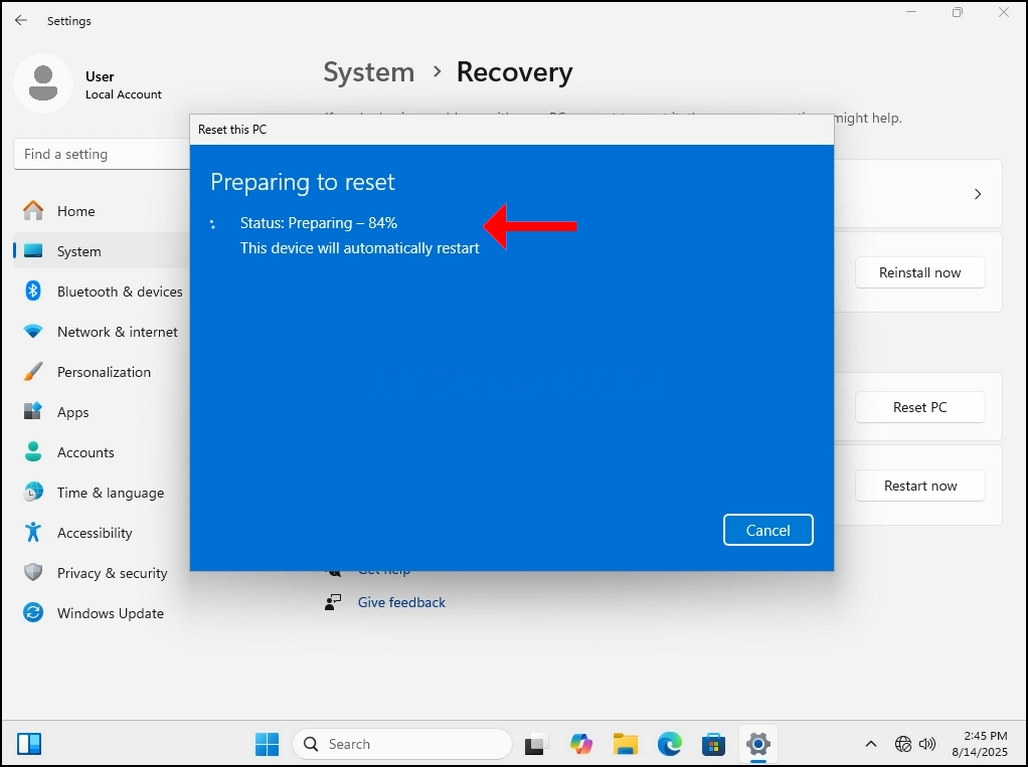
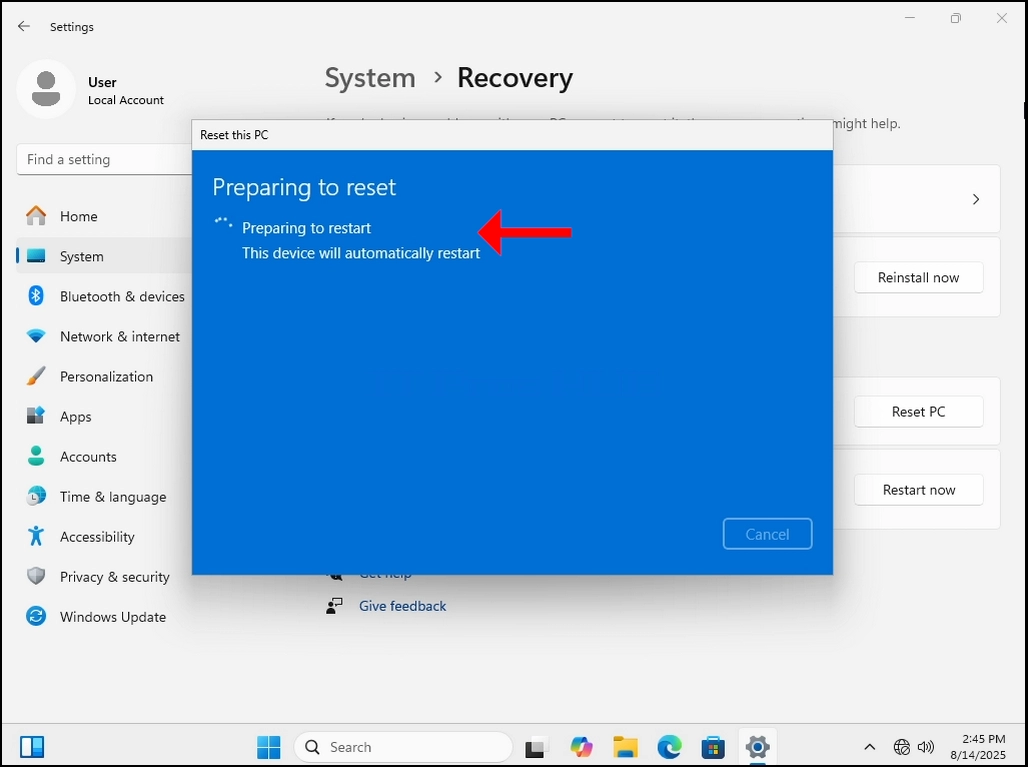
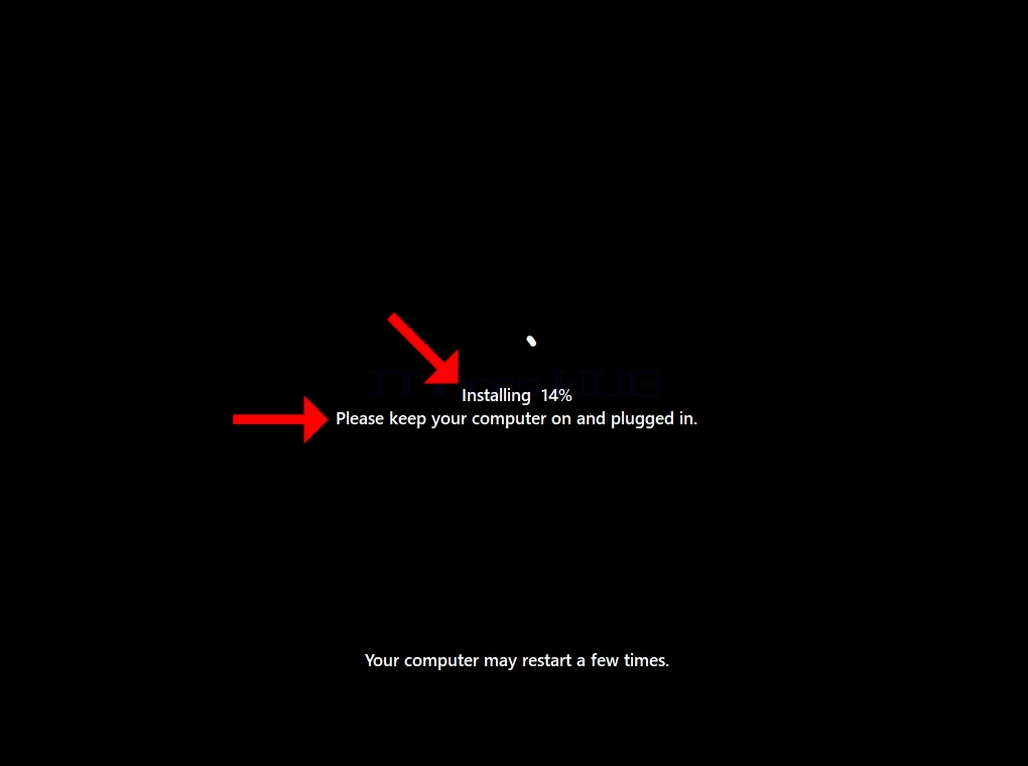
15. After finishing resetting Windows will start reinstalling itself. As noted below, keep your computer on (not turned off) and plugged into a power source or a charger if it’s a laptop.
16. After resetting the PC and installing Windows it’s time for the initial configuration stage which is the final stage of the resetting process.
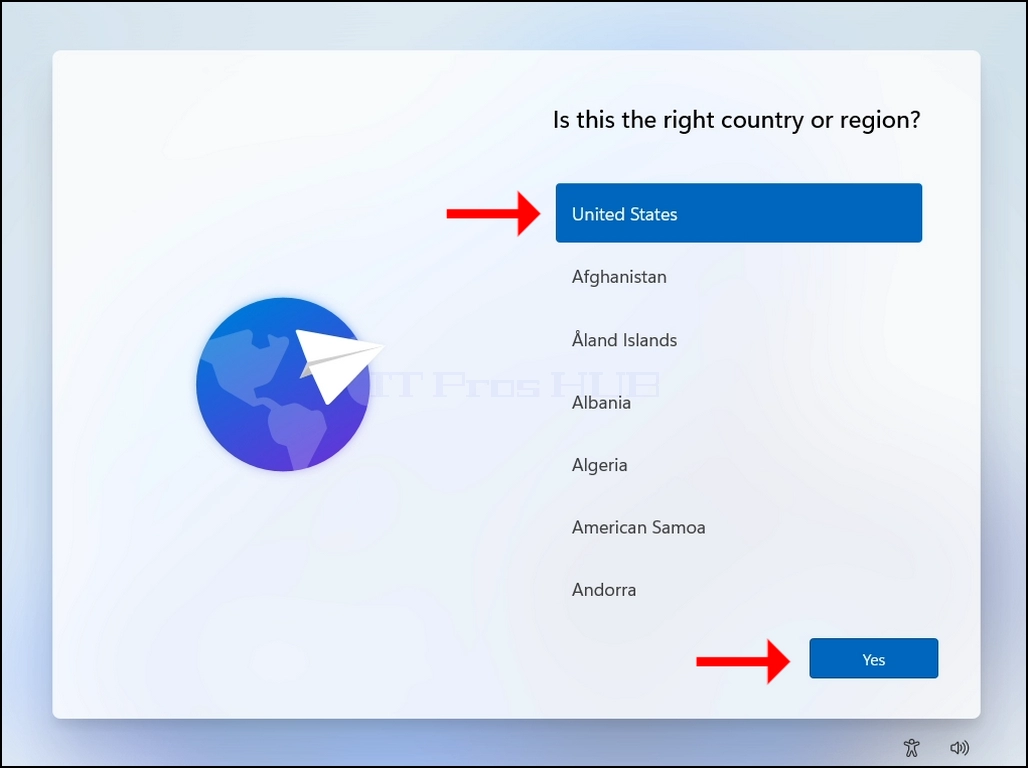
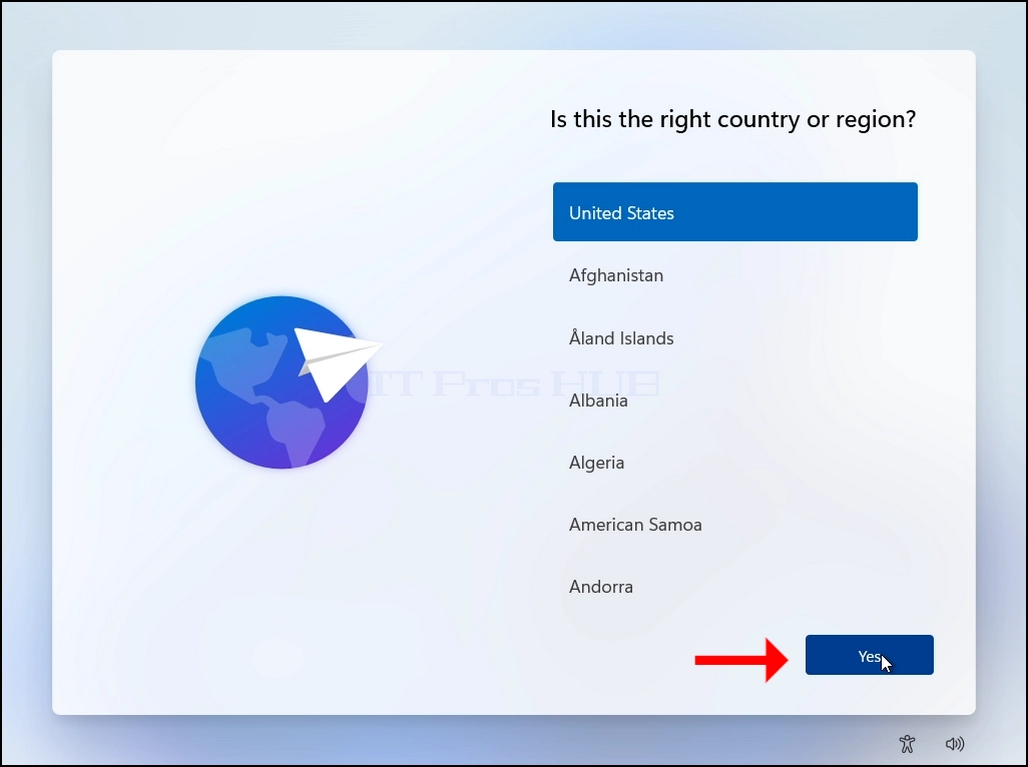
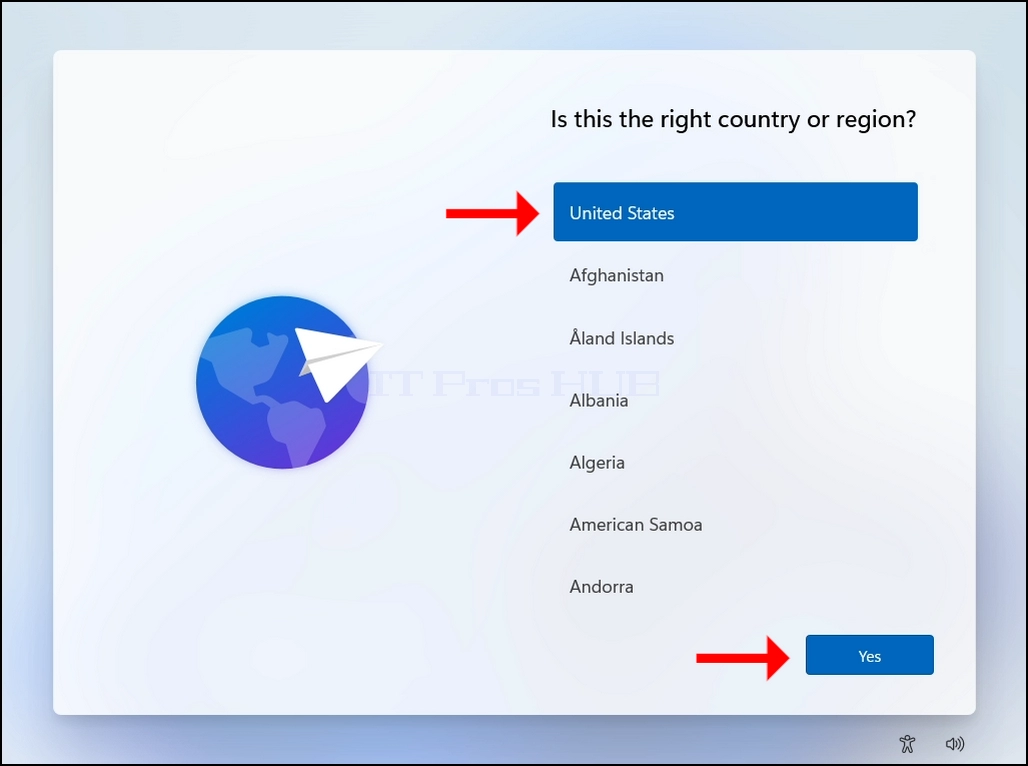
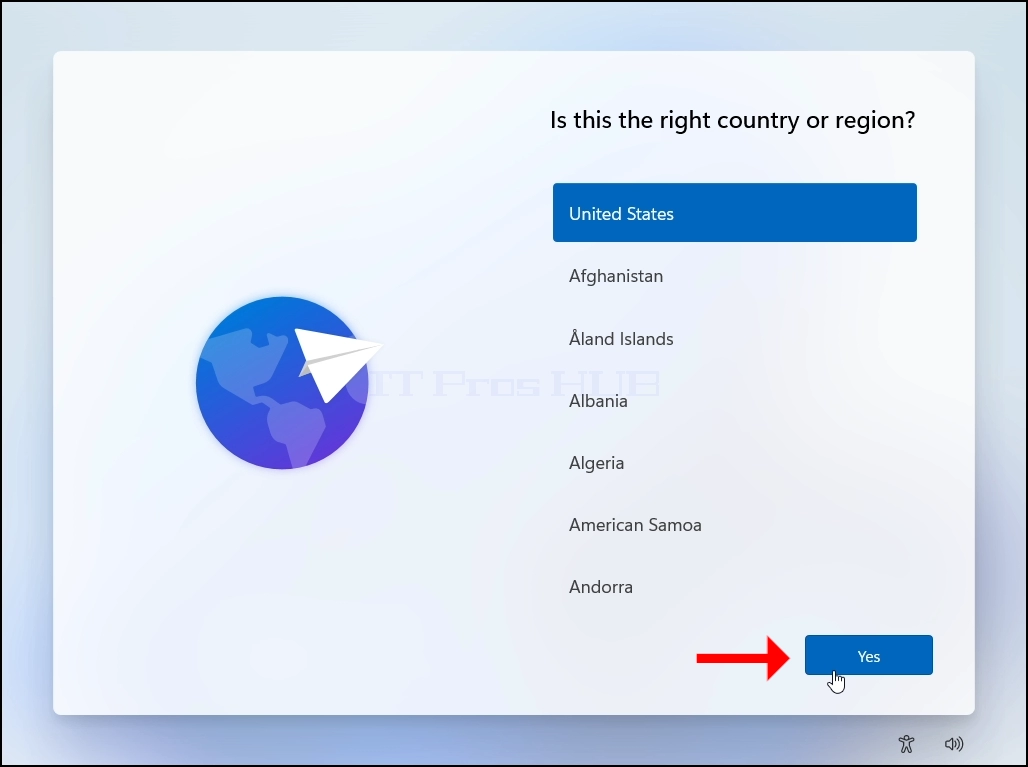
17. Choose a country or a region, click YES afterwards.
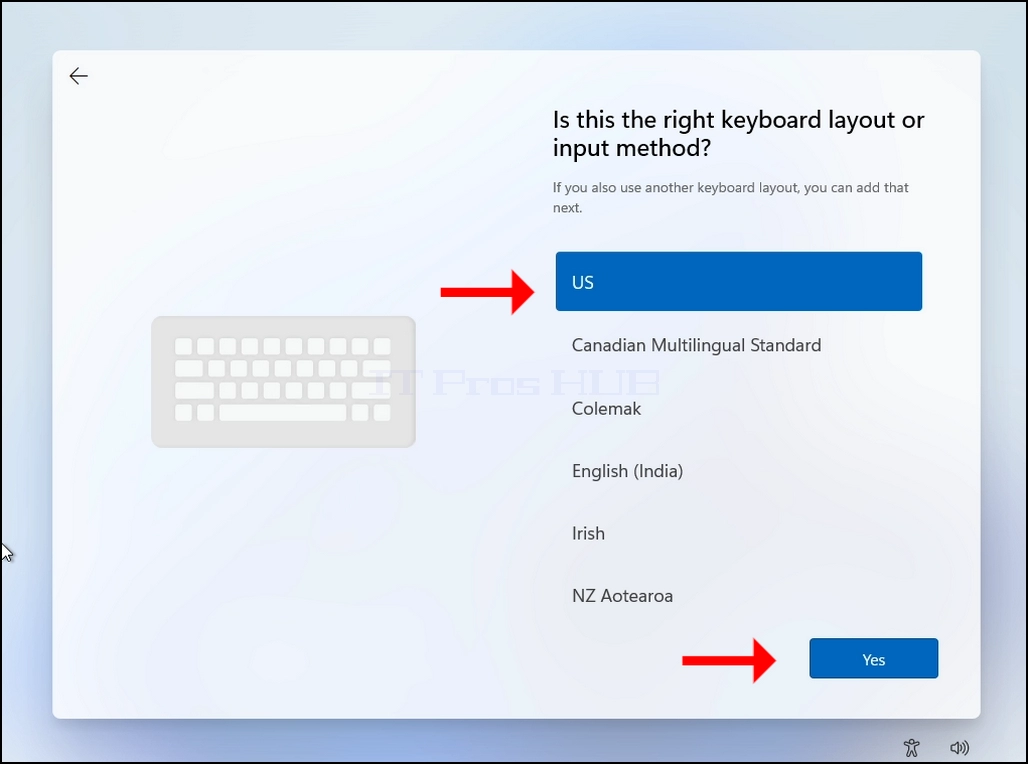
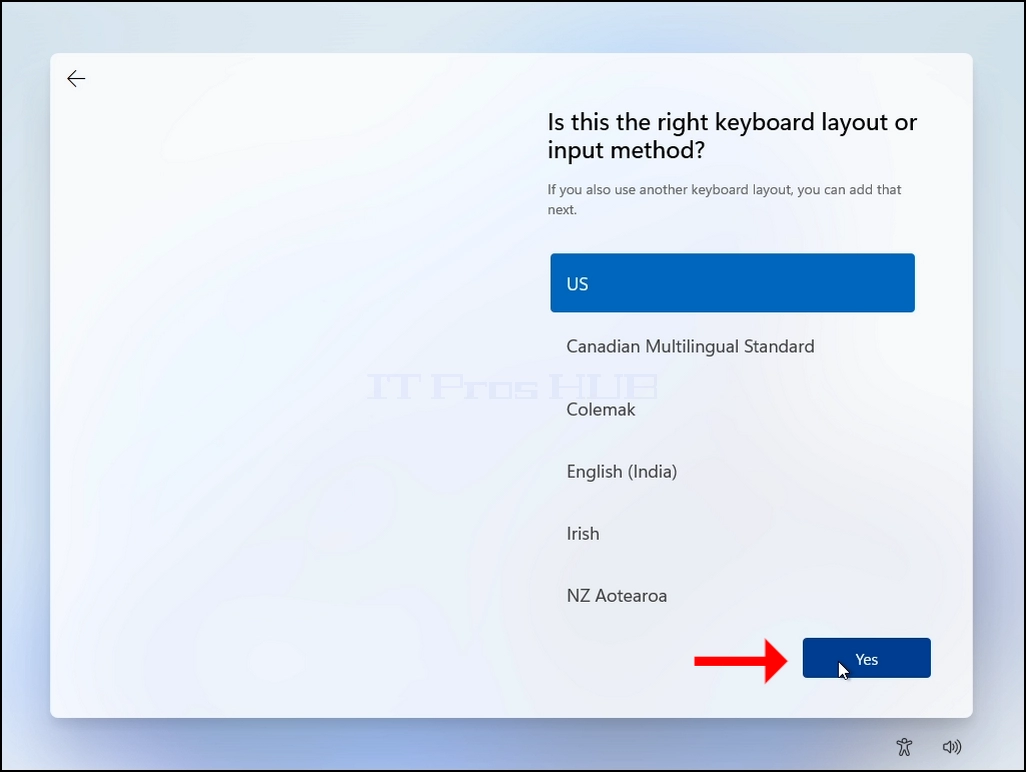
18. Choose a keyboard layout, click YES afterwards.
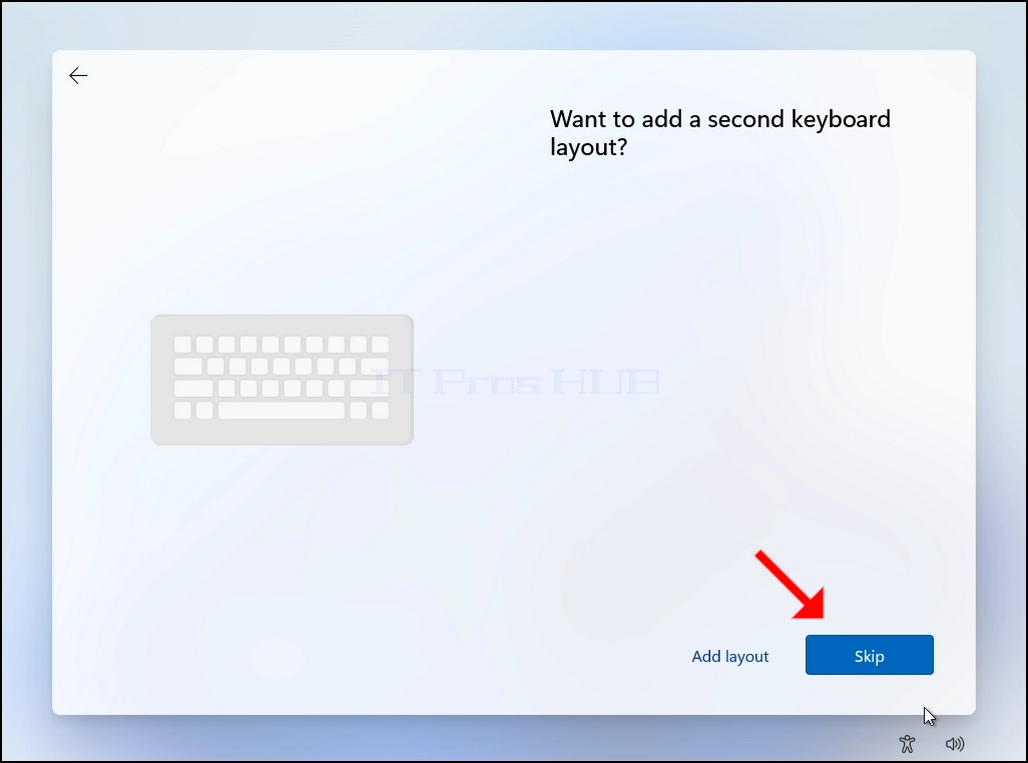
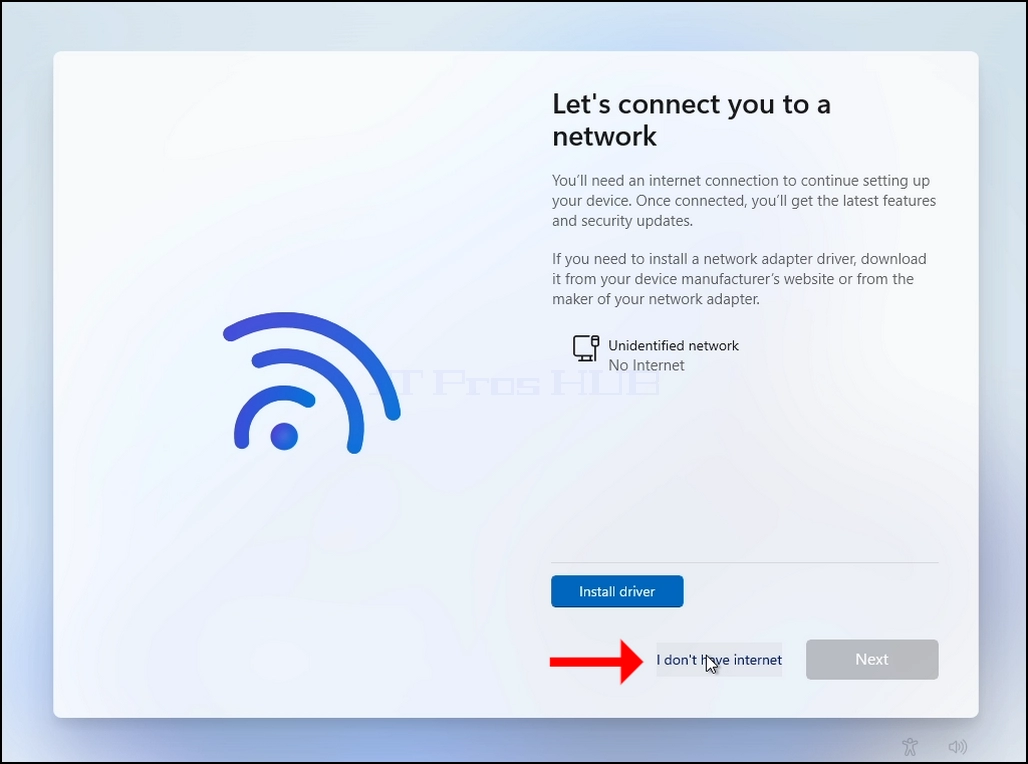
20. Network connection stage:
a. In this stage we will bypass Windows insistence of connecting to the internet in order to install itself.
b. Click I don’t have internet
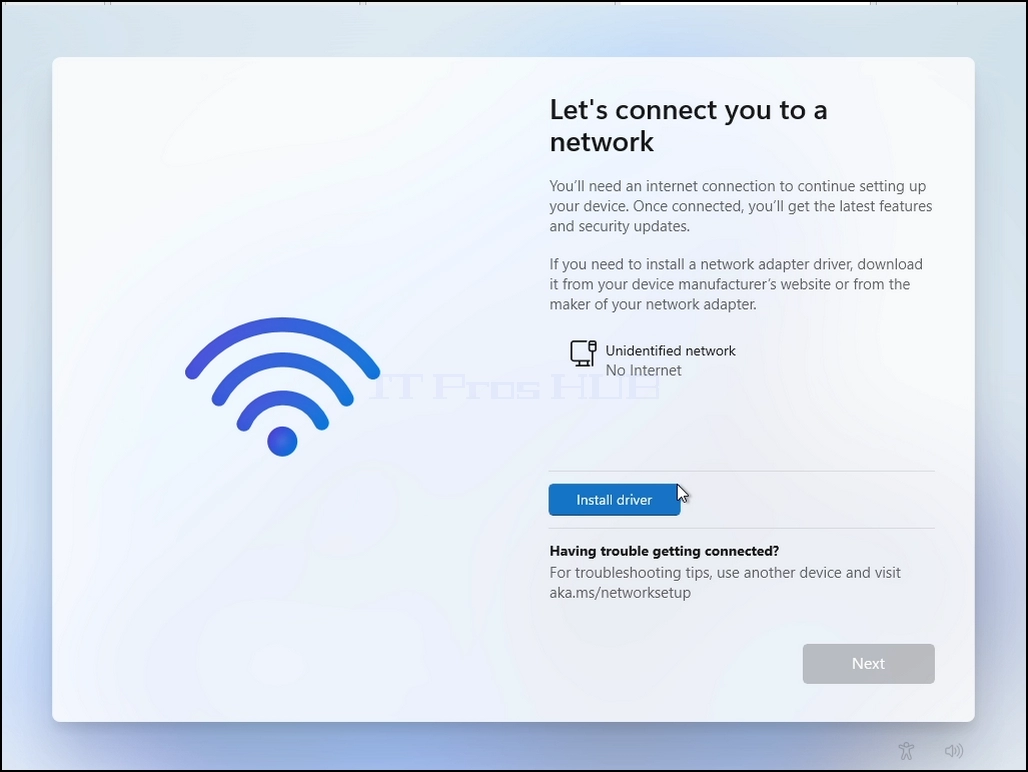
- Click and hold the CTRL key and click the F10 key momentarily. A CMD window will appear
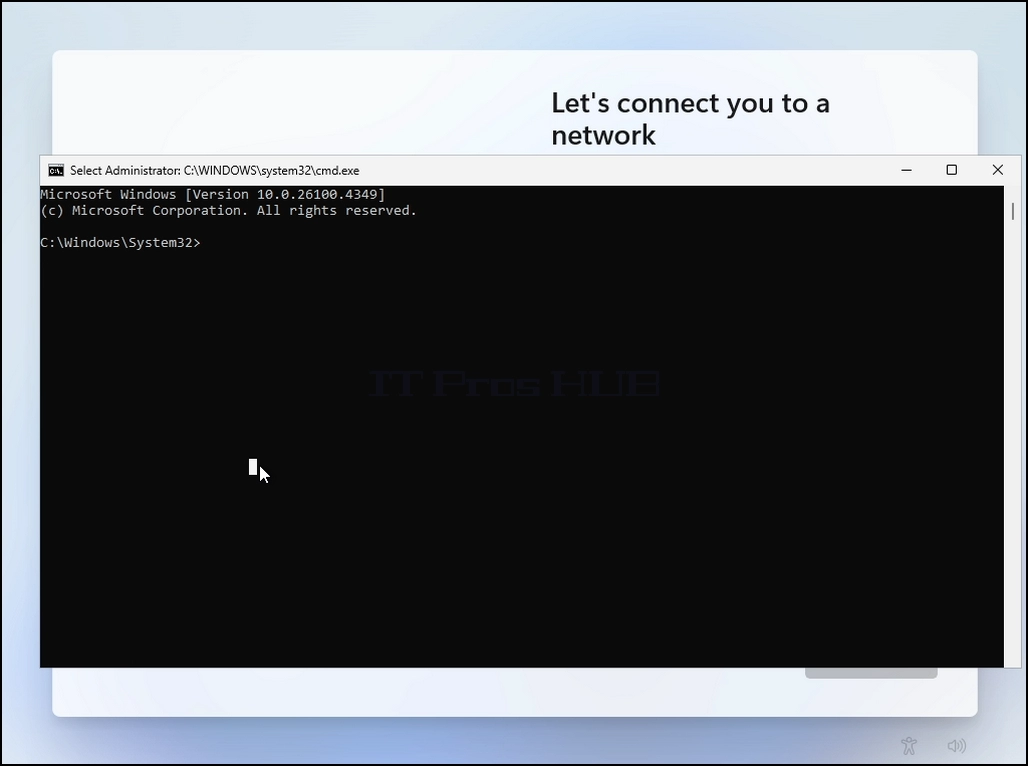
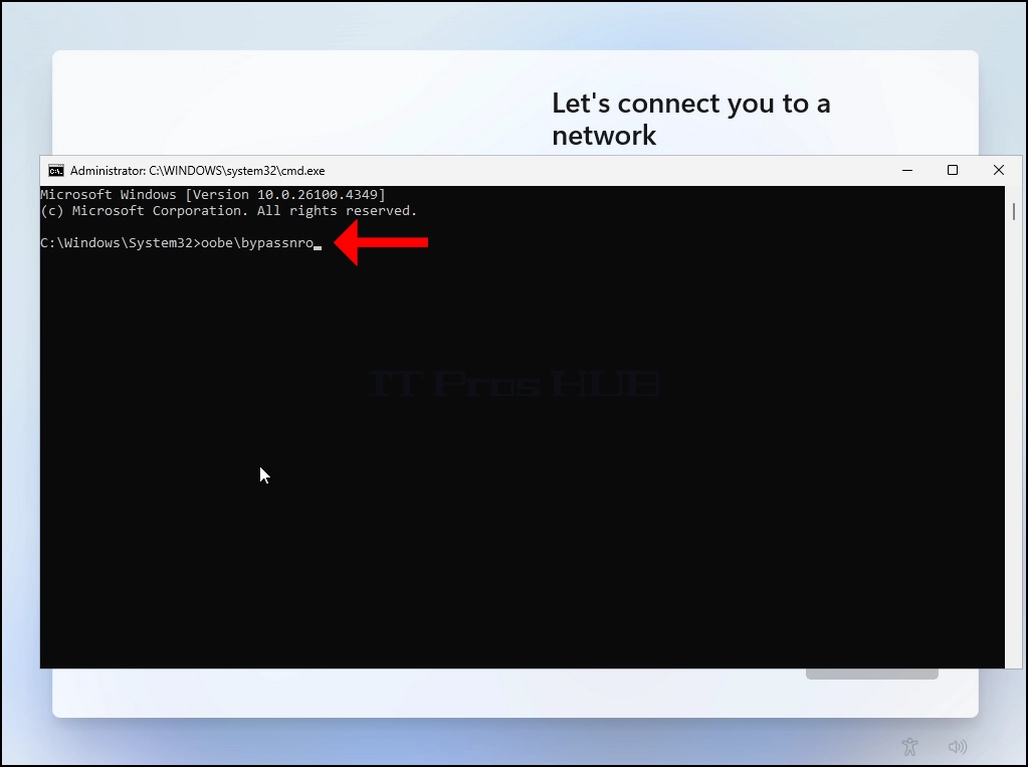
In the CMD window, type the following:
Oobe\bypassnro
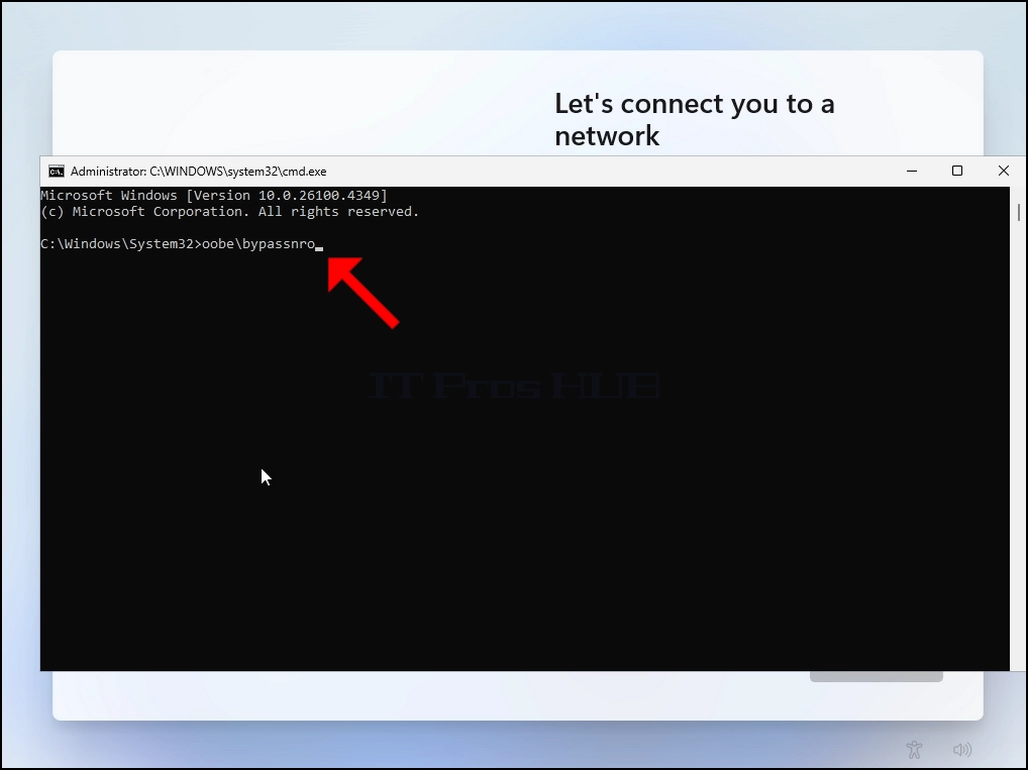
Hit the ENTER key
For a very brief moment you will see an output in the CMD window saying “The operation completed successfully” before the installation process restarts the computer
Go through all of the following stages (again):
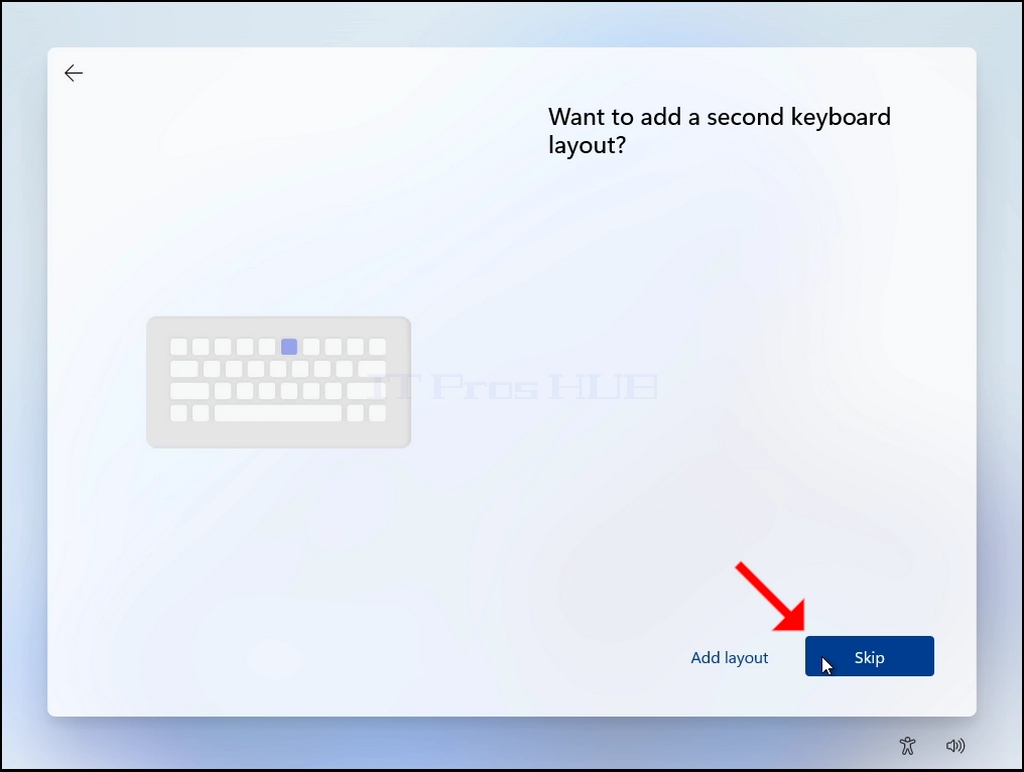
Is this the right country or region? >> Is this the right keyboard layout or input method ? >> Second keyboard layout
You will be presented with the same “Let’s connect you to a network” stage again
Click on “I don’t have internet”
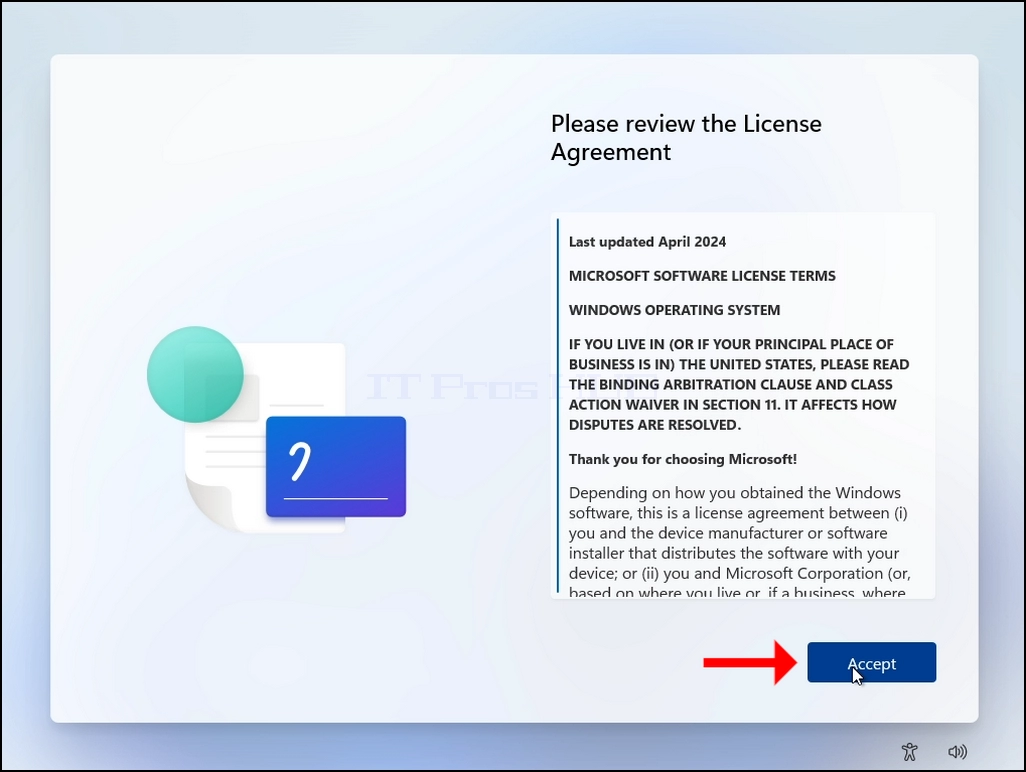
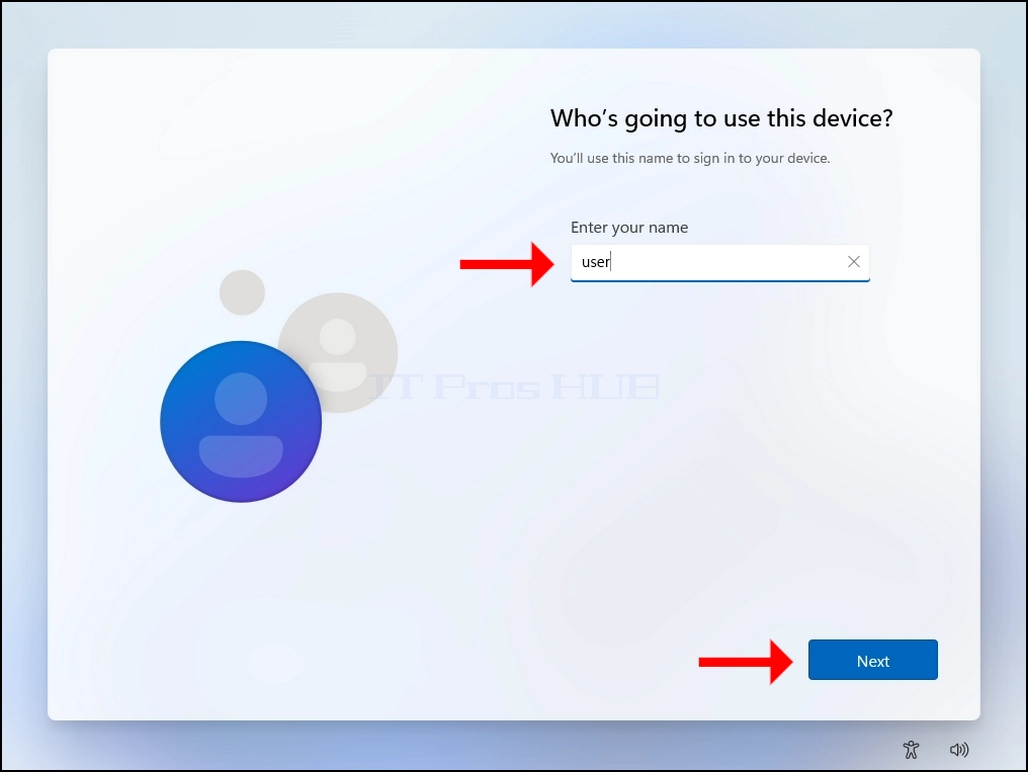
23. Password is optional, in this article’s case we will leave it blank (no password).
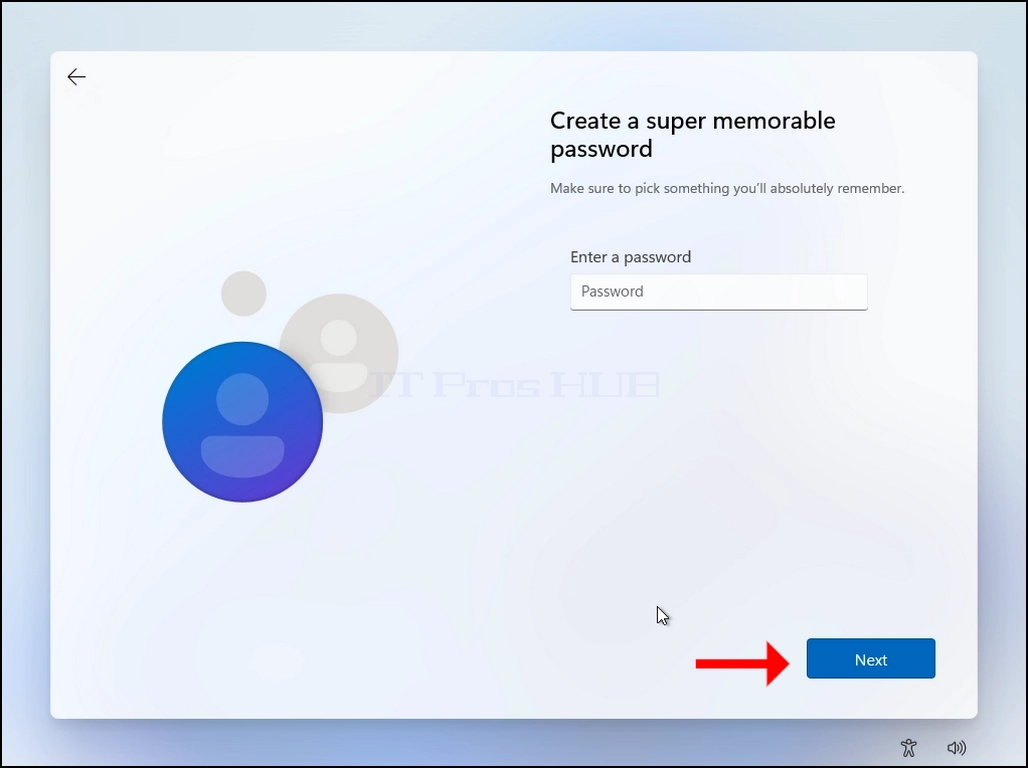
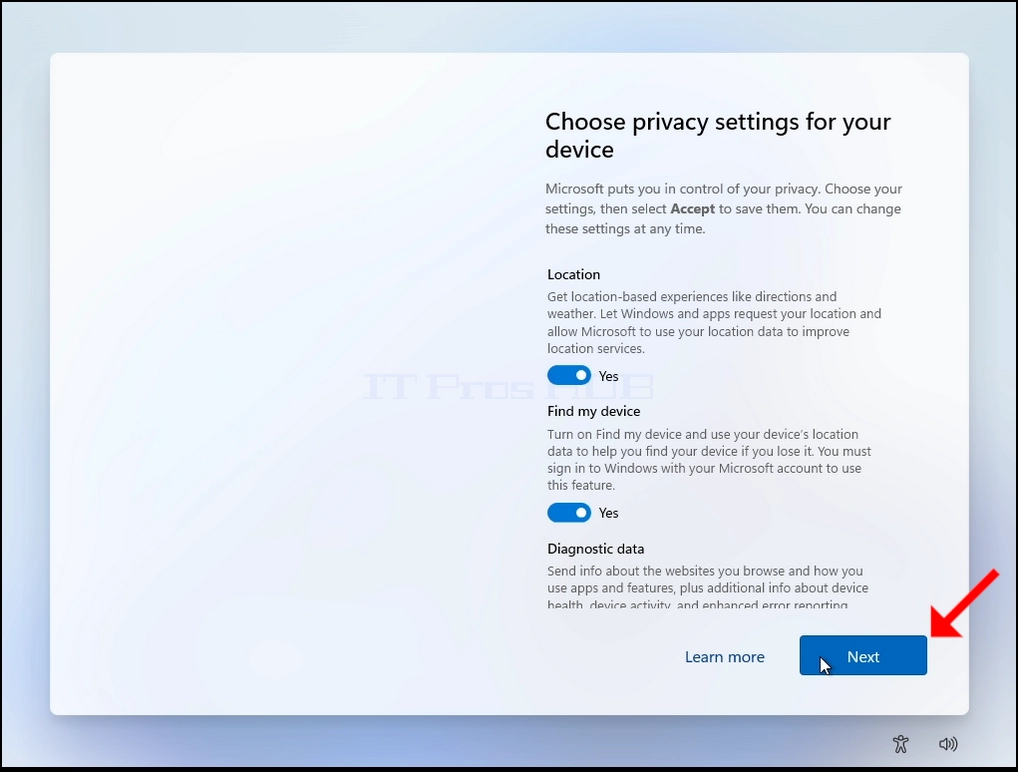
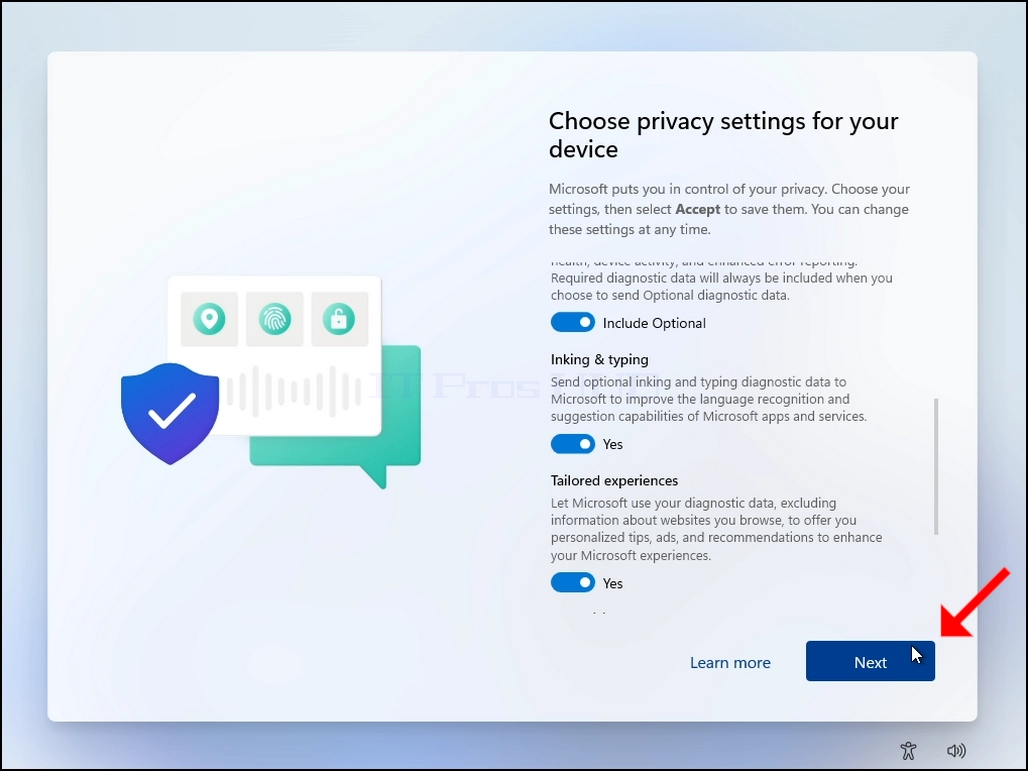
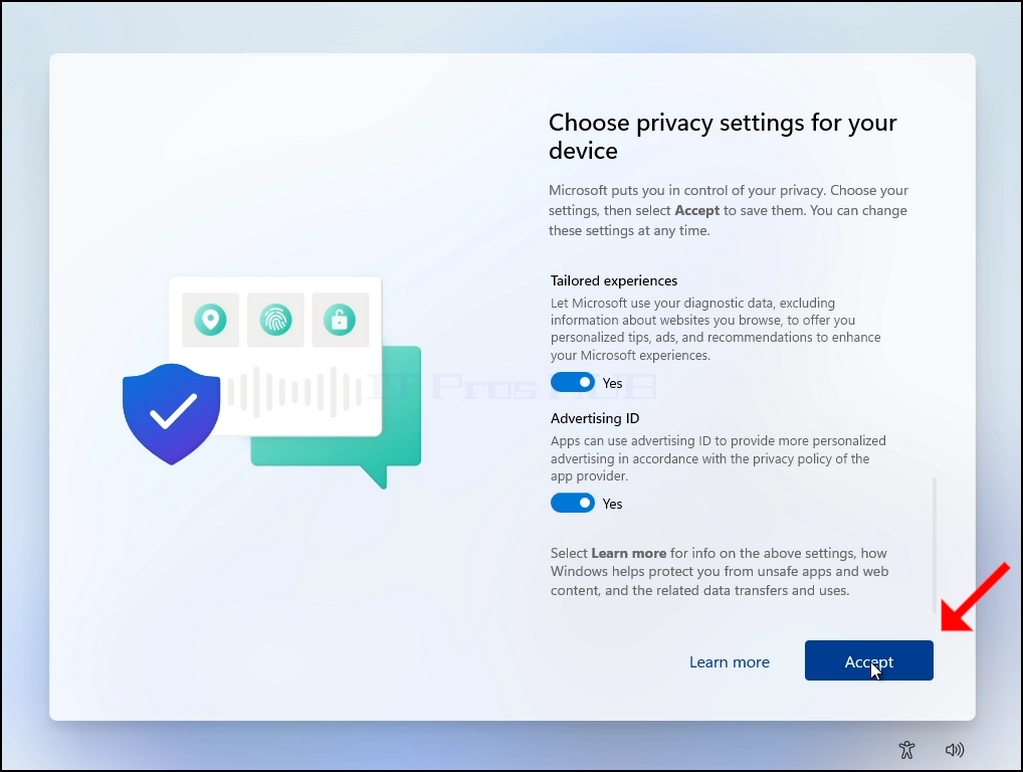


25. Windows will now finalize its installation process and start.
26. The Resetting process is done.
- Podrobnosti
- Napisal: IT Pro
- Kategorija: How to Articles
- Ogledov: 6491
Introduction:
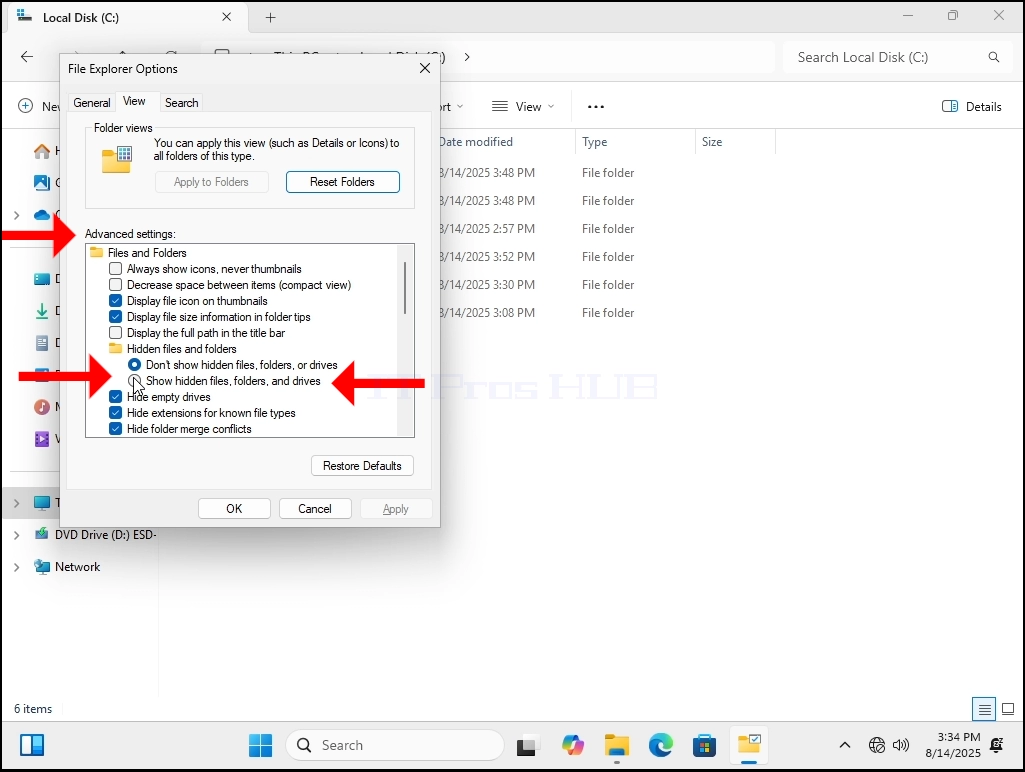
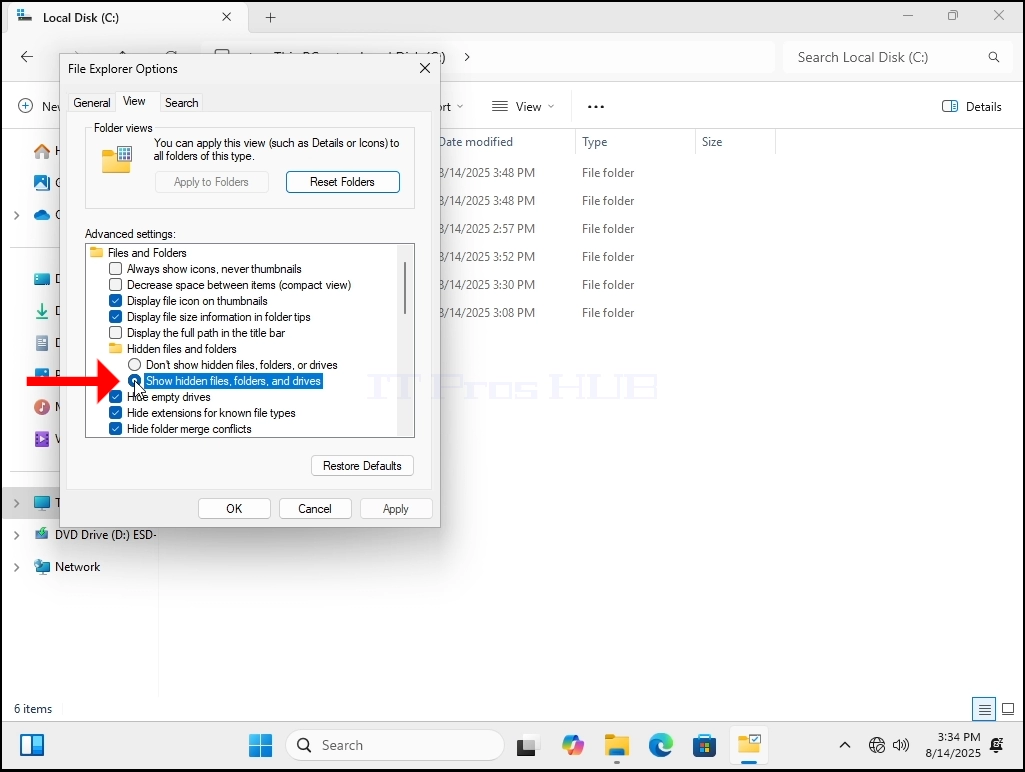
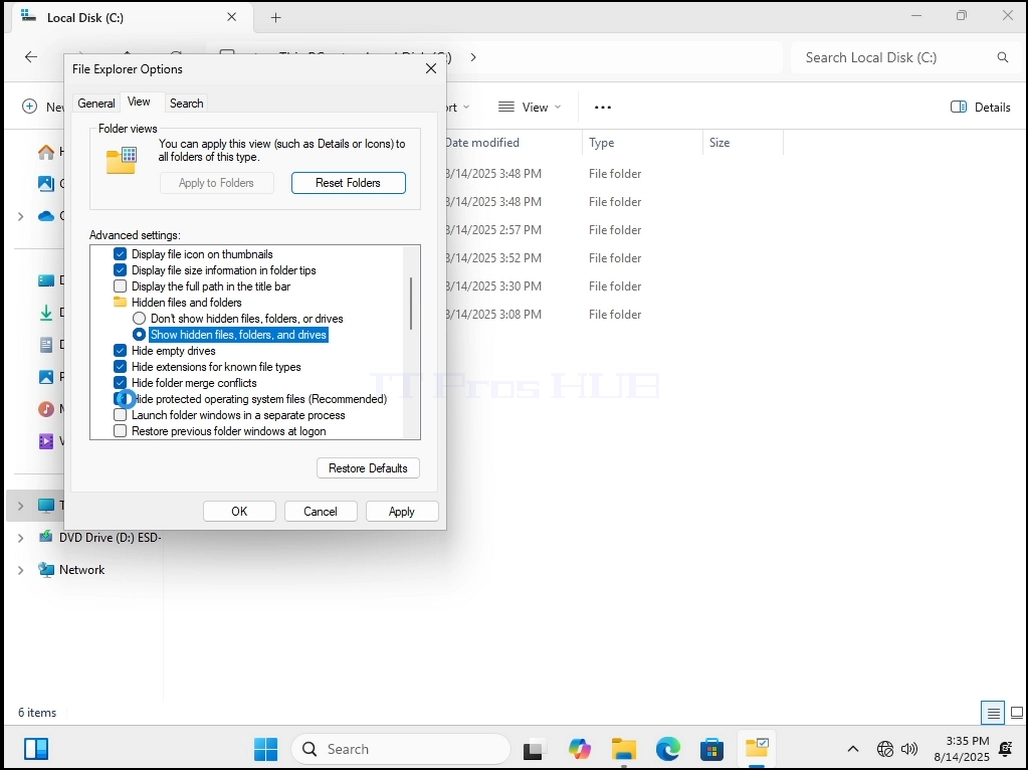
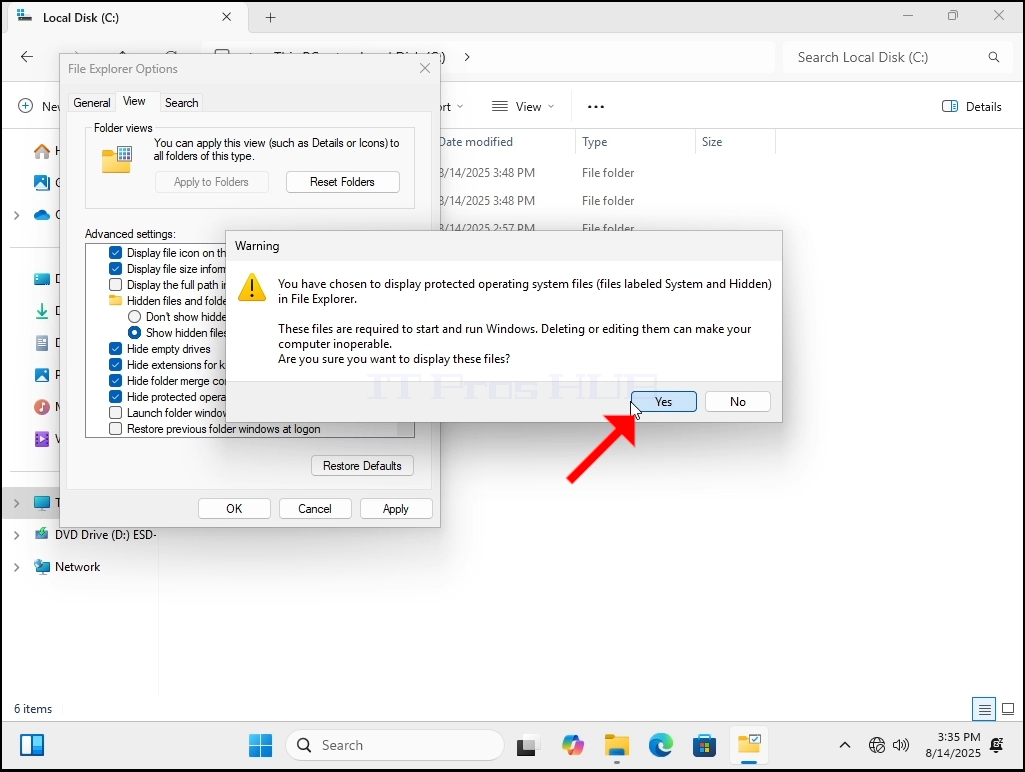
In this article we will demonstrate how to configure Windows 11 to be able to show hidden files and folders that are otherwise are like that out of the box.
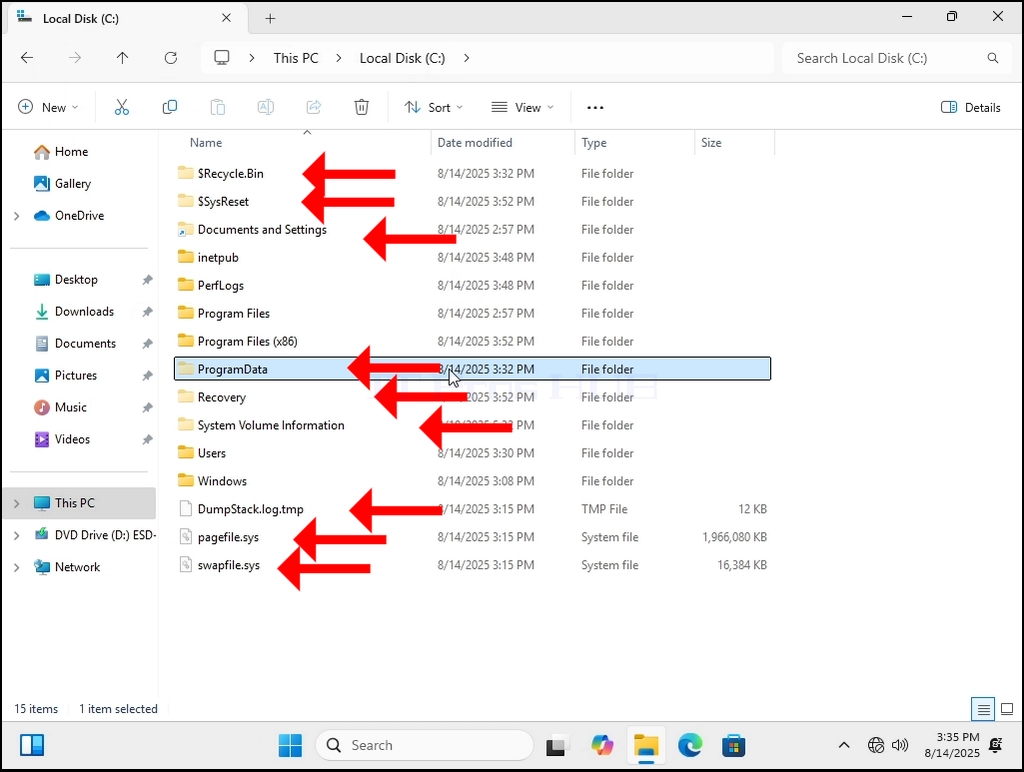
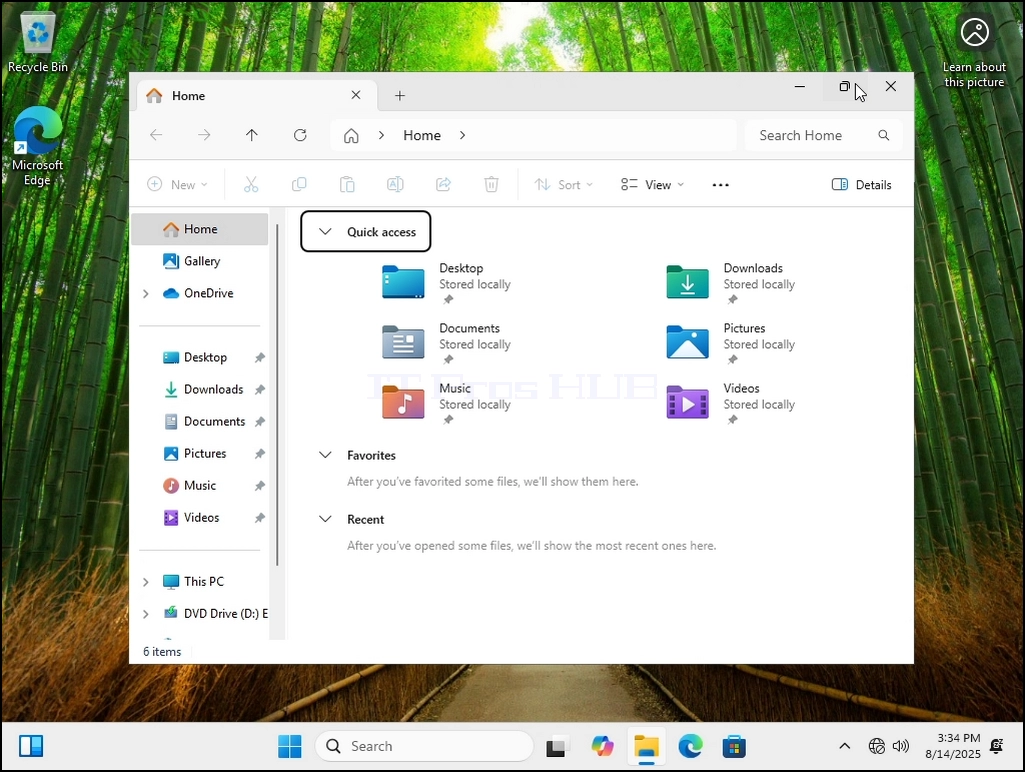
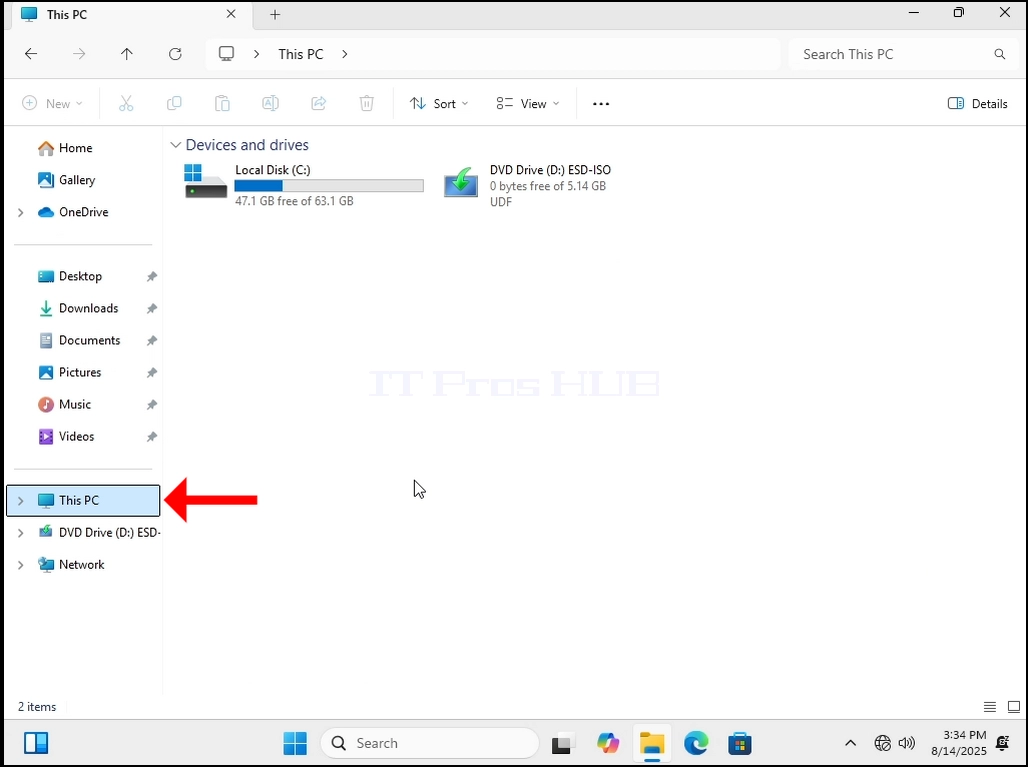
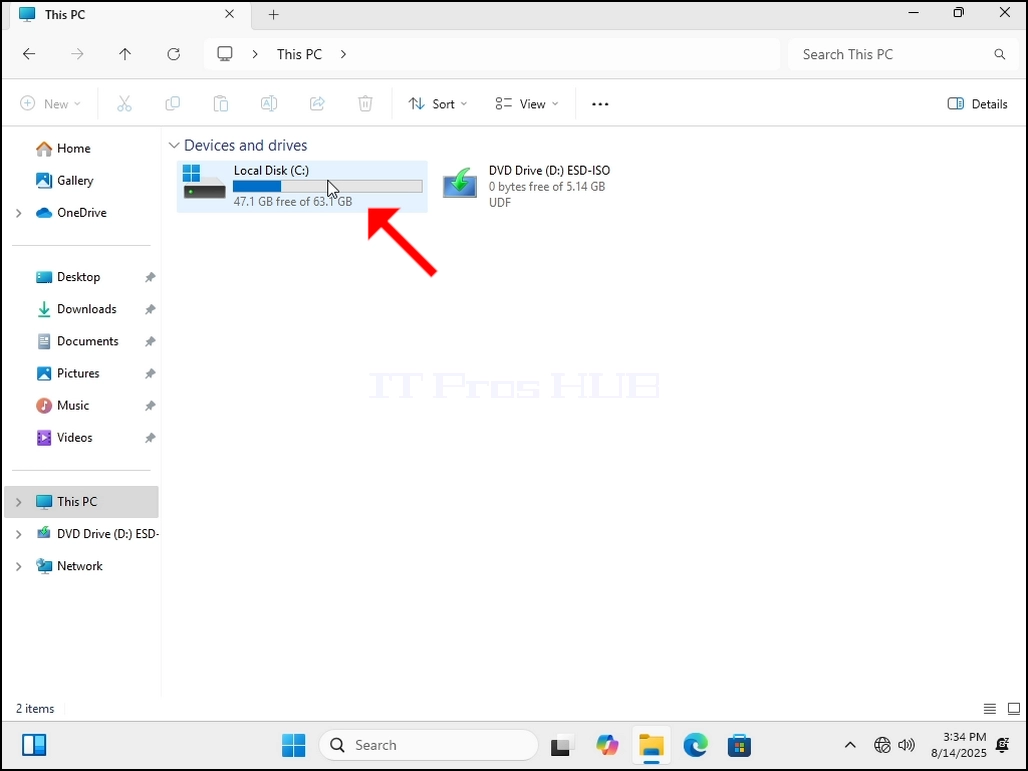
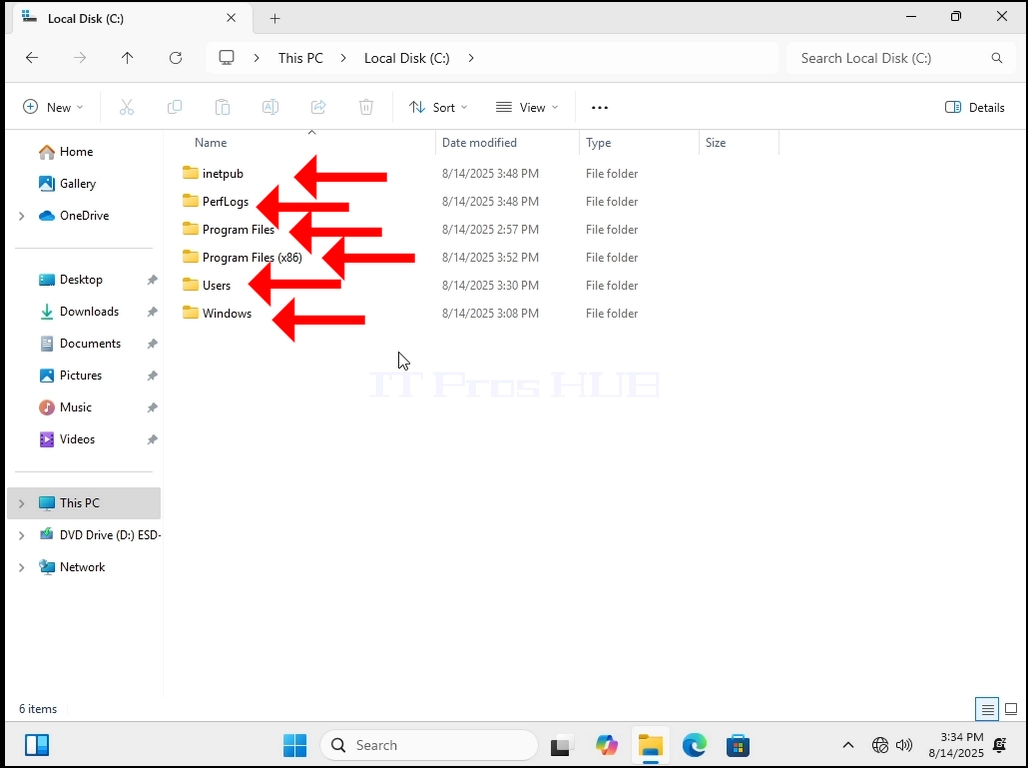
1. Let’s go to where Windows is currently installed, in this case it’s the C: drive.
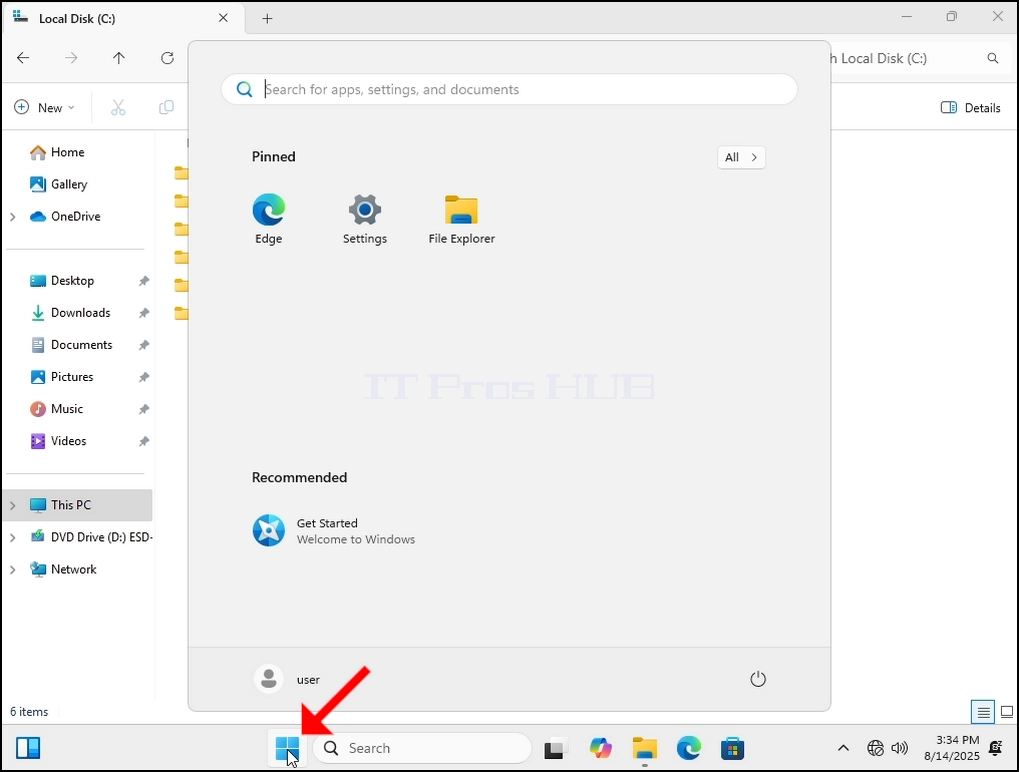
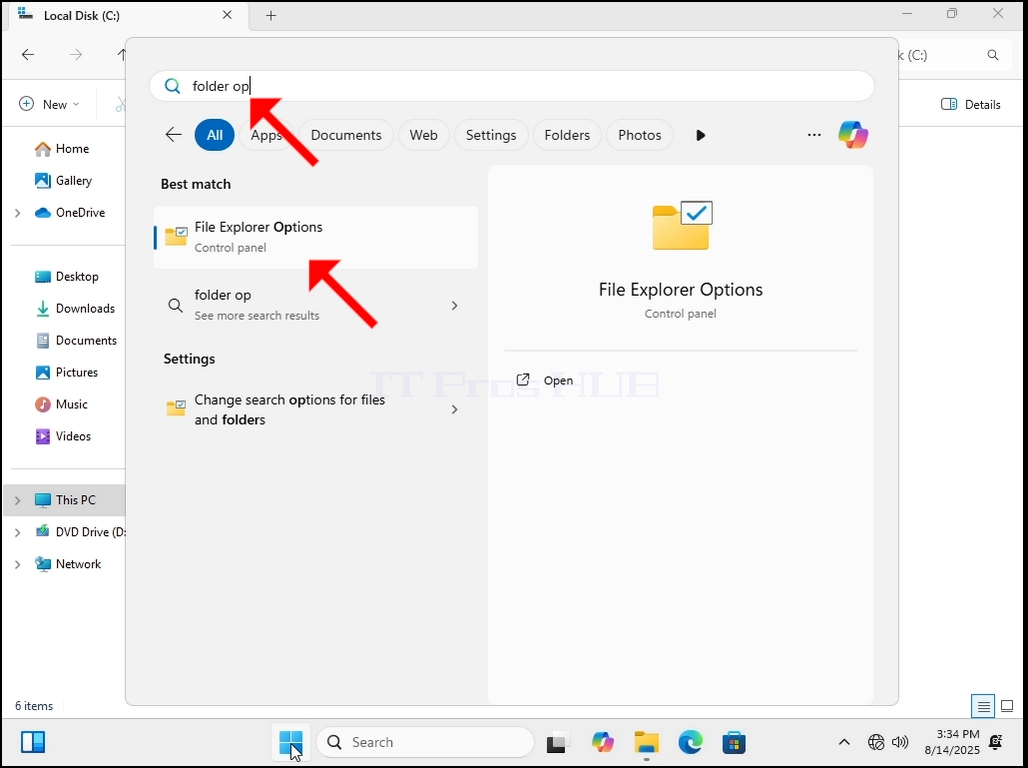
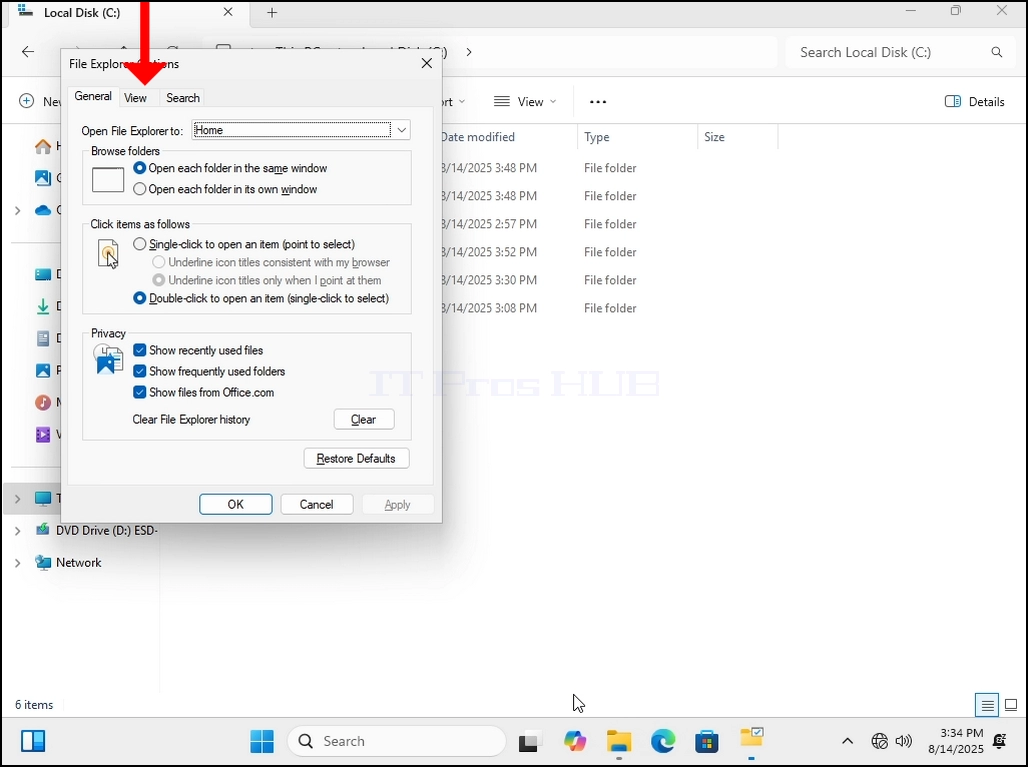
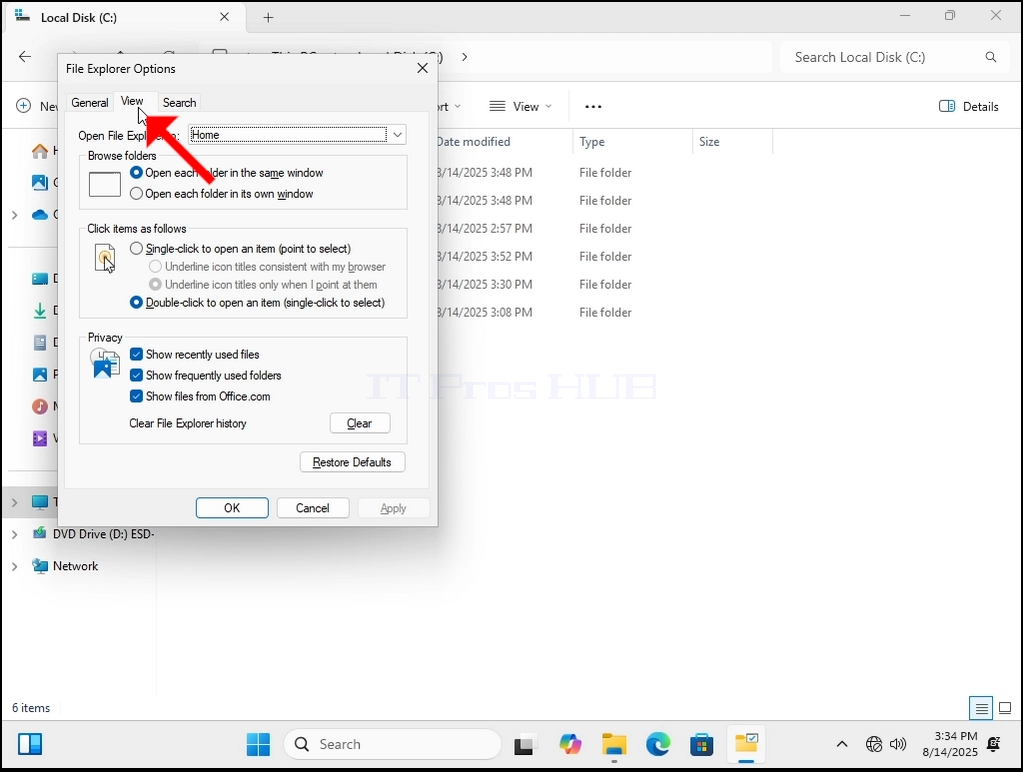
4. Once inside Folder Options, go to the VIEW tab on the top part of the window. Click on it. Wait for the View tab to load.
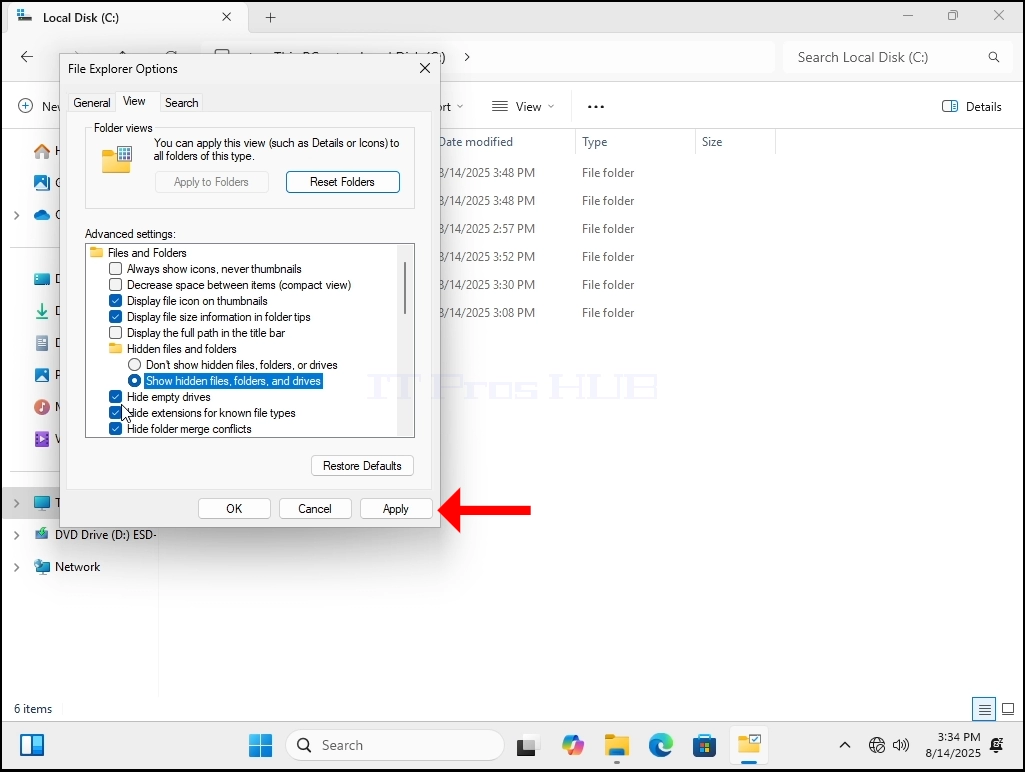
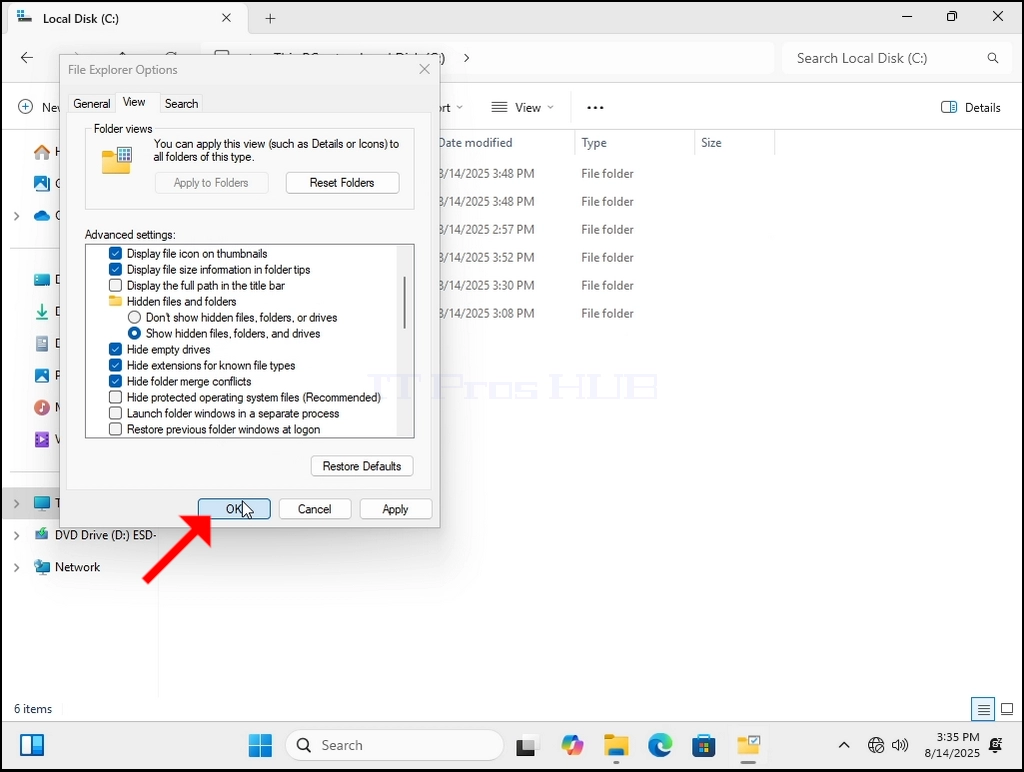
7. Let’s go back to C: drive. Now we can see many more folders, and we can see some files as well.