INTRO:
In this article we will demonstrate how to create one spanned volume out of 2 identical disks.
Spanned volumes are volumes that are managed by Windows an require disks to be converted into Dynamic ones from Basic.
A Spanned volume essentially needs a minimum of 2 disks to be created and turns then into one big volume that consists of the 2 disks’ storage spaces.
A Spanned volume could be consisted of 2 or more disks that are not identical at all. Therefor if for example you have a bunch of unused disks laying around you could potentially use them as one big single drive, or in other words, as a single spanned volume that on the surface looks like a regular disk. This storage method is also called JBOD which is short for Just a Bunch Of Disks.
Before we begin, we must go over the disadvantages as well:
No performance boost: Spanned volumes don’t speed up read/write speeds.
0 redundancy: If any one disk fails, all data in the spanned volume is lost (because part of each file may reside on different drives).
Not bootable: You cannot install Windows or boot from a spanned volume.
3. Wait for the Computer Management application to load.
4. Look for "Disk Management" in the top left pane and click on it.
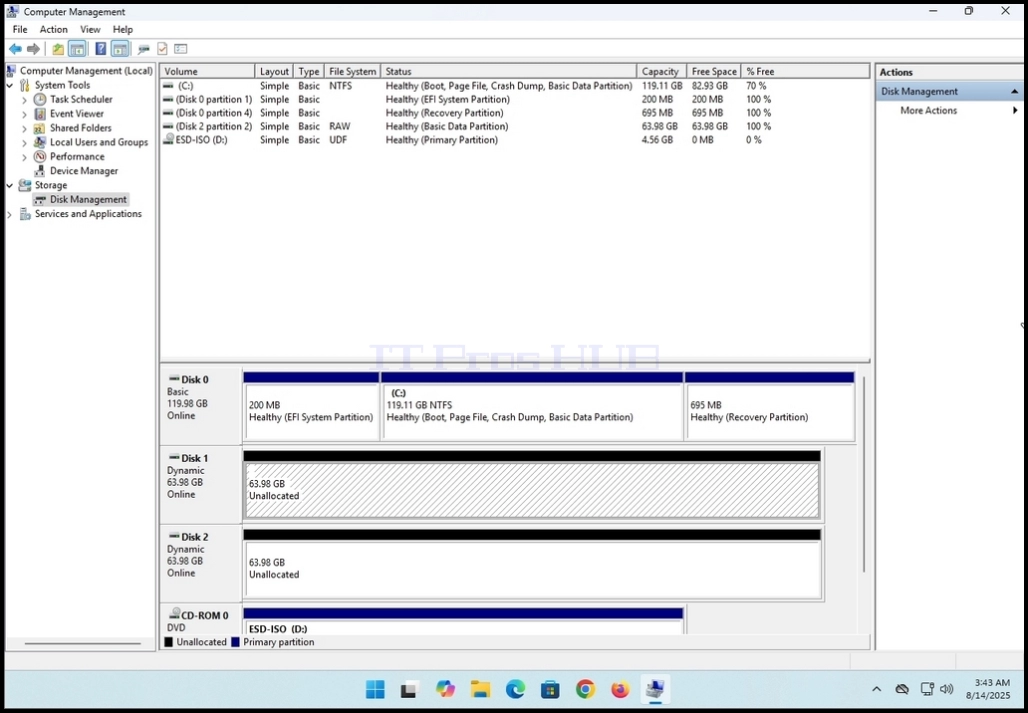
5. Make sure you have a minimum of 2 disks in favor of creating a spanned volume. In this article we are going to use disk 1 and disk 2 as can be seen below:
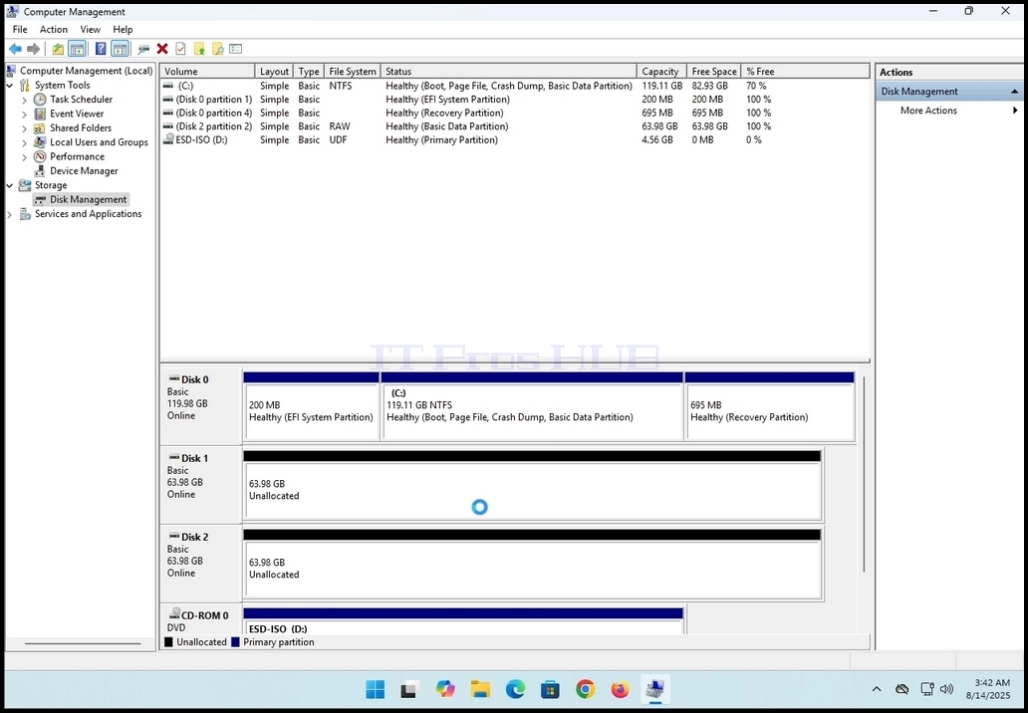
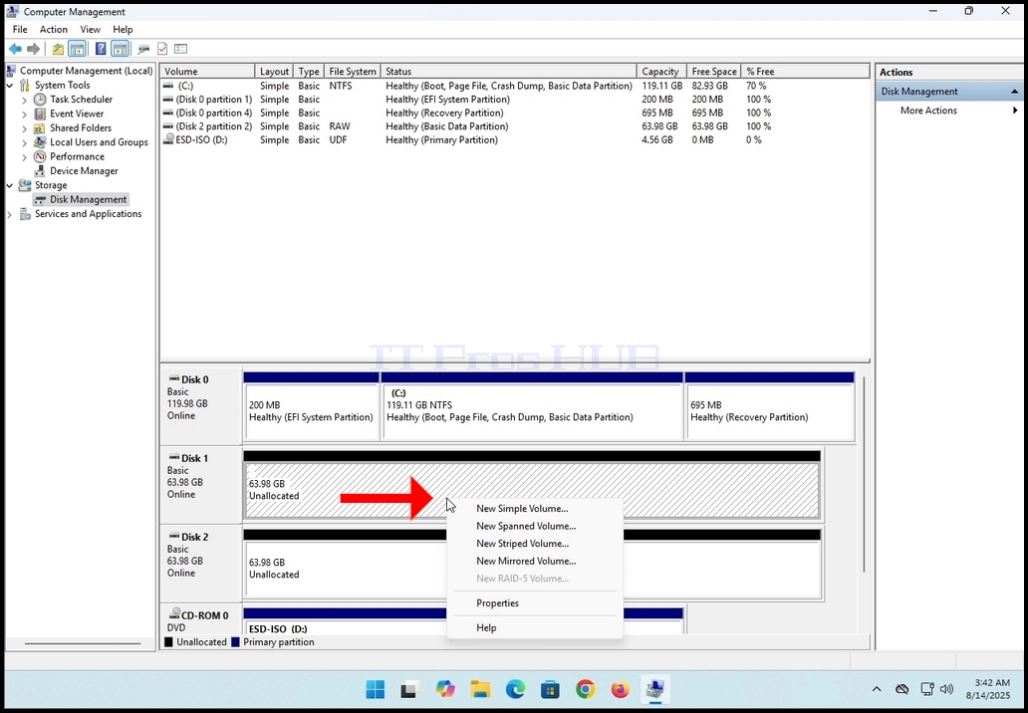
7. Choose the "New Spanned Volume" option and wait for the spanned volume wizard to appear


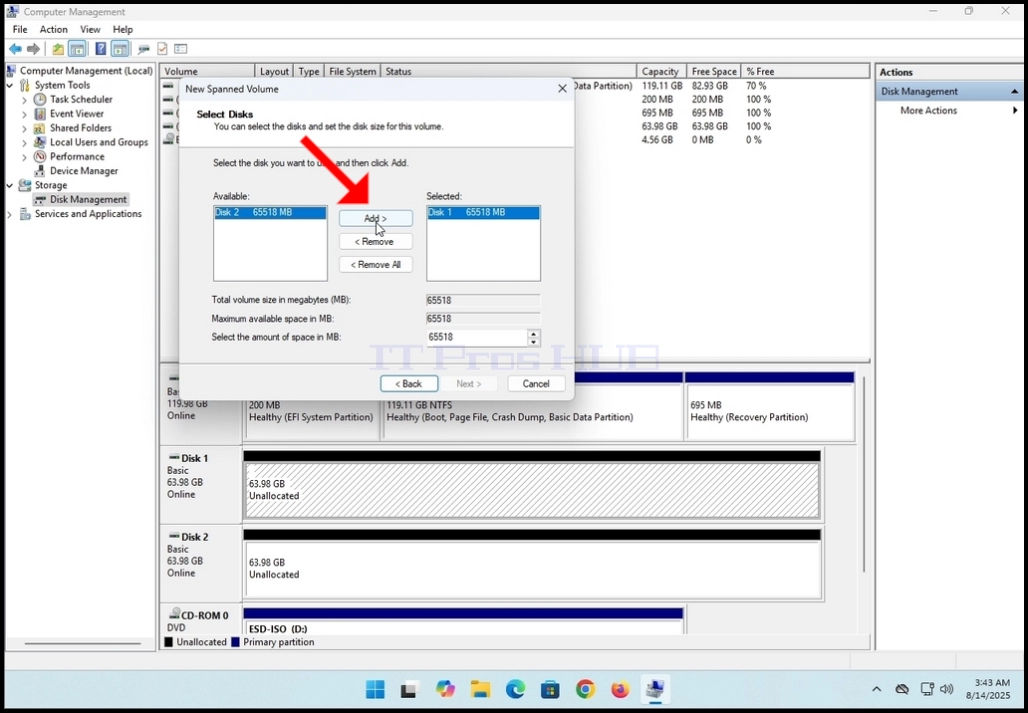
- As you can see in the screenshot below, Disk 1 is already chosen because it was the disk we had initiated the wizard with.
- Now we have to add a second disk into the spanned volume array. We are going to choose Disk 2.




15. In the current stage, Format Volume, you can:
a. Change the file system used.
i. In this article we are going to use the default of NTFS
b. Change the Allocation Unit Size
i. In this article we will use the default
c. Change the volume label
i. In this article we are going to change it from “New Volume” to “New Spanned Volume”
16. We will choose the Perform a quick format option.
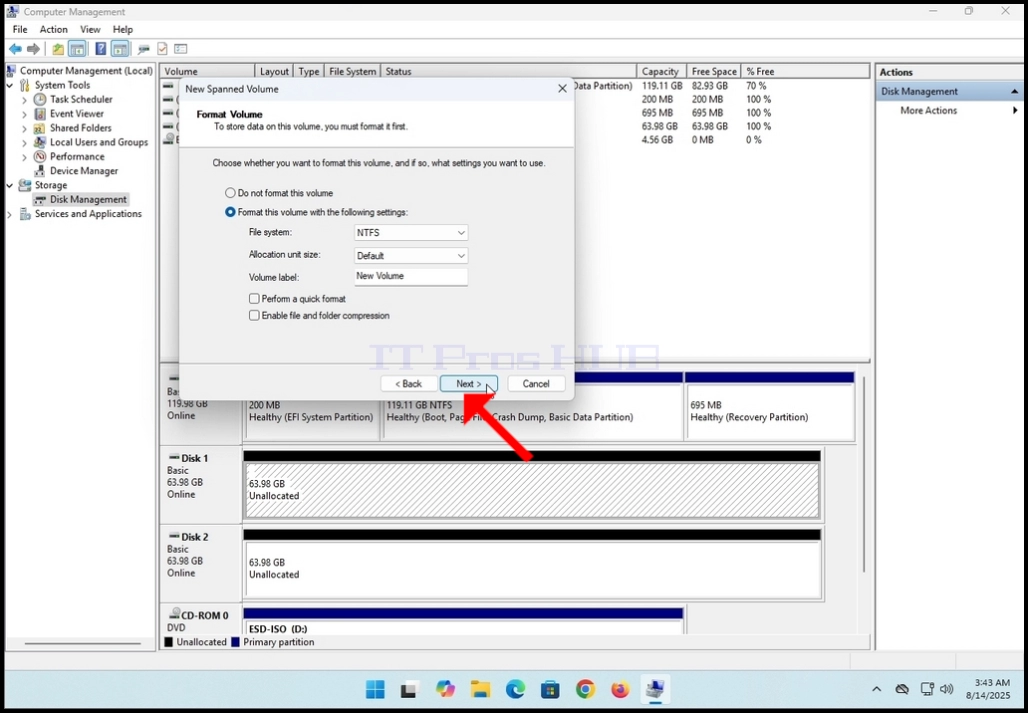
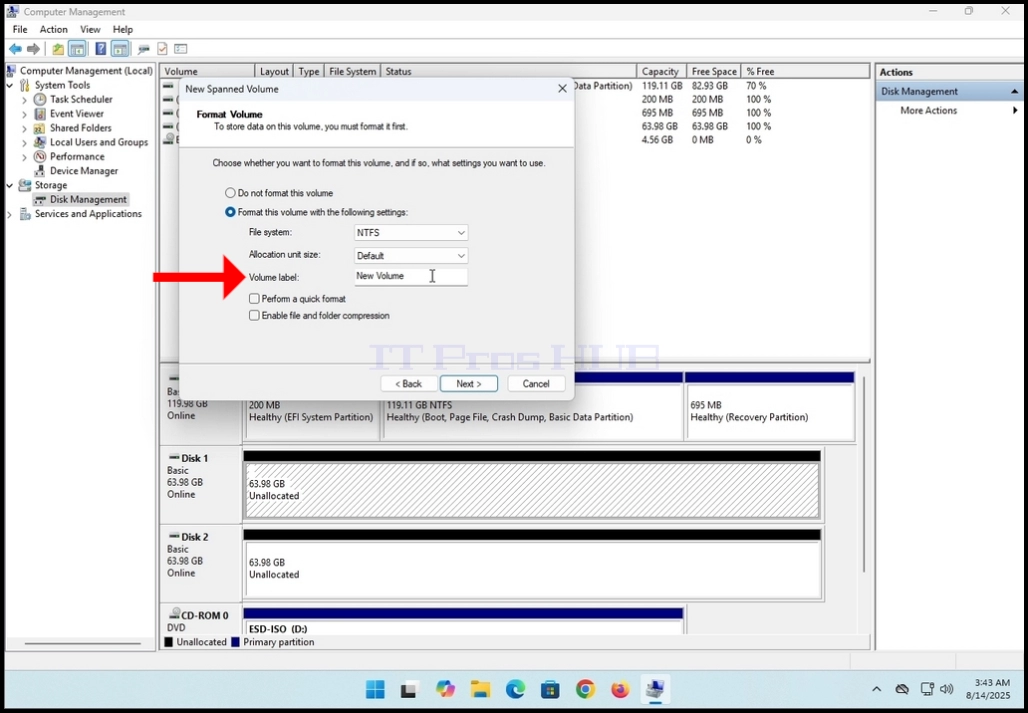
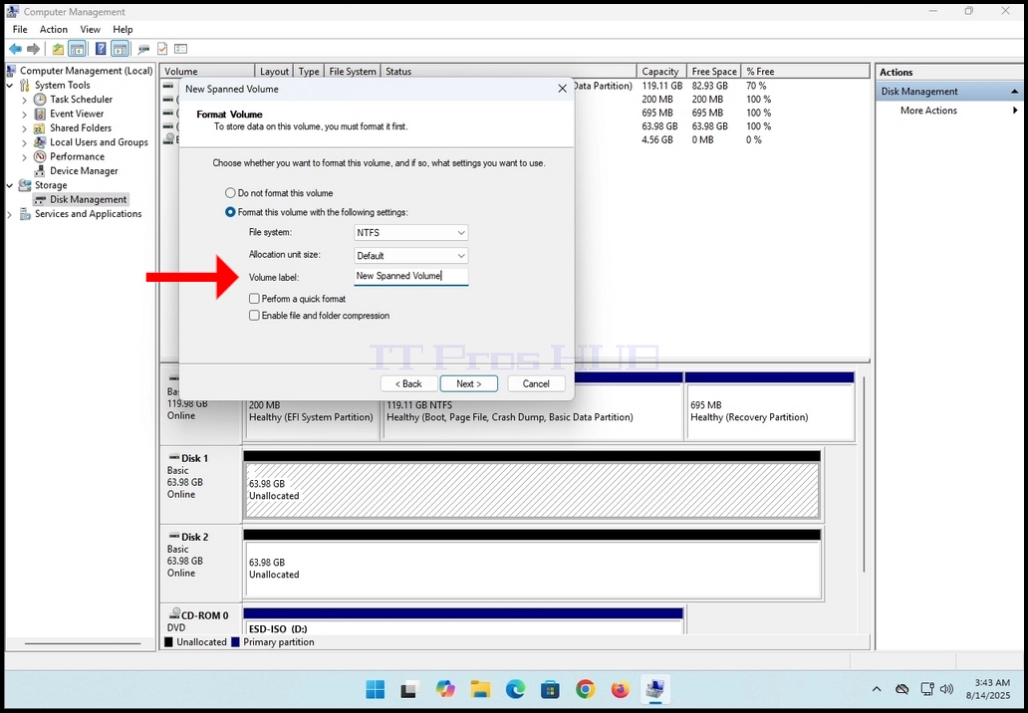
17. Click NEXT
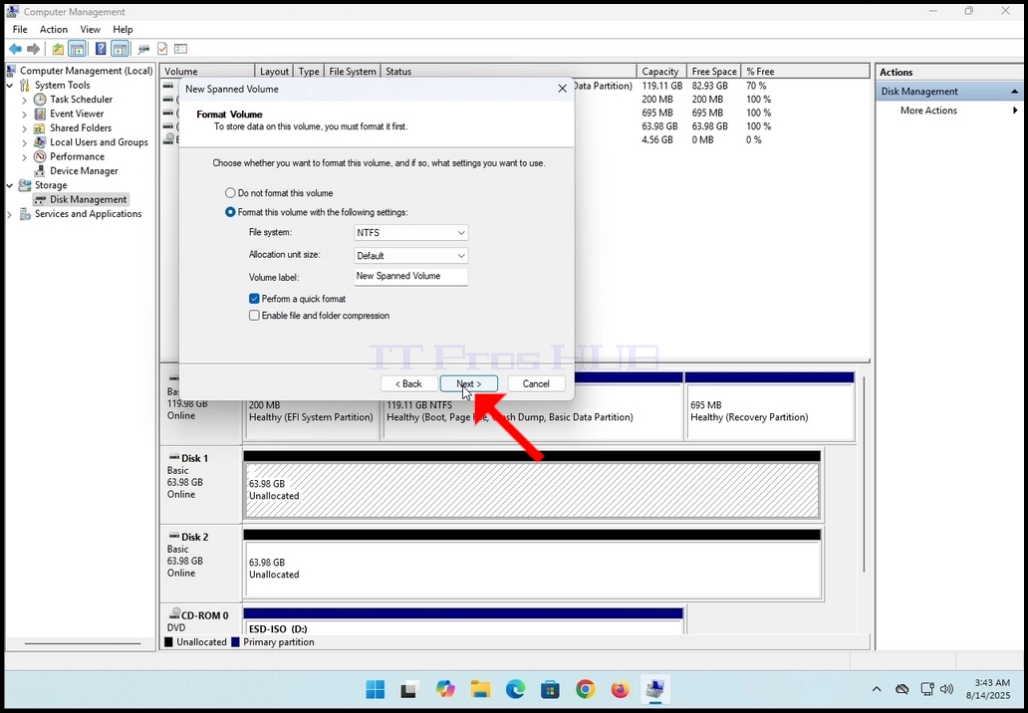
18. Click FINISH to complete the wizard


21. Once the conversion process is done, you will notice that both of the disks that were selected for conversion are not purple colored instead of black.
a. Also notice that it says in both disks under their title: ”Dynamic” instead of “Basic”
22. An autoplay notification pop up will appear on the right bottom side of the screen as well
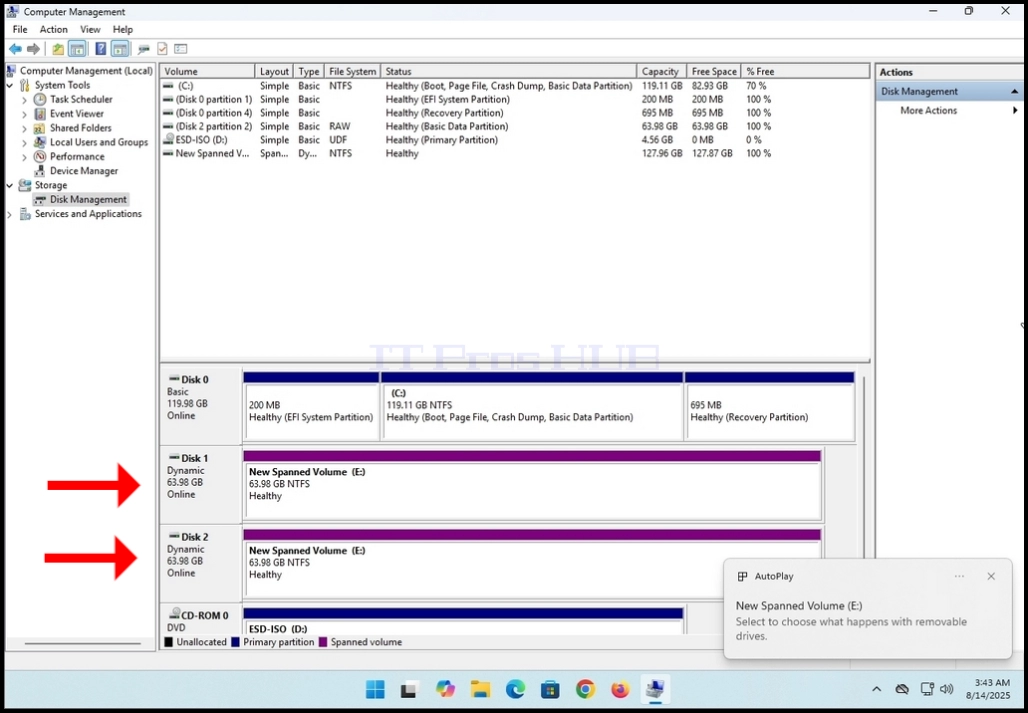

22. An autoplay notification pop up will appear on the right bottom side of the screen as well
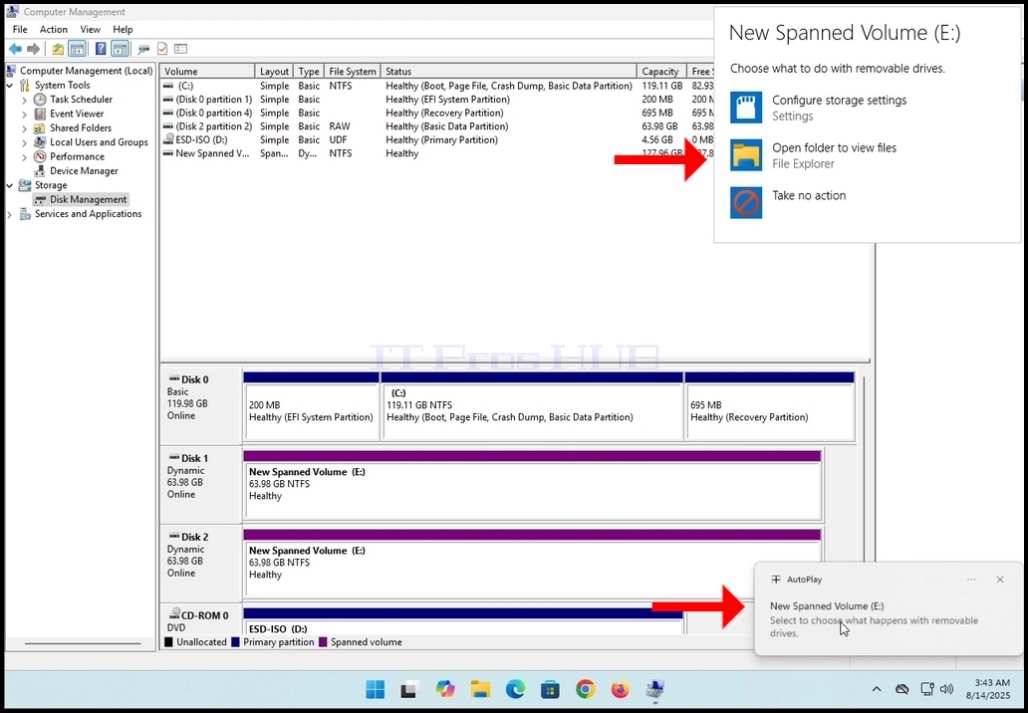
23. You can click that notification window to reveal more possible options regarding that newly discovered volume
a. In this article we clicked the folder icon to explore its contents

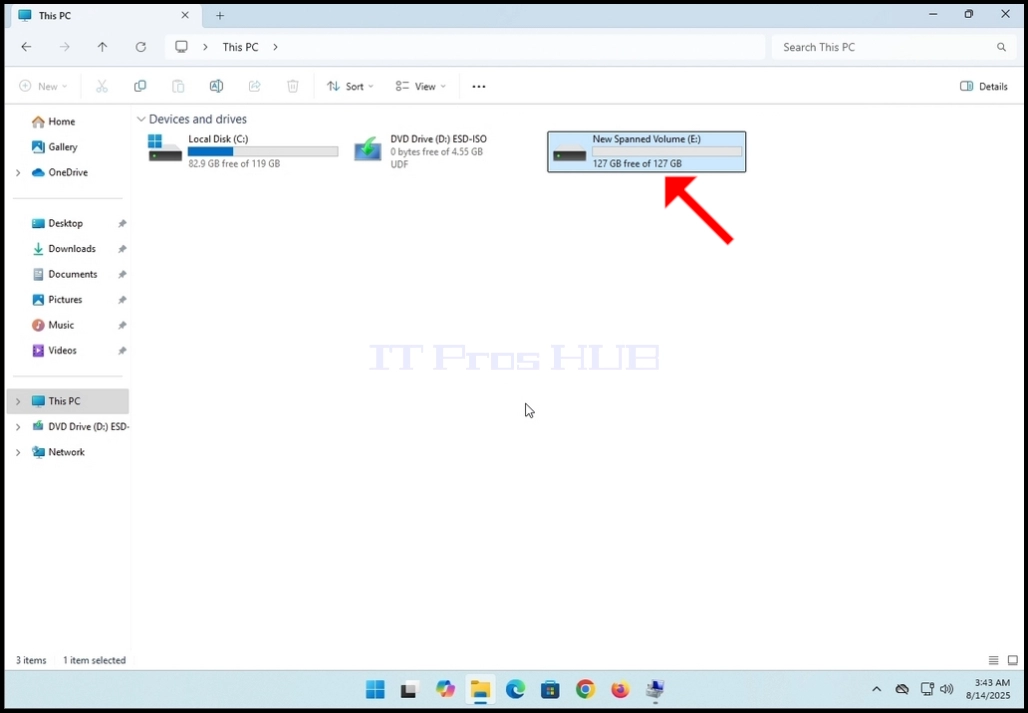
- 24. The newly created spanned volume should look like any other volume when looking at it in the This PC window
a. Note that its size is made of the size of the 2 disks we used to construct this volume. Both of then were 63.98GB and together they are 127.96GB