



- 細節
- 作者 IT Pro
- 分類: How to Articles
- 點擊數: 6015
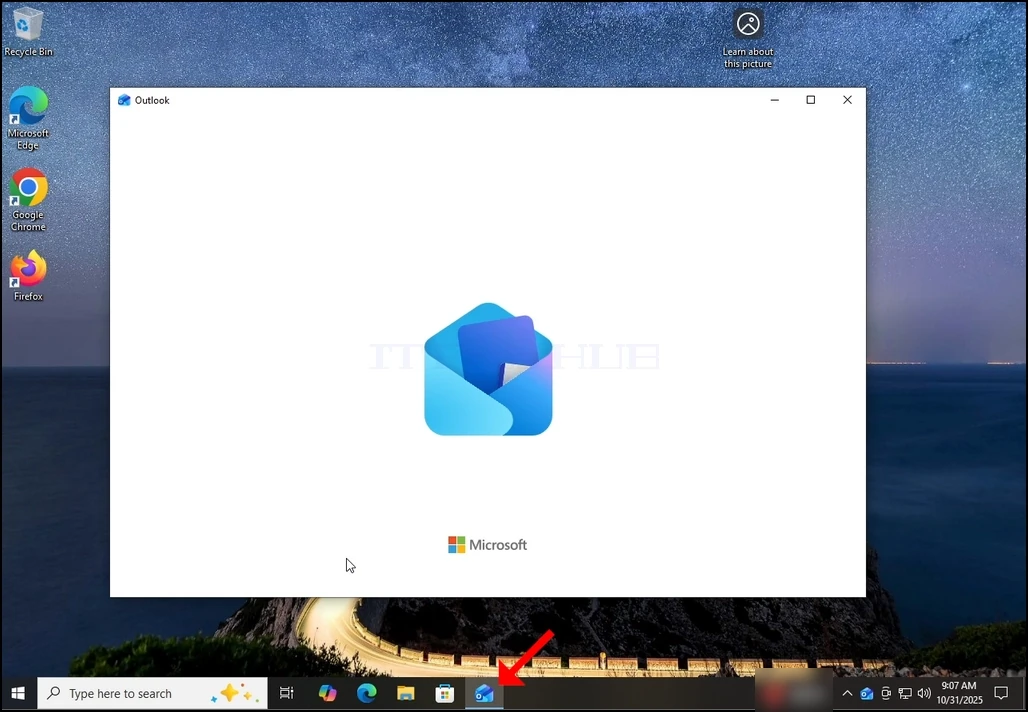
1. 在任务栏上单击其图标以启动《展望》。 在大多数情况下,Outlook图标将存放在那里。 等待 Splash 屏幕出现并等待 Outlook 应用程序加载 。
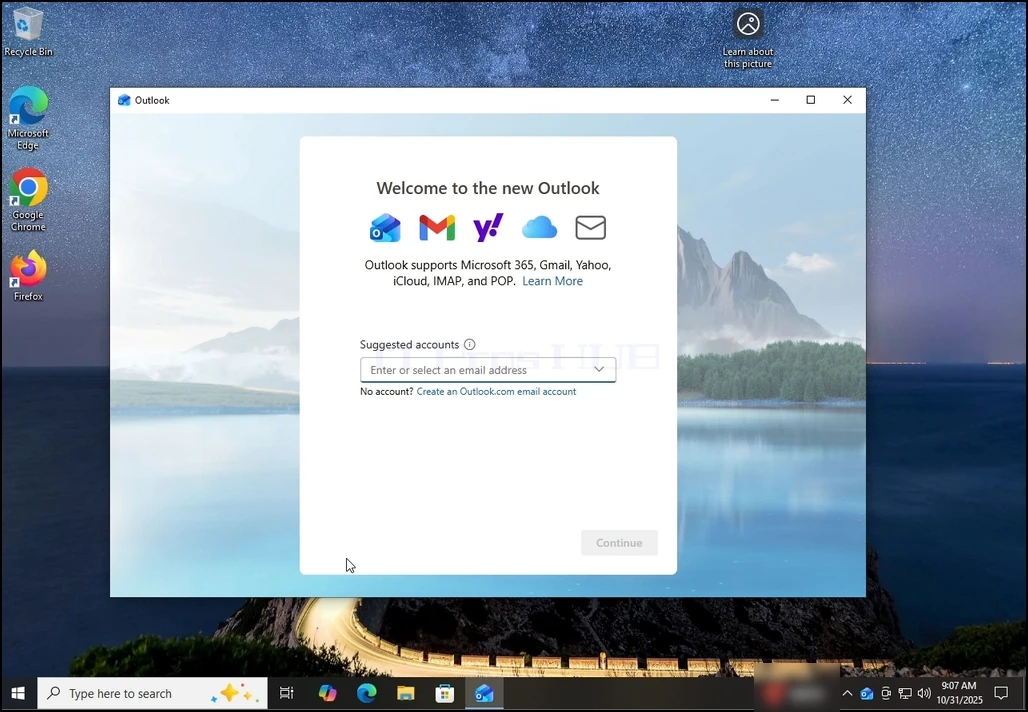
2. 联合国 装入后,您将会看到“ 欢迎进入新展望” 屏幕 。 输入您想要配置的电子邮件地址 。 就我们而言,我们将配置一个Gmail电子邮件地址。
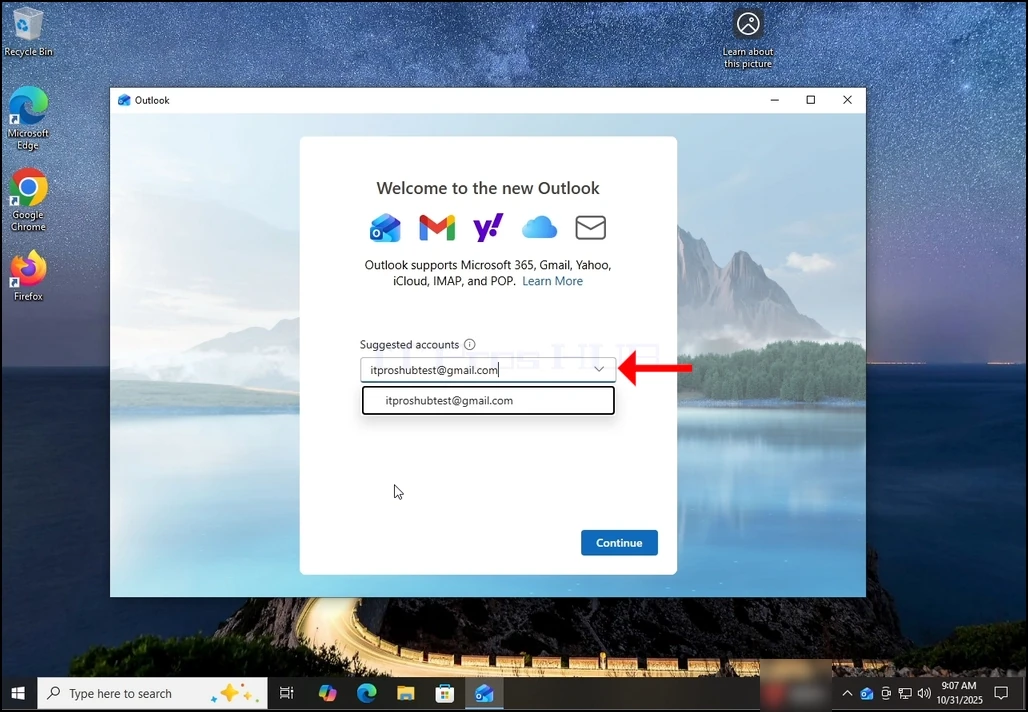
3个 在文本框中键入您的 Gmail 地址并单击“ 继续” 按钮。
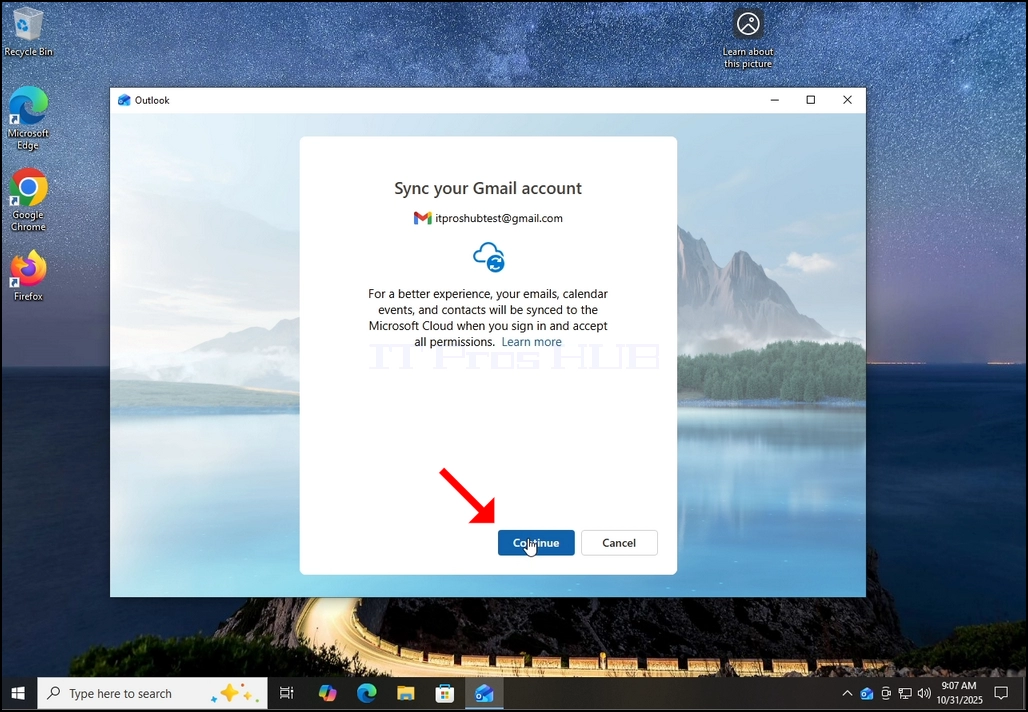
4.四. 将通知您 Outlook 将建议它从您的 Gmail 日历获取日历、 联系人和事件数据, 以便获得更好的经验 。 再次点击"继续"按钮并等待下一个屏幕加载.
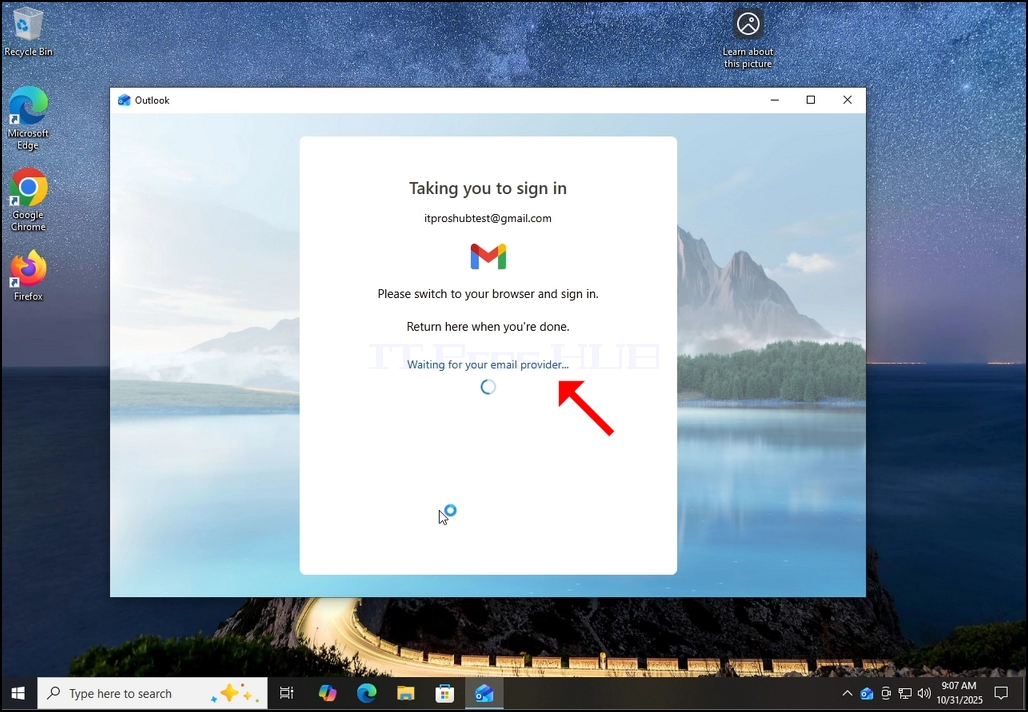
6. 国家 在点击"继续"按钮后, Outlook 会使用您的默认浏览器去Google登录屏幕.
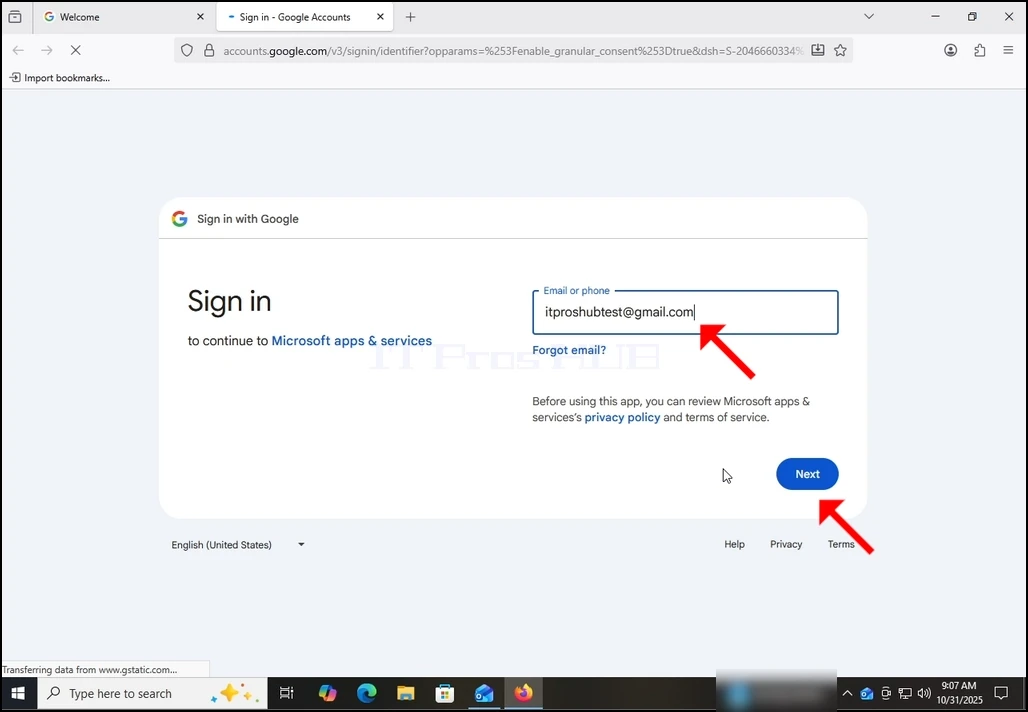
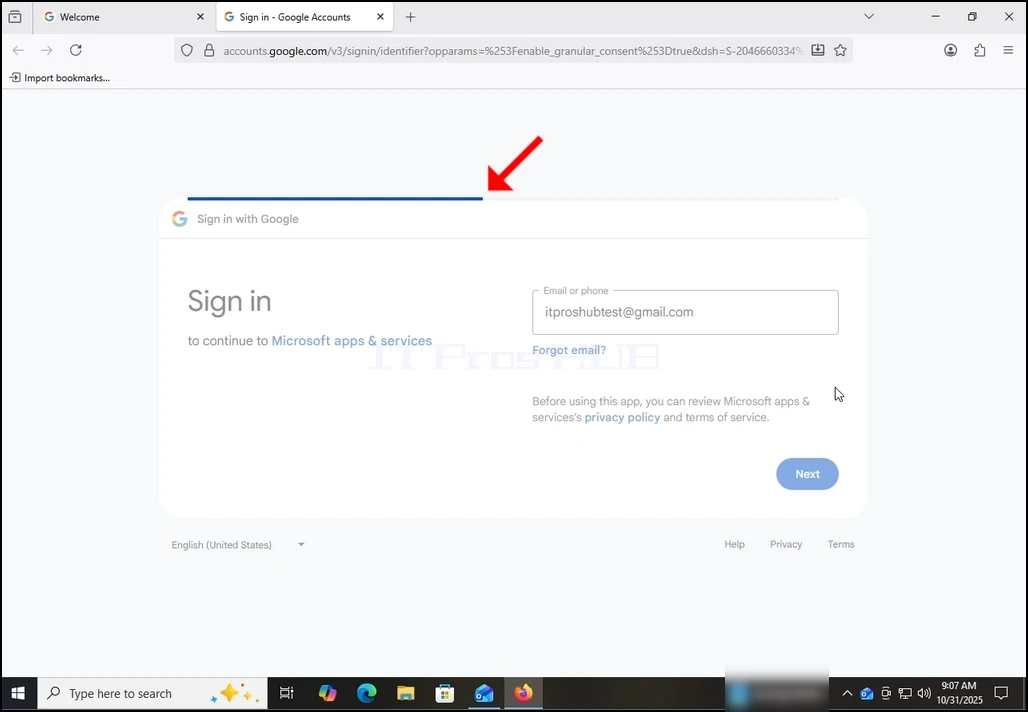
7. 联合国 再次填写您的 Gmail 电子邮件地址并点击下一个按钮 。
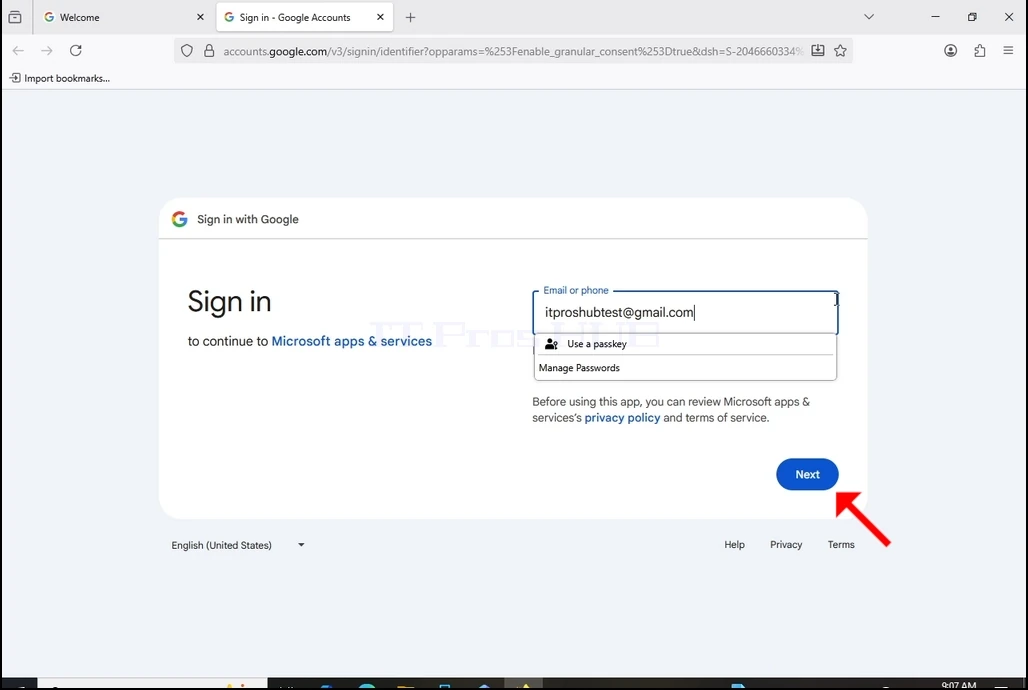
8. 联合国 点击下个按钮后, 您可以在登录框的顶部看到加载栏 。
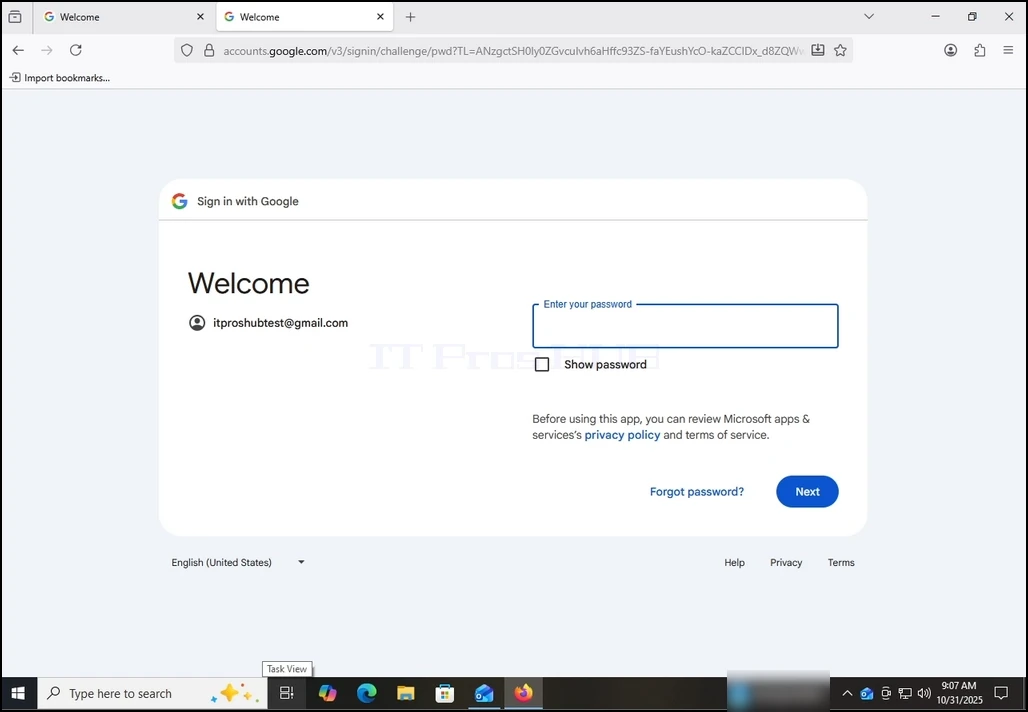
9. 国家 在下一阶段, 您将会被迅速输入您的 Gmail 的密码 。 键入并按下键.
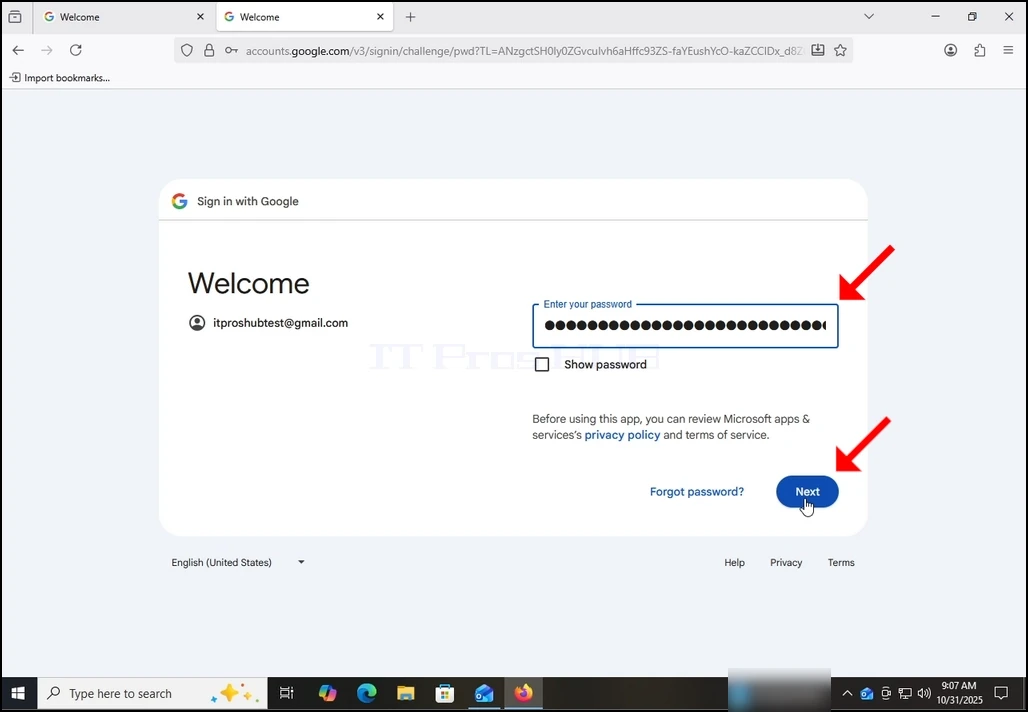
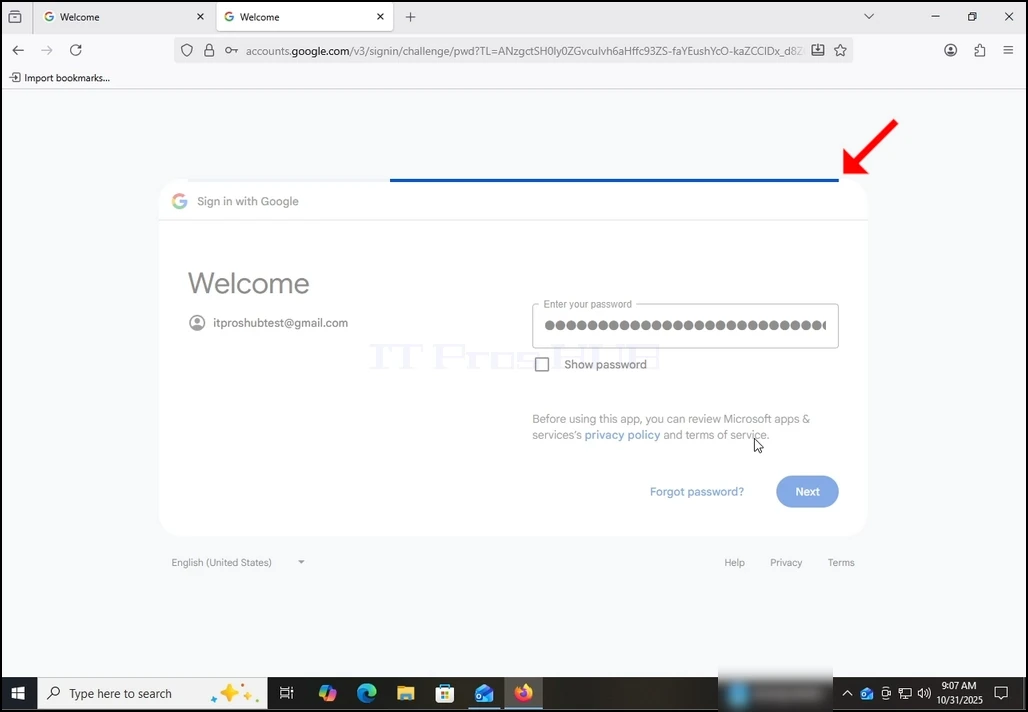
10个 等待下一阶段的加载。
11个 在下阶段加载后, 浏览器可能会提示您是否想要用它保存密码 。 在此文章中, 我们不会将密码保存到浏览器中 。 因此,我们选择了现在的按钮。
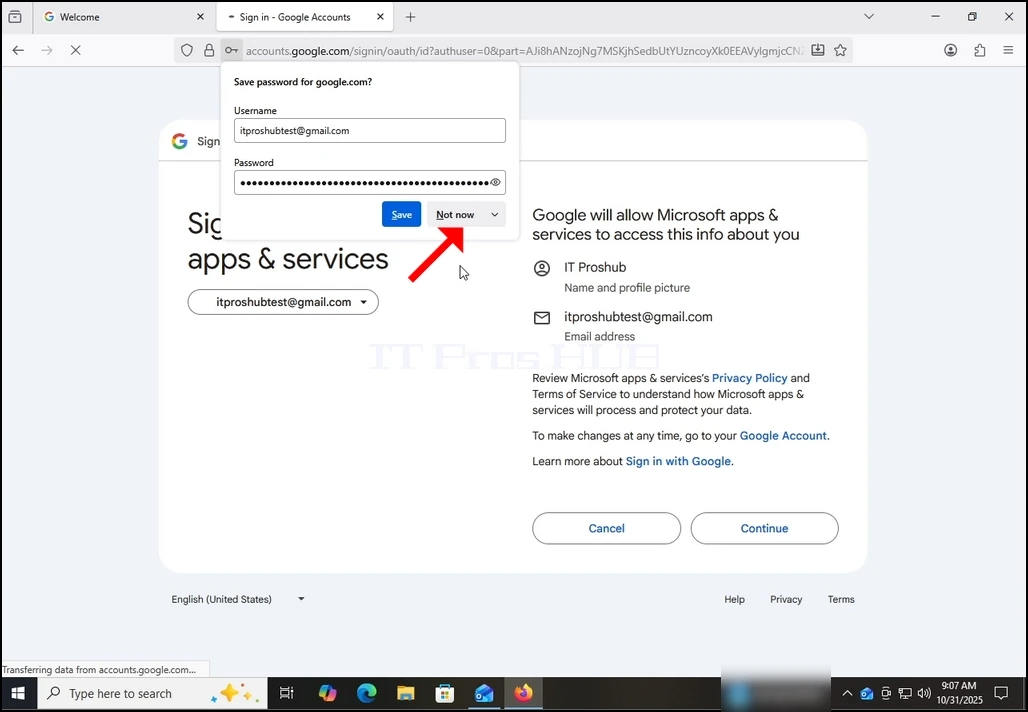
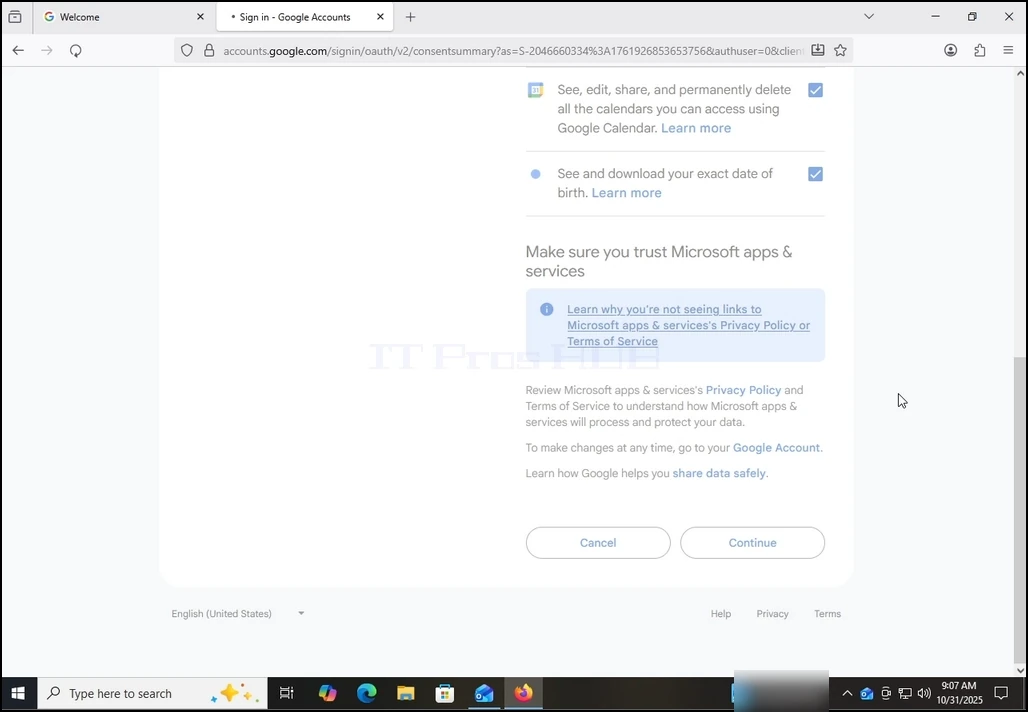
12个 在目前阶段, Google 提示您关于 Outlook (微软应用 & Services) 访问您的 Gmail 账户的权限 。 将向您介绍《展望》想要访问的信息。 在这种情况下,Outlook希望访问您的电子邮件地址、全名和概况图片。
单击“ 继续” 按钮, 等待下一个屏幕加载 。
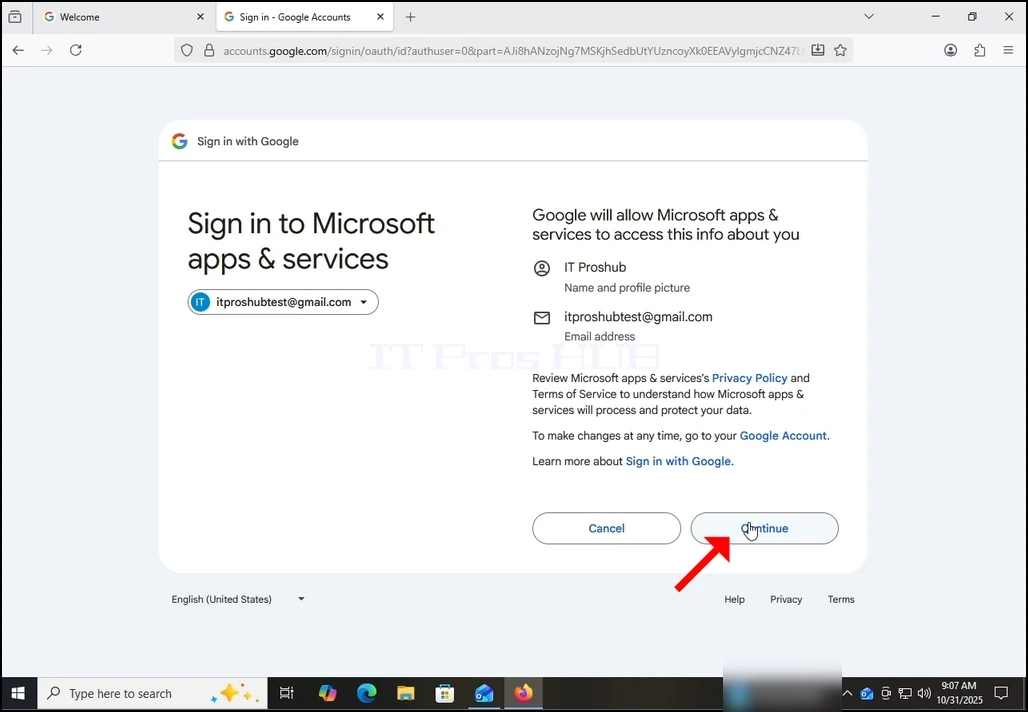
13个 在这个阶段,Google扩展了信息展望(Microsoft apps & services)可以访问的内容.
选择您想要给 Outlook 的 权限信息, 请记住您允许的权限越少, Outlook 的功能就越少 。
在这种情况下,它作为电子邮件客户端的最低限度作用是: 允许它读取、作曲、发送和永久删除 Gmail 的所有邮件。 。 。 。
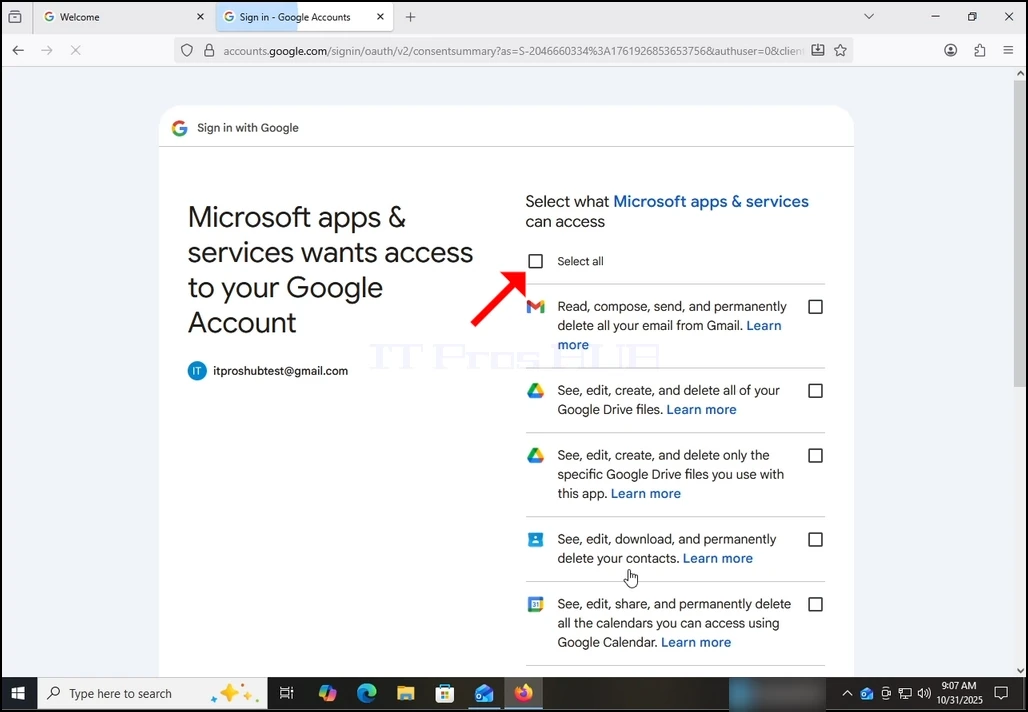
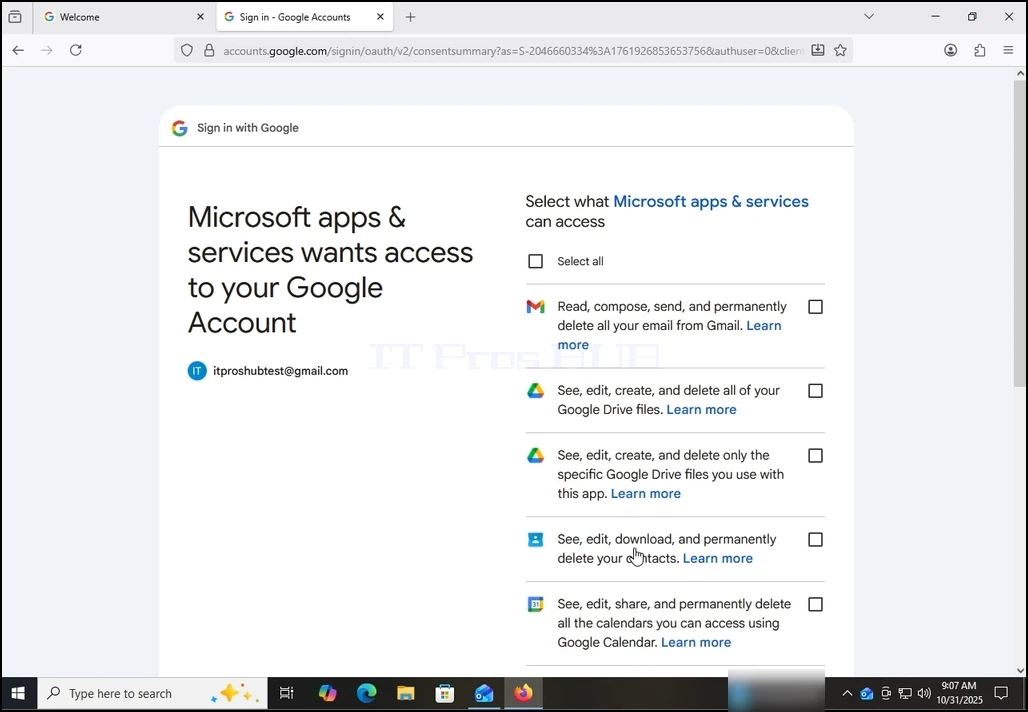
14个 如果是这篇文章,我们将选择全部权限并点击继续按钮.
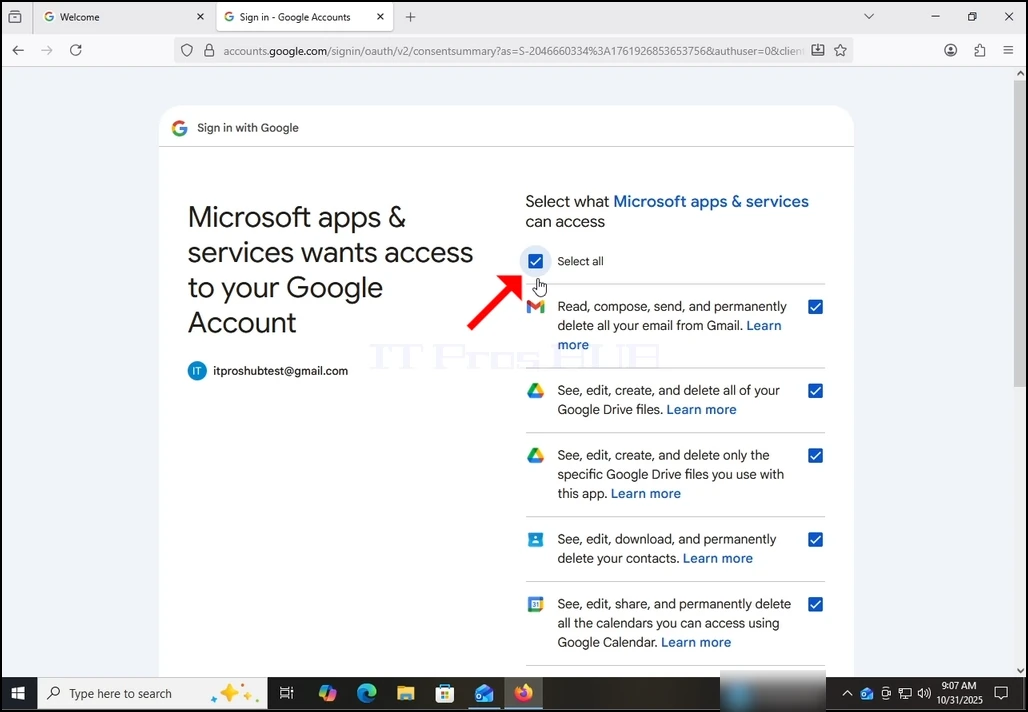
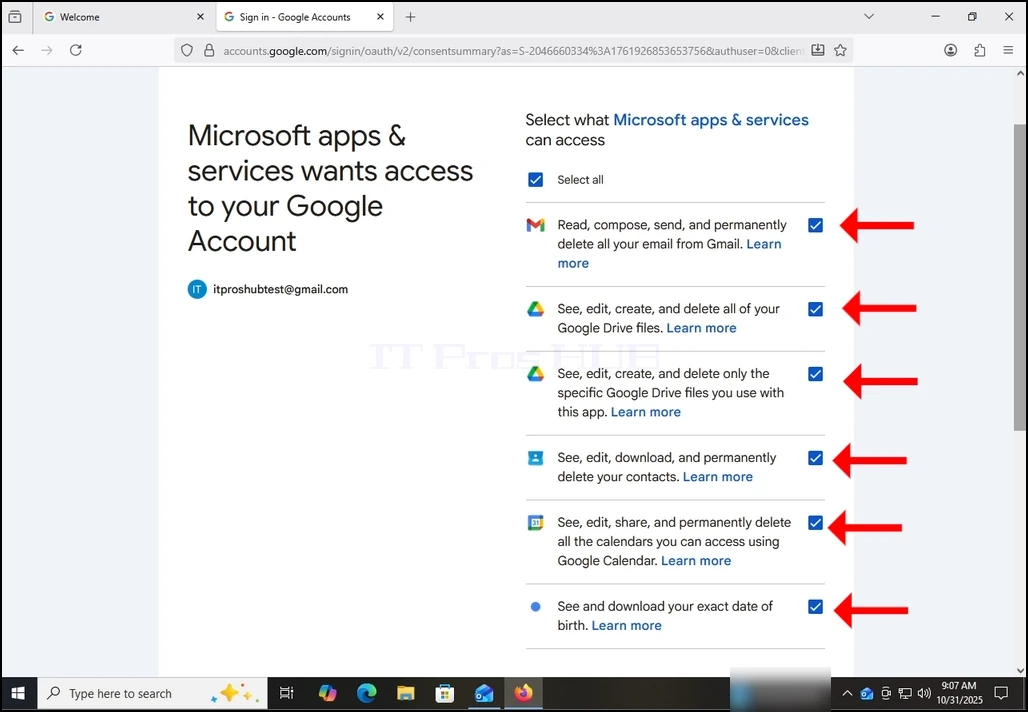
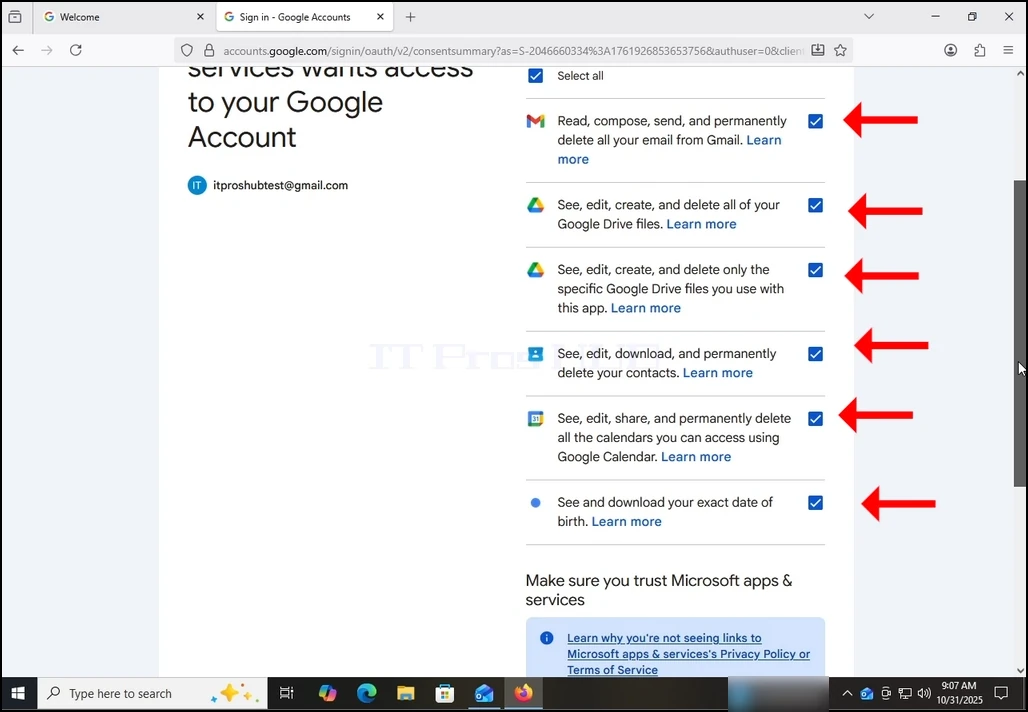
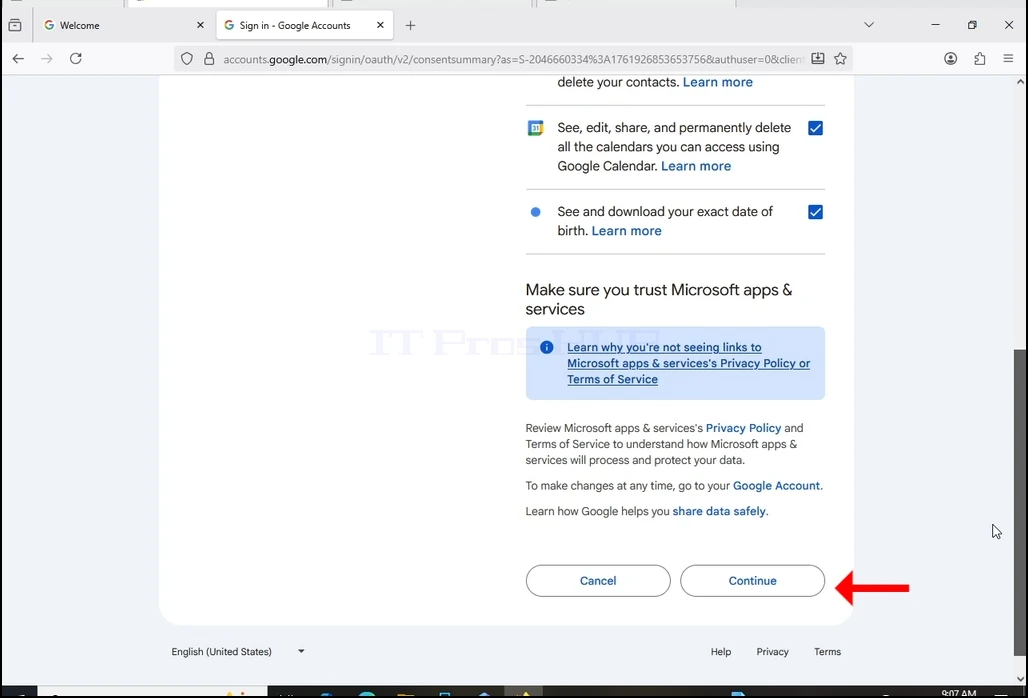
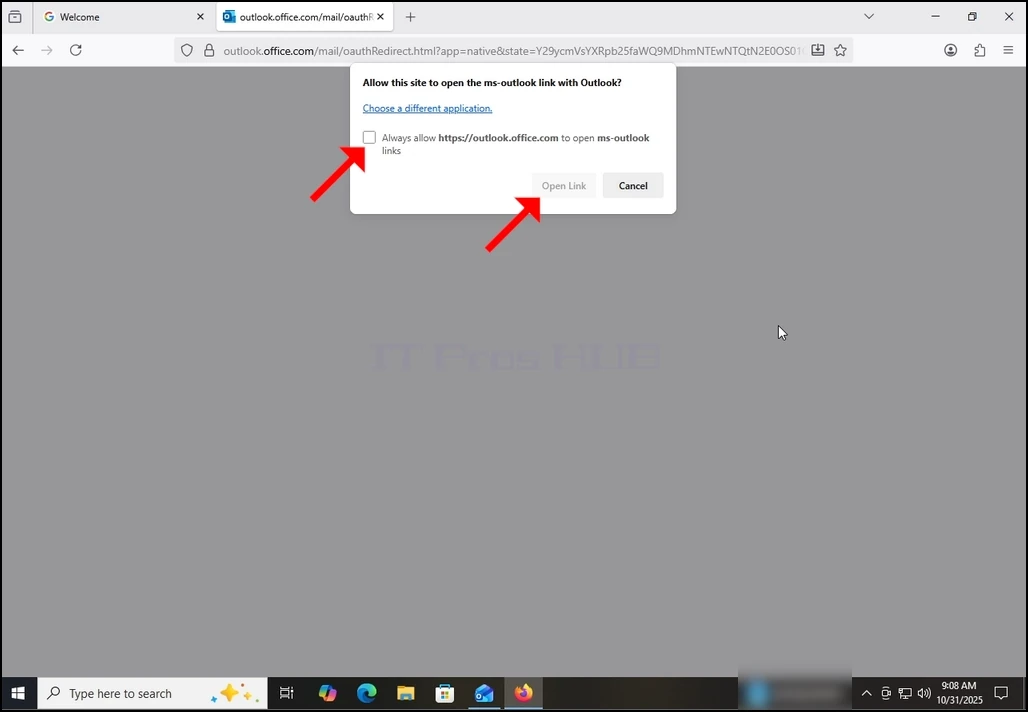
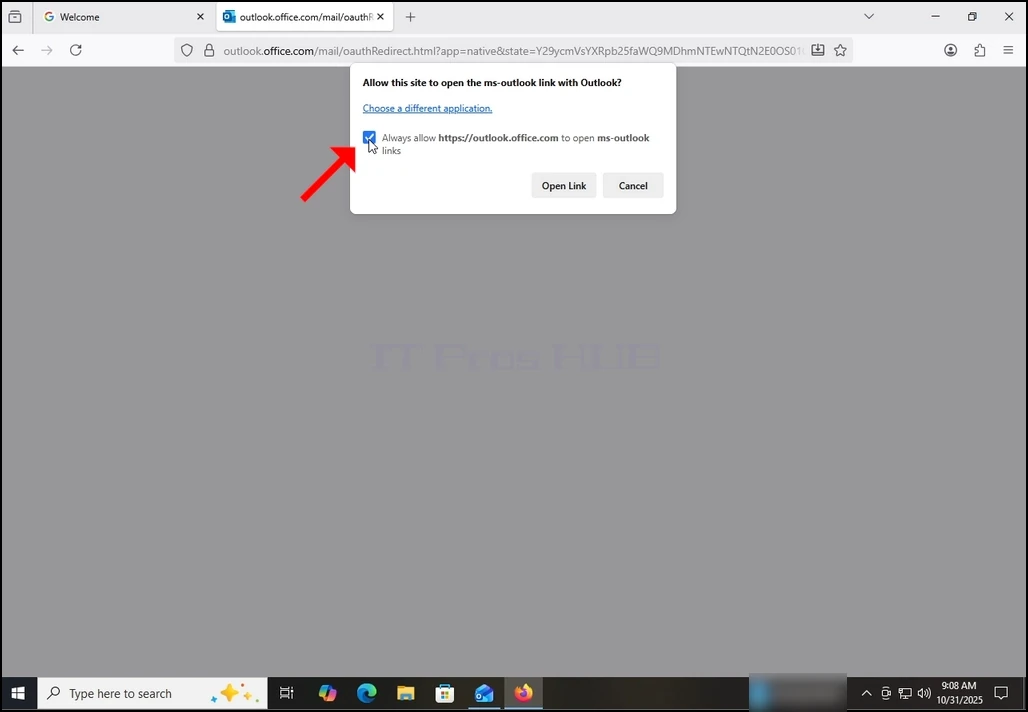
15个 点击上一个"继续"按钮后,浏览器会尝试自己打开Outlook链接. 标记 总是允许 https://outlook.office.com 页面存档备份,存于互联网档案馆. 打开 ms 前景链接 句子并击出一次 Open Link 按钮。
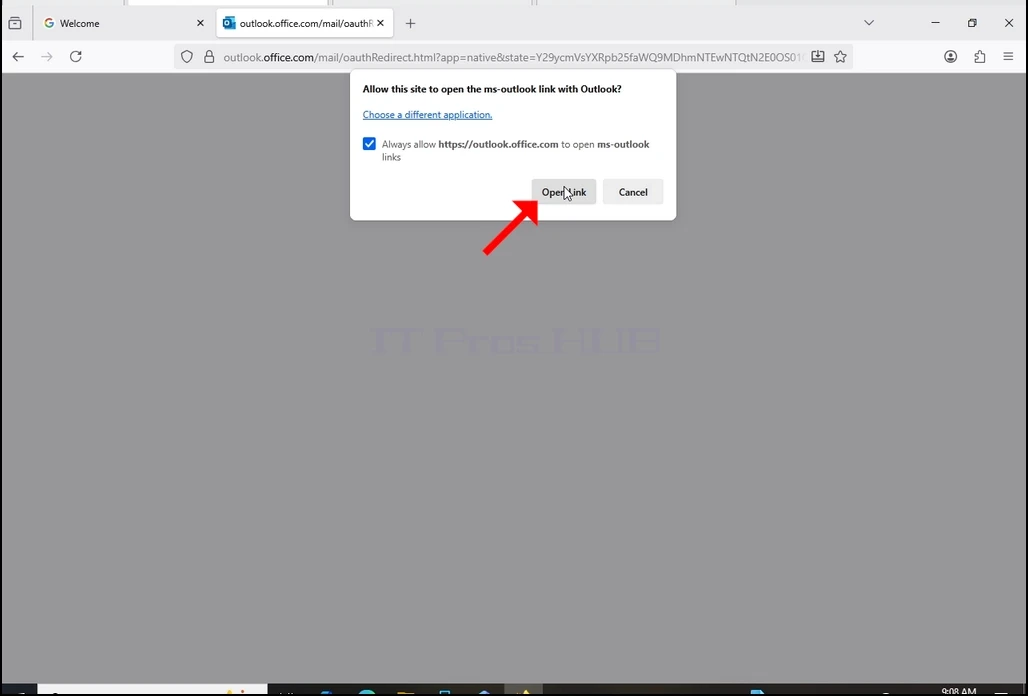
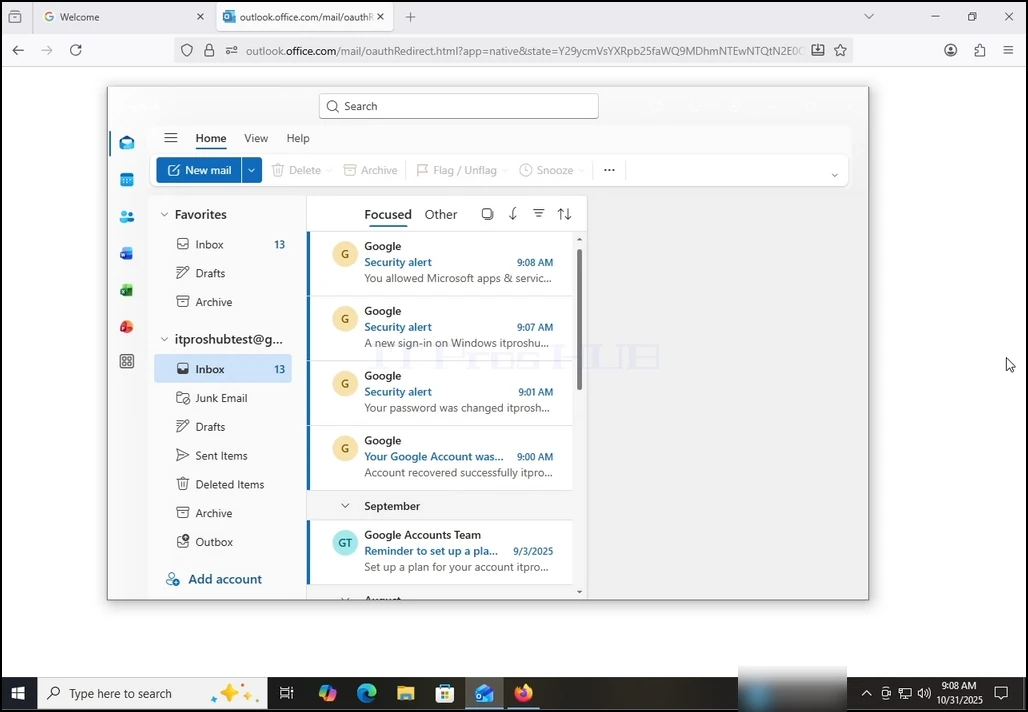
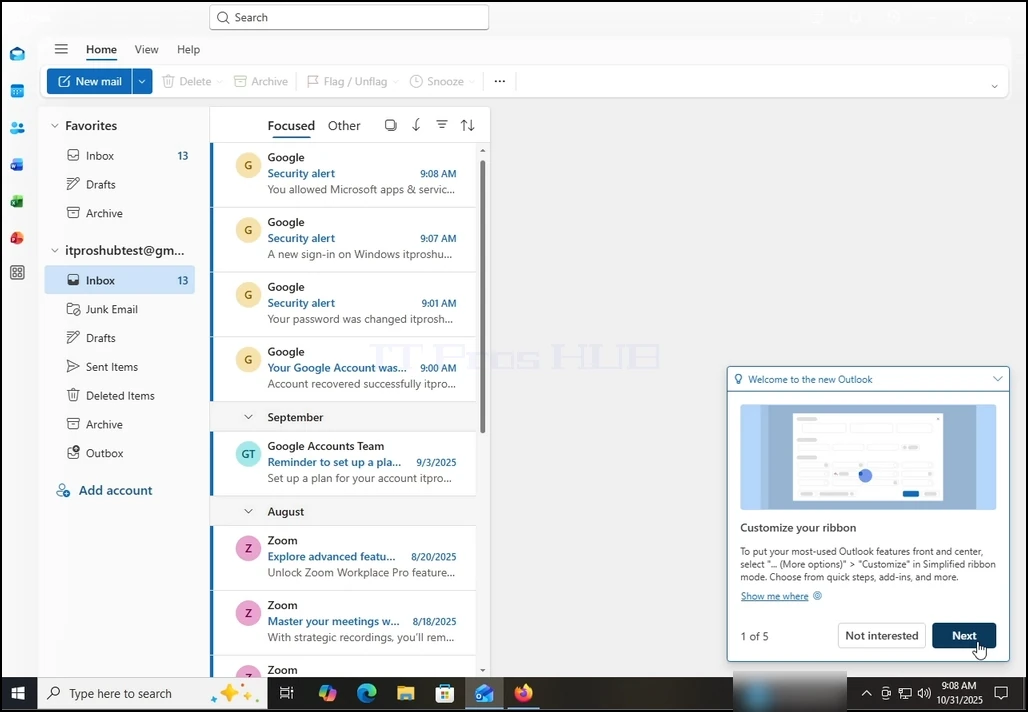
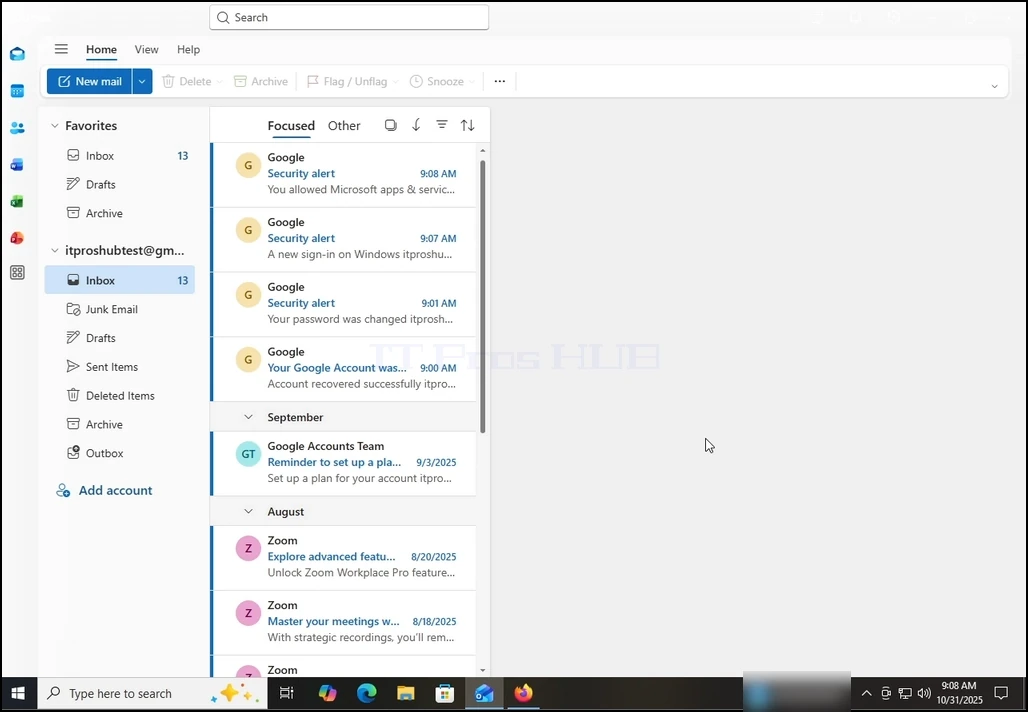
16号. 在完成前一个任务后, Outlook 会加载您的 Gmail 账户 。
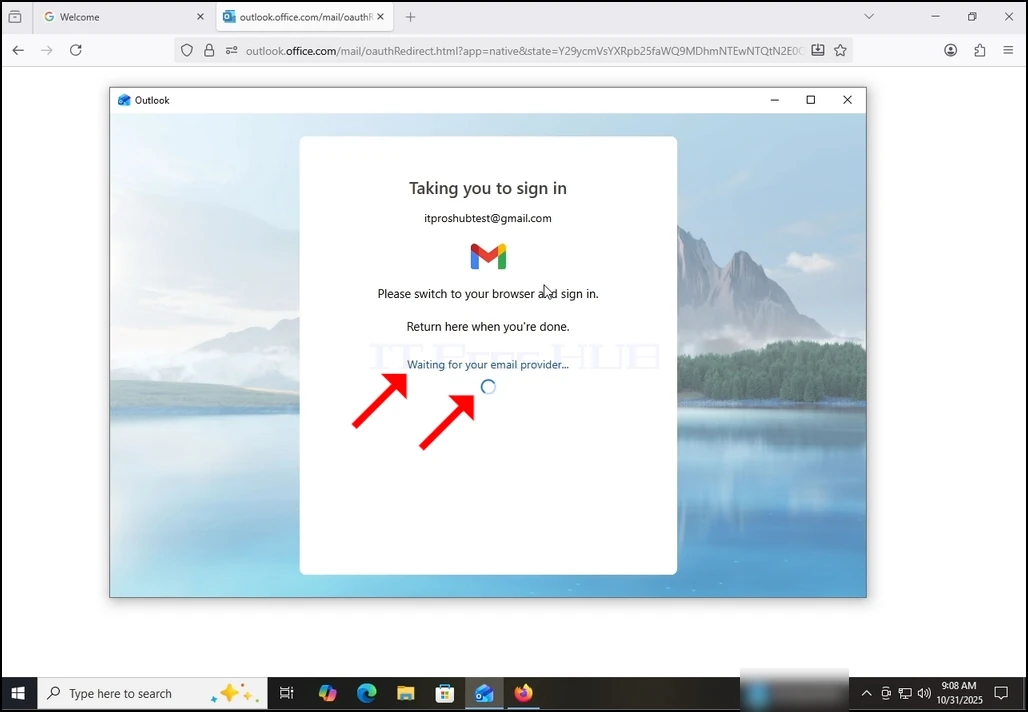
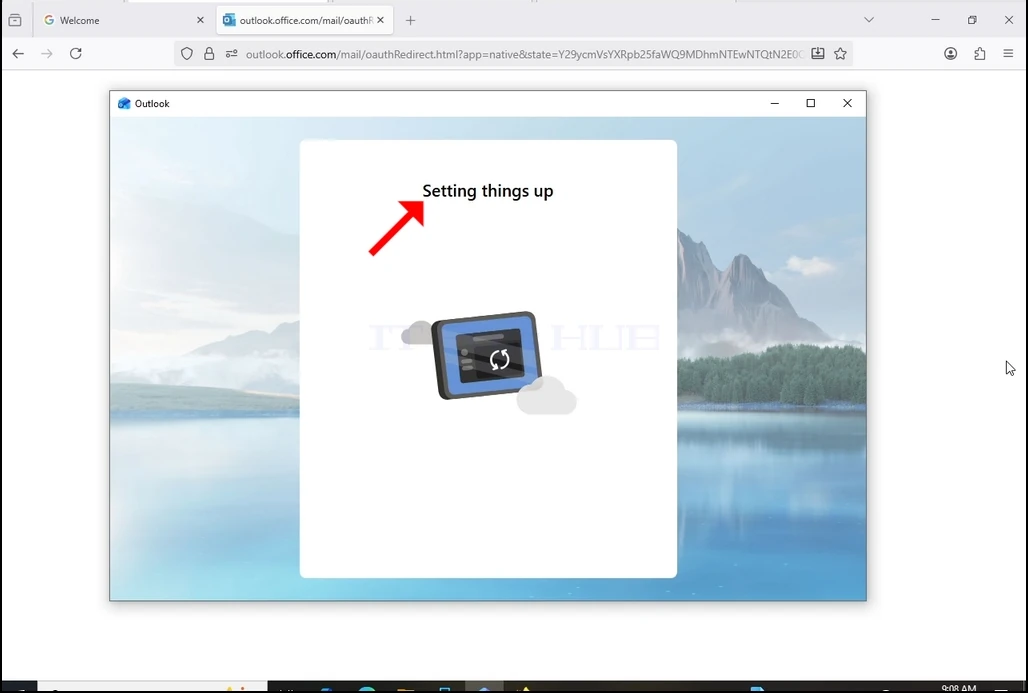
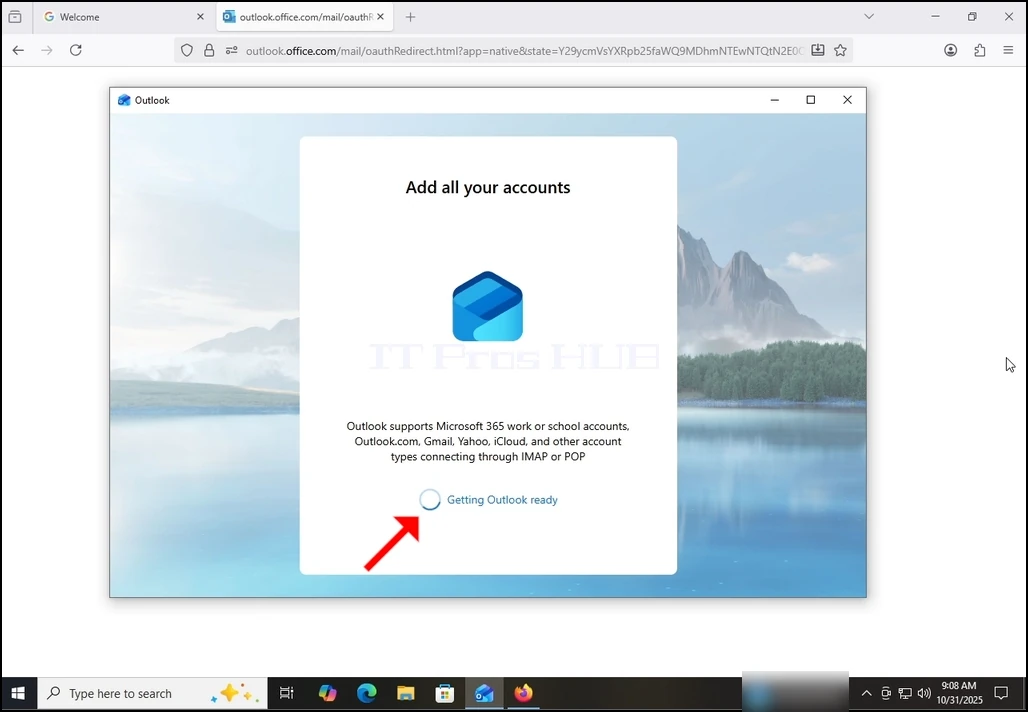
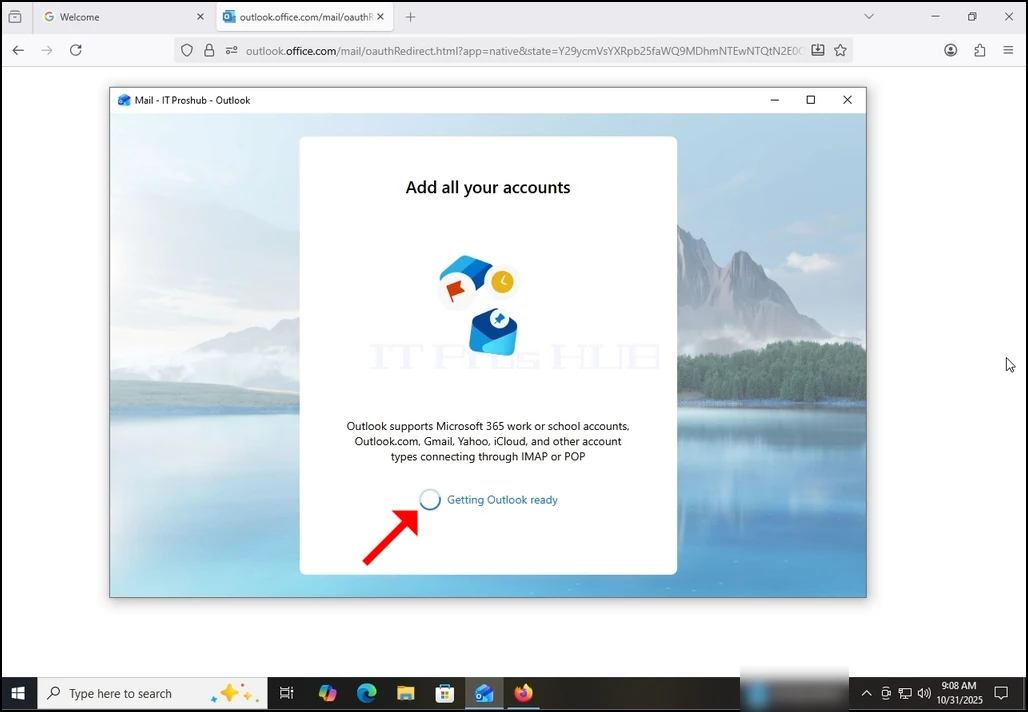
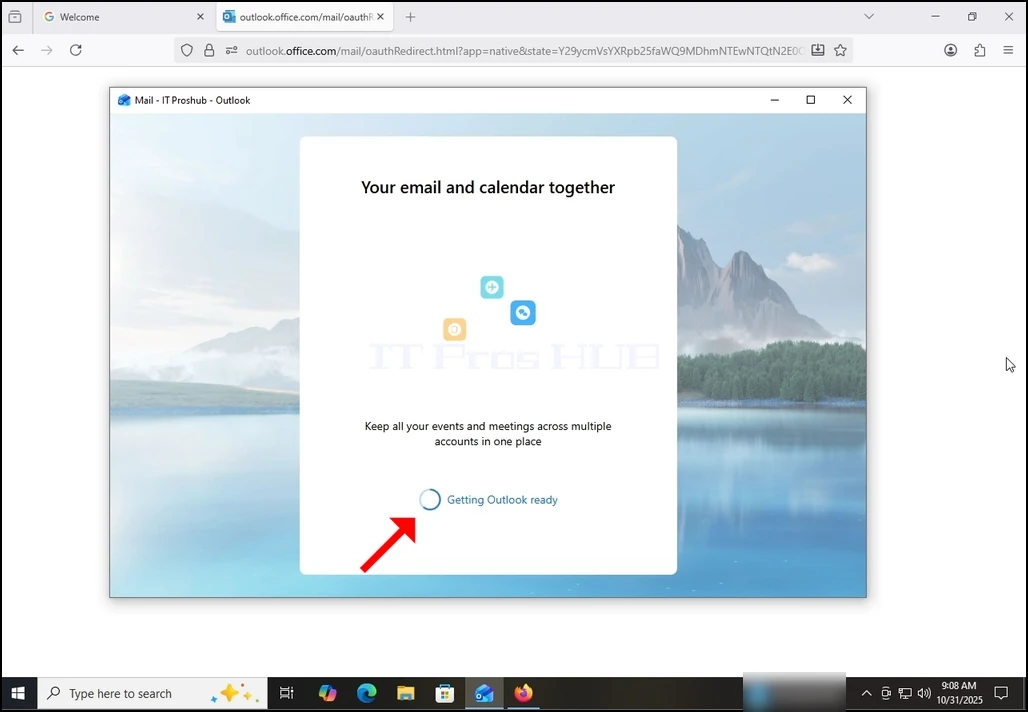
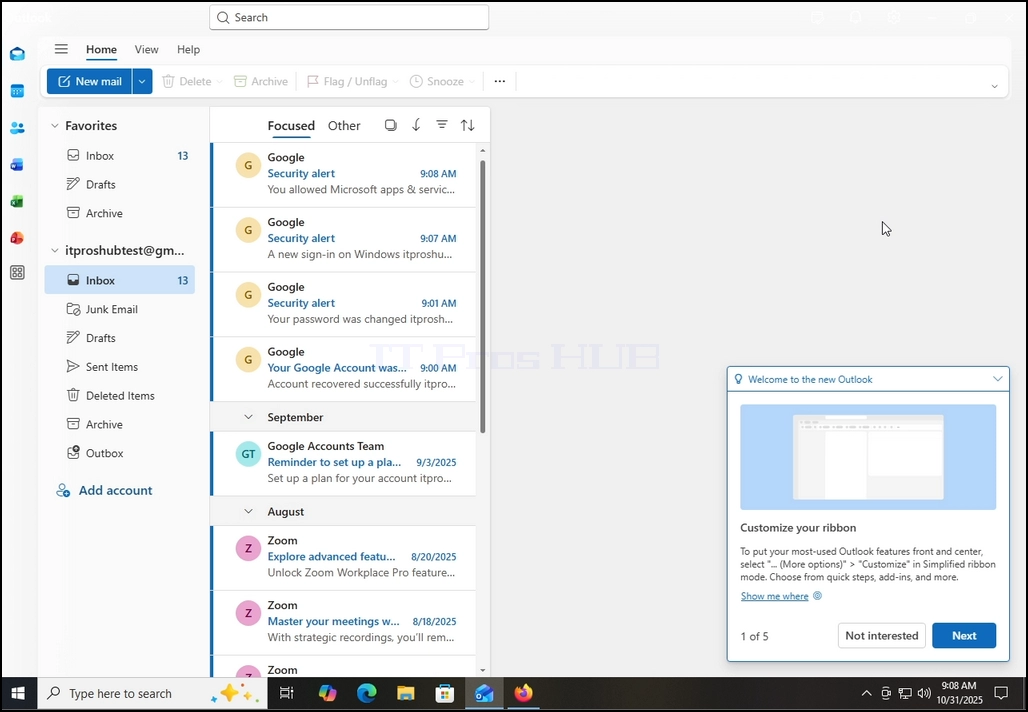
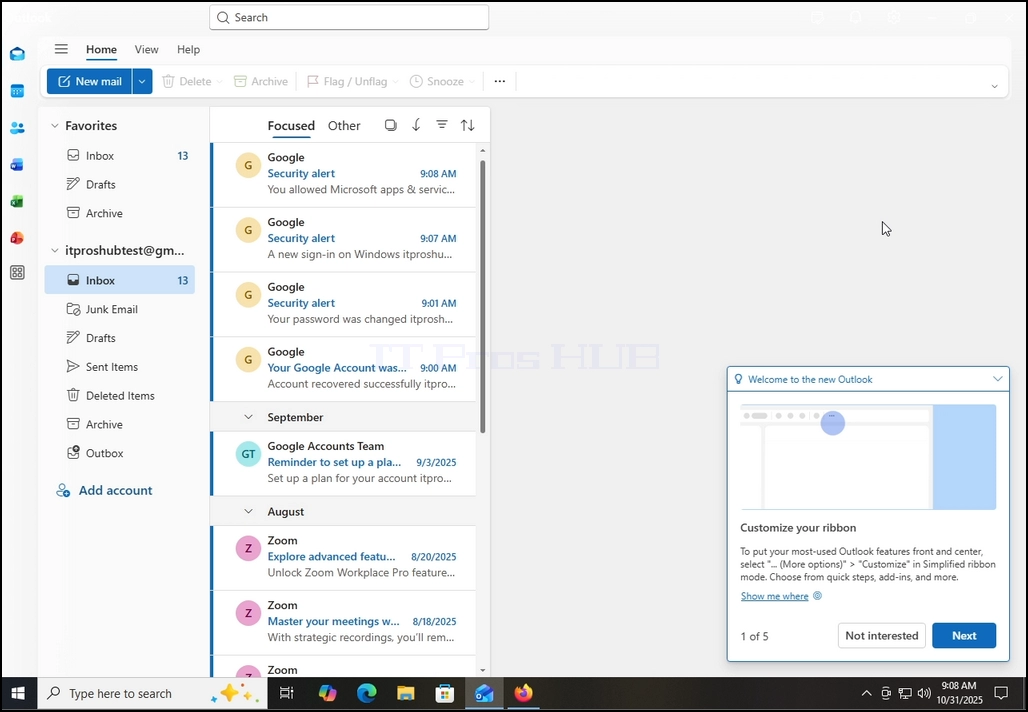
17岁。 没问题! Gmail 现在配置为在 Outlook 内工作 !
- 細節
- 作者 IT Pro
- 分類: How to Articles
- 點擊數: 8446
- Go to This PC via Windows Start menu

2. Mark the disk/partition you would like to decompress by clicking on it once. In the case of this article we will perform this process on the C drive.


5. In the properties window, in the bottom part, look for the Compress the drive to save disk space sentence. It should be tagged with a blue V.

6. Uncheck the blue V by clicking on it once.
7. Once it is untagged you will see an empty box next to the sentence. That means it was untagged.


 9. Once Apply is clicked, another, smaller pop-up window will appear.
10. Make sure that Apply changes to drive C:\, subfolders and files is marked in order to get the full effect of the decompression.


15. Once the process is completed the progress bar window will be closed.

- 細節
- 作者 IT Pro
- 分類: How to Articles
- 點擊數: 5927
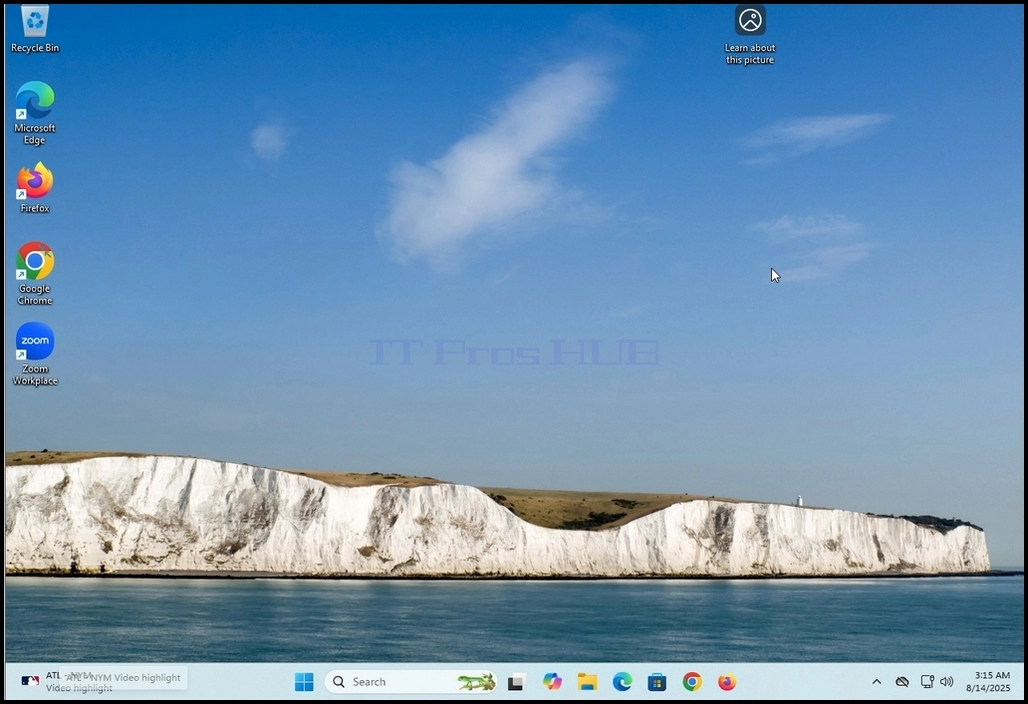
1. Go to Windows desktop
2. Right click on Windows taskbar and wait for a small side menu to appear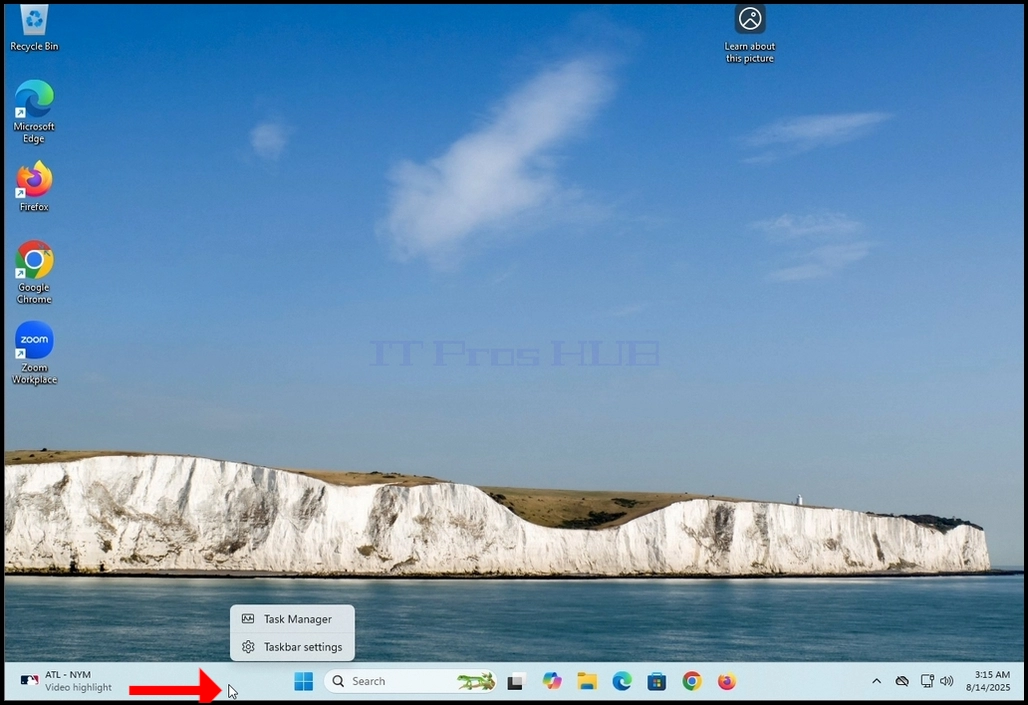
3. In the side menu look for the Taskbar settings option and click on it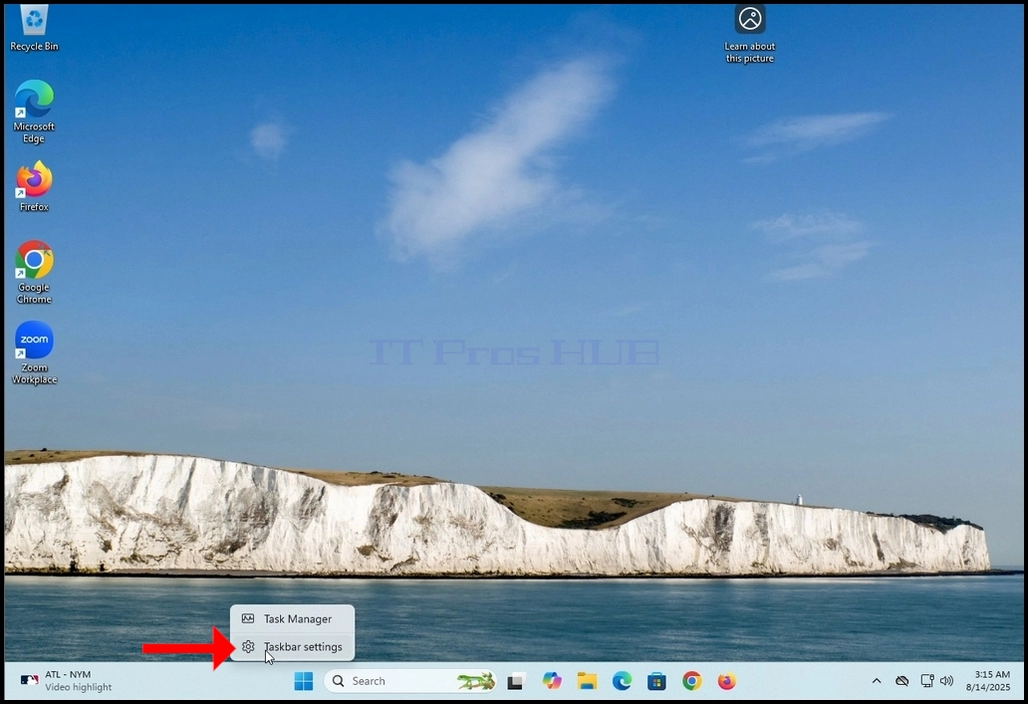
4. Wait for the Taskbar settings window to appear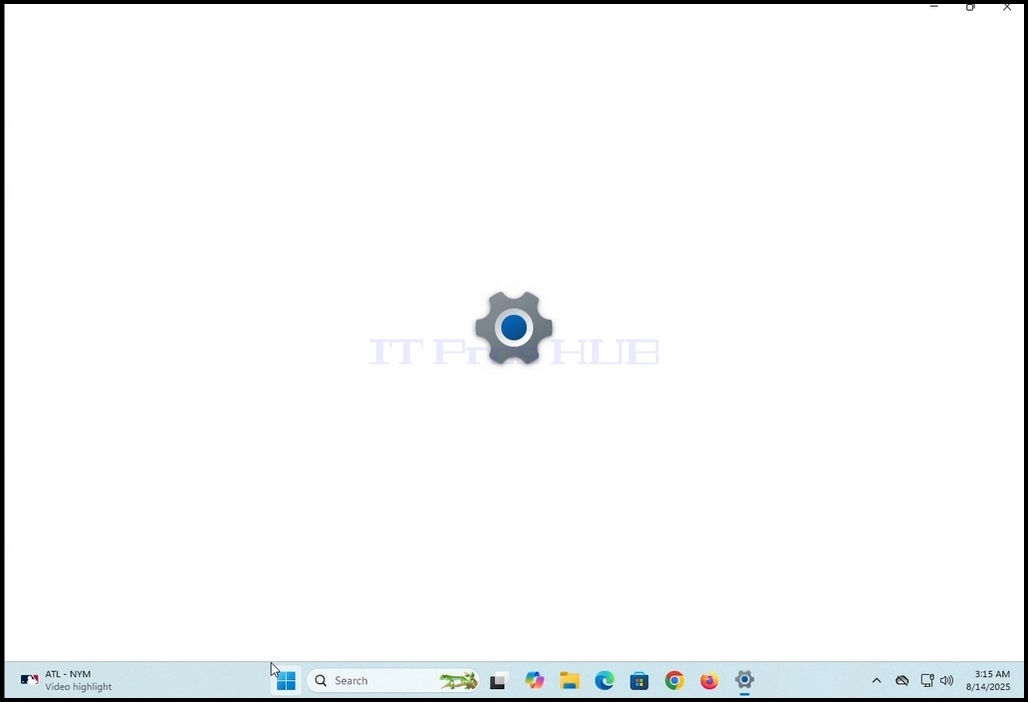
5. In the taskbar settings (Personalization > Taskbar) window, in the upper part of the screen, look for the Taskbar items title. Under it, look for the Search word on the left side right under it.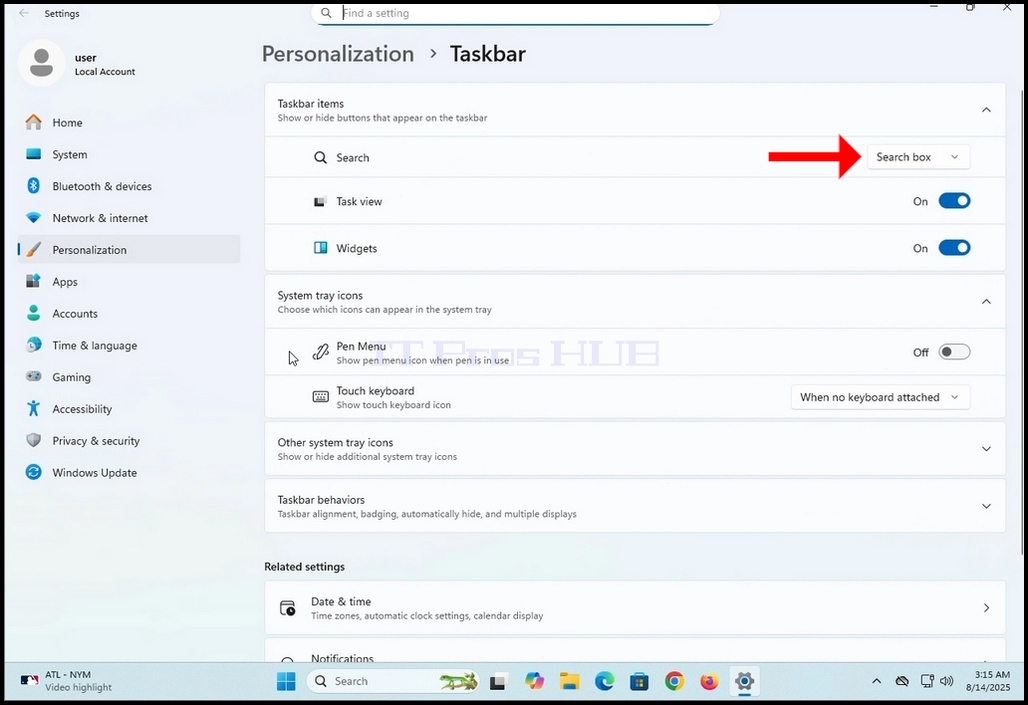
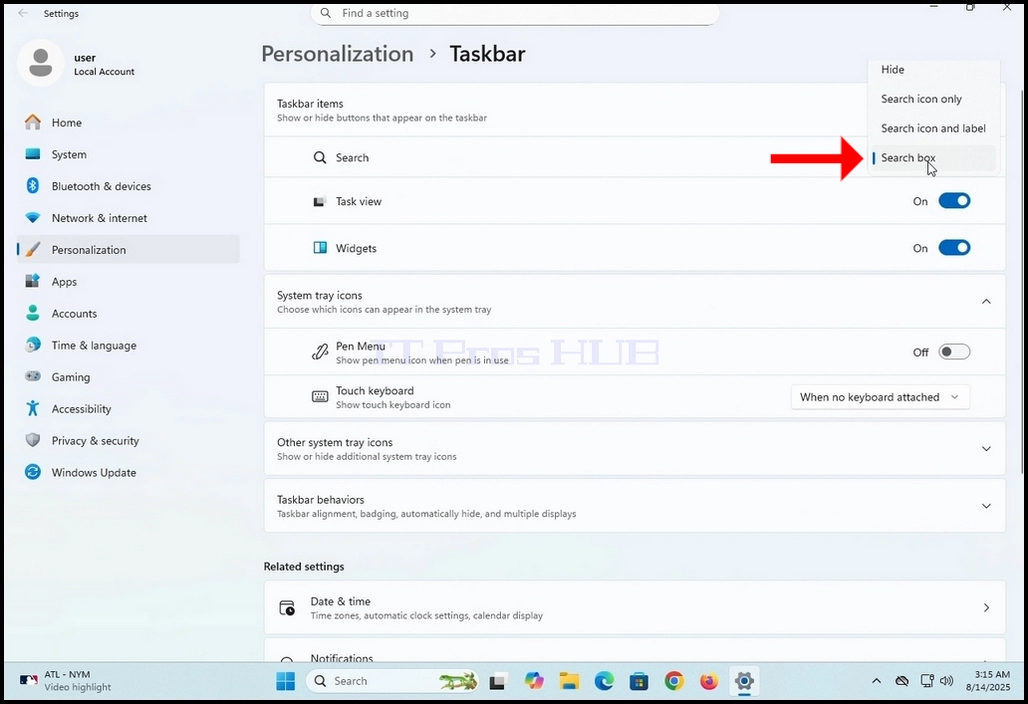
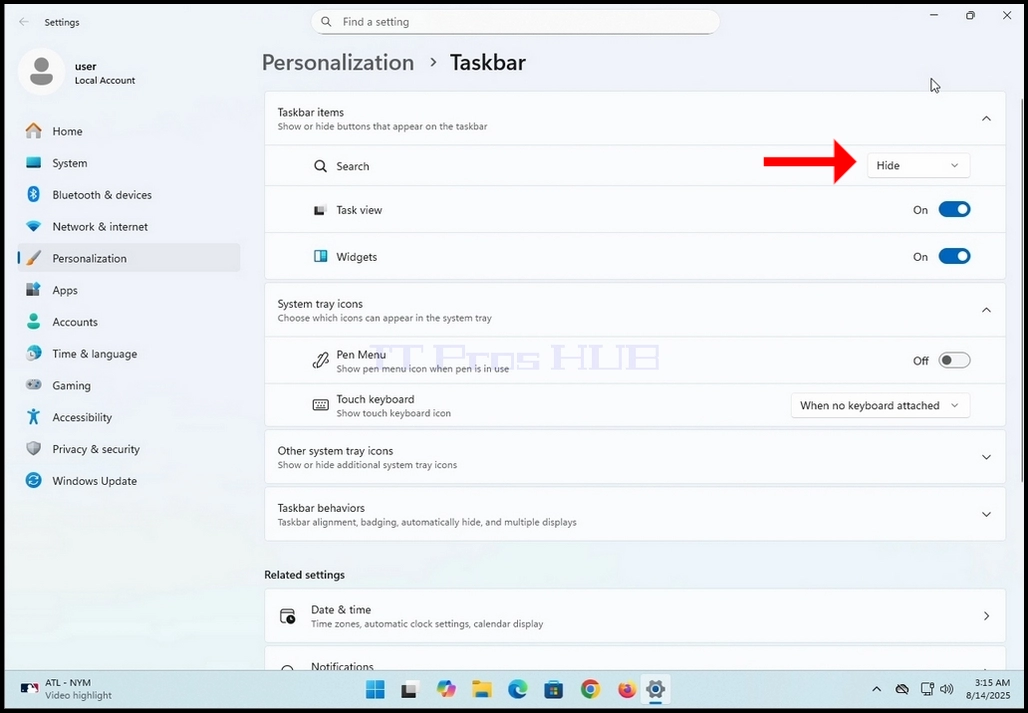
7. Choose the Hide option by clicking on it once
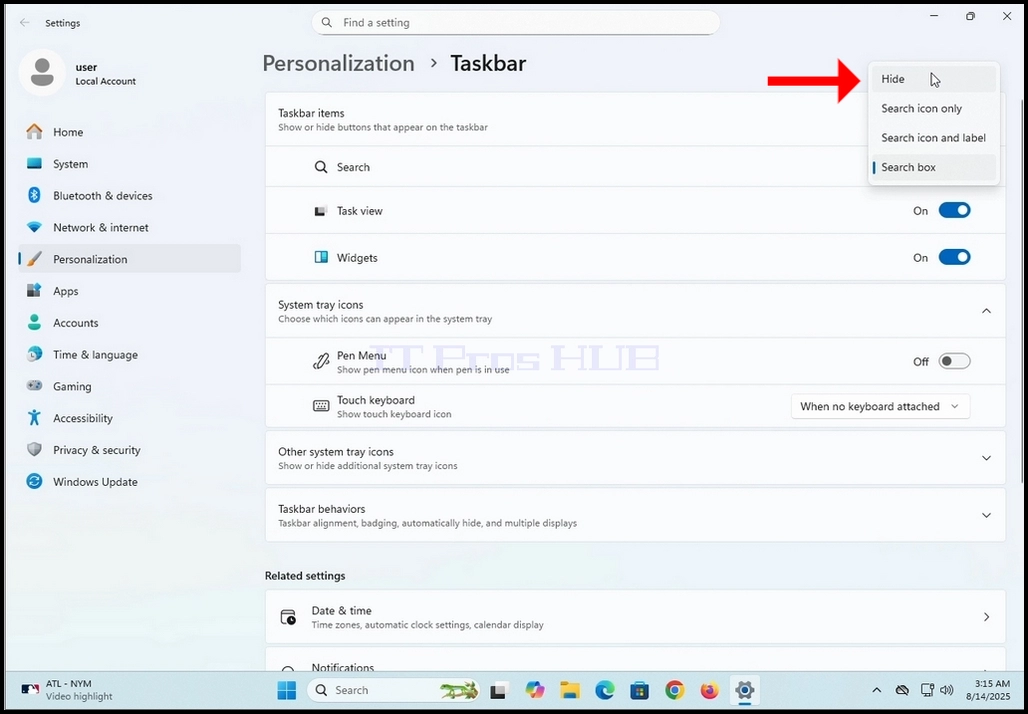
8. Notice the disappearance of the search box from the taskbar at the bottom part of the screen.
- 細節
- 作者 IT Pro
- 分類: How to Articles
- 點擊數: 6251
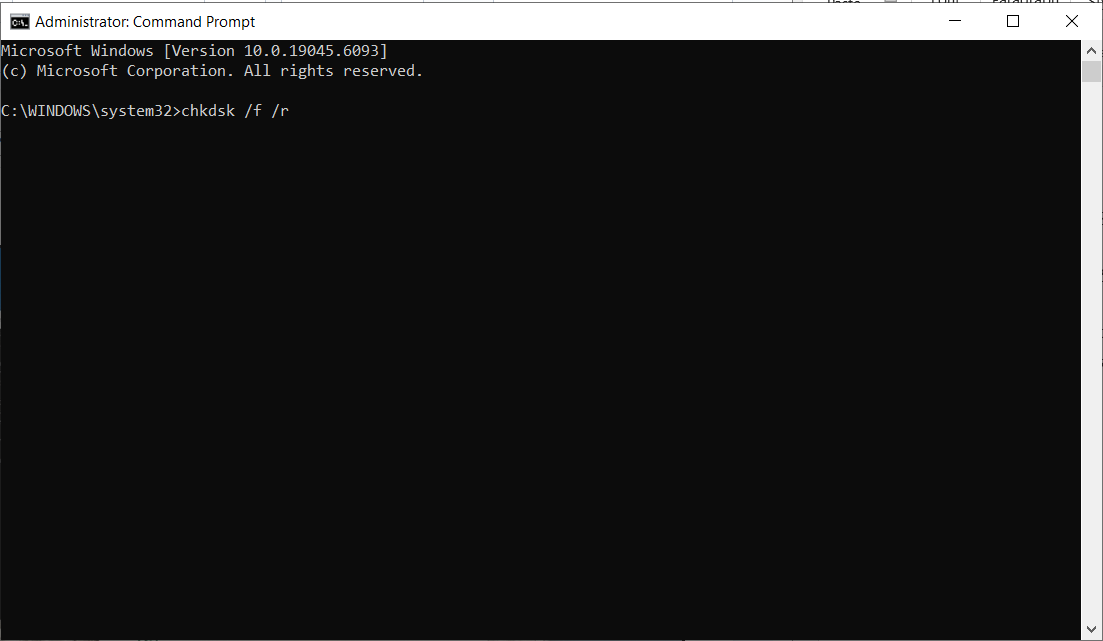
6. After hitting the ENTER key, you will most likely be prompt with the following message:
a. Chkdsk cannot run because the volume is in use by another process. Would you like to schedule this volume to be checked the next time the system restarts? (Y/N)
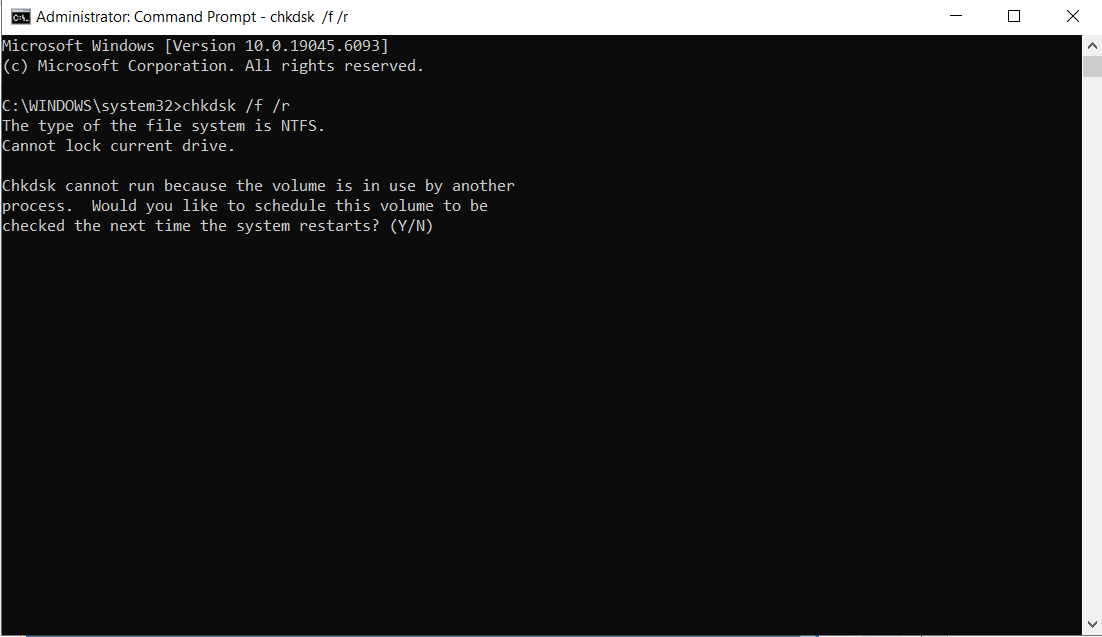
7. This message is presented because we ran the chkdsk command on an actively used drive which is the C: drive in this case. This is the drive where the Windows operating system is installed and being run.
8. Type “y” and hit the ENTER key again.
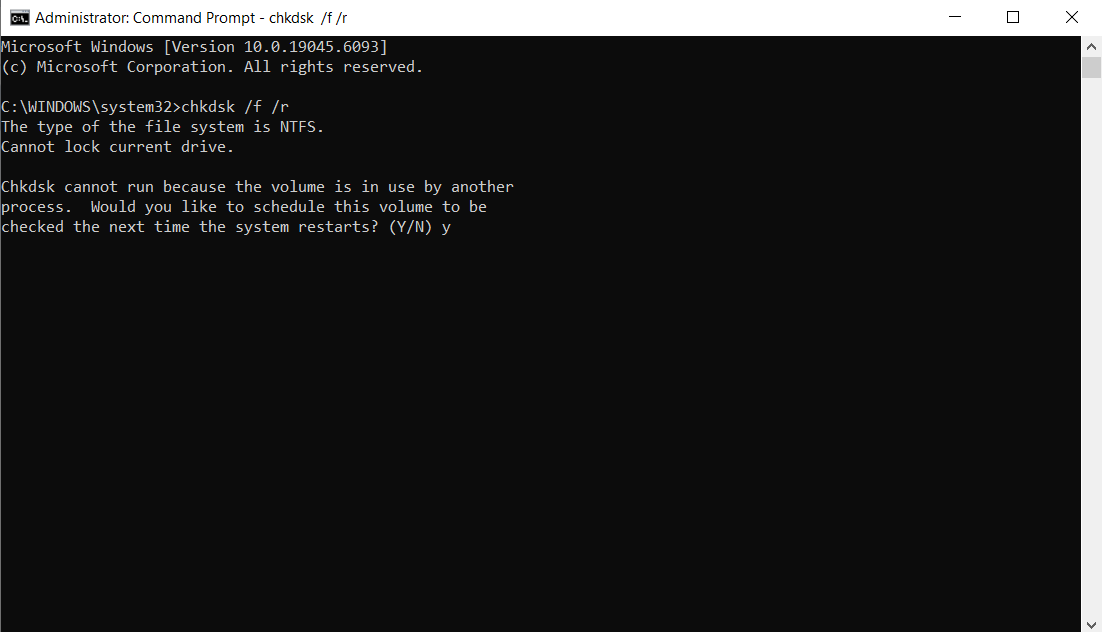
9. The next message will be:
a. This volume will be checked the next time the system restarts
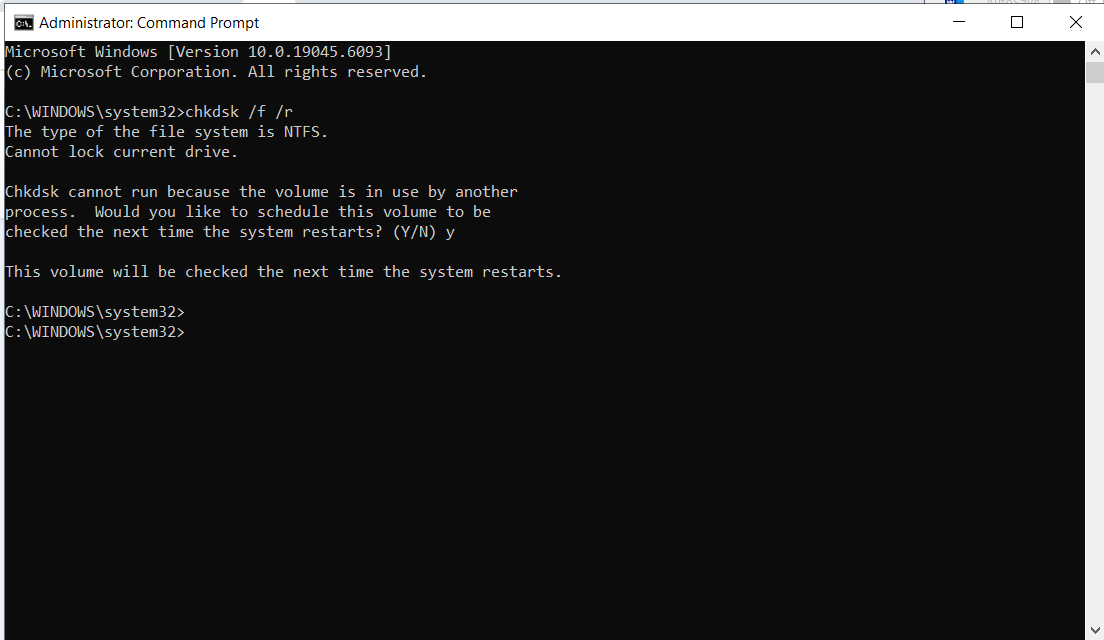
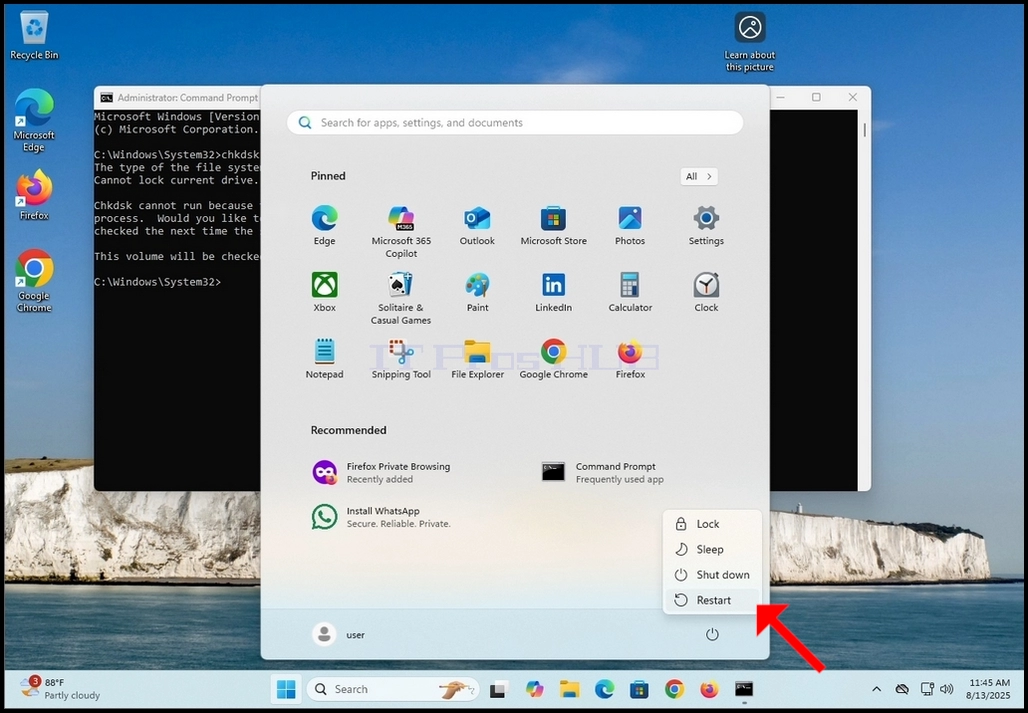
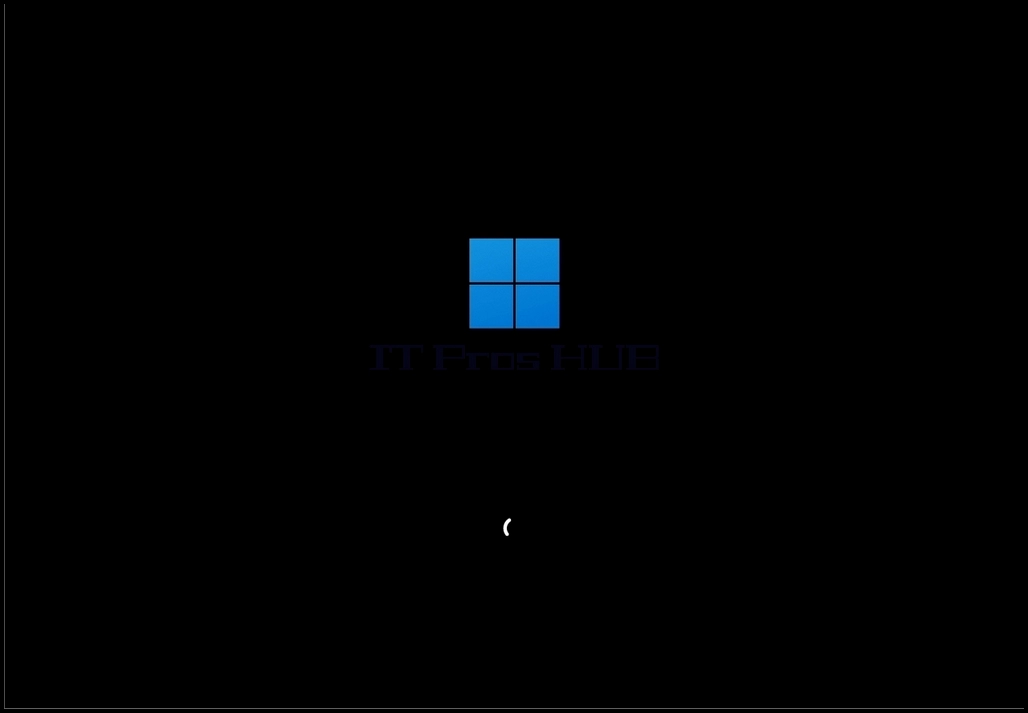
12. As declared by chkdsk in CMD in stage 9, chkdsk is about to perform a disk check and I’s asking if you wish to skip it.
13. Note that this is the last opportunity to safely abort chkdsk’s check before it performs it.
14. Note that this check takes quite a while to perform, especially in big mechanical hard drives
15. If you wish chkdsk to perform the check, do not press any key and wait for the timer to finish.
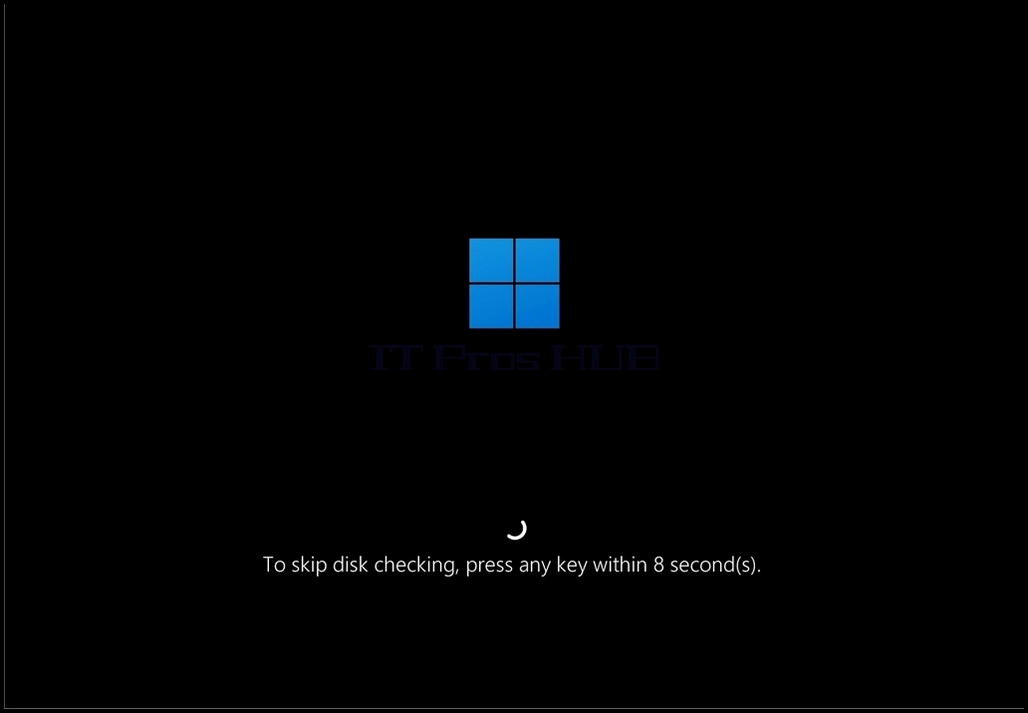
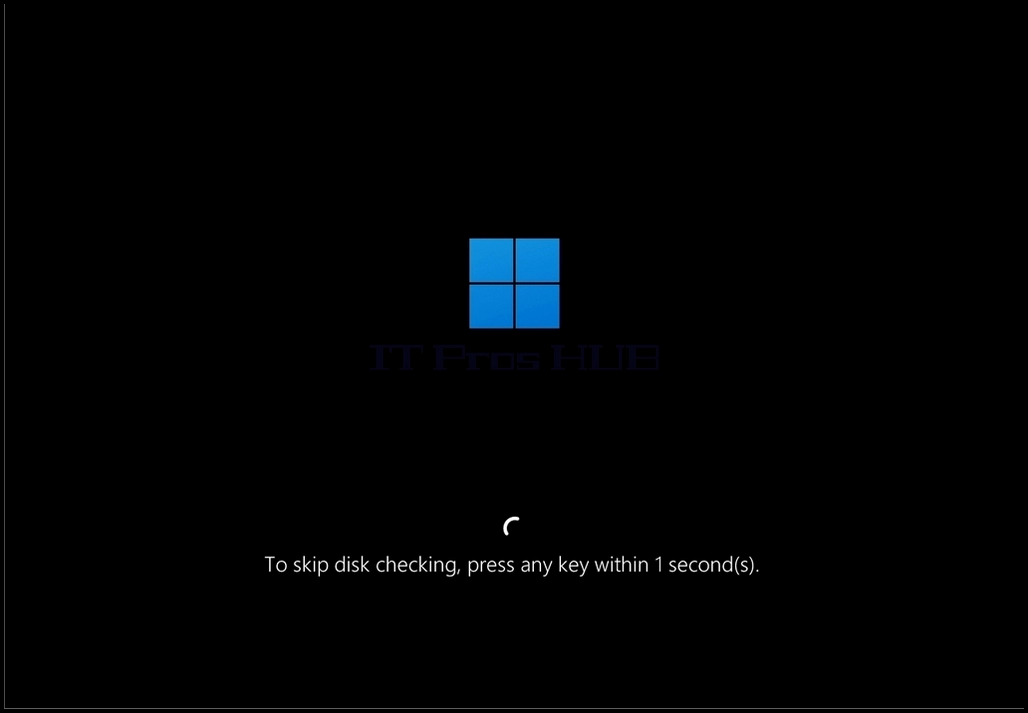
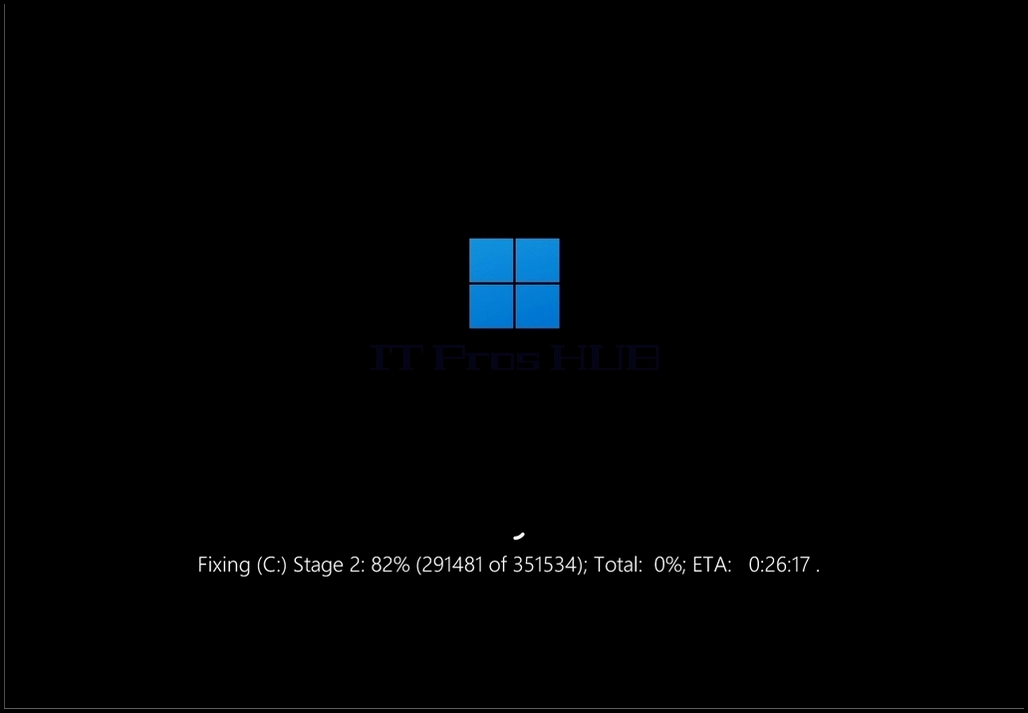
16. Chkdsk is now performing the disk check.
17. When it’s done it will resume booting into Windows.
18. Note that the ETA initials at the end of the sentence indicate the estimation time to completion of the scan
- 細節
- 作者 IT Pro
- 分類: How to Articles
- 點擊數: 7234
In this article we will demonstrate how to test the functionality of Mirrored Volume of Windows 11.
1. First, we will go to Computer management and from there to Disk Management just to see the 2 disks in the mirrored volume array.
2. As you can see, Disk 1 and Disk 2 are both part of this array which creates the single New Mirrored Volume (E: and F:)
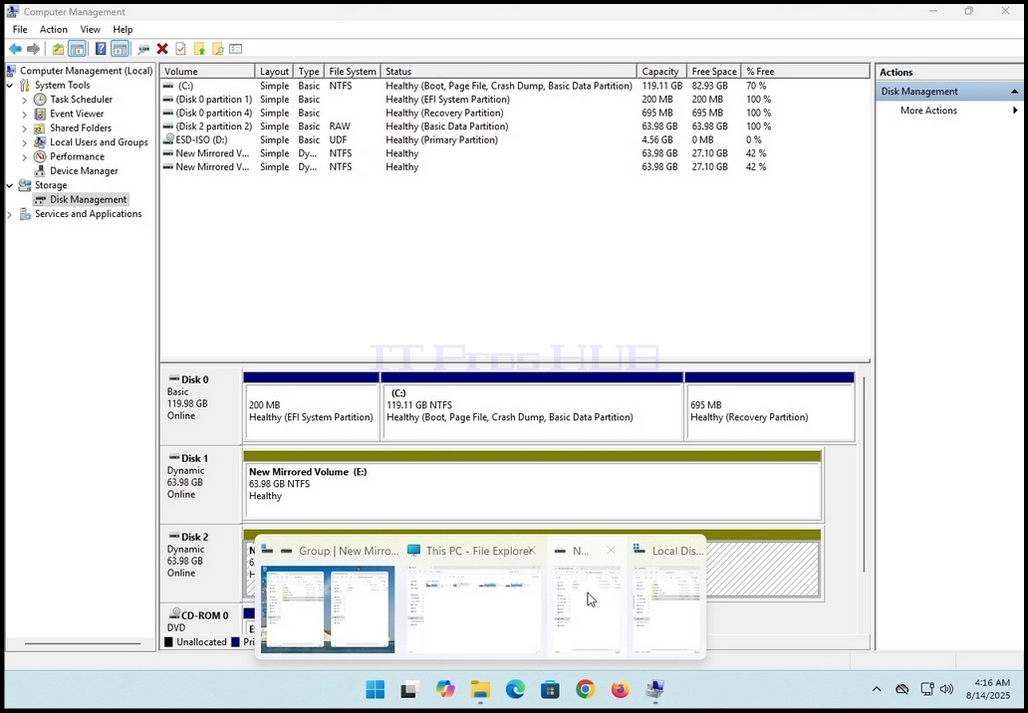
3. Next, we will go to Windows Explorer and from there to This PC to see all of the disks and partitions configured in this system
4. As can be seen in the photo below, here are the 2 disks that we’ve seen on stage 1 – E: and F: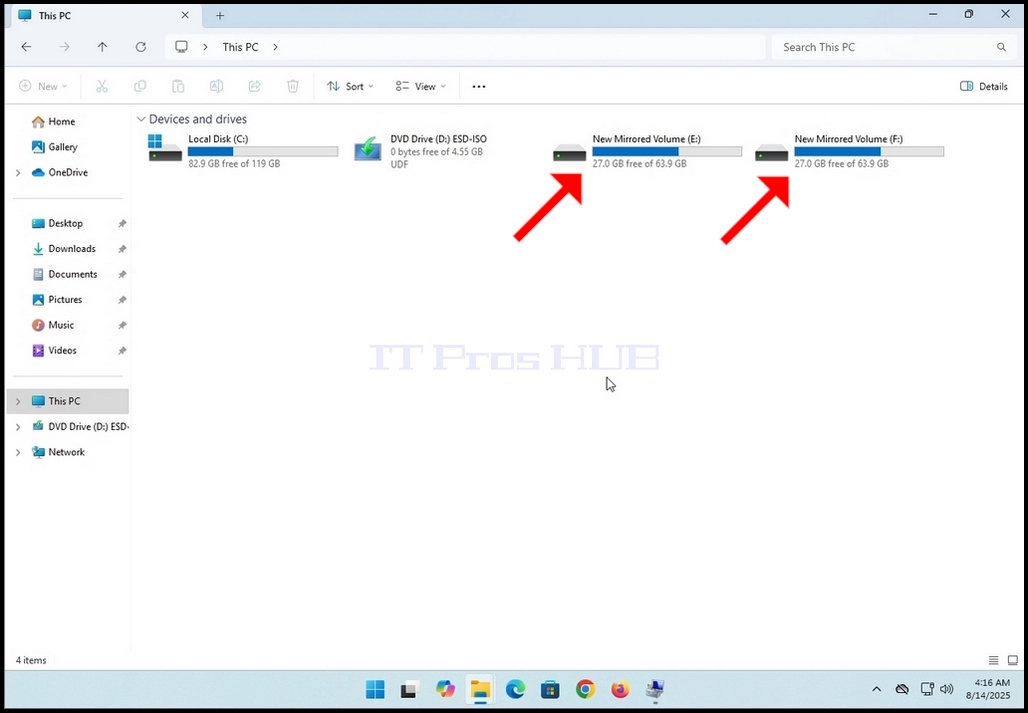

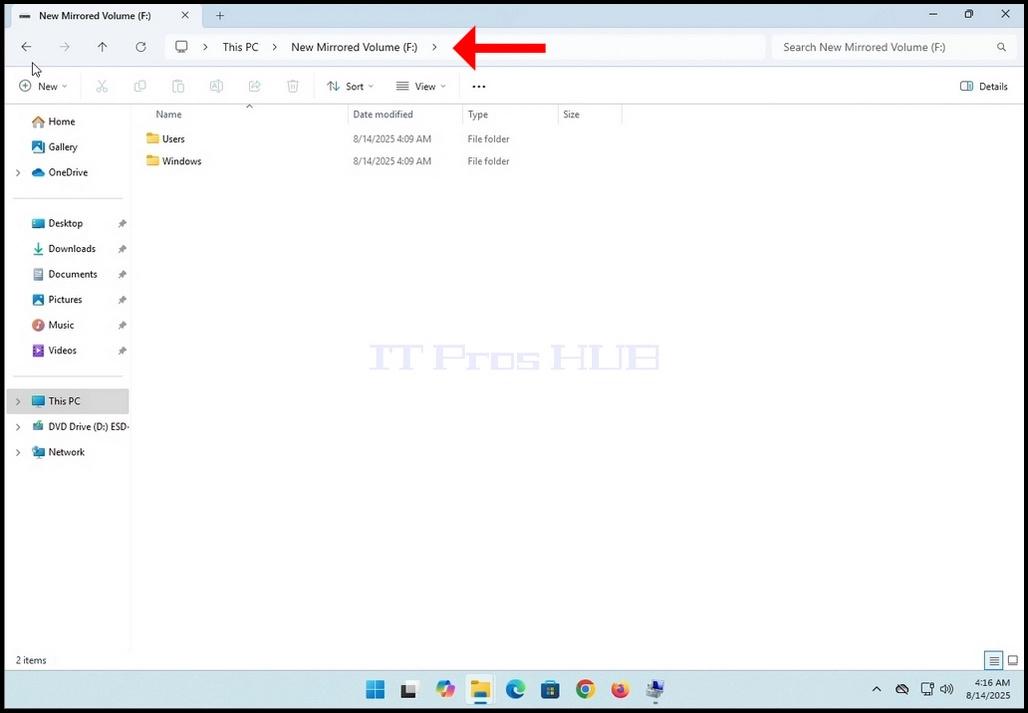
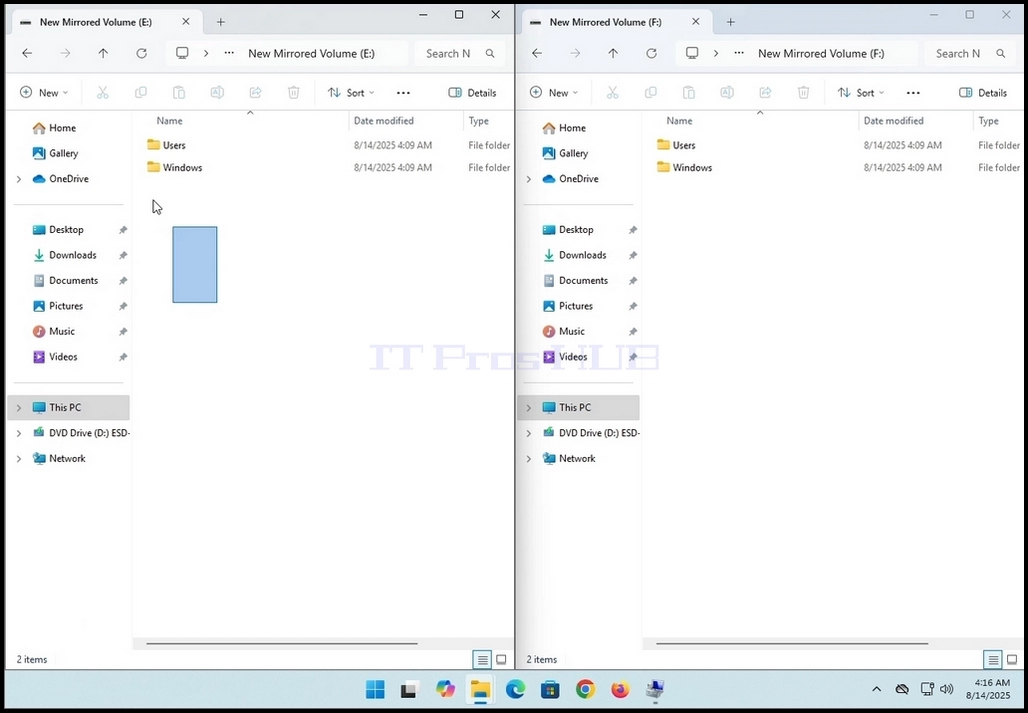
5. We will split the screen in 2 to see the contenst of both the F: and the E: drives at the same time.
6. We will go to the F: drive first. As you can see, there are already folders and files in this drive to begin with.
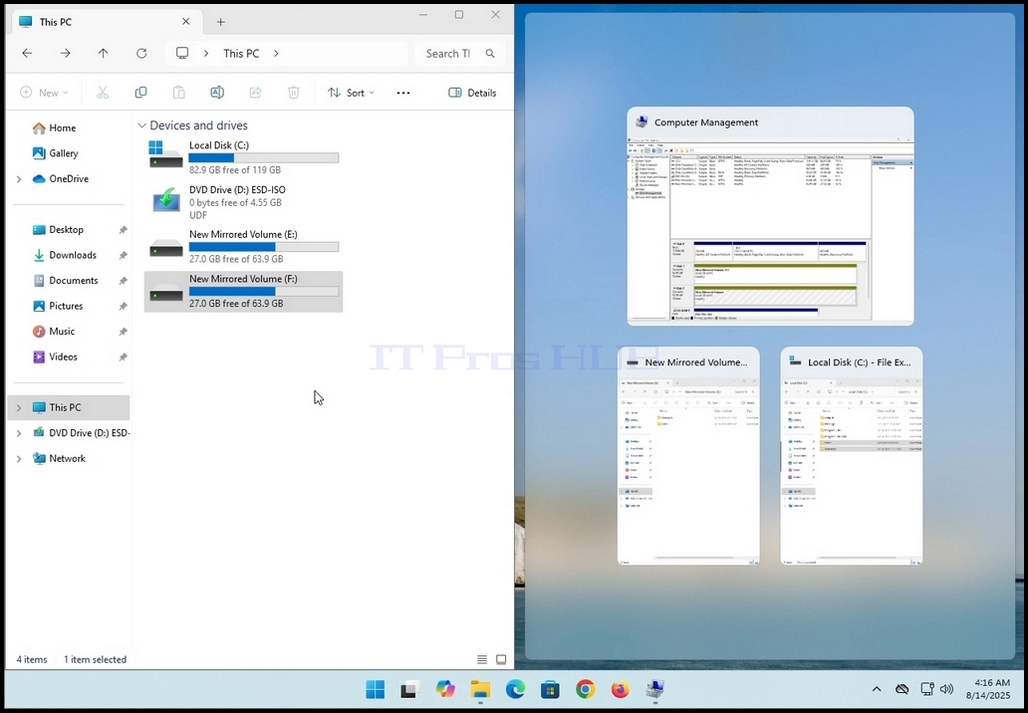
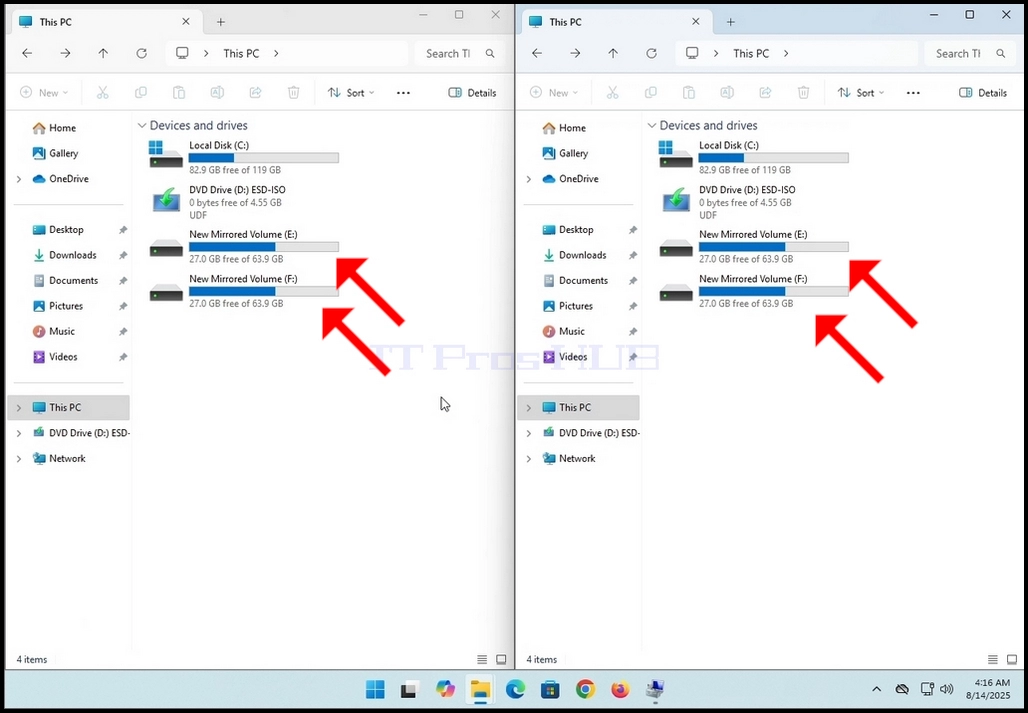
7. Note that whatever changes are made on one drive, it is reflected and applied to the other/s on the mirrored volume array. As you can see here in this photo below, both drives have the same folders and files, at least on the surface. In this article we will verify that.
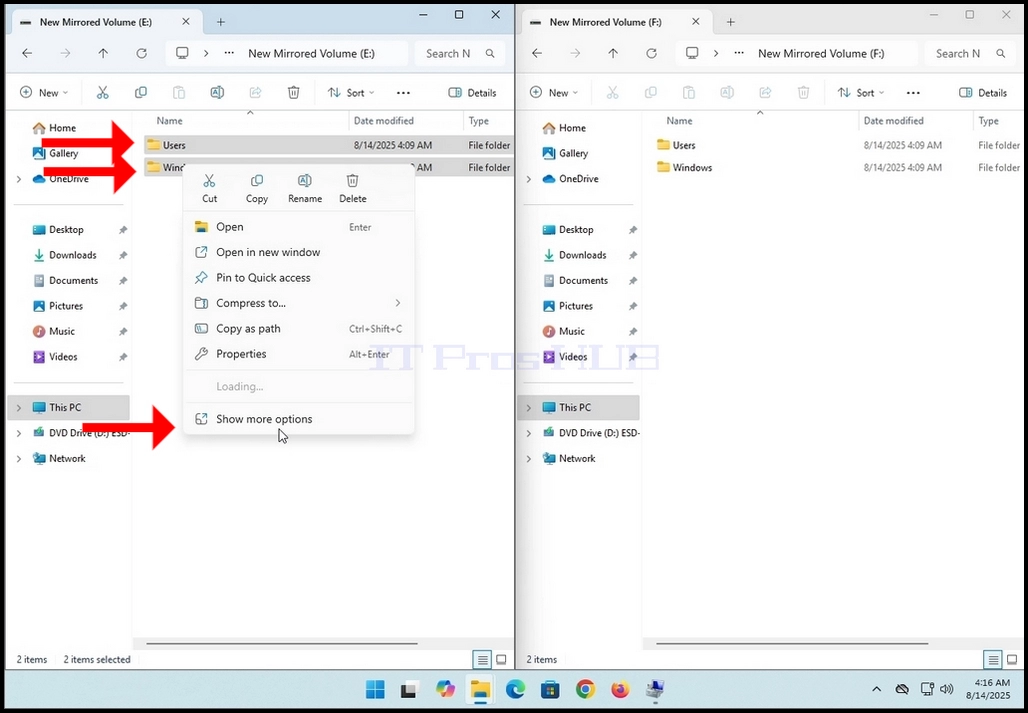
10. Once the properties window appears, let it calculate the number of files, folders and their size and size on disk.

11. Perform the same action to the second drive on the array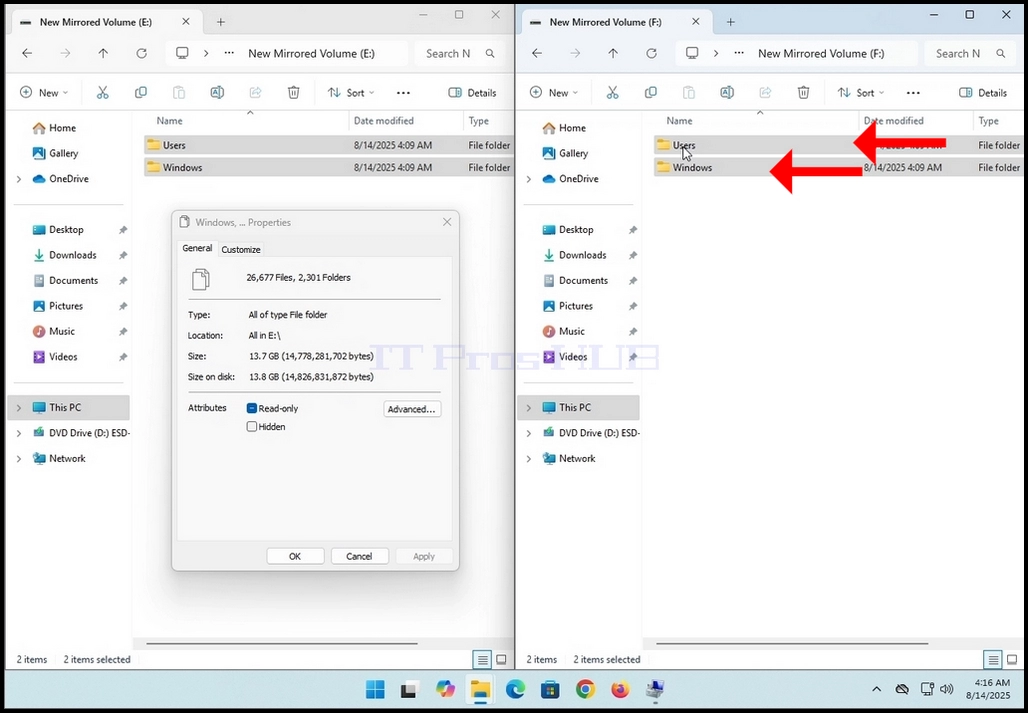
12. Give the properties windows some time to calculate the mentioned values. When the values stop changing that’s when you’d know the calculation process has finished.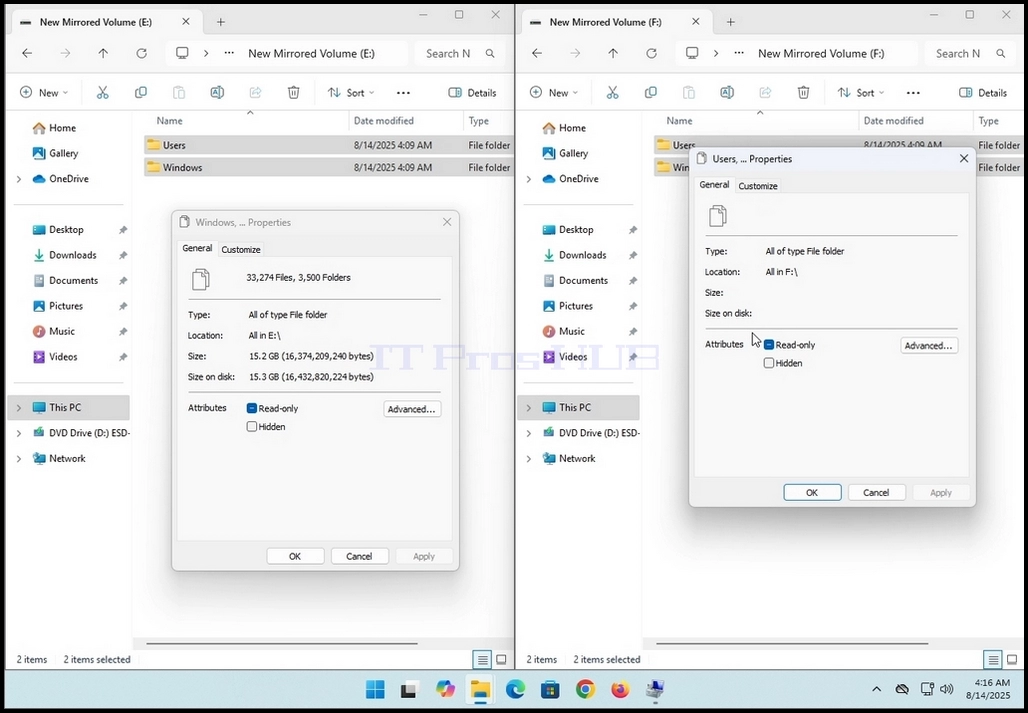
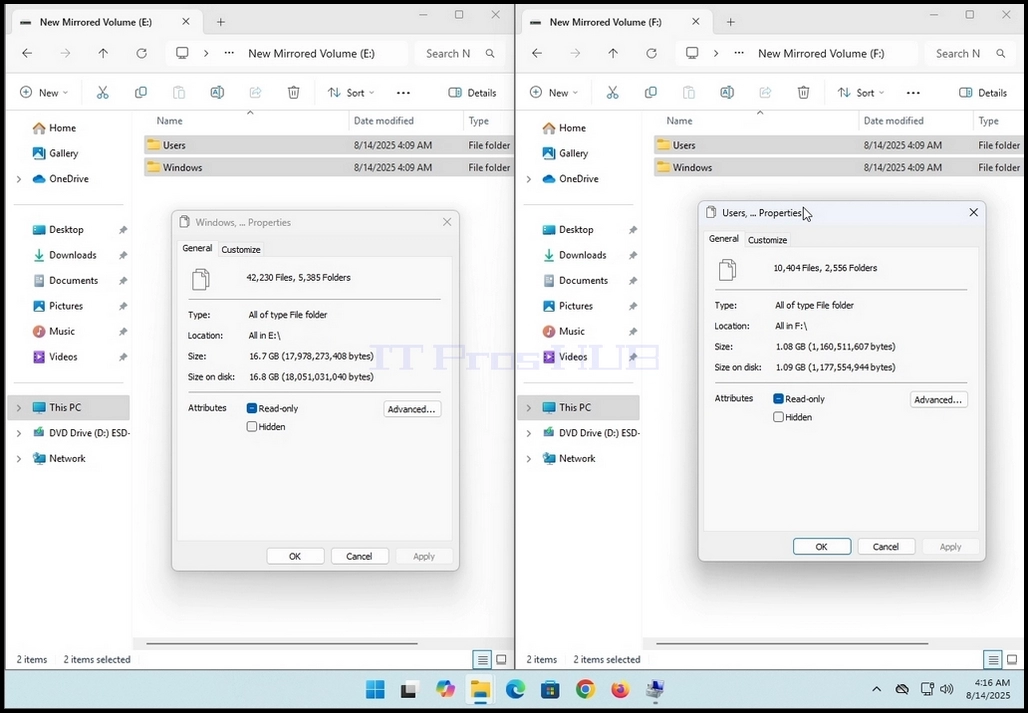
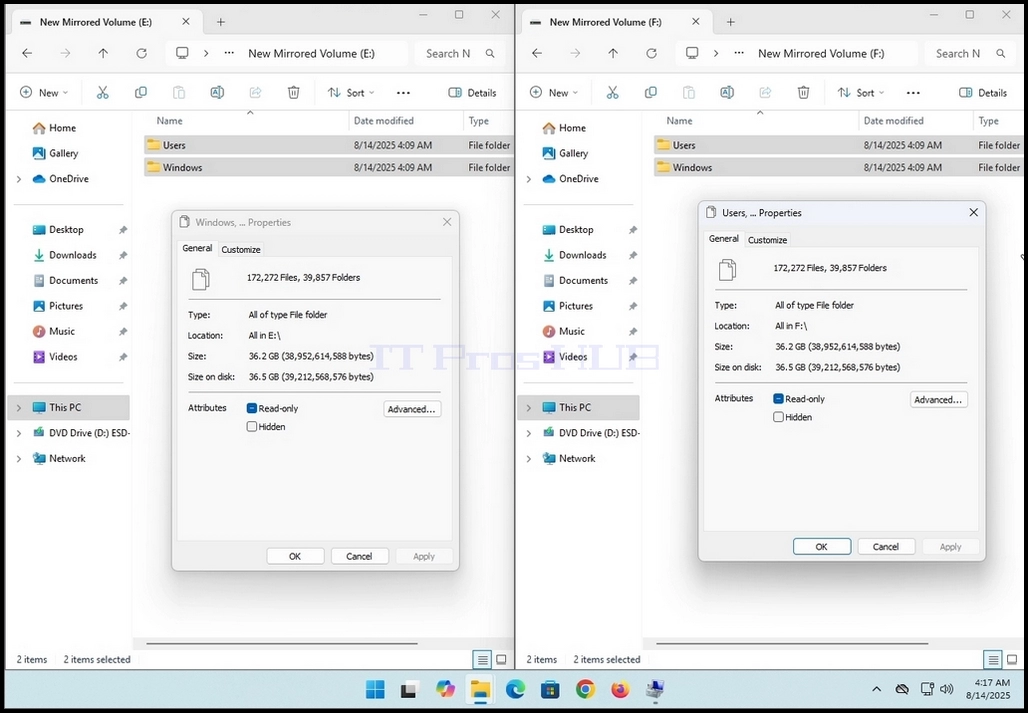
13. Note that in the case of this article, both windows show the same EXACT values:
a. 172,272 files
b. 39,857 folders
c. 36.2GB size (38,952,614,588 bytes)
d. 36.5GB (39,212,568,576 bytes) size on disk
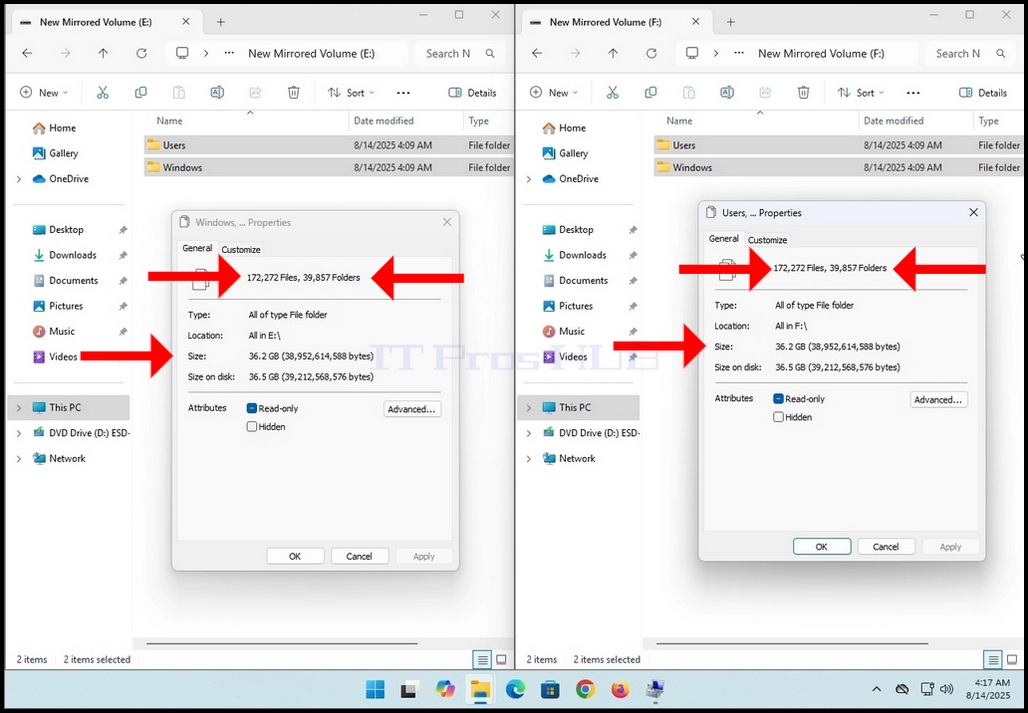
14. This means that this mirrored volume works as intended