



- تفصیل
- تحریر کردہ: IT Pro
- زمرہ: How to Articles
- مشاہدات: 6083
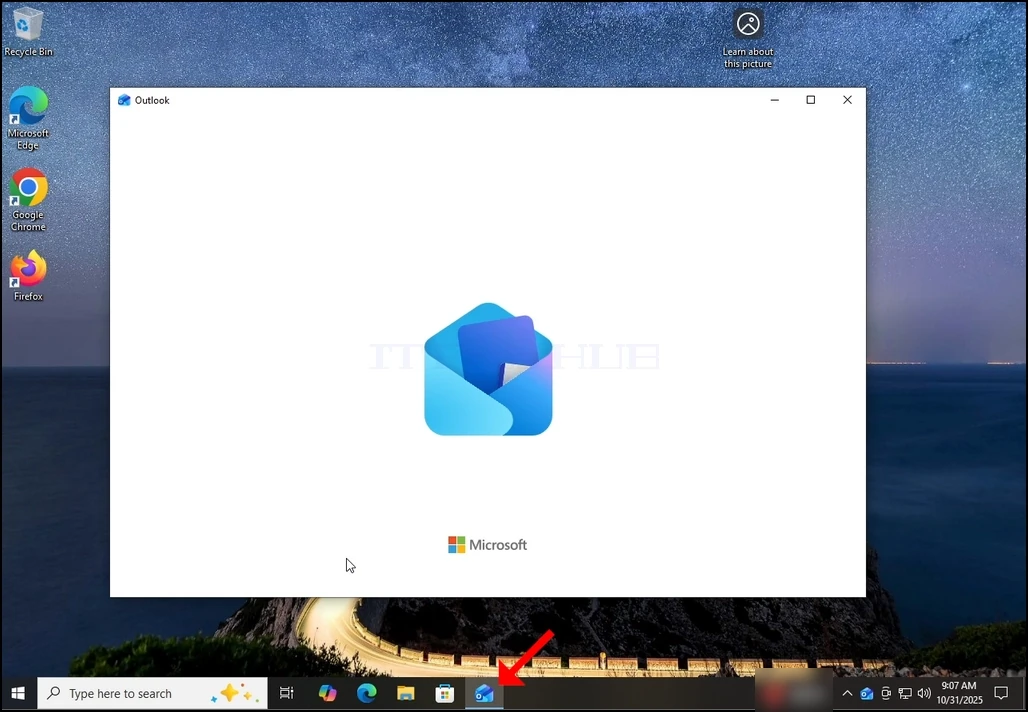
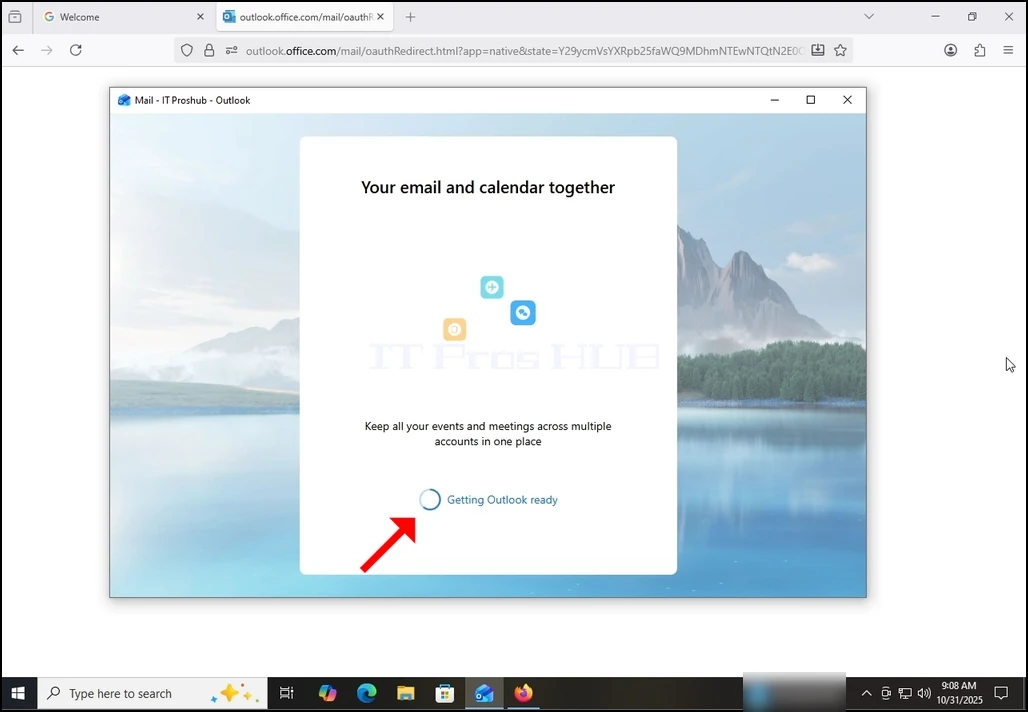
1. Start Outlook by click its icon in the taskbar. In most cases the Outlook icon would reside there. Wait for the Splash screen to appear and for the Outlook app to load.
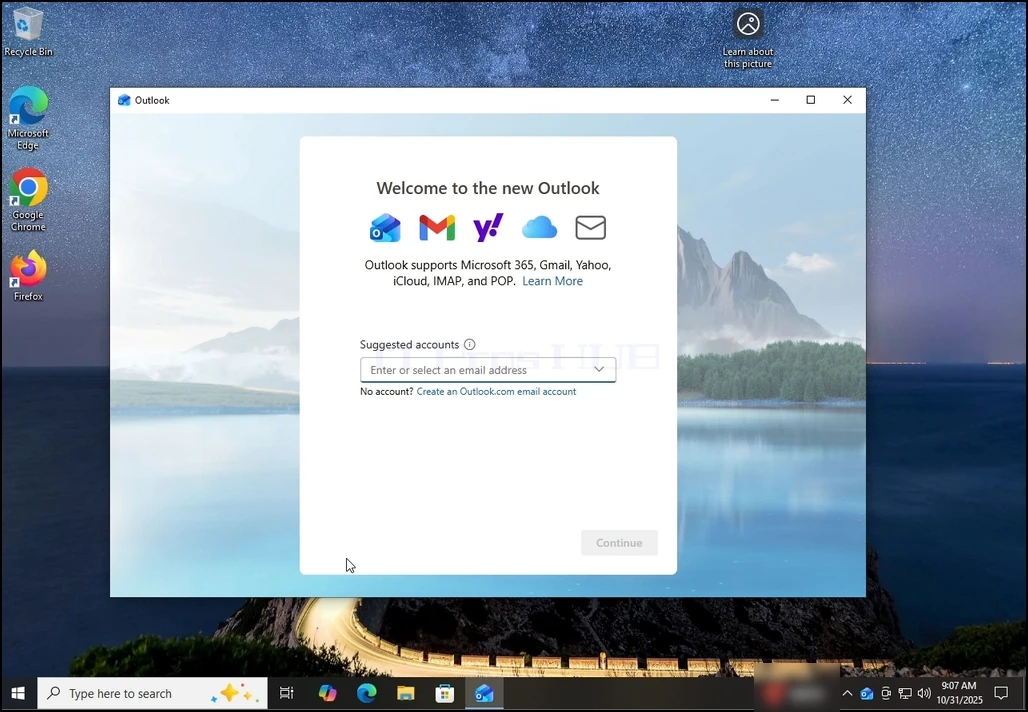
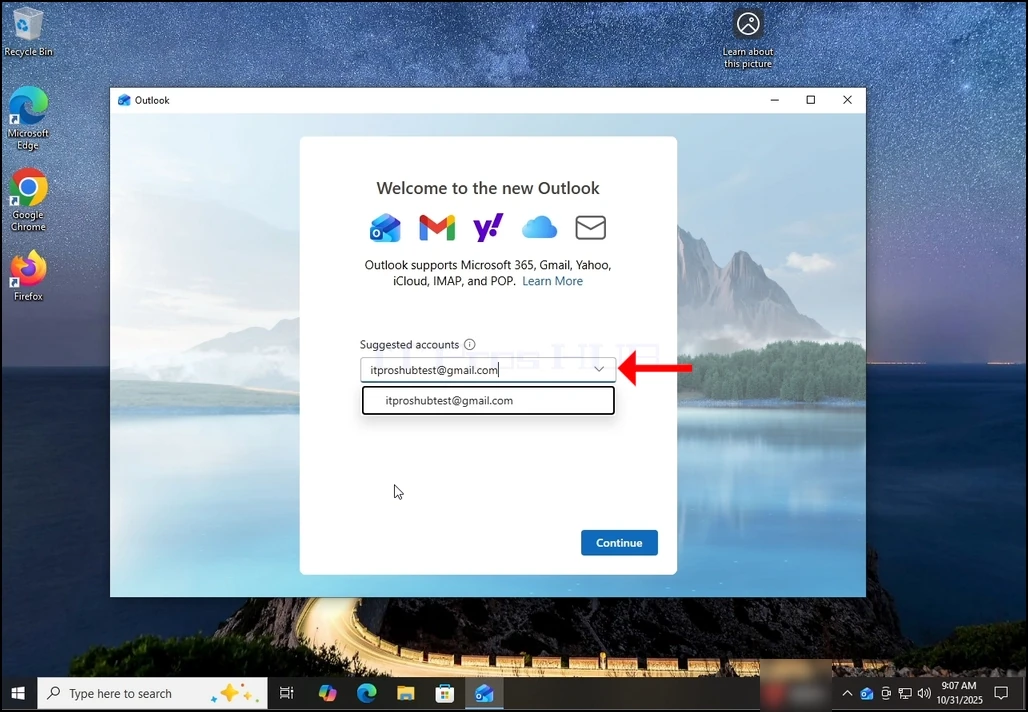
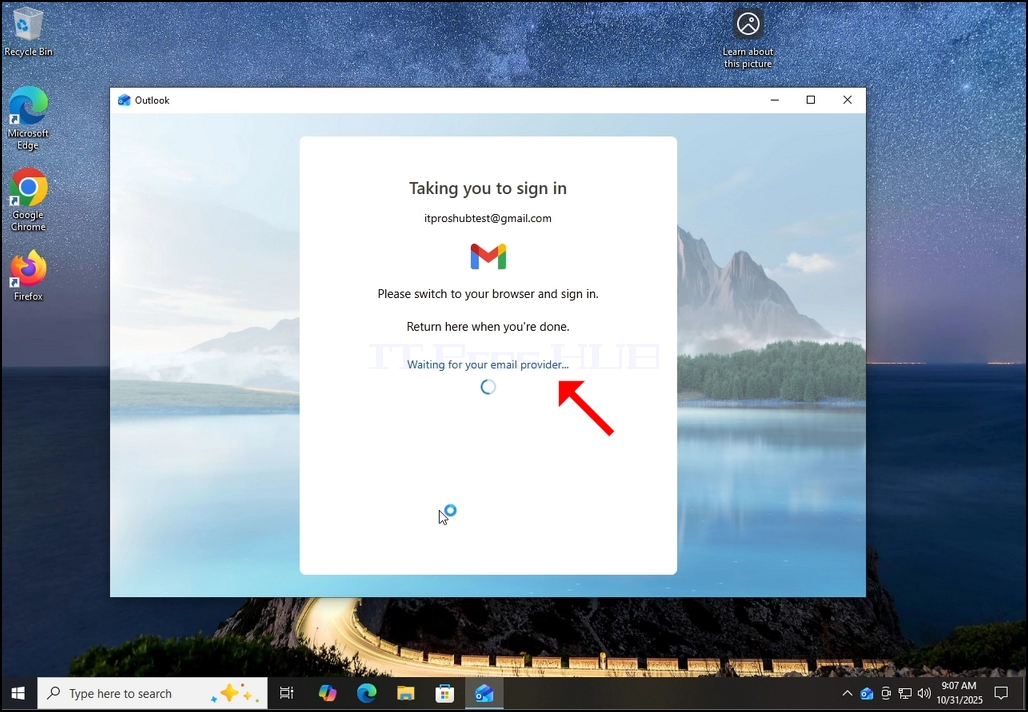
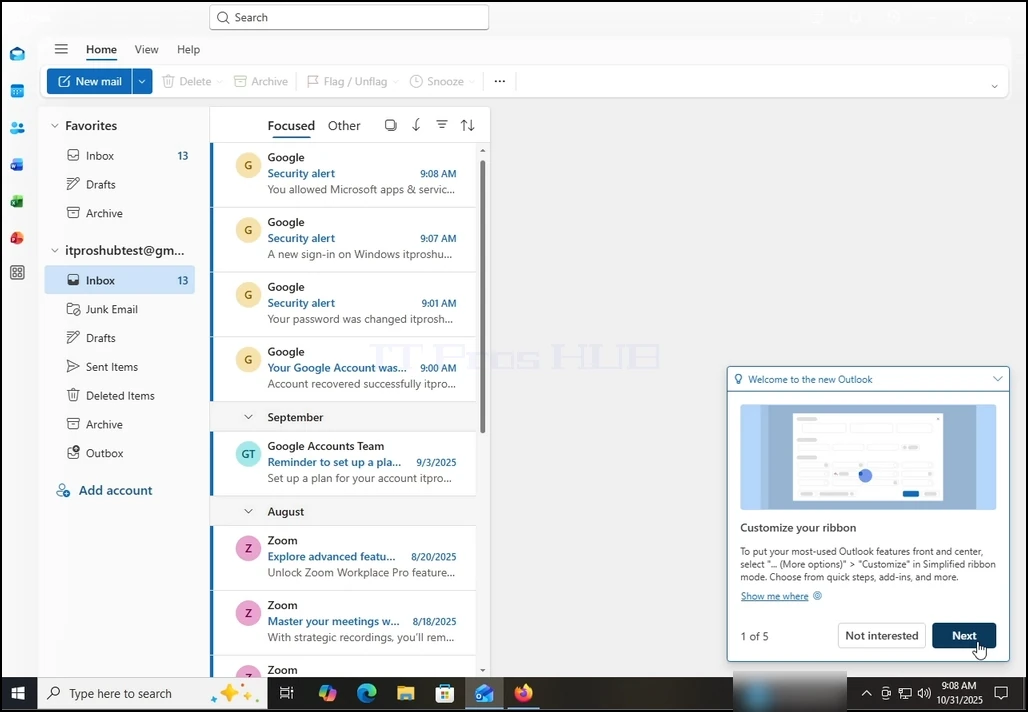
2. After loading, you will be presented with the "Welcome to the new Outlook" screen. Enter the email address you would like to configure. In our case, we will configure a Gmail email address.
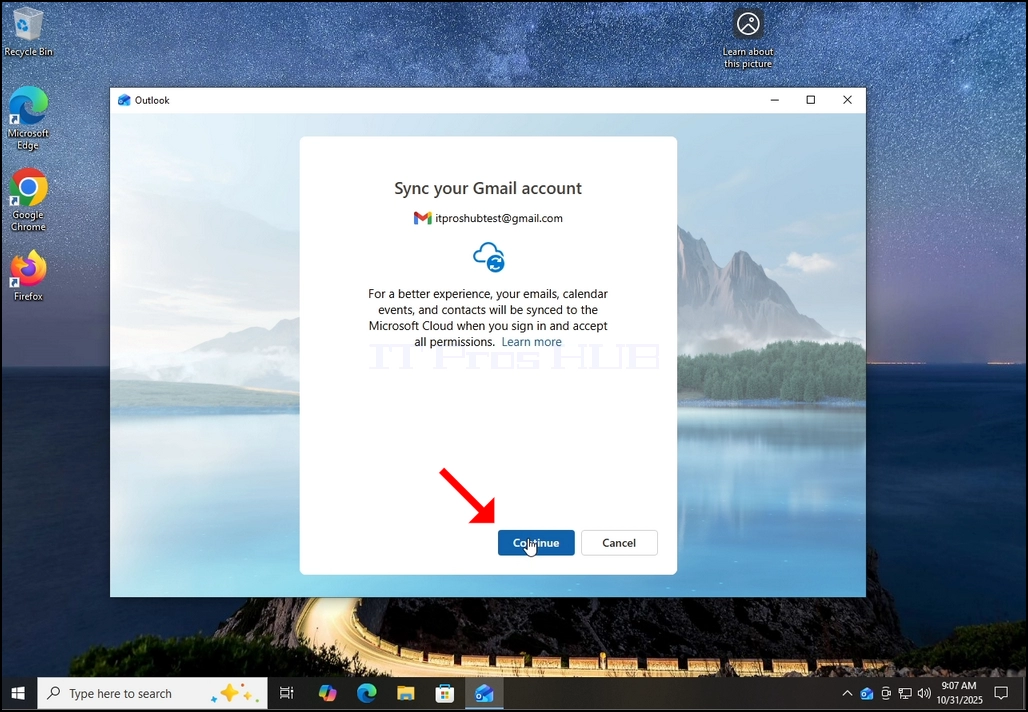
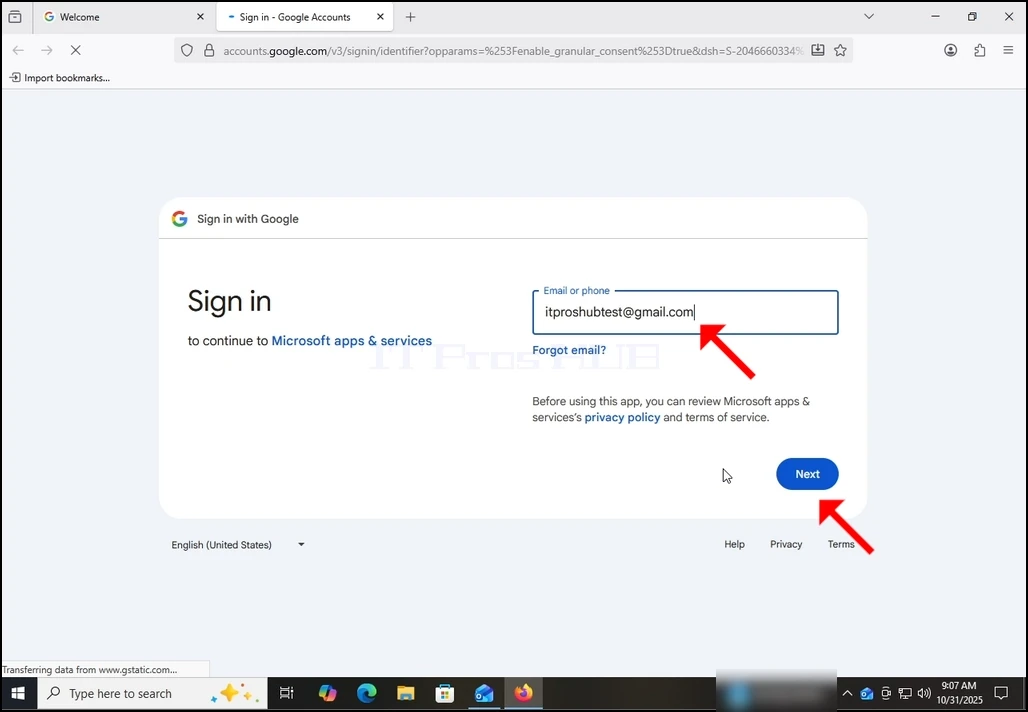
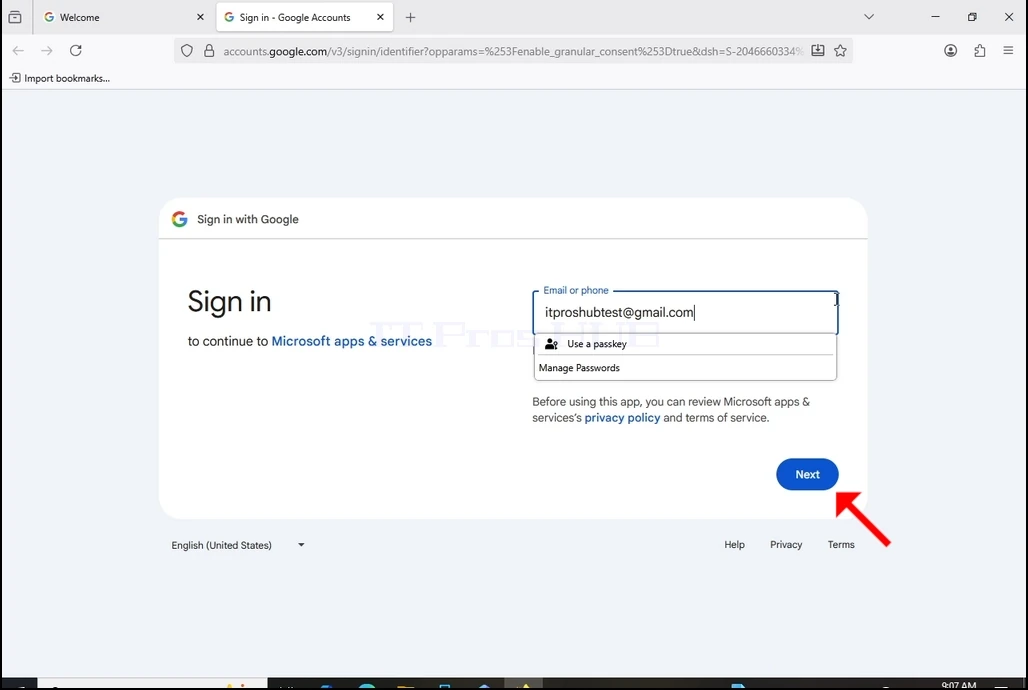
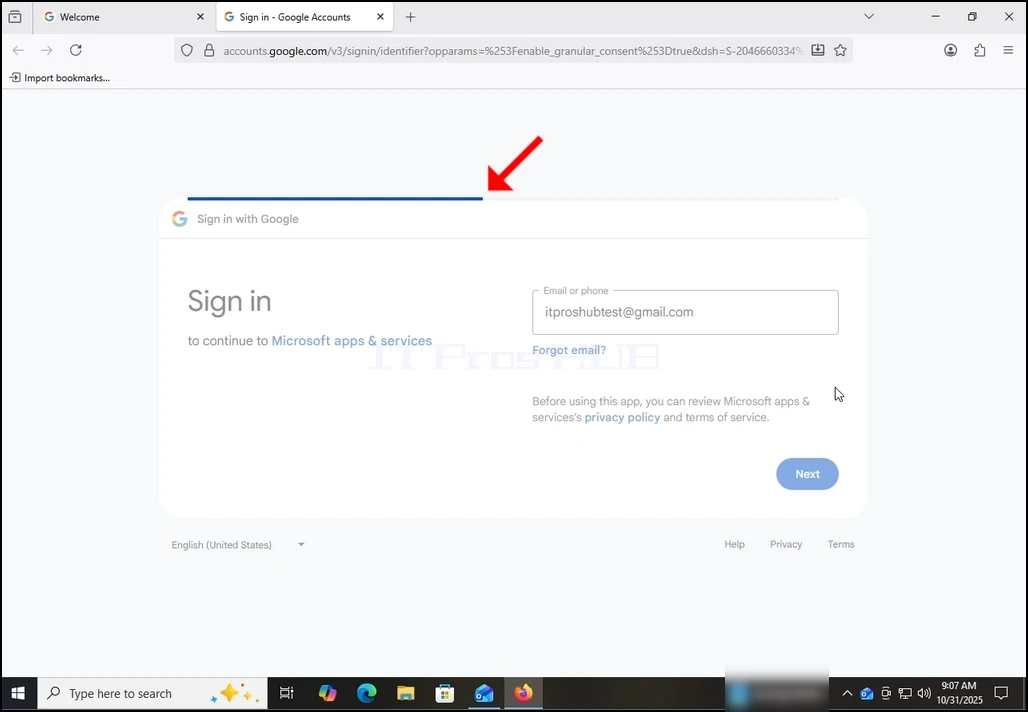
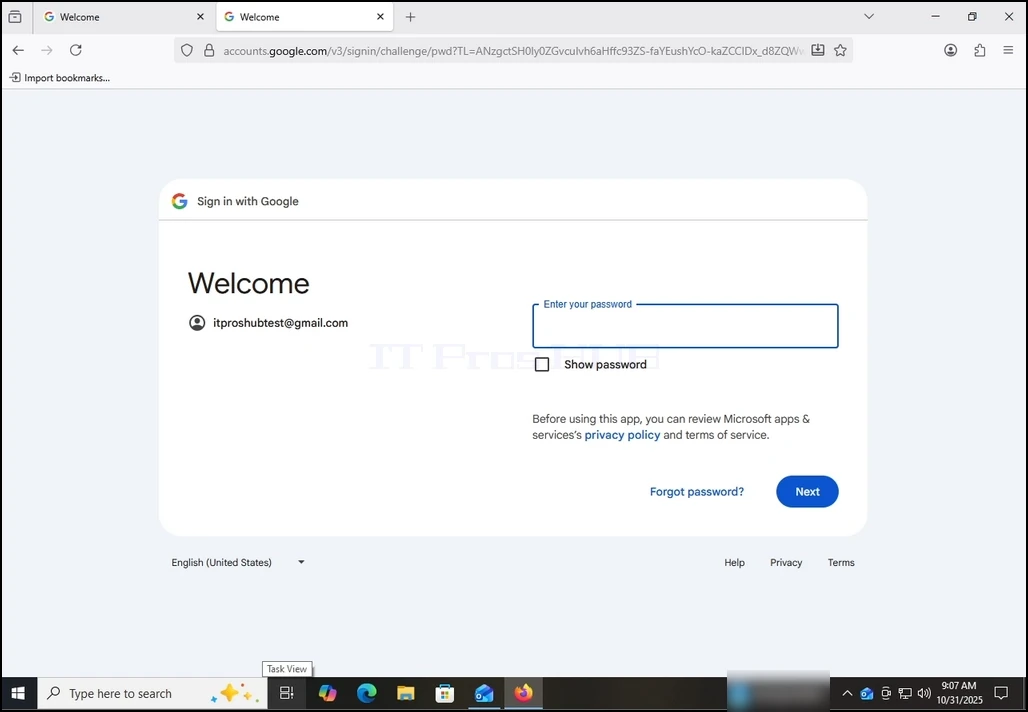
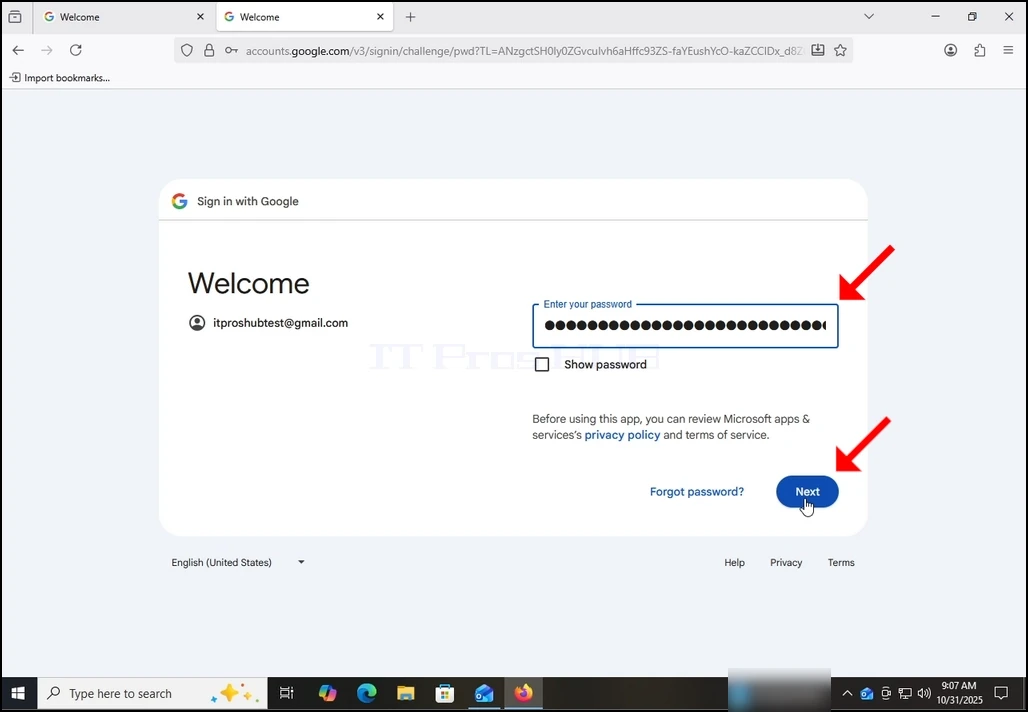
10. Wait for the next stage to load.
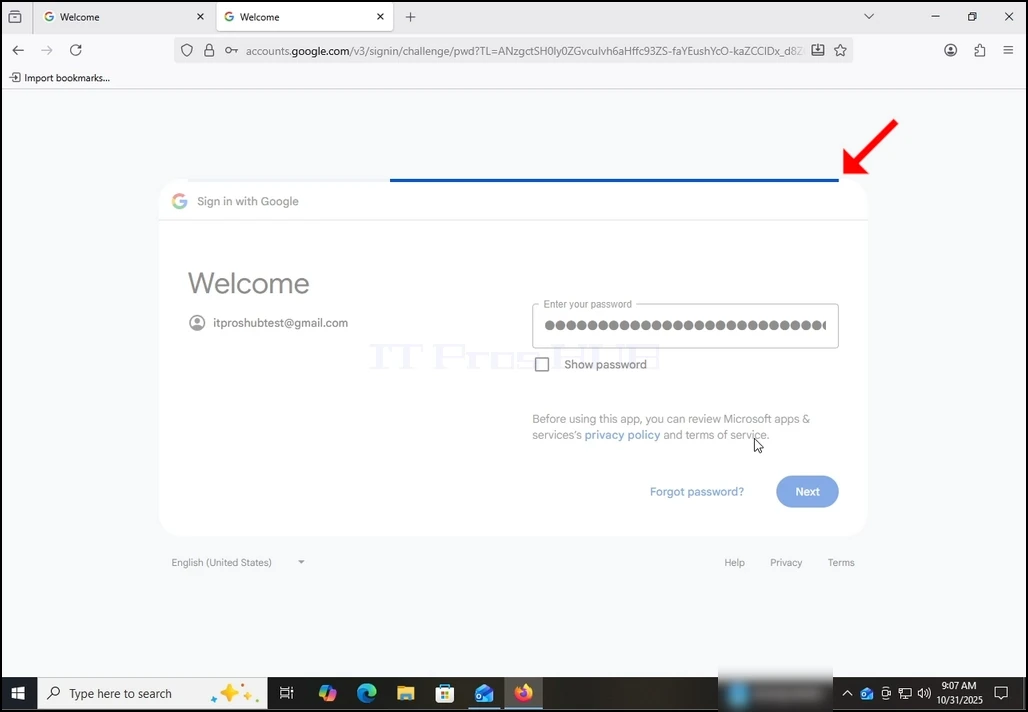
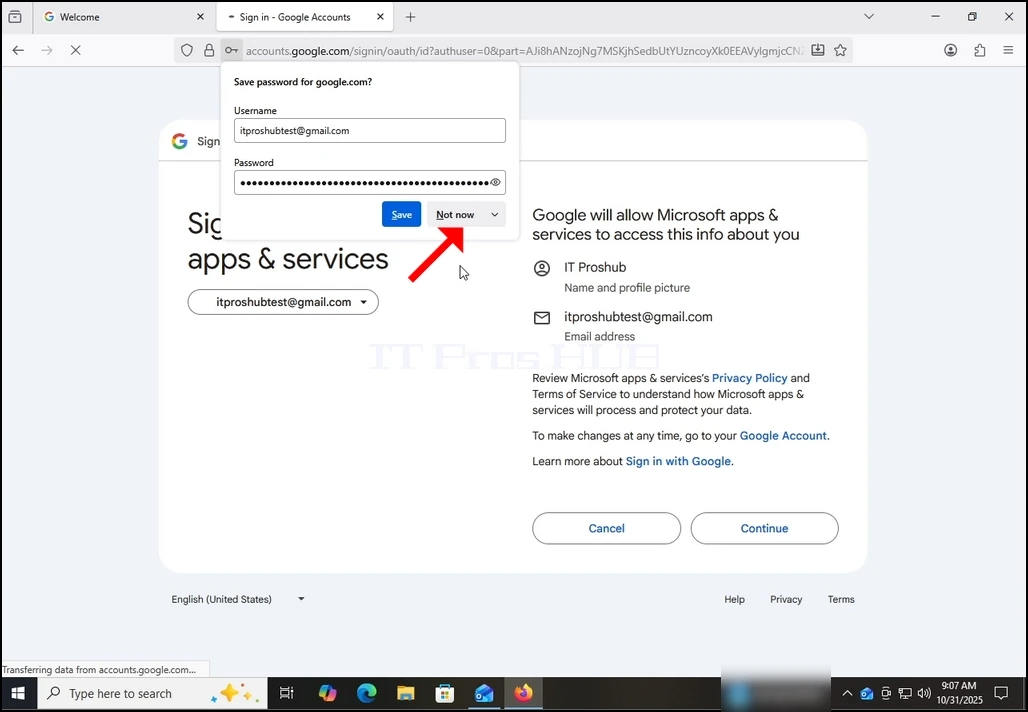
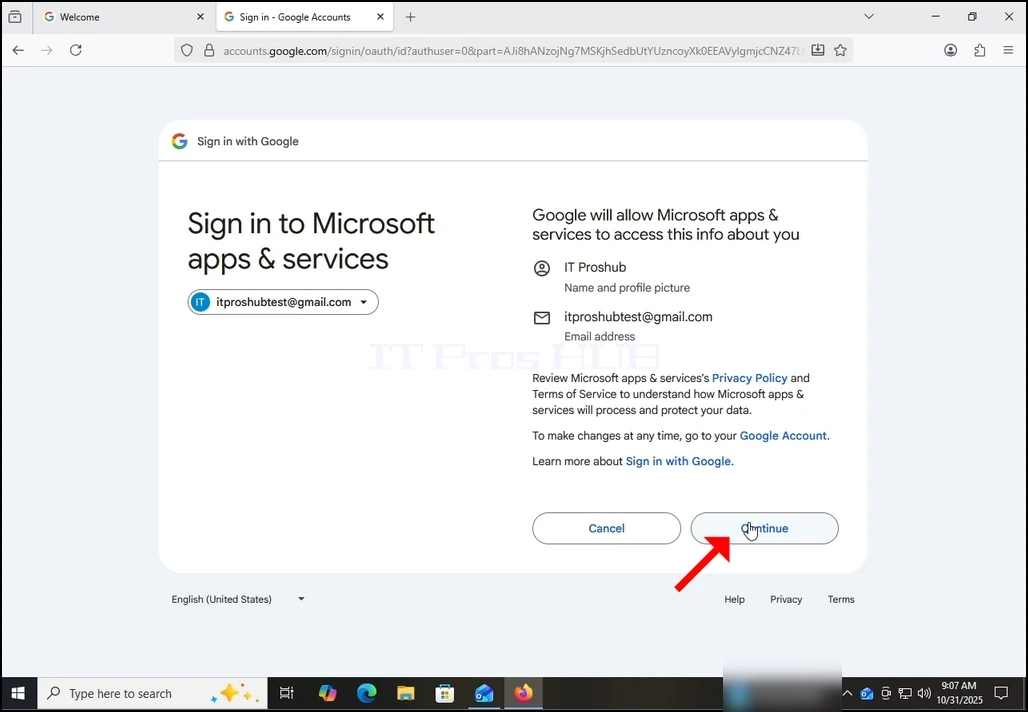
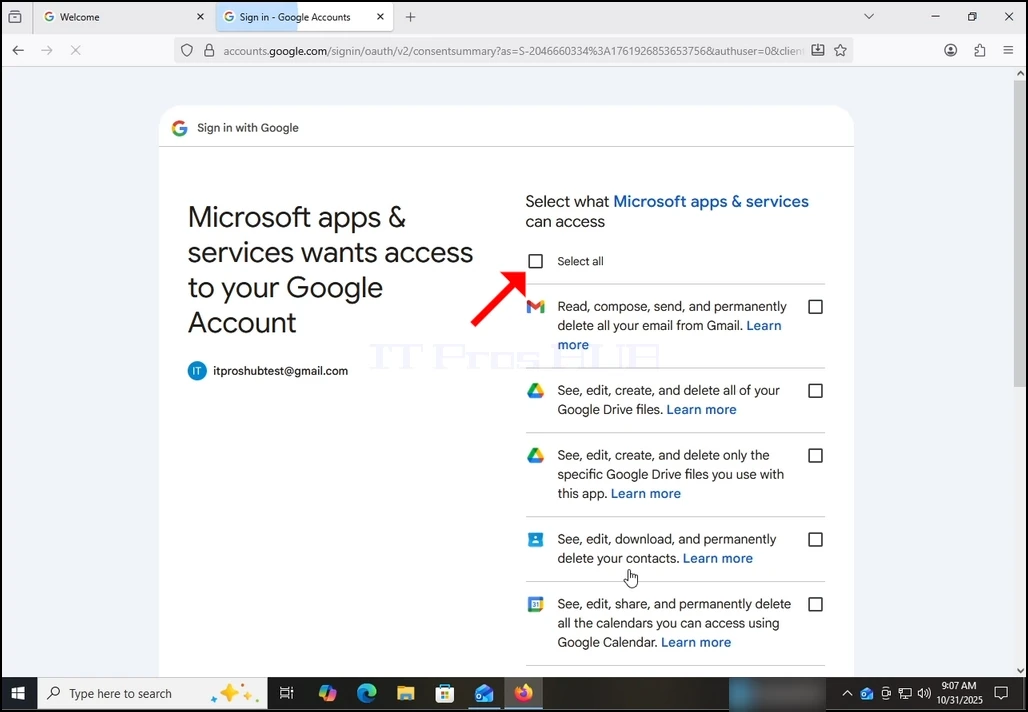
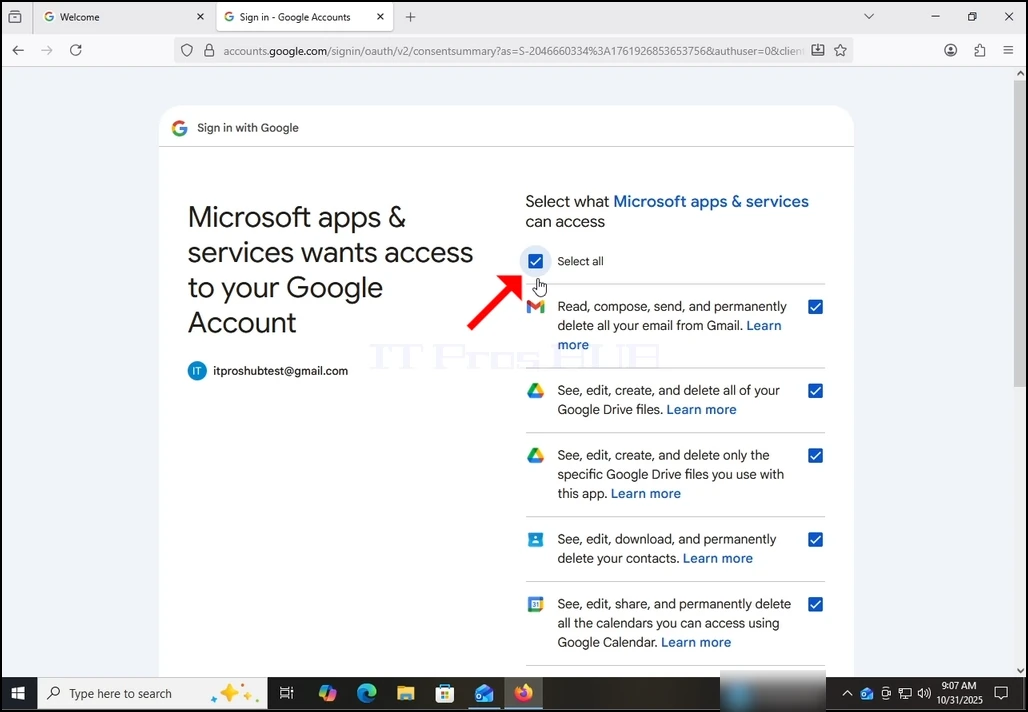
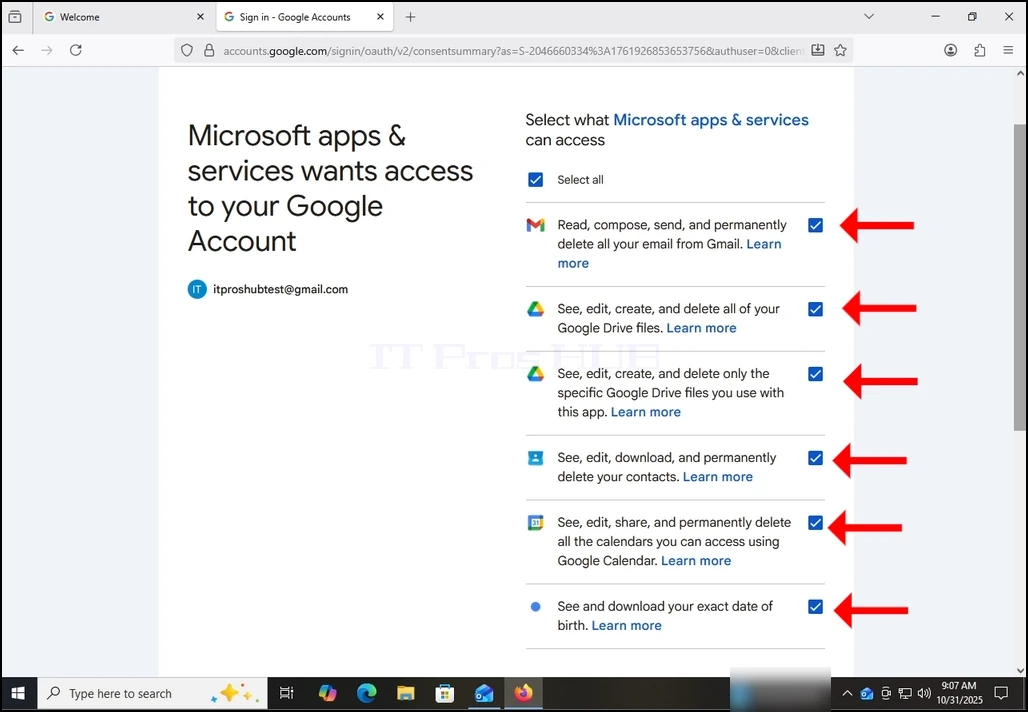
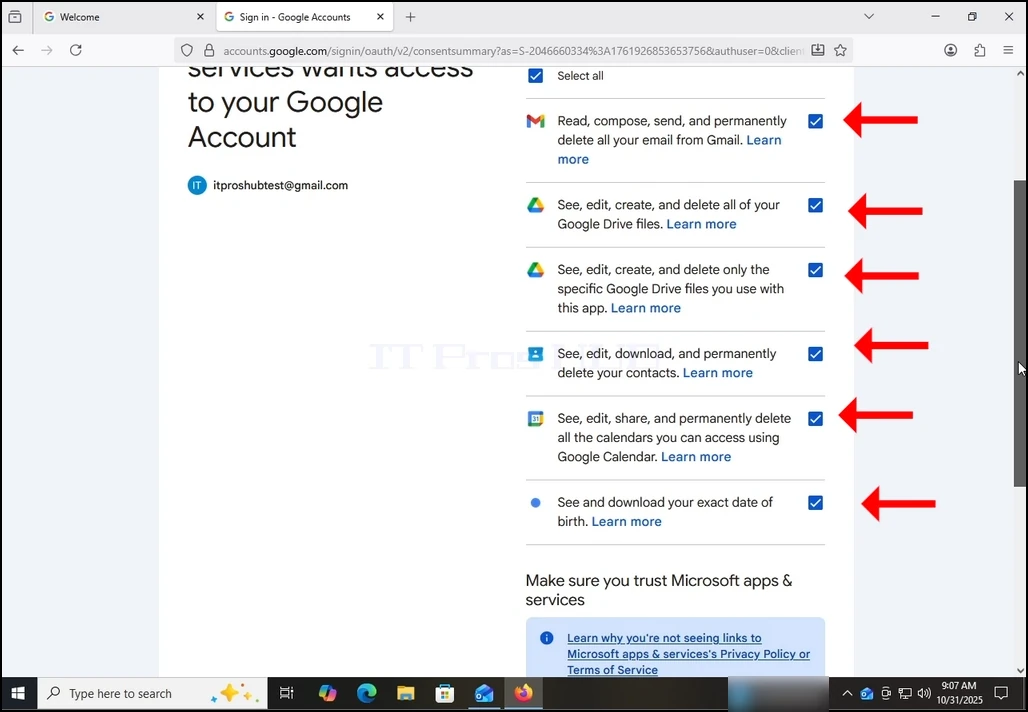
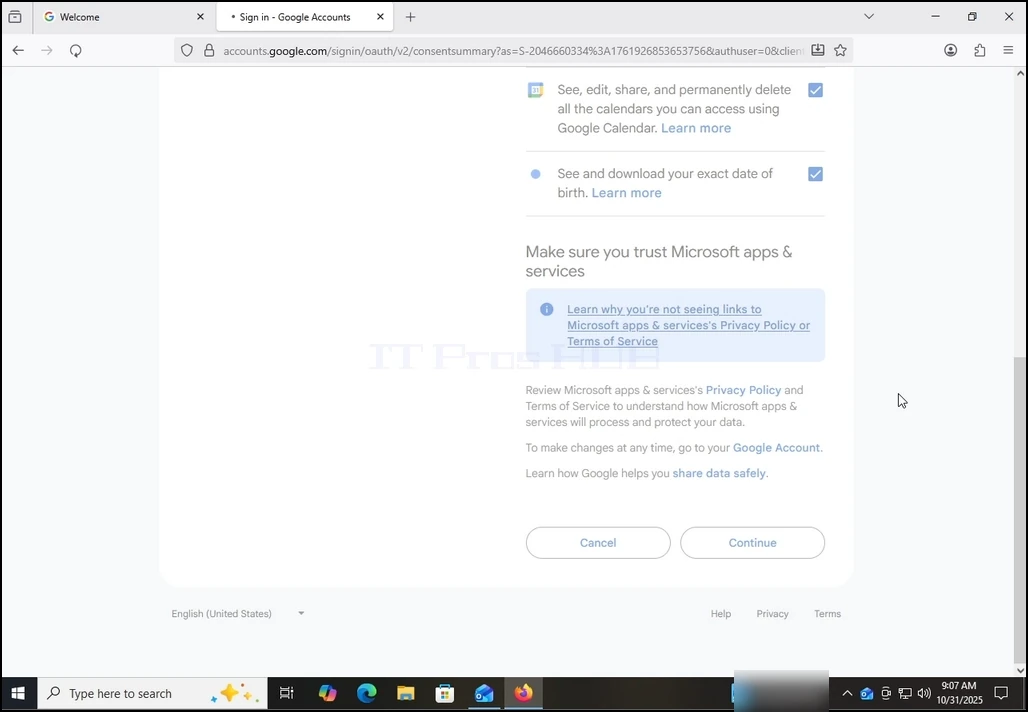
13. On this stage, Google extends about what information Outlook (Microsoft apps & services) could access.
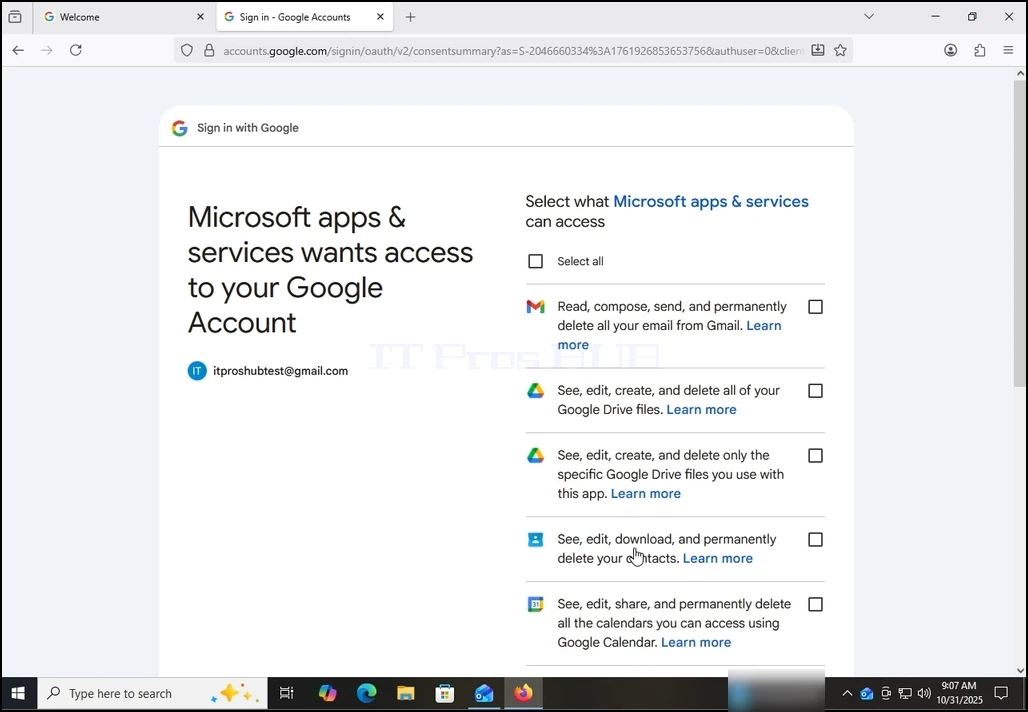
Choose what information you would like to give permission to Outlook at your own descretion but keep in mind that the less permission you allow the less functionality Outlook would have.
In this case, the minimum for it to function as an email client would be to allow it to Read, compose, send and permanently delete all your email from Gmail.
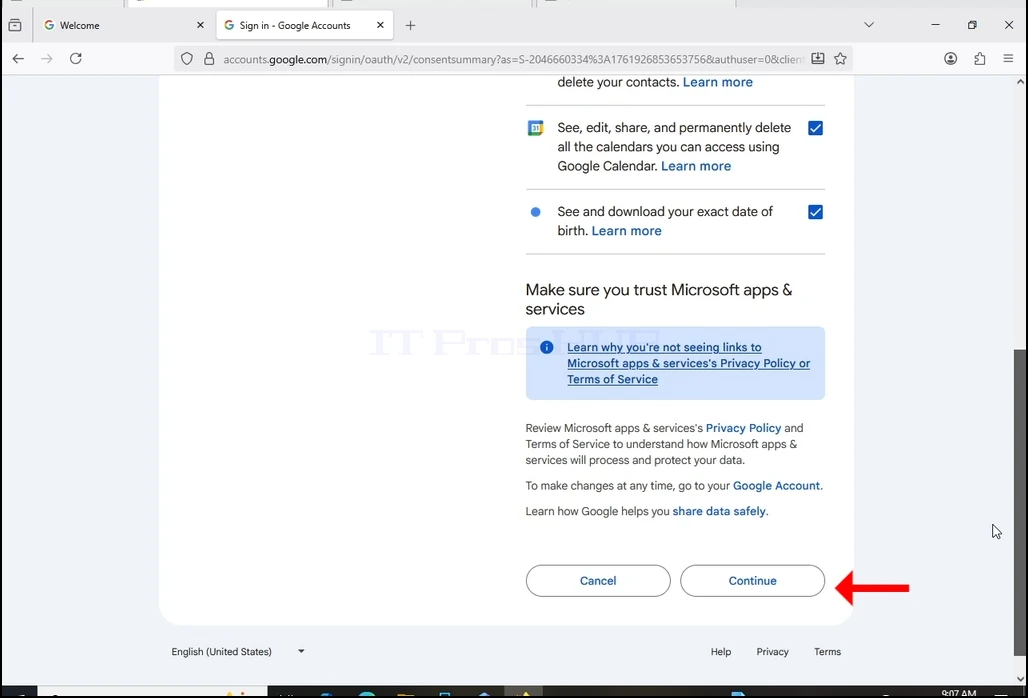
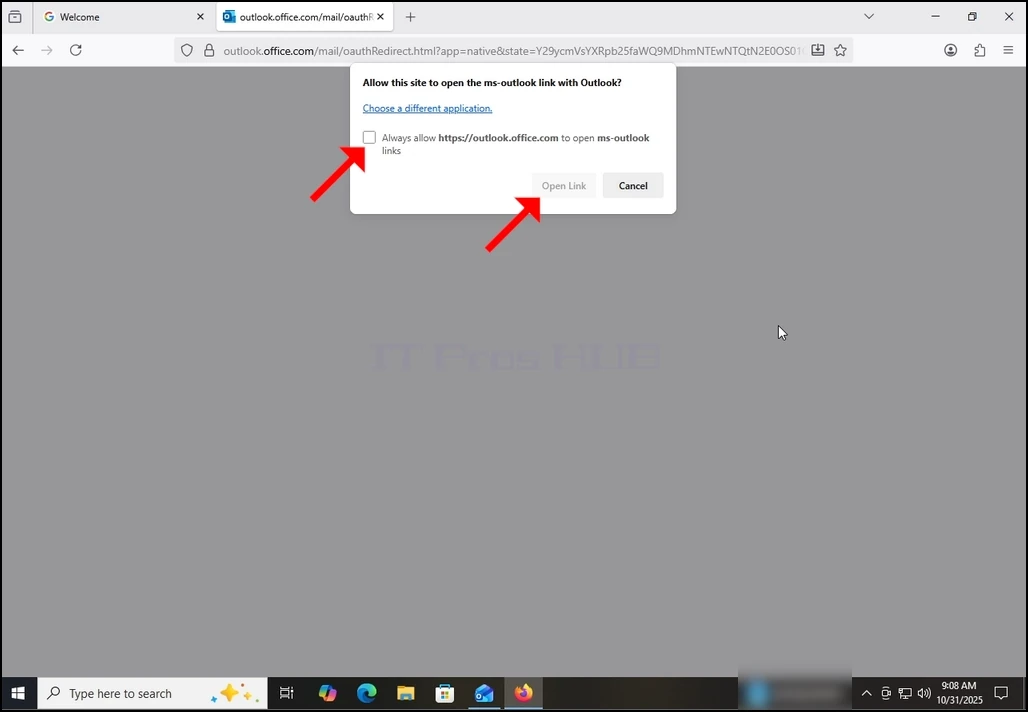
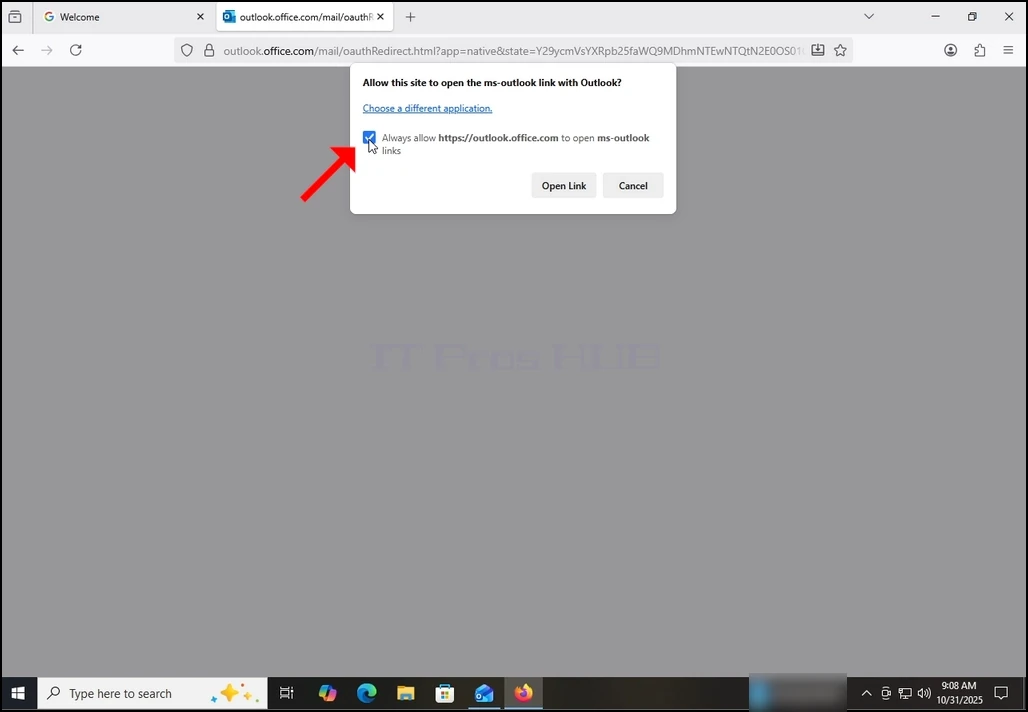
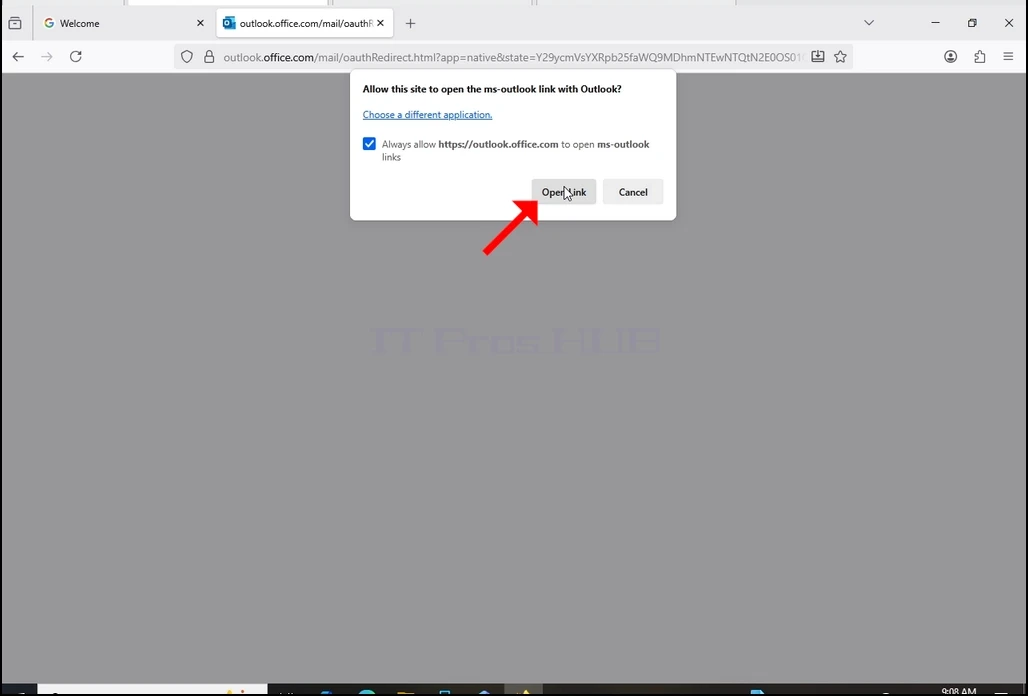
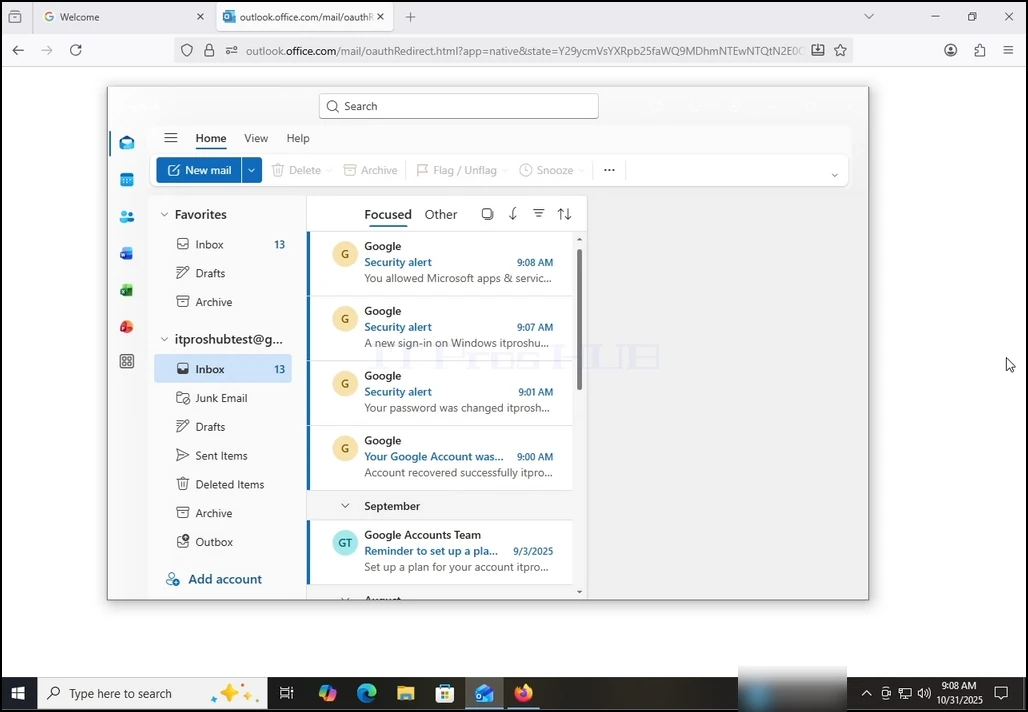
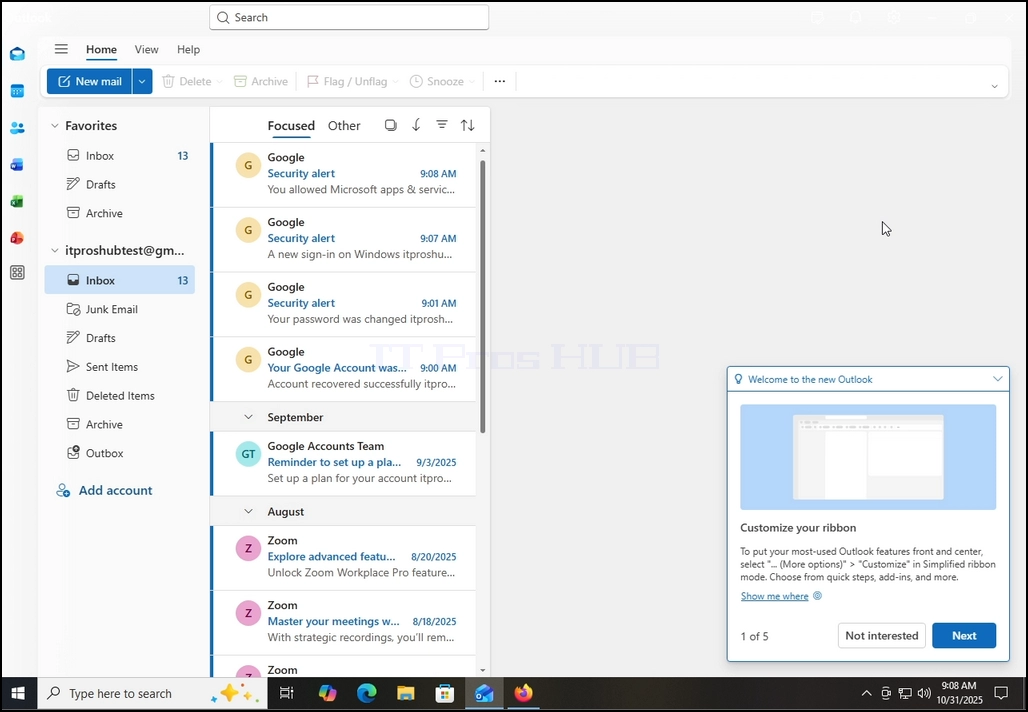
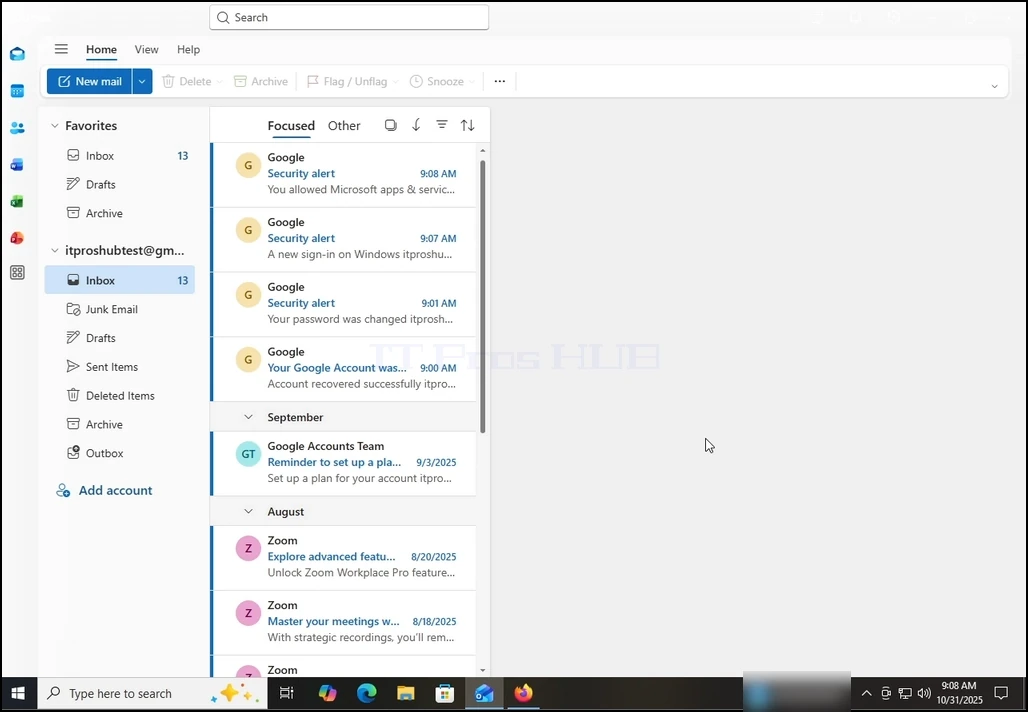
16. After doing the previous, Outlook would load your Gmail account.
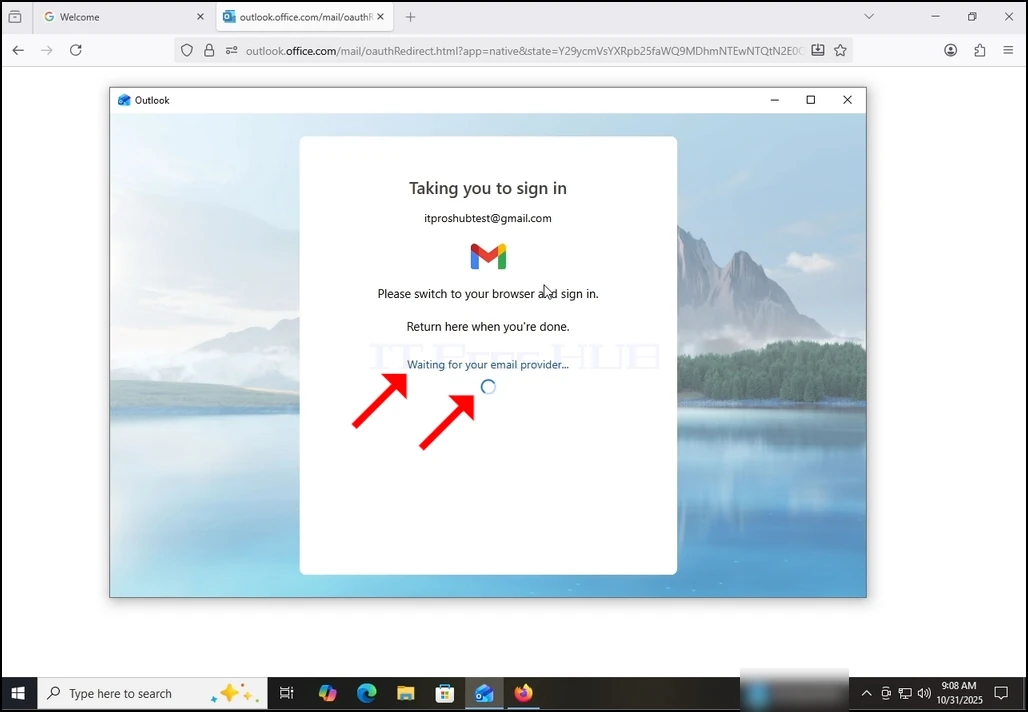
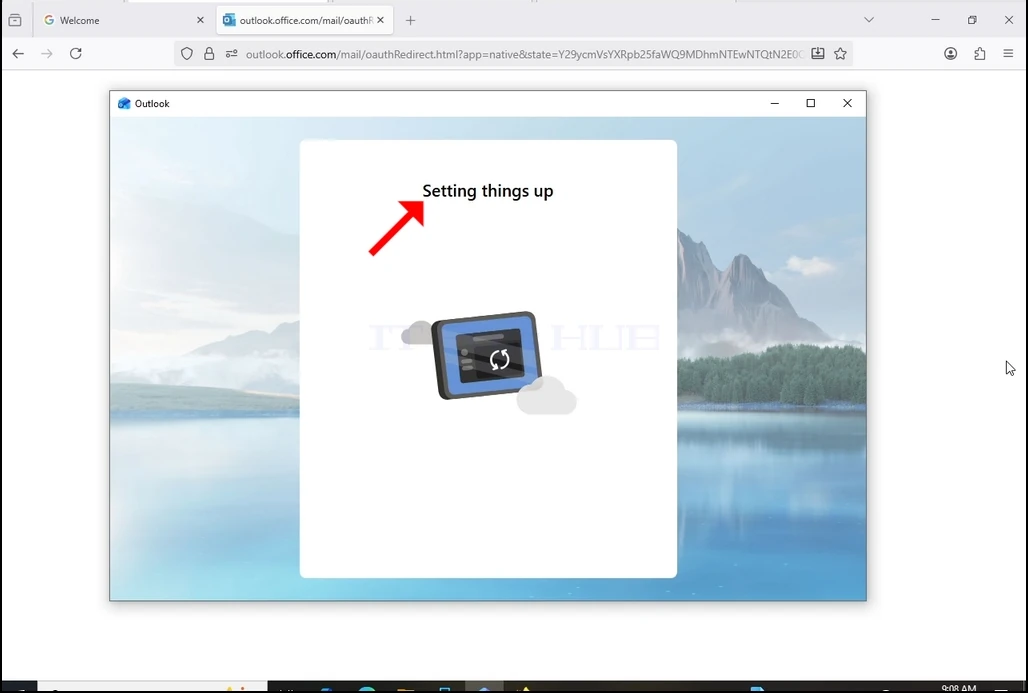
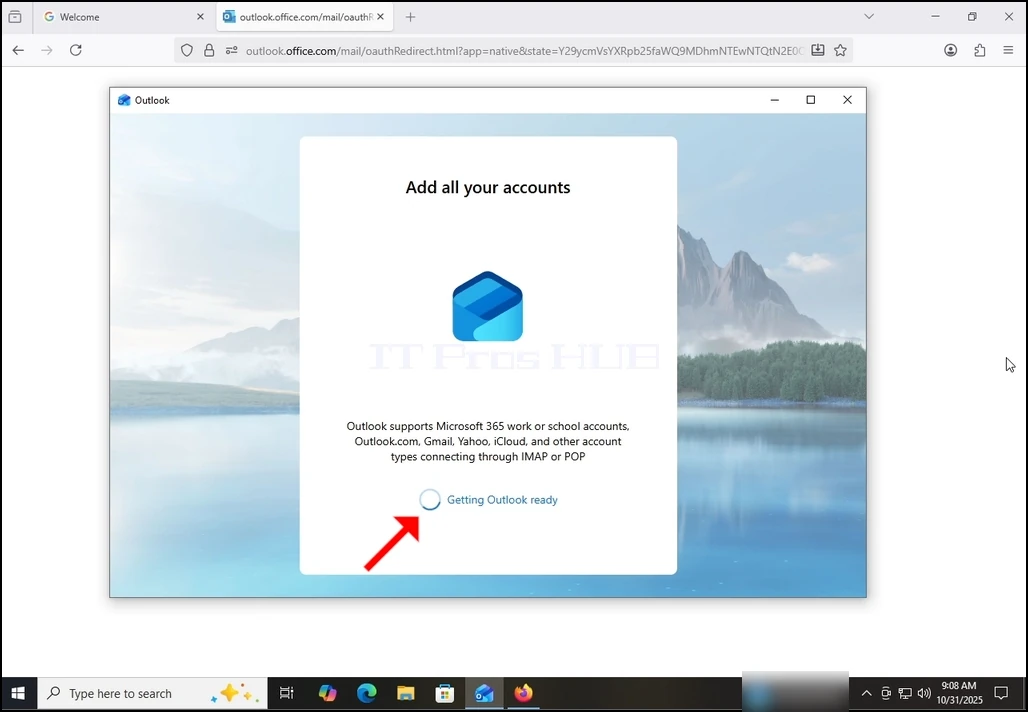
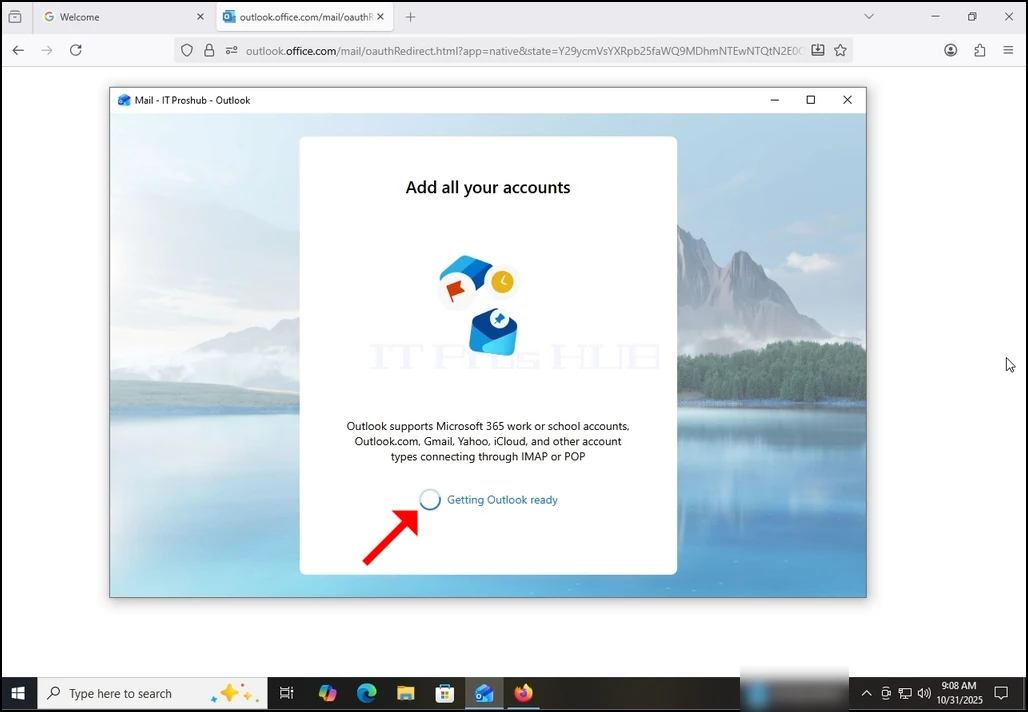
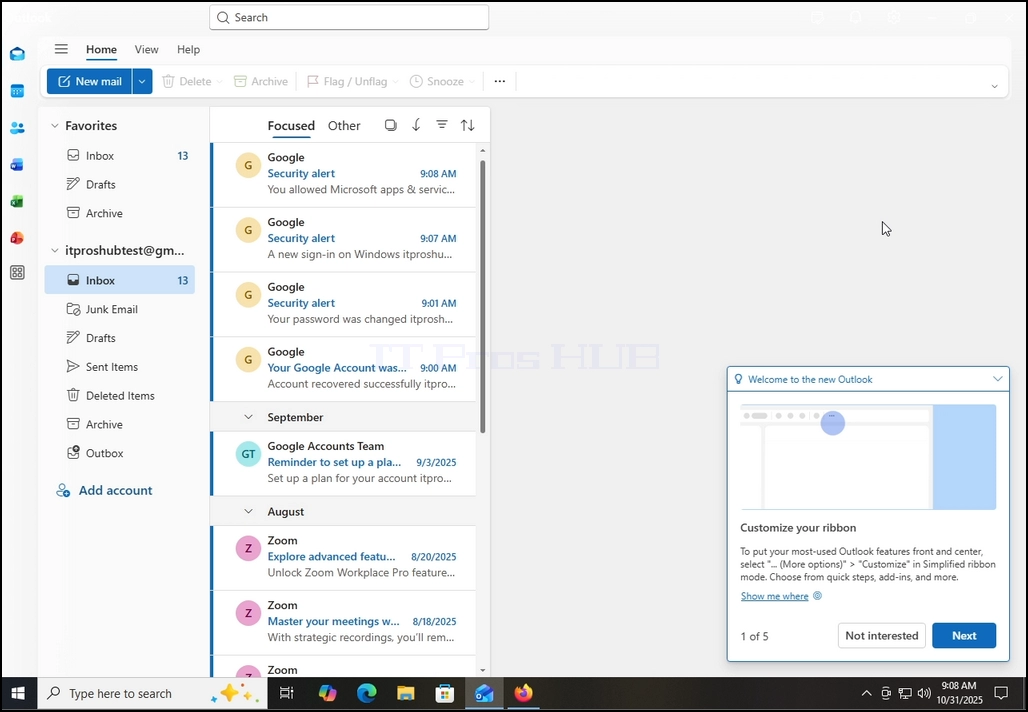
17. Done! your Gmail is now configured to work within Outlook!
- تفصیل
- تحریر کردہ: IT Pro
- زمرہ: How to Articles
- مشاہدات: 8567
- ونڈوز آغاز مینو کے ذریعہ اس پی پی سی میں جائیں

2۔ مارک ڈسک/حصہ آپکو ایک بار کلک کر کے اس پر کلک کرنا چاہتے ہیں۔ اِس مضمون میں ہم سی .

3۔ ظاہر کرنے کے ليے بورڈ کے دائرہ پر صحيح کلک کريں
4۔ اس مینو میں پرو فاضل لفظ تلاش کرکے اس پر کلک کریں۔ ڈسپلے کے ليے پی این خصوصیات کا انتظار کريں

5۔ خصوصیات کی کھڑکی میں، زیریں حصے میں، ڈسکس اسپیس کی سزا کو محفوظ کرنے کے لیے ڈرائیور کو تلاش کریں۔ اسے نیلی وی کے ساتھ ملانا چاہیے۔

6۔ اس پر ایک بار کلک کر کے نیلی ویو کا جائزہ لو
7۔ ایک بار جب یہ غیر واضح ہو جائے تو آپ کو سزا کے پاس خالی بکس نظر آئے گا۔ اِس کا مطلب ہے کہ یہ غیر اہم بات تھی ۔

8۔ ونڈو کے نچلے حصے میں اطلاقیہ پر کلک کريں

 9۔ ایک بار جب اطلاق کیا جاتا ہے، ایک اور چھوٹا پاپ اپ کھڑکی سامنے آئے گی۔
10۔ اس بات کا یقین کر لیں کہ سی آئی اے کی منتقلی کے لیے تبدیلیاں ہوں:
11۔ بٹن پر کلک کريں

12. زیادہ تر معاملات میں، ونڈوز سیکورٹی آپ کے لئے ایک فوری ونڈو اپ اپ کرے گا تاکہ آپ کے لئے منتظمین تک رسائی حاصل کرسکیں، منتخب دائرہ کار /partition، اس کے ذیلی مدیروں اور فائلیں تک رسائی حاصل کریں۔ اس اجازت دینے کے ليے جاری بٹن پر کلک کريں

13۔ اکثر صورتوں میں ایک غلطی ہو گی (s) نئی خصوصیات کا اطلاق دائرہ، ذیلی شاخوں اور فائلوں پر کریں گے۔ تمام بٹن کو نظر انداز کریں.


14۔ جب تمام بٹن کو نظر انداز کر دیا جائے تو نئی خصوصیات کا اطلاق کرنا شروع ہو جائے گا اور اس طرح دوبارہ شروع ہو جائے گا۔ اس عمل کو ایک نئی چھوٹی کھڑکی سے ظاہر کیا جائے گا جس میں ترقی کی باری ہے۔

15. ایک بار جب یہ عمل ترقیاتی بار دری ختم ہو جائے گا تو بند ہو جائے گا۔
خصوصیات ونڈو بند کرنے کے لیے بٹن پر کلک کریں۔

- تفصیل
- تحریر کردہ: IT Pro
- زمرہ: How to Articles
- مشاہدات: 6048
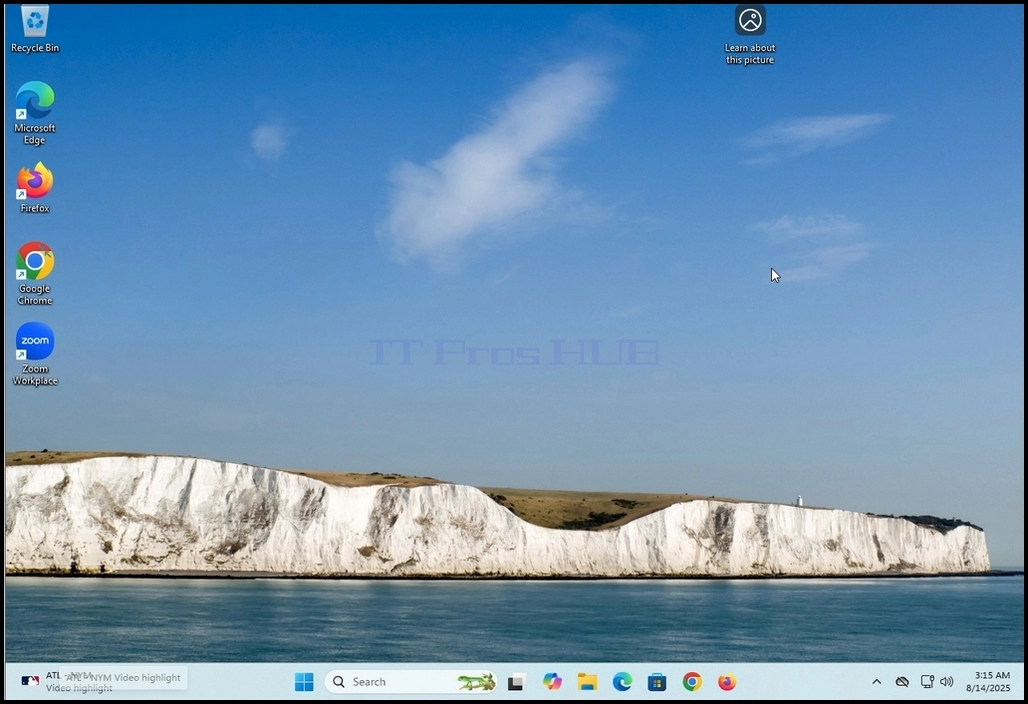
1. Go to Windows desktop
2. Right click on Windows taskbar and wait for a small side menu to appear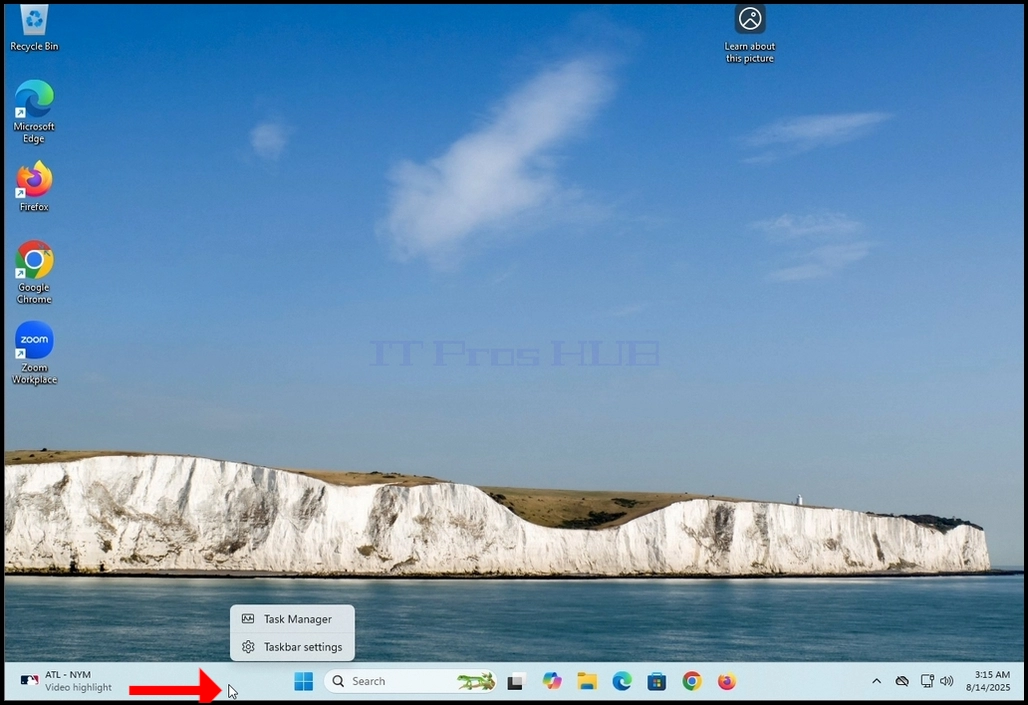
3. In the side menu look for the Taskbar settings option and click on it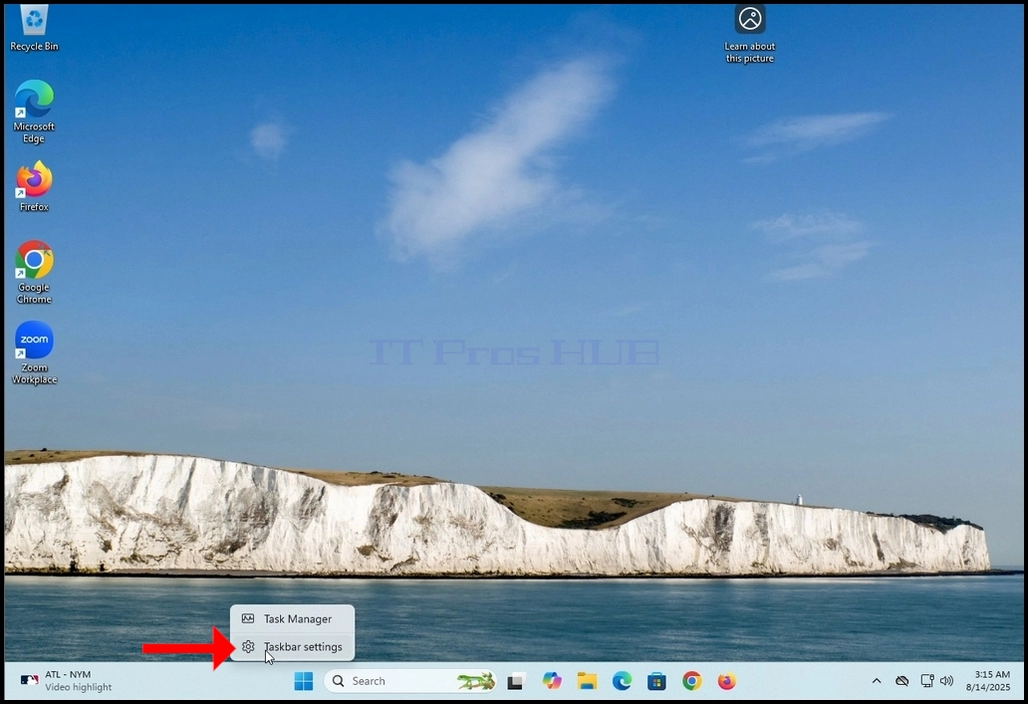
4. Wait for the Taskbar settings window to appear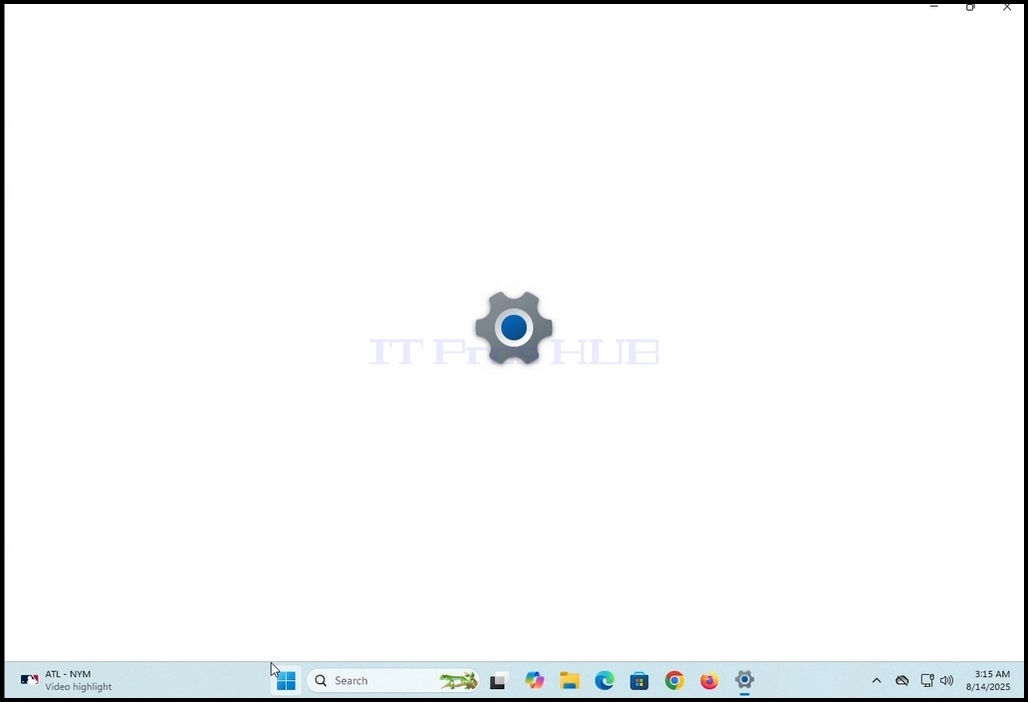
5. In the taskbar settings (Personalization > Taskbar) window, in the upper part of the screen, look for the Taskbar items title. Under it, look for the Search word on the left side right under it.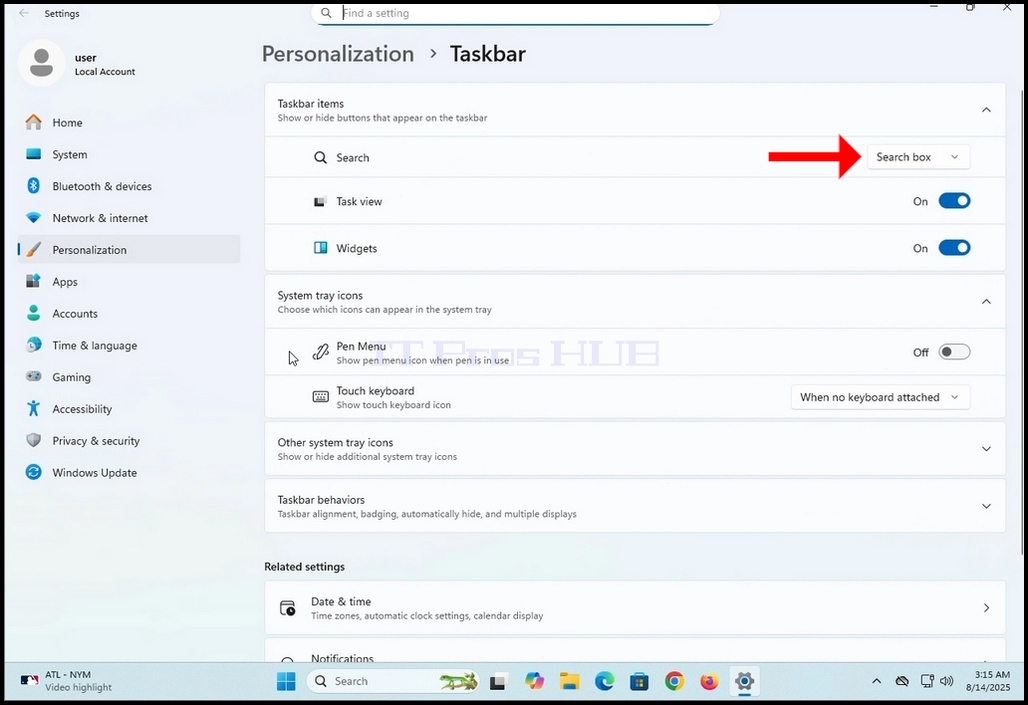
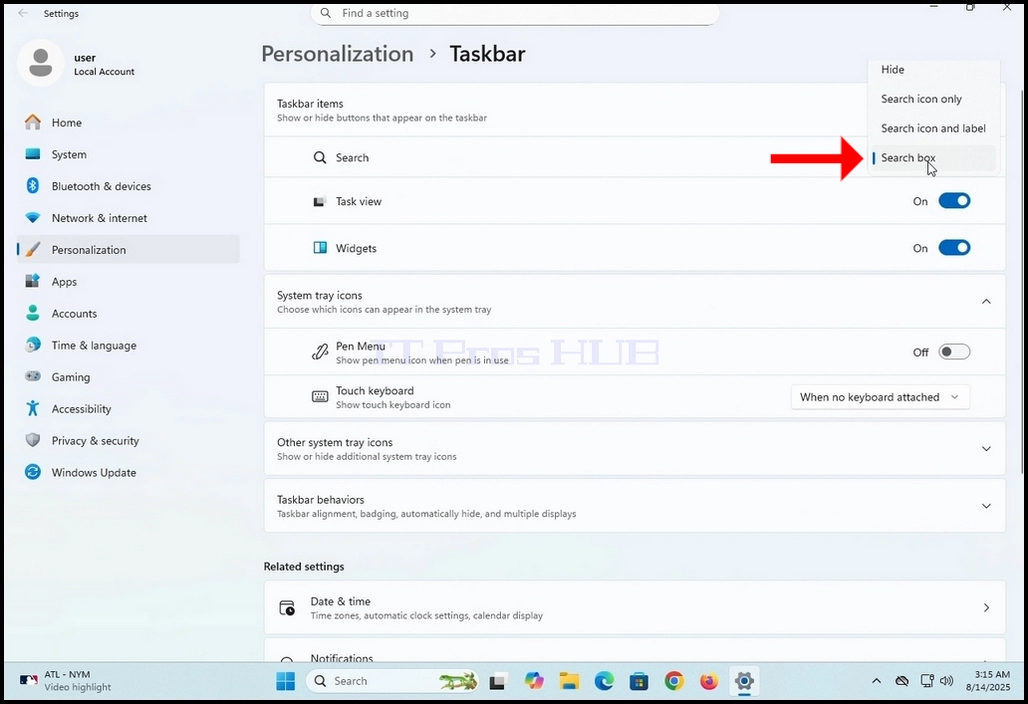
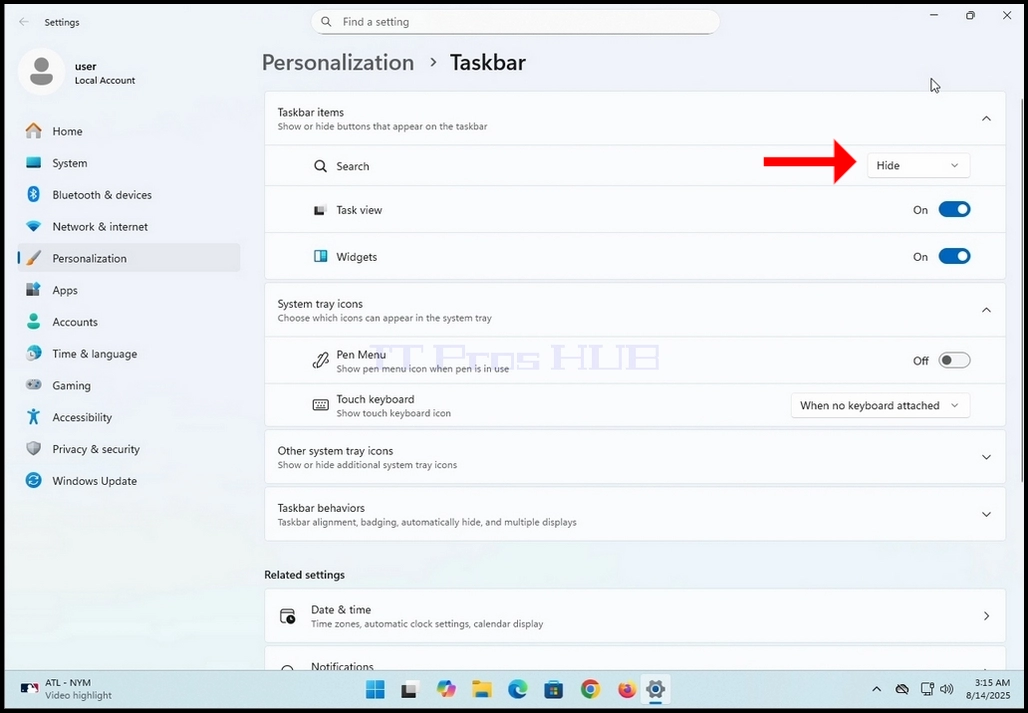
7. Choose the Hide option by clicking on it once
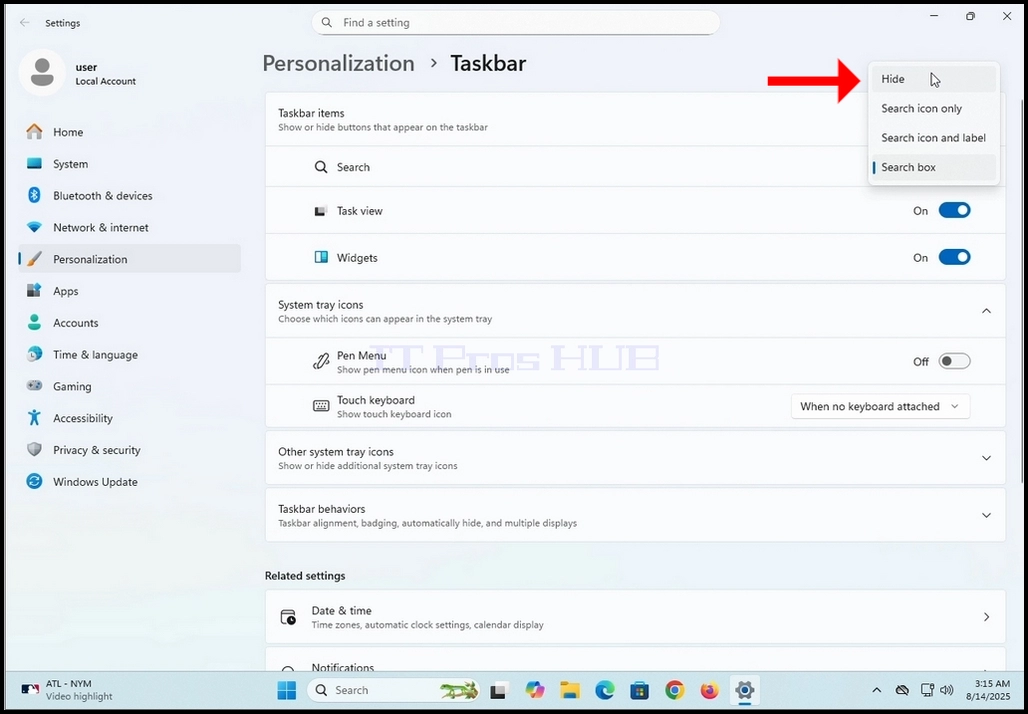
8. Notice the disappearance of the search box from the taskbar at the bottom part of the screen.
- تفصیل
- تحریر کردہ: IT Pro
- زمرہ: How to Articles
- مشاہدات: 6364
1. آغاز بٹن پر کلک کريں
2۔ CMD
3۔ انٹر ونٹ کو ڈھونڈنے کے لیے انتظار کریں کمانڈ app
4. آغاز مینو کے دا ئيں جانب ، کلک کريں منتظم کی حیثیت سے بھاگو اور کمانڈ اونٹوں کا انتظار کیجئے
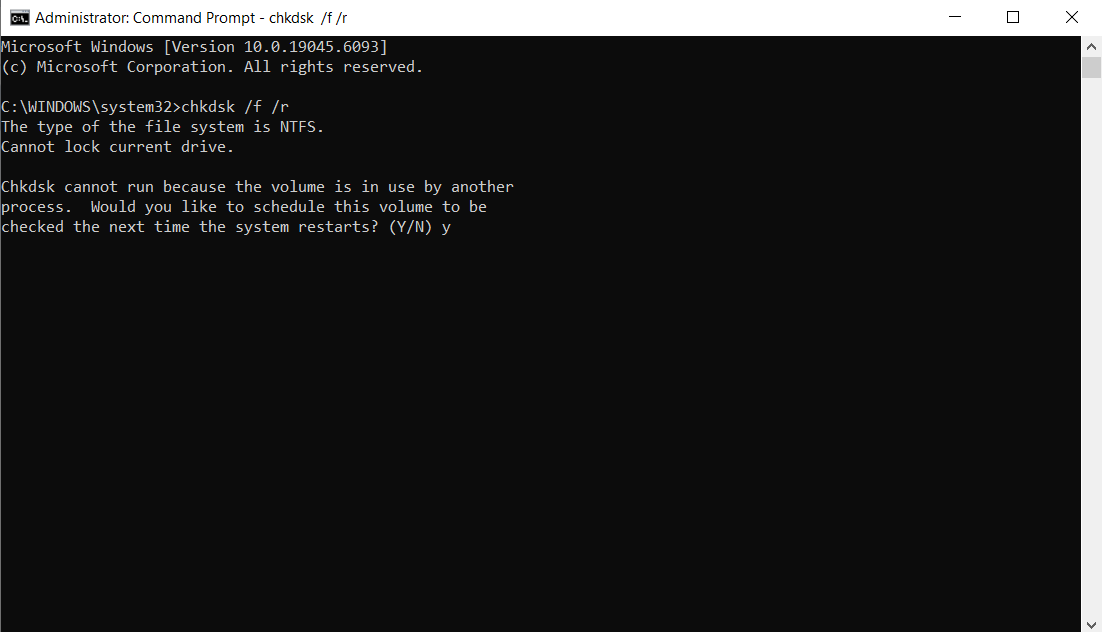
5۔ کمانڈ ایپ ٹائپ میں: چیککُنکُن / پَر اور مارا مصر کلید
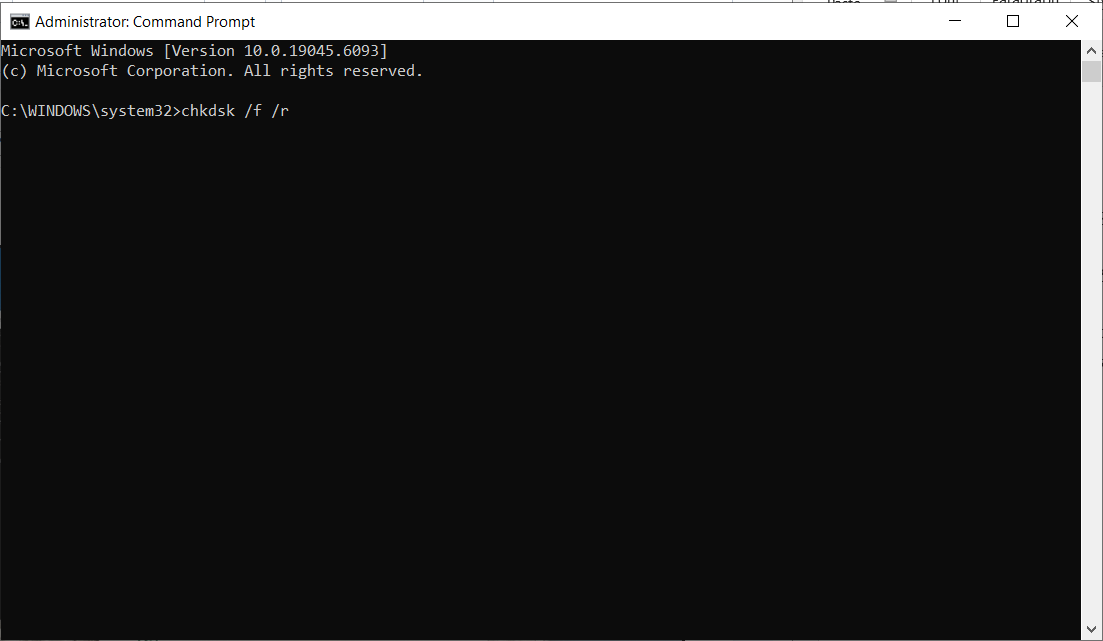
6 ۔ مصر اہم بات یہ ہے کہ آپ مندرجہذیل پیغام سے ضرور مستفید ہونگے :
ایک. Chkdsk چلایا نہیں جا سکتا کیونکہ حجم ایک اور عمل کے ذریعے استعمال میں ہے۔ کیا آپ اس حجم کا تعیّن کرنا چاہیں گے ؟ (Y/N)
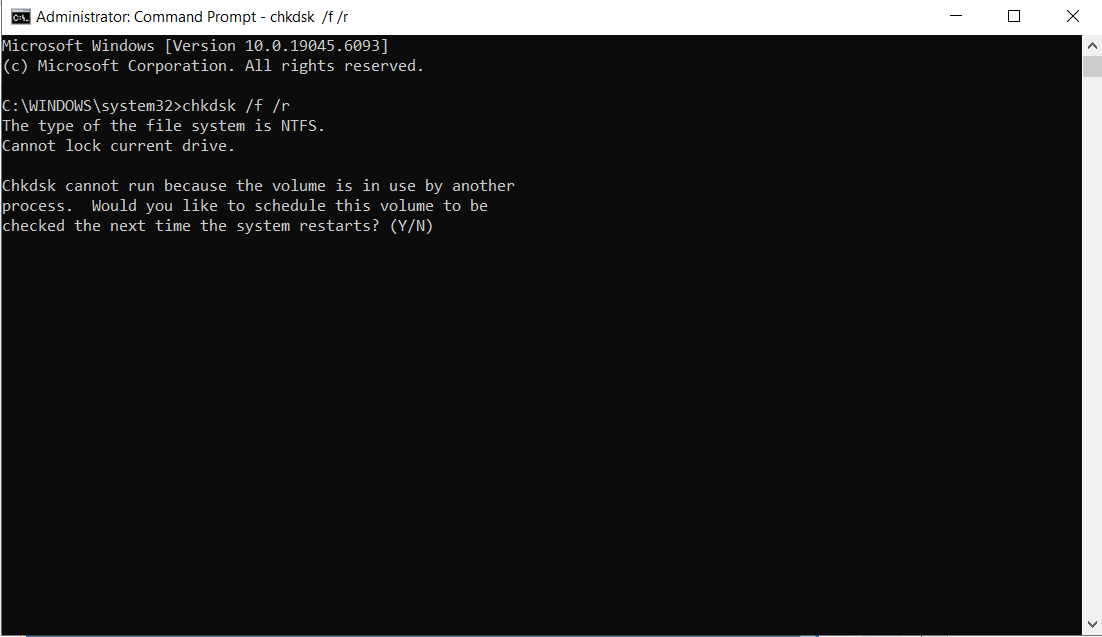
7۔ یہ پیغام اس لیے پیش کیا جاتا ہے کیونکہ ہم نے ایک فعال استعمال شدہ دائرہ پر چکر چلایا جو ہے سیسہ: اس صورت میں. یہ وہ دائرہ ہے جہاں ونڈوز آپریٹنگ سسٹم نصب کر کے چلایا جاتا ہے۔
8 ۔Y“ مصر دوبارہ کلید.
9۔ اگلا پیغام ہوگا:
ایک. اس حجم کو اگلی بار دوبارہ چیک کیا جائے گا جب نظام دوبارہ شروع کیا جائے گا۔
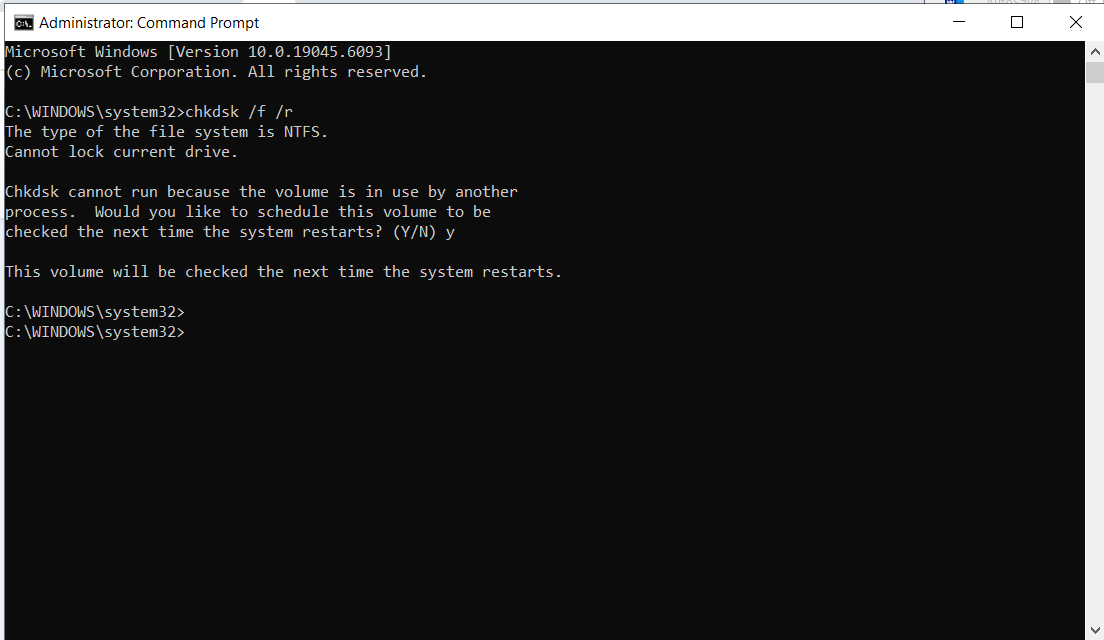
10۔ اس موقع پر چکڈسک کیا جاتا ہے۔
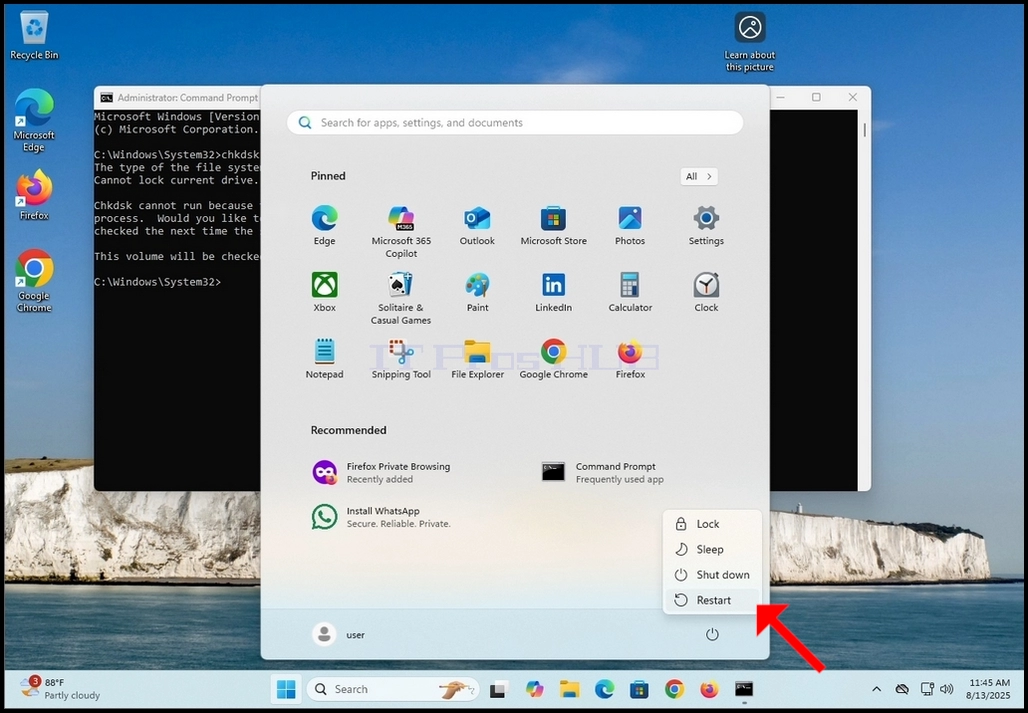
11۔ ابتدا مینو سے محفوظي دوبارہ شروع کريں
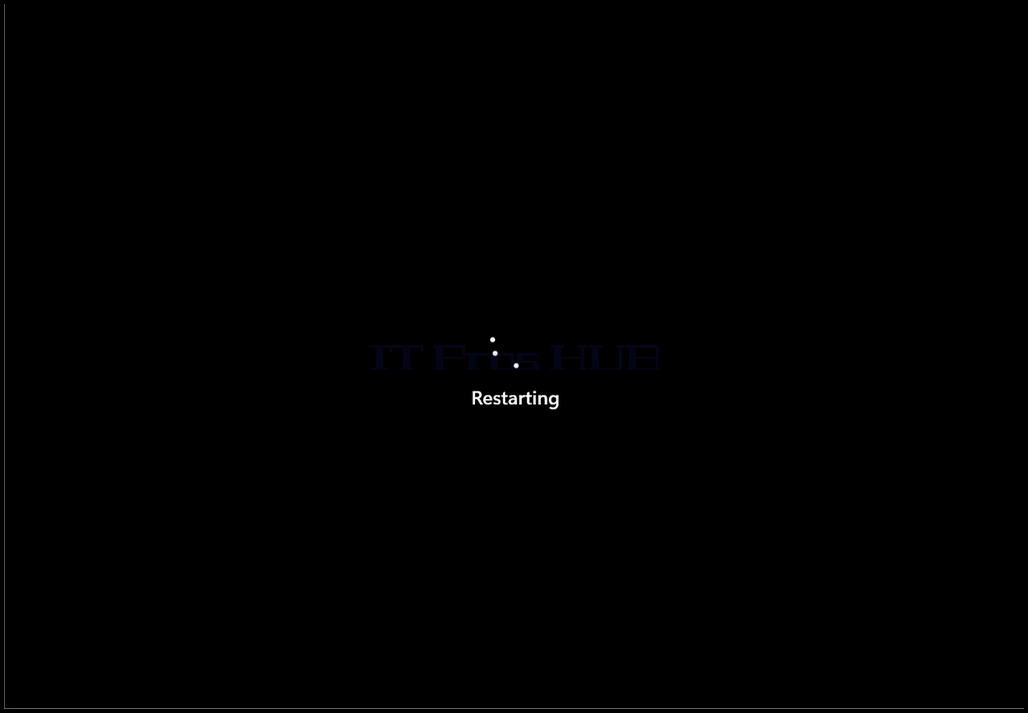
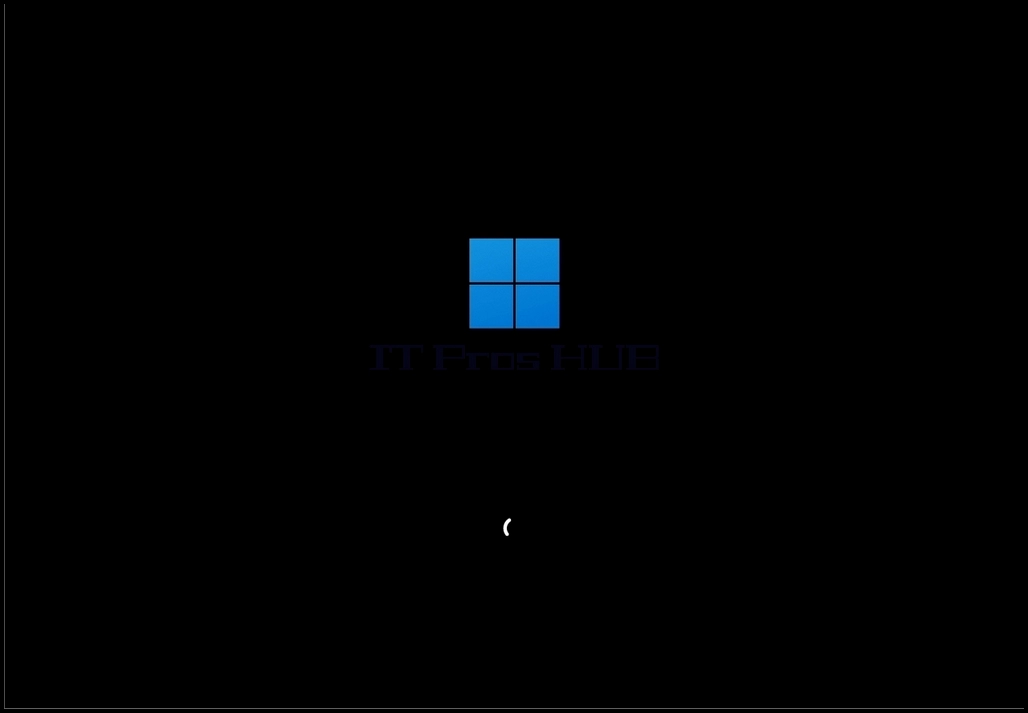
12. جیسا کہ سی ایم ڈی میں چیکسک کی جانب سے اعلان کیا گیا ہے۔ اسٹیج 9 ککڈسک ڈسک چیک کرنے کے بارے میں ہے اور میں تم سے پوچھنا چاہتا ہوں کہ کیا آپ اسے بنانا چاہتے ہیں.
غور کریں کہ یہ کام کرنے سے پہلے چیککُک کی جانچ کرنے کا آخری موقع ہے ۔
14۔ غور کیجئے کہ یہ چیک کافی وقت لیتا ہے، خاص طور پر بڑی مشینوں کے مشکل سفر میں
15۔ اگر چیک چیک کو انجام دینے کے لیے آپ چیک کرنا چاہتے ہیں تو کسی بھی کلید کو دبا کر ٹائمر کا انتظار نہ کریں۔
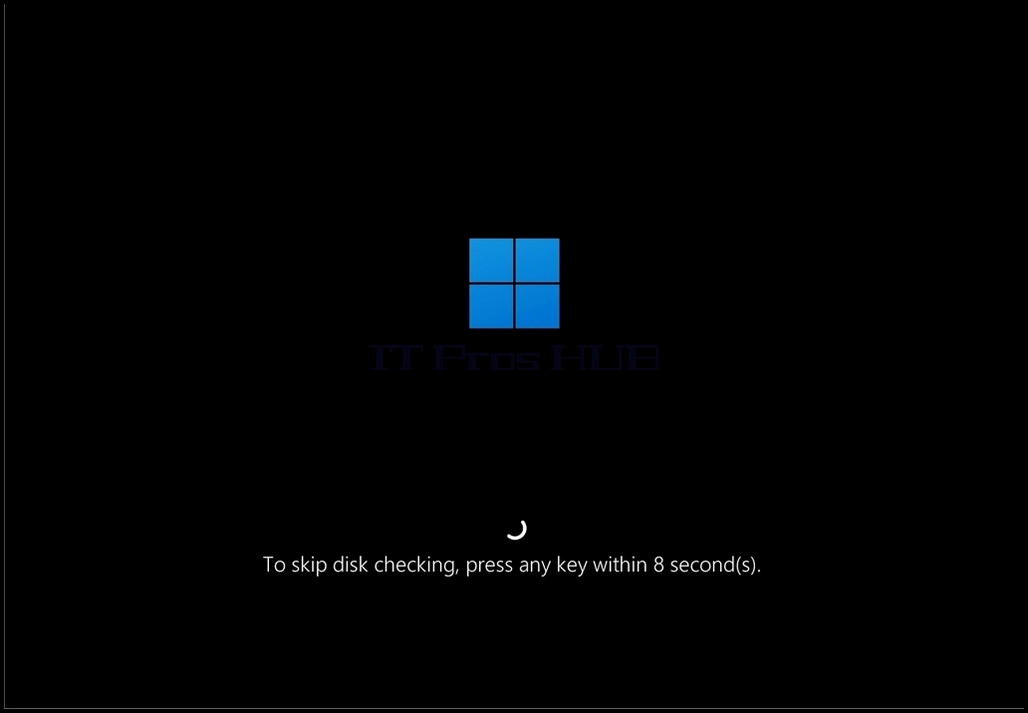
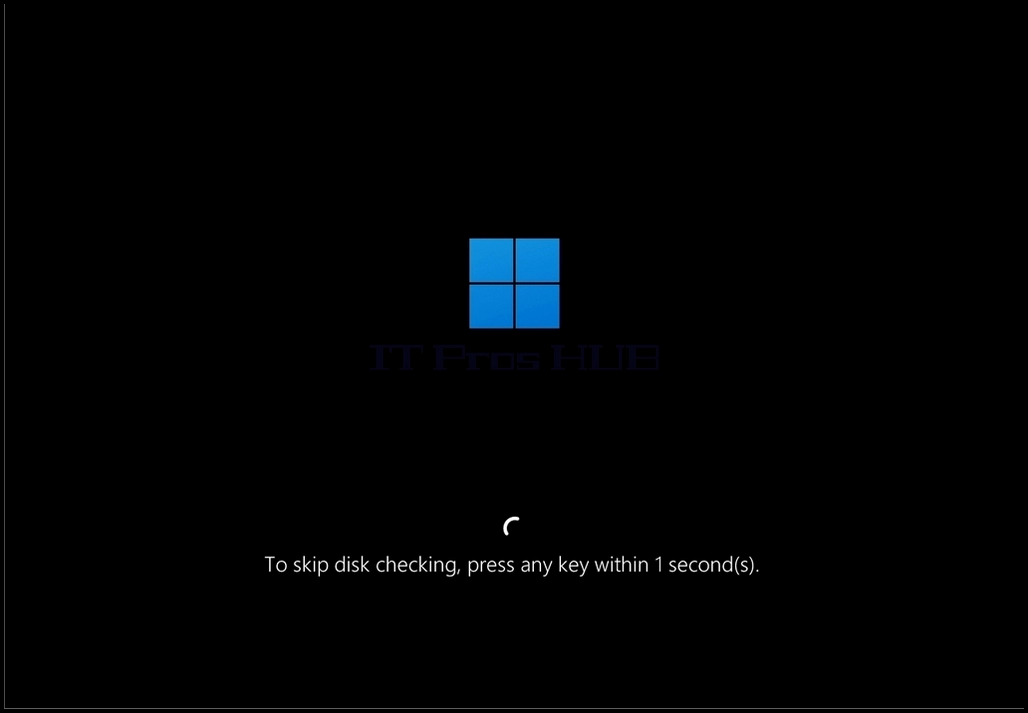
16۔ Chkdsk اب ڈسک چیک کر رہا ہے۔
17. جب یہ کام دوبارہ ونڈوز میں اپ لوڈ کیا جائے گا.
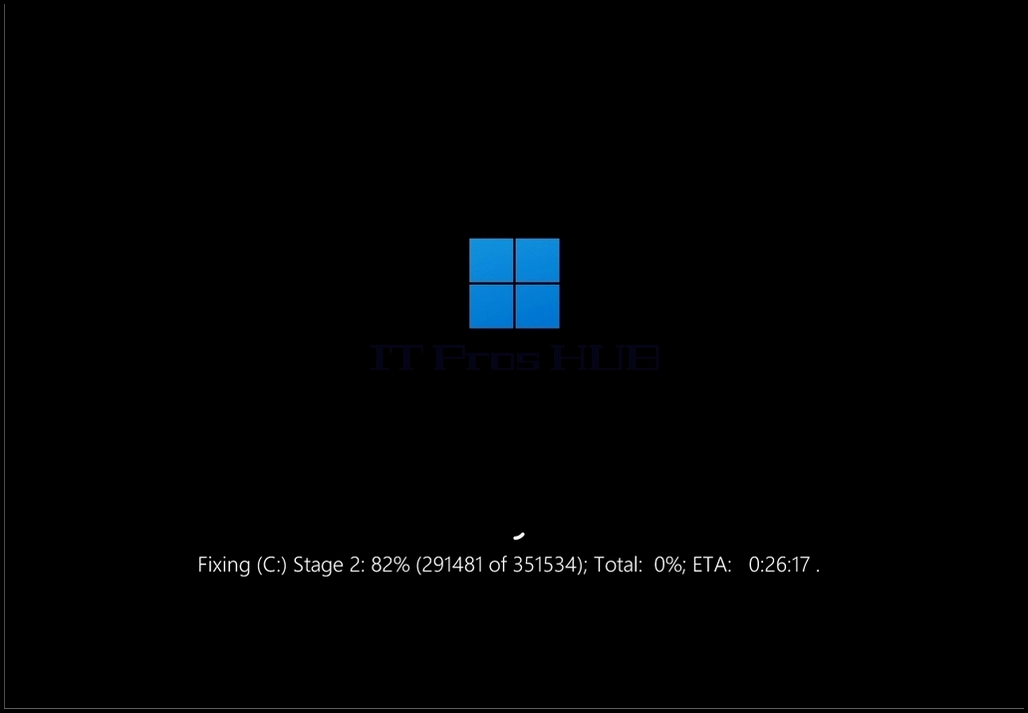
اِس شمارے میں ایشیا ابتدائی الفاظ کے آخر میں اسکین کی تکمیل کے لیے منطقی وقت کی نشاندہی کرتے ہیں۔
- تفصیل
- تحریر کردہ: IT Pro
- زمرہ: How to Articles
- مشاہدات: 7277
In this article we will demonstrate how to test the functionality of Mirrored Volume of Windows 11.
1. First, we will go to Computer management and from there to Disk Management just to see the 2 disks in the mirrored volume array.
2. As you can see, Disk 1 and Disk 2 are both part of this array which creates the single New Mirrored Volume (E: and F:)
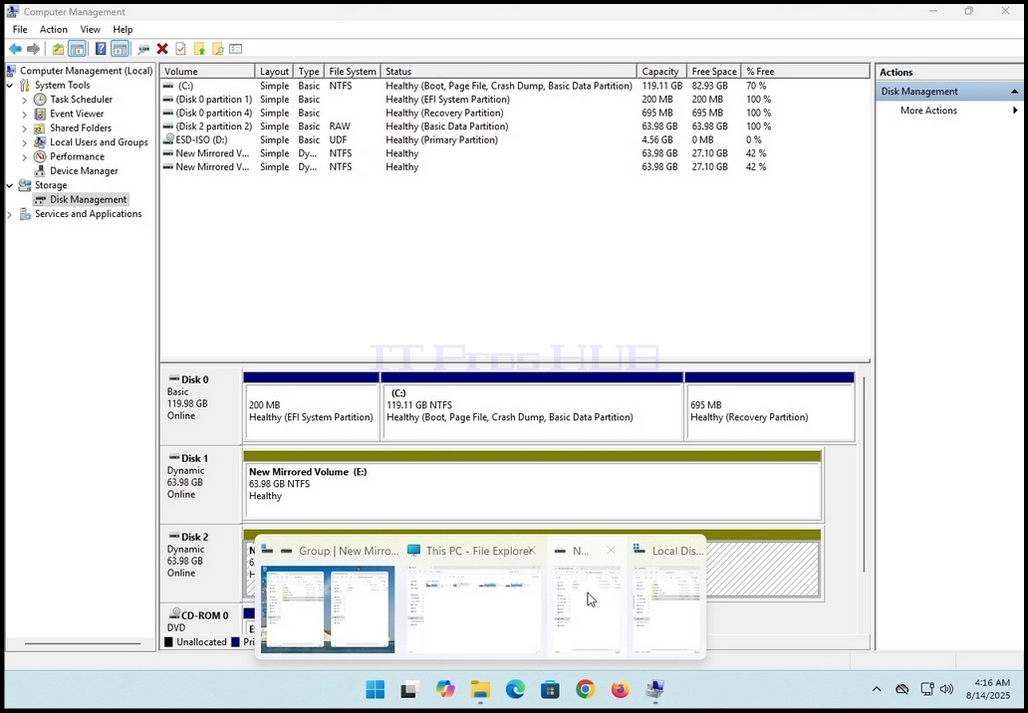
3. Next, we will go to Windows Explorer and from there to This PC to see all of the disks and partitions configured in this system
4. As can be seen in the photo below, here are the 2 disks that we’ve seen on stage 1 – E: and F: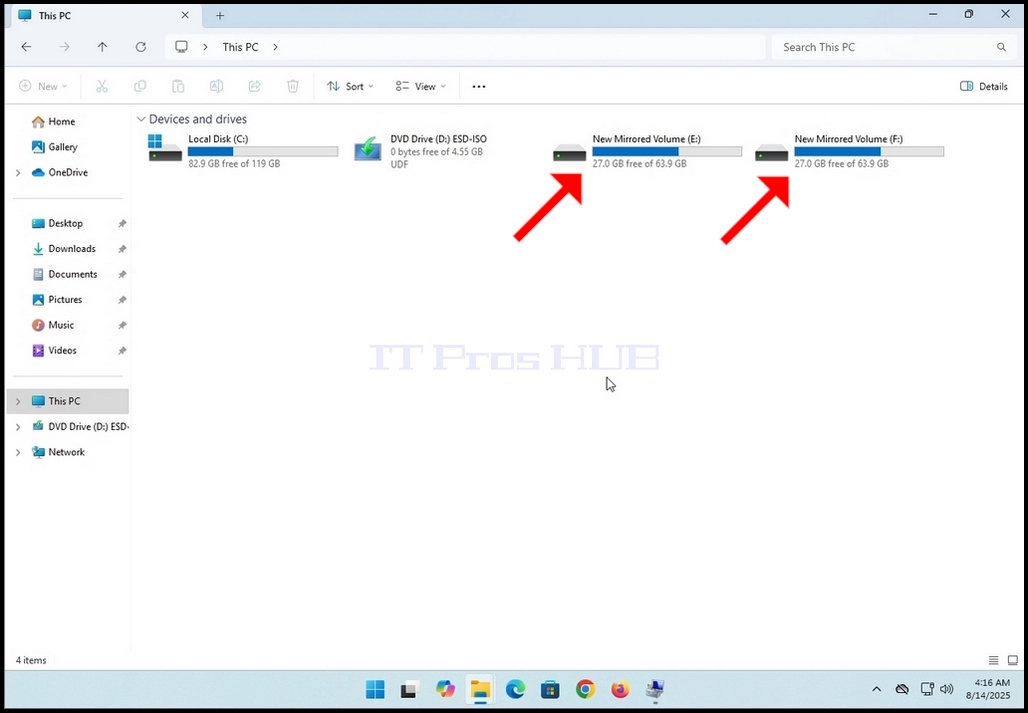

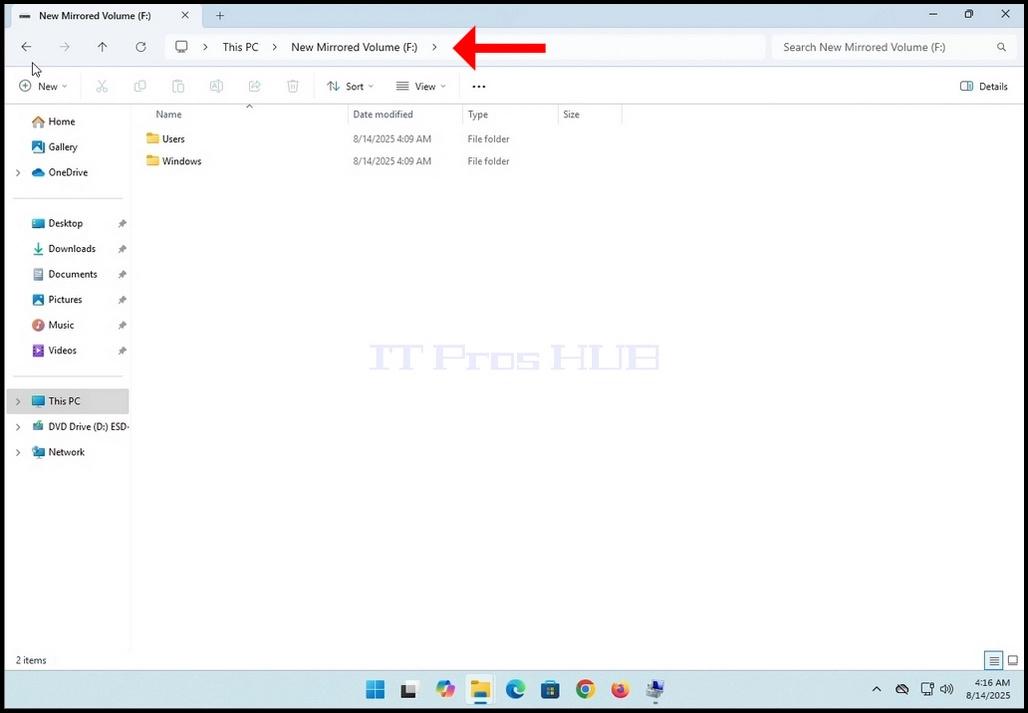
5. We will split the screen in 2 to see the contenst of both the F: and the E: drives at the same time.
6. We will go to the F: drive first. As you can see, there are already folders and files in this drive to begin with.
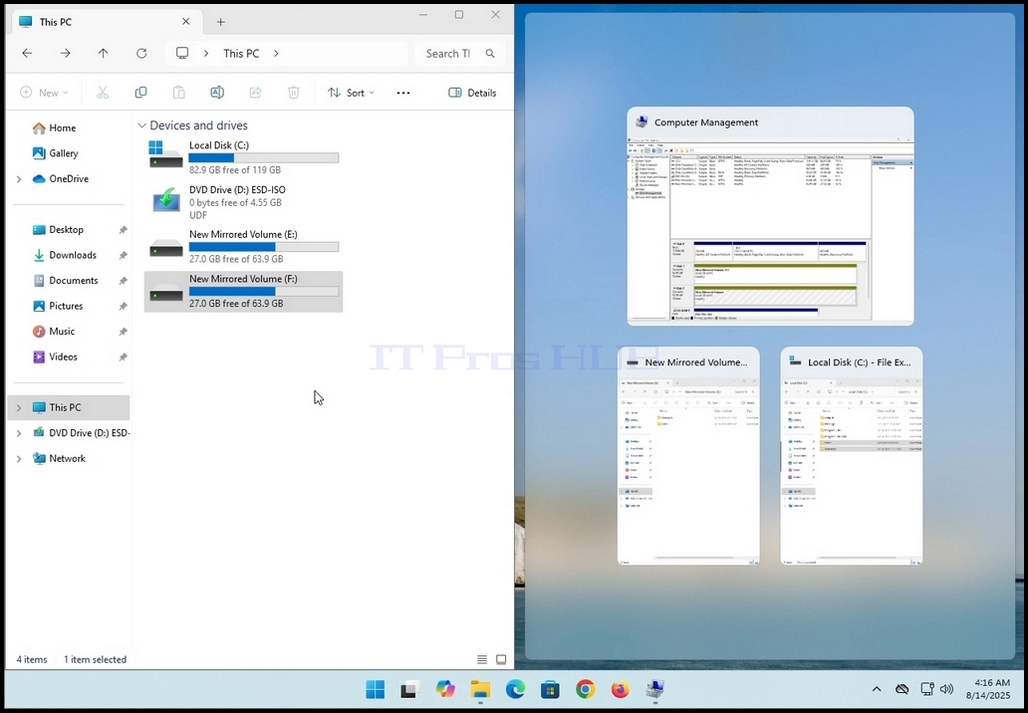
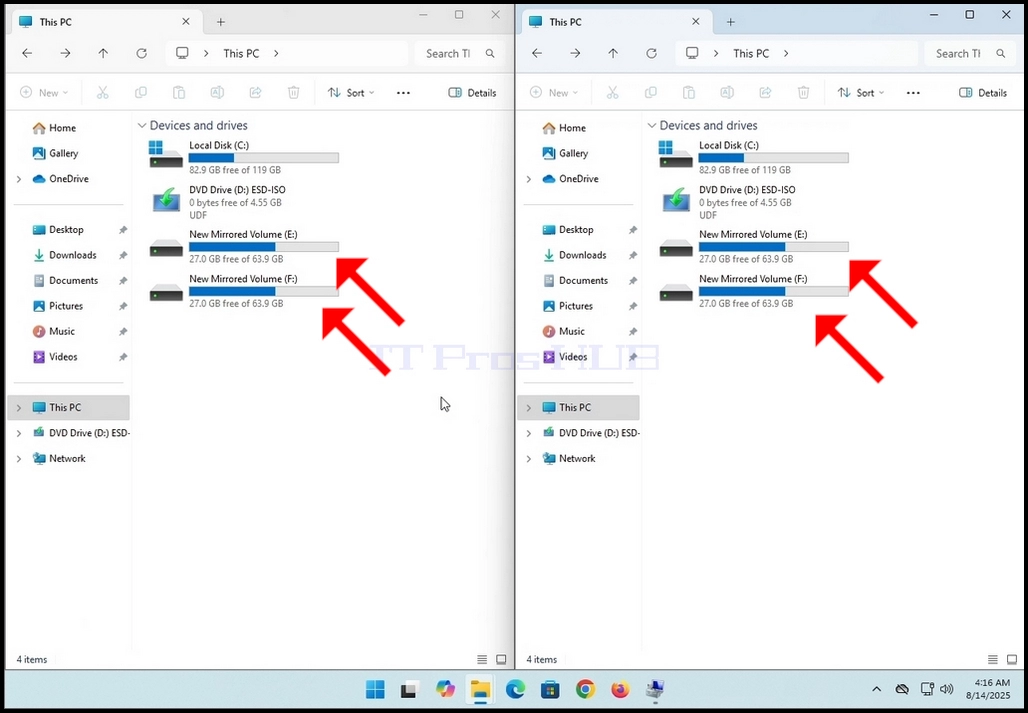
7. Note that whatever changes are made on one drive, it is reflected and applied to the other/s on the mirrored volume array. As you can see here in this photo below, both drives have the same folders and files, at least on the surface. In this article we will verify that.
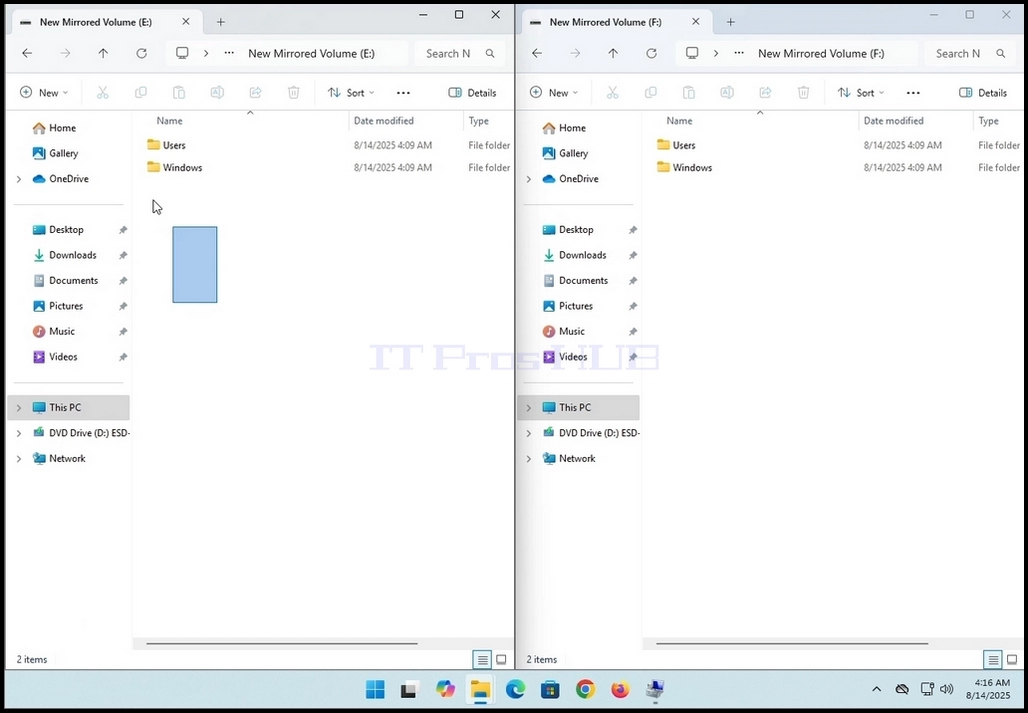
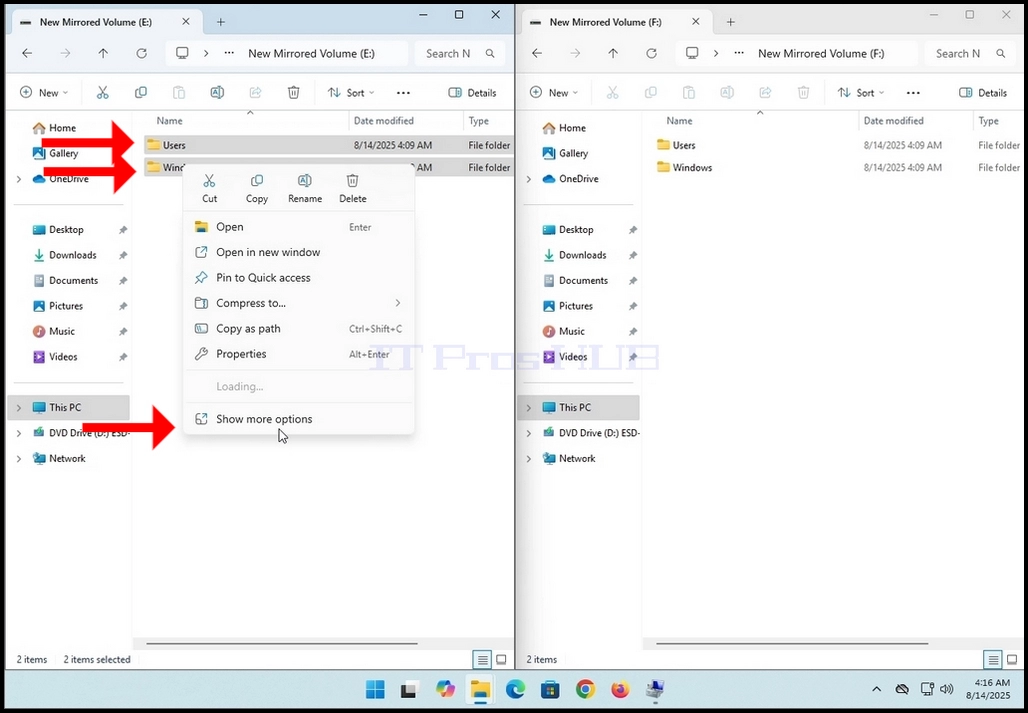
10. Once the properties window appears, let it calculate the number of files, folders and their size and size on disk.

11. Perform the same action to the second drive on the array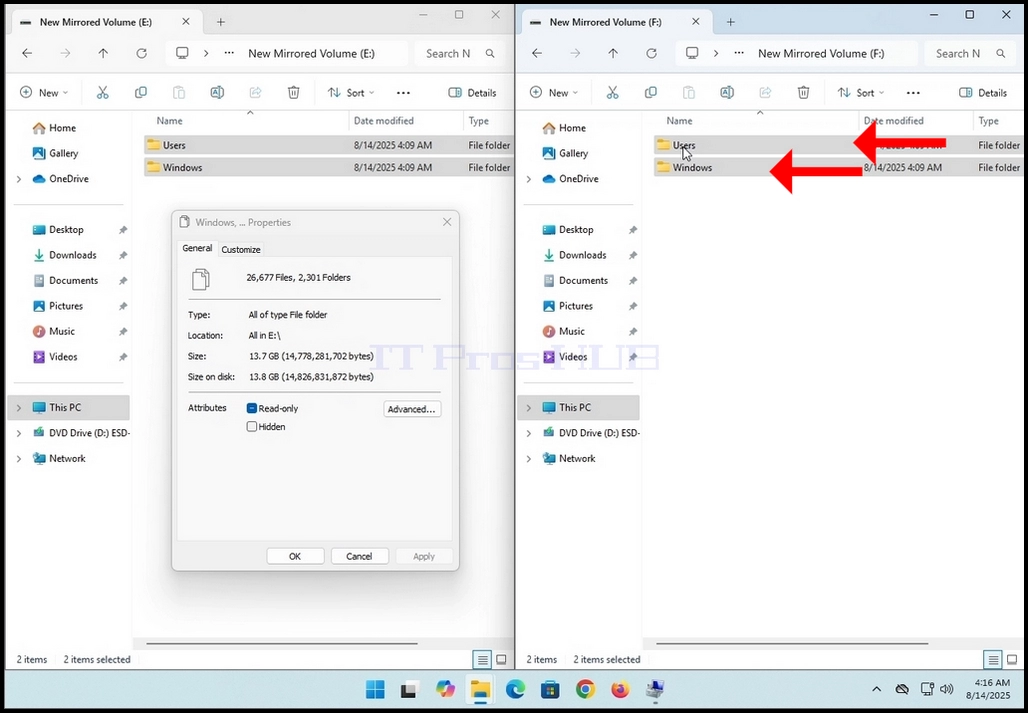
12. Give the properties windows some time to calculate the mentioned values. When the values stop changing that’s when you’d know the calculation process has finished.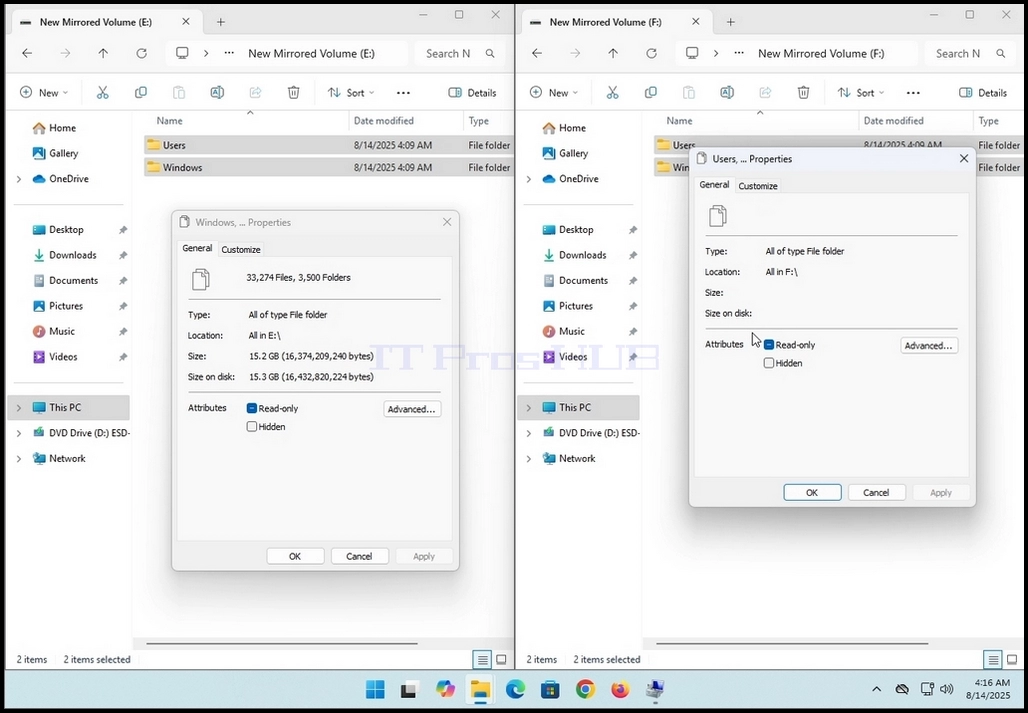
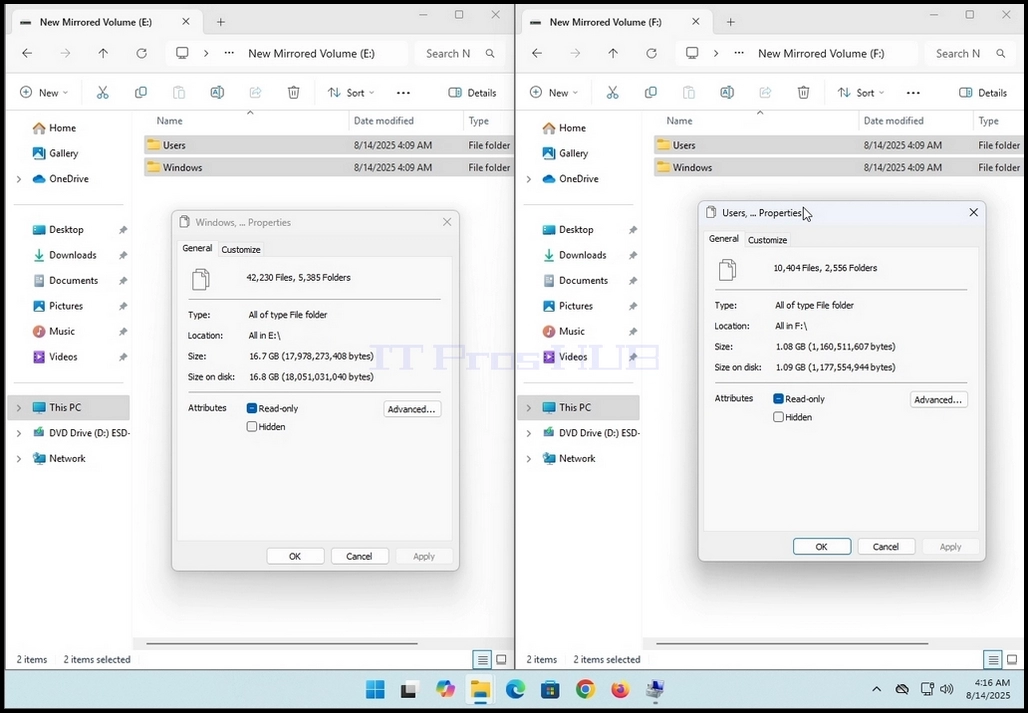
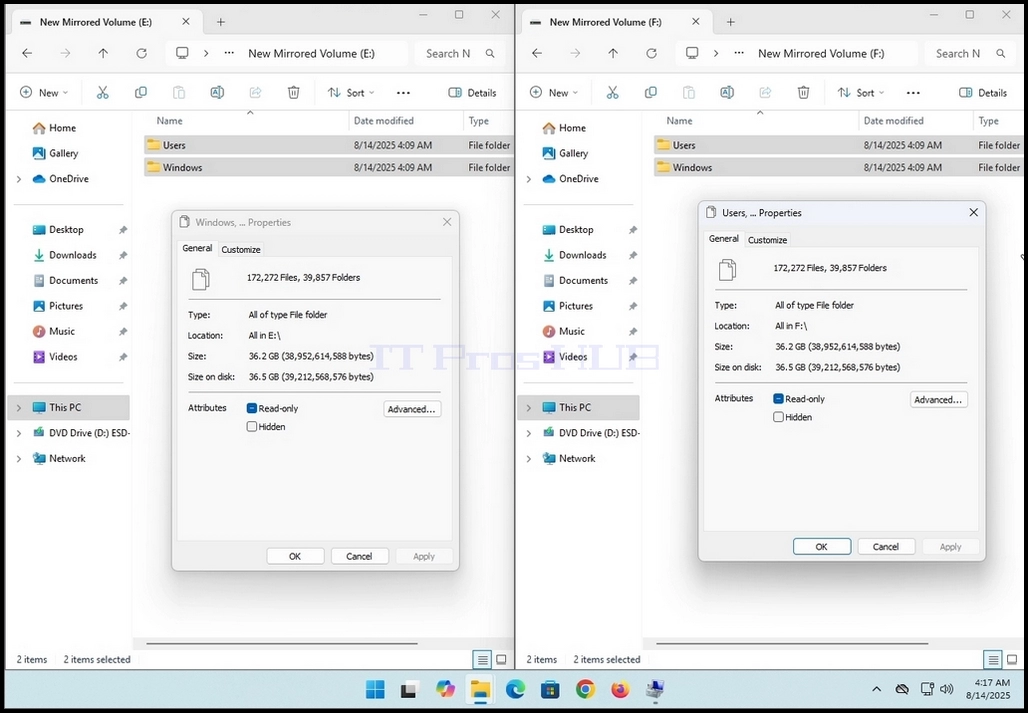
13. Note that in the case of this article, both windows show the same EXACT values:
a. 172,272 files
b. 39,857 folders
c. 36.2GB size (38,952,614,588 bytes)
d. 36.5GB (39,212,568,576 bytes) size on disk
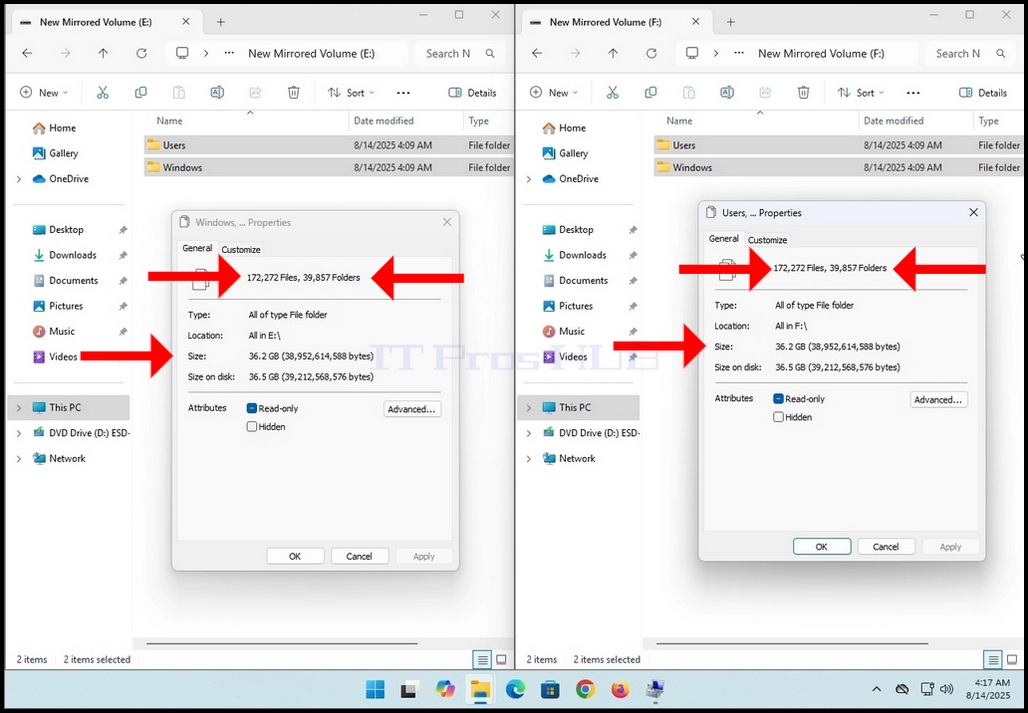
14. This means that this mirrored volume works as intended