Online: 1137 online | Members: 0 | Guests: 1137
Wednesday, June 3, 2026
Page Minimap
Reading time: 2 min read
Tagline:HowtoInsertTableinMicrosoftWordFebruary+2
There is no translation available.

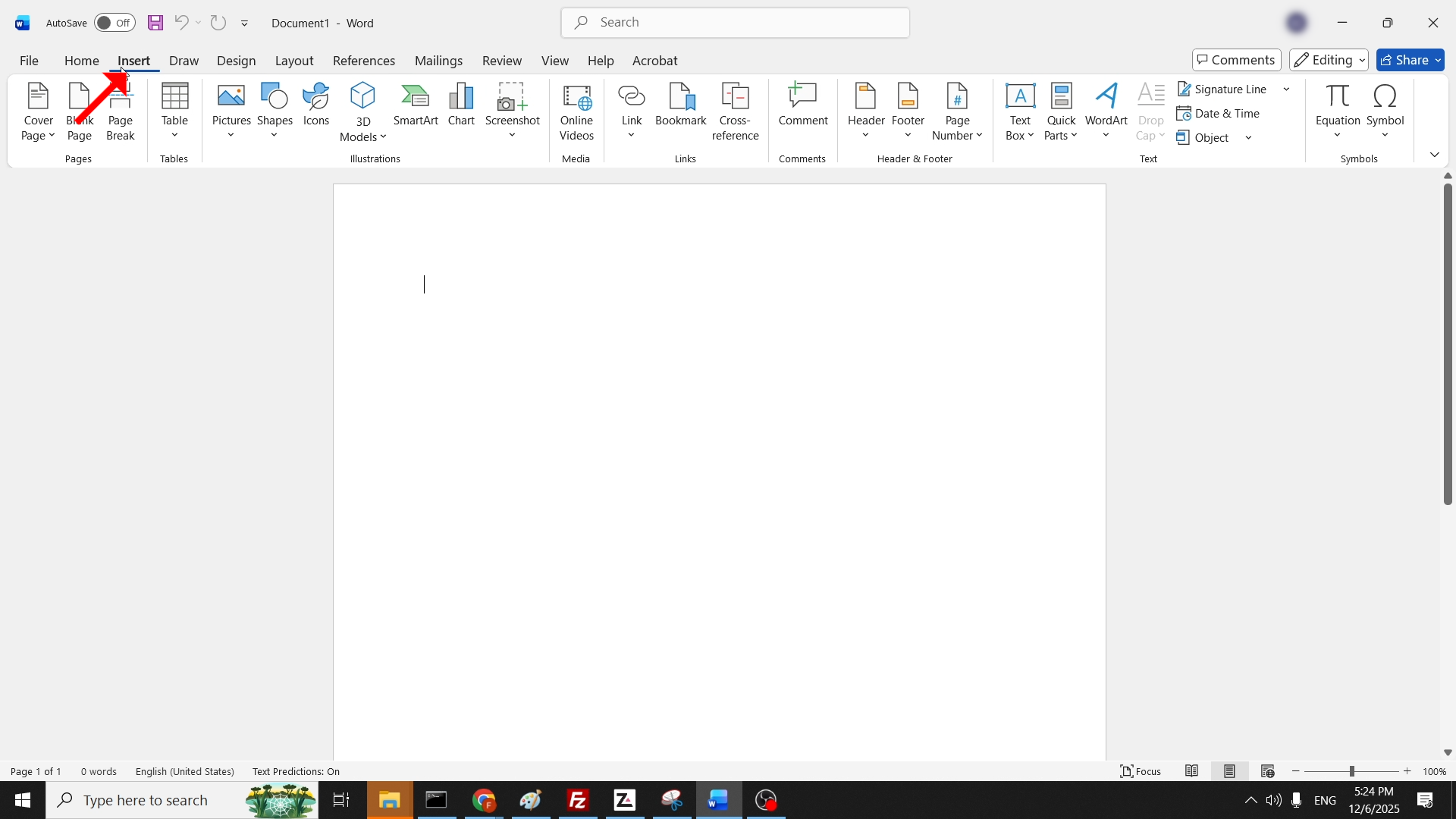
1. Open a Word document.
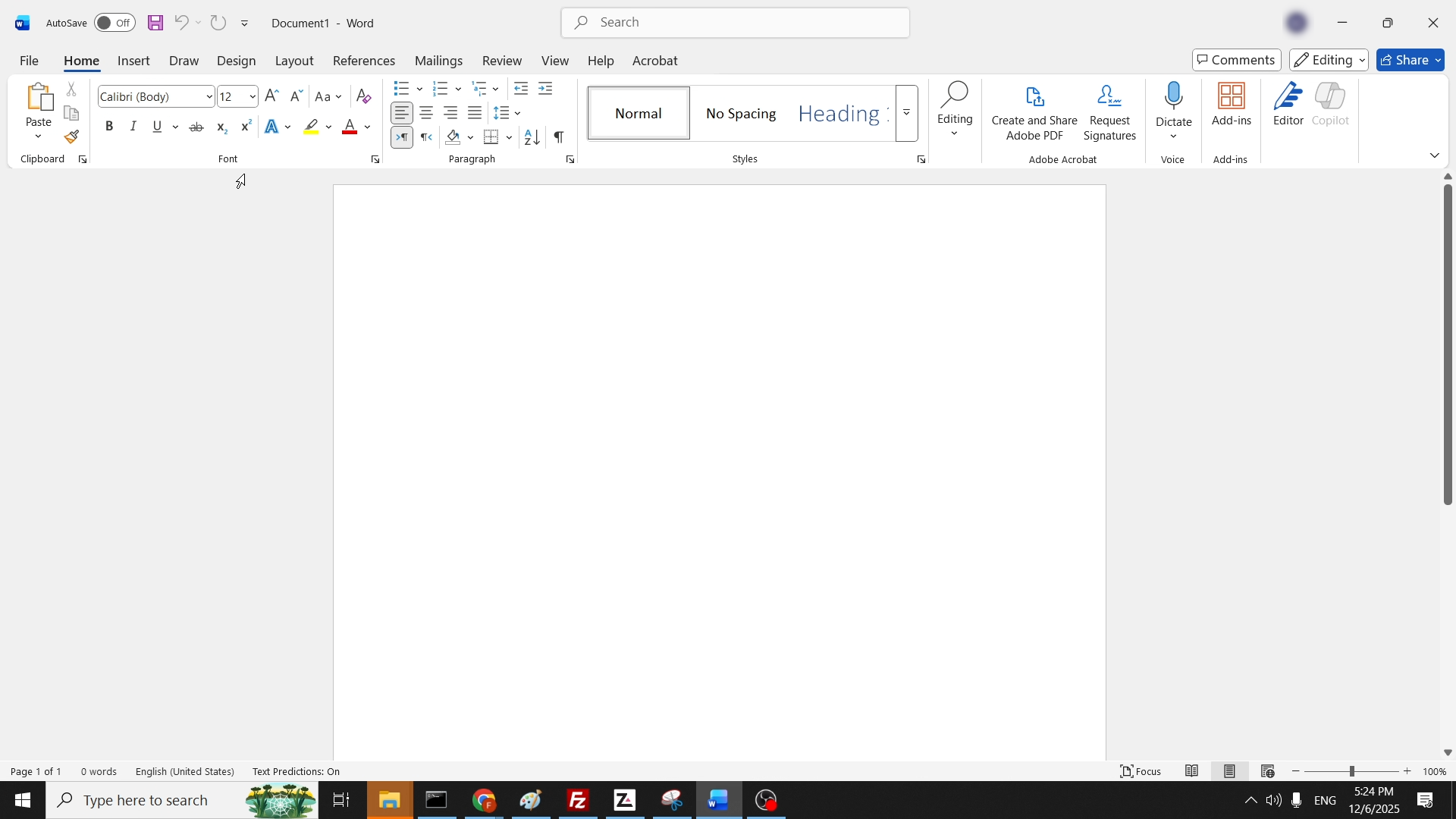
How_to_Insert_a_Table_in_Microsoft_Word_1.png

2. In the top menu ribbon, click on Insert:

How_to_Insert_a_Table_in_Microsoft_Word_3.png

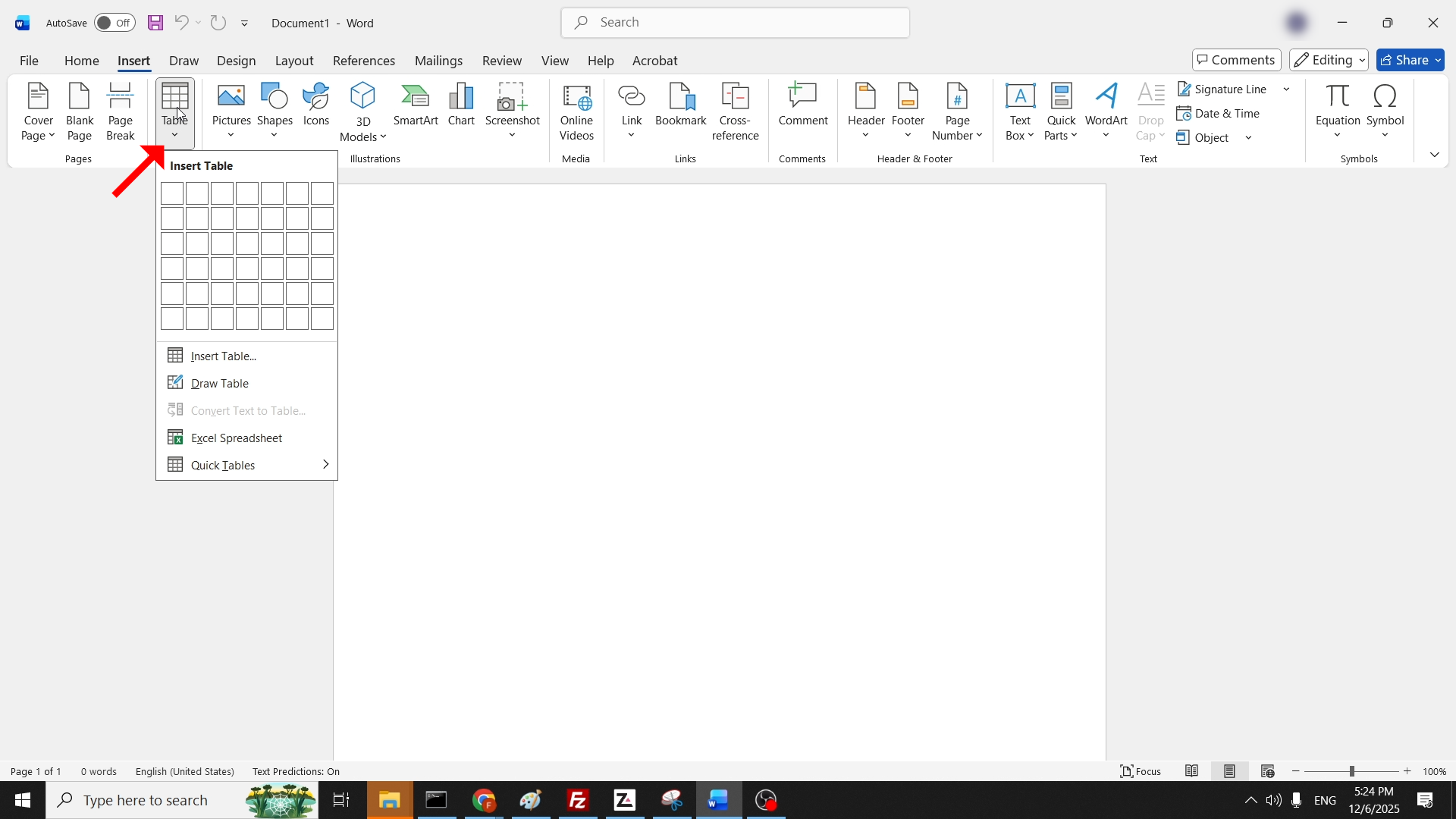
3. In the ribbon under Insert, look for the Table icon and click on it once to reveal a drop-down menu:

How_to_Insert_a_Table_in_Microsoft_Word_4.png

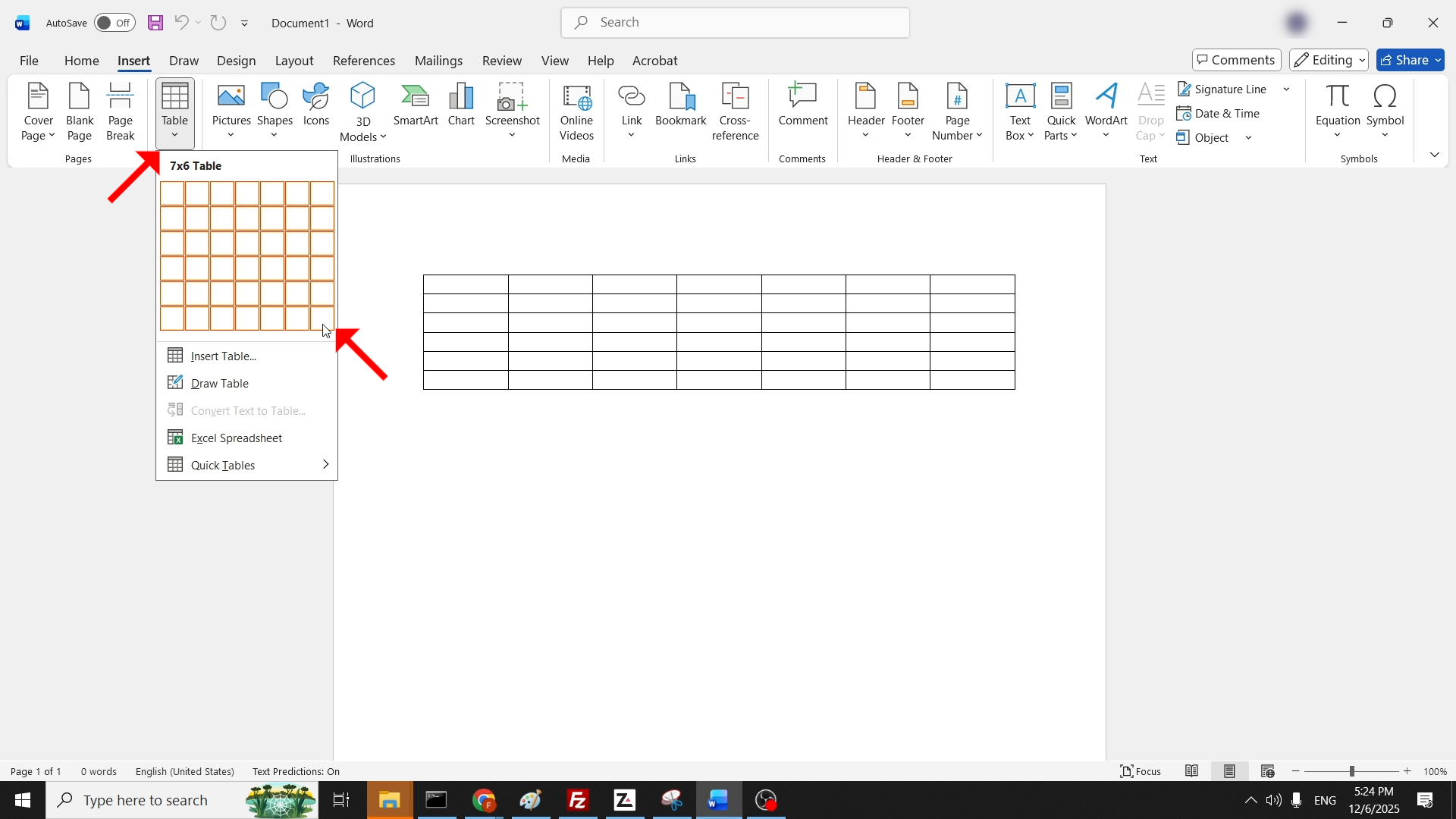
4. Using your mouse, hover your mouse cursor over the rows and columns in the drop-down menu. This will determine the number of rows and columns your future table is going to have:

How_to_Insert_a_Table_in_Microsoft_Word_5.png

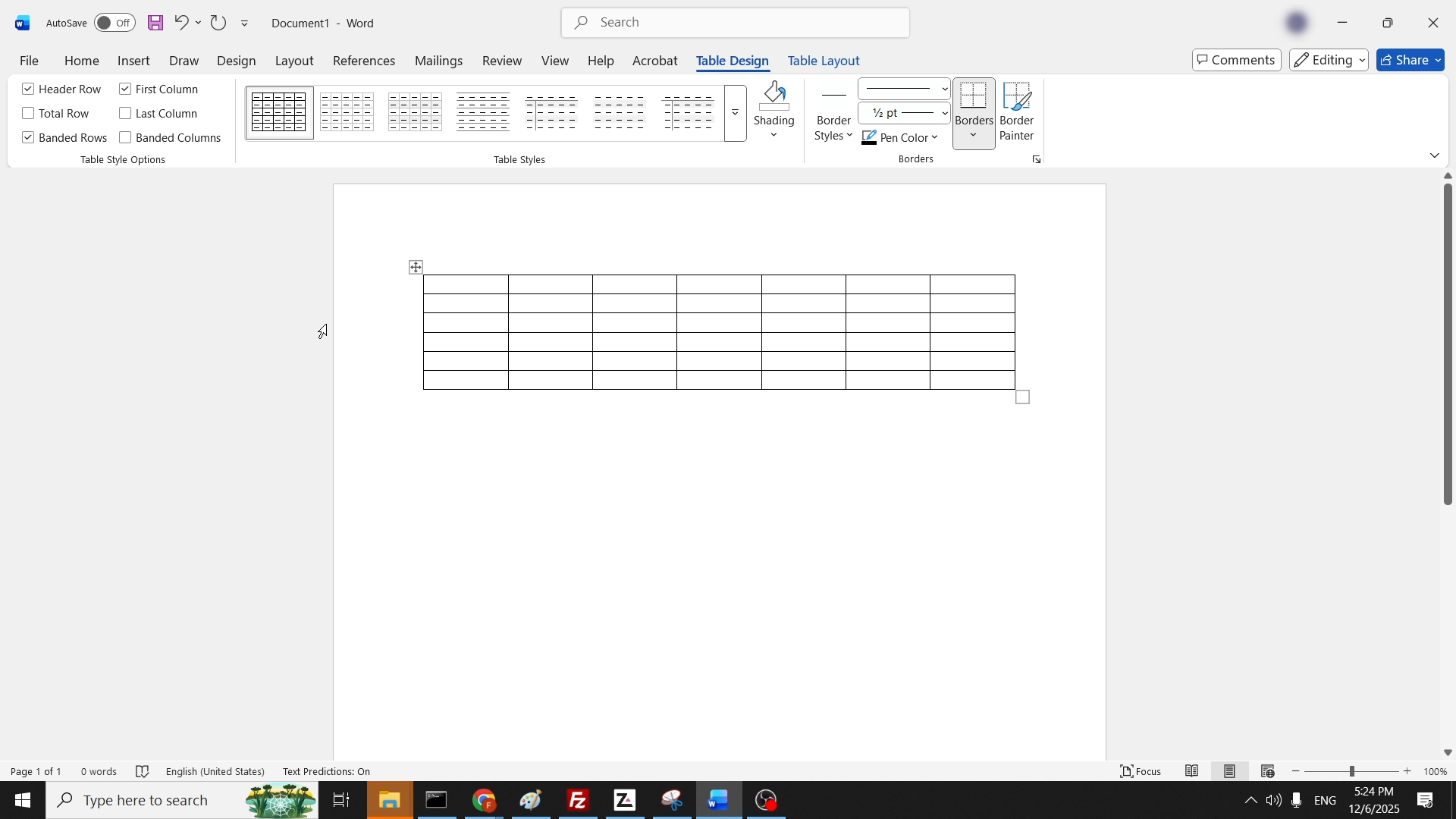
5. Once chosen, click on it once for the drop-down menu to disappear. Eventually you should be left with a table in your Word document as such:

How_to_Insert_a_Table_in_Microsoft_Word_6.png