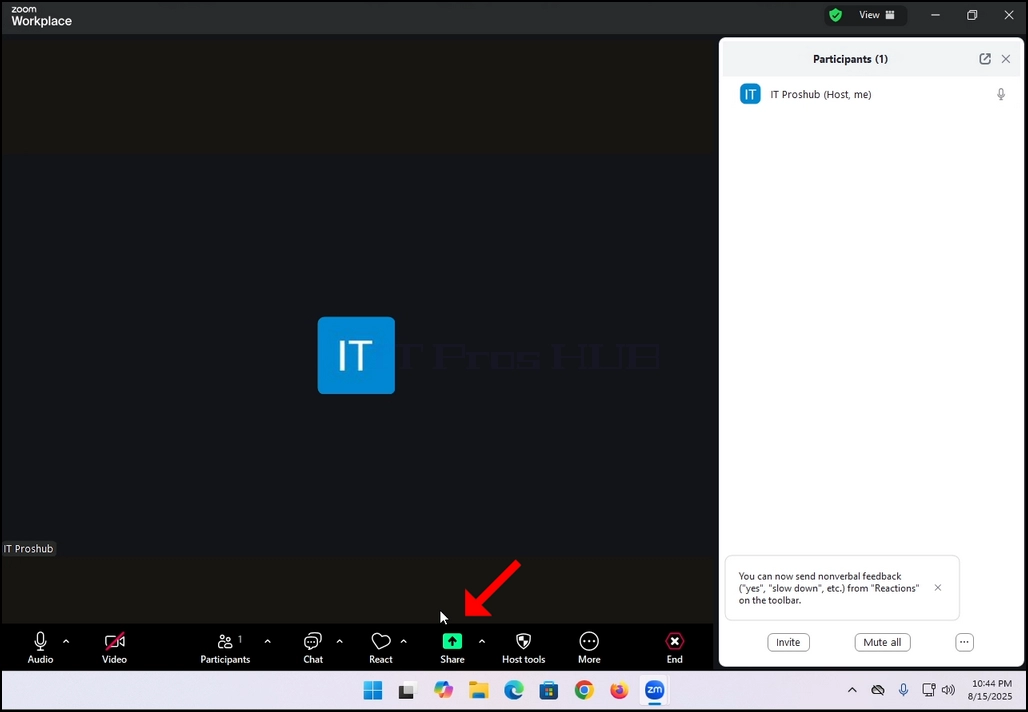
1. Suchen Sie in Ihrer Zoom-Benutzeroberfläche nach einer Schaltfläche mit einem grünen Symbol mit einem schwarzen Pfeil, der nach oben zeigt, und dem Wort „Anteil„Unter ihm geschrieben. Klicken Sie darauf.
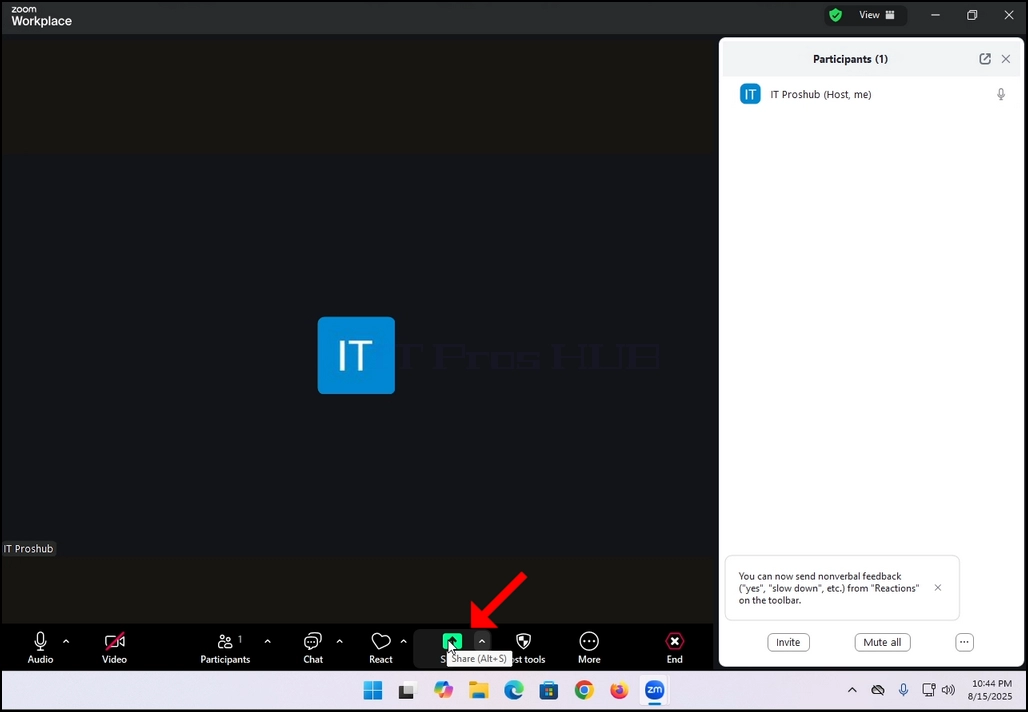
2. Beachten Sie, dass sich neben diesem Symbol ein Pfeil befindet. Wenn sie auf diesen pfeil klicken, können sie zoom so lenken, dass entweder ein teilnehmer gleichzeitig einen bildschirm teilen kann oder mehrere teilnehmer gleichzeitig teilen können.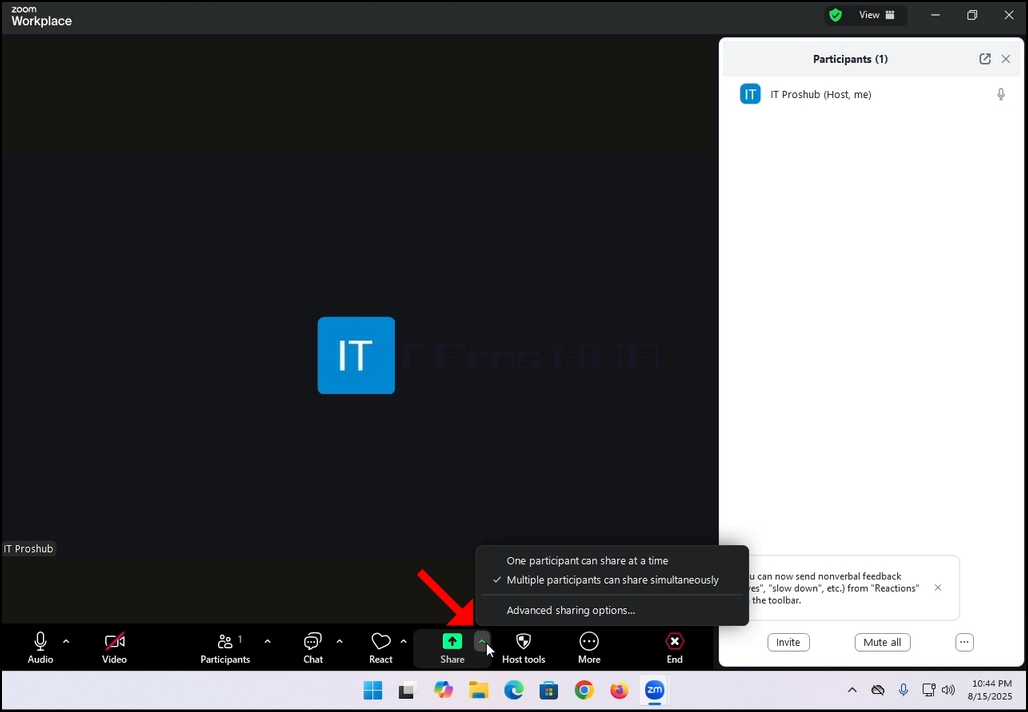
3. Nach dem Klick auf diese Schaltfläche wird ein neues Fenster geöffnet. In diesem Fenster erhalten Sie Optionen, wie und was Sie mit Ihren Teilnehmern des Meetings teilen können. In diesem Artikel konzentrieren wir uns auf die Bildschirmoption nur.
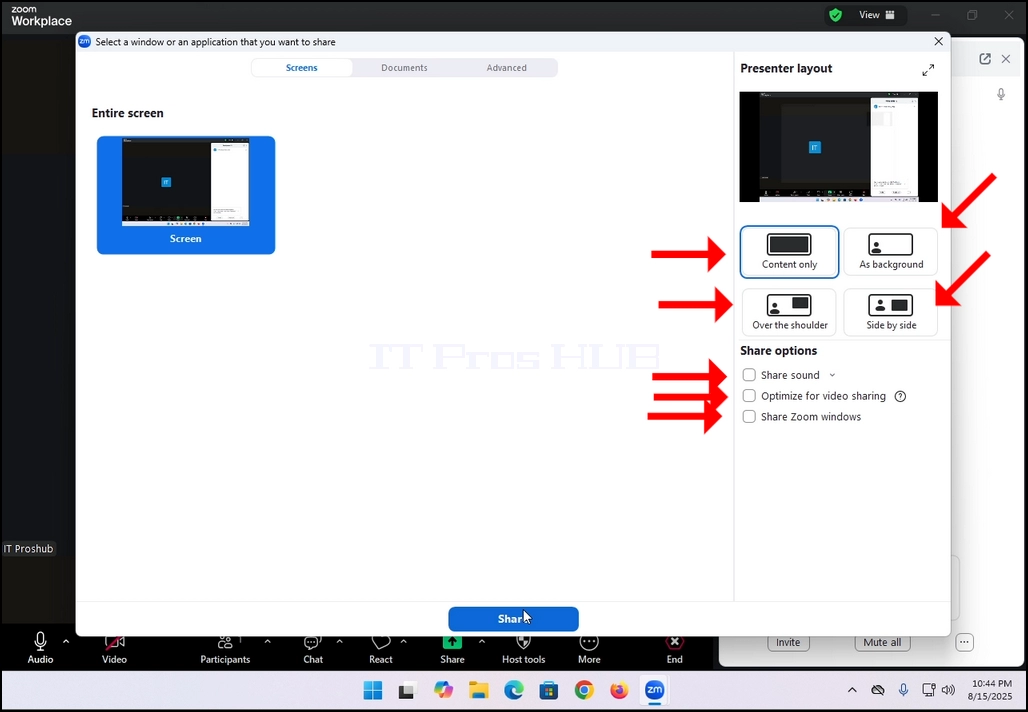
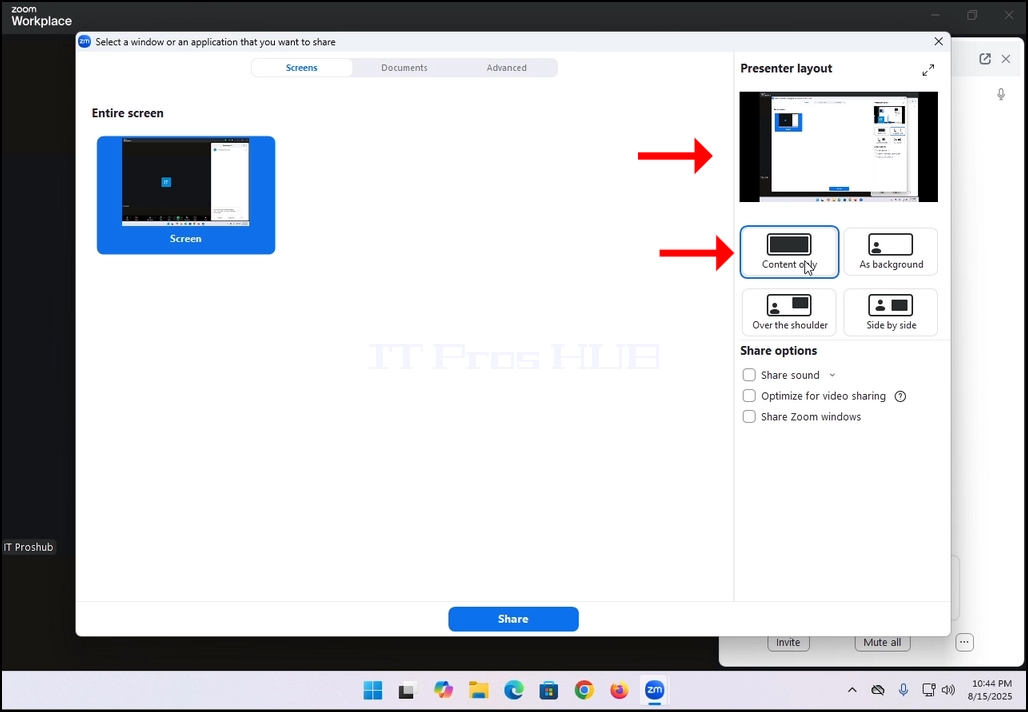
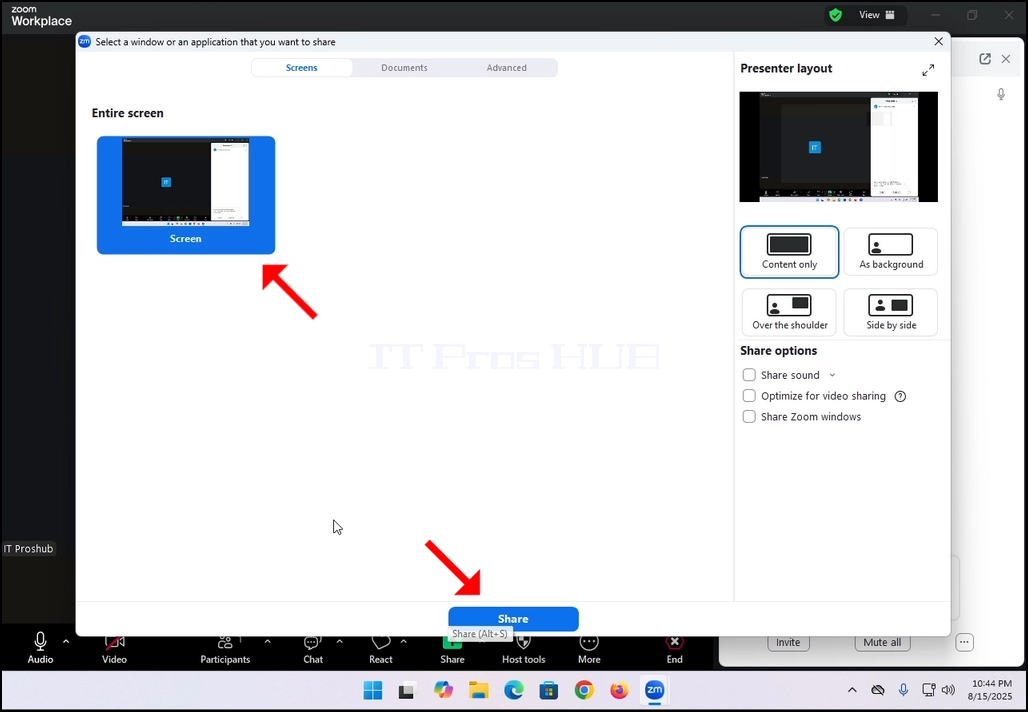 5. Auf der rechten Seite des Fensters befinden sich die Optionen für das Presenter-Layout. Mit diesen Optionen kann der Moderator ändern, wie der Bildschirm und der Moderator während des Meetings gelegt werden.
- Nur Inhalte – nur der geteilte Inhalt ist für die Teilnehmer sichtbar
- Als Hintergrund – Der Inhalt wird als Hintergrund geteilt und der Kamera-Video-Feed des Moderators wird im Vordergrund präsentiert
- Über die Schulter - der Bildschirm, der geteilt wird, wird oben auf der "Schulter" des Teilnehmers angezeigt. Im Grunde ist es von ihrer Seite nach oben gezeigt.
- Seite an Seite – Der Moderator und der geteilte Bildschirm werden den Teilnehmern Seite an Seite gezeigt
6. Weitere Optionen sind:
- Sound Sharing - Der Moderator teilt die Geräusche, die von seinem Computer weggelassen werden
- Optimieren für Video-Sharing Zoom würde sich selbst optimieren, um Videos über den Bildschirm zu teilen, die geteilt werden
- Zoom Fenster teilen Es kontrolliert, ob Ihr eigenes Zoom-Interface (die zoom-app-fenster) können geteilt werden, wenn sie den bildschirm teilen.
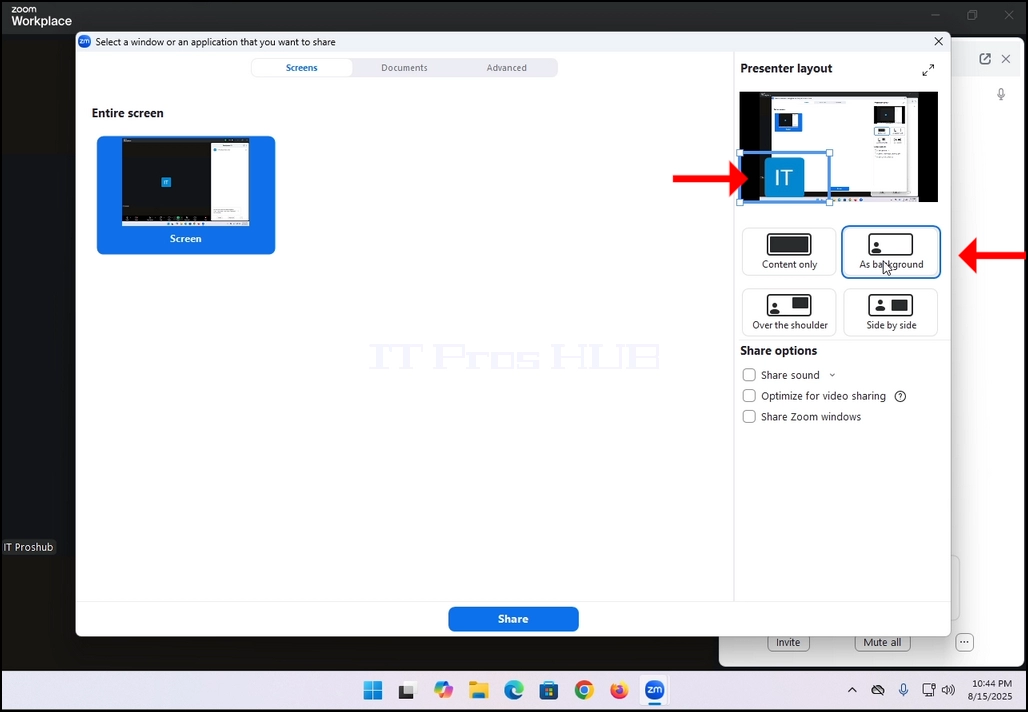
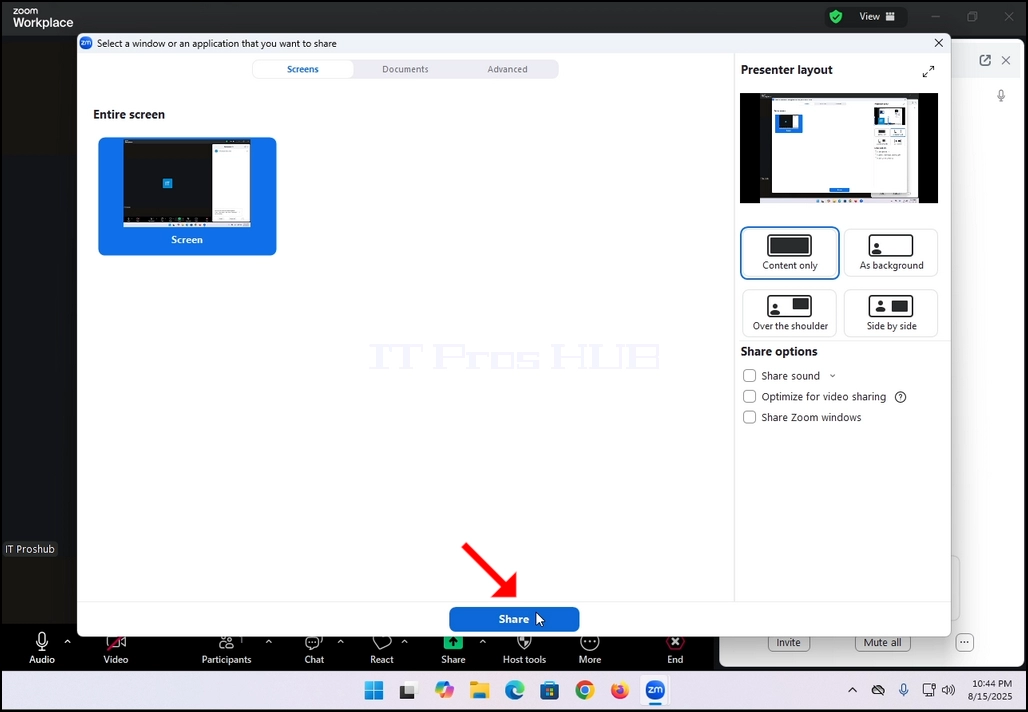
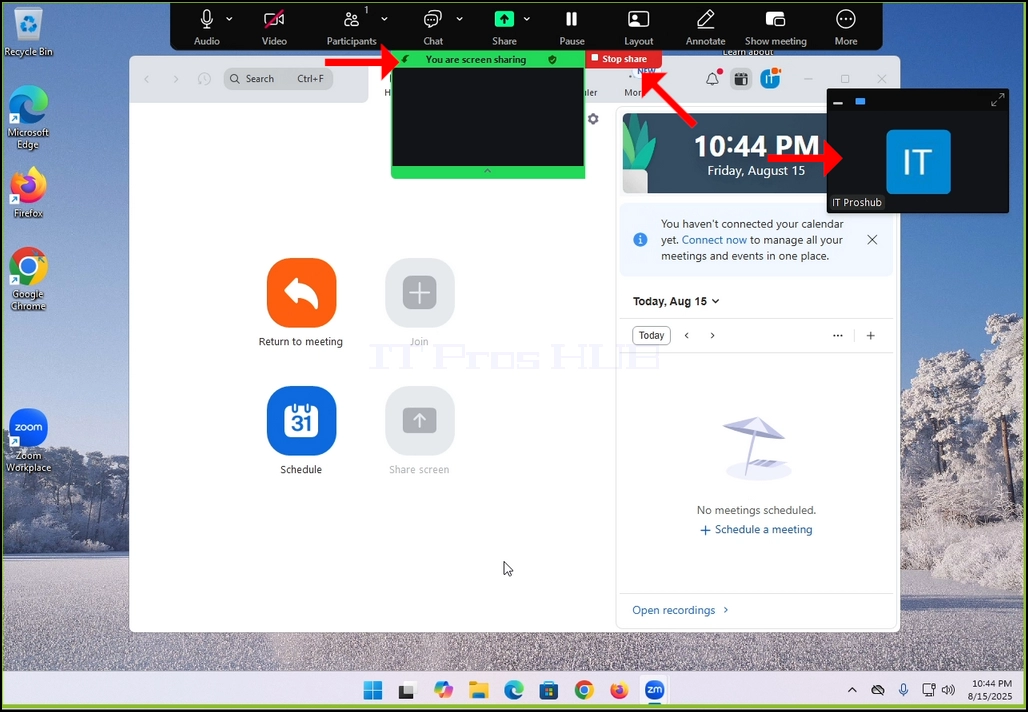
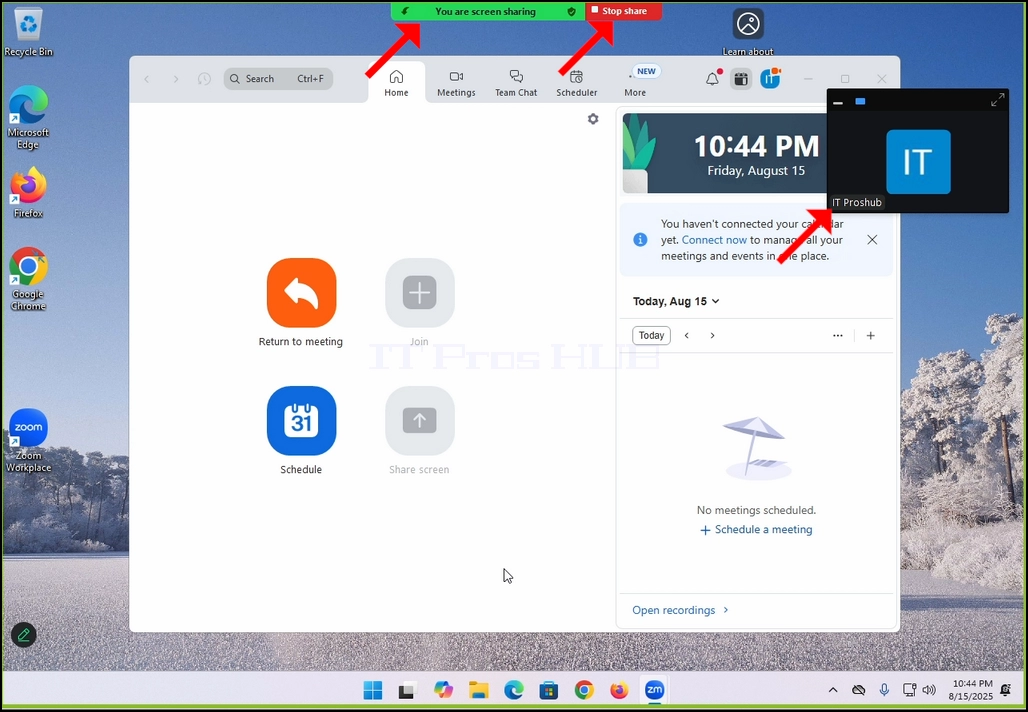
7. Nachdem Sie auf die Schaltfläche Teilen gedrückt haben, beginnt Zoom, das ausgewählte Fenster zu teilen. Sie werden bemerkt werden, dass durch das Sehen einer grünen Box mit dem Titel „Sie sind Screen Sharing„und ein roter Knopf mit dem TitelStop-Anteil.
8. Beachten Sie, dass Ihr eigener Kamera-Video-Feed in einer kleinen Box angezeigt wird und im Bild unten zu sehen ist: