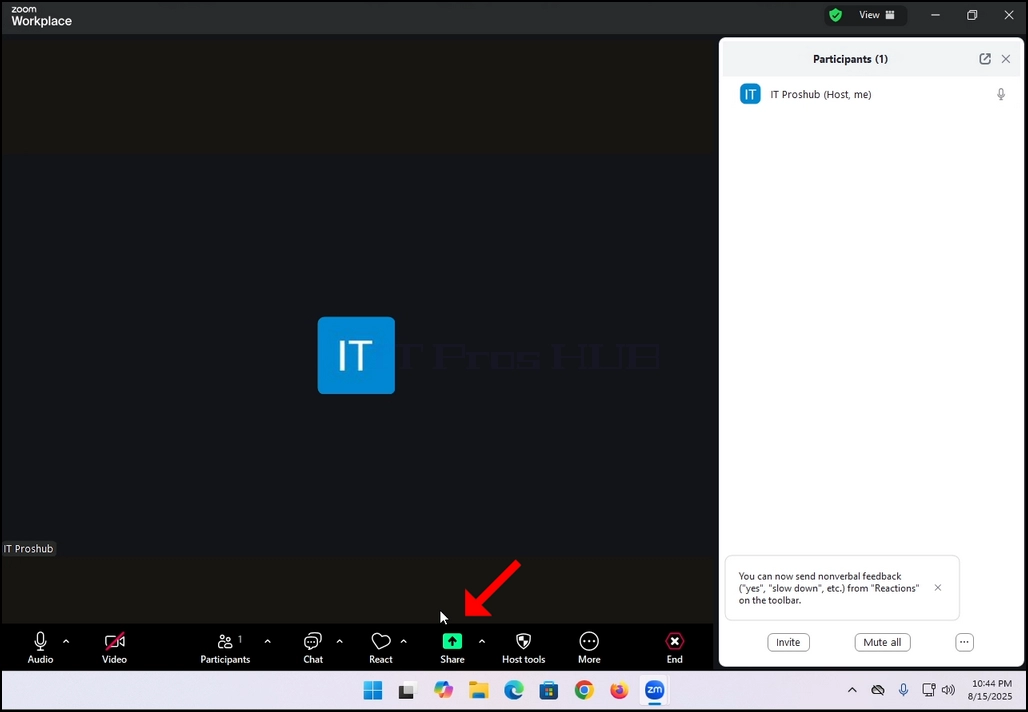
1. Vo svojom Zoom užívateľskom rozhraní hľadať tlačidlo so zelenou ikonou s čiernou šípkou smerujúcou nahor v ňom a slovompodielNapísaný pod ním. Klikni.
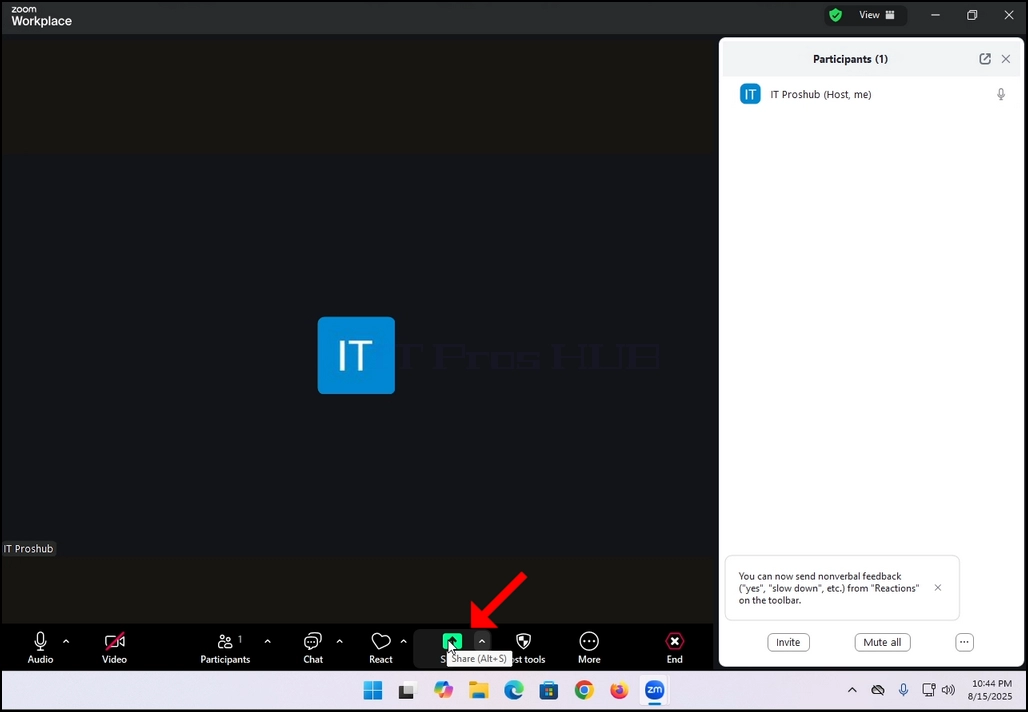
2. Všimnite si, že vedľa ikony je šípka. Ak kliknete na túto šípku, môžete nasmerovať Zoom buď umožniť jednému účastníkovi zdieľať obrazovku naraz, alebo umožniť viacerým účastníkom zdieľať súčasne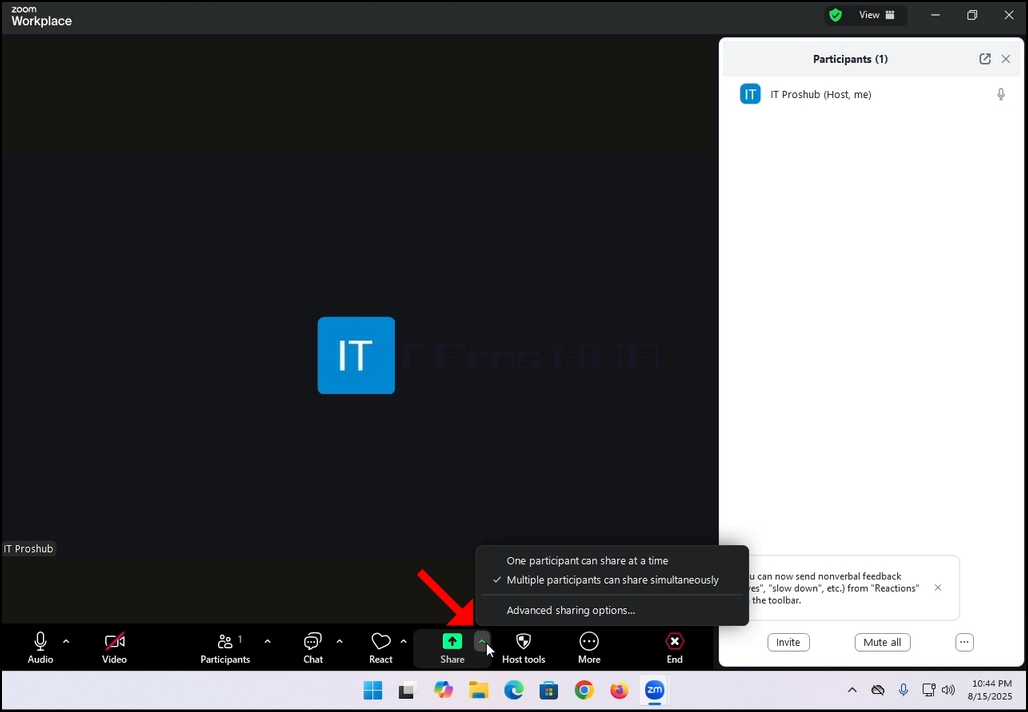
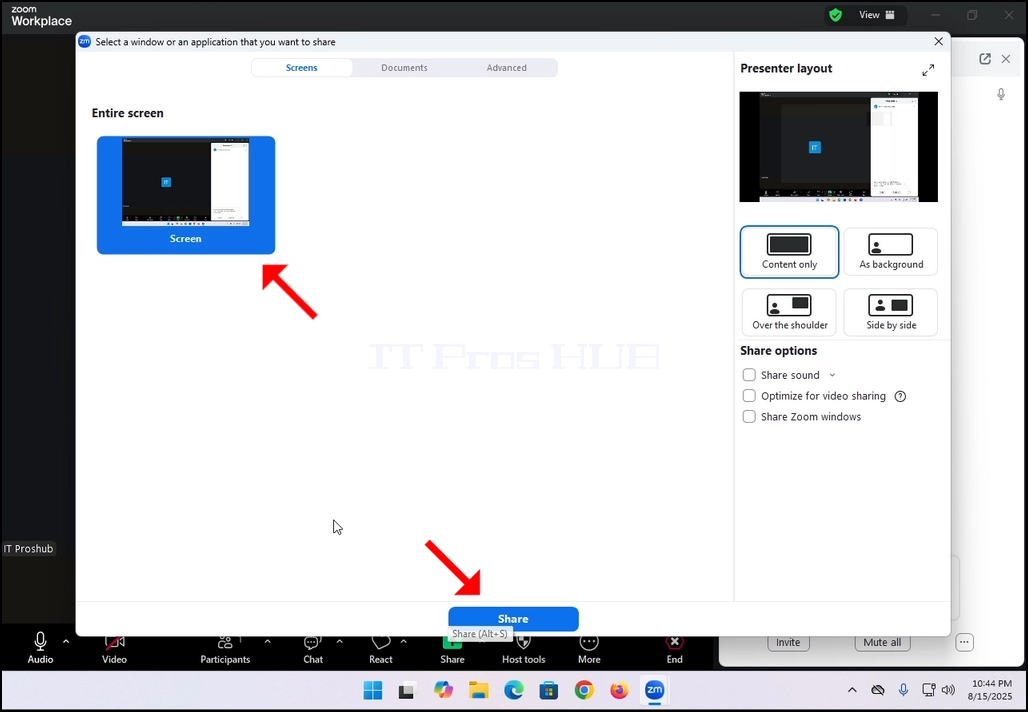
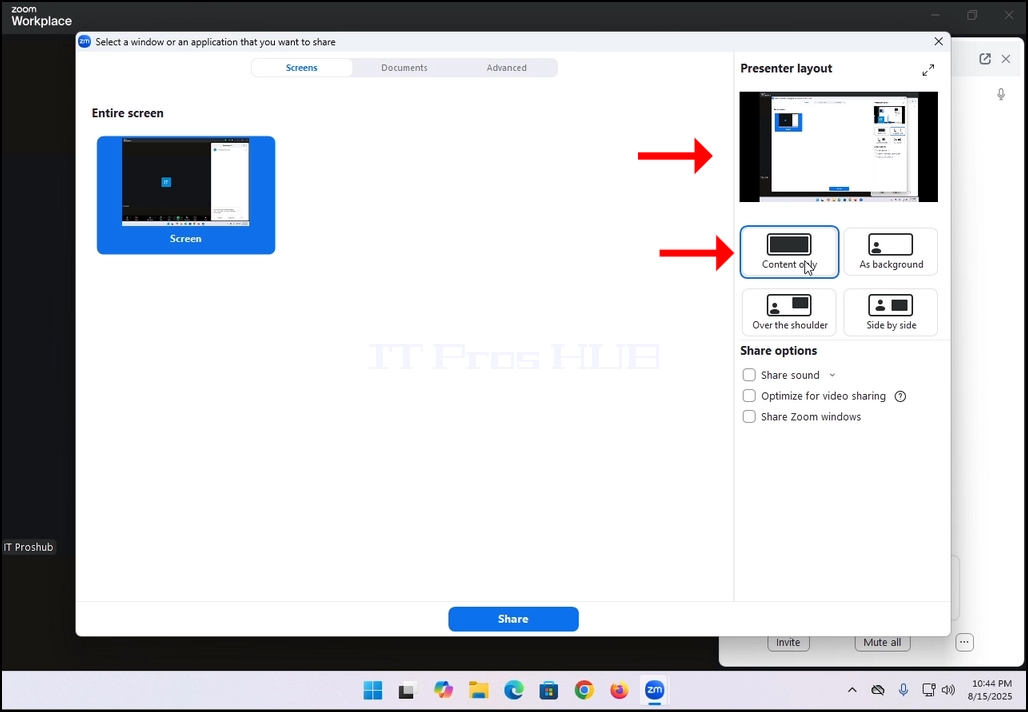
3. Po kliknutí na toto tlačidlo sa otvorí nové okno. V tomto okne vám budú prezentované možnosti, ako a čo zdieľať s účastníkmi stretnutia. V tomto článku sa zameriame na možnosť obrazovky Iba.
4. Po vybratí obrazovky, ktorú chcete zdieľať, kliknite na modré tlačidlo Zdieľať v dolnej časti obrazovky, aby ste mohli začať zdieľať.
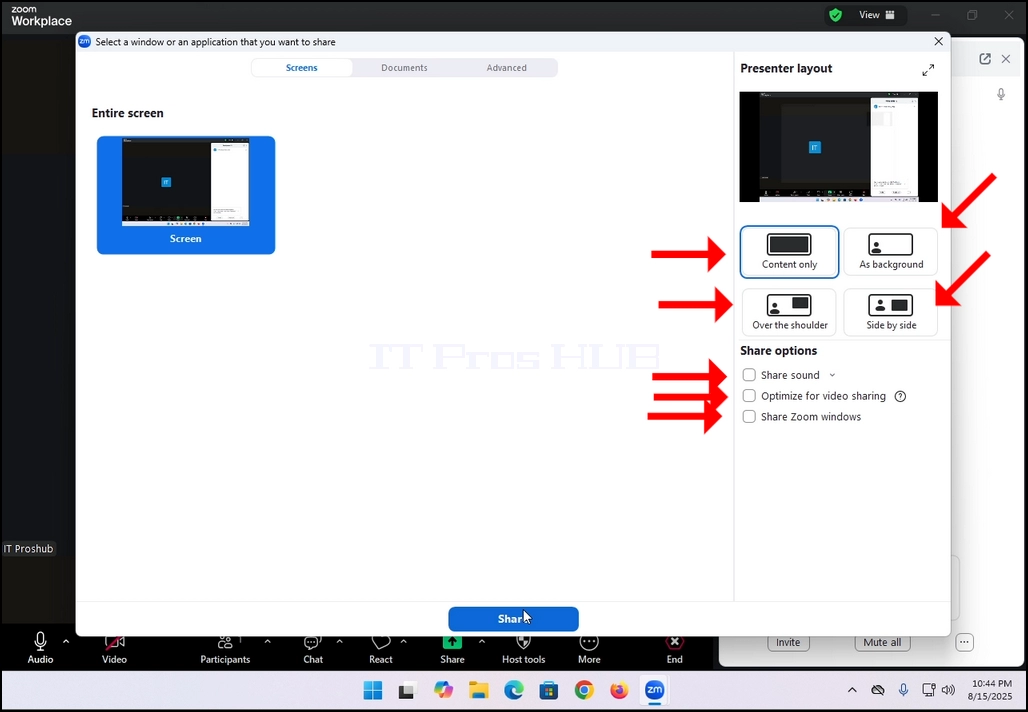
 5. Na pravej strane okna sú možnosti Presenter Layout. Tieto možnosti umožňujú moderátorovi zmeniť spôsob položenia obrazovky a prednášajúceho počas stretnutia.
- Iba obsah
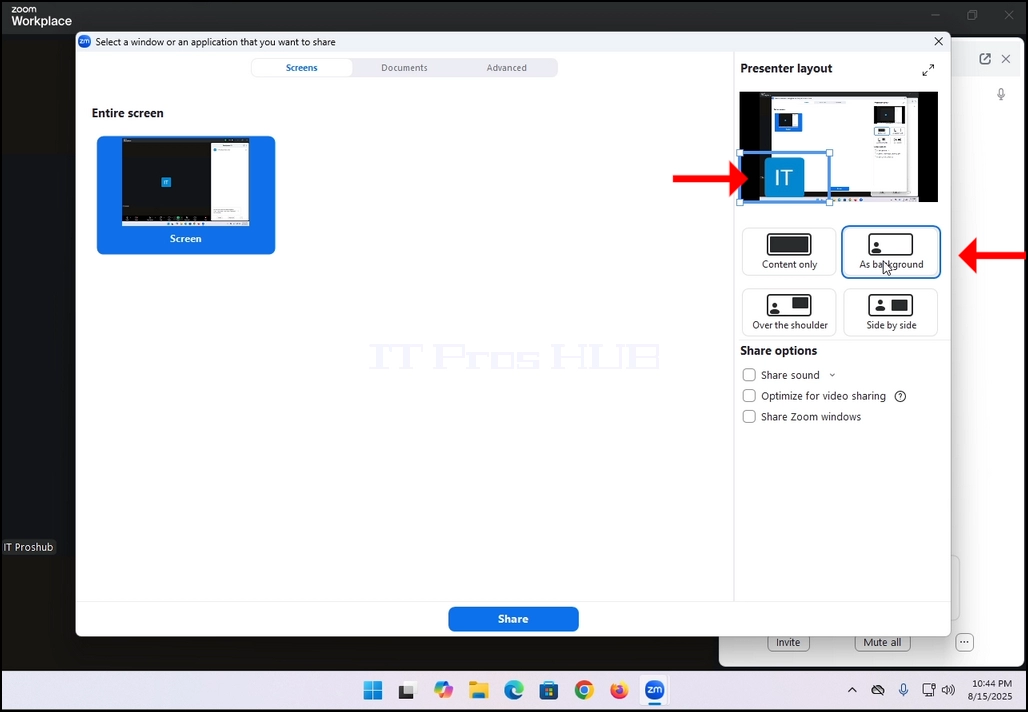
- Ako podklad Obsah je zdieľaný ako pozadie a prednášajúci video kanál je prezentovaný v popredí
- Cez rameno V podstate sa ukazuje na ich strane až na vrchol.
- Bok po boku
6. Ďalšie možnosti zahŕňajú:
- Zdieľanie zvuku
- Optimalizácia pre zdieľanie videa
- Zdieľať zoom okná - Kontroluje, či vaše vlastné rozhranie zoom (okná aplikácie Zoom) môžete zdieľať pri zdieľaní obrazovky.
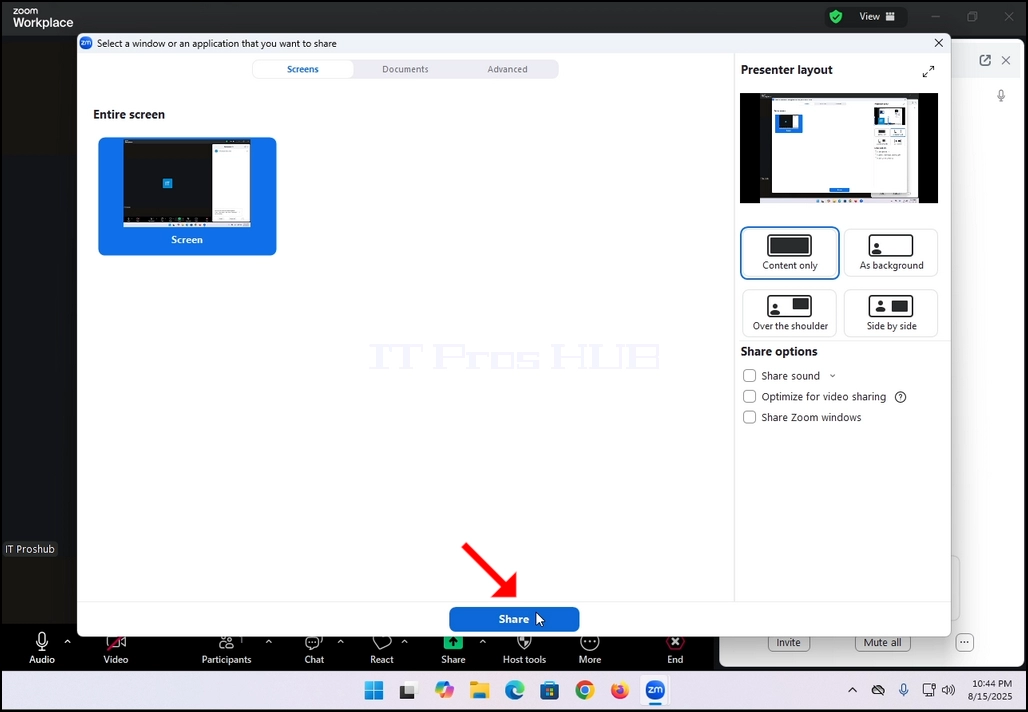
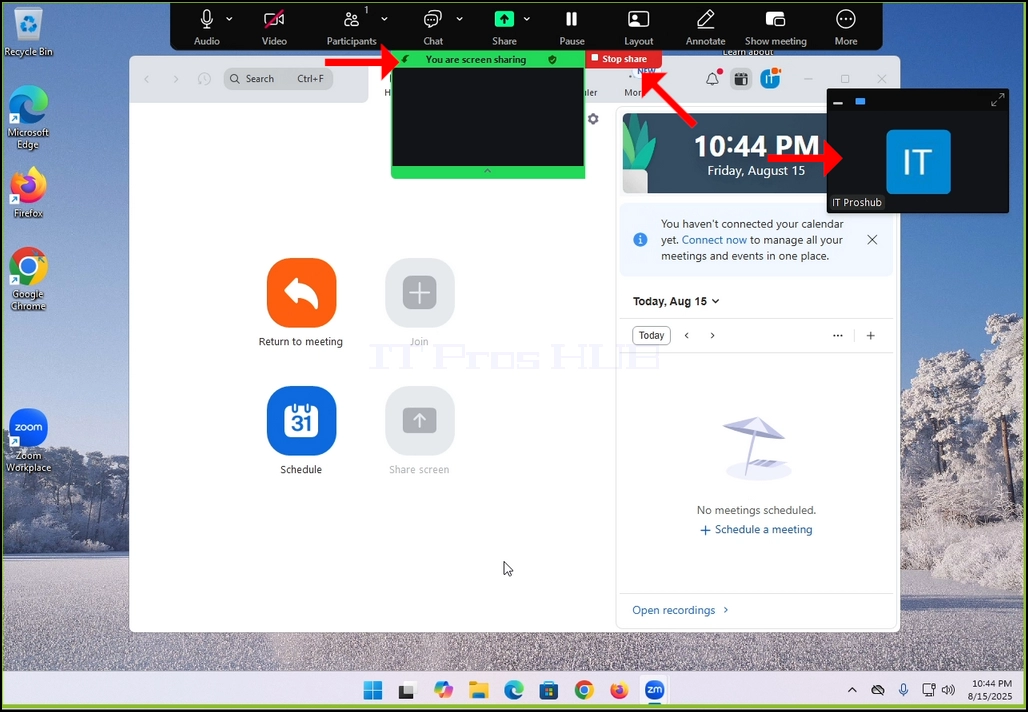
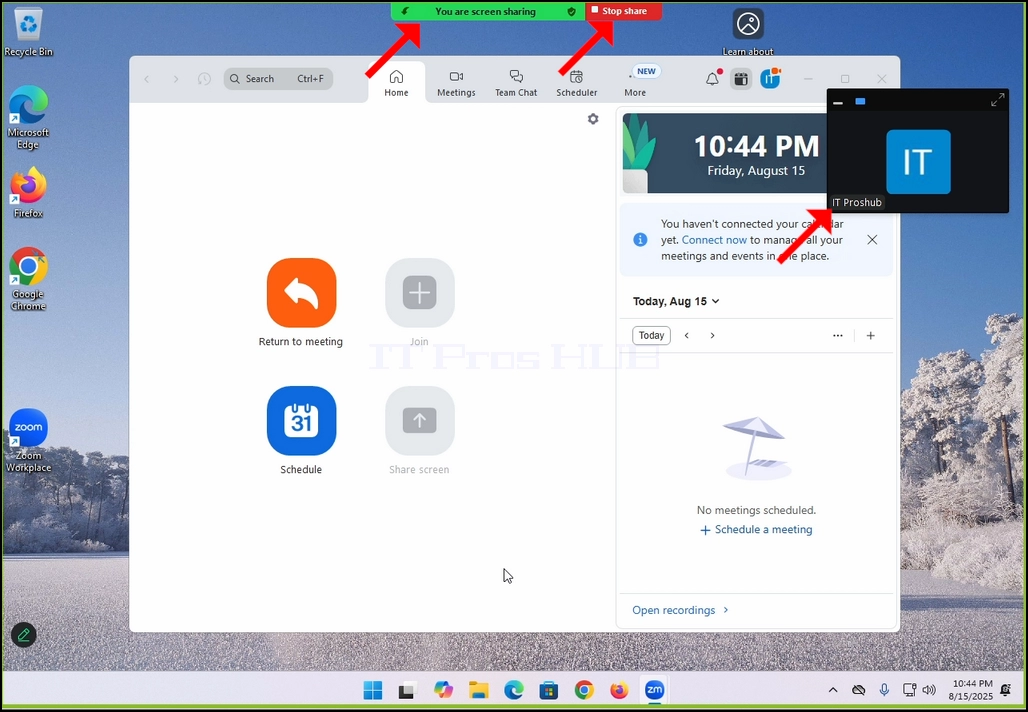
7. Po stlačení tlačidla zdieľať, Zoom začne zdieľať vybrané okno. Budete mať na pamäti, že tým, že vidí zelenú skrinku s názvomste zdieľanie obrazovkya červené tlačidlo s názvomZastaviť podiel- Áno.
8. Všimnite si, že váš video kanál bude zobrazený v malej krabici, rovnako ako je vidieť na obrázku nižšie:
9. Minimalizovať pole kliknutím hore šípkou na spodnej časti poľa. Šípka je zlúčený v zelenej tyčinke a bodov hore.
10. Zdieľanie možno kedykoľvek zastaviť kliknutím na červené tlačidlo Stop zdieľanie.