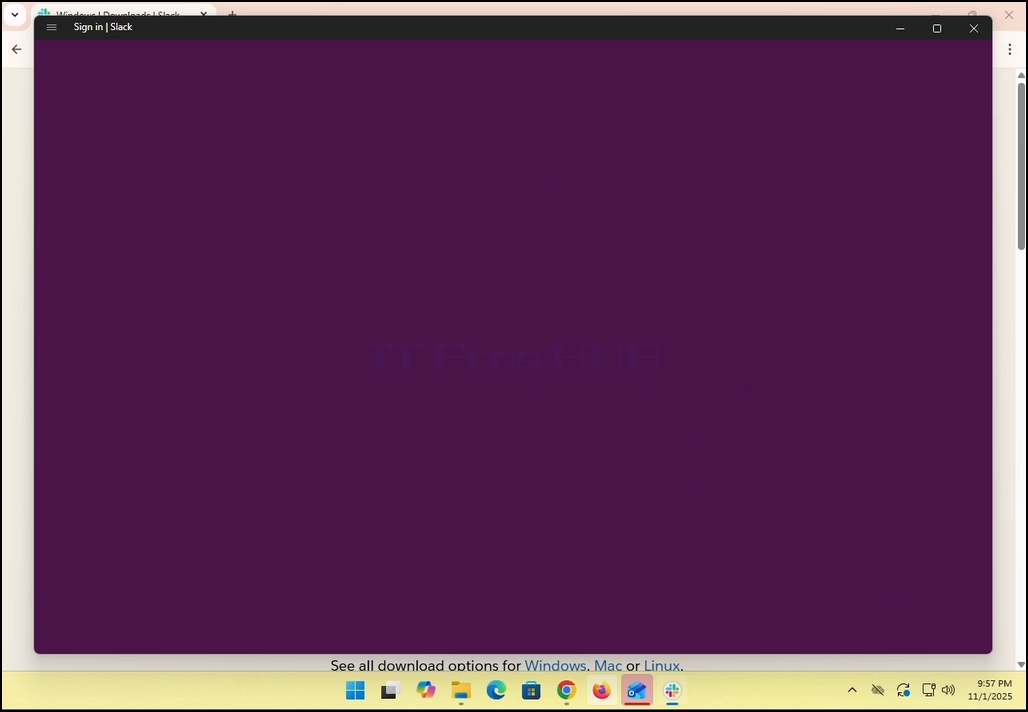
1. Gehen Sie zu Ihrem Internetbrowser. Im Fall dieses Artikels verwenden wir Chrome.
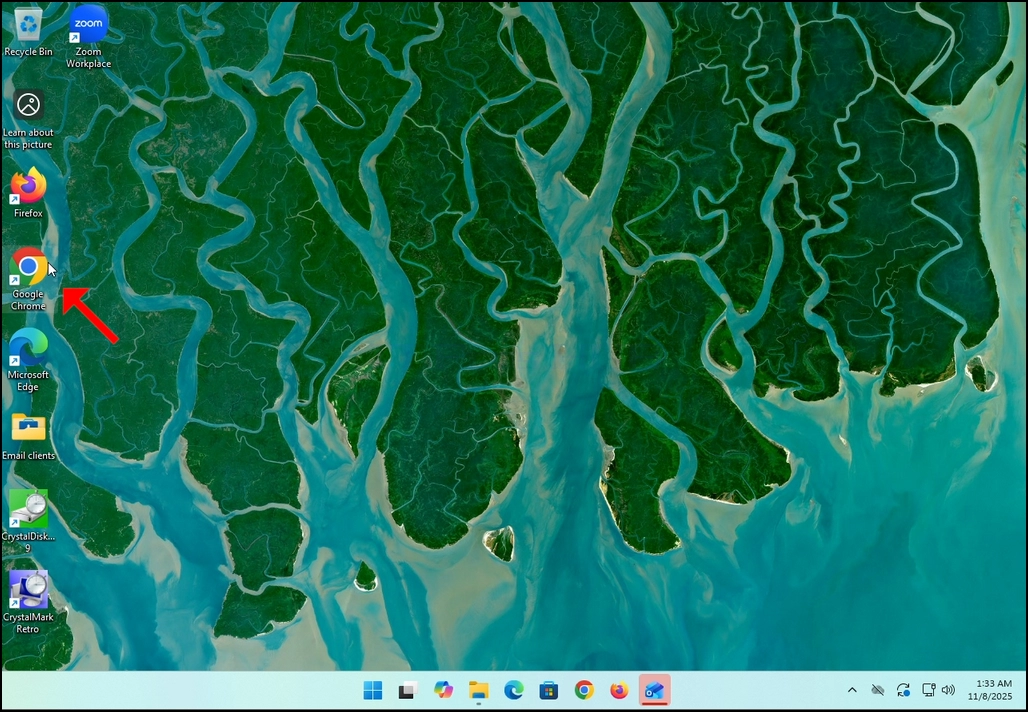
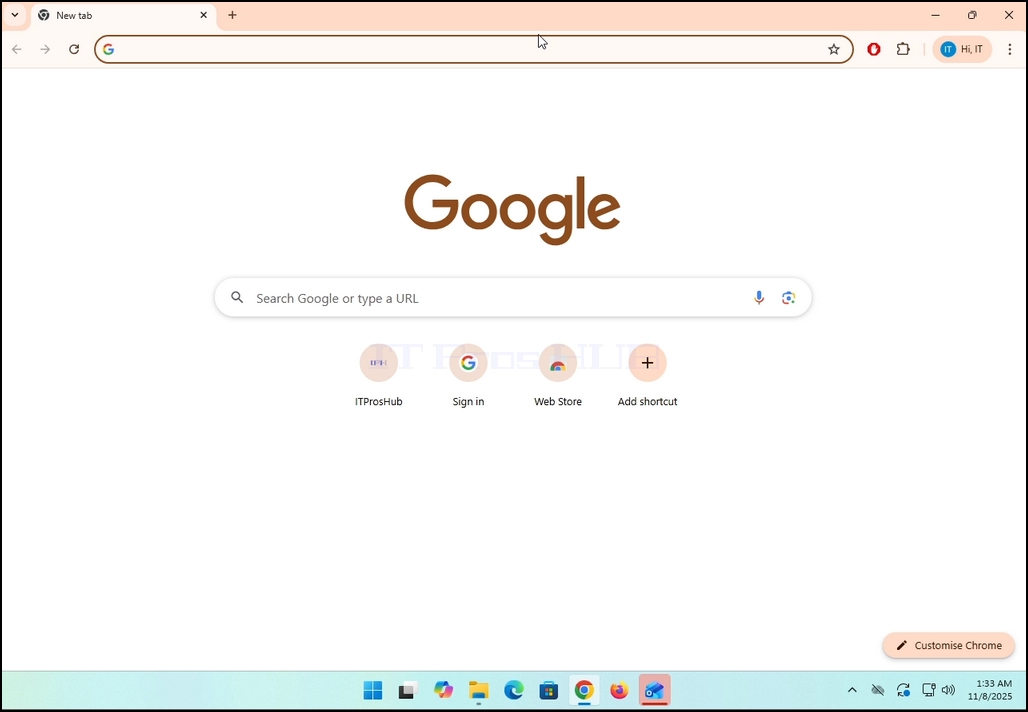
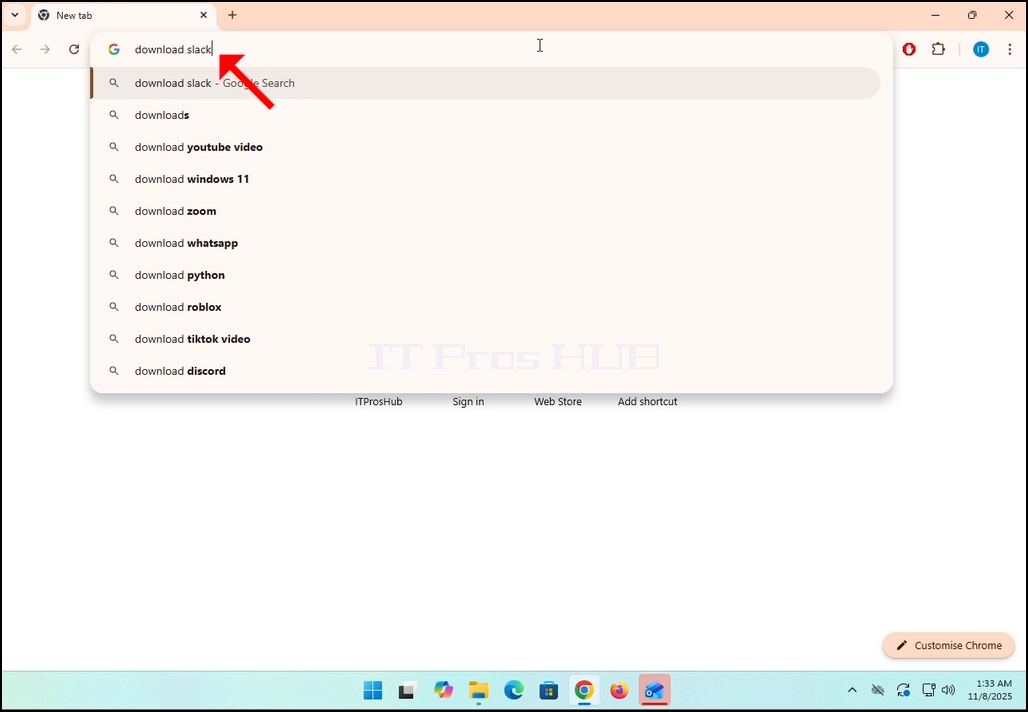
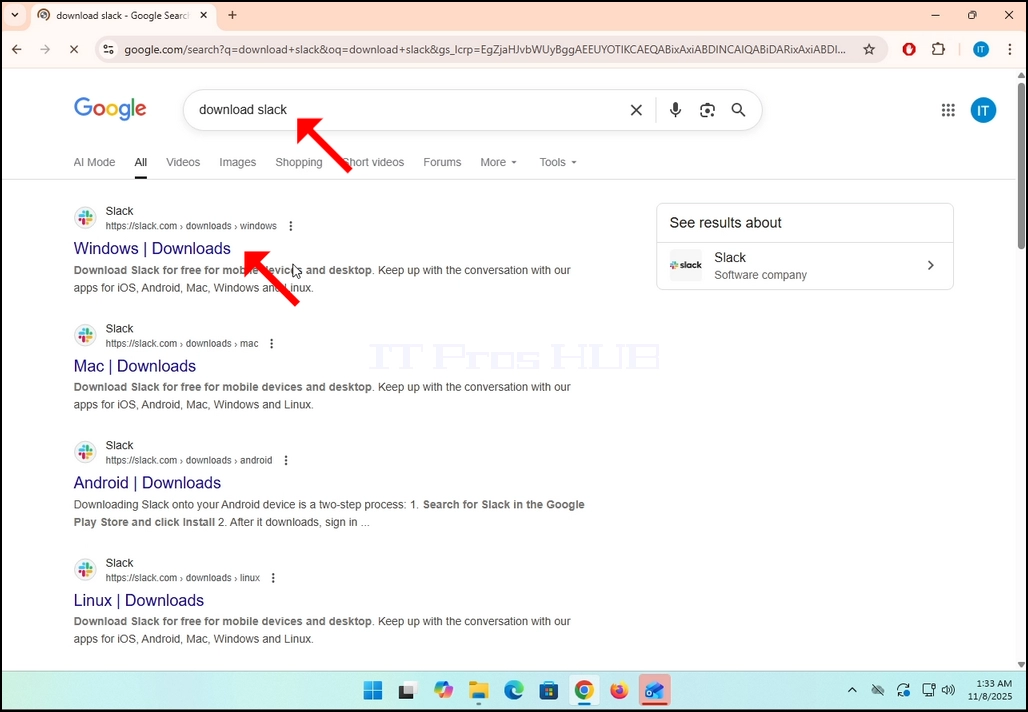
2. Gehen Sie zu Google und geben Sie Download Slack in die Suchleiste ein. Treffer Eingang Schlüssel danach. Warten Sie, bis die Suchergebnisse erscheinen.
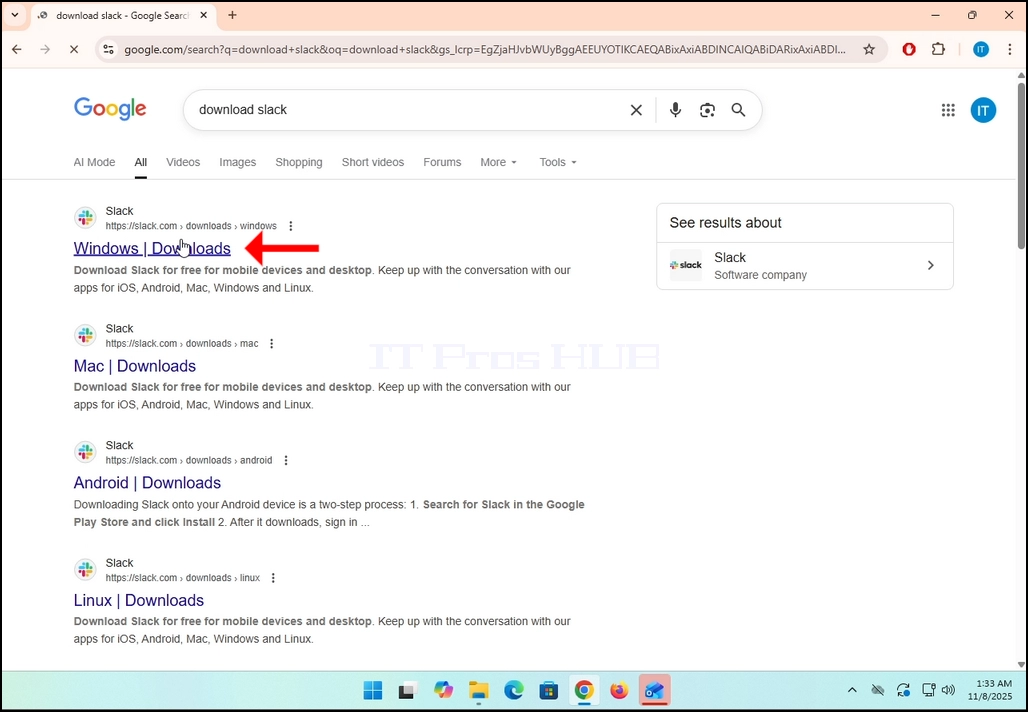
3. Suchen Sie in den Suchergebnissen nach einem Ergebnis mit dem Titel „Windows | Downloads und klicken Sie darauf. Warten auf eine neue
Seite zum Laden.
4. Die neu geladene Seite wird unter der Domain von Slack (slack.com) stehen. Suche nach einem Download (64-BIT) Button auf der linken Seite der Seite. Klicken Sie auf diese Schaltfläche, um den Download-Prozess der Installationsdatei von Slack zu starten.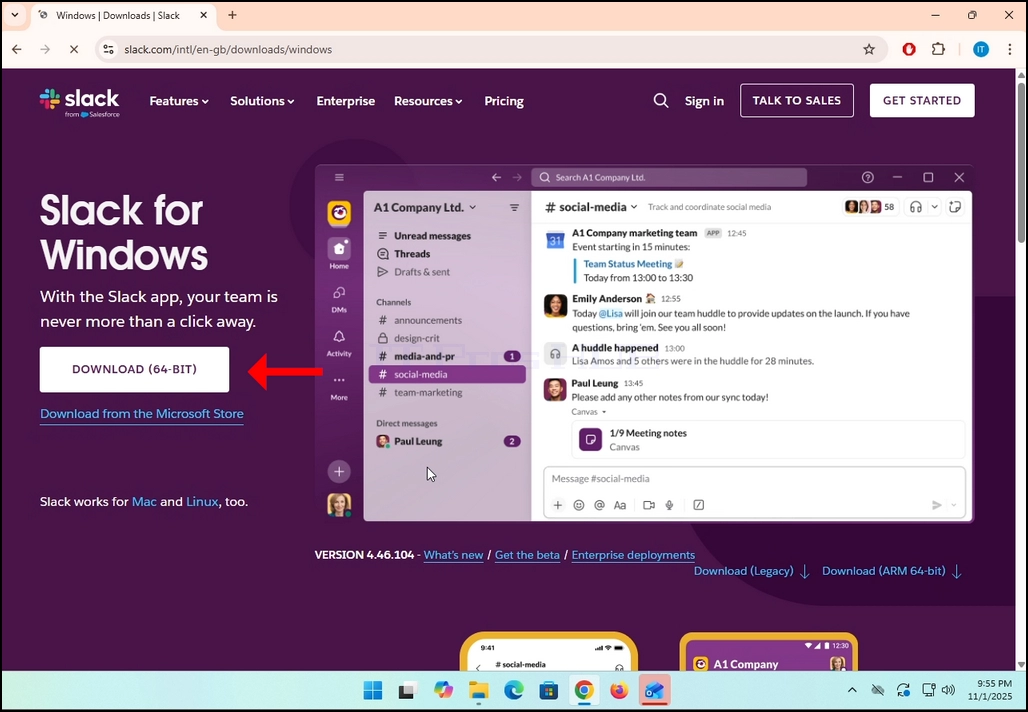
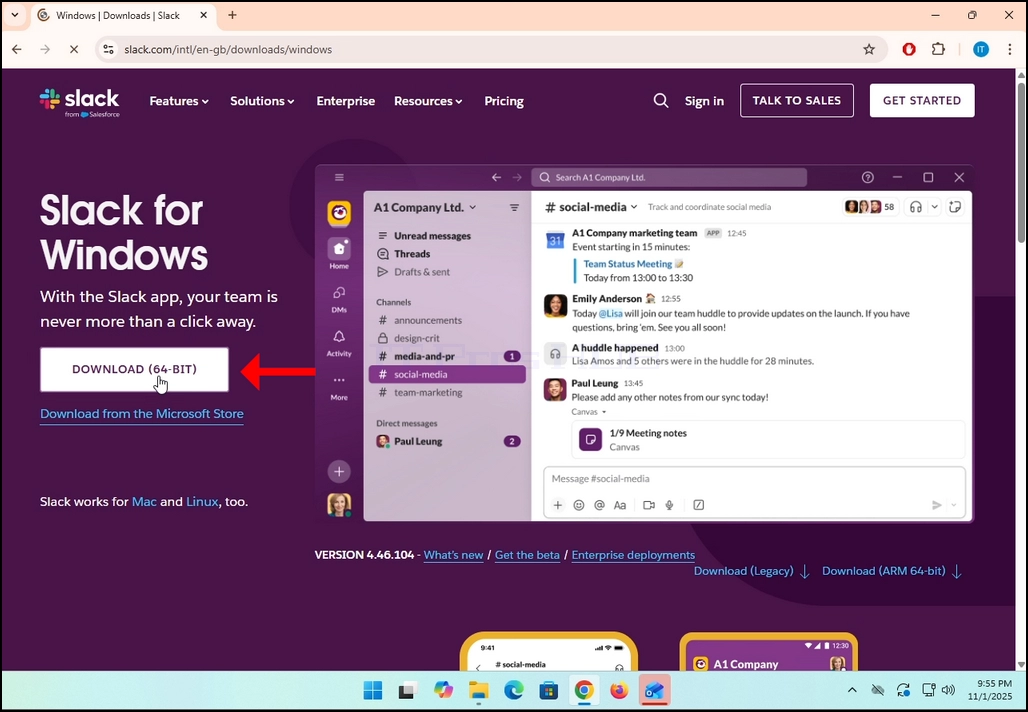
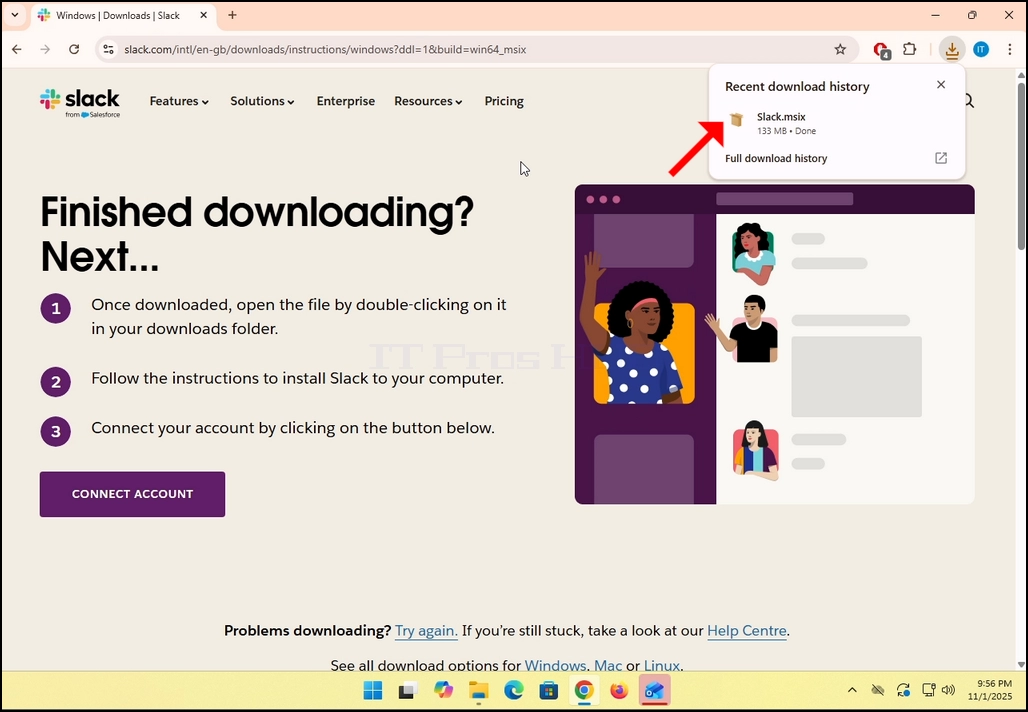
5. Sobald Sie angeklickt haben, sehen Sie den Installationsprozess in Ihrem Browser. Stellen Sie sicher, dass die heruntergeladene Datei aufgerufen wird Slack.msix und nichts anderes.
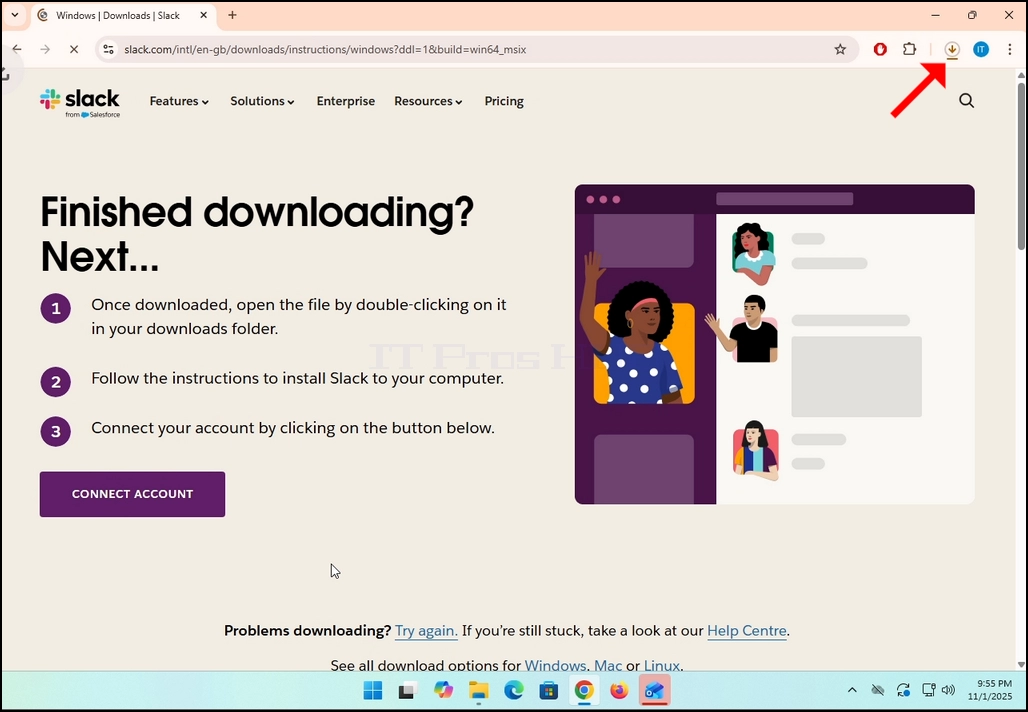
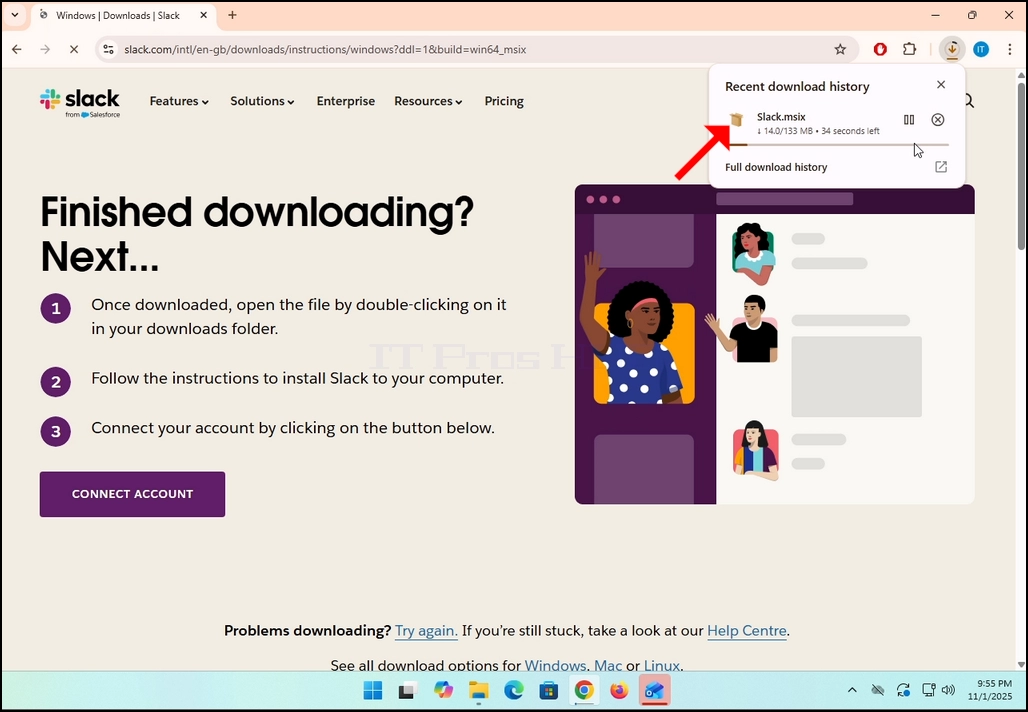
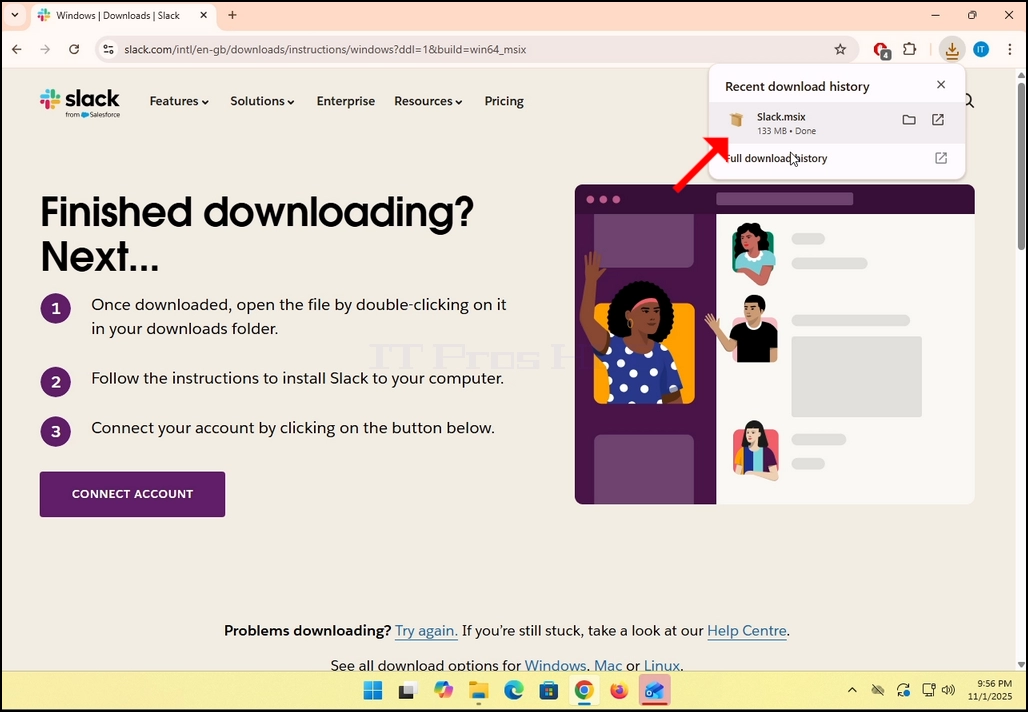
6. Einmal fertig, klicken Sie auf die Slack.msix Datei, um die Datei zu öffnen und den Installationsprozess zu starten.
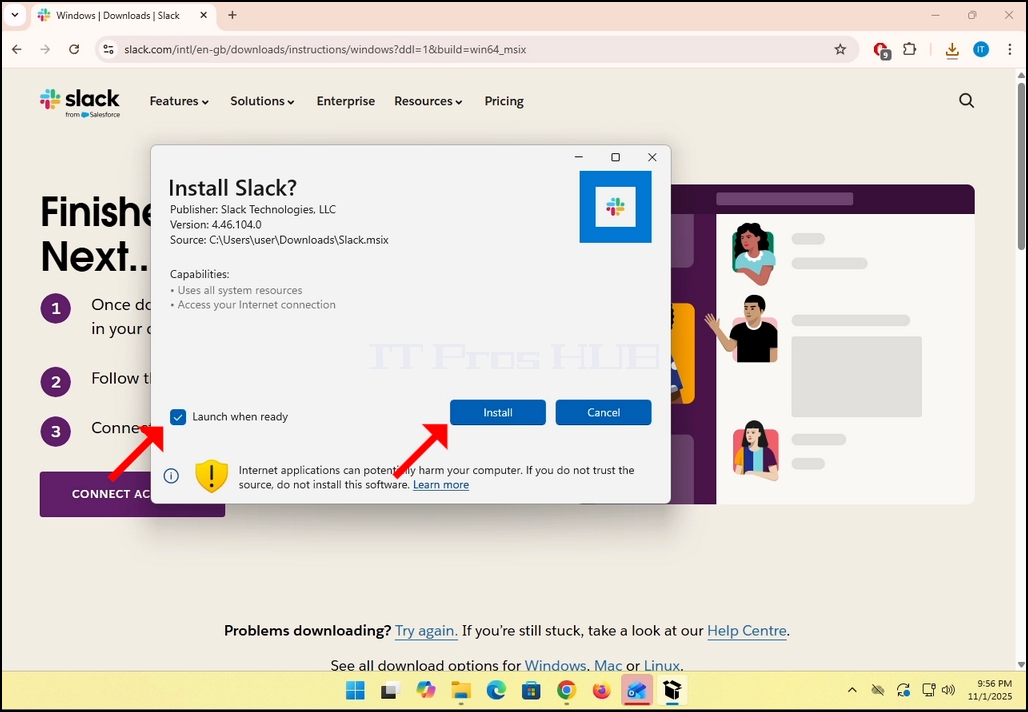
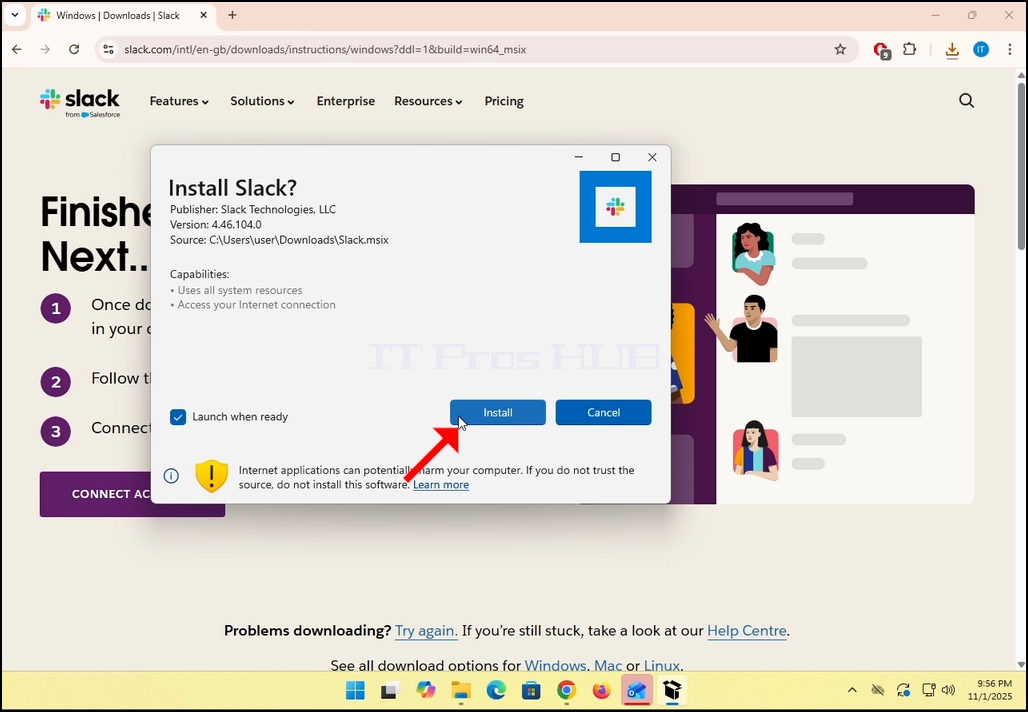
7. Sobald Sie angeklickt haben, wird Windows Store Sie fragen, ob Sie Slack installieren möchten. Klicken Sie auf Blau INSTAND Knopf.
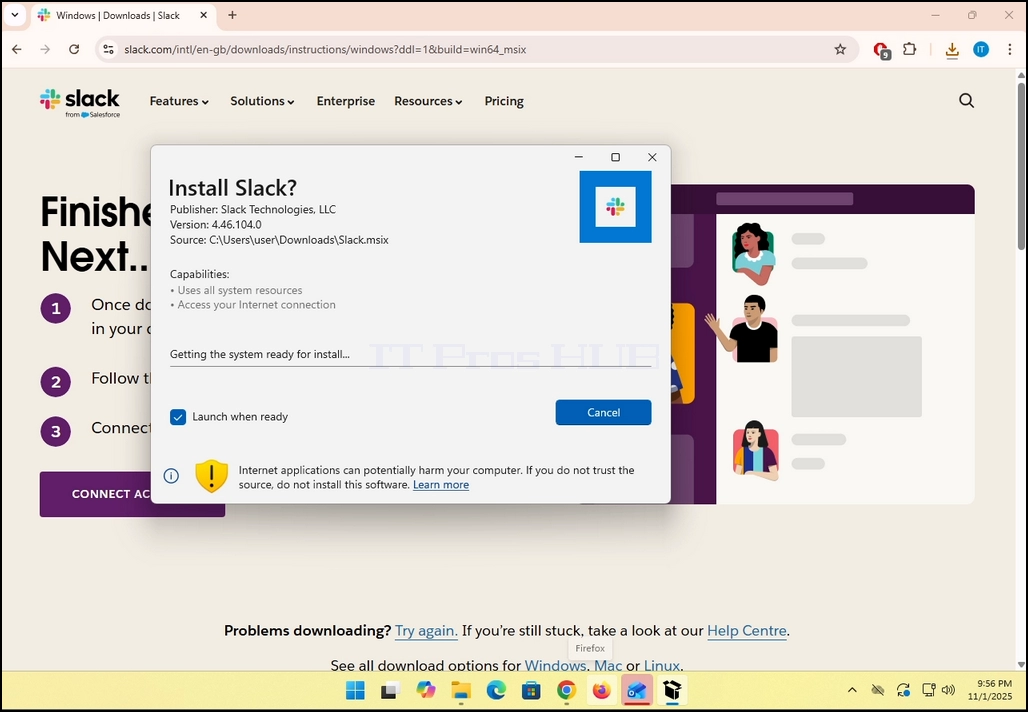
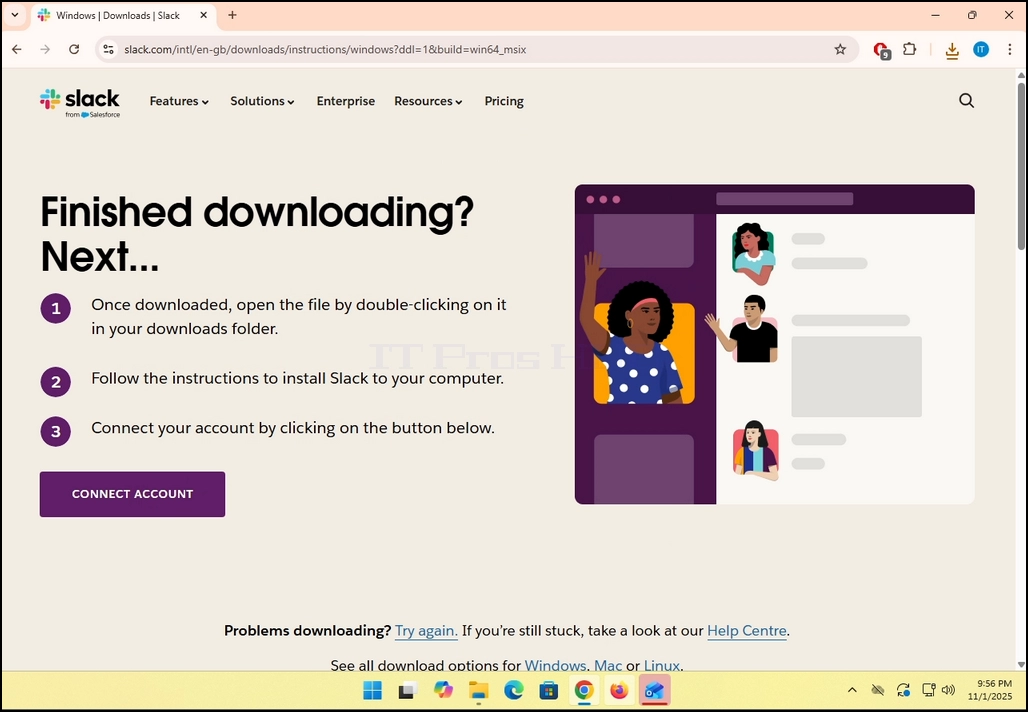
8. Sobald der Installationsvorgang abgeschlossen ist, werden Sie vom Windows Store mit der Meldung „Slack ist bereit. Klicken Sie auf Blau Start Button zum Starten von Slack.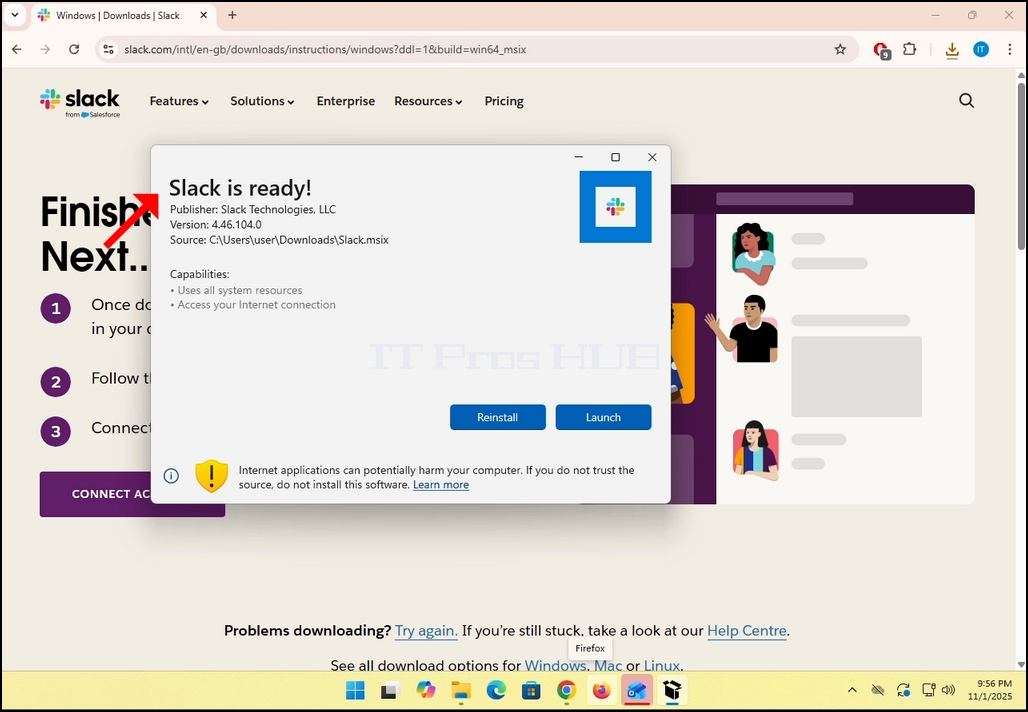
9. Sie sind fertig! Slack ist jetzt in Windows installiert.