Online: 1162 online | Members: 0 | Guests: 1162
streda, jún 3, 2026
Page Minimap
Reading time: 3 min read
Tagline:HowtoDownloadandInstallSlackinWindows11
There is no translation available.

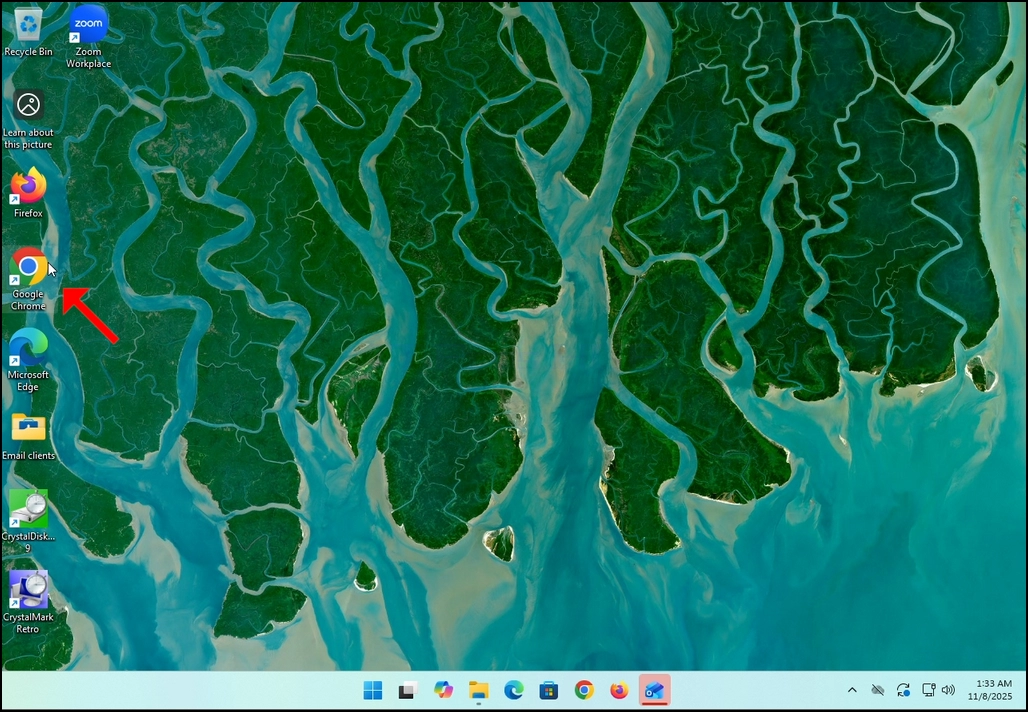
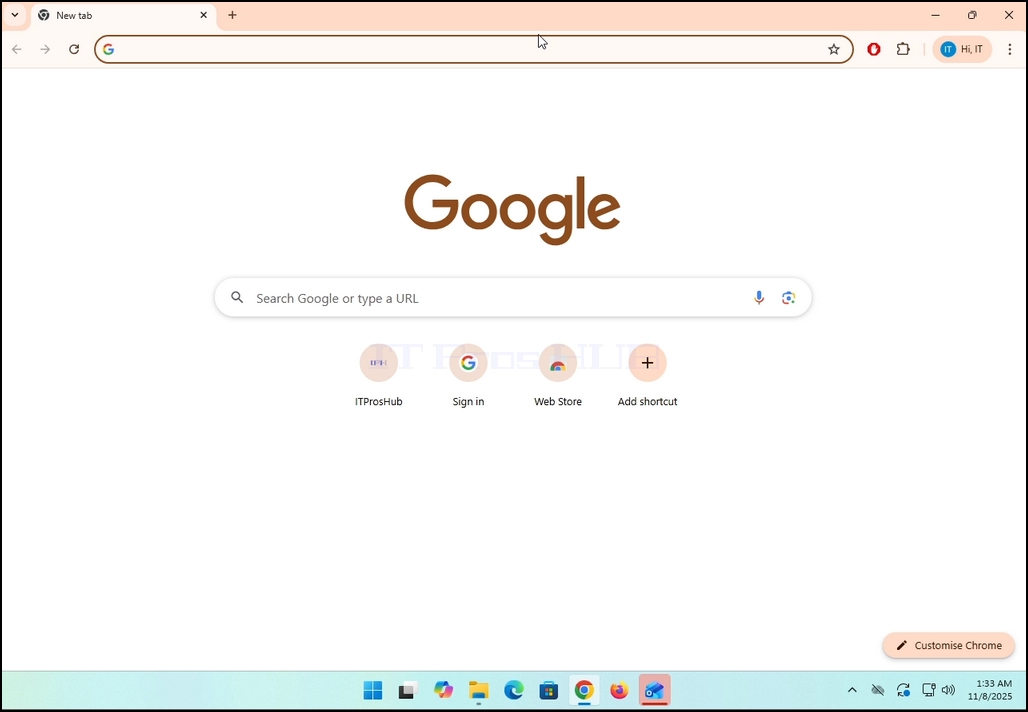
 1. Go to your internet browser. In this article’s case we will use Chrome.
how-to-download-and-install-slack-in-windows-11-11.webp

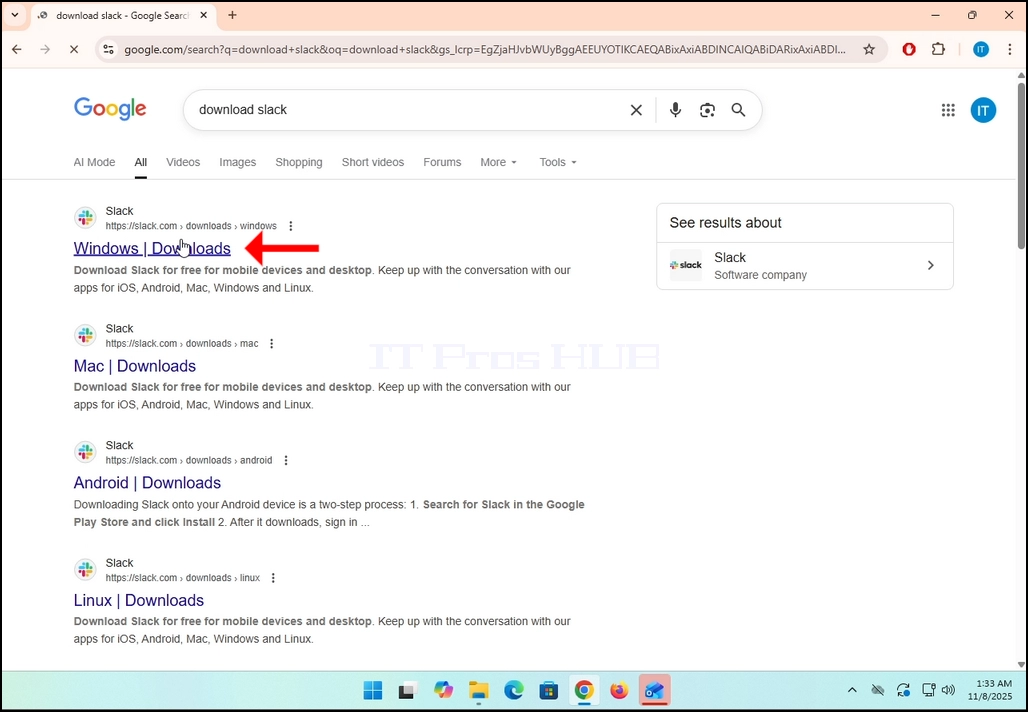
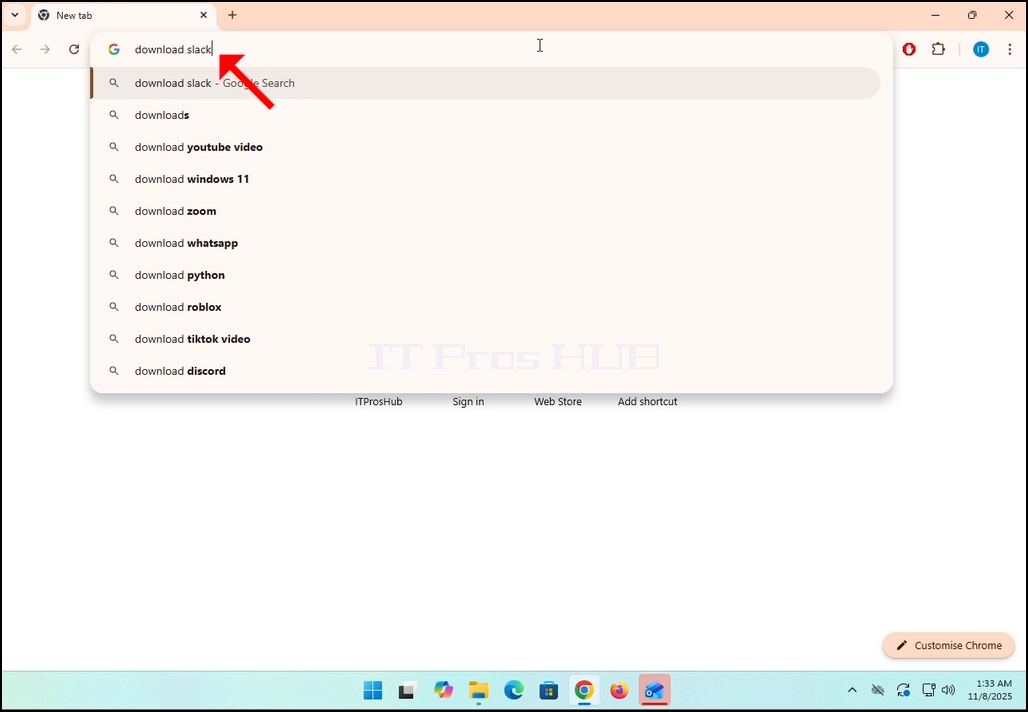
2. Go to Google and type Download Slack in the search bar. Hit the Enter key afterwards. Wait for the search results to appear.
how-to-download-and-install-slack-in-windows-11-12.webp

how-to-download-and-install-slack-in-windows-11-13.webp

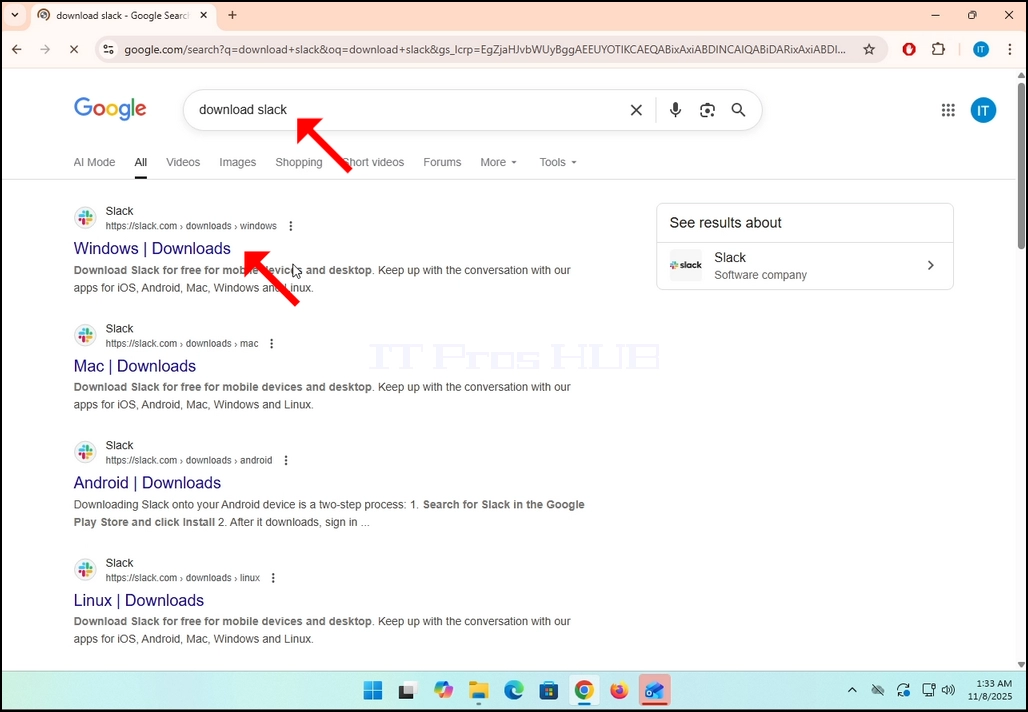
3. In the search results, look for a result that is titled as “Windows | Downloads” and click on it. Wait for a new

page to load.
how-to-download-and-install-slack-in-windows-11-14.webphow-to-download-and-install-slack-in-windows-11-15.webp

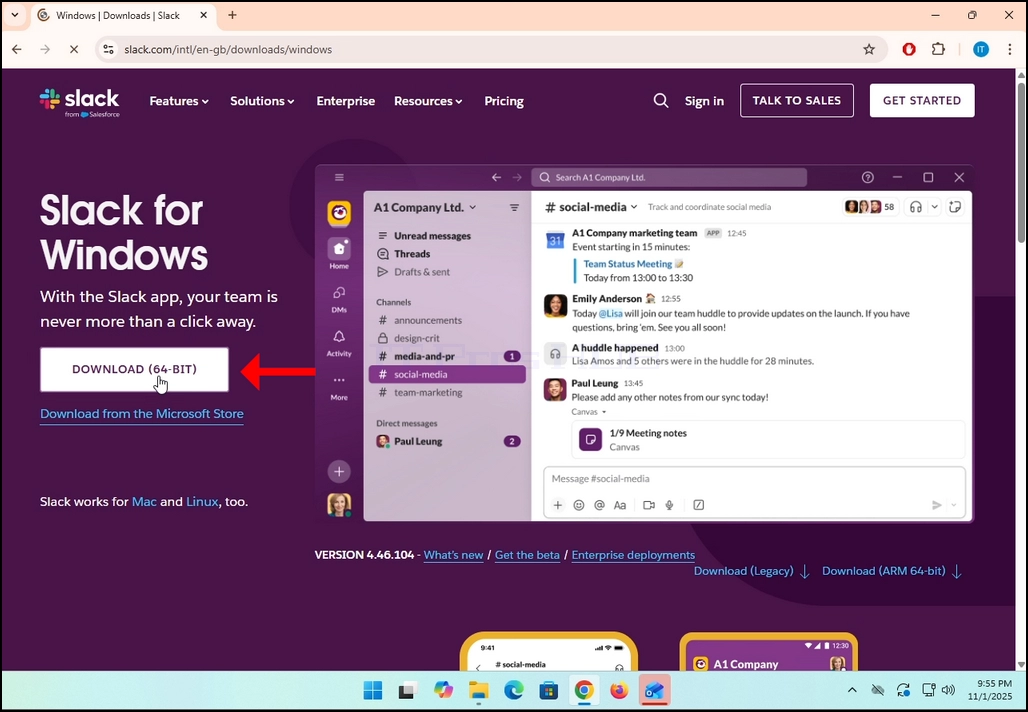
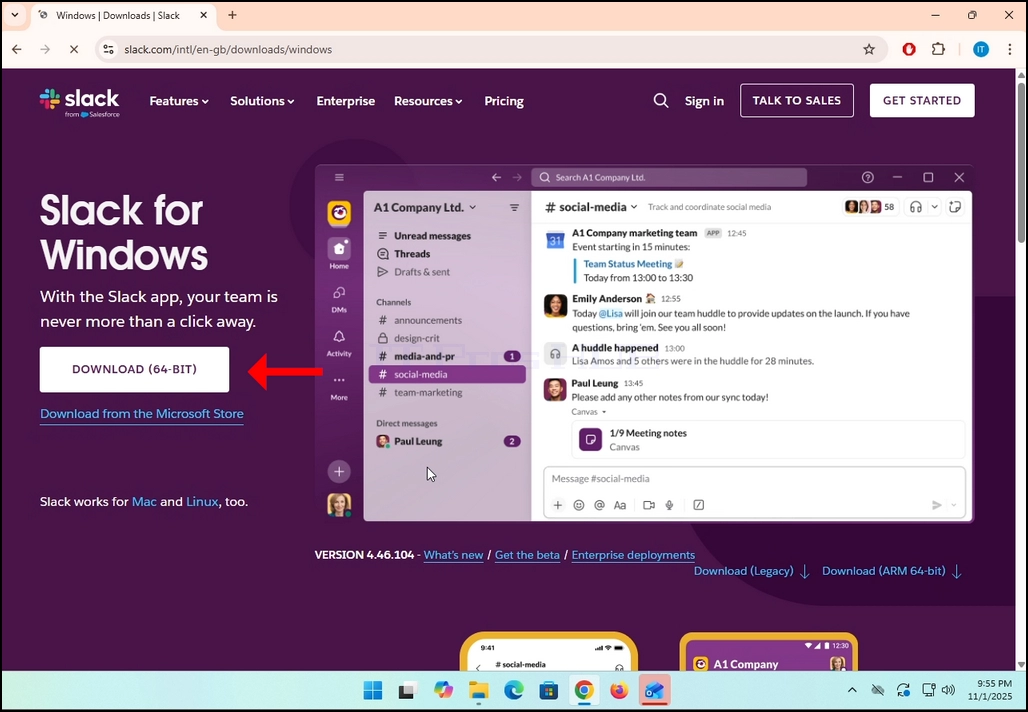
4. The newly loaded page will be under Slack’s domain (slack.com). look for a Download (64-BIT) button on the left side of the page. Click on that button to begin the downloading process of Slack’s installation file.how-to-download-and-install-slack-in-windows-11-16.webphow-to-download-and-install-slack-in-windows-11-17.webp
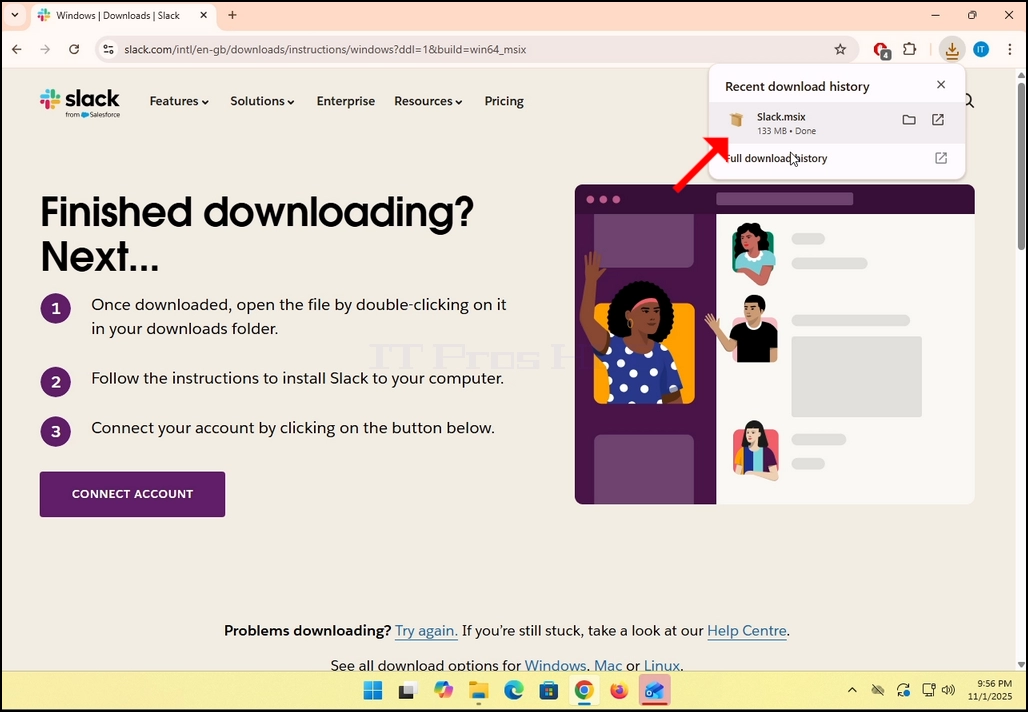
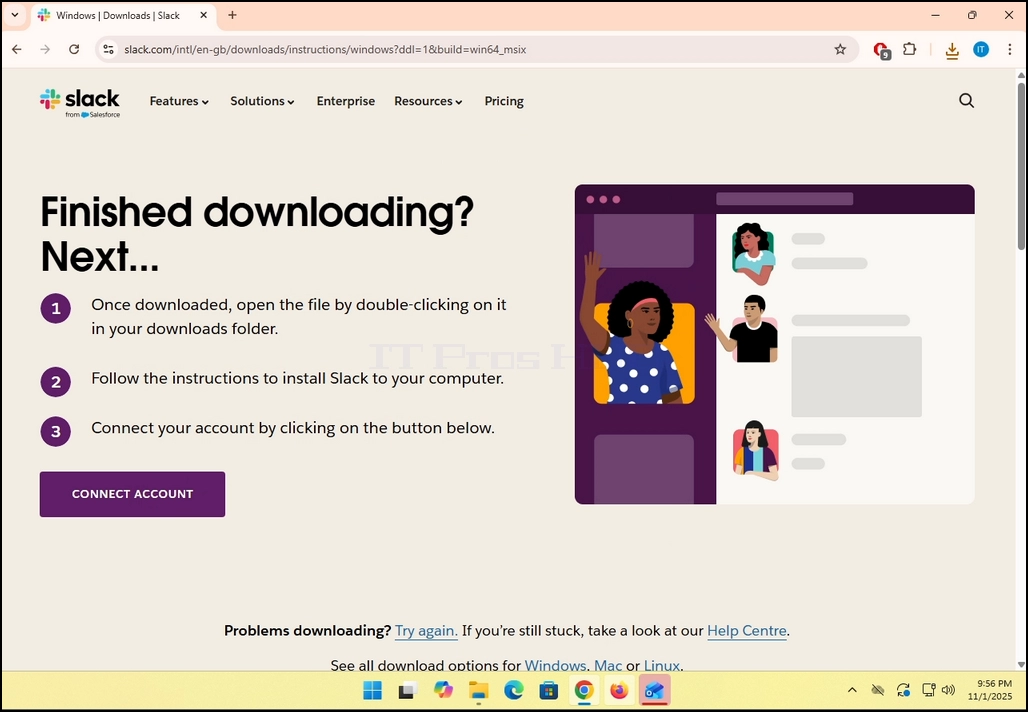
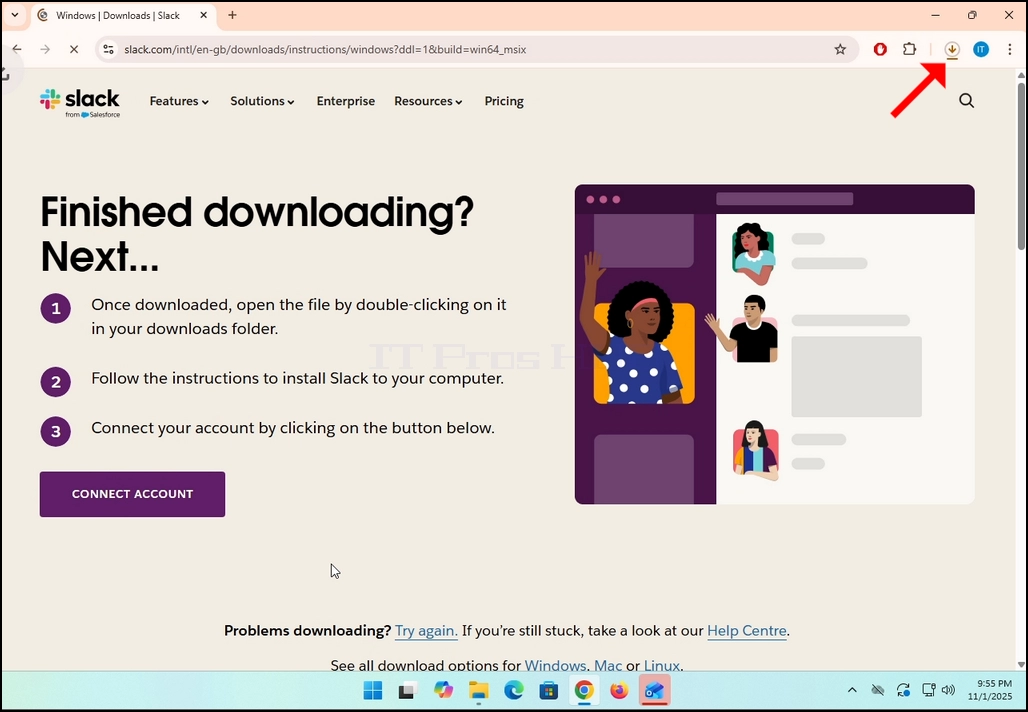
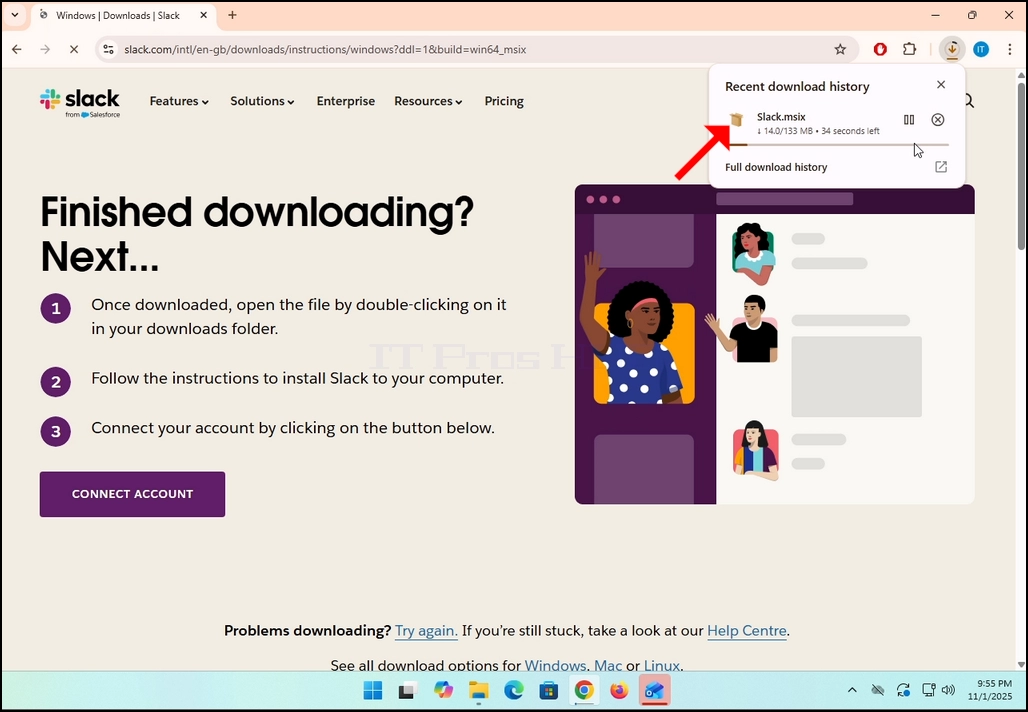
5. Once clicked, you will see the installation process being done in your browser. Make sure that the file being downloaded is called Slack.msix and not anything else.
how-to-download-and-install-slack-in-windows-11-18.webphow-to-download-and-install-slack-in-windows-11-19.webp

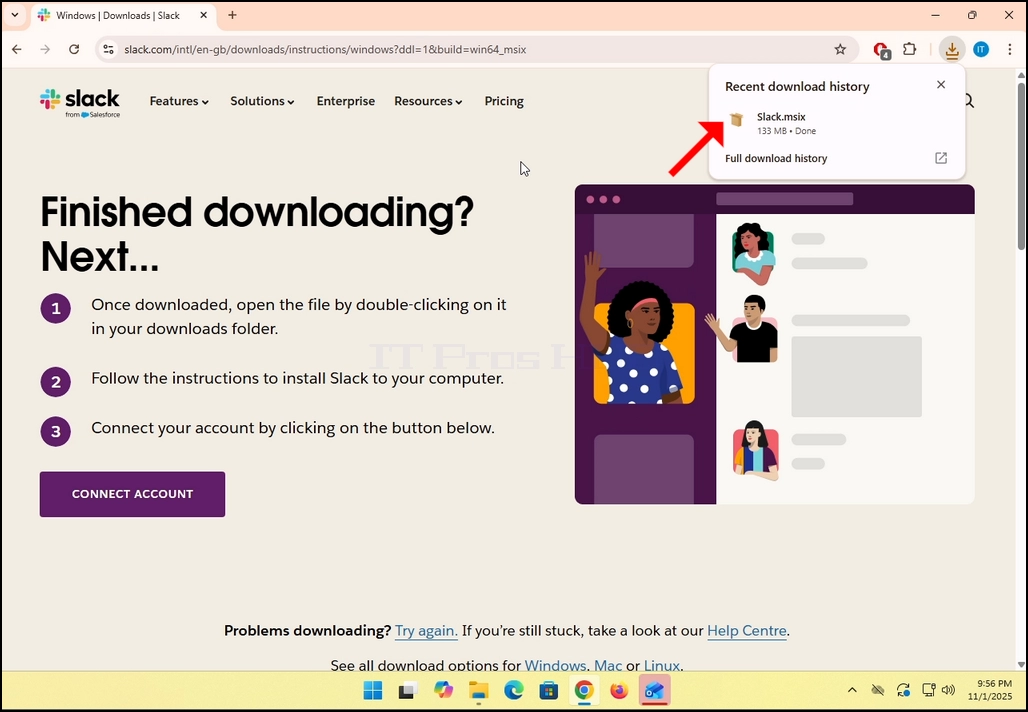
6. Once done, click on the Slack.msix file to open the file and begin the installation process.
how-to-download-and-install-slack-in-windows-11-20.webphow-to-download-and-install-slack-in-windows-11-21.webp

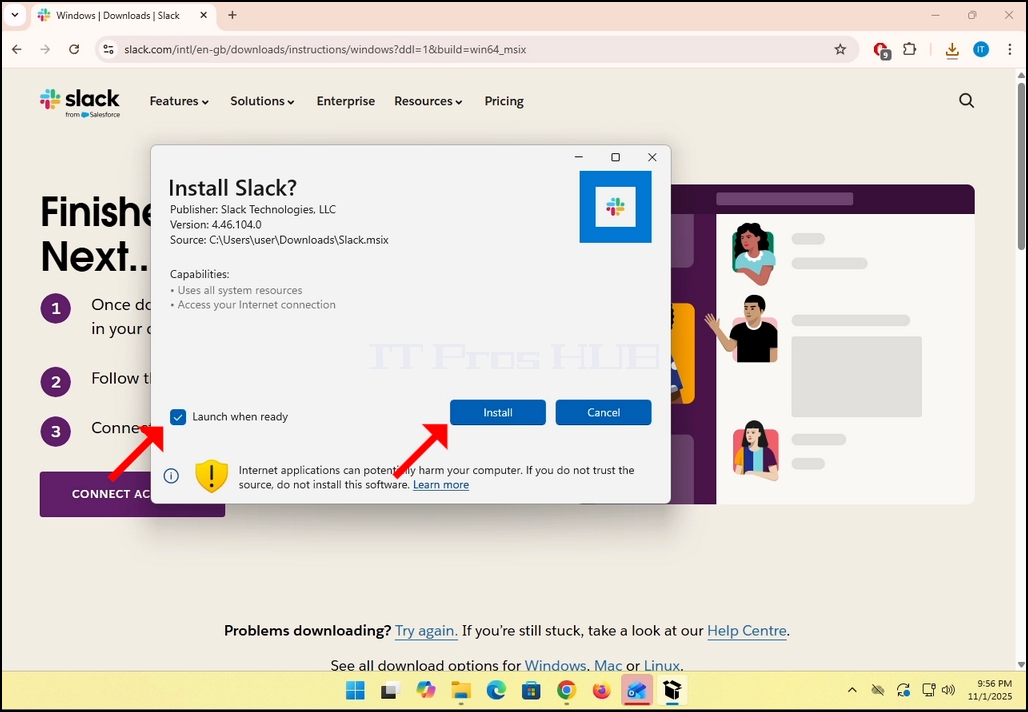
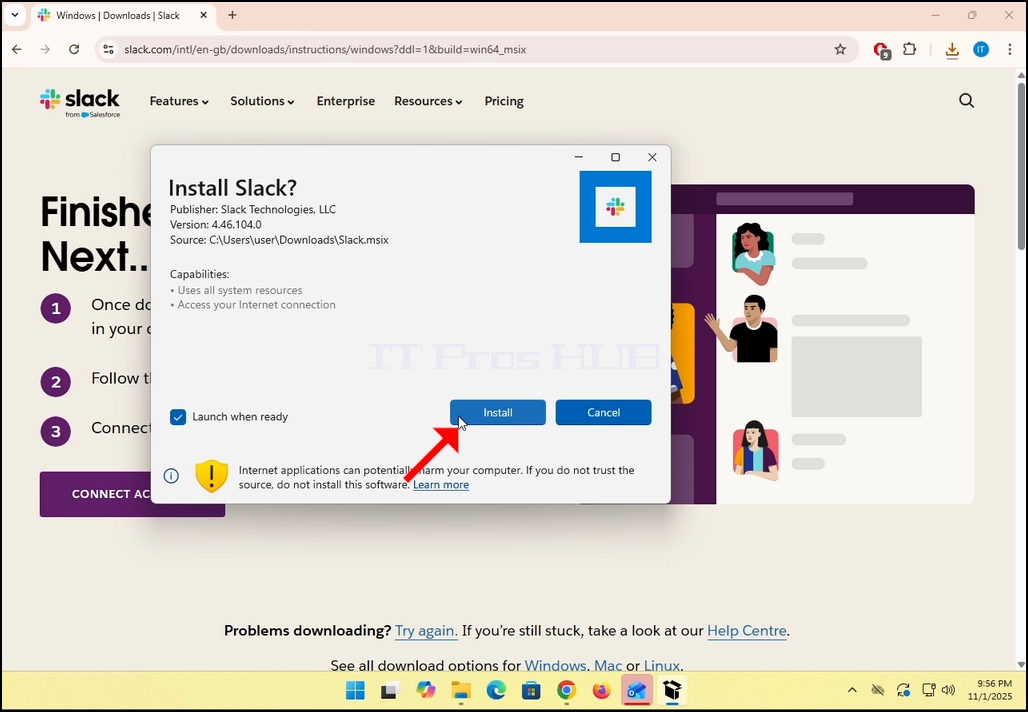
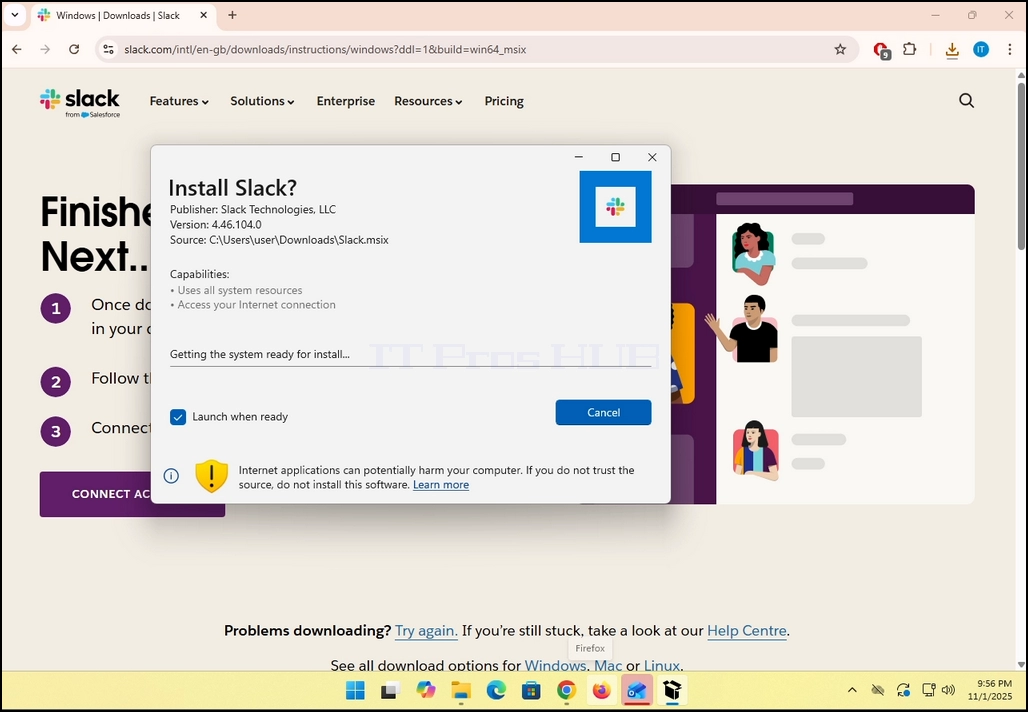
7. Once clicked, Windows Store will ask you if you would like to install slack. Click the blue INSTALL button.

how-to-download-and-install-slack-in-windows-11-22.webphow-to-download-and-install-slack-in-windows-11-23.webphow-to-download-and-install-slack-in-windows-11-24.webphow-to-download-and-install-slack-in-windows-11-25.webp

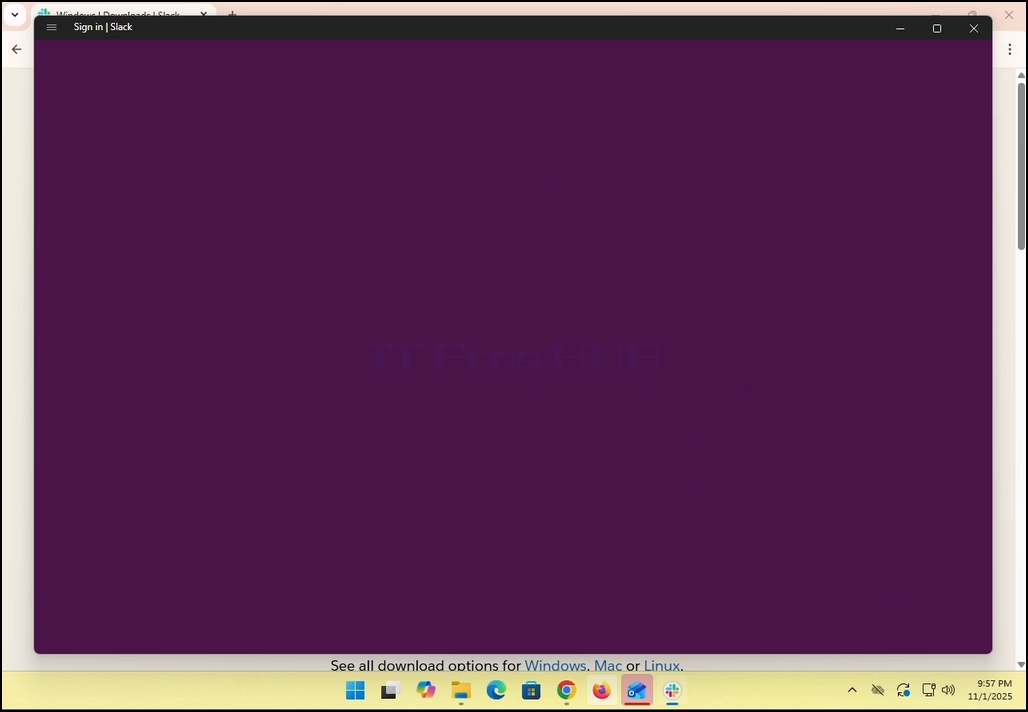
8. Once the installation process is complete, you will be notified by Windows Store with the message “Slack is Ready”. Click the blue Launch button to start Slack.how-to-download-and-install-slack-in-windows-11-26.webp
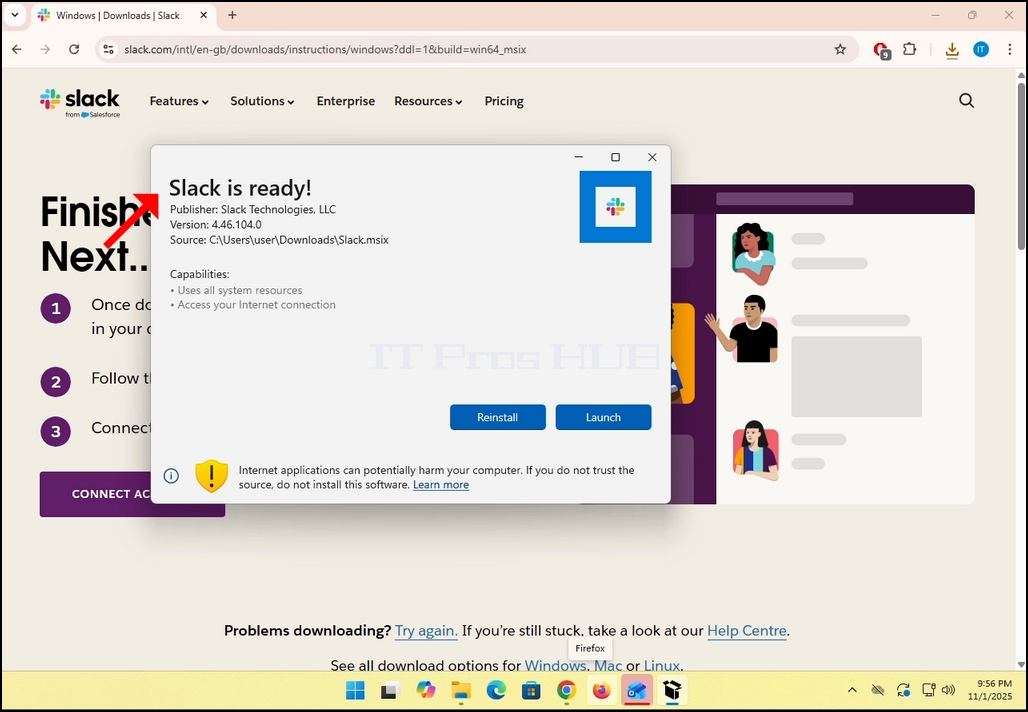
9. You are done! Slack is now installed in Windows.
how-to-download-and-install-slack-in-windows-11-27.webphow-to-download-and-install-slack-in-windows-11-28.webp