



- Details
- Written by: IT Pro
- Category: How to Articles
- Hits: 8907
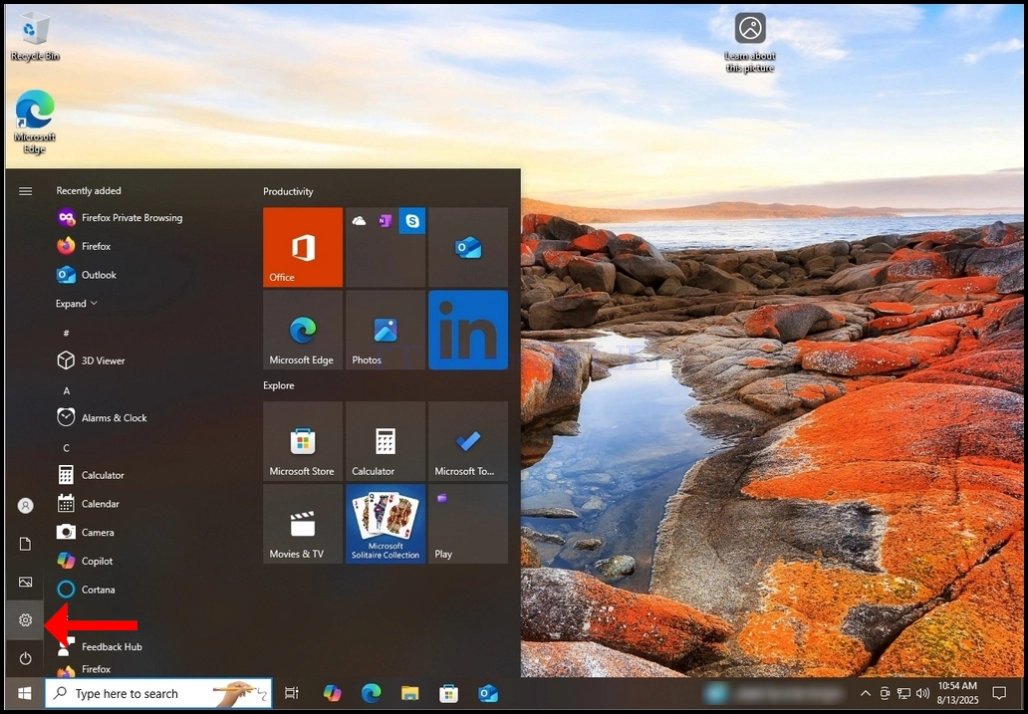
3. In the Settings window, look for the Apps button and click on it. Wait for the
Apps & Features window to load
4. Once loaded, On the left pane, look for the Default apps button and click on it.
Wait for the Default apps window to load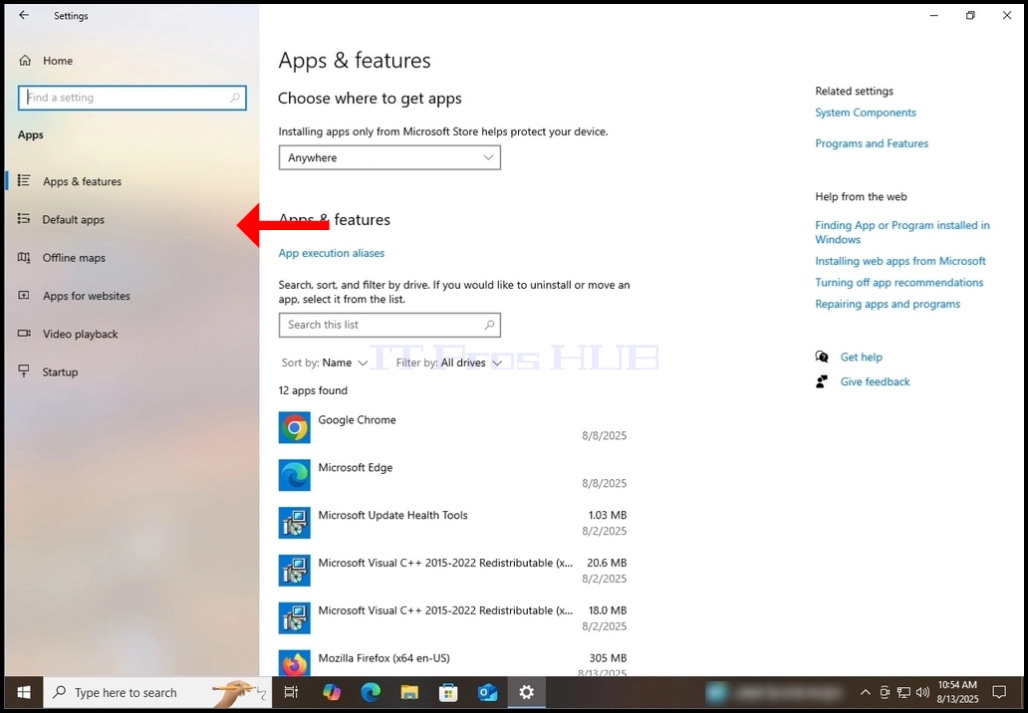
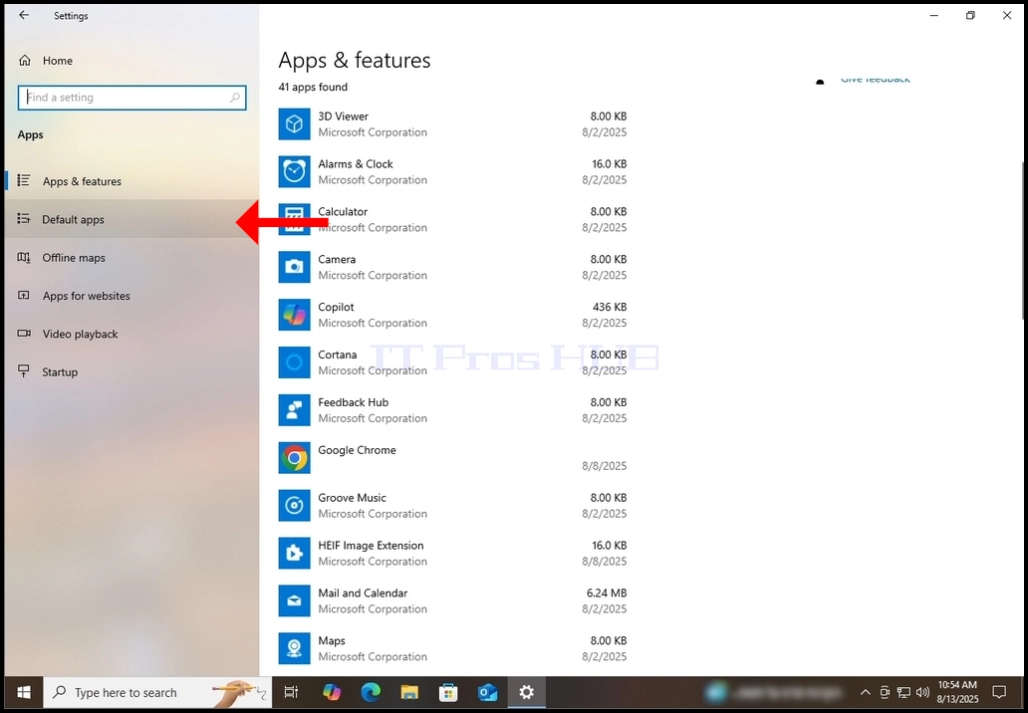
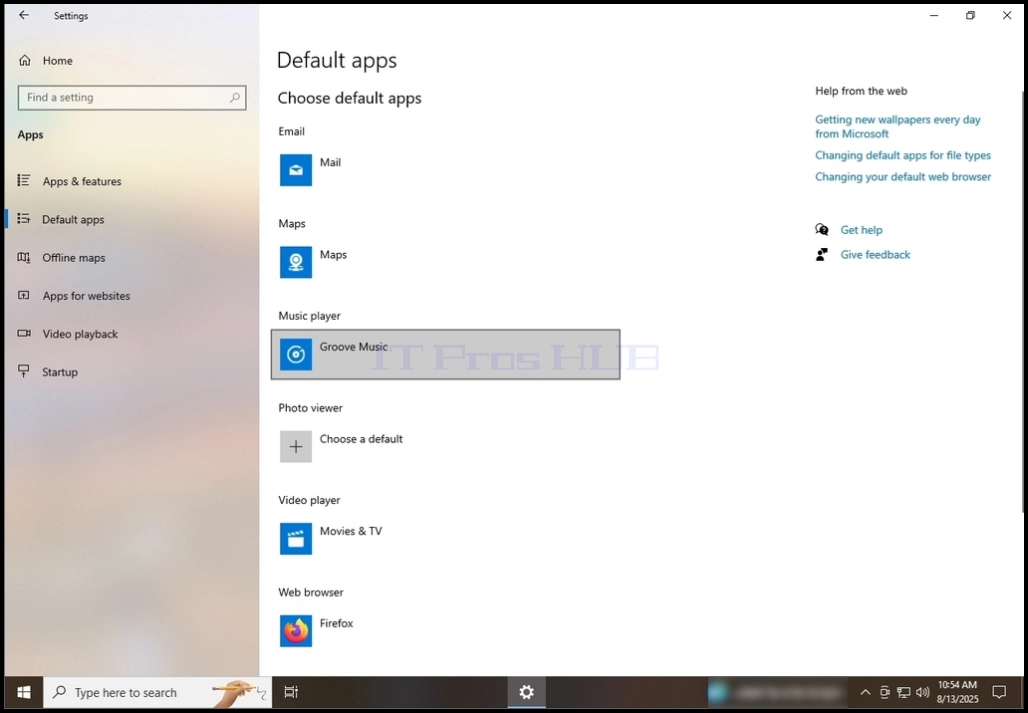
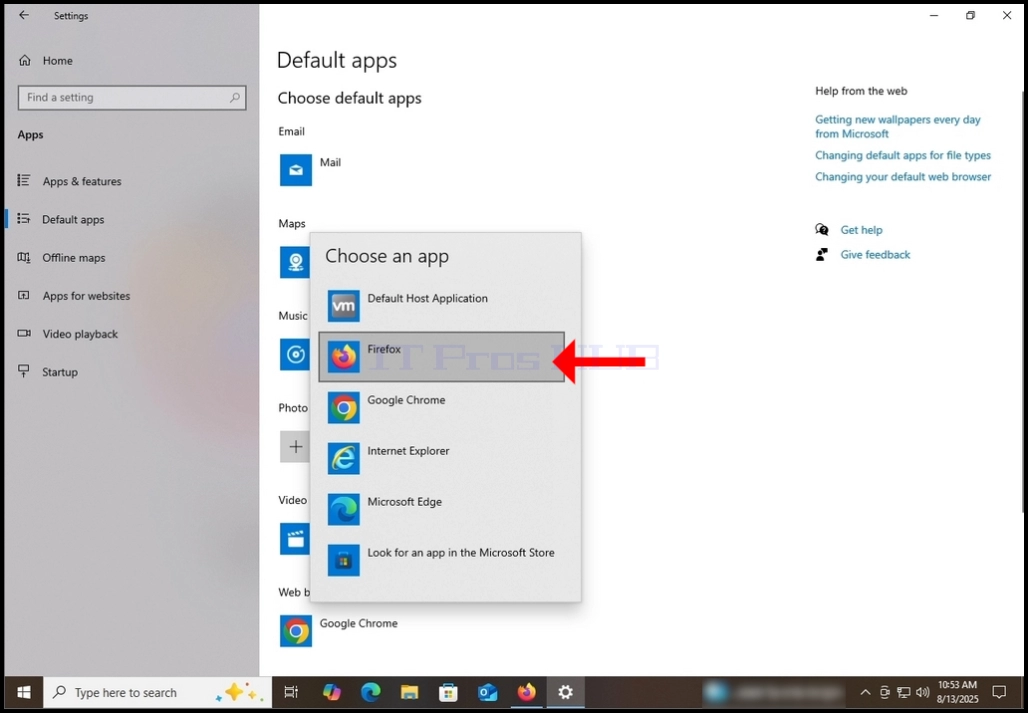
5. One loaded, look for the Web browser section on the middle part of the window.
Under that section, the default app for web browsing should appear. In the case
of this article, Google Chrome is configured as the default software for web browsing.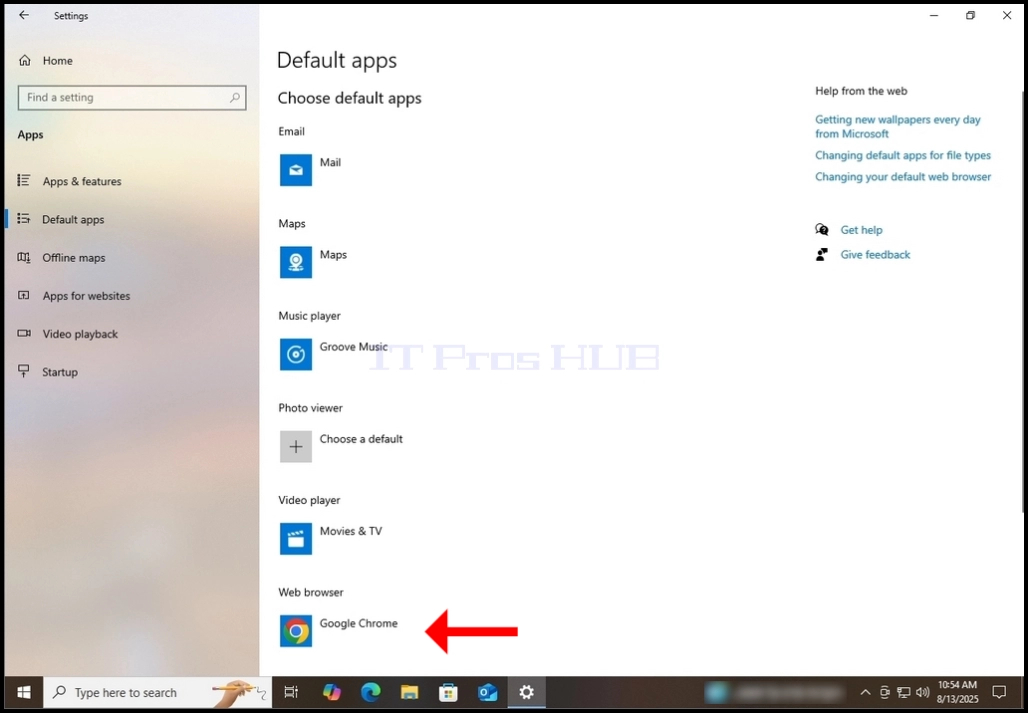





- Details
- Written by: IT Pro
- Category: How to Articles
- Hits: 6809


3. In the Settings window, look for Accounts on the left pane. Once found,
click on it

4. Under Accounts, on the right side of the window, look for Other Users.
Click on it

5. In the Other Users window, under Other users, look for the user you would
like to change from a regular user to an administrator. in the case of this
article, we will change User2 from a regular user to an adminsitrator
6. Once you found the target user, on the same row, look for a downward arrow.
click the arrow to reveal more options below.
7. As you can see, 2 more options were revealed - Account Options and Account and Data
On the same row of the Account Options, click the Change account type button and
wait for the Change Account Type pop-up window to appear in the middle of
the screen


10. As you can see, User2 is no longer a Standard user but an administrator

- Details
- Written by: IT Pro
- Category: How to Articles
- Hits: 10499


3. Once the Command Prompt app is found, click on Run as administrator and wait for
the app to start

4. If you get a UAC prompt, click YES


5. in the CMD window, type sfc /scannow and hit the ENTER key

6. After hitting the ENTER key, the System File Checker (SFC) will start
scanning Windows' system files for error and corrupted files.

7. During scanning, a percentage indicator will appear showing the scan's
progress


8. Once the scan is complete, SFC will notify you whether it found errors
or not. In this case of this article, it did not find any issues.

- Details
- Written by: IT Pro
- Category: How to Articles
- Hits: 12325

- Wait for the Settings window to load

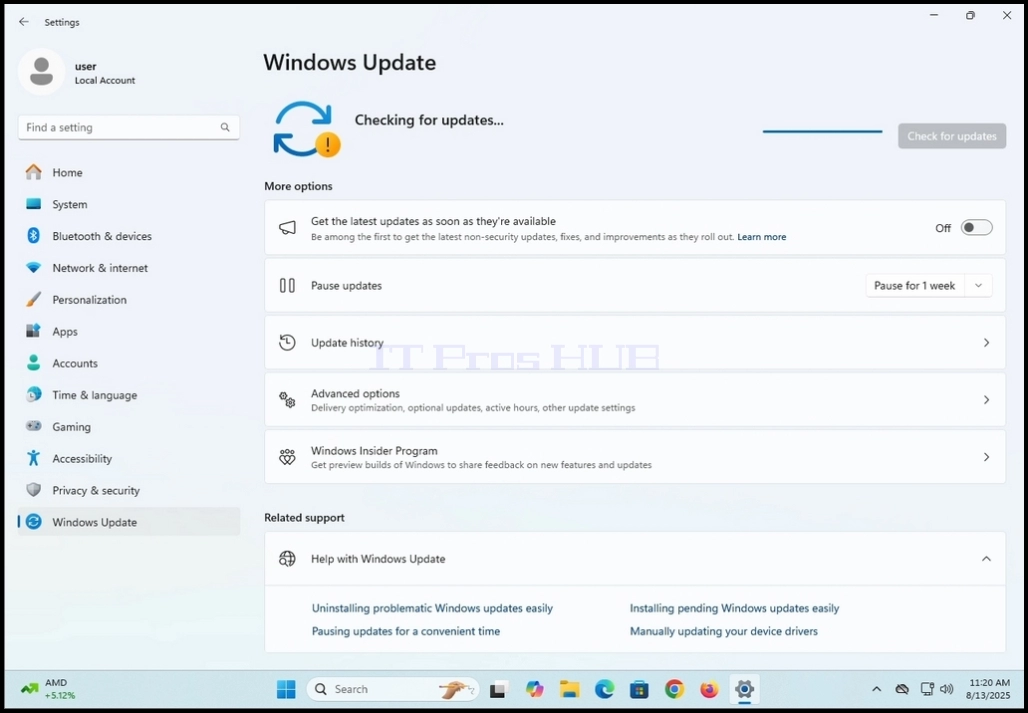
3. In the Settings window, on the left pane, go to the last option, Windows Update, and click it once

4. Wait for the Windows Update window to load


8. When the animation stops, Windows Update will show a list of the updates

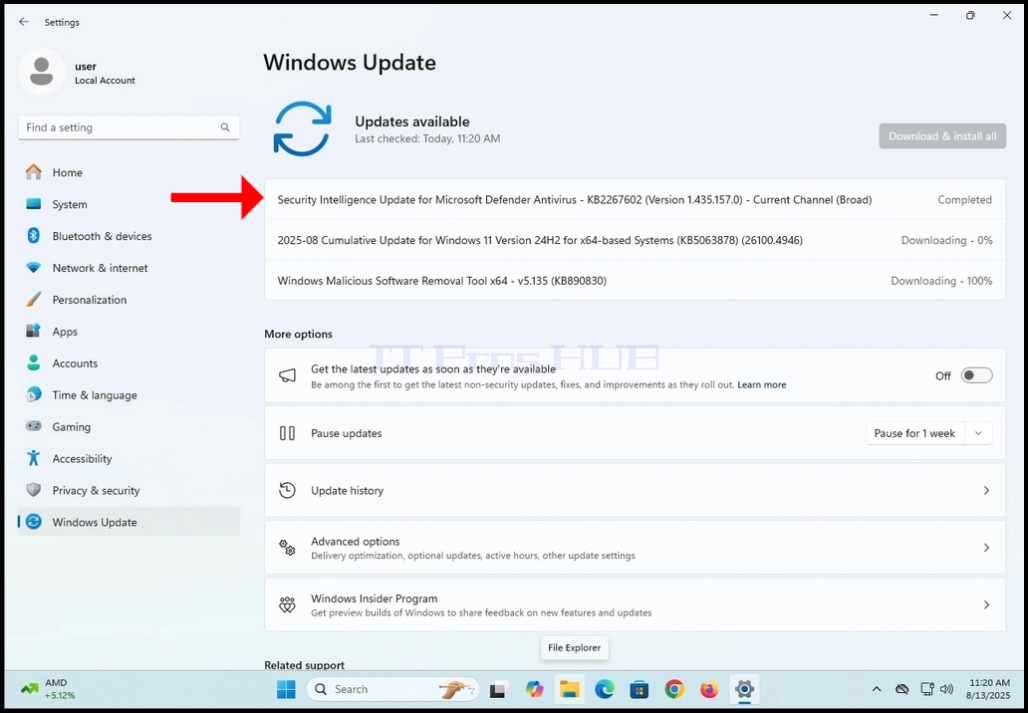
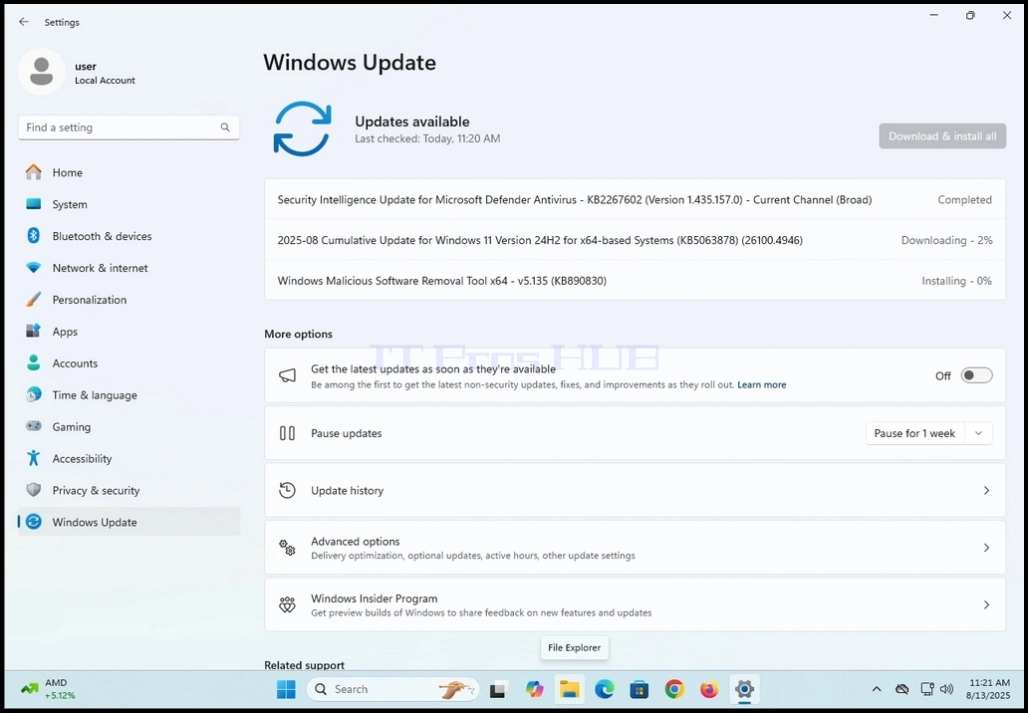
12. Their statuses will start with Downloading and will gradually and individually change to /Installing/Completed/Pending restart

13. Wait for all of the updates on the list to finish the logical order of updating which is Downloading >> Installing >> Completed / Pending restart


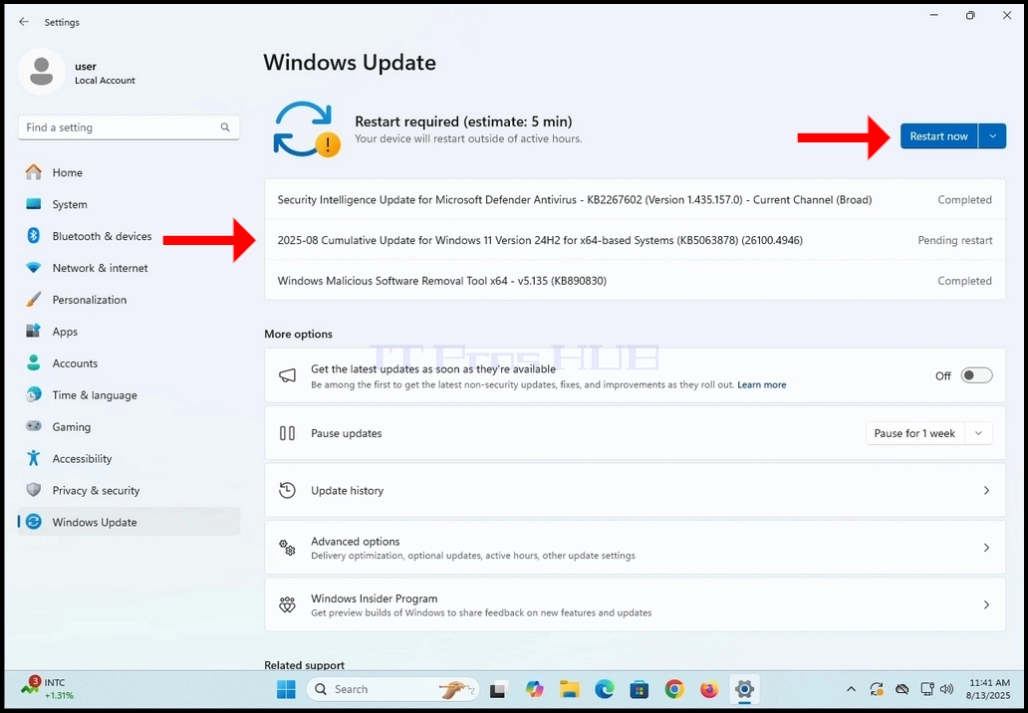
14. Notice in this example that we have a total of 3 updates, 2 were already finished being installed and the last one needs the computer to be restarted in order to be fully installed


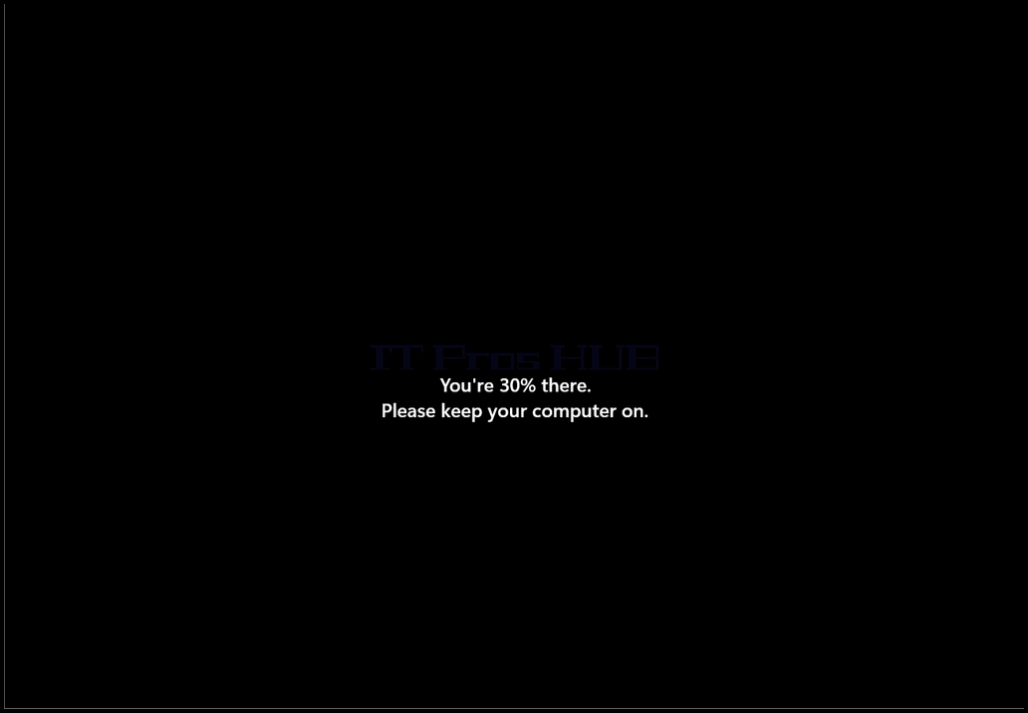
17. After booting back up, Windows should be updated.
18. We recommend performing this process again after the update process is done. This is to only be sure that all of the updates were indeed detected, but also to check if the latest updates that had been installed weren’t a dependency of another important update
- Details
- Written by: IT Pro
- Category: How to Articles
- Hits: 11696
1. Open your browser of choice. In this article we will use Chrome
2. In the search engine search bar, type DOWNLOAD FIREFOX and hit the ENTER key
3. Wait for search results to appear

4. After the search results appear, look for the one that starts with Get Firefox for desktop.
a. Before you go ahead and click on that search result, make sure that the domain name is firefox.com and that the URL is https://www.firefox.com
b. A very important note:
i. Firefox is downloadable from countless places on the web. It is recommended to download it directly from Firefox’ home page though. Downloading it from a 3rd party would always come with a risk of downloading Firefox with bloatware that is bundled into the installation process and in worse cases, malware.
5. Click on the correct search result


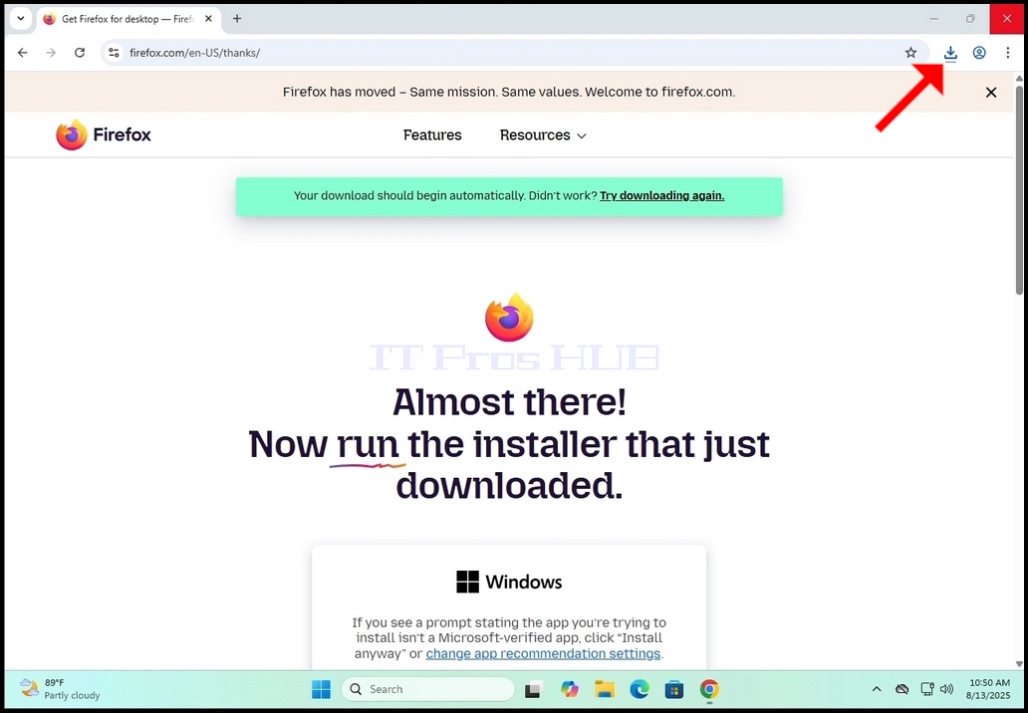
7. Now the page is supposed to change and you will see at the top of the page the sentence: “Your download should begin automatically. Didn’t work? Try downloading again.
a. At this stage, the Firefox installation file, Firefox installer.exe, should start being downloaded automatically

8. Note the location of the pop-up window clarifying that the file has been downloaded

9. Open the Firefox Installer.exe. In this article we will open it through the Downloads icon in Chrome

10. After opening the file, Windows UAC window will appear. Click YES and wait for the Firefox installation wizard to load

11. Firefox will start installing itself automatically without any manual steps needed to be done


12. Once the installation process is done , Firefox will start itself automatically.


14. There might be a little side pop-up notification from Firefox on the bottom right side of the screen. Click Done.


16. You can close the Windows Settings window

17. Go back to Firefox.

19. In the next step, Firefox will give you 2 options:
a. Pin Firefox to taskbar
b. Import from previous browser
- Choose these options at your own discretion
- Pin Firefox to taskbar – will attach Firefox’ icon to your Windows taskbar
- Import from previous browser – Will start a data importing wizard from whatever previous browser you used – to Firefox

21. In this article we unmarked them both


24. Close the extension tab opened in the previous step


27. In the final stage of the configuration, Firefox will show you its homepage which is by default a Google search engine text field and some website shortcuts.
28. Firefox is now ready to be used.
