



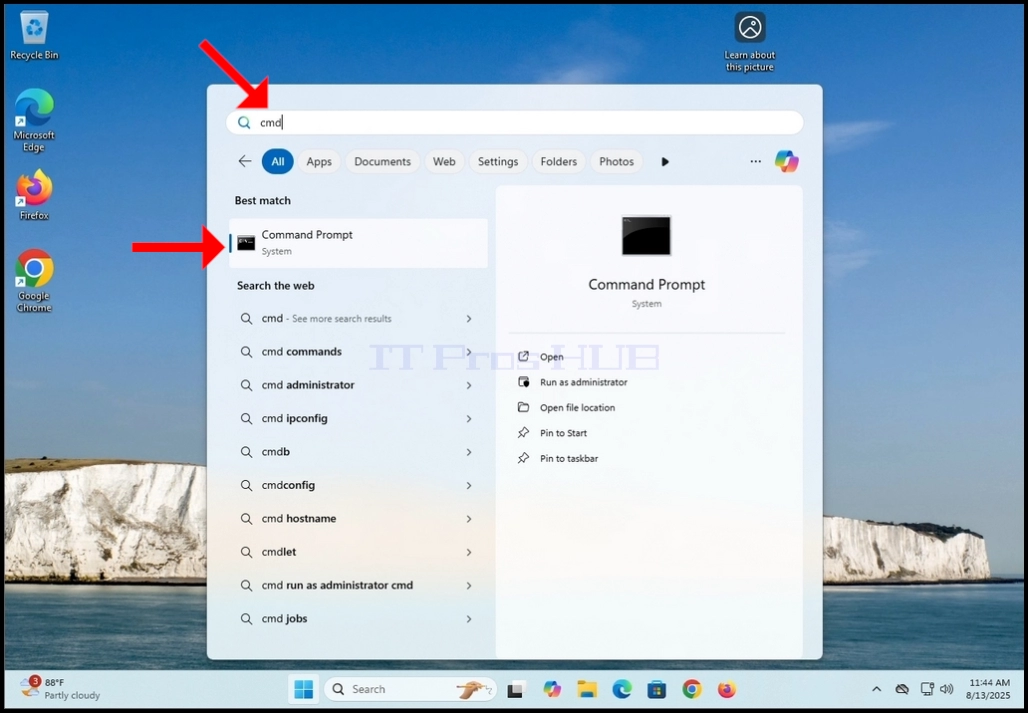
1. Click the start button and type CMD.
2. Wait for the start menu to find the Command Prompt app

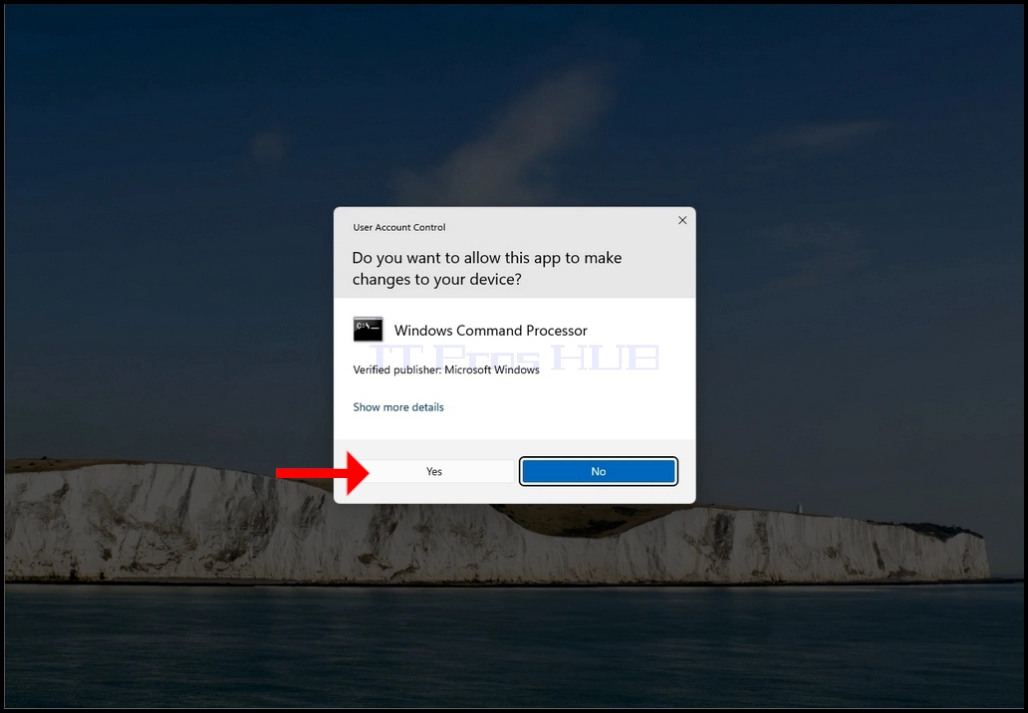
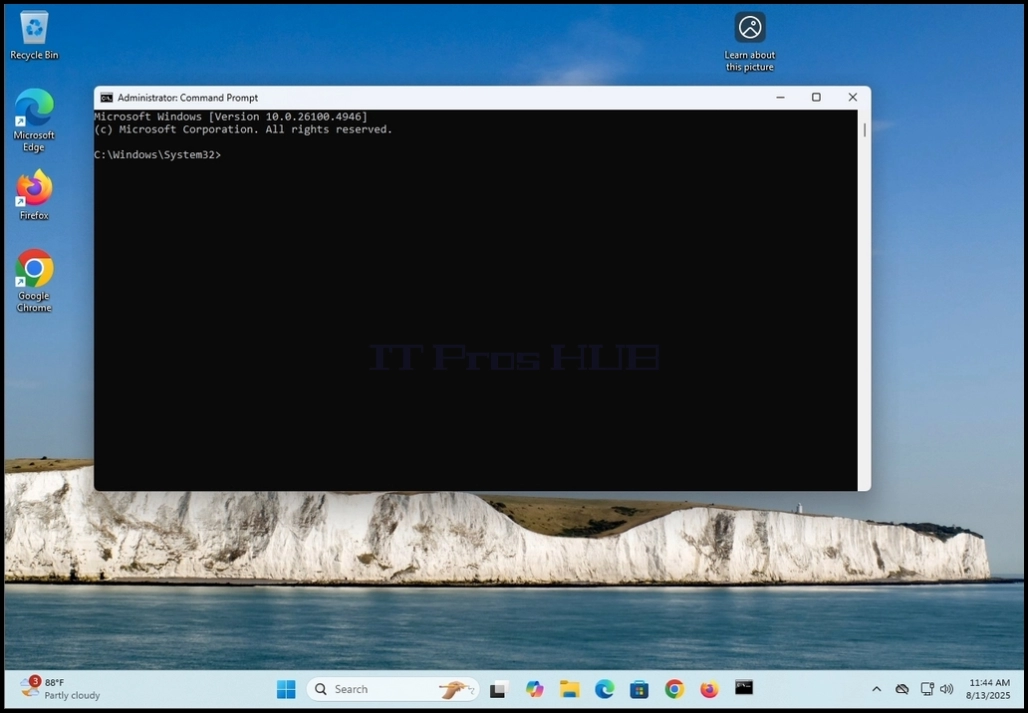
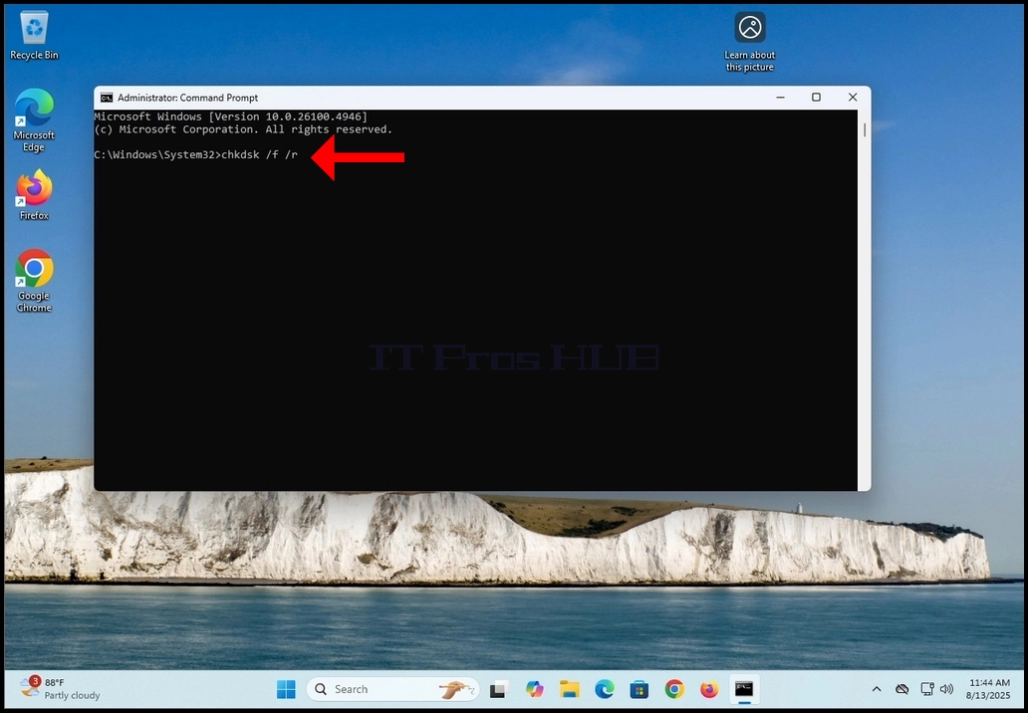
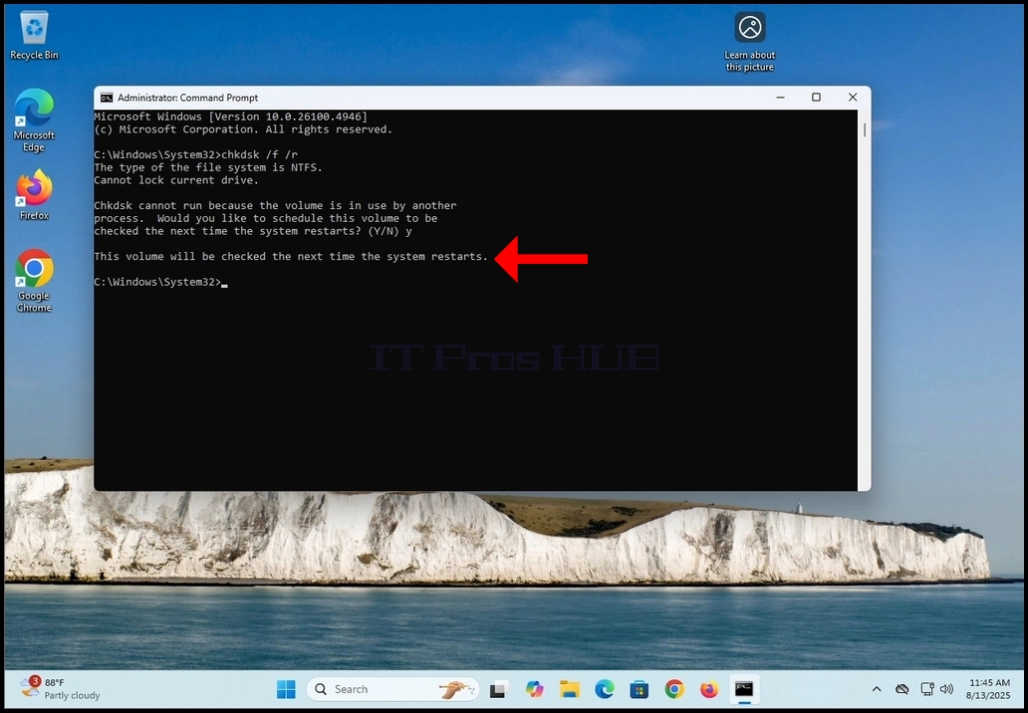
5. Type chkdsk /f /r
a. The /f is fix errors found
b. The /r is to repair bad sectors
6. Hit the enter key
7. Since we typed the chkdsk command under the C: drive which is also where the operating system is stored, chkdsk would not be able to lock out the volume and do its job. Because of that, You will be prompt with a notification in CMD that says that:
a. “Chkdsk cannot run because the volume is in use by another process…”
b. And is followed by a question for the user which says:
i. “Would you like to schedule this volume to be checked the next time the system restarts? (Y/N)”
8. Click the Y key on your keyboard and hit the ENTER key.

9. After the previous stage, chkdsk will reply with :”This volume will be checked the next time the system restarts.”
a. This means that chkdsk will only do its job on the next time Windows restarts and the computer reboots
10. Manually restart the computer

11. Wait for Windows to start and for the Windows logo to appear

12. At some point, a sentence in white font will appear under the loading circle. The sentence will say:”To skit disk checking, press any key within 8 second(s).”
a. DO NOT press any key unless you want to cancel chkdsk’s disk check
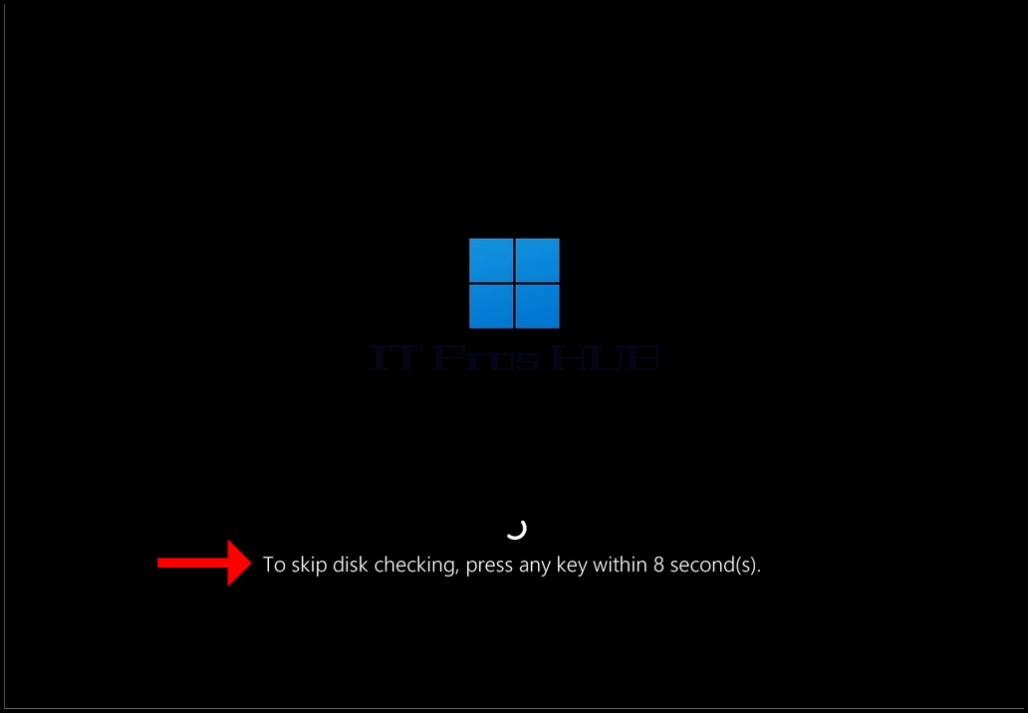
13. Wait for the 10 second countdown to end. When the countdown ends, chkdsk will start doing its job

14. While chkdsk is doing its job you will be notified with the following variables about the scan:
a. Fixing (C:) – meaning chkdsk is fixing the C: drive
b. Stage 1: 30% - meaning the overall chkdsk scan is in Stage 1 and it’s at 30%
i. (77997 of 2511904) meaning chkdsk has processed 77997 files out of 2511904 files)
c. Total 0%: meaning the total process of chkdsk is at 0%
d. ETA: 34:03:27 .. – meaning the estimated time for completion of chkdsk’s actions


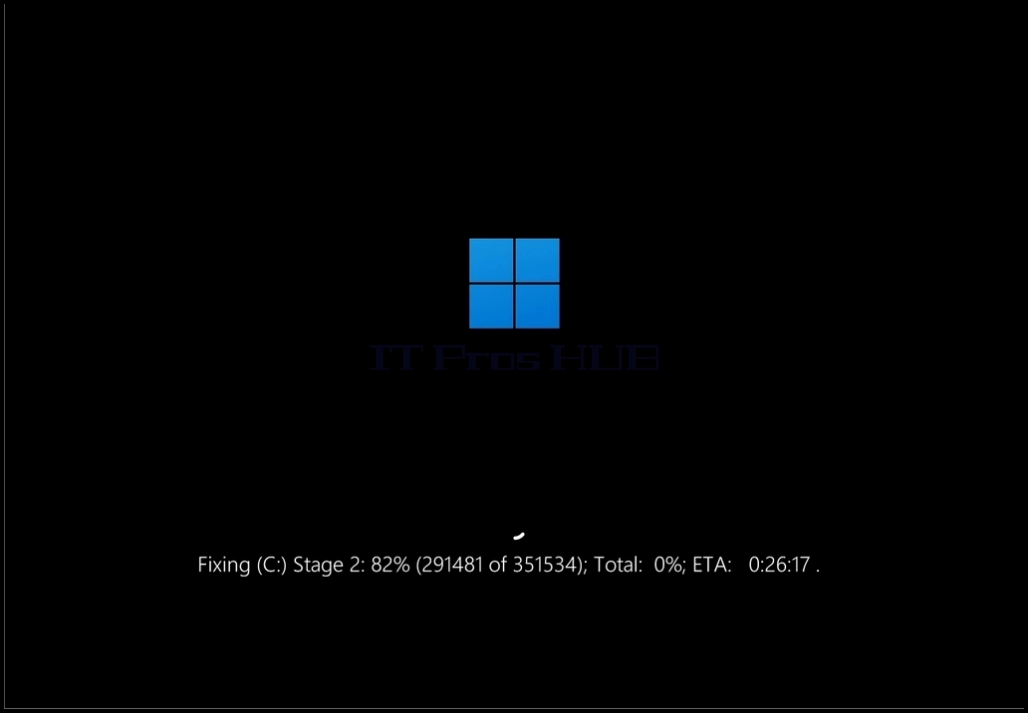


15. Once chkdsk is done scanning Windows should start normally