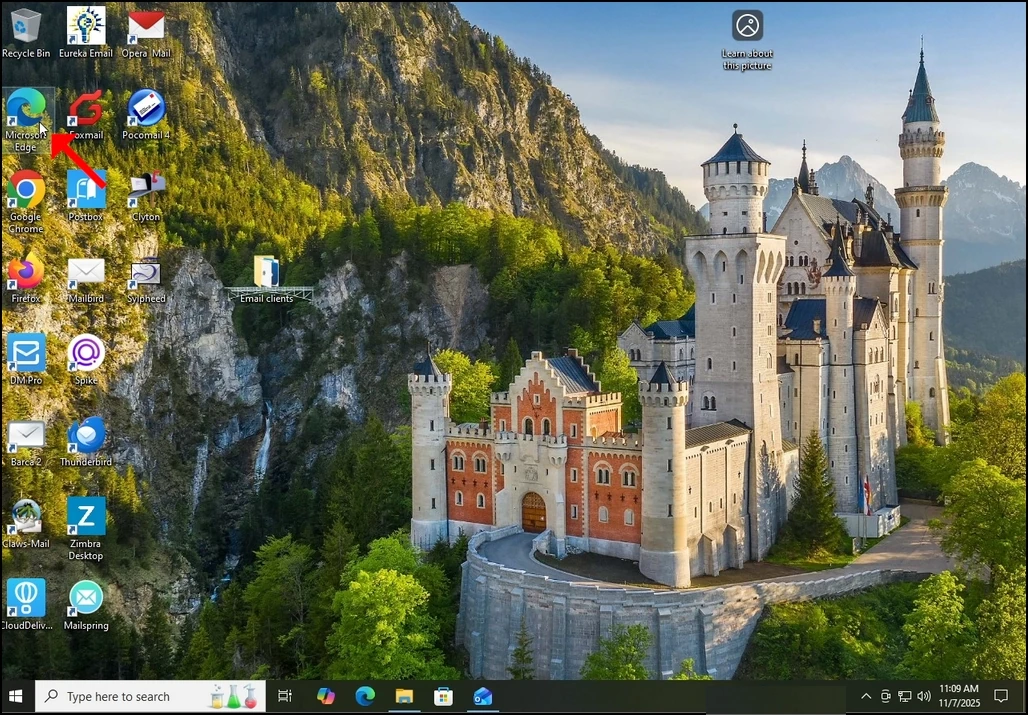
- Отваряне на Microsoft Edge
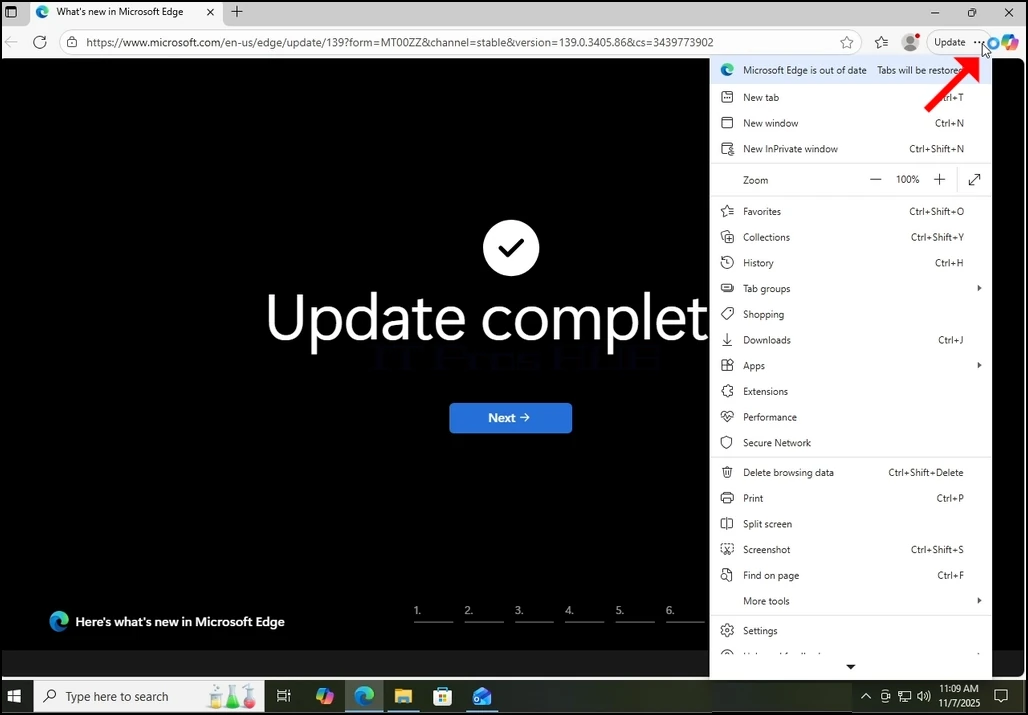
2. В горния десен ъгъл на браузъра потърсете иконата от 3 точки и кликнете върху нея веднъж. Трябва да се появи странично меню.
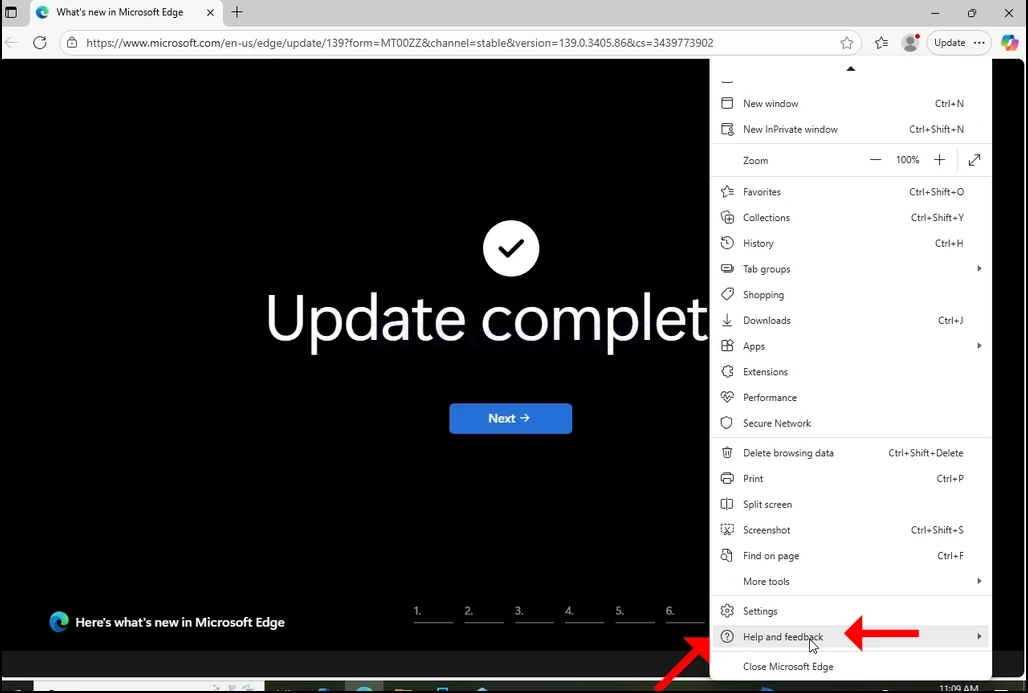
3. В това странично меню, отидете на опцията Помощ и обратна връзка, която е точно преди последната опция там. Ховър с мишката над него, докато се появи разширение на менюто. Ако не, кликнете върху него веднъж, докато това разширение се появи.
4. В това разширение, потърсете За Microsoft Edge изречение и кликнете върху него веднъж. Изчакайте да се появи прозореца
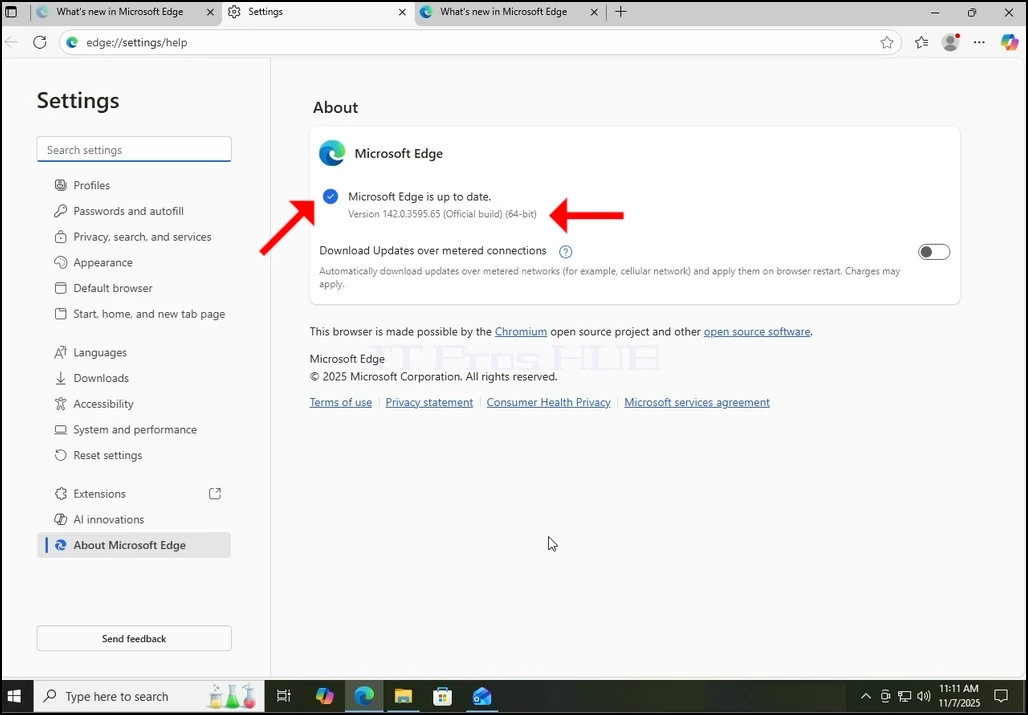
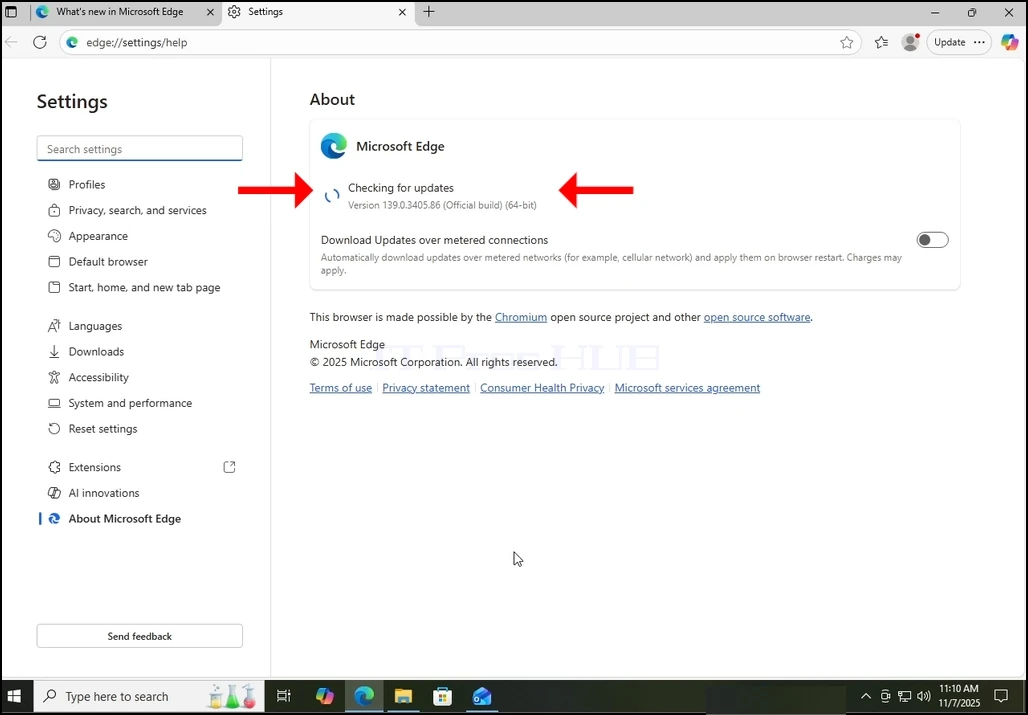
5. След като се появи за прозореца, Edge браузър веднага ще започне да търси актуализации. Щяхме да знаем това, като видим...Проверка за актуализацииПрисъдата е на страната на малка икона за анимация.
6. Настоящата версия на браузъра Edge ще бъде представена под това изречение.
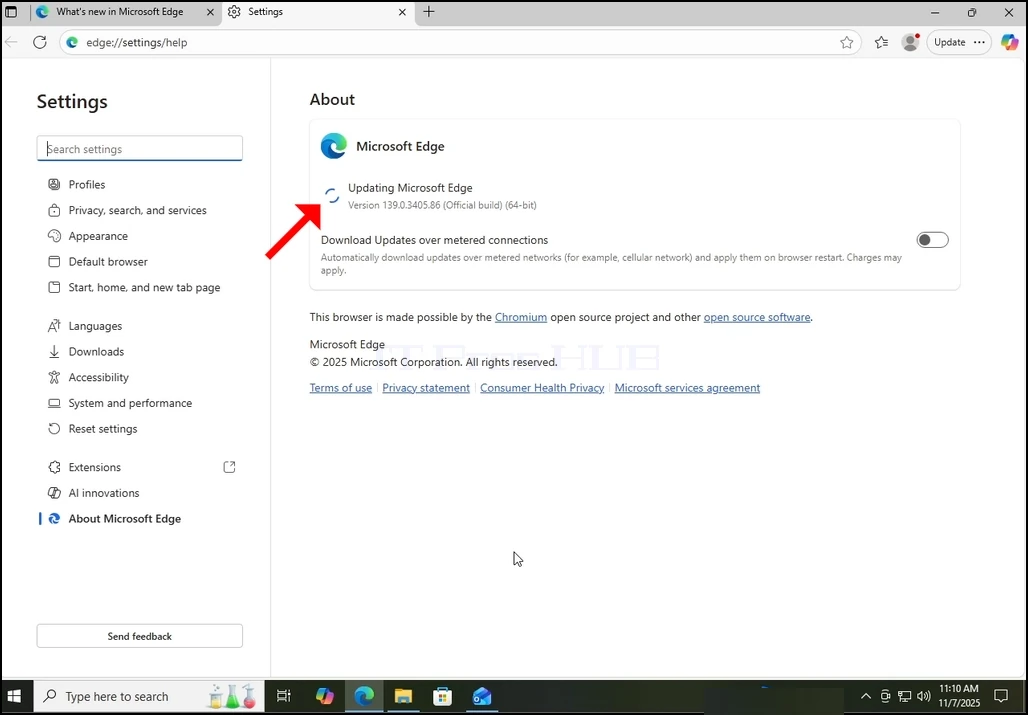
7. Ако актуализацията е намерена от браузъра Edge, наПроверка за актуализацииПрисъдата ще бъде променена.Обновяване на Microsoft Egе.
8. Важна бележка относно измерваните връзки:
a. Ако използвате измервана връзка като мобилна гореща точка или LTE връзка, и искате да актуализирате Edge, уверете се, че маркирате Изтегляне на актуализации над измерваните връзки опция, която се намира в много за прозорец.
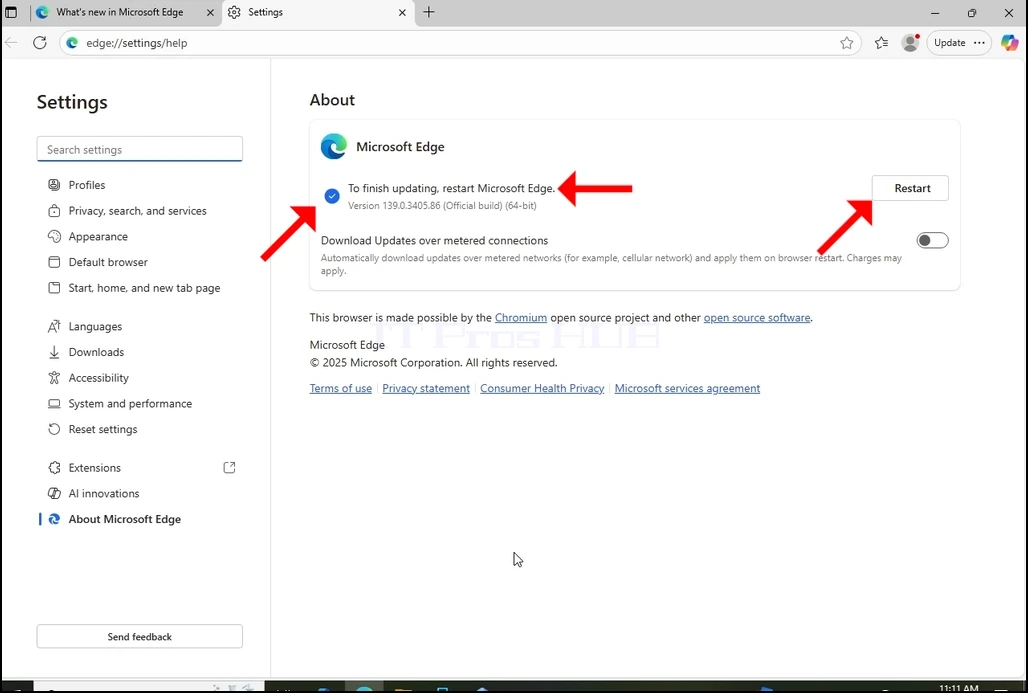
9. След като Edge приключи с изтеглянето на актуализацията, тя ще ви уведоми, че гоЗа да завършите обновяването на Microsoft EdgeКакто можете да видите на изображението по-долу.
10. A Рестартиране бутонът трябва да се появи от дясната страна на прозореца. Кликнете върху него, за да рестартирате Microsoft Edge и да завършите процеса на актуализиране.
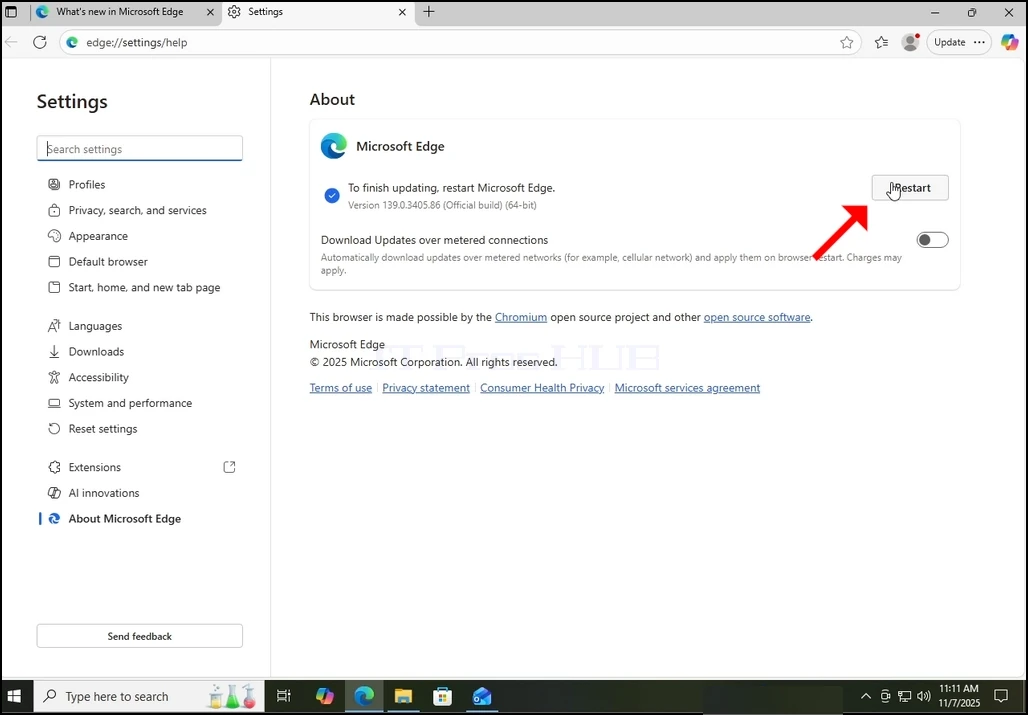
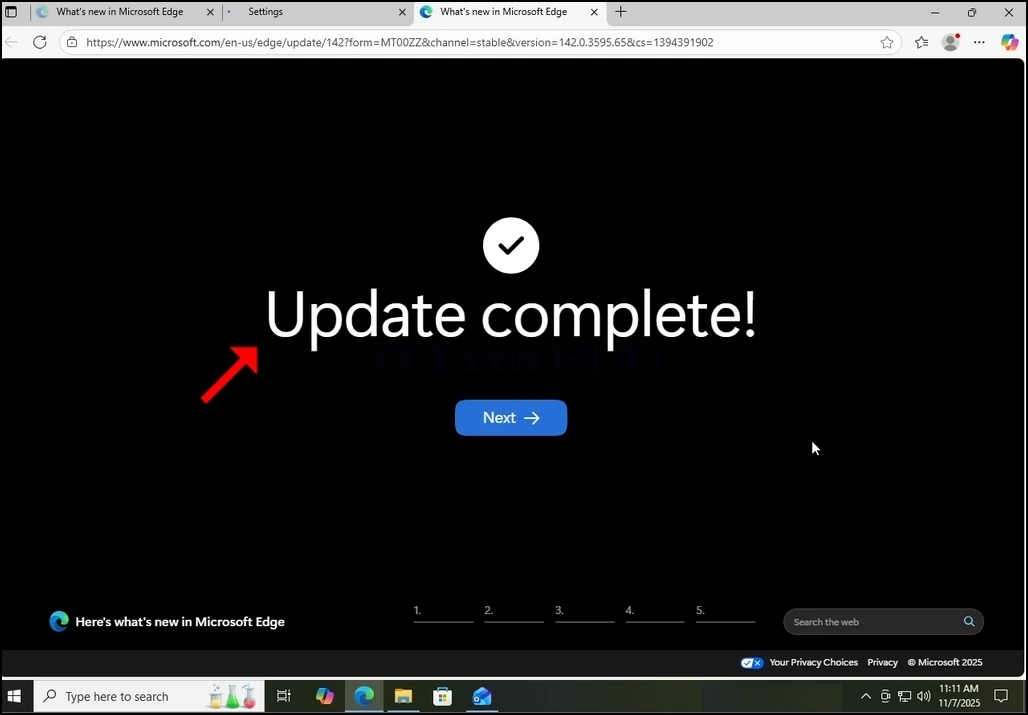
11. След като Edge се рестартира, трябва да започне да представя Обновяване завършено съобщение в нов раздел. Затвори тази сметка. Върни се в Относно прозорец и проверете дали наистина версията на браузъра е различна от тази преди началото на процеса на актуализиране.
12. Също така, връщане обратно към прозореца About ще ви позволи да проверите дали има още висящи актуализации. Както можете да видите тук, няма повече висящи актуализации, тъй като ние сме представени с съобщението Microsoft Edge е актуализиран.