- Падрабязнасці
- Аўтар: IT Pro
- Катэгорыя: Windows
- Праглядаў: 19216
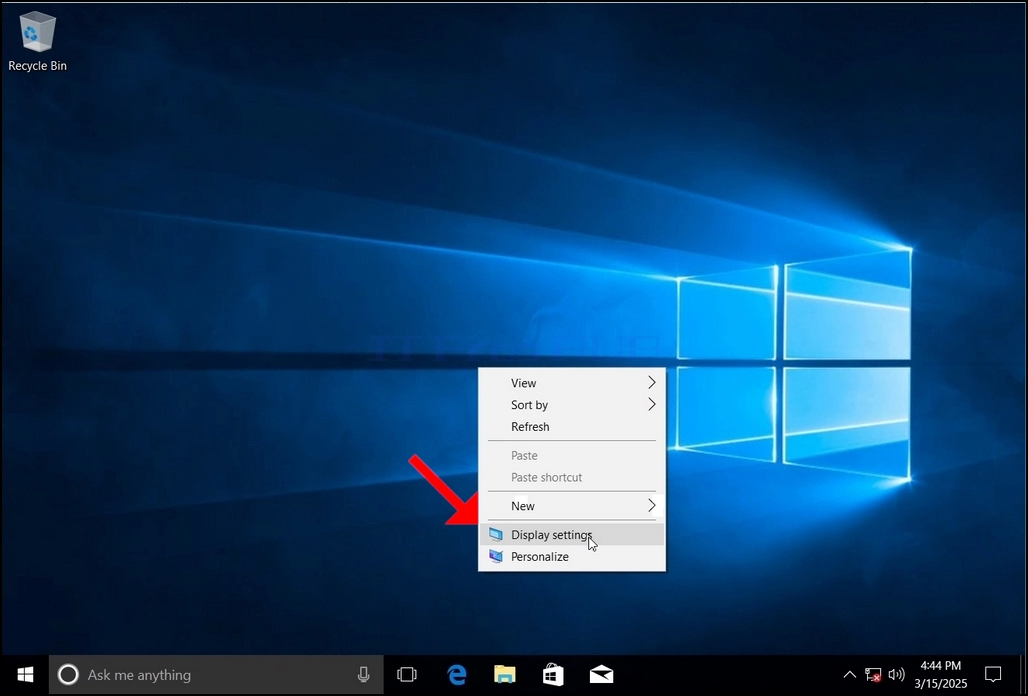
1. Пстрыкніце правай кнопкай мышы на пустым месцы на фоне, пакуль не з'явіцца меню
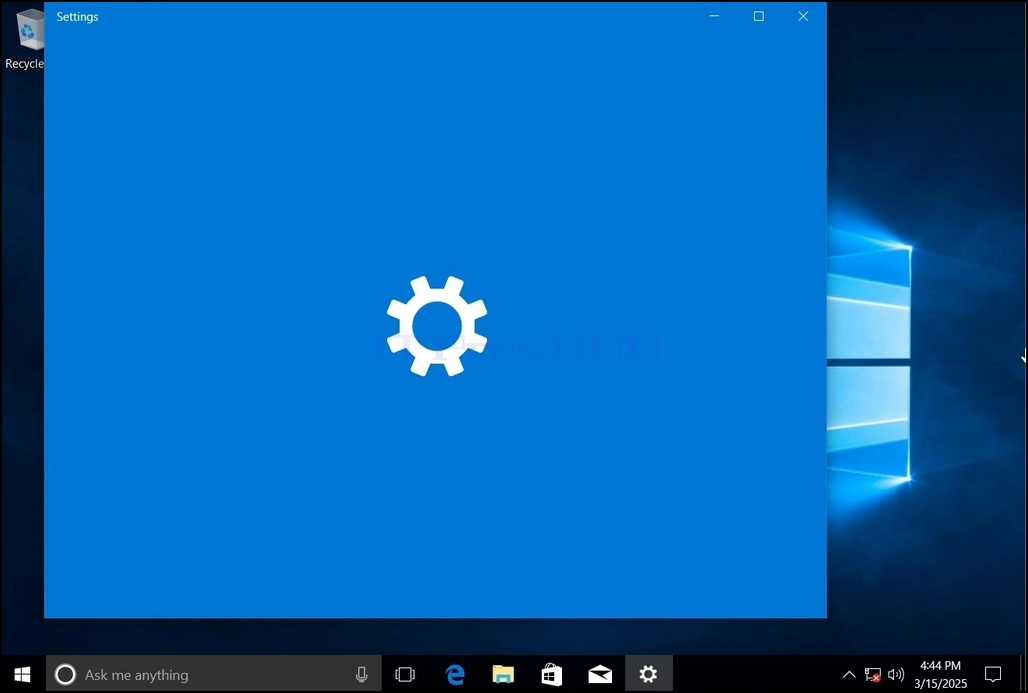
2. У новым меню знайдзіце опцыю «Налады дысплея», націсніце на яе і пачакайце, пакуль з'явіцца акно «Налады»
3. У акне «Налады» ў раздзеле «Сістэма» > Параметры дысплея, знайдзіце опцыю «Разрозненне дысплея»
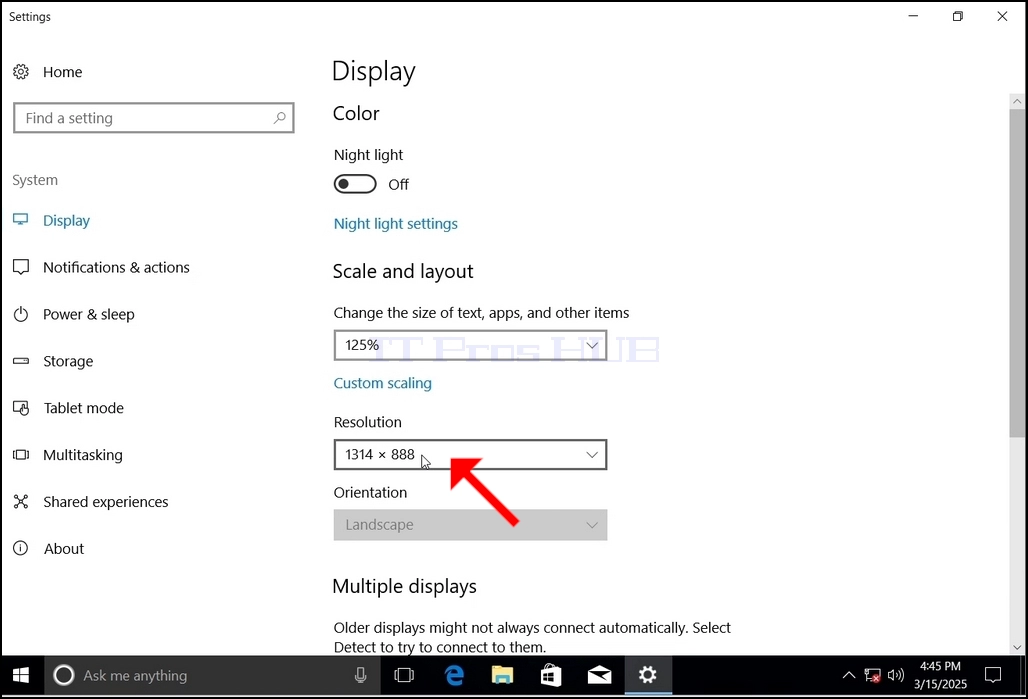
4. Націсніце на выпадальнае меню бягучай налады разрознення, каб разгарнуць яго.
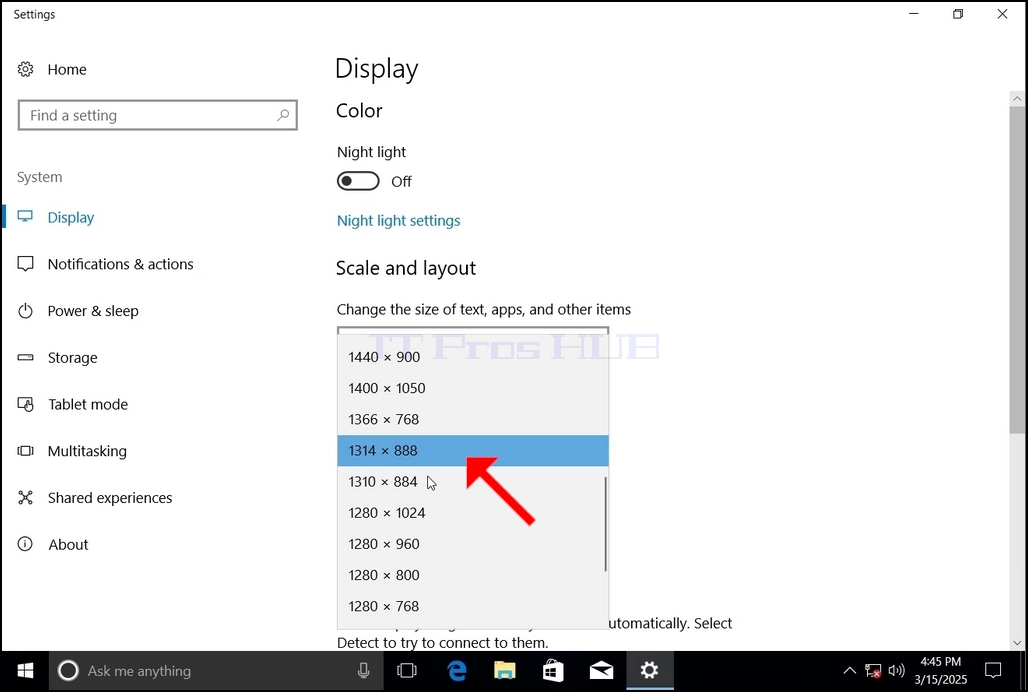
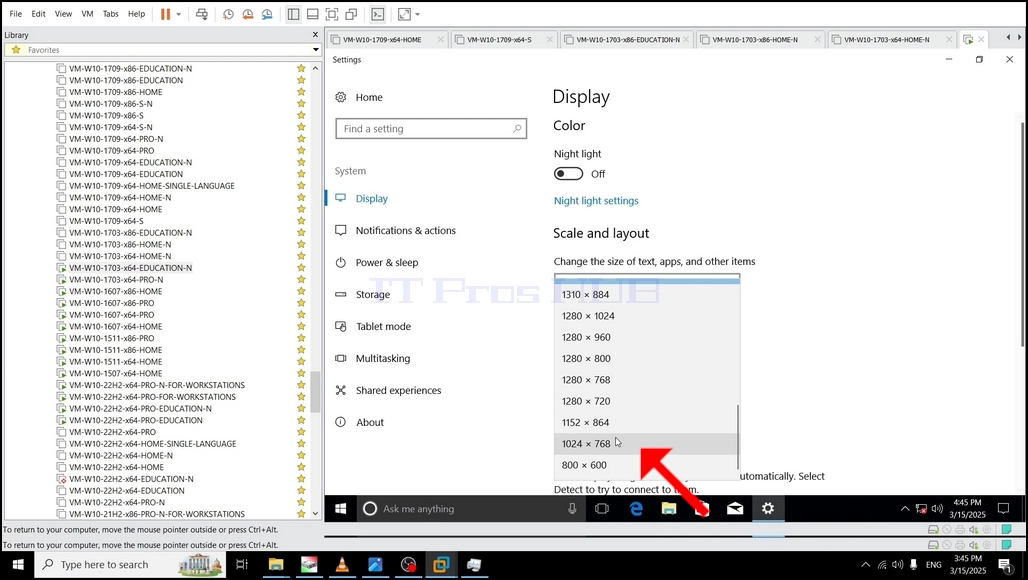
5. З розных варыянтаў разрознення абярыце той, які найлепш адпавядае вашым патрэбам, пстрыкнуўшы па ім левай кнопкай мышы (у гэтым прыкладзе абраны варыянт — 1024x768)
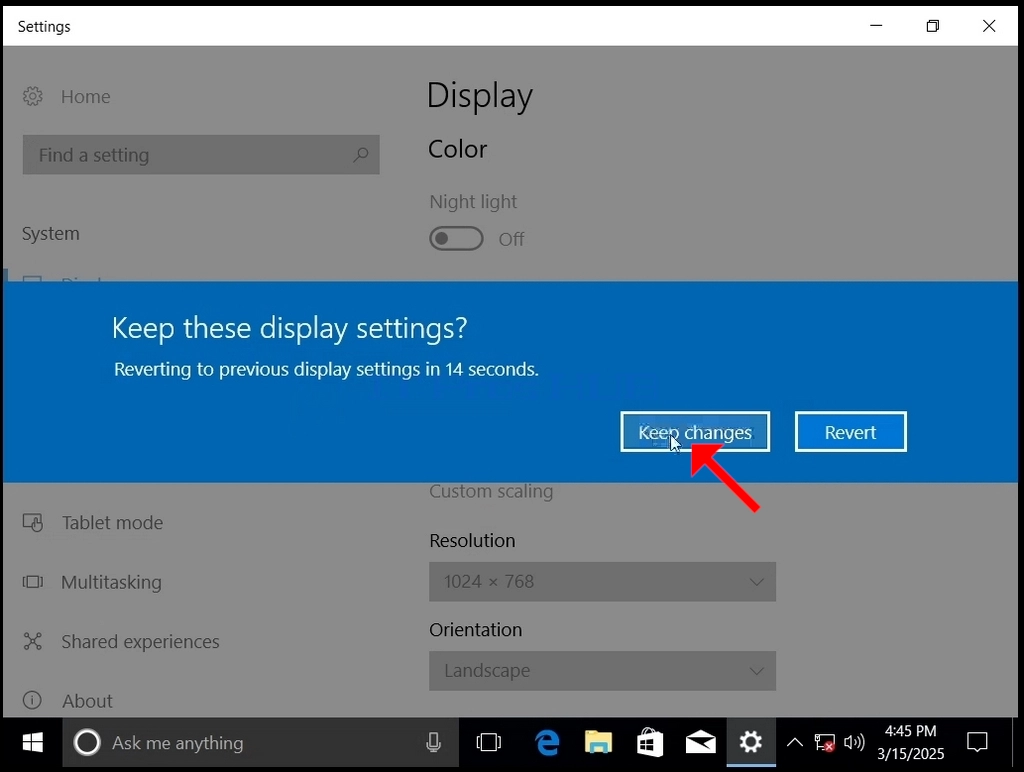
6. Пасля выбару новага параметра разрознення Windows спытае вас, ці хочаце вы захаваць змены, ці адмяніць іх. Калі на працягу адведзенай колькасці секунд не будзе выбраны ніводны з варыянтаў, Windows вернецца да раней настроенага дазволу. Гэта робіцца ў выпадку, калі манітор не падтрымлівае выбранае дазвол, і карыстальнік не можа бачыць або бачыць відэавывад у дадзены момант, каб уручную вярнуць новаабранае дазвол.
Калі новаабранае дазвол сумяшчальнае з маніторам, абярыце «Захаваць змены» і націсніце на яго.
- Падрабязнасці
- Аўтар: IT Pro
- Катэгорыя: Windows
- Праглядаў: 12670
1. Go to Windows Desktop
2. Click Start
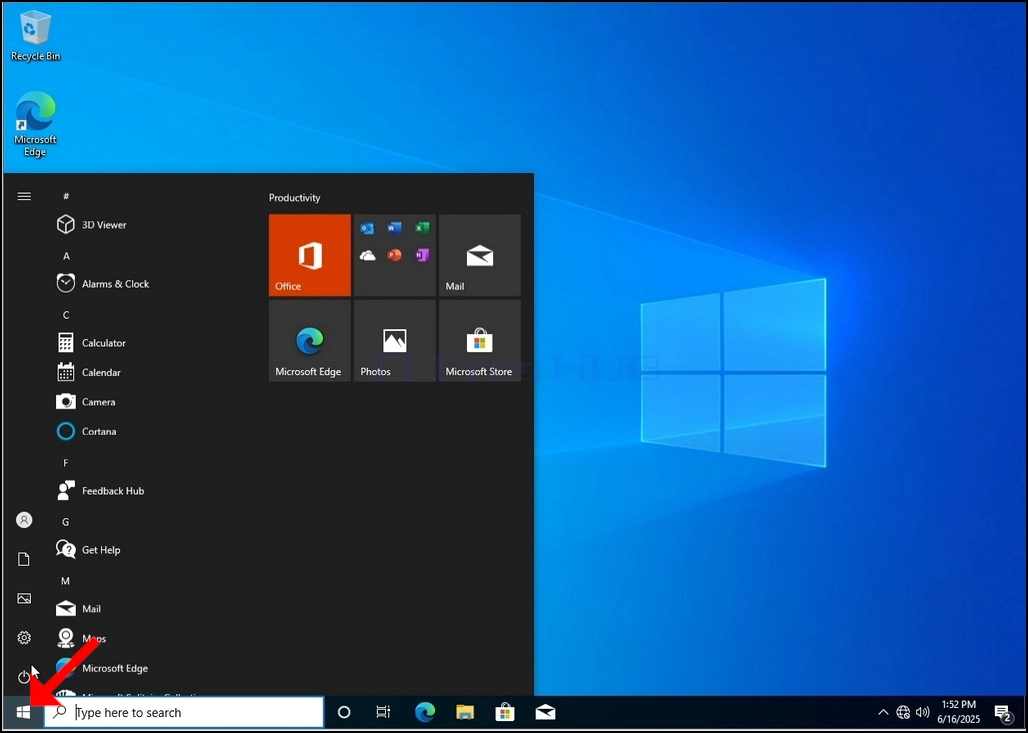
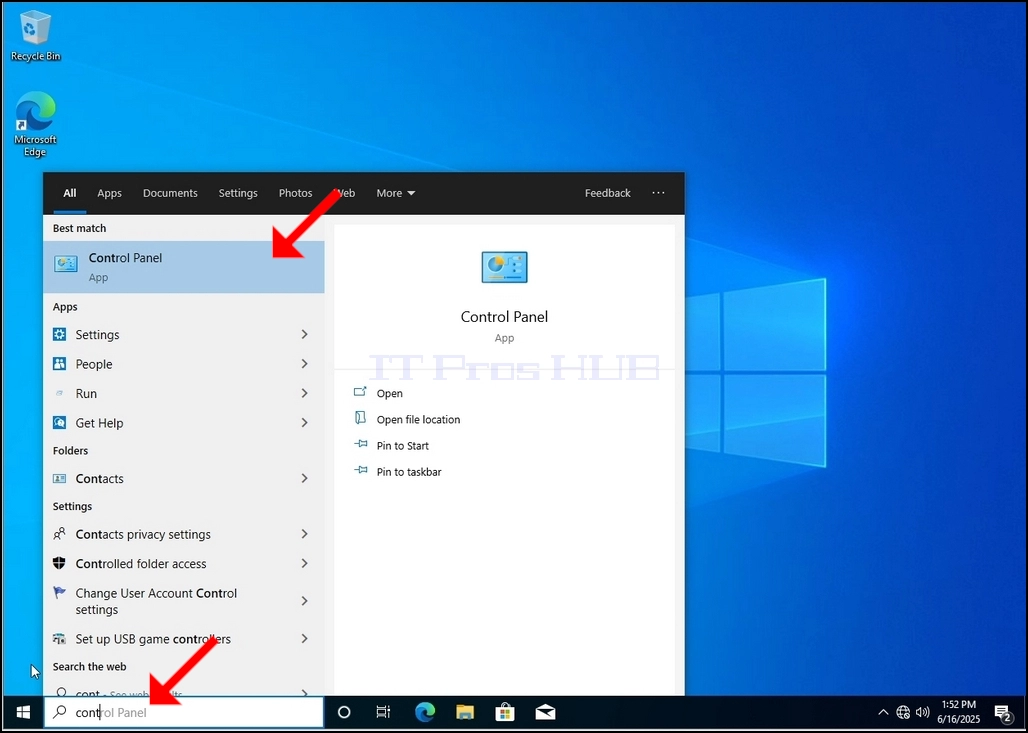
Once it finds it, click it and wait for the Control Panel window to appear.
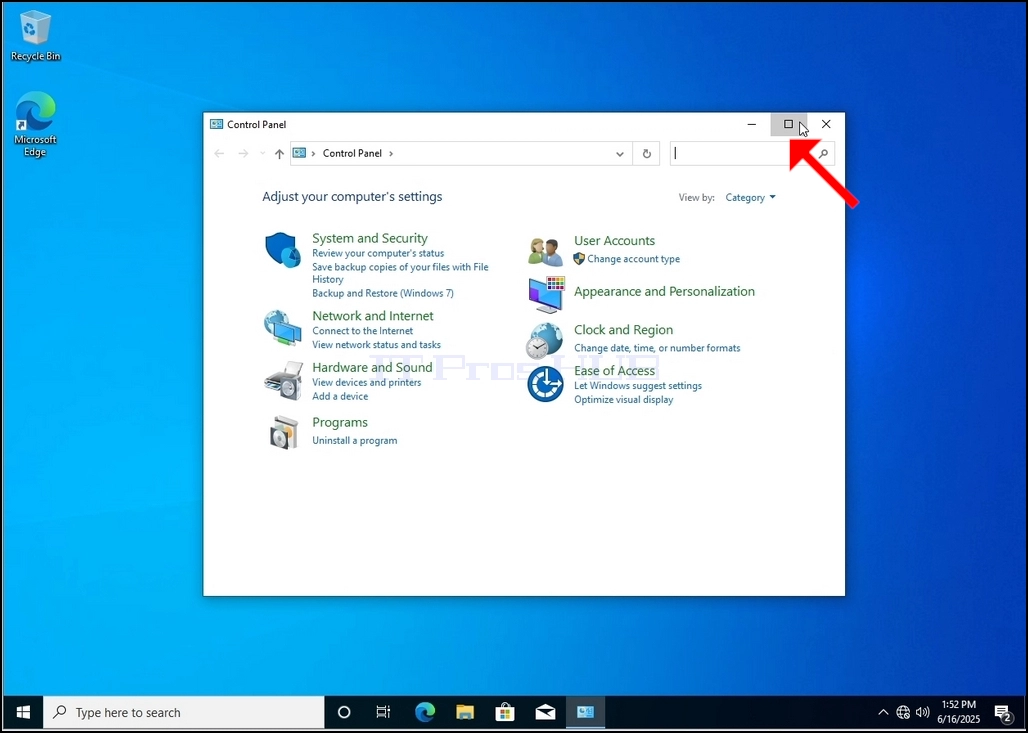
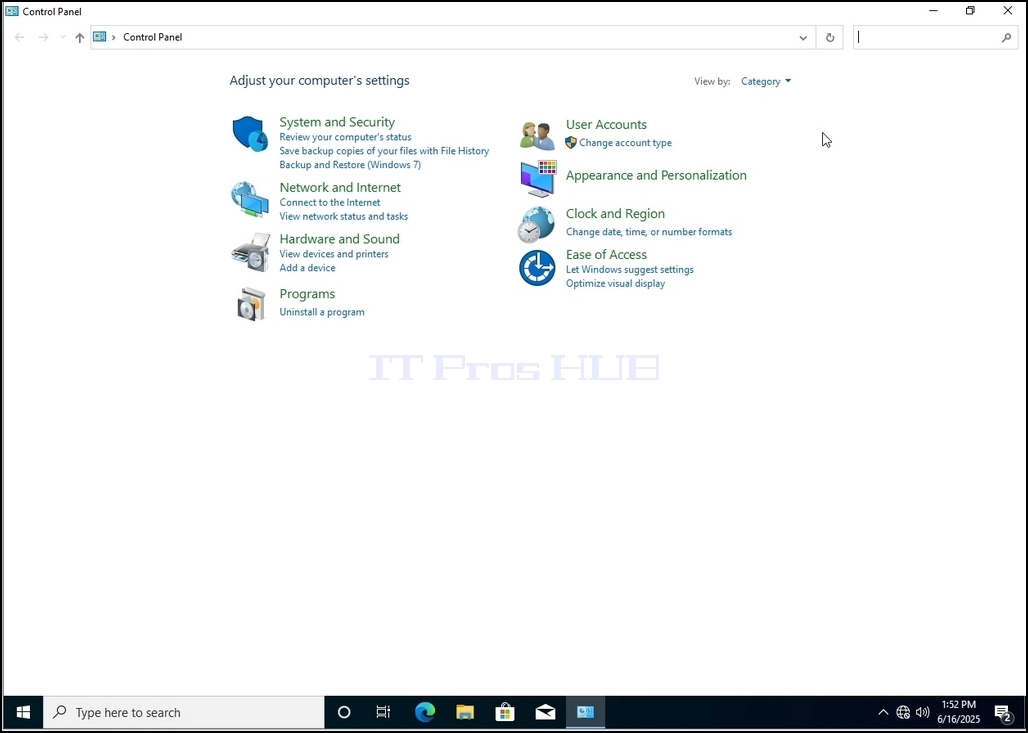
4. Once the Control Panel window is open, enlarge it by clicking the enlarging icon on the top right corner of that window.
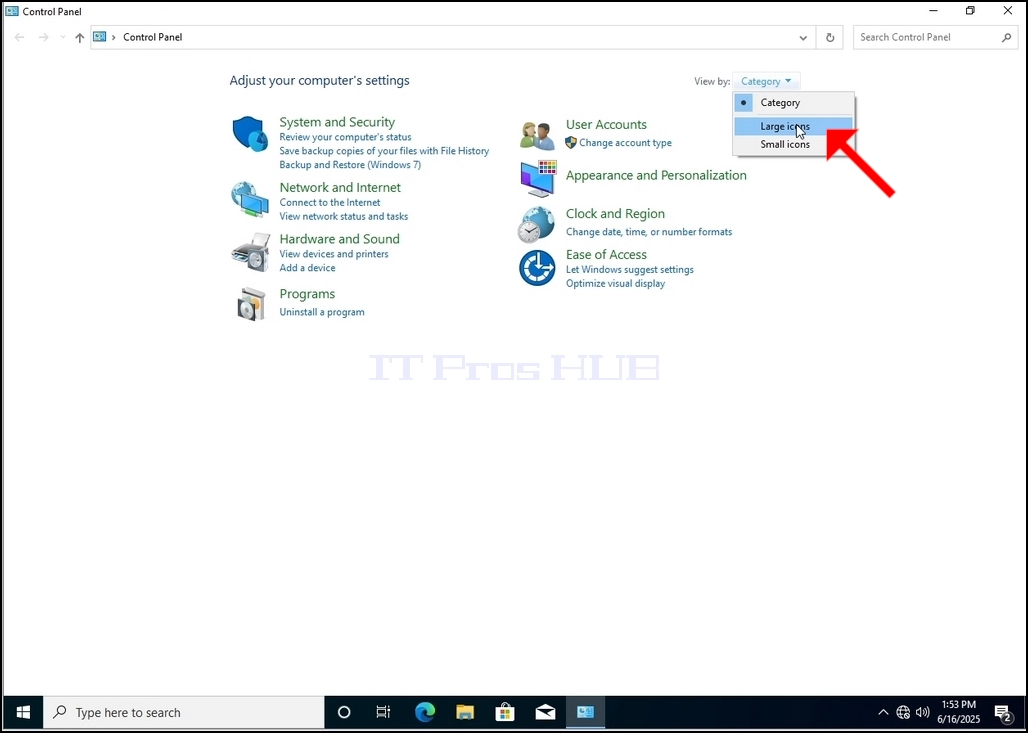
6. Look for the Indexing Options icon and click it. Wait for the Indexing Options window to appear.
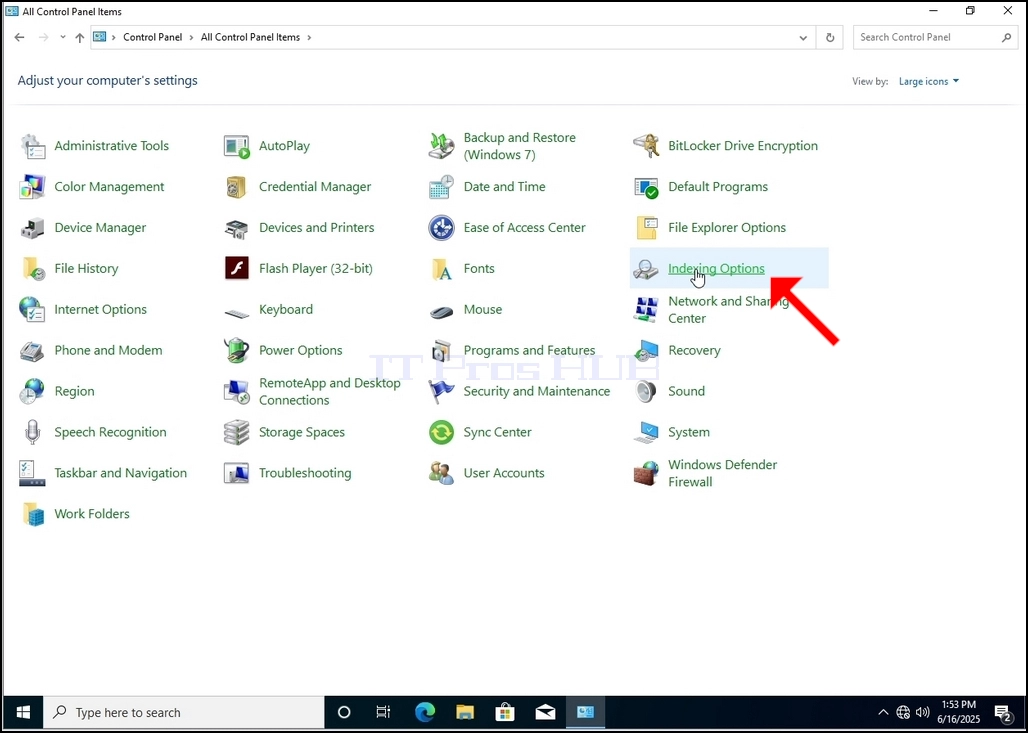
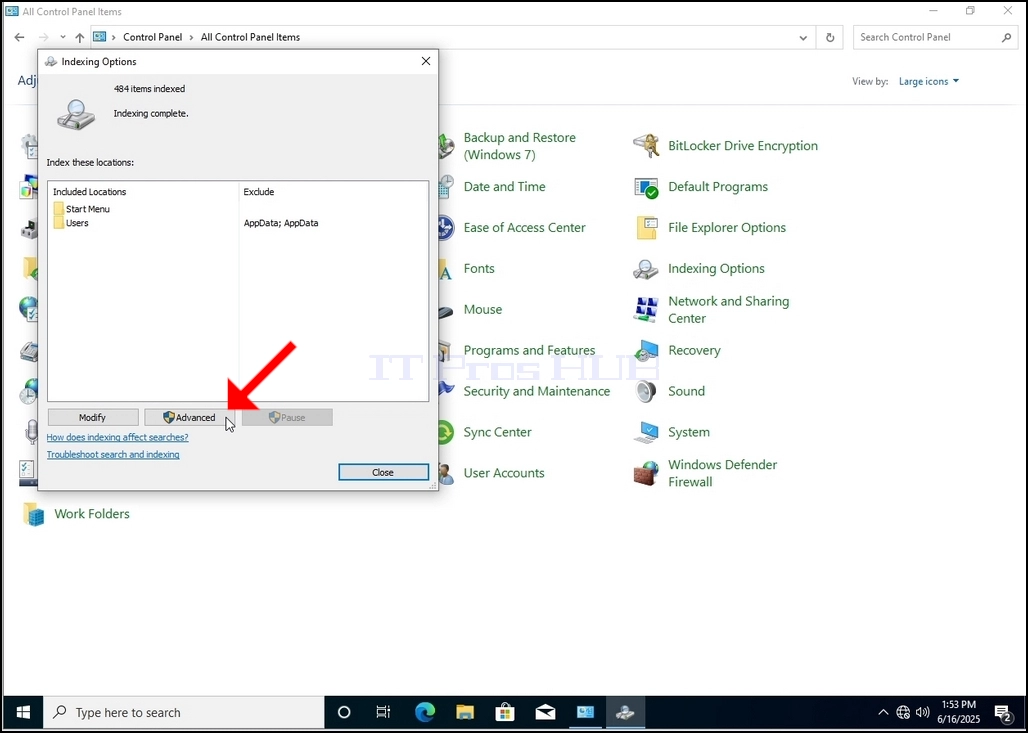
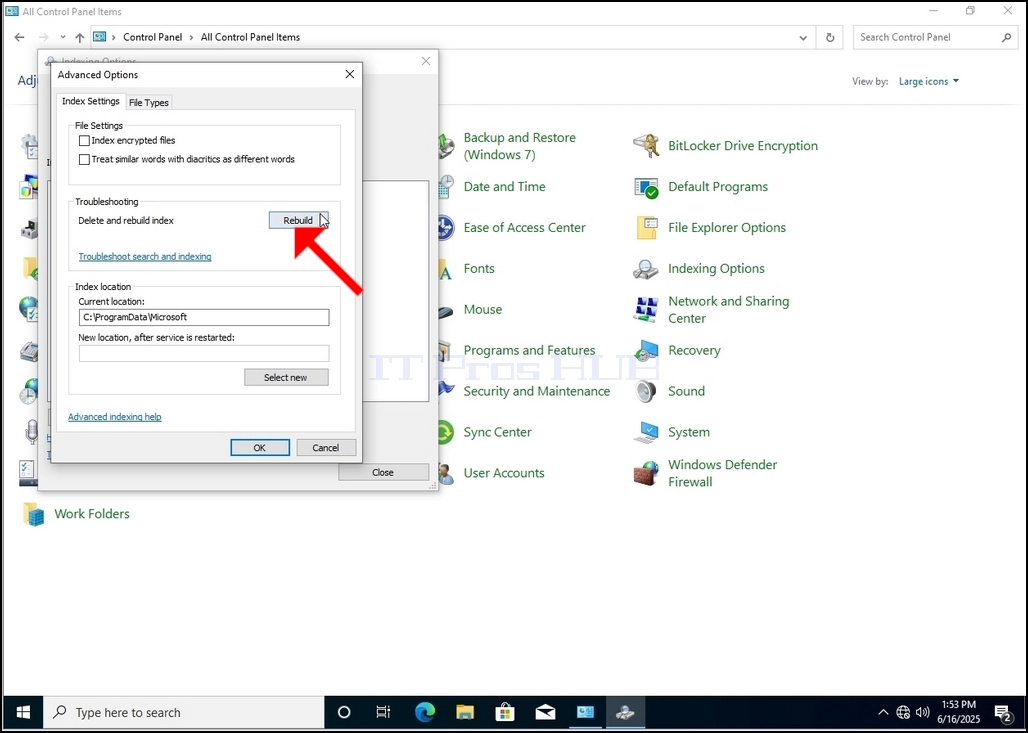
9. After clicking OK in the confirmation box, Windows will start rebuilding its index. It might take some time for the actual process to start, Wait patiently a few seconds to a few minutes. The moment the process starts, the "Indexing Complete" sentence will be replaced with "Indexing in progress. Search results might not be complete during this time."
In addition, The number of items indexed will be reset to 0 for a moment and then start to increment.
Note that All of the windows that are related to the Indexing process can now be closed and the rebuilding process would still be running the background.
Note that the Indexing process' speed might be reduced due to user activity on the computer. The more intense the activity the less the Indexing speed would be.
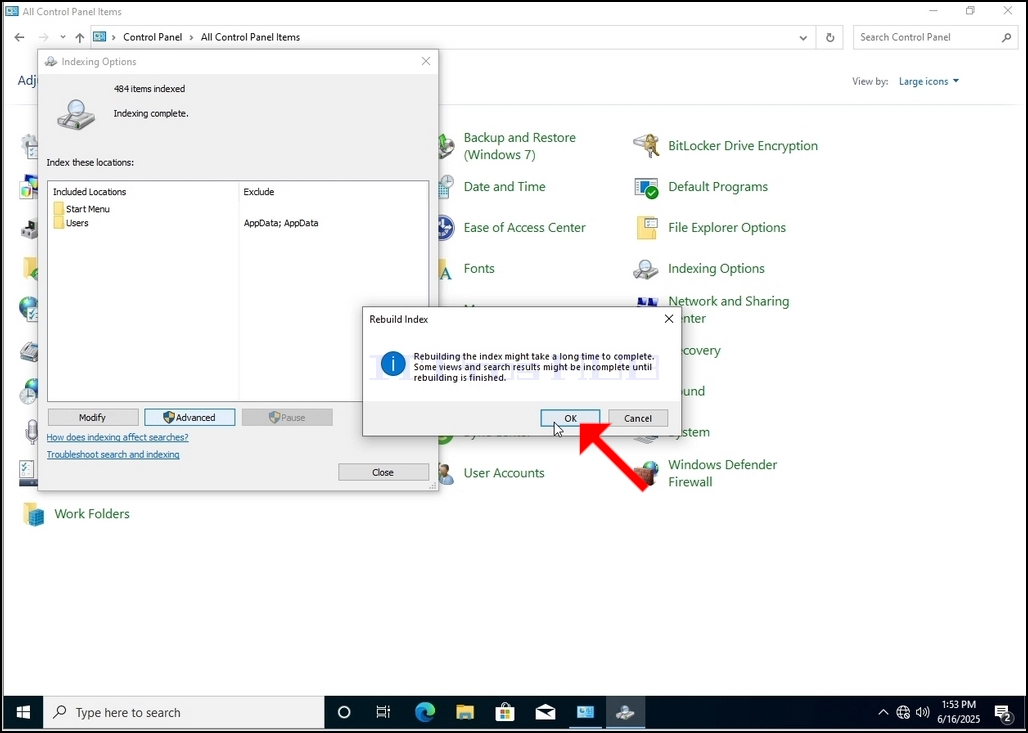
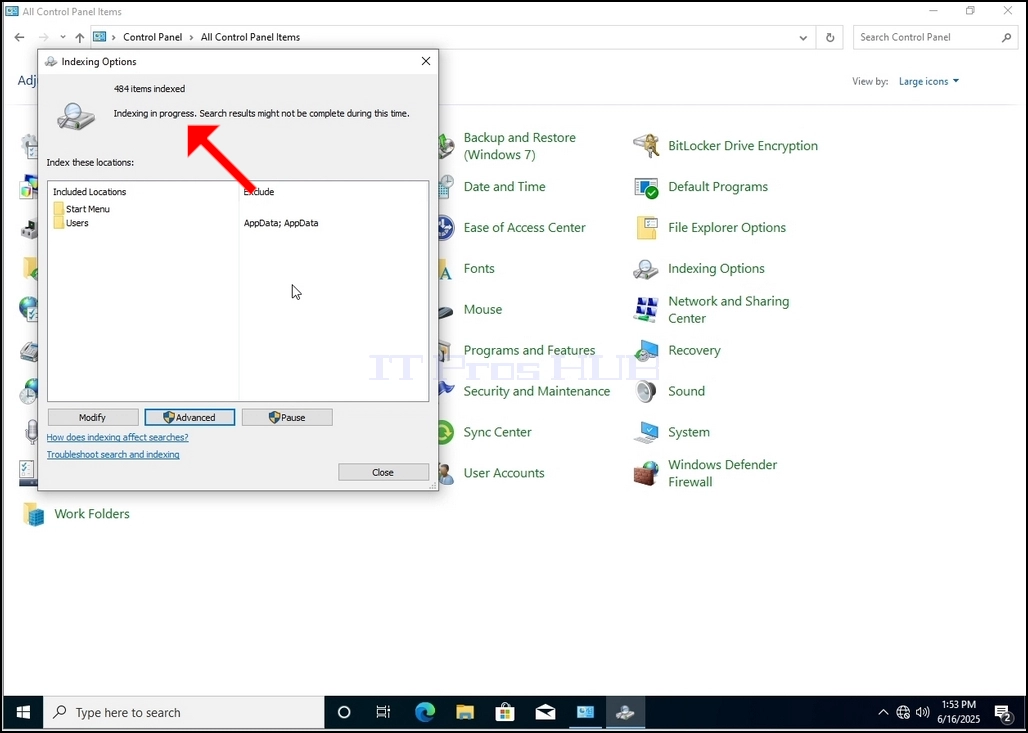
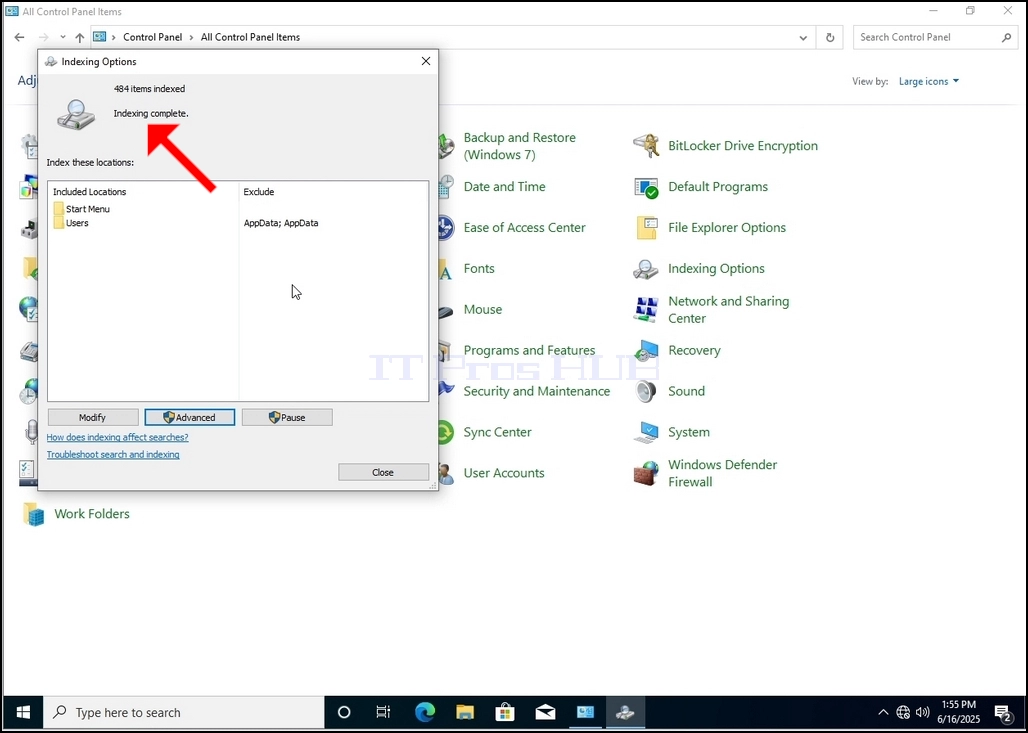
10. In order to check if the indexing process is done, go back to the Indexing Options through Control Panel as explained in the previous stages. If the process is complete, you would see the "Indexing Complete" sentence appears again.
Since Windows does not notify the user once this process is done, there is indeed a need to perform the latter mentioned. Depending on the number of files, folders, drivers and partitions marked for indexing, this process could take between a few minutes to a few hours.