



В тази статия ще покажем как да тестваме функционалността на Mirrored Volume на Windows 11.
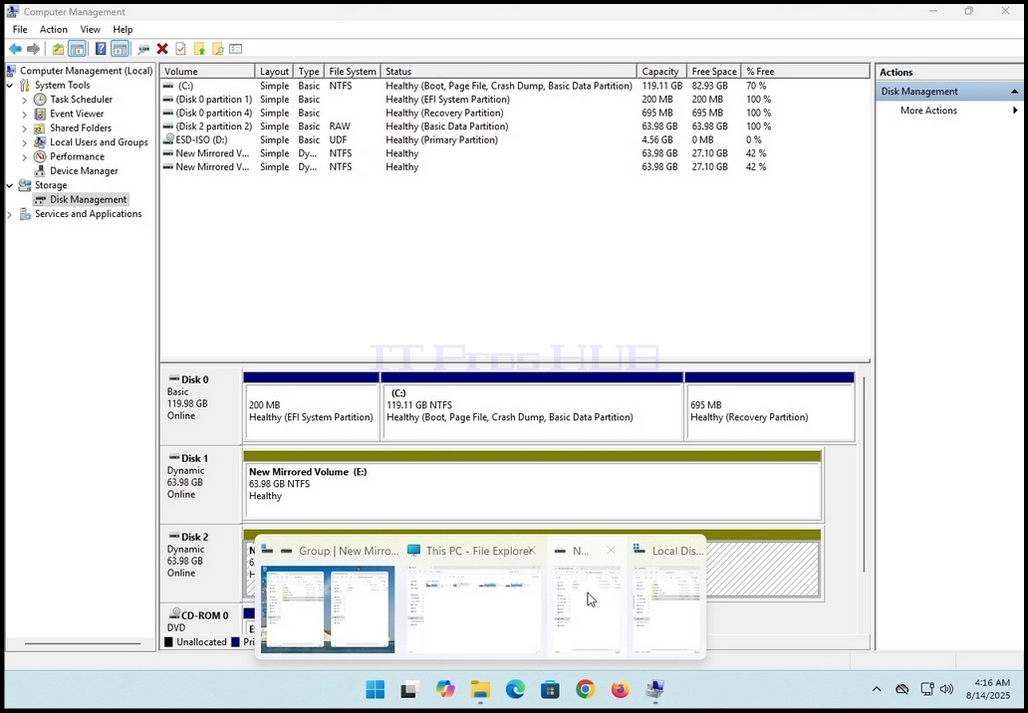
1. Първо, ще отидем до Компютърно управление и от там до Управление на диска само за да видите двата диска в огледалния обемен масив.
2. Както виждате, Диск 1 както и Диск 2 са част от този масив, който създава един-единствен нов Mirrored Volume (E: и F:)
3. След това ще отидем до Windows Explorer и от там до Този компютър за да видите всички дискове и дялове конфигурирани в тази система
4. Както може да се види на снимката по-долу, тук са 2 диска, които сме виждали на етап 1 Д: и Е: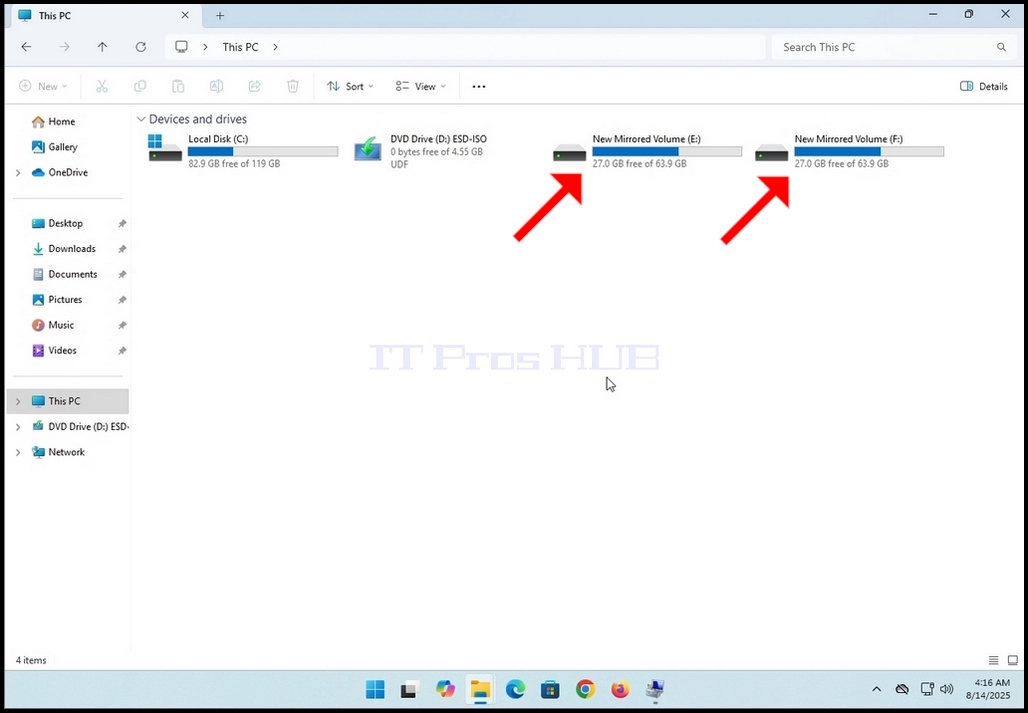

5. Ще го направим Разделено екранът в 2 за да видите contenst на двете F: и Е: кара едновременно.
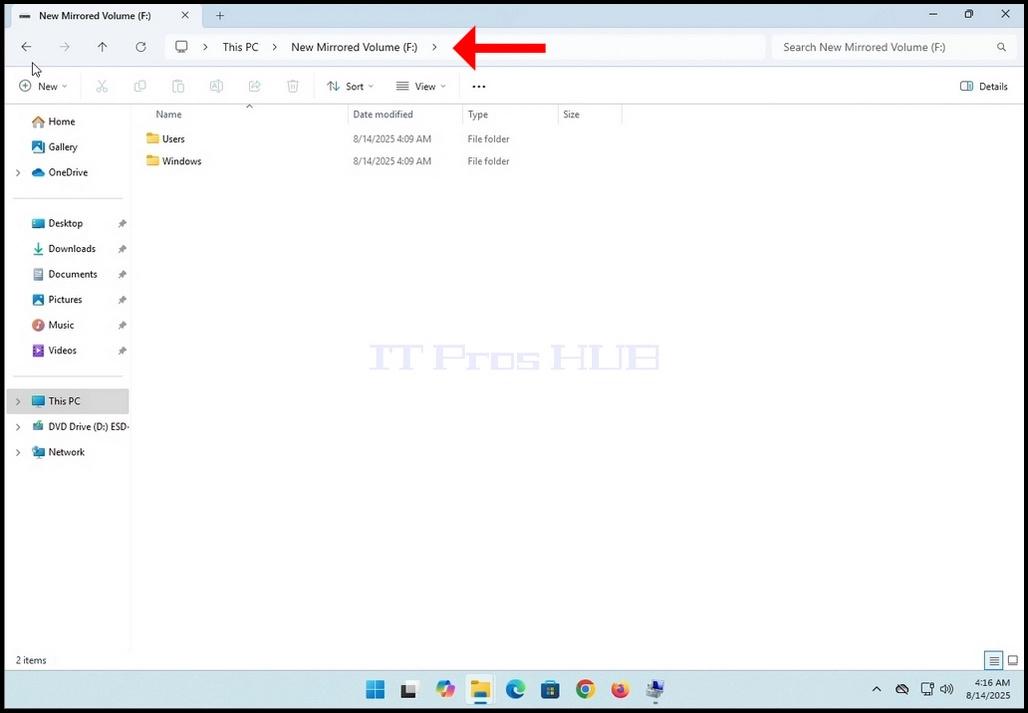
6. Ние ще отидем на F: шофиране първо. Както можете да видите, вече има папки и файлове в този диск, за да започнете с.
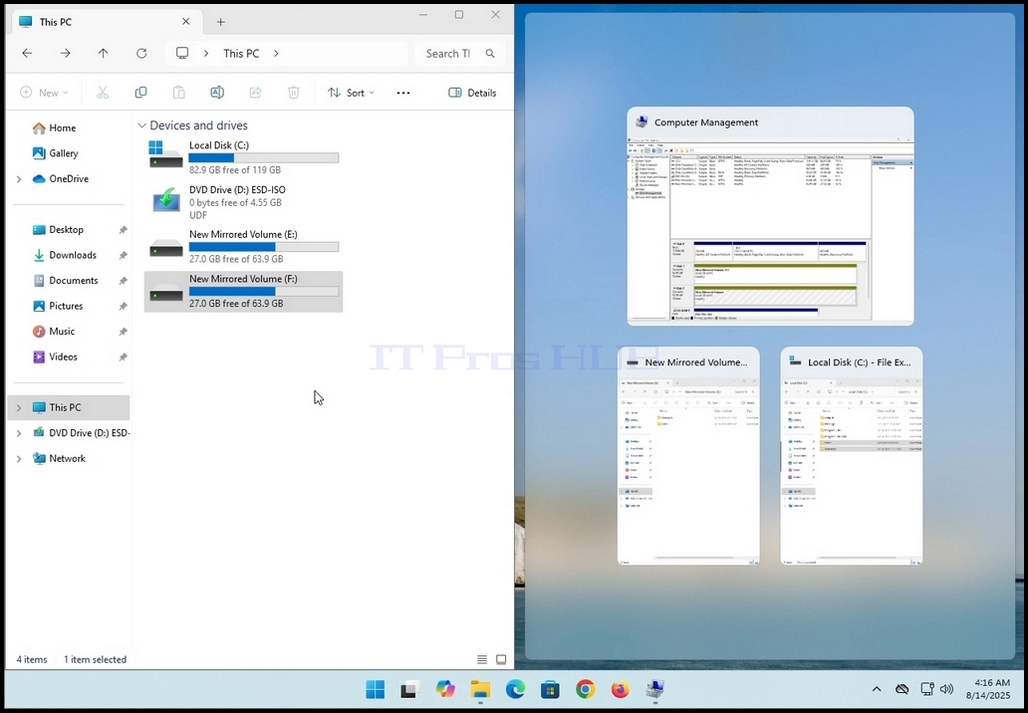
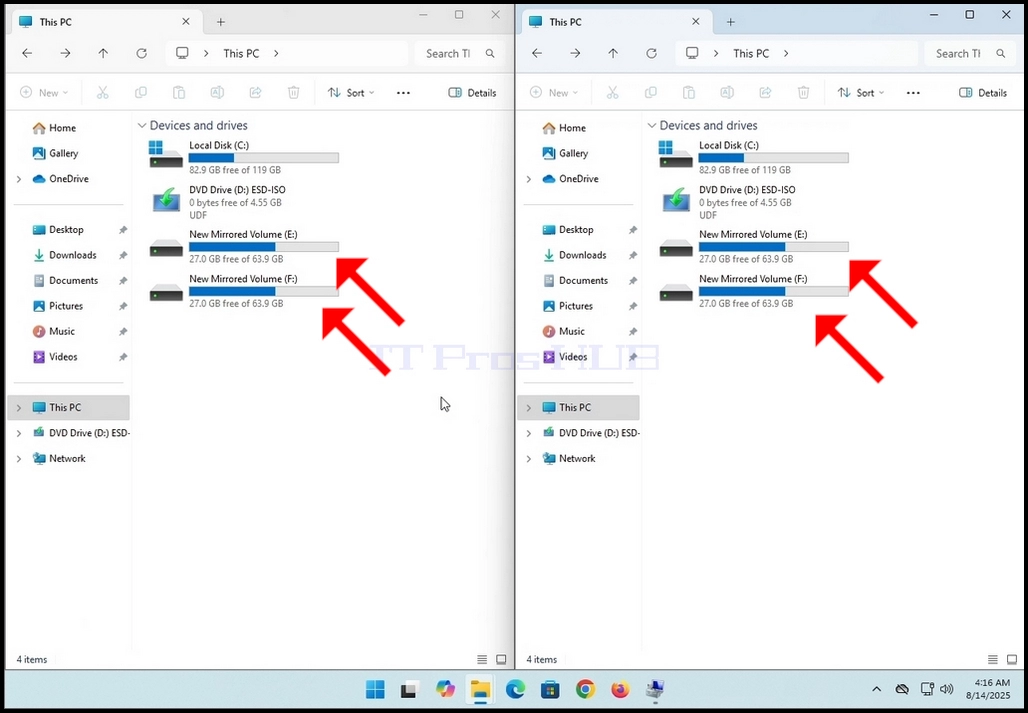
7. Имайте предвид, че каквито и промени да се правят на едното задвижване, то се отразява и прилага към другото/ите на огледалния обемен масив. Както можете да видите тук на тази снимка по-долу, двете дискове имат едни и същи папки и файлове, поне на повърхността. В тази статия ще проверим това.
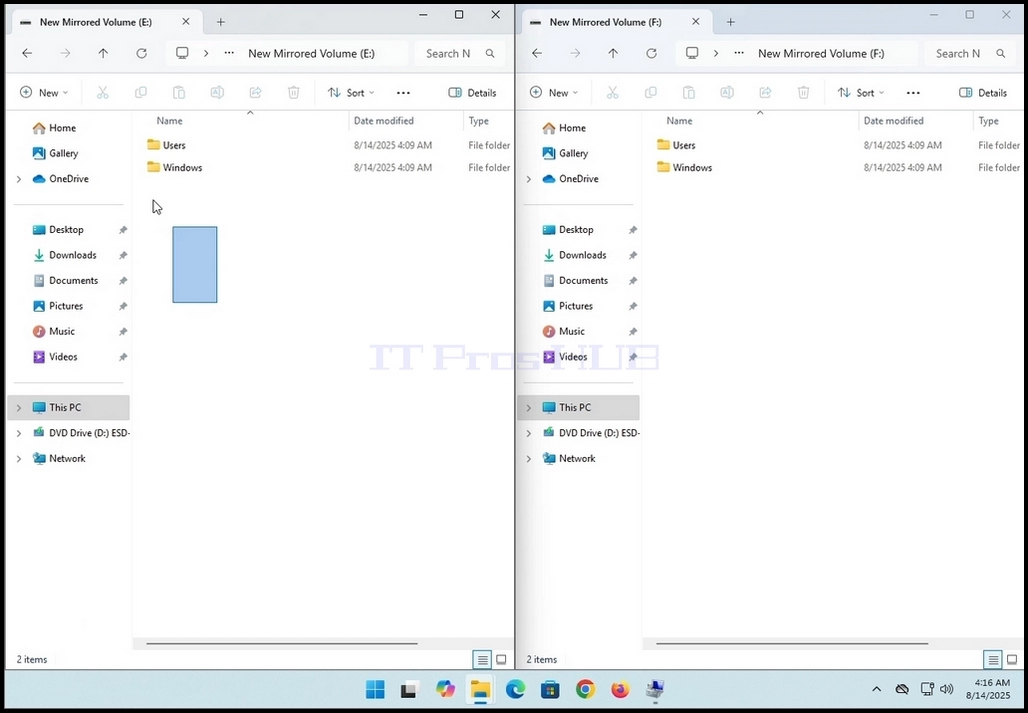
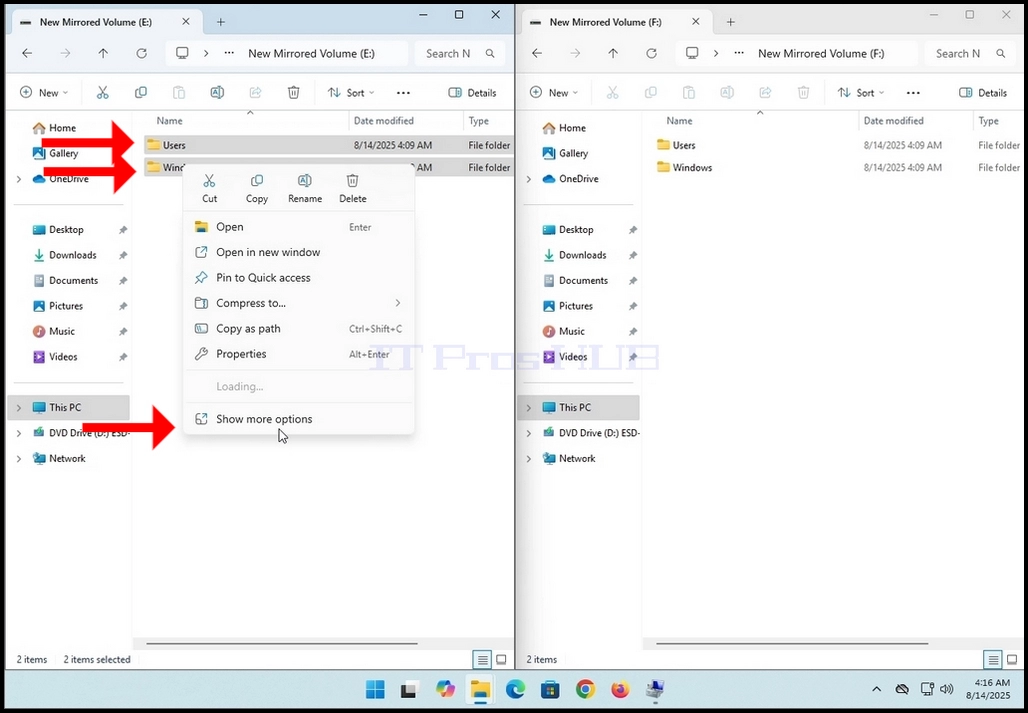
8. Маркирайте всички папки и файлове на едно устройство, щракнете с десния бутон върху селекцията и изчакайте страничното меню да се появи.
9. Кликнете върху Показване на повече опции и във второто меню кликнете върху Настройки. Изчакайте за свойства прозорец да се появи.
10. След като прозорецът на свойствата се появи, нека той изчисли броя на файловете, папките и техния размер и размер на диска.

11. Извършване на същото действие на втория диск на масива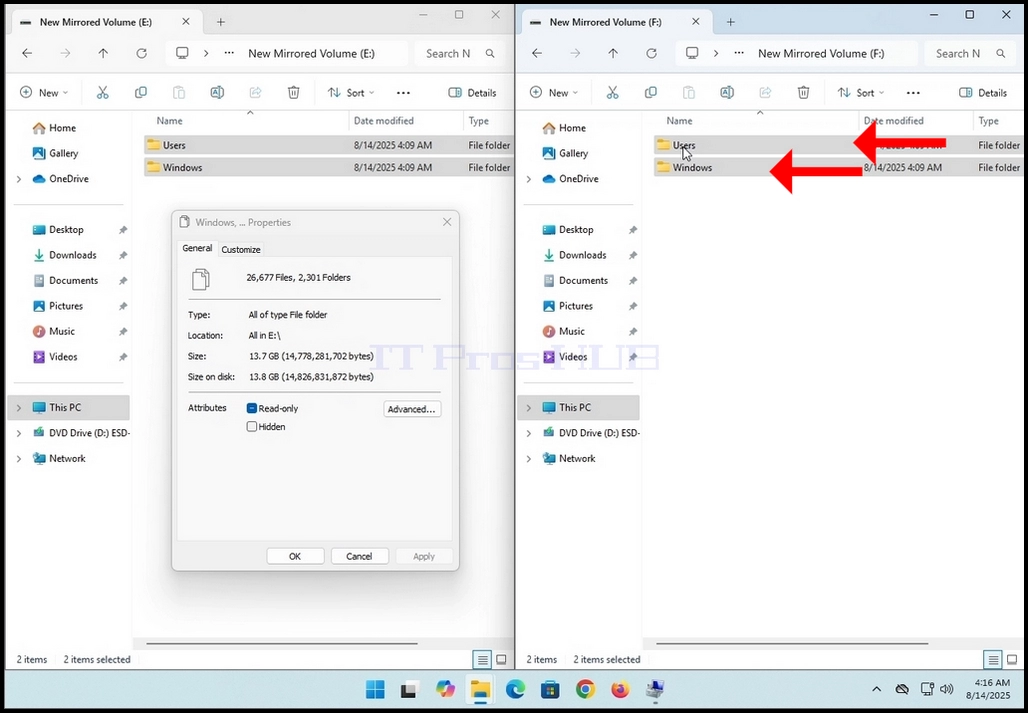
12. Дайте на имотите прозорци известно време, за да се изчисли посочените стойности. Когато стойностите спрат да се променят това, когато сте го знаете процеса на изчисляване е завършен.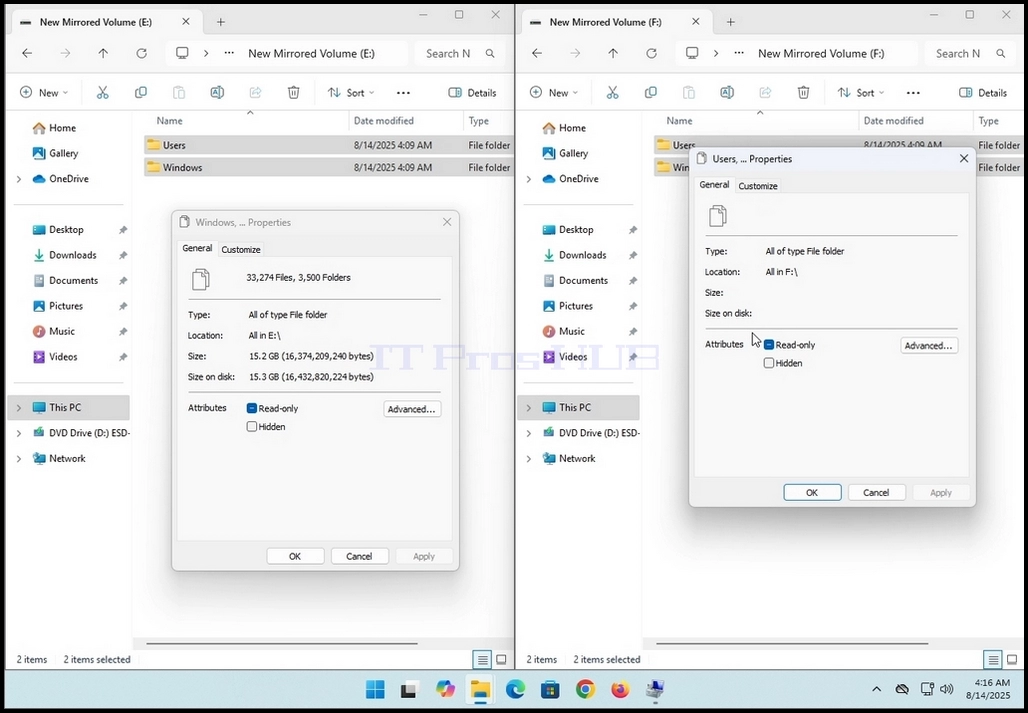
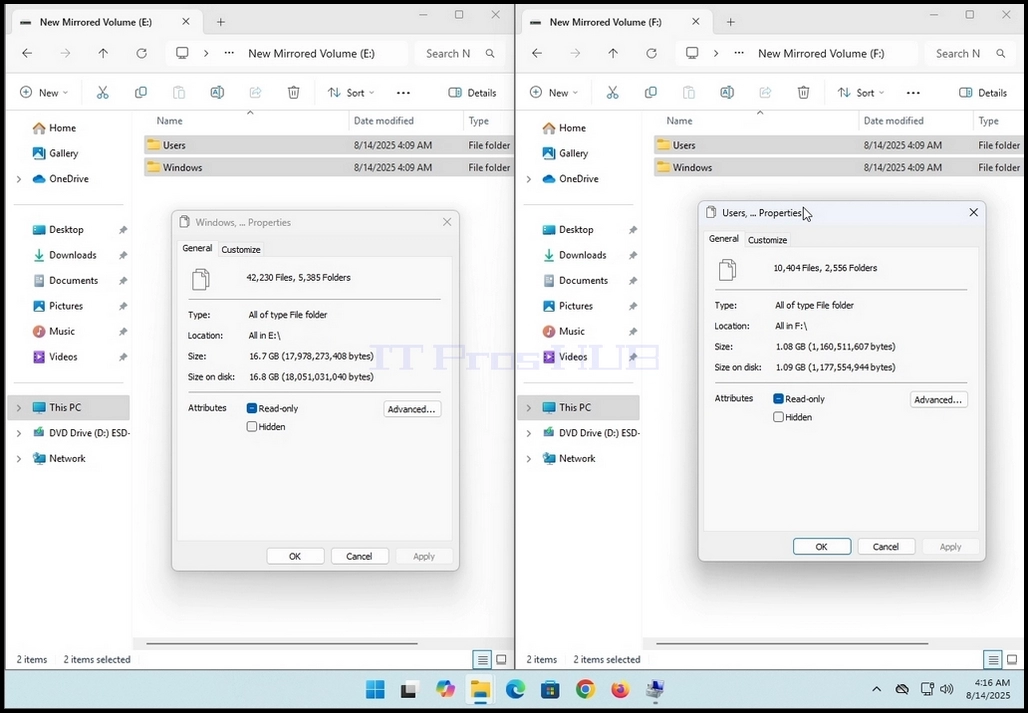
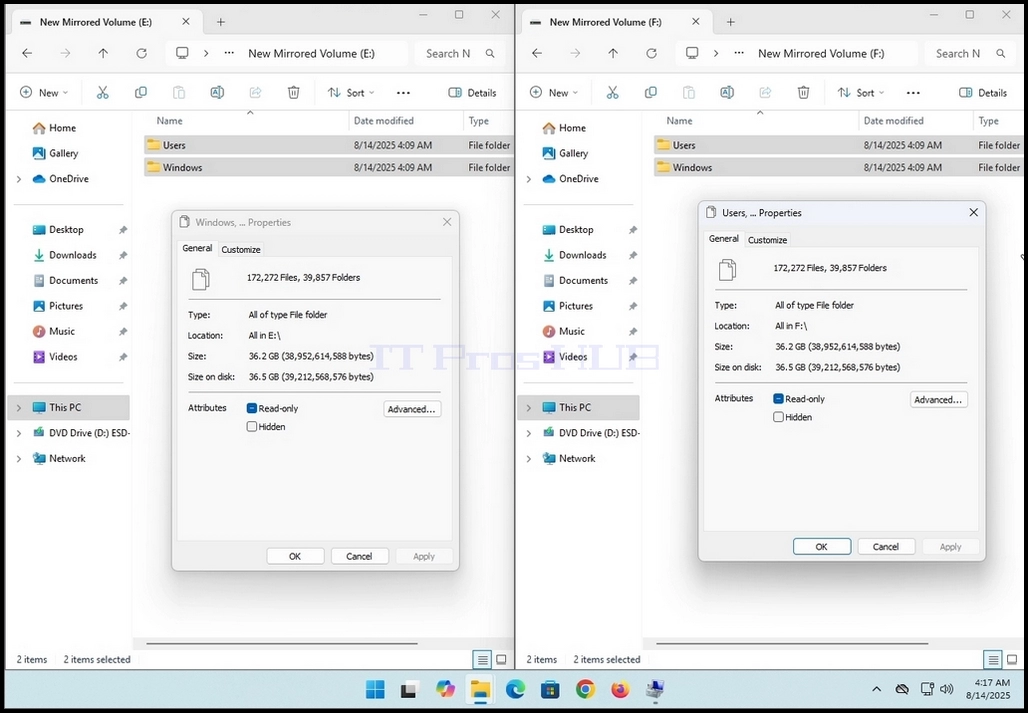
13. Имайте предвид, че в случая на тази статия и двата прозореца показват еднакви стойности EXACT:
a. 172 272 файла
б. 39 857 папки
c. 36.2GB размер (38,952,614,588 байта)
d. 36.5GB (39,212,568,576 байта) размер на диска
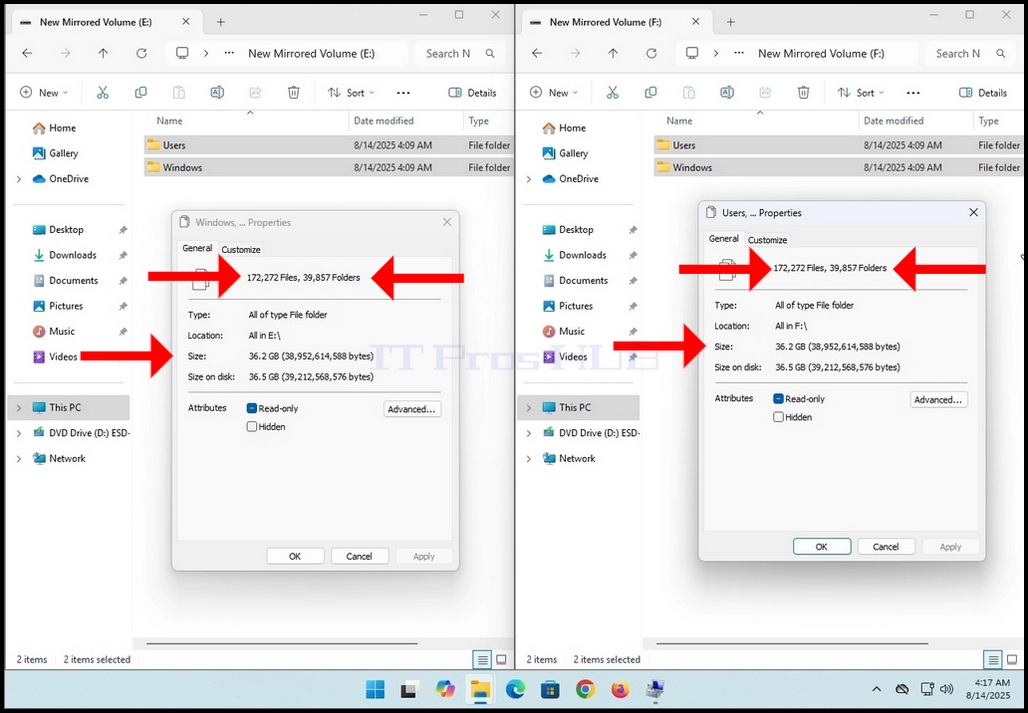
14. Това означава, че този огледален обем работи по предназначение