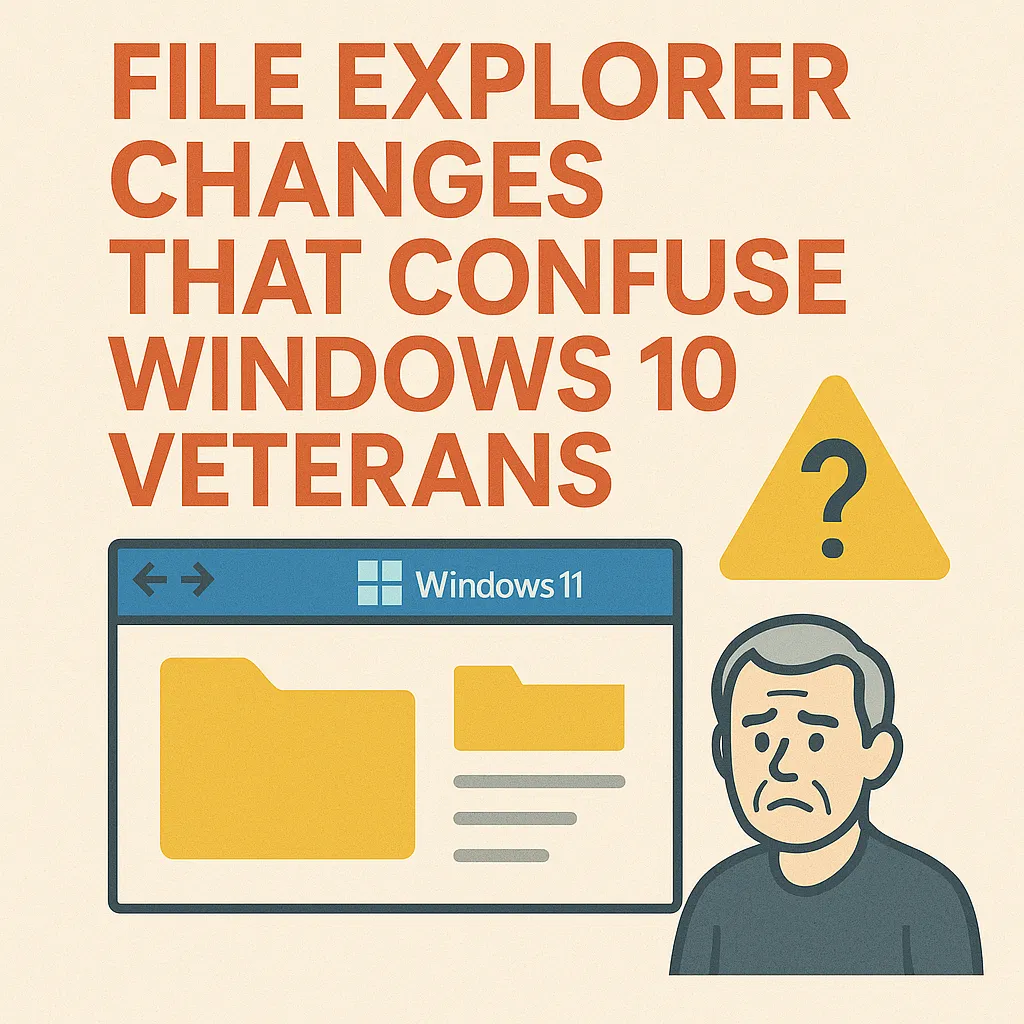
As organizations continue their transition from Windows 10 to Windows 11, one of the most frequently reported pain points among experienced users is the updated File Explorer interface. While Microsoft’s design goals center on modernization, simplified navigation, and deeper cloud integration, these changes often disrupt well-established workflows. For IT professionals responsible for guiding end users and maintaining productivity across endpoint fleets, understanding these frustrations is key to developing training, documentation, and configuration policies that smooth the migration.
This article reviews the most significant File Explorer changes in Windows 11 that tend to confuse or slow down Windows 10 veterans, offering insight into why these differences matter and how they impact enterprise environments.
The New Command Bar Replacing the Classic Ribbon
Perhaps the most disruptive visual change is the removal of the classic Ribbon interface that Windows 10 users rely on for quick access to commands such as Copy, Paste, Rename, Sort, New Folder, and advanced view options. Windows 11 introduces a minimalist command bar with simplified icons, often hiding secondary functions behind dropdown menus.
While cleaner in appearance, this redesign reduces feature discoverability. Power users accustomed to finding advanced actions in the Ribbon now must navigate multiple clicks to reach the same tools. This shift not only affects productivity but may complicate scripted or documented workflows that depended on the older UI layout.
Context Menu Redesign and Hidden Legacy Options
Windows 11’s modern context menu introduces rounded corners, simplified options, and a new layered structure intended to reduce clutter. However, many commonly used advanced commands—such as file hashing, third-party integrations, detailed sharing settings, or version-control actions—are pushed into a secondary menu accessed through “Show more options.”
This two-step menu has caused confusion among Windows 10 veterans who expect certain commands to appear immediately when right-clicking. The extra step adds friction to daily tasks such as managing archives, interacting with version-control tools, or using enterprise security products that previously integrated directly into the context menu.
Changes to Quick Access and Pinned Folders
Windows 11 modifies how Quick Access works and introduces the concept of “Home” within File Explorer. While the intention is to highlight frequently used files and cloud-integrated content, the shift has caused disorientation for users familiar with the Windows 10 layout.
Pinned folders now appear under different sections, recent items are more prominent, and OneDrive-related content may surface automatically depending on organization settings. This can result in misplaced muscle memory and uncertainty about where user-defined shortcuts reside, especially for power users who built extensive folder shortcuts for daily workflows.
Simplified Toolbar Icons with Reduced Labeling
Another major change is the removal of text labels from toolbar buttons. Windows 11 relies heavily on iconography, which can be ambiguous for users accustomed to descriptive buttons. While the interface looks cleaner, it increases cognitive load—users must interpret icons or hover for tooltips to confirm an action.
In fast-paced enterprise workflows, this visual ambiguity can contribute to task delays or accidental misclicks, leading to user frustration or support requests for clarification.
Folder View Behavior and Navigation Differences
Windows 11 introduces subtle but impactful changes to how folder views behave. For example, details view, grouping, and sorting behave slightly differently, and some legacy customizations no longer persist across folders. Additional inconsistencies arise when mixing local and cloud-backed folders, as their metadata and icon behavior differ more noticeably than in Windows 10.
These variations often cause confusion for users who expect File Explorer to remember specific display preferences or to provide consistent sorting and filtering options across all directory types.
Integrated Cloud Experience Changing File Behavior
OneDrive integration is significantly more prominent in Windows 11’s File Explorer. Files-on-Demand behavior, sync status icons, and suggested cloud content surface more aggressively, sometimes appearing before users fully understand their role or impact. This can disrupt workflows involving shared drives, local-only folders, or offline work.
In organizations where cloud adoption is still partial, users may accidentally move files into the cloud, lose track of local copies, or experience sync delays that they misinterpret as system issues. This integration shift often requires additional IT guidance to prevent misconfigurations and confusion.
Tabs in File Explorer: Helpful but Disruptive to Old Habits
Windows 11’s introduction of tabbed File Explorer windows is widely praised but still presents an adjustment challenge. Windows 10 veterans accustomed to multiple separate windows or snap layouts may initially struggle with the mixed interaction model. While tabs reduce desktop clutter, they also change behaviors such as dragging, moving, or comparing files across directories.
Some users inadvertently open too many tabs, lose track of navigation paths, or experience reduced flexibility when multi-window workflows are essential—especially in IT, development, and data-processing roles.
Reduced Visibility of Network and System Locations
File Explorer in Windows 11 places less emphasis on network and system locations by default. For organizations with extensive SMB shares, mapped drives, or legacy NAS environments, this subtle change negatively impacts navigation. Users may believe network shares are missing or disconnected simply because they are deprioritized or hidden behind collapsible sections.
This contributes to increased helpdesk tickets related to “missing drives,” even when connectivity is functioning properly.
The Shift Toward a Touch-Friendly, Minimalist UI
Much of File Explorer’s redesign aligns with Microsoft’s broader shift toward a unified, touch-friendly interface. While beneficial for tablets, hybrid devices, and modern laptops, this design philosophy often reduces efficiency for keyboard-and-mouse power users—especially in enterprise settings where speed and precision outweigh aesthetics.
The flattened menus, larger spacing, and reduced visual density force more scrolling, more clicking, and more transitions, all contributing to workflow friction for users who mastered Windows 10’s more compact layout.
Conclusion
The File Explorer redesign in Windows 11 introduces usability improvements for some, but for Windows 10 veterans, it represents a significant shift that interrupts established workflows. Simplified menus, reduced customization, cloud-forward features, and altered navigation patterns increase the learning curve during organizational migrations.
For IT professionals, anticipating these challenges is essential for minimizing disruption. Training materials, transition guides, and clear policy configurations can help users regain efficiency while adjusting to the new interface. As File Explorer continues to evolve, IT teams must stay informed and proactive to ensure that UI changes enhance productivity rather than hinder it.

 12984
12984  IT Pro