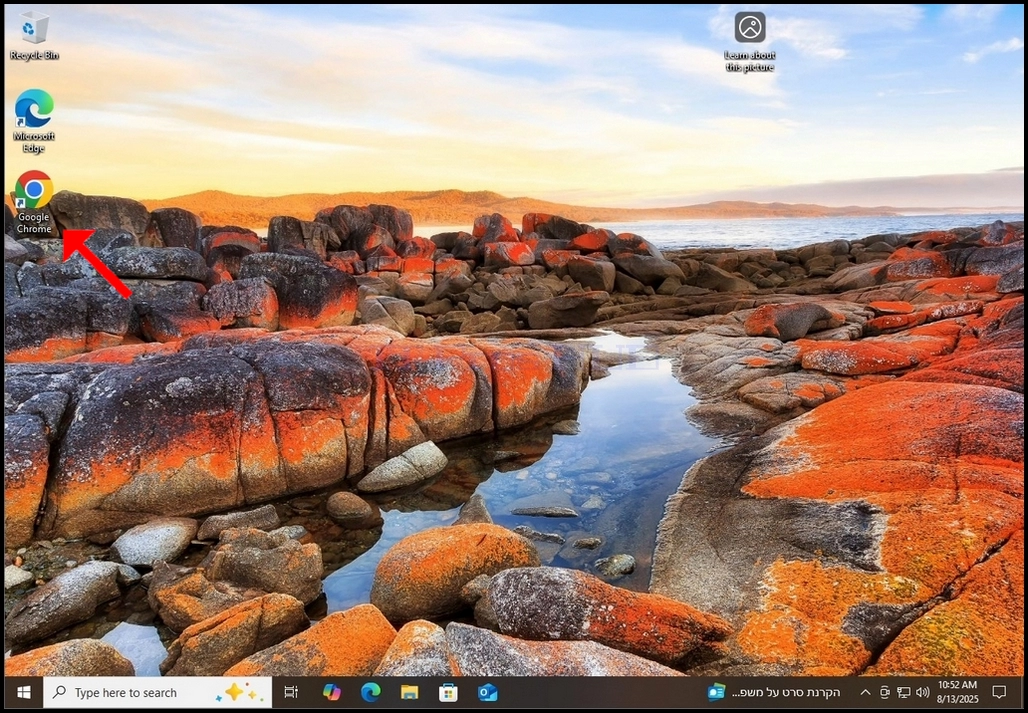
1. Open an internet browser. In the case of this article we will use the Google Chrome browser.
2. Go to your search engine of choice. In the case of this article, we will use the Google search engine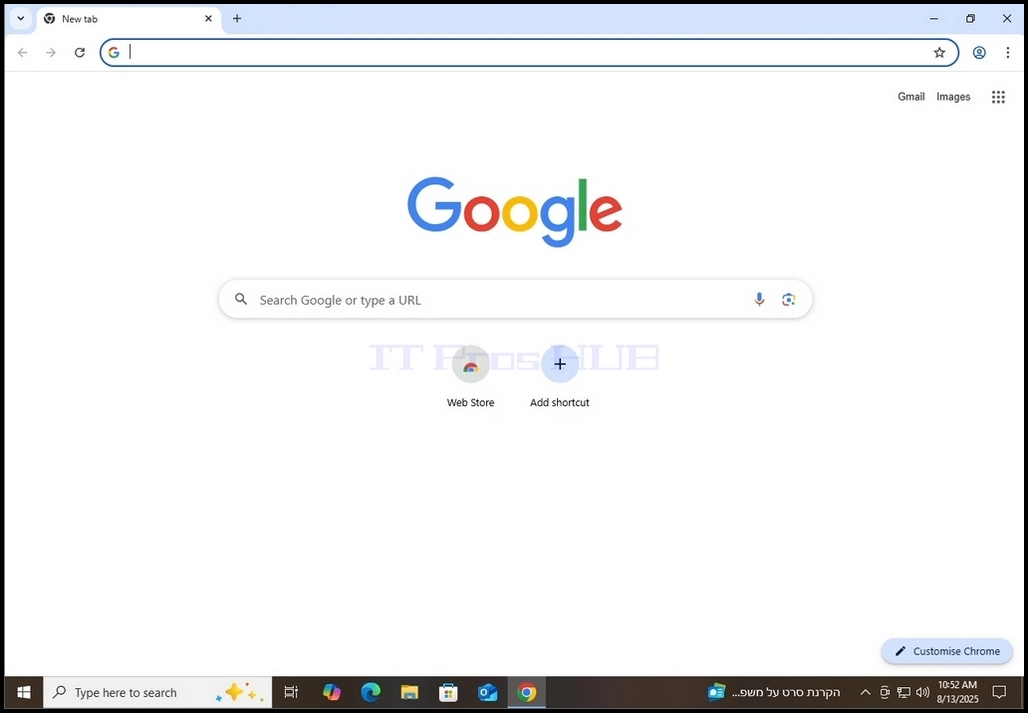
3. Type download Firefox and hit the ENTER key. Wait for the results to load.
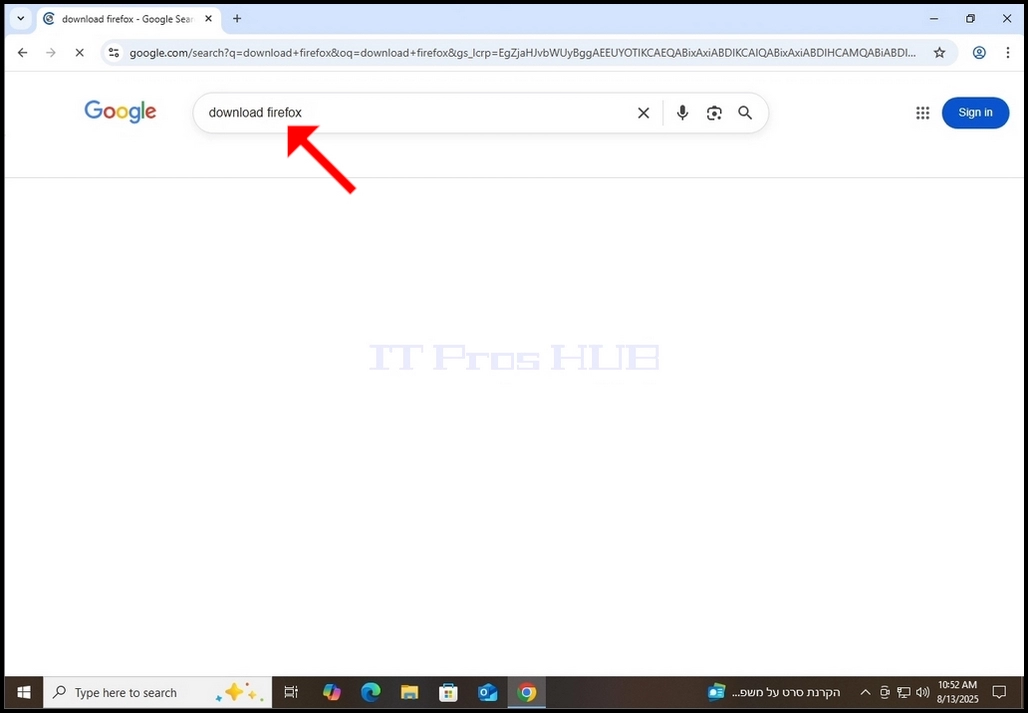
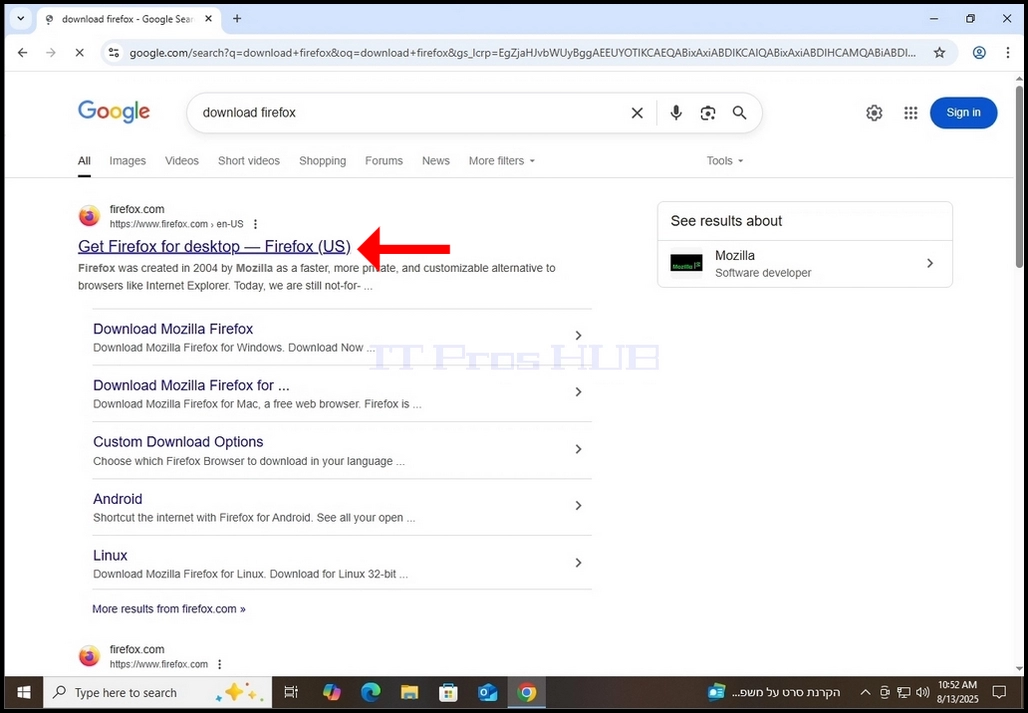
4. In most cases in most search engines, the desired search result should appear right at the beginning of the search results page. In this case it is.
a. The desired result should be titled Get Firefox for desktop – Firefox (US).
b. Domain name should be firefox.com
c. The URL should be https://www.firefox.com
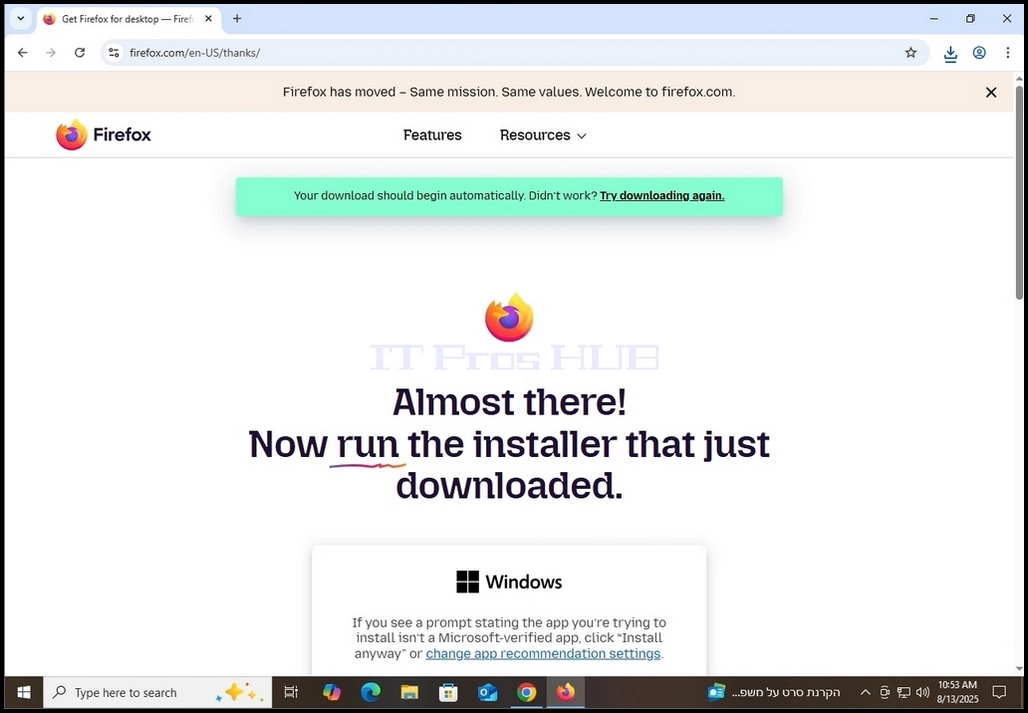
5. Click the desired result once and wait for the Firefox page to load.
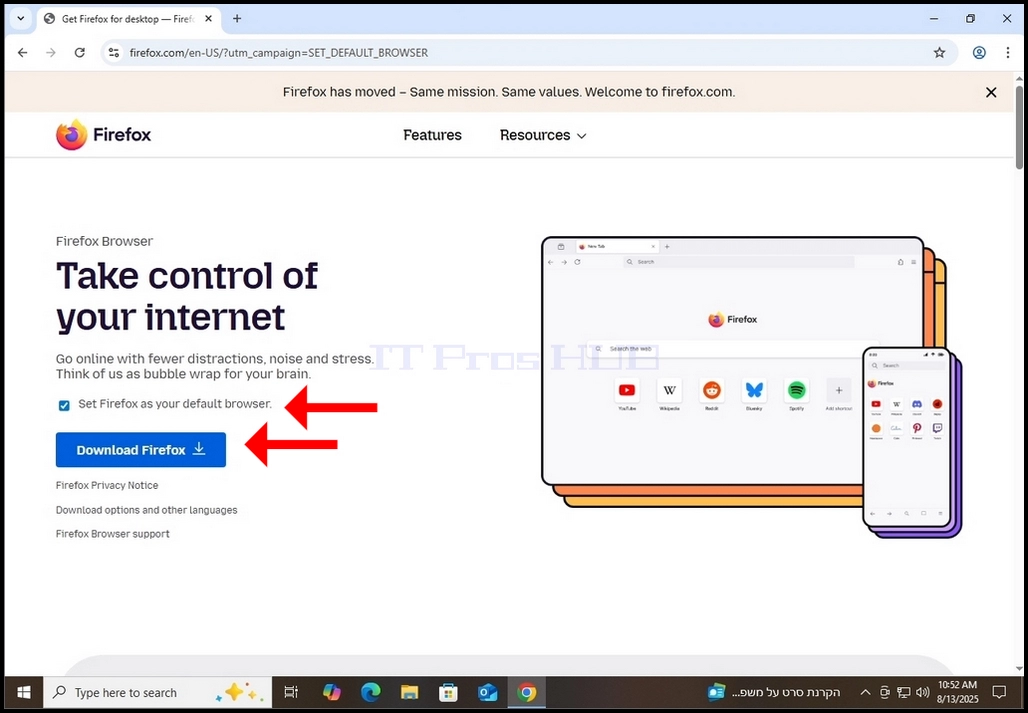
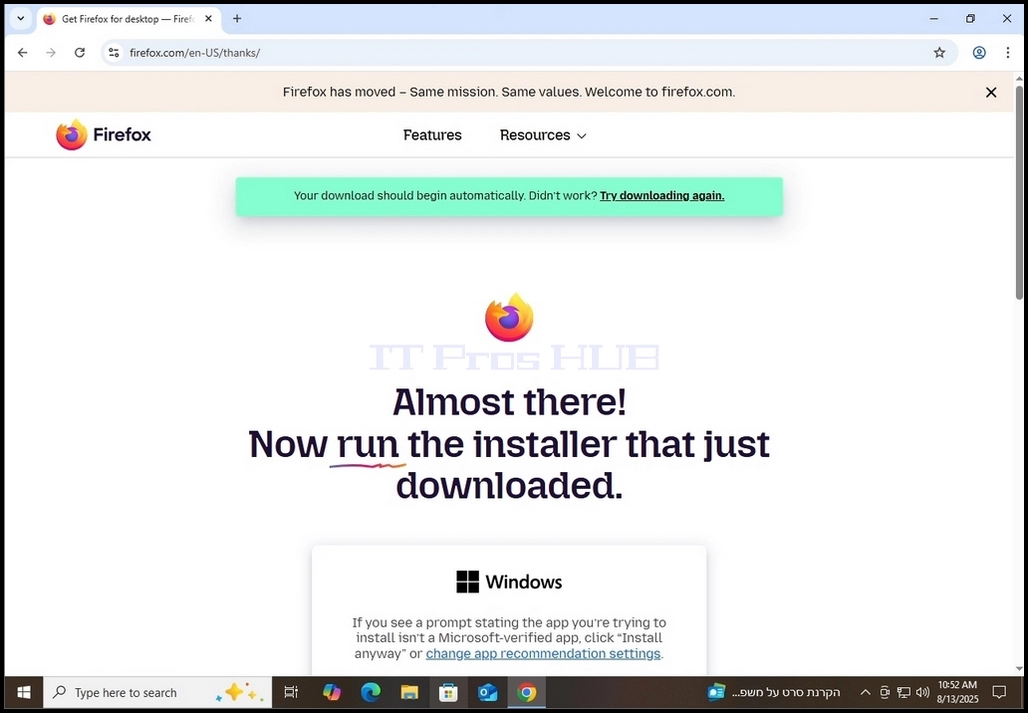
7. Once the actual downloading process starts you should see some sort of indication in your browser that the exe file is being downloaded. In the case of this article, Chrome shows us that indeed a file is being downloaded.
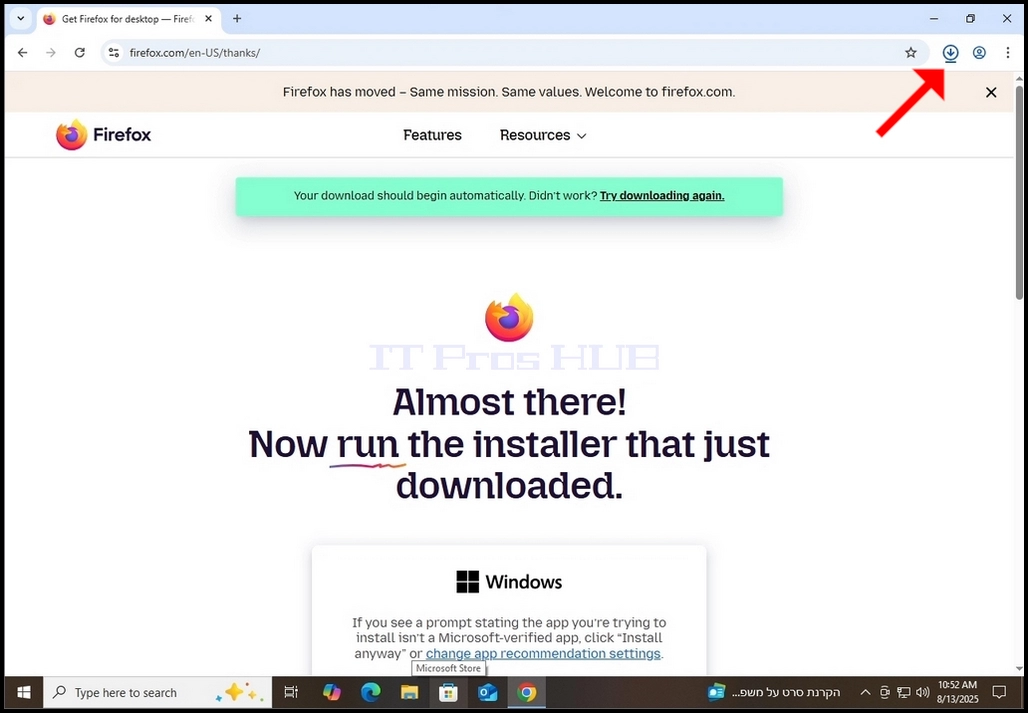
- Clicking once on the download icon (blue arrow) would reveal the downloaded exe installation file as can be seen in the following photo.
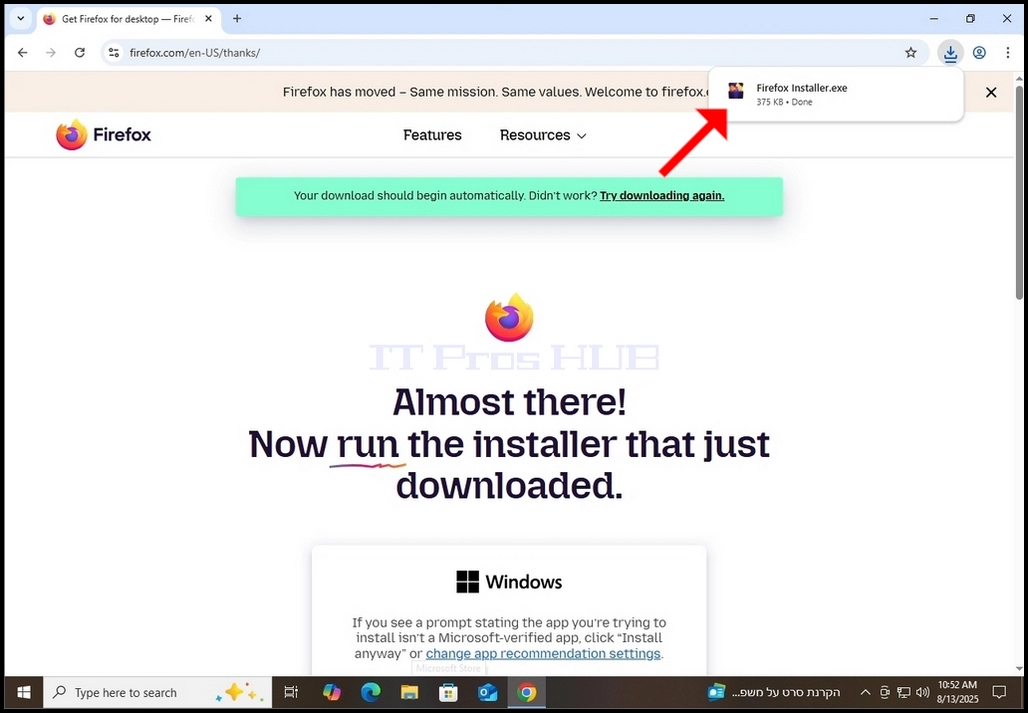
9. Once the download of the installation file is done, double-click on it and wait for Windows UAC permission window to appear.
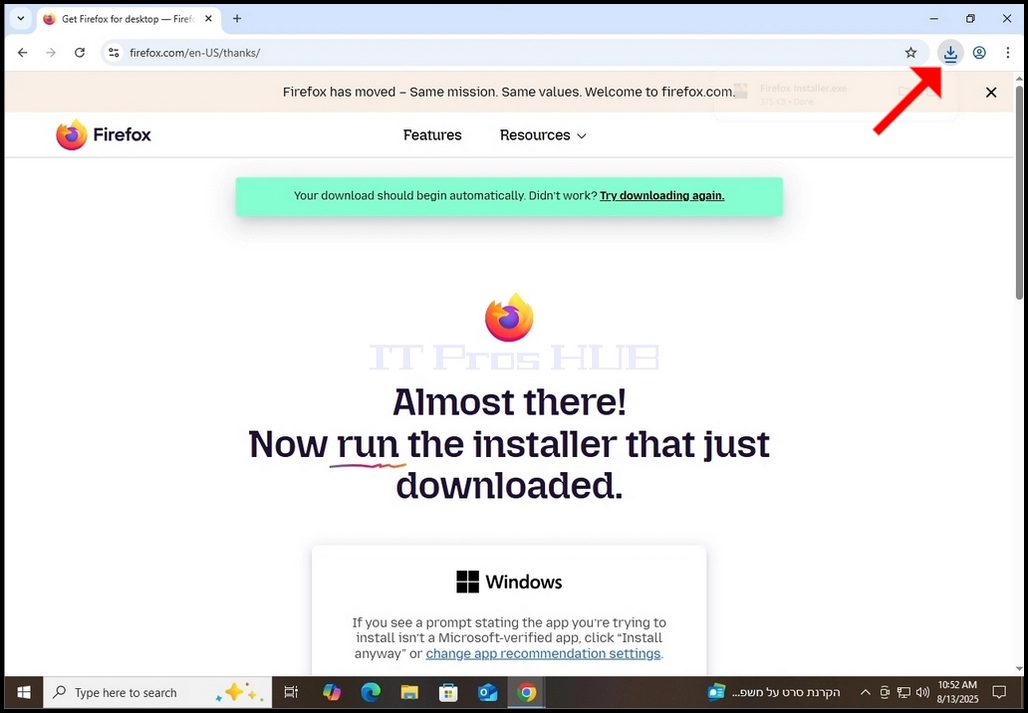
10. Click in Windows UAC window
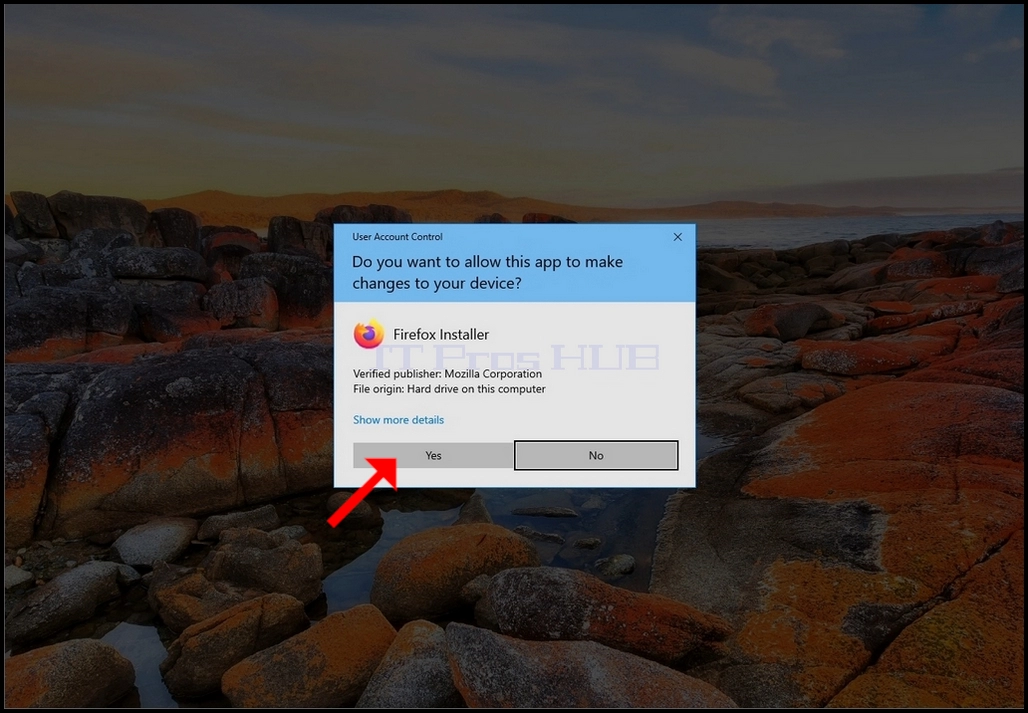
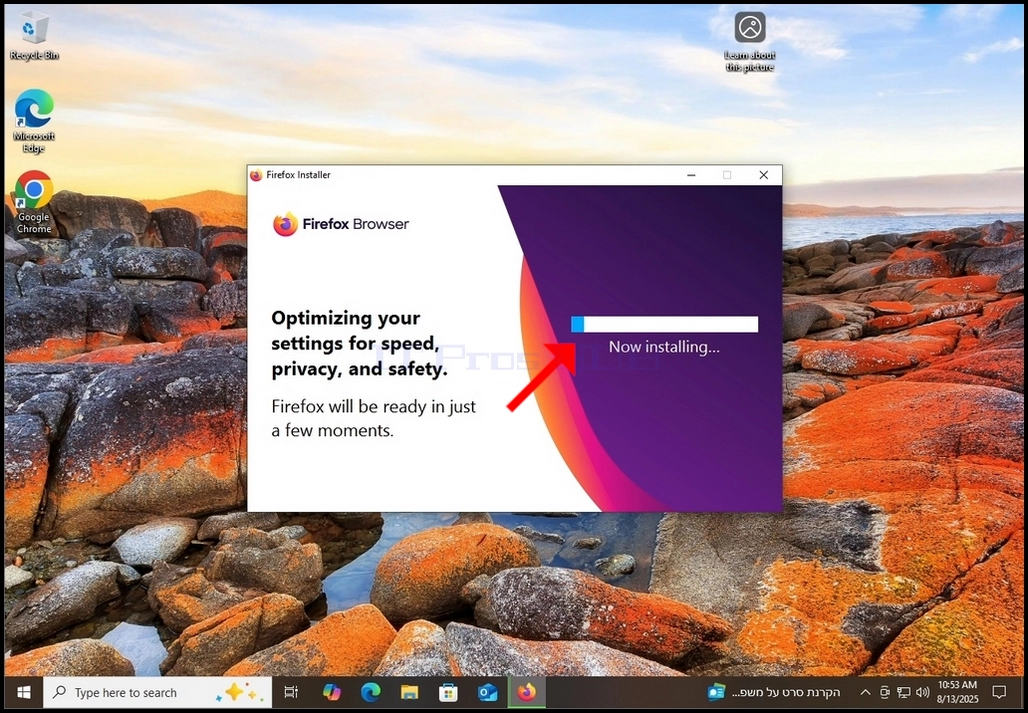
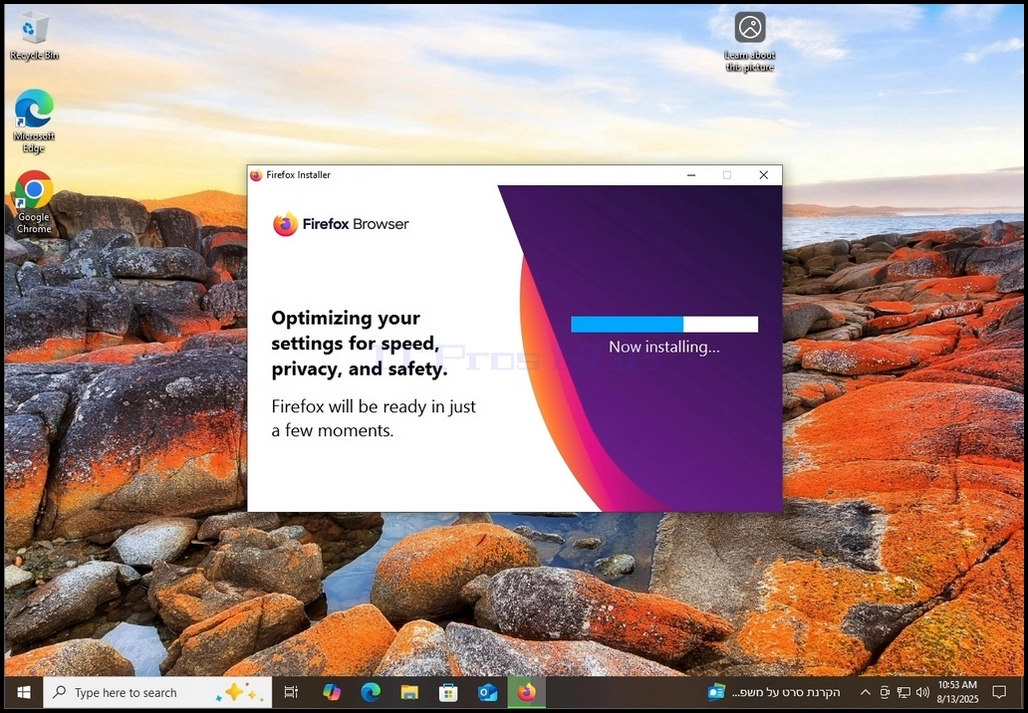
11. After clicking YES, Firefox should start installing itself.
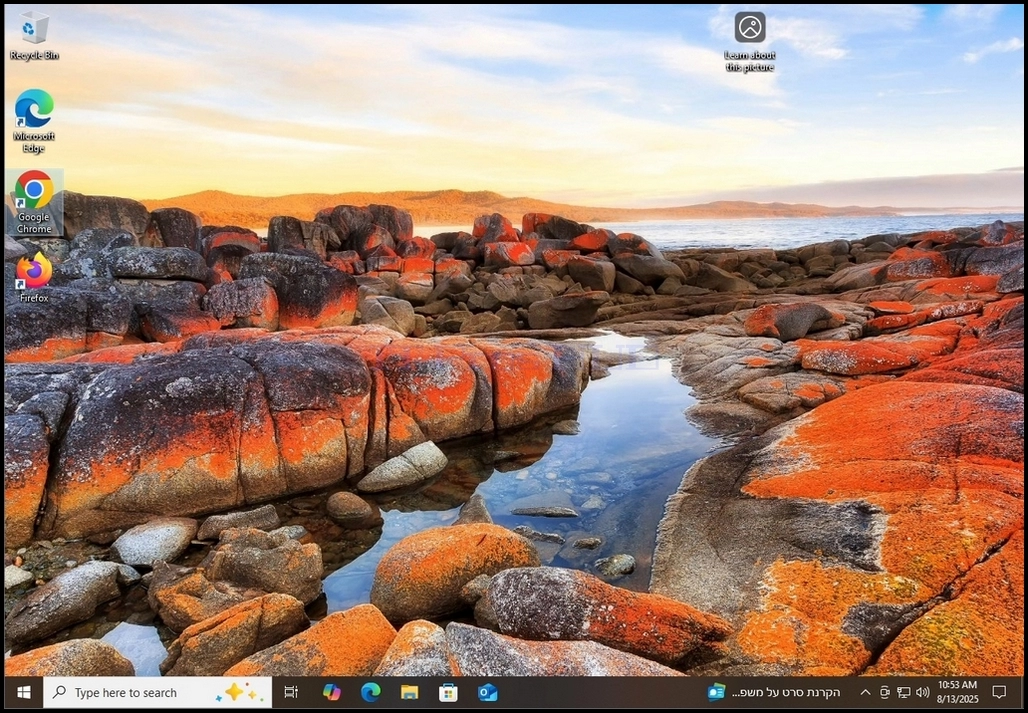
12. Once the installation process is complete, the installation indicator window will get closed and Firefox browser should start automatically.
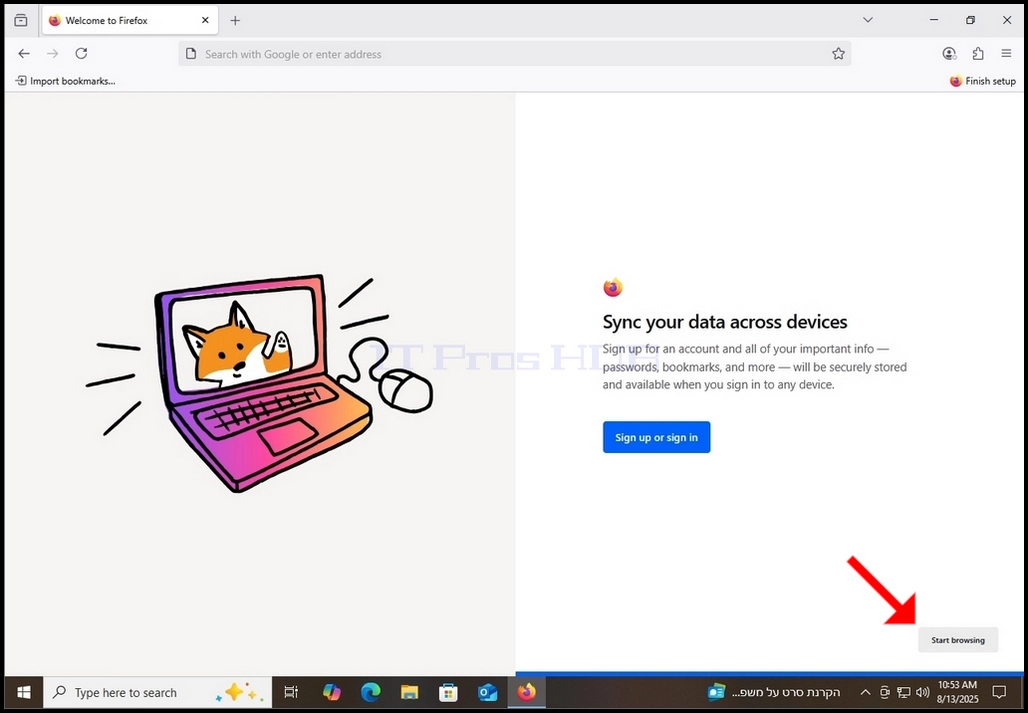
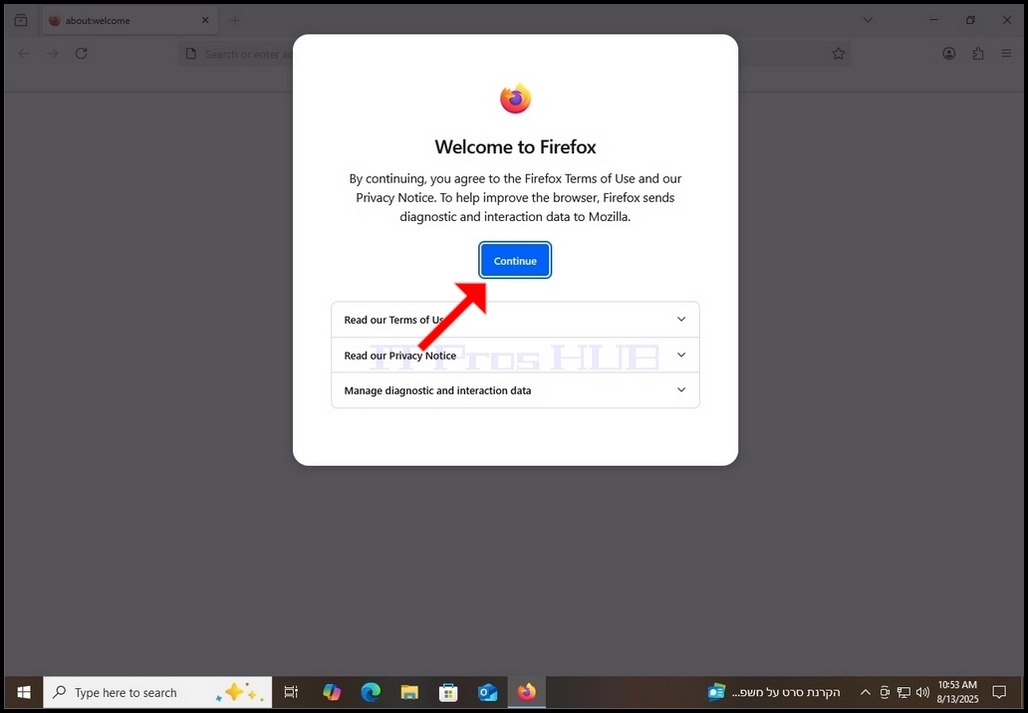
13. Click on Continue in the Welcome to Firefox pop-up.
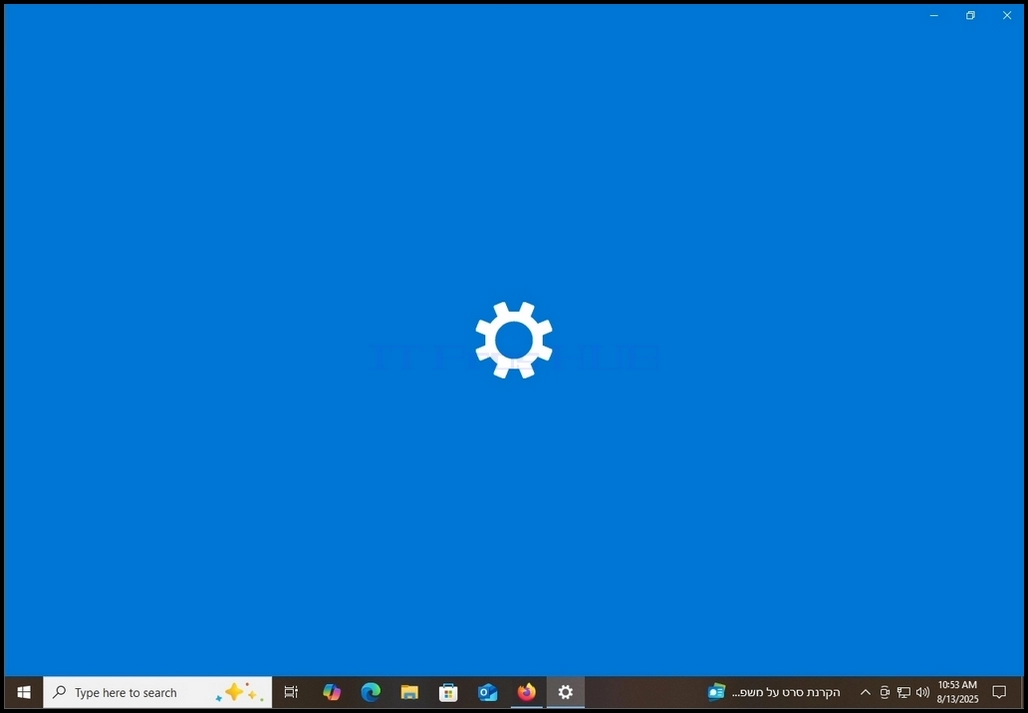
14. Since we marked the “Set Firefox as your default browser” in stage 6 before downloading the installation file, Firefox indeed does what it needs for you to set it as the default browser. Firefox automatically opens the Default Apps settings window in Windows as can be seen in the following photo.
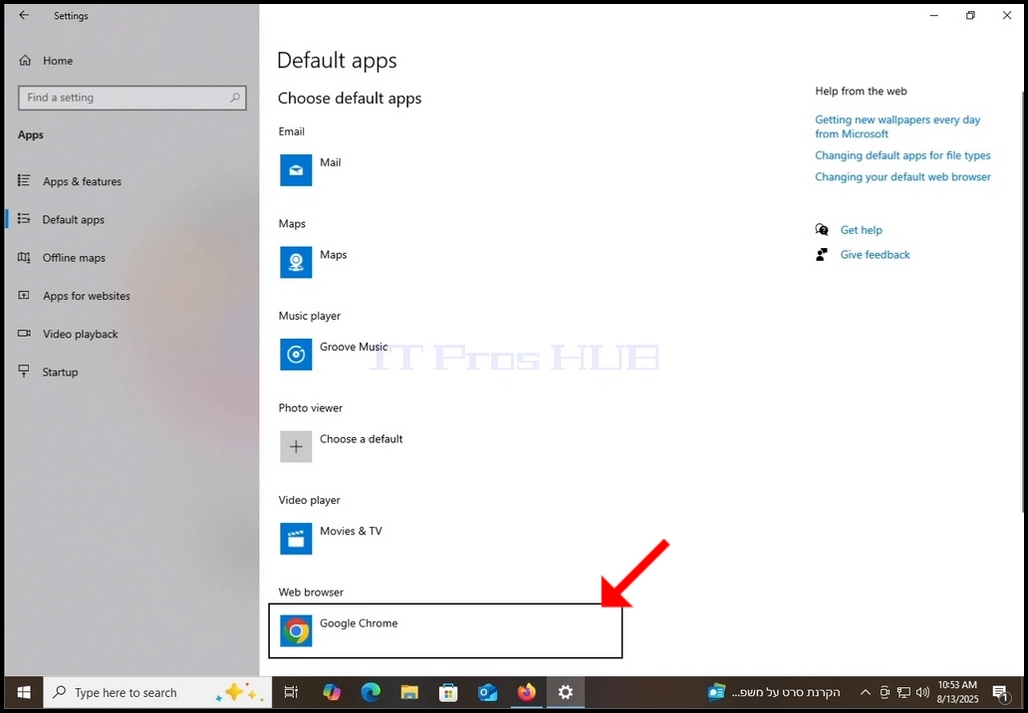
15. In the Default apps window, look at the bottom part of the window and search for the Web browser section. Note that in this article, Google Chrome is chosen as the default browser. Click on it to change it to Firefox.
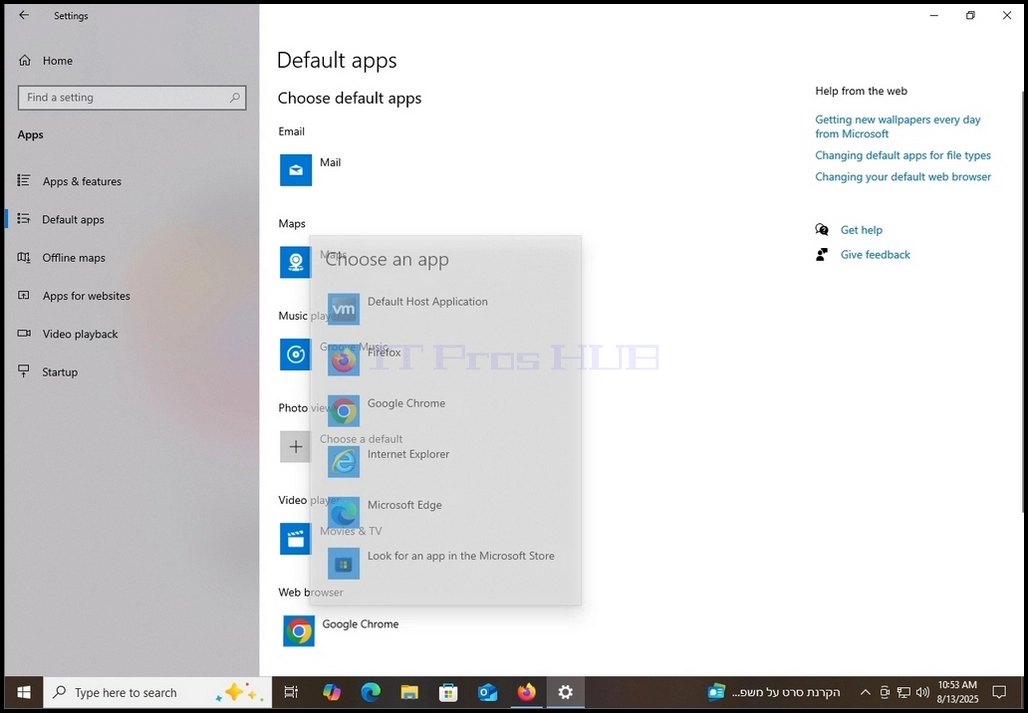
17. Click on Firefox once.
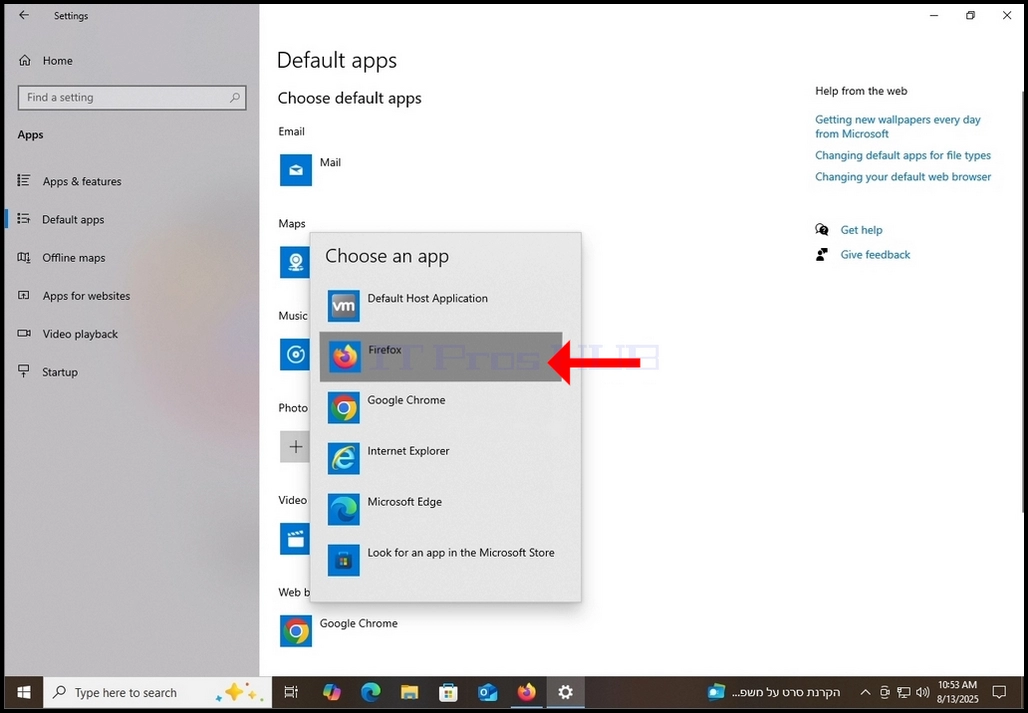
18. Now Firefox is the default web browser in this system.
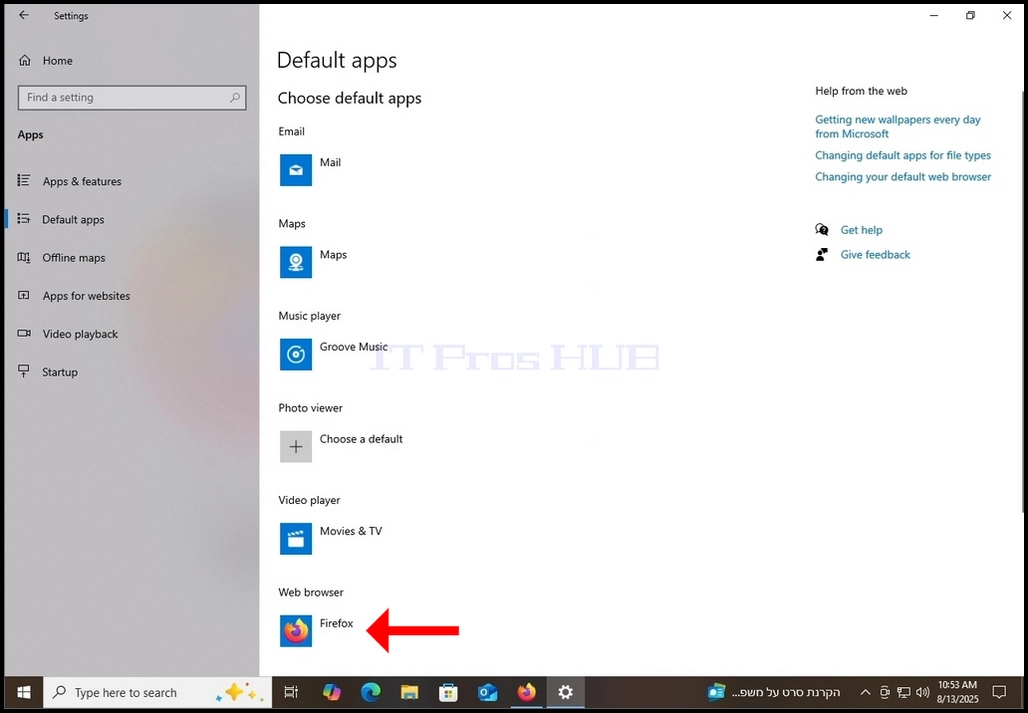
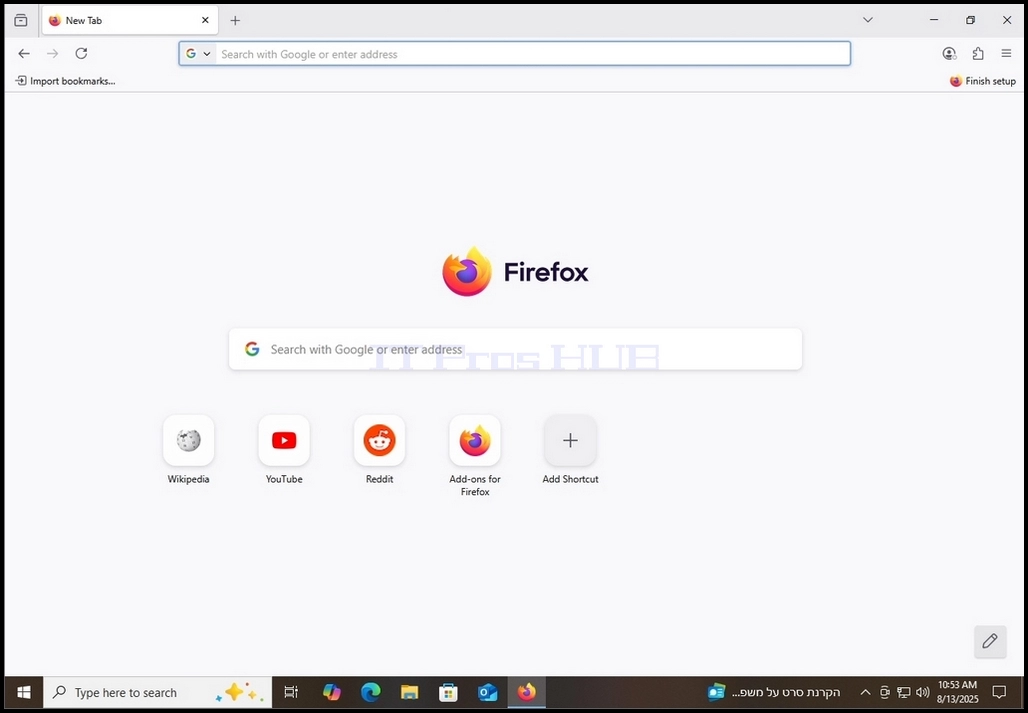
19. After choosing Firefox as the default browser, close the Default apps settings window and go back to Firefox.
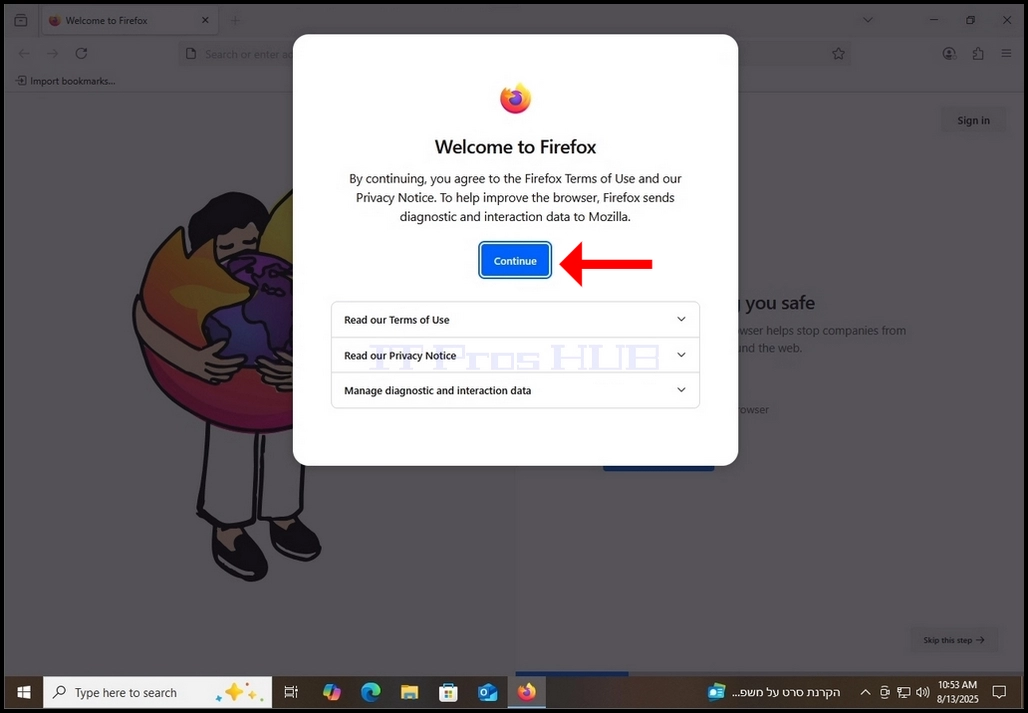
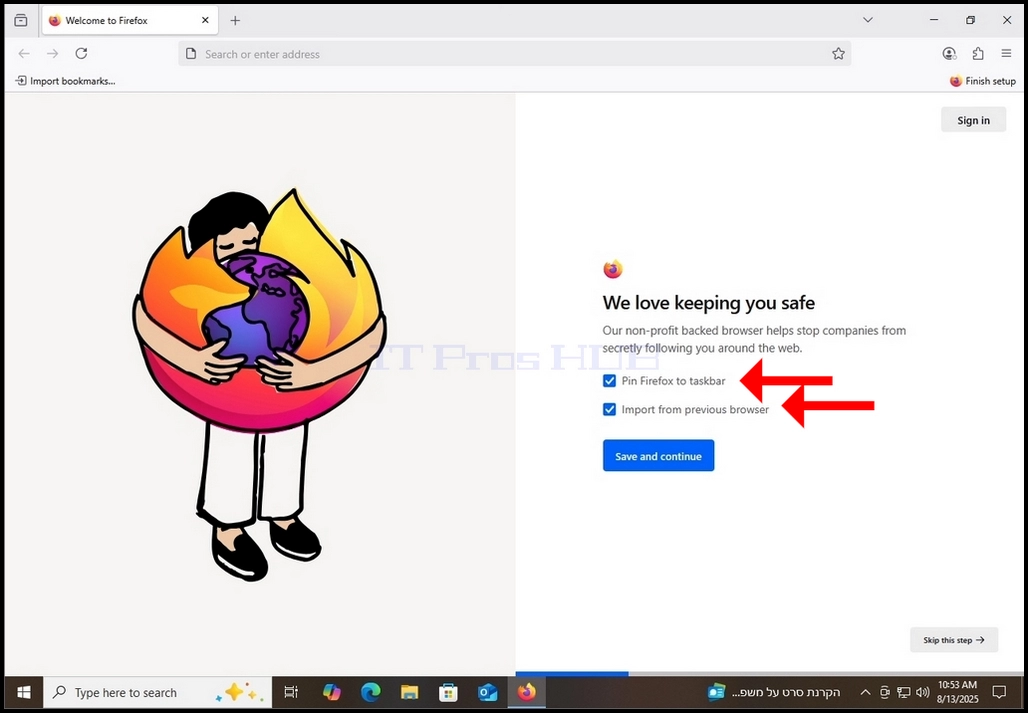
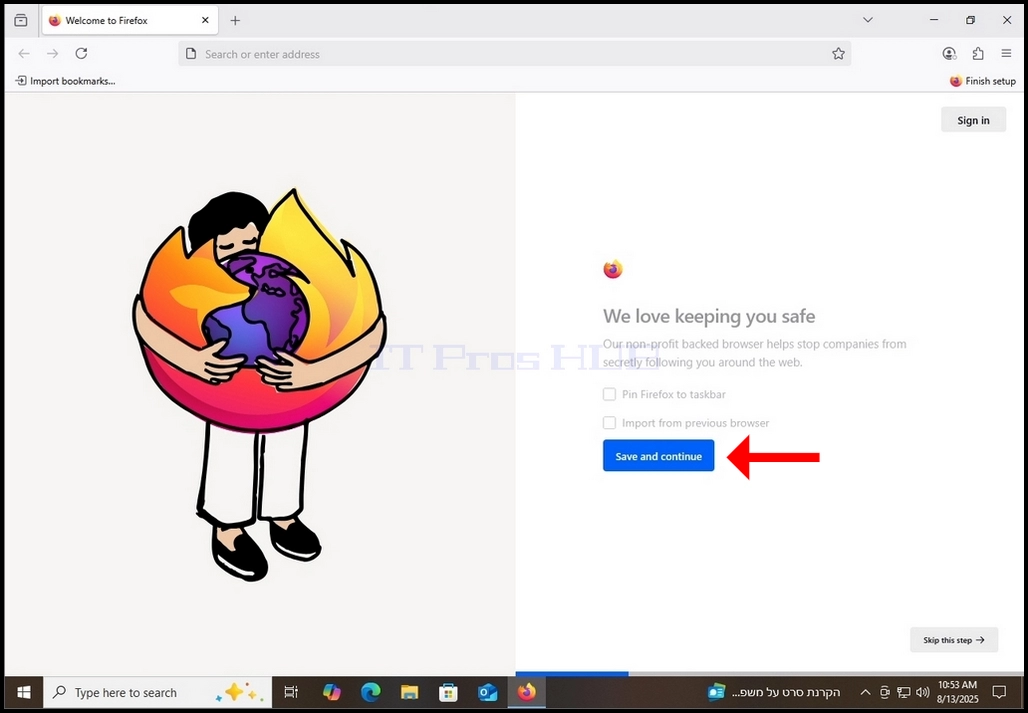
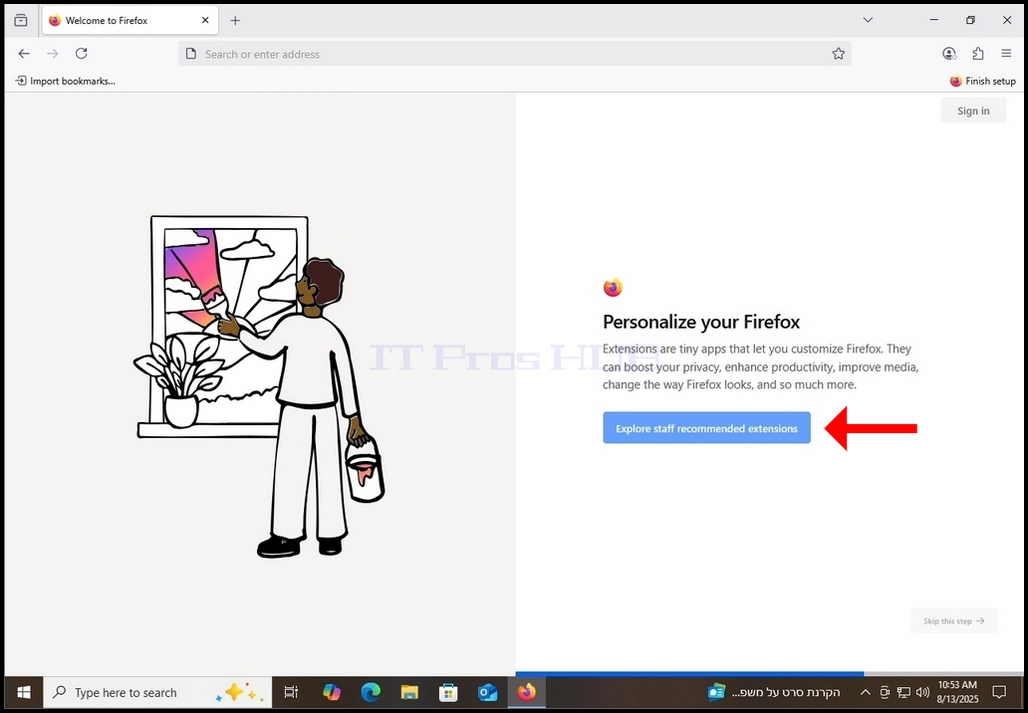
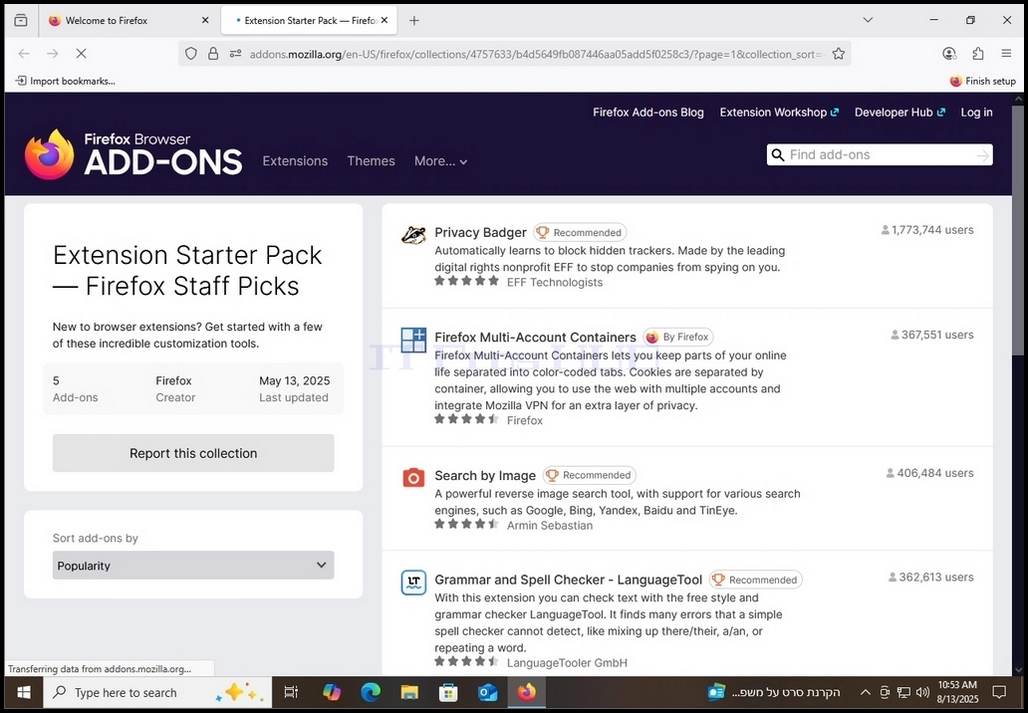
22. Once clicked, you will be led into a new tab in Firefox, showing compatible extensions to add to your Firefox browser.
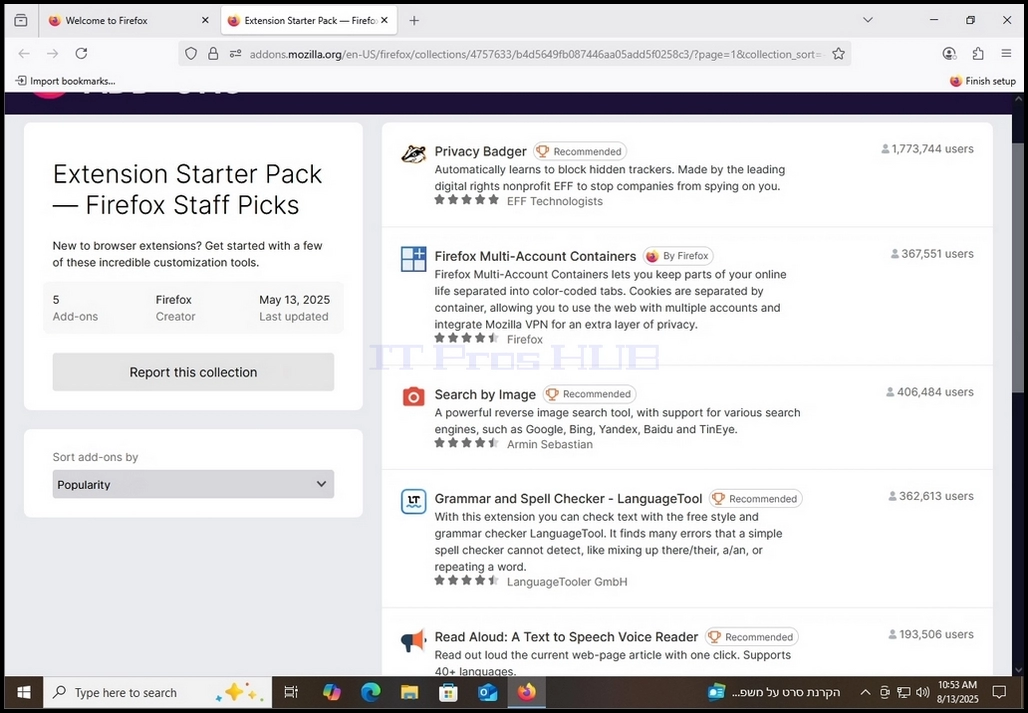
23. Once done, close the tab and head back to the main tab