Online: 656 online | Members: 0 | Guests: 656
Monday, July 20, 2026
There is no translation available.

1. Left click the Start button and wait for the secondary menu to appear
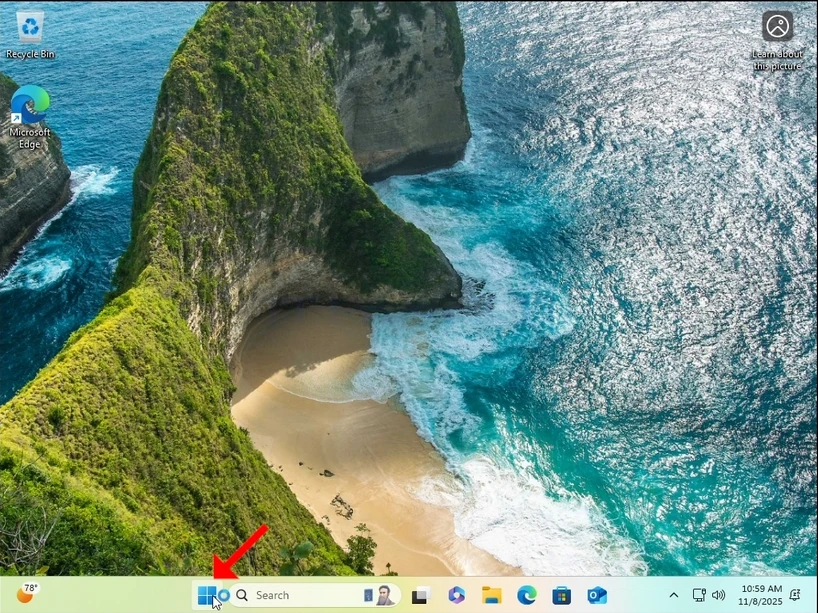
how-to-perfom-a-typical-backup-with-windows-backup-in-windows-11-1.webp

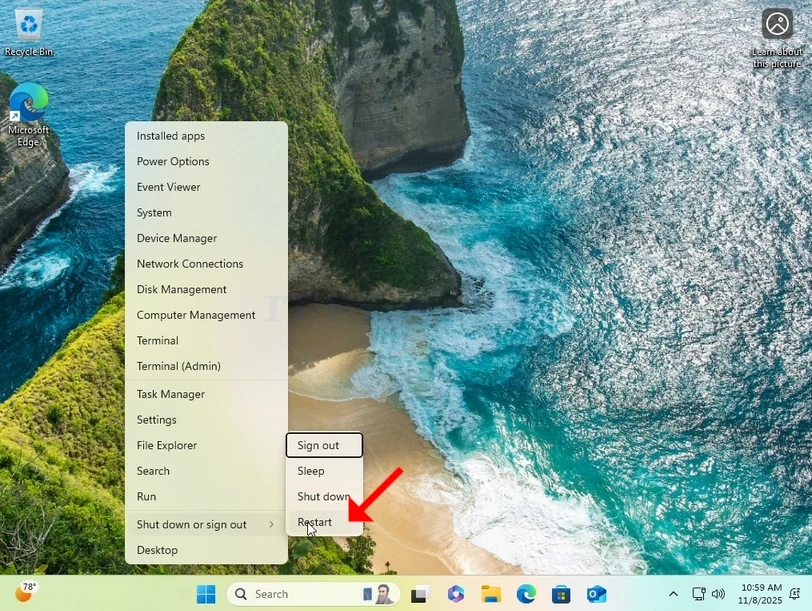
2. In the secondary menu, look for the Shutdown or sign out option, hover over it with the mouse cursor and wait for it to extend itself. If it doesn’t, click on it once.
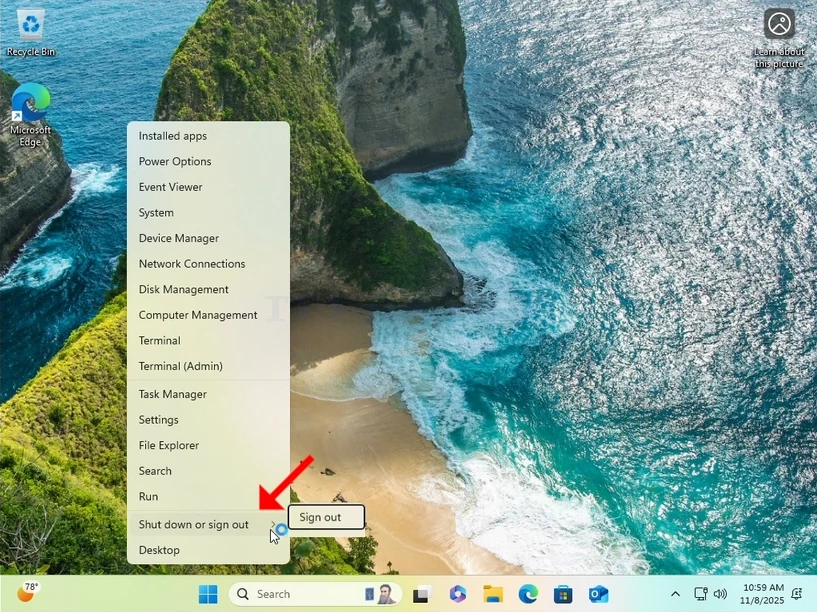
how-to-perfom-a-typical-backup-with-windows-backup-in-windows-11-2.webp

3. In the extended menu, click on Restart while pressing and holding the SHIFT key on your keyboard.
how-to-perfom-a-typical-backup-with-windows-backup-in-windows-11-3.webp

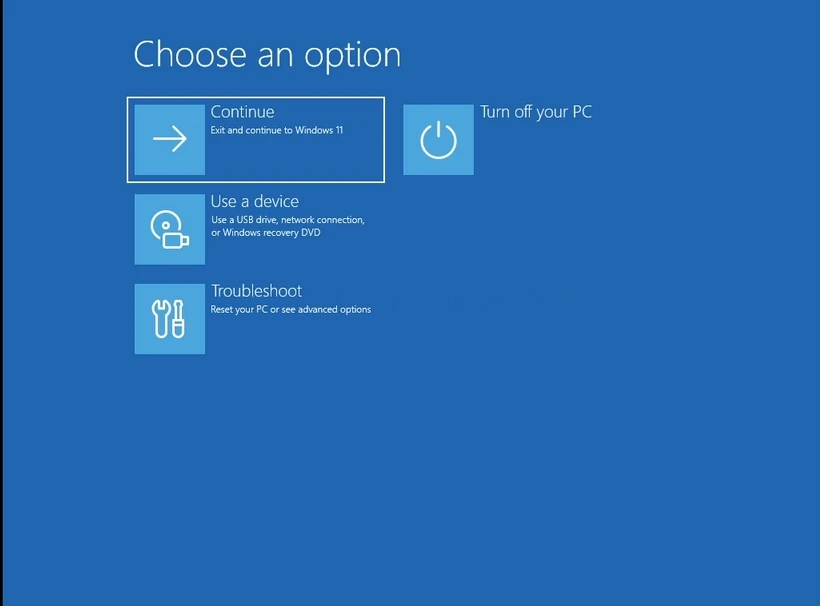
4. Wait for the computer to restart and to Windows to boot into its Recovery Mode.

how-to-perfom-a-typical-backup-with-windows-backup-in-windows-11-4.webphow-to-perfom-a-typical-backup-with-windows-backup-in-windows-11-7.webphow-to-perfom-a-typical-backup-with-windows-backup-in-windows-11-8.webp

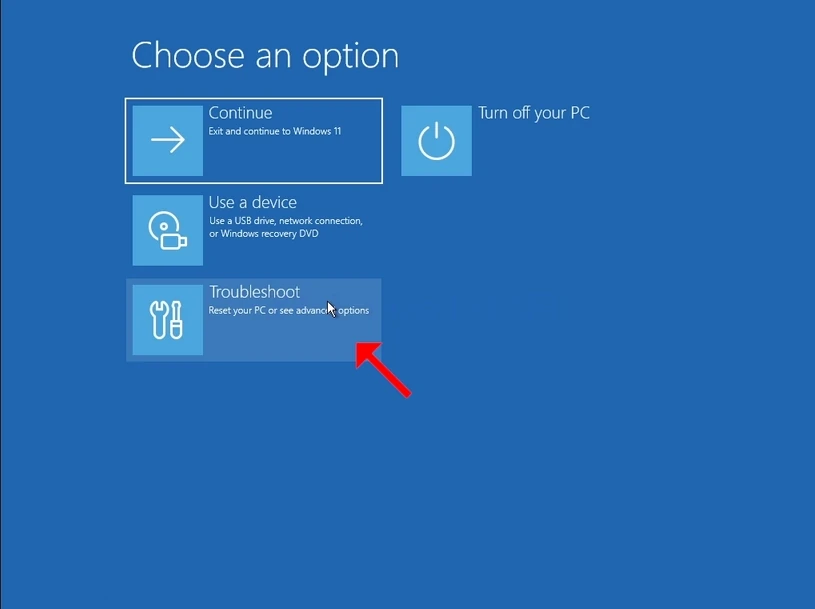
5. Click on Troubleshoot

how-to-perfom-a-typical-backup-with-windows-backup-in-windows-11-9.webphow-to-perfom-a-typical-backup-with-windows-backup-in-windows-11-10.webp

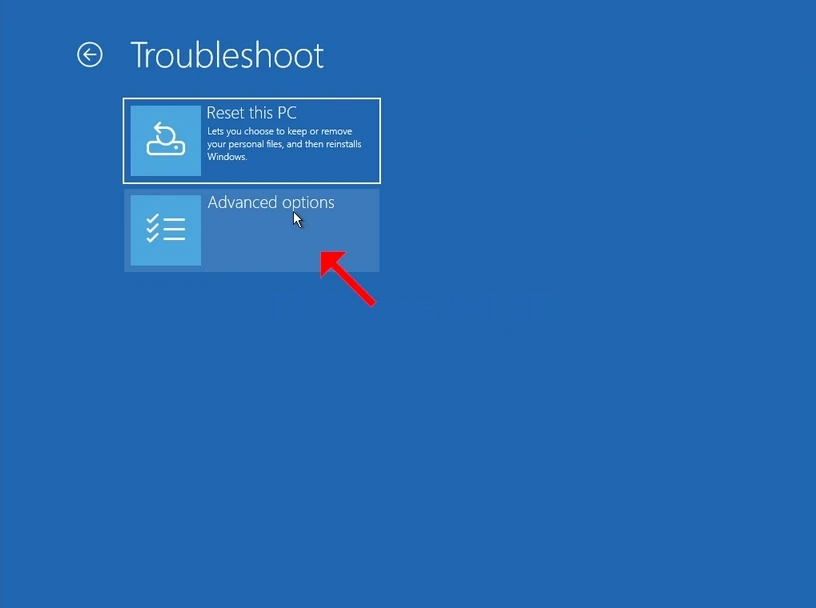
6. Click on Advanced options.

how-to-perfom-a-typical-backup-with-windows-backup-in-windows-11-12.webp

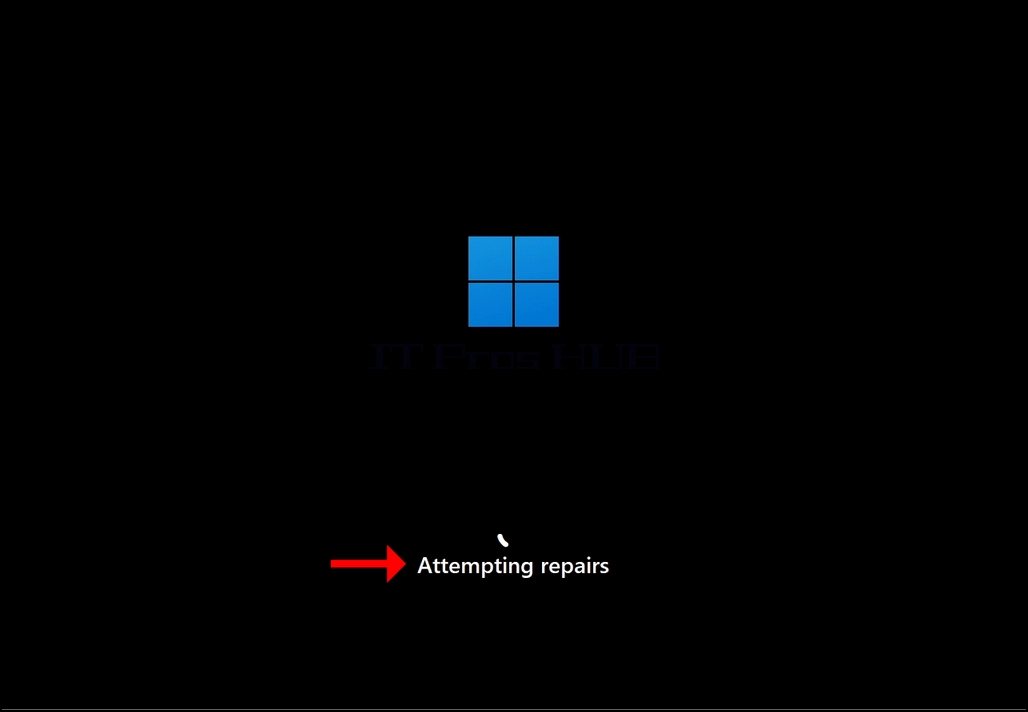
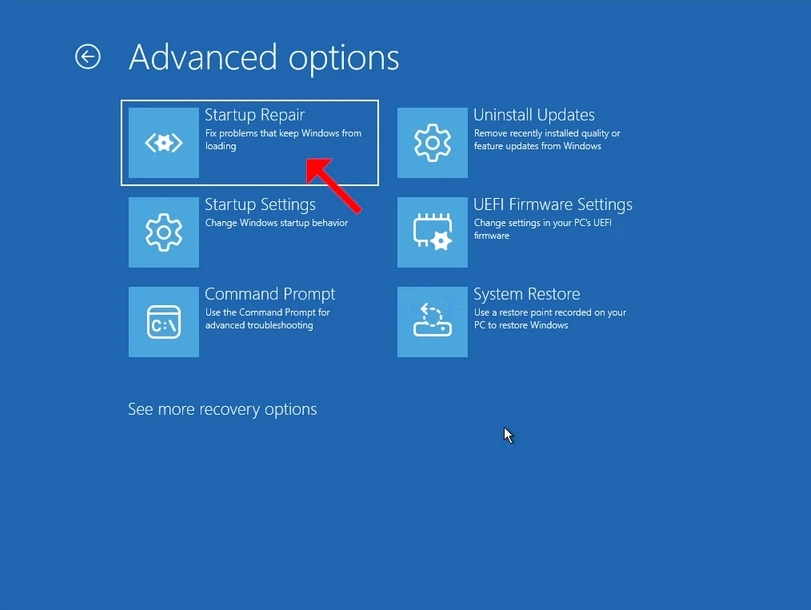
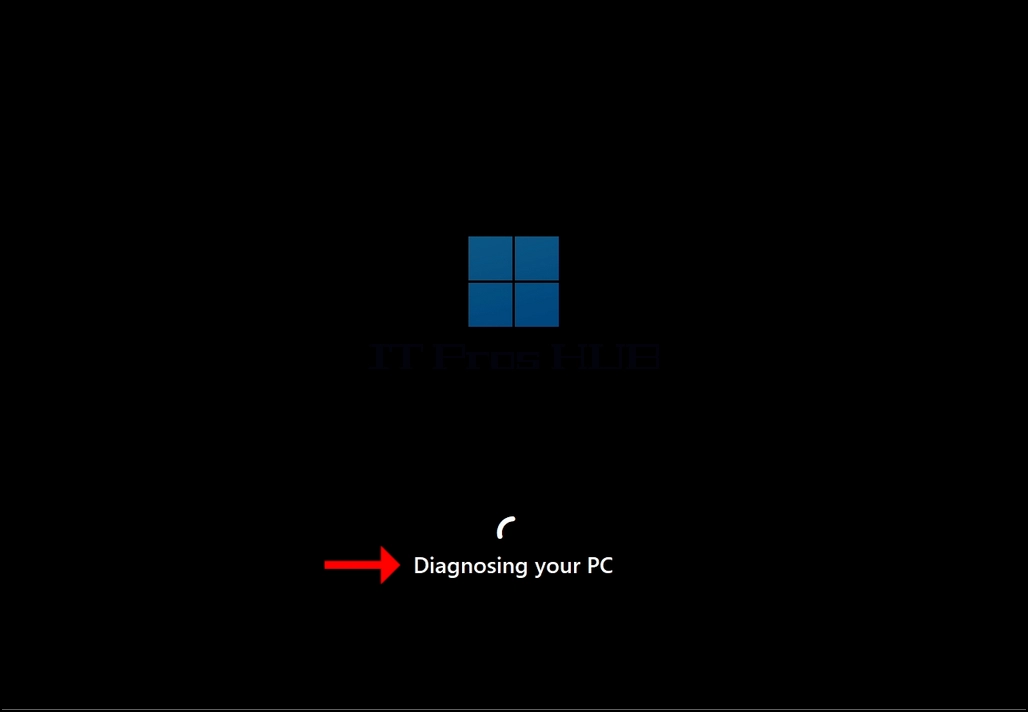
7. In Advanced Options, click on Startup Repair and wait patiently for Windows to attempt repairing any startup issues.
how-to-perfom-a-typical-backup-with-windows-backup-in-windows-11-13.webphow-to-perfom-a-typical-backup-with-windows-backup-in-windows-11-15.webphow-to-perfom-a-typical-backup-with-windows-backup-in-windows-11-17.webp

Latest Articles

Read More...
date dark
hits dark 8534
Read More...
date dark
hits dark 6867
Read More...
date dark
hits dark 8257
Read More...
date dark
hits dark 8860
Read More...
date dark
hits dark 4617
Read More...
date dark
hits dark 5242
Read More...
date dark
hits dark 4603
Read More...
date dark
hits dark 5894