Online: 2318 online | Members: 0 | Guests: 2318
Samedi, Juin 6, 2026

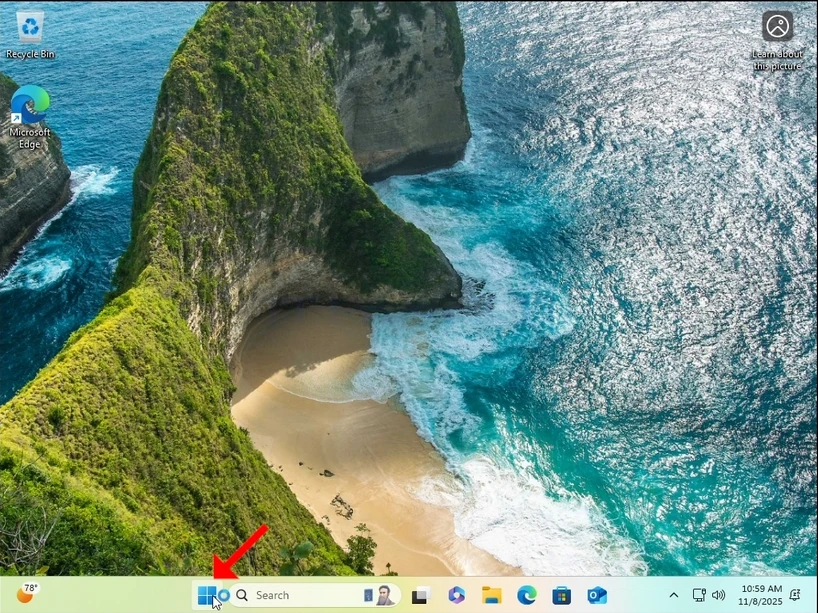
1. Cliquez sur la gauche Démarrer bouton et attendre que le menu secondaire apparaisse
how-to-perfom-a-typical-backup-with-windows-backup-in-windows-11-1.webp

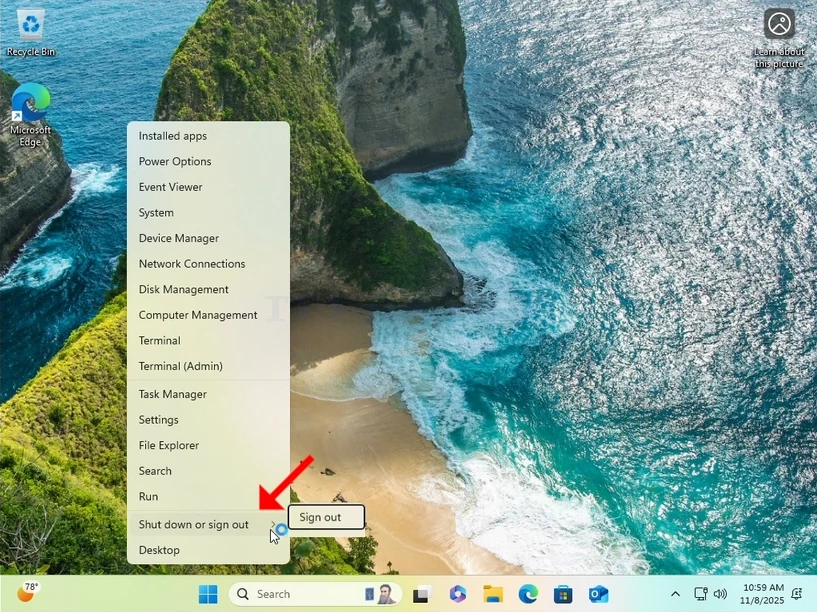
2. Dans le menu secondaire, recherchez le Arrêt ou sortie option, survolez-le avec le curseur de la souris et attendez qu'il s'étende. Si ça ne marche pas, cliquez dessus une fois.
how-to-perfom-a-typical-backup-with-windows-backup-in-windows-11-2.webp

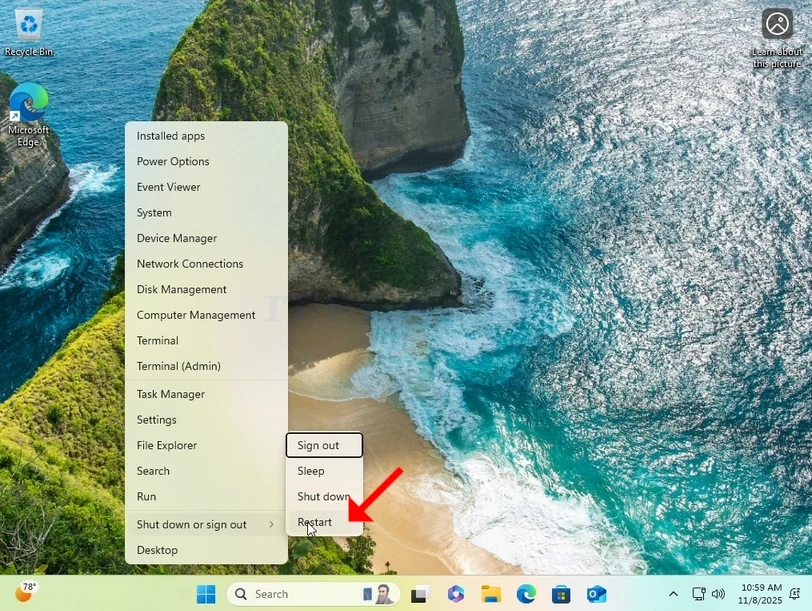
3. Dans le menu élargi, cliquez sur Redémarrer en appuyant et en tenant la ÉCHELON clé sur votre clavier.
how-to-perfom-a-typical-backup-with-windows-backup-in-windows-11-3.webp

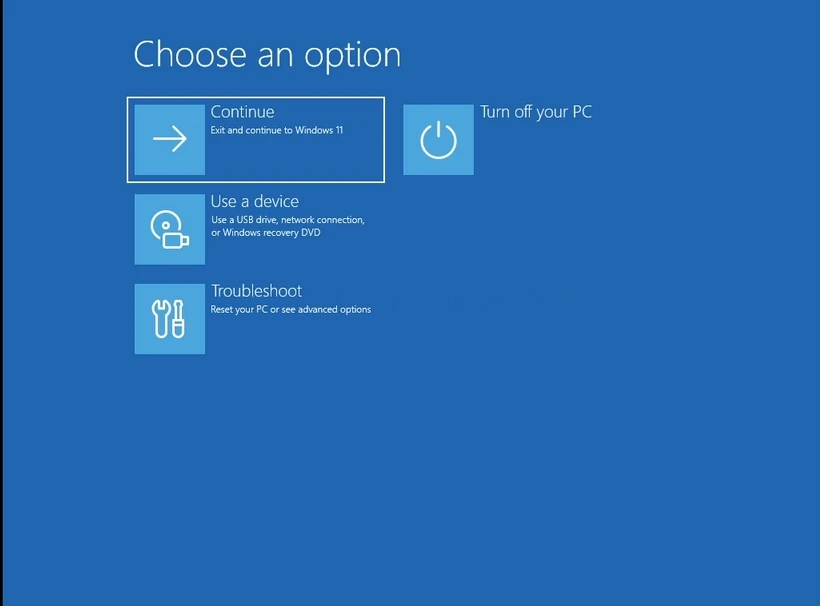
4. Attendez que l'ordinateur redémarre et à Windows de démarrer dans son Mode de récupération.

how-to-perfom-a-typical-backup-with-windows-backup-in-windows-11-4.webphow-to-perfom-a-typical-backup-with-windows-backup-in-windows-11-7.webphow-to-perfom-a-typical-backup-with-windows-backup-in-windows-11-8.webp

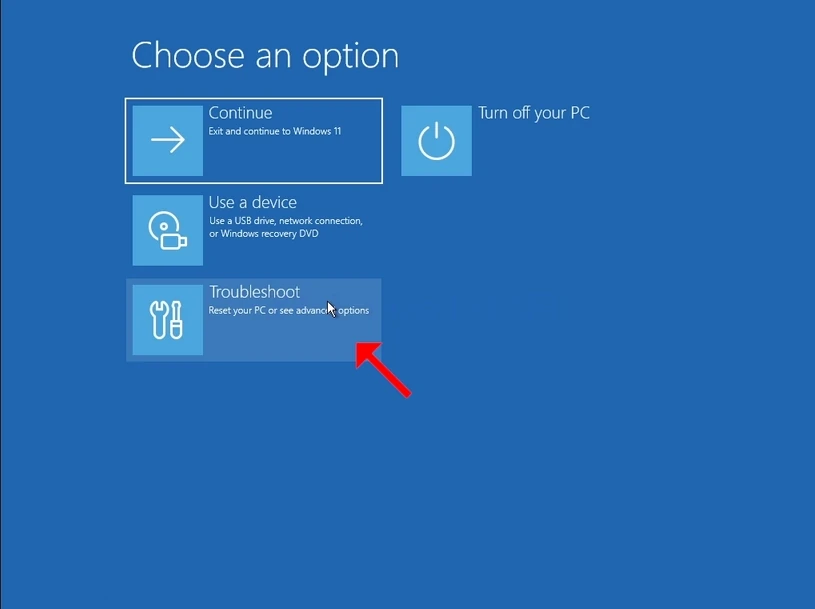
5. Cliquez sur Dépannage

how-to-perfom-a-typical-backup-with-windows-backup-in-windows-11-9.webphow-to-perfom-a-typical-backup-with-windows-backup-in-windows-11-10.webp

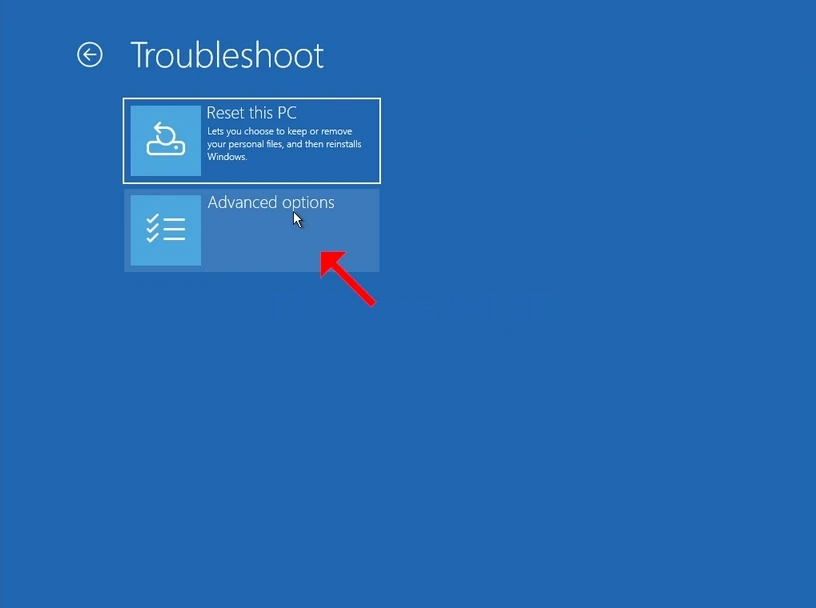
6. Cliquez sur Options avancées.

how-to-perfom-a-typical-backup-with-windows-backup-in-windows-11-12.webp

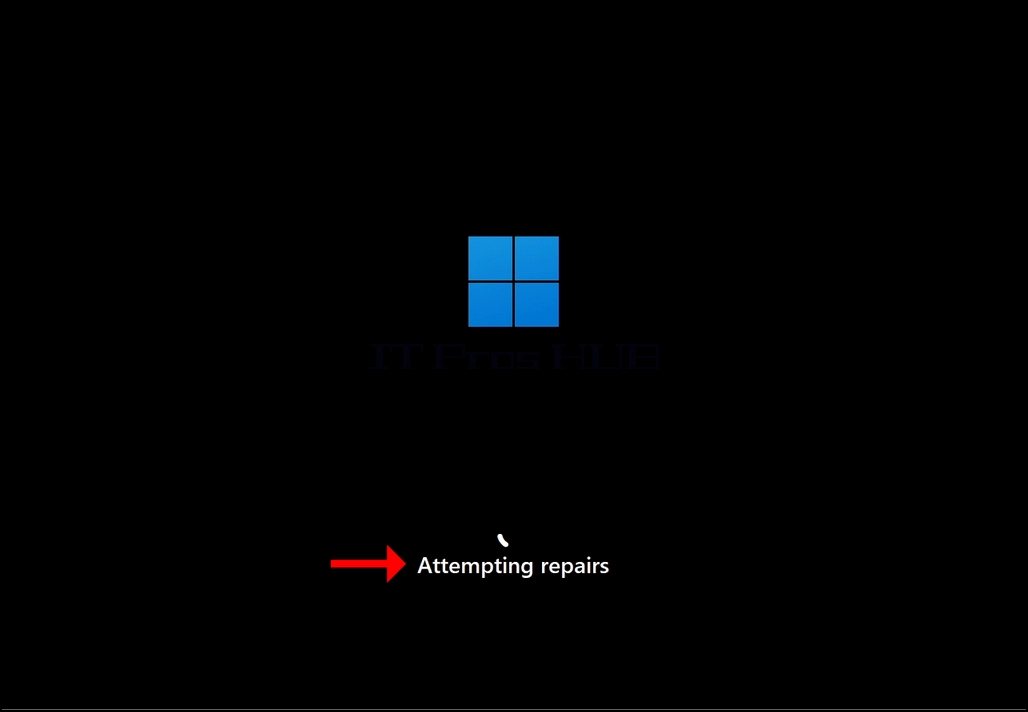
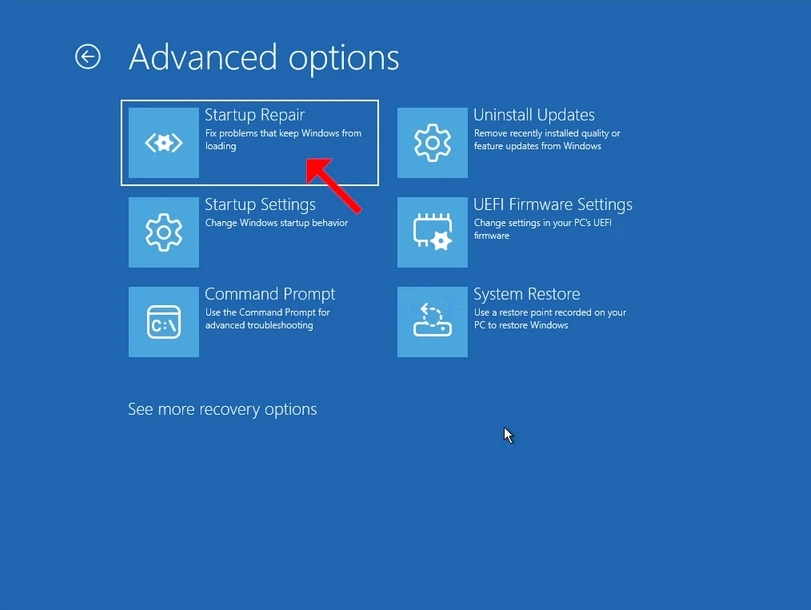
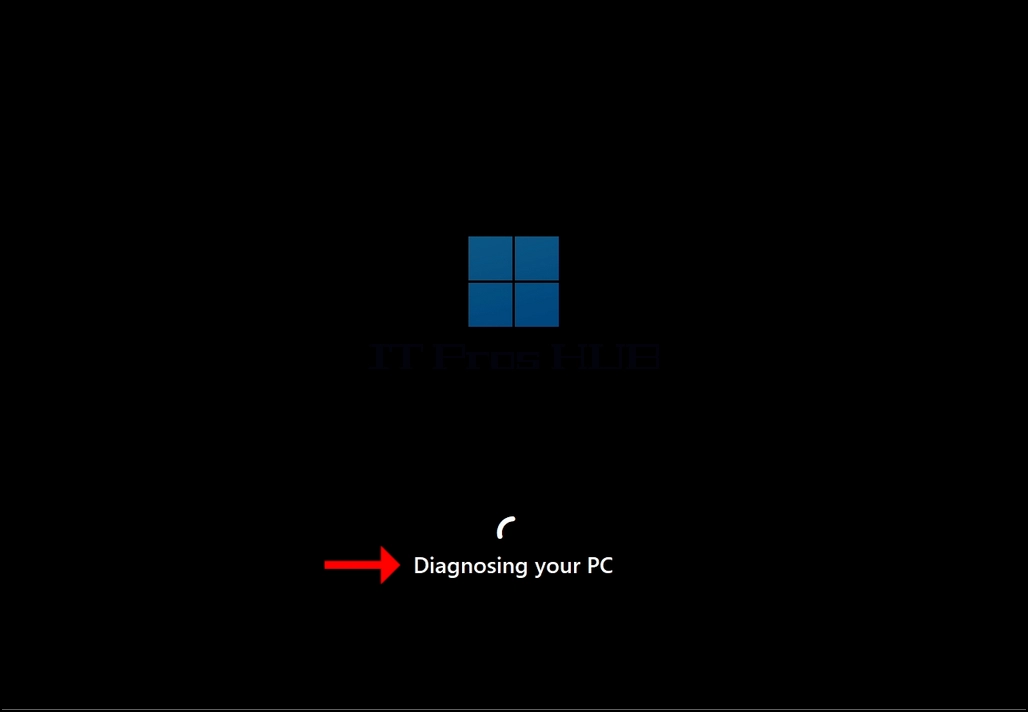
7. En Options avancées, cliquez sur Réparation de démarrage et attendez patiemment que Windows tente de réparer les problèmes de démarrage.
how-to-perfom-a-typical-backup-with-windows-backup-in-windows-11-13.webphow-to-perfom-a-typical-backup-with-windows-backup-in-windows-11-15.webphow-to-perfom-a-typical-backup-with-windows-backup-in-windows-11-17.webp

Latest Articles