Introduction:
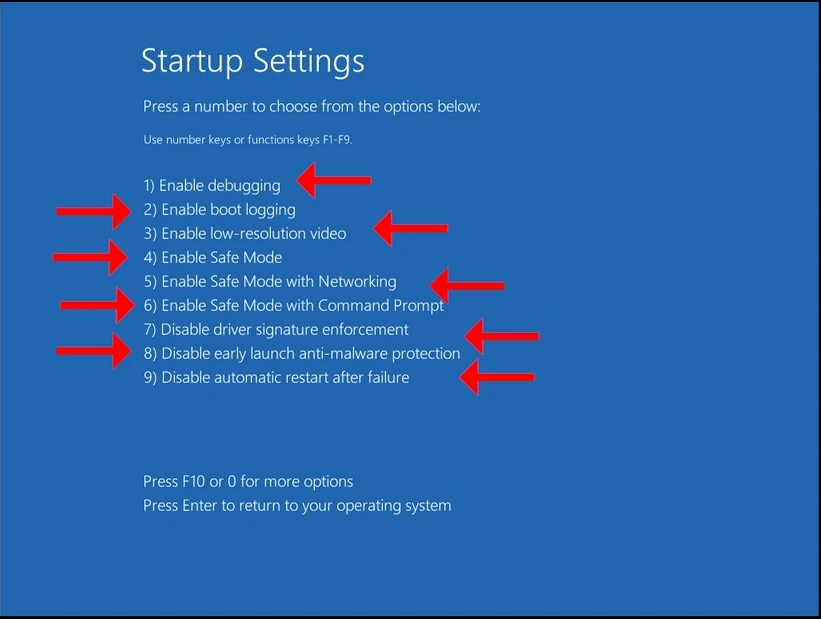
In this article we will demonstrate how to get to the Startup settings. These settings used to be reachable by pressing the F8 key till Windows 8 came along. These settings are somewhat useful when trying to solve startup issues in Windows.
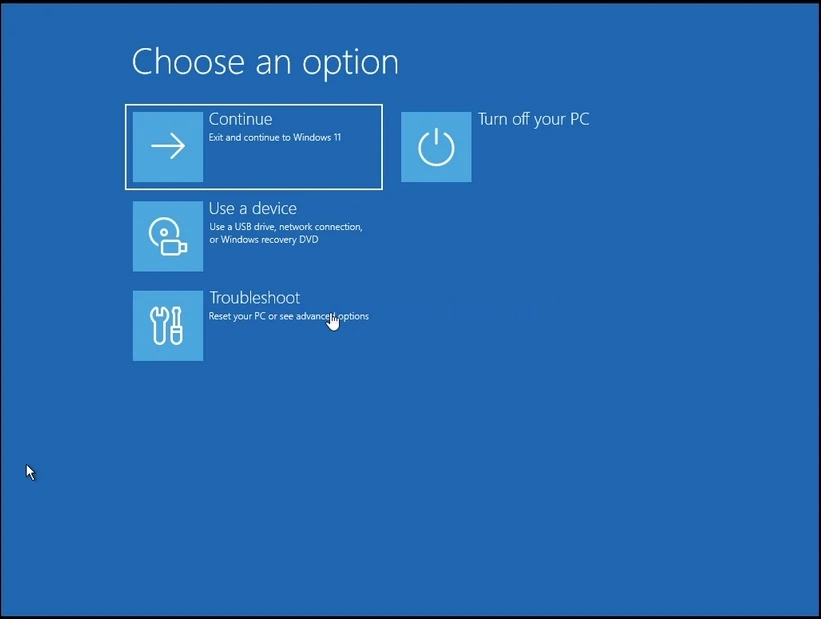
- Make sure you are in recovery mode. If not, use this article to get there:
- Click on Troubleshoot and wait for the Troubleshoot window to load
3. In Troubleshoot, click on Advanced options. Wait for the Advanced options window to load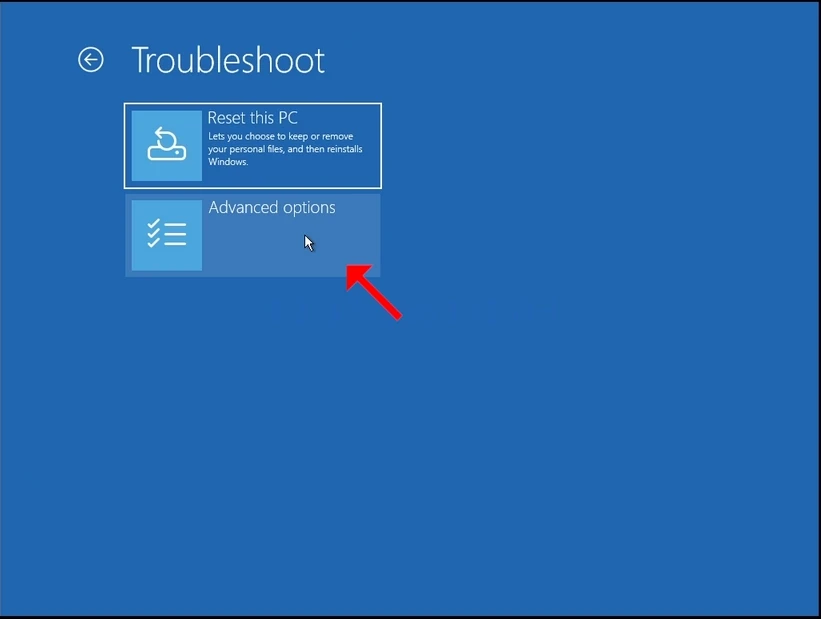
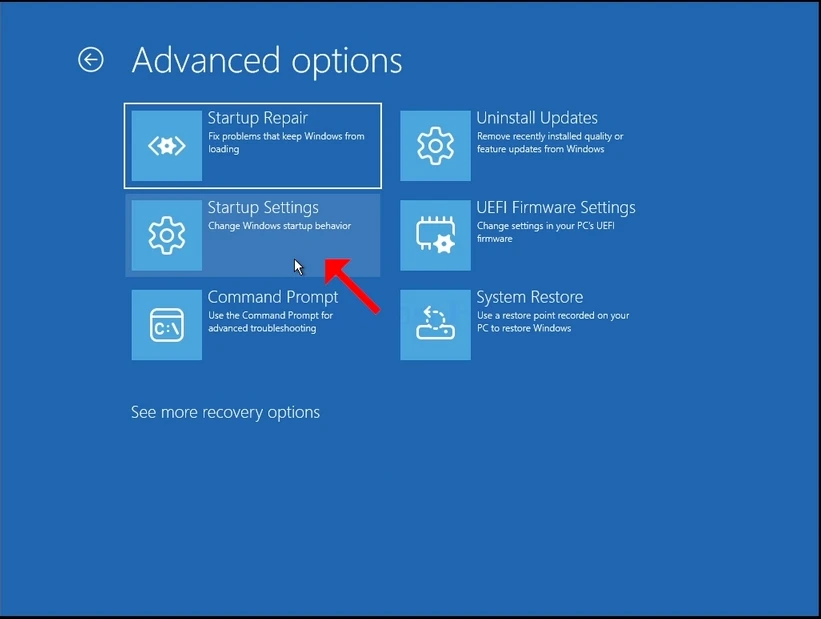
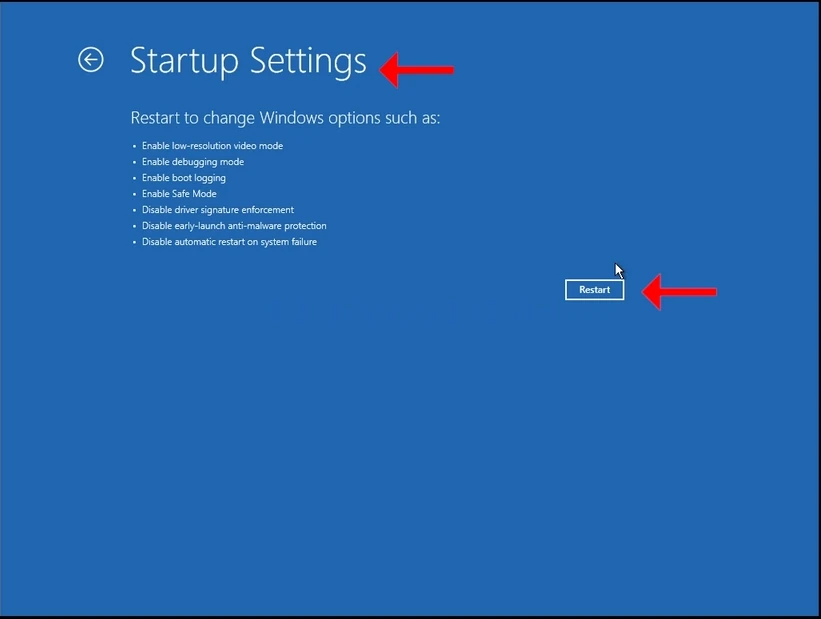
- In Advanced options, click on Startup Settings. Wait for the Startup Settings window to load
5. In Startup Settings you will be informed that after restarting the computer you will be booted into the following startup settings:
a. Enable low-resolution video mode
b. Enable debugging mode
c. Enable boot logging
d. Enable Safe Mode
e. Disable driver signature enforcement
f. Disable early-launch anti-malware protection
g. Disable automatic restart on system failure

7. Once booted, Windows will present to you the latter mentioned options.
8. Pick one of these options as you see fit by pressing the number keys on the keyboard. For example, 1 is for Enable debugging, 2 is for Enable boot logging etc.
9. Once pressed, Windows will start with the chosen setting.