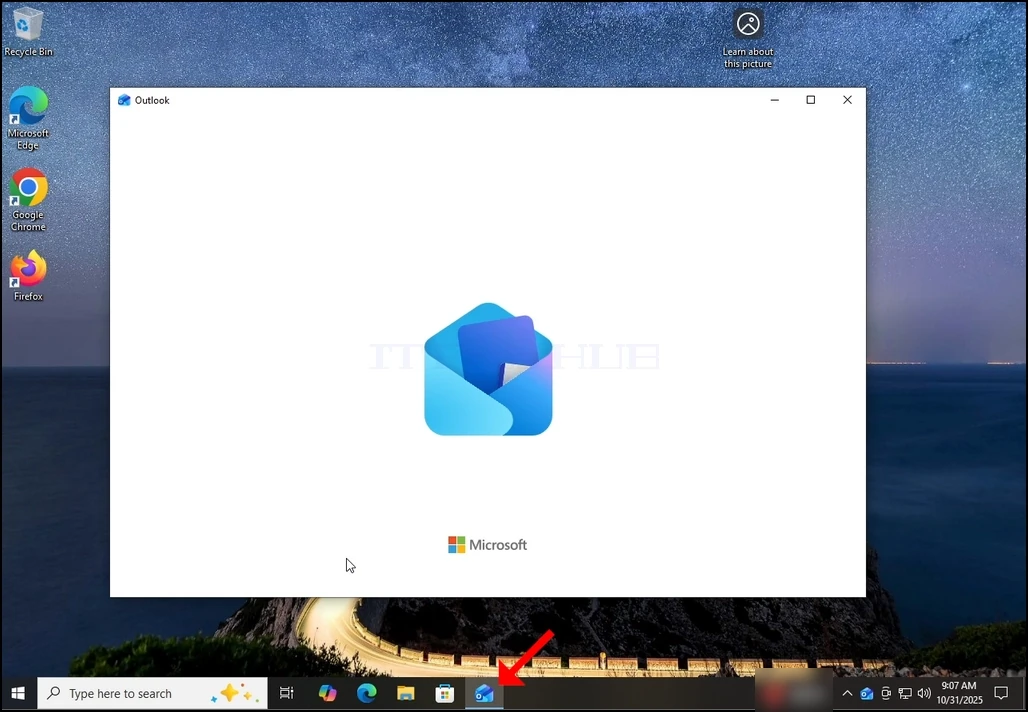
1. Start Outlook by click its icon in the taskbar. In most cases the Outlook icon would reside there. Wait for the Splash screen to appear and for the Outlook app to load.
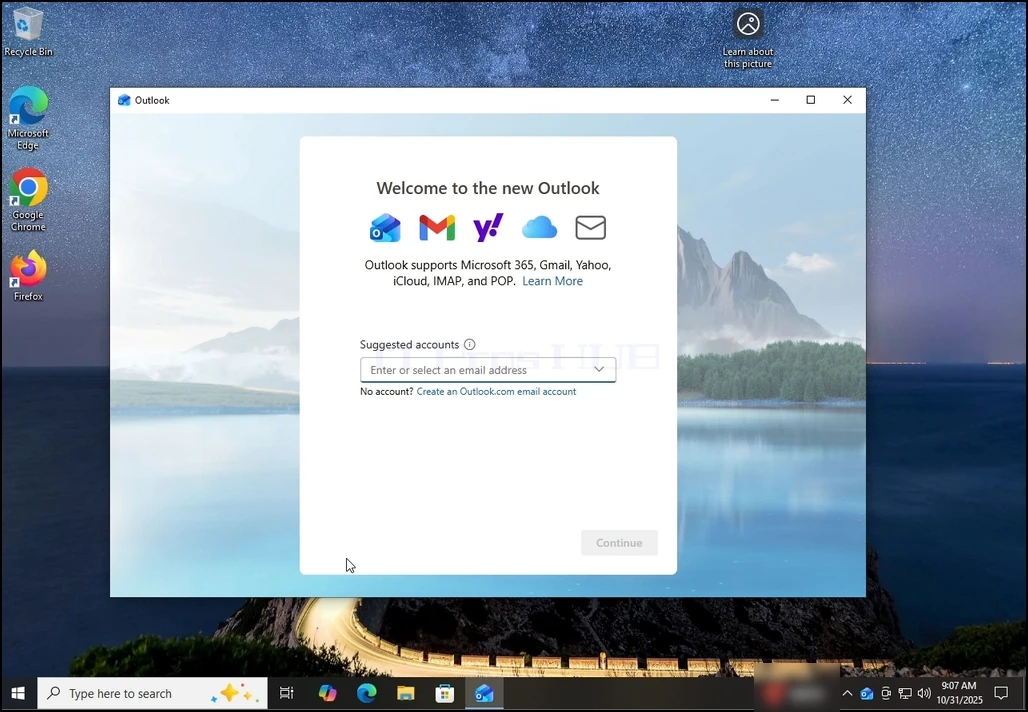
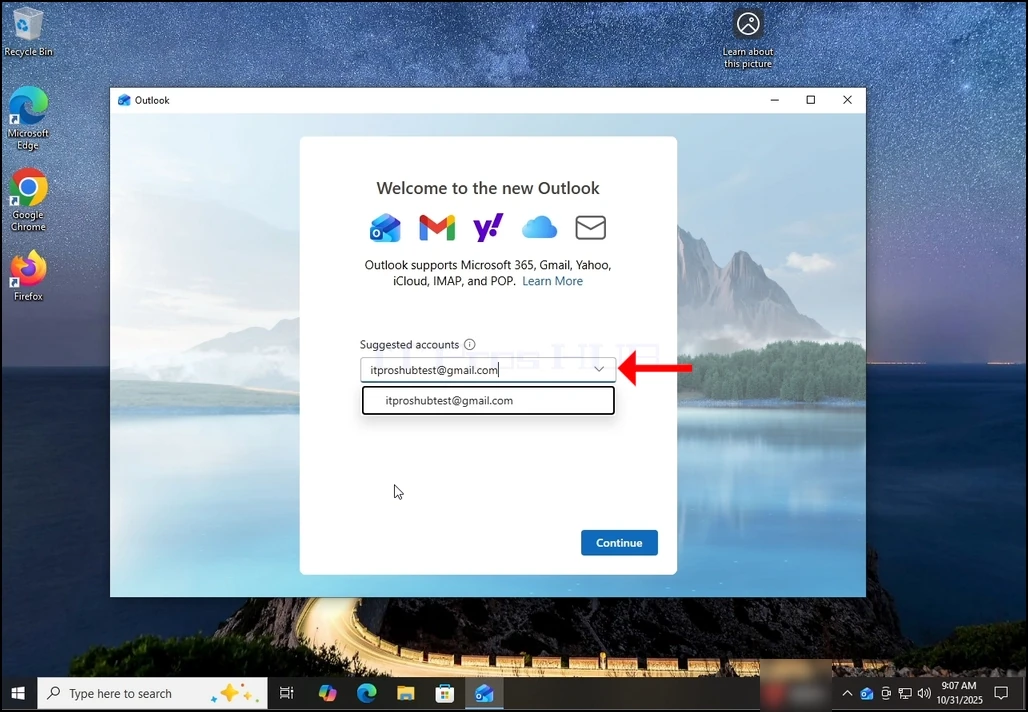
2. After loading, you will be presented with the "Welcome to the new Outlook" screen. Enter the email address you would like to configure. In our case, we will configure a Gmail email address.
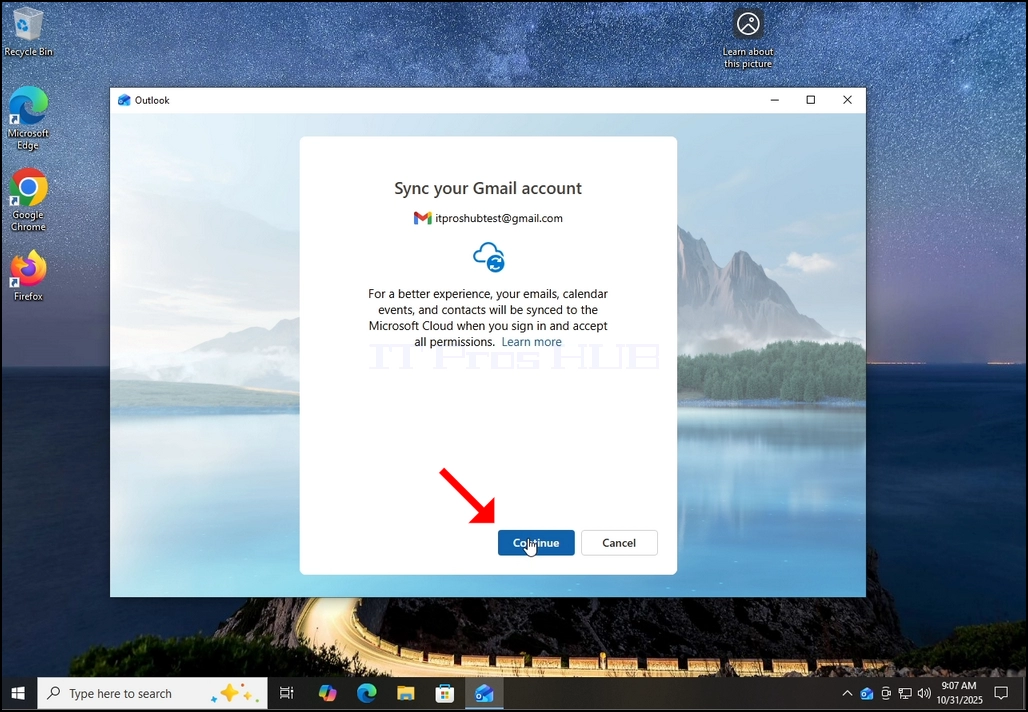
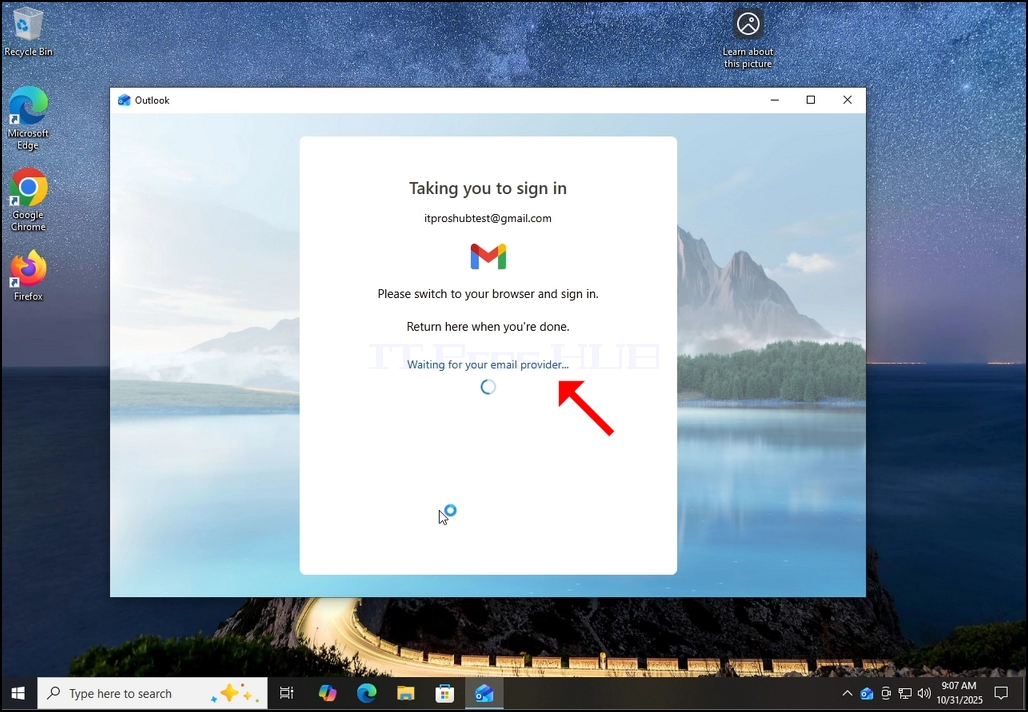
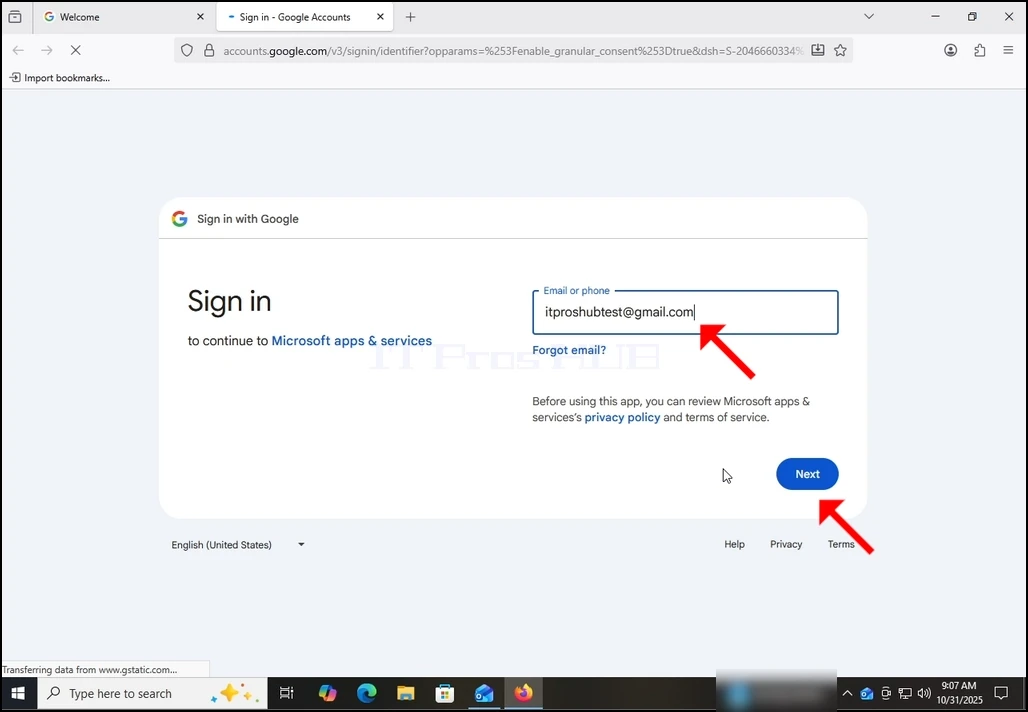
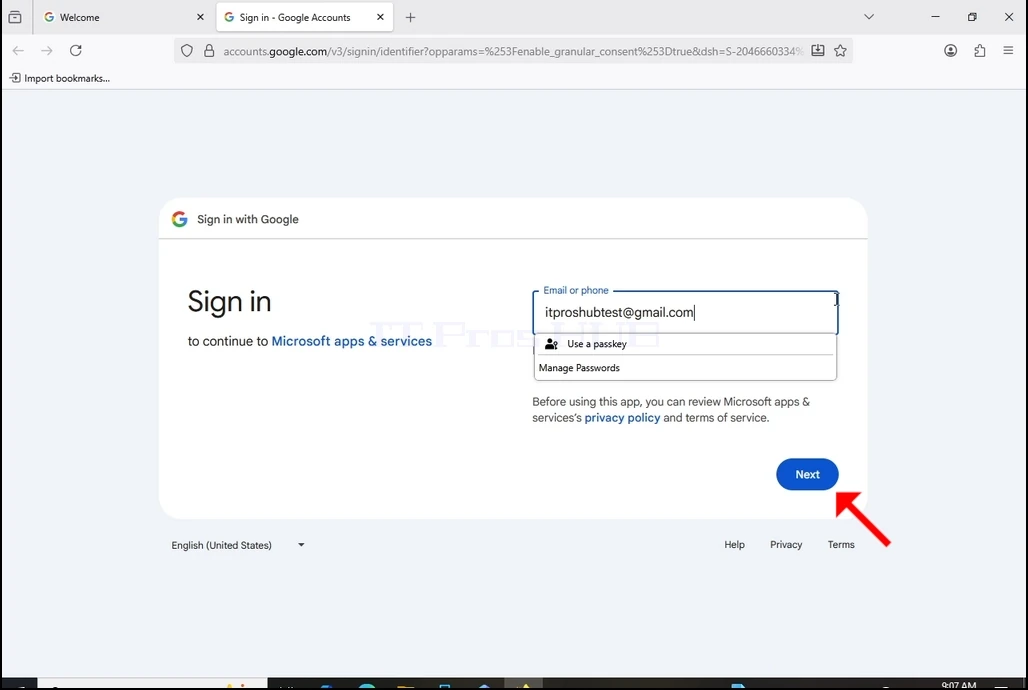
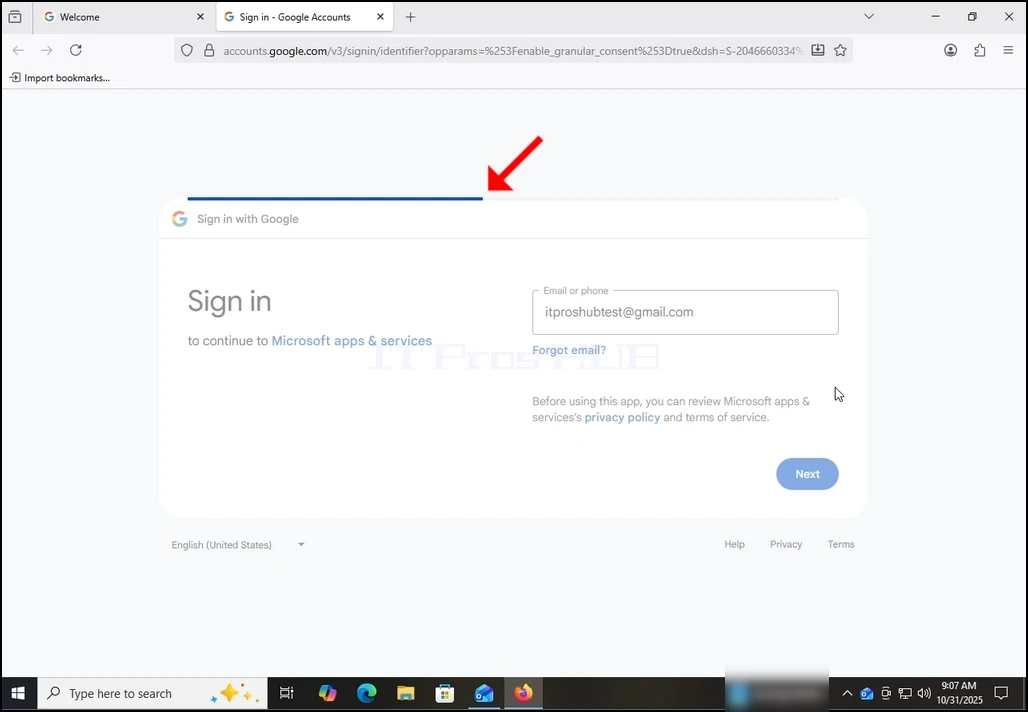
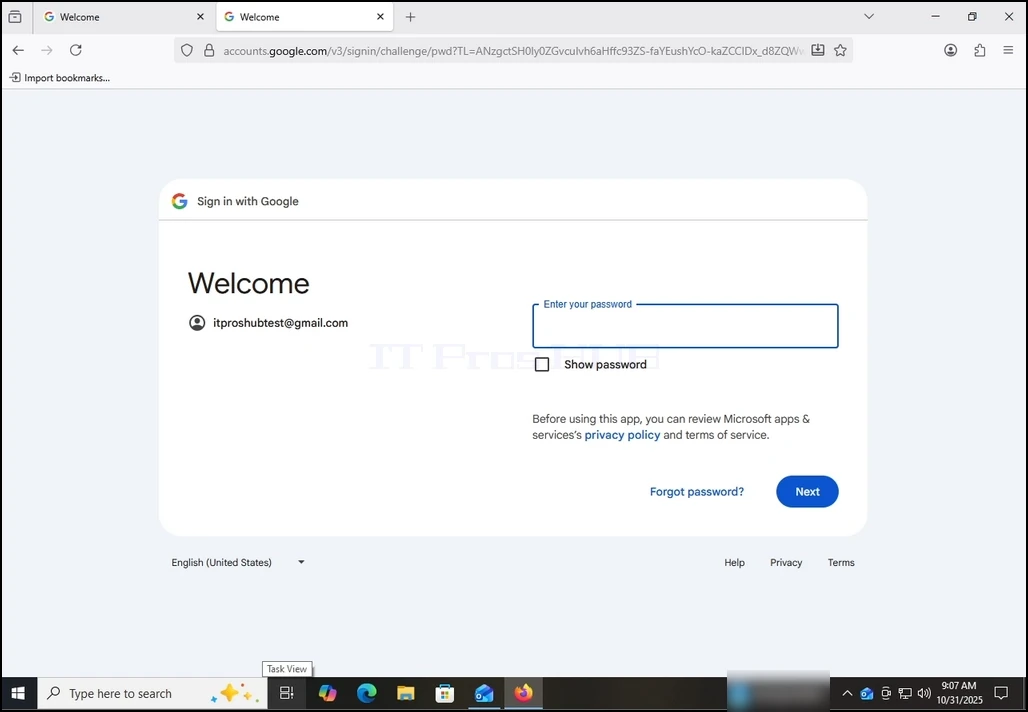
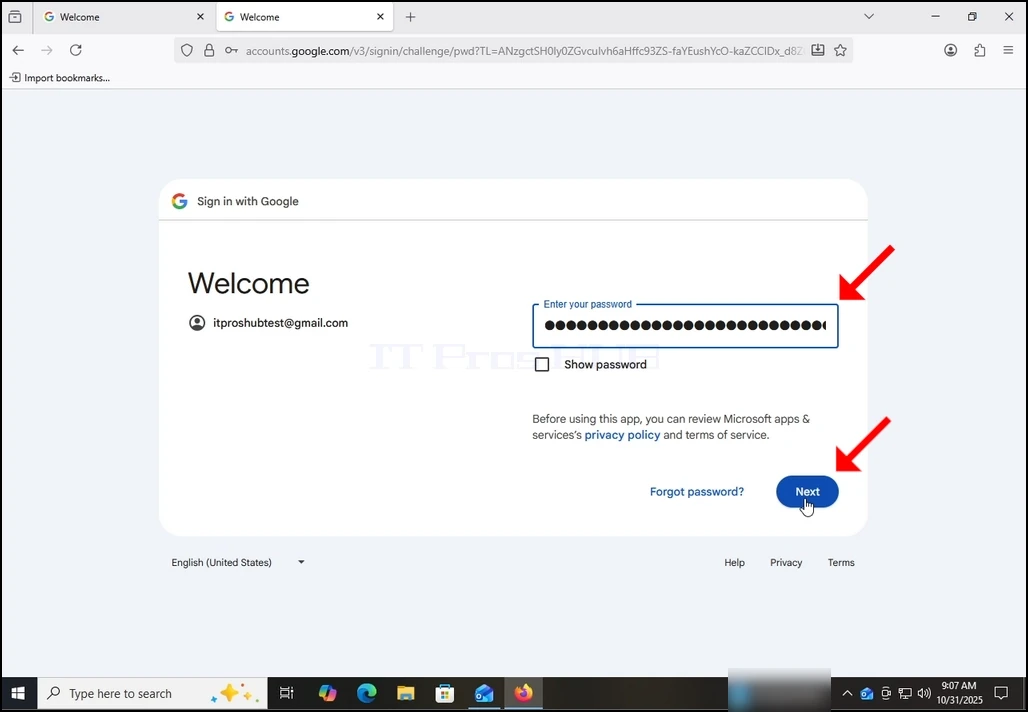
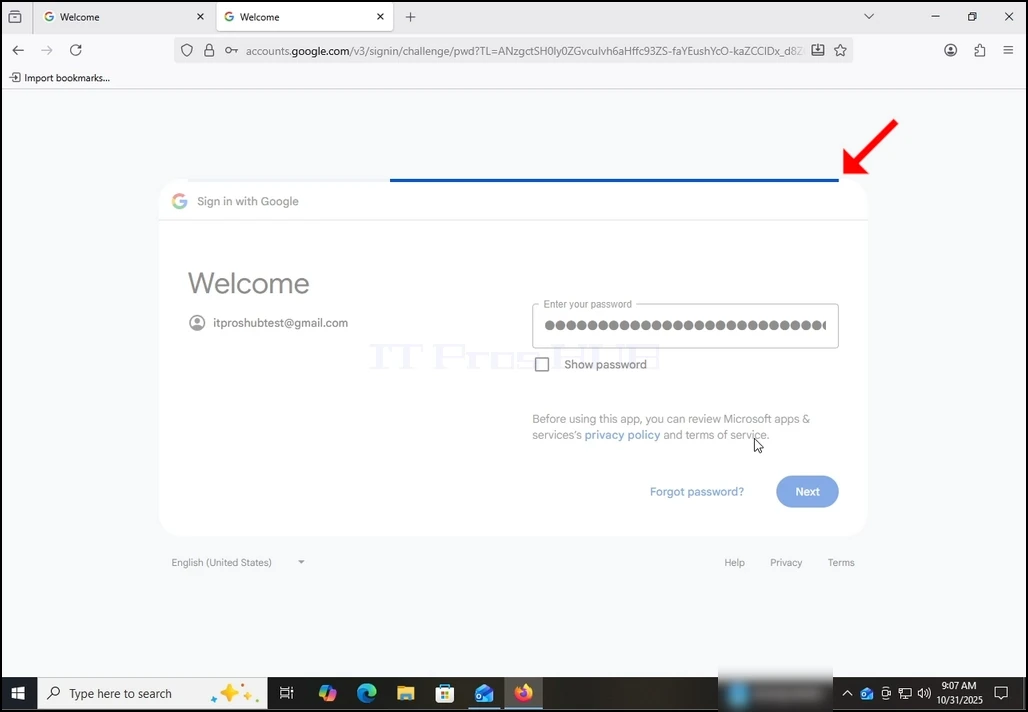
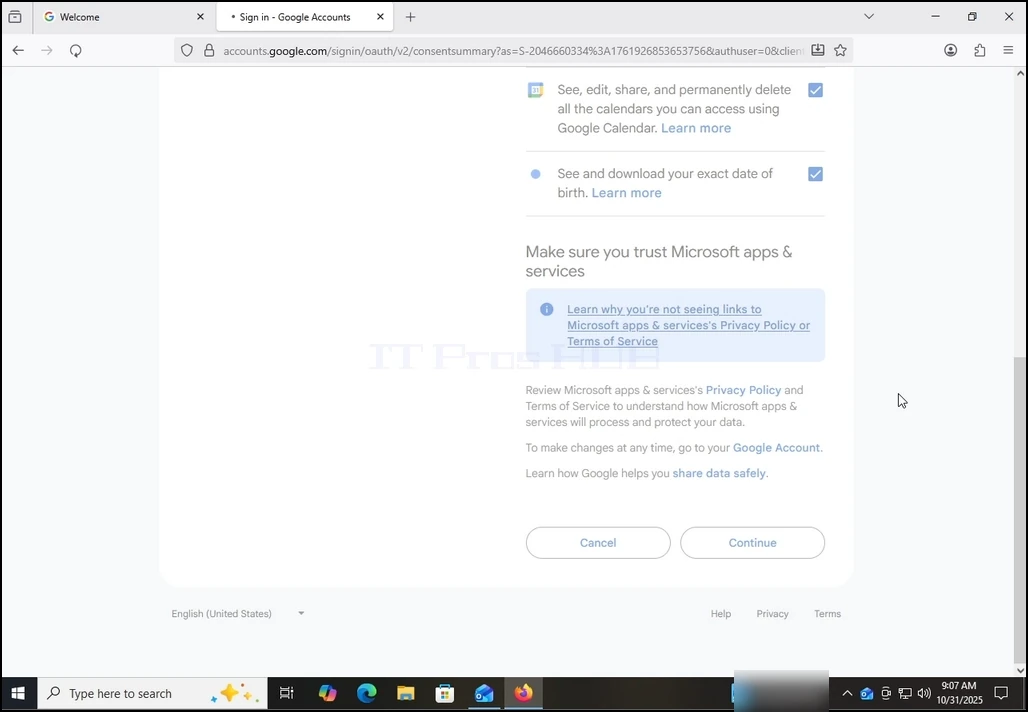
10. Wait for the next stage to load.
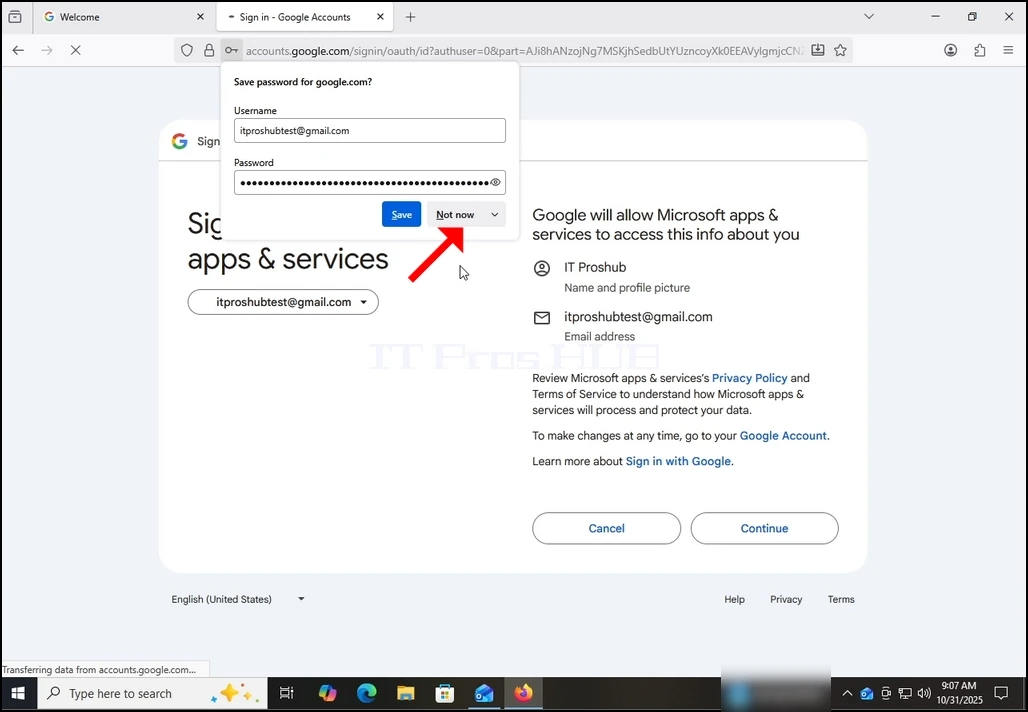
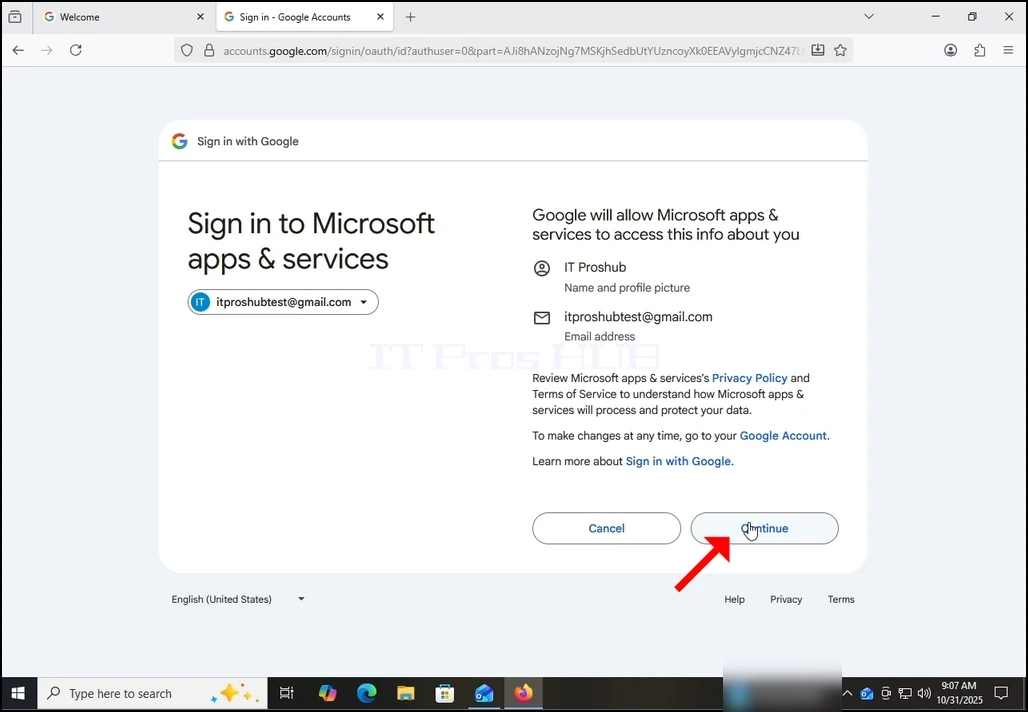
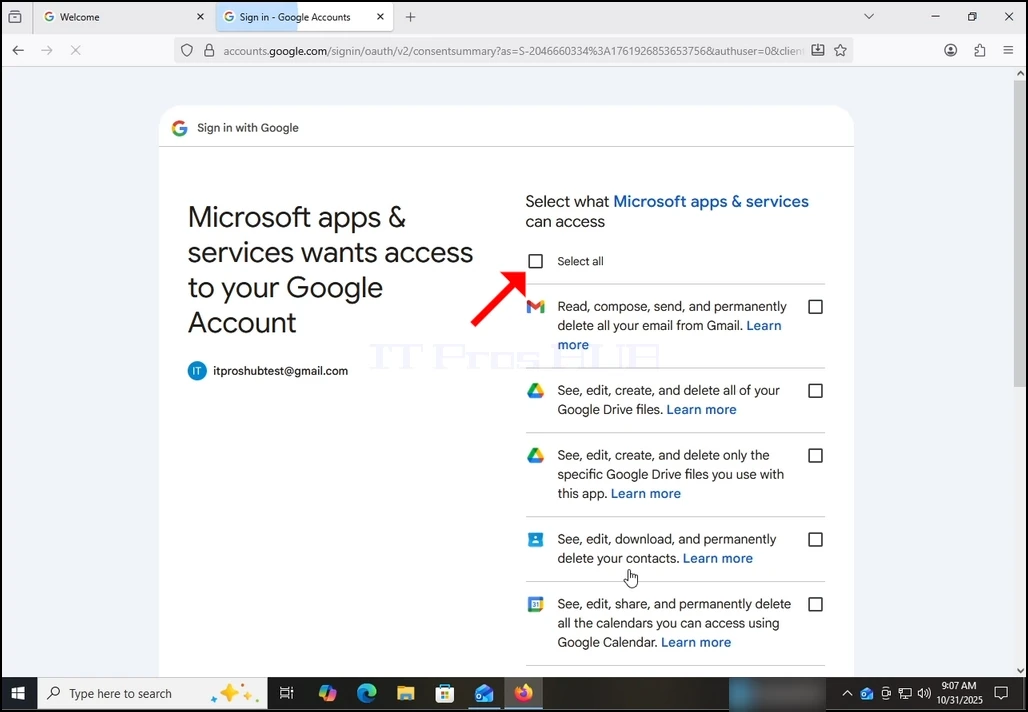
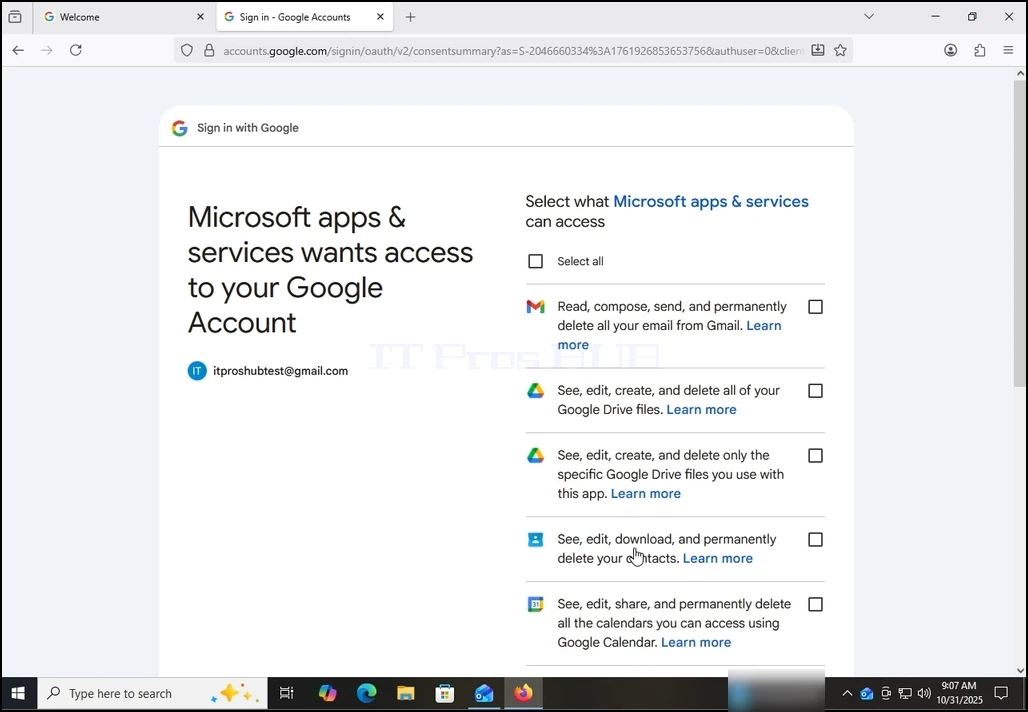
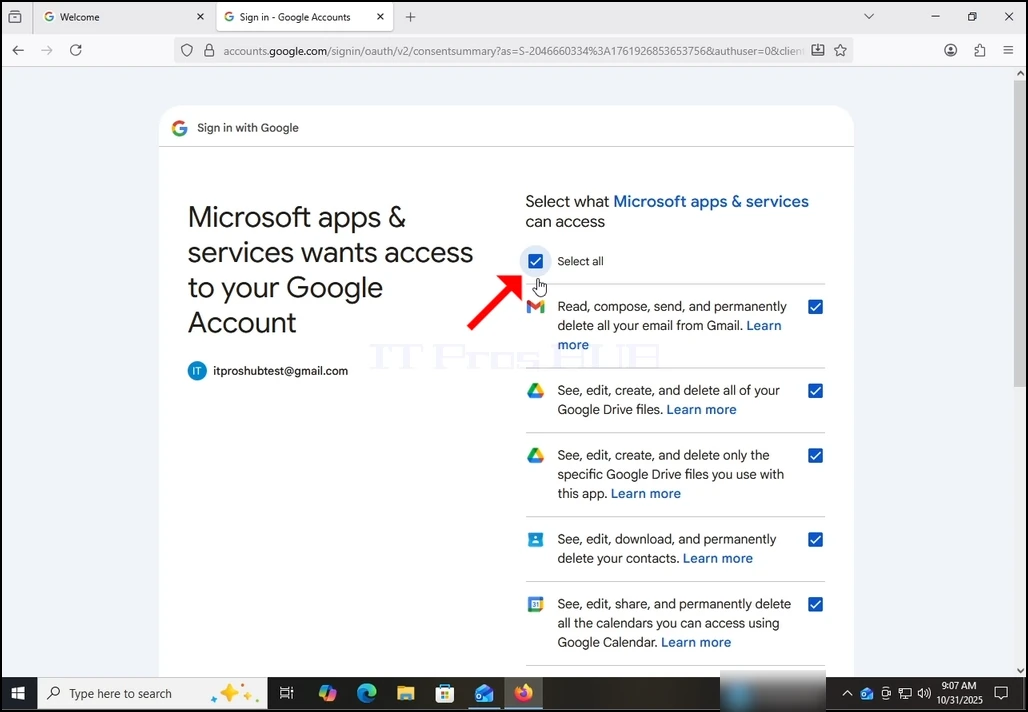
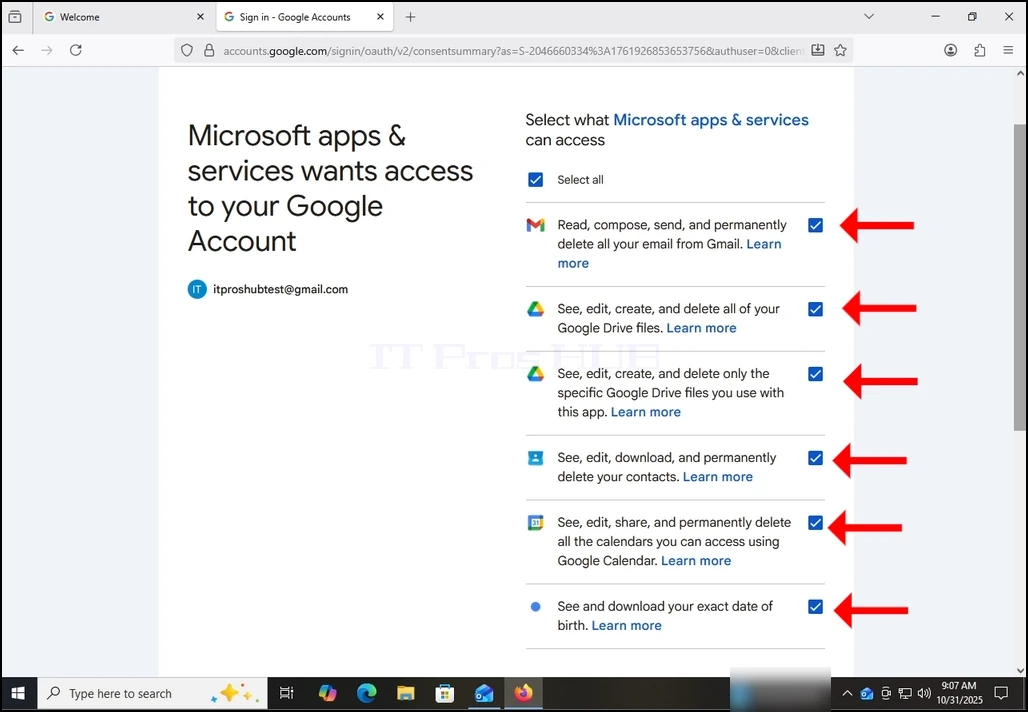
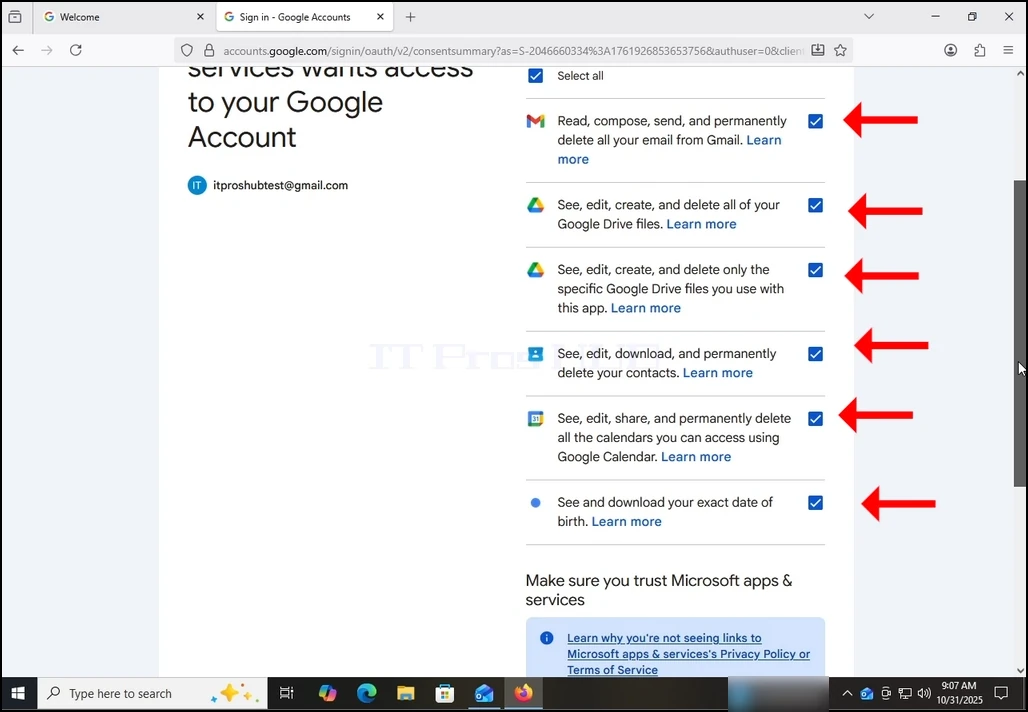
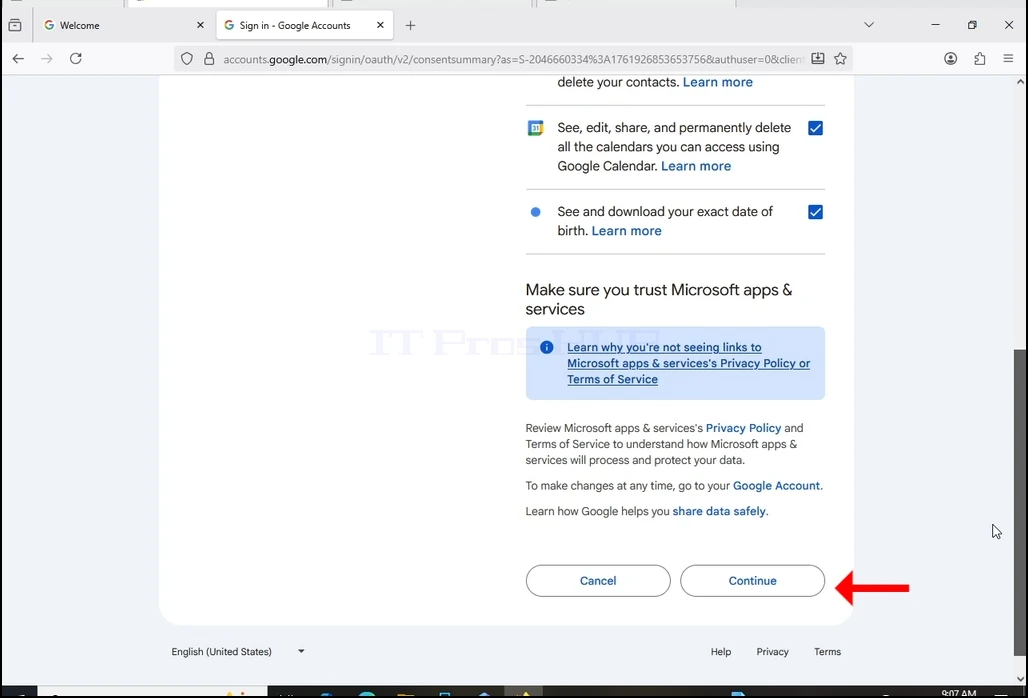
13. On this stage, Google extends about what information Outlook (Microsoft apps & services) could access.
Choose what information you would like to give permission to Outlook at your own descretion but keep in mind that the less permission you allow the less functionality Outlook would have.
In this case, the minimum for it to function as an email client would be to allow it to Read, compose, send and permanently delete all your email from Gmail.
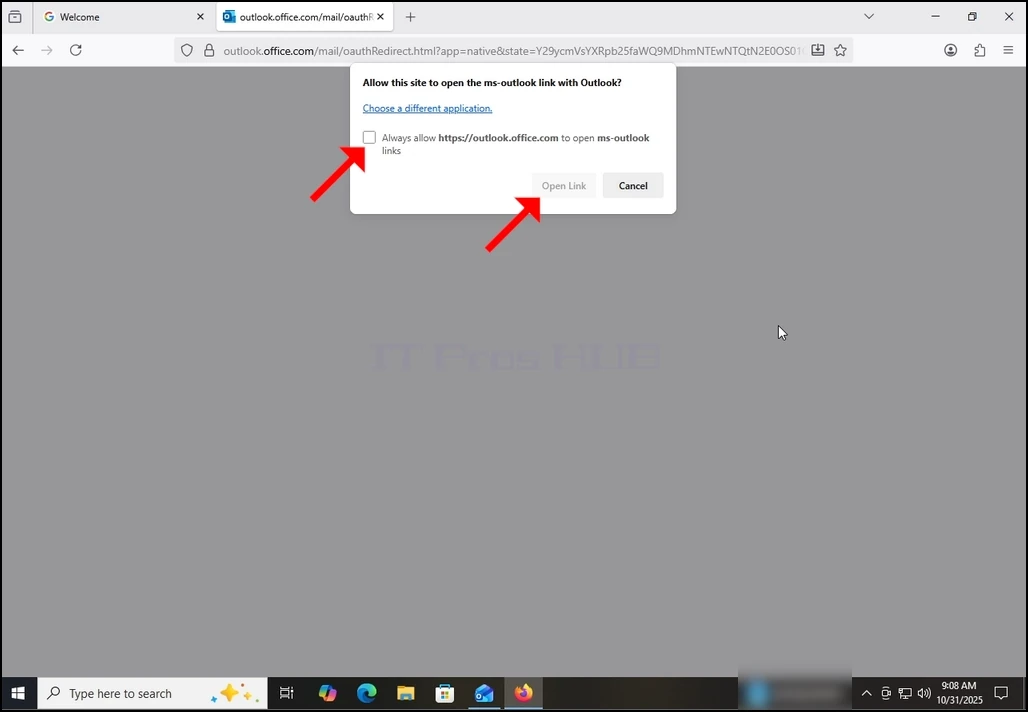
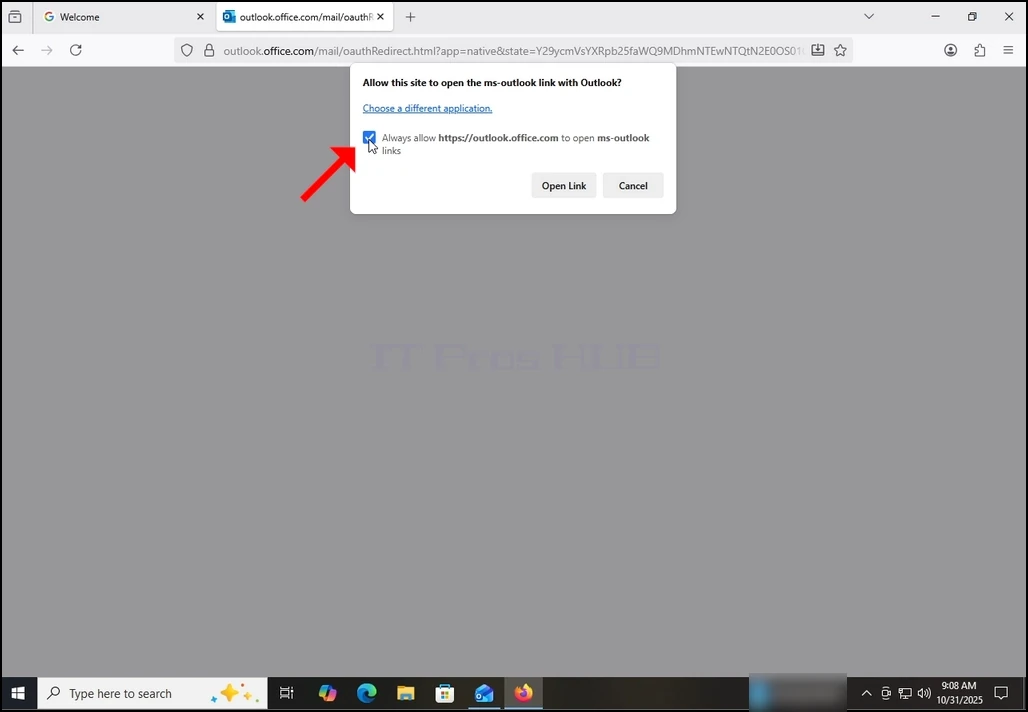
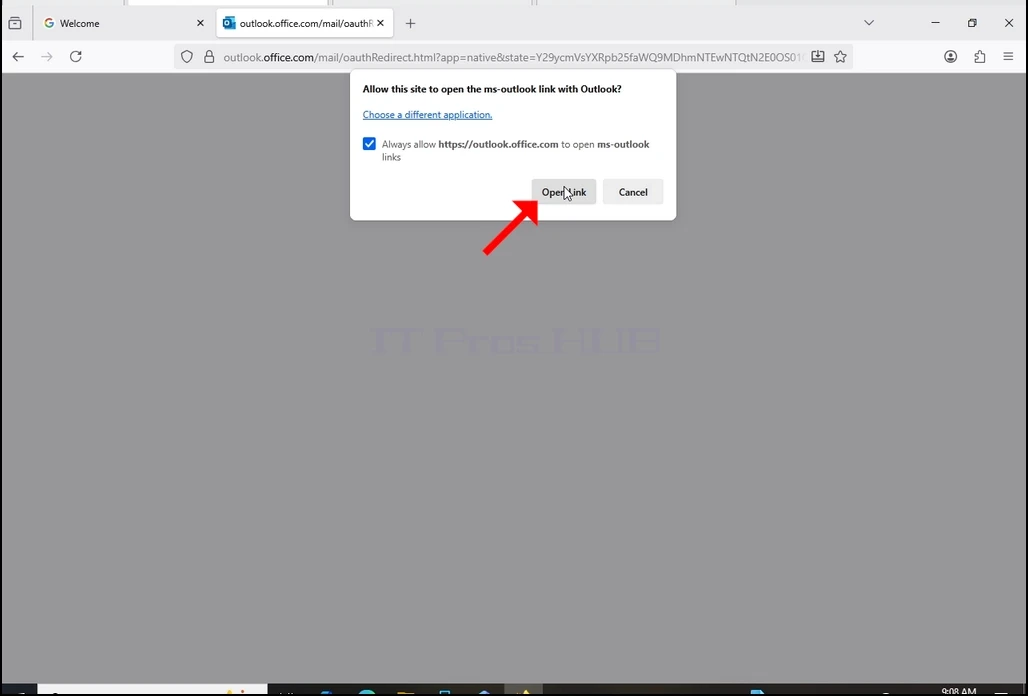
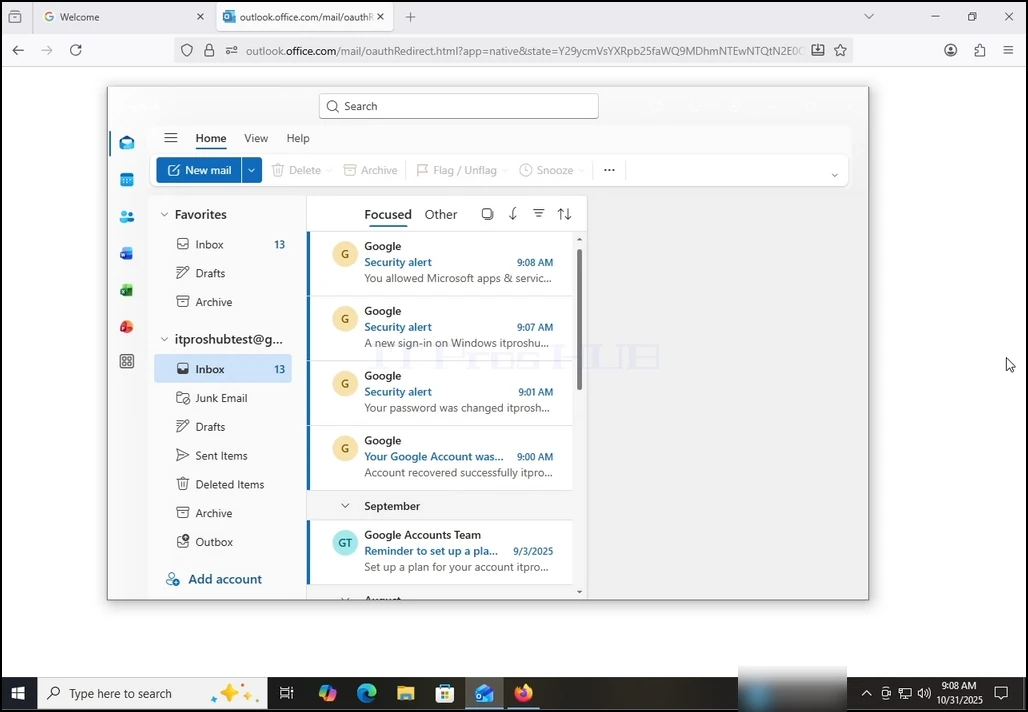
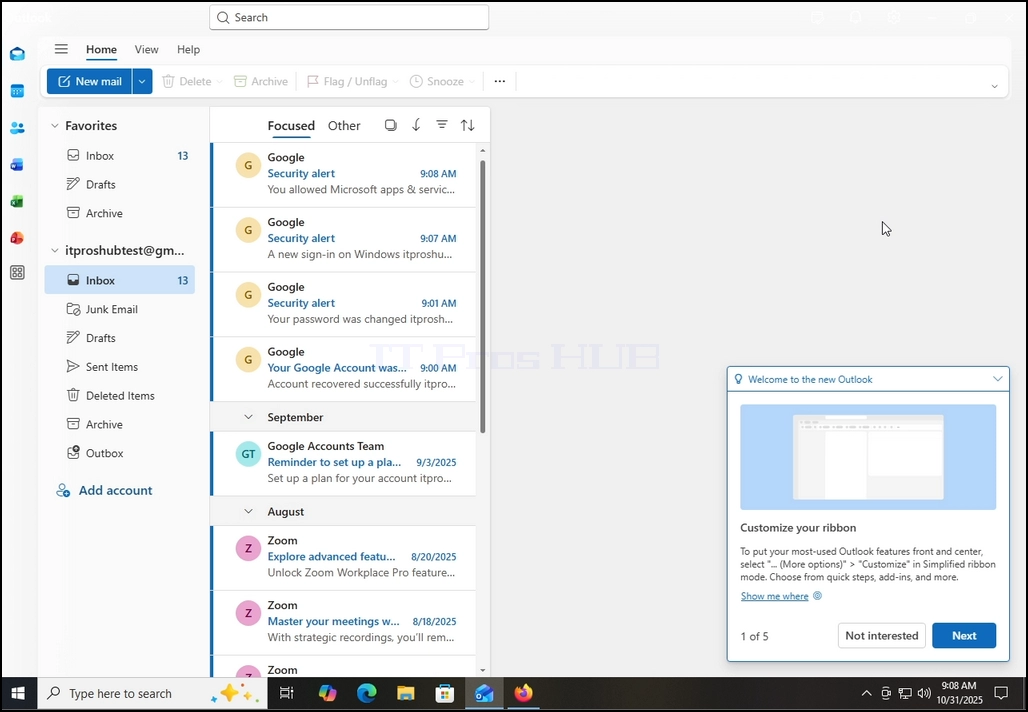
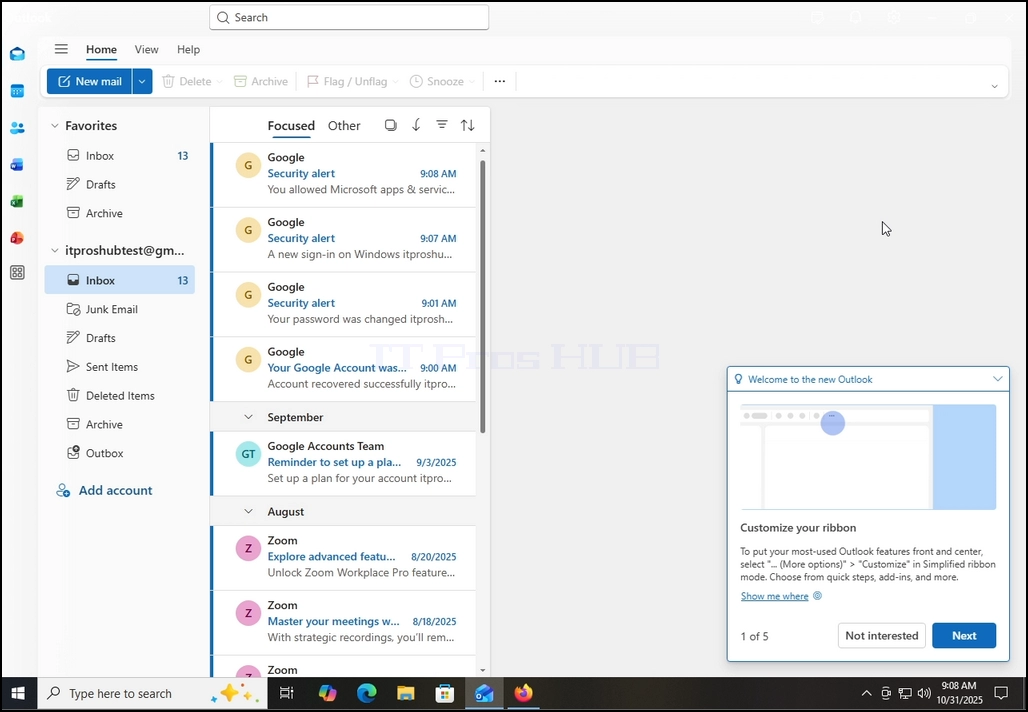
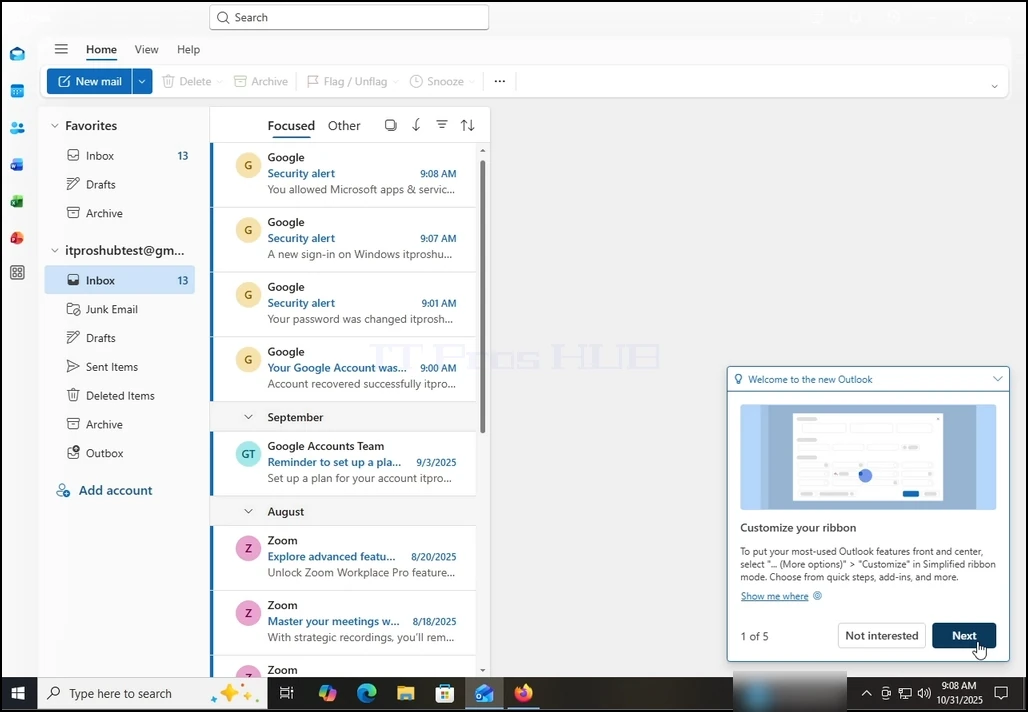
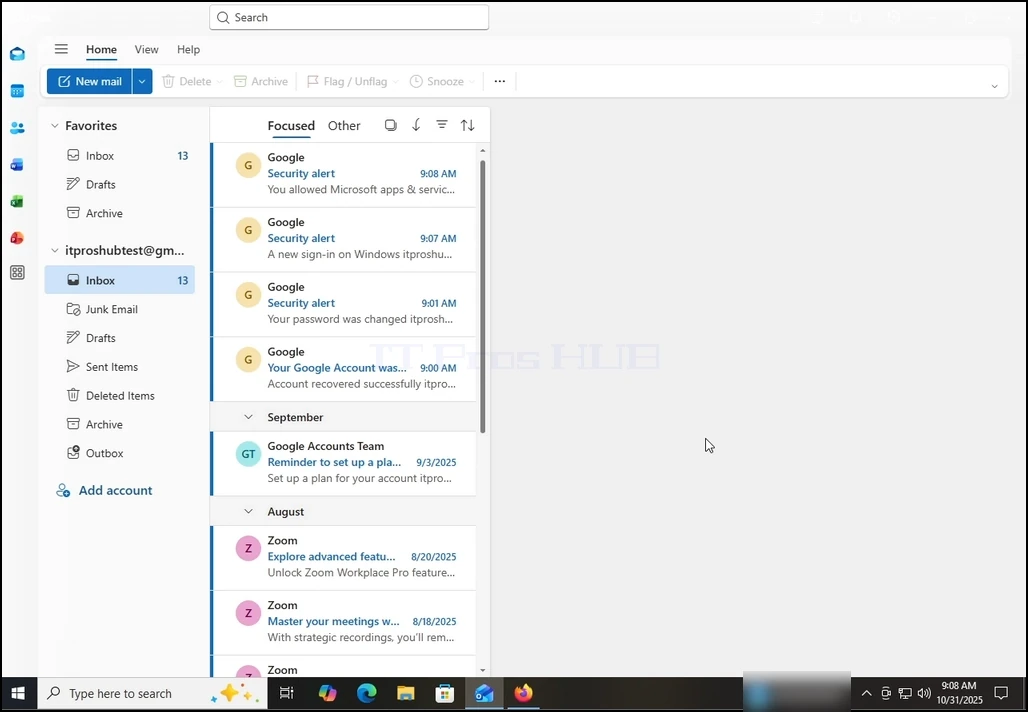
16. After doing the previous, Outlook would load your Gmail account.
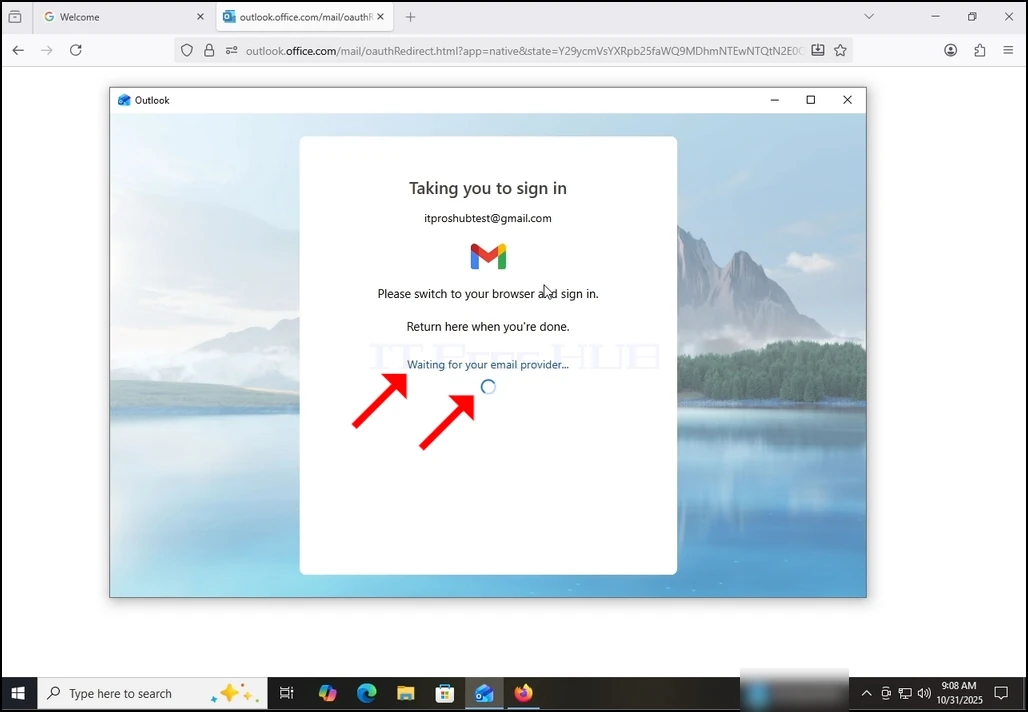
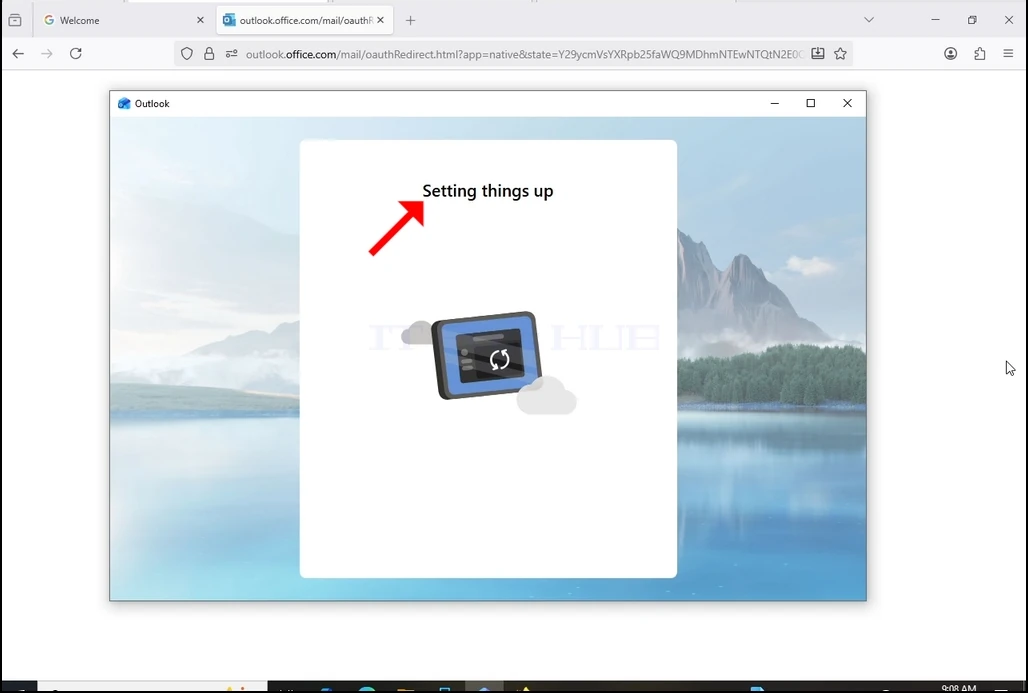
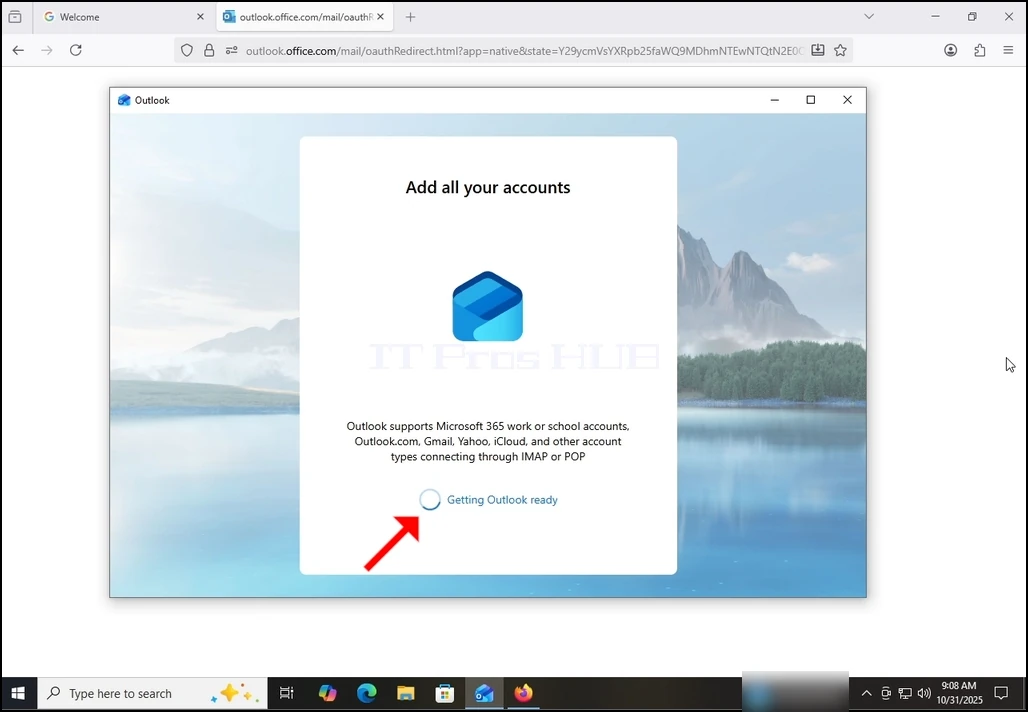
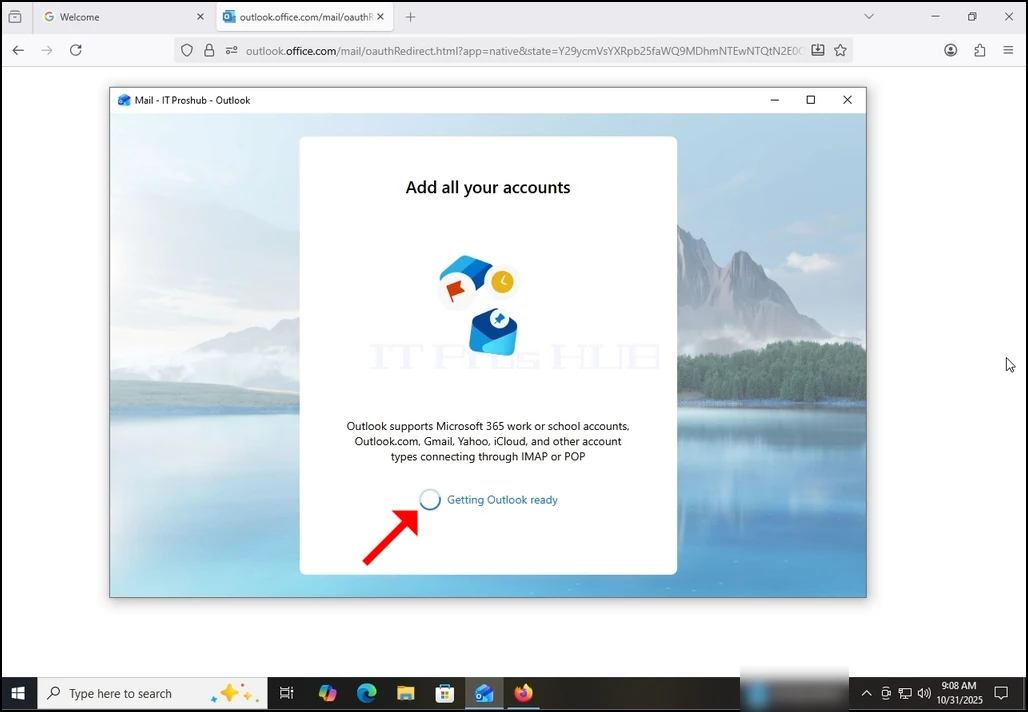
17. Done! your Gmail is now configured to work within Outlook!