Online: 1155 online | Members: 0 | Guests: 1155
keskiviikko, kesäkuu 3, 2026
Page Minimap
Reading time: 5 min read
Tagline:HowtoConfigureGmailAccountMicrosoftOutlookWindows10November2025+4
There is no translation available.

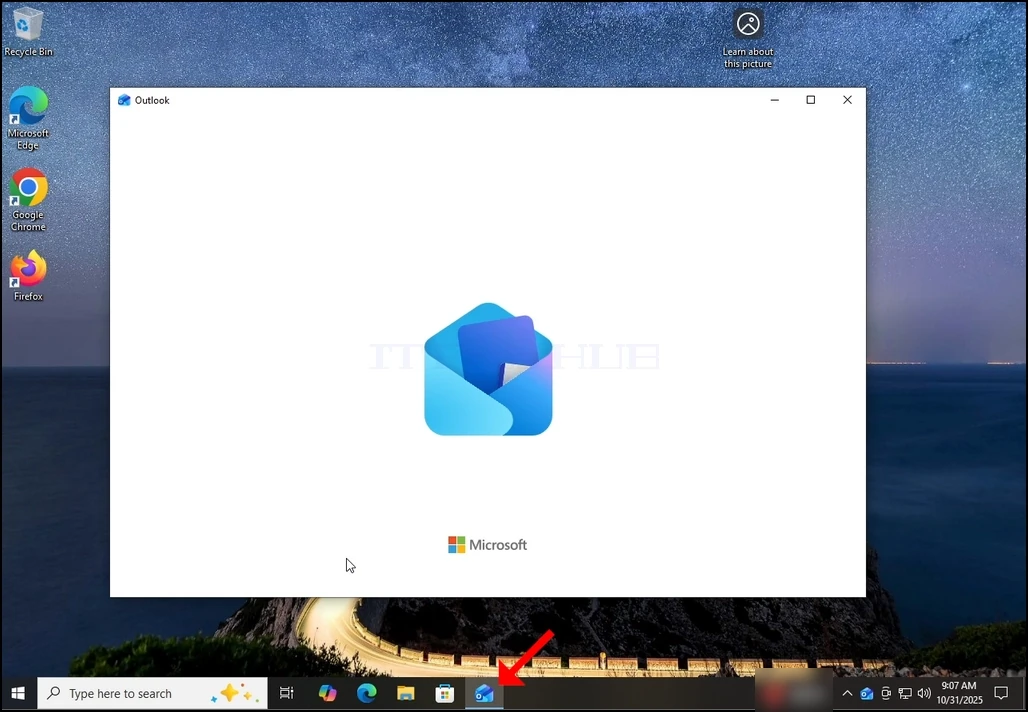
 1. Start Outlook by click its icon in the taskbar. In most cases the Outlook icon would reside there. Wait for the Splash screen to appear and for the Outlook app to load.

how-to-configure-a-gmail-account-in-microsoft-outlook-windows10-3.webp

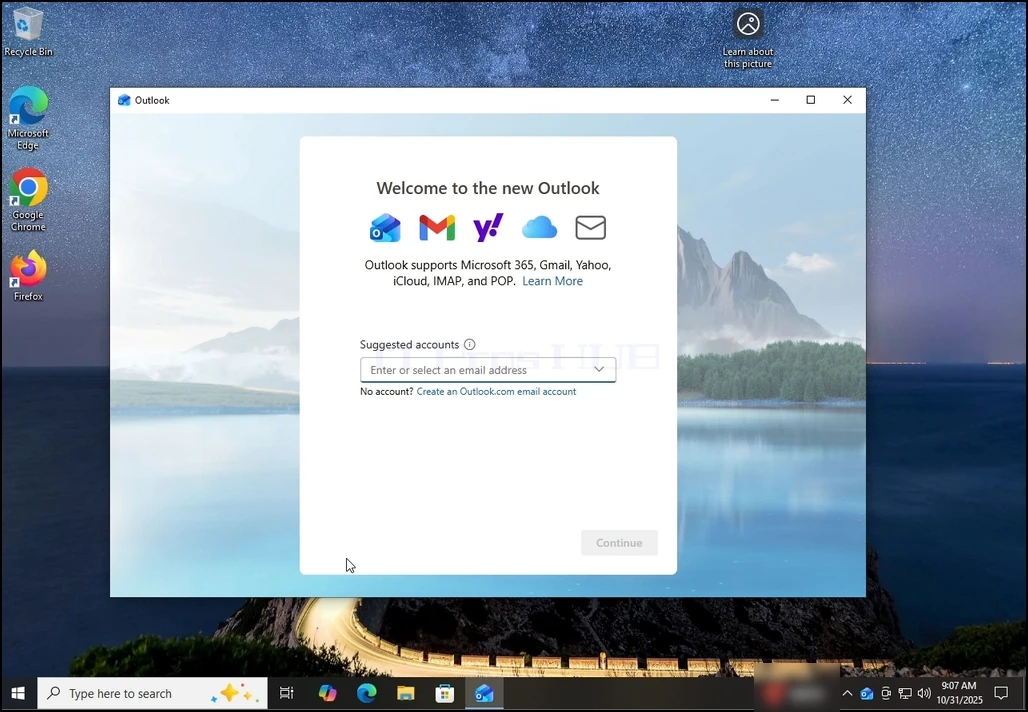
2. After loading, you will be presented with the "Welcome to the new Outlook" screen. Enter the email address you would like to configure. In our case, we will configure a Gmail email address.

how-to-configure-a-gmail-account-in-microsoft-outlook-windows10-4.webp

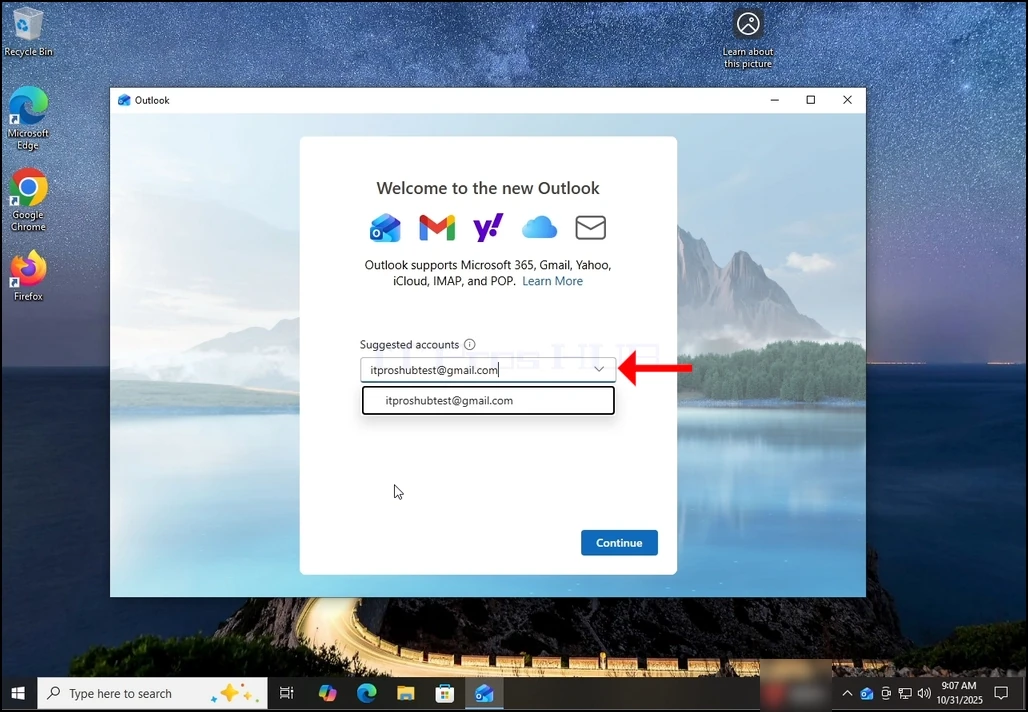
3. Type your Gmail address in the text box and click the Continue button.

how-to-configure-a-gmail-account-in-microsoft-outlook-windows10-5.webp

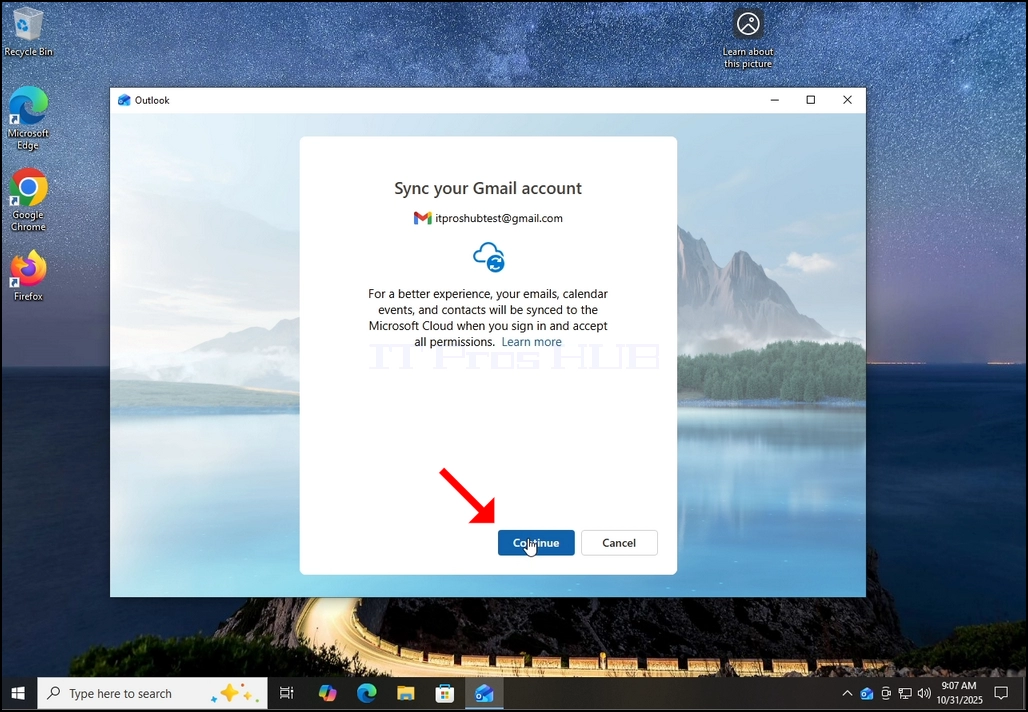
4. You will be notified that Outlook would advise to allow it to get calendar, contacts and events data from your Gmail accouit for a better experience. Hit the Continue button again and wait for the next screen to load.

how-to-configure-a-gmail-account-in-microsoft-outlook-windows10-7.webphow-to-configure-a-gmail-account-in-microsoft-outlook-windows10-9.webp

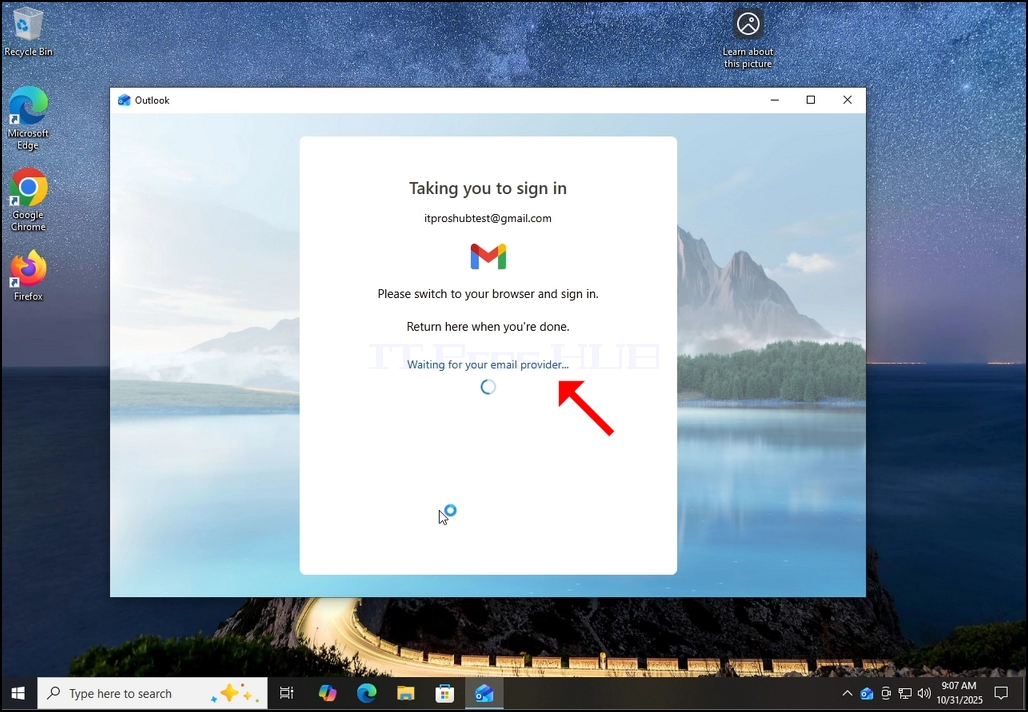
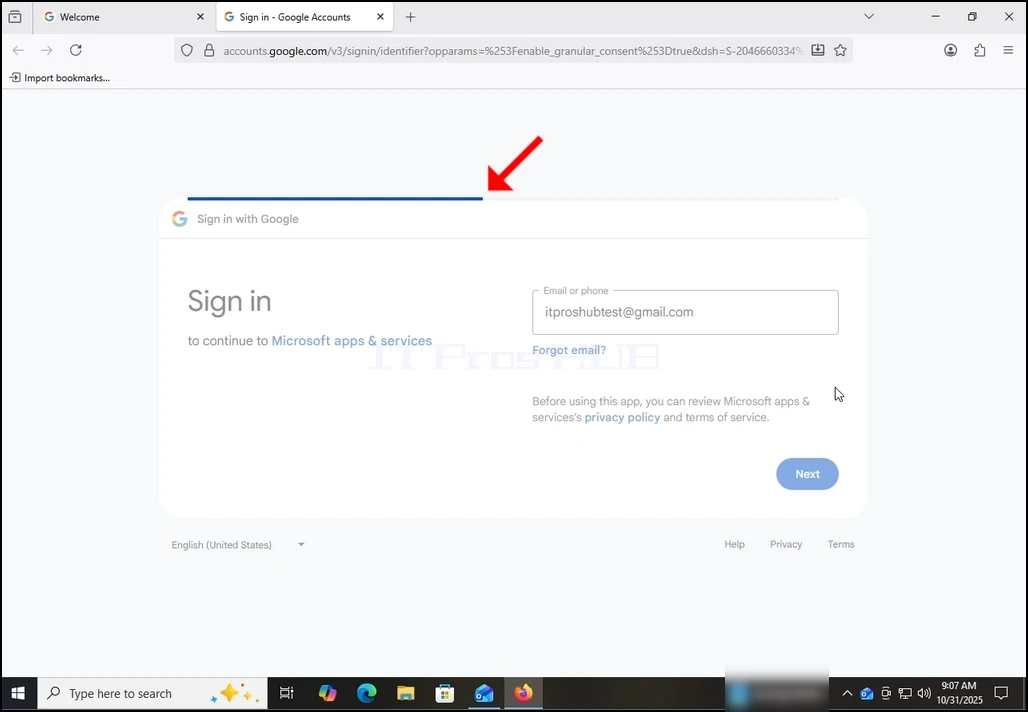
6. After hitting the Continue button Outlook will go Google login screen using your default browser.

how-to-configure-a-gmail-account-in-microsoft-outlook-windows10-10.webp

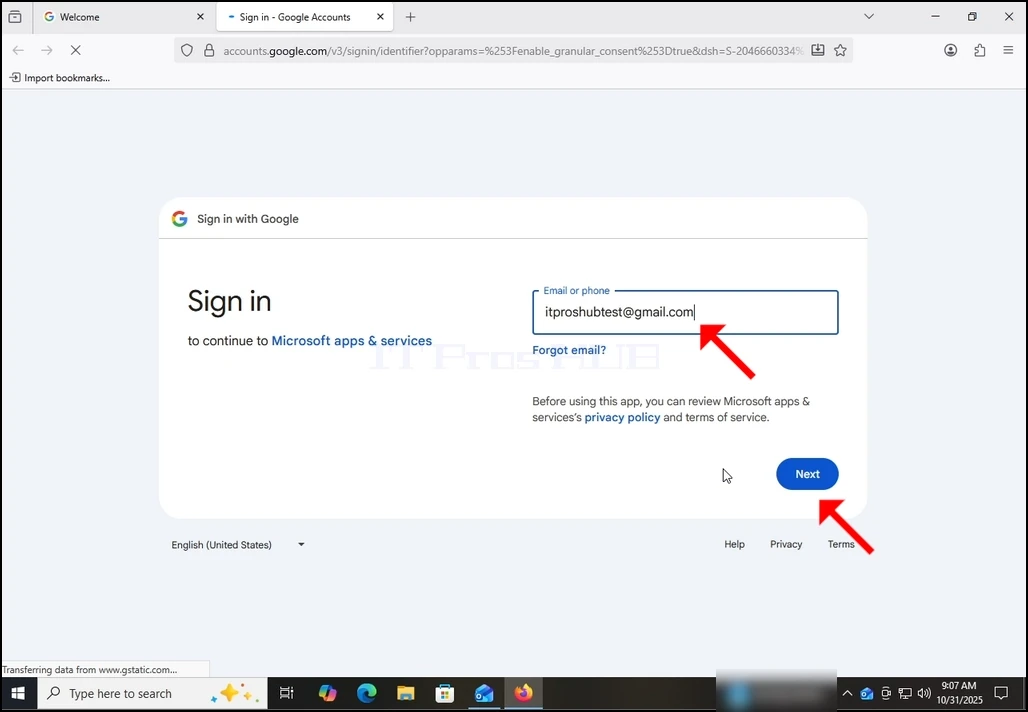
7. Fill in your Gmail email address again and hit the Next button.

how-to-configure-a-gmail-account-in-microsoft-outlook-windows10-11.webp


how-to-configure-a-gmail-account-in-microsoft-outlook-windows10-12.webp

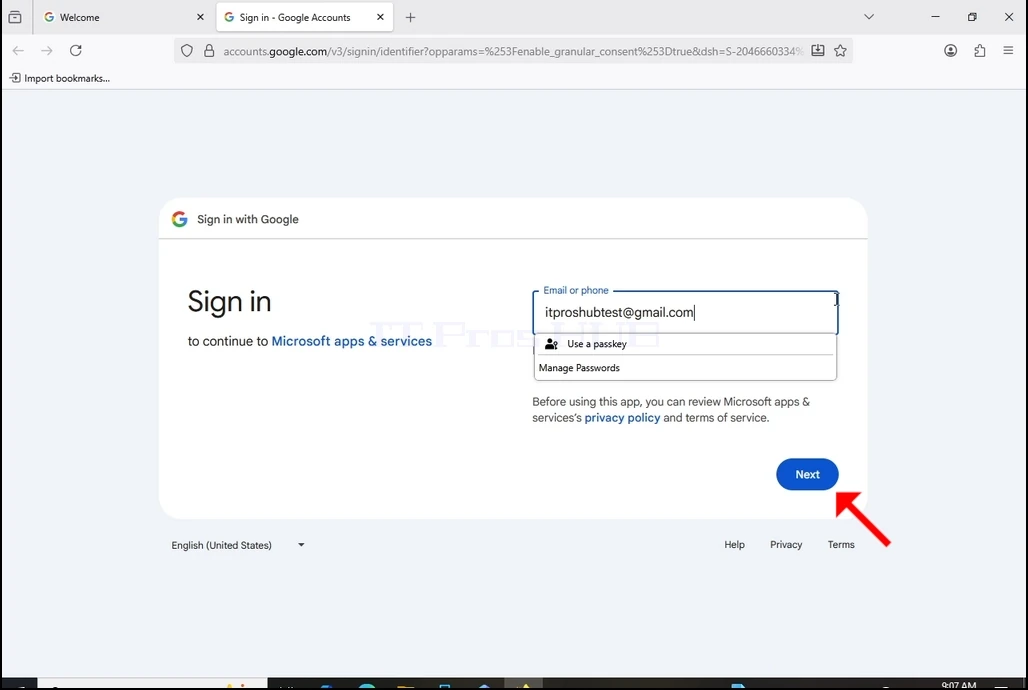
8. After hitting the Next button you will see a loading bar at the top part of the login box.

how-to-configure-a-gmail-account-in-microsoft-outlook-windows10-13.webp

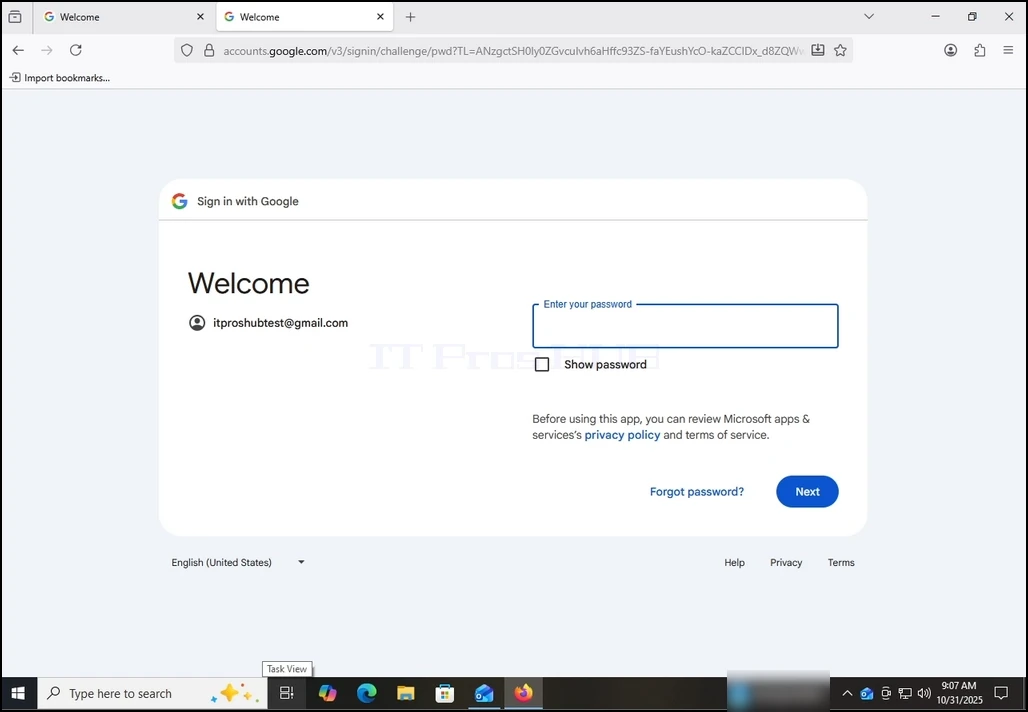
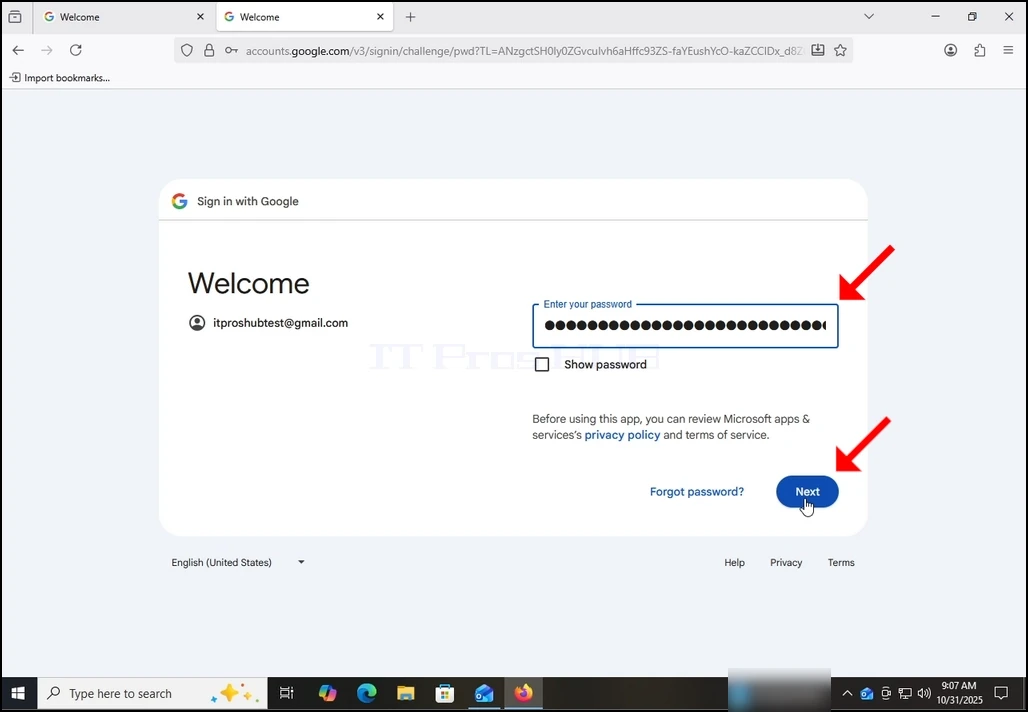
9. In the next stage, you will be prompt to enter your Gmail's password. Type it and hit the Next button.

how-to-configure-a-gmail-account-in-microsoft-outlook-windows10-14.webphow-to-configure-a-gmail-account-in-microsoft-outlook-windows10-15.webp

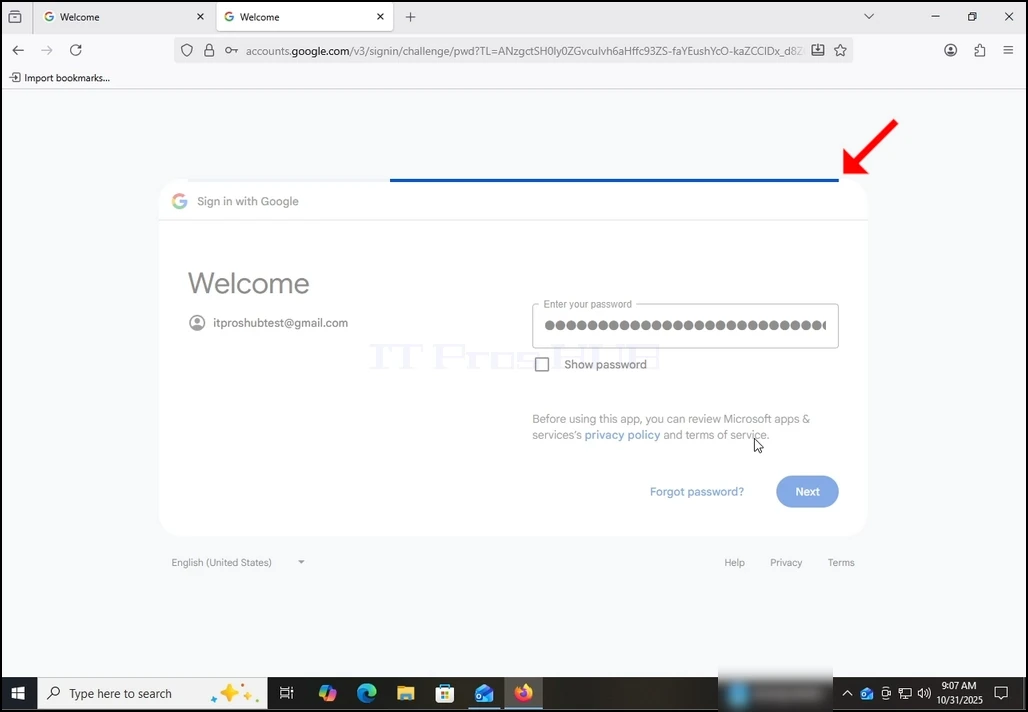
10. Wait for the next stage to load.

how-to-configure-a-gmail-account-in-microsoft-outlook-windows10-16.webp

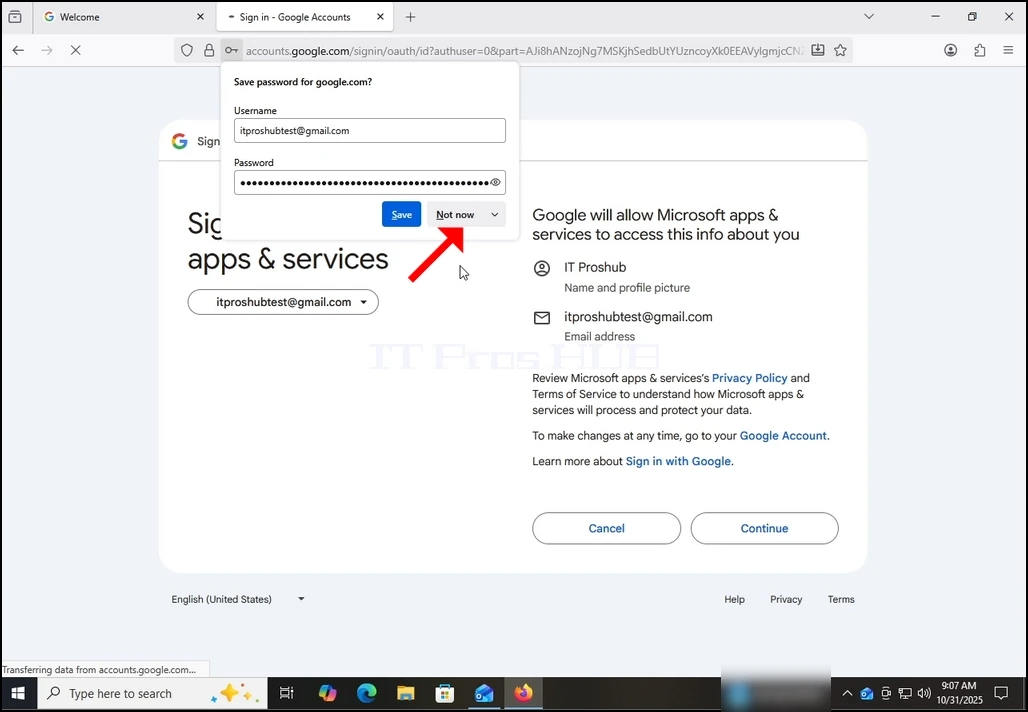
11. After the next stage loads you might be prompt by the browser whether you like to save the password with it. In this article we will not save the password into the browser. Therefore we choose the Not Now button.

how-to-configure-a-gmail-account-in-microsoft-outlook-windows10-17.webp

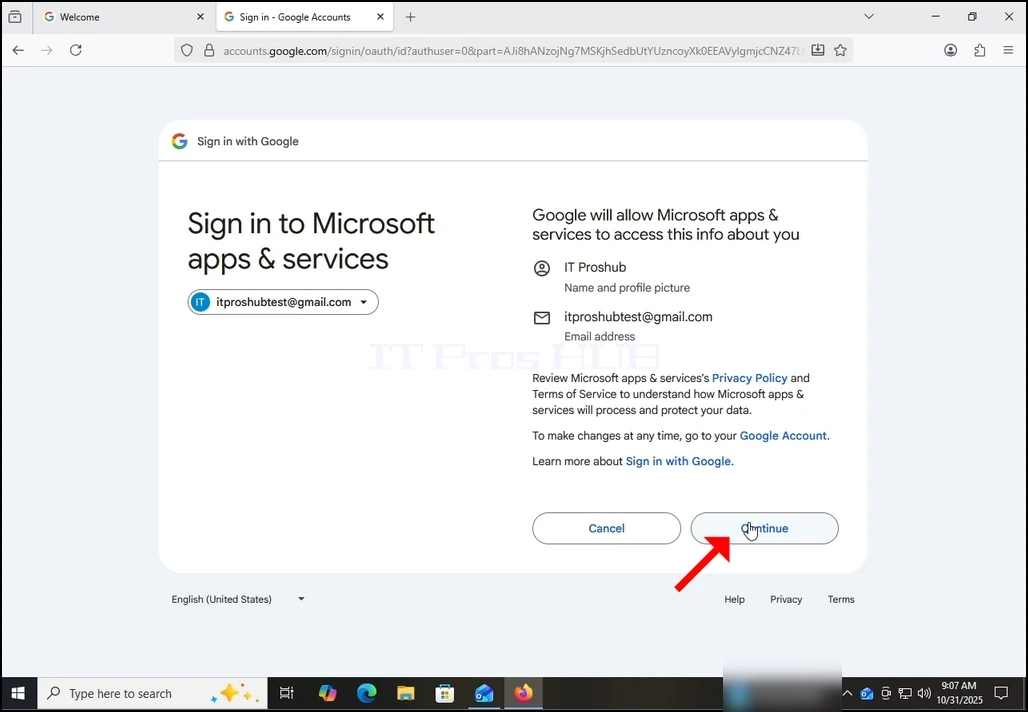
12. In the current stage, Google prompts you about a permission of Outlook (Microsoft apps & Services) to access your Gmail account. You will be presented with the information Outlook would like to access to. In this case, Outlook would like to access to your Email (Gmail) address, Full name and profile picture. 
Click the Continue button and wait for the next screen to load.

how-to-configure-a-gmail-account-in-microsoft-outlook-windows10-18.webp

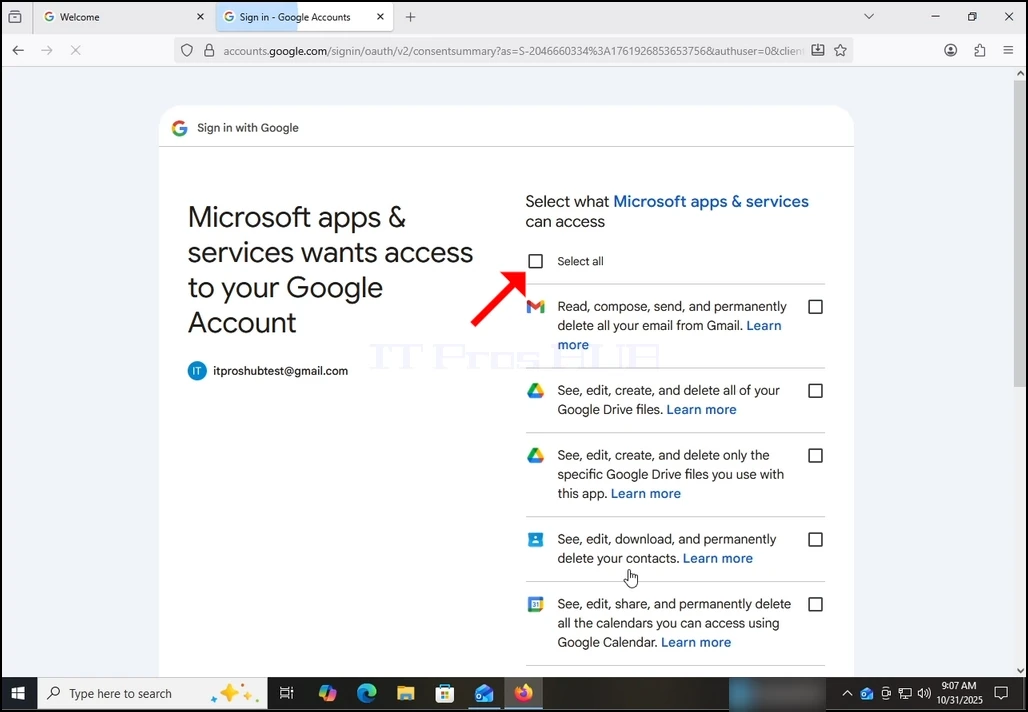
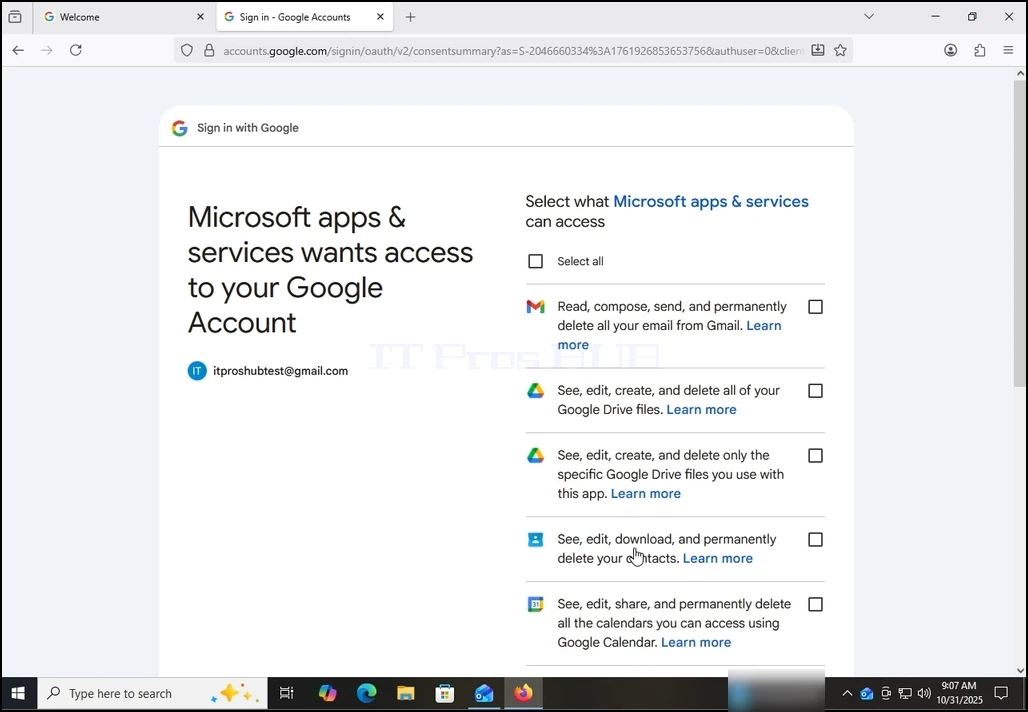
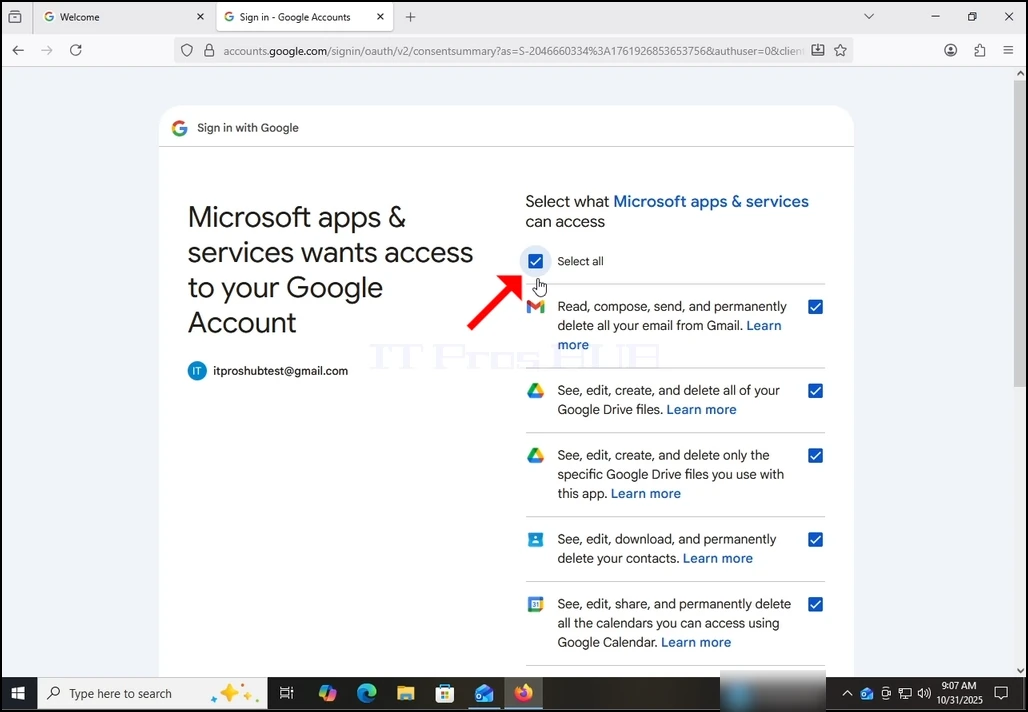
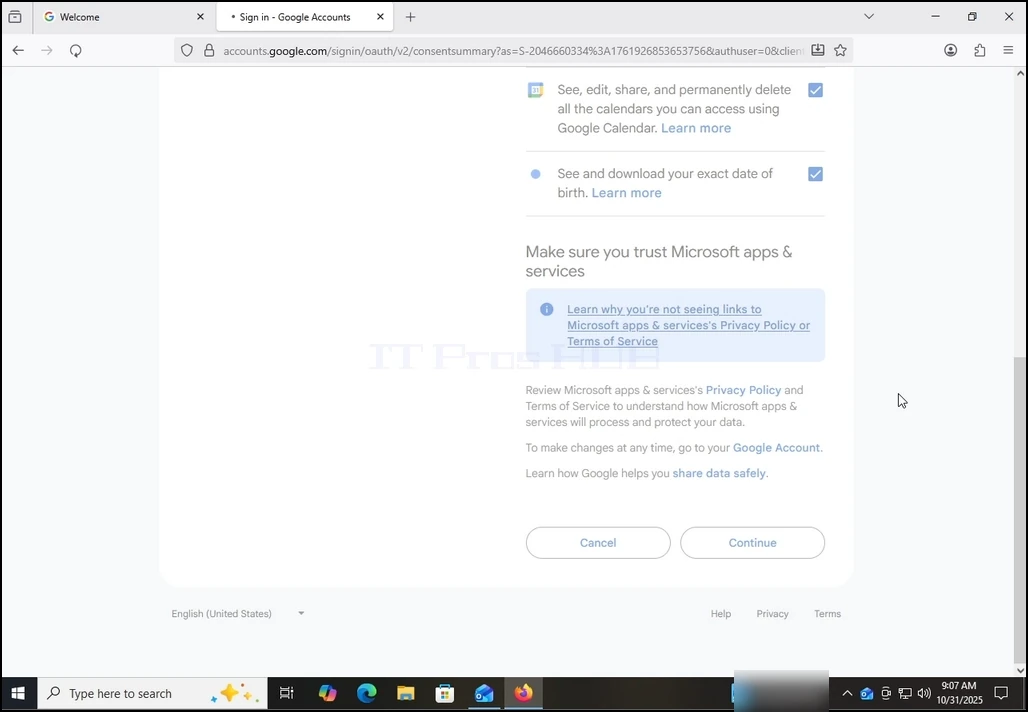
13. On this stage, Google extends about what information Outlook (Microsoft apps & services) could access.

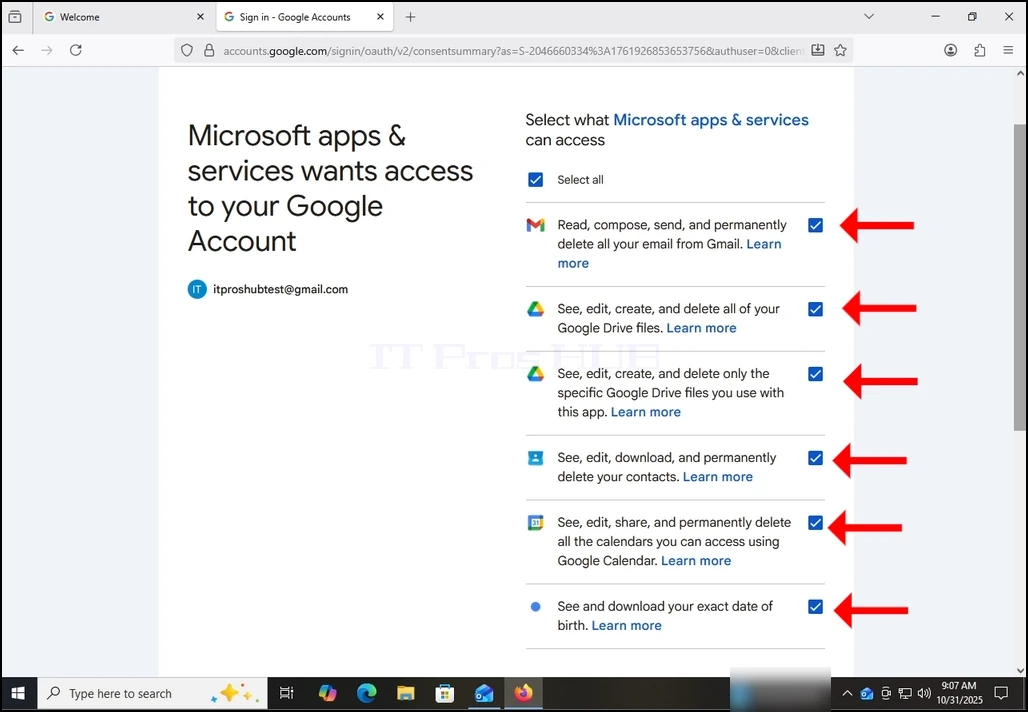
Choose what information you would like to give permission to Outlook at your own descretion but keep in mind that the less permission you allow the less functionality Outlook would have. 

In this case, the minimum for it to function as an email client would be to allow it to Read, compose, send and permanently delete all your email from Gmail.

how-to-configure-a-gmail-account-in-microsoft-outlook-windows10-19.webphow-to-configure-a-gmail-account-in-microsoft-outlook-windows10-20.webp

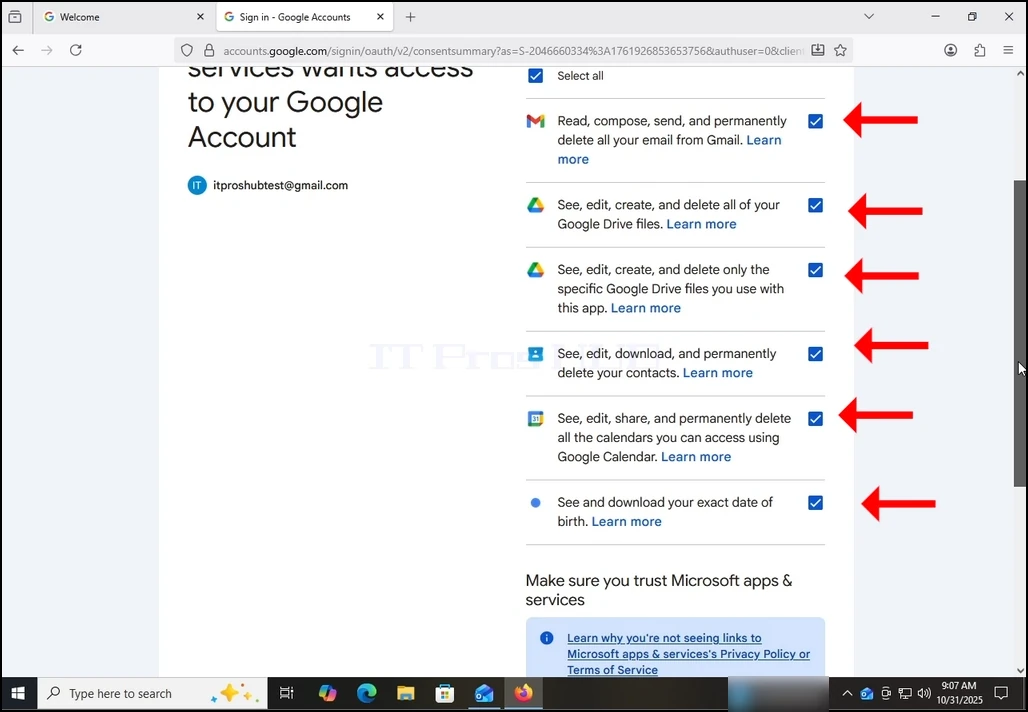
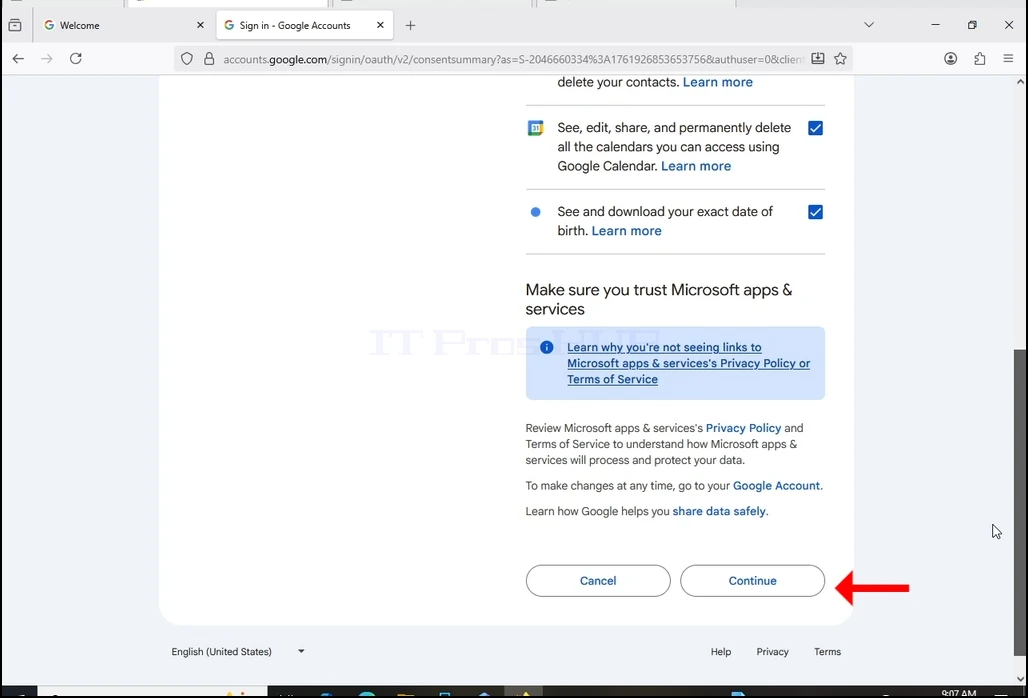
14. In the case of this article, we will select ALL of the permissions and hit the continue button.

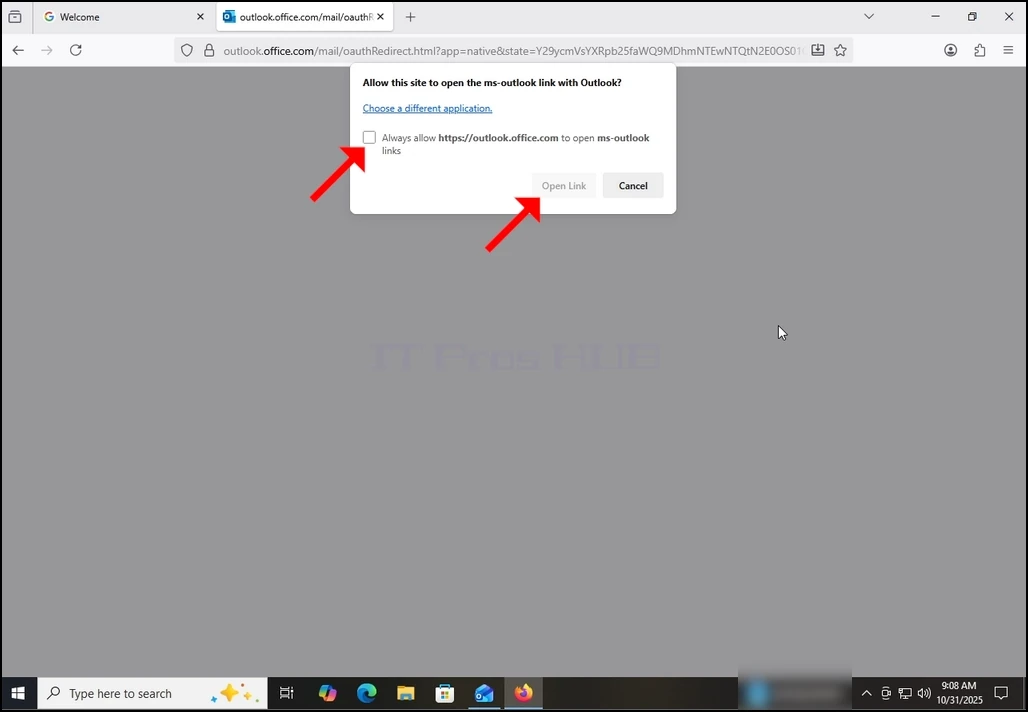
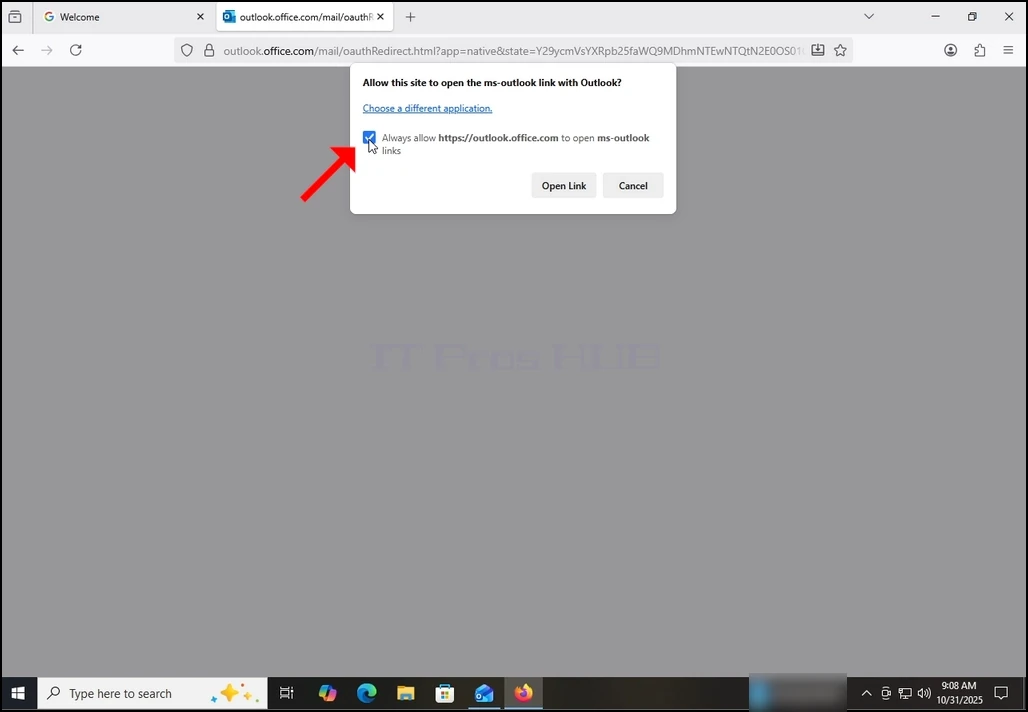
how-to-configure-a-gmail-account-in-microsoft-outlook-windows10-21.webphow-to-configure-a-gmail-account-in-microsoft-outlook-windows10-22.webphow-to-configure-a-gmail-account-in-microsoft-outlook-windows10-23.webphow-to-configure-a-gmail-account-in-microsoft-outlook-windows10-24.webphow-to-configure-a-gmail-account-in-microsoft-outlook-windows10-25.webp

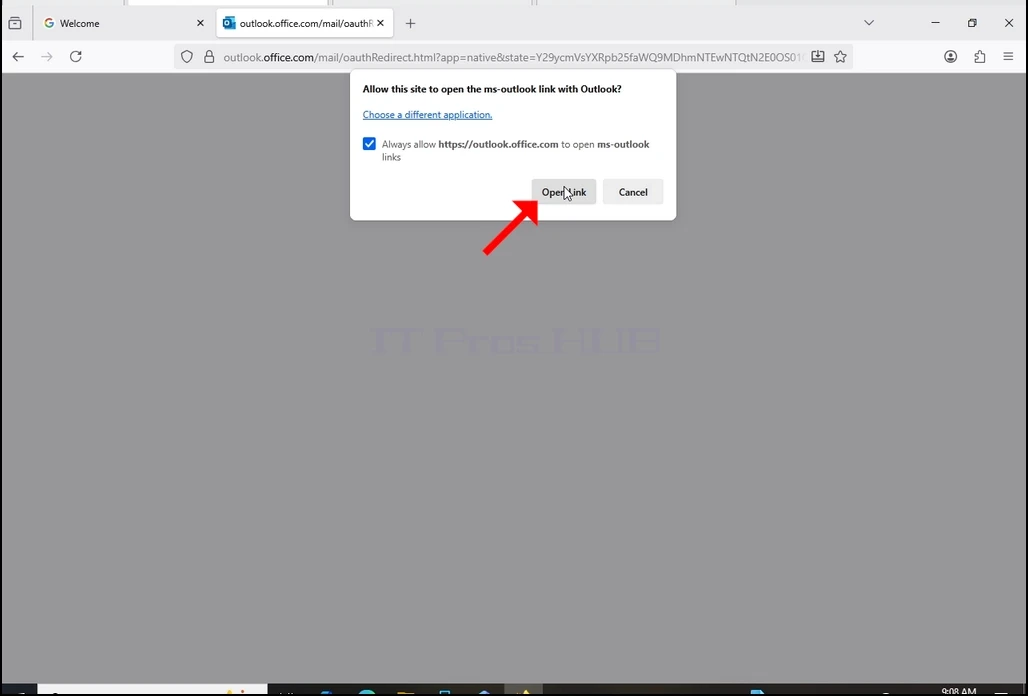
how-to-configure-a-gmail-account-in-microsoft-outlook-windows10-26.webphow-to-configure-a-gmail-account-in-microsoft-outlook-windows10-27.webphow-to-configure-a-gmail-account-in-microsoft-outlook-windows10-28.webp

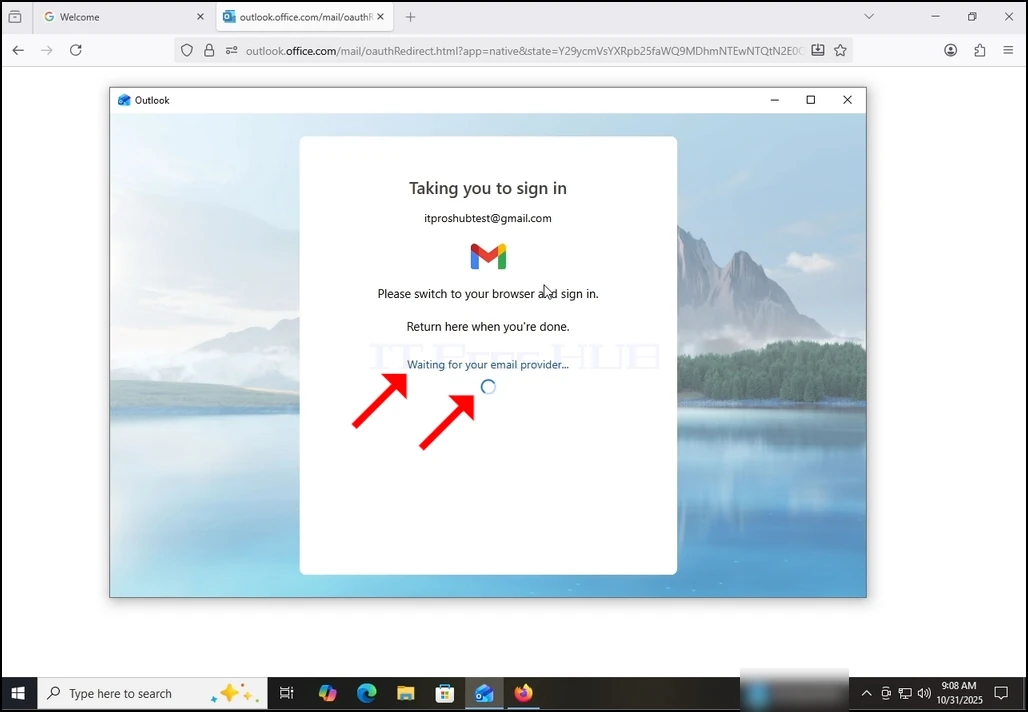
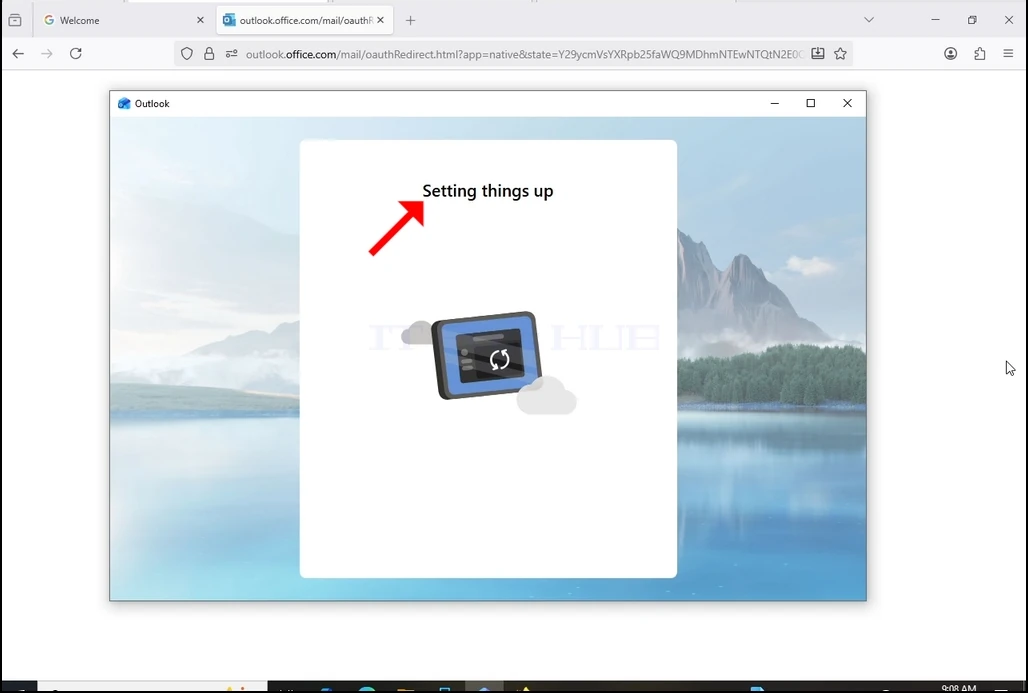
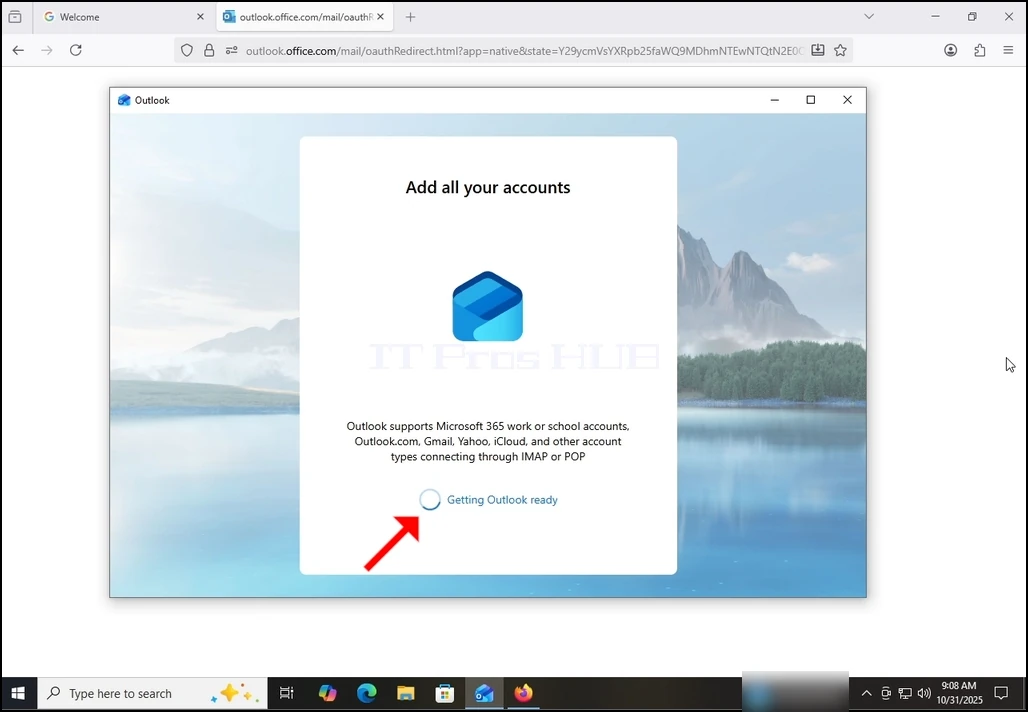
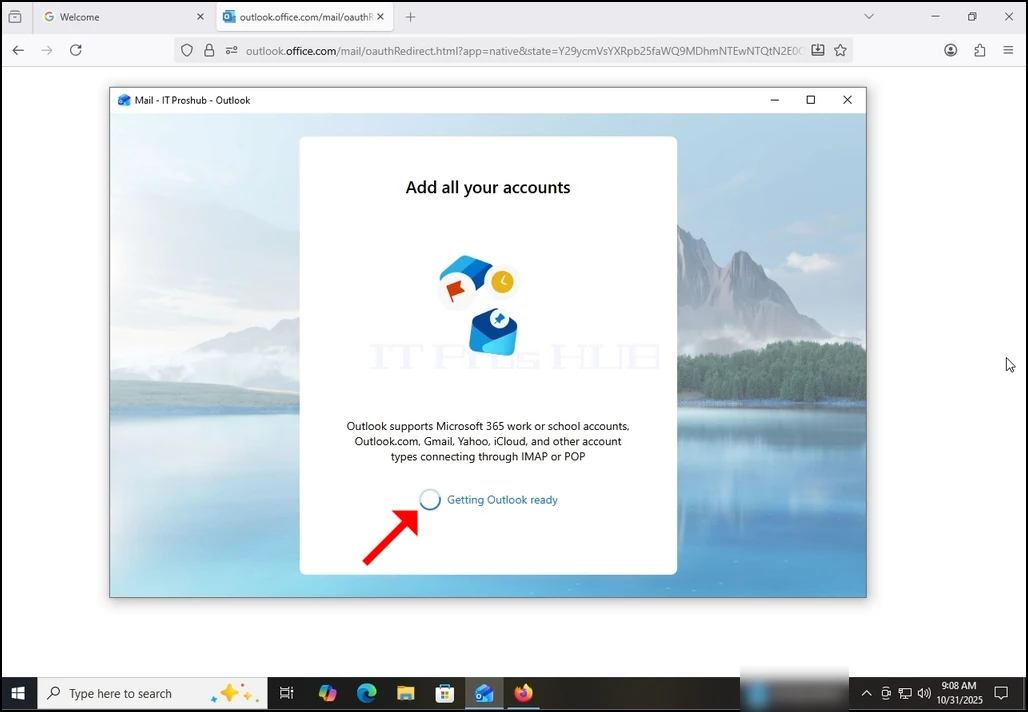
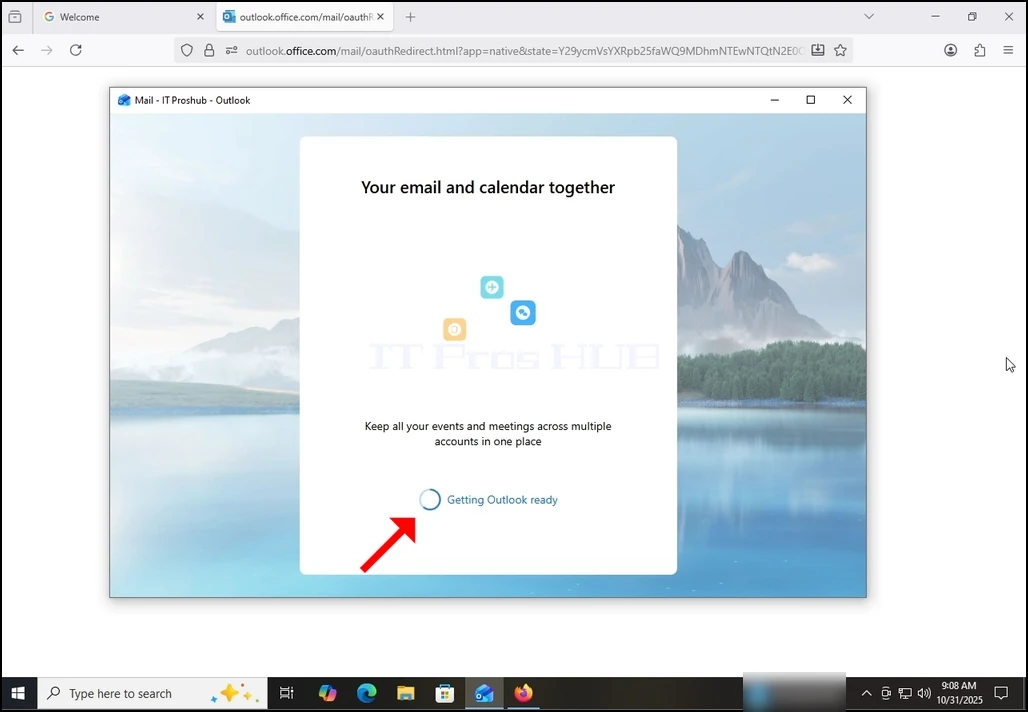
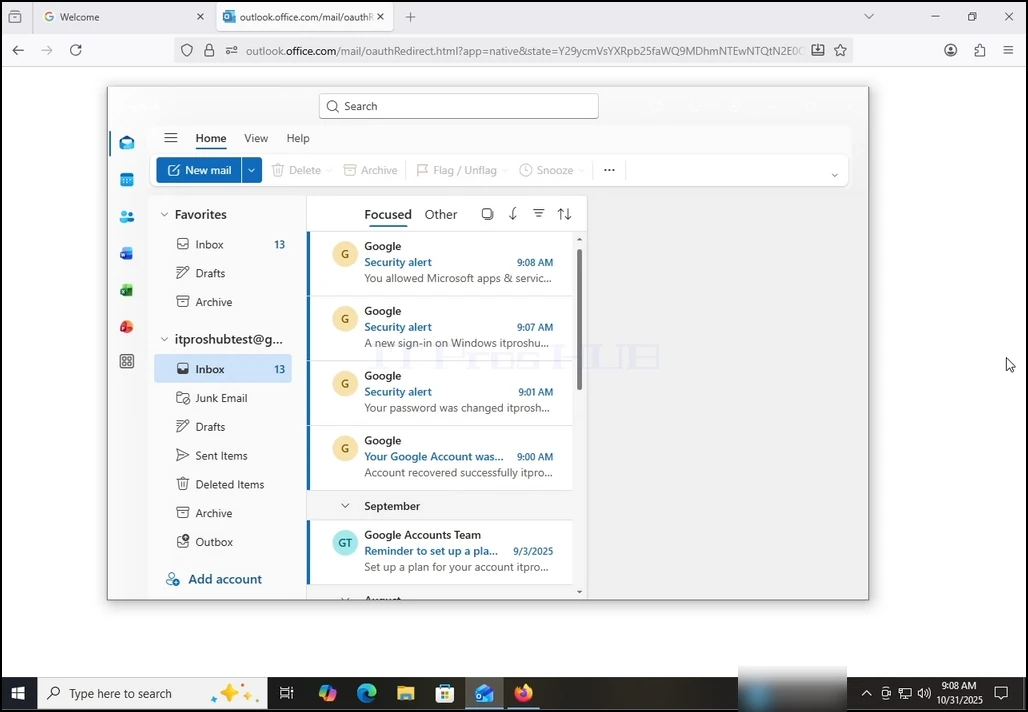
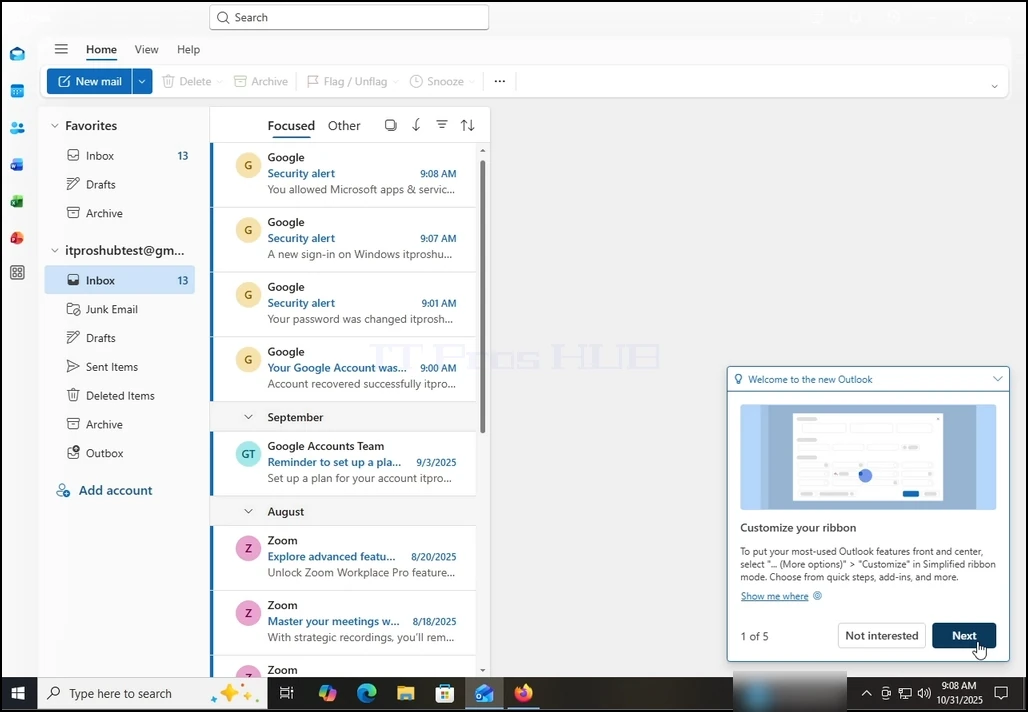
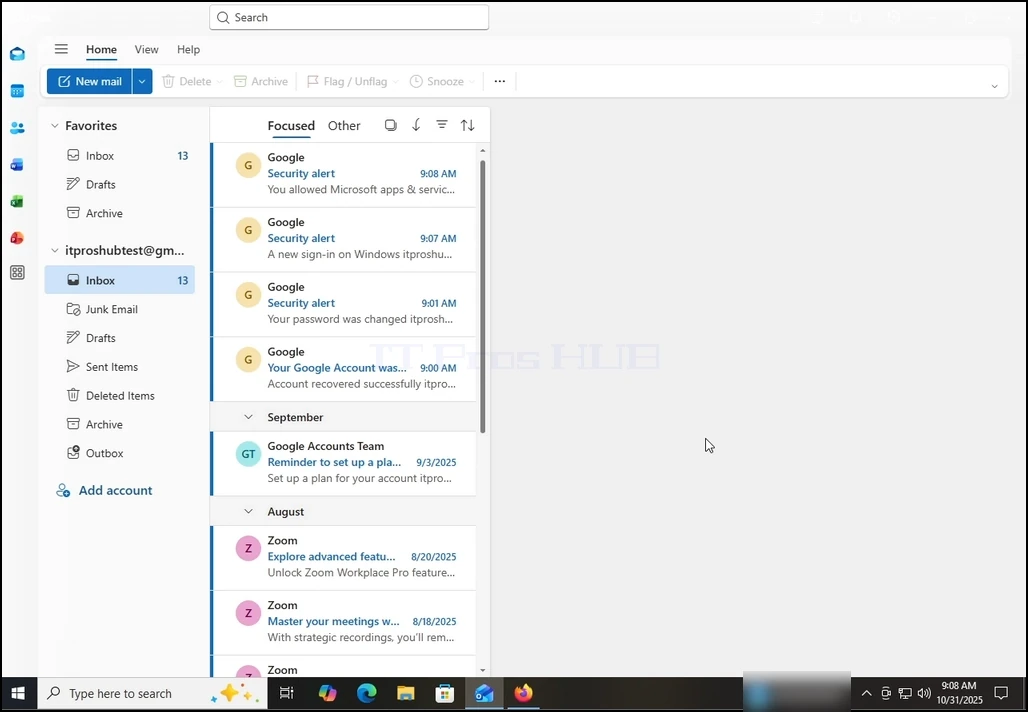
16. After doing the previous, Outlook would load your Gmail account. 

how-to-configure-a-gmail-account-in-microsoft-outlook-windows10-29.webphow-to-configure-a-gmail-account-in-microsoft-outlook-windows10-30.webphow-to-configure-a-gmail-account-in-microsoft-outlook-windows10-31.webphow-to-configure-a-gmail-account-in-microsoft-outlook-windows10-32.webphow-to-configure-a-gmail-account-in-microsoft-outlook-windows10-33.webp

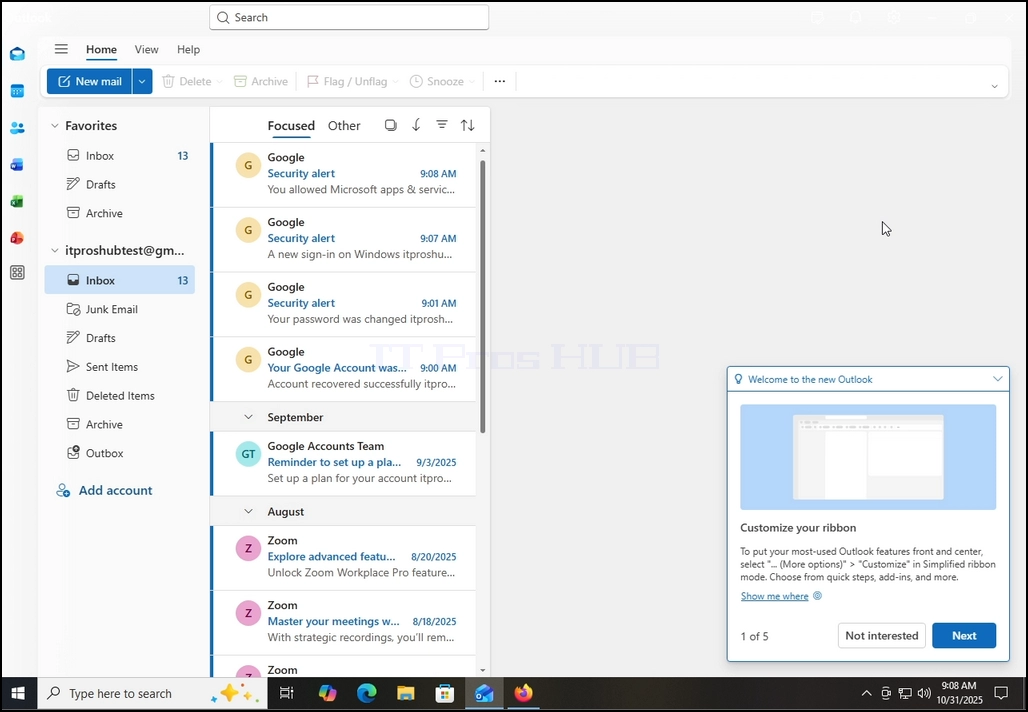
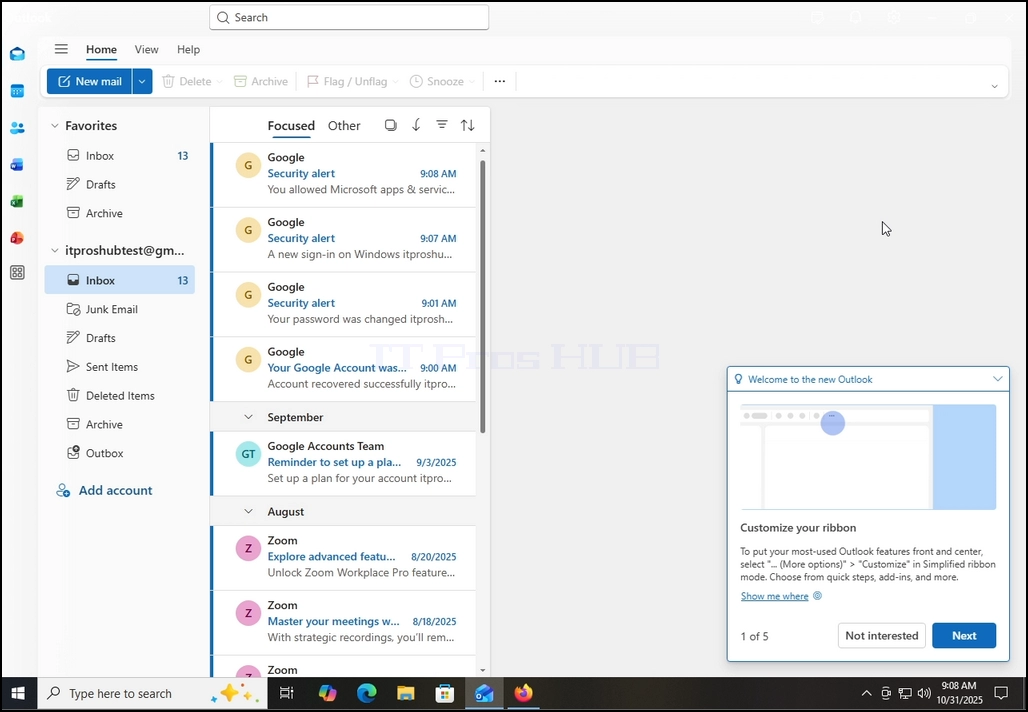
17. Done! your Gmail is now configured to work within Outlook!

how-to-configure-a-gmail-account-in-microsoft-outlook-windows10-34.webphow-to-configure-a-gmail-account-in-microsoft-outlook-windows10-35.webphow-to-configure-a-gmail-account-in-microsoft-outlook-windows10-36.webphow-to-configure-a-gmail-account-in-microsoft-outlook-windows10-37.webphow-to-configure-a-gmail-account-in-microsoft-outlook-windows10-42.webp