Online: 832 online | Members: 0 | Guests: 832
søndag, juli 19, 2026
Page Minimap
Reading time: 5 min read
Tagline:SådankonfigureresenGmail-kontoMicrosoftOutlookWindows10November2025+3

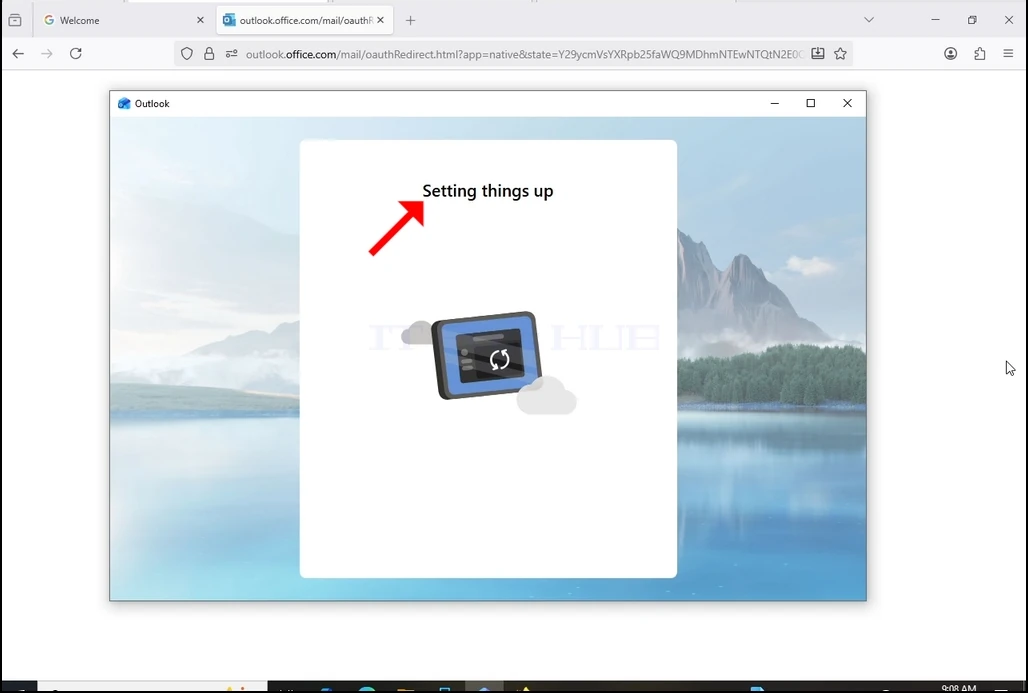
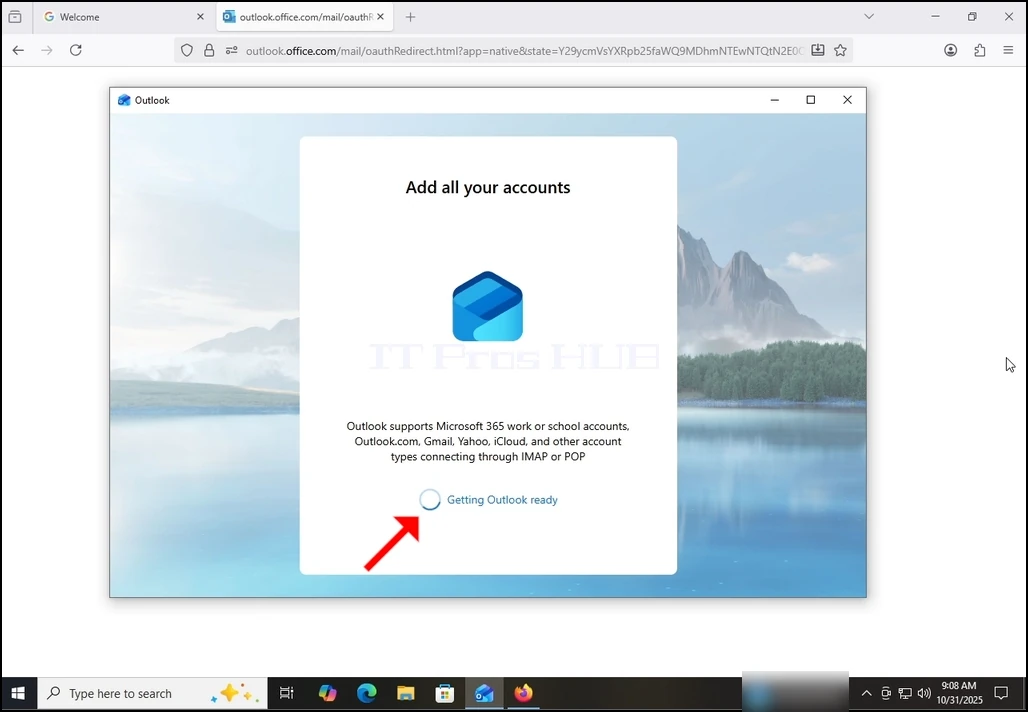
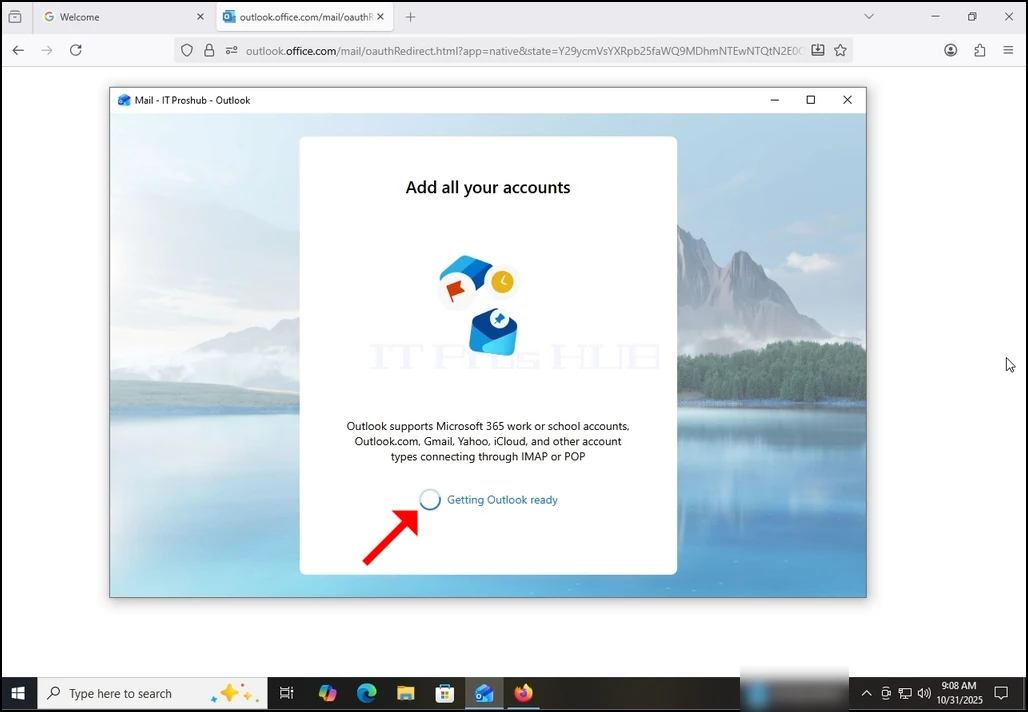
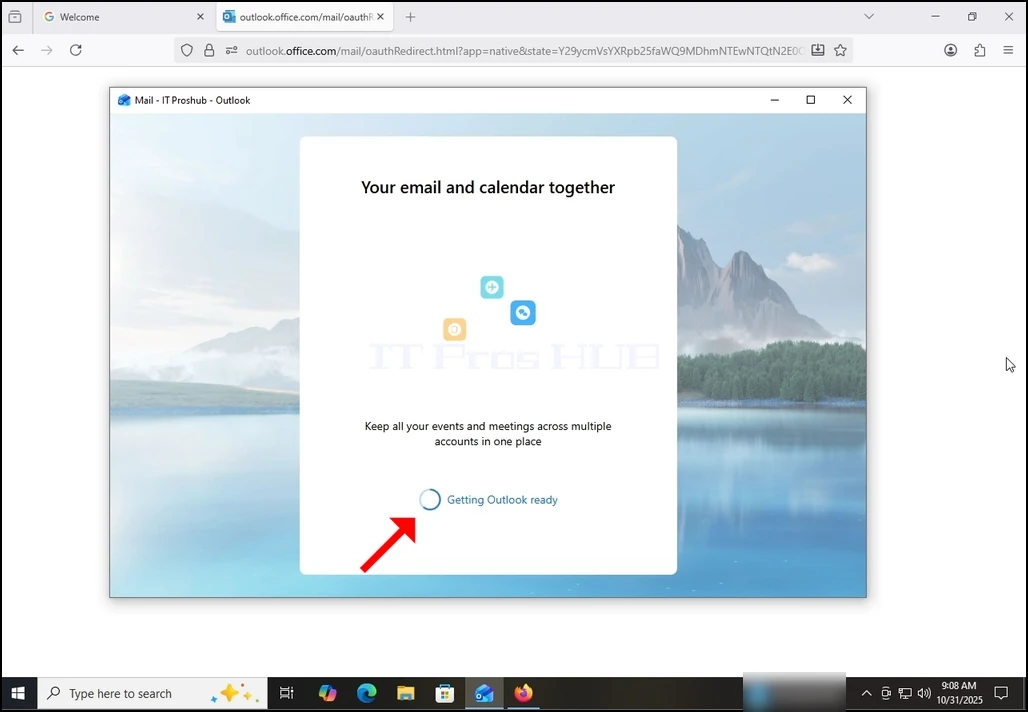
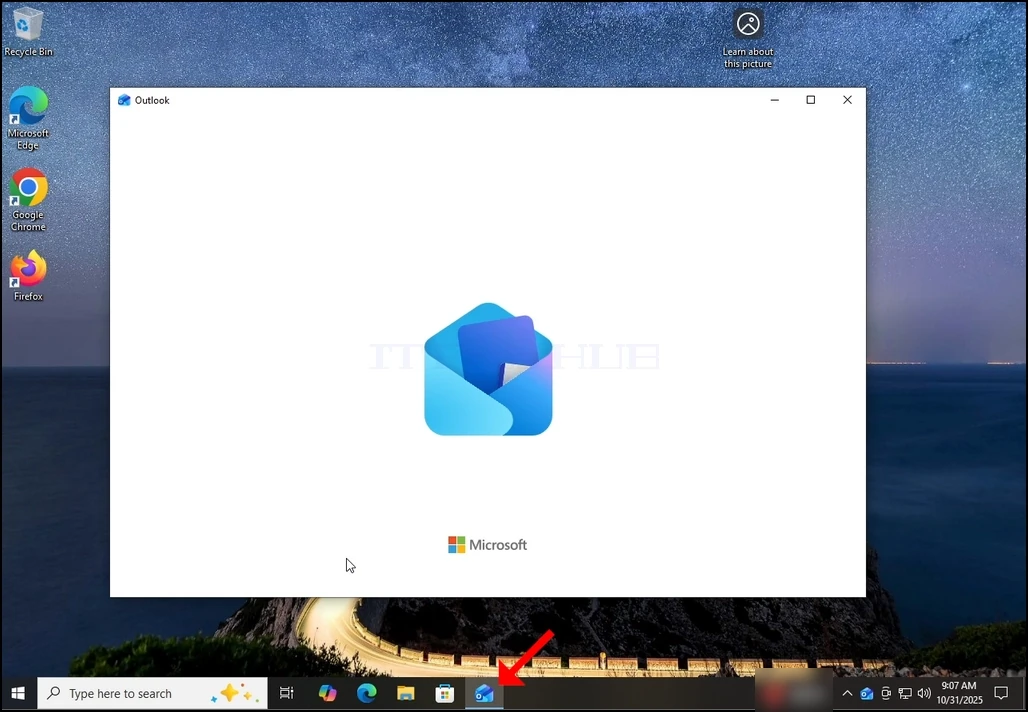
1. Start Outlook ved at klikke på ikonet i proceslinjen. I de fleste tilfælde Outlook-ikonet ville bo der. Vent for Splash skærmen skal vises, og for Outlook app til at indlæse.
how-to-configure-a-gmail-account-in-microsoft-outlook-windows10-3.webp

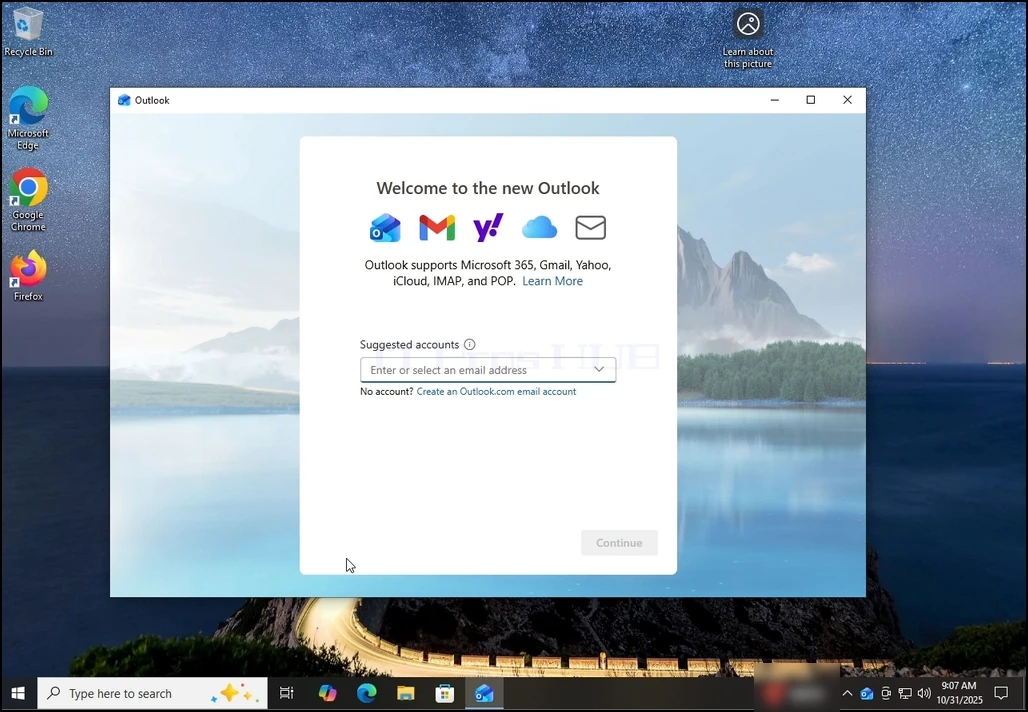
2. Efter indlæsning, vil du blive præsenteret med "Velkommen til den nye Outlook" skærmen. Indtast den e- mail- adresse du ønsker at indstille. I vores tilfælde vil vi konfigurere en Gmail e-mailadresse.
how-to-configure-a-gmail-account-in-microsoft-outlook-windows10-4.webp

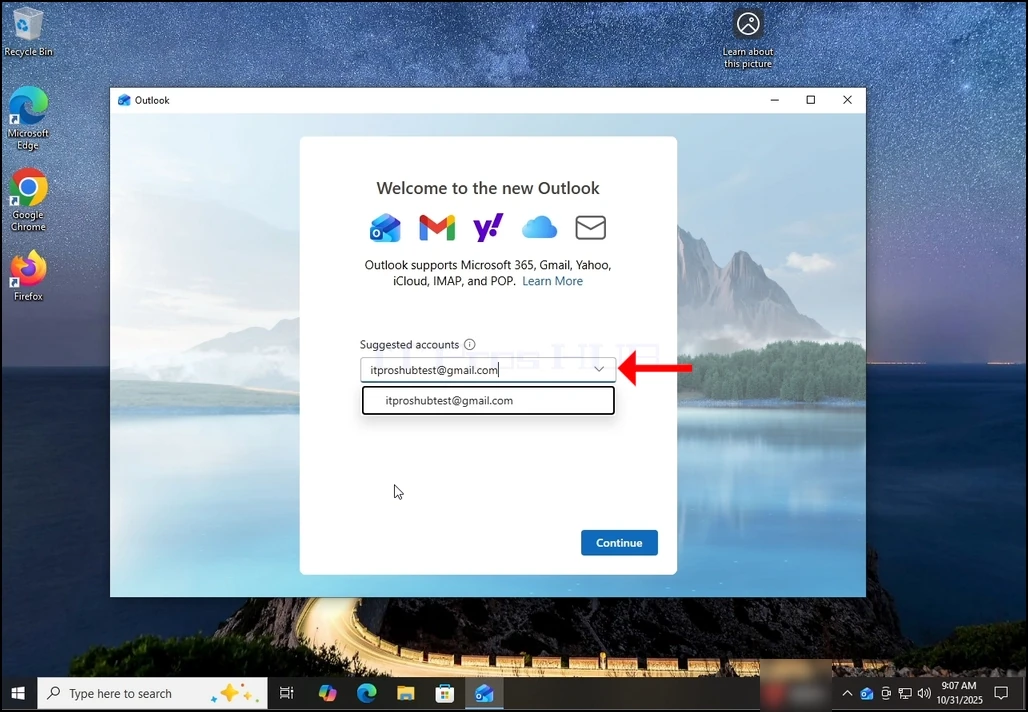
3. Indtast din Gmail-adresse i tekstfeltet og klik på knappen Fortsæt.
how-to-configure-a-gmail-account-in-microsoft-outlook-windows10-5.webp

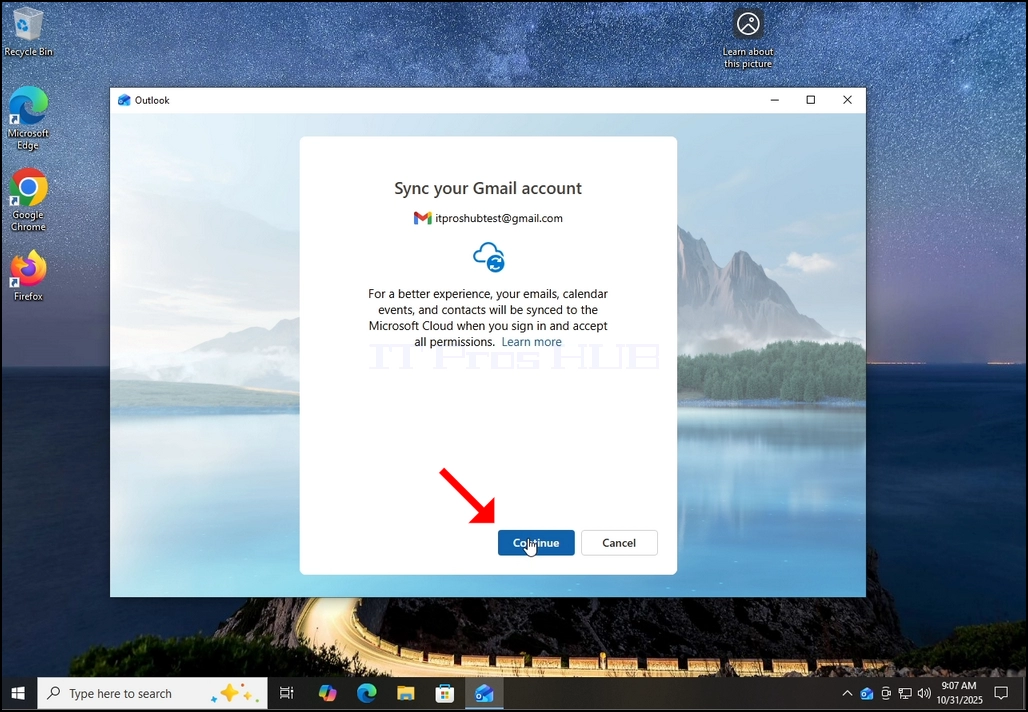
4. Du vil blive underrettet om, at Outlook vil råde til at tillade det at få kalender, kontakter og begivenheder data fra din Gmail accouit for en bedre oplevelse. Tryk på knappen Fortsæt igen og vent til næste skærm for at indlæse.
how-to-configure-a-gmail-account-in-microsoft-outlook-windows10-7.webphow-to-configure-a-gmail-account-in-microsoft-outlook-windows10-9.webp

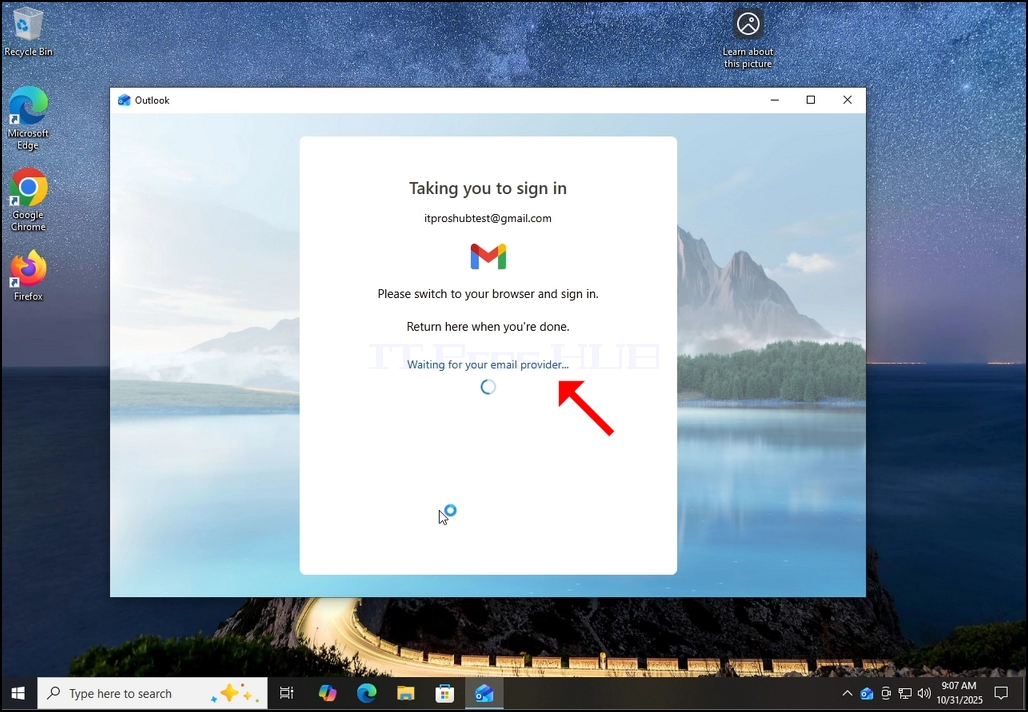
6. Efter at trykke på knappen Fortsæt Outlook vil gå Google login skærm ved hjælp af din standard browser.
how-to-configure-a-gmail-account-in-microsoft-outlook-windows10-10.webp

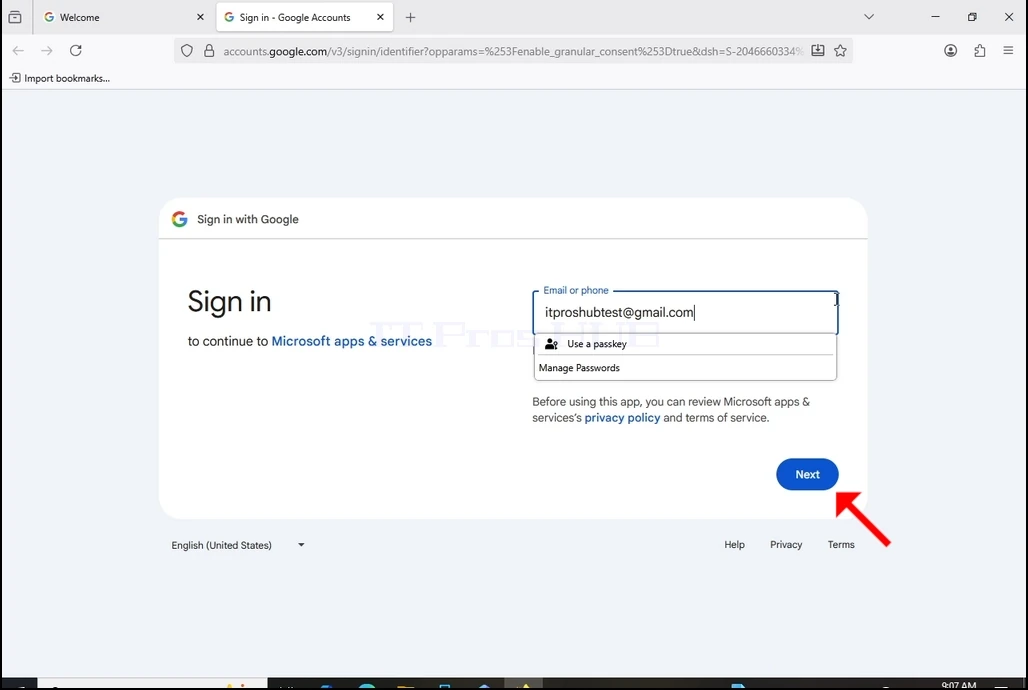
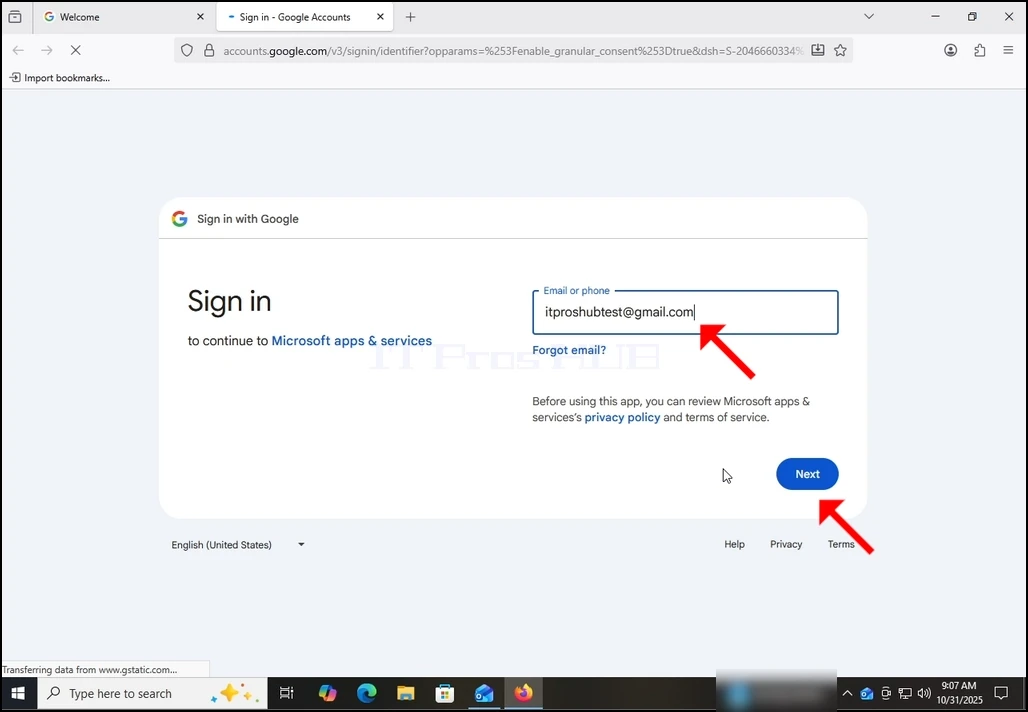
7. Udfyld din Gmail e-mailadresse igen og tryk på knappen Næste.
how-to-configure-a-gmail-account-in-microsoft-outlook-windows10-11.webp


how-to-configure-a-gmail-account-in-microsoft-outlook-windows10-12.webp

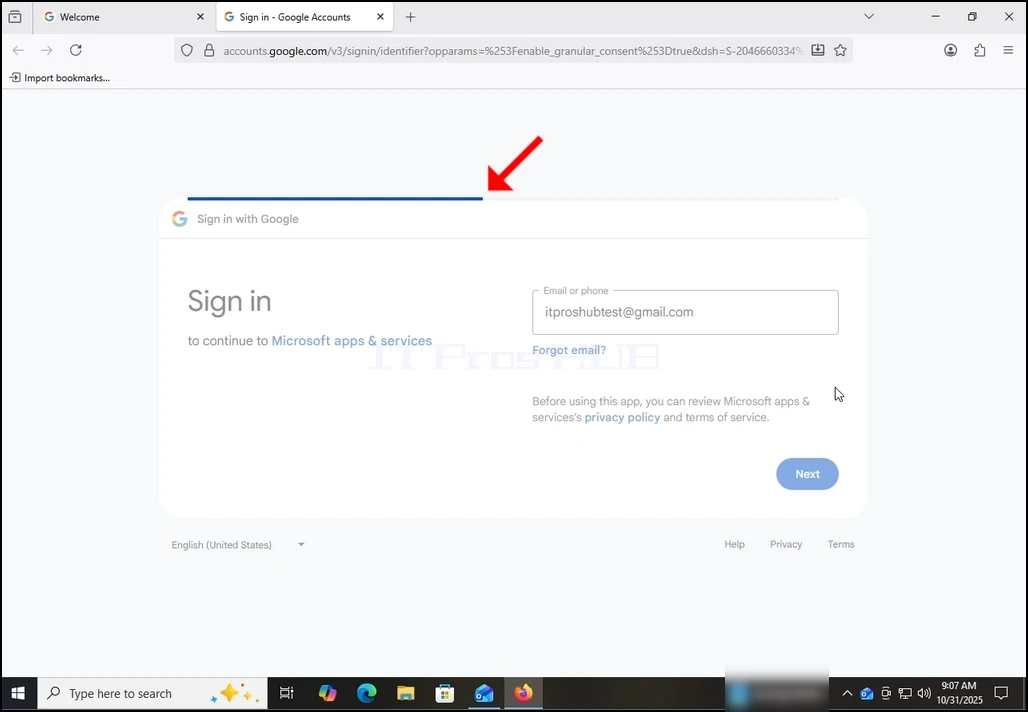
8. Efter at have trykket på knappen Næste vil du se en loadbar øverst i login boksen.
how-to-configure-a-gmail-account-in-microsoft-outlook-windows10-13.webp

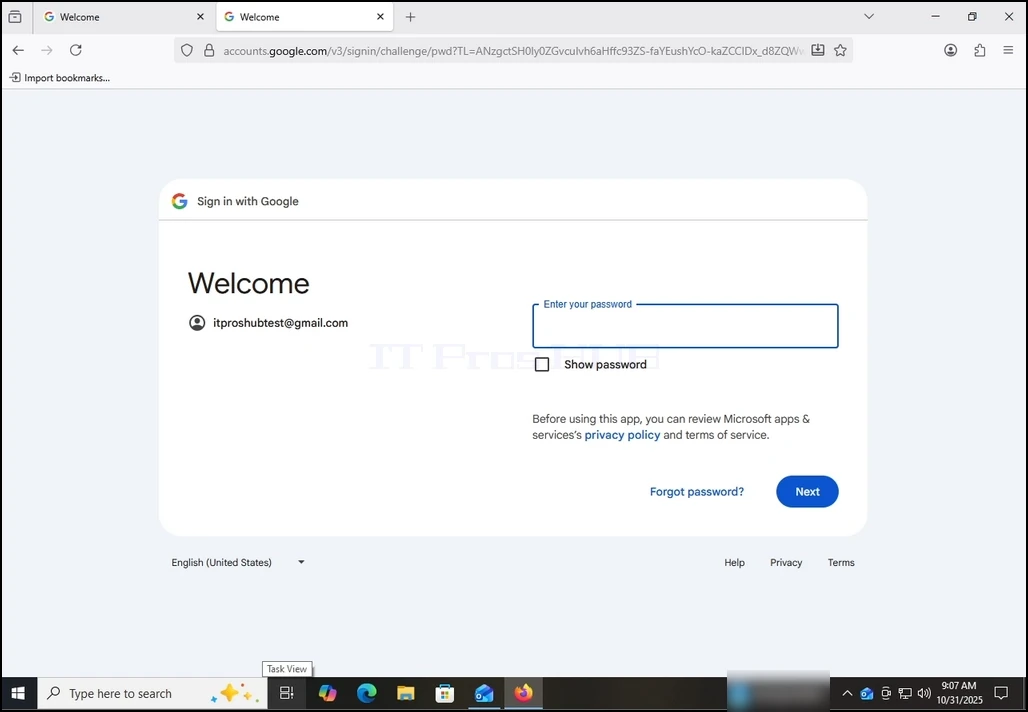
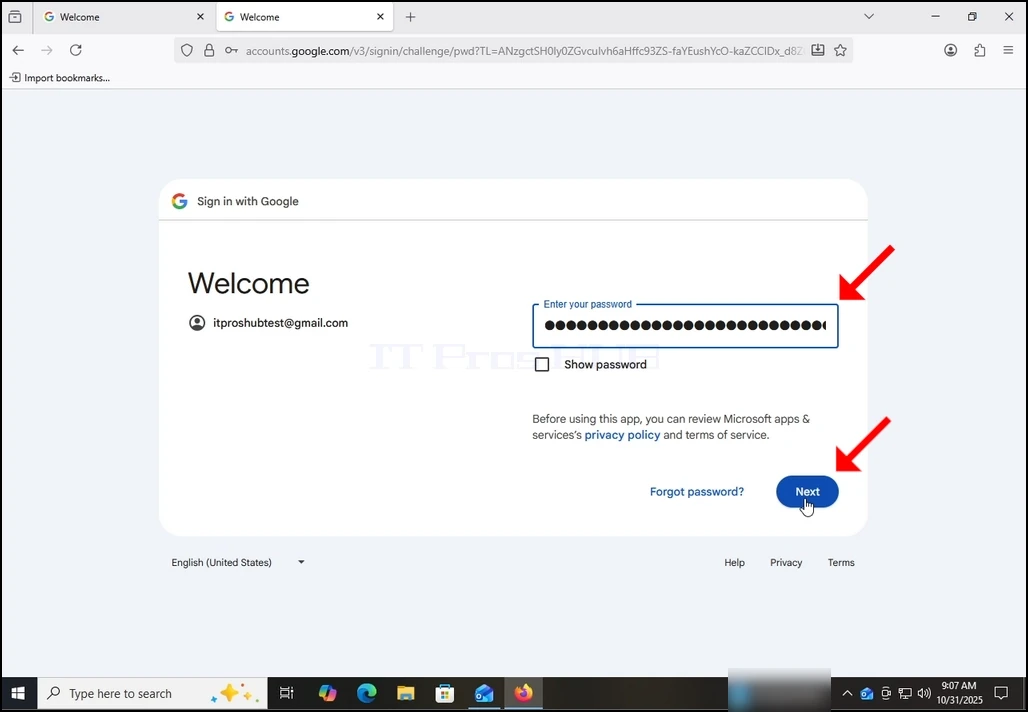
9. I næste fase, vil du blive bedt om at indtaste din Gmail adgangskode. Skriv det og tryk på knappen Næste.
how-to-configure-a-gmail-account-in-microsoft-outlook-windows10-14.webphow-to-configure-a-gmail-account-in-microsoft-outlook-windows10-15.webp

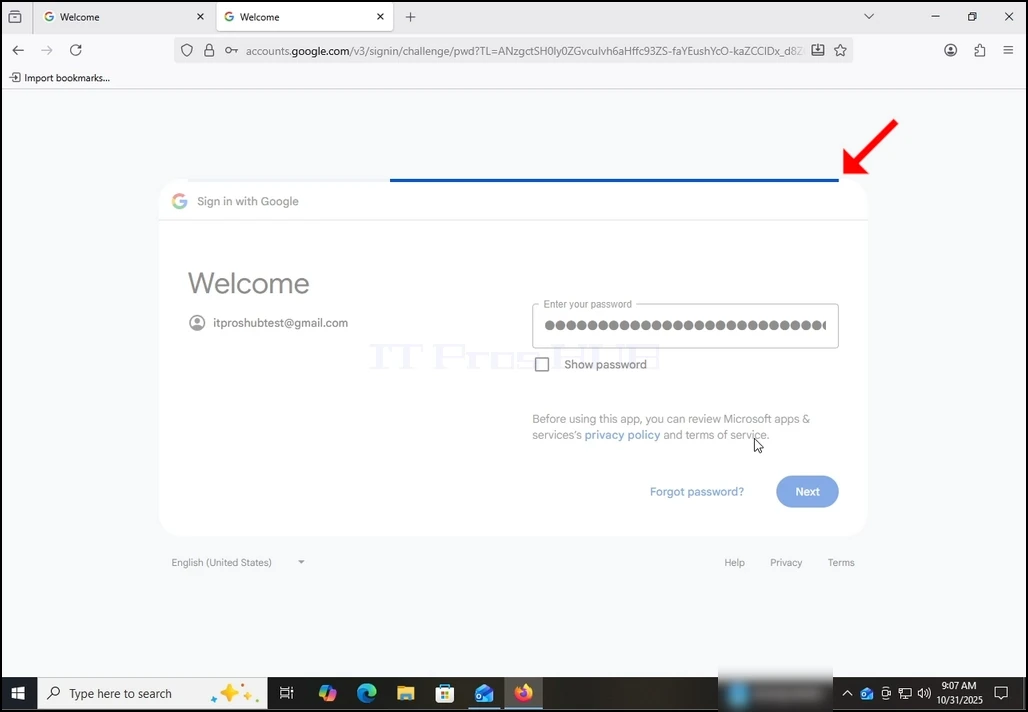
10. Vent til næste scene til at indlæse.
how-to-configure-a-gmail-account-in-microsoft-outlook-windows10-16.webp

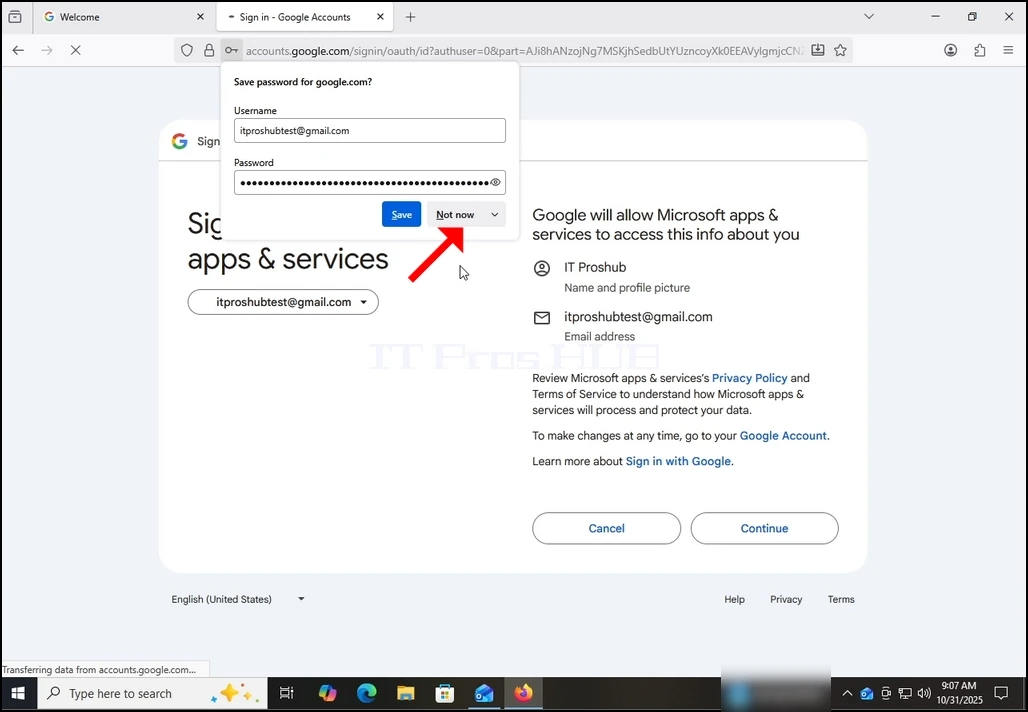
11. Efter næste fase belastninger kan du være prompte af browseren, om du kan lide at gemme adgangskoden med det. I denne artikel vil vi ikke gemme adgangskoden i browseren. Derfor vælger vi knappen Ikke nu.
how-to-configure-a-gmail-account-in-microsoft-outlook-windows10-17.webp

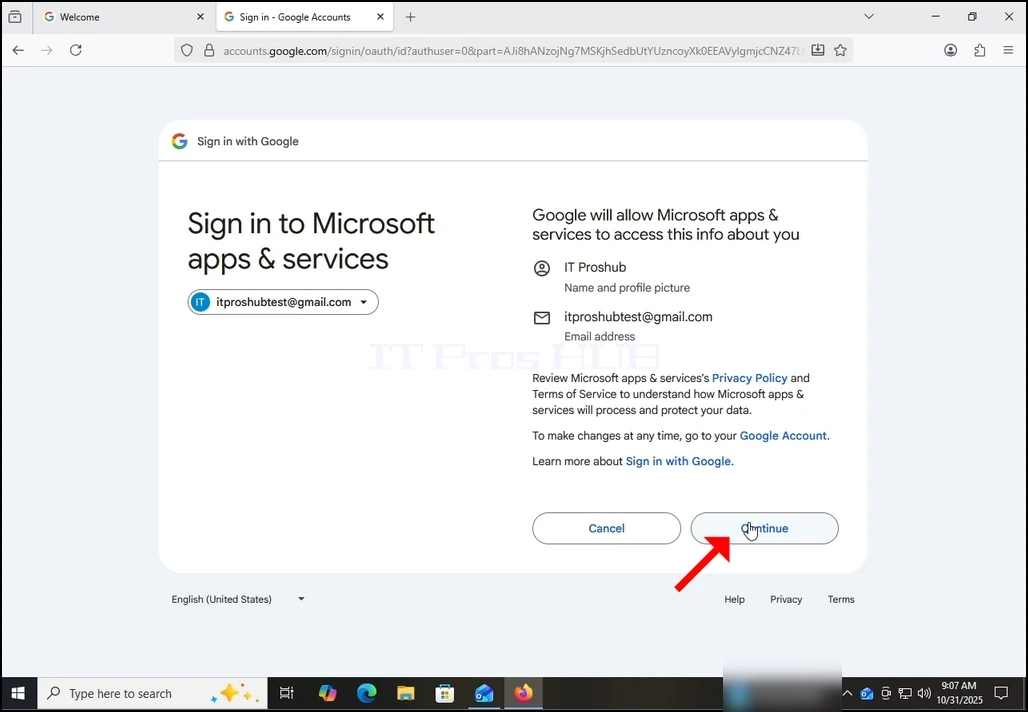
12. I den aktuelle fase, Google beder dig om en tilladelse til Outlook (Microsoft apps & Services) til at få adgang til din Gmail-konto. Du vil blive præsenteret med de oplysninger Outlook gerne vil have adgang til. I dette tilfælde, Outlook gerne vil have adgang til din e-mail (Gmail) adresse, Full navn og profil billede.
Klik på knappen Fortsæt og vent på næste skærm til at indlæse.

how-to-configure-a-gmail-account-in-microsoft-outlook-windows10-18.webp

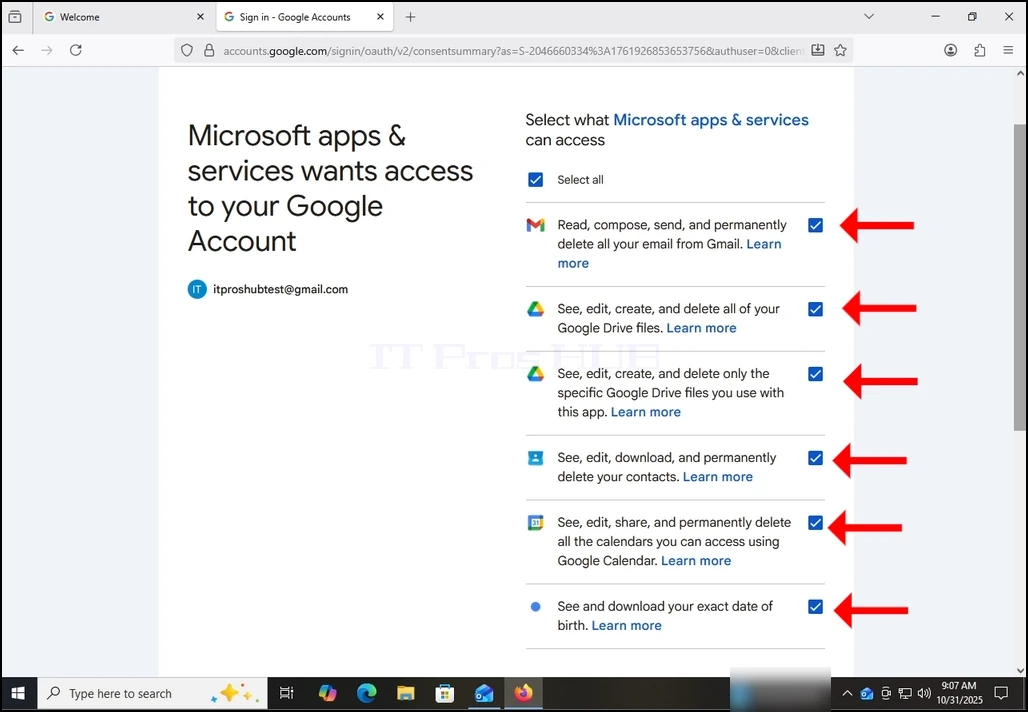
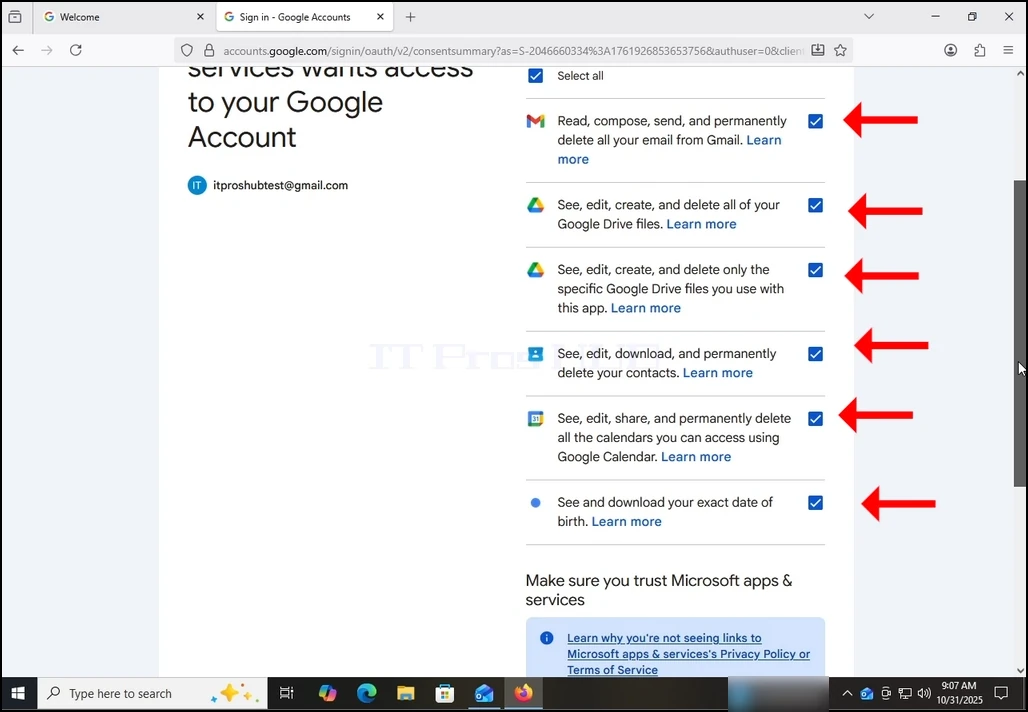
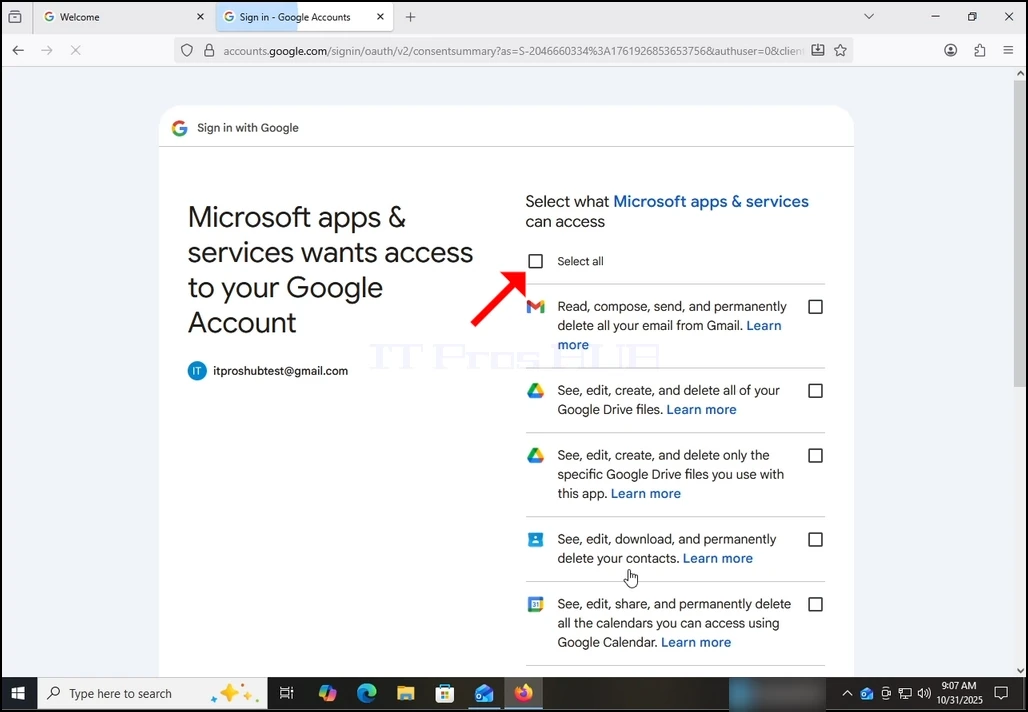
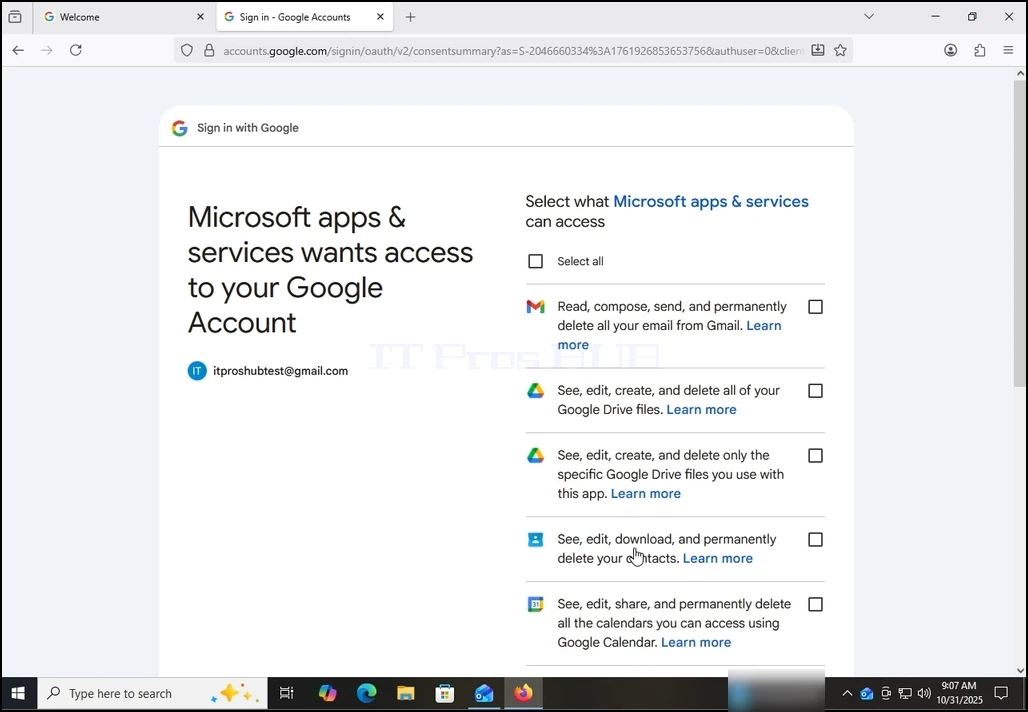
13. På dette stadium, Google udvider om, hvilke oplysninger Outlook (Microsoft apps og tjenester) kunne få adgang til.

Vælg, hvilke oplysninger du gerne vil give tilladelse til Outlook på din egen dekretion, men husk, at jo mindre tilladelse du tillader mindre funktionalitet Outlook ville have.

I dette tilfælde, det mindste for det at fungere som en e-mail-klient ville være at tillade det at læse, komponere, sende og permanent slette alle din e-mail fra Gmail.
how-to-configure-a-gmail-account-in-microsoft-outlook-windows10-19.webphow-to-configure-a-gmail-account-in-microsoft-outlook-windows10-20.webp

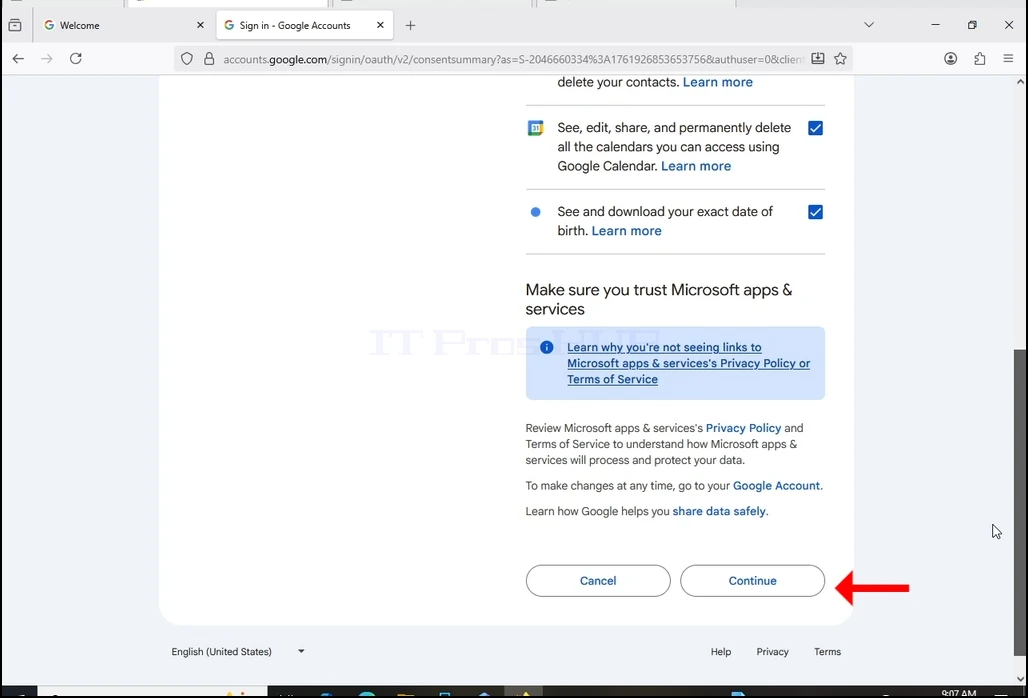
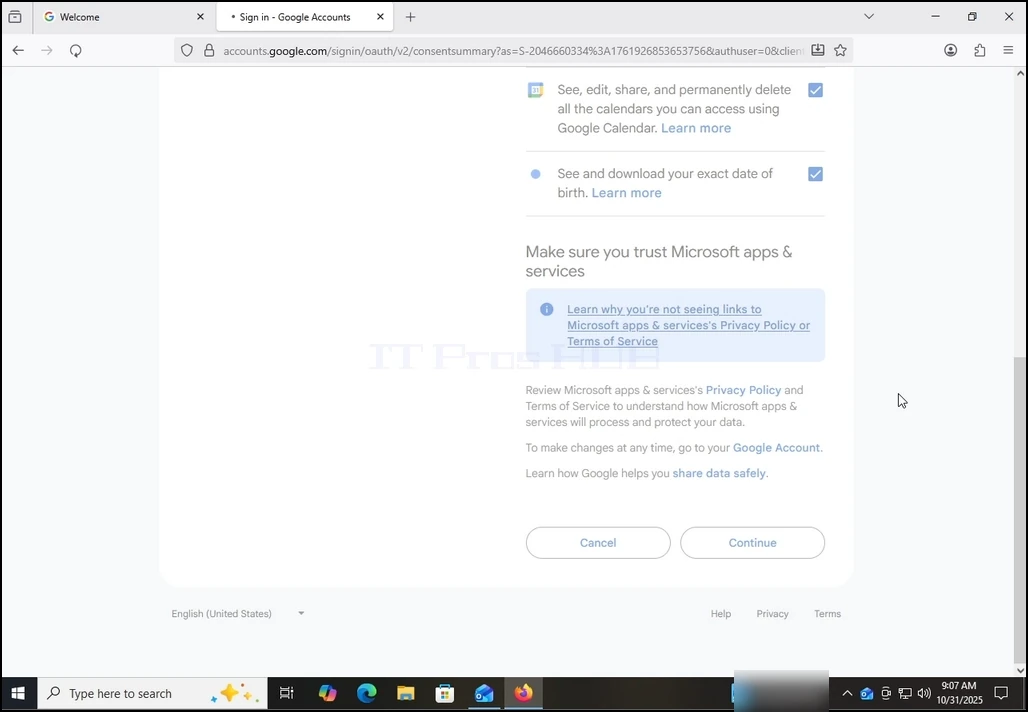
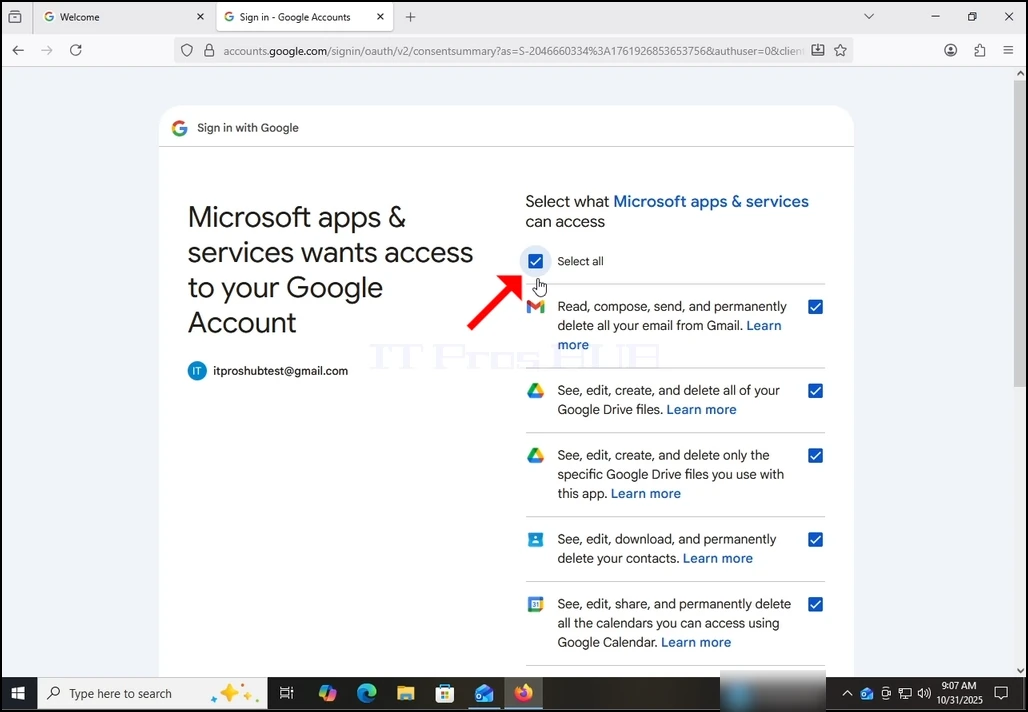
14. I tilfælde af denne artikel, vil vi vælge ALL af tilladelser og tryk på knappen Fortsæt.
how-to-configure-a-gmail-account-in-microsoft-outlook-windows10-21.webphow-to-configure-a-gmail-account-in-microsoft-outlook-windows10-22.webphow-to-configure-a-gmail-account-in-microsoft-outlook-windows10-23.webphow-to-configure-a-gmail-account-in-microsoft-outlook-windows10-24.webphow-to-configure-a-gmail-account-in-microsoft-outlook-windows10-25.webp

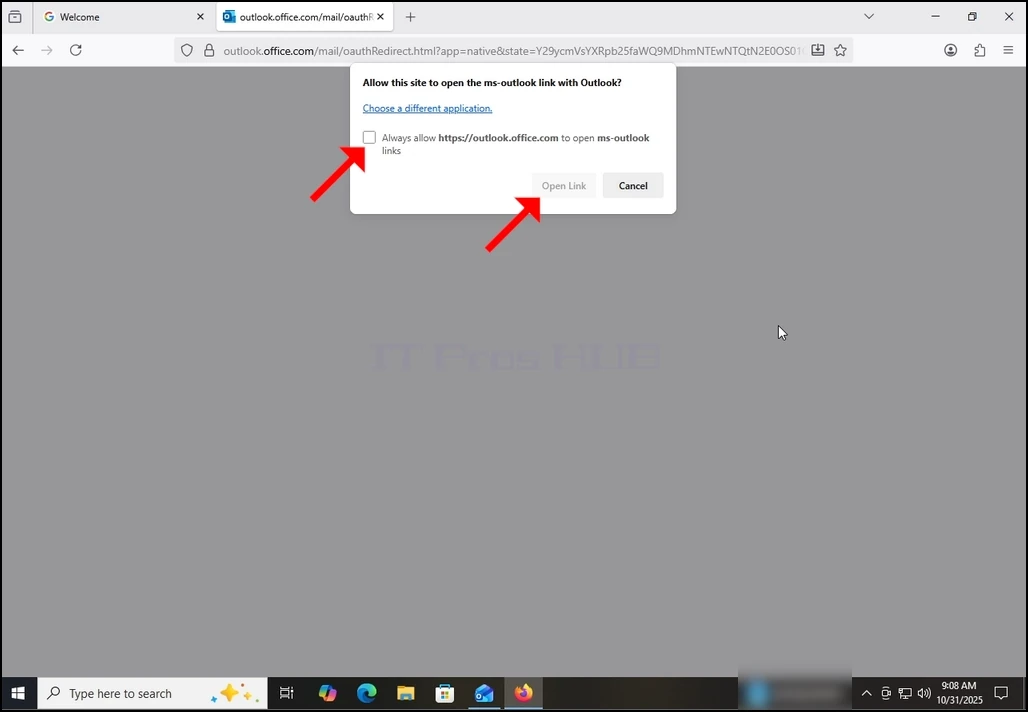
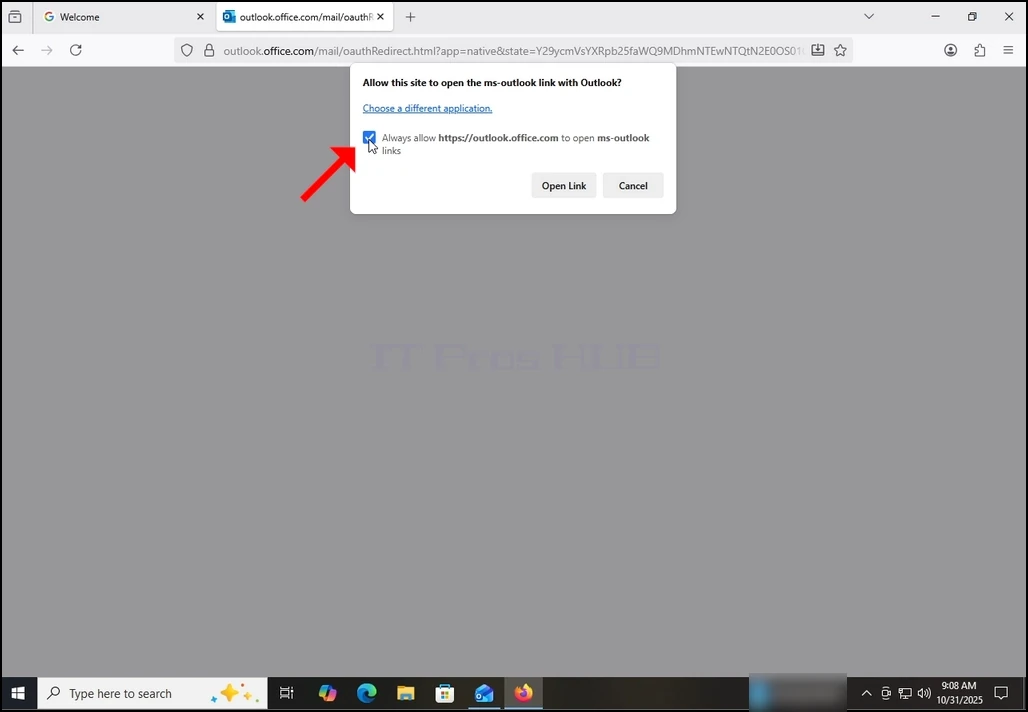
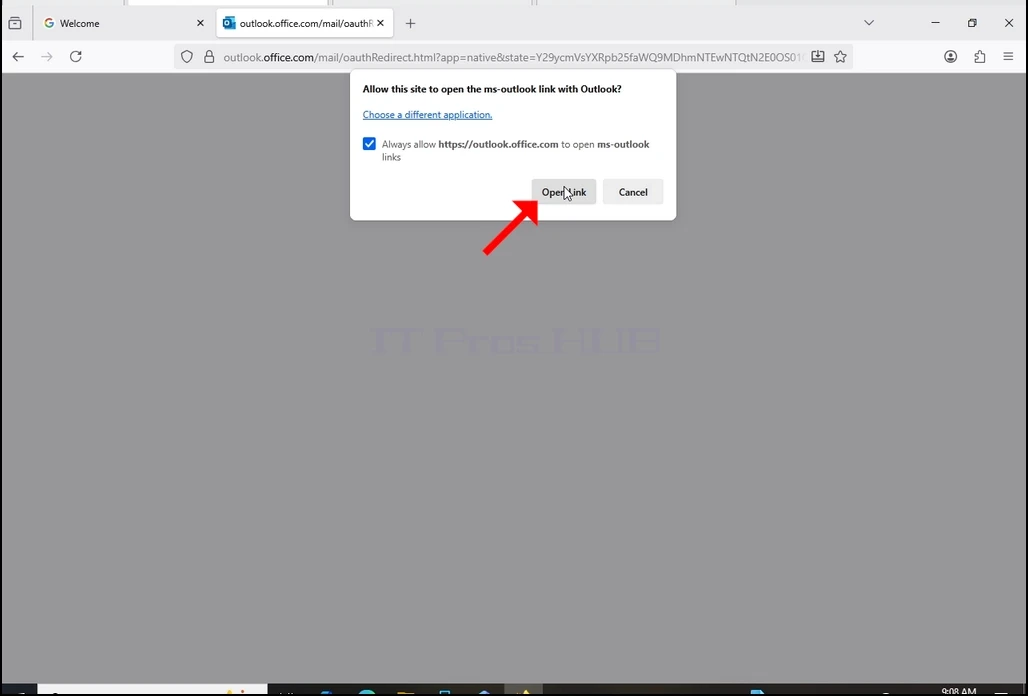
how-to-configure-a-gmail-account-in-microsoft-outlook-windows10-26.webphow-to-configure-a-gmail-account-in-microsoft-outlook-windows10-27.webphow-to-configure-a-gmail-account-in-microsoft-outlook-windows10-28.webp

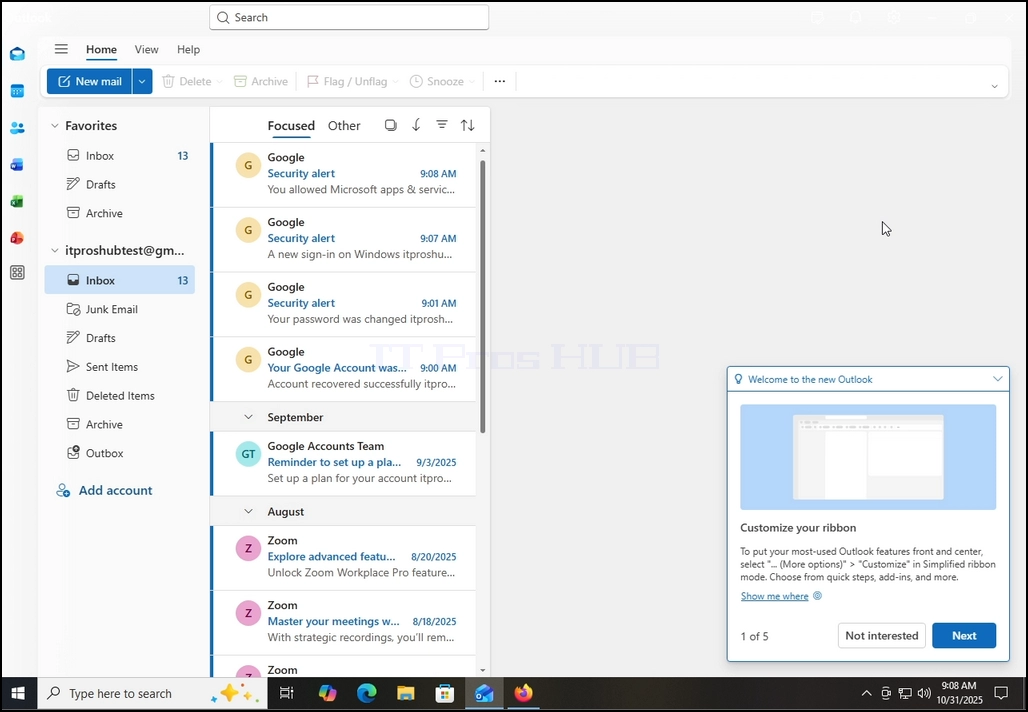
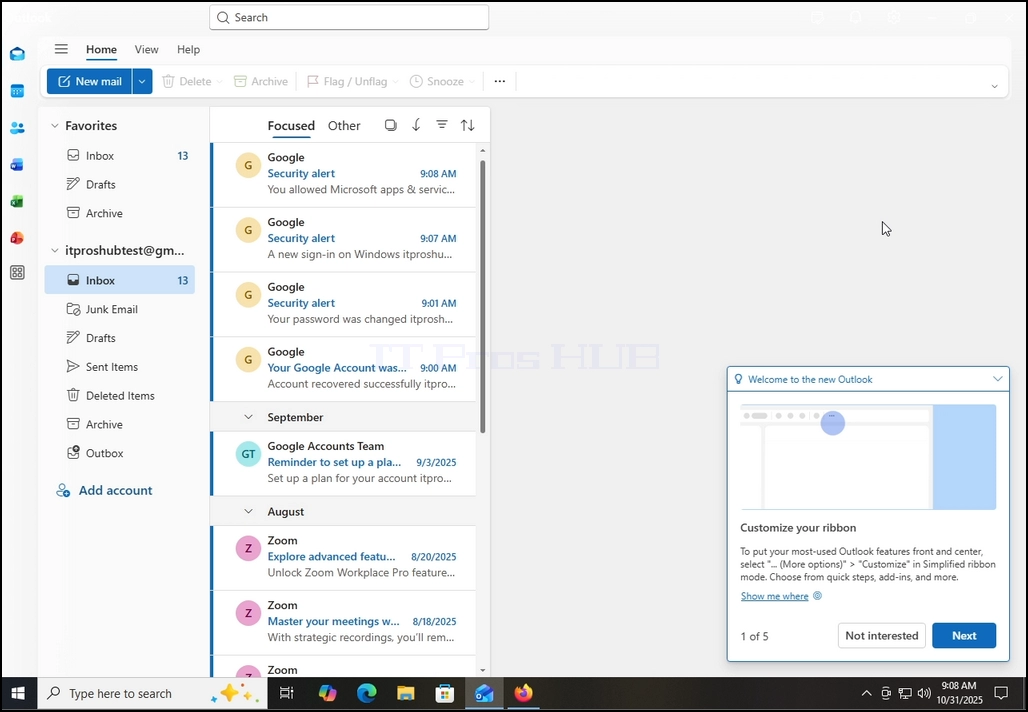
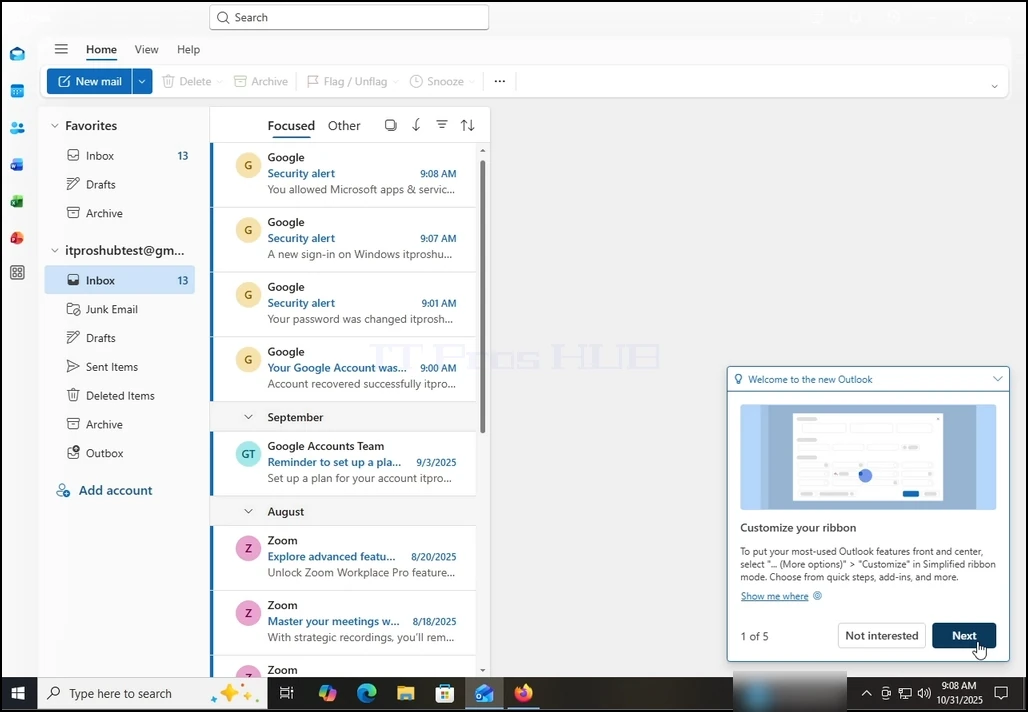
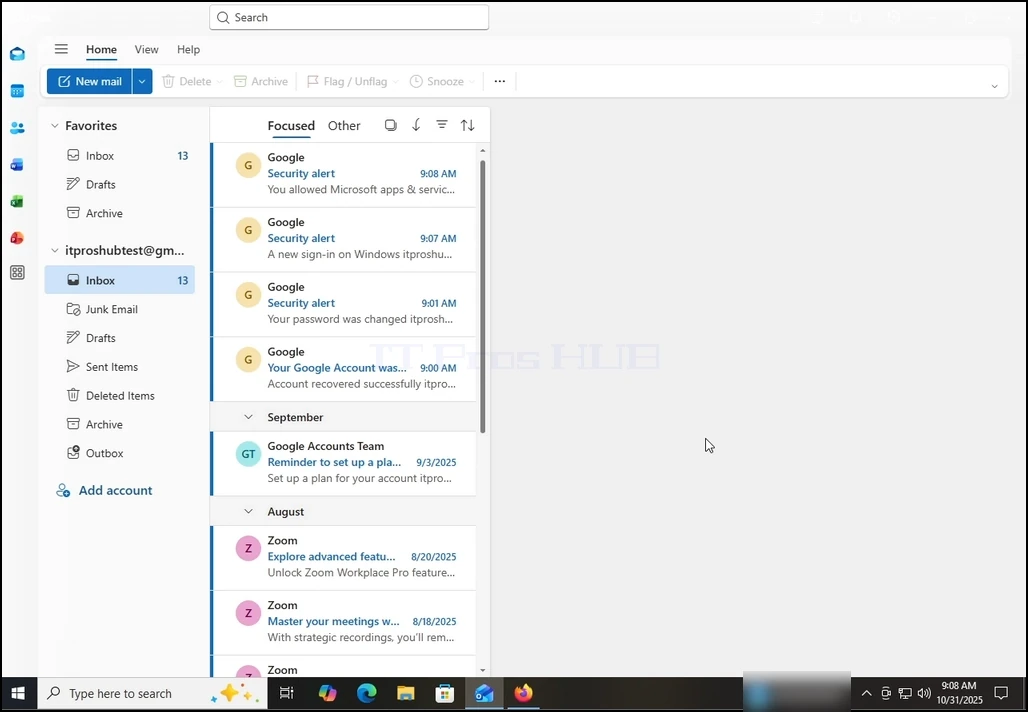
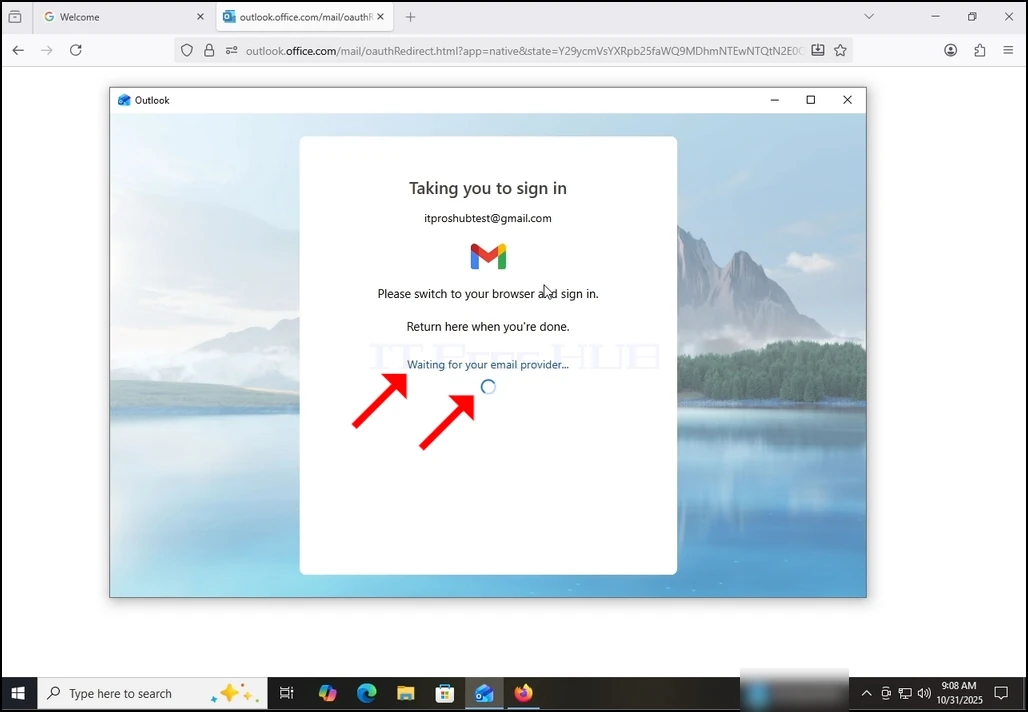
16. Efter at have gjort det foregående, Outlook ville indlæse din Gmail-konto.
how-to-configure-a-gmail-account-in-microsoft-outlook-windows10-29.webphow-to-configure-a-gmail-account-in-microsoft-outlook-windows10-30.webphow-to-configure-a-gmail-account-in-microsoft-outlook-windows10-31.webphow-to-configure-a-gmail-account-in-microsoft-outlook-windows10-32.webphow-to-configure-a-gmail-account-in-microsoft-outlook-windows10-33.webp

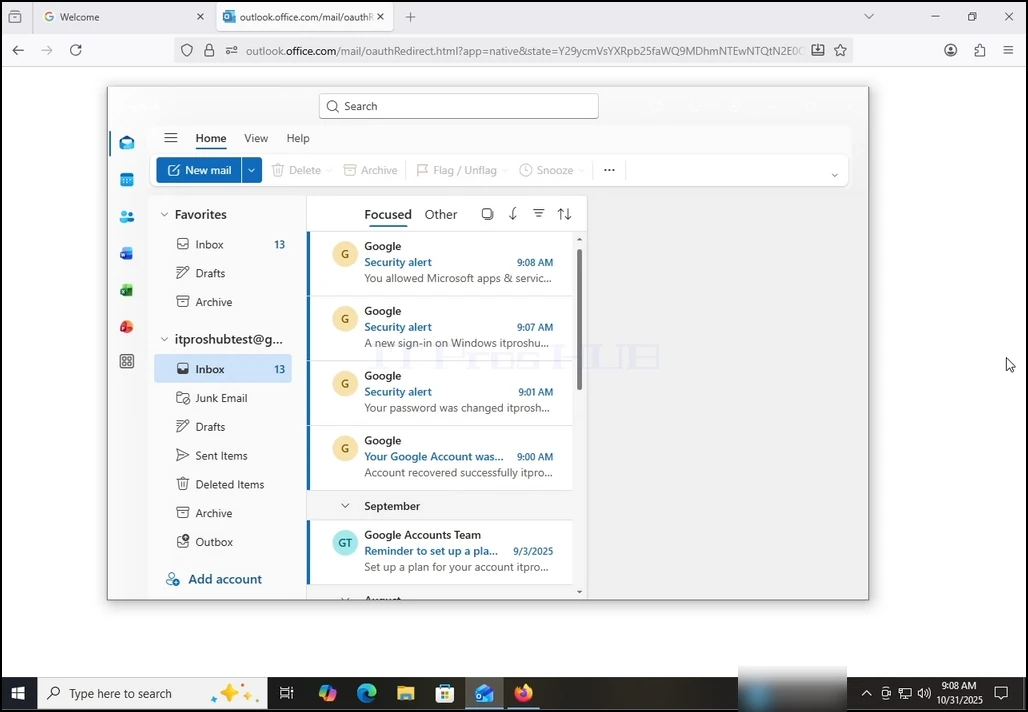
17. Færdig! din Gmail er nu konfigureret til at arbejde i Outlook!
how-to-configure-a-gmail-account-in-microsoft-outlook-windows10-34.webphow-to-configure-a-gmail-account-in-microsoft-outlook-windows10-35.webphow-to-configure-a-gmail-account-in-microsoft-outlook-windows10-36.webphow-to-configure-a-gmail-account-in-microsoft-outlook-windows10-37.webphow-to-configure-a-gmail-account-in-microsoft-outlook-windows10-42.webp